Self Pickup: Delivery Address & Tax Calculation
Mark shipping methods as self-pickup. At checkout customers see the pickup address instead of their own, optionally including tax calculation based on the pickup country.
On this page
- The Plugin
- Requirements
- Installation & Activation
- Manual Installation (ZIP Upload)
- Installation via Composer (Developers)
- Plugin Configuration
- Sales Channel Selection
- Activate plugin for this channel
- The “Documentation / Help” card
- The “Self Pickup – Configuration” card
- Customer Number for Self-Pickup Address
- Self-Pickup Shipping Methods
- Show Delivery Address in Storefront
- Tax Calculation Based on Self-Pickup Customer’s Country
- Showing the Delivery Address at Checkout
- Part A – Prepare the self-pickup address (admin)
- Requirements for the display to apply
- Part B – See it in the checkout (storefront)
- Tax Calculation Based on the Self-Pickup Country
- Requirements for the tax switch to apply
- Pickup Address on the Order
- Troubleshooting
- The plugin seems to do nothing at all
- The customer’s address is still shown at checkout
- The tax does not change
- The self-pickup customer is not found
- Settings do not apply to the right sales channel
- FAQ
The Plugin
Self Pickup – Delivery Address & Tax Calculation lets you mark selected shipping methods as self-pickup shipping methods. When a customer selects such a method at checkout, your shop no longer shows the buyer’s address as the delivery address, but the address of a pickup location you have defined – namely the default shipping address of a specific customer that you identify by their customer number.
This is handy when your goods are not shipped but handed over at a fixed location (branch, warehouse, pickup point). The customer sees directly at checkout where they can collect their order, and – if you wish – this pickup address is also written onto the order.
In addition, you can tie the tax calculation to the country of the pickup address: instead of the buyer’s tax rate, the tax rate of the country where the pickup location is located is applied.
Important: The plugin does not create its own tables and does not modify any Shopware core tables. It only uses existing customer data (the default shipping address of the pickup customer you choose) and the plugin configuration. All actions only apply when a self-pickup shipping method is actually selected – for every other shipping method your shop behaves unchanged.
Requirements
To ensure that the plugin works completely and with all new features, the latest available Shopware version is required.
| Requirement | Recommendation |
|---|---|
| Shopware | Latest available version |
| PHP | 8.2 or newer |
| MySQL / MariaDB | 8.0 / 10.4 or newer |
| Storefront | Standard Storefront (the plugin extends the checkout confirm page) |
For the features to take effect you also need:
- a customer in the shop whose default shipping address serves as the pickup address (e.g. an internal customer “Branch Zeitz”), including a complete address and country, and
- at least one shipping method that you mark as self-pickup.
Installation & Activation
Manual Installation (ZIP Upload)
- Log in to the Shopware Administration (
YourShop.com/admin) - Navigate to Extensions → My extensions
- Click Upload extension and select the plugin’s ZIP file
- Click Install next to Self Pickup – Delivery Address & Tax Calculation and then Activate
 The plugin – installed and active in the extensions list
Installation via Composer (Developers)
composer require swp/self-pickup-six
bin/console plugin:refresh
bin/console plugin:install SwpSelfPickupSix --activate
bin/console cache:clear
After installation the configuration options are immediately available to you.
Plugin Configuration
You can find the plugin settings under Settings → Extensions → Self Pickup – Delivery Address & Tax Calculation. Alternatively, open the configuration via Extensions → My extensions by clicking the three dots (⋯) next to the plugin and choosing Configuration. At the very top are the sales channel selector and – directly beneath it – the master switch “Activate plugin for this channel”. Below that follow the “Documentation / Help” card and the “Self Pickup – Configuration” card.
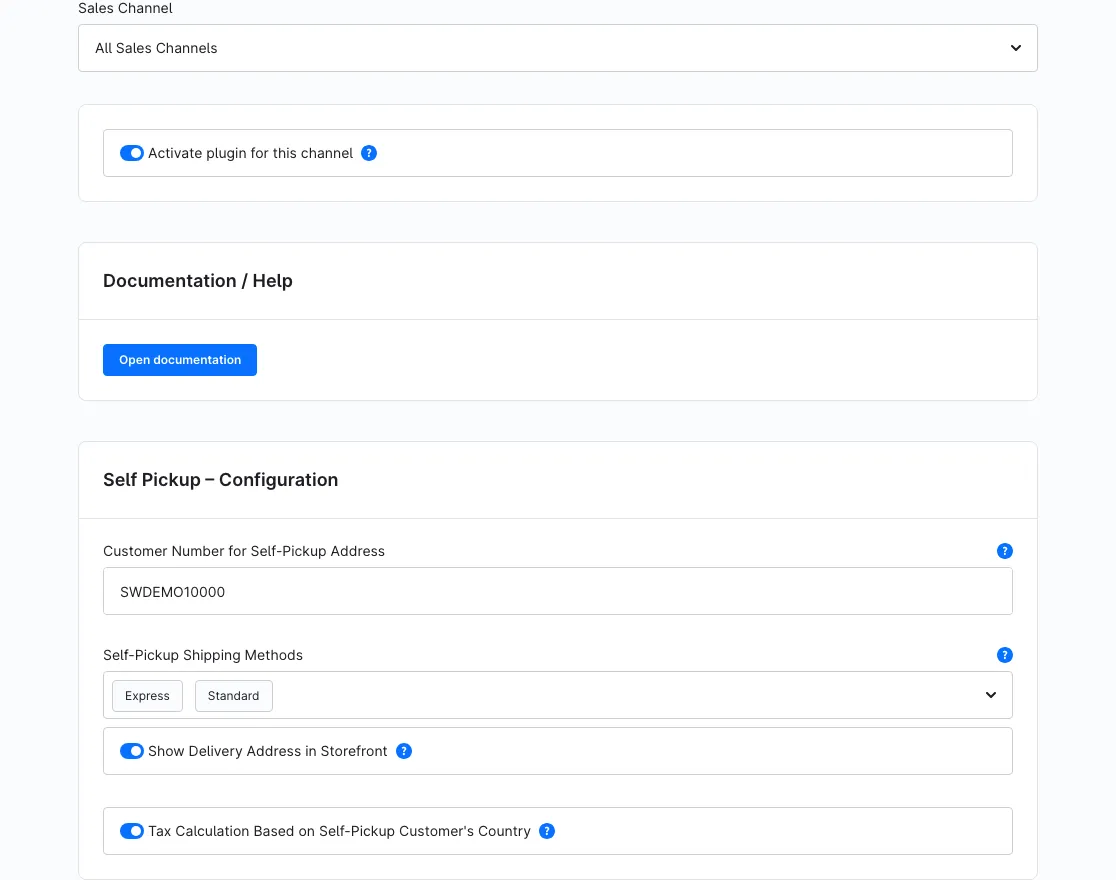 The full configuration page: sales channel selector, the activation switch beneath it, then “Documentation / Help” and “Self Pickup – Configuration”
Sales Channel Selection
At the very top you can use the sales channel selector to choose the sales channel the settings should apply to. This lets you define separate values per channel. If you select “All Sales Channels”, the value acts as the global default.
Activate plugin for this channel
Directly beneath the sales channel selector you’ll find the plugin’s master switch.
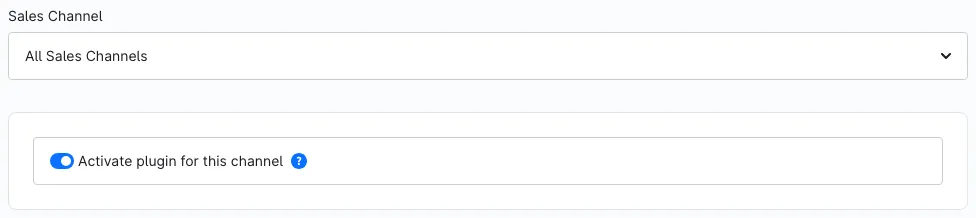 The “Activate plugin for this channel” switch directly beneath the sales channel selector
This is the plugin’s master switch. When it is on, all self-pickup features work for the sales channel selected above (address display, tax calculation and transfer of the pickup address onto the order). When you switch it off, the plugin is completely disabled for the selected sales channel – regardless of every other setting. Use the sales channel selector at the top to set this per channel. After installation the switch is on by default.
The “Documentation / Help” card
The “Open documentation” button opens this user manual directly. It opens the manual in the language matching your administration UI: if your backend is set to German, the German manual opens, otherwise the English one.
The “Self Pickup – Configuration” card
This card holds the actual self-pickup settings.
Customer Number for Self-Pickup Address
In the Customer Number for Self-Pickup Address text field, enter the customer number of the customer whose default shipping address should be used as the pickup address. The plugin looks up this customer by their customer number and reads their stored default shipping address (including country). This field is the basic requirement for every feature: if it is empty, the plugin stays completely inactive.
Tip: It’s best to create a dedicated customer for each pickup location (e.g. “Pickup Branch Zeitz”). You’ll find the customer number in the customer overview under Customers. It is essential that this customer has a default shipping address.
Self-Pickup Shipping Methods
In the Self-Pickup Shipping Methods multi-select, choose one or more shipping methods that should count as self-pickup. Only when one of these shipping methods is selected at checkout do the self-pickup features apply (address display, tax calculation, transfer to the order). The list shows all shipping methods available in the shop, sorted alphabetically. As long as nothing is selected here, the plugin has no effect.
Show Delivery Address in Storefront
The Show Delivery Address in Storefront toggle controls whether the checkout (confirm page) shows the pickup customer’s pickup address instead of the buyer’s delivery address – together with an informational notice. When the toggle is off (the default after installation), the checkout display remains unchanged. See Showing the Delivery Address at Checkout for details.
Tax Calculation Based on Self-Pickup Customer’s Country
The Tax Calculation Based on Self-Pickup Customer’s Country toggle controls whether taxes at checkout are calculated based on the country of the pickup address – instead of the buyer’s country. When the toggle is off (the default after installation), the usual Shopware tax calculation applies. See Tax Calculation Based on the Self-Pickup Country for details and the legal note.
Note on interplay: The two toggles work independently. The address display is controlled by 4.3, the tax calculation by 4.4. The transfer of the pickup address onto the finalized order (see Pickup Address on the Order), by contrast, already happens as soon as a self-pickup shipping method is selected and a valid pickup address is found – independently of the two toggles.
Showing the Delivery Address at Checkout
What this feature does: On the checkout confirm page the plugin replaces the displayed delivery address with the pickup address of the self-pickup customer stored in the configuration and shows a notice that the order will be made available for collection.
This section walks you through the complete path to the goal – the self-pickup delivery address appearing on the checkout confirm page. It comes in two parts: first you prepare the pickup address in the administration (Part A), then you see the result in the storefront checkout (Part B).
Tip: A silent demo video of exactly this flow is available separately – one cut with the English admin UI and one with the German admin UI – as part of the plugin’s video deliverables. It is not embedded here, but it walks through the same steps shown below.
Part A – Prepare the self-pickup address (admin)
Open the plugin configuration under Settings → Extensions → Self Pickup – Delivery Address & Tax Calculation and make sure the correct sales channel is selected at the top (see Plugin Configuration).
Step 1 – Enter the customer number
What to do: In the “Self Pickup – Configuration” card, type the customer number of your pickup customer into the field “Customer Number for Self-Pickup Address” (Customer Number for Self-Pickup Address). In our example this is SWDEMO10000. This number is how the plugin identifies which customer’s default shipping address becomes the pickup address.
What you should now see: The customer number field filled with your value.
 Step 1: the customer number of the pickup customer entered (SWDEMO10000)
Step 2 – Select the self-pickup shipping method(s)
What to do: In the “Self-Pickup Shipping Methods” multi-select (Self-Pickup Shipping Methods), pick every shipping method that should count as self-pickup. Here we mark “Standard” and “Express”.
What you should now see: The chosen shipping methods listed as selected tags in the field.
 Step 2: “Standard” and “Express” marked as self-pickup shipping methods
Step 3 – Switch “Show Delivery Address in Storefront” on
What to do: Turn the toggle “Show Delivery Address in Storefront” (Show Delivery Address in Storefront) on. This is the switch that makes the pickup address appear at checkout. The tax toggle beneath it stays independent – see Tax Calculation Based on the Self-Pickup Country.
What you should now see: The toggle in the on position.
 Step 3: the “Show Delivery Address in Storefront” toggle switched on
Step 4 – Where the address comes from
What to do: Nothing to configure here – this step just shows the source of the address. Open the pickup customer (the customer number from Step 1) under Customers and look at the “Default shipping address” card. Exactly this address – in our example Max Mustermann, Musterstraße 1, 12345 Musterstadt, Germany – is what the plugin will display at checkout.
What you should now see: The pickup customer’s default shipping address.
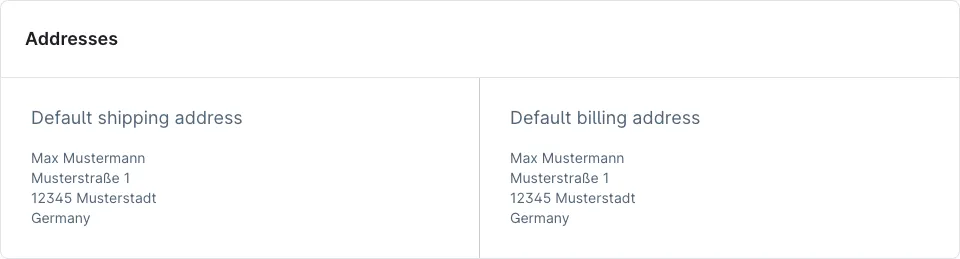 Step 4: the pickup customer’s default shipping address – the source of the pickup address
Requirements for the display to apply
Before you move to the storefront, make sure all of the following conditions are met:
- The master switch “Activate plugin for this channel” is on for the sales channel.
- The toggle “Show Delivery Address in Storefront” (Show Delivery Address in Storefront) is on (Step 3).
- A shipping method marked as self-pickup is selected at checkout (Self-Pickup Shipping Methods, Step 2).
- The stored customer number (Customer Number for Self-Pickup Address) points to an existing customer with a default shipping address (Steps 1 and 4).
If one of these conditions is not met, the checkout shows the buyer’s normal delivery address – without any error.
Part B – See it in the checkout (storefront)
Now switch to the storefront and place a test order up to the confirm page.
Step 5 – Add a product to the cart
What to do: Open any product in the storefront and click “Add to shopping cart”.
What you should now see: A confirmation that the product was added to the cart.
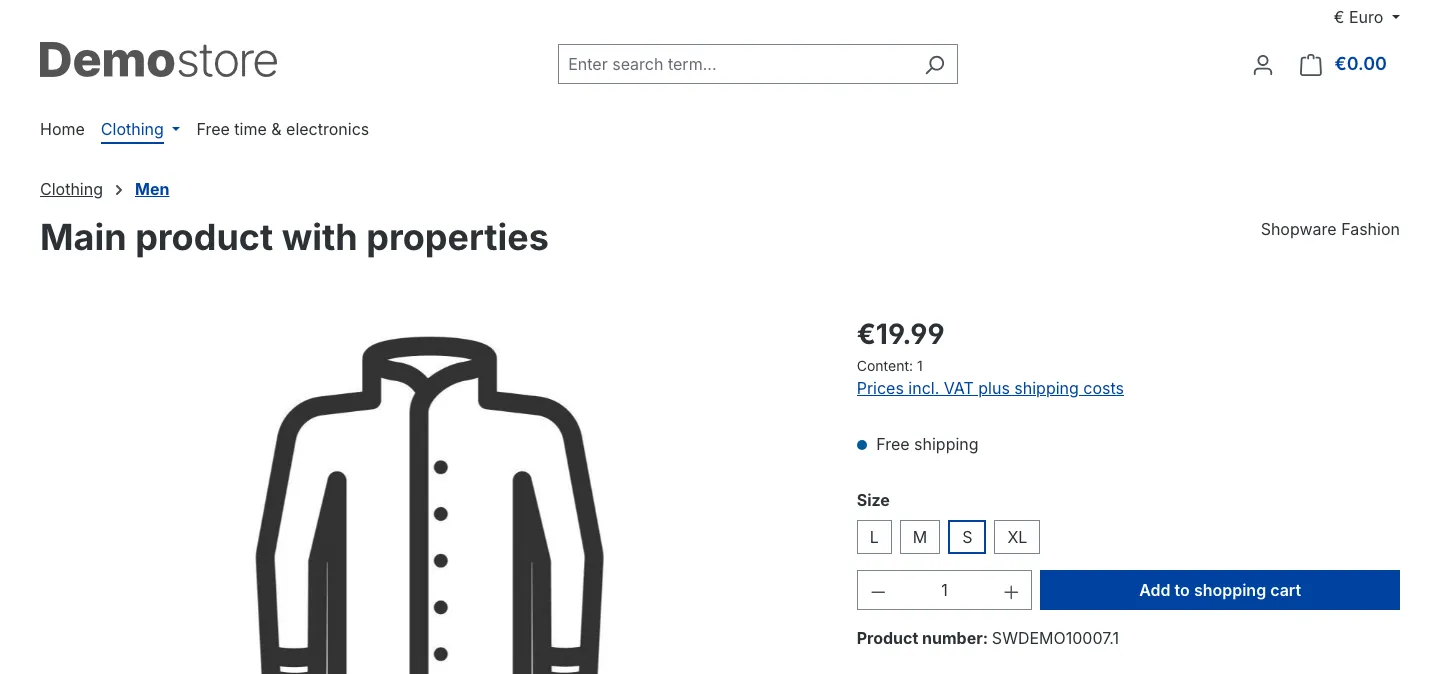 Step 5: adding a product to the cart from the product detail page
Step 6 – Open the cart and go to checkout
What to do: Open the off-canvas cart and click “Go to checkout”. Complete the login and address step as usual until you reach the confirm page.
What you should now see: The off-canvas cart with your product and the checkout button.
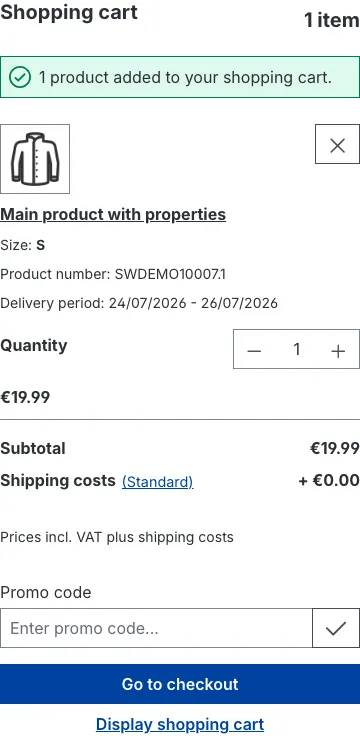 Step 6: the off-canvas cart with “Go to checkout”
Step 7 – Select the self-pickup shipping method (the trigger)
What to do: On the confirm page, choose one of the shipping methods you marked as self-pickup in Step 2 – here “Standard”. This selection is the trigger for the whole feature.
What you should now see: The self-pickup shipping method selected in the shipping method list.
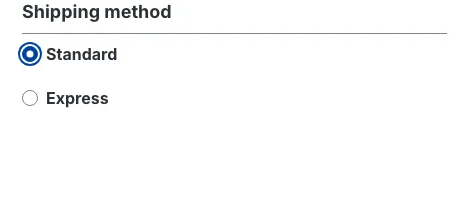 Step 7: the self-pickup shipping method “Standard” selected on the confirm page
Step 8 – The pickup address and notice appear (the goal)
What to do: Nothing more – as soon as the self-pickup method is selected, the plugin does the rest.
What you should now see: The buyer’s delivery address is replaced by the pickup address, together with the notice “You have selected a self-pickup shipping method. Your order will be ready for collection at the following address.” This is the goal of this section.
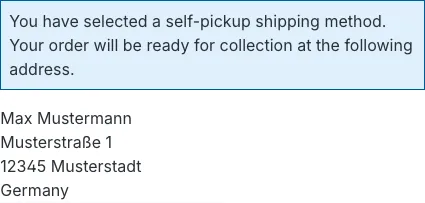 Step 8: close-up – the pickup notice and pickup address replace the buyer’s address
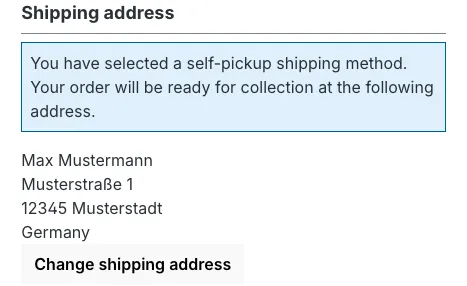 The full confirm page for context: self-pickup notice and the stored pickup address
From here the same self-pickup selection also feeds the two follow-up features: the tax calculation can be tied to the pickup country (see Tax Calculation Based on the Self-Pickup Country), and when the order is placed the pickup address is written onto the order as its delivery address (see Pickup Address on the Order).
Tax Calculation Based on the Self-Pickup Country
What this feature does: When the toggle “Tax Calculation Based on Self-Pickup Customer’s Country” (Tax Calculation Based on Self-Pickup Customer’s Country) is on and a self-pickup shipping method is selected, the plugin calculates taxes based on the country of the pickup address. For example, a pickup in Austria applies the Austrian tax rate (20%) instead of the German one (19%).
Requirements for the tax switch to apply
- The master switch “Activate plugin for this channel” is on for the sales channel.
- The toggle “Tax Calculation Based on Self-Pickup Customer’s Country” is on.
- A shipping method marked as self-pickup is selected at checkout.
- The stored customer number points to a customer with a default shipping address whose country is set.
- A matching tax rule exists in Shopware for that country.
Legal Notice: The correct tax treatment of self-pickup orders depends on your individual situation (e.g. place of delivery, the VAT law of the respective country). Please clarify the appropriate configuration for you with your tax advisor. The plugin merely provides the technical option to tie the tax rate to the country of the pickup address.
Note: If the pickup country and the customer’s country are in the same tax zone, there is no visible difference in the calculation – the feature is active but does not change the displayed prices.
Pickup Address on the Order
What this feature does: When the order is placed, the plugin transfers the pickup address as the order’s delivery address. As a result, the pickup address is permanently stored on the order and appears in the administration as well as on generated documents (e.g. delivery note).
Important to know:
- Only the delivery address (shipping address) is replaced. The buyer’s billing address remains unchanged.
- The transfer only happens at the original order placement, not during a later recalculation of an existing order in the administration. This prevents a later edit from unintentionally overwriting the address.
- This transfer already applies as soon as the master switch “Activate plugin for this channel” is on, a self-pickup shipping method is selected and a valid pickup address is found – independently of the two toggles from Show Delivery Address in Storefront and Tax Calculation Based on Self-Pickup Customer’s Country.
Note: If you do not want the pickup address to be transferred onto the order, remove the relevant shipping method from the list of self-pickup shipping methods or clear the customer number.
Troubleshooting
The plugin seems to do nothing at all
Cause: The master switch “Activate plugin for this channel” is off for the sales channel in question.
Solution: Open the plugin configuration, select the correct sales channel at the top and switch “Activate plugin for this channel” on – you’ll find it directly beneath the sales channel selector. When this switch is off, all self-pickup features are disabled for that channel.
The customer’s address is still shown at checkout
Cause: One of the requirements from Showing the Delivery Address at Checkout is not met.
Solution:
- Check whether the master switch “Activate plugin for this channel” is on.
- Check whether the toggle “Show Delivery Address in Storefront” is on.
- Check whether the shipping method selected at checkout is included in “Self-Pickup Shipping Methods”.
- Check whether the customer number is correct and the customer has a default shipping address.
- Then clear the cache:
bin/console cache:clear
The tax does not change
Cause: The tax toggle is off, the shipping method is not a self-pickup method, no tax rule exists for the pickup country, or pickup country and buyer country are in the same tax zone.
Solution:
- Enable “Tax Calculation Based on Self-Pickup Customer’s Country”.
- Make sure the pickup address has a country set and that a tax rule exists for it.
- Note that with an identical tax zone there is no visible difference.
The self-pickup customer is not found
Cause: The customer number is wrong, or the customer has no default shipping address.
Solution: Open the customer under Customers, check the customer number and set a default shipping address. In this case the plugin behaves unobtrusively (it shows the normal address) and writes a note to the shop log.
Settings do not apply to the right sales channel
Cause: The values were set for a different sales channel.
Solution: Watch the sales channel selector at the top of the configuration card and set the values for the appropriate channel (or “All Sales Channels”).
FAQ
Q: Do I have to create a real customer for the pickup address?
A: Yes. The plugin reads the pickup address from the default shipping address of a customer that you identify by their customer number. It’s best to create a dedicated customer per pickup location.
Q: Can I mark multiple shipping methods as self-pickup?
A: Yes. The “Self-Pickup Shipping Methods” field is a multi-select – you can add as many shipping methods as you like.
Q: Is the customer’s billing address replaced as well?
A: No. Only the delivery/shipping address is replaced. The buyer’s billing address is always preserved.
Q: Does the plugin change existing orders?
A: No. The pickup address is only transferred at the original order placement. A later recalculation of an existing order in the administration leaves the address untouched.
Q: Can I enable the address display without switching the tax (or vice versa)?
A: Yes. Both toggles are independent. You can, for example, only show the address and keep the usual tax calculation.
Q: What happens if the customer number is empty?
A: Then the plugin stays completely inactive – your shop behaves exactly as it would without the plugin.
Q: Does the plugin modify Shopware tables?
A: No. It creates no tables of its own and modifies no core tables. It uses existing customer data and the plugin configuration.
Q: Can I use the plugin only for certain sales channels?
A: Yes. Select the desired sales channel at the top of the configuration and set “Activate plugin for this channel” on or off. This way you can enable or disable the self-pickup features per channel. After installation the switch is on by default.
Q: In which language does the documentation open?
A: The “Open documentation” button opens the manual matching your administration language: German backend → German manual, otherwise the English one.
Need a team that keeps your shop running?
We have been maintaining Shopware shops for more than 20 years, including updates, hotfixes and the plugins you are configuring right now.