
Resource calculation: Goldmarkt rate import
Resource calculation without retyping rates: the plugin fetches the Goldmarkt rate list with your access data on your schedule and writes the rates into the resource calculation.
On this page
- Introduction
- What this plugin does for you
- Who is this plugin for?
- What you need beforehand
- Installation
- Getting started
- Settings
- Rate import
- Access data
- How to use the functions
- How to fetch rates automatically
- How to start a fetch manually
- How to check the imported rates
- How new rates reach your product prices
- What happens to invalid or incomplete rates
- How to pause fetching
- When you update from an older version
- Troubleshooting
- The rates do not change
- The manual fetch reports that fetching is switched off
- The manual fetch reports incomplete access data
- The connection to Goldmarkt fails
- The answer is not a rate list
- A rate stays at its old value
- The fetch reports that no rate was written
- A second row has appeared for a rate
- The product prices do not change after the import
- The new fetch interval does not take effect immediately
- The button “Open documentation” is missing
- FAQ
- For administrators / Technical details
- System requirements
- Installation via the command line
- Fetching on the console and via cron job
- Scheduled task
- Calling the interface
- Expected answer format and how the resource code is formed
- Writing to the resource rates
- Log files
- Messages of a manual fetch
- Updating from an older version
- Uninstalling
Introduction
Resource calculation: Goldmarkt rate import fetches the Goldmarkt rate list with your access data and writes the rates into the resource rates of your resource calculation. You no longer have to type rates in by hand.
What this plugin does for you
- You enter your access data once. After that, the plugin fetches the rates regularly, at an interval you choose.
- You can also start a fetch manually at any time, for example to check right after setting up that everything works.
- If you keep the same rate in several customer types, every one of these rows gets the new rate. You maintain nothing twice. Customer types with their own fetch interval get their rates at their pace, down to below one minute if you like.
- An obviously wrong rate (0, negative or not a number) is not taken over. Your last stored rate then stays in place.
- As long as you do not switch fetching on, the plugin makes no contact with Goldmarkt.
- If you also use the plugin Product buyback, the buyback price follows the imported rate as well.
Who is this plugin for?
For shop owners who calculate their product prices from commodity rates with the plugin Resource calculation and have access to the Goldmarkt interface.
What you need beforehand
- The plugin Resource calculation, installed and active. The rate import writes its rates into its resource rates and does not work without it.
- Access data for the Goldmarkt interface: interface URL, user name and password. You get these from Goldmarkt.
- For automatic fetching: a server on which Shopware’s scheduled tasks run in the background. Your hosting provider or your technical administrator knows whether this is the case for you (details in For administrators / Technical details).
Installation
After purchase, the plugin is available directly in your Administration — you do not need to download anything.
First install and activate Resource calculation, if you have not done so yet. The rate import requires it.
-
Log in to your Shopware Administration (
yourshop.com/admin) -
Open Extensions → My extensions
-
Next to Resource calculation: Goldmarkt rate import, click Install
-
Activate the plugin using the switch next to the entry — done.
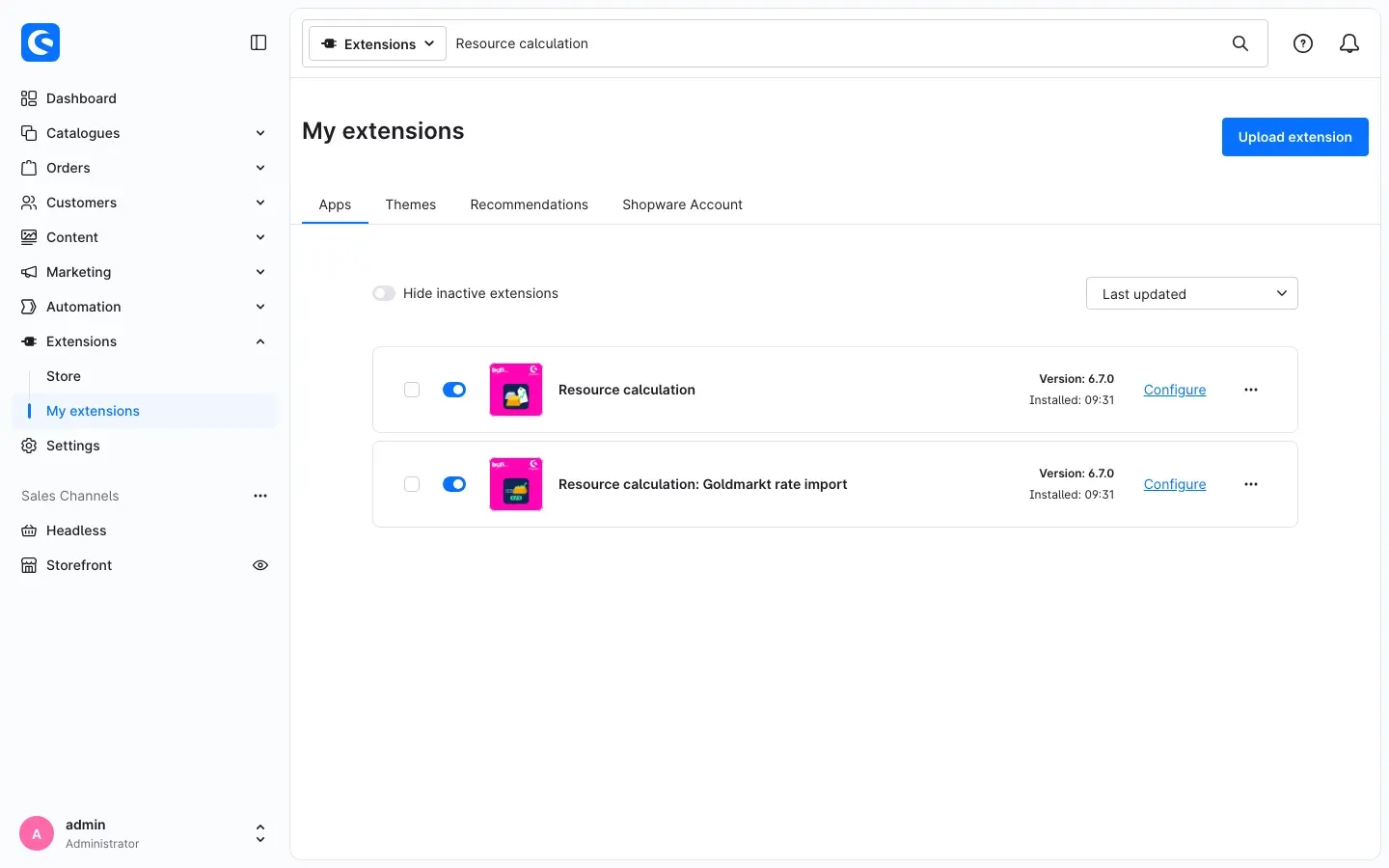 Fig. 1: My extensions, search for “Resource calculation”: Resource calculation and the rate import are installed and active.
The plugins are listed on the Apps tab. If you type “Resource calculation” into the search at the top, you see both plugins one below the other. Later on, Configure next to the entry takes you to the settings.
After installation, fetching is switched off. The plugin therefore does not connect to Goldmarkt yet. That only happens once you switch on Fetch rates from Goldmarkt in the settings (see Getting started).
If Resource calculation: Goldmarkt rate import does not appear in the list, your Shopware account is not yet connected to the shop. You do this under Extensions → My extensions on the Shopware Account tab by logging in with your Shopware account.
Getting started
This is how you get the first rates into your shop:
- Open the settings: Open Extensions → My extensions and click Configure next to Resource calculation: Goldmarkt rate import.
- Enter the access data: Under the heading Access data, enter the Interface URL, the User name and the Password you received from Goldmarkt.
- Switch fetching on: Under the heading Rate import, switch on Fetch rates from Goldmarkt. Check the Fetch interval (minutes). By default it is set to 15 minutes.
- Save: Click Save at the top right.
- Check the result: Open Catalogues → Resource calculation → Resource rates. For the imported rates, the column Current rate shows the new value and the column Last changed shows when the fetch took place.
Shopware starts the first fetch with the next run of the scheduled task. If you do not want to wait, have the fetch started manually once (see How to start a fetch manually). The output shows you straight away whether everything worked.
Settings
To open the settings, go to Extensions → My extensions and click Configure next to Resource calculation: Goldmarkt rate import. They are split across two headings: Rate import and Access data. Click Save at the top right after every change.
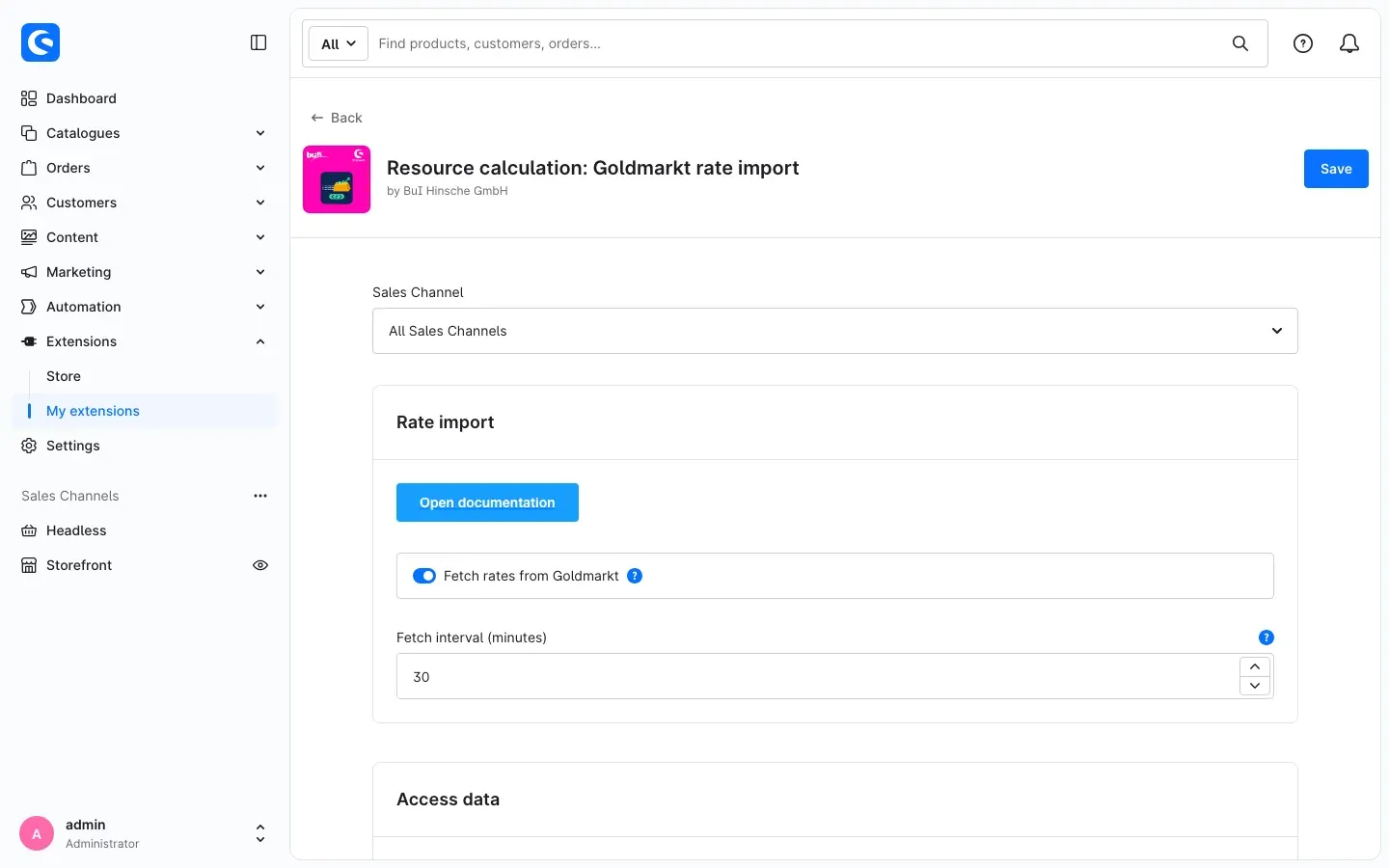 Fig. 2: Configuration page: the Sales Channel selection at the top, below it the settings under Rate import.
The settings apply to the whole shop. The rates of the resource calculation apply to all sales channels, so the plugin reads its settings without reference to a sales channel. Above the settings you still find the selection Sales Channel. You do not need it here: leave it on All Sales Channels and enter your settings there. Values you store for a single sales channel only are ignored by the plugin.
Rate import
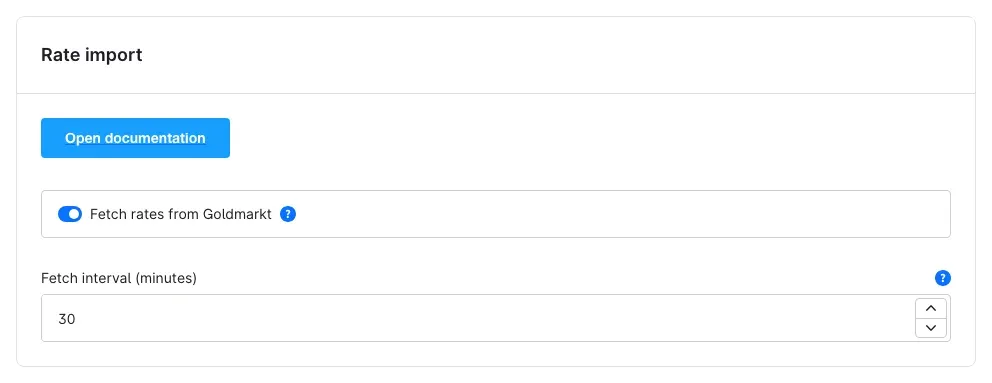 Fig. 3: Under Rate import: Open documentation, Fetch rates from Goldmarkt and Fetch interval (minutes).
Open documentation
At the very top, under the heading Rate import, you find the button Open documentation. It opens this manual in a new browser tab, in the language you are currently using the Administration in.
Why this is useful: You have the manual at hand exactly where you change the settings.
Fetch rates from Goldmarkt
With Fetch rates from Goldmarkt you decide whether the plugin contacts Goldmarkt at all. When it is switched on, both the automatic fetch and the manual fetch connect to Goldmarkt with your access data. When it is switched off, no connection is made. After installation, the switch is off.
The help text behind the question mark at the switch adds: “Rates apply to all sales channels.”
Why this is useful: You can first enter all access data at your own pace and only switch fetching on once everything is correct. If you want to pause fetching for a while, for example during a changeover, you switch it off here. Your access data stays stored.
Fetch interval (minutes)
With Fetch interval (minutes) you set how often the plugin fetches the rates automatically. You can enter a value between 5 and 1440 minutes. The default is 15 minutes. The help text behind the question mark at the field says: “A change applies from the run after the next one. Requires a running scheduled task worker.”
A worker is a background process on your server that carries out Shopware’s scheduled tasks. If it is not running, no automatic fetch takes place. Check with your hosting provider or your technical administrator whether it is running.
The interval only applies to the automatic fetch. A manual fetch runs immediately.
Why this is useful: You match the rhythm to your needs. 60 minutes means hourly, 1440 minutes means once a day. A shorter interval keeps your rates closer to the market, a longer one creates fewer requests.
Fetch interval per customer type
The resource calculation can hold its own Fetch interval (seconds) for single customer types (Catalogues → Resource calculation → Customer types). This plugin then fetches the rates of such a customer type at the interval entered there; all other customer types get their rates at the interval here. The scheduled task then runs at the shortest of these intervals, at most every 5 minutes.
For intervals below 5 minutes, your IT team starts the command resourcecalc:goldmarkt:import every minute through a system cron job:
* * * * * cd /path/to/store && php bin/console resourcecalc:goldmarkt:importThe command then fetches all rates that become due within the minute — several times for intervals below one minute. Command and scheduled task share the schedule: each rate is fetched only once per interval, whichever way runs. If nothing is due, the command ends at once with a notice. With php bin/console resourcecalc:goldmarkt:import --force you fetch the rates for all customer types at once.
Access data
Under the heading Access data you enter what you received from Goldmarkt.
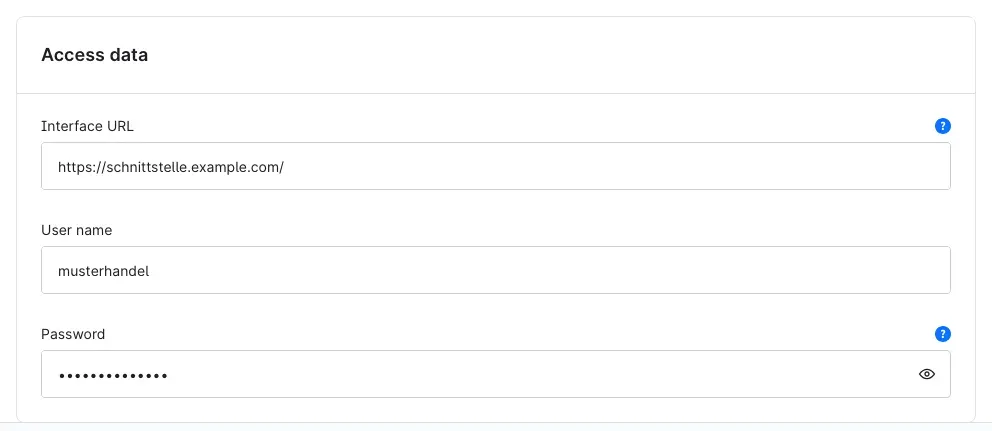 Fig. 4: Under Access data, shown here with example values. You get your interface URL, user name and password from Goldmarkt.
Interface URL
In Interface URL you enter the address of the Goldmarkt interface, without parameters. The plugin adds whatever it needs for the fetch itself.
- If you write the address without
https://orhttp://in front, the plugin automatically useshttps://, which means an encrypted connection. - Only enter
http://if Goldmarkt offers the interface unencrypted only. In that case, the user name and password are transmitted unencrypted as well. - Do not put the user name and password into the address, but into the two fields below. The plugin does not use an address that contains access data.
Why this is useful: With the correct address, the plugin knows where to collect the rate list.
User name
In User name you enter the user name for the Goldmarkt interface.
Password
In Password you enter the matching password. The Administration shows it masked. You can use the eye icon in the field to show it for checking. However, it is stored in plain text in your shop’s settings. Anyone with access to your shop’s database can therefore read it. The plugin never writes the password to the log file.
Why this is useful: Only with interface URL, user name and password together can the plugin collect the rate list. If one of the three is missing, it fetches nothing.
How to use the functions
How to fetch rates automatically
What this gives you: Your rates stay up to date without you having to think about it.
The automatic fetch is handled by a scheduled task. This is a process that Shopware starts regularly in the background.
Step by step
- Open Extensions → My extensions and click Configure next to Resource calculation: Goldmarkt rate import
- Check that all three entries under Access data are filled in.
- Switch on Fetch rates from Goldmarkt.
- In Fetch interval (minutes), enter how often the rates should come in.
- Click Save at the top right
From now on, the plugin fetches the rates at the interval you set. Every fetch writes a short summary to the plugin’s log file (see For administrators / Technical details).
Important: The automatic fetch needs a running worker for scheduled tasks on your server. Without it, no fetch takes place, even if all settings are correct.
How to start a fetch manually
What this gives you: You see immediately whether your access data works and which rates were taken over, without waiting for the next automatic fetch.
You start a manual fetch on your server’s command line. If you do not have access to it yourself, ask your hosting provider or technical administrator. The command is:
bin/console resourcecalc:goldmarkt:importFetch rates from Goldmarkt must be switched on for a manual fetch as well. If the switch is off, the command makes no connection and says so.
After a successful fetch, the command shows three entries:
- Updated codes: the resource codes whose rate was updated
- Created codes: the resource codes that were newly created in your resource rates
- Discarded quotes: how many rates were not taken over because of an invalid value
You find the other messages of the command and what they mean in For administrators / Technical details.
Tip: The command is also suitable for your own cron job, that is, a scheduled job on the server. In older versions it was called
resourcecalcgoldmarkt:cron. This name still works.
How to check the imported rates
What this gives you: You see at a glance which rates have arrived and when.
Step by step
- Go to Catalogues → Resource calculation → Resource rates
- Look at the columns Resource name, Resource code, Current rate and Last changed.
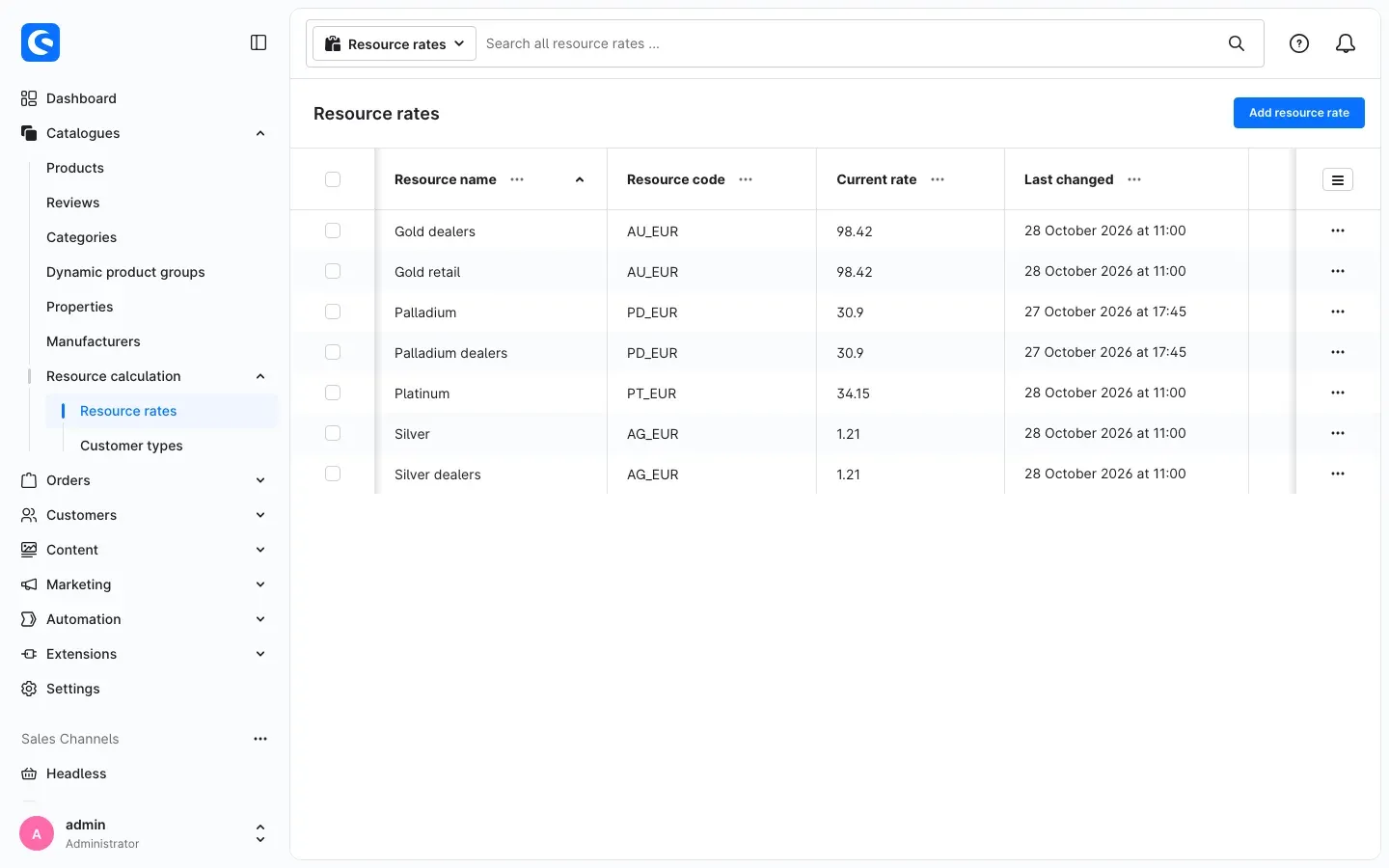 Fig. 5: Resource rates after a fetch, with Resource name, Resource code, Current rate and Last changed.
This is how the import assigns the rates:
- For every entry in the rate list, the plugin forms a resource code from the entry’s code and its currency, for example
AU_EUR. - Every row of your resource rates with exactly this resource code gets the new rate, the currency and the time of the change. This applies in every customer type.
- If the resource code does not exist in your resource rates yet, the import creates it once in the default customer type. It takes the name from the rate list as the resource name, and the same value as the resource code as the internal code.
Tip: The import recognises a row by its resource code alone. If you already maintain a rate under a different resource code, the import leaves that row unchanged and creates an additional one. After the first fetch, check which rows have been added and compare them with your existing resource rates. A manual fetch shows you which resource codes were newly created under Created codes.
Tip: If you need a newly created rate in another customer type as well, use Add resource rate in the resource rates to create a row with that Customer type and the same Code, and fill in the remaining details as usual. From the next fetch on, this row gets the rate too.
Tip: Take a look at newly created rows once and add what your price calculation needs, for example whether it is a currency (Is a currency).
How new rates reach your product prices
What this gives you: You know where a new rate turns into a new product price.
The rate import only writes the rates into the resource rates. The prices stored in the products are updated by the command resourcecalc:cron of the resource calculation. The rate import does not start this command itself.
If you also use the plugin Product buyback, the buyback price follows the imported rate as well. The rate import itself does not need Product buyback.
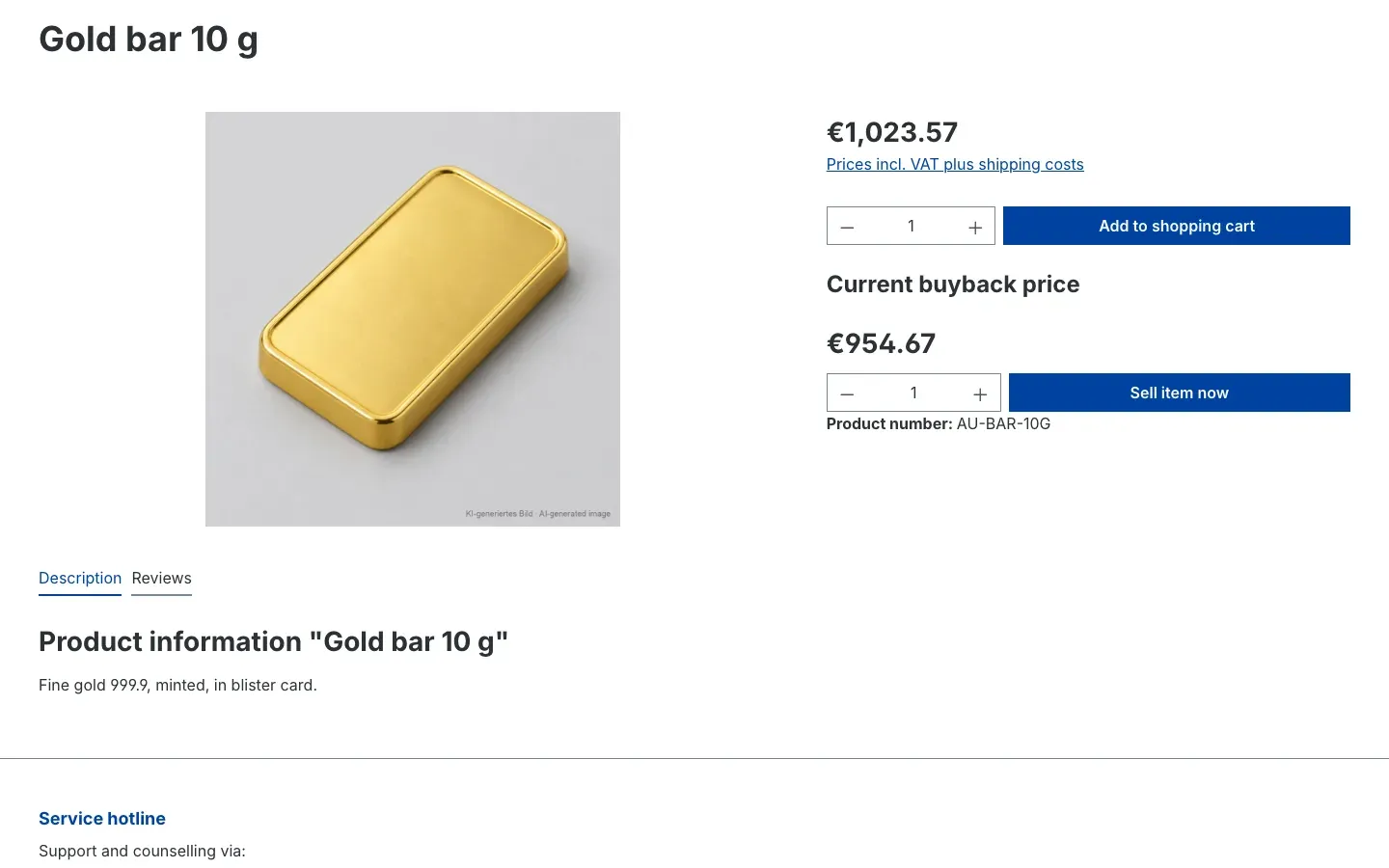 Fig. 6: Example product “Gold bar 10 g”: the selling price (Resource calculation) and the price under “Current buyback price” (Product buyback) are based on the imported gold rate.
What happens to invalid or incomplete rates
What this gives you: A faulty value in the rate list does not become a faulty rate in your shop.
- Invalid rate: If a rate is 0, negative or not a number, the import does not take it over. The last stored rate stays in place until a valid value comes in. A manual fetch shows the number under Discarded quotes.
- Incomplete entry: If an entry in the rate list has no code or no currency, the plugin skips it and notes this in its log file.
- Shop currencies: The import does not change your shop’s currencies.
Fig. 5 in How to check the imported rates shows an example: the two rows with the resource code PD_EUR (Palladium and Palladium dealers) still show the previous day under Last changed. The import discarded their delivered rate of 0, and their stored rate stayed in place. The fetch updated all other rows.
How to pause fetching
What this gives you: You stop fetching without deleting access data or deactivating the plugin.
- Open Extensions → My extensions and click Configure next to Resource calculation: Goldmarkt rate import
- Switch off Fetch rates from Goldmarkt.
- Click Save at the top right
From now on, the plugin no longer connects to Goldmarkt, neither automatically nor manually. Your resource rates remain unchanged. To resume, switch it back on.
When you update from an older version
What this gives you: Your existing fetch keeps running after the update without any new setup.
- Your access data is kept.
- If an interface URL was entered before the update, Fetch rates from Goldmarkt is switched on after the update.
- The former command name
resourcecalcgoldmarkt:cronstill works. An existing cron job does not need to be changed.
Troubleshooting
The quickest way to clear up many questions is a manual fetch (see How to start a fetch manually). Its message shows where the problem lies. The exact message texts are listed in For administrators / Technical details.
The rates do not change
Cause: Usually fetching is switched off, one of the access details is missing, or no worker for scheduled tasks is running on the server.
How to fix it:
- Check that Fetch rates from Goldmarkt is switched on and saved.
- Check that Interface URL, User name and Password are filled in.
- Start a manual fetch once. If it works there, the worker for scheduled tasks is probably not running. Clarify this with your hosting provider or technical administrator.
The manual fetch reports that fetching is switched off
Cause: Fetch rates from Goldmarkt is switched off. The command did not make a connection.
How to fix it: Switch on Fetch rates from Goldmarkt, click Save and start the fetch again.
The manual fetch reports incomplete access data
Cause: One of the three entries under Access data is missing or cannot be used. The end of the message names which one.
How to fix it:
- Enter the missing detail and click Save.
- If the Interface URL is reported although it is filled in: check that it starts with
https://orhttp://, or has no protocol at all, and that it does not contain any access data.
The connection to Goldmarkt fails
Cause: The interface URL is misspelled, the access data is wrong, the other side does not answer in time, or your server is not allowed to make outgoing connections.
How to fix it:
- Compare Interface URL, User name and Password character by character with the details from Goldmarkt.
- If the error persists, pass the command’s message or the entry from the log file on to Goldmarkt or your hosting provider. Neither contains access data.
The answer is not a rate list
Cause: The address you entered returns an answer the plugin cannot read as a rate list, for example an empty answer or a web page.
How to fix it: Use the details from Goldmarkt to check whether the Interface URL is correct. Enter it without parameters; the plugin adds them itself.
A rate stays at its old value
Cause: Either the value delivered was invalid (0, negative or not a number) and was discarded, or your row carries a different resource code from the one the import forms.
How to fix it:
- Start a manual fetch and check whether rates were discarded under Discarded quotes. The details are in the log file.
- Compare the Resource code of your row with the resource codes the import forms (see How to check the imported rates).
The fetch reports that no rate was written
Cause: The connection worked, but not a single rate could be used.
How to fix it: The reasons are in the log file of the resource calculation (see For administrators / Technical details). Pass them on to Goldmarkt if needed.
A second row has appeared for a rate
Cause: The import did not find the resource code in your resource rates and therefore created it.
How to fix it: Compare the new row with your existing one and decide which one you continue to work with (see How to check the imported rates).
The product prices do not change after the import
Cause: The rate import only writes the rates. The stored product prices are updated by the command resourcecalc:cron of the resource calculation.
How to fix it: Check with your technical administrator whether and when resourcecalc:cron runs in your shop.
The new fetch interval does not take effect immediately
Cause: The scheduled task only takes over the new value at its next run. Until the new interval takes effect, one or two more fetches therefore come at the previous rhythm (details in For administrators / Technical details).
How to fix it: Nothing to do; wait for the next run. If you need the rates right away, start a manual fetch.
The button “Open documentation” is missing
Cause: The button only appears for users whose role is allowed to read plugins. If the link could not be loaded, the message “The documentation link could not be loaded.” appears.
How to fix it: Reload the page, or ask an administrator to give your role read access to plugins. You also find the address of this manual in section 8.
FAQ
Q: Do I need Resource calculation for this?
A: Yes. The plugin Resource calculation must be installed and active. The rate import writes the rates into its resource rates.
Q: Where do I get the access data?
A: You need access data for the Goldmarkt interface: interface URL, user name and password. You get these from Goldmarkt.
Q: Which rates does the plugin take over?
A: Every entry in the rate list that has a code and a currency. The plugin does not offer a selection of individual rates.
Q: Can I control the rates differently per sales channel?
A: No. The rates apply to all sales channels, and the plugin reads its settings for the whole shop.
Q: Does the import change my shop currencies?
A: No. The import only writes into the resource rates of the resource calculation.
Q: Do I need the plugin Product buyback?
A: No. If you use it, the buyback price follows the imported rate. The rate import also works without it.
Q: Which data leaves my shop?
A: Only your user name and password for the Goldmarkt interface, sent to the interface URL you enter. The plugin does not send customer, order or product data. If Fetch rates from Goldmarkt is switched off, it makes no connection.
Q: Is my password written to a log file?
A: No. The plugin never writes the password to the log file, and error messages contain no access data.
Q: Does my storefront notice anything of the plugin?
A: No. The plugin adds nothing to the storefront. It only works in the background and on the command line.
Q: What happens to my rates if I uninstall the plugin?
A: The imported rates are stored in the resource rates of the resource calculation and stay there. If you do not keep the plugin’s data when uninstalling, Shopware also removes the settings including the access data.
For administrators / Technical details
This section is intended for technical administrators. You do not need it for normal use.
System requirements
- Shopware: 6.7.7 or later (required by Resource calculation)
- PHP: 8.2 or newer
- Resource calculation: plugin
SwpResourceCalcSixin version 6.7, installed and active - Automatic fetch: a running worker for scheduled tasks, for example via
bin/console scheduled-task:runandbin/console messenger:consume - Network: outgoing connection from the server to the interface URL
Installation via the command line
If the plugin is already in the shop, install it like this:
bin/console plugin:refresh
bin/console plugin:install --activate SwpResourceCalcSix          # if not installed yet
bin/console plugin:install --activate SwpResourceCalcGoldmarktSix
bin/console cache:clear
Fetching on the console and via cron job
bin/console resourcecalc:goldmarkt:import- The former name
resourcecalcgoldmarkt:cronis an alias and still works. - Exit code
0: rates written, or fetching is switched off (warning, no connection). - Exit code
1: access data incomplete, fetch failed or no rate written. - The command also respects Fetch rates from Goldmarkt. The scheduled task keeps running independently of your own cron job, as long as fetching is switched on and the worker is running.
Example of a cron job (adjust the path to your shop):
*/15 * * * * cd /path/to/shop && bin/console resourcecalc:goldmarkt:importScheduled task
- Name:
swp.resource_calc_goldmarkt.rate_import, default interval 900 seconds (15 minutes). - On every run, the task takes over the configured Fetch interval (minutes) (5 to 1440) as its own interval. Shopware still calculates the time of the following run with the previous interval, because it read that interval before the run. The new interval therefore only applies from the run after that.
- If a run fails, Shopware schedules the next one anyway.
Calling the interface
The plugin calls the interface via GET and appends the parameters itself:
<Interface URL>?page=resources&g=<user name>&i=<password>&t=xml- Without a protocol,
https://is prepended.http://is only used if it is entered explicitly. - Protocols other than
http/https, addresses without a host and addresses with access data in the formuser:password@are rejected. The command then reports the interface URL as missing. - At most 3 redirects.
- Time limits: abort after 10 seconds without an answer, at most 30 seconds per fetch. Answers larger than 5 MB are aborted.
- Because the user name and password are part of the requested address, they may show up in access logs on the other side or of proxies. The plugin’s error messages and log file contain neither the query part of the address nor the access data.
Expected answer format and how the resource code is formed
- The plugin expects XML with one element
resourceper rate, containing the child elementscode,currencyandvalueas well as the attributetitel. - Resource code =
<code>_<currency>, for exampleAU_EUR. Resource name of newly created rows = attributetitel. valuemust be a number with a dot as decimal separator. A value that is not a number (including one with a comma as decimal separator) counts as 0 and is discarded.- Entries without
codeorcurrencyare skipped and logged with their position in the list. - An empty answer, an answer without valid XML or without a usable
resourceelement counts as “not a rate list”. Nothing is written in that case.
Writing to the resource rates
- Writing is done via the import interface of the resource calculation.
- Every row of the resource rates with the resource code receives rate, currency and change time, in every customer type.
- An unknown resource code is created once in the default customer type, with the resource name from the rate list and internal code = resource code.
- Rates that are 0, negative or not a number are discarded. The stored rate stays.
- Shop currencies are not changed.
- Product prices are not recalculated. The stored product prices are updated by the command
resourcecalc:cronof the resource calculation. The rate import does not call it.
Log files
var/log/SwpResourceCalcGoldmarktSix-<date>.log, one file per day: summary of every fetch (number of entries, updated, created and discarded resource codes with reason), connection errors with host, unreadable answers with their size, skipped entries, incomplete access data. The messages read:Goldmarkt rates importedGoldmarkt rates could not be fetchedGoldmarkt response could not be readGoldmarkt rate import skipped: access data incompleteGoldmarkt rate skipped: code or currency missing
var/log/SwpResourceCalcSix-<date>.log: discarded rates are additionally logged by the resource calculation.
Messages of a manual fetch
Fetching rates from Goldmarkt is switched off in the plugin configuration. No connection was made.— Fetch rates from Goldmarkt is off. Switch it on and save.Goldmarkt access data incomplete, missing: …— What follows names the entry that is missing or cannot be used:urlfor Interface URL,loginfor User name,passwordfor Password.Goldmarkt request to <host> failed: …— The connection could not be established, for example because of a timeout, name resolution or certificate. Check address and network.Goldmarkt (<host>) answered with HTTP status <status>— The other side answered with an error status. Check address and access data, pass the status on to Goldmarkt.Goldmarkt response is not a rate list: …— The answer is empty, not valid XML or contains no usable entry. What follows is the reason, for exampleempty response,no resource elements,no resource element with code and currencyorno valid XML.No rate was written. Details: log file SwpResourceCalcSix of the resource calculation.— Connection fine, but no rate was usable. Reasons in the log file of the resource calculation.Goldmarkt rates imported. Product prices are stored by the command resourcecalc:cron.— Fetch successful. Above it you see Updated codes, Created codes and Discarded quotes.
Updating from an older version
- When updating from a version before 6.7.0, the access data is kept. If an interface URL was entered, Fetch rates from Goldmarkt is switched on so that fetching continues as before.
- Settings of former versions that the plugin no longer uses are removed on installation and update.
Uninstalling
The plugin has no tables of its own. On uninstallation, Shopware removes the scheduled task and, if the data is not kept, the configuration including the access data. Rates already imported remain in the resource rates of the resource calculation.
This manual was written for Resource calculation: Goldmarkt rate import version 6.7.0.
More manuals
Address Validation: House Number Check & Corrections
Address validation at the point of entry: the plugin spots missing house numbers, can suggest corrections via Google and helps you send fewer parcels that come back undeliverable.
Open manual Shopware 6Admin Password Reminder
Admin Password Reminder: your backend users renew their passwords on time, prompted after login and by a daily email. Premium locks expired accounts until the password is changed.
Open manual Shopware 6Advent Calendar | Doors with products, coupons and promotions
Advent calendar for your shopping experiences: doors open on time without clearing the cache, give nothing away in the page source and reveal coupons, products or your own content.
Open manualNeed a team that keeps your shop running?
We have been maintaining Shopware shops for more than 20 years, including updates, hotfixes and the plugins you are configuring right now.