Admin Password Reminder
Admin Password Reminder: your backend users renew their passwords on time, prompted after login and by a daily email. Premium locks expired accounts until the password is changed.
On this page
- Introduction
- What you can achieve with this plugin
- Who is this plugin for?
- Installation
- Getting Started
- Settings
- Password validity (days)
- Reminder days before expiration
- Show reminder in the administration
- Send e-mail reminders
- Enforce password change on expiration (Premium)
- Password history size (Premium)
- How to Use the Features
- How to respond to the notice after login
- How to change your password
- How to see when a user last changed their password
- How to customise the reminder email
- How to enforce the password change (Premium)
- How to prevent old passwords from being reused (Premium)
- How to exempt individual users from the enforced change (Premium)
- Troubleshooting
- The notice does not appear after login
- No reminder emails arrive
- A user shows “Password last changed: unknown”
- A new password cannot be saved
- The settings have no effect
- The plugin or its card does not appear
- FAQ
- For Administrators / Technical Details
- System requirements
- Background task for the emails
- Installation via the command line
- What the lock (Premium) covers technically
- Where the password history (Premium) applies
Introduction
Admin Password Reminder helps you keep the passwords of all users of your Shopware administration up to date — without having to keep track of it yourself.
What you can achieve with this plugin
- You define how long an admin password stays valid (90 days by default).
- After logging in to the administration, every user sees a notice when their password expires soon or has already expired — one click takes them straight to the password change.
- In addition, every affected user receives a reminder by email. You can adapt the text of this email yourself.
- On each user’s detail page you can see when the password was last changed.
- With Premium you lock the administration for users with an expired password until they have set a new one, prevent recently used passwords from being reused, and exempt individual users from the lock.
Who is this plugin for?
For shop owners and managers who have several people working in the Shopware administration and want to ensure regular password changes — for example because of internal security policies or requirements from customers and partners.
The plugin works exclusively in the administration. Your customers in the shop will not notice anything.
Installation
After your purchase, the plugin is available directly in your administration — there is nothing to download.
- Log in to your Shopware administration (
yourshop.com/admin). - Open Extensions → My extensions.
- Click Install next to Admin Password Reminder.
- Activate the plugin using the switch to the left of the entry — done.
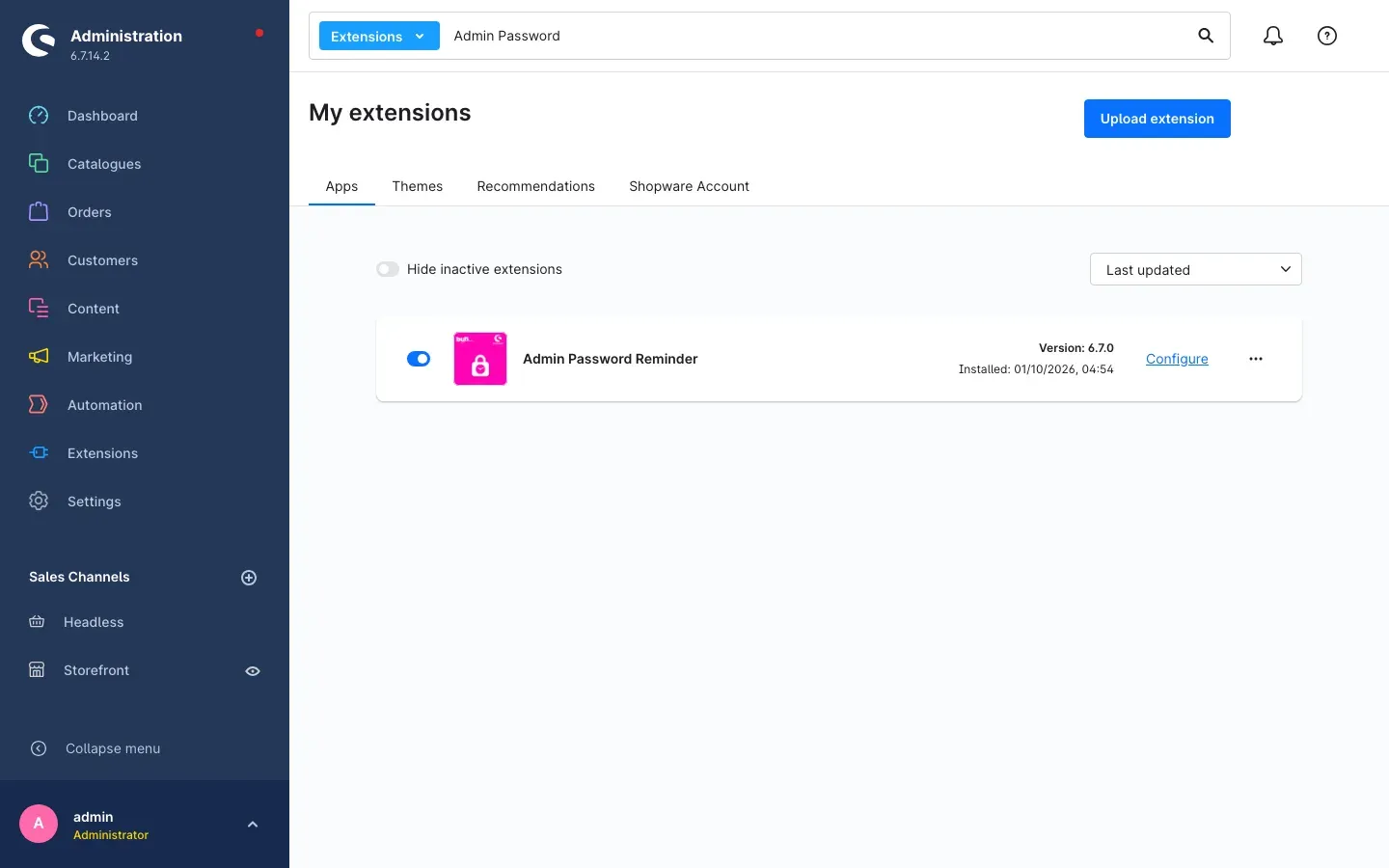 Fig. 1: The plugin is installed and activated. “Configure” takes you to the settings.
If Admin Password Reminder does not appear in the list, your Shopware account is not yet connected to the shop. You can do this under Extensions → My extensions in the Shopware Account tab by logging in with your Shopware account.
Good to know: For all users who already exist when you activate the plugin, the validity of their password starts at the time of activation. Nobody is asked to change their password right after the installation.
Getting Started
- Open the settings: Go to Extensions → My extensions and click Configure next to Admin Password Reminder.
- Set the validity: Under Password validity (days), enter after how many days a password should be renewed, and under Reminder days before expiration, how early users are reminded.
- Save: Click Save at the top right.
- Check the result: Open a user via Settings → Users & permissions. At the very bottom of the page, the Password reminder card shows when that user’s password was last changed.
From now on everything runs automatically: as the expiry date approaches, the notice appears at login and the reminder email is sent.
Settings
You find the settings under Extensions → My extensions → Admin Password Reminder → Configure. At the top of the Basic settings card, the Open documentation button opens this manual.
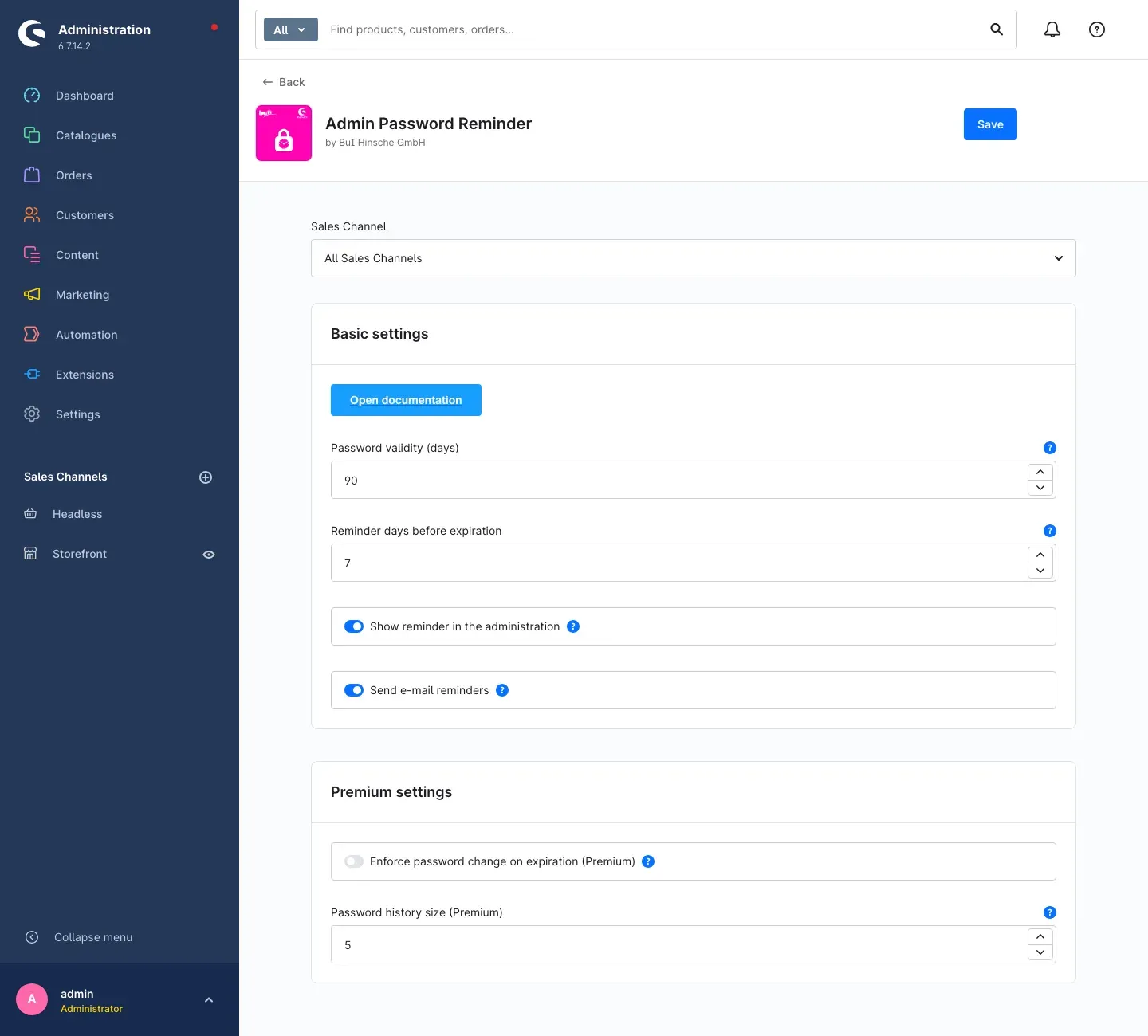 Fig. 2: The configuration page with the basic settings and the premium settings below.
Important: Leave the Sales Channel selection at the top set to All Sales Channels. Admin users do not belong to any sales channel — the plugin therefore only uses the settings you save for All Sales Channels. Values entered for an individual sales channel have no effect.
Password validity (days)
With Password validity (days) you define how many days a password stays valid after its last change. After that it counts as expired. The default is 90 days; the smallest possible value is 1.
Why this is useful: You match the rhythm to your security policy — for example 30 days for particularly sensitive shops, or 180 days if a change every six months is enough for you.
Reminder days before expiration
With Reminder days before expiration you decide how many days before expiry the reminders start — both the notice in the administration and the email. The default is 7 days. If you enter 0, the plugin only reminds users once the password has already expired.
Why this is useful: Your staff have enough time to change the password calmly instead of suddenly facing an expired login.
Show reminder in the administration
The Show reminder in the administration switch determines whether users see a notice after login when their own password expires soon or has expired. It is switched on by default.
Why this is useful: The notice appears exactly when someone is working in the administration anyway, and leads to the password change with one click. Only switch it off if you want to remind users by email alone.
Send e-mail reminders
The Send e-mail reminders switch determines whether affected users additionally receive a reminder by email. It is switched on by default.
Why this is useful: Even users who rarely work in the administration learn about the upcoming expiry in time.
Enforce password change on expiration (Premium)
With the Enforce password change on expiration (Premium) switch in the Premium settings card, users with an expired password can only use the administration again after setting a new password. It is switched off by default. The switch only takes effect if you have unlocked Premium.
Why this is useful: The reminder becomes a binding rule — nobody can postpone the password change indefinitely.
Password history size (Premium)
With Password history size (Premium) you define how many of a user’s most recently used passwords may not be set again. The default is 5. This setting also only takes effect with Premium unlocked.
Why this is useful: A password change only adds security if users do not simply switch back and forth between two known passwords.
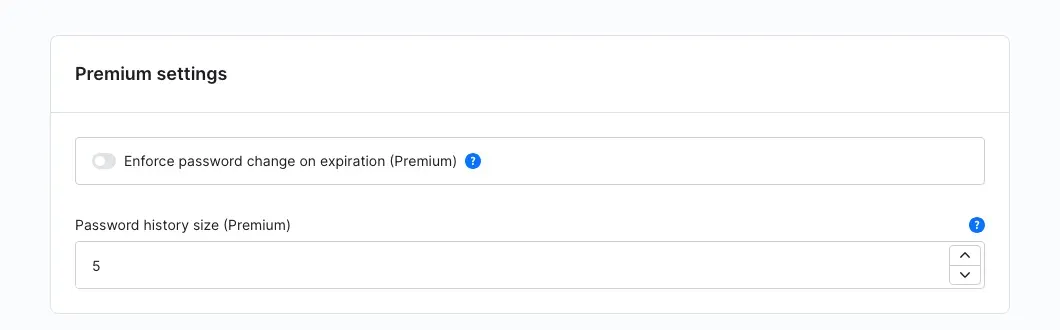 Fig. 3: The premium settings. Without Premium unlocked they have no effect.
How to Use the Features
How to respond to the notice after login
What this gives you: Every user learns at login that their password expires soon or has expired, and gets to the change with one click.
If the password expires soon, the notice Password expires soon appears:
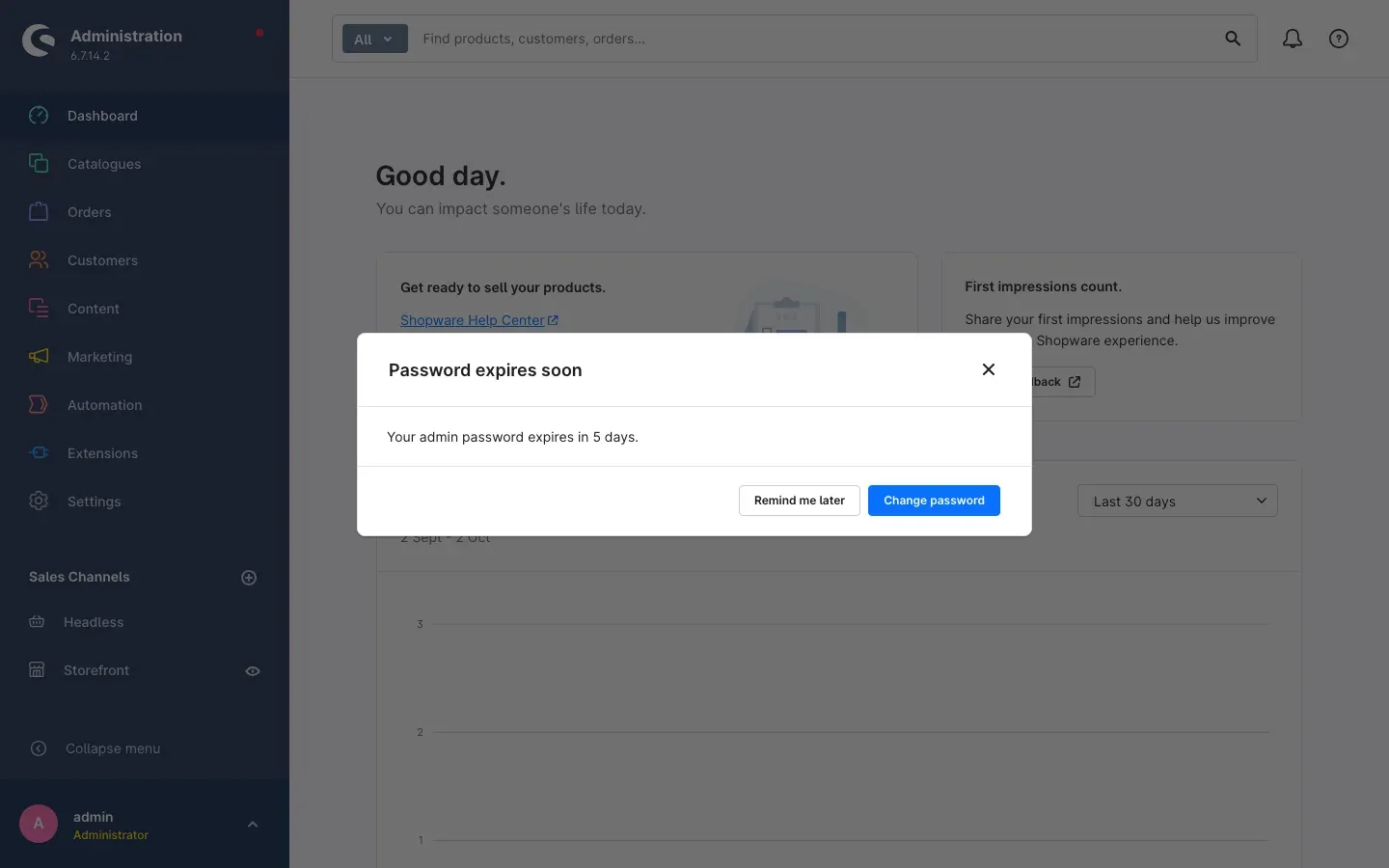 Fig. 4: The notice appears as soon as the expiry date enters the configured reminder period and states the days remaining.
If the password has already expired, the notice reads Password expired:
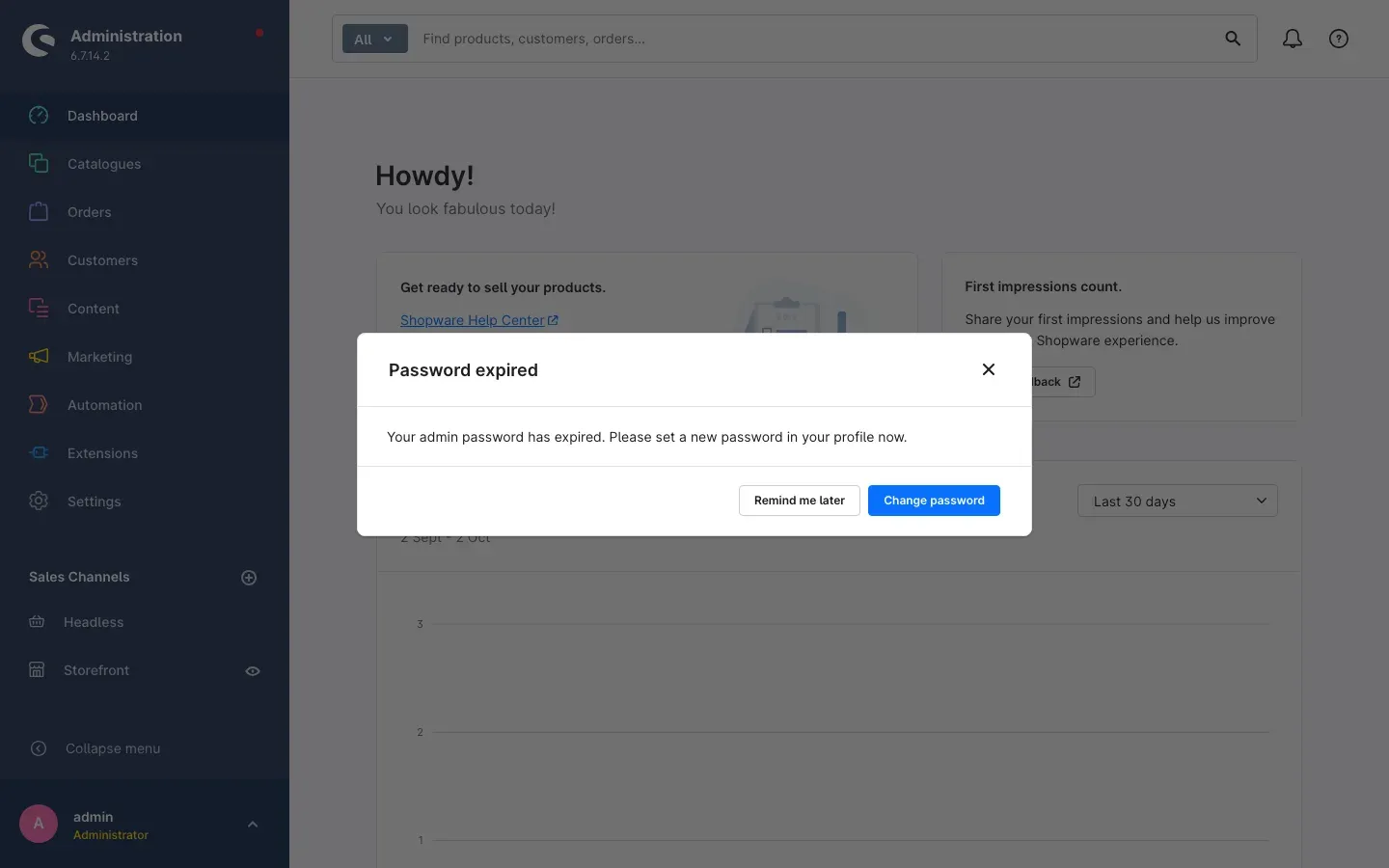 Fig. 5: The notice for an expired password.
In both cases you have two options:
- Change password takes you directly to the Your profile page, where you set a new password (see 5.2).
- Remind me later closes the notice. It only appears again when you open the administration in a new browser tab or after closing the browser.
Tip: Without Premium you can keep working with an expired password — the notice then reminds you again in every new browser session.
How to change your password
What this gives you: With the new password the validity period starts again, and the reminders stop.
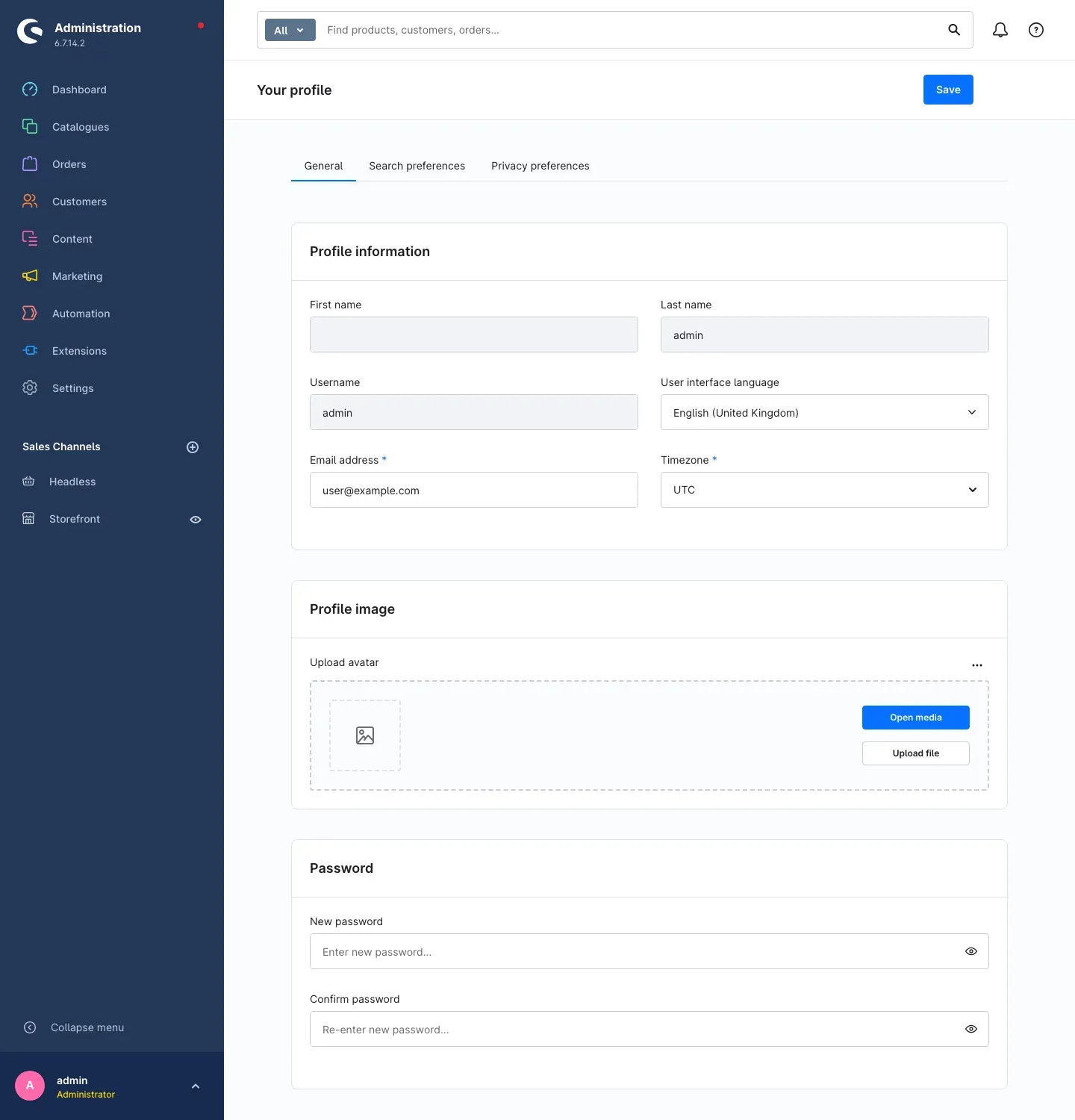 Fig. 6: On the “Your profile” page you find the “Password” card at the bottom.
Step by step
- Click Change password in the notice — or open your profile via the menu at your user name at the bottom left of the sidebar.
- Stay on the General tab and scroll to the Password card.
- Enter your new password under New password and repeat it under Confirm password.
- Click Save at the top right.
The plugin automatically records the time of the change. This also applies when an administrator sets a new password for another user under Settings → Users & permissions, or when a user resets their password via “forgot password”.
How to see when a user last changed their password
What this gives you: You can see at a glance who has not changed their password for a long time.
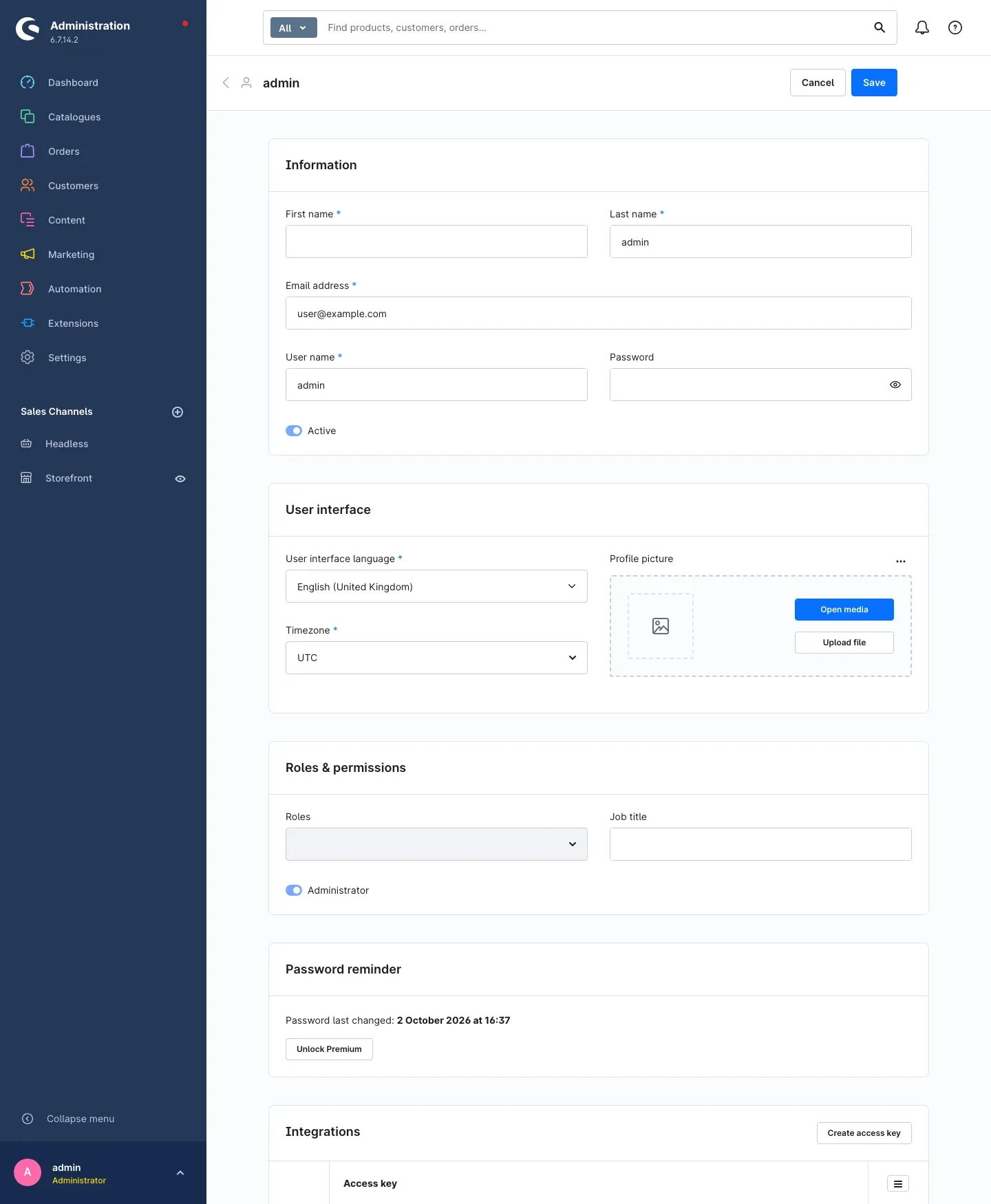 Fig. 7: The “Password reminder” card at the bottom of a user’s detail page.
Step by step
- Go to Settings → Users & permissions.
- Open the user.
- Scroll to the Password reminder card. Password last changed is followed by the date and time.
If it says unknown, the plugin has no change date for this user. Their password then counts as expired (see Troubleshooting).
Without Premium, this card shows the Unlock Premium button, which lets you book Premium directly in the administration.
How to customise the reminder email
What this gives you: The email addresses your staff in your own tone — with your own subject, sender name and text.
Every day, the plugin checks which active users are within the reminder period or have an already expired password, and sends them an email to the email address stored in their user account. Each user receives at most one email per day — until they have changed their password. Deactivated users do not receive an email.
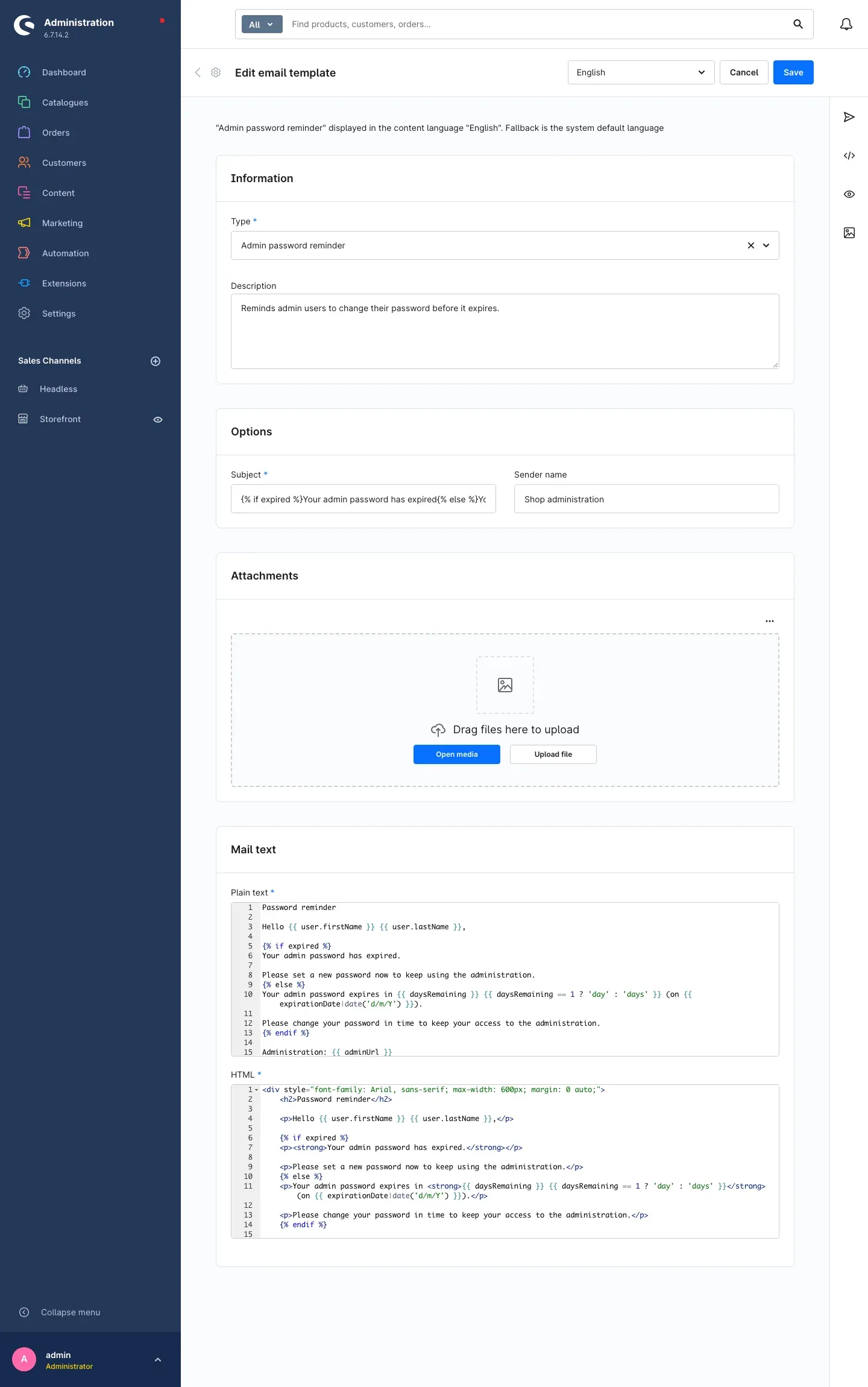 Fig. 8: The email template “Admin password reminder” being edited.
Step by step
- Go to Settings → Email templates.
- Open the template of the type Admin password reminder.
- Select the language you want to edit at the top right. The template comes prepared in German, English and Dutch.
- Adjust Subject, Sender name and the plain text and HTML version under Mail text as you like.
- Click Save.
Important: Keep the placeholders in curly braces (for example for the name, remaining days, expiry date and the link to the administration). They are replaced with the details of the respective user when the email is sent.
This is what a sent reminder looks like:
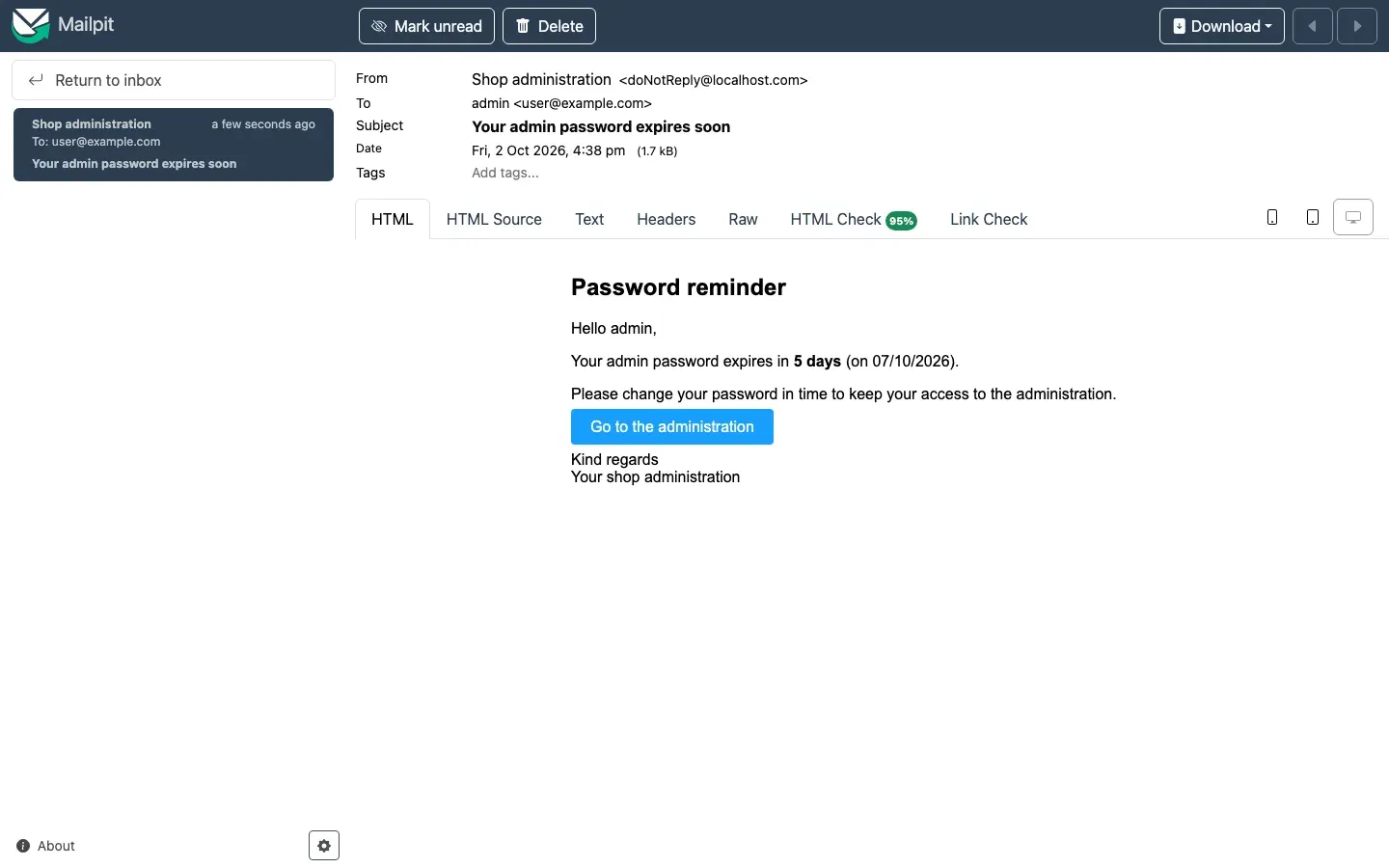 Fig. 9: A received reminder email. It states the days remaining and the expiry date and leads straight to the login via the button. If the password has already expired, the subject and text say so explicitly.
Good to know: Every admin receives the email in their administration language. If there is no template for that language, your shop’s default language is used.
How to enforce the password change (Premium)
What this gives you: No user can keep working with an expired password.
Step by step
- Open the plugin configuration (see Settings).
- In the Premium settings card, switch on Enforce password change on expiration (Premium).
- Click Save.
What the user experiences: When a user with an expired password logs in, they land directly on the Your profile page. A notice titled Password change required explains that the administration stays locked until a new password has been set. This notice cannot be dismissed; the Change password now button leads to the password form. If the user tries to open another page, they are automatically returned to the profile.
As soon as the new password is saved, the plugin lifts the lock by itself within a few seconds — there is no need to reload the page. Logging out is possible at any time.
Important: The lock applies regardless of the Show reminder in the administration switch. Exempt users who should not be locked, such as a technical account, as described in 5.7.
How to prevent old passwords from being reused (Premium)
What this gives you: Your staff really choose new passwords instead of a recently used one.
With Premium unlocked, the plugin remembers each new password — not in plain text, but as a non-reversible checksum. If a user tries to set a password that is among the most recently used ones, the administration refuses to save it. The user then has to choose a different password.
You define how many previous passwords are blocked with Password history size (Premium) (see Settings).
Good to know: The history starts when you unlock Premium. The plugin does not know passwords that were set before.
How to exempt individual users from the enforced change (Premium)
What this gives you: Technical accounts or emergency logins are not locked, even when their password expires.
Step by step
- Go to Settings → Users & permissions and open the user.
- In the Password reminder card, switch on Exempt from enforced password change.
- Click Save at the top right.
The switch only appears with Premium unlocked — without Premium, the Unlock Premium button is shown in its place (see Fig. 7). Only users with edit rights for Users & permissions can change it.
Tip: The exemption only affects the lock. The notice after login and the reminder email continue for this user.
Troubleshooting
The notice does not appear after login
Cause: The notice is switched off, the password is still outside the reminder period, or you have already clicked Remind me later in this browser session.
Solution:
- Check in the configuration that Show reminder in the administration is switched on and the settings are saved under All Sales Channels.
- Check the date after Password last changed on the user detail page and compare it with Password validity (days) and Reminder days before expiration.
- Open the administration in a new browser tab.
No reminder emails arrive
Cause: Sending emails is switched off, the user is deactivated, the user account has no valid email address, or your shop’s daily background tasks are not running.
Solution:
- Check that Send e-mail reminders is switched on.
- Check under Settings → Users & permissions that the user is active and the email address is correct.
- Check that the Admin password reminder template exists under Settings → Email templates.
- If other automatic emails from your shop do not arrive either, ask your technical contact to check the background tasks (see For Administrators / Technical Details).
A user shows “Password last changed: unknown”
Cause: No change date is stored for this user. The plugin therefore treats the password as expired — with Premium and the lock switched on, the user is locked until they change it.
Solution: Have the user change their password once, or set a new one for them under Settings → Users & permissions. The current date then appears.
A new password cannot be saved
Cause: With Premium, the password is probably one of the most recently used ones.
Solution: Choose a password you have not used recently.
The settings have no effect
Cause: The values were saved for an individual sales channel.
Solution: Select All Sales Channels at the top of the configuration page, enter the values there and click Save.
The plugin or its card does not appear
Cause: The plugin is not yet activated, or the cache is outdated.
Solution:
- Open Extensions → My extensions.
- Check that the switch next to Admin Password Reminder is on.
- Clear the cache: Settings → System → Caches & indexes → Clear cache, then reload the administration.
FAQ
Q: Does everyone have to change their password right after the installation?
A: No. For all existing users, the validity starts when the plugin is activated. With the default values, the first reminder therefore comes after 83 days.
Q: Does the reminder also apply to my shop customers?
A: No. The plugin only affects users of the Shopware administration. Customer accounts in the shop are not affected.
Q: Can I keep working with an expired password?
A: Without Premium, yes — but you are reminded in every new browser session and daily by email. With Premium and Enforce password change on expiration (Premium) switched on, the administration is locked until the change.
Q: How often is the reminder email sent?
A: At most once a day per user, from the start of the reminder period until the password has been changed.
Q: I have locked myself out. What now?
A: The lock always leaves the Your profile page open. Set a new password there and the administration is unlocked again. If you have forgotten your current password, use “forgot password” on the login page.
Q: What happens to the data when I uninstall the plugin?
A: If you keep the data when uninstalling, everything is preserved. If you choose not to, the plugin removes the stored change dates, the password history and the email template.
For Administrators / Technical Details
This section is intended for technical administrators. You do not need it for normal use.
System requirements
- Shopware: 6.7
- PHP: 8.2 or newer
Background task for the emails
The reminder emails are sent by a scheduled task (swp_six.password_reminder) that runs once a day. It requires Shopware’s scheduled tasks and message queue to be processed regularly (scheduled task runner and message consumer, or the admin worker).
The button in the email points to the address stored in the APP_URL environment variable with /admin appended. If the link is wrong, check this value.
Installation via the command line
php bin/console plugin:refresh
php bin/console plugin:install SwpAdminPasswordReminderSix --activate
php bin/console cache:clear
What the lock (Premium) covers technically
While the lock is active, the Admin API answers requests from an affected user with status 403. Only login, password recovery and the requests the profile page needs to display and save remain allowed. Integrations with their own access key are not affected.
Where the password history (Premium) applies
The history checks a new password when it is set through the administration: on the Your profile page, when editing a user under Settings → System → Users & permissions, and via Forgot password on the login page. Passwords set by an integration through the Admin API bulk endpoint (/api/_action/sync) or by a console command such as bin/console user:change-password are not checked.
This manual was written for Admin Password Reminder version 6.7.0.
More manuals
Age Check
Tobacco, spirits, knives: visitors who do not confirm their age never see the restricted items at all. You tick a box per product, the plugin hides it everywhere.
Open manual Shopware 6AI SEO All-in-One: SEO and GEO suite for Shopware 6
Google finds your shop, ChatGPT never mentions it. This plugin checks both in one run, fills empty meta fields from templates and turns the findings into a to-do list.
Open manual Shopware 6Area Calculation
Area calculation on the product page: your customer knows the square metres, not the number of packs. The plugin works it out, adds the offcut and fills the quantity field.
Open manualNeed a team that keeps your shop running?
We have been maintaining Shopware shops for more than 20 years, including updates, hotfixes and the plugins you are configuring right now.