Advent Calendar | Doors with products, coupons and promotions
Advent calendar for your shopping experiences: doors open on time without clearing the cache, give nothing away in the page source and reveal coupons, products or your own content.
On this page
- Introduction
- What you achieve with this plugin
- Who is this plugin for?
- Installation
- Getting started
- Settings
- Enable plugin for this sales channel
- Count door openings
- How to use the features
- How to create a calendar
- How to schedule the opening times
- How to decide who sees the calendar
- How to customise the notice texts
- How to design the calendar
- How to fill the doors
- How to check the calendar before the start
- How to evaluate the openings
- How to reuse a calendar next year
- How to add the calendar to a shopping experience
- What the calendar looks like in the shop
- How to maintain the calendar in several languages
- Troubleshooting
- The “Advent calendar” menu item is missing in the Administration
- The calendar does not appear in the shop
- Changes do not appear in the shop immediately
- A door cannot be opened
- A door is missing from the grid
- The coupon door shows no code
- A door shows “A surprise will be waiting behind this door soon.”
- A product, category or landing page door shows no button
- The calendar cannot be saved
- The snow effect is not visible
- The statistics do not count
- FAQ
- For administrators / Technical details
- System requirements
- Installation via the command line
- Permissions
- Cache and performance
- Data protection
- Store API and Composable Frontends
- Uninstallation
Introduction
With the Advent Calendar you add a calendar to your shopping experiences whose doors open on time at a fixed moment. Behind each door there is a product, a coupon code, a category, a landing page, a link or your own text.
What you achieve with this plugin
- Doors open on time – without any effort on your part. The shop checks on every visit whether a door can be opened. You do not need to clear the cache when the day changes.
- Nothing is given away in advance. The content of a door is only loaded once the door can be opened. Anyone who peeks into the page source finds no content of future doors.
- Coupons straight from the door. Your customers copy the code with one click or redeem it directly in the cart.
- Promote products, categories and landing pages. A door shows the product with image and price or leads straight to the page you choose.
- For any occasion. 1 to 100 doors, daily, weekly or at your own interval – from an advent calendar to an Easter countdown.
- Your own look. Five design templates, your own colours, your own background image, the number of columns per device and a snow effect.
- Targeted delivery. For each calendar you define sales channels, a rule and, if you wish, a login requirement.
- Safe testing. A preview with a freely selectable date shows you in advance which doors are open when – without changing the shop.
- Measure success. The opening statistics show how often each door was opened – without personal data.
Who is this plugin for?
For shop owners and marketing managers who want to run a campaign with daily surprises during Advent or for other occasions – without programming knowledge and without maintenance effort while it runs.
Installation
After your purchase, the plugin is available directly in your Administration – you do not need to download anything.
- Log in to your Shopware Administration (
YourShop.com/admin). - Open Extensions → My extensions. On the Apps tab you find the plugin under the name Advent Calendar | Doors with products, coupons and promotions. The list shortens the name.
- Click Install next to the plugin.
- Activate the plugin using the switch to the left of the entry – done.
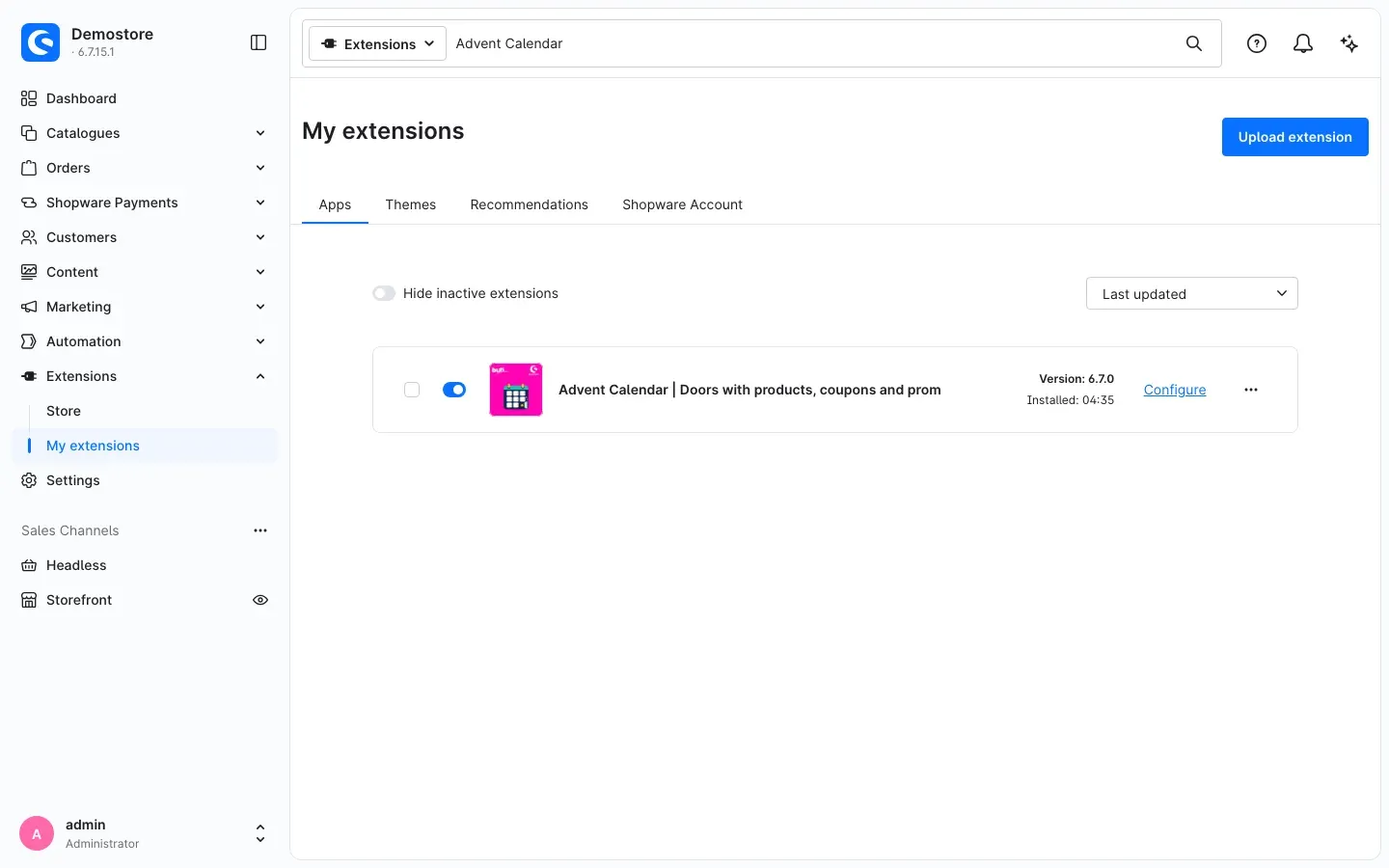 Fig. 1: The plugin entry in “My extensions”. Use “Configure” to open its settings.
If the plugin does not appear in the list, your Shopware account is not yet connected to the shop. You do this under Extensions → My extensions on the Shopware Account tab by logging in with your Shopware account.
After activation, the Administration shows the new menu item Marketing → Advent calendar.
Getting started
This is how you bring your first calendar into the shop:
- Check the plugin for your sales channel: Open Extensions → My extensions and click Configure next to the plugin. The switch Enable plugin for this sales channel is on by default. More in Settings.
- Create a calendar: Open Marketing → Advent calendar, click Add calendar, enter a Name, choose the Start date and click Save. When saving, the plugin creates the doors automatically. See How to create a calendar.
- Fill the doors: On the Doors tab you give each door its content – a product, a coupon, a text and more. See How to fill the doors.
- Check in advance: On the Preview tab you set any date and see which doors are open then. See How to check the calendar before the start.
- Add it to a shopping experience: Under Content → Shopping Experiences you drag the Advent calendar block into a layout and select your calendar. Then assign the layout to a category or landing page. See How to add the calendar to a shopping experience.
- Check the result: Open the page in your shop. You see the grid of doors; the current door is marked. See What the calendar looks like in the shop.
Tip: You do not have to fill all doors before the start. The calendar can already run while you add the later doors step by step.
Settings
You find the basic settings of the plugin under Extensions → My extensions. Click Configure next to the plugin. The settings of the individual calendars, on the other hand, are maintained under Marketing → Advent calendar (see How to use the features).
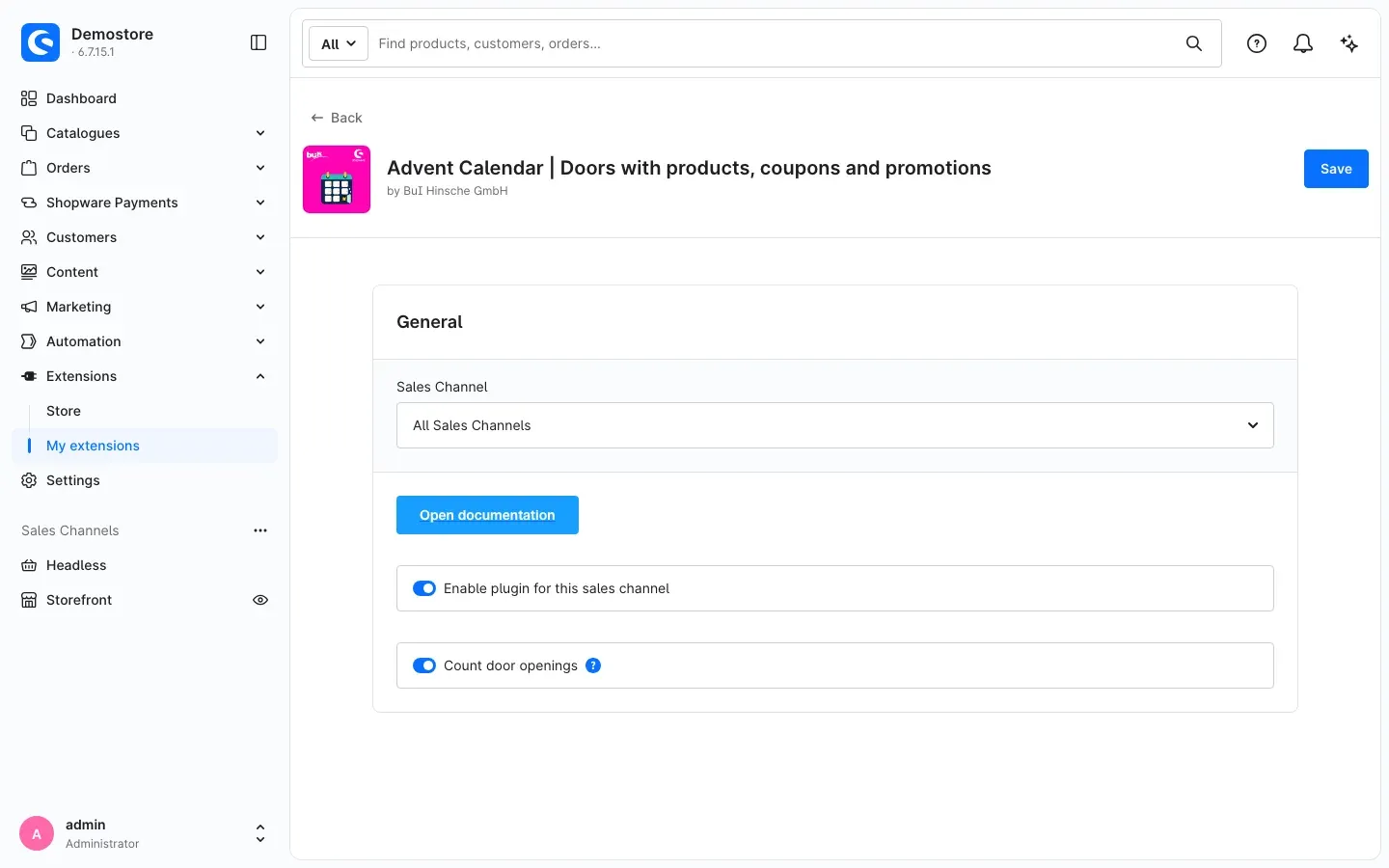 Fig. 2: The configuration page with the sales channel selection and the two switches
At the very top, under Sales Channel, you choose which shop the settings apply to. With All Sales Channels they apply to all shops; you can deviate from them for individual sales channels. Open documentation takes you to this manual on the web. Apply your changes with Save at the top right.
Enable plugin for this sales channel
This switch decides whether advent calendars appear in the selected sales channel. It is on by default. If you switch it off, this sales channel shows no calendar – not even in shopping experiences into which you have added a calendar.
Why this is useful: If you run, for example, a B2C and a B2B shop, the campaign only runs where it fits – without uninstalling the plugin.
Count door openings
This switch decides whether the plugin counts how often each door is opened. It is on by default. The help text explains: “Counts how often each door is opened, without personal data. Test mode never counts.”
Why this is useful: You see the figures later on the Statistics tab of your calendar (see How to evaluate the openings). If you do not want to count in a particular sales channel, switch it off there only.
How to use the features
How to create a calendar
What this gives you: You can create as many calendars as you like – for example an advent calendar, a calendar for regular customers only and an Easter countdown. Each calendar has its own doors, its own schedule and its own design.
You find all calendars under Marketing → Advent calendar.
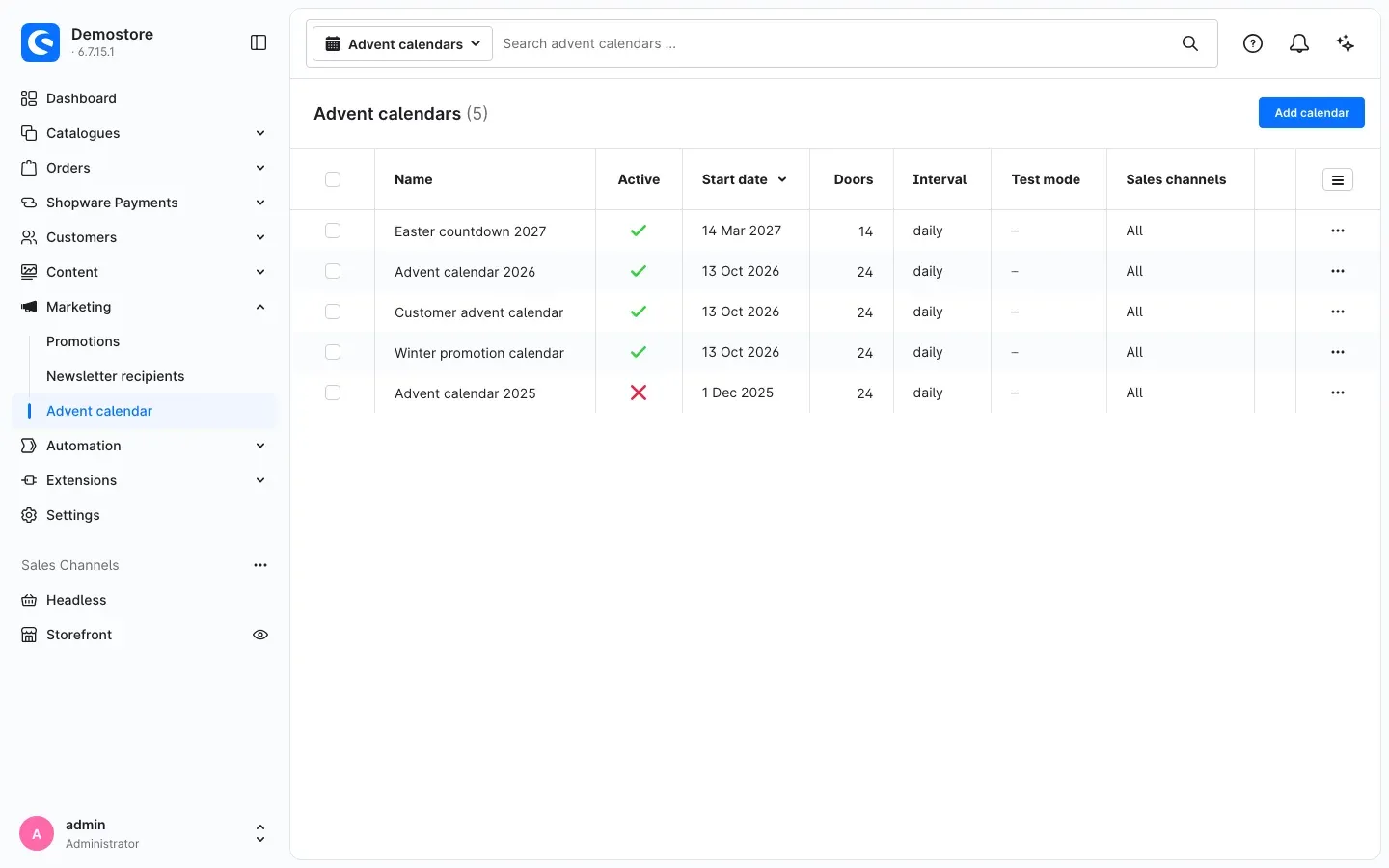 Fig. 3: The overview under Marketing → Advent calendar
For each calendar, the list shows the Name, whether it is Active, the Start date, the number of Doors, the Interval and the Sales channels. The Test mode column reads “Test mode active” while test mode is switched on for a calendar, otherwise it shows a dash (–). Using the row menu (…) at the end of a row you can Edit, Duplicate or Delete a calendar.
Step by step
- Go to Marketing → Advent calendar.
- Click Add calendar. The page New advent calendar opens with the General tab.
- Fill in the Basic data card:
- Active: Only active calendars appear in the shop. “Inactive calendars are not shown in any sales channel.”
- Name: Your internal name for the calendar, for example “Advent calendar 2026”. It is mandatory and “For administration only, not shown in the shop.”
- Heading: The title your customers see above the calendar. It appears if you have switched on Show heading in the shopping experience.
- Introduction: A short text above the doors, for example with the rules of participation. You format the text in the editor.
- Set everything else on the Schedule, Access and Notice texts cards (see How to schedule the opening times to How to customise the notice texts).
- Click Save at the top right. You receive the message “The calendar has been saved.”
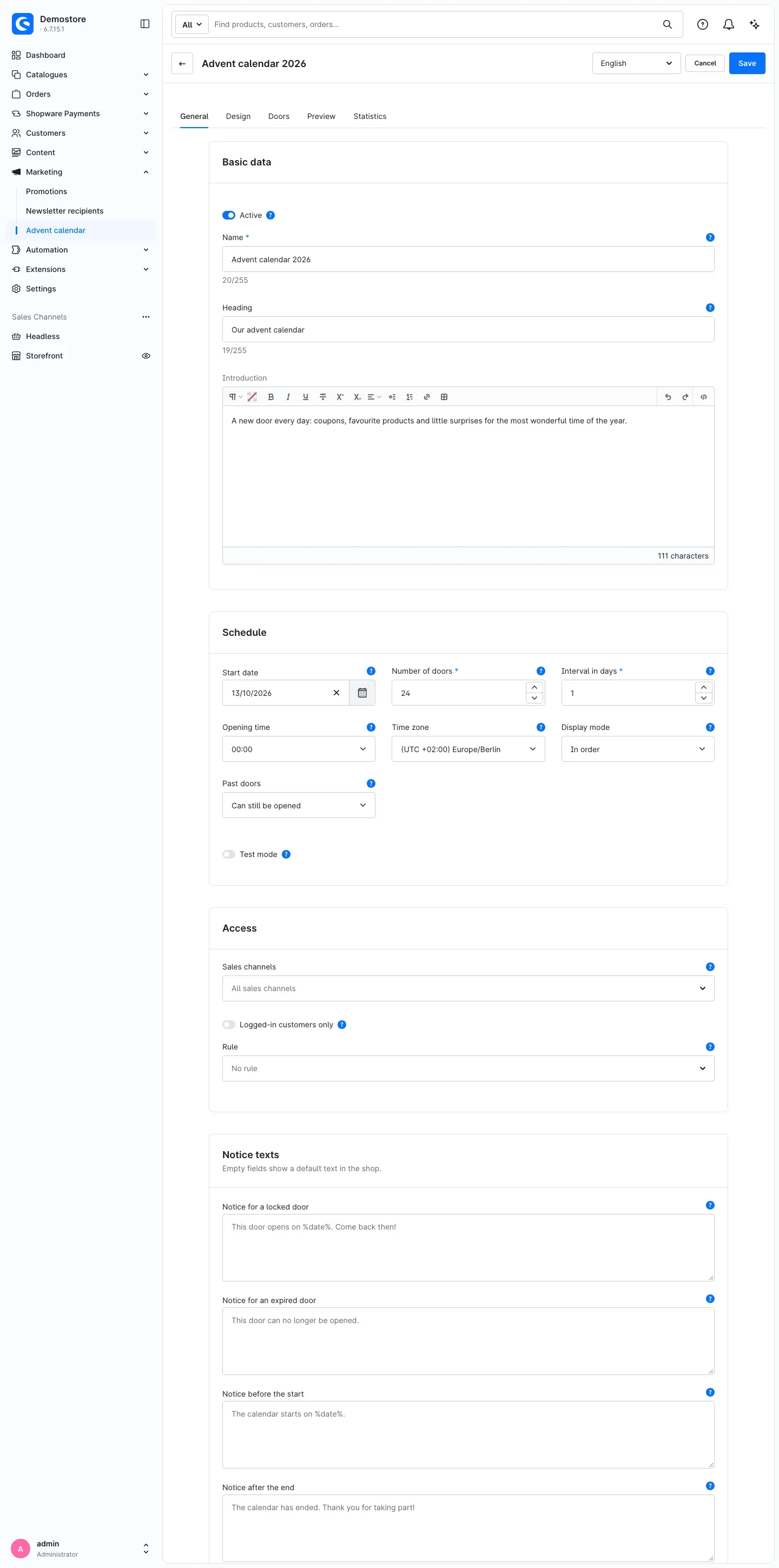 Fig. 4: The “General” tab with the cards Basic data, Schedule, Access and Notice texts
A new calendar already comes with sensible defaults: 24 doors, opening daily at 00:00 in the time zone Europe/Berlin, starting on the next 1 December. So often you only need to adjust the name and the start date.
Tip: On the first save the plugin creates all doors up to the configured number. You can then fill them on the Doors tab.
In the header of the calendar you also find the language selection (see How to maintain the calendar in several languages) as well as Cancel and Save. The tabs General, Design, Doors, Preview and Statistics take you to the different areas of the calendar.
How to schedule the opening times
What this gives you: You define once when the calendar starts and at what interval the doors open. After that everything runs by itself – to the minute and regardless of where in the world your customers are.
You find the schedule on the General tab on the Schedule card (see Fig. 4).
- Start date: “Door 1 opens on this day at the opening time.”
- Number of doors: How many doors the calendar has – “1 to 100 doors. Missing doors are created when saving.”
- Interval in days: The gap between two doors – “1 = daily, 7 = weekly.” This lets you set up, for example, a calendar with four Advent Sundays.
- Opening time: The full hour at which each door opens, from 00:00 to 23:00.
- Time zone: “Determines opening times and date boundaries, regardless of the visitors’ time zone.” For a shop in Germany you choose Europe/Berlin.
- Display mode: With In order, the doors appear in the grid sorted from 1 to the last door. With Random, they are mixed like in a real advent calendar. “Random only changes the order in the grid, not the opening date.” The random arrangement is the same for all visitors and does not change with every page view.
- Past doors: “Defines whether doors of past days can still be opened.” The options are explained below.
- Test mode: Opens all doors immediately – for testing only (see How to check the calendar before the start).
When a door opens
The number of a door defines its opening date. Door 1 opens on the start date at the opening time, every further door one interval later. An example: start date 1 December, opening time 06:00, interval 1. Then door 24 opens on 24 December at 06:00.
From its opening time, a door is the current door until the next one opens. After that it counts as past. After the last door, the calendar has ended.
What happens to past doors
Under Past doors you choose one of three options:
- Can still be opened: Anyone who missed a day can still open the door later. This is the default.
- Always shown open: Past doors appear already opened in the grid, with title and image. Your customers see at a glance what has been on offer, and they can still click the door.
- Locked: Past doors can no longer be opened. Instead, your customers see the notice for expired doors (see How to customise the notice texts). This suits offers that should only be valid on one day.
Important: Whether a door can be opened is decided by the shop alone, based on the time zone of the calendar. A customer therefore cannot open a door early by changing the clock on their device.
Tip: If a customer keeps the calendar page open, it updates itself at the next opening time. Reloading the page is not necessary.
How to decide who sees the calendar
What this gives you: You show the calendar only where and only to the customers it is intended for – for example a calendar for regular customers that is only available to logged-in customers.
You find these settings on the General tab on the Access card (see Fig. 4).
- Sales channels: Choose the sales channels in which the calendar appears. “Empty = visible in all sales channels.”
- Logged-in customers only: “Guests and visitors who are not logged in can see the calendar but can only open doors after logging in.” When a visitor who is not logged in clicks a door, they see the notice “Log in to open the doors.” and the Log in button. After logging in, they return to the calendar page. Customers who ordered as a guest do not count as logged in.
- Rule: Choose a rule from the Rule Builder, for example for a certain customer group or country. “Only customers matching the rule can see the calendar.” For all other visitors the calendar stays hidden. Without a selection (No rule) the calendar applies to everyone.
Tip: The switch Enable plugin for this sales channel in the plugin configuration (see Settings) applies to all calendars of a sales channel. The Sales channels selection in the calendar applies to this one calendar only.
How to customise the notice texts
What this gives you: Your customers learn in your own words when a door opens, when the calendar starts and that it is over.
You find the texts on the General tab on the Notice texts card. All four fields are optional: “Empty fields show a default text in the shop.”
- Notice for a locked door: Appears when a customer clicks a door that is not open yet. “%date% is replaced with the opening date.” Without your own text, your customers see: “This door opens on %date%. Come back then!”
- Notice for an expired door: “Shown when a past door can no longer be opened.” This only happens with Past doors = Locked. Default text: “This door can no longer be opened.”
- Notice before the start: “%date% is replaced with the start date. A countdown is shown below.” Default text: “The calendar starts on %date%.”
- Notice after the end: “Shown above the calendar after the last door has expired.” Default text: “The calendar has ended. Thank you for taking part!”
As long as a field is empty, it shows exactly this default text in grey. This way you already see in the Administration what your customers read without your own text.
Type %date% exactly like this in your text if the date should appear at a specific position. You can maintain all notice texts per language (see How to maintain the calendar in several languages).
How to design the calendar
What this gives you: The calendar matches your shop and the occasion – without your own images and without programming.
You find all design options on the Design tab.
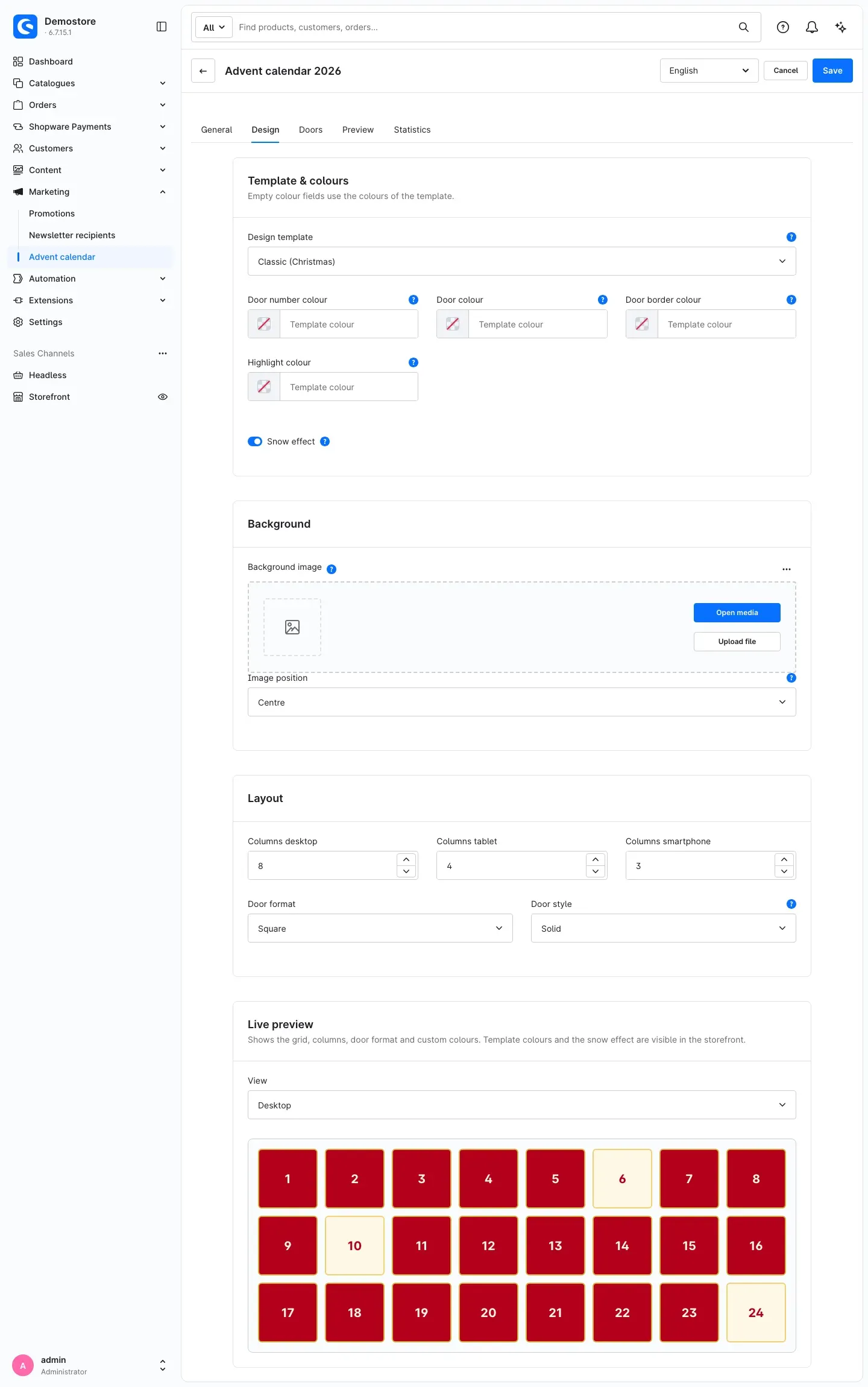 Fig. 5: The “Design” tab with template, colours, background, layout and live preview
Template and colours
On the Template & colours card you choose the basic look under Design template: Classic (Christmas), Winter, Nordic, Easter or Minimal (theme colours). The template defines colours and background pattern. “Minimal uses the colours of your theme.”
With Door number colour, Door colour, Door border colour and Highlight colour you adjust individual colours. Pick the colour using the colour field or enter it directly, for example #B3001B. “Empty colour fields use the colours of the template.” The Highlight colour is “Used for highlighted doors and to mark the current door.”
With the Snow effect switch you let snowflakes fall over the calendar. “Only visible in the storefront. Switched off automatically when “reduce motion” is enabled in the operating system.” So no snow falls in the Administration. For new calendars the snow effect is switched off.
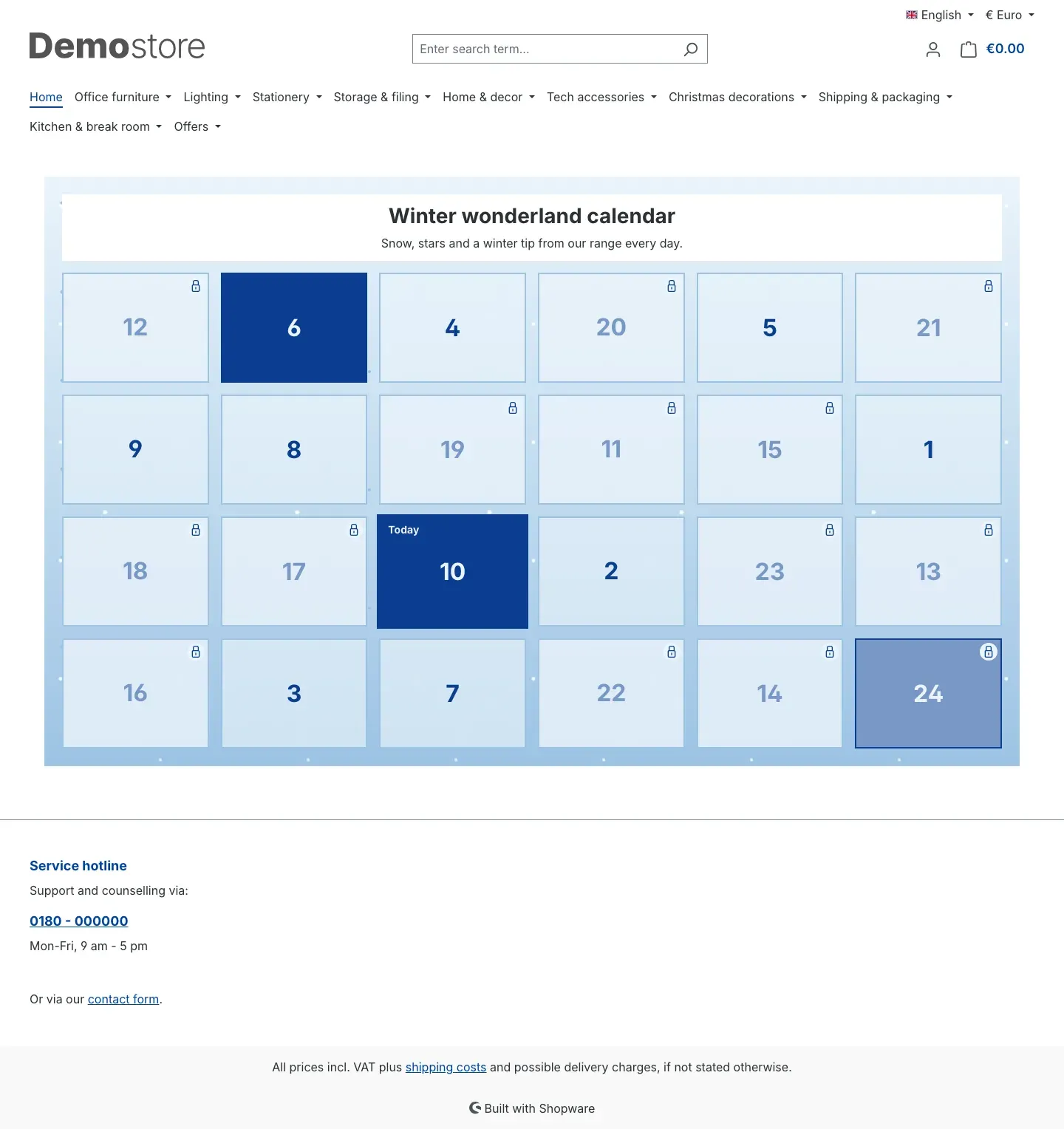 Fig. 6: A calendar with the “Winter” template, the door format “Landscape”, the door style “Glass” and the display mode “Random”. The highlighted doors 6, 10 and 24 remain easy to read in the glass style too.
Background
On the Background card you can optionally set your own Background image. Choose an existing image via Open media or upload a new one via Upload file. “Optional. Without an image, the template shows its background pattern.”
Image position defines “Which part of the image stays visible when it is cropped.” – for example Centre, Top or Bottom right.
Layout
On the Layout card you define how the doors are arranged:
- Columns desktop, Columns tablet and Columns smartphone: How many doors sit side by side – up to 12 on large screens, up to 8 on tablets and up to 4 on smartphones.
- Door format: Square, Portrait or Landscape.
- Door style: Solid, Glass or Outline. “Glass lets the background shine through, outline only shows the border.” Highlighted doors stay opaque in their inverted colours in every style.
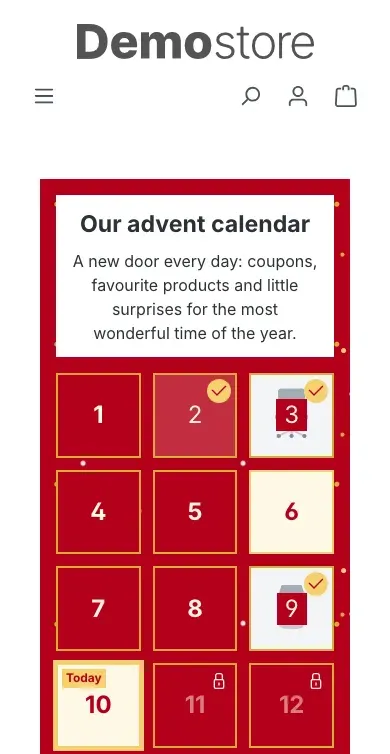 Fig. 7: The same calendar on a smartphone – here with three columns
Live preview
The Live preview card shows your changes immediately, even before you save. Under View you switch between Desktop, Tablet and Smartphone. The card “Shows the grid, columns, door format and custom colours. Template colours and the snow effect are visible in the storefront.”
Tip: Save your changes and look at the result in the shop – only there do you see the template completely, with background pattern and snow.
How to fill the doors
What this gives you: Behind each door you place exactly the surprise you want to offer – from a coupon code to a product to a biscuit recipe.
You find all doors of a calendar on the Doors tab. “Missing doors up to the configured number are created automatically when saving.”
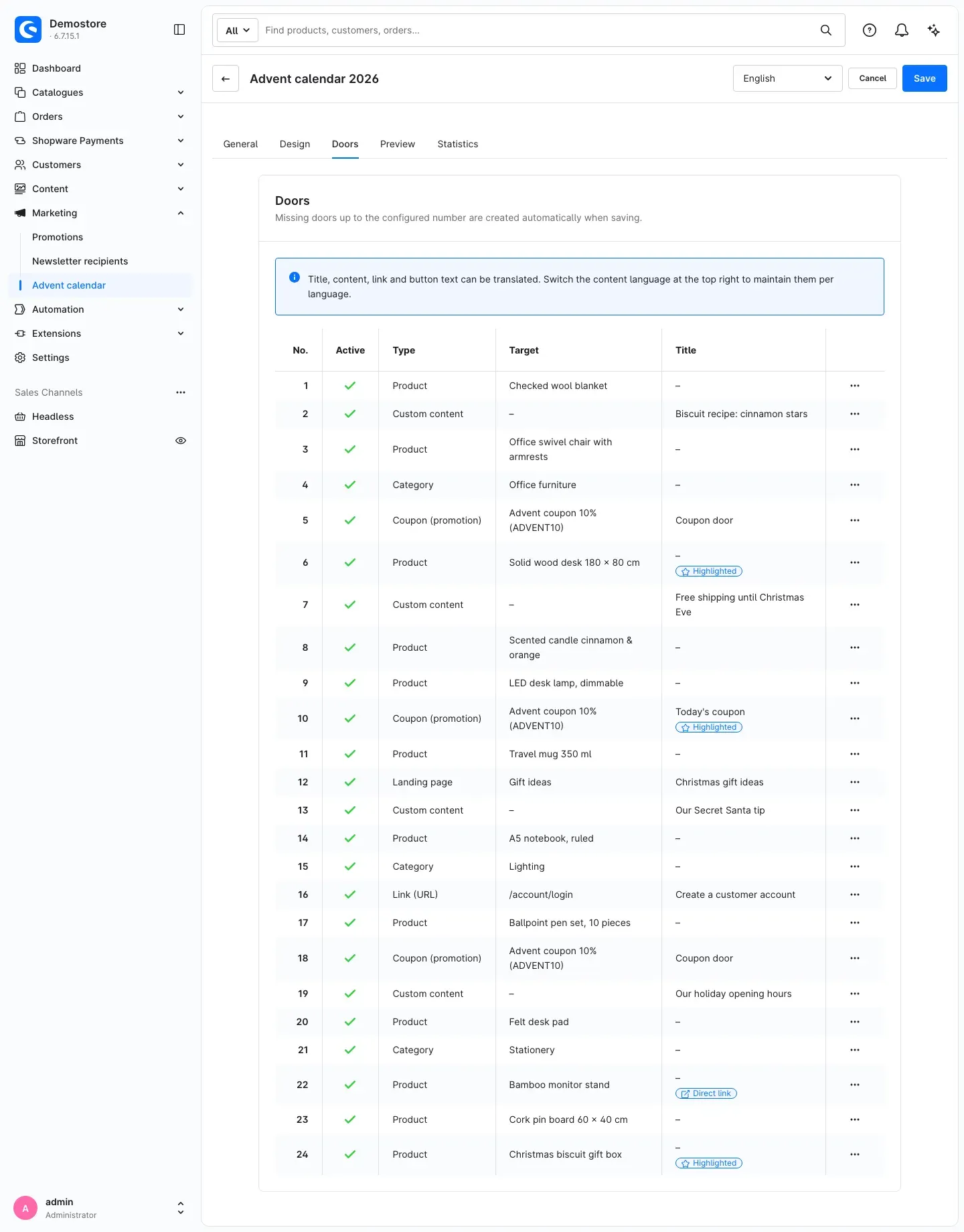 Fig. 8: The list of doors with number, type, target and title for each door. Labels such as “Highlighted” and “Direct link” appear below the title.
For each door, the table shows No., Active, Type, Target and Title. For a coupon door, Target shows the name of the promotion with the coupon code in brackets, for a link the address.
Small labels appear below the title:
- Highlighted and Direct link show which of these two settings a door has.
- “No content” marks doors without content, “Check input” marks doors with invalid entries and “Surplus – not shown” marks doors above the configured number. This way you see at a glance where something is still missing.
Step by step
- Open your calendar under Marketing → Advent calendar.
- Switch to the Doors tab.
- Click the row menu (…) of the door and choose Edit. A window opens with the door number as its title, for example “Door 10”.
- Choose under Type what is behind the door (see below).
- Choose the matching target and add title, content and images.
- Click Apply.
- Click Save at the top right. Only then are your changes saved.
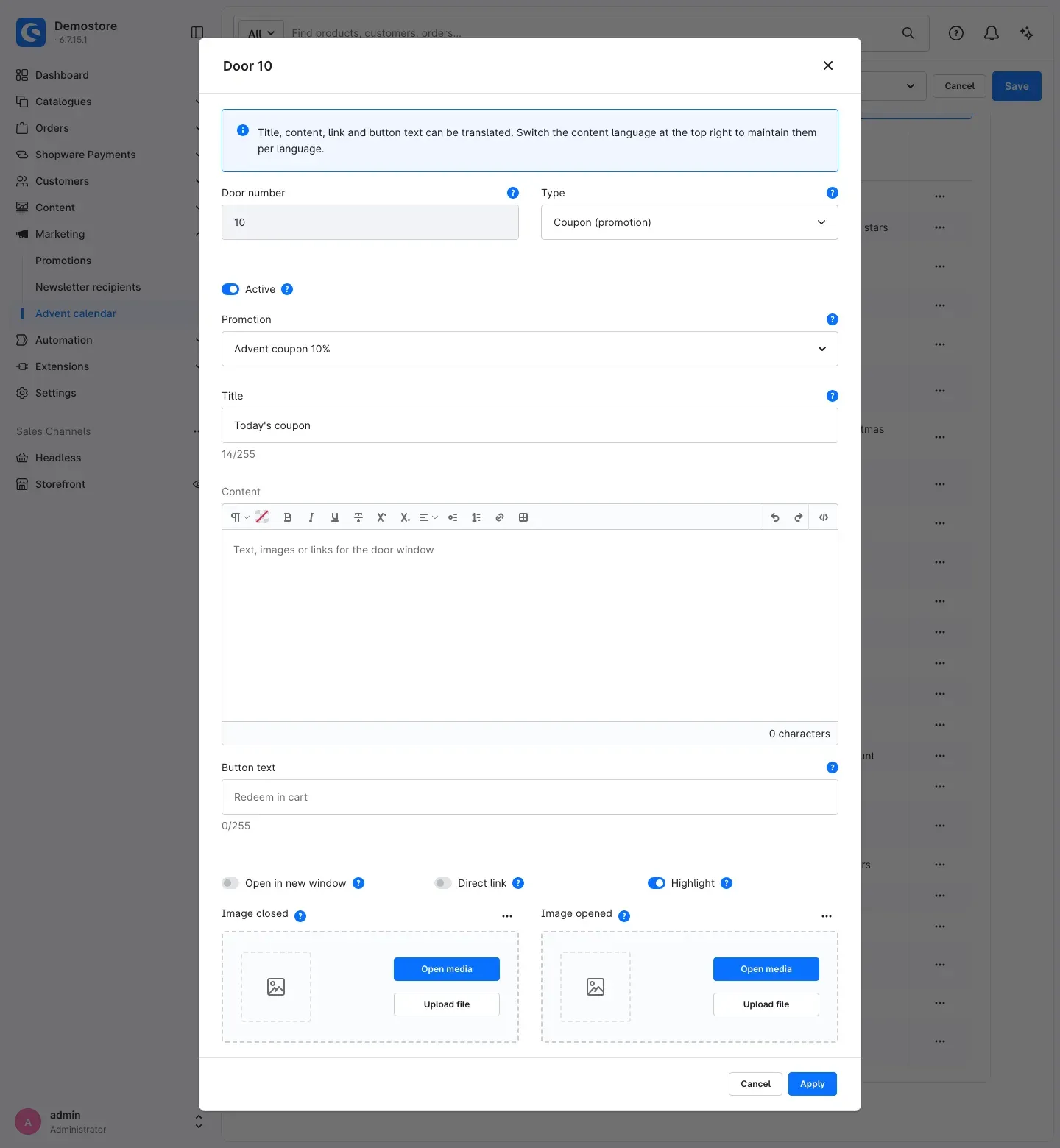 Fig. 9: A door of the type “Coupon (promotion)” with a selected promotion. The empty “Button text” field shows the default text “Redeem in cart”.
The door types
Under Type you choose one of six options. “Changing the type removes targets that do not match.”
- Custom content: The door shows your text from the Content field – with formatting, images and links. Ideal for recipes, tips or campaign notes.
- Product: Choose an item under Product. “Variants are possible too. Unavailable products are not shown in the shop.” The door shows the product with image and price and a button to the product.
- Category: Choose a category of your shop under Category. “Inactive categories and folders are not linked in the shop.”
- Landing page: Choose a landing page under Landing page. “Only active landing pages assigned to the sales channel are linked.”
- Coupon (promotion): Choose a promotion from Marketing → Promotions under Promotion. “Only promotions with a fixed coupon code. Individual codes are never shown.” The door shows the coupon code with the buttons Copy code and Redeem in cart.
- Link (URL): Enter an address under Link. “Addresses starting with https:// or http:// and shop paths starting with / are allowed.” With
/account/login, for example, you link to the login page of your shop.
If you choose a target that cannot appear in the shop at the moment, the selection shows a note such as “Target inactive” or “Target expired”.
Important: For a coupon door to show the code, the promotion must be active, use a fixed coupon code, be assigned to the sales channel and be valid at the time of opening. If one of these conditions is not met, the door shows no code.
The other door settings
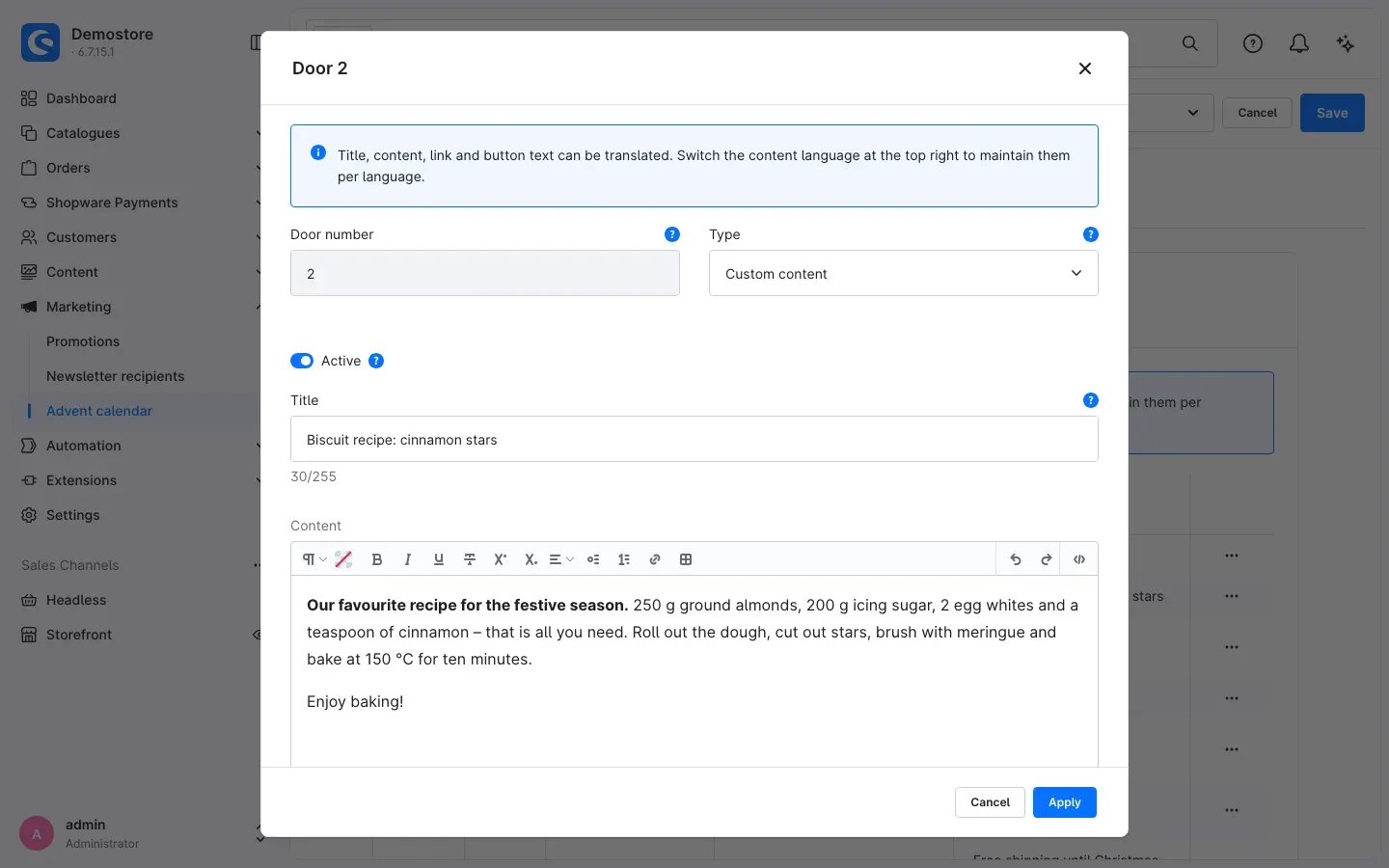 Fig. 10: A door of the type “Custom content” with formatted text
- Door number: “The number defines the opening date and cannot be changed.”
- Active: “Inactive doors are not shown in the calendar.” This way you hide a door without deleting its content.
- Title: The heading inside the opened door. “Empty = name of the target (product, category, landing page or promotion).” While the field is empty, it shows the name of the selected target in grey.
- Content: Text, images or links shown in the door window. For all types you can add a supplementary text here.
- Button text: “Label of the button leading to the target. Empty = default text.” The field is available for all types except Custom content. The default texts in the shop are “View product”, “View category”, “View promotion” (landing page), “Learn more” (link) and “Redeem in cart” (coupon). While the field is empty, it shows the matching default text in grey (see Fig. 9).
- Open in new window: “Applies to links to a product, category, landing page and URL.”
- Direct link: “Clicking the door leads straight to the target without a door window. Not available for custom content and coupons.”
- Highlight: “Shows the door in inverted colours.” Use it to make special days such as St Nicholas or Christmas Eve stand out.
- Image closed: “Shown on the closed door.”
- Image opened: “Replaces the product or category image after opening.”
For Image closed and Image opened you choose an image from your media as usual or upload a new one.
Changing the number of doors
If you increase the Number of doors on the General tab, the plugin creates the missing doors the next time you save. If you reduce the number, the remaining doors are kept for now but no longer appear in the shop. The list marks them with “Surplus – not shown”. The Delete surplus doors button removes them; they are deleted the next time you save.
Tip: A door without content shows the text “A surprise will be waiting behind this door soon.” in the shop. This way the calendar can already start while you are still filling later doors.
How to check the calendar before the start
What this gives you: You see in advance which doors are open on any day – even with unsaved changes and without your customers noticing anything.
The preview
Open your calendar and switch to the Preview tab: “Simulate a point in time and check which doors are open then, including unsaved changes.”
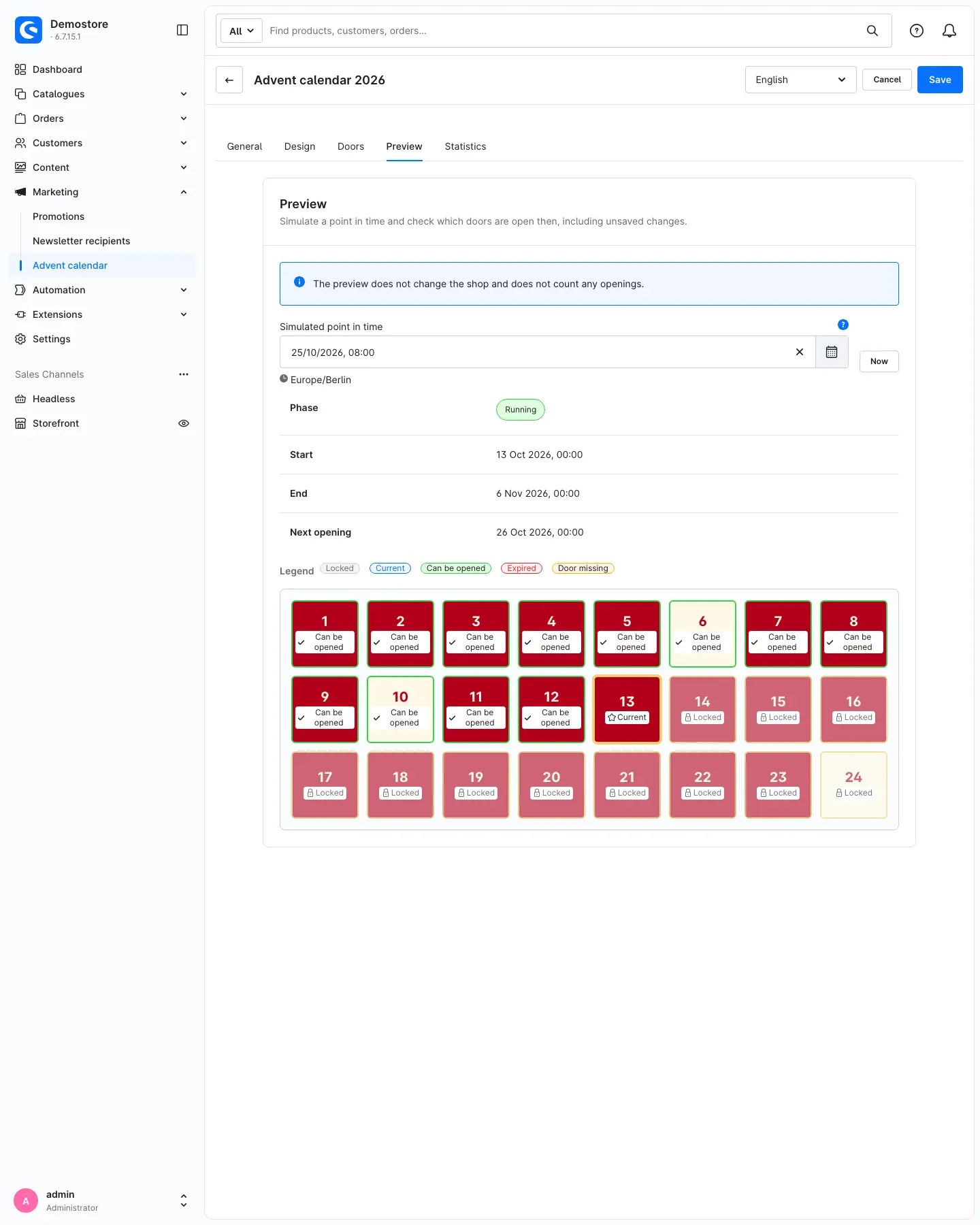 Fig. 11: The preview at a simulated point in time with phase, start, end and next opening
- Under Simulated point in time, set the date and time. The value applies in the time zone of the calendar, which is shown directly below the field. Now takes you back to the current time.
- Read the result:
- Phase: Before the start, Running or Ended.
- Start and End: when the first door opens and when the calendar ends.
- Next opening: when the next door opens.
- Check the grid. The Legend explains the marks on the doors: Locked, Current, Can be opened, Expired and Door missing.
“The preview does not change the shop and does not count any openings.”
Test mode
With the Test mode switch on the General tab you open all doors immediately – directly in the shop. This lets you try out coupons, links and product doors exactly as your customers will see them later. “Opens all doors for all visitors. Nothing is counted in test mode.”
As long as test mode is switched on, the calendar warns you with the notice “Test mode active”: “All doors are open for all visitors, regardless of date and time. Switch off test mode before the start.”
Important: Test mode applies to all visitors of your shop. Only use it while the calendar is not yet publicly reachable, and switch it off again before the start. For checking only, the preview is the safe way.
The settings Logged-in customers only and Rule also apply in test mode.
How to evaluate the openings
What this gives you: You see which doors are particularly popular – and plan your next campaign in a more targeted way.
Open your calendar and switch to the Statistics tab.
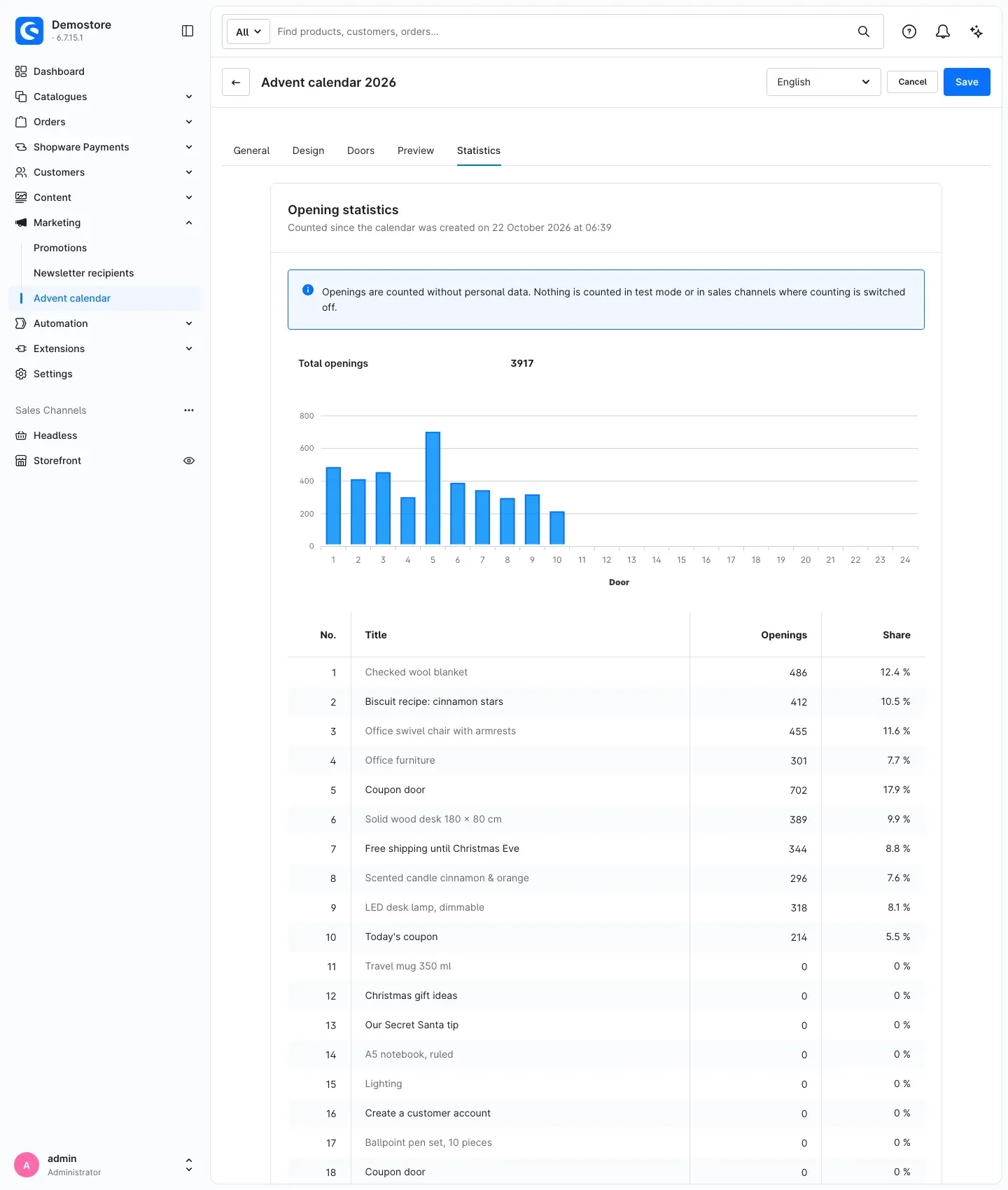 Fig. 12: The opening statistics with total, chart and table per door. The name of the target appears in grey when a door has no title of its own.
The Opening statistics card shows you:
- below the heading, since when openings have been counted – since the calendar was created or since the last reset,
- the Total openings,
- a chart with the openings per door,
- a table with No., Title, Openings and Share per door.
If a door has no title of its own, the Title column shows its target in grey: the name of the product, category or landing page, for a coupon door the name of the promotion with the coupon code and for a link the address. This way you can assign every row, even if you have not given every door a title.
“Openings are counted without personal data. Nothing is counted in test mode or in sales channels where counting is switched off.” If a visitor opens the same door several times without reloading the page, it counts only once.
Resetting the statistics
If you want to start from zero after a test run, click Reset statistics at the bottom of the card and confirm with Reset. “All counters of this calendar will be set to 0. This cannot be undone.”
Tip: The statistics are only available once you have saved the calendar.
How to reuse a calendar next year
What this gives you: A successful calendar becomes a template. You take over design, doors and texts in a few clicks and only adjust what changes.
- Go to Marketing → Advent calendar.
- Click the row menu (…) of the calendar and choose Duplicate.
- In the Duplicate calendar window you enter:
- Name of the copy: Prefilled with the existing name plus “(copy)”.
- Start date of the copy: “Prefilled with the start date of the original plus one year. Empty = start date of the original.”
- Click Duplicate.
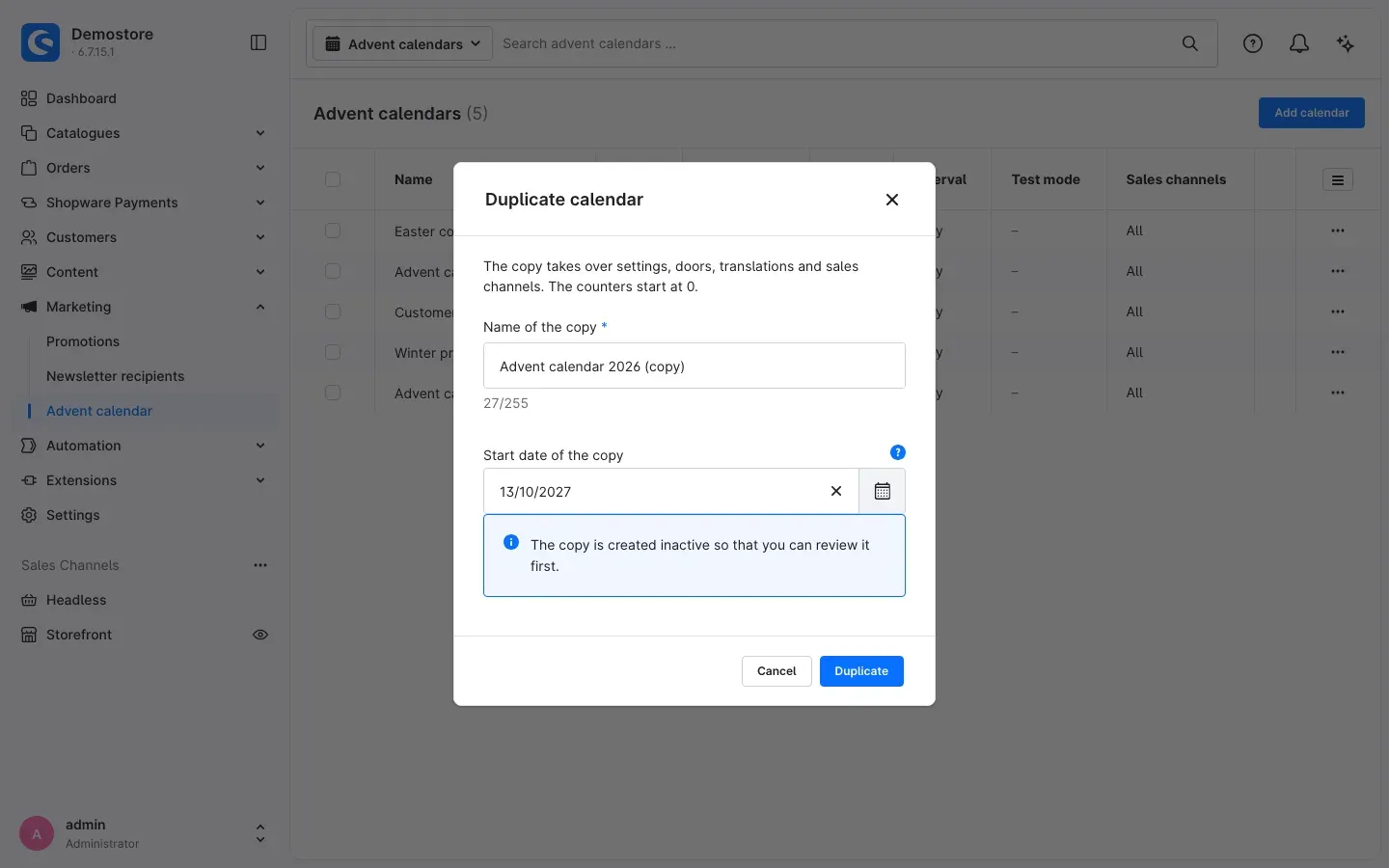 Fig. 13: When duplicating, you set the name and start date of the copy
“The copy takes over settings, doors, translations and sales channels. The counters start at 0.” In addition: “The copy is created inactive so that you can review it first.”
Then open the copy, adjust the doors and switch it on via Active on the General tab as soon as it is ready. Do not forget to switch the shopping experience to the new calendar (see How to add the calendar to a shopping experience).
How to add the calendar to a shopping experience
What this gives you: You place the calendar on any page of your shop – on its own campaign page, a category or the home page.
Inserting the block
- Go to Content → Shopping Experiences and open the layout you want or create a new one.
- Open the Blocks area in the right-hand sidebar.
- Under Block category, choose Commerce.
- Drag the Advent calendar block to the position you want in the layout.
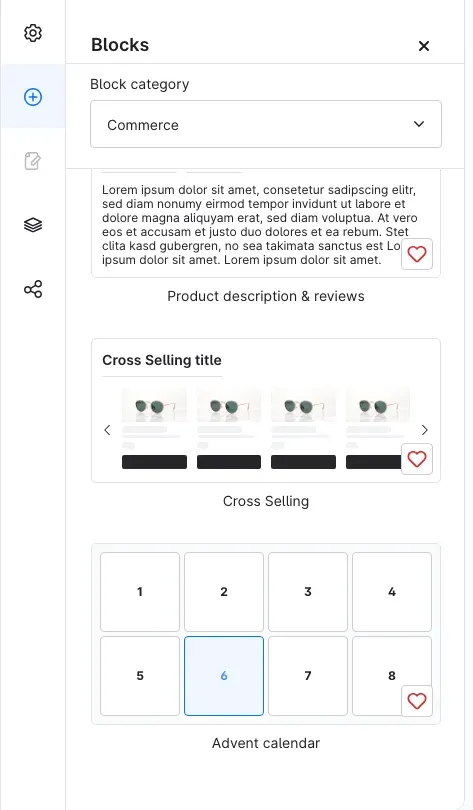 Fig. 14: The “Advent calendar” block in the “Commerce” block category
Note: You can only insert new blocks while the layout is set to the default language of your system.
Selecting the calendar
- Click the gear icon on the inserted element. The Element settings (Advent calendar) window opens.
- Choose your calendar under Calendar. “You manage calendars under Marketing > Advent calendar.”
- Decide whether the heading and the introduction of the calendar should appear: Show heading and Show introduction.
- Click Done and save the layout with Save.
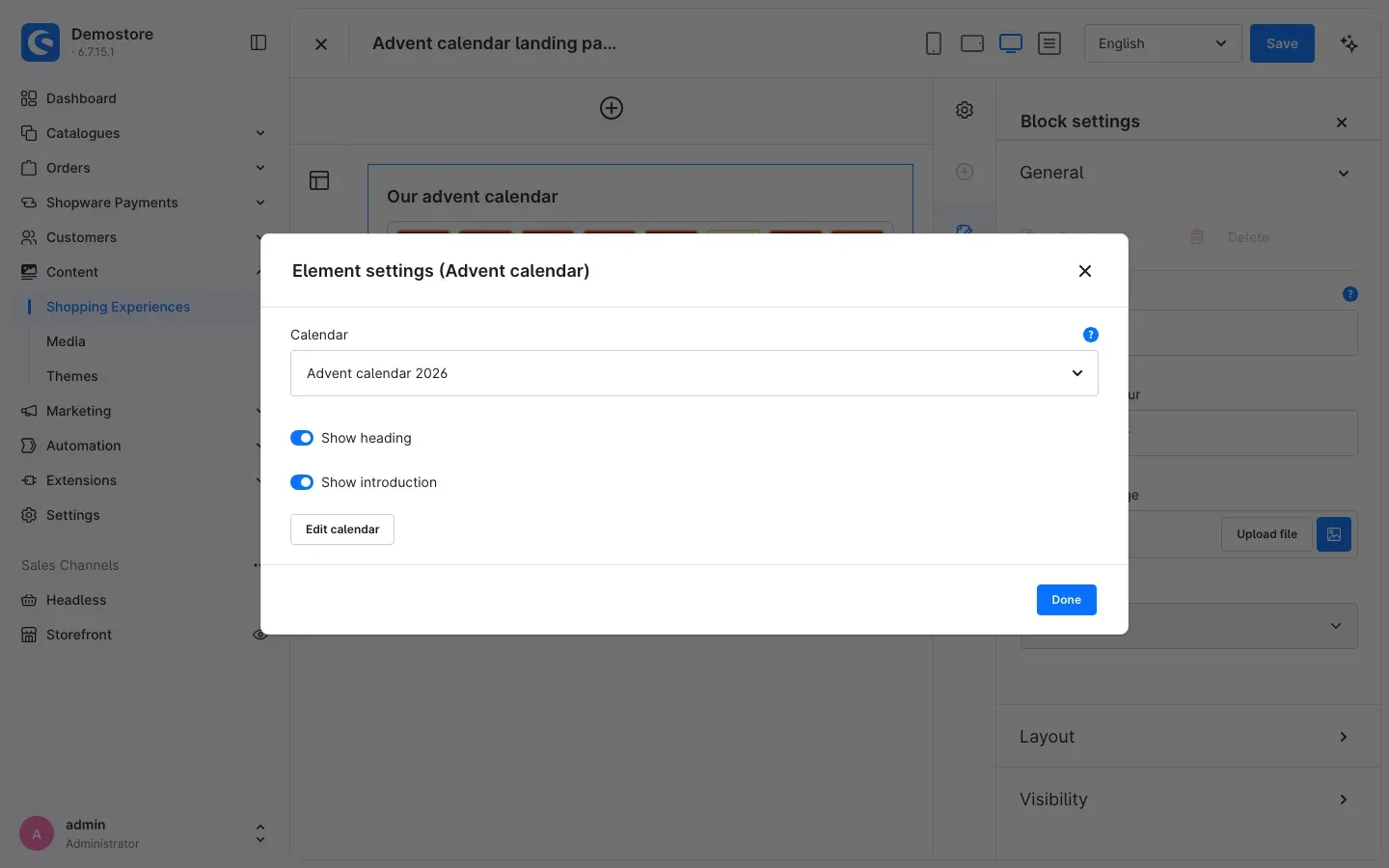 Fig. 15: In the element settings you select the calendar
Edit calendar opens the selected calendar in a new browser tab. If the selected calendar is inactive, the window tells you: “This calendar is inactive and is not shown in the shop.” With test mode switched on, it shows: “Test mode active: all doors are open for all visitors in the shop.”
Assigning the layout
For your customers to see the calendar, you assign the layout to a page as usual. For a category, go to Catalogues → Categories, select the category and click Assign layout on the Layout tab. You can assign the layout to a landing page in the same way.
What the calendar looks like in the shop
What this gives you: Here you see what your customers experience – so you know how each setting works in the shop.
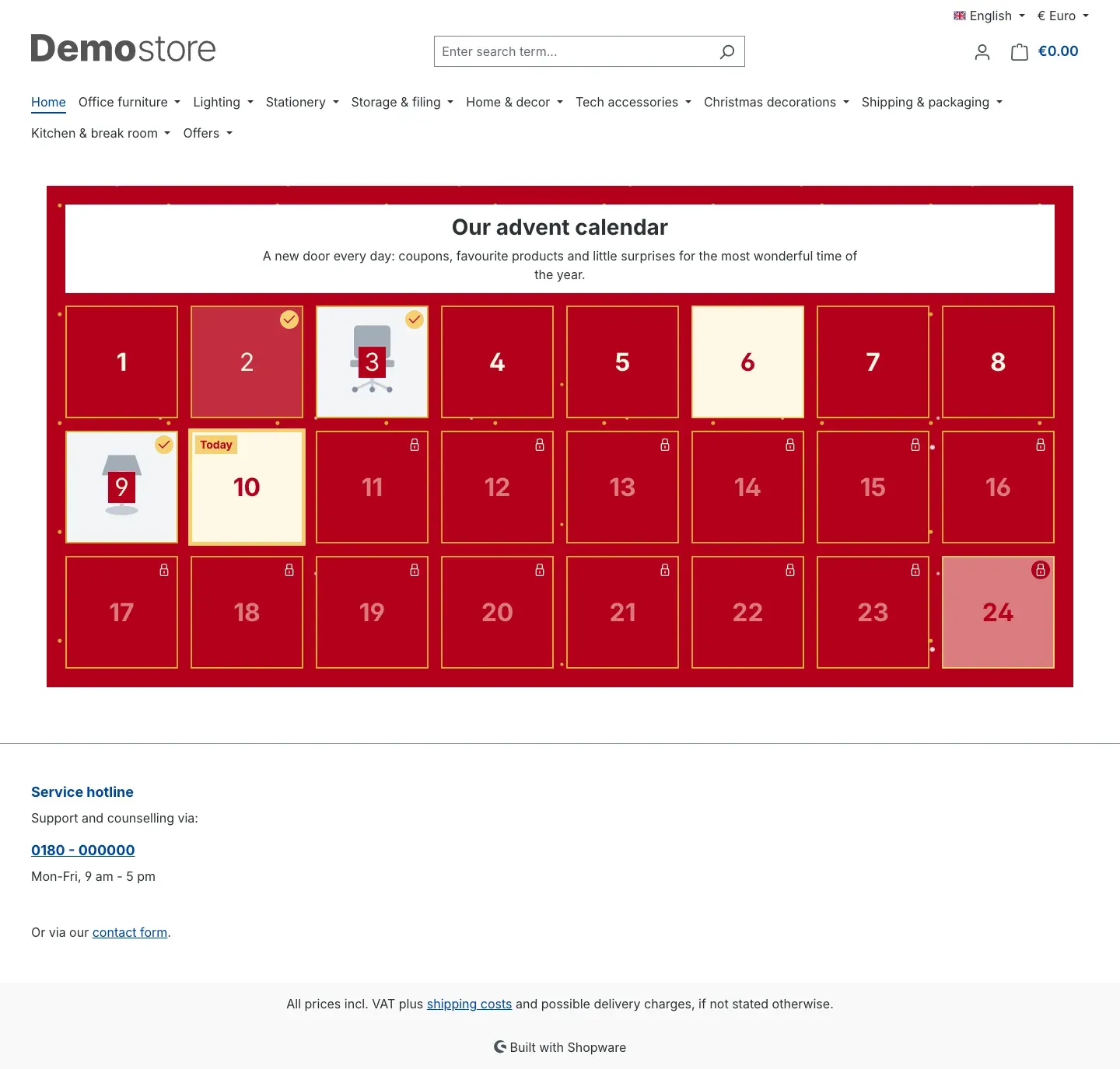 Fig. 16: The calendar in the shop with heading, introduction and the marked door of the day
Above the doors you see the Heading and the Introduction, provided you have switched them on in the shopping experience. With a daily interval, the current door carries the mark “Today”; with other intervals it reads “Current”. Clicking an open door opens a window with its content – with Direct link switched on, it leads straight to the target instead. After opening, the door in the grid shows the image from Image opened – or, if none is set, the image of the product or category.
The door states
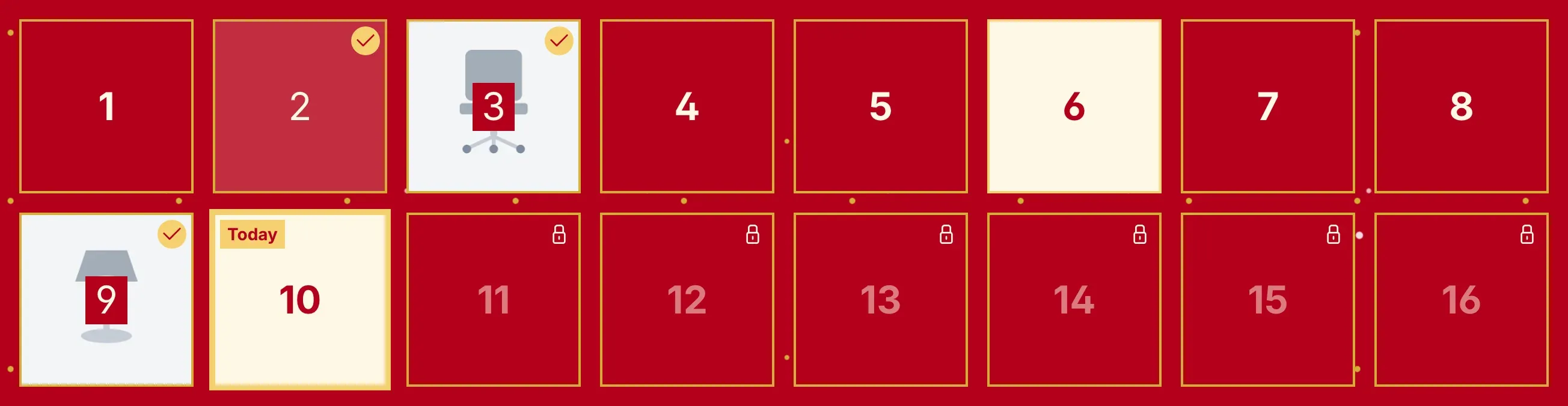 Fig. 17: Detail of Fig. 16: opened (2, 3 and 9), can be opened (1, 4 to 8), highlighted (6), current (10) and still locked (11 to 16)
Each door shows your customer whether it can be opened:
| State | What the door looks like |
|---|---|
| Still locked | Padlock symbol at the top right. The door lies behind a light veil, the number is paler. |
| Current | Border in the Highlight colour and the mark “Today” or “Current” at the top left. |
| Can be opened | Full colour, no symbol. A click opens the door. |
| Opened | Check mark at the top right and a lighter tinted area – or the image from Image opened or the product or category image. |
| Expired | Prohibition symbol at the top right. The door is grey and lies behind a veil. This only happens with Past doors = Locked (see Fig. 21). |
A highlighted door keeps its inverted colours in every state, for example doors 6 and 10 in the picture.
The check mark appears on the doors the customer has already clicked on the open page. If they reload the page, these doors appear as “can be opened” again. With Past doors = Always shown open, all past doors carry the check mark.
Symbols and veil only appear once the calendar has loaded the current state of the doors from the shop. This way a customer never briefly sees a wrong padlock.
Coupon doors
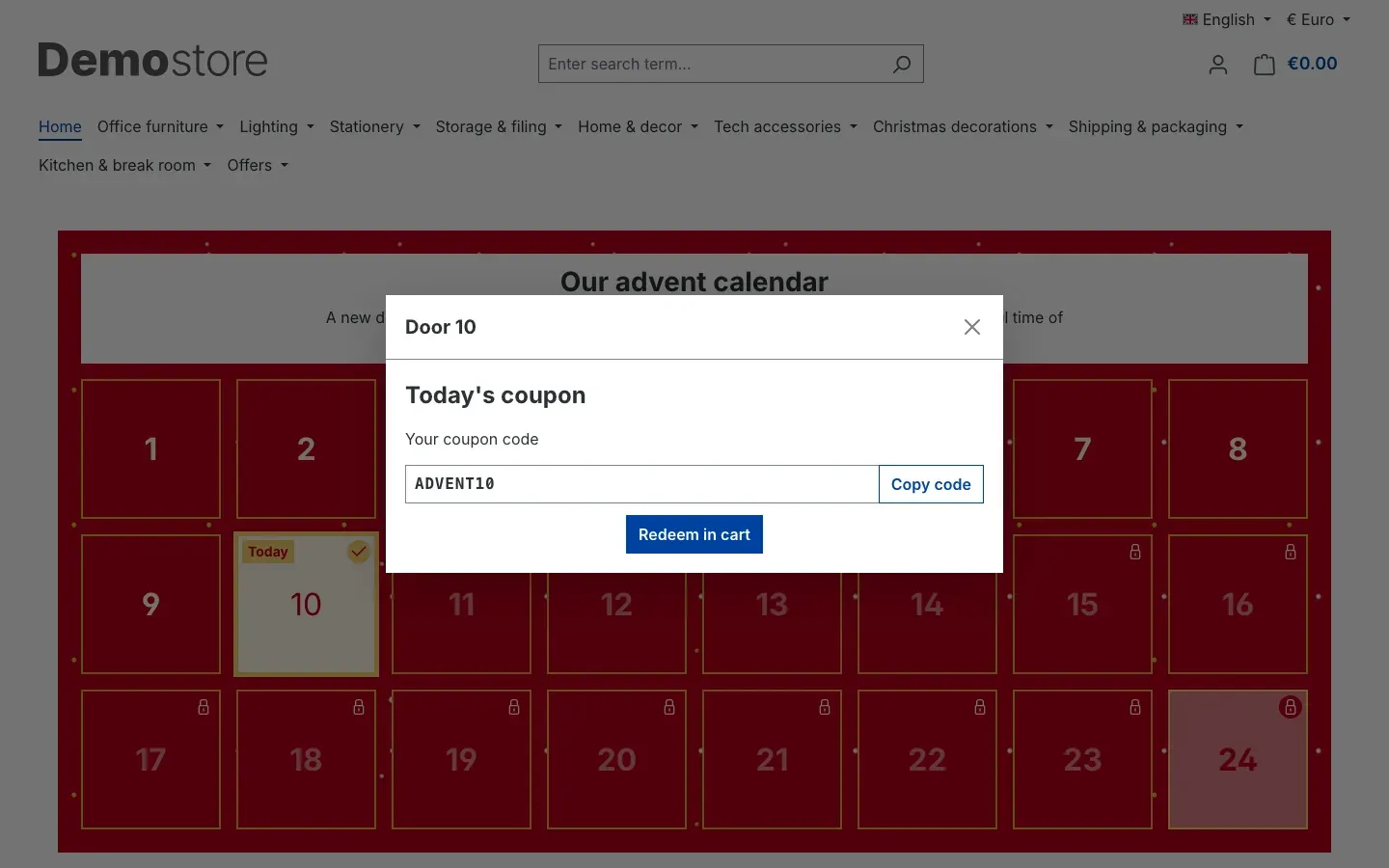 Fig. 18: A coupon door with code and redeem button
The window shows “Your coupon code” with the code. Copy code copies the code to the clipboard. Redeem in cart adds the code directly to the cart and takes the customer to the cart.
Product doors
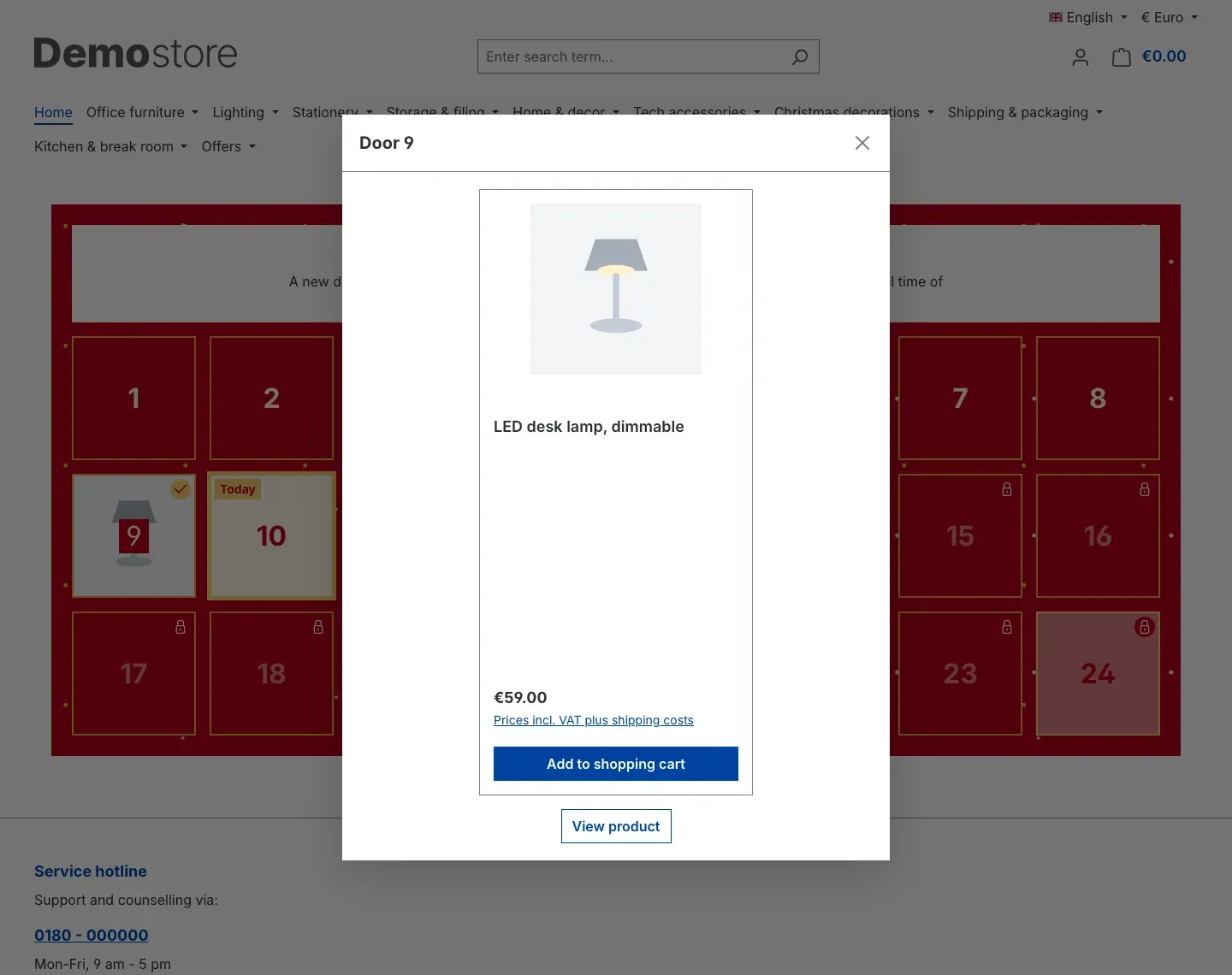 Fig. 19: A product door shows the product the way it also appears in your shop
The window shows the product with image, name, price and the Add to shopping cart button. Below it, a button leads to the product; without your own Button text it reads “View product”. Product name and product image appear only once, in the product card. Your own Title appears above the product, as does your own image from Image opened.
Locked doors
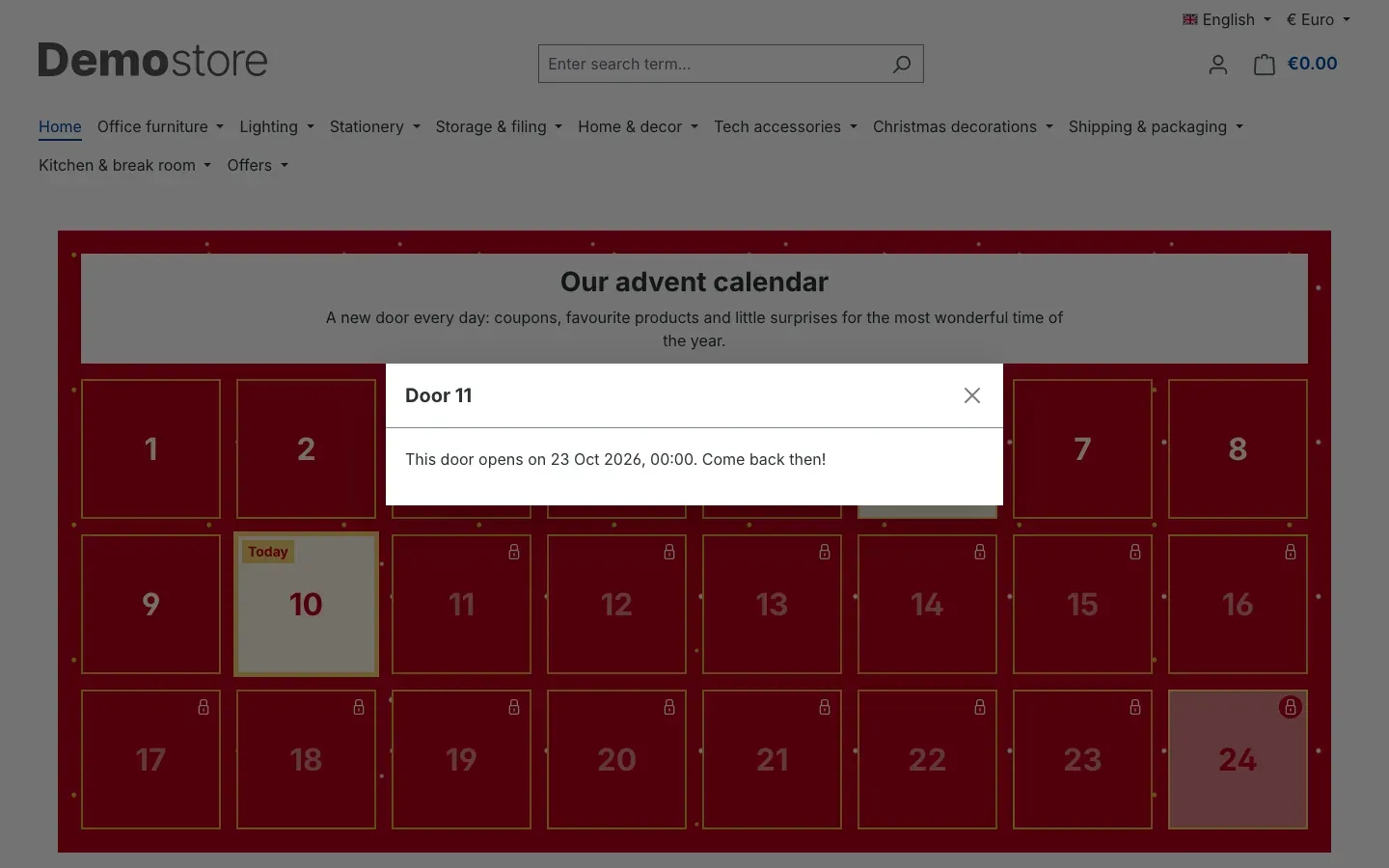 Fig. 20: A door that is still locked names the date and time of opening
When a customer clicks a door that is not open yet, your Notice for a locked door appears with date and time – without your own text: “This door opens on … Come back then!”
Calendar for logged-in customers only
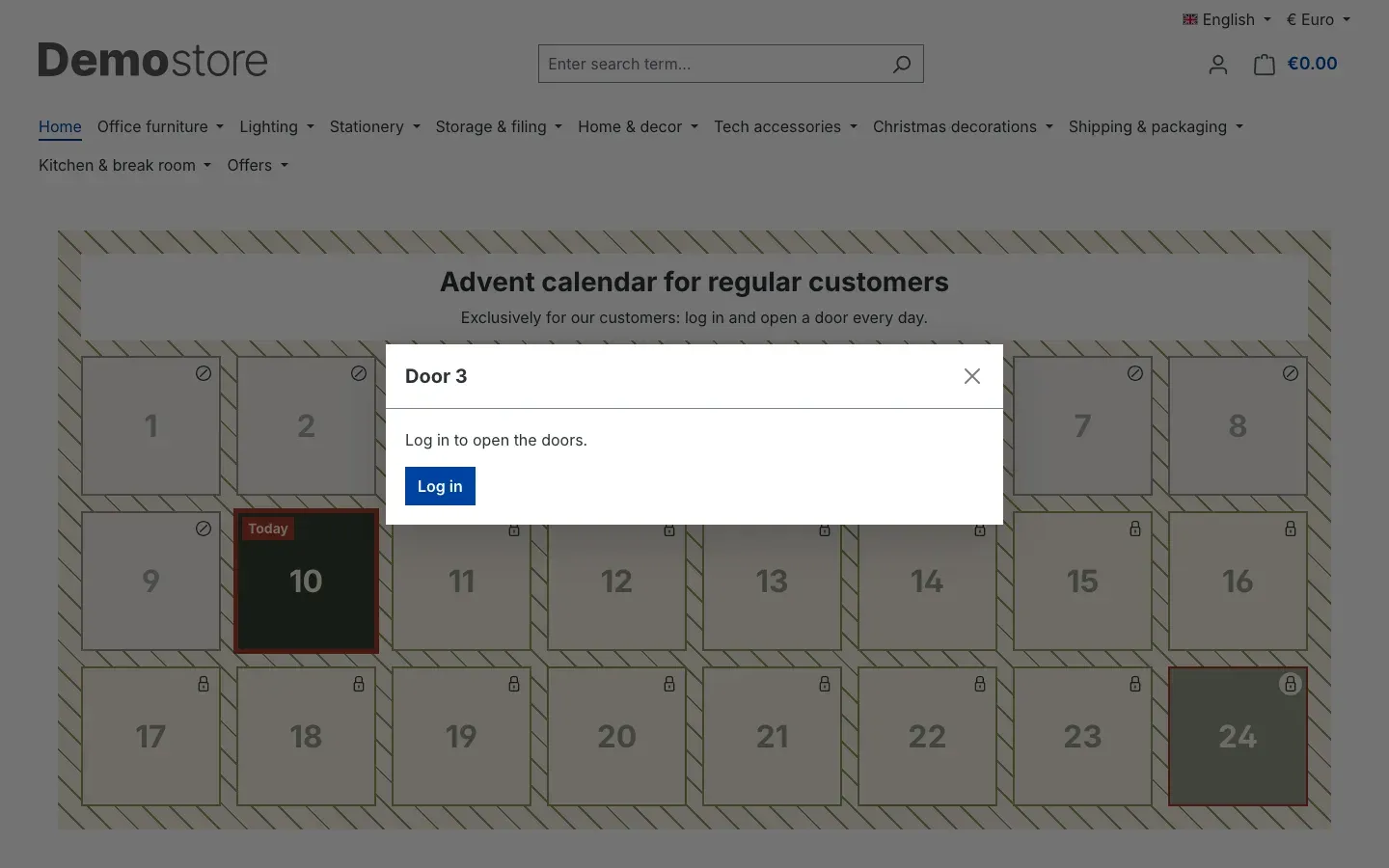 Fig. 21: A calendar with “Logged-in customers only”: visitors who are not logged in are guided to the login. In this calendar, “Past doors” is set to “Locked”, so doors 1 to 9 have expired.
Visitors who are not logged in see the calendar, but when they click a door they receive the notice “Log in to open the doors.” and the Log in button.
Before the start
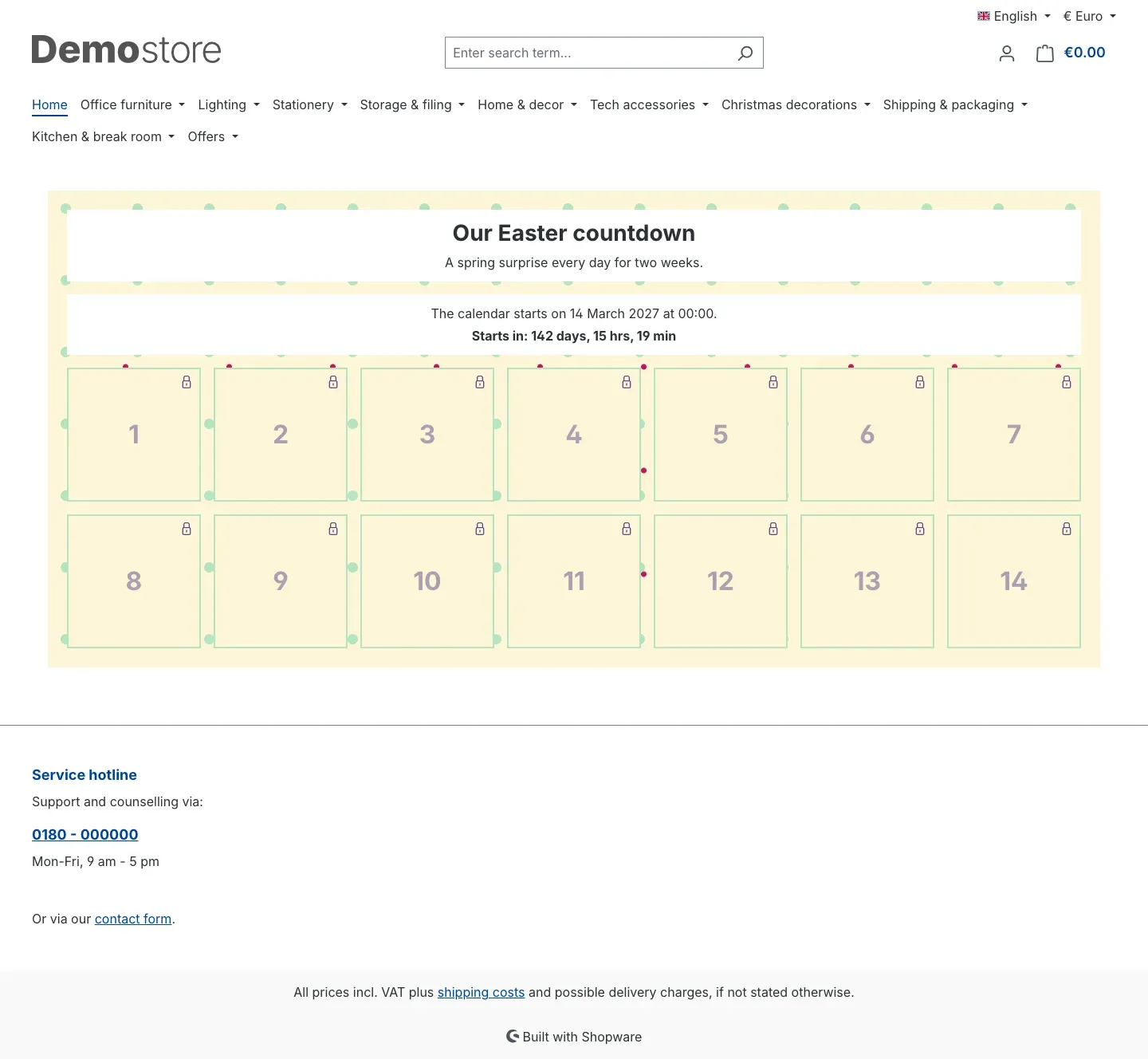 Fig. 22: Before the start, the calendar shows the start date and a countdown
Until the start, your Notice before the start appears above the doors together with the start date. Below it a countdown runs, for example “Starts in: 142 days, 15 hrs, 19 min”. After the end, your Notice after the end appears in the same place.
Accessible for everyone
The doors can also be opened with the keyboard. Assistive technologies such as screen readers read out the number of each door together with its state or, for locked doors, the opening date. If JavaScript is switched off in the browser, the notice “Please enable JavaScript to open the doors.” appears.
How to maintain the calendar in several languages
What this gives you: Customers in every language shop see the calendar in their language – with the same doors, targets and opening times.
- Open your calendar.
- Choose the language you want in the header at the top right, for example English.
- Enter the texts in this language and click Save.
You can translate the Heading, the Introduction, the four Notice texts and in each door the “Title, content, link and button text”. The Doors tab reminds you of this: “Switch the content language at the top right to maintain them per language.”
Everything else applies to all languages together: the name, the schedule, the design, the access rules and the selected product, category, landing page or promotion of a door. If a translation is missing in a language, the text of the default language appears.
The fixed texts of the calendar in the shop – such as “Today”, “Copy code” or the default notices – are supplied by the plugin in German, English and Dutch. If you want to change one of these texts, you find it in the Shopware settings under Localisation → Snippets.
Troubleshooting
The “Advent calendar” menu item is missing in the Administration
Cause: The plugin is not activated yet, or your user role lacks the permission for advent calendars.
Solution:
- Open Extensions → My extensions and check whether the switch next to the plugin is on.
- Reload the Administration.
- If the menu item is still missing, ask an administrator to give your role the “Advent calendar” permission (see For administrators / Technical details).
The calendar does not appear in the shop
Cause: One of the conditions for display is not met.
Solution: Check in this order:
- Is the Active switch on in the calendar?
- Is the right sales channel selected under Sales channels – or is the field empty (all sales channels)?
- Have you chosen a Rule? Customers who do not match the rule do not see the calendar. Test with a matching customer account.
- Is Enable plugin for this sales channel switched on in the plugin configuration for this sales channel?
- Is a Calendar selected in the element settings of the shopping experience, and is the layout saved?
- Is the layout assigned to the category or landing page you open in the shop?
- Have you only just saved? Then read the next point.
Changes do not appear in the shop immediately
Cause: Shopware keeps finished pages in its cache. After a change, Shopware does not update these pages immediately but collectively at regular intervals – every five minutes by default.
Solution:
- Wait a few minutes and reload the page in the shop.
- If the change should be visible immediately, open Settings → System → Caches & indexes and click Refresh cache.
The opening of the doors itself does not depend on the cache: the shop checks on every visit whether a door is open.
A door cannot be opened
Cause: The door is still locked at the current time or is already locked as a past door. In the shop you recognise this by the symbol at the top right: a padlock means “still locked”, the prohibition symbol means “expired” (see What the calendar looks like in the shop).
Solution:
- On the Preview tab, use Now to check the current status of the door.
- Check Start date, Interval in days, Opening time and Time zone. A wrong time zone shifts all opening times.
- If Past doors is set to Locked, past doors intentionally can no longer be opened. Choose Can still be opened if customers may catch up on missed doors.
- If Logged-in customers only is switched on, the customer has to log in first.
A door is missing from the grid
Cause: The door is inactive or exceeds the configured number.
Solution: Open the door on the Doors tab and switch on Active. If the label “Surplus – not shown” appears below the title, increase the Number of doors on the General tab.
The coupon door shows no code
Cause: The selected promotion cannot be handed out at the moment.
Solution: Under Marketing → Promotions, check whether the promotion
- is active,
- uses a fixed coupon code (no individual codes),
- is assigned to the sales channel in which the calendar runs,
- is valid at the current time.
The Promotion selection only offers promotions with a fixed coupon code.
A door shows “A surprise will be waiting behind this door soon.”
Cause: The door has no content yet, or the selected target is currently not available in the shop – for example an inactive product – and there is no title and no text as a replacement.
Solution: Fill the door on the Doors tab. Check whether the target shows “Target inactive” or “Target expired”, and choose a different target if necessary.
A product, category or landing page door shows no button
Cause: The target cannot be reached in the current sales channel. Unavailable products, inactive categories, folders and landing pages not assigned to the sales channel are not linked.
Solution: Activate the target or assign it to the sales channel – or choose a different target.
The calendar cannot be saved
Cause: At least one field contains an invalid entry. You see the message “The calendar could not be saved. Please check the highlighted fields, including those of the doors.”
Solution:
- Check the fields marked in red on the General and Design tabs.
- On the Doors tab, check the labels below the titles. Doors marked “Check input” contain an error, for example a link that does not start with
https://,http://or/. - Enter colour values, for example, as
#B3001B.
The snow effect is not visible
Cause: The snow only appears in the shop, not in the Administration and not in the live preview. It also switches off when the “reduce motion” setting is active on the visitor’s device.
Solution: Check whether the Snow effect switch is on on the Design tab and look at the calendar in the shop.
The statistics do not count
Cause: Nothing is ever counted in test mode, and nothing is counted in sales channels in which Count door openings is switched off. Openings in the Preview are not counted either.
Solution: Switch off Test mode and check the Count door openings switch in the plugin configuration for the sales channel concerned.
FAQ
Q: Do I have to clear the cache every day for the next door to open?
A: No. The shop checks on every visit whether a door is open. The doors open on time at the configured hour.
Q: Can curious customers look into the page source to see what is behind the doors?
A: No. The content of a door is only loaded once the door can be opened. Before that, it is not part of the page.
Q: Which time applies – mine or my customers’?
A: The Time zone of the calendar applies. A door opens for all customers at the same moment, no matter where they are or how the clock on their device is set.
Q: Do I have to fill all doors before the start?
A: No. You can start the calendar and fill later doors step by step. A door without content shows a friendly placeholder text.
Q: Can I run several calendars at the same time?
A: Yes. You can create as many calendars as you like and add each one to its own shopping experience – for example one for all customers and one for regular customers only.
Q: Is the plugin also suitable for occasions other than Christmas?
A: Yes. With 1 to 100 doors, a freely selectable Interval in days and templates such as Easter or Minimal (theme colours) you can build, for example, an Easter countdown or a weekly calendar.
Q: How do my customers see which doors they can already open?
A: By the look of the grid. Doors that are still locked carry a padlock and lie behind a veil, the current door has a border and the mark “Today” or “Current”. Doors without a symbol can be opened, opened doors carry a check mark (see What the calendar looks like in the shop).
Q: Does “Random” change the opening date of the doors?
A: No. Only the arrangement in the grid changes. Door 24 still opens on the day of door 24.
Q: Can every customer receive an individual coupon code?
A: No. A coupon door always shows the fixed coupon code of a promotion. Promotions with individual codes cannot be selected.
Q: Can I embed a video in a door?
A: The Content field supports text, images and links. Embedded content from third-party platforms is not accepted for data protection and security reasons. Link to the video instead.
Q: Does the plugin store data about my customers?
A: No. The opening statistics only count how often a door was opened – without personal data.
Q: What do my customers see when the calendar is over?
A: Your Notice after the end appears above the calendar. Whether the doors can still be opened afterwards is up to you with Past doors.
Q: Can I reuse the calendar next year?
A: Yes. Duplicate copies the whole calendar including doors and translations and lets you set a new start date (see How to reuse a calendar next year).
For administrators / Technical details
This section is intended for technical administrators. You do not need it for normal use.
System requirements
- Shopware: 6.7
- PHP: 8.2 or newer
- Database: as required by Shopware 6.7
Installation via the command line
If the plugin is already present in your installation, install and activate it like this:
php bin/console plugin:refresh
php bin/console plugin:install --activate SwpAdventCalendarSix
php bin/console cache:clear
Permissions
In role management under Settings → System → Users & permissions, the Marketing area contains the entry Advent calendar with the levels View, Edit, Create and Delete. Duplicating a calendar requires the Create level; resetting the statistics requires Edit. If a permission is missing, the corresponding buttons are greyed out and show the note “You do not have permission for this.”
Cache and performance
- The grid of doors is independent of time and is cached by Shopware like any other page.
- The shop loads the status of the doors and the door contents separately and uncached. The change of day therefore does not require clearing the cache.
- Changes to calendars and doors automatically mark the affected pages for refreshing. By default, Shopware refreshes them with a delay via a scheduled task that runs every five minutes.
Data protection
- The opening statistics only store one counter per door – no IP addresses, no customer data.
- The plugin sets no cookies, stores nothing in the visitors’ browsers and calls no external services.
- Door contents are cleaned when saving and when displayed; scripts and embedded third-party content are not accepted.
Store API and Composable Frontends
All customer-facing features are available via the Store API:
GETorPOST /store-api/swp-advent-calendar/{calendarId}returns the grid of doors and the current status of the calendar.POST /store-api/swp-advent-calendar/{calendarId}/door/{doorId}opens a door. Time, sales channel, login and rule are checked before the content is loaded; the opening is counted.
Both routes are intentionally not HTTP-cacheable because their response depends on the time, the login and the rule. A locked door responds with HTTP 403. The routes appear in the OpenAPI description of your shop. Shopware’s standard includes parameter lets you limit the response size, for example to the image fields you need.
For Composable Frontends, the shopping experience components are called CmsBlockSwpAdventCalendar (block) and CmsElementSwpAdventCalendar (element). The element’s data only contains the time-independent grid; the component loads status and contents itself via the two routes.
Uninstallation
When uninstalling, Shopware asks whether the data should be removed (Remove all app data permanently).
- Without this option, all calendars, doors and statistics are kept. If you install the plugin again later, everything is back.
- With this option, all calendars, doors and statistics are deleted. Blocks of the type Advent calendar are removed from your shopping experiences. If the calendar element was placed in a different block, it is replaced by an empty text element so that the layout remains valid.
This manual was written for Advent Calendar version 6.7.0.
More manuals
Address Validation: House Number Check & Corrections
Address validation at the point of entry: the plugin spots missing house numbers, can suggest corrections via Google and helps you send fewer parcels that come back undeliverable.
Open manual Shopware 6Admin Password Reminder
Admin Password Reminder: your backend users renew their passwords on time, prompted after login and by a daily email. Premium locks expired accounts until the password is changed.
Open manual Shopware 6Age Check
Age verification without a popup for every visitor: you flag categories and products, and only shoppers who head for them are asked. They then carry on where they left off.
Open manualNeed a team that keeps your shop running?
We have been maintaining Shopware shops for more than 20 years, including updates, hotfixes and the plugins you are configuring right now.