Address Validation: House Number Check & Corrections
Address validation at the point of entry: the plugin spots missing house numbers, can suggest corrections via Google and helps you send fewer parcels that come back undeliverable.
On this page
- Introduction
- What you achieve with this plugin
- Who is this plugin for?
- Installation
- Getting started
- Settings
- Card “General”
- Card “Verification service”
- Card “Display”
- How to use the features
- How your shop points out missing house numbers
- How Google suggests a corrected address
- How to check only after cookie consent
- How to make the house number mandatory
- How checkout handles existing addresses
- How the plugin fixes small typos by itself
- How to see the verification status on orders and addresses
- How to use the verification status in the Rule Builder
- How to keep your Google costs low
- Troubleshooting
- The hint about the missing house number does not appear
- No correction suggestions appear
- ”Test connection” reports an error
- Customers cannot place an order
- The plugin does not appear under “My extensions”
- FAQ
- For administrators / technical details
- System requirements
- Installation via the command line
- Log
- Permissions
- Headless frontends
- Stored data
Introduction
Address Validation helps you deliver parcels on the first attempt: it spots missing house numbers while the address is being entered and, if you wish, suggests a corrected address via Google.
What you achieve with this plugin
- Your customers see a hint as soon as the house number is missing from the street – at registration, in the customer account and in checkout.
- You decide whether a missing house number is just a hint or whether an address without one cannot be saved at all.
- With a Google key, the plugin checks street, postcode and city. Your customer applies a correction with one click, and small typos can fix themselves.
- Parcel lockers, PO boxes and similar addresses are left alone.
- Every order and every customer address shows how the address was checked – and you can react to that in the Rule Builder.
- Everything can be set and switched off per sales channel.
Who is this plugin for?
For shop owners who want fewer returned parcels and less time spent chasing incomplete addresses. The house number check works without any external service; for correction suggestions you need a Google Maps Platform key.
Installation
After purchase, the plugin is available directly in your Administration – there is nothing to download.
-
Log in to your Shopware Administration (
yourshop.com/admin) -
Open Extensions → My extensions
-
Next to Address Validation: House Number Check & Corrections, click Install
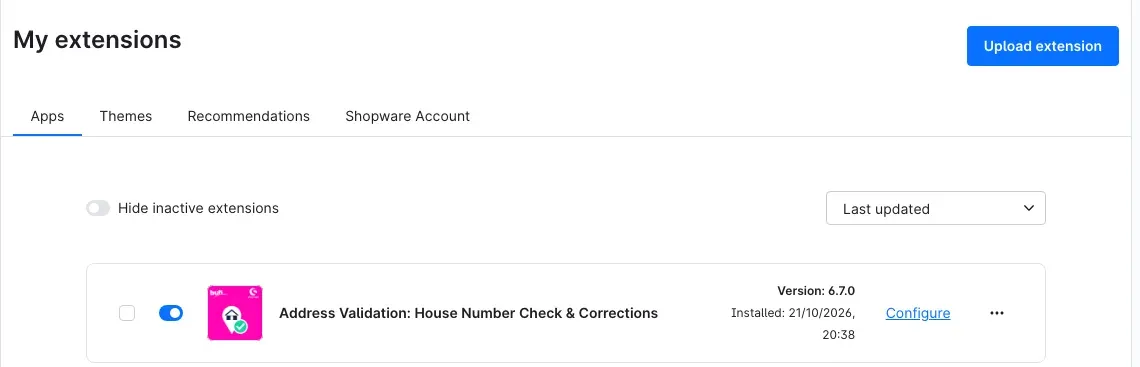
Fig. 1: The installed and activated plugin in “My extensions”
-
Activate the plugin with the switch next to the entry — done.
If Address Validation: House Number Check & Corrections does not appear in the list, your Shopware account is not yet connected to the shop. You do this under Extensions → My extensions by logging in with your Shopware account.
Right after activation, the house number check runs in “Hint” mode. Your customers benefit immediately, even before you change any setting.
Getting started
-
Open the settings: Under Extensions → My extensions, click Configure next to the plugin.
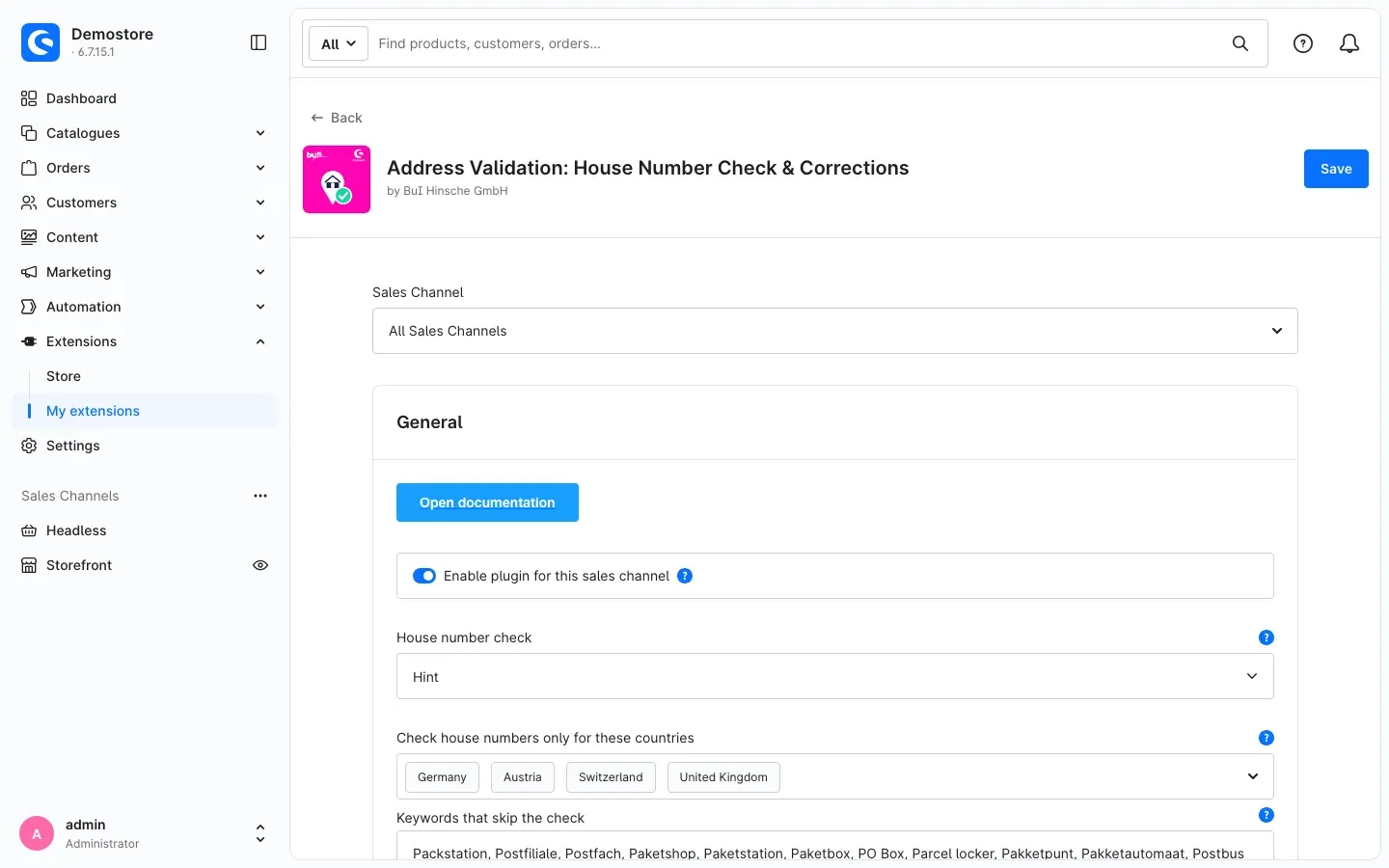
Fig. 2: The configuration page with the sales channel selection
-
Choose the sales channel: At the top, Sales Channel initially shows “All Sales Channels”. Whatever you set there applies to every sales channel. If you select a specific sales channel, you can define different values for that shop.
-
Set the essentials: Under House number check, decide whether a missing house number is only pointed out (“Hint”) or prevented (“Required”). If you want correction suggestions from Google, enter your key under Verification service and click Test connection.
-
Click Save in the top right corner.
-
Check the result: Open the registration page in your shop and enter a street without a house number, for example “Baker Street”. Below the address fields you see the hint “Please check the street – the house number seems to be missing.”
Tip: The Open documentation button at the very top of the “General” card takes you to this manual at any time.
Settings
You find the settings under Extensions → My extensions → Configure next to the plugin. They are spread over three cards: “General”, “Verification service” and “Display”. You can set each option for all sales channels at once or for a single sales channel.
Card “General”
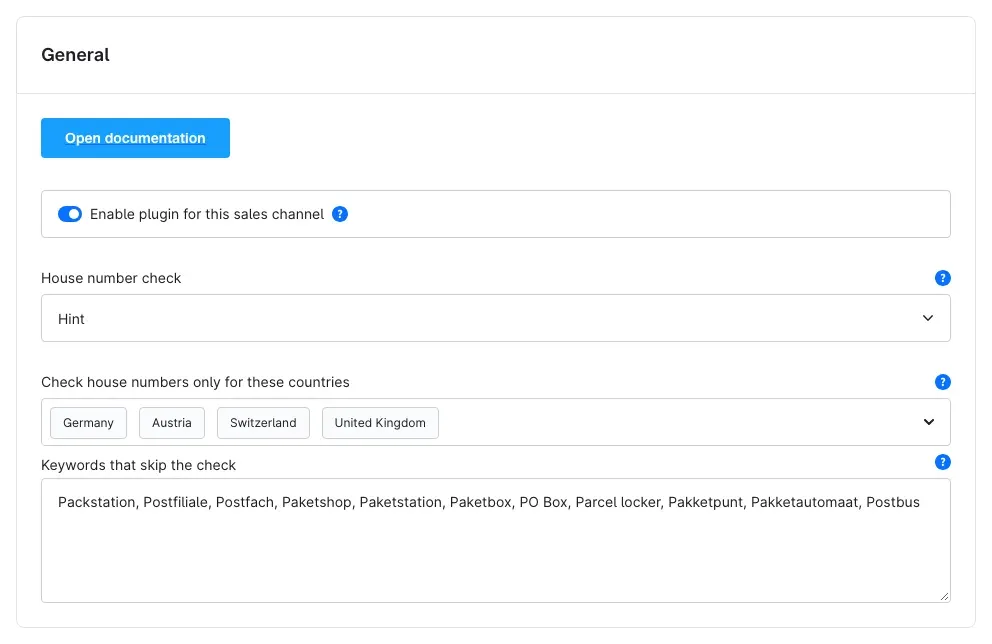
Fig. 3: The “General” card
Enable plugin for this sales channel
The Enable plugin for this sales channel switch decides whether address validation is active in the selected sales channel. It is on by default. If you switch it off, that shop behaves as if the plugin were not installed – without uninstalling it.
Why this is useful: You run a B2C and a B2B shop and only want the check in one of them.
House number check
Under House number check you choose how strictly the plugin handles missing house numbers:
- Off – no house number check.
- Hint (default) – your customer sees a yellow hint below the address fields. They can close it with “Keep my entry” and still save the address.
- Required – an address without a house number is not saved in any address form. Existing addresses without a house number also block the order until the address is completed.
The house number check needs no verification service; it runs entirely in your shop.
Why this is useful: “Hint” is a gentle start that keeps every order. If parcels still come back, switch to “Required”.
Check house numbers only for these countries
Under Check house numbers only for these countries you select the countries in which a house number is expected. If you leave the field empty, the plugin checks addresses of all countries.
Why this is useful: In some countries house names instead of house numbers are common, for example in the United Kingdom or Ireland. If you leave these countries out, your customers there do not get an unnecessary hint.
Keywords that skip the check
If the street or an additional address line contains one of the words from Keywords that skip the check, the plugin neither checks nor corrects that address. Preset words include Packstation, Postfach, Paketshop, PO Box and Parcel locker. Separate the words by comma or line break; you can extend the list as you like.
Why this is useful: A parcel locker has no house number in the usual sense – customers should be able to save such addresses without a hint.
Card “Verification service”
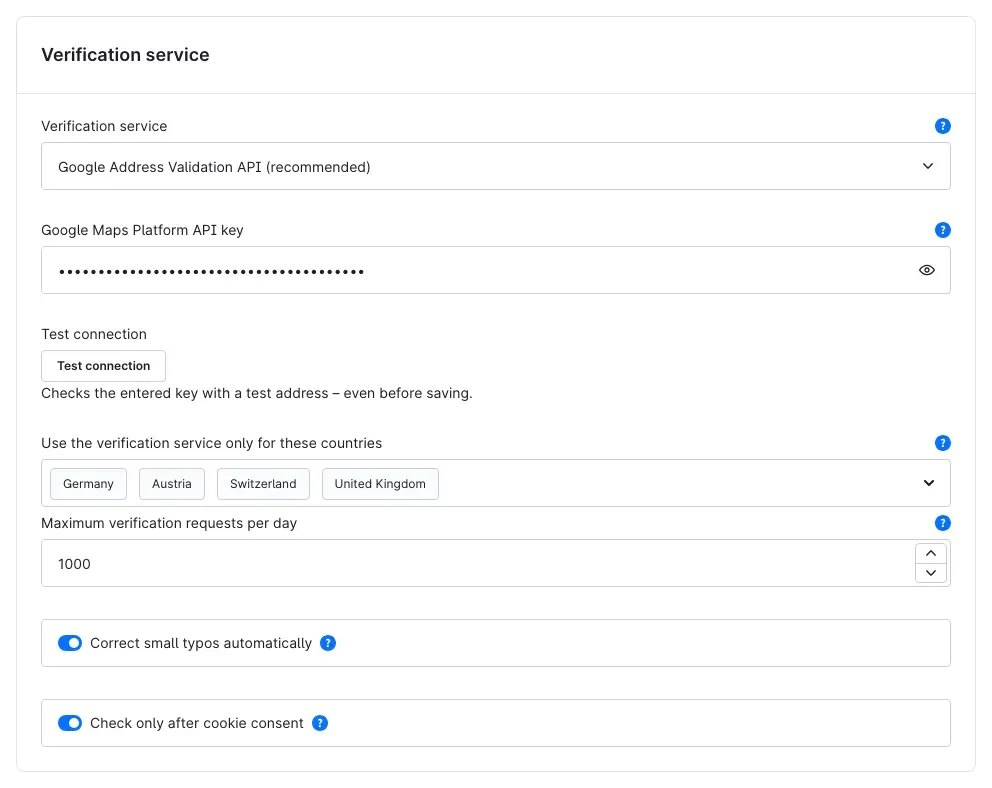
Fig. 4: The “Verification service” card
Verification service
Under Verification service you choose whether and how the plugin checks street, postcode and city:
- Google Address Validation API (recommended) – the most precise check. For countries this service does not cover, the plugin automatically uses the Geocoding API.
- Google Geocoding API – a simpler check. If the postcode matches, your customer’s spelling of the city is kept (“München” is not changed to “Munich”); only typos of up to two characters are corrected.
- No verification service (local checks only) – no address data leaves your shop. Only the house number check runs.
As long as no key is entered, the plugin only checks locally, even if a Google service is selected.
Google Maps Platform API key
Enter the key from your Google Cloud project under Google Maps Platform API key. The “Address Validation API” and/or the “Geocoding API” must be enabled in that project. The key is only used by the shop server and is never sent to your customers’ browsers.
Tip: Restrict the key to your server’s IP address in the Google Cloud Console so nobody else can use it.
Test connection
Test connection checks the entered key with a test address – even before you save. If the test succeeds, the Administration shows “Connection successful. Test address recognised: …” with the recognised address. For the meaning of the error messages see Troubleshooting.
Important: Only users whose role includes the Manage extensions permission can run the test (under Settings → System → Users & permissions, section “Additional permissions”). Administrators always have it.
Use the verification service only for these countries
Under Use the verification service only for these countries you select for which countries the plugin asks Google. If you leave the field empty, this applies to all countries. Addresses from other countries still get the house number check.
Why this is useful: Every request to Google costs money. Limiting the countries to your main markets reduces the number of paid requests.
Maximum verification requests per day
Under Maximum verification requests per day you set an upper limit for paid requests to Google – within 24 hours and per sales channel. The default is 1000. Once the limit is reached, the plugin saves addresses unchecked until the end of that 24-hour period and records this in its log. Your customers can still place orders.
In addition, each IP address can trigger at most 40 requests per 10 minutes; for IPv6, a whole internet connection (a /64 network) counts as one address.
Tip: Also set a quota for the API you use in the Google Cloud Console. That way, not even a fault outside your shop can cause a large bill.
Correct small typos automatically
If Correct small typos automatically is on (default), the plugin applies a correction confirmed by Google right away when it changes only one field by a typo – for example swapped characters in the postcode. Your customer sees what was changed and can revert it with “Undo”. House numbers are never changed automatically.
Check only after cookie consent
If Check only after cookie consent is on, your shop’s cookie consent shows the entry “Address validation” under “Comfort features”. Without consent only the house number check runs, and your customer sees a short note with a link to the cookie settings. The switch is off by default.
Why this is useful: You obtain consent before any address data is sent to Google.
Card “Display”
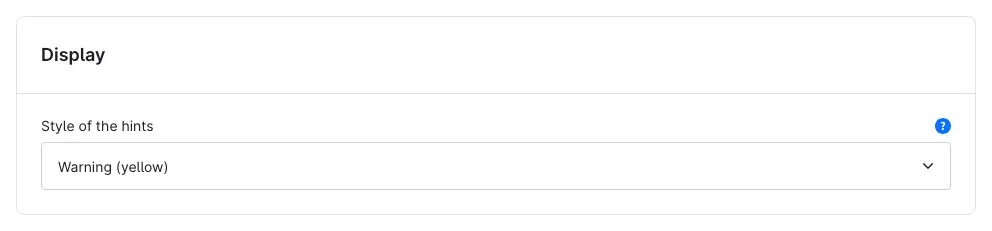
Fig. 5: The “Display” card
Style of the hints
Under Style of the hints you choose the colour of the hints in your shop: Warning (yellow) (default), Information (blue), Primary colour of the theme or Secondary colour of the theme. The plugin uses the alert colours of your theme; you do not need to recompile the theme. Messages in “Required” mode are always red.
How to use the features
How your shop points out missing house numbers
What you gain: Your customer notices the missing house number while still entering the address – not the courier.
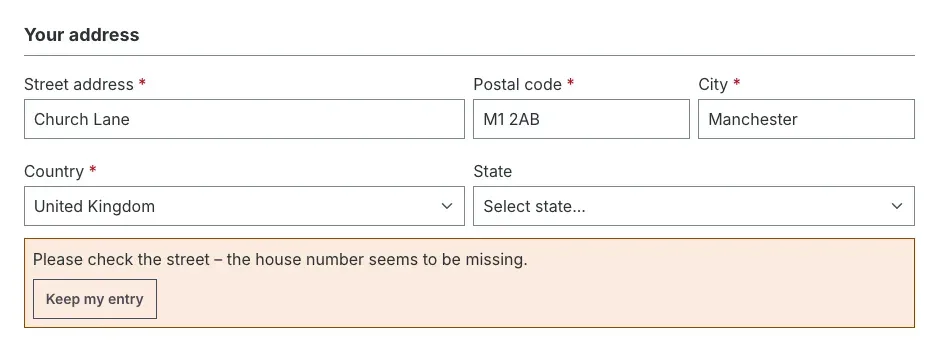
Fig. 6: Hint below the address fields at registration
This is what happens in Hint mode:
- Your customer enters a street without a house number, for example “Church Lane”.
- As soon as they leave the field, this appears below the address fields: “Please check the street – the house number seems to be missing.”
- If they add the house number, the hint disappears.
- If the address is correct as entered, they click Keep my entry. If they submit the form without paying attention to the hint, the form stops once and shows the hint; the second submit saves the address.
The hint appears in every address form: at registration, in guest checkout, in the customer account under “Addresses” and when changing the address in checkout.
How Google suggests a corrected address
What you gain: Swapped digits in the postcode or a misspelt street are noticed before the order is placed. Your customer applies the correct address with one click.
Requirement: a Google service is selected under Verification service and a key is entered (see Settings).
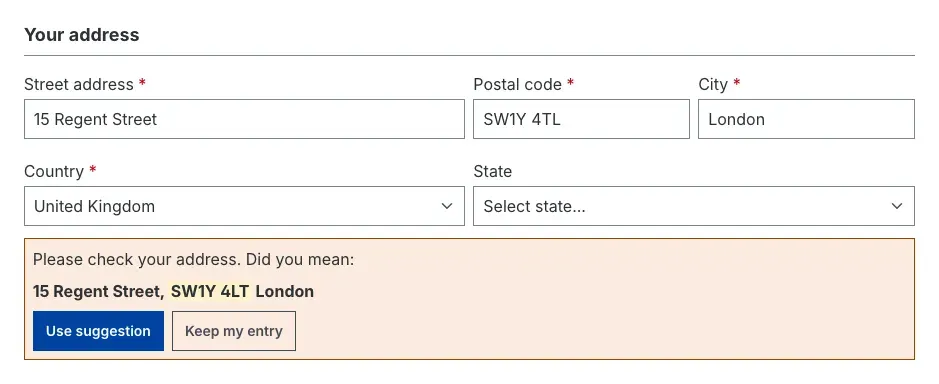
Fig. 7: Correction suggestion – the changed postcode is highlighted
- Your customer enters their address, for example “15 Regent Street, SW1Y 4TL London”.
- If Google finds a matching address, “Please check your address. Did you mean:” appears with the suggestion. The changed field – here the postcode – is highlighted.
- Use suggestion fills in the suggested street, postcode and city. Keep my entry leaves the input unchanged.
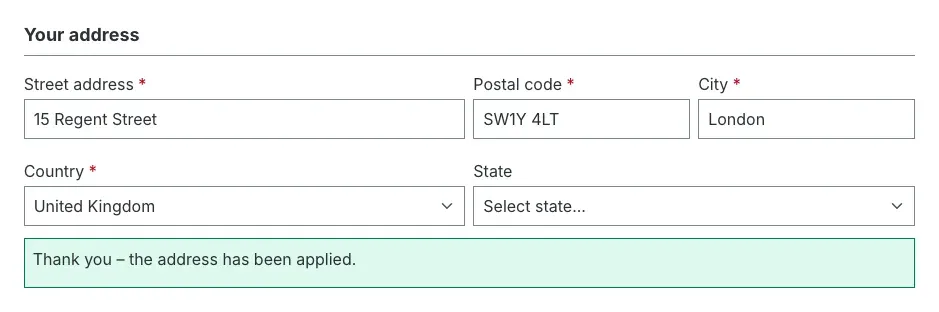
Fig. 8: After “Use suggestion” the corrected postcode is in the field
If Google cannot clearly confirm the address, your customer reads “We could not clearly confirm this address. Please check your details.” If Google cannot find it at all, “We could not find this address. Please check street, postcode and city.” appears. A suggestion is never mandatory – your customer can always save the address exactly as entered.
Tip: The plugin asks Google about the same address only once within 24 hours. This saves costs when a customer submits the form several times.
How to check only after cookie consent
What you gain: Address data is only sent to Google once your customer has agreed.
Switch on Check only after cookie consent. As long as your customer has not agreed, only the house number check runs. Below the address fields it then says “The automatic address check is only active after your consent.” with the link Open cookie settings.
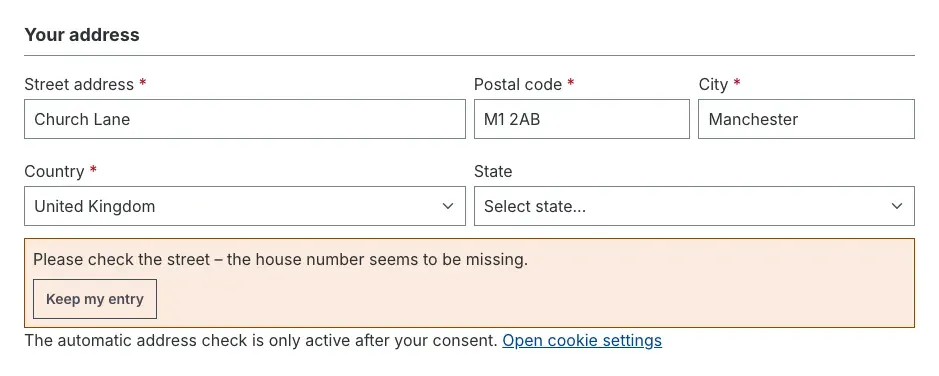
Fig. 9: House number hint and consent notice in guest checkout
The link opens the cookie preferences. Under Comfort features your customer finds the entry Address validation with a short explanation of which data is transmitted.
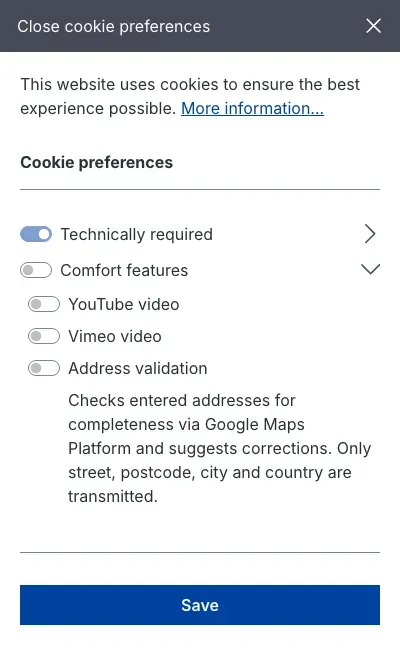
Fig. 10: The entry “Address validation” under “Comfort features”
Once your customer agrees, the notice disappears and the plugin checks the entered address right away.
How to make the house number mandatory
What you gain: Addresses without a house number never enter your shop.
Set House number check to Required and save. If your customer now enters a street without a house number and tries to save, the red message “Please enter street and house number. We cannot deliver without a house number.” appears. The street field is marked, and the address is not saved.
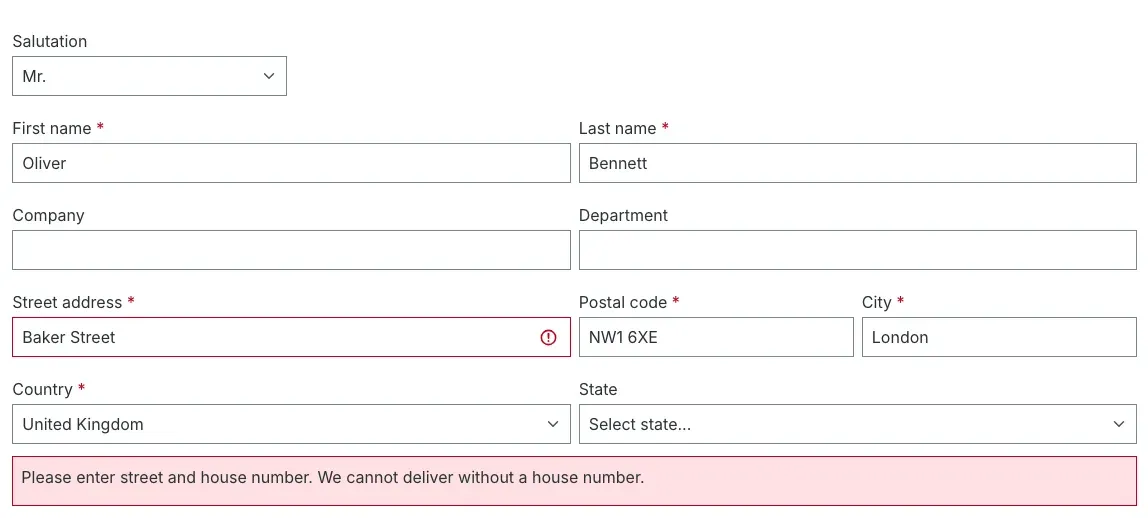
Fig. 11: “Required” mode when adding a new address in the customer account
This applies to every address form. The check also takes place on the server: even if the hint does not appear in the browser, the shop rejects the address with “Please enter a house number.”
Important: Addresses containing a keyword such as “Packstation” or “PO Box”, and countries not listed under Check house numbers only for these countries, are exempt.
How checkout handles existing addresses
What you gain: Even addresses created before installation, by you in the Administration or by an ERP system are noticed before shipping.
If the billing or shipping address has no house number, the Complete order page shows a notice with a link to the address at the top, for example “Your shipping address is missing a house number. Please complete the address so we can deliver your order.”
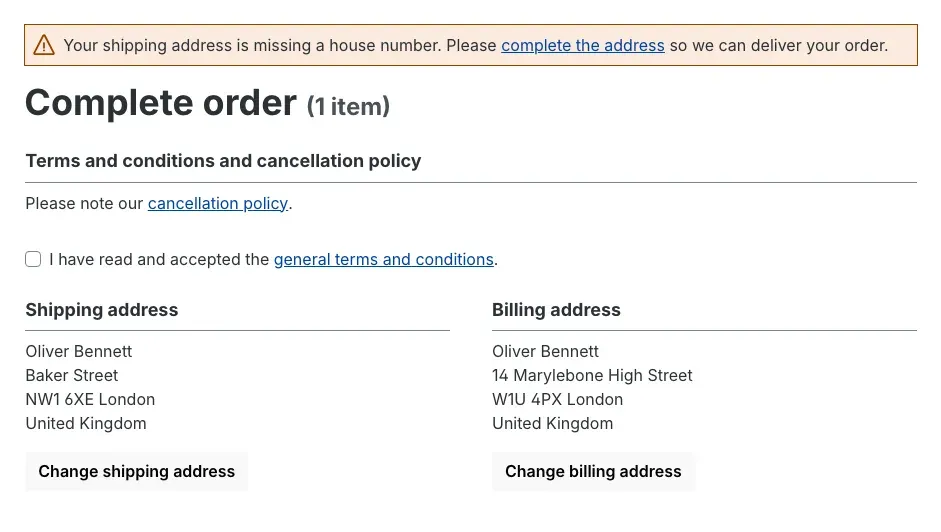
Fig. 12: “Hint” mode – the order can still be placed
In Hint mode this is a warning and your customer can still order. In Required mode it is an error: the order is blocked until the address is completed.
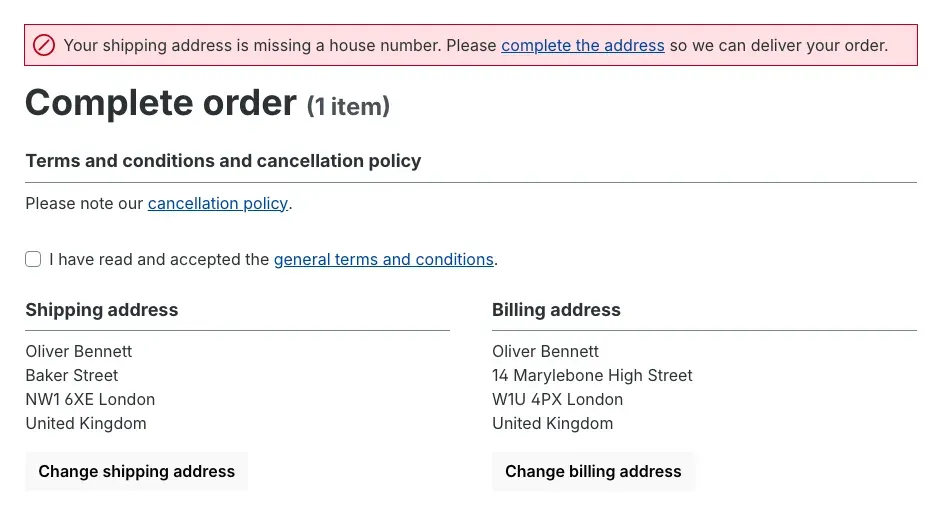
Fig. 13: “Required” mode – the order is blocked until the house number is added
The link complete the address takes your customer straight to editing the address. As soon as the house number is entered, the message disappears.
How the plugin fixes small typos by itself
What you gain: Obvious typos disappear without your customer having to do anything – and they still stay in control.
Requirement: a Google service with key and Correct small typos automatically are switched on.
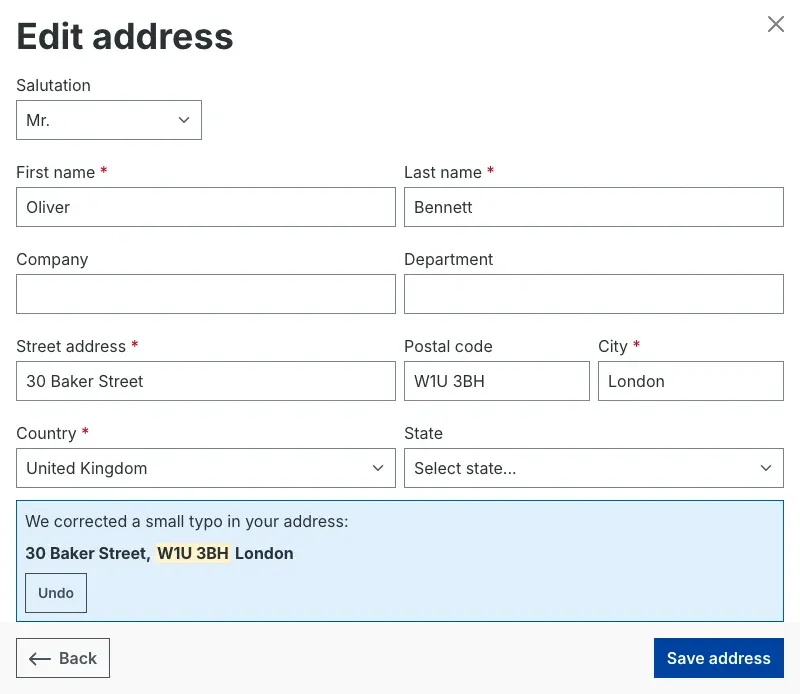
Fig. 14: The swapped characters in the postcode were corrected automatically
- Your customer changes their address in checkout via Change shipping address and types the postcode “W1U 3HB” instead of “W1U 3BH”.
- If Google confirms the address with the correct postcode, the plugin fills it in immediately and shows “We corrected a small typo in your address:” with the corrected address.
- If the original entry was correct after all, your customer clicks Undo.
The plugin only corrects automatically if exactly one field differs by a typo. Larger differences appear as a suggestion to apply (see How Google suggests a corrected address); house numbers are never changed automatically.
How to see the verification status on orders and addresses
What you gain: You see at a glance which orders you should check before shipping.
The plugin remembers how each customer address was checked and passes the status on to the order.
On the order: Open Orders → Overview, select an order and switch to the Details tab. At the bottom, the Custom fields card contains the Address validation tab with Billing address verification status and Shipping address verification status.
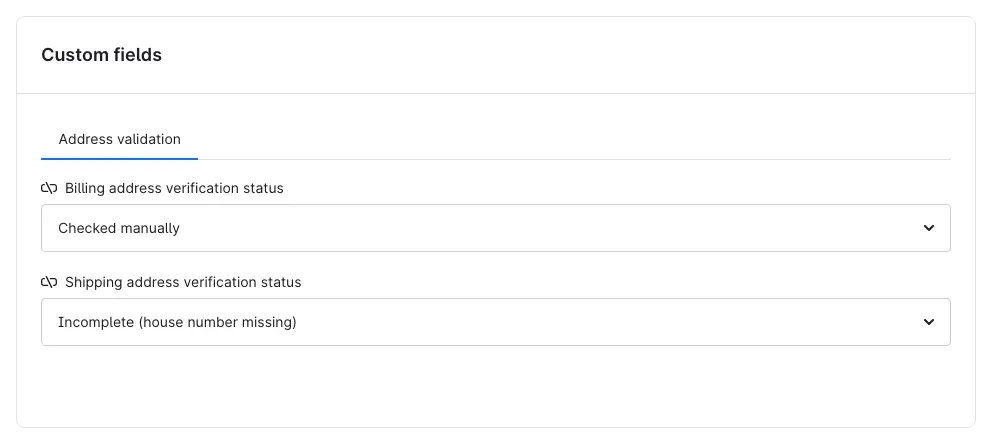
Fig. 15: Verification status of the billing and shipping address on an order
On the customer address: Open Customers → Overview, select a customer, switch to the Addresses tab and click Edit customer. Open an address via its … menu and Edit. At the bottom, the Address validation tab shows Address verification status and Checked on.
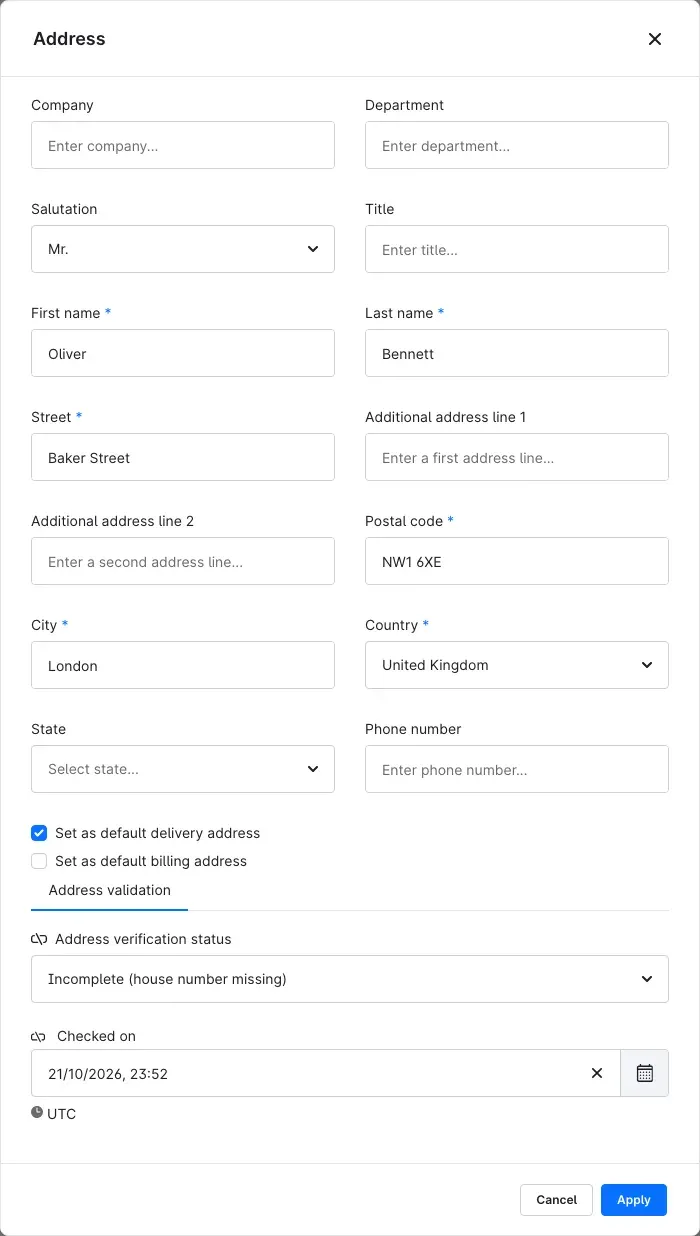
Fig. 16: Verification status and check time of a customer address
These statuses exist:
- Verified – Google confirmed the address.
- Not confirmed (hint ignored) – your customer skipped a correction suggestion or a hint and kept their entry.
- Incomplete (house number missing) – the address was saved without a house number.
- Not verified online (keyword, country or no service) – the address was not checked with Google: it contains a keyword such as “Packstation”, its country is not selected for the verification service, or no verification service is set up. Without a verification service, addresses with a house number get this status.
- Unchecked – the address was never checked, for example because it was created before installation or in the Administration, Google was unreachable, consent was missing or the daily limit had been reached.
- Checked manually – you set this status yourself after reviewing an address.
If you have reviewed an address yourself, select Checked manually in the list and save. If your customer changes the address in the shop, the plugin checks it again. If it is changed in the Administration or via an interface, the plugin treats it as Unchecked for orders and rules until it has been checked again – only the status Checked manually is kept.
How to use the verification status in the Rule Builder
What you gain: You react automatically to uncertain addresses, for example by hiding payment by invoice or express shipping for them.
- Open Automation → Rule Builder and click Create rule (or open an existing rule).
- Give the rule a name, for example “Shipping address without house number”.
- In the conditions area, select the condition Address validation: status.
- Choose whether the Billing address or the Shipping address is meant, and one or more statuses, for example “Incomplete (house number missing)”.
- Click Save.
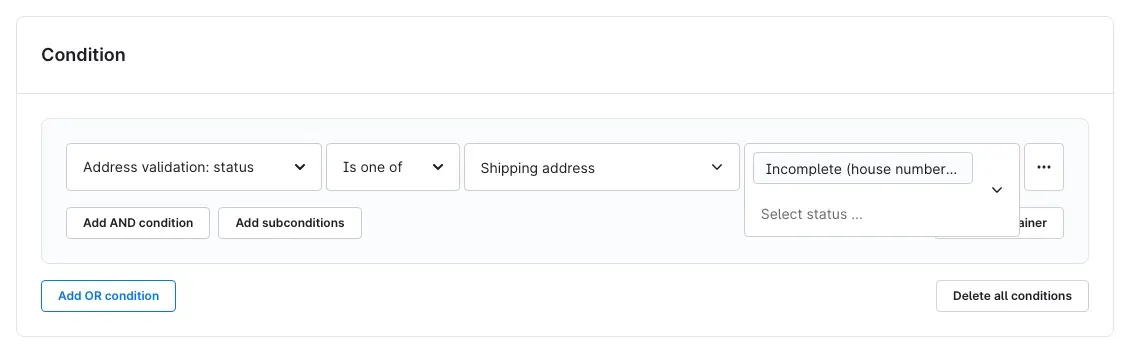
Fig. 17: The condition “Address validation: status” for the shipping address
You can then use the rule wherever Shopware offers rules – for example as the Availability rule of a payment or shipping method. The condition is also available in the Flow Builder; there it evaluates the status stored on the order.
Tip: To offer a payment method only for addresses that are not uncertain, choose the operator Is none of and select the uncertain statuses.
How to keep your Google costs low
What you gain: You keep the costs of Google requests under control.
- The plugin asks about the same address only once within 24 hours.
- Under Use the verification service only for these countries you limit requests to your main markets.
- Under Maximum verification requests per day you set a limit per sales channel (default 1000). Once it is reached, addresses are saved unchecked until the end of the 24-hour period.
- Each IP address can trigger at most 40 requests per 10 minutes (for IPv6, a whole connection counts as one address).
- Addresses containing a keyword such as “Packstation” are never sent to Google.
Tip: Additionally set a quota for the API you use in the Google Cloud Console.
Troubleshooting
The hint about the missing house number does not appear
Possible causes: The plugin is switched off for this sales channel, House number check is set to “Off”, the address’s country is missing from Check house numbers only for these countries, or the street contains a word from Keywords that skip the check. If the street contains any digit, the house number counts as present.
How to fix it:
- Open the plugin configuration and select the affected sales channel at the top.
- Check Enable plugin for this sales channel, House number check and the two country and keyword lists.
- Save and clear the cache under Settings → System → Caches & indexes.
If the hint still does not appear, your theme may rebuild the address form completely. In that case, please contact support.
No correction suggestions appear
Possible causes: No Google service is selected or no key is entered, the address’s country is missing from Use the verification service only for these countries, your customer has not agreed to address validation in the cookie settings, or the daily limit has been reached.
How to fix it:
- Click Test connection in the configuration.
- Check the country selection and the Maximum verification requests per day.
- If Check only after cookie consent is on, agree to address validation in your shop for a test.
If Google cannot be reached, your customer can still order: the plugin waits a few seconds at most and then saves the address unchecked.
”Test connection” reports an error
- “Please select a verification service and enter the API key.” – “No verification service” is selected under Verification service, or the key field is empty.
- “Google rejected the request (…)” – the key is invalid, the selected API is not enabled in the Google Cloud project, or billing is not set up. The brackets contain the reason Google returned.
- “The connection could not be tested. …” – the server cannot reach Google. Check the server’s internet connection. This message also appears if your user lacks the Manage extensions permission.
Customers cannot place an order
Cause: In Required mode, a billing or shipping address without a house number blocks the order.
How to fix it: Your customer completes the address via the link in the message. If the address is correct without a house number (for example a house name), remove its country from Check house numbers only for these countries or add a suitable keyword. Alternatively, switch to Hint.
The plugin does not appear under “My extensions”
Cause: Your shop is not connected to the Shopware account the plugin was purchased with.
How to fix it: Log in under Extensions → My extensions with the correct Shopware account.
FAQ
Q: Do I need a Google key?
A: Only for correction suggestions and automatic correction. The house number check works without a key and without any external service. Google bills its requests directly to you.
Q: Which data is sent to Google?
A: Only street, postcode, city and country. Name, email address and phone number never leave your shop. The request is made by your shop server, not by your customer’s browser. If you wish, the plugin asks for cookie consent first.
Q: What happens to addresses already in my shop?
A: They stay unchanged and count as “Unchecked”. If the house number is missing, checkout shows a notice with a link to the address; in “Required” mode the order is blocked until the address is completed.
Q: Can my customer save an address Google does not know?
A: Yes. With “Keep my entry” they save their input unchanged. The address then gets the status “Not confirmed (hint ignored)”.
Q: What about parcel lockers or PO boxes?
A: Nothing happens – the plugin neither checks nor corrects such addresses. You extend the word list under Keywords that skip the check.
Q: Can I use the check in one sales channel only?
A: Yes. Every setting applies per sales channel. Switch off Enable plugin for this sales channel in the channels where you do not want the check.
Q: Does the plugin fill in addresses while typing?
A: No. It checks the finished entry and then suggests a correction.
Q: What happens to my data when I uninstall?
A: If you keep the data when uninstalling, everything is preserved. If you choose to remove it, the plugin deletes its custom fields for the verification status.
For administrators / technical details
This section is aimed at technical administrators. You do not need it for normal use.
System requirements
- Shopware: 6.7.5 or later within Shopware 6.7
- PHP: 8.2 or later
- Verification service (optional): Google Maps Platform project with the Address Validation API and/or Geocoding API enabled and billing set up; outgoing HTTPS connections from the server to Google
Installation via the command line
If the plugin is available in the project (for example via Shopware’s Composer repository), install it like this:
php bin/console plugin:refresh
php bin/console plugin:install SwpAddressValidatorSix --activate
php bin/console cache:clear
Log
The plugin writes verification service outages and reaching the daily limit to its own log file in the shop’s log directory (var/log/SwpAddressValidatorSix-<date>.log). No address data is logged.
Permissions
To use Test connection, a user needs the additional permission Manage extensions. Everyone allowed to edit the plugin configuration can change the other settings.
Headless frontends
The check is also available via the Store API (POST /store-api/swp-address-validator/check), so custom frontends can show the same hints and suggestions.
Stored data
The verification status is stored in custom fields on the customer address and the order. The plugin creates no database tables of its own. If you choose to remove the data when uninstalling, it deletes these custom fields.
This manual was written for Address Validation: House Number Check & Corrections version 6.7.0.
More manuals
Admin Password Reminder
Admin Password Reminder: your backend users renew their passwords on time, prompted after login and by a daily email. Premium locks expired accounts until the password is changed.
Open manual Shopware 6Advent Calendar | Doors with products, coupons and promotions
Advent calendar for your shopping experiences: doors open on time without clearing the cache, give nothing away in the page source and reveal coupons, products or your own content.
Open manual Shopware 6Age Check
Age verification without a popup for every visitor: you flag categories and products, and only shoppers who head for them are asked. They then carry on where they left off.
Open manualNeed a team that keeps your shop running?
We have been maintaining Shopware shops for more than 20 years, including updates, hotfixes and the plugins you are configuring right now.