
Order delete by customer
Delete order instead of cancelling: your customers remove old orders from their own account. You decide which order states qualify and how long they wait, per sales channel.
On this page
- Introduction
- What you achieve with this plugin
- What the plugin does not do
- Who is this plugin for?
- Installation
- Getting Started
- Settings
- Enable plugin for this sales channel
- Waiting period before deletion (days)
- Order states in which customers may delete
- How to set up the plugin per sales channel
- How your customers delete an order
- Before you enable it: deletion is permanent
- Updating from an older version
- Troubleshooting
- The “Delete order” entry does not appear
- The customer sees the message “An error occurred during deletion.”
- The state names in the selection are in a different language
- FAQ
- For Administrators / Technical Details
- System requirements
- Data and database
- Configuration keys
- Route and checks
- Storefront customisation
- Installation via the command line
Introduction
With Order delete by customer, your customers remove old orders from their own customer account. You decide which orders qualify.
What you achieve with this plugin
- Your customers tidy up their order overview themselves. Requests like “Please delete my old order” no longer reach your support.
- You decide by order state which orders may be deleted.
- A waiting period from the order date protects fresh orders. An order you are shipping right now does not disappear halfway through.
- A dialog asks for confirmation before deleting. Nobody deletes by accident.
- Each sales channel has its own settings. You allow deletion in your consumer shop and keep it off in your wholesale shop.
What the plugin does not do
The plugin deletes orders, it does not cancel them. It sets no state, does not restock inventory and triggers no refund. A deleted order is gone for good, also for you in the Administration. Please read Before you enable it: deletion is permanent before you set it up.
Who is this plugin for?
For shop owners whose customers want to tidy up their order history themselves, for example on shared accounts or for gift orders.
Installation
After the purchase, the plugin is available directly in your Administration. You do not need to download anything.
- Log in to your Shopware Administration (
yourshop.com/admin). - Open Extensions → My extensions.
- Find the entry Order delete by customer and click Install.
- Activate the plugin with the switch to the left of the entry.
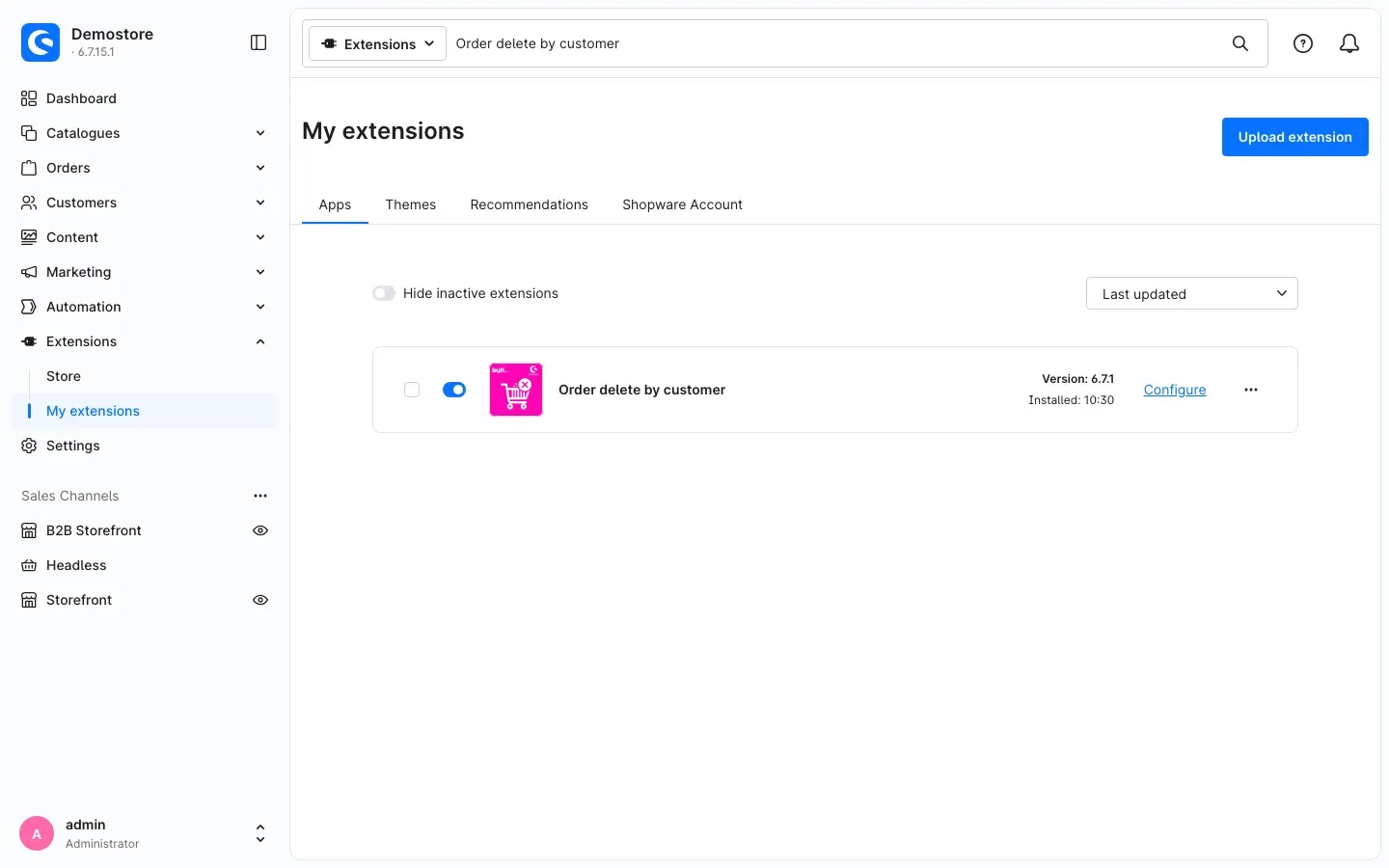 Fig. 1: The plugin is installed and activated under Extensions → My extensions.
If Order delete by customer does not appear in the list, your Shopware account is not yet connected to the shop. You connect it under Extensions → My extensions in the Shopware Account tab by logging in with your Shopware account.
Getting Started
Right after installation, the plugin is switched on, but nobody can delete anything yet. Only when you approve at least one order state does the delete entry appear for your customers.
-
Open the settings: Under Extensions → My extensions, click Configure next to the plugin.
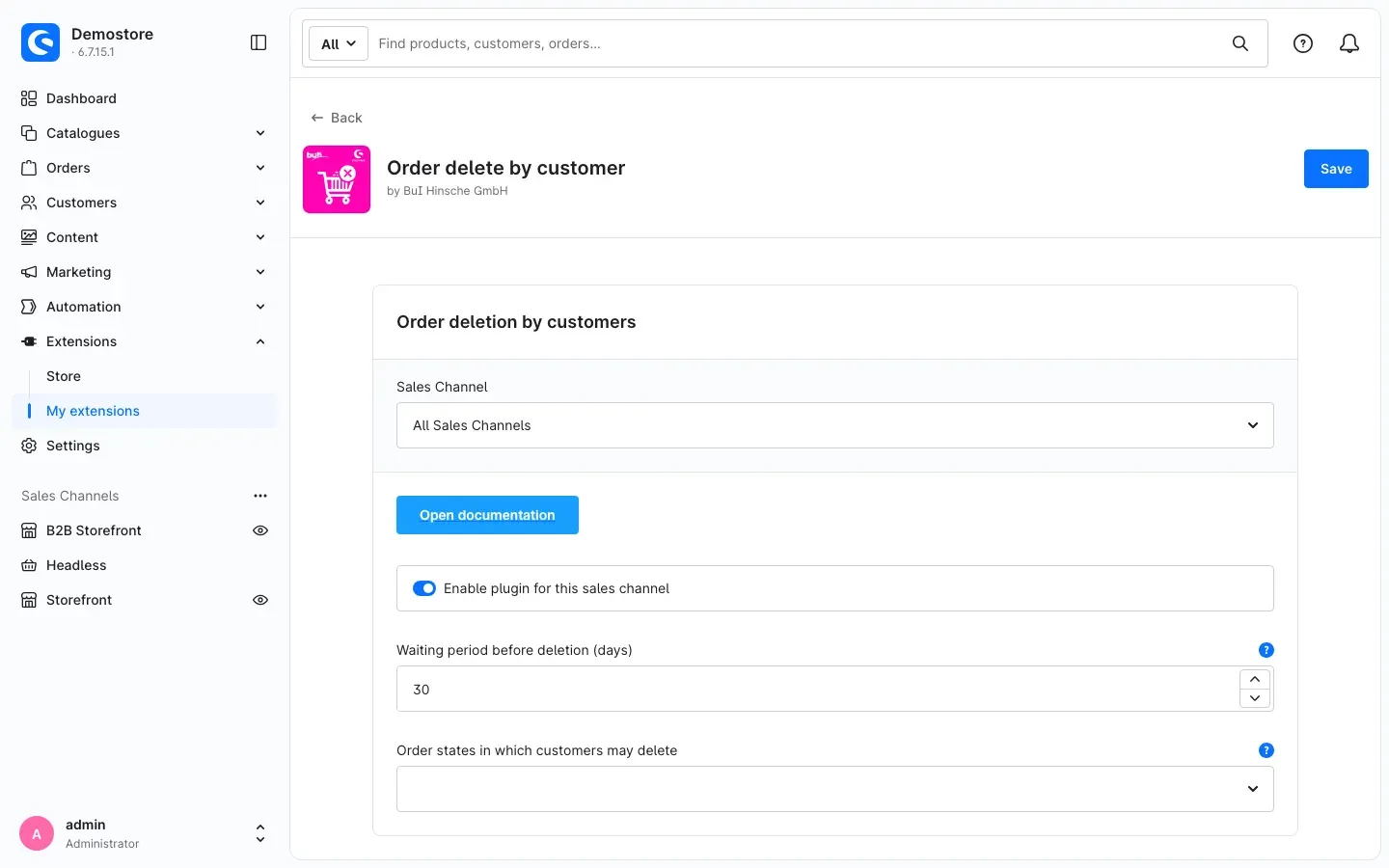 Fig. 2: As long as no order state is selected, no order can be deleted.
 -
Approve order states: Under Order states in which customers may delete, select the states in which an order is finished for you, for example Done and Cancelled.
-
Check the waiting period: Waiting period before deletion (days) is preset to 30 days. Adjust it if needed.
-
Click Save.
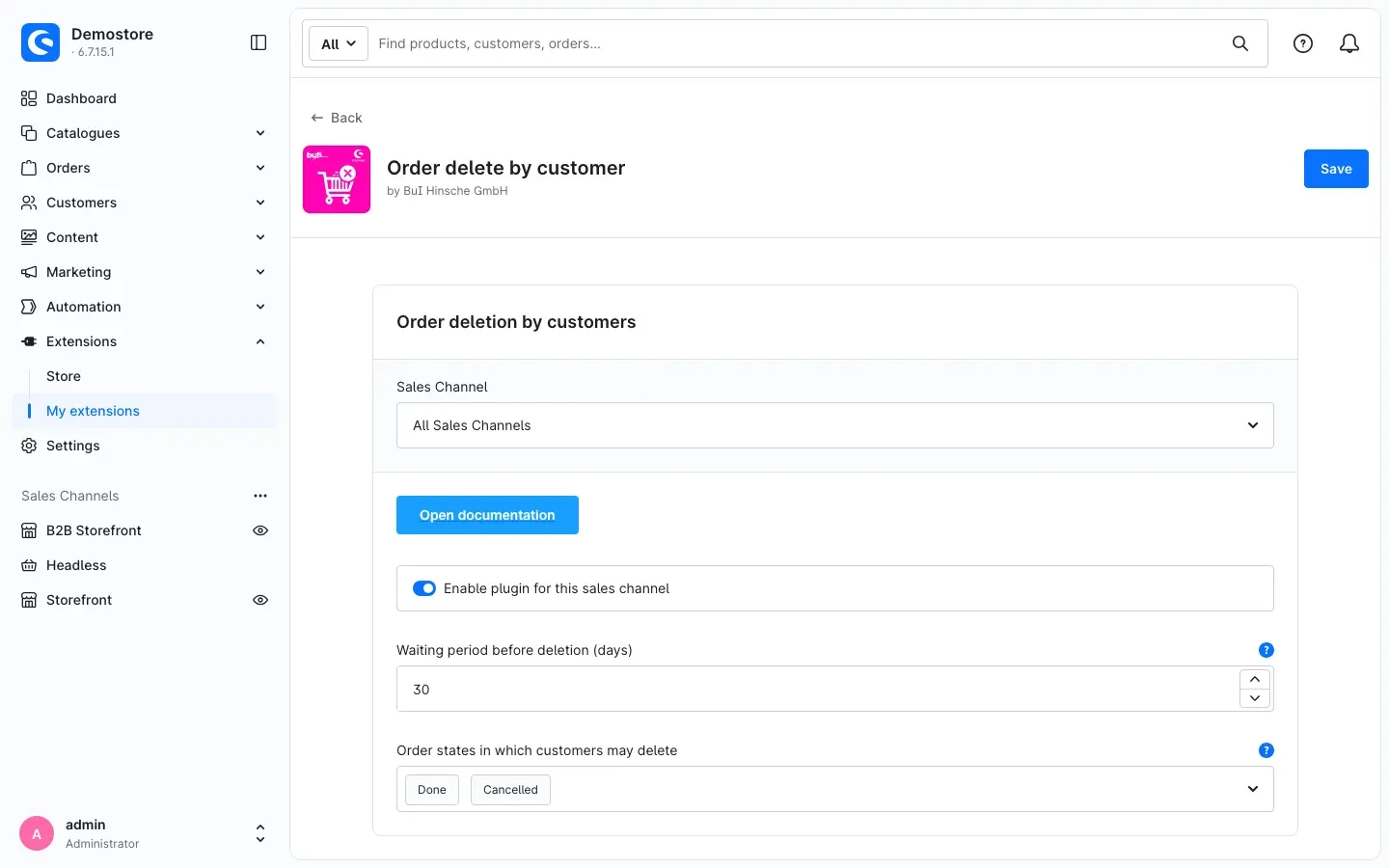 Fig. 3: Set up: customers may delete done and cancelled orders after 30 days.
 -
Check the result: Log in to the storefront with a test account, open Orders in the customer account and click the three dots next to a matching order. You now see Delete order there.
Settings
You find the settings under Extensions → My extensions via Configure next to the plugin. All settings are in the card Order deletion by customers.
At the top of the card is the Open documentation button. It takes you to this manual on the web, in the language of your Administration.
Enable plugin for this sales channel
The Enable plugin for this sales channel switch decides whether your customers in this sales channel can delete orders at all. It is on by default. If you switch it off, customers of this channel no longer see the Delete order entry, and any deletion attempt is rejected.
Why this is useful: You run a consumer shop and a wholesale shop. You allow deletion in the consumer shop and switch it off in the wholesale shop with collective invoices, without uninstalling the plugin.
Waiting period before deletion (days)
Waiting period before deletion (days) sets how many days after the order date an order may be deleted at the earliest. The default is 30 days. With 0, customers may delete right away as soon as the order state matches.
The count is in calendar days from the order day. An example: with a 30-day waiting period, an order from 1 March can be deleted from 31 March.
Why this is useful: The waiting period gives you time for shipping, follow-up questions and accounting. Only after that can the customer remove the order.
Order states in which customers may delete
Order states in which customers may delete lets you select one or more order states. Only orders in one of these states get the Delete order entry. Without a selection, no order can be deleted. That is the state right after installation.
The question mark icon next to the field shows a help text with a recommendation.
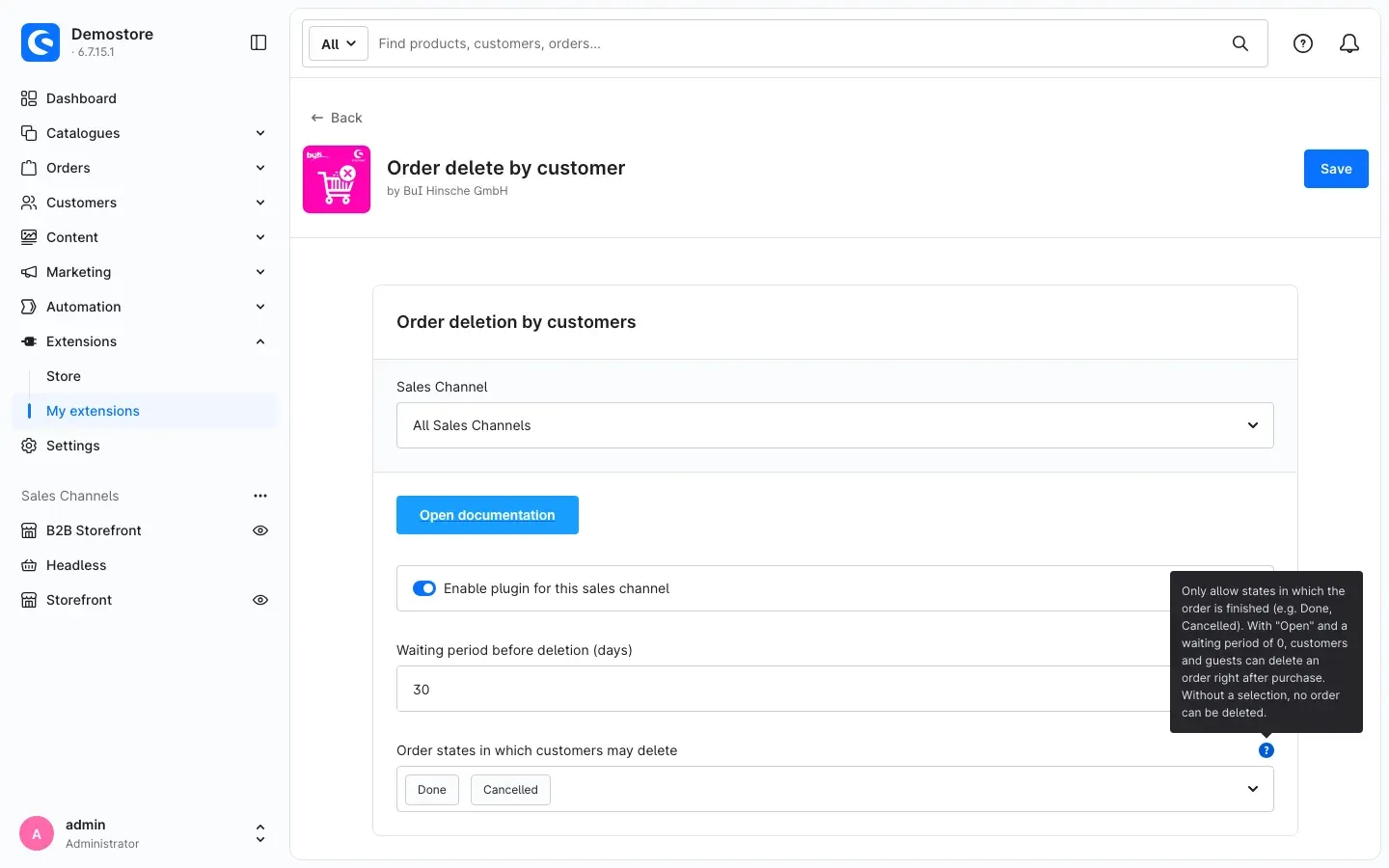 Fig. 4: The help text explains which states make sense and warns about “Open” with a waiting period of 0.
Our recommendation: Only approve states in which the order is finished for you, i.e. Done and Cancelled. Combine this with a waiting period of a few weeks.
Important: If you approve the Open state and set the waiting period to 0, customers and guests can delete an order right after purchase. The order is then gone for you too, before you have processed it.
The state names in the selection appear in the content language of your shop.
How to set up the plugin per sales channel
What you gain: You control deletion separately for each sales channel, with its own switch, its own waiting period and its own state selection.
Step by step
-
Open the plugin configuration via Extensions → My extensions → Configure.
-
Select the channel in the Sales Channel field at the top, for example Storefront.
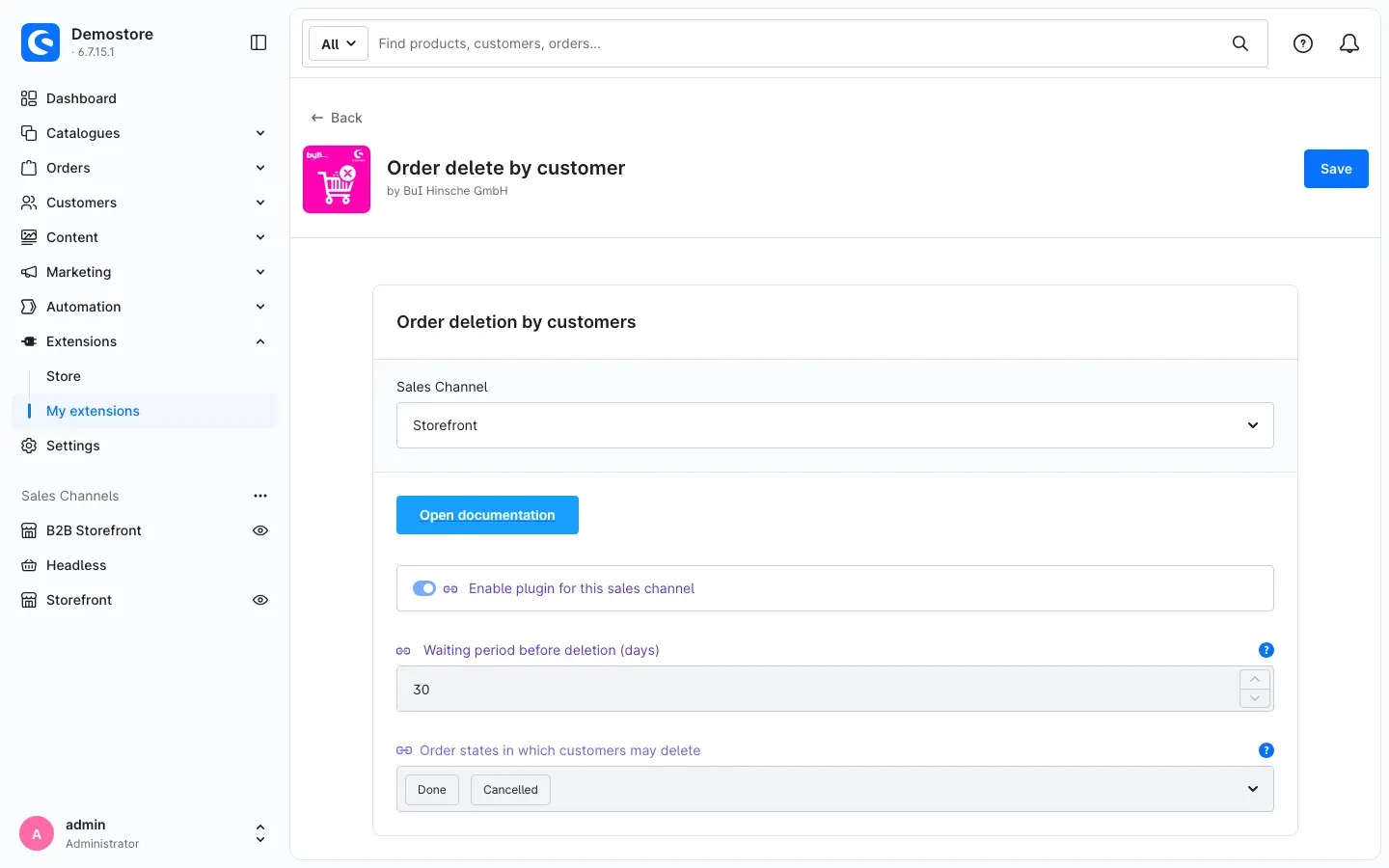 Fig. 5: The plugin can be configured per sales channel; values that are not overridden are inherited.
 -
The fields now show a link icon. It means: this channel takes the value from All Sales Channels.
-
Click the link icon in front of a setting to set a separate value for this channel. Then change the value.
-
Click Save.
A value you set for a channel takes precedence there over All Sales Channels. Everything you do not change, the channel keeps taking from All Sales Channels.
Tip: Set up the shared values under All Sales Channels. In a single channel, only override what should differ there, for example the Enable plugin for this sales channel switch in your wholesale shop.
In addition, a customer can only delete orders placed in the sales channel they are currently logged in to.
How your customers delete an order
What you gain: Your customers remove finished orders themselves, without asking your support.
What your customers see
-
The customer logs in and opens Orders in the customer account.
-
They click the three dots next to an order. If the order can be deleted, the menu shows the entry Delete order.
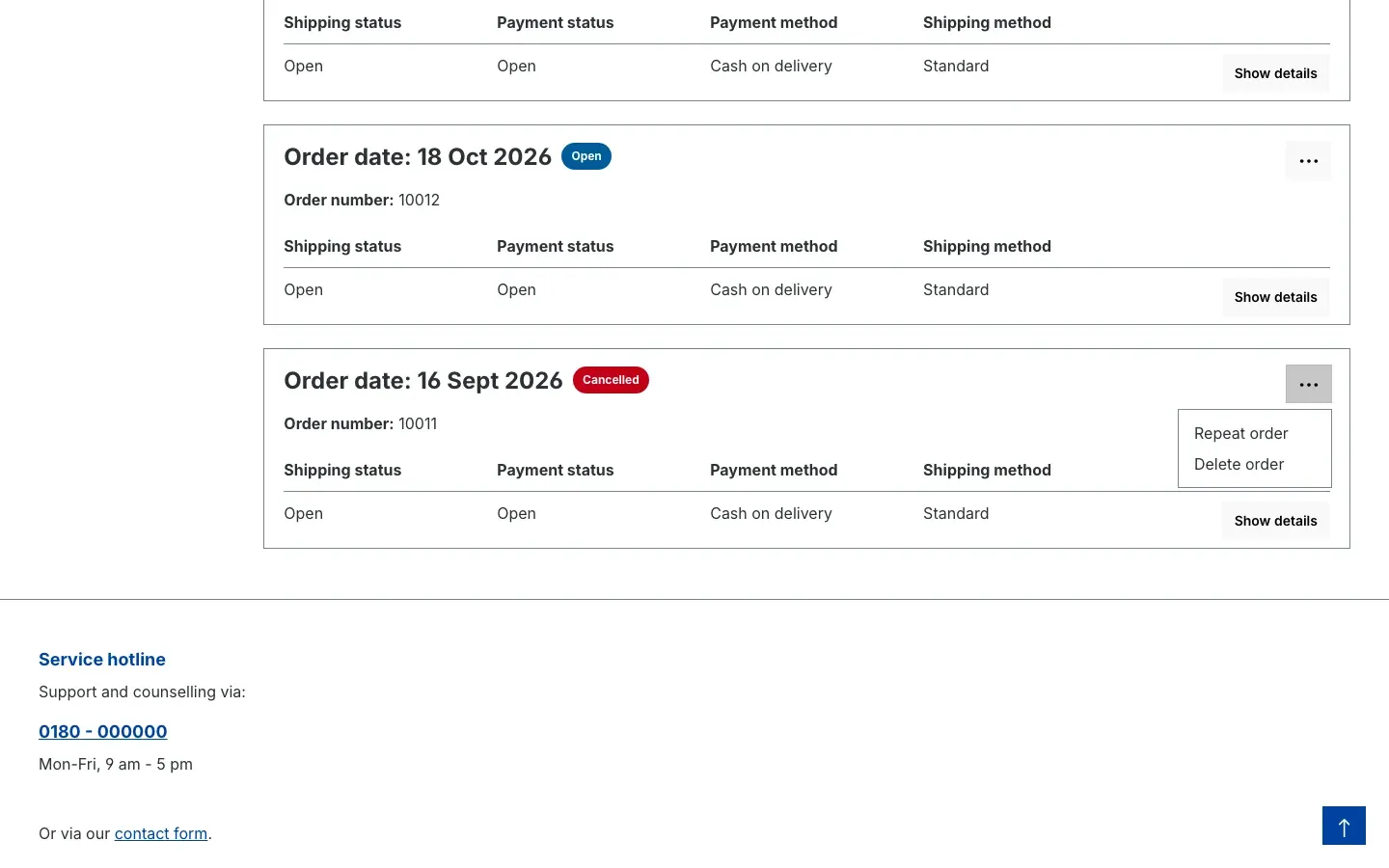 Fig. 6: For approved orders, the menu offers “Delete order”.
 -
A dialog asks for confirmation: “Attention, if you delete the order, all links and documents will be lost!” and “Are you sure you want to irrevocably delete the order?” Back cancels, Delete order confirms.
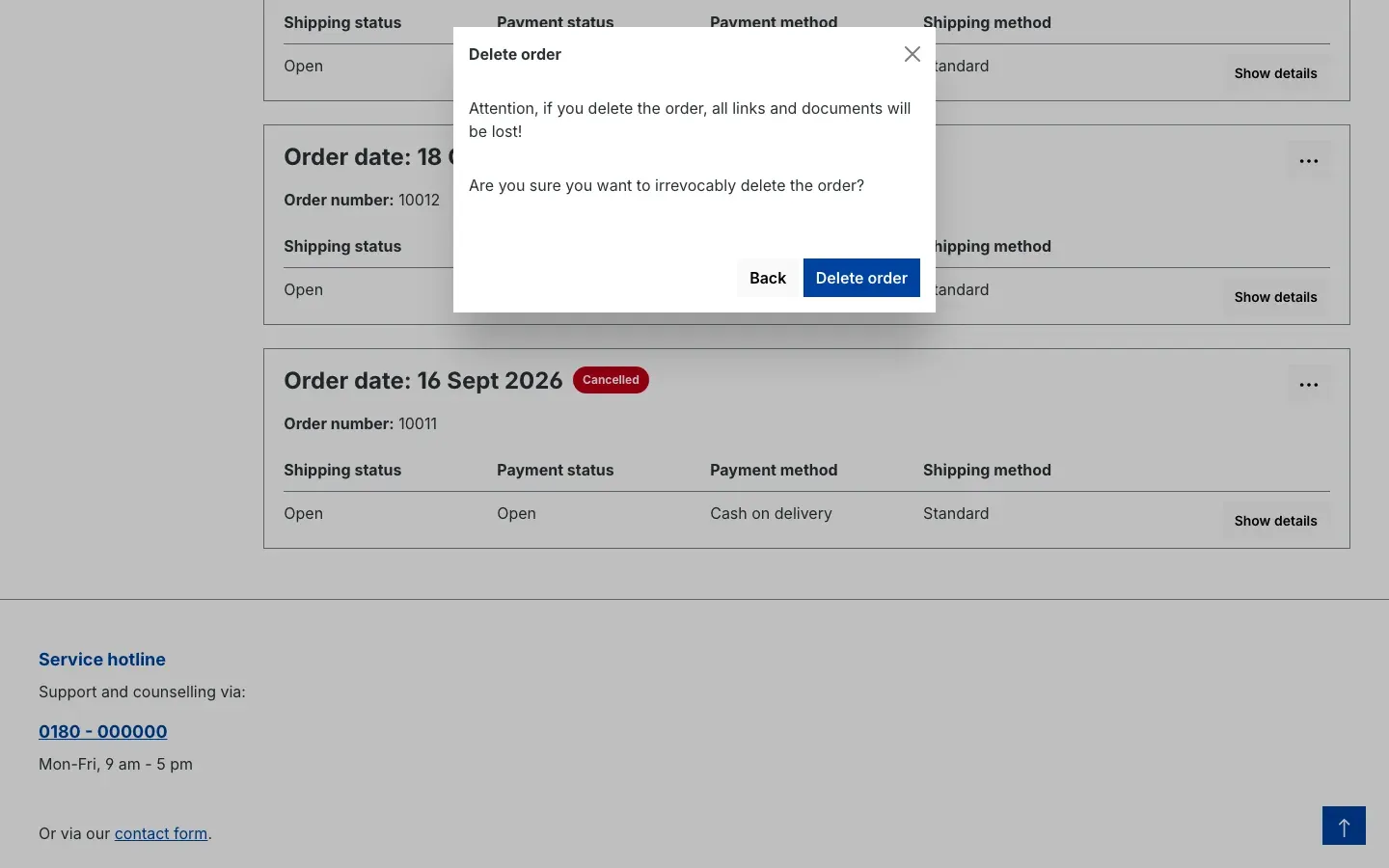 Fig. 7: The customer has to confirm a safety prompt before the order is deleted.
 -
After confirming, the message “The order has been deleted.” appears. The order is gone from the list.
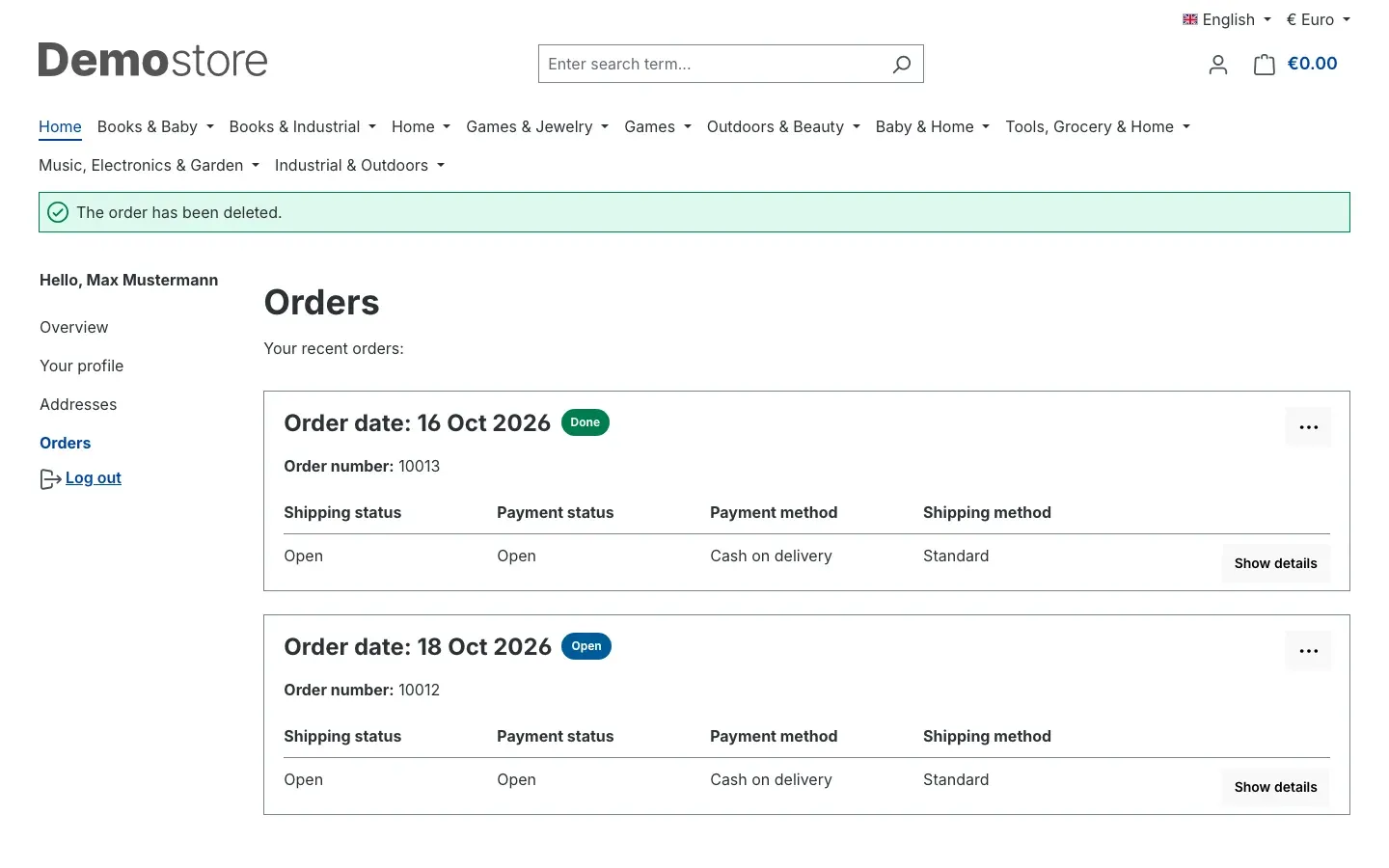 Fig. 8: After confirmation the success message appears and the order is gone from the list.
When the entry appears
The Delete order entry only appears when all conditions are met:
- The plugin is switched on in the sales channel.
- The order is in an approved order state.
- The waiting period since the order date has passed.
- The order was placed in this sales channel.
For all other orders, the customer does not see the entry at all.
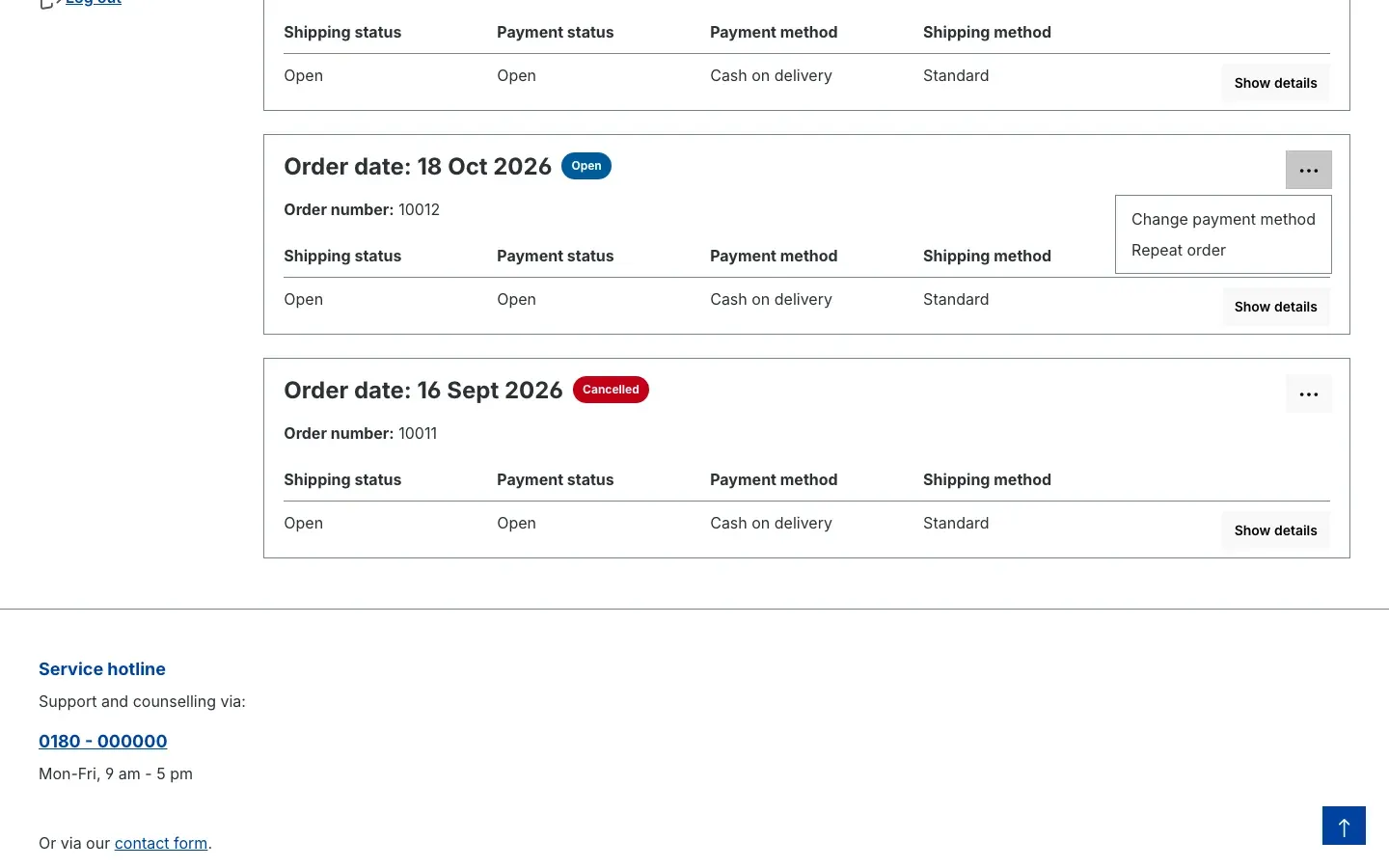 Fig. 9: Orders in a state that is not approved, here “Open”, do not offer the delete function.
When the customer confirms, your shop checks all conditions again. In addition, the order must belong to the logged-in customer. Nobody can delete someone else’s order.
Guests
Guests who ordered without a customer account follow the same rules as customers. They can only delete an order while they are logged in to their guest session.
Before you enable it: deletion is permanent
Read this section before you approve the first order state.
- Permanently deleted. The order disappears completely from Shopware, including its line items and the assignment of its documents. You no longer see it in the Administration either. There is no recycle bin and no restore.
- No cancellation. The plugin changes no state, does not restock inventory and triggers no refund. Only approve states in which shipping, stock and payment are already settled.
- Retention obligations. Invoices and other records are often subject to legal retention obligations. Back them up outside Shopware first, for example in your accounting or ERP system. Data already stored there stays unchanged.
Important: This manual is not legal advice. If in doubt about whether and when your customers may delete orders, check with your tax advisor or a legal professional.
Updating from an older version
When you update the plugin from an older version, there is nothing to catch up on. If you previously switched the sales channel switch on or off in individual channels, the update carries this setting over automatically to the Enable plugin for this sales channel switch.
After the update, briefly check the state selection and the waiting period for each sales channel.
Troubleshooting
The “Delete order” entry does not appear
Cause: At least one condition is not met.
How to fix it: In the plugin configuration, check for the customer’s sales channel:
- Is Enable plugin for this sales channel switched on?
- Is the order’s current state selected under Order states in which customers may delete? Without a selection, nothing can be deleted.
- Has the Waiting period before deletion (days) passed since the order date?
- Was the order placed in the sales channel the customer is currently logged in to? Orders from other channels cannot be deleted there.
For the selected sales channel, also check whether a separate value overrides the value from All Sales Channels.
If nothing changes despite correct settings, clear the cache: Settings → Caches & indexes → Clear cache.
The customer sees the message “An error occurred during deletion.”
Cause: On confirmation, your shop checked the conditions again and at least one was no longer met. Typically, you changed the order state or the settings while the customer had the page open. Or the customer had already deleted the order in a second browser tab.
How to fix it: The customer reloads the Orders page. If the entry is shown again, they can delete again. If it is missing, see the list in the previous section.
The state names in the selection are in a different language
Cause: The selection shows the state names in the content language of your shop.
How to fix it: Nothing to do. The selection works the same in all languages. If you select Done, it also applies to customers using a German storefront.
FAQ
Q: Is deleting the same as cancelling?
A: No. When cancelling, the order is kept and gets the state “Cancelled”. This plugin removes the order completely. For a real cancellation, use the cancellation function of Shopware. You can combine both: the customer cancels first and, if you approve Cancelled, deletes the order afterwards.
Q: Can I restore a deleted order?
A: No. The order is gone for good, also for you. That is why there is the confirmation dialog, the state selection and the waiting period.
Q: Does it work with my theme?
A: Yes, if your theme takes over the order overview in the customer account from the Shopware standard. The plugin adds its entry to the menu behind the three dots of an order and keeps all other entries. If a theme replaces this overview completely, the entry may be missing. The quickest way to check is with a test account.
Q: Does it work in a headless shop with Composable Frontends?
A: No. The plugin works in the Shopware storefront and offers no interface for custom frontends. The entry does not appear there.
Q: What happens on uninstall?
A: If you let Shopware remove the plugin data on uninstall, the plugin settings are removed. If you keep the data, the settings remain for a later reinstallation. Orders that customers have deleted up to then stay deleted in any case.
Q: Does the plugin send data to external services?
A: No. The plugin only works with the order data in your shop and calls no external services.
Q: Can I allow deletion only in some sales channels?
A: Yes. All three settings apply per sales channel. See How to set up the plugin per sales channel.
For Administrators / Technical Details
This section is for technical administrators. You do not need it for normal use.
System requirements
- Shopware: 6.7
- PHP: 8.2 or newer
Data and database
- The plugin creates no database tables of its own and does not change any Shopware tables.
- Deletion runs through the Shopware data layer. Shopware therefore resolves every dependency it knows when deleting an order, including line items and document assignments.
- Generated document files may remain in the shop’s file storage without an assignment.
Configuration keys
The settings are stored in the system configuration under the prefix SwpOrderDeleteByCustomerSix.config., each per sales channel:
active— switch “Enable plugin for this sales channel”deleteAfterDays— “Waiting period before deletion (days)”, 0 to 3650orderState— “Order states in which customers may delete”, list of state IDs of the order state machine
When updating from older versions, a migration moves the stored values of the former channelActive switch to active, per sales channel.
Route and checks
- Deletion runs via
POST /account/swp-order-deletein the storefront, login required (guest sessions allowed). - On every request, the server checks: channel switch, ownership of the order (order customer = logged-in customer), sales channel of the order, approved state and elapsed waiting period. The same rule controls whether the entry is shown in the storefront.
- A request with someone else’s or an invalid order ID ends with the error message without deleting anything.
- No Store API route, therefore no support for Composable Frontends.
Storefront customisation
The plugin extends the core template of the order history (page/account/order-history/order-item.html.twig) in the context menu block and renders the original content as well. Other extensions of the same block are kept.
Installation via the command line
php bin/console plugin:refresh
php bin/console plugin:install SwpOrderDeleteByCustomerSix --activate
php bin/console cache:clear
This manual was written for Order delete by customer version 6.7.1.
More manuals
Admin Password Reminder
Admin Password Reminder: your backend users renew their passwords on time, prompted after login and by a daily email. Premium locks expired accounts until the password is changed.
Open manual Shopware 6Age Check
Tobacco, spirits, knives: visitors who do not confirm their age never see the restricted items at all. You tick a box per product, the plugin hides it everywhere.
Open manual Shopware 6AI Media Labelling
AI labelling for images and videos: flag a media item once in the media manager and the badge with your notice appears wherever it shows up in your shop. No template work needed.
Open manualNeed a team that keeps your shop running?
We have been maintaining Shopware shops for more than 20 years, including updates, hotfixes and the plugins you are configuring right now.