Age Check
Tobacco, spirits, knives: visitors who do not confirm their age never see the restricted items at all. You tick a box per product, the plugin hides it everywhere.
On this page
- Introduction
- What this plugin does for you
- Who is this plugin for?
- Installation
- Getting started
- Settings
- Enable plugin for this sales channel
- Age to be checked
- Flagging products and categories for the age check
- How to flag an individual product
- How to flag a whole category
- What your customers see in the shop
- The prompt on entering the shop
- After confirming “over …”
- After confirming “under …”
- Troubleshooting
- The prompt does not appear in the shop
- A flagged product is still visible
- The “Custom fields” card with the “Age Check” tab is missing
- The shop shows the wrong age
- FAQ
- For administrators / technical details
- System requirements
- Cookie and cookie notice
- Custom fields
- Affected storefront areas
- Interaction with the page cache
- Capacity
- Installation via the command line (Composer)
Introduction
Age Check asks your visitors for their age when they enter the shop and hides exactly those products and categories you have flagged beforehand from visitors who are too young.
What this plugin does for you
- Your customers confirm for themselves, on their first page view, whether they are above the age you defined.
- You decide product by product and category by category what is age-restricted — the rest of your range stays visible to everyone.
- If someone confirms they are below the age, the flagged items disappear from categories, search, the menu, recommendations and content pages. They can no longer be added to the cart either.
- The answer is stored for 30 days, so your customers do not have to answer again on every visit.
- You can switch the feature on and off separately for each sales channel.
Who is this plugin for?
For shop operators who sell age-restricted goods — such as spirits, tobacco products, knives or adult items — and do not want to show them to every visitor unasked.
Good to know: The age check is based on your visitors’ own statement. Neither identity documents nor dates of birth are verified. Please clarify with your legal advisor whether this form of confirmation is sufficient for your use case.
Installation
After your purchase the plugin is available directly in your administration — there is nothing to download.
- Log in to your Shopware administration.
- Open Extensions → My extensions.
- Find the entry Age Check in the list and click Install.
- Then switch on the toggle to the left of the entry — the plugin is now active.
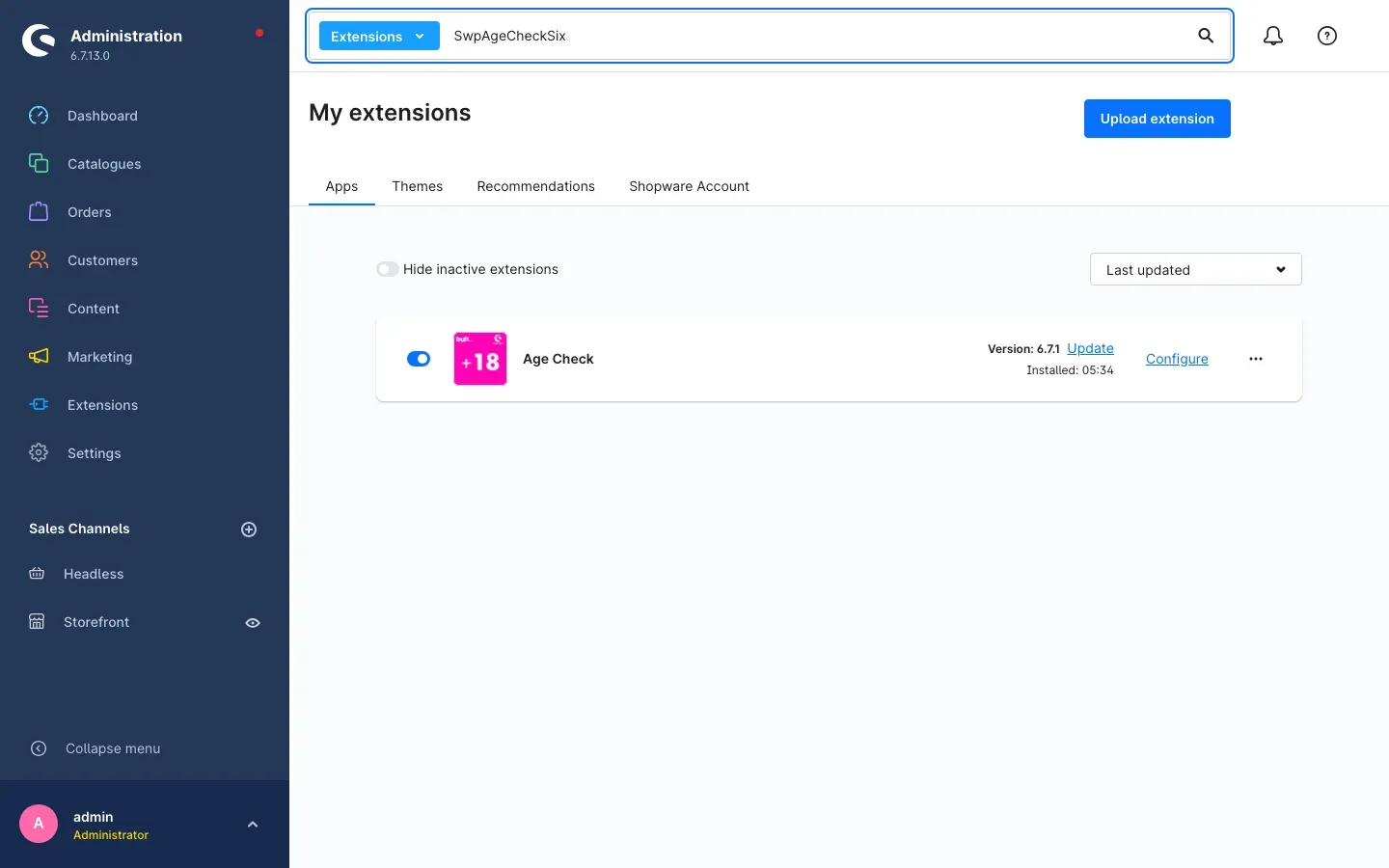 Fig. 1: The installed and activated plugin in the “Apps” tab under “My extensions”
As soon as the plugin is activated, it creates the fields for the age check on your products and categories by itself. There is nothing for you to set up.
If Age Check does not appear in the list, your Shopware account is not yet connected to the shop. You can do that under Extensions → My extensions in the Shopware Account tab.
Getting started
Three steps and the age check is ready to use:
-
Open the settings: Go to Extensions → My extensions and click Configure on the Age Check entry.
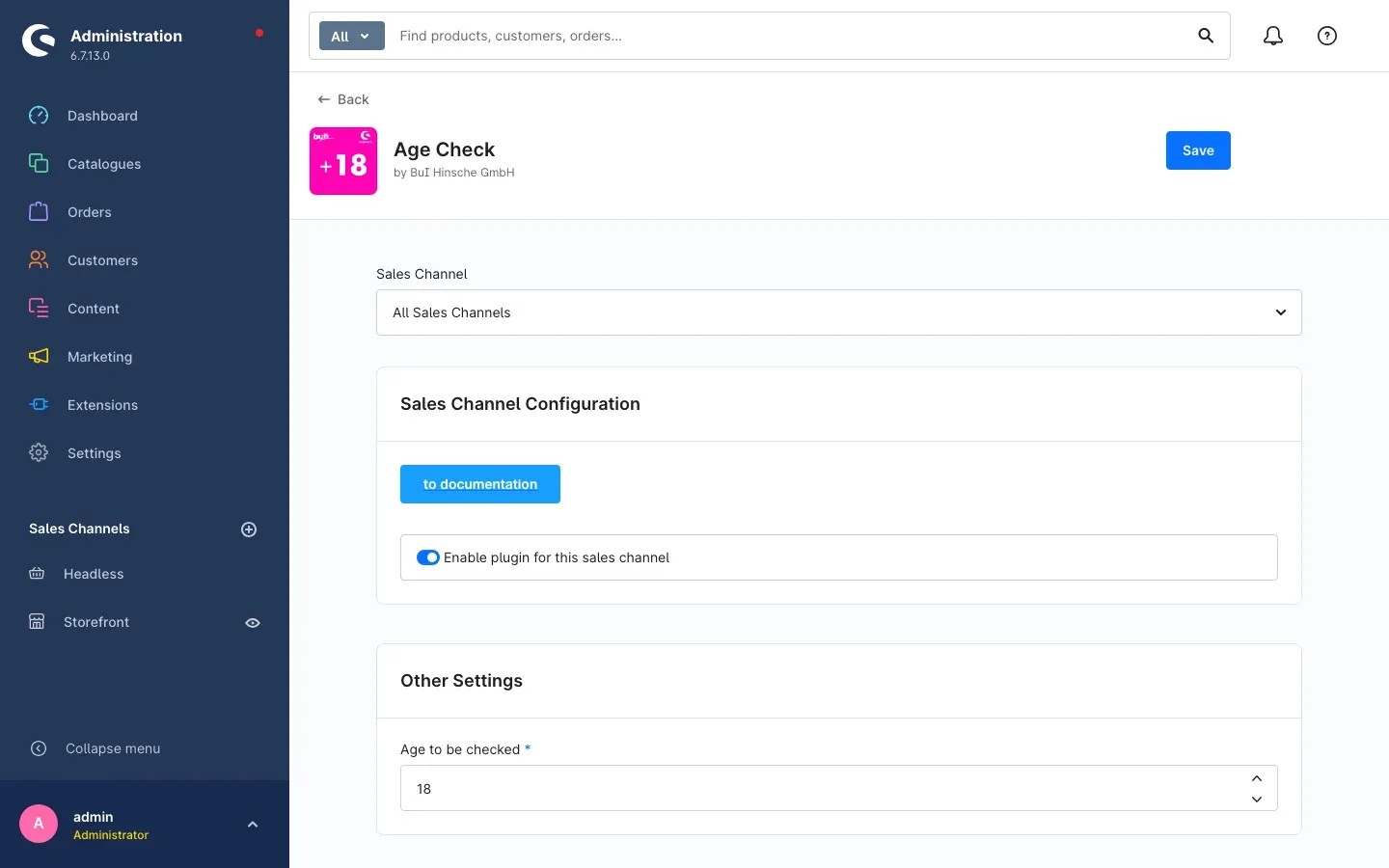 Fig. 2: The configuration page with sales channel selection, on/off toggle and the age to be checked
 -
Define the age: In Age to be checked, enter the number your customers are asked to confirm. The default is 18. Click Save.
-
Flag your range: Open the products and categories that should be age-restricted and enable the age check there (see Flagging products and categories for the age check).
You can then check the result straight away: open your shop in a private browser window — the prompt appears on the first page view.
Settings
You find the settings via Extensions → My extensions and then Configure on the Age Check entry.
At the very top there is the Sales Channel selection. It determines which shop the entries below apply to. As long as All Sales Channels is selected, your entries apply to every sales channel. If you select an individual channel, only that channel’s entries differ from the general ones.
The to documentation button in the Sales Channel Configuration card opens this manual at any time, directly from the administration.
Enable plugin for this sales channel
The Enable plugin for this sales channel toggle determines whether the age check is at work in the sales channel selected above. When it is on, the prompt appears in the shop and flagged items are hidden. When it is off, the shop behaves as if the plugin were not there — your flags on products and categories are kept. The toggle is on by default.
What this is good for: If you run a trade channel alongside your consumer shop and the prompt gets in the way there, simply switch it off for that channel — without uninstalling the plugin.
Age to be checked
In Age to be checked you enter the number the prompt is about. It appears literally in the texts your customers see: in the notice and on both buttons. If you enter 16, for example, the buttons read “I am over 16 years” and “I am under 16 years”. The entry is required; the default is 18.
What this is good for: If your goods have an age limit of 16 rather than 18, a single number adapts the prompt to your range.
Tip: The age applies to the whole sales channel. If you want to check 16 in one channel and 18 in another, select the relevant sales channel at the top and enter the differing number there.
After every change, remember the Save button in the top right corner.
Flagging products and categories for the age check
What this does for you: You define exactly what stays hidden from a visitor who is too young. Anything you do not flag remains visible to everyone — so the prompt only restricts your shop where you want it to.
You have two ways to do this, and they can be combined: flag individual products, or flag a whole category at once.
How to flag an individual product
- Go to Catalogues → Products and open the product you want.
- Switch to the Specifications tab.
- Scroll down to the Custom fields card and open the Age Check tab there.
- Switch on Activate age check.
- Click Save in the top right corner.
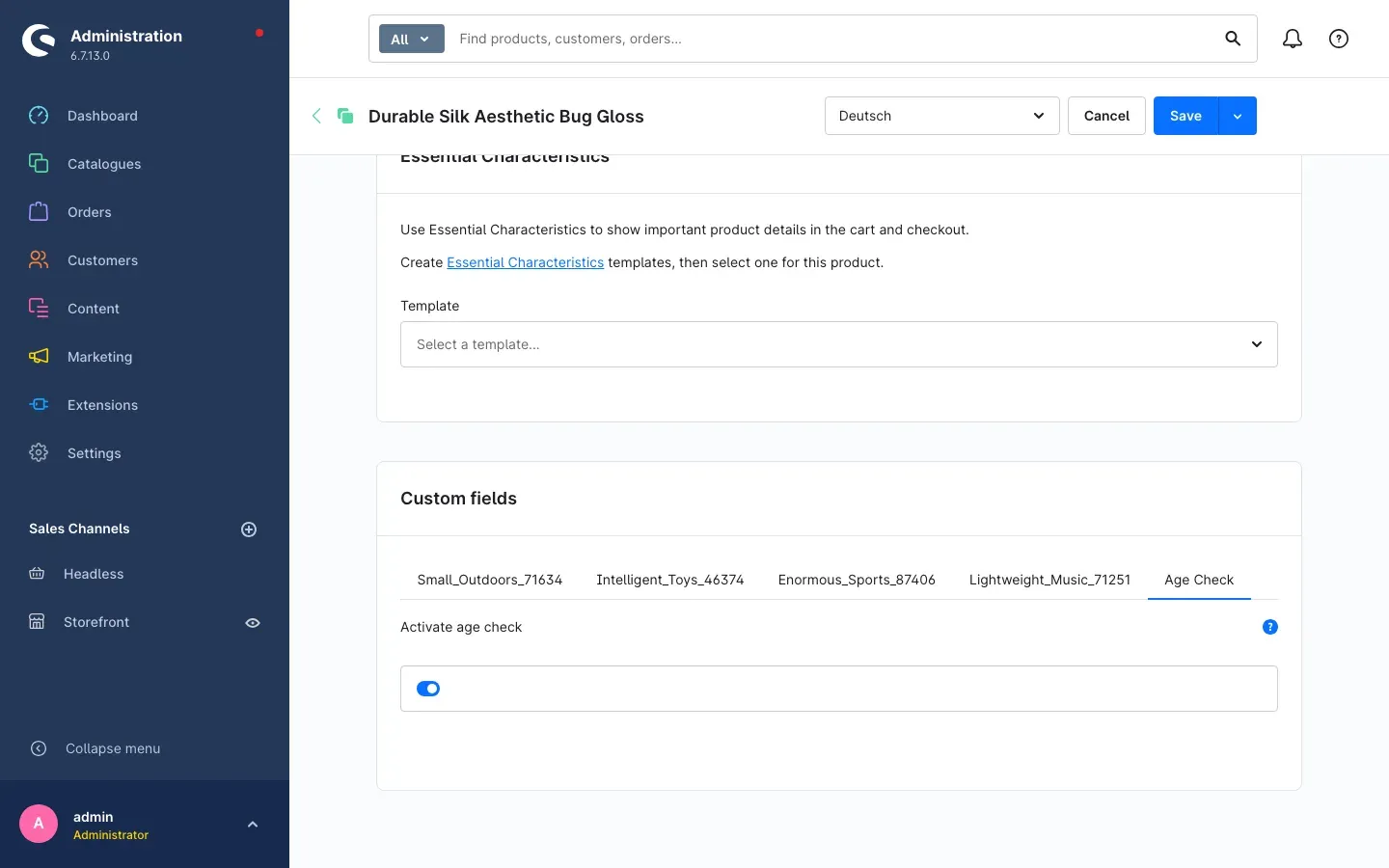 Fig. 3: The “Age Check” tab in a product’s “Custom fields” card with the toggle switched on
The product is now age-restricted: it disappears from listings, search and recommendations for visitors who confirmed “under”, and its product page no longer allows a purchase.
How to flag a whole category
- Go to Catalogues → Categories and select the category you want in the tree on the left.
- In the area on the right, scroll down to the Custom fields card and open the Age Check tab there.
- Switch on Activate age check.
- Click Save in the top right corner.
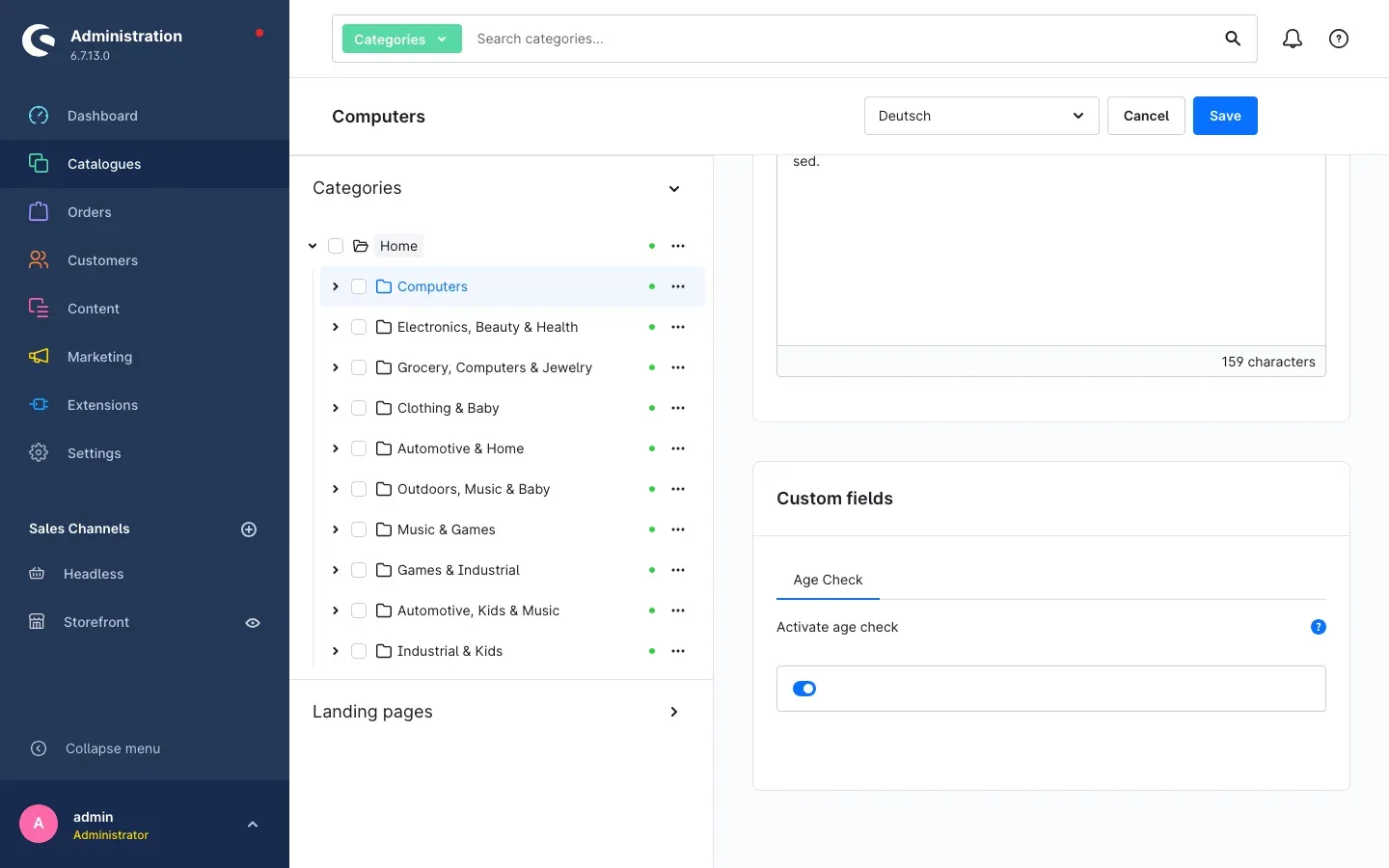 Fig. 4: The “Computers” category with the age check enabled in the “Custom fields” card
A flagged category disappears completely for visitors who are too young — including its entry in the menu. The products assigned to that category no longer appear in listings and search results either. So there is no need to flag them individually on top.
Tip: For a self-contained range, the category is the quicker way. Flag individual products where only certain items of an otherwise unrestricted category are age-restricted.
Important: A flag only takes effect while the plugin is switched on in the relevant sales channel (see Settings). Always check your changes in a private browser window afterwards — your own browser still has your answer to the prompt stored.
What your customers see in the shop
The prompt on entering the shop
On the first page view, a notice covers the page. It is headed Age check, followed by the sentence “I confirm that I am over 18 years old.” and two buttons to choose from: I am over 18 years and I am under 18 years. The number always matches your Age to be checked setting.
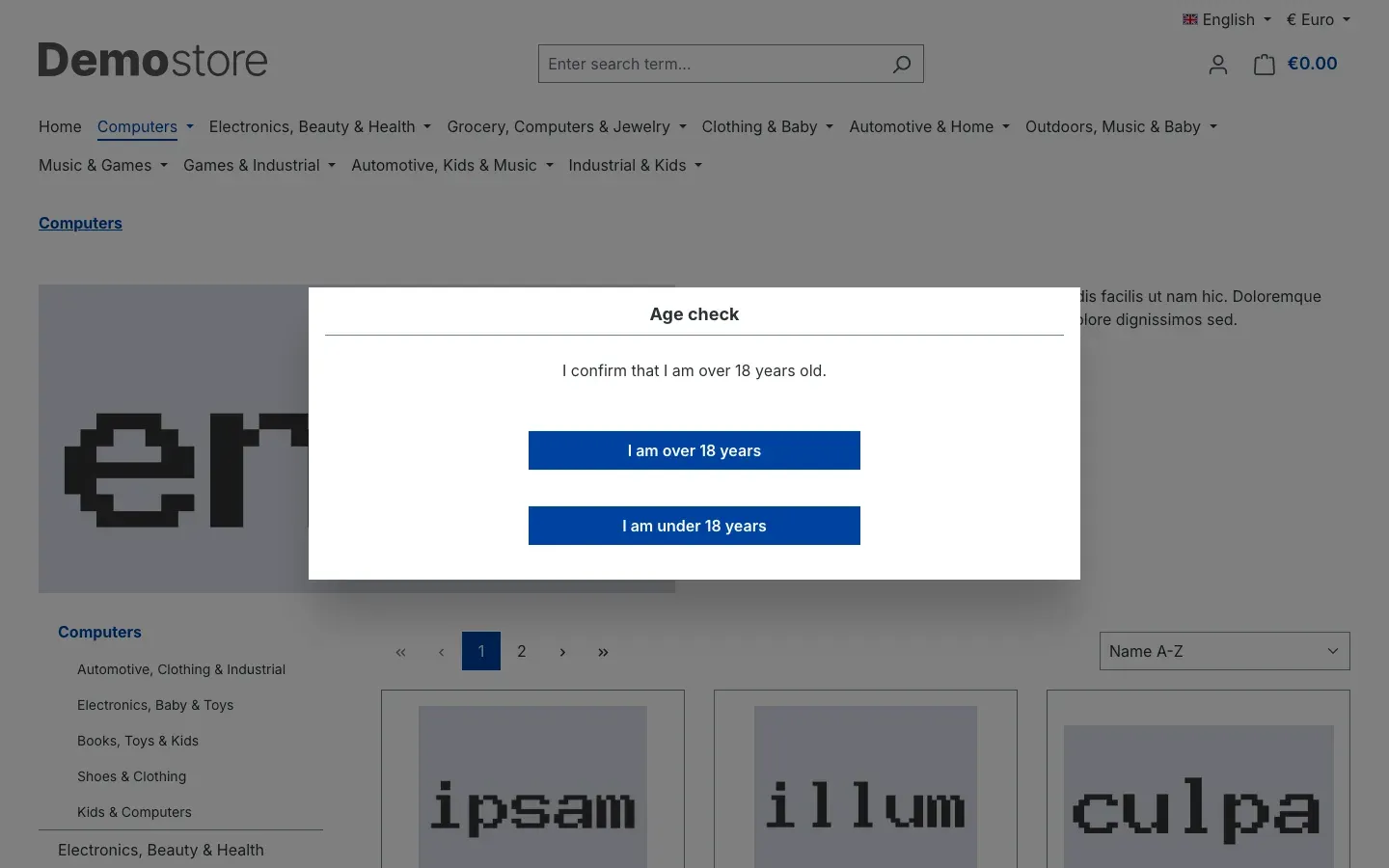 Fig. 5: The prompt on the first page view with both buttons
The notice cannot be dismissed — your visitors have to decide on one of the two buttons. The answer is then stored for 30 days, so the prompt does not reappear on the next visits.
After confirming “over …”
If someone confirms being over the checked age, the shop is unchanged: all categories, products and recommendations are visible and can be purchased as usual.
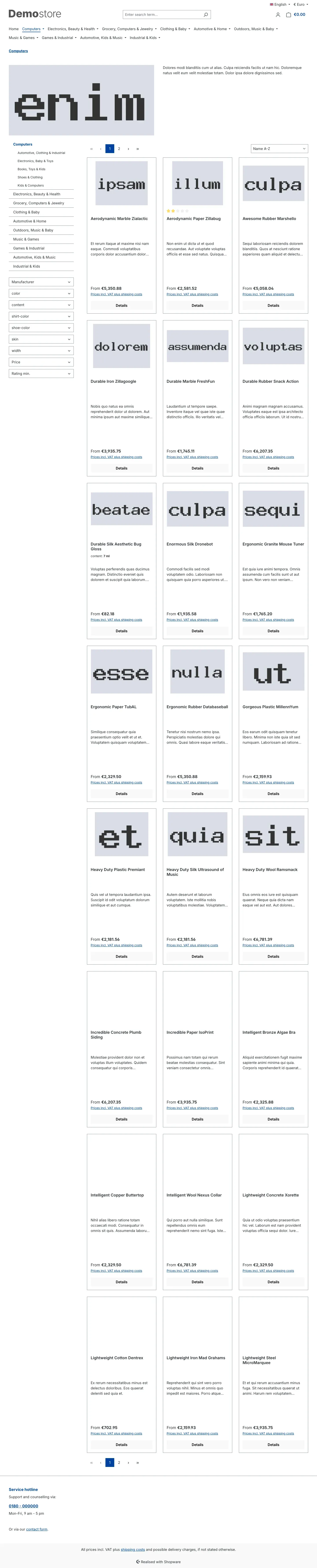 Fig. 6: The “Computers” category with all products after “over 18” was confirmed
After confirming “under …”
If someone confirms being under the checked age, all flagged products and categories disappear from the shop. This affects:
- the product listings of the categories,
- the search results and the suggestions that appear while typing in the search field,
- the menu and the navigation,
- accessory and recommendation lists on the product,
- product boxes, product sliders, recommendations, buy areas and reviews on your shopping experience pages.
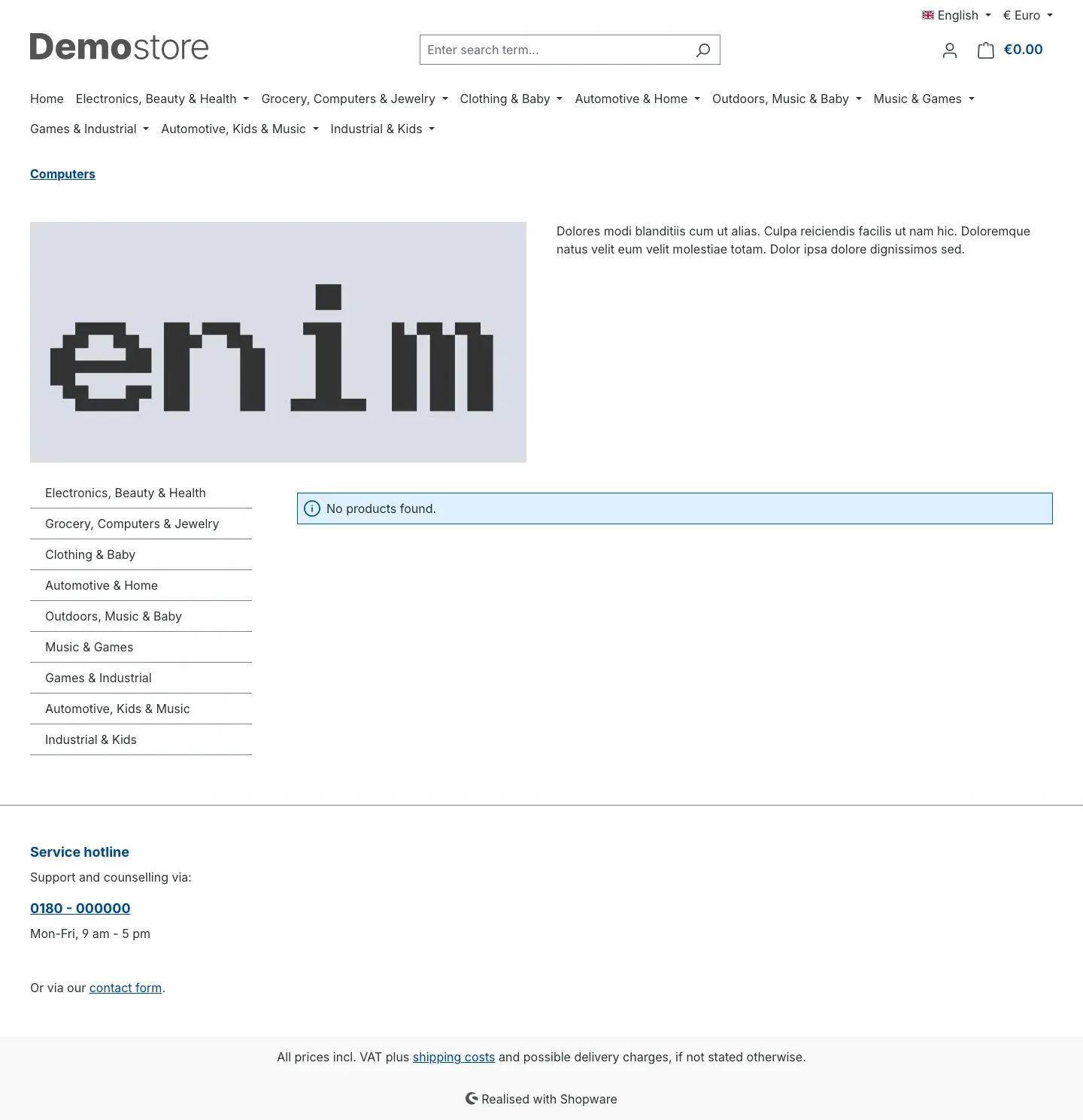 Fig. 7: The same category after “I am under 18 years” — the menu entry is gone and no products are shown
If a visitor is on a flagged product or category page at the moment they confirm “under …”, they are taken back to your shop’s home page.
If they open a flagged product’s page directly anyway — via an old link or a bookmark, for example — the item counts as unavailable: the price and the purchase button are missing, so it cannot be added to the cart.
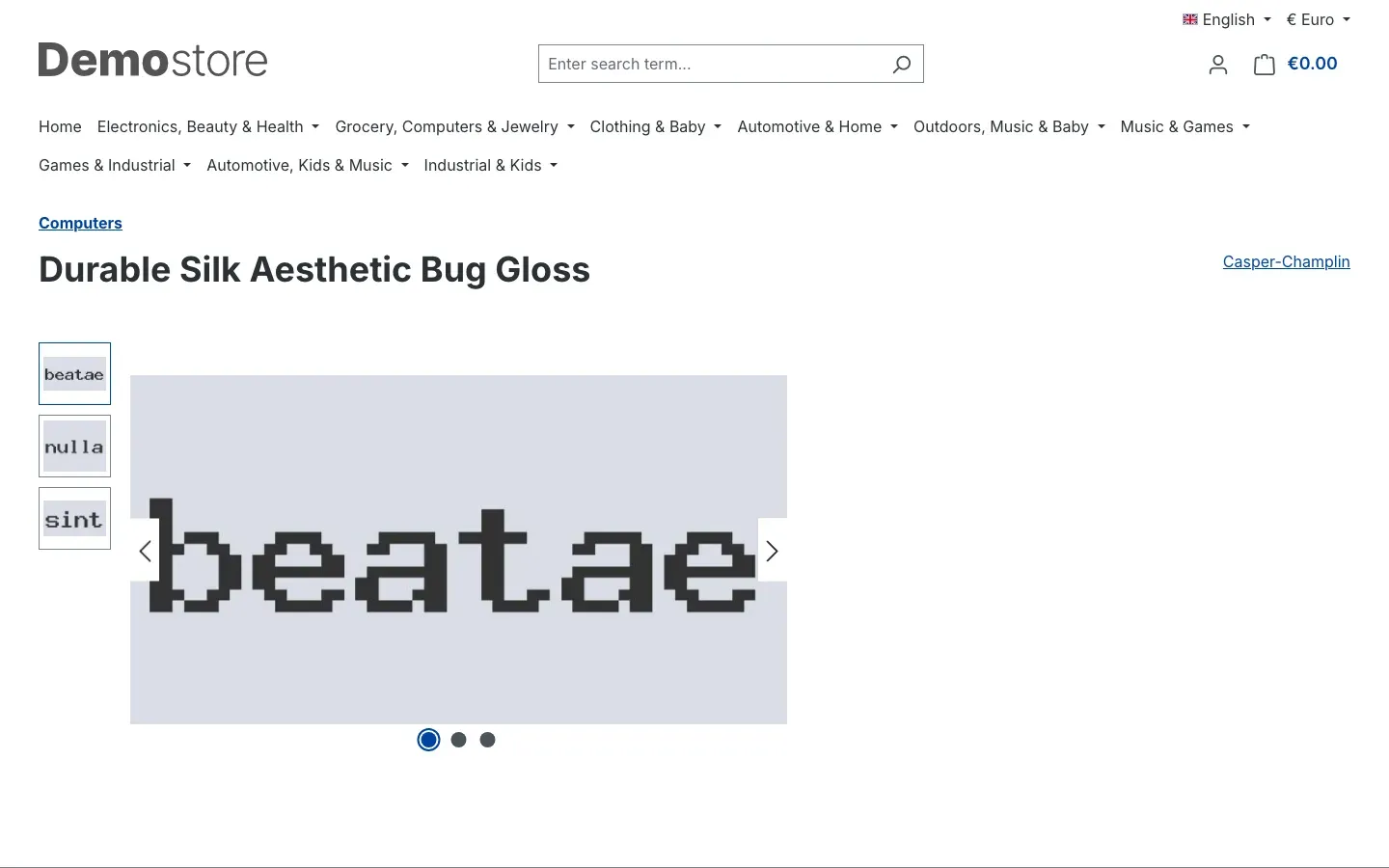 Fig. 8: The product page of a flagged item after “under 18” — without price and without a purchase button
Troubleshooting
The prompt does not appear in the shop
Why this happens: Either your browser has already stored the answer, or the plugin is not switched on in the sales channel you opened.
How to fix it:
- Open your shop in a private browser window, or delete the cookies for your shop — the stored answer is valid for 30 days.
- Under Extensions → My extensions, check whether the toggle next to Age Check is switched on.
- Open Configure, select the affected Sales Channel at the top and check whether Enable plugin for this sales channel is switched on.
- Then clear the cache: Settings → System → Caches & indexes.
A flagged product is still visible
Why this happens: In most cases the change on the product was not saved, or the browser is still showing a cached page.
How to fix it:
- Open the product again and check in the Specifications tab, in the Custom fields card under Age Check, whether the toggle really is switched on.
- Clear the cache under Settings → System → Caches & indexes.
- Check the result in a private browser window and confirm “I am under …” there.
The “Custom fields” card with the “Age Check” tab is missing
Why this happens: The fields are only created once the plugin has been activated. If it is merely installed but not switched on, they are missing.
How to fix it: Switch the plugin on under Extensions → My extensions and reload the product or category page in the administration.
The shop shows the wrong age
Why this happens: The number in the texts comes from the Age to be checked field — it was probably maintained for a different sales channel.
How to fix it: Open Configure, select the affected Sales Channel at the top, enter the correct number and save. Then clear the cache.
FAQ
Q: Do I have to flag every product individually?
A: No. If you flag a category, all products assigned to it are covered automatically. Flag individual products only where a category is not entirely age-restricted.
Q: How long does my customers’ answer last?
A: 30 days. After that, the prompt appears again on the next visit. If a customer deletes their cookies, they are asked again as well.
Q: Can my customers correct their answer?
A: Yes, by deleting the cookies for your shop. The prompt then reappears on the next page view.
Q: Is the age really verified?
A: No. Your visitors give their own statement; no identity documents or dates of birth are requested. What the plugin does is make sure the flagged items are no longer reachable when the answer is below the age.
Q: Can someone buy a hidden product anyway?
A: No. Even when the product page is opened directly, the item counts as unavailable and cannot be added to the cart.
Q: Does the setting apply to all my sales channels?
A: Only as long as All Sales Channels is selected at the top. You can store separate entries for each channel — both the on/off toggle and the age to be checked.
Q: What happens to my flags if I switch the plugin off?
A: They are kept. If the plugin is only deactivated, the fields are merely hidden in the administration; after switching it back on they apply unchanged.
Q: Which languages does the prompt appear in?
A: German, English and Dutch. The shop automatically shows the language your customer selected.
Q: Does the prompt appear even if I have not flagged anything?
A: Yes. The prompt belongs to the sales channel, not to an individual item. Without any flags, the answer simply has no effect on what is visible.
For administrators / technical details
This section is aimed at technical administrators. You do not need it for normal use.
System requirements
- Shopware: 6.7
- PHP: 8.2 or newer
- Shopware’s storefront and administration are required
Cookie and cookie notice
The answer is stored in a cookie named ageCheckSix with a lifetime of 30 days. The cookie is listed in the storefront’s cookie configuration among the technically required cookies under the name Age check. It contains nothing but the given answer, no personal data.
Custom fields
When the plugin is activated, a custom field set named Age Check is created and assigned to products and categories. It contains the Activate age check toggle. When the plugin is deactivated, the set is set to inactive and the stored flags remain in the database. On uninstallation, the set and the toggle are removed.
Affected storefront areas
When the answer is below the checked age, items are hidden in the category product listings, in search and search suggestions, in the navigation, in accessories and recommendations on the product, and in the shopping experience elements product box, product slider, recommendations, buy area and reviews. On the product page itself the item is marked as unavailable.
Interaction with the page cache
For visitors who gave an answer below the age, a separate variant of the pages is stored in the cache. This makes sure nobody is accidentally served the cached page belonging to the other answer. After changing flags, clearing the cache under Settings → System → Caches & indexes is still recommended.
Capacity
When hiding items, up to 500 categories flagged as age-restricted are taken into account per sales channel. For shops with more age-restricted categories, please get in touch in advance.
Installation via the command line (Composer)
composer require swp/agecheck-six
php bin/console plugin:refresh
php bin/console plugin:install SwpAgeCheckSix --activate
php bin/console cache:clear
This manual was created for Age Check version 6.7.2.
More manuals
Admin Password Reminder
Admin Password Reminder: your backend users renew their passwords on time, prompted after login and by a daily email. Premium locks expired accounts until the password is changed.
Open manual Shopware 6AI Media Labelling
AI labelling for images and videos: flag a media item once in the media manager and the badge with your notice appears wherever it shows up in your shop. No template work needed.
Open manual Shopware 6AI SEO All-in-One: SEO and GEO suite for Shopware 6
Google finds your shop, ChatGPT never mentions it. This plugin checks both in one run, fills empty meta fields from templates and turns the findings into a to-do list.
Open manualNeed a team that keeps your shop running?
We have been maintaining Shopware shops for more than 20 years, including updates, hotfixes and the plugins you are configuring right now.