Product configurator Step-by-Step
Long option lists put buyers off. This add-on walks them through your product configurator instead: one option group per step, with a summary before the basket.
On this page
- Introduction
- What you achieve with this plugin
- Who is this plugin for?
- Installation
- Getting started
- Settings
- Enable plugin for this sales channel
- Activate Step-by-Step globally
- Show summary
- How to use the features
- How to switch the step view on for your whole range
- How to set the view for a single product
- What your customers experience in the shop
- How your customers change a choice they already made
- How mandatory entries work within a step
- How the step view works together with option dependencies
- Troubleshooting
- The product page still shows all options below each other
- The plugin cannot be installed or activated
- The steps are visible, but the “Next” button does not react
- The “Add to shopping cart” button stays greyed out
- A selection from a later step is suddenly empty
- FAQ
- For administrators / Technical details
- System requirements
- Installation via the command line (Composer)
- Context for theme and template adjustments
- Automatic advance
- Uninstallation
Introduction
Important: Add-on plugin – requires the Product Configurator (
SwpProductOptionsSix). This plugin is an extension of the base plugin Product Configurator and only works together with it. Without the installed, active and separately purchased Product Configurator from version 6.7.12, this plugin has no function.
Product configurator Step-by-Step guides your customers through the product configurator one step at a time: instead of showing every option group at once on the product page, only the group that is currently due appears.
The plugin is an add-on for the SwpProductOptionsSix product configurator. It does not work without that base plugin — price calculation, the option groups themselves and the handover to the shopping cart all remain there.
What you achieve with this plugin
- Your customers see exactly one option group per step instead of a long list. This feels tidy, especially on a phone.
- The next step only opens once all mandatory entries of the current one are filled in, so incorrectly configured orders become rarer.
- Completed steps stay visible as a slim row showing the choice that was made, for example Material ¹ : Bio-Baumwolle (+€5.00). Nobody loses the overview.
- The price overview Calculation of your configuration appears either at the very end or after every step — you decide how early the price becomes visible.
- You switch the view on globally for all products and set it differently for individual products.
Who is this plugin for?
For shops selling items with many options — furniture, textile printing, components, promotional products, anything with long selection lists. The more option groups a product has, the greater the benefit. For products with one or two groups, the step view rarely pays off.
Installation
After your purchase, the plugin is available directly in your administration — there is nothing to download.
Important beforehand: the SwpProductOptionsSix product configurator must be installed and active. It is the basis this plugin builds on.
- Log in to your Shopware administration (
YourShop.com/admin) - Open Extensions → My extensions
- Click Install next to Product configurator Step-by-Step
- Then activate the plugin using the switch next to the entry — done.
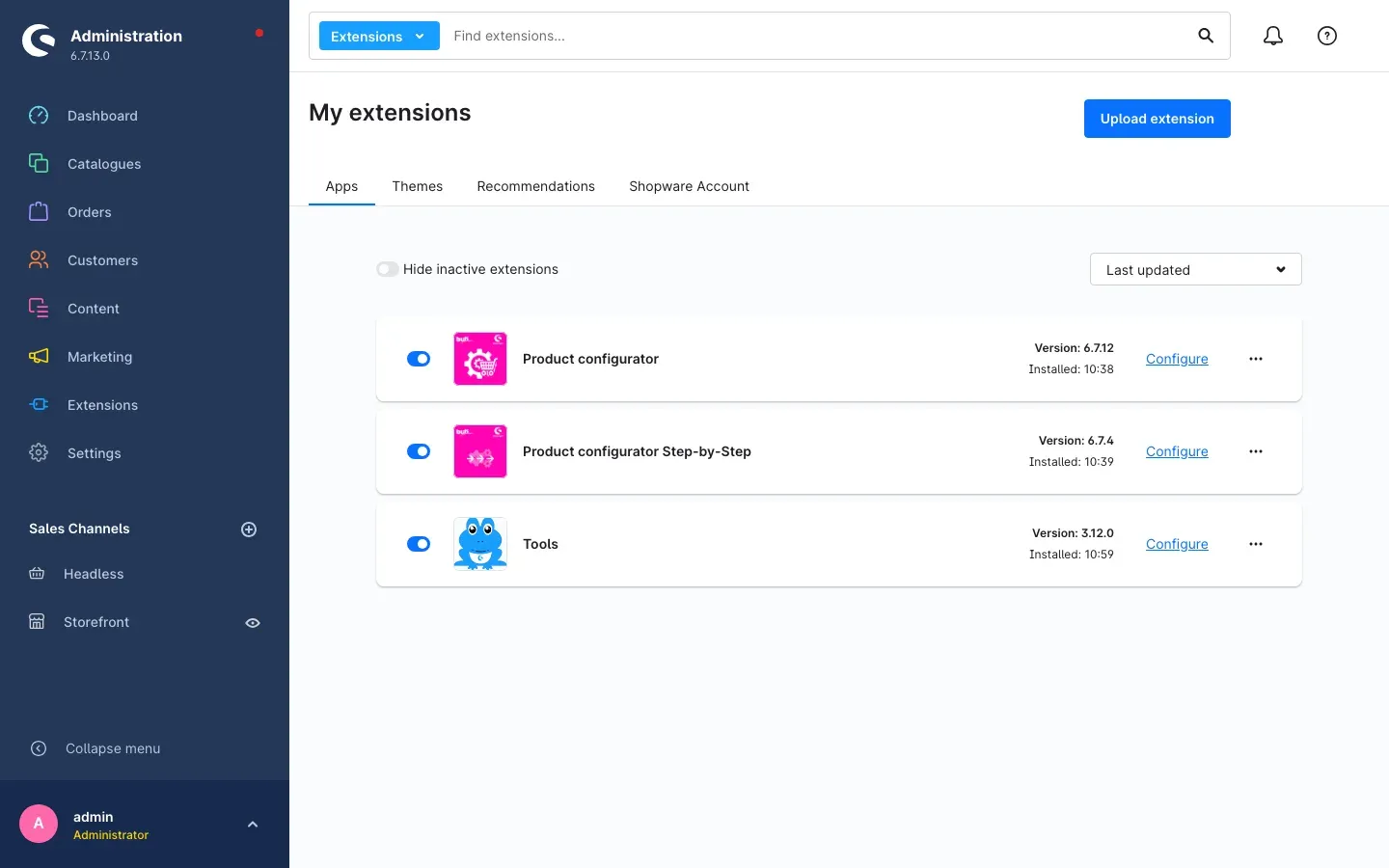
If Product configurator Step-by-Step does not appear in the list, your Shopware account is not yet connected to the shop. You can do this under Extensions → My extensions by logging in with your Shopware account.
Nothing changes in the shop right after activation. Which products get the step view is defined in the settings (chapters 3 and 4).
Getting started
Three actions are enough to make the step view visible in your shop.
-
Open the settings: Settings → Extensions → Product configurator Step-by-Step
-
Choose the sales channel: the Sales Channel selection sits at the top. With All Sales Channels your entries apply everywhere; choose a single channel and they apply there only.
-
Switch the step view on: enable Activate Step-by-Step globally and click Save in the top right corner.
-
Check the result: open a product with assigned options in your shop. Below the option selection heading, only the first option group is now shown, with the Next button underneath.
If the product page looks unchanged, chapter 6 helps.
Settings
You will find the settings under Settings → Extensions → Product configurator Step-by-Step. All three entries are located in the Settings card and apply to the sales channel selected at the top.
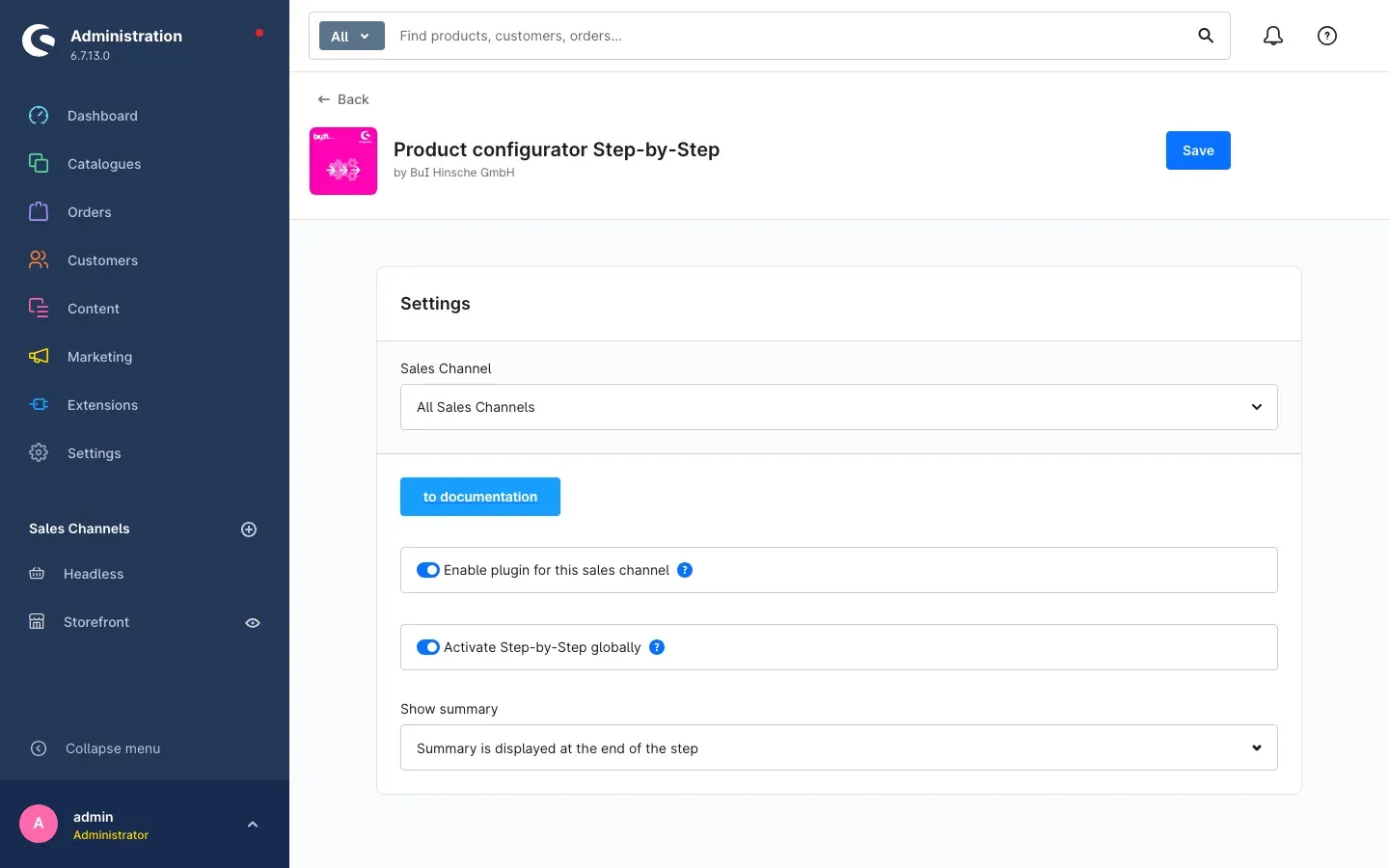 Fig. 1: The plugin settings in the administration
The to documentation button above the settings takes you to this manual online at any time — in the language you are using the administration in.
Enable plugin for this sales channel
Enable plugin for this sales channel determines whether the plugin has any effect in this shop at all. The switch is enabled by default. Turn it off and this sales channel shows the unchanged product configurator again — all option groups below each other, without steps.
Why this is useful: you run a B2C and a B2B channel. Private customers are guided through the steps, while your trade customers keep the complete list at a glance. You do not have to uninstall the plugin for this, just switch it off in one channel.
Activate Step-by-Step globally
Activate Step-by-Step globally makes the step view the default for every product for which you have not stored a different display setting. With the switch off, everything stays with the familiar configurator — except for products where you explicitly selected the step view (see section 5.2).
Why this is useful: you want to roll out the step view across your whole range without editing each product. Switching it on once is enough; exceptions are handled afterwards on the individual product.
Show summary
Show summary controls when your customers get to see the price overview Calculation of your configuration. You have two options:
- Summary is displayed at the end of the step — the overview appears only once all steps are complete. This is the default.
- Summary is displayed after each step — the overview is rebuilt after each completed step and grows along the way.
Why this is useful: with expensive add-on options, a running display builds trust — the customer immediately sees what a surcharge costs. With a large number of steps, the overview at the end feels calmer because nothing moves along the way.
Important: click Save in the top right corner after every change. If the shop still shows the old view, clear the cache once (chapter 6).
How to use the features
How to switch the step view on for your whole range
What this gives you: every product with assigned options guides your customers through the steps from now on — without you having to touch each product individually.
Step by step
- Go to Settings → Extensions → Product configurator Step-by-Step
- Choose the Sales Channel the view should apply to
- Enable Activate Step-by-Step globally
- Click Save
Products for which you stored a display setting of their own keep it. The global setting only applies to all the others.
How to set the view for a single product
What this gives you: you decide per product whether it is guided step by step — independently of the global setting.
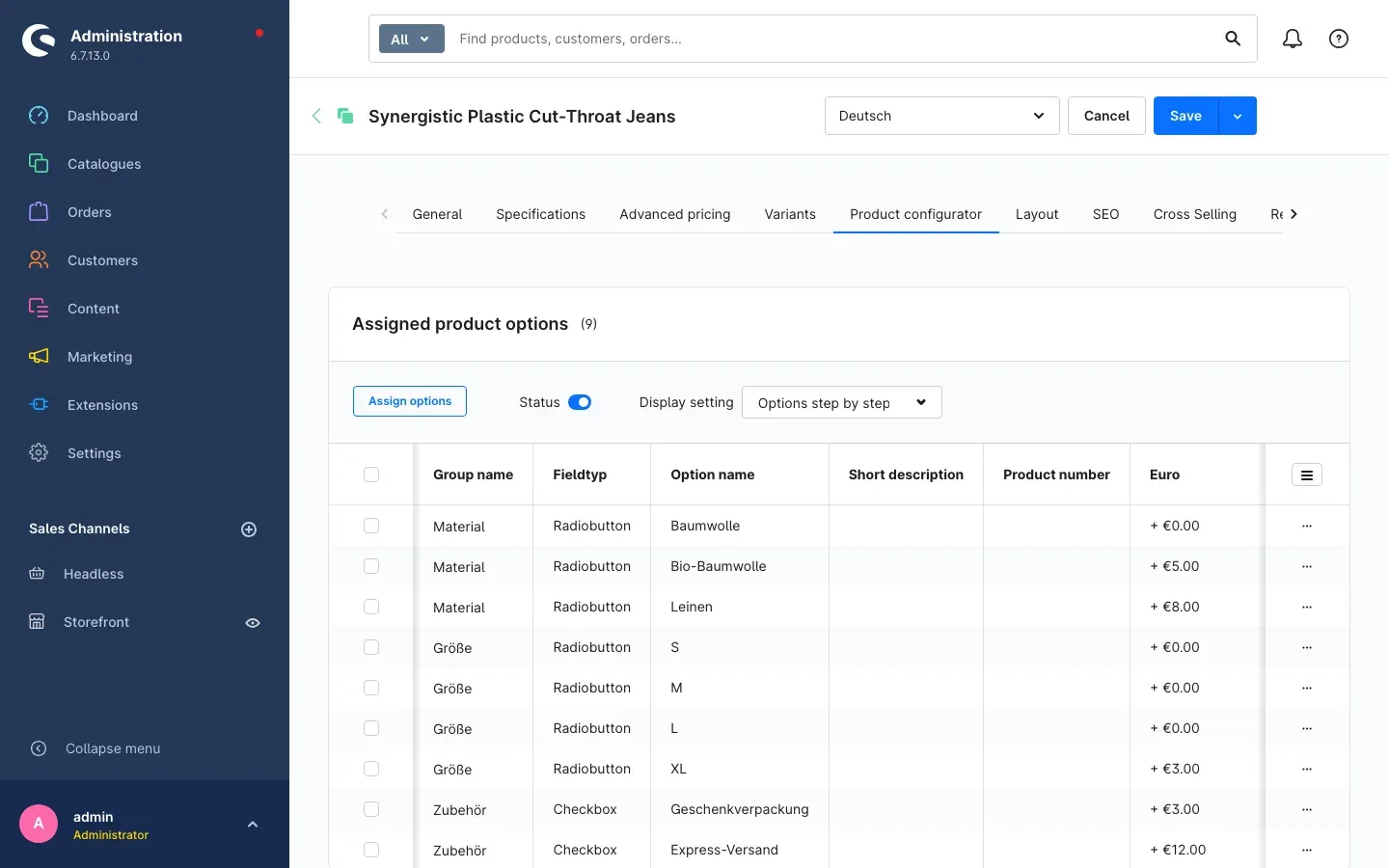 Fig. 2: The display setting on a product’s “Product configurator” tab
Step by step
- Open Catalogues → Products and select the product
- Switch to the Product configurator tab
- In the Assigned product options card you will find the Display setting selection at the top
- Choose Options step by step under Media / Buy
- Click Save in the top right corner
The options of this product now appear as steps below the product images and the buy area — even when Activate Step-by-Step globally is switched off.
If you want a single product not to be guided in steps although the global setting is on, choose one of the product configurator’s other display settings in the same selection.
Tip: the Status switch in the same row belongs to the product configurator itself. With it turned off, no options are shown for the product at all — and the step view cannot help there either.
What your customers experience in the shop
What this gives you: you know how the guidance works from the customer’s point of view and can follow it in your own shop.
Step 1 — only the first group is open. Below the option selection heading, the first option group is shown; all others are not visible yet. If the group is mandatory, its heading carries the superscript ¹, and the note ¹ Is required appears below the options.
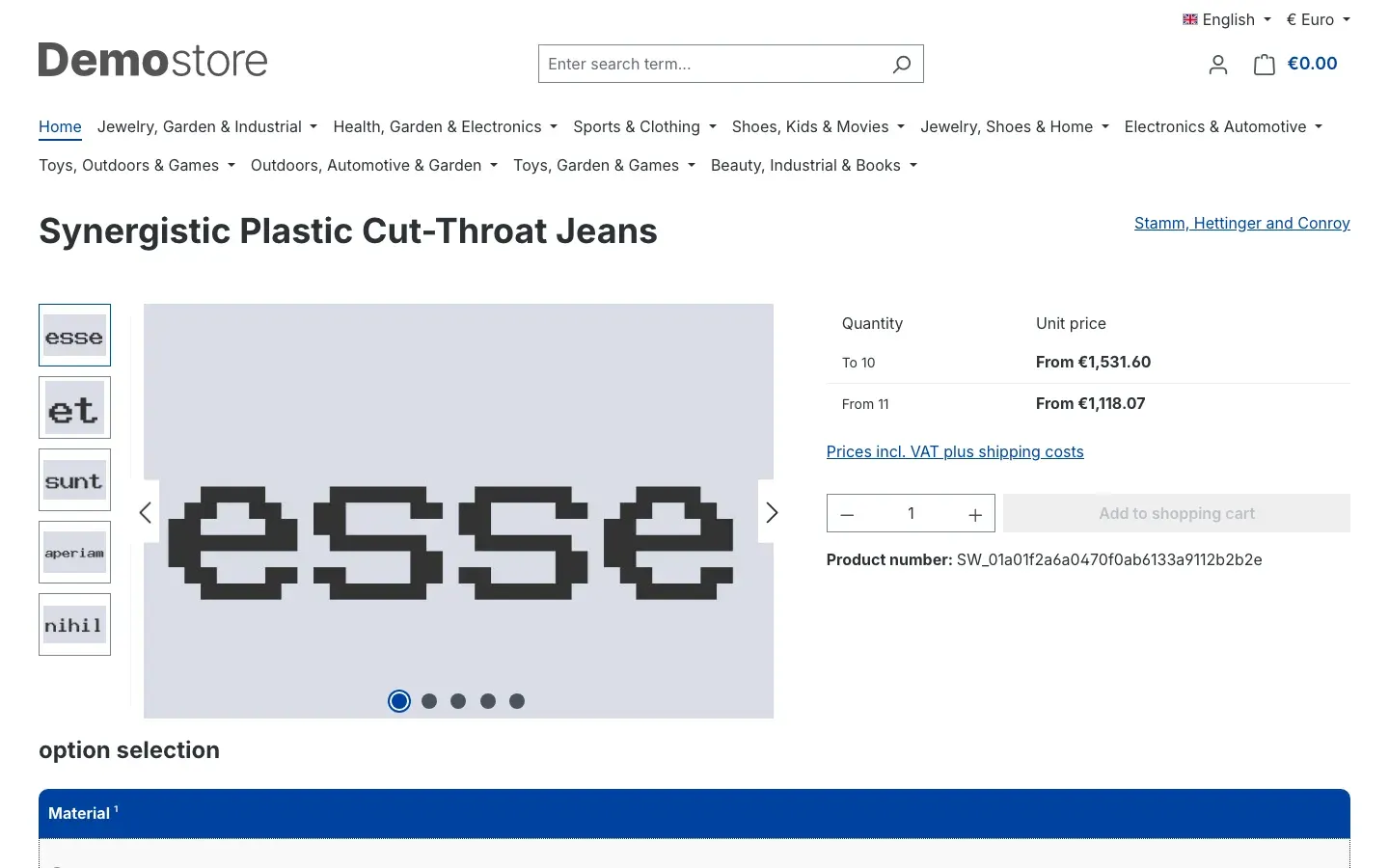 Fig. 3: The first step on the product detail page
Step 2 onwards — the path becomes visible. After a click on Next, the completed step collapses and the following group opens. The collapsed row shows the choice that was made, for example Material ¹ : Bio-Baumwolle (+€5.00).
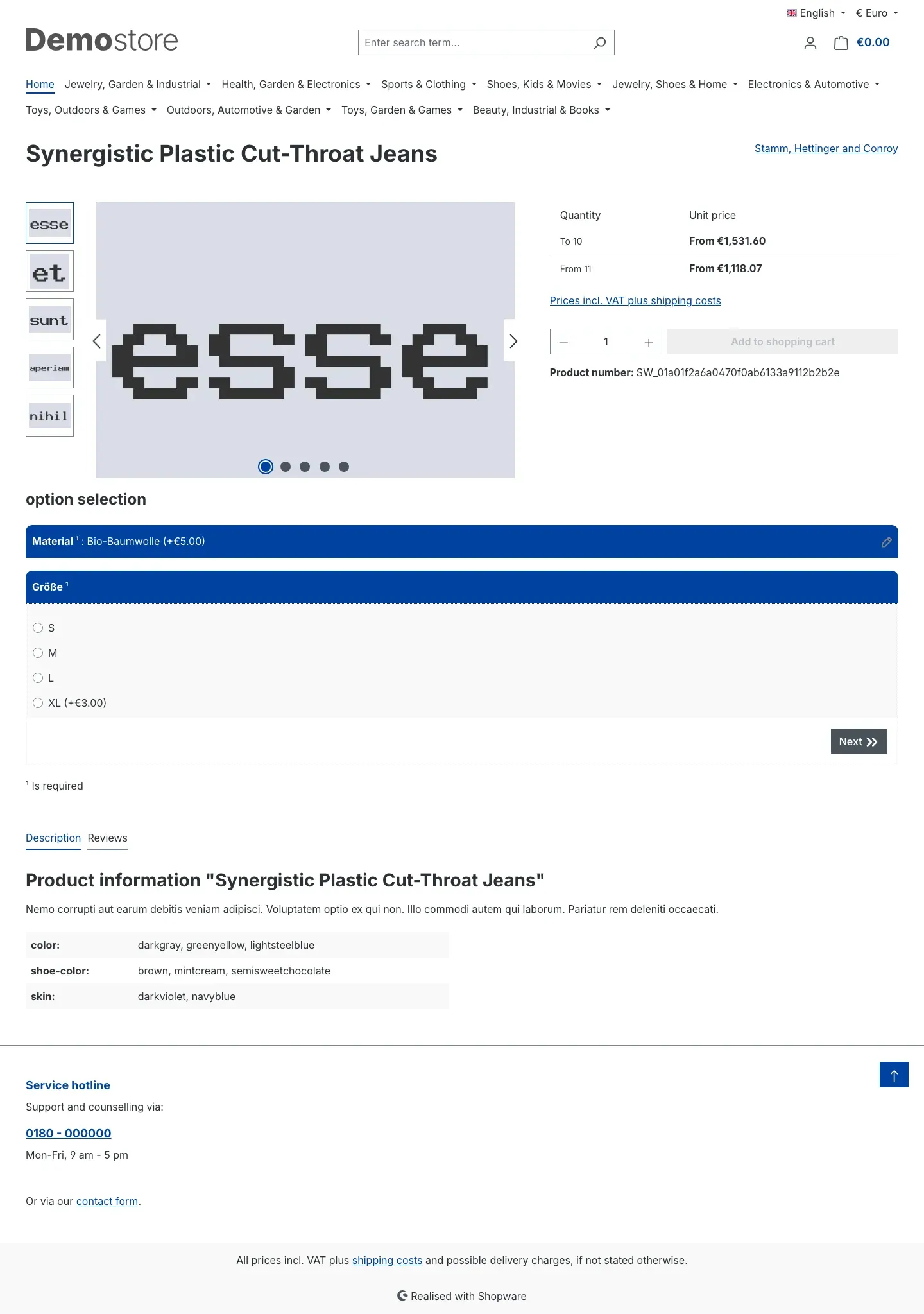 Fig. 4: The second step; the first one shows the selected option in its header row
At the end — overview and purchase. Once all steps are complete, the selection rows are listed below each other and the price overview Calculation of your configuration appears underneath, listing the original article price, every surcharge separately and the final amount. Only now can Add to shopping cart be clicked.
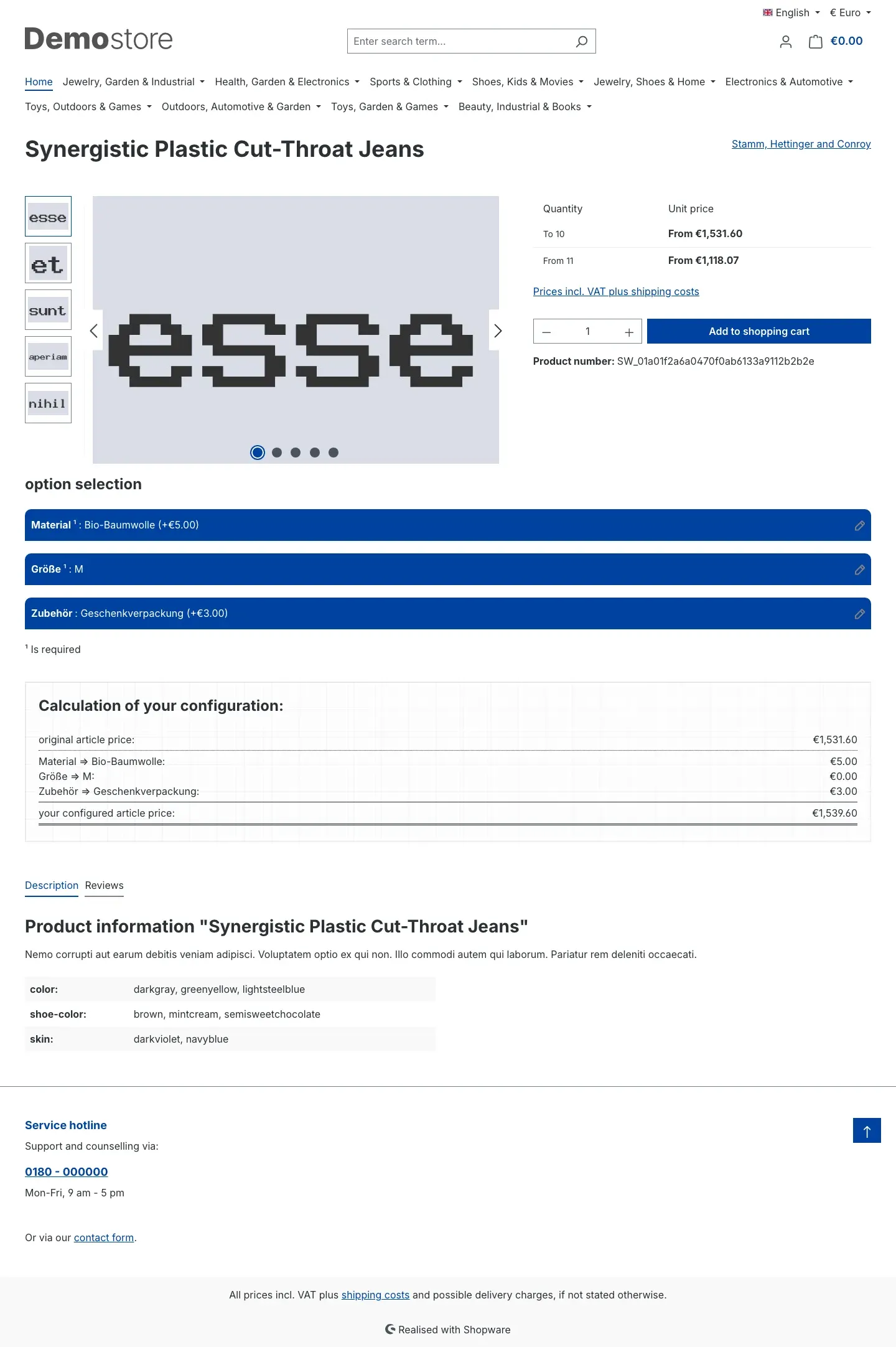 Fig. 5: All steps completed, price overview and cart button active
Tip: if you want the price overview to run along the way, set Show summary to Summary is displayed after each step (chapter 4).
How your customers change a choice they already made
What this gives you: anyone changing their mind does not have to reload the page — and still never gets a contradictory configuration into the cart.
A pencil icon sits at the right-hand edge of every completed step row. Clicking it opens the step again so the selection can be changed.
Worth knowing: clicking Next resets all following steps — their entries and the short overview in the header row are cleared, and the path is walked again from that point. This is intentional: an option chosen later may depend on the changed entry and would otherwise silently stay in place.
Steps before the changed one remain untouched.
How mandatory entries work within a step
What this gives you: incomplete configurations never make it to the cart in the first place, which saves questions in customer service.
If someone clicks Next without having filled in the mandatory entries of that step, the step stays open and a yellow note appears inside it:
This step contains mandatory fields. Please select or fill them in to complete this step.
As soon as the missing entry is made, Next leads to the following step as usual. Which groups are mandatory is defined in the product configurator as always; in the shop they are recognisable by the superscript ¹.
How the step view works together with option dependencies
What this gives you: option groups that do not apply to the choices made will not hold your customers up.
If you also use the dependency add-on for the product configurator, both plugins work together: a group hidden because of an earlier choice is skipped as a step. It does not block progress and does not ask for an entry. Options that become permissible again through the current selection are available in the respective step.
Without the dependency add-on, your customers simply walk through all groups in order — no function of the step view is missing without it.
Troubleshooting
The product page still shows all options below each other
What causes it: usually the step view is not selected for this product, the sales channel is switched off, or the page still comes from the cache.
How to fix it:
- Under Settings → Extensions → Product configurator Step-by-Step, check that Enable plugin for this sales channel is switched on — and that the correct Sales Channel was selected at the top when you saved
- Check that Activate Step-by-Step globally is switched on
- Open the product, Product configurator tab, and see whether a different view is stored under Display setting — an entry on the product always takes precedence over the global setting
- Clear the cache: Settings → System → Caches & indexes → Clear caches
The plugin cannot be installed or activated
What causes it: the SwpProductOptionsSix product configurator is missing, inactive or too old.
How to fix it: open Extensions → My extensions and make sure the product configurator is installed, active and up to date. Product configurator Step-by-Step can then be installed.
The steps are visible, but the “Next” button does not react
What causes it: almost always mandatory entries are missing in the step, or an outdated storefront script is still in the cache.
How to fix it:
- Check whether the yellow note about mandatory fields appears in the step — if so, an entry is missing
- Clear the cache: Settings → System → Caches & indexes → Clear caches
- Reload the product page in the browser
The “Add to shopping cart” button stays greyed out
What causes it: this is intended as long as not all steps are complete.
How to fix it: work through the steps to the last one. As soon as the Calculation of your configuration overview appears, the buy button can be clicked again.
A selection from a later step is suddenly empty
What causes it: something was changed in an earlier step. All following steps are then reset deliberately (section 5.4).
How to fix it: nothing — this is the intended behaviour. The affected steps are simply walked through again.
FAQ
Q: Do I need another plugin for this one?
A: Yes. The SwpProductOptionsSix product configurator must be installed and active. This plugin only changes how its option groups are presented.
Q: Does anything change about prices, surcharges or the cart?
A: No. Price calculation and the cart stay entirely with the product configurator. The step view only changes how the options are shown and asked for.
Q: Can I use the step view in only one of several shops?
A: Yes. Select the desired Sales Channel at the top of the settings and set the switches there. Enable plugin for this sales channel switches the plugin off completely per channel.
Q: Does the global setting also apply to products where I already chose a view?
A: No. An entry under Display setting on the product always takes precedence. Activate Step-by-Step globally only affects products without an entry of their own.
Q: In which languages do the texts appear in the shop?
A: The Next button and the note about missing mandatory entries are available in German, English and Dutch. They appear automatically in the language of the shop. The names of the option groups come from the product configurator and are maintained there.
Q: How many steps are possible?
A: As many as the product has option groups — each group is exactly one step. There is no upper limit.
Q: Does the step view work on mobile phones?
A: Yes. That is where it has the strongest effect, because only one group is visible per screen instead of a very long list.
Q: What happens if I uninstall the plugin again?
A: The plugin’s settings are removed, and products that were set to the step view fall back to the product configurator’s standard view. Your option groups, prices and product data remain untouched.
Q: A note appears in the administration after an update. Do I have to do anything?
A: It is a reminder to review your plugin settings once. Take a look at the settings page; if everything is as intended, there is nothing else to do.
For administrators / Technical details
This section is aimed at technical administrators. You do not need it for normal use.
System requirements
- Shopware: 6.7 (any patch level of this line)
- PHP: 8.2 or newer
- Database: MySQL 8.0 / MariaDB 10.11 or newer
- Prerequisite: SwpProductOptionsSix product configurator from version 6.7.12, installed and active
- Optional: the dependency add-on SwpProductOptionsSixDependencies
Installation via the command line (Composer)
composer require swp/productoptions-six-stepbystep
php bin/console plugin:refresh
php bin/console plugin:install SwpProductOptionsSixStepByStep --activate
php bin/console cache:clear
Context for theme and template adjustments
The plugin brings no database tables, no controllers and no interfaces of its own. It extends the product configurator’s templates and adds a storefront script that opens, closes and validates the steps. For a derived theme this means: the familiar extension points of the product configurator remain in place, and the step view builds on top of them.
Step counting, resetting the following steps and validating mandatory entries all run in the browser. On the server side, the plugin changes neither price calculation nor the cart.
Automatic advance
For mandatory groups consisting exclusively of radio buttons, the storefront script can jump to the next step immediately after a selection, without Next being clicked. This mode is enabled through an attribute on the configurator area (data-step-automatic) and is therefore a theme adjustment, not a plugin setting. As delivered, the Next button leads through the steps.
Uninstallation
When uninstalling without keeping user data, the plugin removes its entries from the system configuration and resets the display setting of all products that were set to the step view. If the product configurator has already been removed at that point, this step is skipped without the uninstallation failing.
This manual was created for Product configurator Step-by-Step version 6.7.3.
More manuals
Age Check
Tobacco, spirits, knives: visitors who do not confirm their age never see the restricted items at all. You tick a box per product, the plugin hides it everywhere.
Open manual Shopware 6Blog: Posts, Categories & Comments
Stop running WordPress next to your shop. Write posts, categories, authors and moderated comments in Shopware, then build the blog pages in Shopping Experiences.
Open manual Shopware 6Cart Extras
Your customer sees in the cart how much is missing before the free gift or the discount. Below your minimum order value, the plugin adds exactly the shortfall as a surcharge.
Open manualNeed a team that keeps your shop running?
We have been maintaining Shopware shops for more than 20 years, including updates, hotfixes and the plugins you are configuring right now.