Cart Extras
Your customer sees in the cart how much is missing before the free gift or the discount. Below your minimum order value, the plugin adds exactly the shortfall as a surcharge.
On this page
- Introduction
- What this plugin does for you
- Who is this plugin for?
- Installation
- Getting started
- Settings
- Enable plugin for this sales channel
- Progress Bar Active
- Show Thresholds in Progress Bar
- Progress Bar Color
- Milestone Color
- Setting up the progress bar with steps
- How to create a step
- How to reward a step with a discount
- How to reward a step with a free product
- How to use a step without its own action
- How to offer a step to selected customers only
- Setting up the small order surcharge
- How to create a threshold
- How to exclude categories and shipping methods
- Running several thresholds side by side
- What your customers see
- Troubleshooting
- No progress bar appears in the cart
- The small order surcharge is not calculated
- Discount or free product is not granted
- The announced free shipping is not granted
- Customers see the goal texts in the wrong language
- A customer wants to remove the surcharge or the free product
- FAQ
- For administrators / technical details
- System requirements
- Installation via the command line
- Permissions for editors
- Interaction with other extensions
Introduction
Cart Extras turns your shopping cart into a sales tool: your customers can see how far they still are from their next reward — and at the same time you make sure that small orders remain profitable for you.
What this plugin does for you
- It increases your average order value. A progress bar in the cart shows every customer how much is missing until the next goal, for example “Only €5.30 left to 5% discount”.
- It rewards automatically. As soon as a customer reaches a step, the plugin puts a discount or a free product into the cart. Nobody has to enter a voucher code and you do not have to maintain anything manually.
- It makes small orders viable. If the cart value stays below your minimum order value, the plugin adds a small order surcharge — exactly the amount that is missing. As soon as the customer orders enough, the surcharge disappears by itself.
- It keeps you in control per shop. If you run several sales channels, you decide for each one individually whether and how the features apply.
Who is this plugin for?
For shop operators and editors who work without programming knowledge. Everything is configured in the Shopware Administration — there is no file you would have to edit.
Installation
After your purchase the plugin is available directly in your Administration — there is nothing to download.
- Log in to your Shopware Administration.
- Open Extensions in the main menu on the left and go to My extensions.
- Find the entry Cart Extras in the list and click Install next to it.
- Then switch the plugin on using the toggle to the left of the entry. When the toggle is blue, the plugin is active.
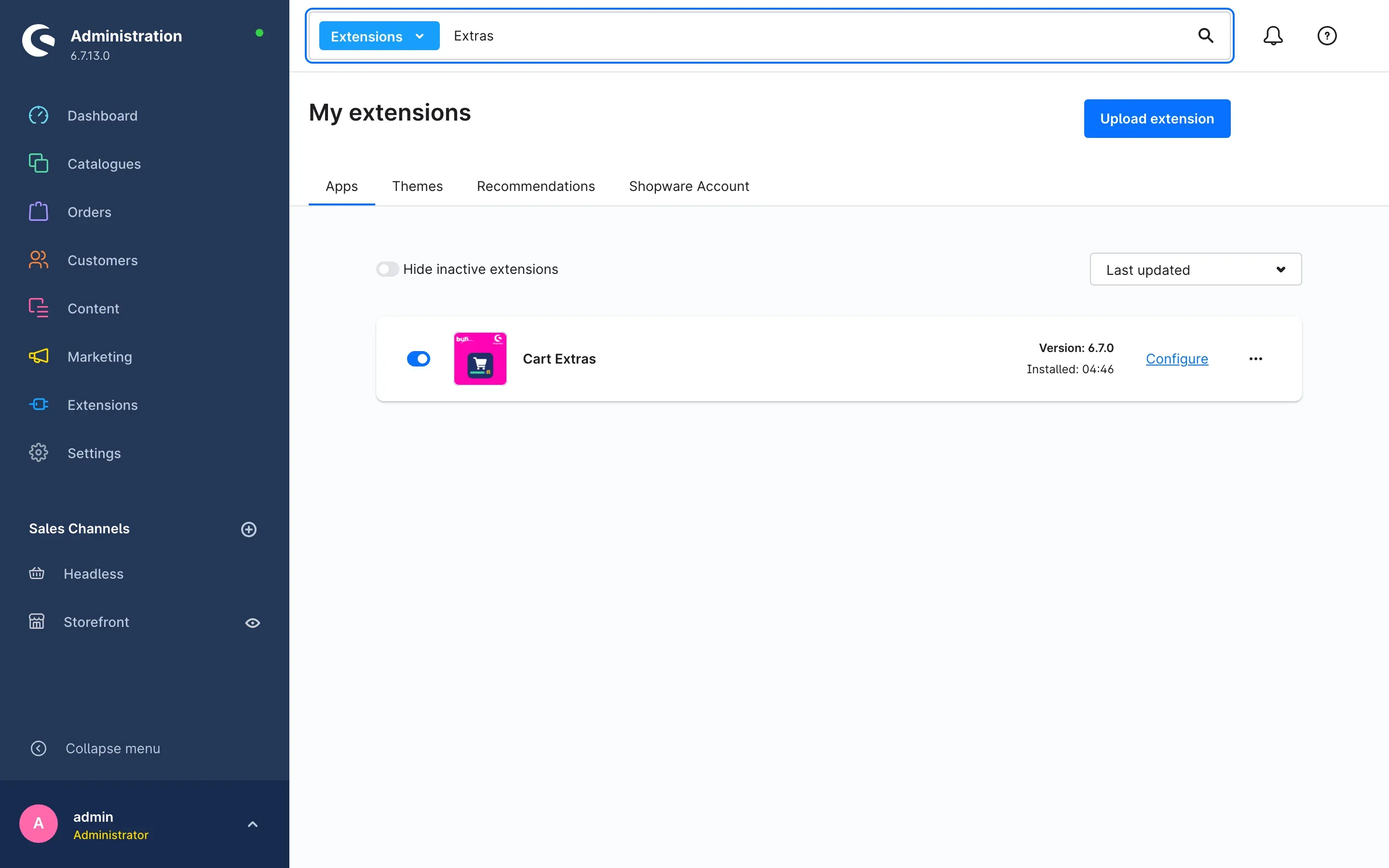 Fig. 1: The installed and activated plugin under Extensions → My extensions
If Cart Extras does not appear in the list, your Shopware account is not yet connected to this shop. You establish the connection in the same area on the Shopware Account tab; the plugin then appears automatically.
Getting started
Three steps are enough to get your first progress bar running:
-
Open the settings: In the Cart Extras row, click Configure.
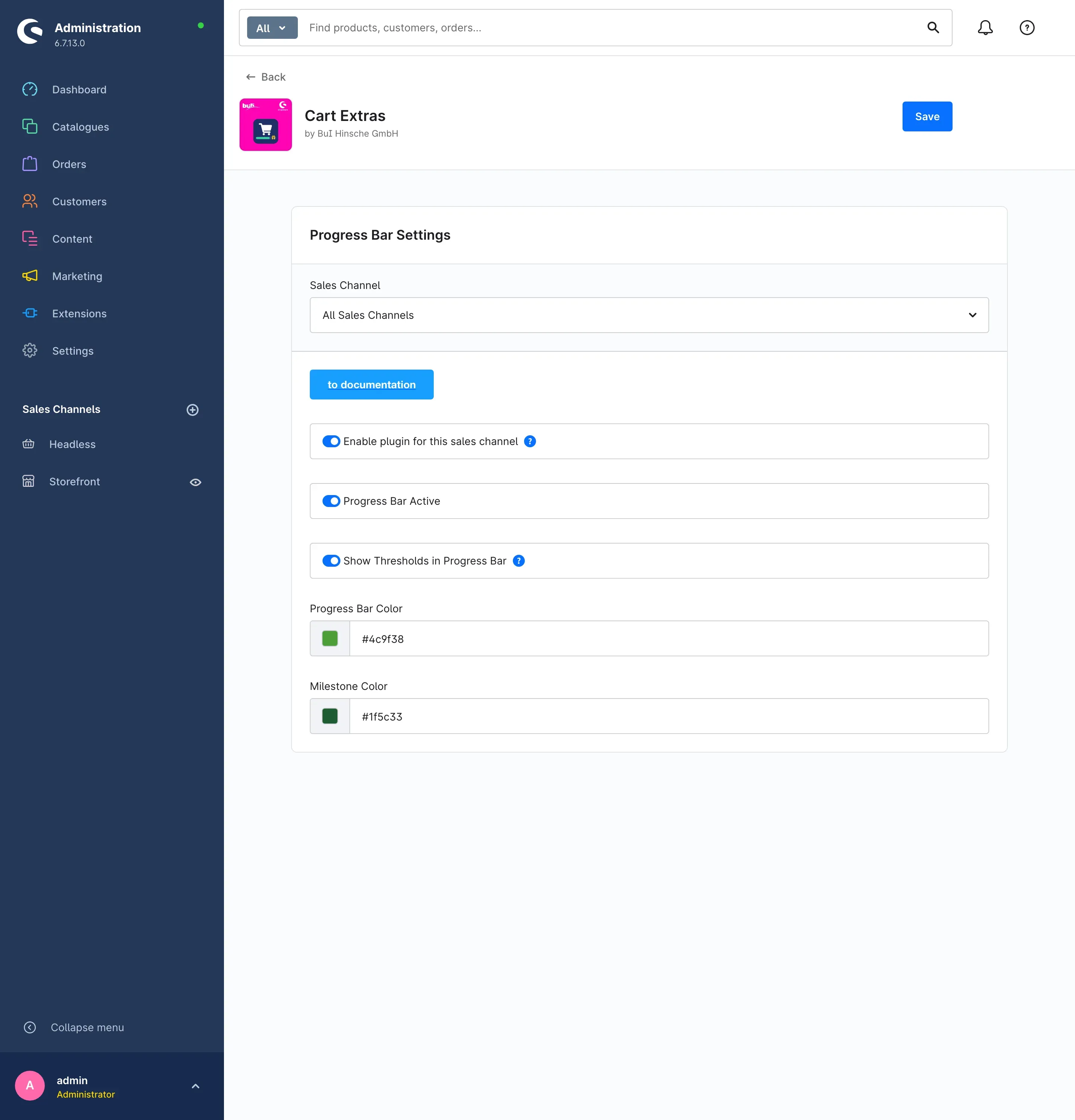 Fig. 2: The settings of the plugin
 -
Switch the progress bar on: The bar is switched off on delivery. Turn on Progress Bar Active and click Save in the top right corner.
-
Create your first step: Open Catalogues → Progress Bar Steps and create a step, for example “Free shipping” from an amount of 50. The details are described in Setting up the progress bar with steps.
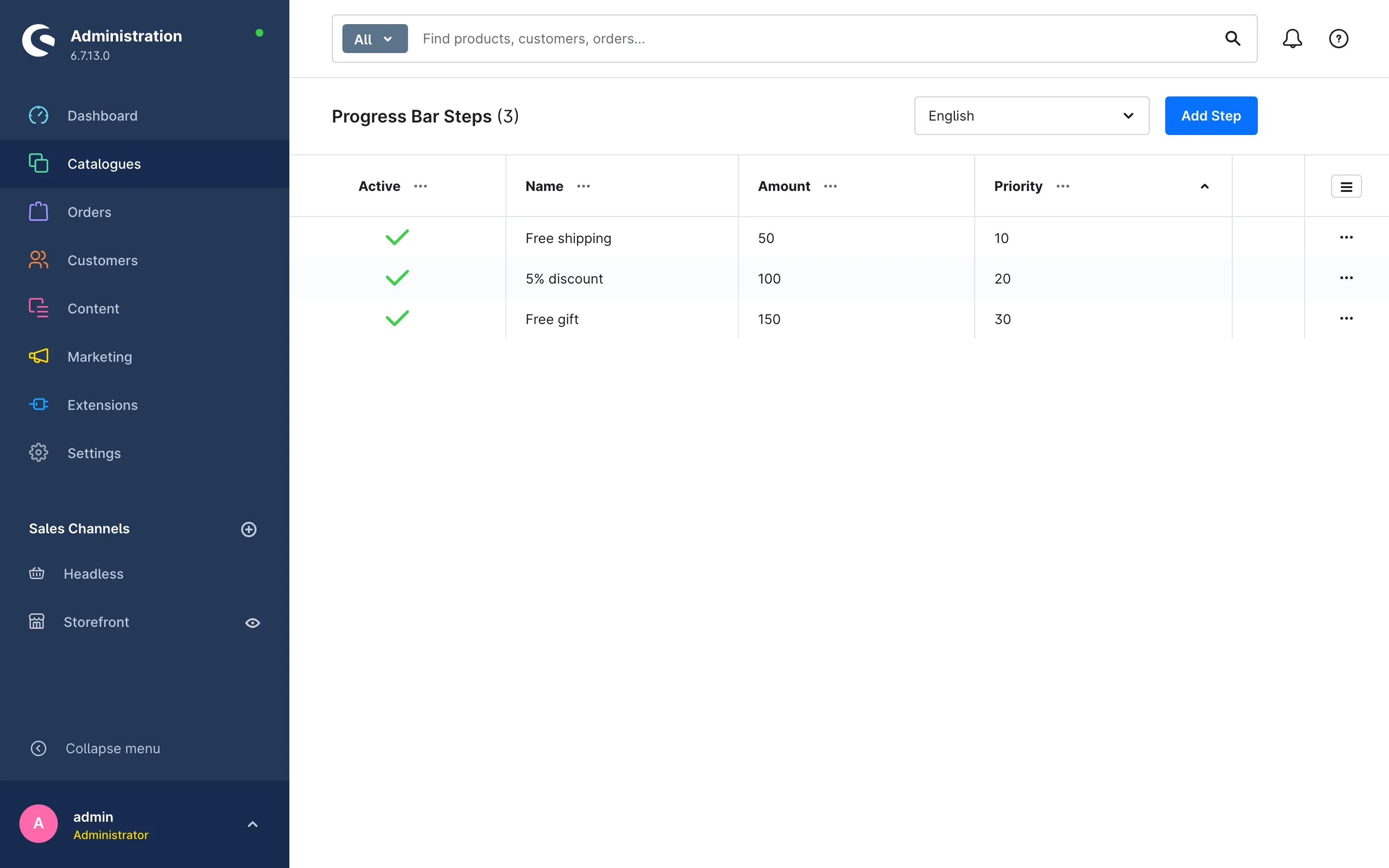 Fig. 3: The configured steps at a glance
 -
Check the result: Switch to your shop, put a product into the cart and click the cart icon in the header. The cart slides in from the side — and shows the progress bar together with the amount that is missing until the next goal.
Settings
You reach the settings via Extensions → My extensions and the Configure link in the Cart Extras row.
Fig. 4: All settings of the plugin at a glance
At the very top you choose under Sales Channel which shop the settings below apply to. With All Sales Channels you define the basic setting for every shop; select an individual sales channel to deviate from it on purpose. The to documentation button opens this manual online at any time.
After every change, click Save in the top right corner.
Enable plugin for this sales channel
This toggle is the master switch. When it is off, neither the progress bar nor the step rewards nor the small order surcharge take effect in this sales channel — your settings and steps are kept. It is switched on by default.
What it is good for: You run a B2B and a B2C shop and only want to show the rewards to end customers. Simply switch the plugin off in the B2B channel instead of uninstalling it.
Progress Bar Active
This toggle shows the progress bar in your customers’ cart. It is switched off by default — without it the cart stays unchanged, even if you have already created steps.
Important: The toggle only controls the display. Discounts and free products stored in your steps are still granted while the bar is hidden. To stop a reward completely, switch off the step in question (see Setting up the progress bar with steps).
What it is good for: You can prepare your steps in peace and only switch the bar on when the campaign is supposed to start.
Show Thresholds in Progress Bar
When this toggle is on, your minimum order value also appears as an additional goal in the progress bar. Customers then see in the same bar from which amount the small order surcharge no longer applies. The display is switched on by default.
What it is good for: The surcharge feels much less like a penalty when customers immediately see how little is missing for a surcharge-free order.
Progress Bar Color
Here you define the colour of the filled bar — either with the colour field on the left or by entering a colour value. Choose a colour that matches your shop design and stands out well from the background.
Milestone Color
This colour is used for the dots on the bar that mark your individual steps. A clear contrast to the bar colour helps your customers see how many goals are still ahead of them.
Setting up the progress bar with steps
What this does for you: Every step is a goal in your customers’ cart — with a name, an amount and, optionally, a reward. The progress bar shows how far it still is, and the plugin grants the reward automatically as soon as the amount is reached.
You find this area under Catalogues → Progress Bar Steps.
Fig. 5: For each step the overview shows whether it is active, what it is called, from which amount it applies and in which order it is sorted
The selection field next to the headline switches the language. Names and descriptions of your steps are maintained separately per language — that way customers read the goal texts in the language of their shop.
How to create a step
-
Click Add Step in the top right corner.
-
Fill in the General Information card:
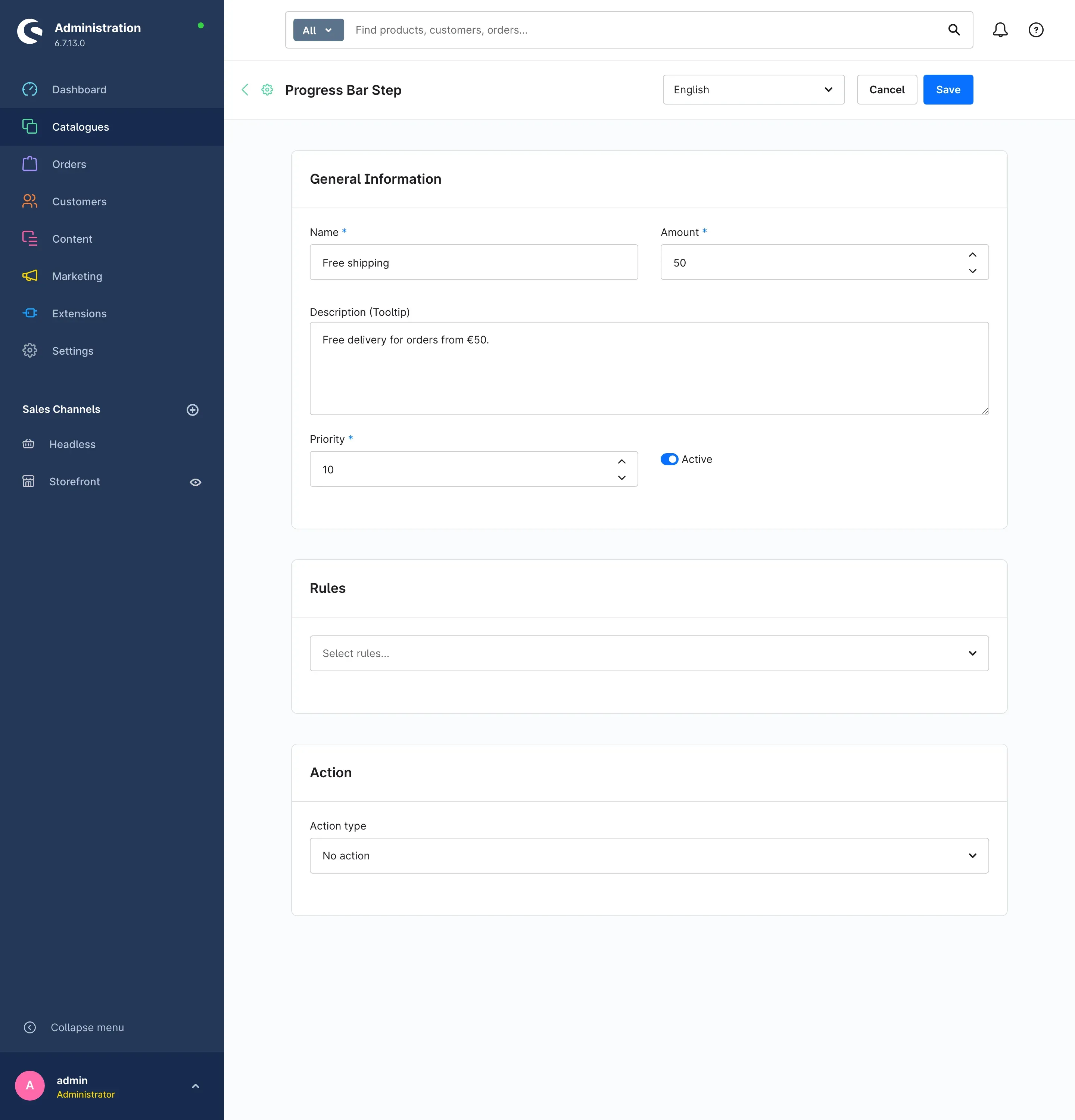 Fig. 6: The basic data of a step
- Name: the text your customers read in the cart, for example “Free shipping”.
- Amount: the cart value from which the step is reached. Only the value of the products in the cart is counted — surcharges, discounts and free products added by the plugin are deliberately left out, so that progress cannot push itself upwards.
- Description (Tooltip): an explanatory sentence that appears below the name in the goal list, for example “Free delivery for orders from €50.”
- Priority: determines the order in which your steps are sorted. Assign the values in steps of ten so that you can conveniently squeeze in another step later.
- Active: only steps that are switched on appear in the cart and grant their reward.
-
Click Save in the top right corner.
Tip: Create your steps with increasing amounts — for example €50, €100, €150. That gives customers a comprehensible ladder instead of a random list.
How to reward a step with a discount
What this does for you: As soon as the customer reaches the amount, the plugin deducts the discount from the cart automatically. The discount appears as a separate line carrying the name of your step.
-
Open the step in question and scroll to the Action card.
-
Select Discount under Action type.
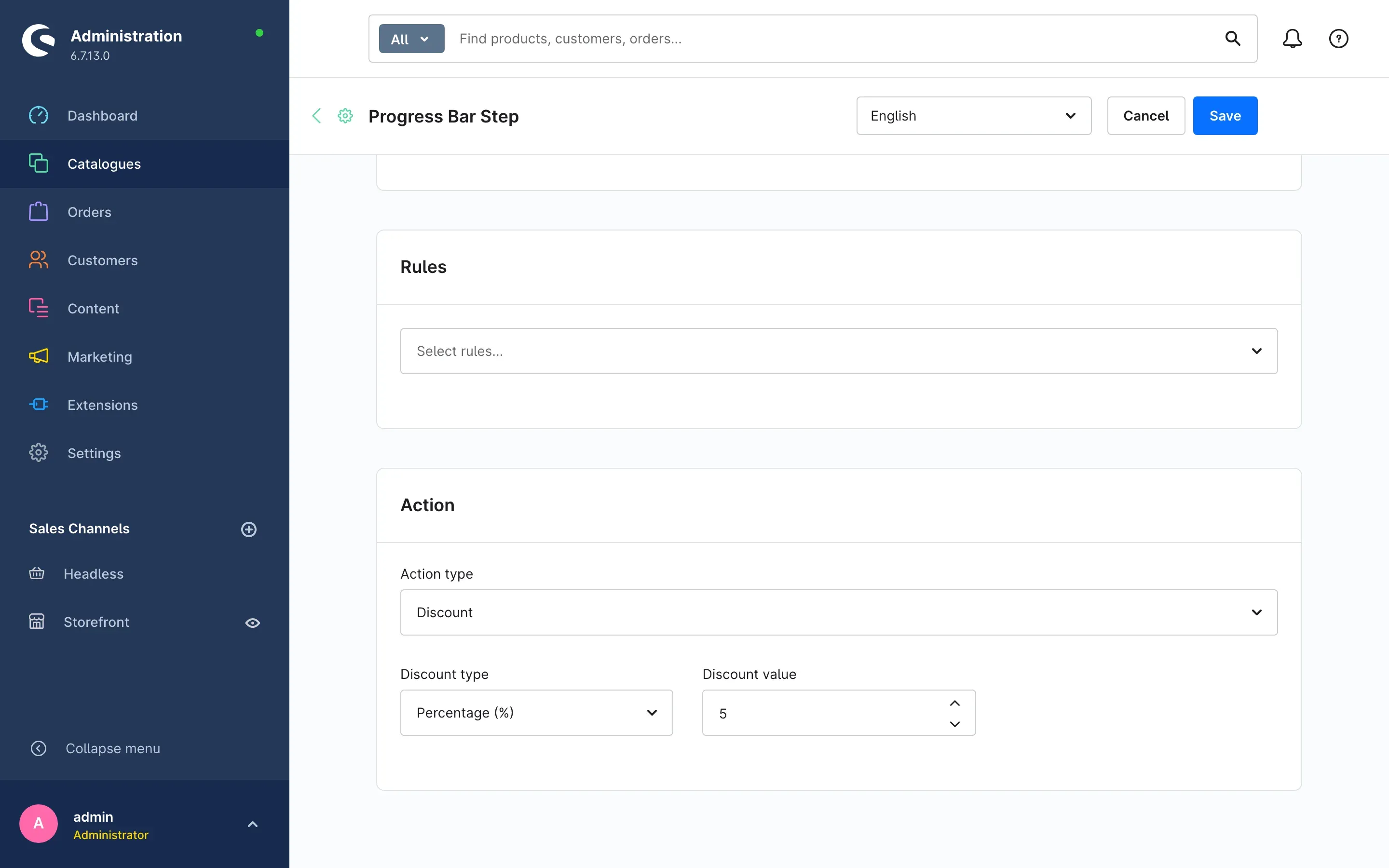 Fig. 7: A step that grants 5% discount from the stored amount
 -
Define how the discount is calculated:
- Discount type Percentage (%): the Discount value is a percentage of the goods value. This variant adapts automatically to large and small orders.
- Discount type Absolute amount: the Discount value is a fixed amount. In addition you select the Currency the amount refers to.
-
Click Save in the top right corner.
Important: The discount stays in the cart as long as the customer is above the amount of the step. If goods are removed and the value drops below it, the discount disappears automatically.
How to reward a step with a free product
What this does for you: From the stored amount onwards the plugin puts a product of your choice into the cart free of charge — visible, with its name and a price of €0.00.
-
Open the step in question and select Free product under Action type in the Action card.
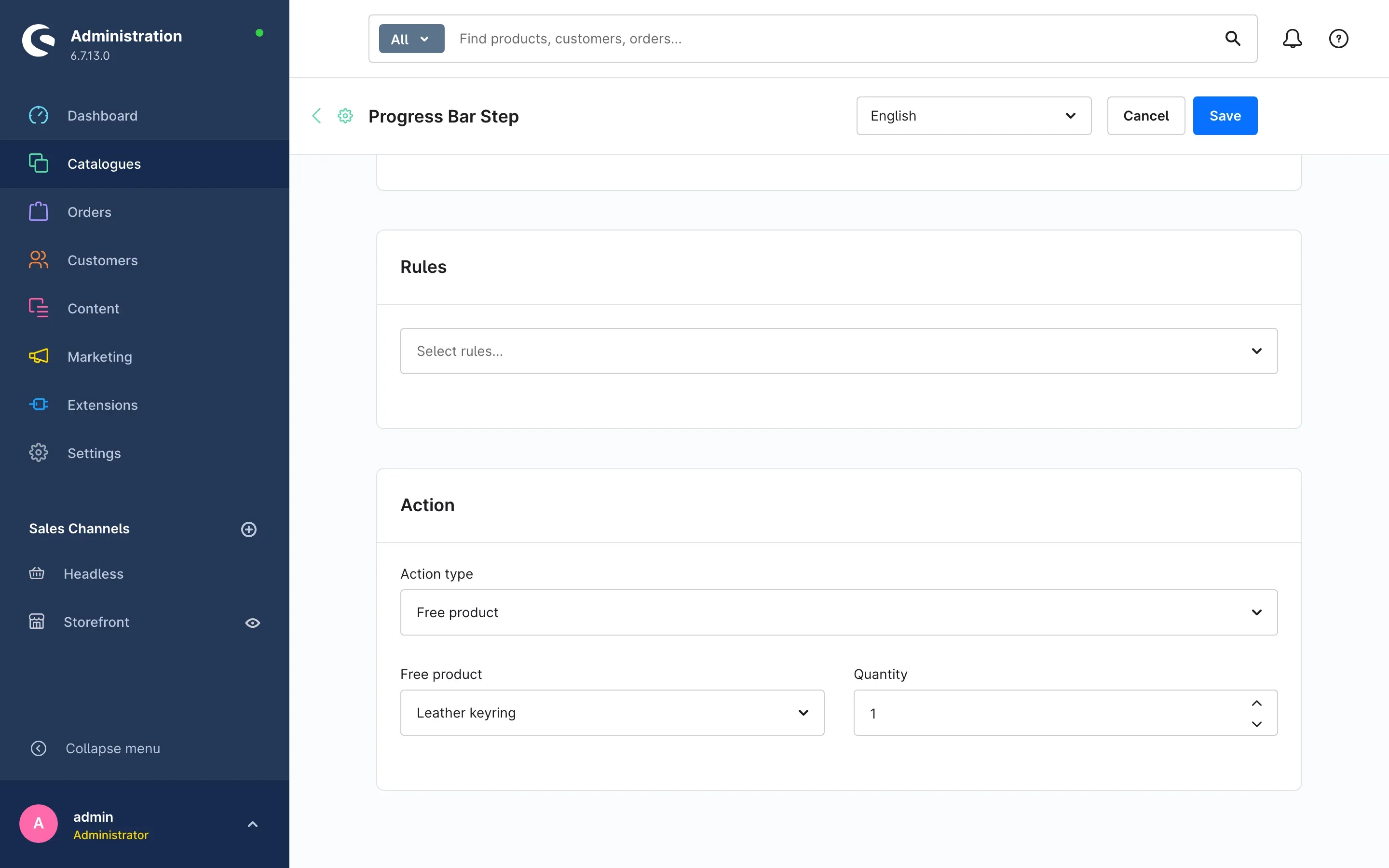 Fig. 8: A step that adds a free article from the stored amount onwards
 -
Under Free product, select the article your customers receive as a gift.
-
Under Quantity, enter how many pieces are added.
-
Click Save in the top right corner.
Tip: Choose an article that is available in sufficient quantity and that is sold in the relevant sales channel — otherwise the gift cannot be shown in the shop.
Important: The free product does not count towards the goods value. So it never pushes your customers over the next step by accident.
How to use a step without its own action
What this gives you: Not every reward has to come from this plugin. If you leave the Action type empty, the step only announces its goal — the reward is granted where Shopware calculates it anyway. The most common case is free shipping from a certain amount.
- Create the step as described in How to create a step, for example “Free shipping” with an amount of 50.
- Leave the Action type in the Action card empty and save.
- Set up the reward in Shopware itself: under Settings → Shop → Shipping, open the shipping method of your sales channel and add a second price rule based on the goods value — up to 50 your normal shipping price, from 50 the price 0.00 €.
Important: The plugin does not reduce shipping costs. Without that price rule in the shipping method your customer reads “Free shipping” and still pays. The same applies to every reward you announce this way.
Tip: Keep both amounts identical. If the step says 50 € and the shipping method says 75 €, your customer gets annoyed at exactly the moment they should be pleased. Check it once with a test cart just below and just above the amount.
How to offer a step to selected customers only
What this does for you: You can limit a reward to specific situations — for example to a customer group, a country or a campaign period. For this you use the rules you already maintain in Shopware anyway.
- Open the step and scroll to the Rules card.
- Select one or more rules in the Select rules… field.
- Click Save in the top right corner.
If at least one of the selected rules applies to the customer, the step is visible to them and its reward is granted. If you leave the field empty, the step applies to all customers.
Setting up the small order surcharge
What this does for you: You define a minimum order value. If the cart stays below it, the plugin automatically adds a surcharge line — exactly the amount that is missing up to the minimum order value. So a customer never pays less than your minimum order value, and as soon as they order enough, the surcharge disappears by itself.
You find this area under Catalogues → Dynamic Thresholds.
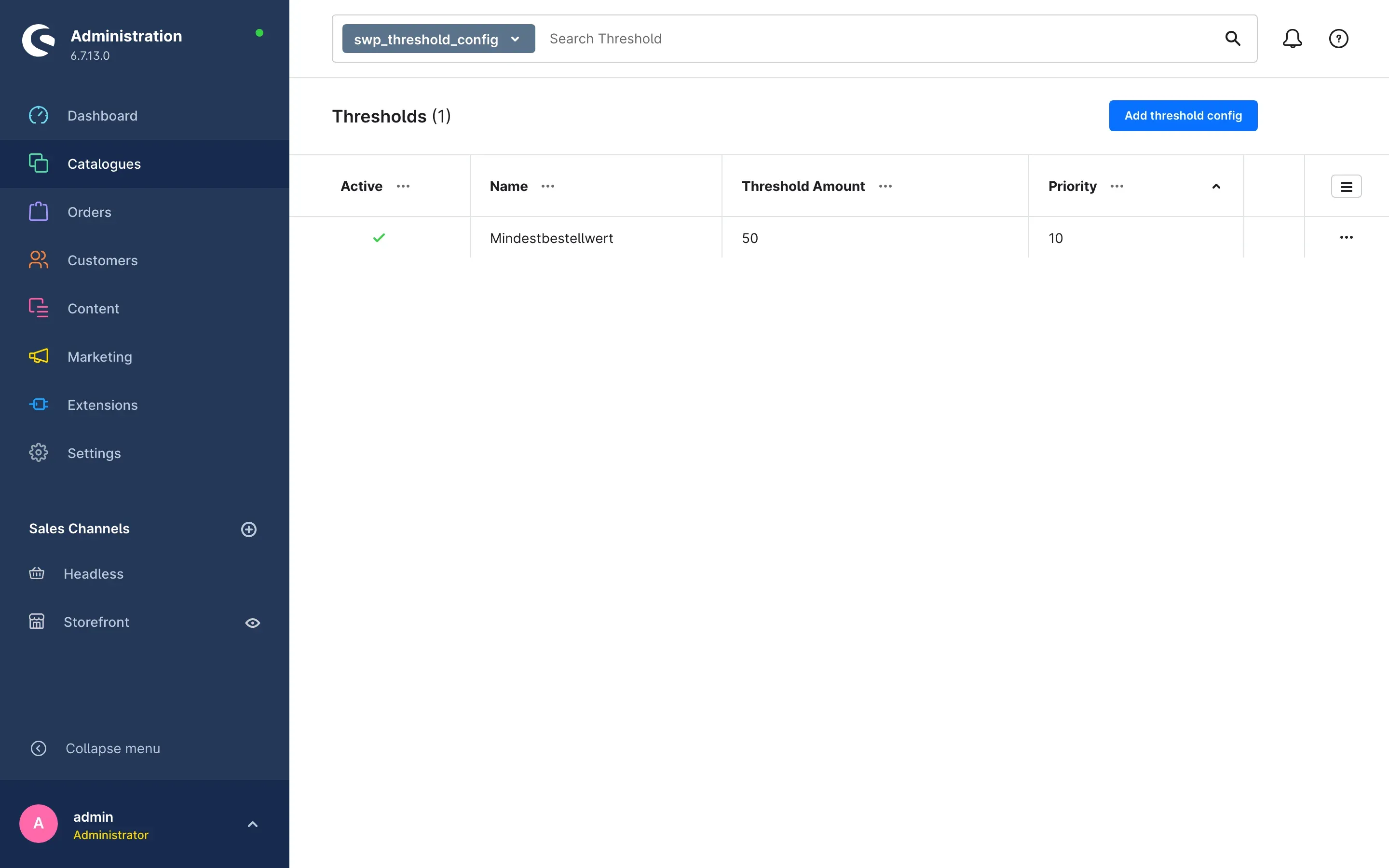 Fig. 9: The overview of the configured thresholds
How to create a threshold
-
Click Add threshold config in the top right corner.
-
Fill in the General card:
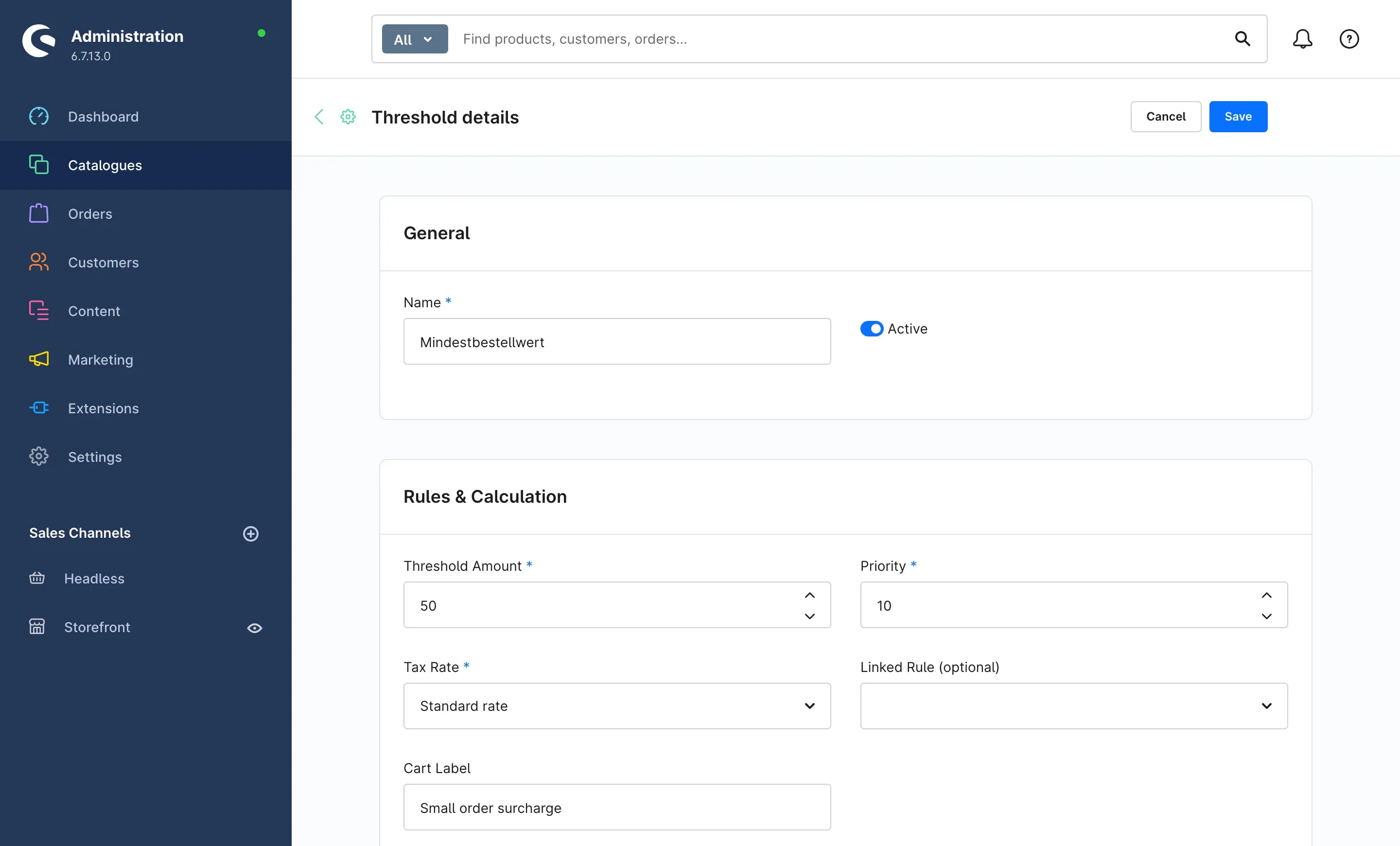 Fig. 10: The settings of the small order surcharge
- Name: your internal name for this rule. Your customers never see it.
- Active: only thresholds that are switched on are applied.
-
Fill in the Rules & Calculation card:
- Threshold Amount: your minimum order value. The surcharge always equals the difference between the goods value and this amount.
- Priority: decides which threshold wins if several apply at the same time — the one with the higher value prevails.
- Tax Rate: the tax rate the surcharge is calculated with. As a rule, choose the same rate as for your main assortment.
- Linked Rule (optional): limits the surcharge to specific situations, for example to a customer group or a delivery country. If you leave the field empty, the surcharge applies to everyone.
- Cart Label: the text your customers read as a line in the cart, for example “Small order surcharge”. Maintain it in every language your shop offers.
-
Click Save in the top right corner.
Important: The surcharge only appears when there are actually products in the cart. An empty cart stays empty.
How to exclude categories and shipping methods
What this does for you: Not every article and not every shipping route should count. In the lower part of the Rules & Calculation card you exclude both in a targeted way.
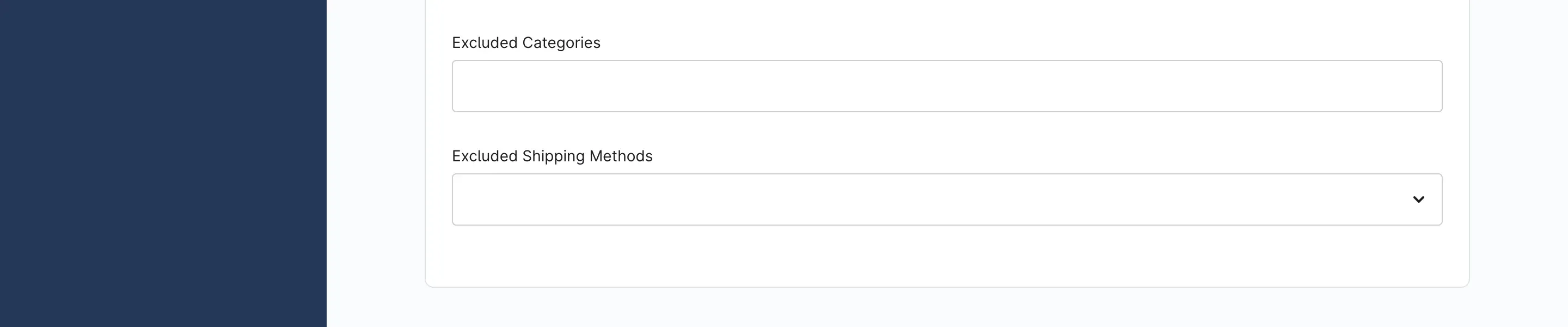 Fig. 11: Exceptions for individual categories and shipping methods
- Excluded Categories: products from the categories selected here do not count towards the goods value. So anyone who only has such articles in the cart does not reach your minimum order value — and pays the surcharge. Typical use: vouchers, services or heavily discounted remainders.
- Excluded Shipping Methods: if the customer selects one of the shipping methods listed here, this threshold does not apply at all. Typical use: click and collect, where no shipping costs arise for you.
Then click Save in the top right corner.
Running several thresholds side by side
You can create several thresholds — for example a general one and a different one for business customers. Only one threshold is ever applied to a cart:
- Excluded shipping methods are checked first. If the chosen shipping method does not fit, the threshold is skipped.
- Of the remaining ones, the one with the highest Priority whose Linked Rule applies to the customer takes effect.
Tip: Give the general threshold without a linked rule the lowest priority. It then serves as a fallback for every case no special rule covers.
What your customers see
The progress bar appears in the cart that slides in from the side, which your customers open with the cart icon in the header. Discount, free product and small order surcharge, on the other hand, are regular cart lines and therefore visible everywhere — including the cart page and the checkout.
Below the minimum order value: The plugin adds the surcharge line with your label. In the example €35.10 are missing up to the minimum order value of €50 — and exactly this amount is charged as a surcharge.
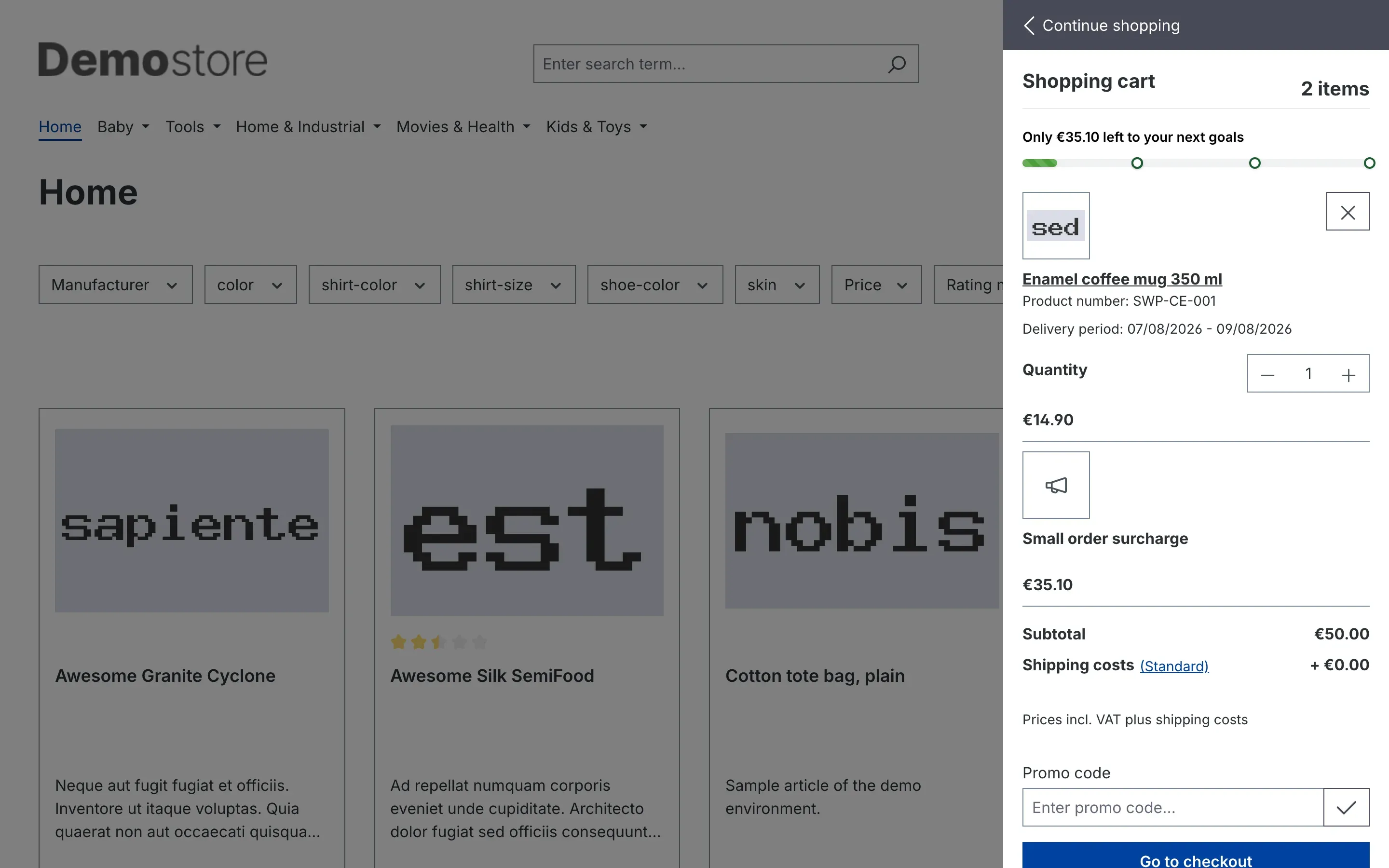 Fig. 12: The surcharge fills the gap up to the minimum order value
On the way to the next step: Above the cart lines the bar appears together with a note about how much is missing until the next goal. The dots on the bar mark your steps.
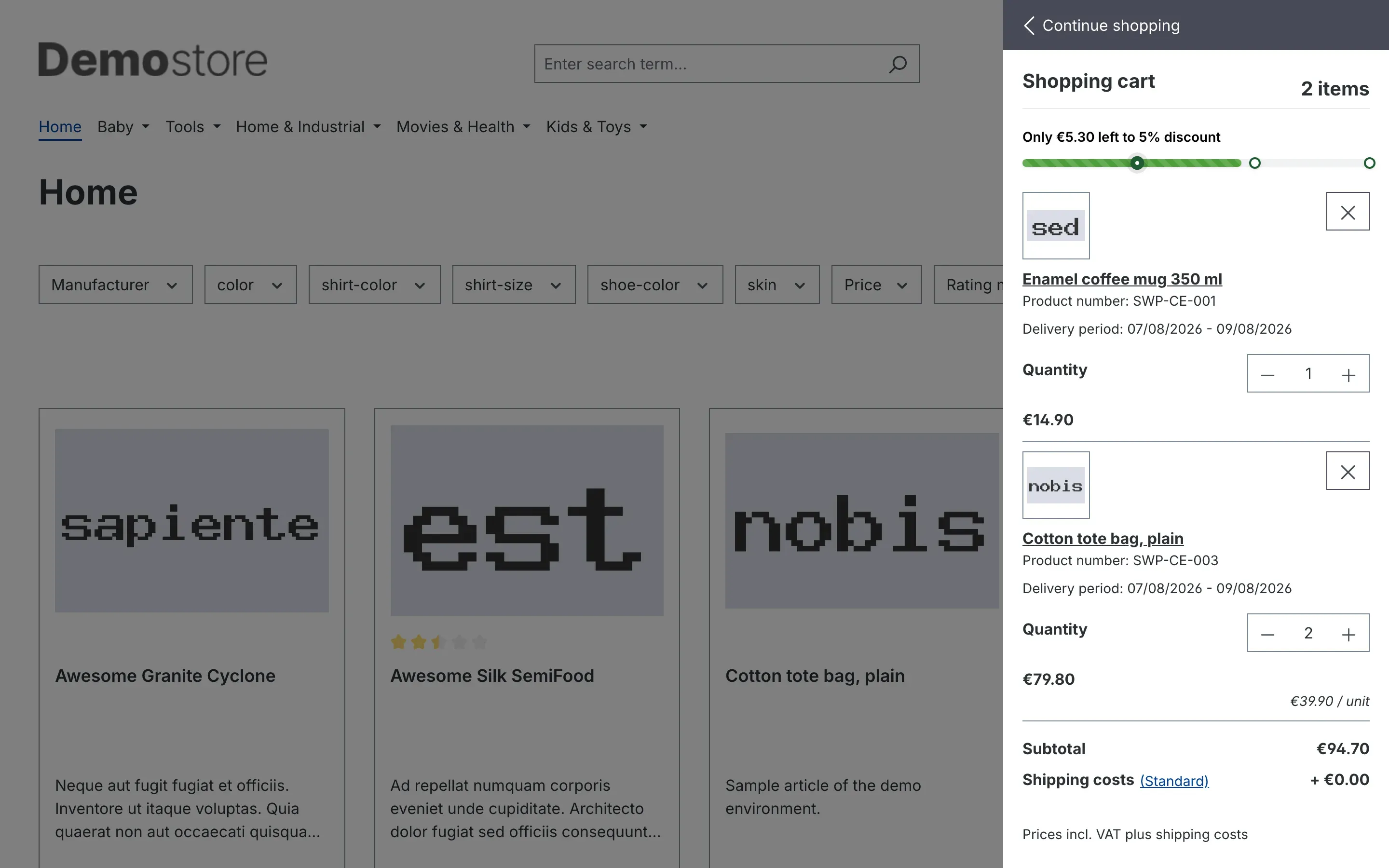 Fig. 13: The progress bar shows how far it is to the next goal
All goals at a glance: When the customer clicks the note, the Upcoming goals list unfolds. Goals already reached are struck through, open goals are listed with their amount and your description below.
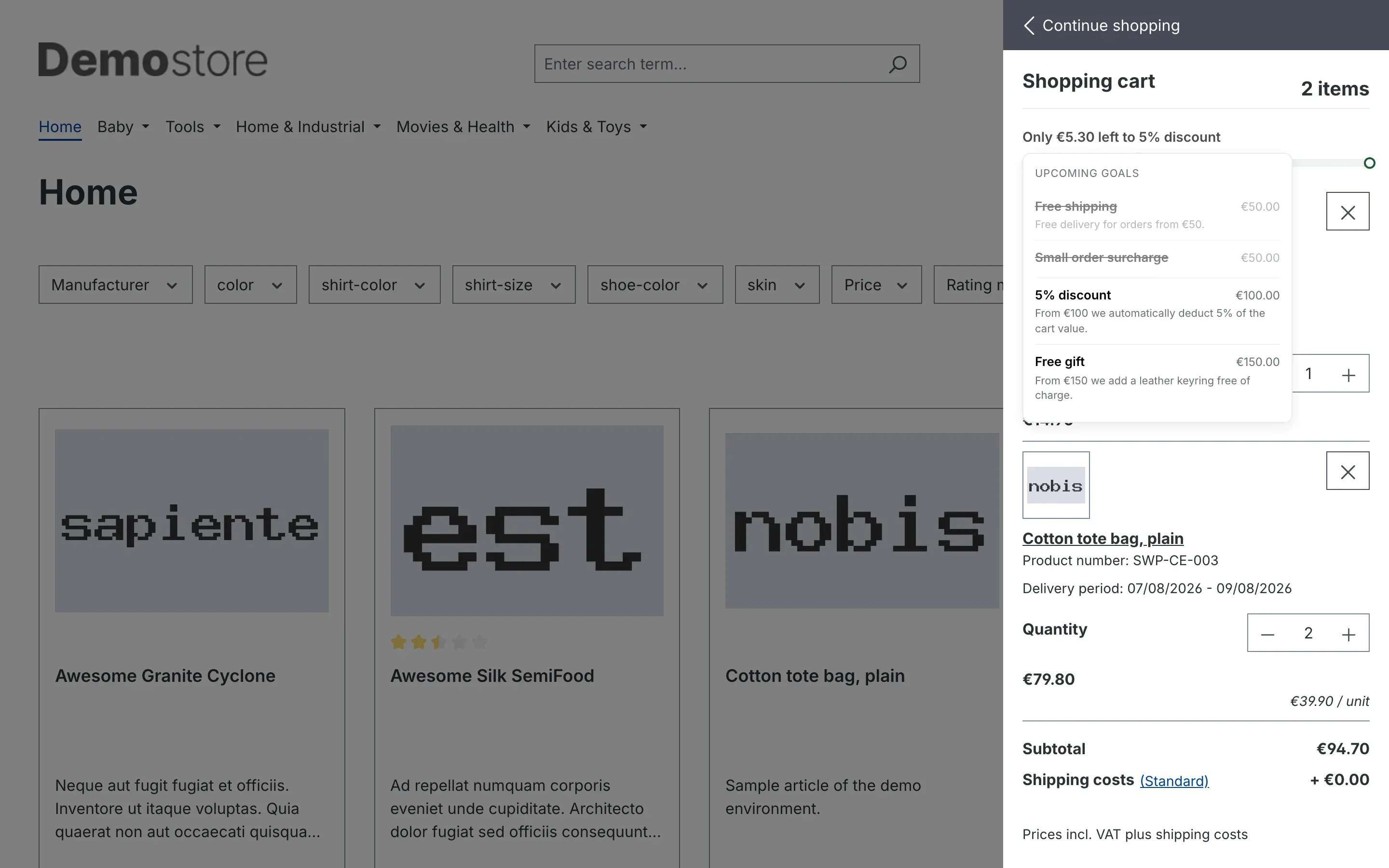 Fig. 14: The goal list makes all steps transparent
Reward reached: Discount and free product appear as separate lines — the discount with the name of your step and a negative amount, the free product with the product name and €0.00.
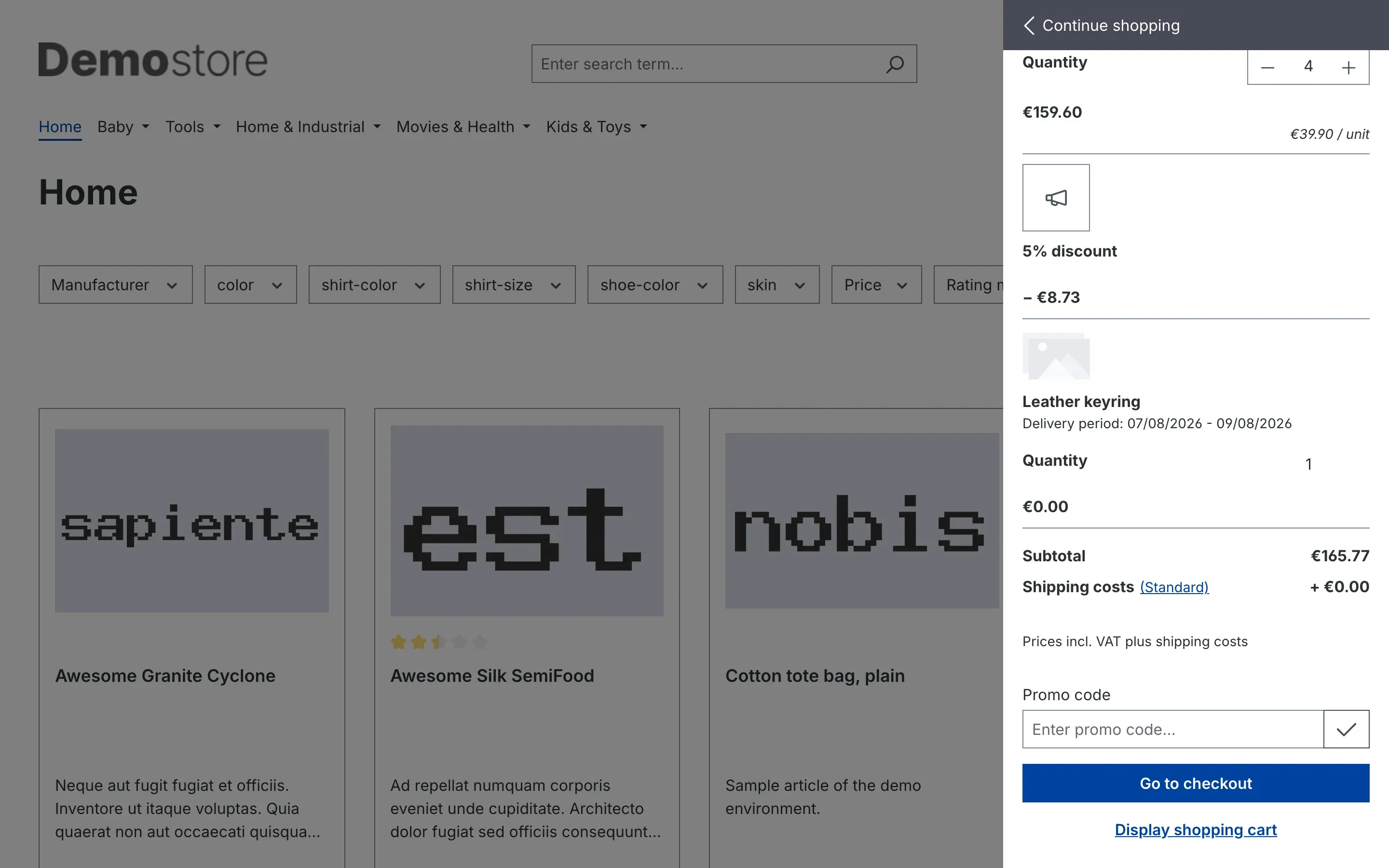 Fig. 15: Both rewards have arrived in the cart
Important: Surcharge, discount and free product are managed by the plugin. Your customers cannot remove them individually — they disappear on their own as soon as the condition is no longer met.
Troubleshooting
No progress bar appears in the cart
Why this happens: In most cases the display is still switched off, there is no active step — or you are looking at the wrong page.
How to fix it:
- Open the settings of the plugin and check whether Progress Bar Active is switched on. Also check that you selected the correct Sales Channel at the top.
- In the same area, check whether Enable plugin for this sales channel is switched on.
- Open Catalogues → Progress Bar Steps and make sure at least one step is set to Active.
- In the shop, open the cart using the cart icon in the header. The bar appears in this cart sliding in from the side, not on the cart page.
- Then clear the cache: Settings → System → Caches & indexes → Clear cache.
The small order surcharge is not calculated
Why this happens: Either the goods value is already high enough, or one of your exceptions applies.
How to fix it:
- Under Catalogues → Dynamic Thresholds, check that the threshold is set to Active.
- Compare the goods value with the Threshold Amount — if the cart is above it, everything is correct and no surcharge is due.
- Check whether the customer chose a shipping method you listed under Excluded Shipping Methods.
- Check whether the articles in the cart belong to a category listed under Excluded Categories.
- If you stored a Linked Rule, check whether it applies to this customer at all.
- Check whether there is a product in the cart at all — without a product there is no surcharge.
Discount or free product is not granted
Why this happens: The goods value is still below the amount of the step, or a rule prevents the reward.
How to fix it:
- Compare the Amount of the step with the pure goods value. Surcharges, discounts and free products added by the plugin do not count here.
- Check whether the step is set to Active.
- Check the Rules card of the step: if a rule is stored there, at least one of them must apply to the customer.
- For a free product: check that a product is actually selected in the Action card and that this product is available in the relevant sales channel.
The announced free shipping is not granted
Why this happens: A step without an Action type only announces its goal. Shipping costs are calculated by Shopware in the shipping method, not by the plugin.
How to fix it: Under Settings → Shop → Shipping, open the shipping method of your sales channel and add a price rule based on the goods value that costs 0.00 € from your amount onwards. Make sure this amount matches the Amount of the step. The details are described in How to use a step without its own action.
Customers see the goal texts in the wrong language
Why this happens: Names and descriptions of the steps as well as the label of the surcharge are stored separately per language. If a language version is missing, the text of the original language remains.
How to fix it: Open the record, set the desired language in the selection field at the top, enter the texts in that language and save again.
A customer wants to remove the surcharge or the free product
Why this happens: Both are lines managed by the plugin and therefore deliberately cannot be deleted by hand.
How to fix it: Explain the way through the cart — adding more goods removes the surcharge automatically. If the rule should no longer apply at all, switch off the threshold or the step in the Administration.
FAQ
Q: Does my customer have to enter a voucher code?
A: No. The plugin puts discount and free product into the cart automatically as soon as the amount of the step is reached.
Q: Do I also see the progress bar on the cart page?
A: No, the bar appears in the cart that slides in from the side, which your customers open with the cart icon in the header. Surcharge, discount and free product, however, are regular cart lines and therefore visible everywhere — including the checkout and the order confirmation.
Q: Can I offer different steps per shop?
A: The master switch, the display of the bar and the colours are set per sales channel. The steps themselves apply shop-wide; to limit them to individual customer groups or situations, use the rules in the Rules card.
Q: How does all this behave in another currency?
A: The amounts you store are converted using the exchange rate of the respective currency. So you do not have to maintain your steps twice per currency.
Q: Does the free product count towards the next step?
A: No. Free products and discounts added by the plugin deliberately do not count towards the goods value — otherwise a customer could reach the next step through the reward alone.
Q: Can I run several minimum order values in parallel?
A: Yes. Only one is ever applied: the one with the highest priority whose rule applies and whose exceptions the cart does not trigger.
Q: What happens to existing carts when I change something?
A: The calculation runs again with every cart update. Your change therefore takes effect the next time the customer adds something to the cart or opens it.
Q: What happens if I switch the plugin off?
A: Surcharges, discounts and free products disappear from the carts and the bar is hidden. Your steps and thresholds remain stored and take effect again as soon as you switch the plugin back on.
For administrators / technical details
This section is aimed at technical administrators. You do not need it for day-to-day work with the plugin.
System requirements
- Shopware: 6.7
- PHP: 8.2 or newer
- Database: MySQL 8.0 / MariaDB 10.11 or newer
Installation via the command line
composer require swp/cart-extras-six
php bin/console plugin:refresh
php bin/console plugin:install SwpCartExtrasSix --activate
php bin/console cache:clear
Permissions for editors
Both areas of the plugin can be released individually in the role management. Under Settings → System → Users & permissions you find the permission groups Cart Extras: progress bar steps and Cart Extras: small order surcharge in a role — each with the levels read, edit, create and delete. This way an editor can maintain steps without being able to touch the minimum order value.
Interaction with other extensions
The plugin works exclusively with its own cart lines and its own tables; Shopware’s own tables stay untouched. The progress bar is hooked into the cart that slides in from the side. If you use a theme that heavily rebuilds this cart, check the display in the shop once after switching the plugin on.
This manual was created for Cart Extras version 6.7.0.
More manuals
Admin Password Reminder
Admin Password Reminder: your backend users renew their passwords on time, prompted after login and by a daily email. Premium locks expired accounts until the password is changed.
Open manual Shopware 6Age Check
Tobacco, spirits, knives: visitors who do not confirm their age never see the restricted items at all. You tick a box per product, the plugin hides it everywhere.
Open manual Shopware 6AI Media Labelling
AI labelling for images and videos: flag a media item once in the media manager and the badge with your notice appears wherever it shows up in your shop. No template work needed.
Open manualNeed a team that keeps your shop running?
We have been maintaining Shopware shops for more than 20 years, including updates, hotfixes and the plugins you are configuring right now.