
Resource calculation
Price calculation from gold, silver and other raw material rates: when the rate moves, your product prices follow. With formulas, surcharges, rounding and rates per customer type.
On this page
- Introduction
- What you achieve with this plugin
- Who is this plugin for?
- Installation
- Getting started
- Settings
- Which sales channel you configure
- Enable plugin for this sales channel
- Rounding rules
- Customer groups without rounding
- Decimal accuracy of the formula
- Differential taxation
- How to maintain resource rates
- Create a resource
- Adjust the rate automatically (rate adjustment)
- Create currencies for the resource widget
- Update rates day to day
- How to set up customer types
- Create a customer type
- Create rates for the customer type
- Assign a customer type to a customer group
- How to set up a product for resource calculation
- Create the rule for resource calculation
- Define resource and quantity on the product
- Add an advanced price with the rule
- Enter formula, surcharges and price limits
- How the plugin calculates the price
- Example 1: Gold bar 10 g
- Example 2: Silver coin 1 oz
- How to show rates with the resource widget
- What your customers see in the store
- Product page
- Categories, sliders and search suggestions
- Shopping cart and order
- Mobile view
- Troubleshooting
- The product shows €0.00 or its normal price instead of the calculated price
- Formula, surcharges or price limits have no effect
- The price is far too low or does not match the rate
- Dealers see the consumer price
- Rounding does not work
- Sorting by price, price filters or exports use old prices
- Instead of the price, the store shows “The current price cannot be loaded right now.”
- The resource widget stays empty
- The custom fields or the Resource calculation menu item are missing
- FAQ
- For administrators / Technical details
- System requirements
- Installation via the command line
- Updating the stored prices
- Transferring rates automatically
- Log
- Deactivating and uninstalling
- For developers
Introduction
Resource calculation helps you calculate product prices directly from raw material rates such as gold or silver. When the rate changes, the price changes with it — without you having to touch a single product.
What you achieve with this plugin
- You maintain the rate of each resource in one single place. Every product made of that resource uses it.
- Each product knows which resource it contains and how many units of it.
- Your margin is built in: percentage and fixed surcharge, plus a minimum and a maximum price.
- Rounding rules give you clean final prices instead of odd cent amounts.
- Dealers or other customer groups can get their own rates.
- Your customers always see the current price on the product page, in categories, sliders and search suggestions. The shopping cart keeps calculating with the current rate.
- With the Shopping Experiences element Resource widget you show the current rates right in your store.
Who is this plugin for?
For stores whose prices depend on a raw material rate: precious metal dealers selling bars and coins, jewellery priced by gold weight, or metal goods with a high material share.
Good to know: The plugin does not fetch rates from the internet. You enter them in the Administration, or your IT transfers them automatically, for example from your ERP system (see For administrators / Technical details).
Installation
After your purchase, the plugin is available directly in your Administration — there is nothing to download.
- Log in to your Shopware Administration (
yourstore.com/admin). - Open Extensions → My extensions.
- Click Install next to Resource calculation.
- Activate the plugin with the switch to the left of the plugin icon — done.
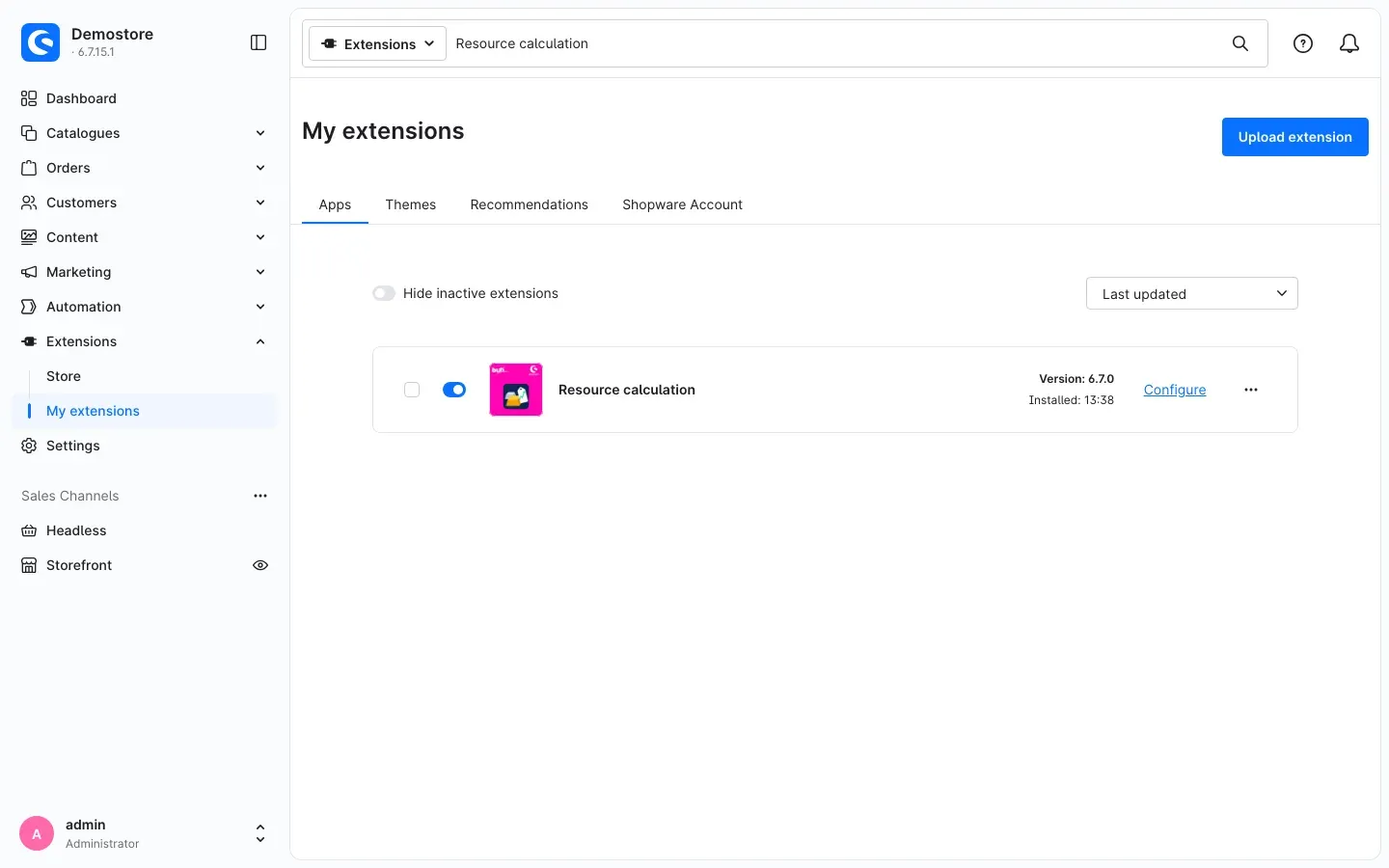 Fig. 1: Resource calculation under My extensions — installed and active
When you activate it, the plugin creates the customer type Default and shows its custom fields on products, advanced prices and customer groups.
If Resource calculation does not appear in the list, your Shopware account is not yet connected to the store. You do this under Extensions → My extensions on the Shopware Account tab by logging in with your Shopware account.
Good to know: During installation, Shopware loads a calculation library for the formulas. If the installation stops with an error, pass the notes in For administrators / Technical details on to your IT.
Getting started
Six steps take you to your first calculated price:
- Check the plugin in the sales channel: Under Extensions → My extensions, click Configure next to Resource calculation. The switch Enable plugin for this sales channel is on by default (Settings).
- Enter a rate: Under Catalogues → Resource calculation → Resource rates, create one entry per resource, for example gold with the rate per gram (How to maintain resource rates).
- Create the rule: Create the rule in the Rule Builder that the plugin uses to recognise its prices. You only do this once (Create the rule for resource calculation).
- Set up the product: Switch on the calculation on the product, choose the resource and enter the number of units (Define resource and quantity on the product).
- Define surcharges: Add an advanced price with this rule to the product and enter formula, surcharges and price limits (Add an advanced price with the rule and Enter formula, surcharges and price limits).
- Check the result: Open the product in your store. After a short loading icon, the calculated price appears (What your customers see in the store).
Optionally, set up rounding rules (Settings) and separate rates for dealers (How to set up customer types) afterwards.
Settings
To open the settings, go to Extensions → My extensions and click Configure next to Resource calculation. After each change, click Save in the top right corner.
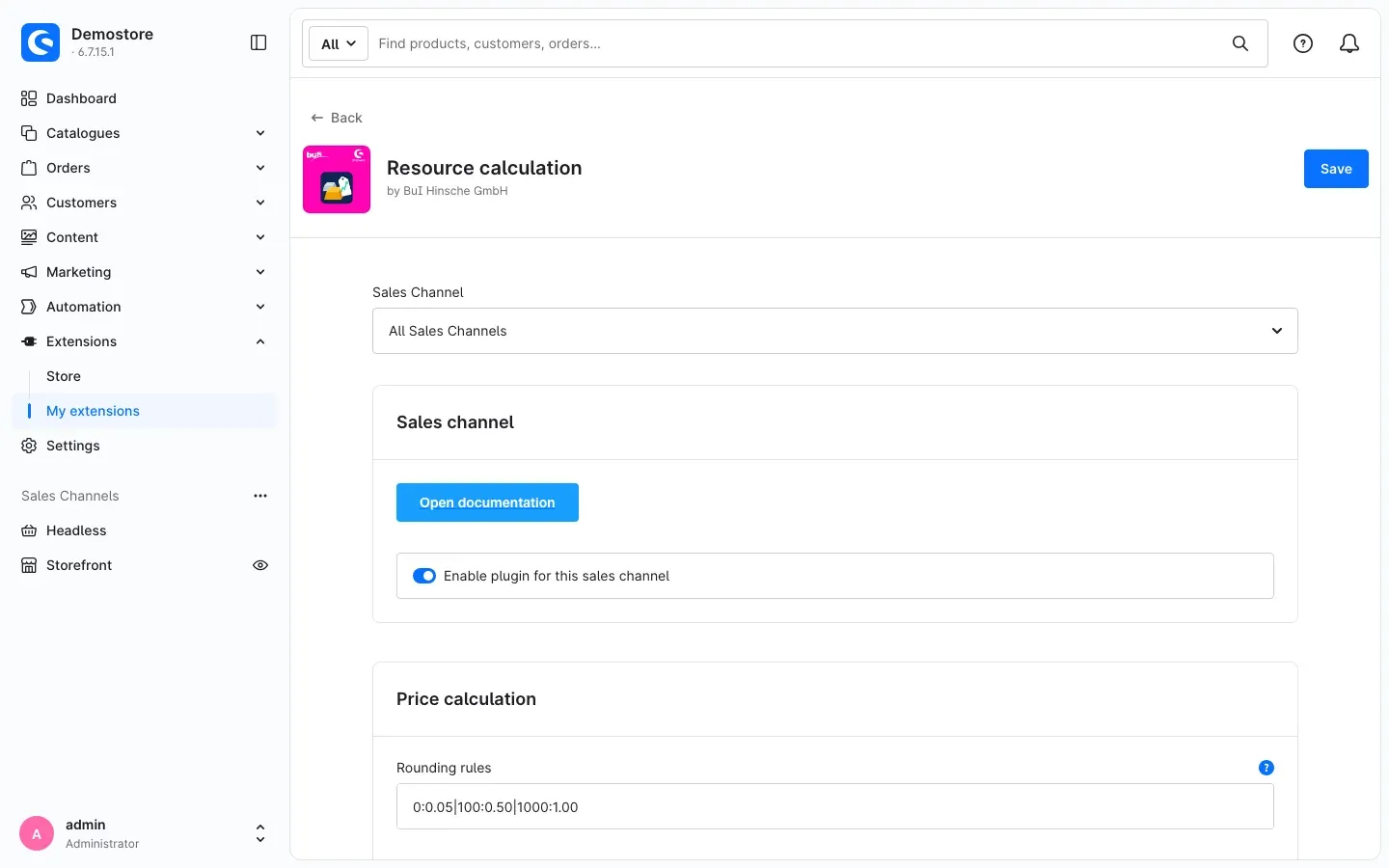 Fig. 2: Upper part of the configuration with sales channel selection, documentation button, channel switch and rounding rules
Which sales channel you configure
At the very top, under Sales Channel, you choose which store the settings apply to. All Sales Channels is the default for all stores. If you choose a single sales channel, you can set every setting differently there.
The Open documentation button takes you straight to the plugin’s online documentation.
Enable plugin for this sales channel
The switch Enable plugin for this sales channel defines whether resource calculation is active in the selected sales channel. It is on by default. If you switch it off, this store shows the normal Shopware prices again, and the resource widget stays empty there.
Why this is useful: If you run several stores, for example one for dealers and one for consumers, you use the calculation only where you need it — without uninstalling the plugin.
Rounding rules
The Rounding rules in the Price calculation card give you clean final prices. A rule consists of a gross price threshold and a rounding step, separated by a colon. Separate several rules with a vertical bar |.
The example in Fig. 2 is 0:0.05|100:0.50|1000:1.00. It means:
- Gross prices above €0 are rounded to 5 cents.
- Gross prices above €100 are rounded to 50 cents.
- Gross prices above €1,000 are rounded to whole euros.
The highest threshold the price exceeds always applies. Rounding goes to the nearest step: €1,405.24 becomes €1,405.00, €57.79 becomes €57.80. Both a point and a comma work as decimal separator. The default value is 0 — with it, the plugin does not round.
Why this is useful: Instead of €1,873.27, your store shows €1,873.00. This looks tidy and makes prices easier to compare for your customers.
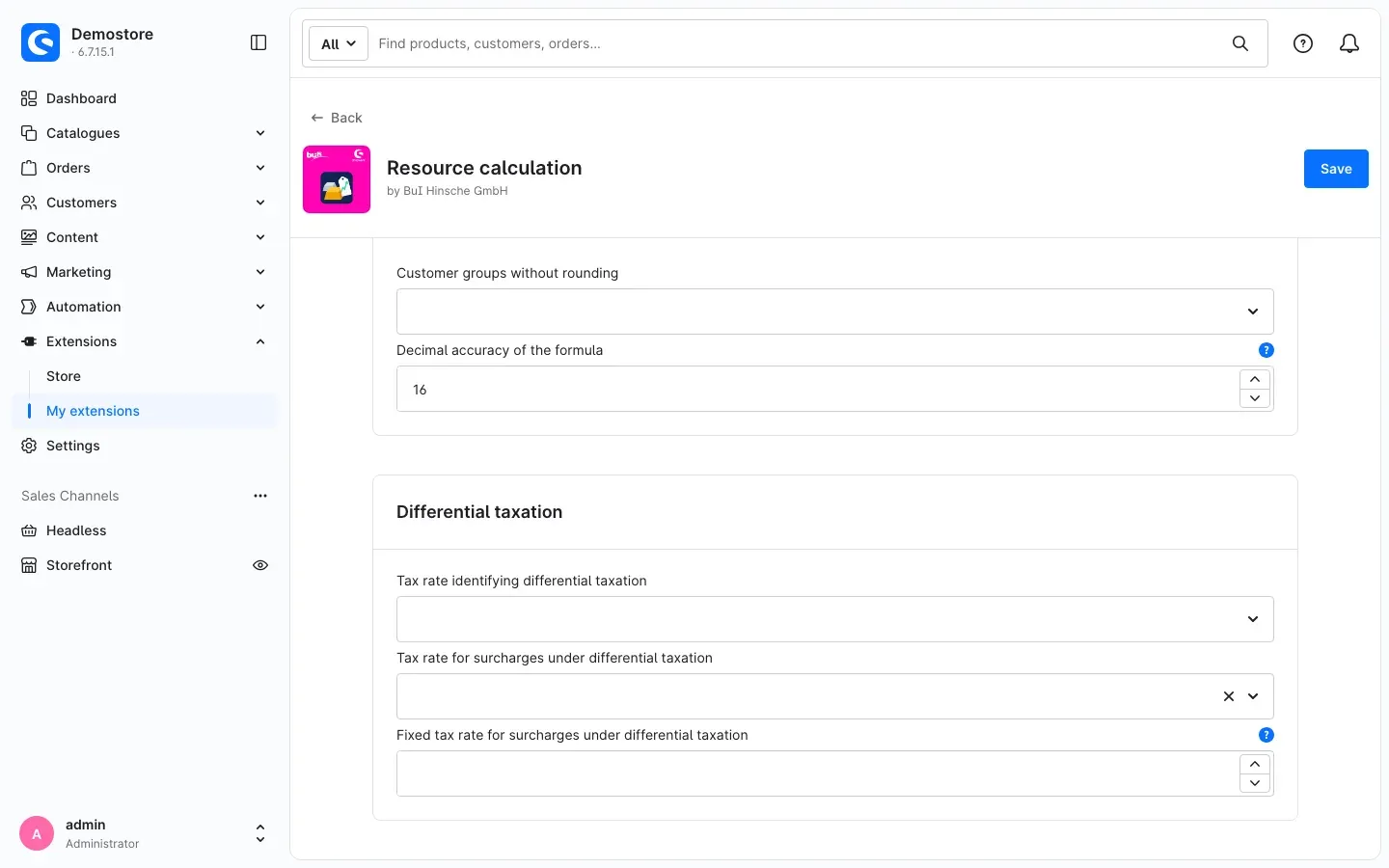 Fig. 3: Lower part of the configuration with rounding exceptions, formula accuracy and differential taxation
Customer groups without rounding
Under Customer groups without rounding you choose customer groups whose prices the plugin does not round. By default, no group is selected.
Why this is useful: The plugin always rounds the gross price. Customers who see net prices — dealers, for example — therefore get a net price with odd cent amounts. If you want to charge them exactly by the rate, exclude their customer group here.
Decimal accuracy of the formula
Decimal accuracy of the formula defines how many decimal places the plugin uses to evaluate your formula. The default is 16. Leave it as it is unless you have a specific reason. If you enter 0 or leave the field empty, the plugin still uses 16 decimal places.
Differential taxation
If you sell goods under the margin scheme (differential taxation), only your margin is taxable. In this case the plugin can apply a separate tax rate to your surcharges. The Differential taxation card offers three settings:
- Under Tax rate identifying differential taxation you choose the tax rate that you assign in Shopware to your products sold under the margin scheme. The plugin uses it to recognise the affected products.
- The plugin adds the Tax rate for surcharges under differential taxation to your surcharges on these products.
- If you enter a percentage under Fixed tax rate for surcharges under differential taxation, it applies instead of the tax rate selected above.
This refers to the surcharges you enter in the product’s advanced price (Enter formula, surcharges and price limits) — not to the rate surcharges in the resource rates. If the fields stay empty, differential taxation is off.
Important: Please check with your tax advisor whether and how you may sell under the margin scheme.
How to maintain resource rates
What this gives you: The resource rates are the heart of the plugin. This is where you enter the current market rate of each resource. Every product made of that resource immediately calculates with the new rate.
You find them under Catalogues → Resource calculation → Resource rates.
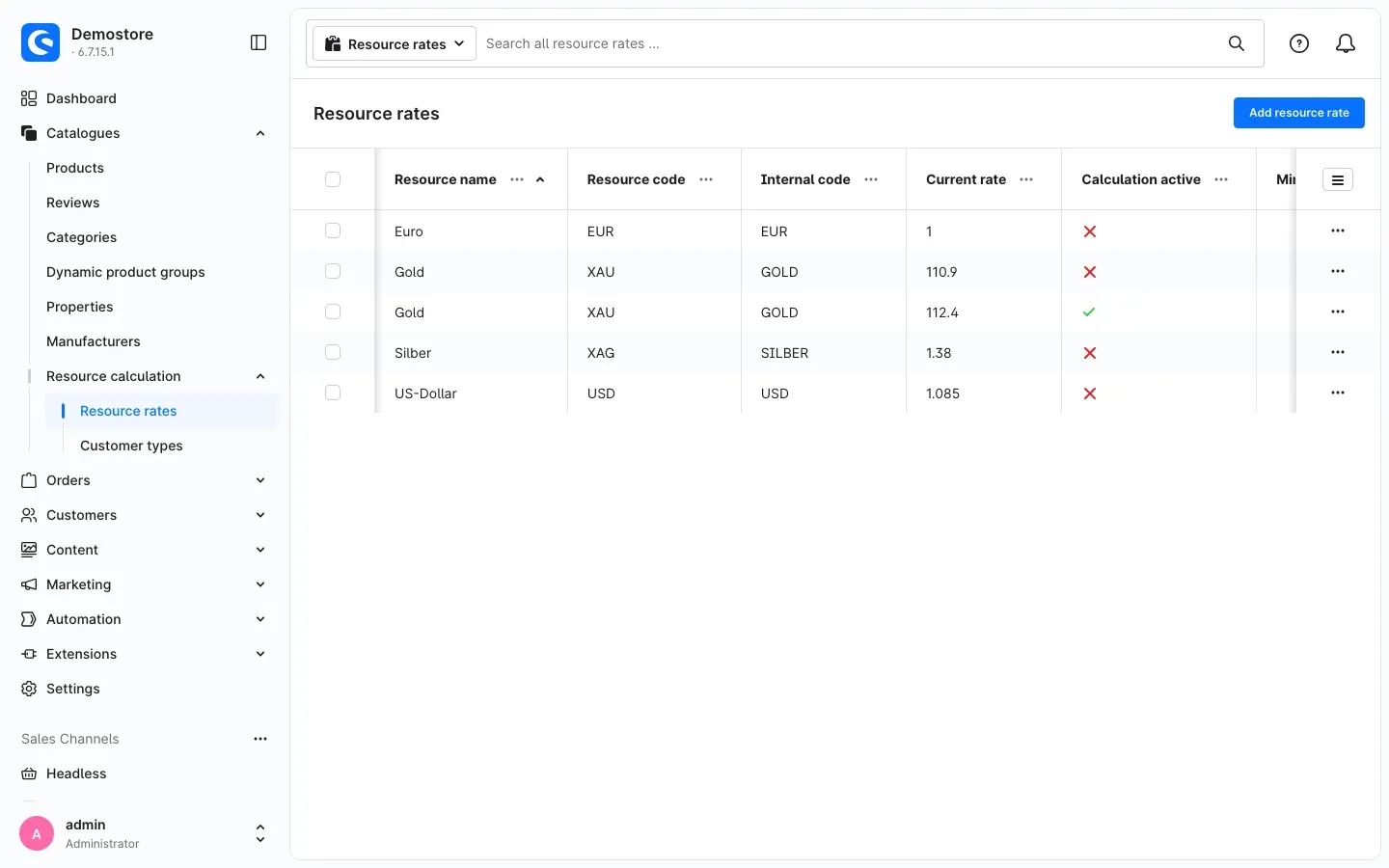 Fig. 4: The resource rates with gold, silver and the currencies euro and US dollar
The list shows each entry with Resource name, Resource code, Internal code, Current rate and, in the Calculation active column, whether the rate adjustment is switched on. In the example, gold appears twice: once with 112.4 for the customer type Default and once with 110.9 for the customer type Händler (dealer) (How to set up customer types).
Create a resource
- Click Add resource rate.
- Fill in the Resource rate card:
- Customer type: Which customers this rate applies to. When you create an entry, Default is preselected — this rate applies to all customers without a customer type of their own.
- Resource name: The name of the resource, for example Gold. You select the resource on the product by this name, and the resource widget shows it.
- Code: A short code for your own reference, for example XAU for gold. It plays no role in the calculation.
- Internal code: The link between the rate and your products, for example GOLD. Every product made of this resource refers to this code. Within one customer type, each internal code may only exist once.
- Is a currency: Stays off for resources. Create currencies for the resource widget explains what the switch is for.
- Variable in the formula: Set automatically — x for resources, y for currencies. There is nothing to enter here.
- Current market rate: The rate per unit, for example 112.40 for a gold price of €112.40 per gram.
- Currency: The currency your rate is quoted in. If you receive your rate in US dollars, for example, choose US dollar. The plugin then converts it using the factor you have stored for US dollar in Shopware under Settings → Localisation → Currencies. If the field stays at Please choose …, the plugin does not convert, which means it calculates in your store’s default currency.
- Click Save.
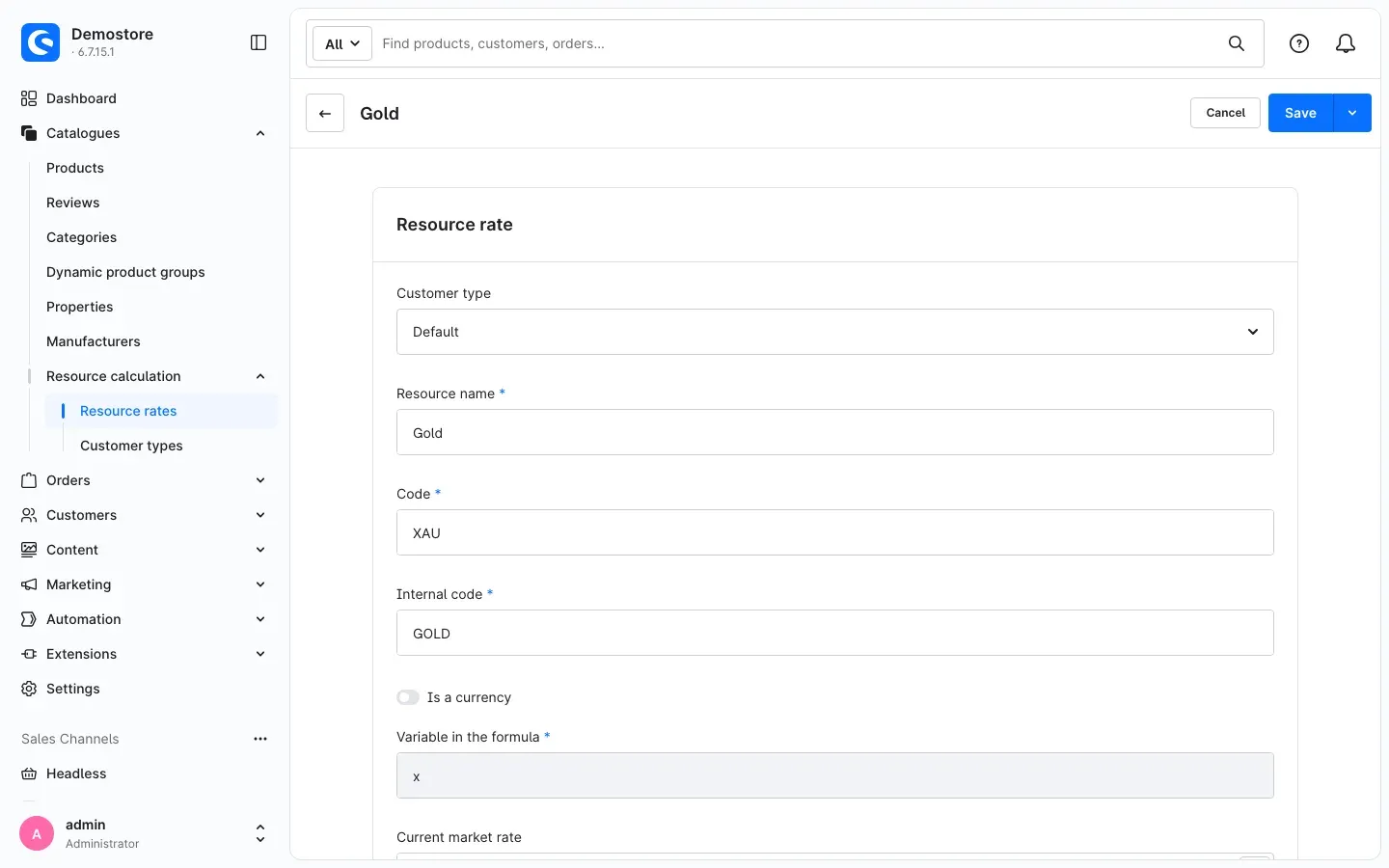 Fig. 5: The rate entry for gold with customer type, resource name, code, internal code and variable
Tip: Use the same unit of measure for rate and units. If you enter the gold rate per gram, enter the product weight in grams — one ounce as 31.1.
Important: Never leave the Current market rate field empty. Without a rate, the plugin calculates with the value 1, and the product would be far too cheap.
Adjust the rate automatically (rate adjustment)
What this gives you: You add a surcharge directly to the rate — for procurement costs or rate fluctuations, for example — and define a rate below which the calculation never drops. This applies to all products made of this resource at once.
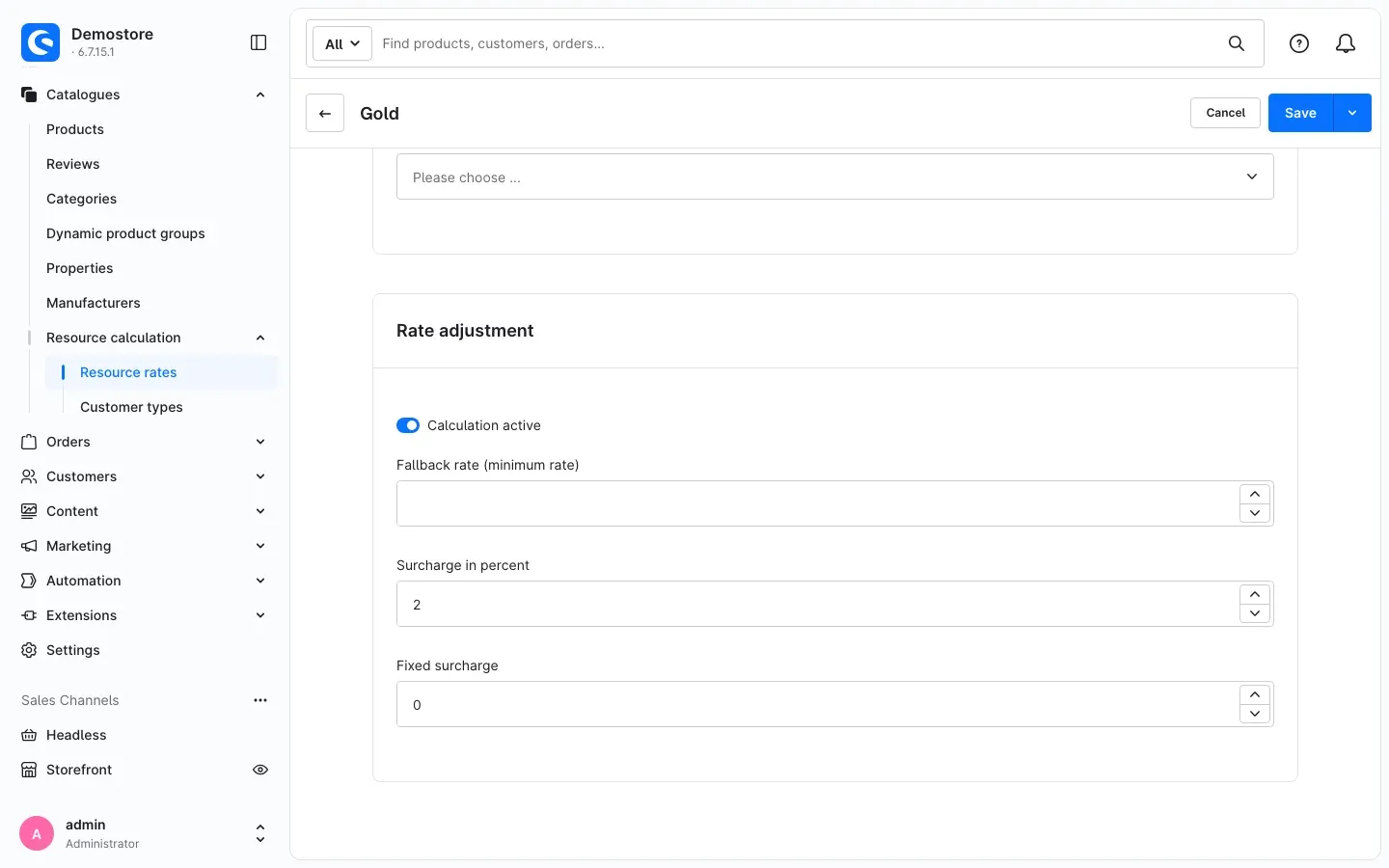 Fig. 6: The rate adjustment card with a 2 % surcharge on the gold rate
You find the Rate adjustment card in the same entry, below the resource rate:
- Calculation active switches on the rate adjustment for this entry. Only then do the three fields below it take effect.
- Surcharge in percent increases the rate by this percentage. With 2, a rate of 112.40 becomes 114.648.
- Fixed surcharge is then added to the rate.
- Fallback rate (minimum rate): If the rate is below this value after the surcharges, the plugin calculates with this value. This protects you against rate drops or a rate entered by mistake.
Then click Save.
Good to know: The resource widget always shows the market rate you entered — without the surcharges from the rate adjustment.
Create currencies for the resource widget
What this gives you: With currency entries, the resource widget shows your rates in several currencies, each on its own tab (How to show rates with the resource widget).
- Click Add resource rate.
- Under Resource name, enter the name to appear on the tab, for example US-Dollar.
- Under Code and Internal code, enter the three-letter currency code, for example USD. The widget shows the amounts in this currency.
- Switch on Is a currency. The Currency field then disappears, and the variable shows y.
- Under Current market rate, enter the exchange rate to your default currency, for example 1.085 for €1 = 1.085 US dollars. For the default currency itself, create an entry with the rate 1 — in the example, Euro with the code EUR.
- Click Save.
You do not need these entries to convert your product prices. That is handled by the Currency field in the resource entry and the factor from Shopware’s currency settings.
Update rates day to day
Open the entry, enter the new rate under Current market rate and click Save. It is quicker directly in the list: double-clicking a row opens its values for editing. The Last changed column shows you when a rate was last updated.
Your store shows the new price on the next page view. Sorting by price, price filters and exports, however, use a stored price. It only follows once your server recalculates the stored prices (For administrators / Technical details).
How to set up customer types
What this gives you: Dealers get different rates from consumers. A customer type bundles these rates, and you assign it to one or more customer groups.
This is how everything fits together:
- The plugin creates the customer type Default itself. Its rates apply to all customer groups without a customer type of their own.
- If a customer type has no rate of its own for a resource, the Default rate applies. So you only create the rates that actually differ.
Create a customer type
- Open Catalogues → Resource calculation → Customer types.
- Click Add customer type.
- Enter a name in the Name field, for example Dealers. (The screenshots use the German name Händler.)
- The Interval field is prefilled with 100. This plugin’s price calculation does not use it — simply leave the value as it is.
- Click Save.
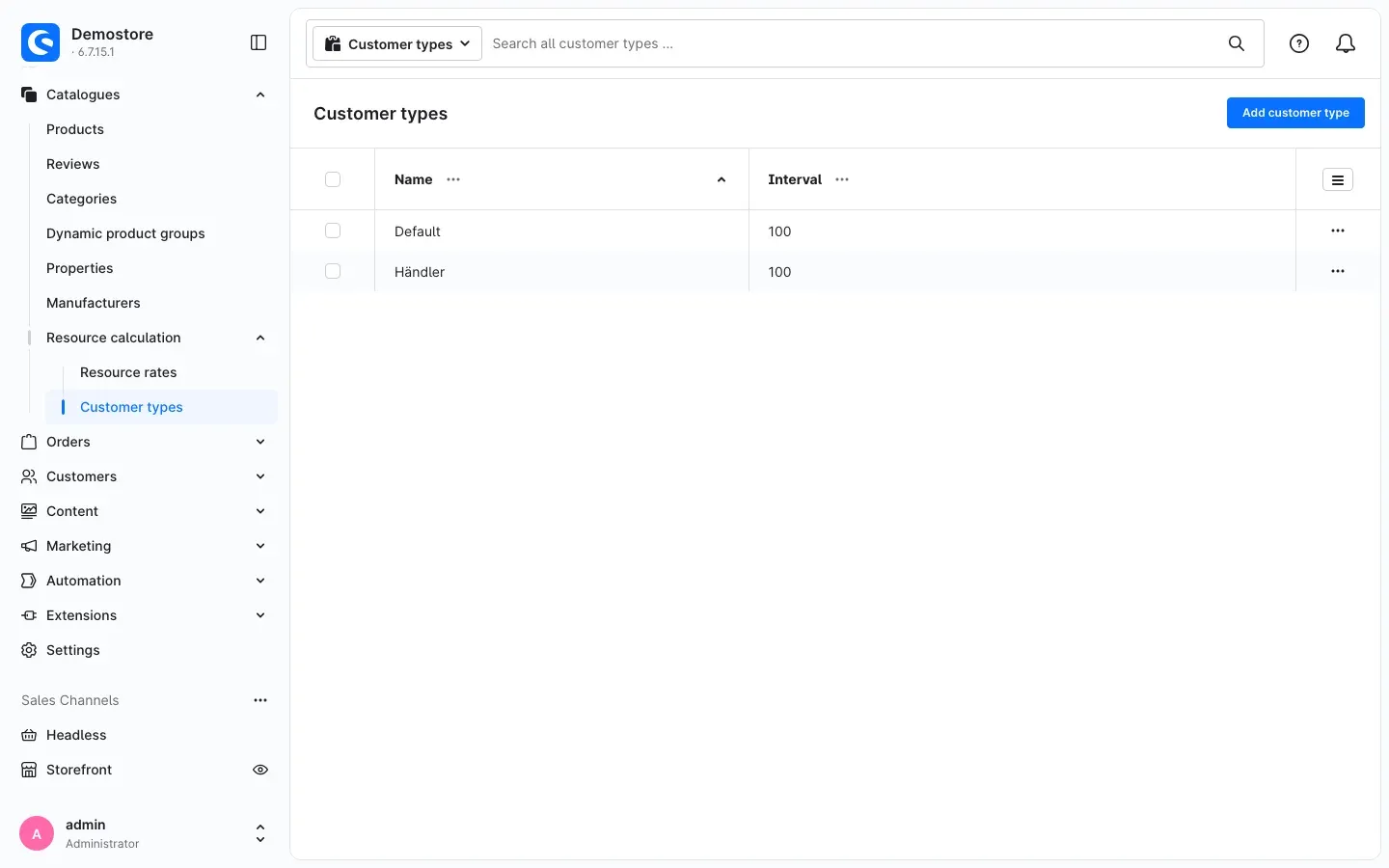 Fig. 7: The customer types Default and Händler
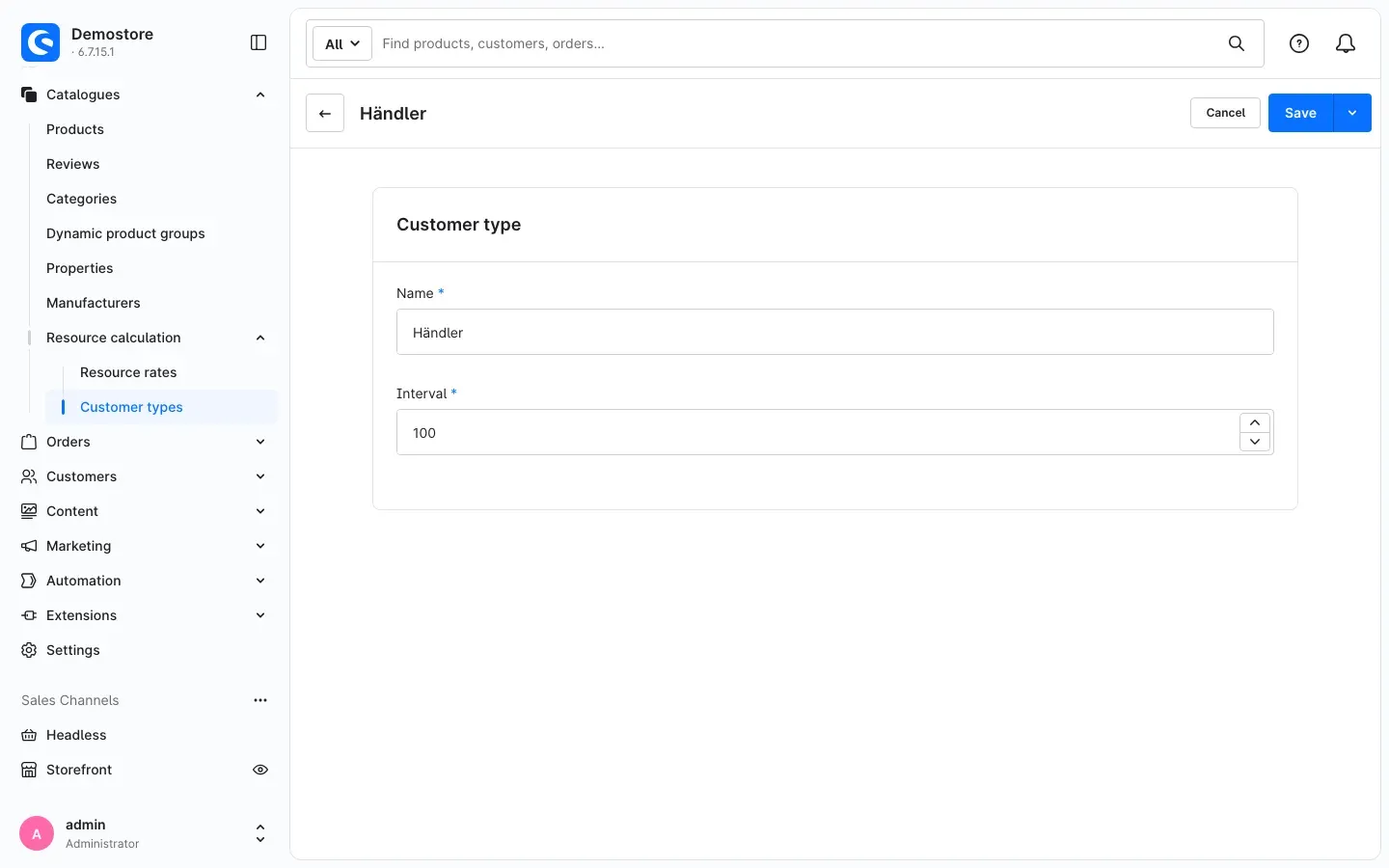 Fig. 8: The customer type Händler (dealer)
Create rates for the customer type
Under Catalogues → Resource calculation → Resource rates, create another entry (Create a resource). Choose the new type as Customer type and enter the same internal code as in the Default entry, for example GOLD. This is the only way the plugin knows that both entries belong to the same resource.
In the example, dealers calculate with a gold rate of €110.90 per gram instead of €112.40. As the rate adjustment is switched off in the dealer entry, the 2 % rate surcharge does not apply to them either.
Assign a customer type to a customer group
- Open Settings → Customer → Customer groups and the customer group you want, for example Dealers.
- In the Custom fields card, on the Resource calculation tab, choose the matching customer type under Customer type.
- Click Save.
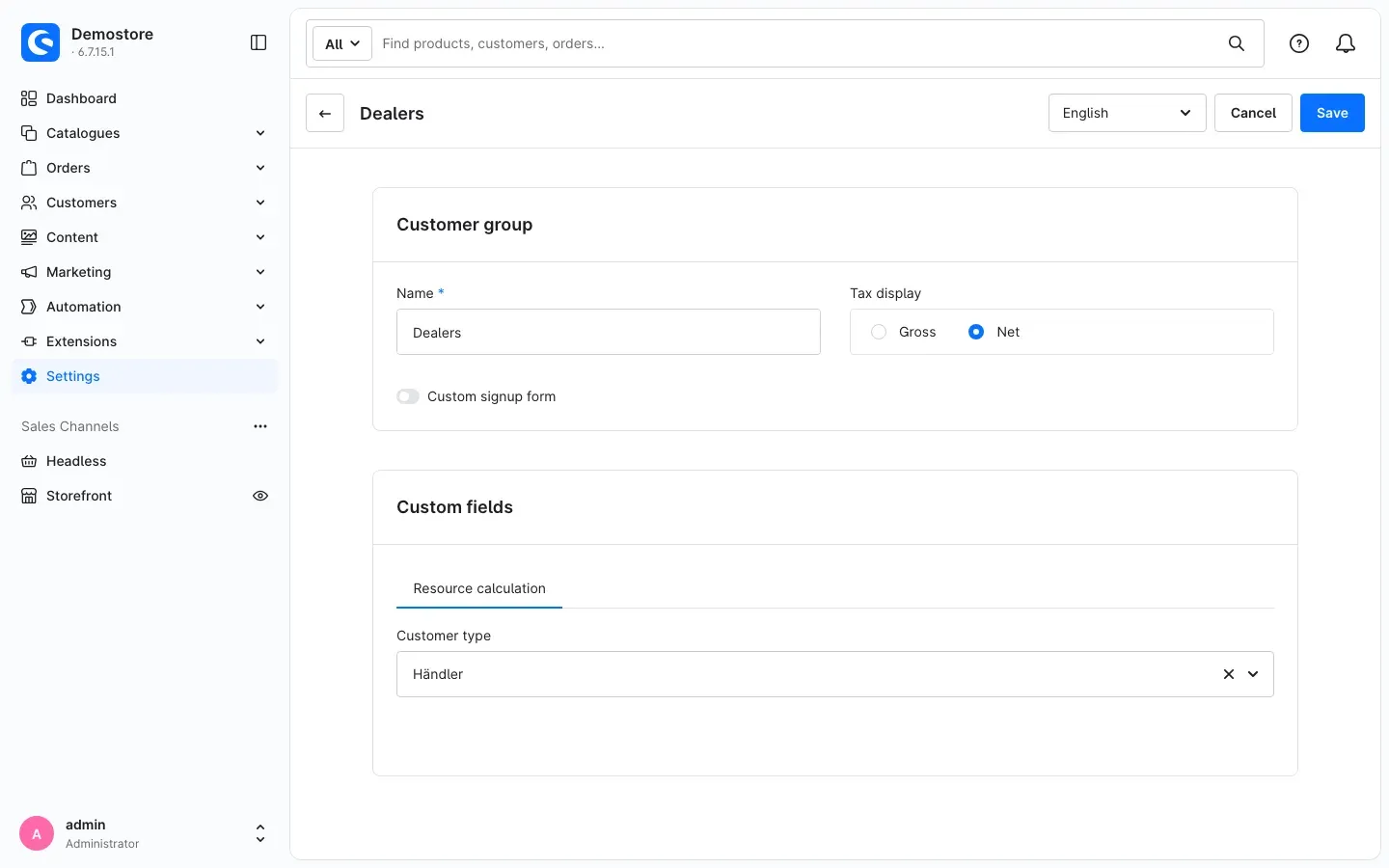 Fig. 9: The customer group Dealers with the customer type Händler
From now on, every customer in this customer group calculates with the rates of their customer type.
How to set up a product for resource calculation
What this gives you: Once set up, the product price follows the rate automatically. You define which resource the product contains, how much of it, and which surcharges you add.
Setup has two parts: you create the rule once for the whole store. Resource, quantity and surcharges are defined per product.
Create the rule for resource calculation
Formula, surcharges and price limits belong to an advanced price. The plugin only calculates an advanced price if its rule contains the condition Item of type with the value Resource calculation. You create this rule once and use it for all products.
- Open Automation → Rule Builder and click Create rule.
- Enter a name in the Name field, for example Resource calculation, and a priority in the Priority field. (The screenshots use the German name Rohstoffberechnung.)
- In the Condition card, set up the condition like this: Item of type — At least one — Is equal to — Resource calculation.
- Click Save.
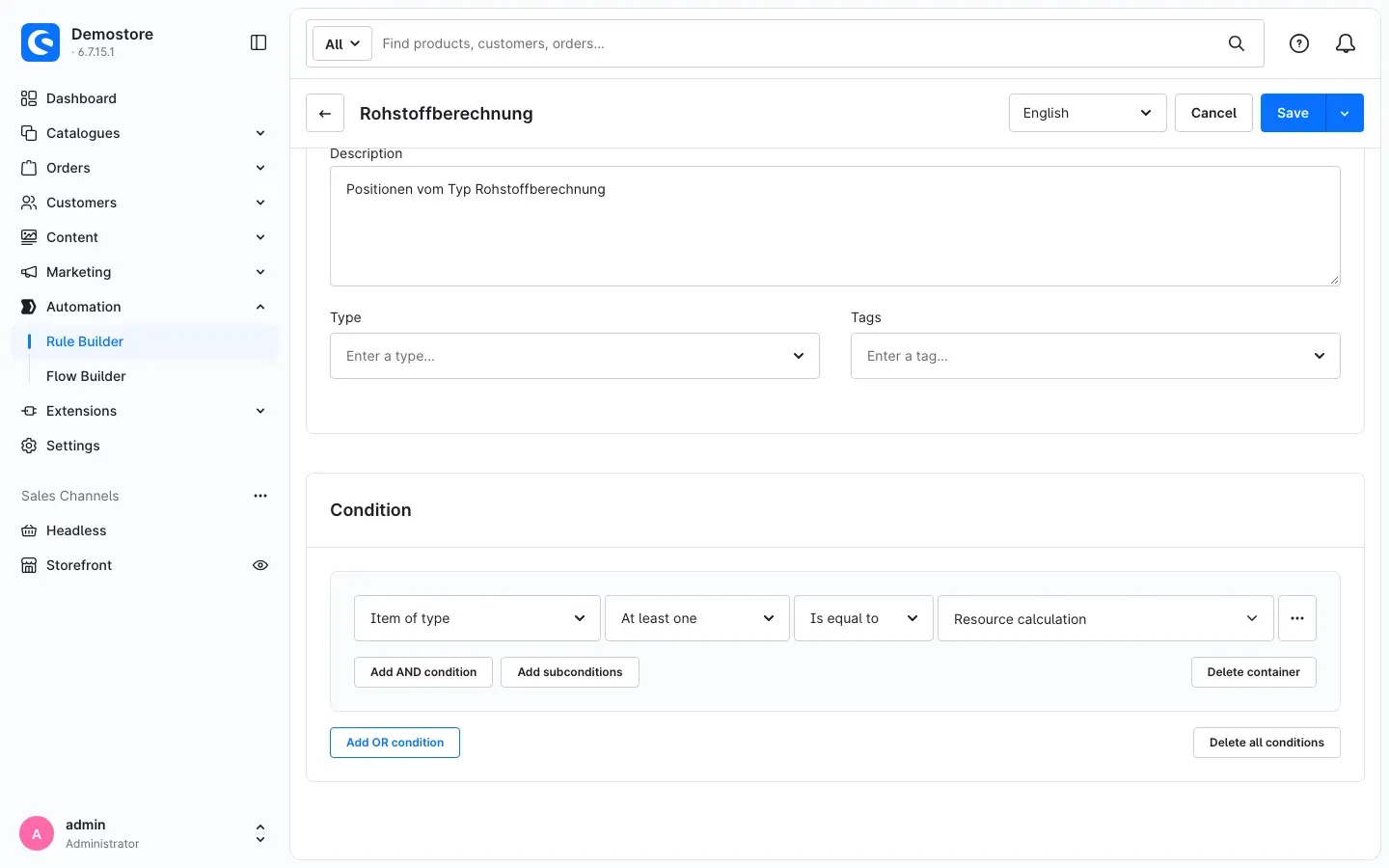 Fig. 10: The rule with the condition Item of type, Is equal to, Resource calculation
Important: If this condition is missing from the rule, the plugin does not calculate the advanced price. Your store then shows the price entered there, or a price without your surcharges.
Define resource and quantity on the product
- Open Catalogues → Products and then the product.
- Go to the Specifications tab. In the Custom fields card, open the Resource calculation tab.
- Switch on Calculation active.
- Under Resource, choose the resource, for example Gold. Its rate is the variable x in the formula.
- Under Number of units, enter how many units of the resource the product contains — for the gold bar 10 g, that is 10. This number is the variable b in the formula. If the field stays empty, the plugin calculates with 1.
- Click Save.
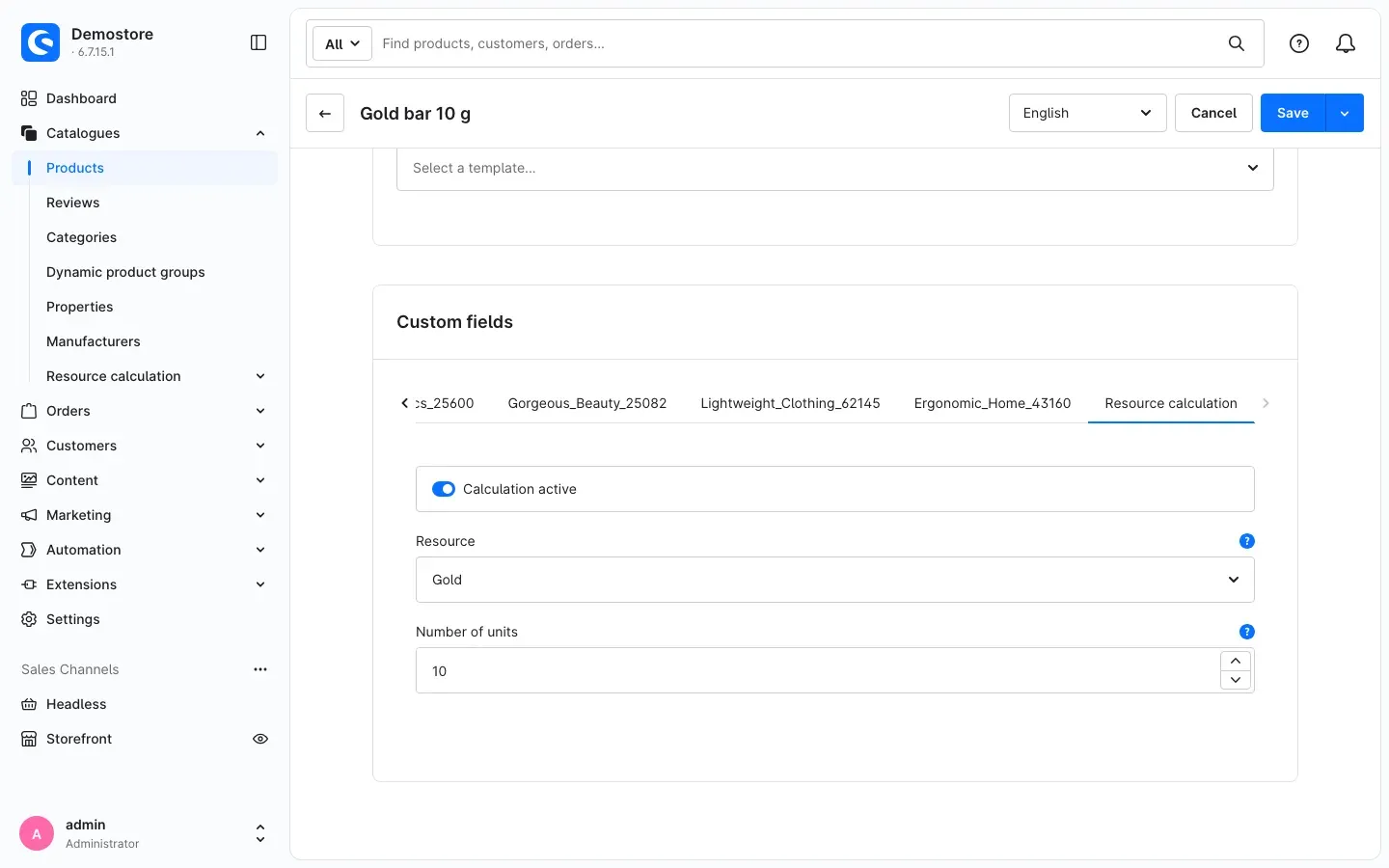 Fig. 11: The product Gold bar 10 g with calculation active, resource Gold and 10 units
Tip: If you maintain a resource for several customer types, it appears several times under Resource. You can choose any of these entries: the product is linked to all of them through the internal code, and every customer gets the rate of their customer type.
Good to know: The Calculation active switch on the product is a different switch from the one with the same name in the rate adjustment. On the product, it switches on resource calculation for exactly this product.
Add an advanced price with the rule
- In the same product, go to the Advanced pricing tab.
- Choose the rule from Create the rule for resource calculation as pricing rule. If there are already other pricing rules, add another one with Add pricing rule.
- Enter a price in the row, for example your current selling price. In the store, the plugin replaces it with the calculated price. Sorting, filters and exports, however, use this value until your server recalculates the stored prices.
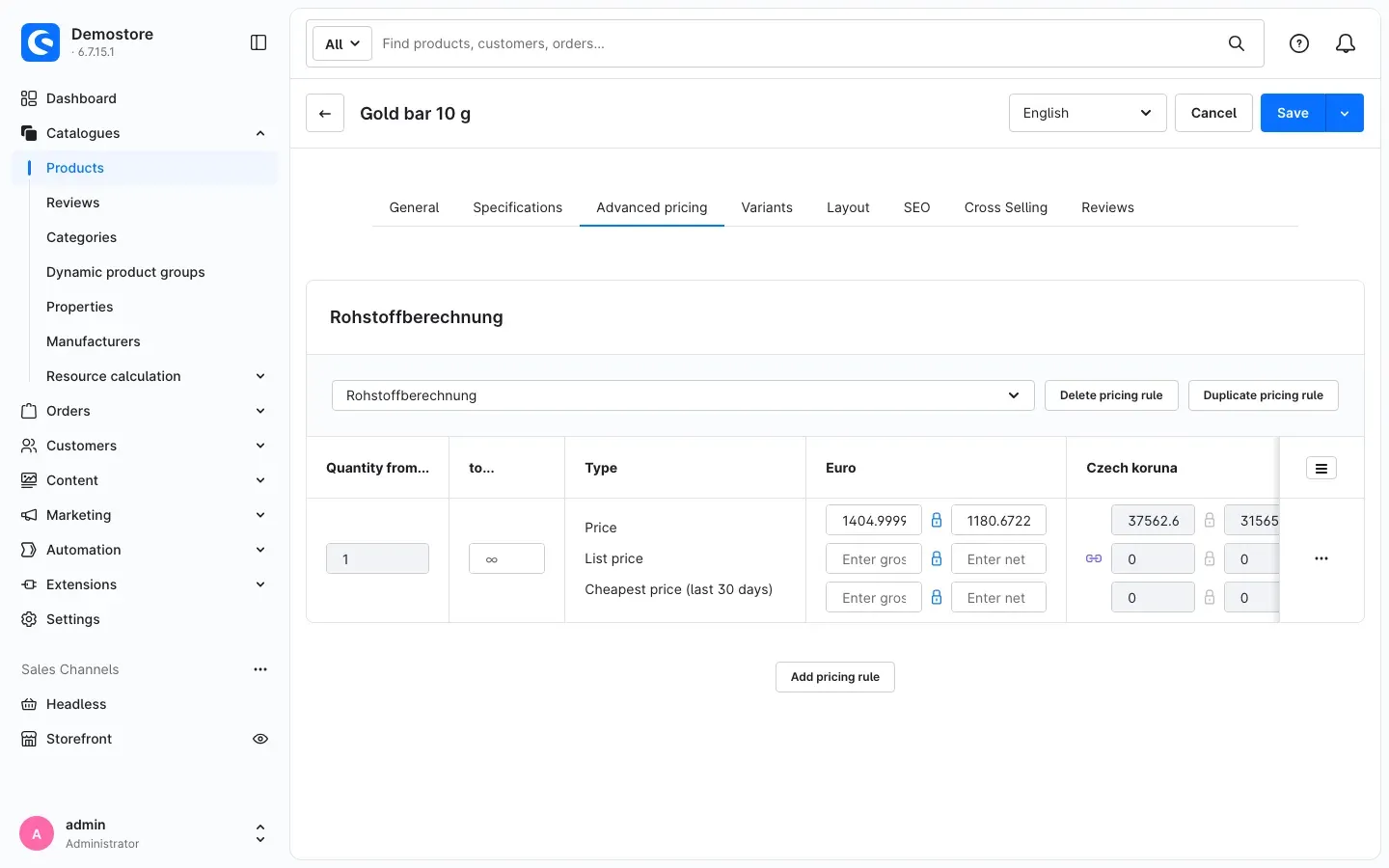 Fig. 12: The advanced price with the rule Rohstoffberechnung
Important: Enter prices in the default currency only and let Shopware convert the other currencies as usual. The plugin calculates in the default currency. A separate price for another currency would otherwise be overwritten with the amount from the default currency.
Tip: If you add several rows with Quantity from… and to… to the pricing rule, each row has its own custom fields. This way you can, for example, charge a smaller surcharge from 10 pieces upwards.
Enter formula, surcharges and price limits
-
Click the three dots at the far right of the price row and choose Custom fields.
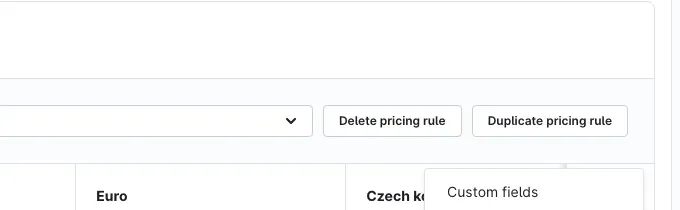 Fig. 13: The menu of the price row with the entry Custom fields
 -
In the Custom fields window, on the Resource calculation tab, enter your values:
- Minimum price: The price never drops below this.
- Maximum price: The price never rises above this.
- Percentage surcharge: Added as a percentage to the calculated price, for example 3 for 3 %.
- Fixed surcharge: A fixed amount added on top, for example 3.50 for minting or packaging.
- Formula: How the price is derived from rate and units (see below).
-
Close the window with the cross in the top right corner.
-
Click Save.
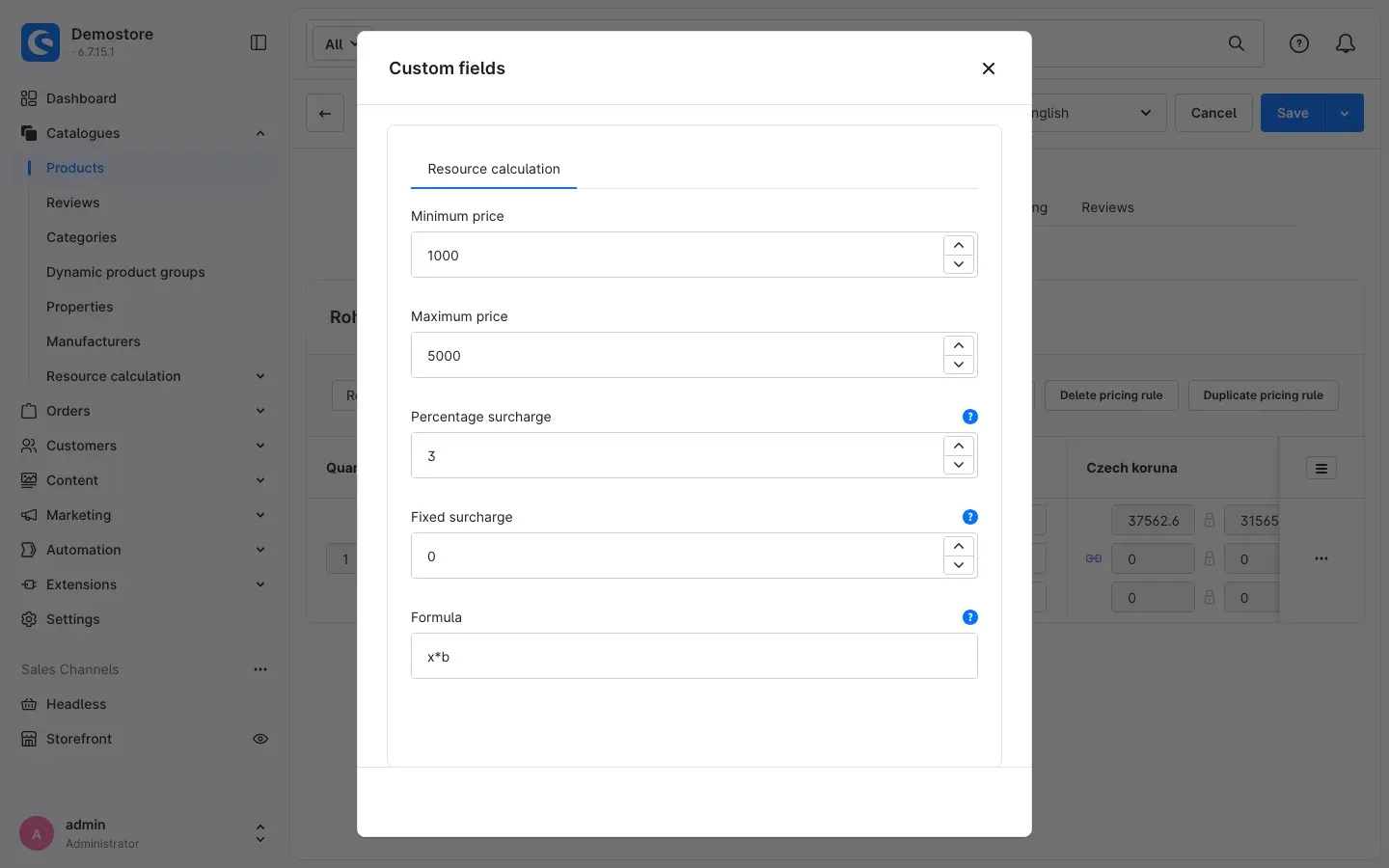 Fig. 14: The custom fields of the advanced price with price limits, surcharges and formula
Minimum and maximum price are net amounts per piece. The plugin checks them at the very end, after rounding. If a limit applies, the price is not rounded any more. If a field stays empty, there is no such limit.
How to write the formula
Three variables are available in the formula:
- x is the rate of the resource, after the rate adjustment.
- y is the conversion factor of the currency the rate is quoted in. If the rate is already in your default currency, y equals 1.
- b is the number of units on the product.
You can use the operators + - * / ^ and brackets. Write decimal numbers with a point, for example 0.585. Examples:
x*bmultiplies rate by units. This is how the gold bar in the example is set up.(x*b)/ymultiplies rate by units and converts from the rate currency. This is also the standard calculation.x*b*0.585only counts the fine gold content, for example for jewellery made of 585 gold.
If you leave the Formula empty, the plugin uses the standard calculation (x*b)/y. The same applies if the formula contains an error — so the product is never left without a price. Test new formulas on a test product first.
How the plugin calculates the price
What this gives you: Once you know the order of steps, you can trace every price in your store.
The plugin always calculates in this order:
- Determine the rate: It takes the market rate of the resource for the customer’s customer type. If there is no rate of its own, it takes the Default rate. If the rate adjustment is on, the surcharge in percent and the fixed surcharge are added. If the result is below the fallback rate, the fallback rate applies.
- Calculate the base price: Rate and units go through the formula. Without a formula, the plugin multiplies rate by units and converts from the rate currency.
- Add surcharges: The percentage and fixed surcharge from the advanced price are added. For products under the margin scheme, the tax rate for surcharges is added on top of the surcharges.
- Round: The gross price is rounded according to your rounding rules — except for customer groups without rounding.
- Check limits: If the net price is below the minimum price or above the maximum price, the limit applies.
Example 1: Gold bar 10 g
Gold rate €112.40 per gram with a 2 % rate surcharge, 10 units, formula x*b, percentage surcharge 3 %, minimum price 1,000, maximum price 5,000, VAT 19 %, rounding rules as in Settings.
| Step | Calculation | Result |
|---|---|---|
| Rate | €112.40 + 2 % | €114.648 per g |
Formula x*b | €114.648 × 10 | €1,146.48 |
| Percentage surcharge | €1,146.48 + 3 % | €1,180.87 net |
| Gross price | €1,180.87 + 19 % VAT | €1,405.24 |
| Rounding | above €1,000 to whole euros | €1,405.00 gross (€1,180.67 net) |
| Price limits | €1,180.67 is between 1,000 and 5,000 | unchanged |
Example 2: Silver coin 1 oz
Silver rate €1.38 per gram without rate adjustment, 31.1 units (one ounce in grams), formula x*b, percentage surcharge 5 %, fixed surcharge €3.50, minimum price 40, maximum price 120.
| Step | Calculation | Result |
|---|---|---|
| Rate | without rate adjustment | €1.38 per g |
Formula x*b | €1.38 × 31.1 | €42.92 |
| Percentage surcharge | €42.92 + 5 % | €45.06 |
| Fixed surcharge | €45.06 + €3.50 | €48.56 net |
| Gross price | €48.56 + 19 % VAT | €57.79 |
| Rounding | up to €100 to 5 cents | €57.80 gross (€48.57 net) |
| Price limits | €48.57 is between 40 and 120 | unchanged |
Intermediate values are shown rounded to the cent; the plugin calculates internally with more precision.
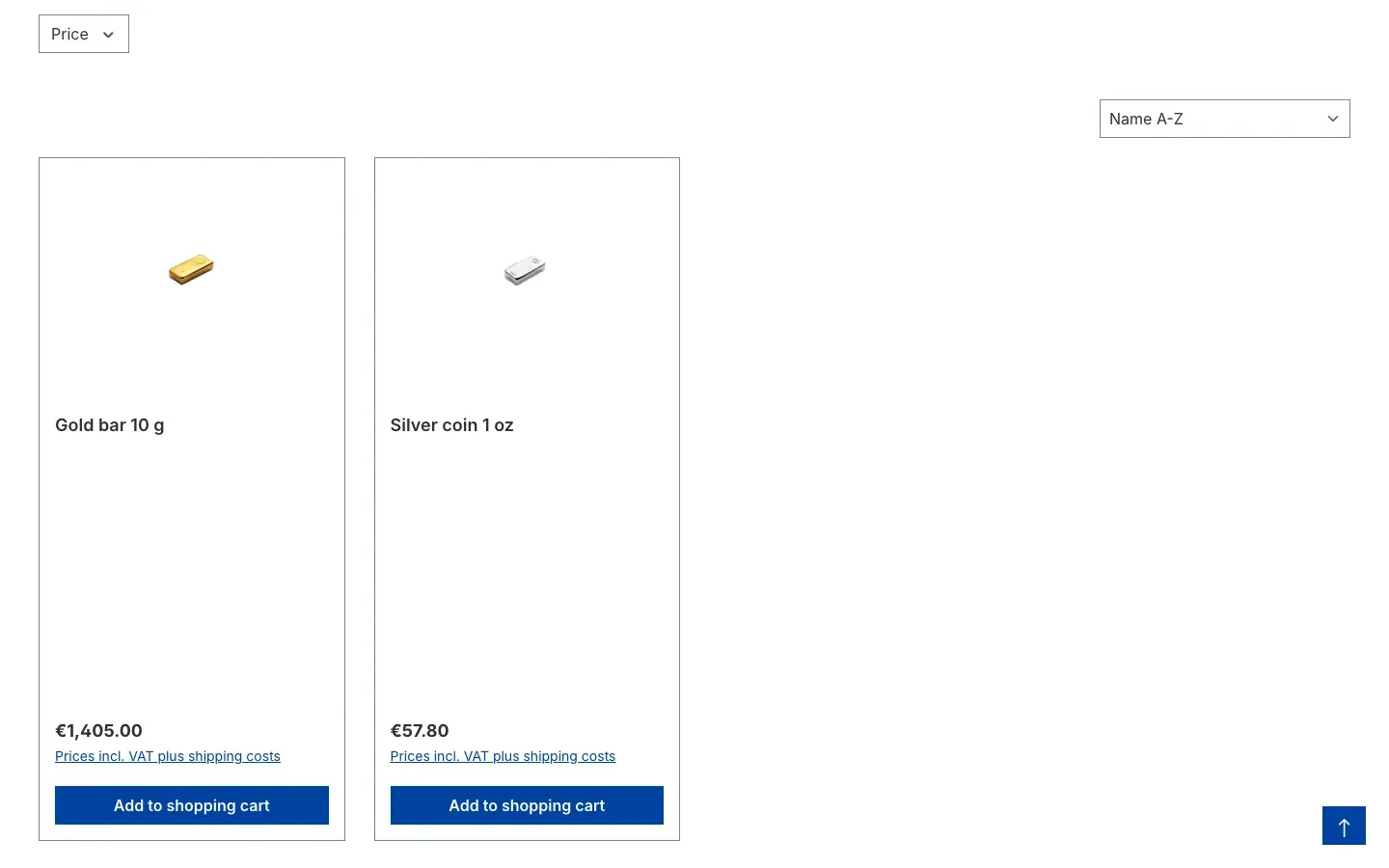 Fig. 15: The category Precious metals with the calculated prices €1,405.00 and €57.80
A customer in the Dealers customer group calculates with the dealer rate of €110.90 per gram and without the rate surcharge in the first step. All further steps stay the same.
How to show rates with the resource widget
What this gives you: Your customers see the current rates right in your store, for example on the home page or on a dedicated rates page — on one tab per currency. The widget reloads the rates regularly without anyone having to reload the page.
You need at least one currency entry in the resource rates (Create currencies for the resource widget).
- Open Content → Shopping Experiences and the layout in which the rates should appear.
- Add a block and choose the Resource widget for its element.
- Open the element’s settings and enter:
- Update interval: After how many minutes the widget reloads the rates. The default is 5 minutes.
- Currency selection: The currencies that each get a tab. Only entries with Is a currency switched on are offered here.
- Resource selection: The resources whose rates the widget shows.
- Click Done and then Save in the top right corner.
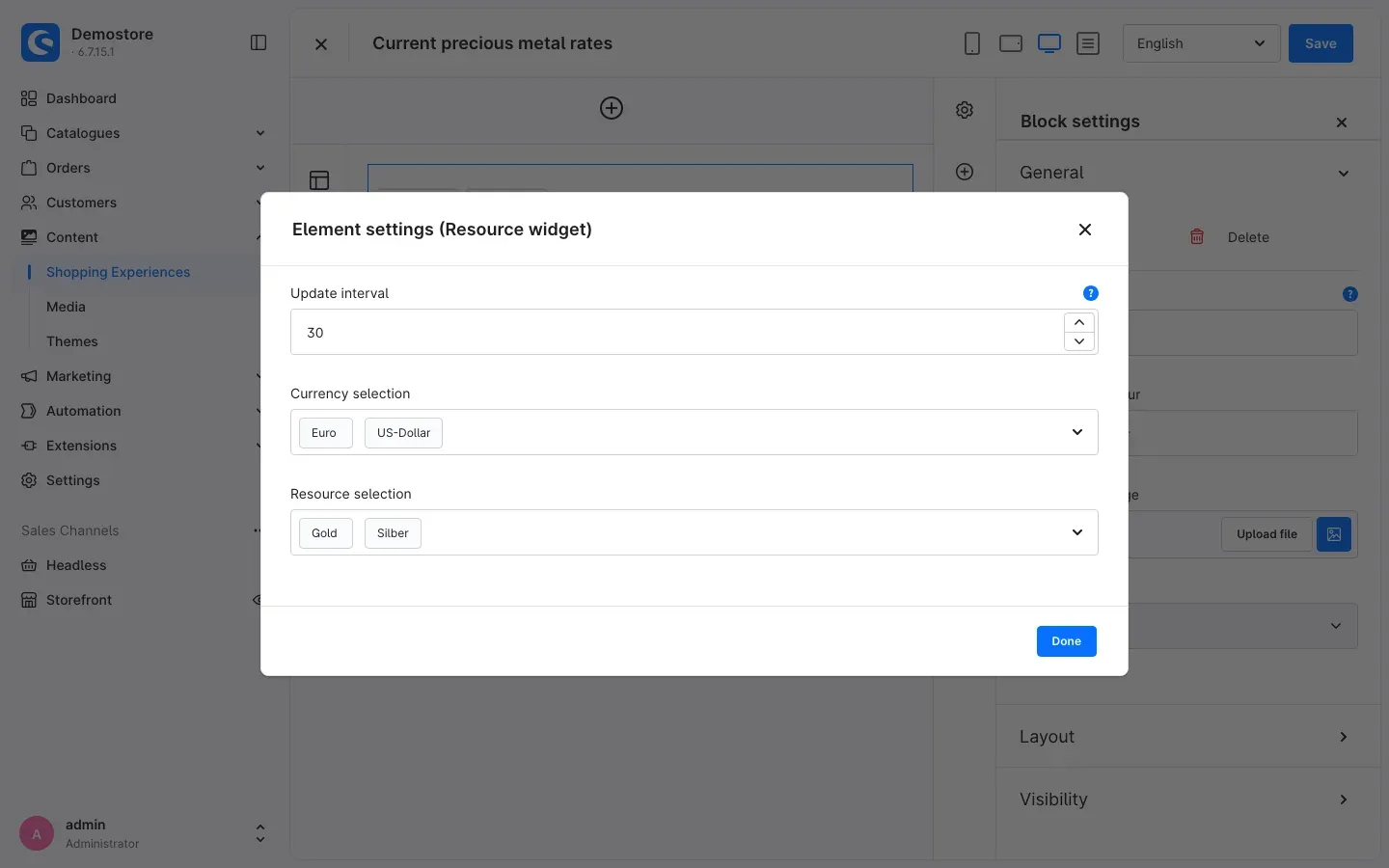 Fig. 16: The element settings of the resource widget with interval, currencies and resources
In the store, the widget shows one tab per currency with the resources and their rates. Below it, the note Price update shows the interval you set.
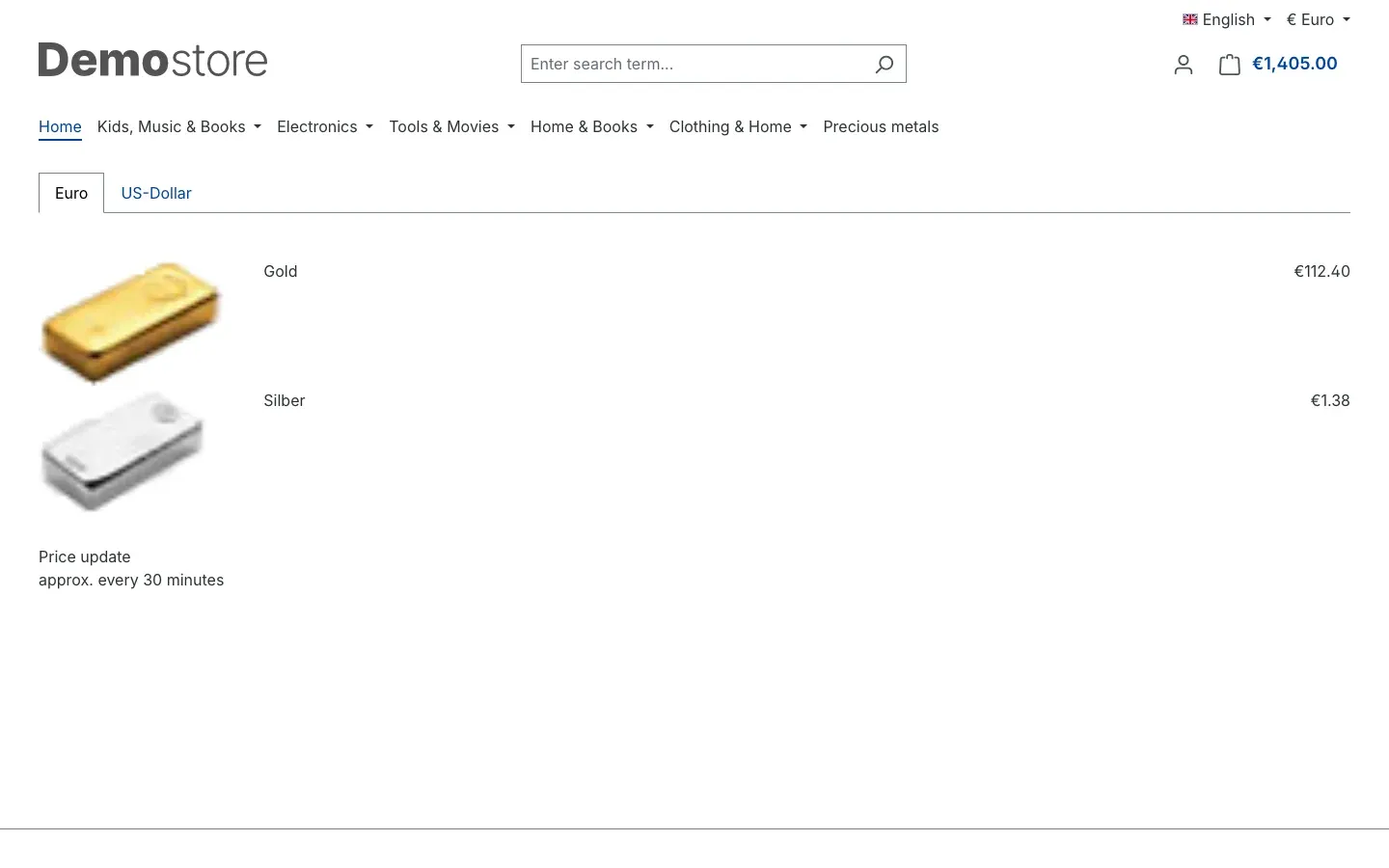 Fig. 17: The resource widget in the store with the tabs Euro and US-Dollar
Good to know:
- The widget shows the market rate you entered, without rate adjustment. On the tab of another currency, it converts the rate with the rate of the currency entry.
- The plugin includes images for the resource names Gold and Silber. For other resource names, there is no image.
- The widget only shows rates in sales channels where the plugin is switched on.
What your customers see in the store
Product page
On the product page, the price appears after a short loading icon. It is calculated with the current rate on every page view — even if the rest of the page comes from your store’s cache.
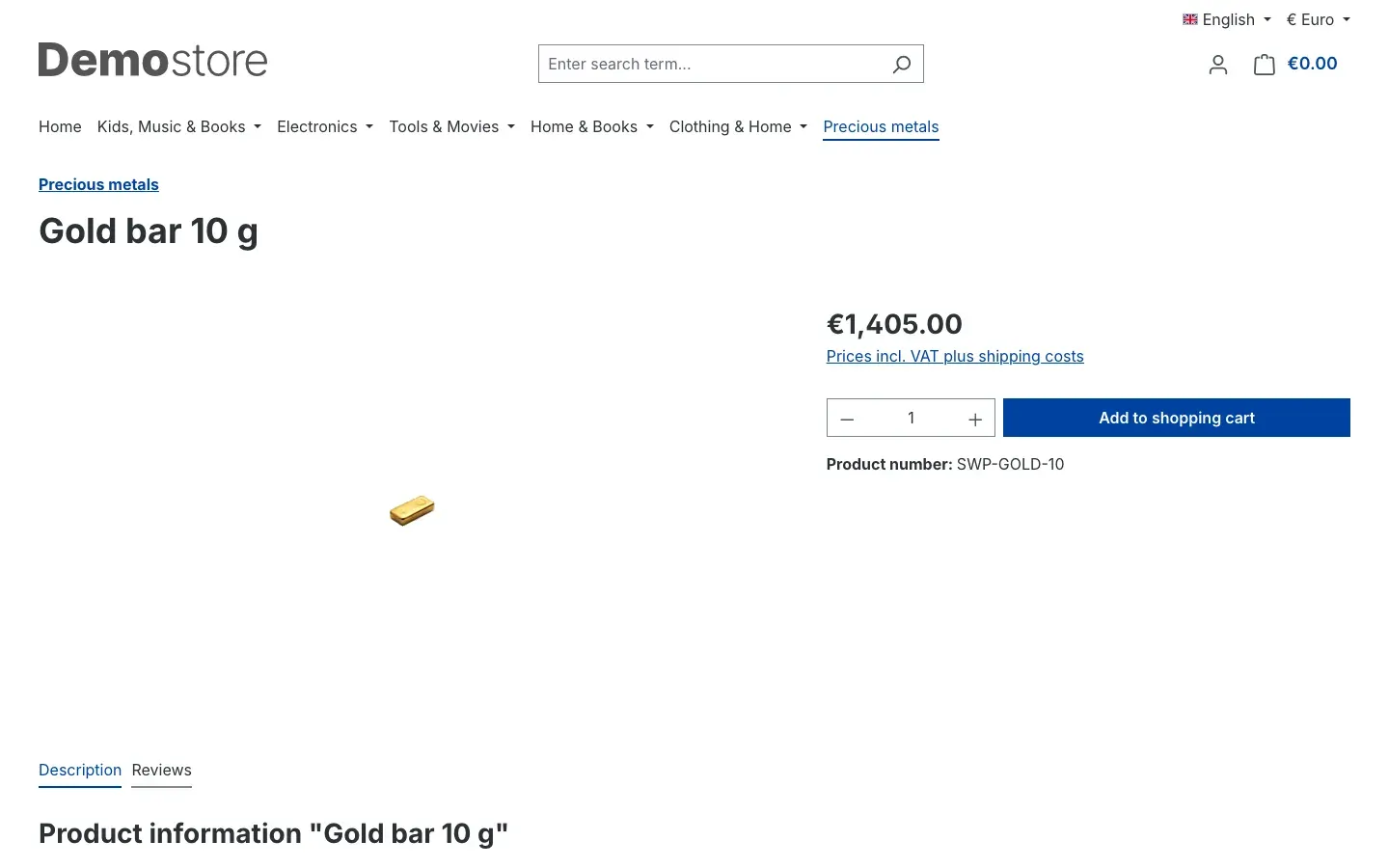 Fig. 18: The product page of the gold bar with the calculated price
Categories, sliders and search suggestions
Categories, product sliders and search suggestions also show the calculated price (see Fig. 15). If the product has tiered prices, the search suggestions show the price with the prefix “From”.
Shopping cart and order
In the shopping cart, the line item calculates with the rate valid at that moment every time the cart is recalculated. Stock, minimum purchase and purchase steps apply as for any other product. In the order, the line item appears as a completely normal product — documents and stock handling work as usual.
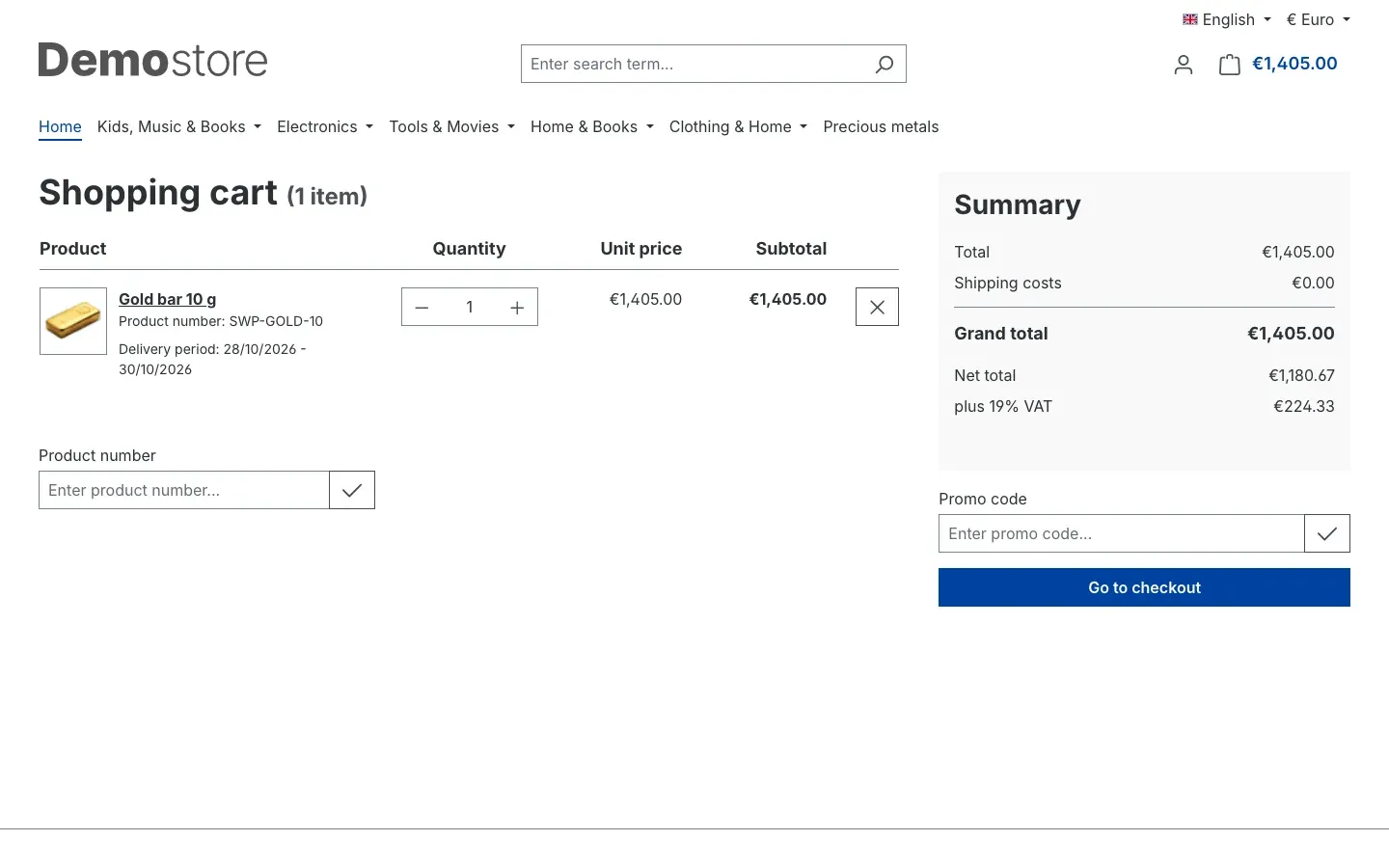 Fig. 19: The shopping cart with the gold bar, net total and VAT
Mobile view
The price display works the same way on smartphones.
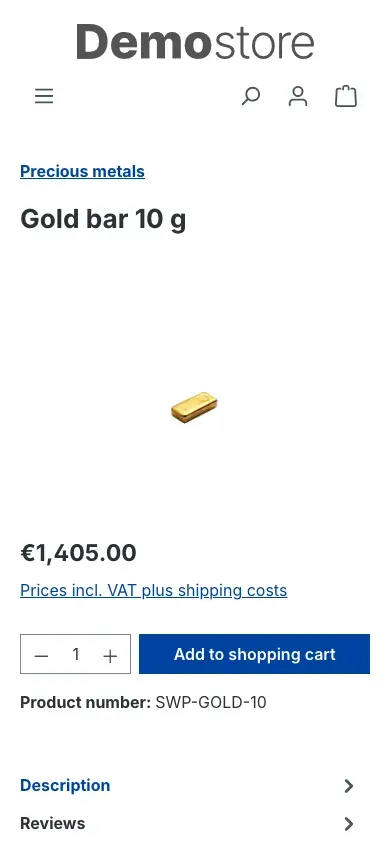 Fig. 20: The product page in the mobile view
Good to know:
- The price display requires JavaScript to be enabled in your customers’ browsers.
- If the price cannot be loaded for once, the note “The current price cannot be loaded right now.” appears instead of an outdated price.
- Your customers only see the dialog “Switch cart mode” if a buy-back plugin that works together with this plugin is installed as well. Buying and selling to you cannot then be combined in one cart.
Troubleshooting
The product shows €0.00 or its normal price instead of the calculated price
Cause: A requirement for the calculation is missing. The most common causes:
- The plugin is switched off in this sales channel.
- On the product, Calculation active is off or nothing is selected under Resource.
- For the internal code of the resource, there is neither a rate entry for the customer type Default nor one for the customer’s customer type.
- The rule of the advanced price does not contain the condition Item of type with Resource calculation.
How to fix it:
- Check the switch Enable plugin for this sales channel in the configuration — for the right sales channel (Settings).
- Check the switch and the resource on the product under Specifications → Custom fields → Resource calculation (Define resource and quantity on the product).
- Check under Catalogues → Resource calculation → Resource rates whether an entry with the customer type Default and the same internal code exists.
- Check the rule in the Rule Builder (Create the rule for resource calculation).
- Clear the cache: Settings → System → Caches & indexes → Clear cache.
Formula, surcharges or price limits have no effect
Cause: The plugin only reads these values from an advanced price whose rule contains the condition Item of type with Resource calculation. With tiered prices, the values of the row matching the ordered quantity apply. The plugin replaces a faulty formula with the standard calculation.
How to fix it:
- Check the rule of the advanced price (Create the rule for resource calculation).
- Open the Custom fields of the matching price row and check the values.
- Check the formula: only the variables x, y and b, decimal numbers with a point, all brackets closed.
The price is far too low or does not match the rate
Cause: Usually rate, unit or currency do not fit together.
How to fix it:
- If the Current market rate field is empty, the plugin calculates with 1. Enter the rate.
- Rate and units need the same unit of measure: rate per gram, units in grams.
- Check the Currency field in the rate entry and the factor of this currency under Settings → Localisation → Currencies.
- Check the rate adjustment: surcharges and fallback rate change the rate before it goes into the formula.
Dealers see the consumer price
Cause: The plugin does not know the customer type, or there is no dealer rate for this resource.
How to fix it:
- Under Settings → Customer → Customer groups, check in the customer group whether a Customer type is selected under Custom fields → Resource calculation.
- Check whether the dealer entry in the resource rates has the same internal code as the Default entry. If it is missing, the Default rate applies by design.
- Check whether the customer actually belongs to this customer group.
Rounding does not work
Cause: Rounding rules still contains 0, the customer group is selected under Customer groups without rounding, or a price limit has applied.
How to fix it: Enter rounding rules (Settings) and check the exceptions. Keep in mind that the gross price is rounded. Customers with net display therefore see a net price with odd cent amounts.
Sorting by price, price filters or exports use old prices
Cause: These functions read the stored price, not the price that is calculated on the fly. The stored price is updated by a command that your IT runs regularly on the server.
How to fix it: Ask your IT to set up the command or to run it more often (For administrators / Technical details).
Instead of the price, the store shows “The current price cannot be loaded right now.”
Cause: The price is loaded separately after the page has been built. This request failed, for example because of a brief connection problem.
How to fix it: Reload the page. If the note persists, ask your IT to check the store’s error log.
The resource widget stays empty
Cause: Usually no currency is selected in the element. The widget then only shows the note Price update, but no rates.
How to fix it:
- Create at least one currency entry (Create currencies for the resource widget).
- Select it in the element under Currency selection, and the resources under Resource selection (How to show rates with the resource widget).
- Check whether the plugin is switched on in the sales channel.
The custom fields or the Resource calculation menu item are missing
Cause: The plugin has probably not been activated yet, or the cache is outdated.
How to fix it:
- Open Extensions → My extensions.
- Check whether the switch next to Resource calculation is on.
- Clear the cache: Settings → System → Caches & indexes → Clear cache.
FAQ
Q: Where do the rates come from?
A: From you. The plugin has no built-in rate service. You maintain the rates under Catalogues → Resource calculation → Resource rates, or your IT transfers them automatically, for example from your ERP system.
Q: How quickly do my customers see a new rate?
A: On the next page view. Product page, categories and sliders recalculate the price on every view. Only sorting by price, price filters and exports wait for the next recalculation of the stored prices.
Q: What does the customer pay if the rate changes while they are shopping?
A: The price of the last cart calculation. The cart calculates with the rate valid at that moment every time it is recalculated. The order may therefore show a different price than the product page did earlier.
Q: Can I charge different surcharges depending on quantity?
A: Yes. Add several rows with Quantity from… and to… to the pricing rule. Each row has its own custom fields with formula, surcharges and price limits.
Q: What happens if my formula contains an error?
A: The plugin then uses the standard calculation of rate times units, converted from the rate currency. The product keeps a price, but your formula has no effect. Test new formulas on a test product.
Q: Why does the resource widget show a different value from the rate my products calculate with?
A: The widget shows the market rate you entered. Your products additionally calculate with the surcharges from the rate adjustment and, depending on the customer, with the rate of their customer type.
Q: Can I use the plugin in one sales channel only?
A: Yes. The switch Enable plugin for this sales channel and all other settings apply per sales channel.
Q: How do I let staff maintain rates only?
A: Under Settings → System → Users & permissions, roles offer the permissions “Resource calculation: resource rates” and “Resource calculation: customer types”.
Q: Can the plugin handle buy-back, i.e. buying precious metals back from customers?
A: No. This plugin calculates selling prices. It is not built for buy-back.
Q: What happens to my data when I uninstall the plugin?
A: If you keep the data when uninstalling, everything is preserved. If you delete it, the plugin removes its resource rates, customer types and custom fields. Products keep the price that was last stored.
Q: Is any data sent to external services?
A: No. The plugin does not send any data to external servers. All rates and settings stay in your Shopware database.
For administrators / Technical details
This section is intended for technical administrators. You do not need it for normal use.
System requirements
- Shopware: 6.7
- PHP: 8.2 or later
- Composer during installation and update: Shopware runs Composer for the plugin to load the formula library
denissimon/formula-parser. The server needs a working Composer and access to Packagist.
Installation via the command line
If the plugin is already in the store, install and activate it like this:
php bin/console plugin:refresh
php bin/console plugin:install --activate SwpResourceCalcSix
php bin/console cache:clear
Updating the stored prices
The display in the store calculates live. Sorting, price filters and exports, however, read the price stored in the database. It is written by the console command:
php bin/console resourcecalc:cronThe plugin does not include a scheduled task for this. Set up a system cron job, for example every 15 minutes:
*/15 * * * * cd /path/to/store && php bin/console resourcecalc:cronWhat the command does:
- It processes all active products with calculation switched on, in batches of 250.
- It calculates from the perspective of the oldest active storefront sales channel in which the plugin is switched on, and as a guest — that is, with that sales channel’s default customer group. If this group has no customer type, the Default rates apply.
- It overwrites the product price and the advanced prices with the resource rule. Any list price maintained for these products is lost.
- If it finds no suitable sales channel, it ends with a notice and changes nothing.
Transferring rates automatically
Rates are records of the entity swp_resource_calc_resources and can be written through the Shopware Admin API, for example from an ERP system. The market rate is stored in the field resourceCourse.
Log
Formulas that cannot be evaluated are written by the plugin to the file var/log/SwpResourceCalcSix-<date>.log. The files are kept for 14 days.
Deactivating and uninstalling
- Deactivate: The plugin’s custom fields are hidden; all data is preserved.
- Uninstall and keep data: Everything is preserved.
- Uninstall without keeping data: The plugin deletes its tables for resource rates and customer types as well as its custom fields. Products keep the price that was last stored.
For developers
The plugin dispatches its own events: ResourceCalcResourceEvent (rate loaded), ResourceCalcPriceEvent (base price before surcharges) and ResourceCalcFinalPriceEvent (after rounding and price limits, skipped by the console command).
This manual was written for Resource calculation version 6.7.0.
More manuals
Address Validation: House Number Check & Corrections
Address validation at the point of entry: the plugin spots missing house numbers, can suggest corrections via Google and helps you send fewer parcels that come back undeliverable.
Open manual Shopware 6Admin Password Reminder
Admin Password Reminder: your backend users renew their passwords on time, prompted after login and by a daily email. Premium locks expired accounts until the password is changed.
Open manual Shopware 6Advent Calendar | Doors with products, coupons and promotions
Advent calendar for your shopping experiences: doors open on time without clearing the cache, give nothing away in the page source and reveal coupons, products or your own content.
Open manualNeed a team that keeps your shop running?
We have been maintaining Shopware shops for more than 20 years, including updates, hotfixes and the plugins you are configuring right now.