Shopping Experiences Transfer: Staging to Live with Preview and Rollback
Shopping experiences built on staging go live in one click: preview with conflict check, media without duplicates and a rollback point before every import. No rebuilding by hand.
On this page
- Introduction
- What you achieve with this plugin
- Who is this plugin for?
- Installation
- Getting started
- Settings
- ”General” card
- ”Connection to the staging system” card
- ”Source (staging system)” card
- ”Import” card
- How to connect live and staging
- Step 1: Setup wizard on the live shop
- Step 2: Paste the setup code on the staging shop
- Step 3: Test the connection
- What happens when you copy the live shop to staging again?
- Setting up without the wizard
- How to export shopping experiences on staging
- Exporting a single layout from the list
- Exporting several layouts at once
- Exporting from the layout editor
- How to take over shopping experiences on the live shop
- Import by file
- Take over via the staging comparison
- CMS extensions on staging and live
- Why this matters
- What the transfer checks
- What happens in which case
- What the transfer cannot check
- Our recommendation
- How to keep track of your transfers
- The transfer list
- The details of a transfer
- When a transfer has failed
- Entries from a shop copy
- How to roll back a transfer
- Step by step
- When a rollback is not possible
- Permissions for your team
- The plugin’s three permissions
- Additional permissions for the setup
- Data protection
- Troubleshooting
- The “Shopping experiences transfer” menu entry is missing
- The shop shows “System not assigned”
- The staging comparison reports “Connection to the staging system is missing” or “Staging system not available”
- ”Element type … is not installed on the target system”, the import cannot be started
- ”Another transfer is currently running”
- ”The preview has expired” or “The target system changed since the preview”
- The file is rejected during upload
- The status in the staging comparison stays on “being calculated”
- The data was transferred, but the page in the shop still shows the old state
- The setup code is not accepted
- ”You need the permission “Import and roll back shopping experiences” … to import packages”
- FAQ
- For administrators / Technical details
- System requirements
- Background processing
- Several app servers
- Basic authentication on the staging shop
- Log
- Technical permission IDs
- Command line
- Installation via the command line
- Uninstallation
- Appendix for developers: Connecting your own CMS elements
- What the interface is for
- Process overview
- The interface
- Registration
- Example: grid container with templates
- Events for light adjustments
- Format versions
- When the provider is missing on the target
- Error behaviour
- Testing
Introduction
With the Shopping Experiences Transfer, you build shopping experiences in your staging shop, have them approved there and take them over into your live shop in a few clicks. Nobody has to rebuild a page block by block on the live shop.
What you achieve with this plugin
- What was approved goes live. The plugin transfers the complete layout with all sections, blocks, elements, translations and images.
- You see in advance what will happen. A preview shows for each layout whether it is created or replaced, what changes and which images are added.
- You do not lose work done on the live shop. If someone changed a layout directly on the live shop since the last transfer, the plugin warns you before it is overwritten.
- One click back. Before every import, the plugin saves the previous state. If you do not like the result, you roll the transfer back.
- Images come along, but only once. If the same file already exists on the live shop, the plugin reuses it instead of creating a duplicate.
- Two ways, one process. You transfer with a ZIP file, or you let the live shop fetch the layouts directly from the staging shop. Both ways end in the same preview.
Who is this plugin for?
For shop owners, agencies and marketing teams who prepare new pages, campaigns and landing pages in a staging shop and have them approved before they go live. The plugin is built for the usual setup in which the staging shop is a copy of the live shop.
Good to know: The plugin transfers shopping experiences and landing pages, not products, categories or theme files. It must be installed on the staging shop and on the live shop.
Installation
After purchase, the plugin is available directly in your administration — you do not need to download anything. Install it in both shops: the staging shop and the live shop.
- Log in to your Shopware administration (
YourShop.com/admin) - Open Extensions → My extensions
- Next to Shopping Experiences Transfer: Staging to Live with Preview and Rollback, click Install
- Activate the plugin with the switch next to the entry — done.
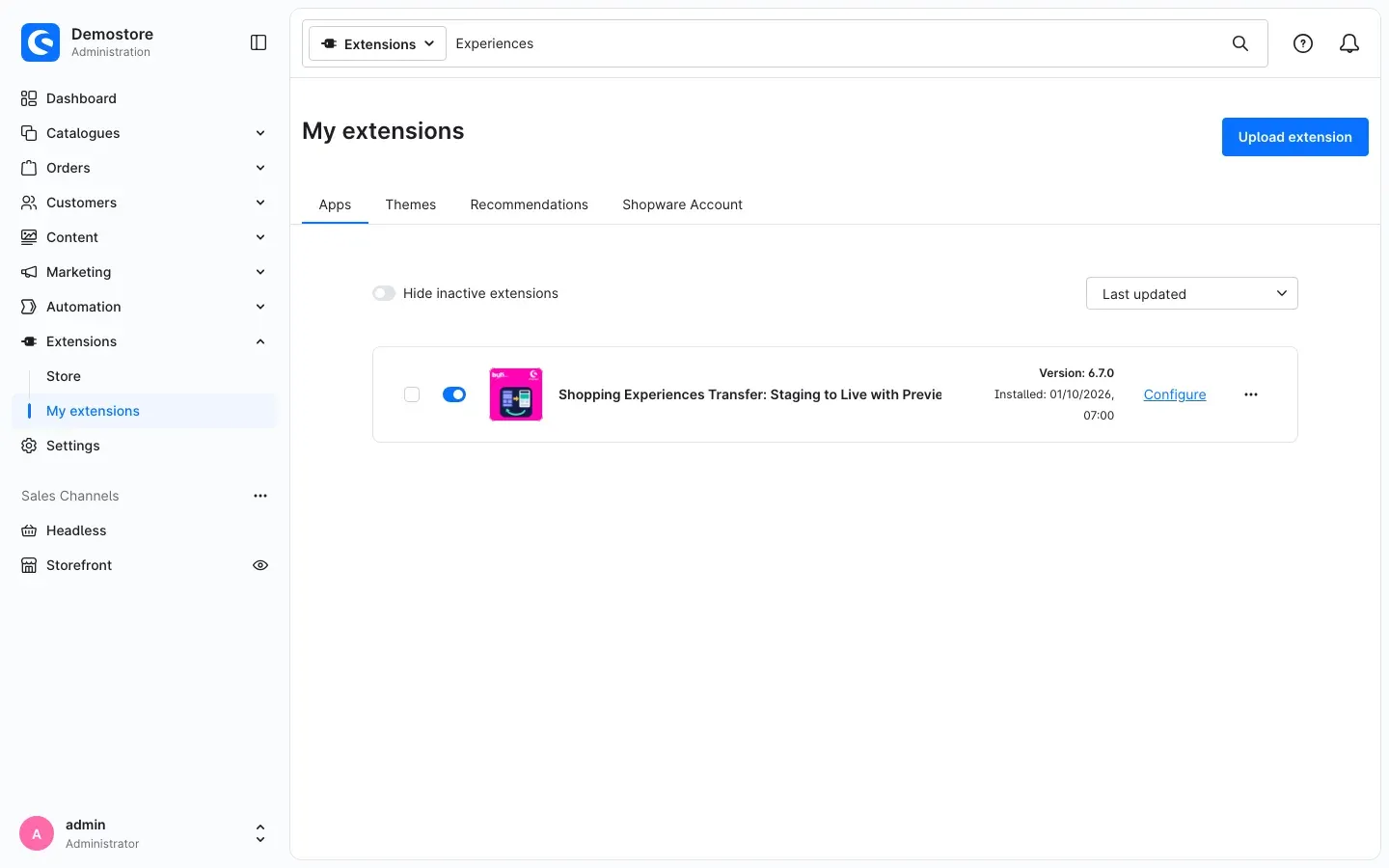 Fig. 1: The plugin is installed and active. “Configure” takes you to the settings.
Repeat these steps in the second shop. Both shops should run the same plugin version.
If the plugin does not appear in the list, your Shopware account is not yet connected to the shop. You do this under Extensions → My extensions in the Shopware Account tab by logging in with your Shopware account.
Getting started
The plugin needs to know which of your shops is the live shop and which is the staging shop. It recognises this from the two addresses you enter and compares them with the shop’s own address. This results in the shop’s role:
- Live (target): This shop imports shopping experiences.
- Staging (source): This shop provides shopping experiences.
- not assigned: No addresses or unsuitable addresses are entered. Export and import by file still work.
This is how you get started:
-
Open the settings on the live shop: Go to Extensions → My extensions and click Configure for the plugin.
-
Enter the addresses: In the General card, enter the Live system address and the Staging system address and click Save.
-
Check the role: The notice at the top of the card now shows Role: Live (target) and the shop’s own address.
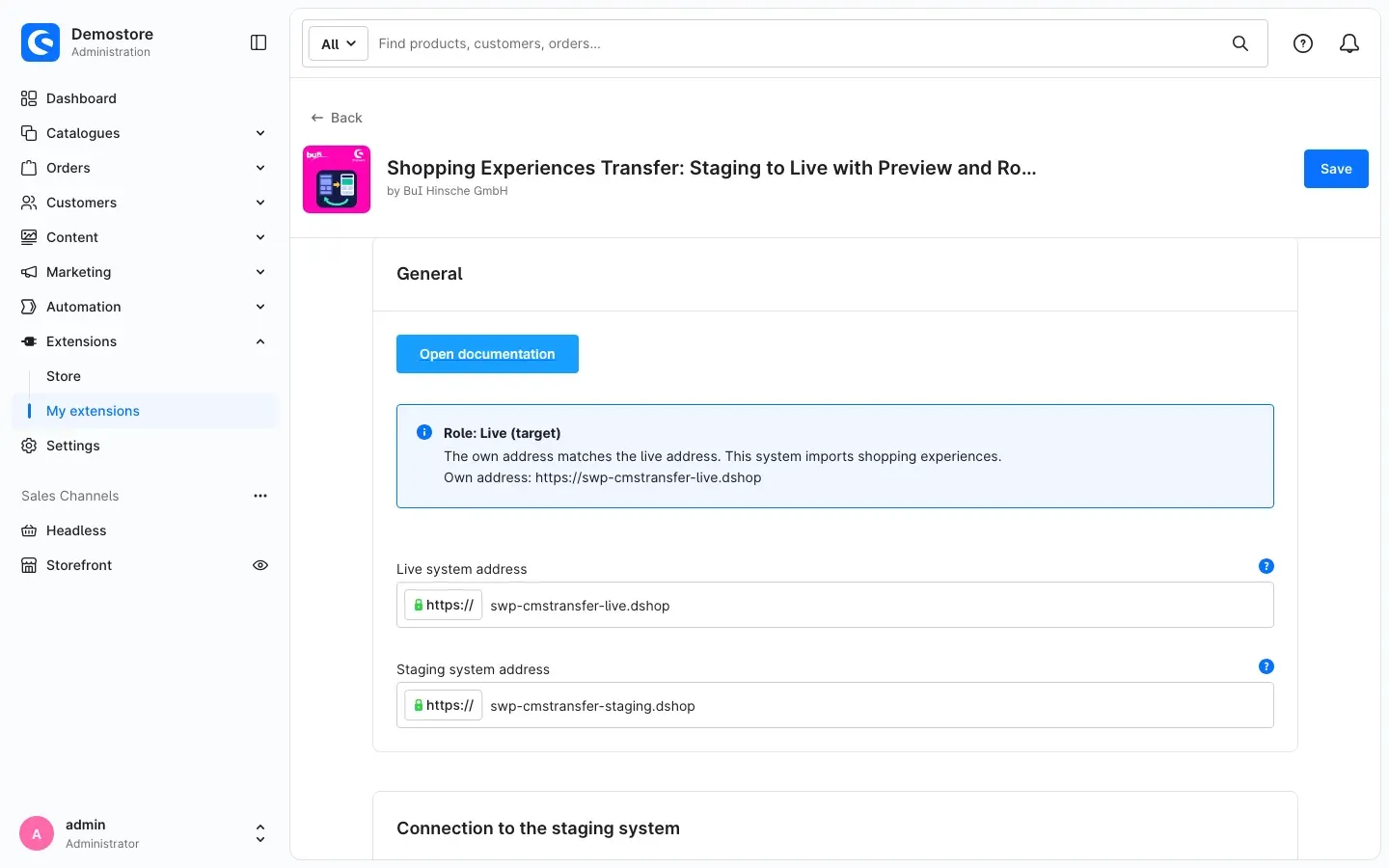 Fig. 2: The live shop recognises its role from the addresses entered.
 -
Set up the connection: If the live shop should fetch the layouts directly from the staging shop, set up the connection with the setup wizard (see How to connect live and staging). For the file transfer you do not need a connection.
-
Start your first transfer: Export a layout on the staging shop (How to export shopping experiences on staging) and take it over on the live shop (How to take over shopping experiences on the live shop).
On the live shop, you find all functions under Content → Shopping experiences transfer.
Settings
You find the settings under Extensions → My extensions → Configure for the plugin. They apply to the whole installation, not to individual sales channels. Make them in each of the two shops.
”General” card
Open documentation
The Open documentation button at the very top takes you straight to this manual.
Role notice
The blue box below shows which role the shop currently works in, why, and what its own address is. If it says System not assigned, the addresses entered do not match the shop’s own address.
Live system address and Staging system address
Enter the addresses of your two shops here, each with https://. If one of them matches the shop’s own address, the shop works in that role. Enter the same two addresses in both shops.
The plugin checks the addresses while you type. Unencrypted addresses (without https://) and two addresses pointing to the same shop are not saved. You recognise this by the notice These addresses are not saved.
Why this is useful: Thanks to the role, every shop knows what it may do. The live shop imports, the staging shop provides. An accidental import into the wrong shop is ruled out.
”Connection to the staging system” card
You only need this card if the live shop should fetch the layouts directly from the staging shop. Usually the setup wizard fills in these fields for you (see How to connect live and staging).
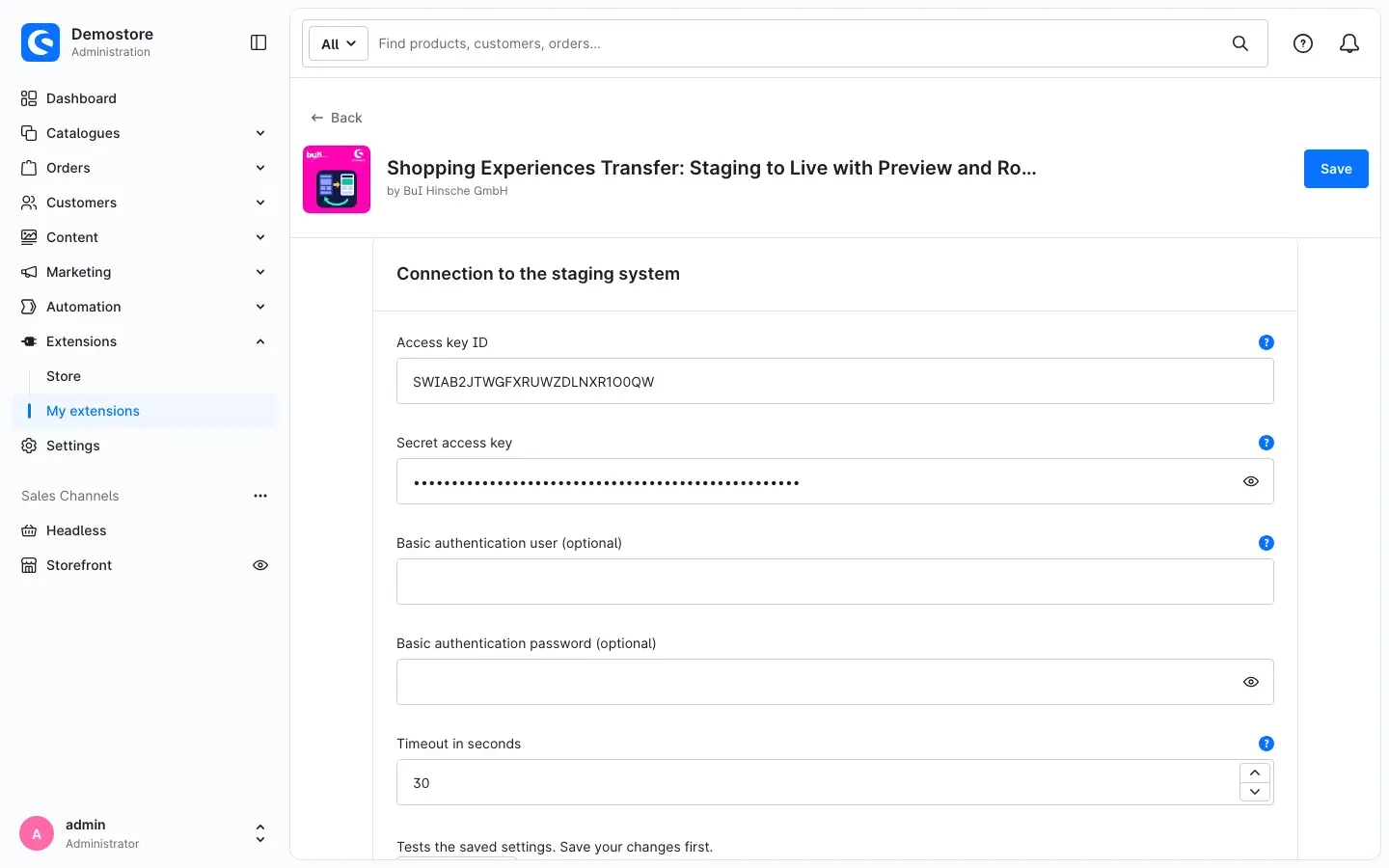 Fig. 3: Credentials for the connection to the staging shop
Access key ID and Secret access key
The live shop uses these credentials to log in to the staging shop and fetch shopping experiences. They belong to the integration “CMS Transfer (staging access)”. The secret key is never shown again or written to a log.
Basic authentication user (optional) and Basic authentication password (optional)
Only needed if your staging shop is additionally protected with basic authentication (user name and password in the browser). The /api/ area of the staging shop must be excluded from this protection, otherwise fetching does not work. Your hosting provider or IT usually sets this up.
Timeout in seconds
How long the live shop waits for an answer from the staging shop before giving up. You can set 5 to 300 seconds; the default is 30. Increase the value if your staging shop answers slowly and fetches are cancelled because of that.
Test connection, Setup wizard and Paste setup code
You use these buttons to set up and check the connection. How to connect live and staging explains how.
”Source (staging system)” card
Maximum package size in MB
This setting applies on the staging shop. It defines the largest package the staging shop builds for the live shop. The default is 1024 MB. Larger requests fail with a message. In that case, transfer fewer layouts at once or use the file transfer.
”Import” card
The settings in this card apply on the live shop. The first four are preselections for the import wizard. You can still change them for every import.
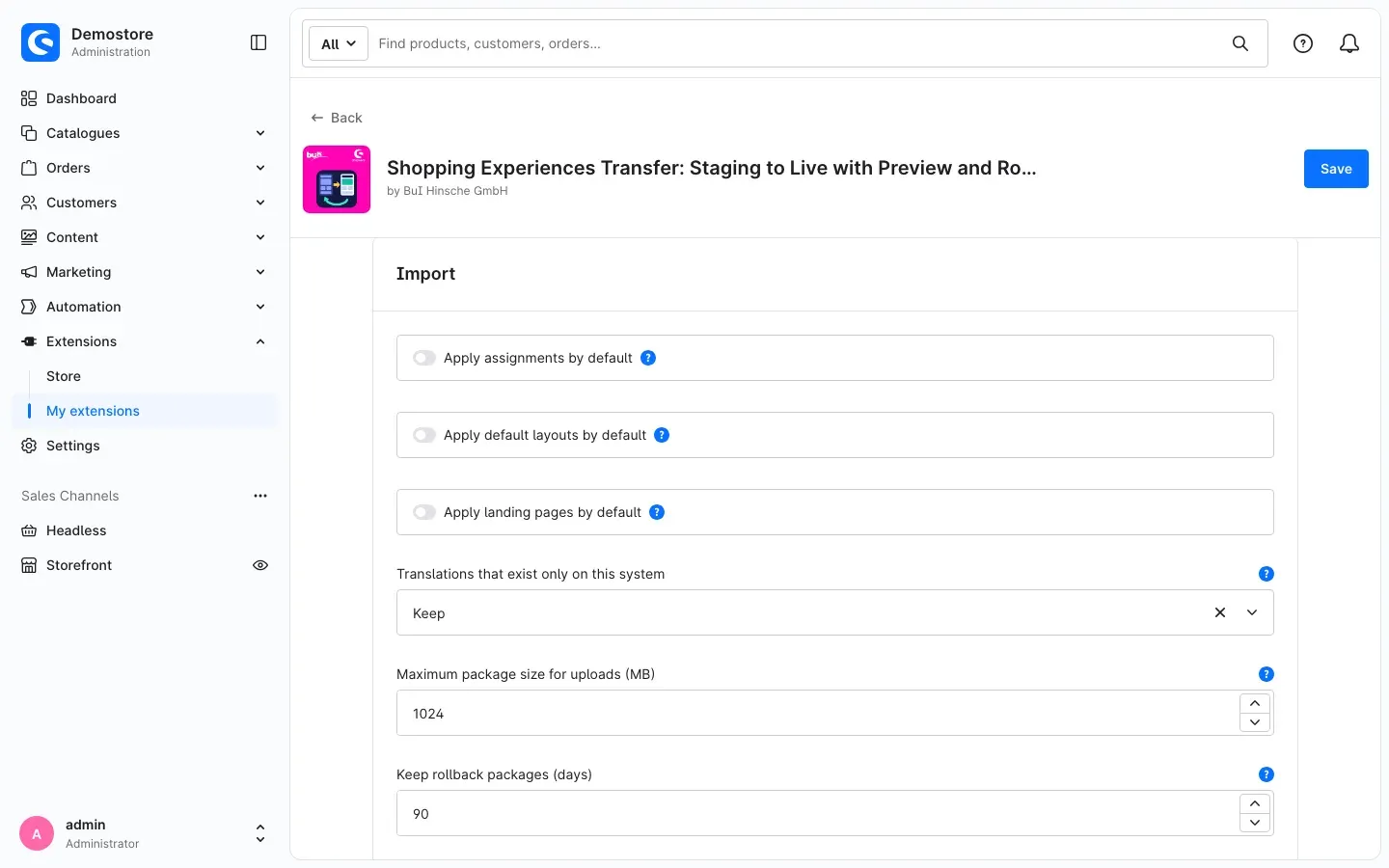 Fig. 4: Preselections for the import wizard and retention periods
Apply assignments by default
When this switch is on, the import assigns the layouts to the same categories, products, landing pages and sales channel home pages as on the staging shop. It is off by default. Switch it on if you also decide on the staging shop where a layout is used.
Apply default layouts by default
When this switch is on, the import sets the default layouts for categories and products as they are in the package. It is off by default.
Apply landing pages by default
When this switch is on, the import creates or updates the landing pages from the package. It is off by default.
Translations that exist only on this system
Sometimes a layout on the live shop has a translation that is missing in the package. With Keep, this translation stays, so you never lose content. With Remove, it is deleted so that the layout afterwards matches the package exactly. The default is Keep.
Maximum package size for uploads (MB)
The upload on the live shop rejects larger files. The default is 1024 MB. The file is uploaded in pieces of 5 MB, so the upload limit of your server does not matter.
Keep rollback packages (days)
Before every import, the plugin saves the previous state in a rollback package. After this number of days, the package is deleted, and the transfer can no longer be rolled back. The entry in the transfer list stays. Allowed are 1 to 180 days, the default is 90.
Keep transfer entries (days)
Older entries of the transfer list are deleted automatically together with their messages. Allowed are 1 to 180 days, the default is 180. The most recent successful transfer of every layout always stays, because the staging comparison and the warning about changes on the live shop are based on it.
Click Save after every change.
How to connect live and staging
What this gives you: Once the connection is set up, the live shop fetches the shopping experiences from the staging shop itself. You no longer need to download and upload files, and on the live shop you see at any time what has changed on the staging shop.
The access is created on the live shop. The staging shop never gets write access to your live shop: it may only provide shopping experiences.
Important: Your user needs some additional permissions for the setup. If you are not an administrator, see Permissions for your team.
Step 1: Setup wizard on the live shop
-
On the live shop, open the plugin configuration (Extensions → My extensions → Configure).
-
Check that both addresses are entered and saved.
-
Scroll down in the Connection to the staging system card and click Setup wizard.
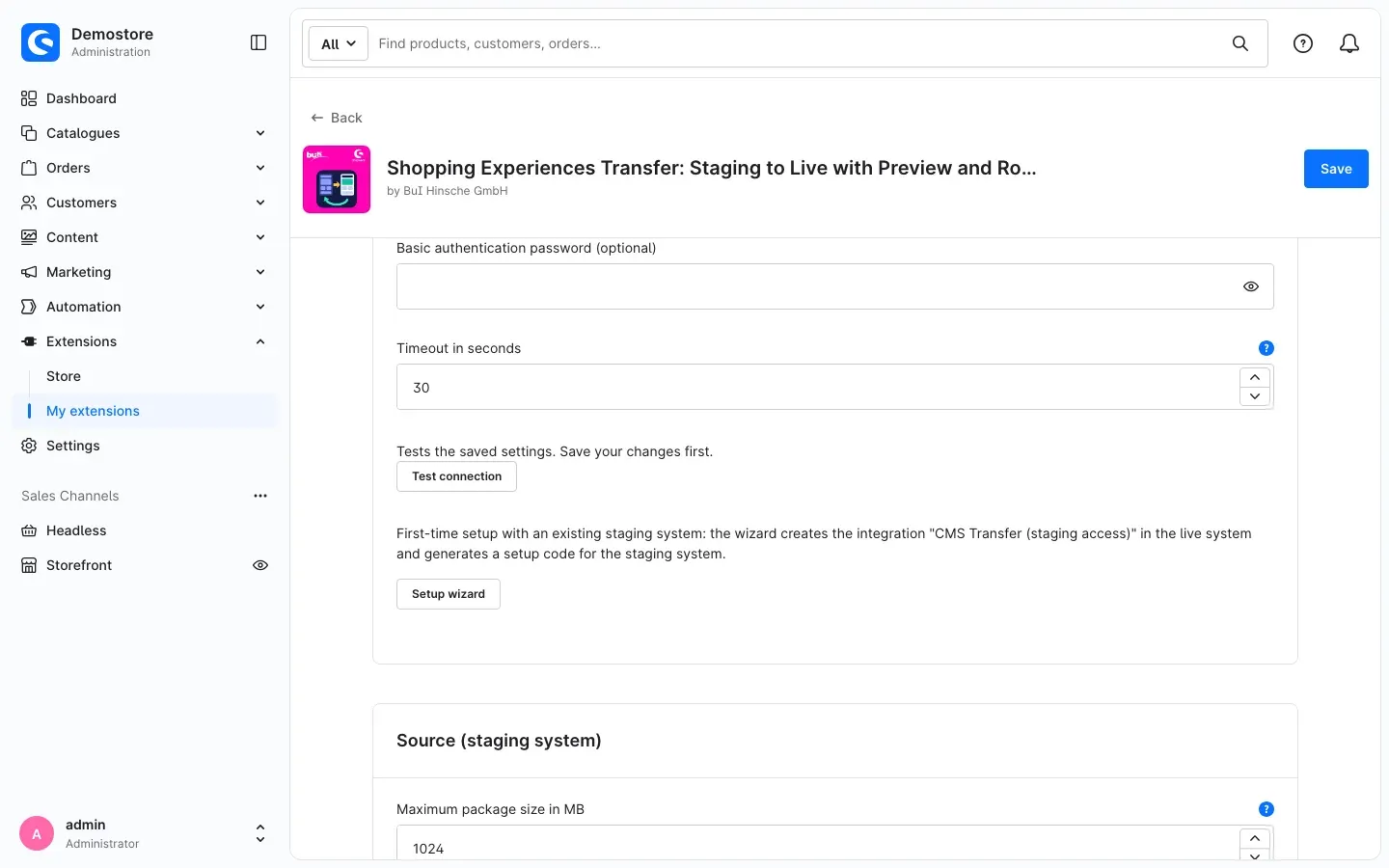 Fig. 5: Test connection and setup wizard on the live shop
 -
The window Set up the connection to the staging system opens. Read the notice and click Create integration.
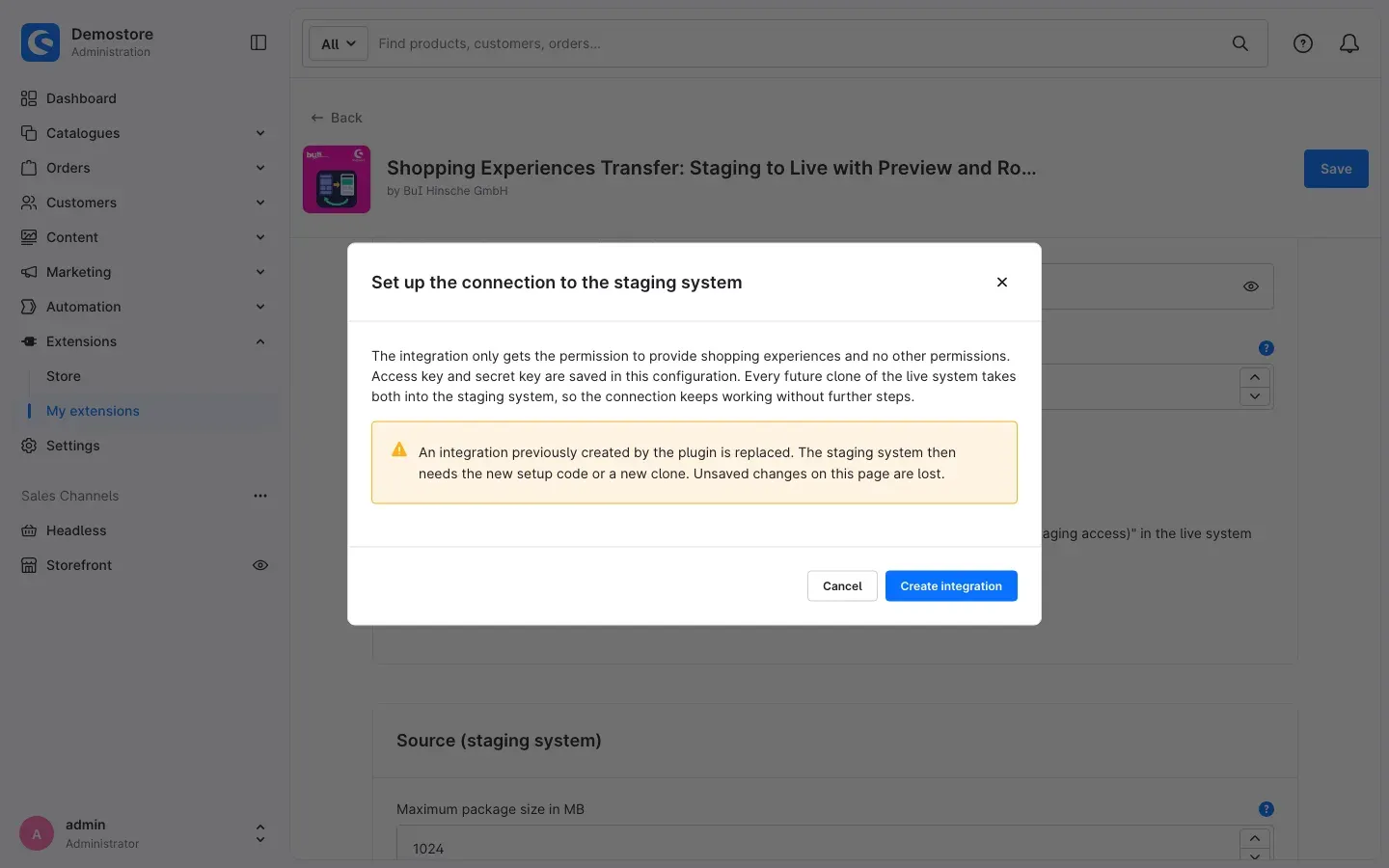 Fig. 6: The wizard creates the integration “CMS Transfer (staging access)”.
 -
The wizard saves the credentials in the configuration and shows you a Setup code. Click Copy code.
Important: The code is shown only this once, stored nowhere and valid for 24 hours. It contains the secret key. Pass it on through a secure channel only.
If you run the wizard again later, it replaces the integration created before. The staging shop then needs the new code or a new copy of the live shop. Unsaved changes on the configuration page are lost — save them first.
Step 2: Paste the setup code on the staging shop
-
On the staging shop, open the plugin configuration. Once both addresses are correct, the notice there shows Role: Staging (source).
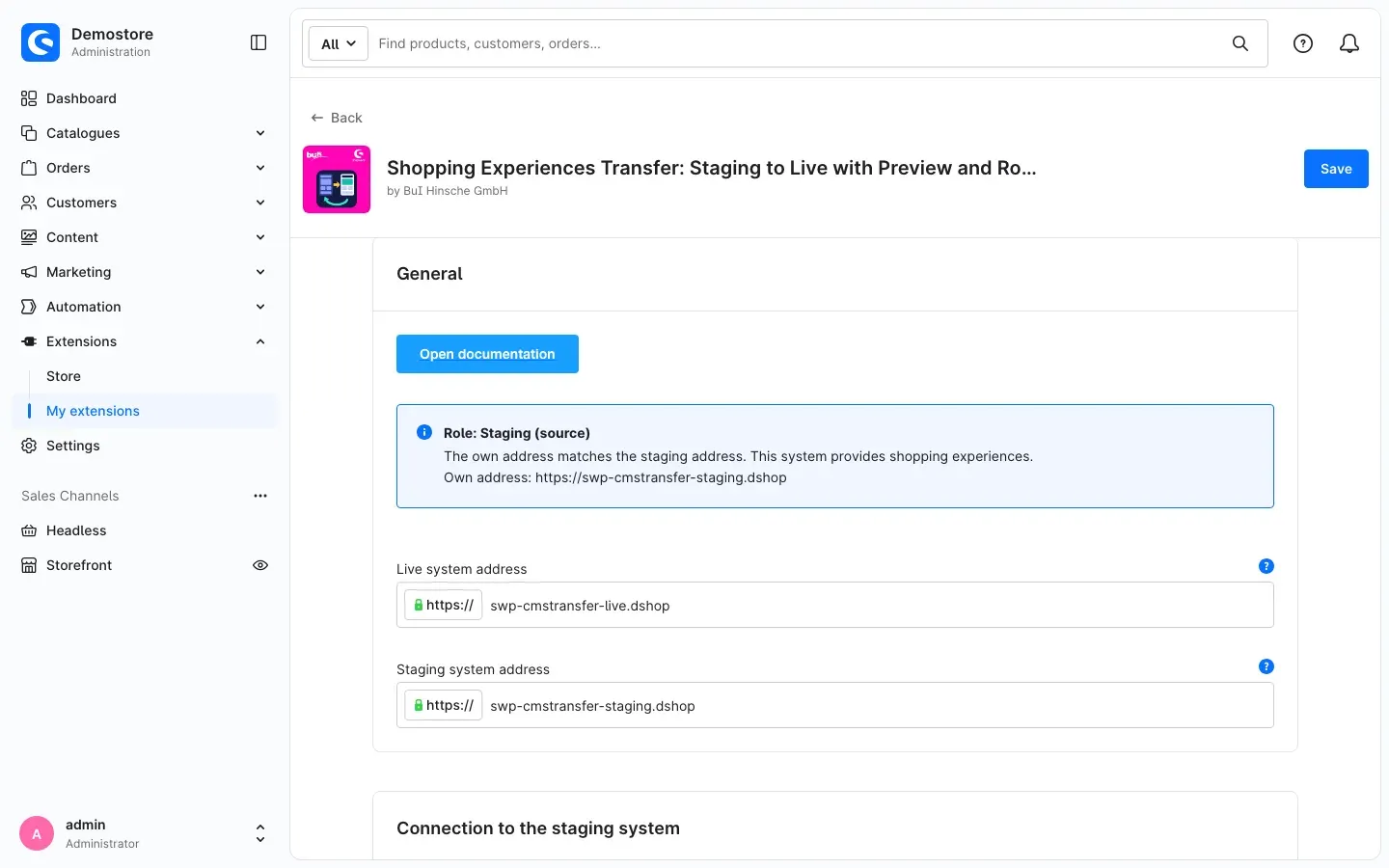 Fig. 7: The staging shop recognises its role.
 -
In the Connection to the staging system card, paste the code into the Paste setup code field.
-
Click Apply code.
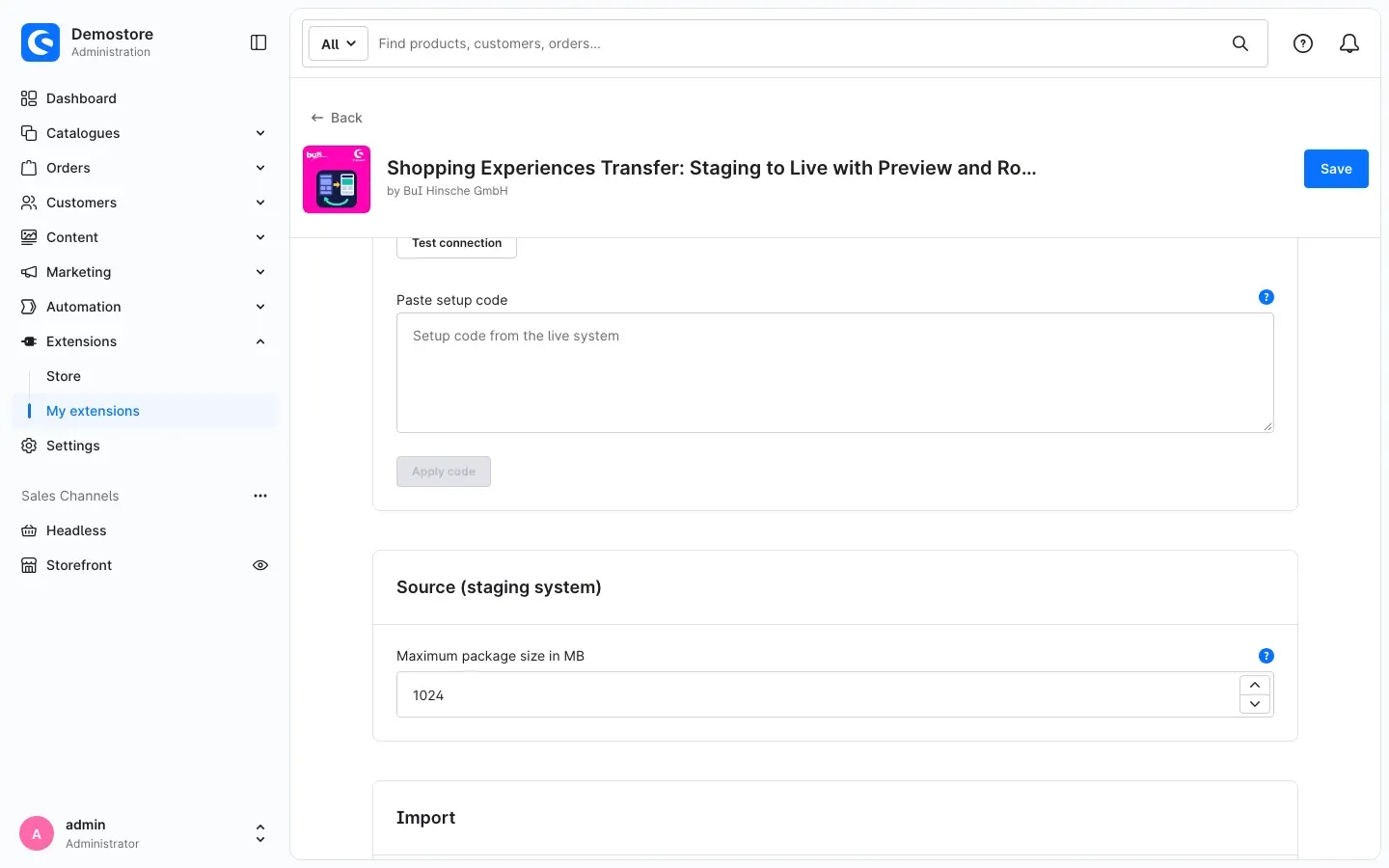 Fig. 8: Paste the code from the live shop on the staging shop.
The plugin creates the same integration on the staging shop and takes over the addresses of the live and staging shops. The message confirms that the shop now works as staging. If your staging shop is not configured at all yet, pasting the code also enters the addresses.
Step 3: Test the connection
On the live shop, click Test connection in the Connection to the staging system card. The test checks the saved settings, so save your changes first. If everything works, the message shows the address of the staging shop, its Shopware version and its plugin version.
Tip: If the two shops run different Shopware versions, the test points this out. Transfers still work, but new element types may be missing on the live shop.
What happens when you copy the live shop to staging again?
Nothing bad: the credentials are stored in the configuration of the live shop and travel with every copy. The connection keeps working without further steps. The staging shop shows the notice Copy of the live system detected once.
Setting up without the wizard
You can also set up the connection by hand. On the staging shop, create an integration under Settings → System → Integrations whose role only has the permission Export shopping experiences. Enter its access key ID and secret access key on the live shop in the Connection to the staging system card, save, and click Test connection.
How to export shopping experiences on staging
What this gives you: You pack finished layouts including their images into a ZIP file, which you upload on the live shop. This way always works, even if your shops cannot reach each other.
Tip: If you set up the connection from How to connect live and staging, you do not need an export. The live shop then fetches the layouts itself (see Take over via the staging comparison).
Exporting a single layout from the list
-
On the staging shop, go to Content → Shopping Experiences.
-
Click the three dots of the layout you want and choose Export.
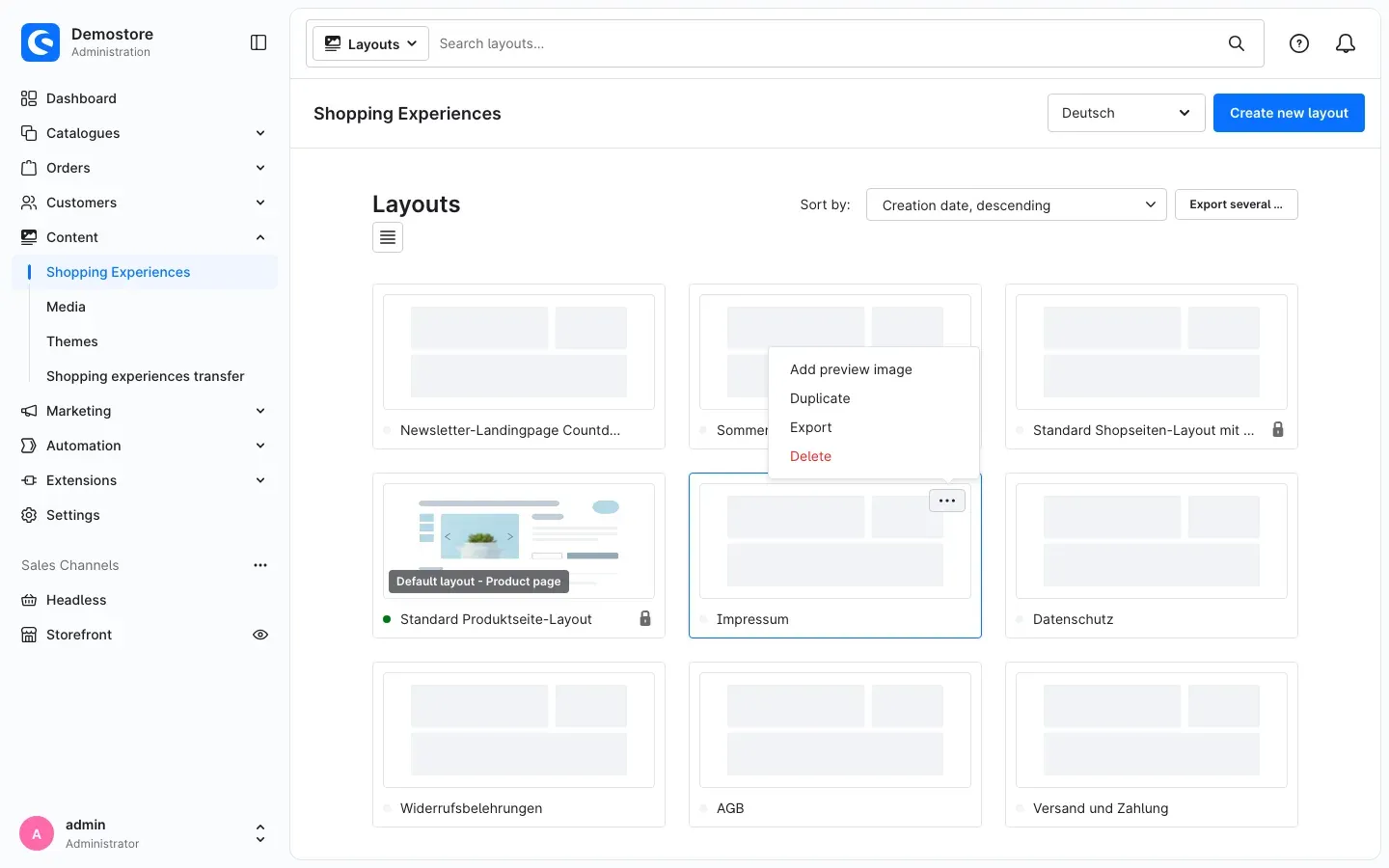 Fig. 9: Export directly from the list of shopping experiences
Exporting several layouts at once
- In the list of shopping experiences, click Export several … at the top right.
- In the Export shopping experiences window, select all layouts you want under Layouts.
- Decide what else should come along:
- Include assignments: categories, products, landing pages and sales channel home pages that use the layouts.
- Include default layouts: the default layouts for categories and products of this shop.
- Include landing pages: landing pages that use one of the layouts, with their URLs and sales channels.
- Click Export. Your browser downloads the ZIP file.
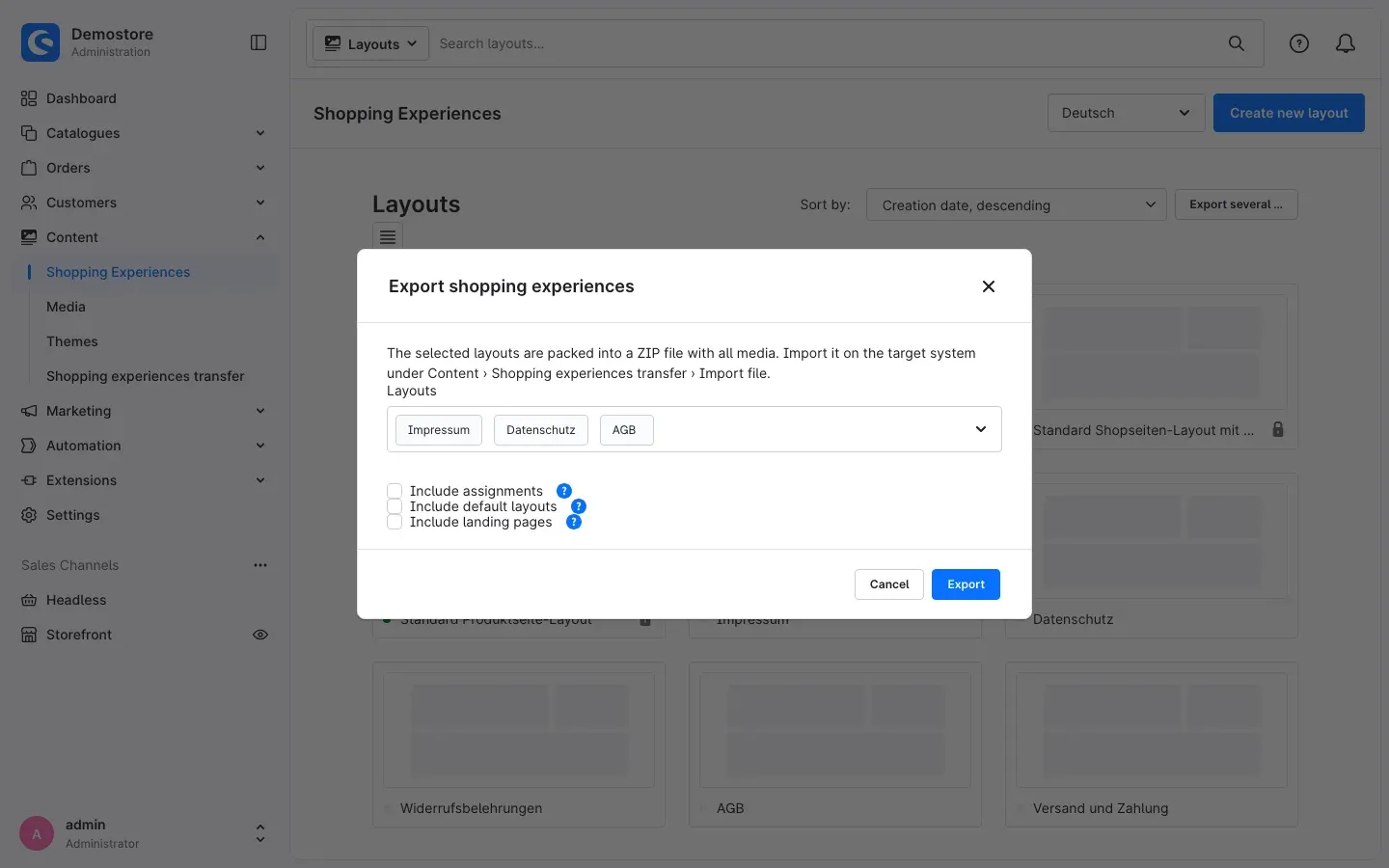 Fig. 10: Packing several layouts into one package
Exporting from the layout editor
If you have a layout open, click Export at the top right next to Save.
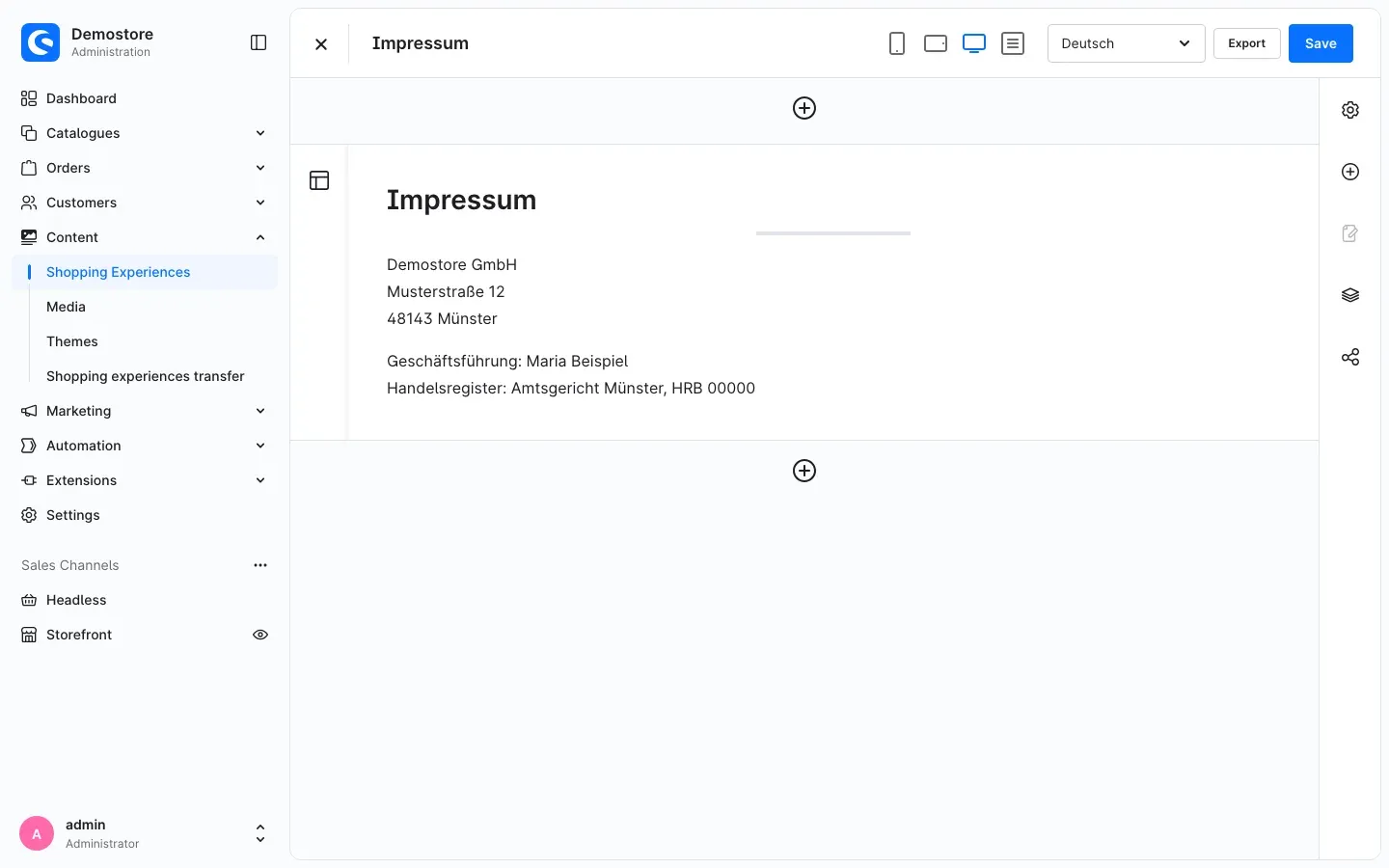 Fig. 11: Export from the open layout
Important: The export contains the saved state only. If you have unsaved changes, the plugin asks you to save the layout first.
Every export appears on the staging shop under Content → Shopping experiences transfer as a separate entry.
How to take over shopping experiences on the live shop
What this gives you: Before anything changes on the live shop, a preview shows you exactly what will happen. Only once you have confirmed everything does the plugin apply the layouts — and it automatically creates a rollback point first.
There are two ways, and both end in the same process: Preview → Options → Result.
Import by file
Step by step
-
On the live shop, go to Content → Shopping experiences transfer and click Import file.
-
Drag the ZIP file from the staging shop into the Transfer package (.zip) area or click Choose file.
-
Click Upload and check. The plugin uploads the file and checks it before anything is changed.
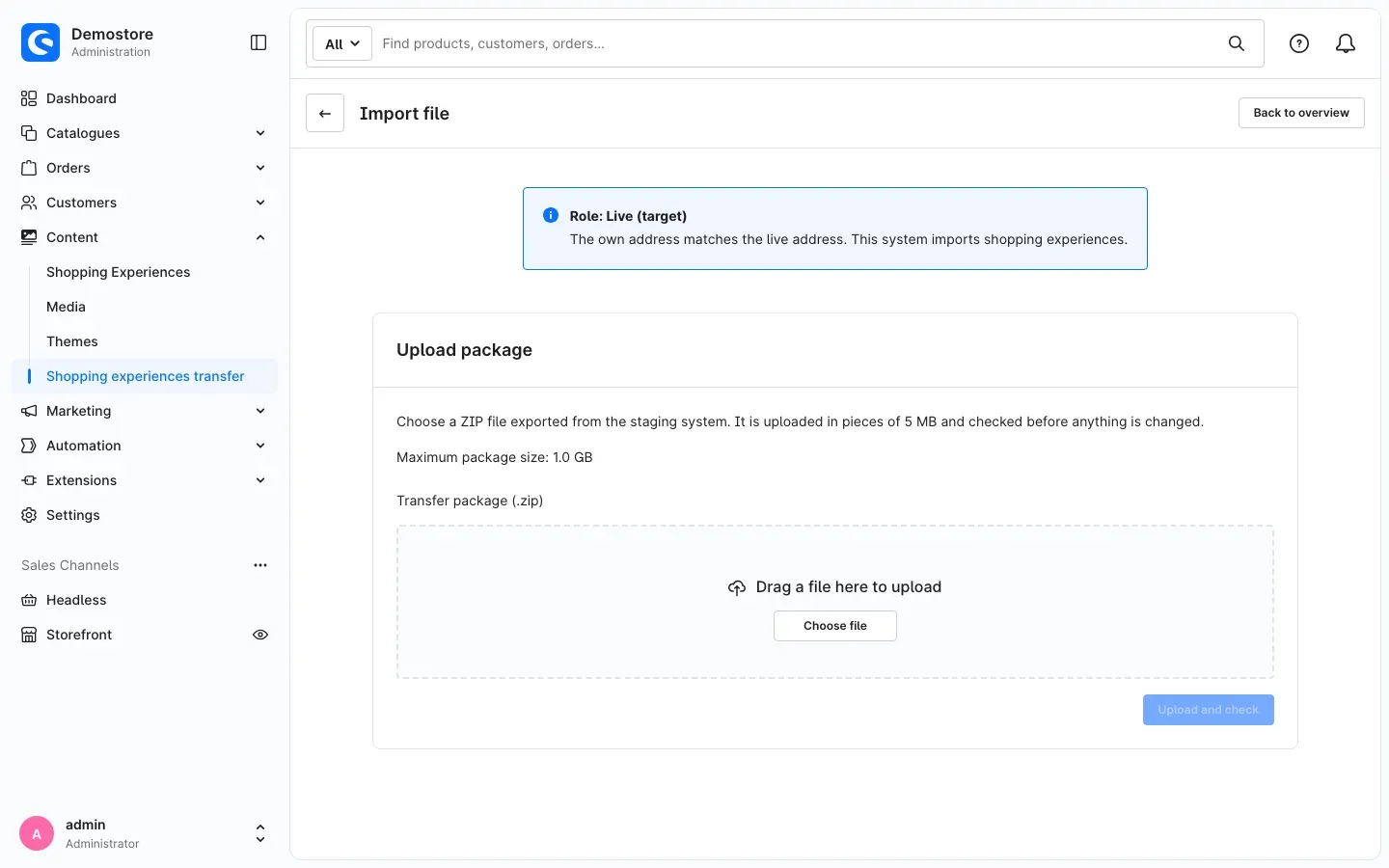 Fig. 12: Upload the package. The maximum package size is shown directly above the upload area.
Reading the preview
After the check, the Package card shows at a glance what the package contains and what will happen on the live shop:
- File, Source and Shopware version of the source tell you where the package comes from.
- Layouts shows how many layouts are new, replaced or unchanged.
- Media shows how many images are new, reused or already present as an identical file.
- Landing pages shows how many landing pages are new or updated.
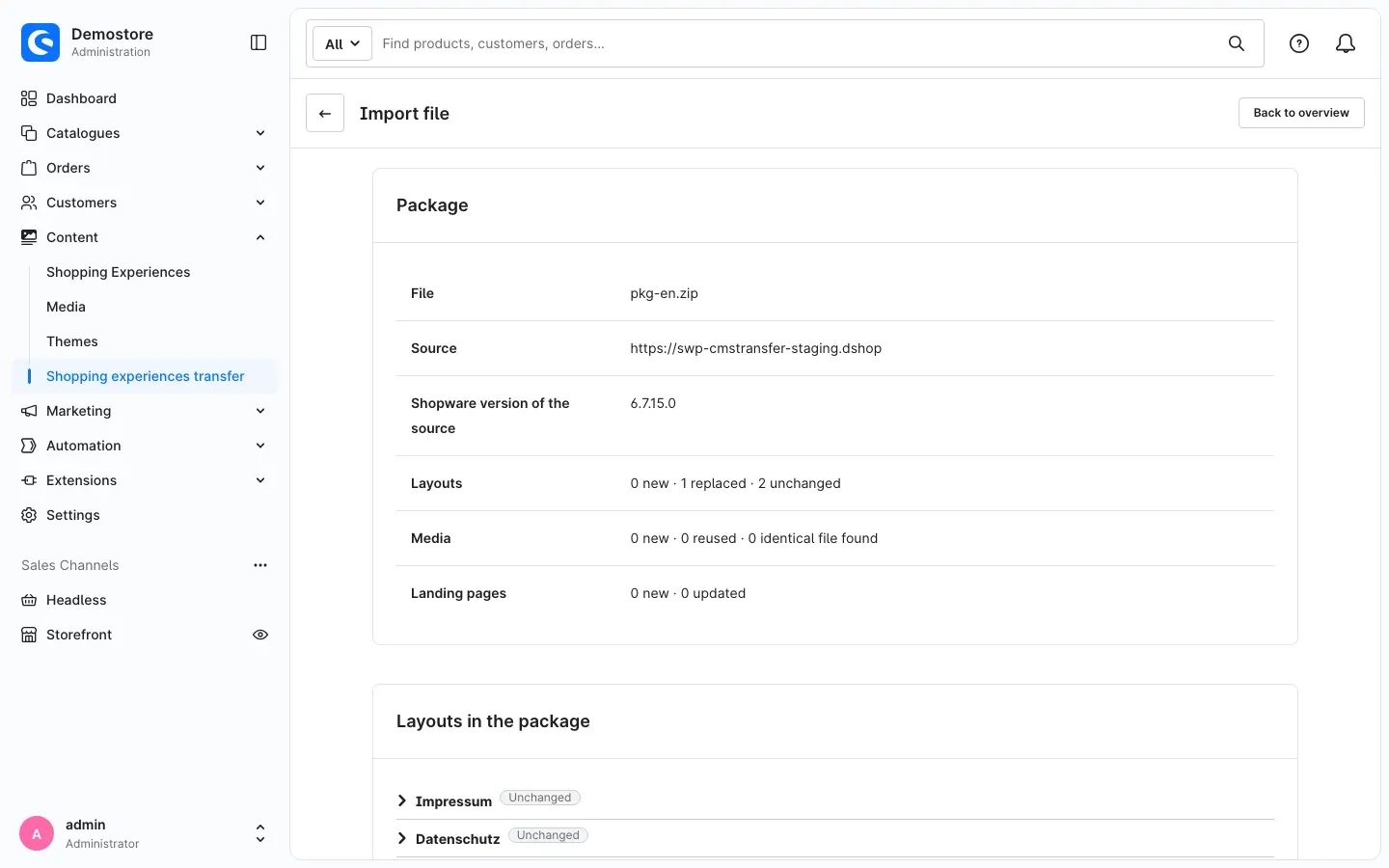 Fig. 13: Package summary
In the Layouts in the package card, you expand each layout. There you see how many Sections, Blocks and Elements are new, changed or removed, and which Media belong to it. The label next to the name shows whether the layout is New or Replaced.
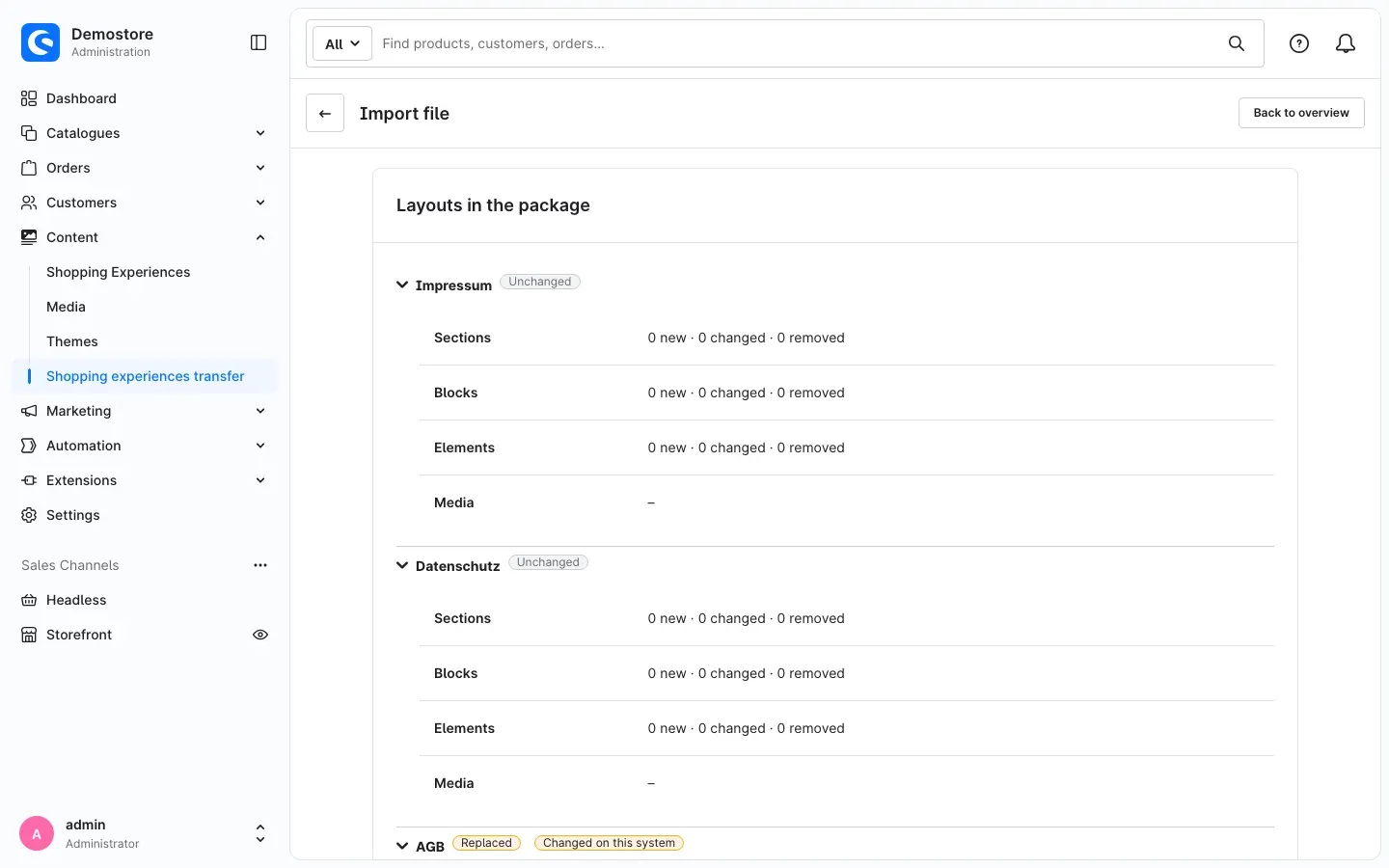 Fig. 14: Details per layout
If a layout is marked Changed on this system, someone edited it directly on the live shop since the last transfer. The warning below tells you that these changes will be overwritten. Under Please note you find further notes, for example on CSS classes used or on thumbnails of new media being generated in the background.
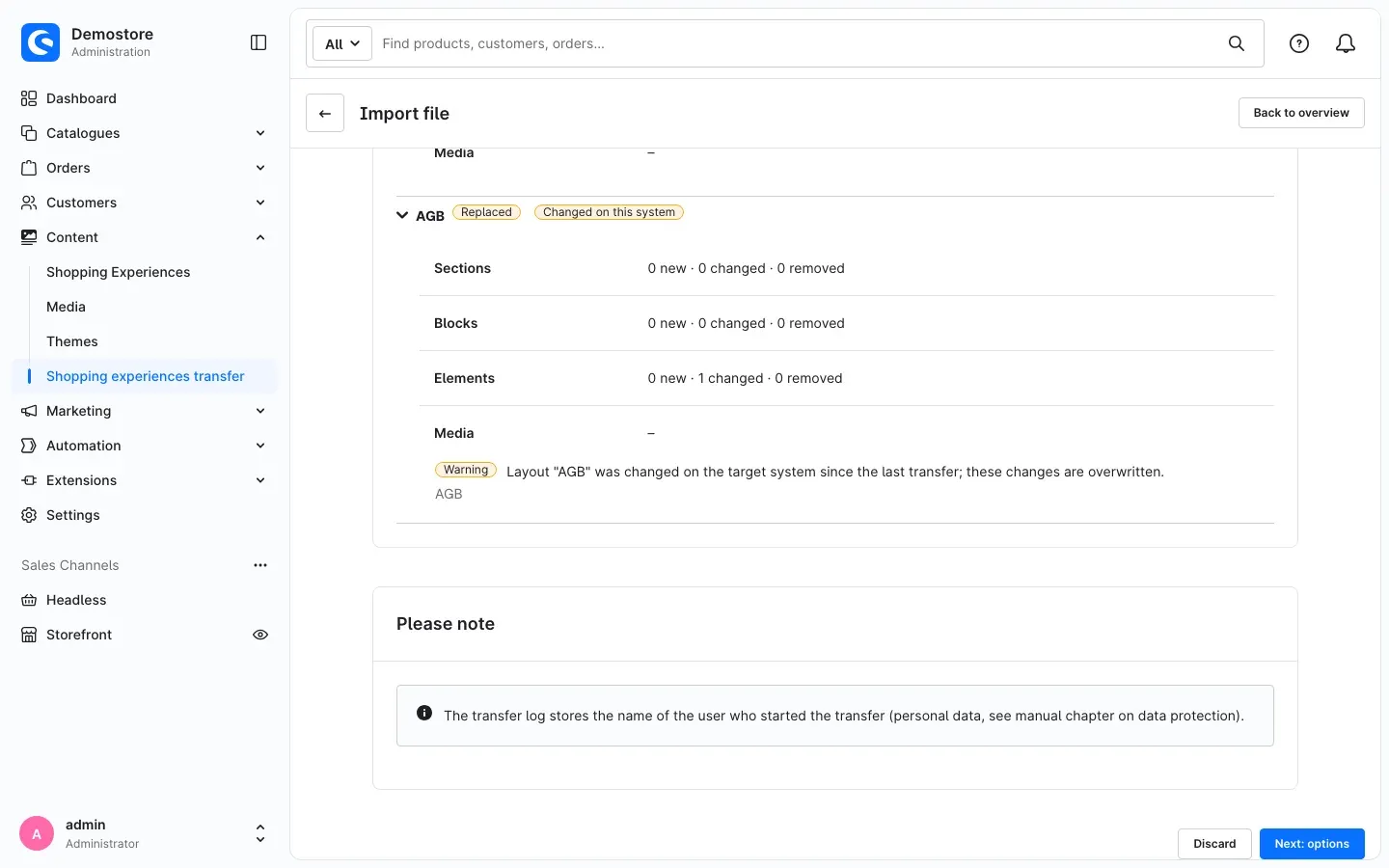 Fig. 15: Warnings and notes at the end of the preview
Tip: If a layout uses its own CSS classes, the preview lists them. Matching styles must exist in the theme of the live shop. Theme code does not come by transfer, but through your development or deployment as usual.
Important: If someone currently has one of these layouts open in the editor on the live shop, they overwrite the import the next time they save. The preview points this out with Close open editors. Check with your colleagues first.
If everything is fine, click Next: options.
Discarding the preview
If you do not want to apply the package after all, click Discard. Nothing is changed, and another transfer can start right away. An open preview is also discarded when you leave the page.
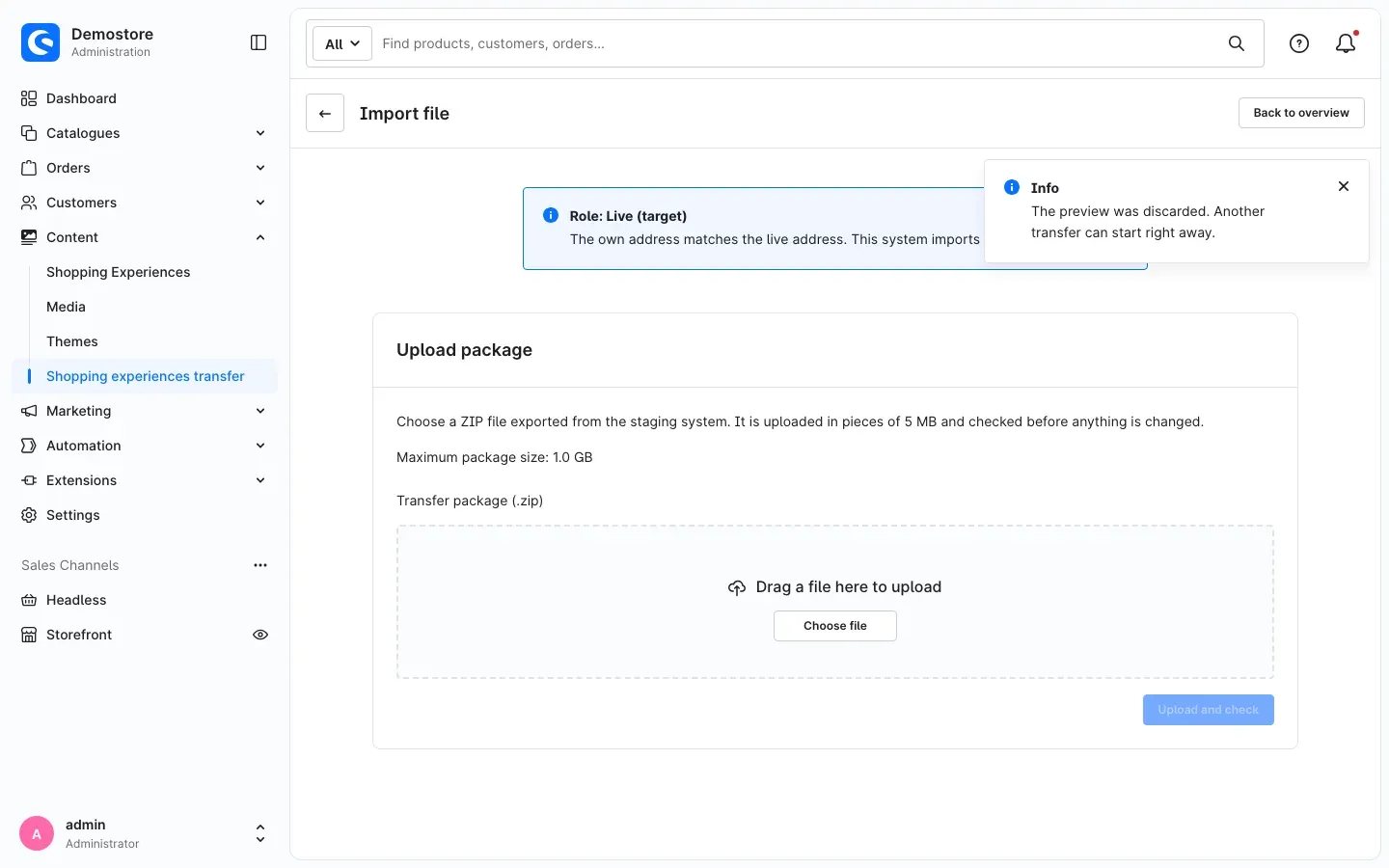 Fig. 16: The preview was discarded, the live shop is unchanged.
Choosing the options
In the Options card, you decide what is applied in addition to the layouts. The switches are preset with your preselections from the plugin configuration (see Settings):
- Apply assignments: Assign the layouts to the same categories, products, landing pages and sales channel home pages as on the staging shop.
- Apply default layouts: Set the default layouts for categories and products as in the package.
- Apply landing pages: Create or update the landing pages of the package including URLs and sales channels.
- Translations that exist only on this system: Keep never loses content, Remove makes replaced layouts identical to the package.
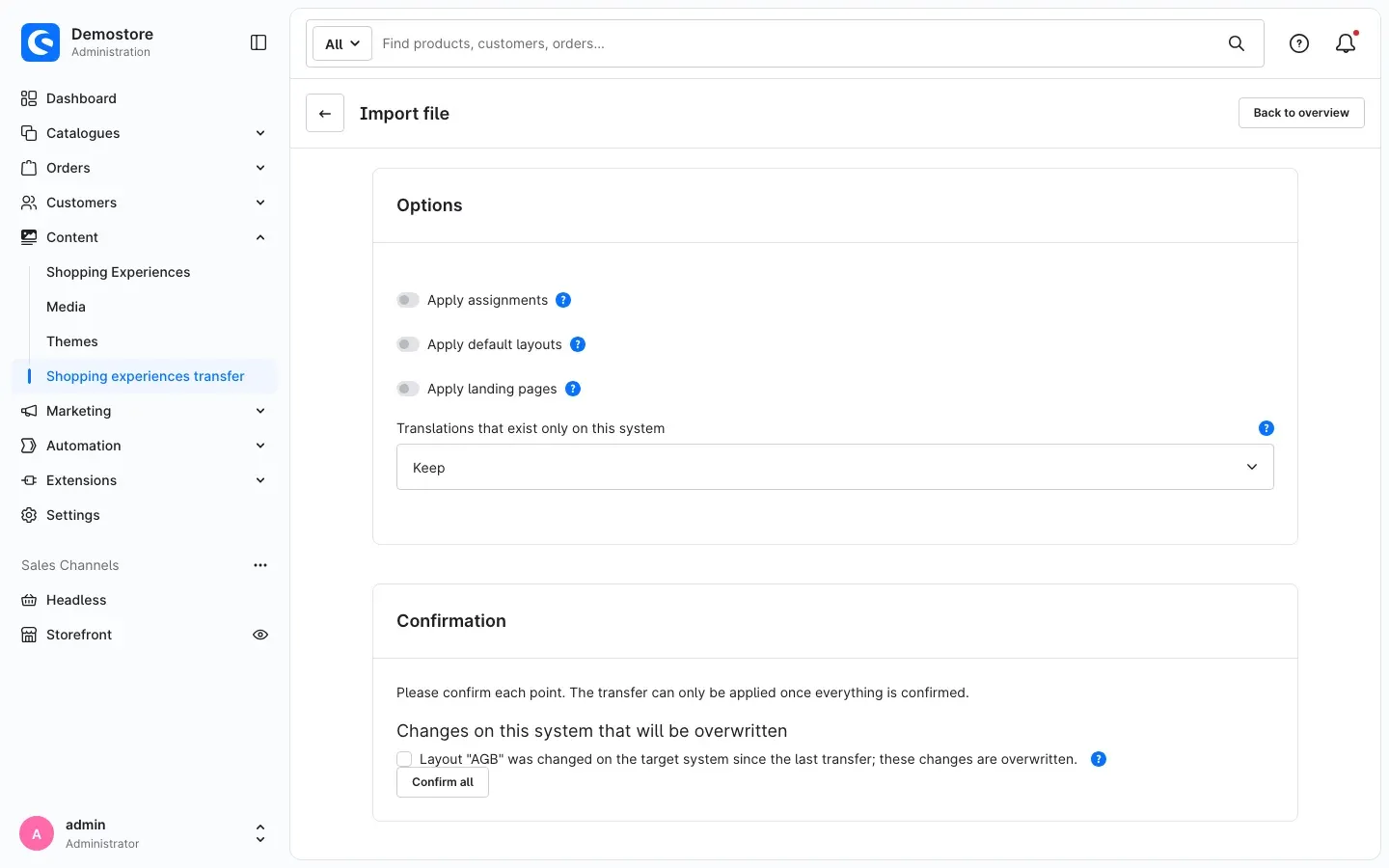 Fig. 17: Import options
Confirming warnings
The Confirmation card lists every point you need to approve consciously — for example Changes on this system that will be overwritten or further Warnings. Tick every point or click Confirm all. As long as not everything is confirmed, Apply stays greyed out.
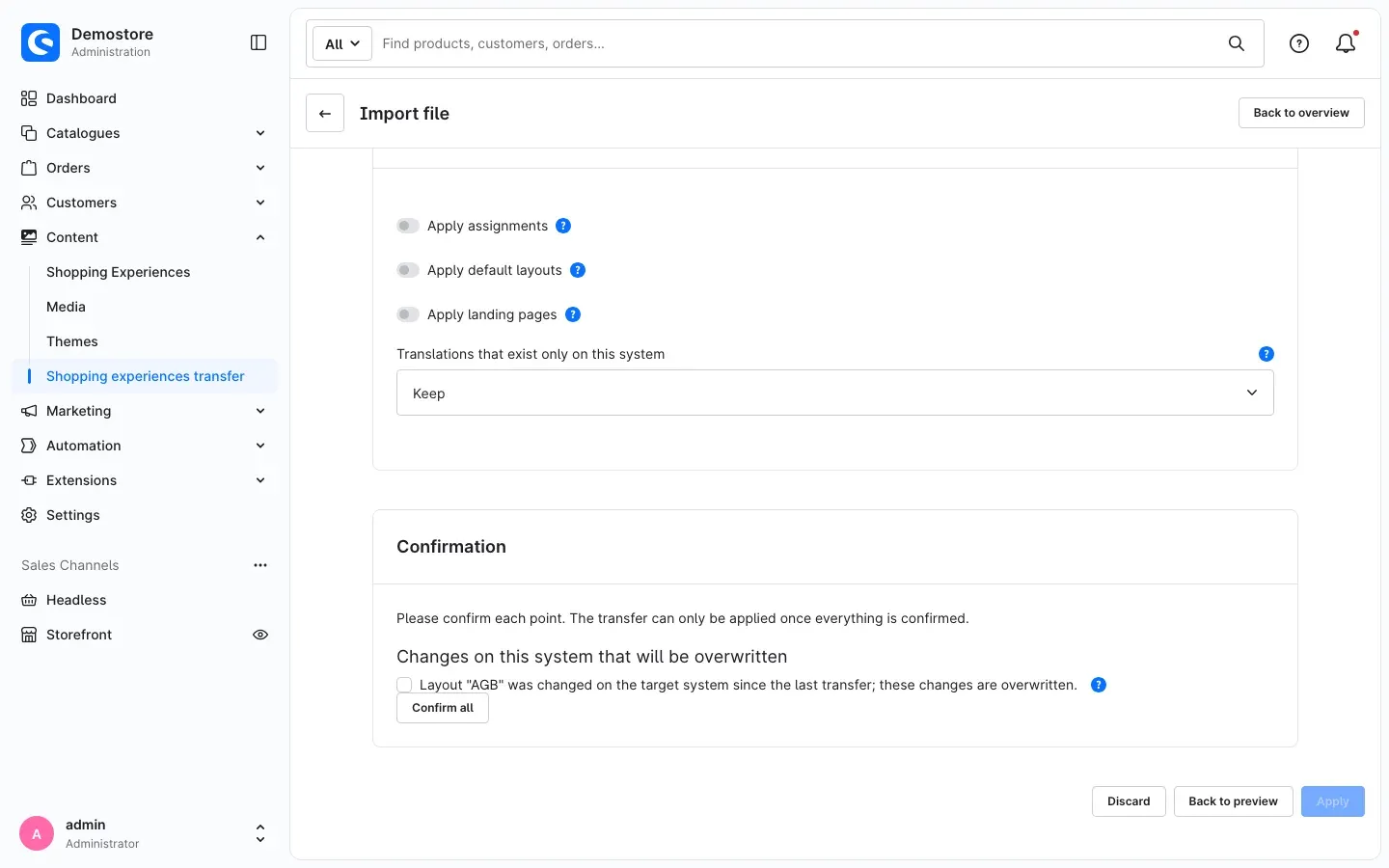 Fig. 18: Without confirmation, “Apply” is locked.
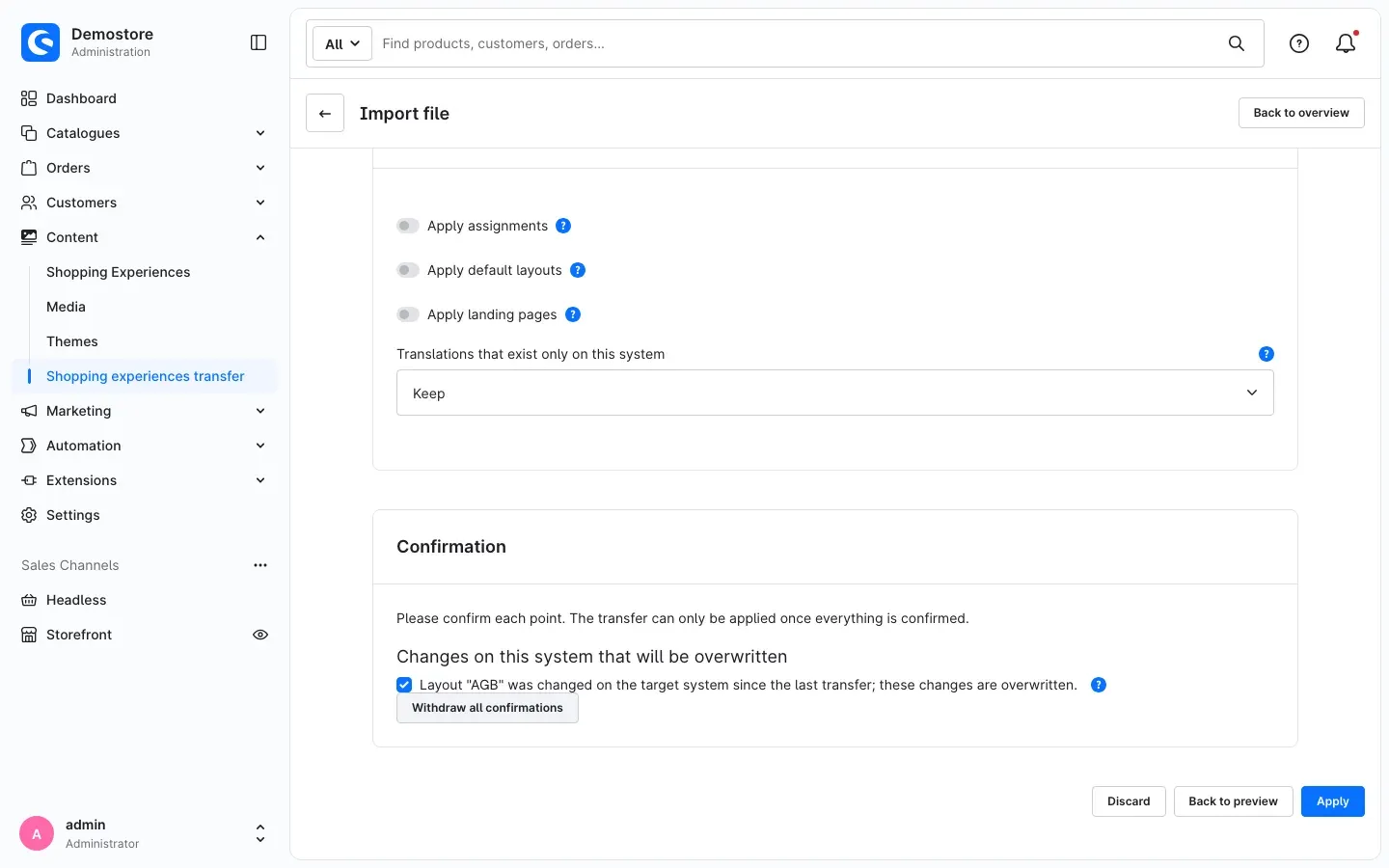 Fig. 19: Everything is confirmed, “Apply” is active.
Back to preview takes you back to the preview; Withdraw all confirmations removes all ticks again.
Applying and checking the result
Click Apply. The plugin first creates a rollback point and then writes all layouts in one step. The page updates itself in the meantime. Afterwards, Transfer … finished appears.
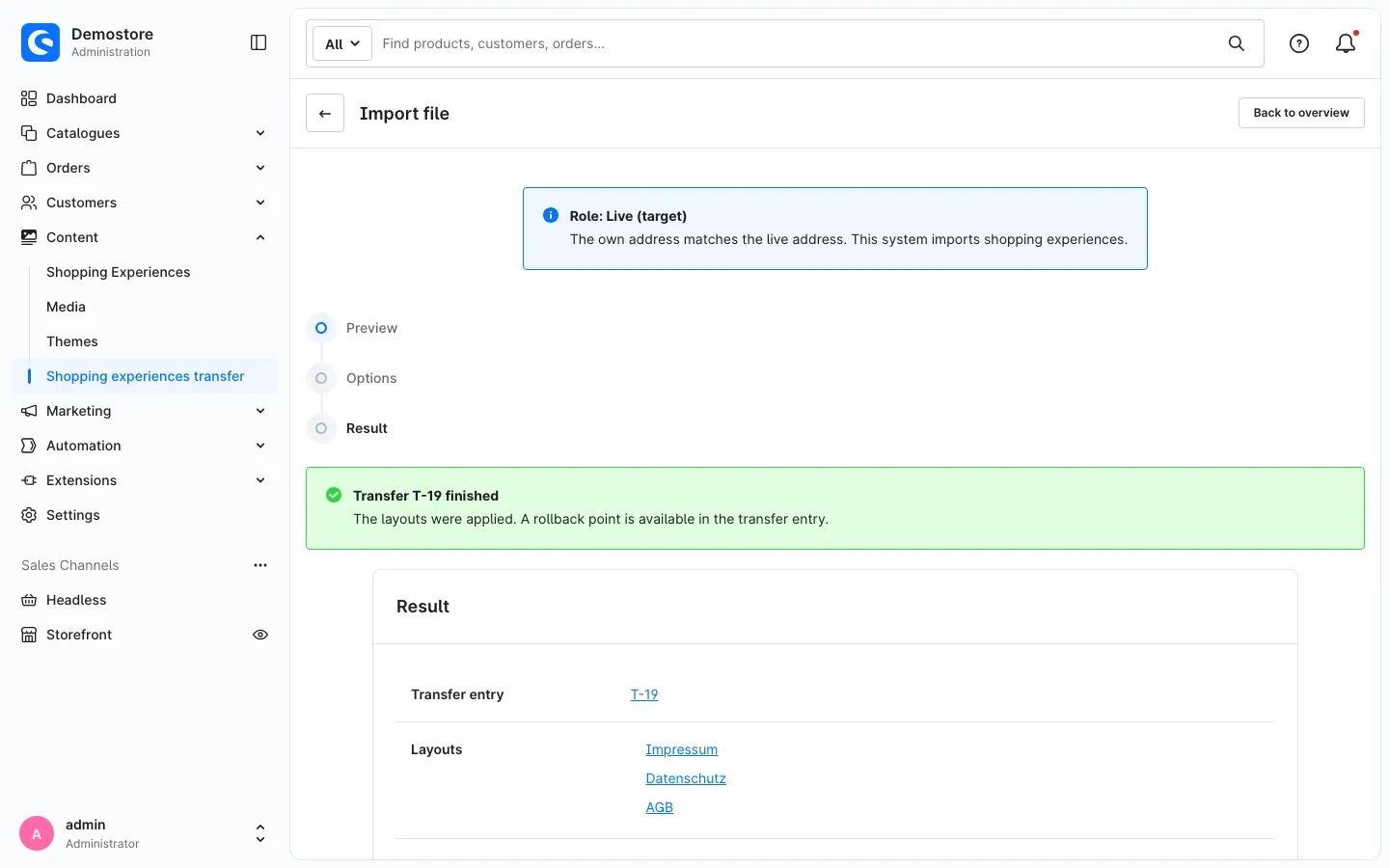 Fig. 20: The transfer is finished, a rollback point is available.
The Result card contains the Transfer entry with all details and links to the applied layouts. In the storefront lists links to the categories that use the layouts. Import another file starts the next import.
Important: An import always runs completely or not at all. If an error occurs along the way, the live shop stays unchanged, and images already stored are removed again.
Take over via the staging comparison
What this gives you: On the live shop, you see directly which layouts and landing pages have changed on the staging shop, and you take them over with one click — without a file. This requires the connection from How to connect live and staging.
Viewing the differences
- On the live shop, go to Content → Shopping experiences transfer and click Staging comparison.
- The Staging and live compared card shows all layouts. The Landing pages tab shows the landing pages.
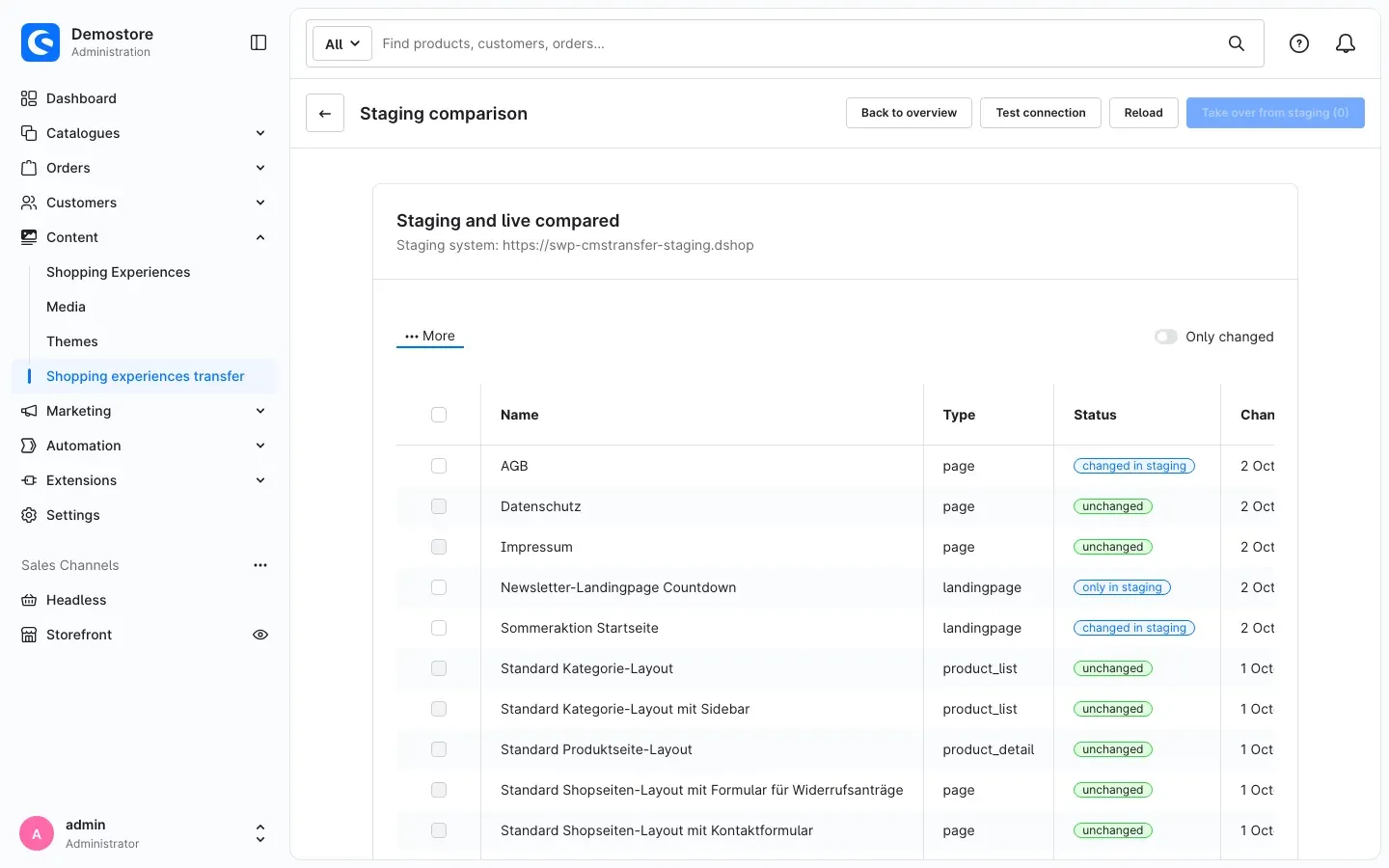 Fig. 21: Staging and live compared
The Status column tells you for every entry how staging and live relate to each other:
- unchanged: Staging and live are identical.
- changed in staging: The staging shop has a newer state.
- only in staging: The layout does not exist on the live shop yet.
- changed in live: Someone edited the layout on the live shop.
- changed on both sides: The layout was changed in both shops.
- different (never transferred): Both shops have the layout, but it was never transferred and differs.
- only in live: The layout exists only on the live shop. Such entries are never deleted automatically.
- being calculated: The plugin is still determining the status in the background. The list reloads itself.
The Only changed switch hides everything that is identical. Reload fetches the current state, Test connection checks the connection to the staging shop.
Selecting and taking over
-
Tick the layouts or landing pages you want.
-
Click Take over from staging at the top right. The number in brackets shows how many entries are selected.
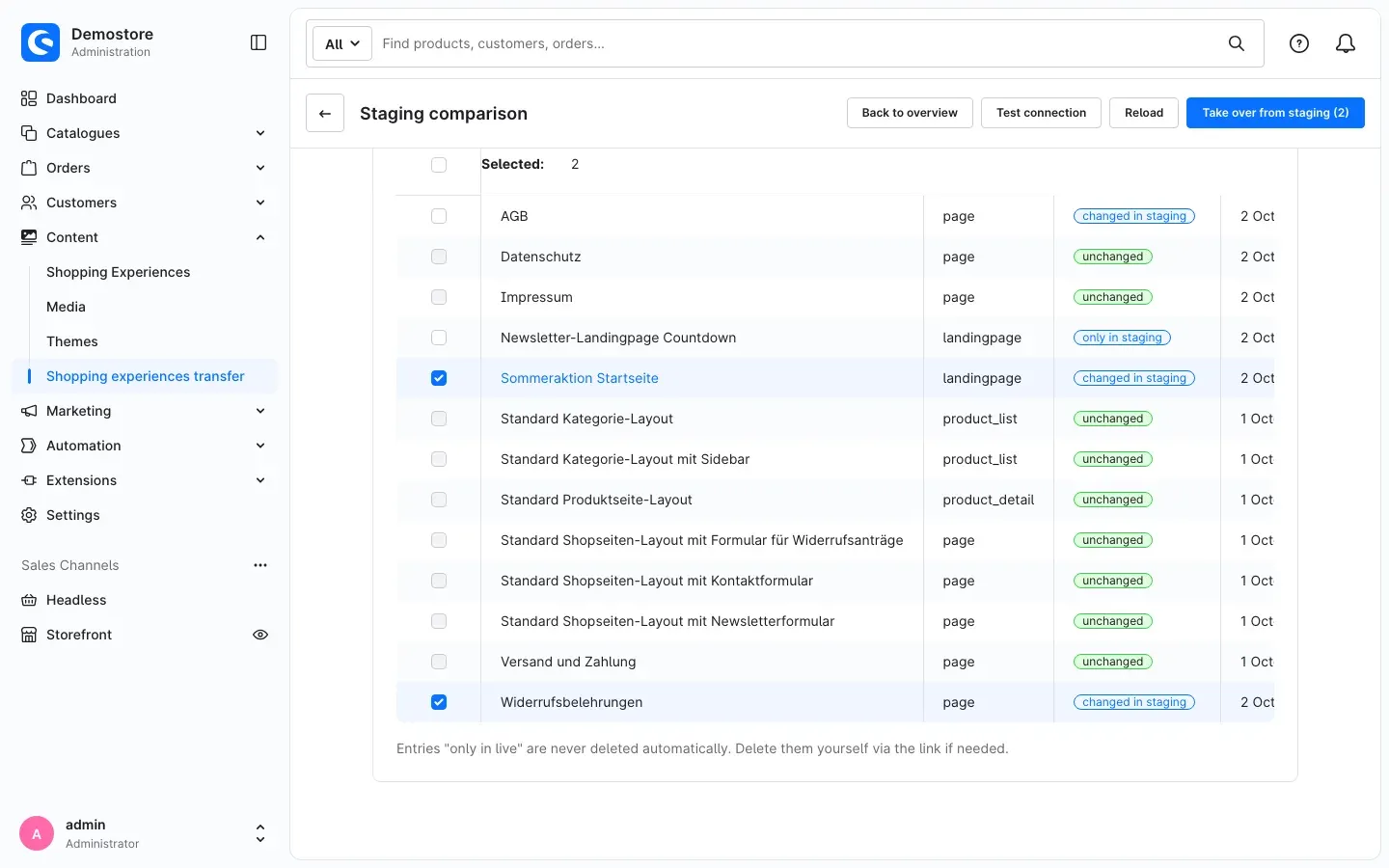 Fig. 22: Selection for the takeover
 -
The live shop fetches the package from the staging shop. The Take over from staging page shows the current step. The preview then opens there.
-
Check the preview just like for a file import: the Package card and Layouts in the package.
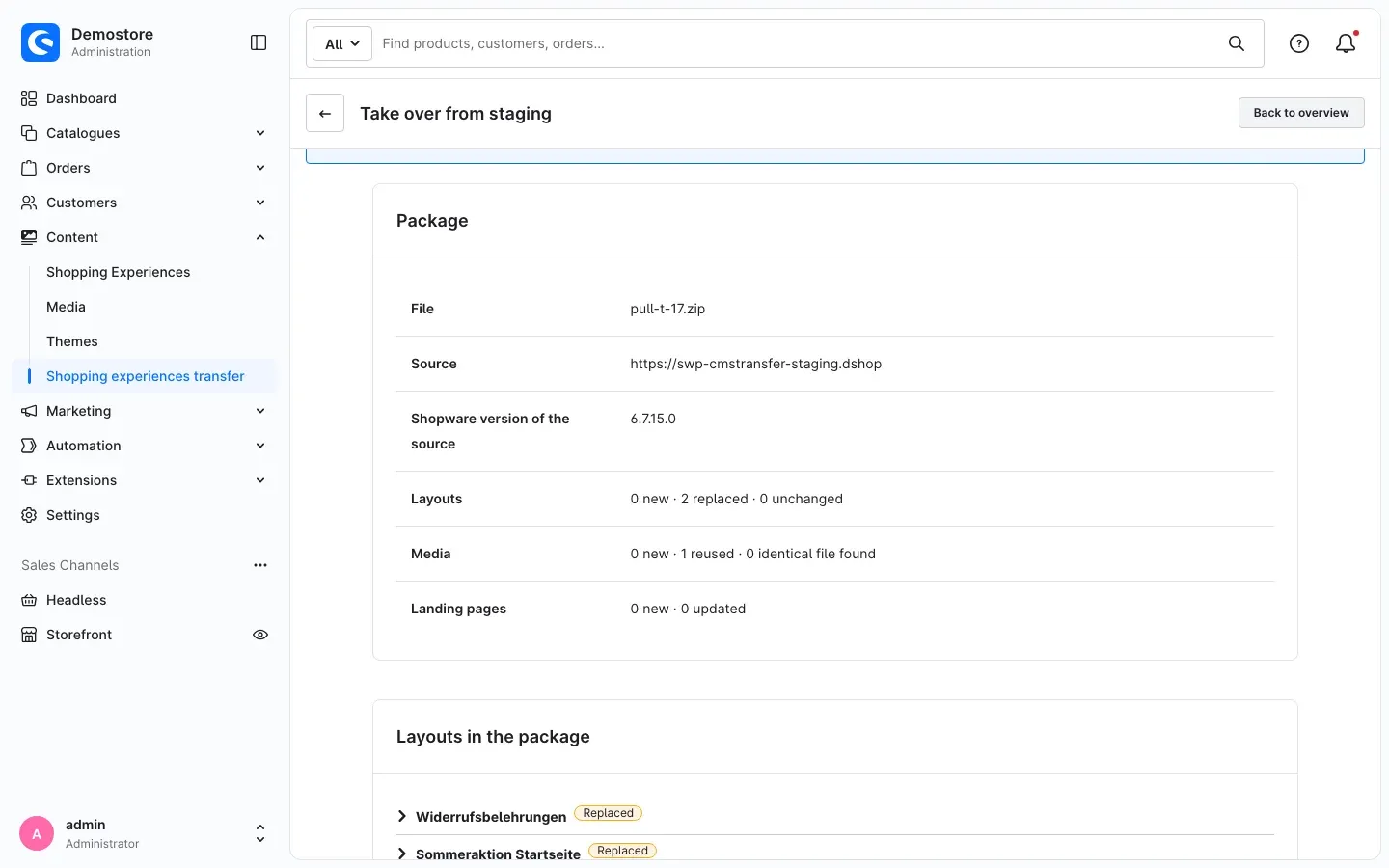 Fig. 23: Summary of the fetched package
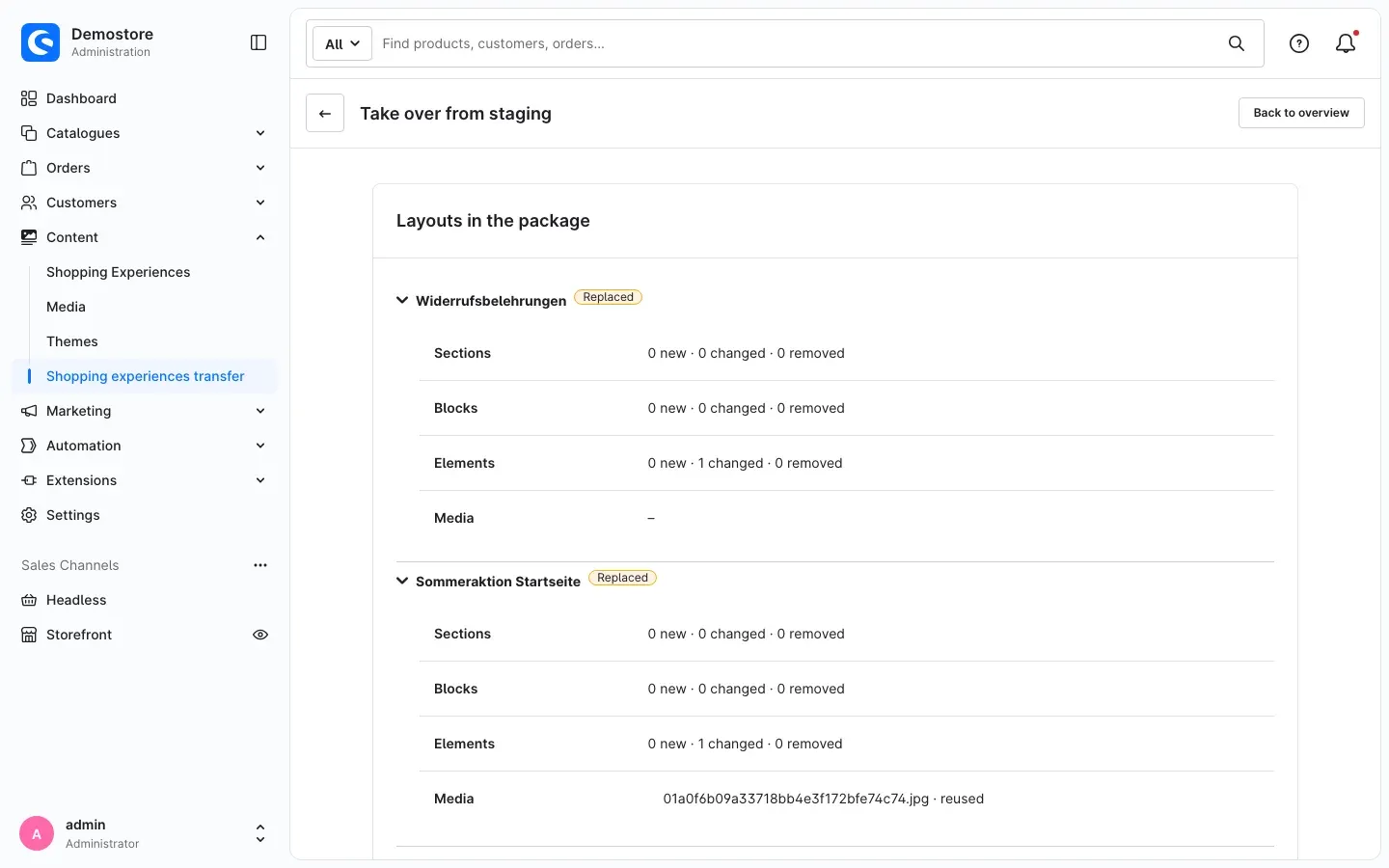 Fig. 24: Details per layout, including reused images
 -
Click Next: options, choose the options, confirm all warnings and click Apply.
-
After the takeover, Transfer … finished appears with the result.
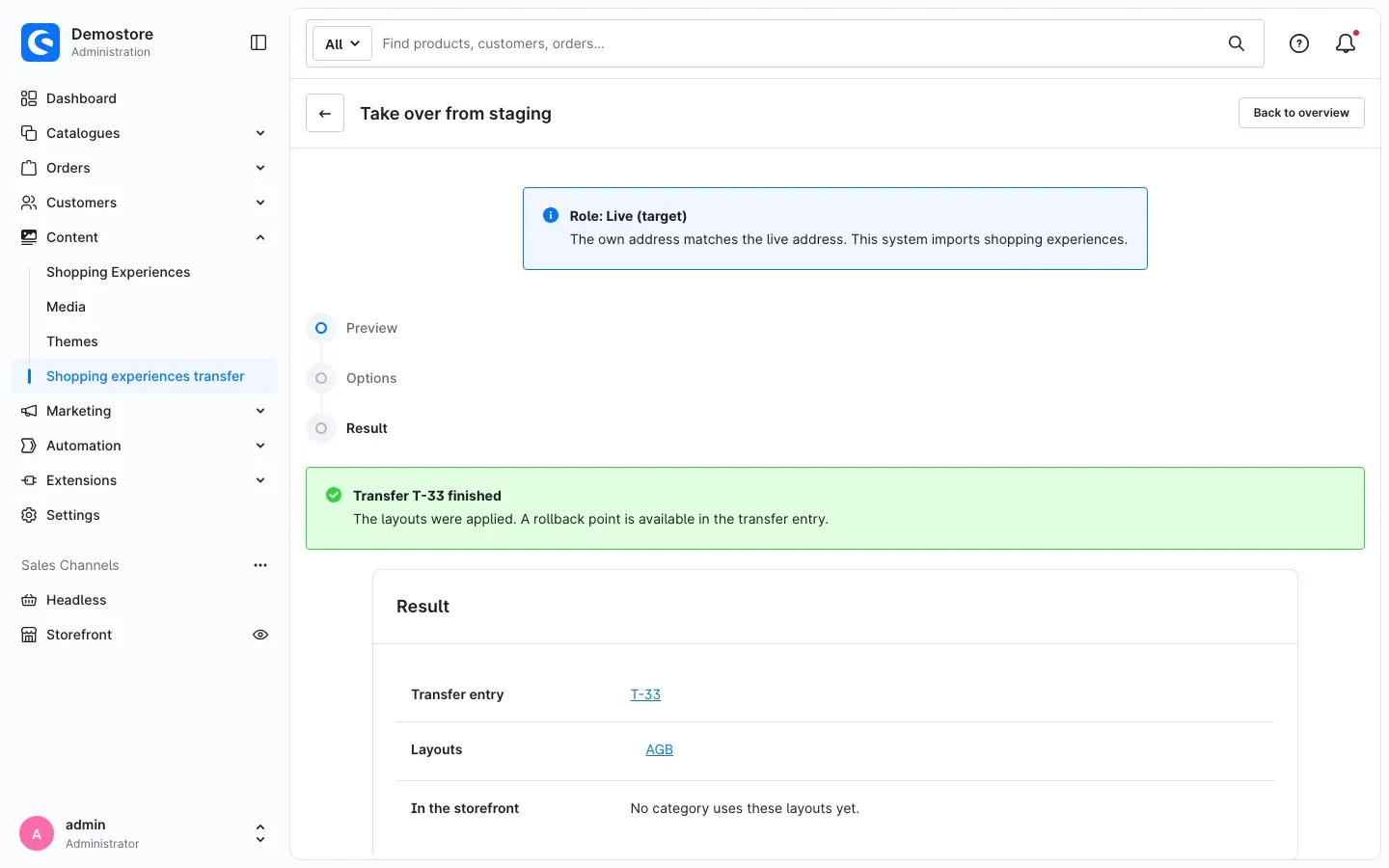 Fig. 25: The layouts are applied, a rollback point is available.
While a transfer is running, the plugin shows the notice Transfer running at the top, and further imports are locked. As soon as the transfer is finished, the notice disappears again.
Important: As long as a preview from the staging comparison is open, further transfers are locked. Apply the package or click Discard — this releases the lock at once. Leaving the page also discards the preview.
Tip: If the live shop cannot reach the staging shop, the file transfer from Import by file always remains available.
CMS extensions on staging and live
What this gives you: You can safely transfer layouts that use elements from other plugins (such as countdowns, sliders or forms). If the live shop is missing something, you notice it in the preview — before anything changes on the live shop.
Why this matters
Many shops use additional CMS extensions next to Shopware’s standard elements. A layout you build on the staging shop with such an element can only work on the live shop if the same extension is installed there.
The Shopping Experiences Transfer checks this on every import, before anything changes on the live shop. If something is missing, you see it in the preview of the import wizard. The live shop stays unchanged in that case.
What the transfer checks
For every element and every block in the package, the plugin checks whether the live shop knows this type:
- An element counts as present if the live shop can render it or supply it with data.
- A block counts as present if the live shop has its own rendering for it.
What happens in which case
An element is missing on the live shop. The preview reports the error “Element type ”…” is not installed on the target system. Install the extension and transfer again.” The transfer is then blocked, and confirming does not help. This applies to the whole package: if it contains five layouts and only one uses the missing element, none of them is transferred. A transfer never arrives halfway.
If you fetch the package via the staging comparison, the page shows The package was rejected together with “Nothing was changed”. The link opens the transfer entry, where the Messages tab names the missing element type (see How to keep track of your transfers).
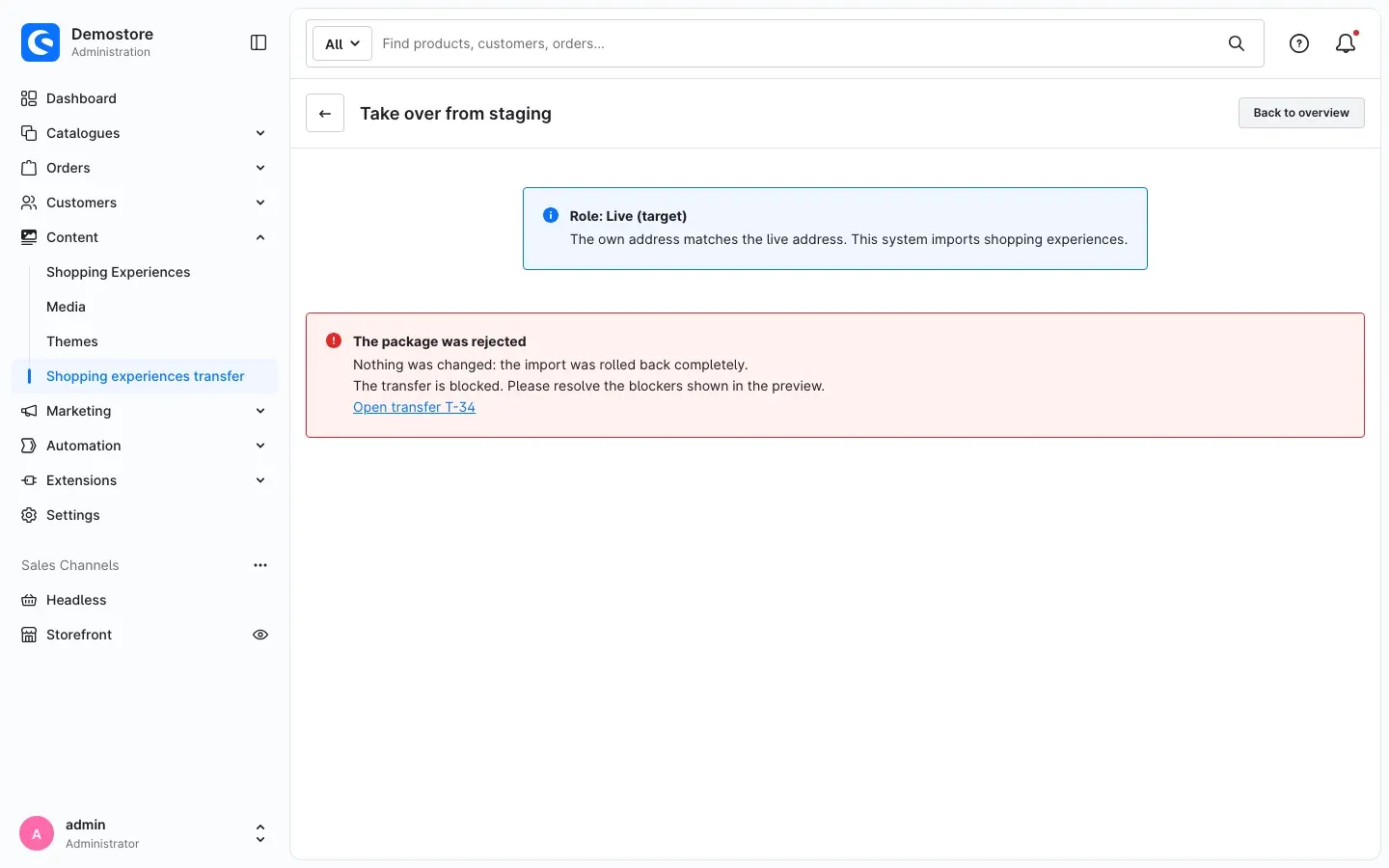 Fig. 26: The live shop rejects the package and stays unchanged.
How to solve it: install the extension on the live shop and start the transfer again. Alternatively, leave the affected layout out of the export or the comparison.
Only a block is missing on the live shop. The preview shows the warning “Block type ”…” is unknown on the target system; the block is transferred without its own rendering.” After you confirm, the layout is transferred. The elements inside the block work, only its special arrangement is missing. Check the page on the live shop afterwards.
An extension stores its own data. Some extensions create their own data in addition to the layout, such as templates or forms, and connect to the transfer for that. If such an extension is missing on the live shop, the warning “Extension ”…” is missing on the target system; its data is not transferred.” appears. After your confirmation, the layout is transferred anyway, the additional data is not. If the extension on the live shop is older than on the staging shop, the transfer reports that as well and asks you to update it on the live shop.
What the transfer cannot check
- Whether the extension is switched on for the sales channel on the live shop. The transfer detects a deactivated extension as missing. If it is active but switched off for a sales channel in its own settings, it passes the check — and the page does not show the content in that channel.
- Whether the extension on the live shop has the same version. If it changed its settings between two versions, the transfer takes over the settings from the staging shop unchanged. Exception: the extension is connected to the transfer, then it reports version differences itself.
Our recommendation
Keep the staging and live shops identical regarding CMS extensions: the same extensions, active, in the same version. Install and activate a new CMS extension on the live shop first, and only then build layouts with it on the staging shop.
How to keep track of your transfers
What this gives you: Every export, import and rollback ends up in one list with status, messages and all details. You always know who transferred what and when — and why a transfer did not work.
The transfer list
Go to Content → Shopping experiences transfer. The Transfers list shows all entries, the newest at the top.
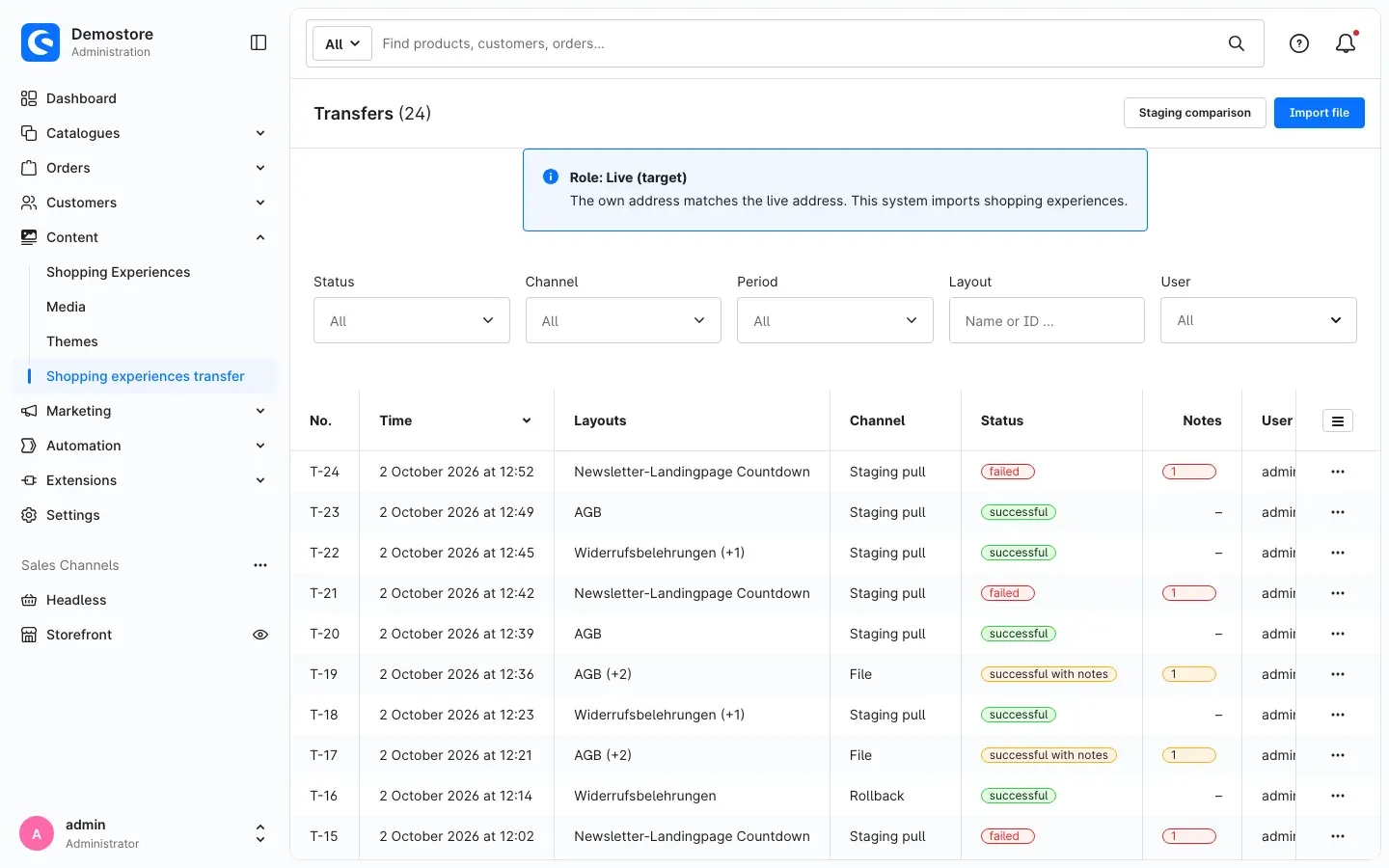 Fig. 27: Transfer list on the live shop
- No.: the consecutive number of the transfer, for example T-13.
- Time, Layouts and User: when, what and who.
- Channel: File, Staging pull, Command line or Rollback. On the staging shop, fetches by the live shop show Fetched by live.
- Status: running, successful, successful with notes, failed or rolled back.
- Notes: the number of warnings and errors. Hover over it to see the message.
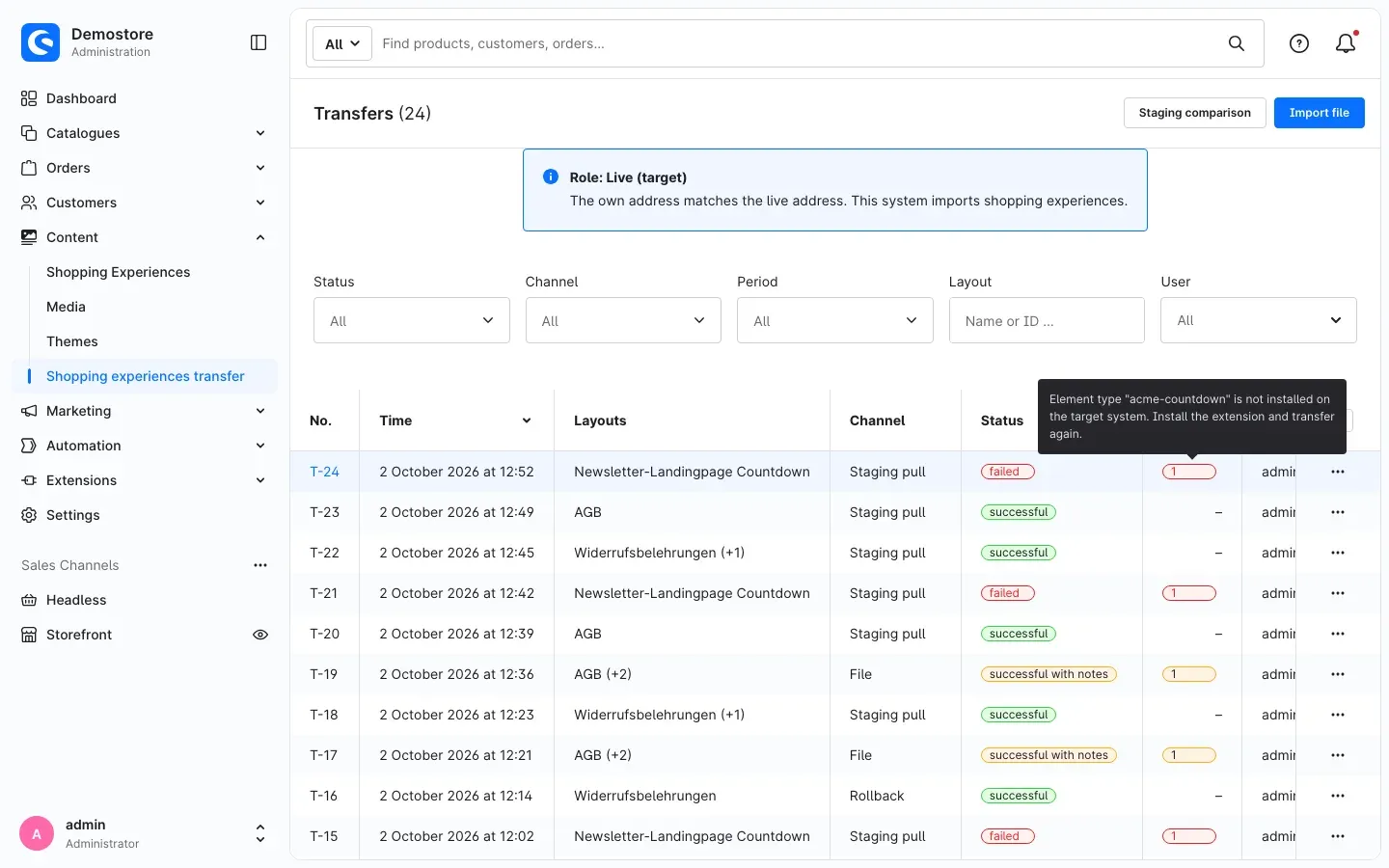 Fig. 28: The message of a failed transfer directly in the list
The Status, Channel, Period, Layout and User filters help you find a specific transfer quickly. The filters are stored in your browser’s address bar, so you can share the link with colleagues. Reset filters shows all entries again.
The three dots at the end of a row open the Details. If a fetch from the staging shop failed, you also find Run again there.
Tip: If a transfer failed since your last visit, the plugin points this out with Failed transfers when you open the list.
The details of a transfer
Click a row to open the details. Back to overview takes you back.
“Overview” tab: The status is shown at the top. The Result in numbers card shows how many layouts, sections, blocks, elements and media were new, replaced, changed, removed or reused, and how many addresses were rewritten. Below, you find the run, source and package, and the selected options.
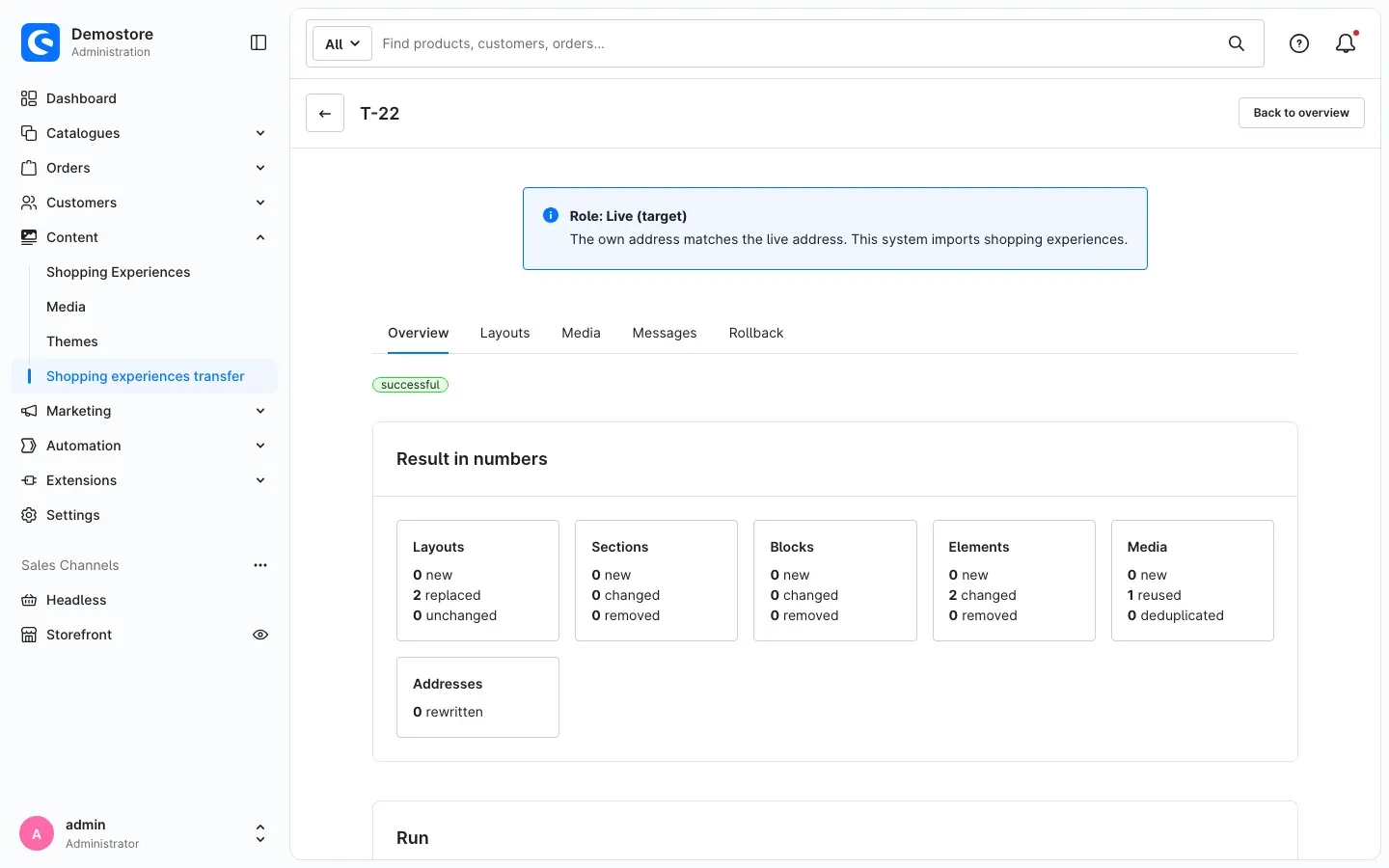 Fig. 29: Result in numbers
“Layouts” tab: Every transferred layout with its Action (for example new or replaced) and whether there was a Conflict with changes on the live shop. A link opens the layout in the editor.
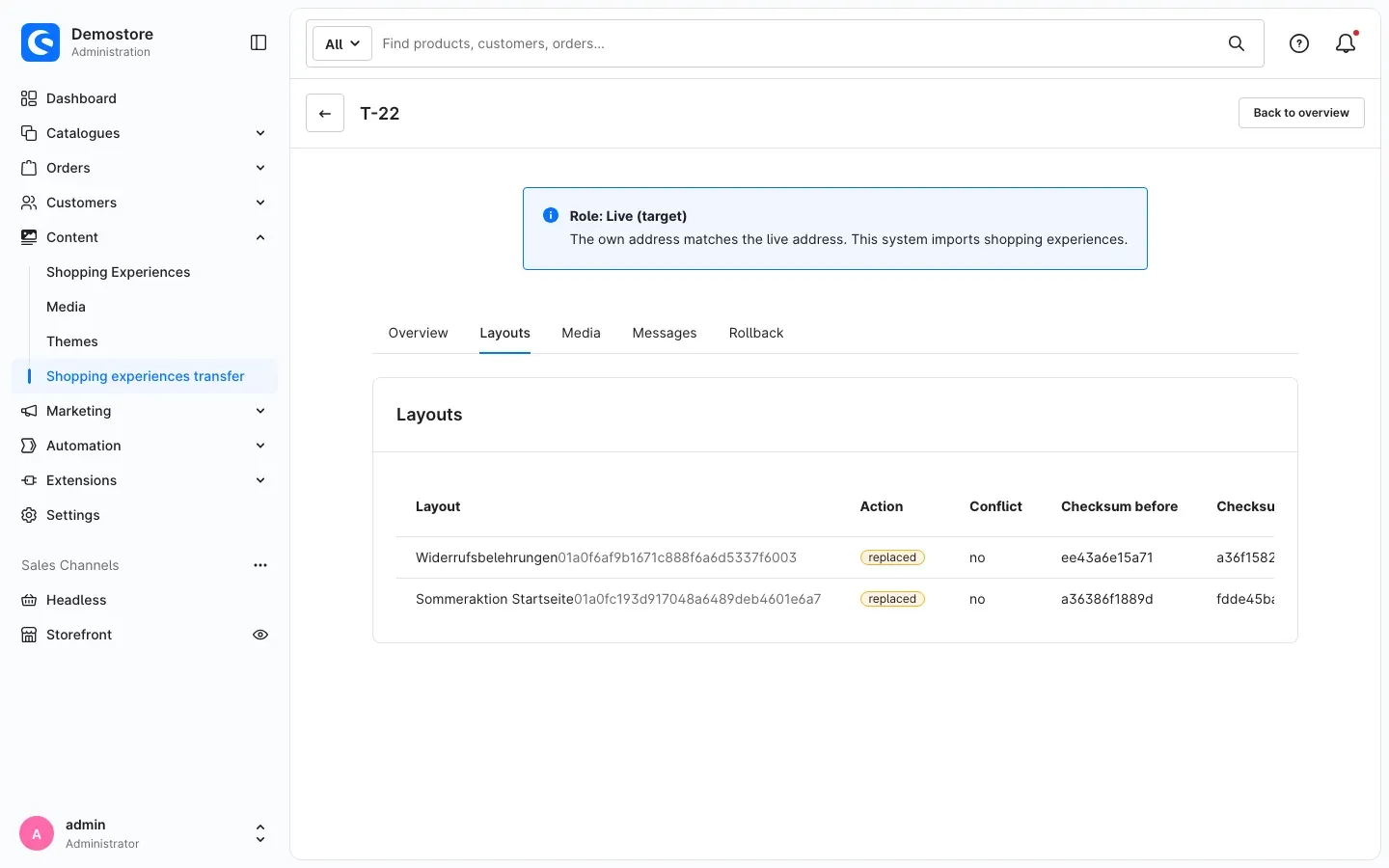 Fig. 30: Transferred layouts
“Media” tab: Every image with preview, file name, Action (for example new, reused or deduplicated) and where it is Used in. Open in media management takes you straight to the image.
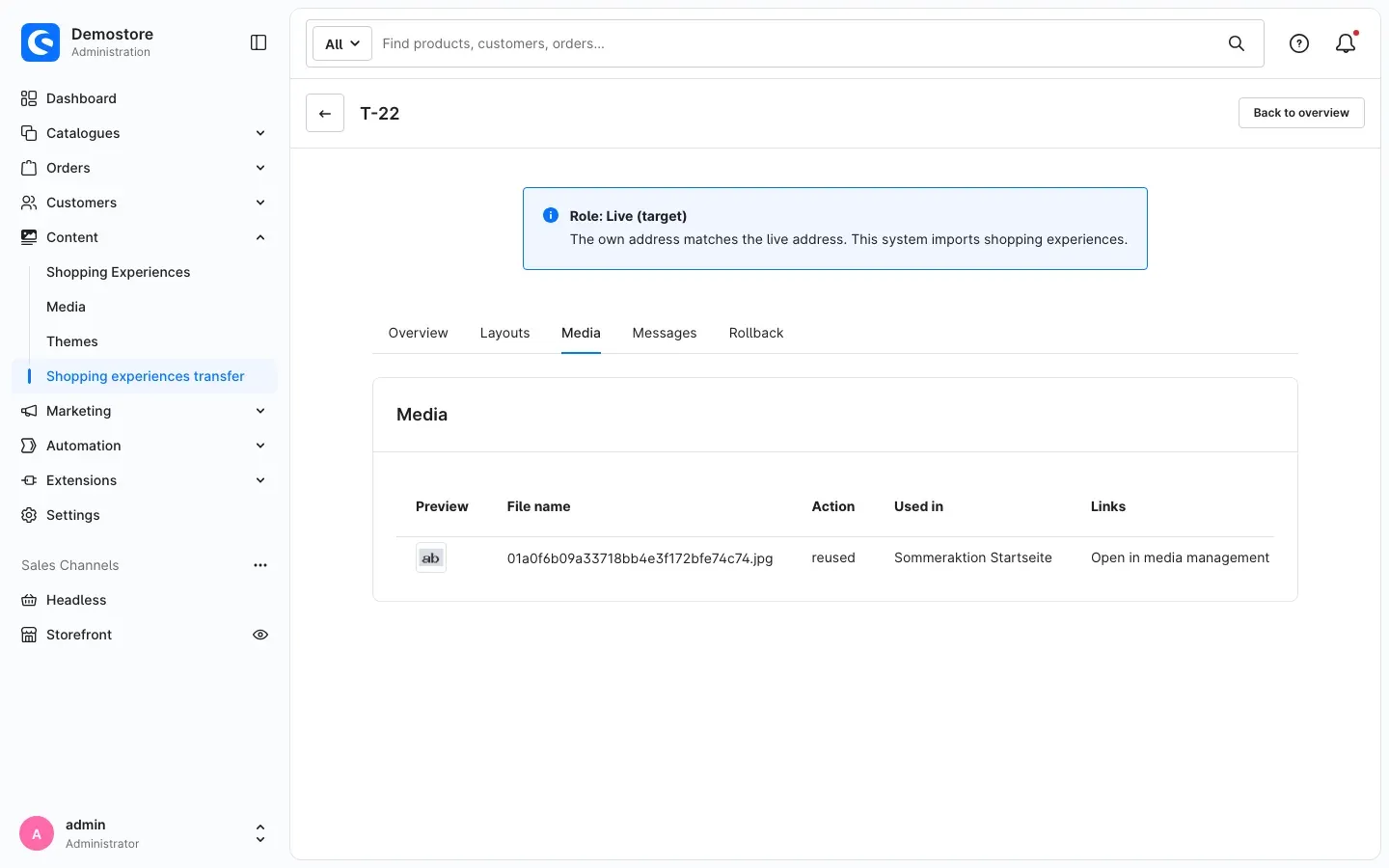 Fig. 31: Transferred images
“Messages” tab: All notes, warnings and errors of the transfer with their location. If there were none, it says No messages for this transfer.
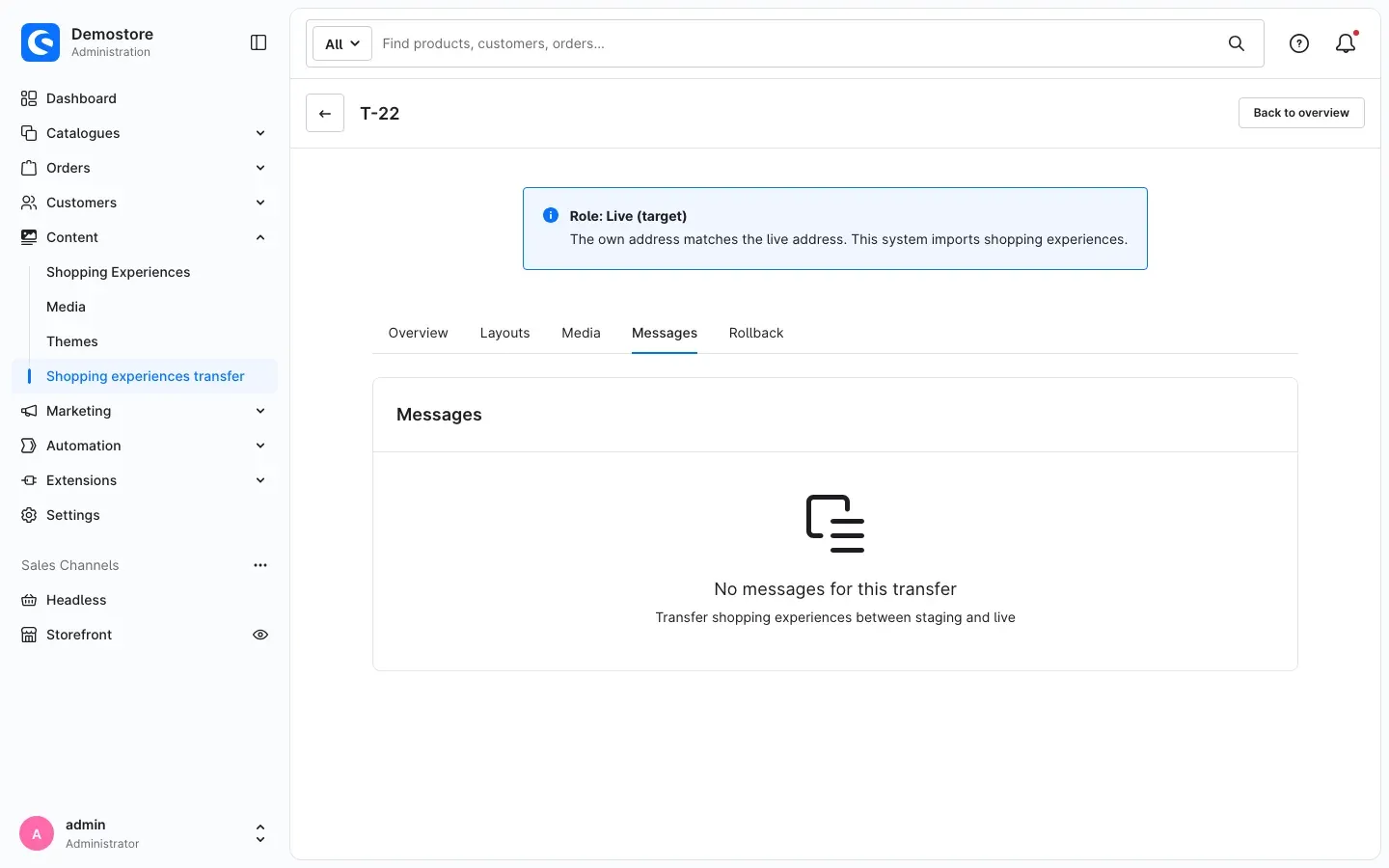 Fig. 32: A transfer without messages
“Landing pages” tab: Only appears if landing pages were transferred. It shows every landing page with its URLs and sales channels.
“Rollback” tab: Here you see whether the transfer can be rolled back, and you start the rollback (see How to roll back a transfer).
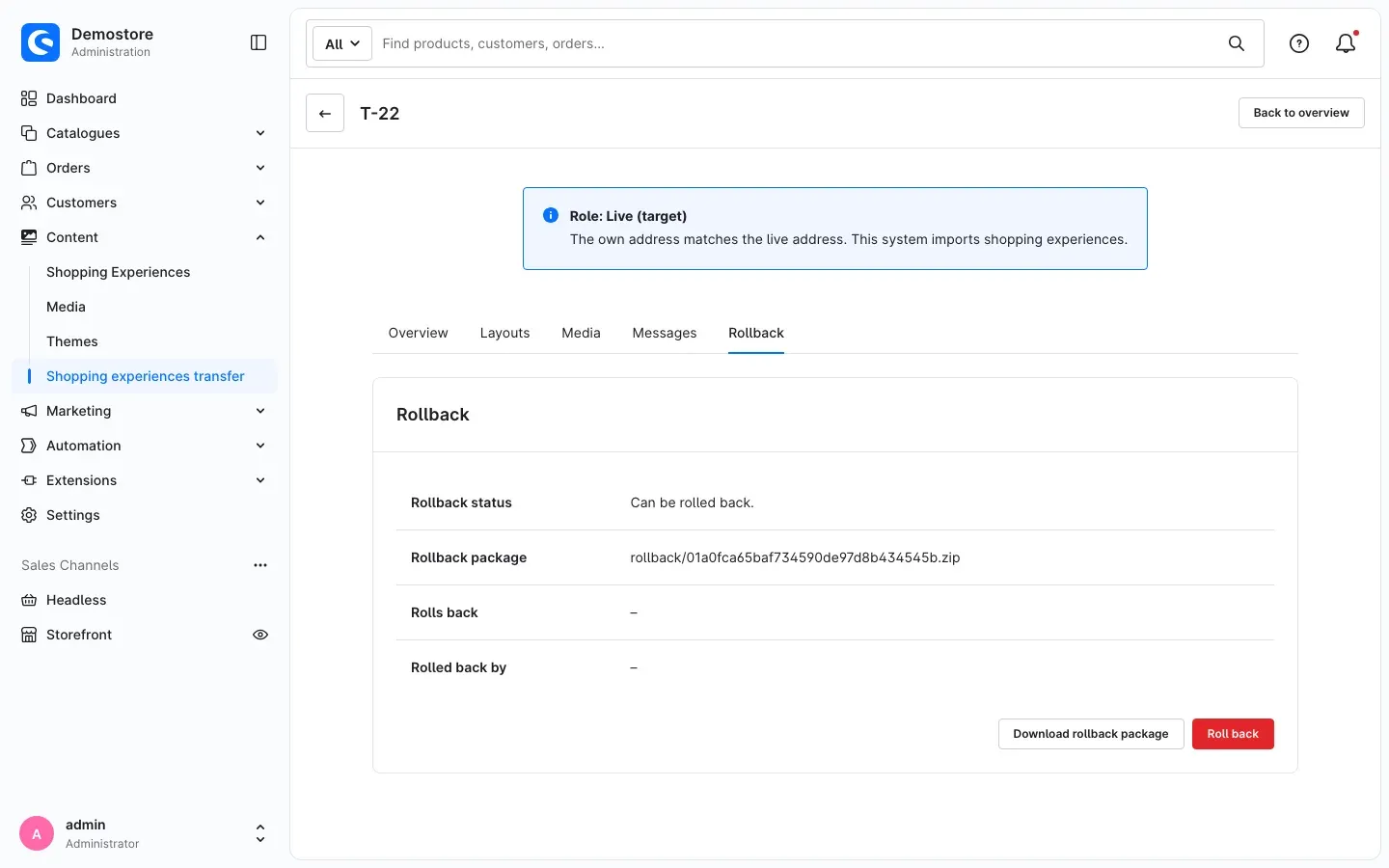 Fig. 33: Rollback status and rollback package
When a transfer has failed
A failed transfer shows Transfer failed at the top and the sentence Nothing was changed: the import was rolled back completely. Below, you see the Phase in which the error occurred, the Message and an Error reference.
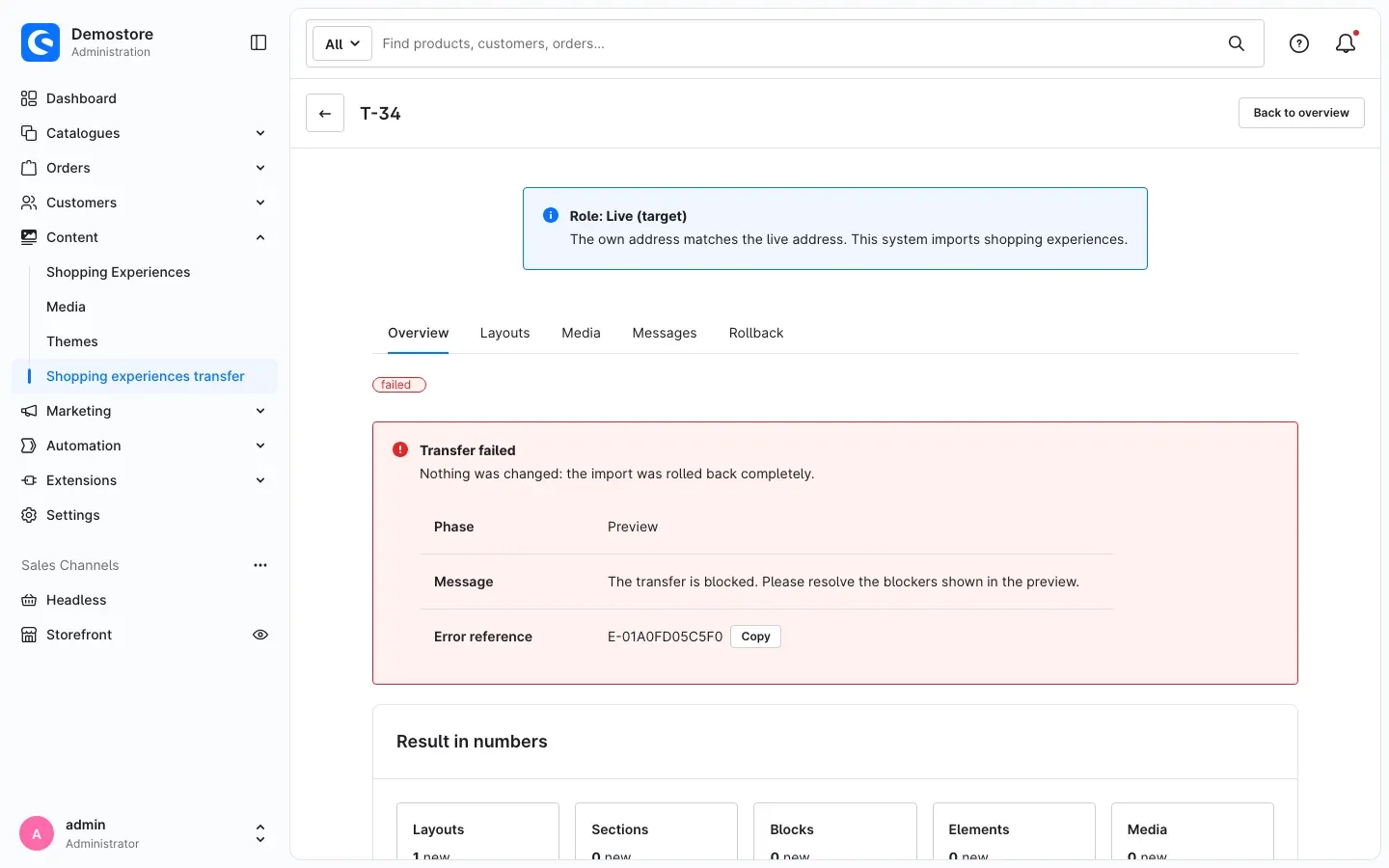 Fig. 34: Failed transfer with phase and error reference
You find the exact reason in the Messages tab. In the example, an element type is missing on the live shop: “Element type ”…” is not installed on the target system. Install the extension and transfer again.” CMS extensions on staging and live explains how to solve this. With many messages, use the Code and Layout filters to narrow down the list.
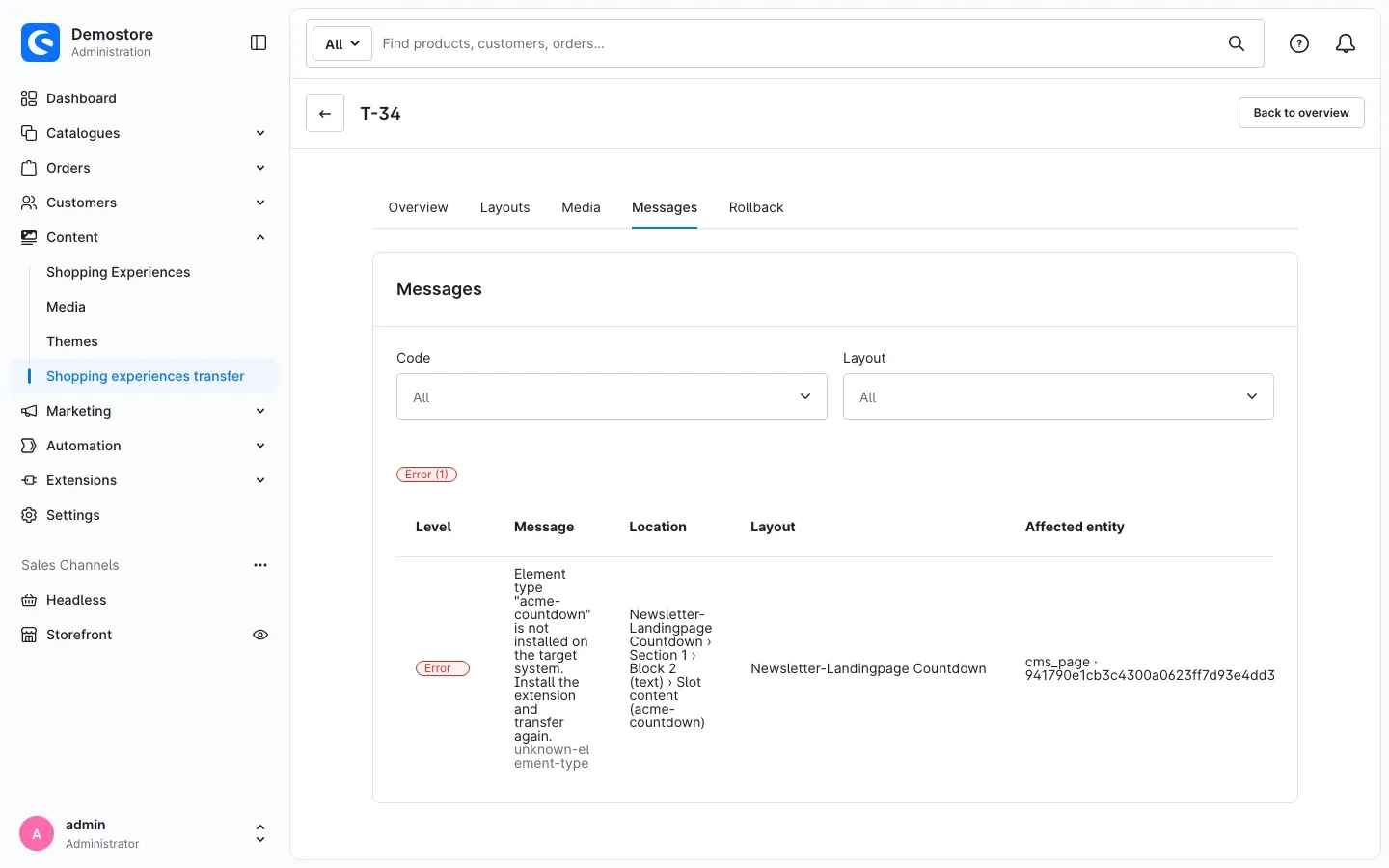 Fig. 35: The message names the missing element type.
Tip: If you need help from support, click Copy next to the Error reference and send us the reference. It lets us find the error in the log right away.
Entries from a shop copy
When you copy your live shop to the staging shop, the entries of the transfer list are copied as well. The plugin recognises such entries and marks them with Copy from … and the address of the original shop. They are read-only: you can neither roll them back nor run them again.
How to roll back a transfer
What this gives you: If you do not like the result of an import, you restore the previous state in a few clicks — including the layouts and landing pages the import created.
Step by step
-
In the transfer list, open the transfer you want to undo.
-
Switch to the Rollback tab. If it says Can be rolled back., click Roll back (see Fig. 33).
-
Roll back transfer opens with a preview. It shows which layouts are restored and, under Layouts removed again, which newly created layouts disappear again.
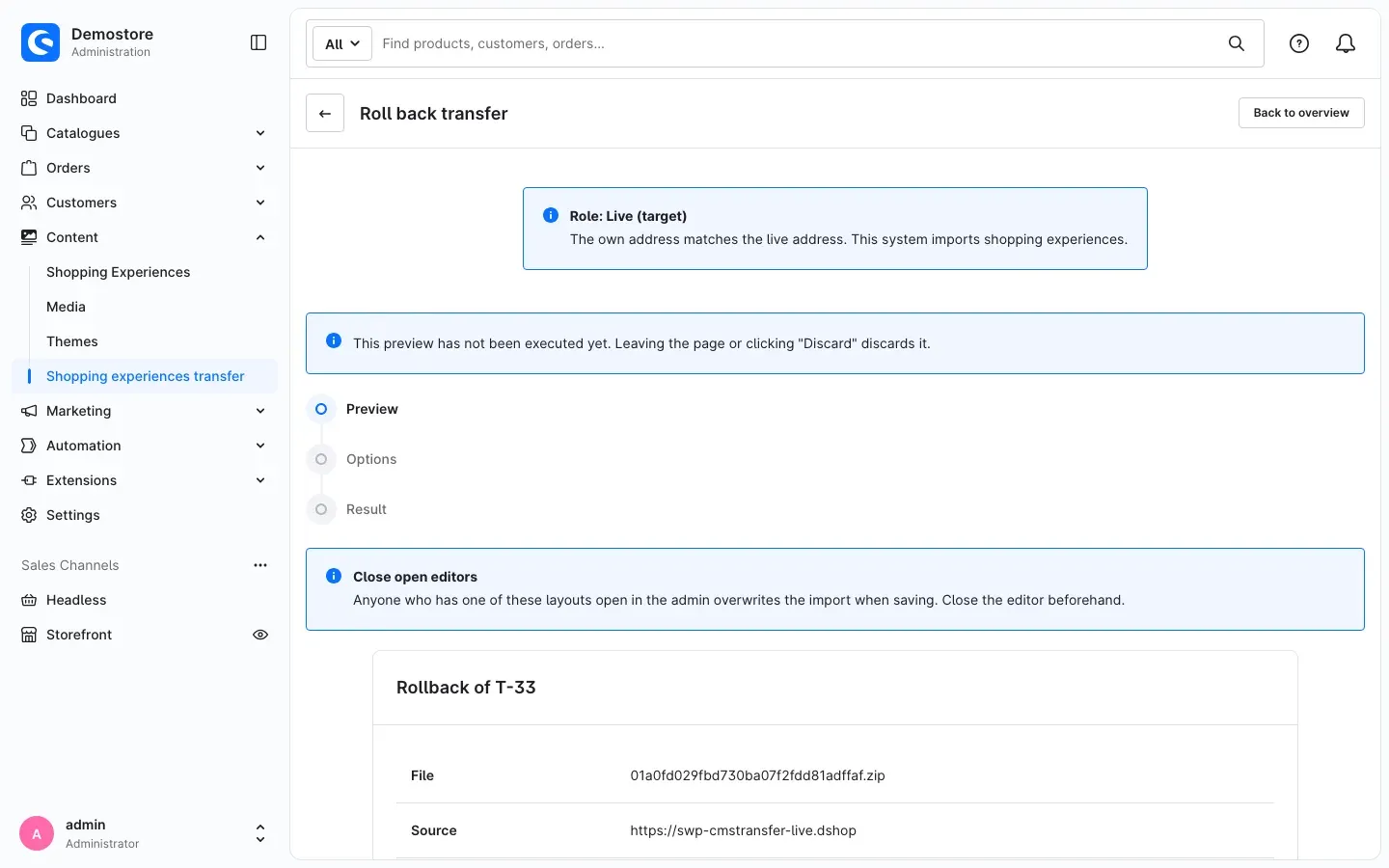 Fig. 36: Rollback preview
 -
Confirm any warnings and click Roll back. The options cannot be changed: a rollback restores exactly the saved state.
-
Afterwards, Transfer … finished appears with The previous state was restored.
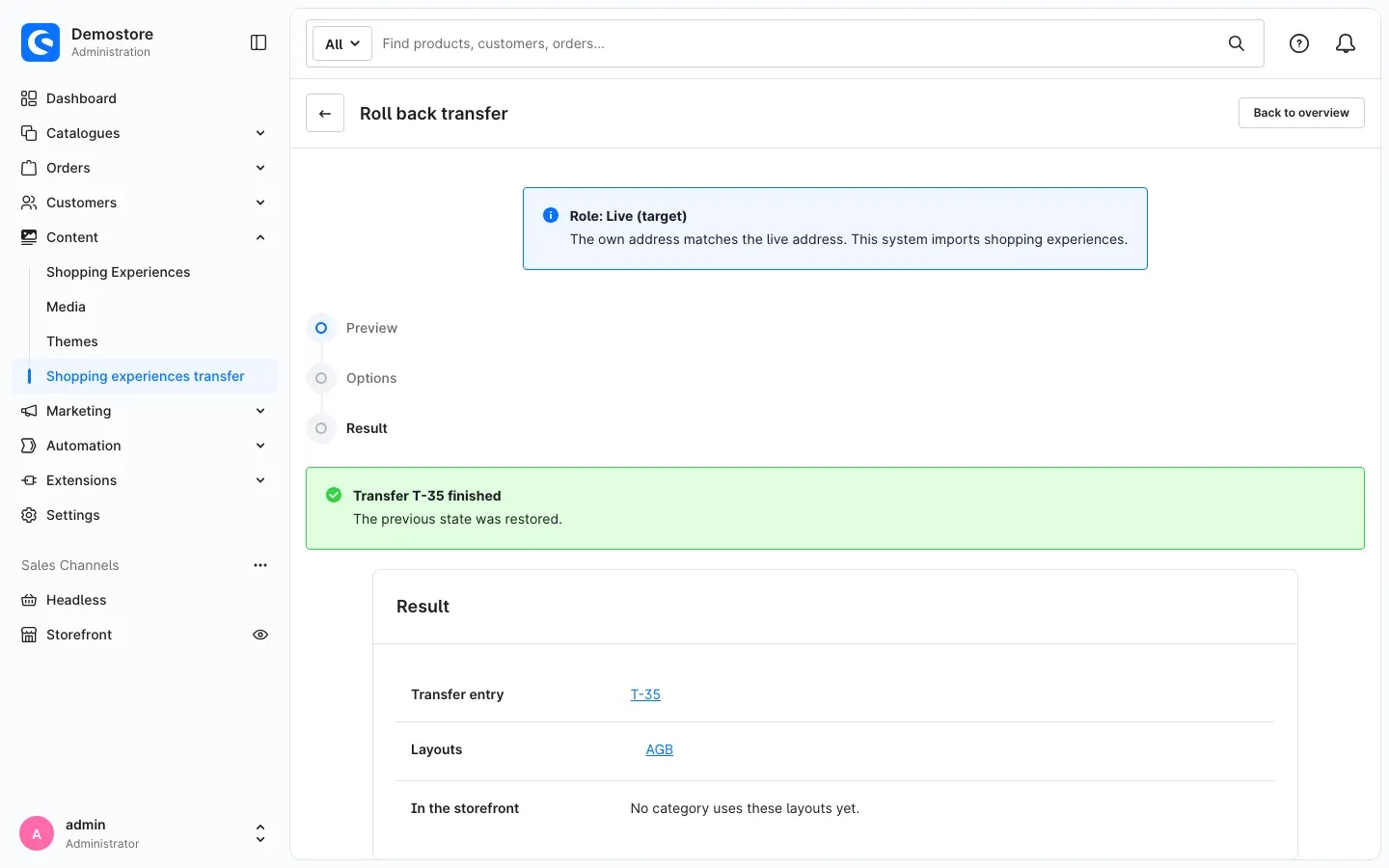 Fig. 37: The previous state is restored.
The rollback gets its own number and appears in the list with the channel Rollback. In the original transfer, Rolled back by then shows which entry undid it.
When a rollback is not possible
In the Rollback tab, Rollback status tells you why it is not possible right now:
- Only imports can be rolled back. Exports do not change the shop.
- Only successful transfers can be rolled back. A failed import did not change anything.
- This transfer has already been rolled back.
- Roll back … first. There is a newer transfer for the same layouts. Roll that one back first.
- The rollback package has expired. The retention period from the plugin configuration is over.
- This entry was copied from another system and cannot be rolled back here.
Important: If someone changed a layout on the live shop after the transfer, the preview warns you: these changes are lost when rolling back. A layout that is still assigned to a category or is a default layout cannot be removed — the preview names the affected layout.
Tip: Download rollback package lets you keep an additional copy of the state before the import on your computer.
Permissions for your team
What this gives you: You decide exactly who may only view transfers, who may export on the staging shop and who may take over on the live shop.
You assign permissions under Settings → System → Users & permissions in the Roles card. Open a role or click Create role.
The plugin’s three permissions
- View: Under Permissions in the Content area, in the Shopping experiences transfer row. With it, someone sees the transfer list, the details and the staging comparison.
- Export shopping experiences: Under Additional permissions in the Shopping experiences transfer entry. With it, someone may export layouts on the staging shop.
- Import and roll back shopping experiences: Also under Additional permissions in the Shopping experiences transfer entry. With it, someone may import packages, take over from the staging shop, test the connection and roll back transfers.
Export and import require the View permission. Messages in the plugin use exactly this name.
Important: Anyone with Import and roll back shopping experiences can overwrite layouts, assignments, default layouts and landing pages on the live shop through the import — even though the role editor only shows read permissions for shopping experiences with this permission. Therefore, only grant it to people who may approve content on the live shop.
Additional permissions for the setup
The setup wizard on the live shop and pasting the setup code on the staging shop create an integration including a role. For this, your user needs these Shopware permissions in addition to Import and roll back shopping experiences:
- under Additional permissions → Settings: Basic configuration (to save the configuration),
- under Permissions → Settings → Integrations: Create and Delete,
- under Permissions → Settings → Users & permissions: Create and Delete.
When you tick Create, Shopware automatically ticks the required View and Edit boxes as well. Administrators have all permissions anyway. If something is missing, the setup wizard names the missing permissions. In that case, ask an administrator to add them to your role.
Data protection
For every transfer, the transfer log stores the name of the user who started it. This is personal data. The preview points this out under Please note.
- Why: In the list, you see who started which transfer.
- How long: As long as you keep transfer entries. You set the period in the plugin configuration under Keep transfer entries (days) (180 days at most). Rollback packages have their own period.
- When a user is deleted: If you delete a user of the administration, the plugin automatically removes their name from all transfer entries.
The plugin does not send any data to third parties. There are only connections between your live shop and your staging shop, always encrypted via https://.
Troubleshooting
The “Shopping experiences transfer” menu entry is missing
Cause: The plugin is not active, your user does not have the View permission, or the cache is outdated.
Solution:
- Open Extensions → My extensions and check whether the plugin is activated.
- Check the permissions of your role (see Permissions for your team).
- Clear the cache under Settings → System → Caches & indexes.
The shop shows “System not assigned”
Cause: None of the addresses entered matches the shop’s own address, an address does not start with https://, or both addresses point to the same shop.
Solution: In the plugin configuration, compare the Own address in the role notice with the addresses entered and correct them. File export and import also work without an assignment.
The staging comparison reports “Connection to the staging system is missing” or “Staging system not available”
Cause: The connection is not set up, or the live shop cannot reach the staging shop. The message names the reason:
- Access key rejected: The access key ID or the secret key is wrong. Run the setup wizard again.
- Basic authentication: The
/api/area of the staging shop is protected. Have it excluded from the protection. - No answer in time: Increase the Timeout in seconds.
- Certificate: The encrypted connection fails. Have the certificate of the staging shop checked.
- Not reachable: Check the address of the staging shop.
- No compatible transfer interface: Install the same plugin version in both shops.
Solution: Fix the reason named and click Test connection. Until then, you can always use the file transfer.
”Element type … is not installed on the target system”, the import cannot be started
Cause: The CMS extension that provides this element is missing on the live shop.
Solution: Install the extension there and transfer again, or remove the layout from the package. See CMS extensions on staging and live for details.
”Another transfer is currently running”
Cause: Only one transfer can run at a time. An open preview from the staging comparison also locks further transfers.
Solution: Wait until the running transfer is finished. Open transfer in the Transfer running notice shows which one it is. If nobody needs an open preview any more, end it with Discard. A run without progress for more than one hour is cancelled automatically.
”The preview has expired” or “The target system changed since the preview”
Cause: A preview is valid for 30 minutes. If something changed on the live shop in the meantime, it is no longer up to date.
Solution: Upload the file again or start the takeover in the staging comparison again.
The file is rejected during upload
Cause: The file is larger than the Maximum package size for uploads (MB) or is not a valid transfer package. If it comes from a newer plugin version, the plugin reports that as well.
Solution: Export fewer layouts at once or increase the limit in the plugin configuration. Bring the plugin to the same version in both shops.
The status in the staging comparison stays on “being calculated”
Cause: The plugin calculates the status in the background. This requires a background process running on the server.
Solution: Ask your administrator to check the background processing (see For administrators / Technical details).
The data was transferred, but the page in the shop still shows the old state
Cause: The layouts were applied, only updating the SEO URLs or the shop cache failed. The transfer entry points this out.
Solution: Rebuild cache and indexes under Settings → System → Caches & indexes.
The setup code is not accepted
Cause: The message names the reason — the code was copied incompletely, was modified, is older than 24 hours, comes from another plugin version, or was pasted on the live shop instead of the staging shop.
Solution: Create a new code with the Setup wizard on the live shop and paste it completely on the staging shop.
”You need the permission “Import and roll back shopping experiences” … to import packages”
Cause: Your role is missing the Import and roll back shopping experiences permission.
Solution: Ask an administrator to add it to your role (see Permissions for your team).
FAQ
Q: Do I need to install the plugin in both shops?
A: Yes. The staging shop exports and provides, the live shop imports. Install the same plugin version in both.
Q: Does the plugin also transfer products and categories?
A: No. It transfers shopping experiences, landing pages and, if you want, their assignments. If a product or category is missing on the live shop, the preview shows a warning with the location.
Q: What happens if someone has changed the layout on the live shop in the meantime?
A: The preview marks the layout with Changed on this system and warns you. It is only applied once you confirm the warning.
Q: I used a CMS extension on staging that is missing on live. Will anything break?
A: No. The transfer detects this in the preview and changes nothing on the live shop until the extension is installed there.
Q: Can I undo an import?
A: Yes, as long as the rollback package is still kept (90 days by default). See How to roll back a transfer.
Q: What happens when we copy the live shop to the staging shop again?
A: The connection stays valid. The plugin marks copied entries of the transfer list as Copy from ….
Q: Our shops cannot reach each other. Can I still use the plugin?
A: Yes. Use the file transfer: export on the staging shop, Import file on the live shop. The process with preview and rollback point is the same.
Q: Will my images end up twice in the media management?
A: No. If the same file already exists on the live shop, the plugin reuses it.
Q: Does the plugin work with Shopware SaaS or Shopware Cloud?
A: No. You need a self-hosted Shopware installation.
For administrators / Technical details
This section is intended for technical administrators. You do not need it for normal use.
System requirements
- Shopware: 6.7
- PHP: 8.2 or newer
- Plugin installed on the staging and on the live shop, ideally in the same version
- Both shops reachable via
https://; the fetch runs from the live shop to the staging shop, without redirects
Background processing
Import, package building and fetching from the staging shop run through Shopware’s message queue; precalculating the checksums for the staging comparison runs through the low_priority queue. On both shops, a worker must process async and low_priority:
bin/console messenger:consume async low_priorityWithout low_priority, the comparison stays on “being calculated” on large installations. The admin worker is only sufficient while the administration is open.
The cleanup (stuck runs, expired previews and uploads, old packages, rollback packages and transfer entries after their retention periods) runs hourly as a scheduled task. This requires the scheduler:
bin/console scheduled-task:runSeveral app servers
If the live shop runs on several servers, set LOCK_DSN to a shared store (for example Redis or the database). Otherwise the lock against parallel transfers only works per server.
Basic authentication on the staging shop
If the staging shop is protected with basic authentication, exclude the /api/ path. The live shop only sends the basic authentication credentials when requesting the access token; all further requests need the Authorization header for the OAuth token.
Log
The plugin writes to its own log file: var/log/SwpCmsTransferSix-<date>.log (from level warning, rotating daily). You find the error reference from the transfer entry there.
Technical permission IDs
Internally, the plugin’s permissions are called swp_cms_transfer.viewer (View), swp_cms_transfer.exporter (Export shopping experiences) and swp_cms_transfer.importer (Import and roll back shopping experiences). The setup wizard and the setup code check these seven permissions:
swp_cms_transfer.importer
system_config:update
integration:create
integration:delete
integration_role:create
acl_role:create
acl_role:delete
The integration “CMS Transfer (staging access)” created by the wizard only gets swp_cms_transfer.exporter. Note: swp_cms_transfer.importer appears in the role editor without write permissions on cms_page; the import still writes layouts, assignments, default layouts and landing pages on the live shop.
Command line
bin/console swp:cms-transfer:export <layoutId…> --file=/path/package.zip [--default-category-layout] [--default-product-layout] [--with-assignments] [--with-defaults] [--with-landing-pages]
bin/console swp:cms-transfer:import /path/package.zip [--dry-run] [--with-assignments] [--with-defaults] [--with-landing-pages] [--remove-live-only-translations] [--force-warnings]
bin/console swp:cms-transfer:rollback <transferId> | --last [--force-warnings]
bin/console swp:cms-transfer:list [--limit=50] [--only-changed]
Exit codes of import and rollback: 0 successful, 1 blocker or error, 2 warnings without --force-warnings. The commands do not check a role (operator tool) and use the same lock as the administration. Transfers via the command line appear in the list with the channel Command line.
Installation via the command line
php bin/console plugin:refresh
php bin/console plugin:install SwpCmsTransferSix --activate
php bin/console cache:clear
Uninstallation
If you uninstall the plugin without “keep data”, it removes its tables, its number range, the integration created for staging access and its files. Transferred shopping experiences and media remain in the shop.
Appendix for developers: Connecting your own CMS elements
This appendix is intended for developers of other plugins. Applies from version 6.7.0, package format 1.
What the interface is for
The Shopping Experiences Transfer transfers layouts including sections, blocks, elements, translations and media. It finds references in element configurations generically: every UUID in a value with source: static is collected and mapped on the target system as media, product, category or dynamic product group. Image addresses in HTML texts are detected and rewritten.
This is enough for Shopware’s standard elements and for most plugin elements. Not covered are:
- own entities of a plugin (for example templates, grid definitions, forms) that the target system must create first,
- nested content, such as elements in a grid container whose configuration is stored as a separate tree,
- IDs in compound strings, such as
product:<id>|Titleor serialised values.
Without a connection, such values stay unchanged; unknown UUIDs appear in the preview as a note. With a reference provider, your plugin reports these references explicitly, adds its own data to the package and writes it on the target system in the same transaction as the layouts.
For smaller adjustments without a provider of your own, two events are available (see below).
Process overview
| Step | System | Call | May write |
|---|---|---|---|
| Export | Source | supports() per element, collect() per element and language, then export() once | no |
| Build package | Source | Event CmsTransferPackageBuildEvent | no |
| Preview | Target | plan() once per package, then event CmsTransferImportPlanEvent | no |
| Apply | Target | import() once per package, inside the import transaction | yes |
In addition: before every import, the plugin creates a rollback point in package format. For this, collect()/export() and the build event also run on the target system over the current live state of the affected layouts. On rollback, this rollback point is imported like a normal package, so your import() is called again. import() must therefore be able to overwrite an existing state (upsert with fixed IDs), not only create.
The interface
Swp\CmsTransferSix\Extension\CmsTransferReferenceProviderInterface
| Method | Purpose |
|---|---|
getName(): string | Fixed technical name, also the file name extensions/<name>.json in the package. Pattern [a-z0-9][a-z0-9_-]{0,63}, recommended with plugin prefix (swp-grid-container). Do not change after the first release. |
getFormatVersion(): int | Version of your data format, from 1. Increase it as soon as the structure of export() changes. |
supports(string $elementType): bool | true for the element types the provider handles. |
collect(array $config, TransferContext $context): ReferenceCollection | Report references in the configuration of an element. $context->location names the location (layout, section, block, element, language). |
export(ReferenceCollection $references, TransferContext $context): array | Own data for the package, built from everything collect() reported. The result must be JSON-serialisable. |
plan(array $data, int $formatVersion, TransferContext $context): PlanContribution | Check on the target system what is missing or differs, and return it as a message. No write access. |
import(array $data, int $formatVersion, TransferContext $context): void | Write own data. Runs inside the import transaction; an exception rolls back the entire import. |
Reported references
collect() returns a Swp\CmsTransferSix\Reference\ReferenceCollection with Reference objects:
new Reference($id, 'product', Reference::ORIGIN_PROVIDER, $location, 'teaser');$id: UUID in lower case without hyphens.- Entity:
media,product,categoryorproduct_streamif known;nulllets the plugin determine the entity itself. - Reported media are packed into the package and created or reused on the target. Missing products, categories and product groups appear in the preview as a warning with your location.
- For own entities, set your own entity name. The plugin does not check them, but takes them over into
references.jsonand no longer reports the ID as an “unknown reference”, even if the generic scan also finds it. You transfer the records themselves viaexport()/import();ReferenceCollection::getIds('<entity>')returns the reported IDs for that.
TransferContext
context: DALContextof the caller. On import: live version, system scope, same transaction as the layout import. Always use this context, never create your own.stage:export,planorimport(isExport(),isPlan(),isImport()).sourceShopId: shop ID of the source.languageIdsByLocale: on export the language IDs of the source, on preview and import the language IDs of the target, each by ISO code (de-DE).getLanguageId('de-DE')returnsnullif the language is missing on the target. Always map translations via the ISO code, never via the language ID of the source.options: selected import options (preview and import only).location: location, only incollect().
Messages in the preview
plan() and listeners of the plan event return a PlanContribution:
return PlanContribution::empty()
    ->withInfo('swp-grid-container', '2 grid templates are reused.')
    ->withWarning('swp-grid-container', 'Grid template "Hero" differs on the target system and is overwritten.', $location)
->withBlocker('swp-grid-container', 'Grid template "Hero" is locked on the target system.');| Method | Effect |
|---|---|
withInfo() | Note, no confirmation required |
withWarning() | Warning; the import only runs once the user confirms the warnings (administration: checkbox, command line: --force-warnings) |
withBlocker() | Import not possible, cannot be confirmed away |
withMessage(PlanMessage) | Message with one of the plugin’s standard codes, e.g. missing-product |
The texts are shown unchanged, prefixed with the provider name, and truncated to 500 characters. Translate them yourself or write them in English.
Registration
The interface carries #[AutoconfigureTag]. With autoconfigure: true, the service definition is enough; otherwise set the tag swp_cms_transfer.reference_provider yourself:
# src/Resources/config/cms-transfer.yaml
services:
    Swp\GridContainerSix\CmsTransfer\GridContainerReferenceProvider:
        arguments:
            $templateRepository: '@swp_grid_template.repository'
        tags:
            - { name: swp_cms_transfer.reference_provider }
Optional dependency. If the Shopping Experiences Transfer is not installed or not active, the interface does not exist, and a class implementing it breaks the container build. Therefore, only load the file if the interface exists:
public function build(ContainerBuilder $container): void
{
    parent::build($container);

    if (interface_exists(CmsTransferReferenceProviderInterface::class)) {
        (new YamlFileLoader($container, new FileLocator(__DIR__ . '/Resources/config')))->load('cms-transfer.yaml');
    }
}
This keeps your plugin fully functional without the transfer. A name may only be registered once; duplicate or invalid names and format versions below 1 break the container build with a message.
Example: grid container with templates
An element swp-grid-container stores a template ID (own entity swp_grid_template) and one image per cell:
{
    "template": { "source": "static", "value": "0189…" },
    "cells": { "source": "static", "value": "[{\"mediaId\":\"01a2…\"},{\"mediaId\":\"01a3…\"}]" }
}
The generic scan finds the template ID but cannot map it to a known entity (note “unknown reference”). The image IDs are inside a JSON string and stay invisible.
final class GridContainerReferenceProvider implements CmsTransferReferenceProviderInterface
{
    private const NAME = 'swp-grid-container';

    /**
     * @param EntityRepository<GridTemplateCollection> $templateRepository
     */
    public function __construct(private readonly EntityRepository $templateRepository)
    {
    }

    public function getName(): string
    {
        return self::NAME;
    }

    public function getFormatVersion(): int
    {
        return 2;
    }

    public function supports(string $elementType): bool
    {
        return $elementType === 'swp-grid-container';
    }

    public function collect(array $config, TransferContext $context): ReferenceCollection
    {
        $references = new ReferenceCollection();
        $location = $context->location ?? new Location();

        $cells = json_decode((string) ($config['cells']['value'] ?? '[]'), true);
        foreach (\is_array($cells) ? $cells : [] as $index => $cell) {
            if (\is_array($cell) && \is_string($cell['mediaId'] ?? null) && Uuid::isValid($cell['mediaId'])) {
                $references->add(new Reference($cell['mediaId'], 'media', Reference::ORIGIN_PROVIDER, $location->withPath('cells.' . $index), 'mediaId'));
            }
        }

        $templateId = $config['template']['value'] ?? null;
        if (\is_string($templateId) && Uuid::isValid($templateId)) {
            $references->add(new Reference($templateId, self::NAME, Reference::ORIGIN_PROVIDER, $location->withPath('template'), 'template'));
        }

        return $references;
    }

    public function export(ReferenceCollection $references, TransferContext $context): array
    {
        $templateIds = $references->getIds(self::NAME);
        if ($templateIds === []) {
            return ['templates' => []];
        }

        $templates = $this->templateRepository->search(new Criteria($templateIds), $context->context)->getEntities();

        return ['templates' => array_values($templates->map(static fn (GridTemplateEntity $template): array => [
            'id' => $template->getId(),
            'name' => $template->getName(),
            'columns' => $template->getColumns(),
        ]))];
    }

    public function plan(array $data, int $formatVersion, TransferContext $context): PlanContribution
    {
        $templates = self::templates($data, $formatVersion);
        $existing = $templates === [] ? [] : $this->templateRepository->searchIds(new Criteria(array_column($templates, 'id')), $context->context)->getIds();

        return PlanContribution::empty()->withInfo(self::NAME, \sprintf(
            '%d grid template(s) new, %d updated.',
            \count($templates) - \count($existing),
            \count($existing),
        ));
    }

    public function import(array $data, int $formatVersion, TransferContext $context): void
    {
        $templates = self::templates($data, $formatVersion);
        if ($templates !== []) {
            $this->templateRepository->upsert($templates, $context->context);
        }
    }

    /**
     * Format 1 had no "columns"; migrated to the current shape.
     *
     * @return list<array{id: string, name: string, columns: int}>
     */
    private static function templates(array $data, int $formatVersion): array
    {
        $templates = [];
        foreach (\is_array($data['templates'] ?? null) ? $data['templates'] : [] as $template) {
            $templates[] = [
                'id' => (string) $template['id'],
                'name' => (string) $template['name'],
                'columns' => $formatVersion === 1 ? 12 : (int) $template['columns'],
            ];
        }

        return $templates;
    }
}
Notes on the example:
export()loads all templates with one query vianew Criteria($ids),import()writes with oneupsert()— no repository calls in loops.- The template keeps its ID. This keeps the template ID in the element configuration valid on the target without rewriting it.
- The provider only uses
$context->context.
Events for light adjustments
| Event | When | Options |
|---|---|---|
Swp\CmsTransferSix\Extension\Event\CmsTransferPackageBuildEvent | Source (and rollback point on the target), after all providers have exported, before the package is written | getPageIds(), getDocument('pages.json') (read-only), getExtensions(), addExtensionData($name, $formatVersion, $data) |
Swp\CmsTransferSix\Extension\Event\CmsTransferImportPlanEvent | Target, after the preview and the providers’ plan() are finished | getPlan(), getContents() (package content incl. extensions), contribute(PlanContribution) |
#[AsEventListener]
public function __invoke(CmsTransferImportPlanEvent $event): void
{
    if ($event->getPlan()->countByAction(PlanAction::Create) > 20) {
        $event->contribute(PlanContribution::empty()->withWarning('swp-shop-policy', 'More than 20 new layouts in one transfer.'));
    }
}
Data contributed by a listener via addExtensionData() ends up in extensions/<name>.json like provider data. An entry with the same name replaces the provider’s data. It is only imported on the target if a provider with this name is registered there; otherwise the warning provider-missing appears. Neither event may write anything.
Format versions
Every provider versions its data format independently of the package format. The version is stored in the manifest (providers) and in extensions/<name>.json; when reading, the plugin checks that both match.
| Version in the package | Behaviour on the target |
|---|---|
| equal to the installed one | plan()/import() with this version |
| older than the installed one | plan()/import() receive the older version in the $formatVersion parameter. The provider must read all older versions and convert them to the current format. |
| newer than the installed one | The data is not passed to the provider. Warning provider-format-too-new (“Extension … delivers data format 3, the target system supports up to 2”). The rest of the import runs after confirmation. Remedy: update the extension on the target and transfer again. |
Increase the format version with every change an older provider could not read. Do not remove older versions as long as packages or rollback points with them may exist.
When the provider is missing on the target
If a package contains extensions/<name>.json but no provider with this name is registered on the target system (plugin missing or deactivated):
- The preview shows the warning
provider-missing: “Extension "" is missing on the target system; its data is not transferred.” - After the warnings are confirmed, the import runs completely: layouts, media, assignments and the data of all existing providers are applied.
- The data of the missing provider is discarded. Element configurations stay unchanged; references in them point to records that may not exist on the target.
- If the element type itself is also missing (no data resolver and no storefront template on the target), the preview blocks with
unknown-element-type.
Remedy: install and activate the extension on the target, then transfer again.
Error behaviour
- An exception in
collect()/export()aborts the export. - An exception in
plan()aborts the preview; the transfer entry is then “failed” in the “Preview” phase. - An exception in
import()rolls back the entire import, including layouts already written; newly stored media files are removed. The transfer entry names the phase and an error reference. - Do not catch exceptions across the board. A record that cannot be transferred belongs in
plan()as a warning or blocker.
Testing
Recommended cases for an integration test of your provider:
- Export a layout with your element →
extensions/<name>.jsoncontains your data,manifest.jsoncontains your format version underproviders. - Delete the layout on the target, import the package →
import()has written your data, the transfer ends successfully. - Package with data in an older format version (create it via
CmsTransferPackageBuildEvent) →import()converts it correctly. - Exception in
import()→ the layout and your data stay unchanged. - Rollback point: roll back after the import → your previous state is restored.
This manual was written for Shopping Experiences Transfer: Staging to Live with Preview and Rollback, version 6.7.0.
More manuals
Address Validation: House Number Check & Corrections
Address validation at the point of entry: the plugin spots missing house numbers, can suggest corrections via Google and helps you send fewer parcels that come back undeliverable.
Open manual Shopware 6Admin Password Reminder
Admin Password Reminder: your backend users renew their passwords on time, prompted after login and by a daily email. Premium locks expired accounts until the password is changed.
Open manual Shopware 6Advent Calendar | Doors with products, coupons and promotions
Advent calendar for your shopping experiences: doors open on time without clearing the cache, give nothing away in the page source and reveal coupons, products or your own content.
Open manualNeed a team that keeps your shop running?
We have been maintaining Shopware shops for more than 20 years, including updates, hotfixes and the plugins you are configuring right now.