
Resource calculation: VWD rate import
VWD rate import for the resource calculation: the plugin fetches your VWD rate file on a schedule and hands the rates to the resource calculation. Invalid rates are dropped.
On this page
- Introduction
- What this plugin does for you
- Who is this plugin for?
- What you need beforehand
- Installation
- Getting started
- Settings
- One setting for all sales channels
- Open documentation
- Fetch rates from VWD
- Fetch interval (minutes)
- Fetch interval per customer type
- Rate field
- Data URL
- User name and Password
- How to use the features
- How to check that the rates have arrived
- How to recognise a rate the import has created
- How the new rates affect your prices
- How the plugin protects you from wrong rates
- How to pause fetching
- Troubleshooting
- The rates do not change
- The address contains user name and password
- The provider offers the file unencrypted only
- No rate at all was taken over in a fetch
- A single resource does not get a new rate
- A new code is not created as a rate
- The resource name from the file is not taken over
- The rate currency changed after the import
- The new fetch interval does not apply right away
- Sorting, filters or exports still show old prices
- The plugin cannot be installed or activated
- FAQ
- For administrators / Technical details
- System requirements
- Installation via the command line
- Scheduled task
- Fetching by hand
- Updating stored product prices
- Connection to the provider
- Structure of the rate file
- Logs
- Updating from earlier versions
- Uninstallation
Introduction
Resource calculation: VWD rate import fetches the rates for your resource calculation automatically from the rate file of your VWD account. You no longer type rates in by hand.
What this plugin does for you
- Your rates arrive in the shop at a fixed interval — anywhere from every 5 minutes to once a day.
- Every resource with a matching resource code gets the new rate, in all customer types at once. Customer types with their own fetch interval get their rates at their pace, down to below one minute if you like.
- You choose which rate is taken over: last price, bid price or ask price.
- A broken value in the file does not lead to a zero price. The plugin discards invalid rates, and the previous rate stays in place.
- Nothing is fetched until you allow it. After installation, fetching is switched off.
Who is this plugin for?
For shop owners who calculate their prices from rates with the Resource calculation plugin — for example in precious metals trading — and who have their own access to a VWD rate file.
What you need beforehand
- The Resource calculation plugin in version 6.7, installed and active.
- From your provider: the address of the rate file, a user name and a password. The plugin comes without any access and without any rate data.
- A rate file in the structure the plugin expects. You will find the exact structure in chapter 9 under Structure of the rate file. Check with your provider before going live whether your file is structured this way.
- Scheduled tasks must be running in your shop. Otherwise the plugin does not fetch on schedule. This is set up by the person who looks after your server (chapter 9).
Installation
After your purchase, the plugin is available directly in your administration — there is nothing to download.
The plugin builds on the resource calculation. So install and activate the Resource calculation first, and the rate import after that.
-
Log in to your Shopware administration (
YourShop.com/admin). -
Open Extensions → My extensions.
-
Check whether Resource calculation is installed and active. If not, click Install there first and turn on the switch next to the entry.
-
Click Install next to Resource calculation: VWD rate import.
-
Activate the plugin with the switch next to the entry — done.
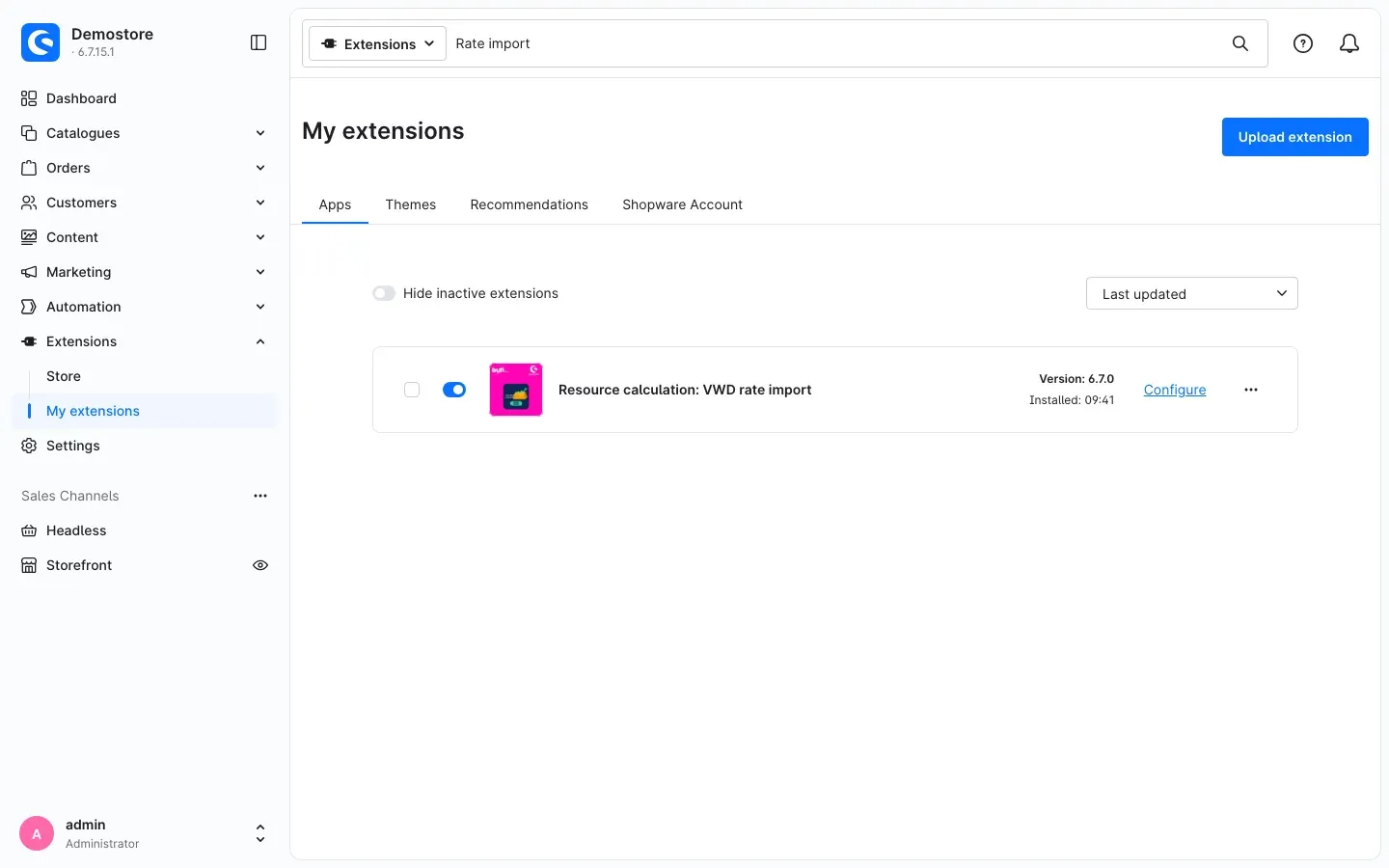 Fig. 1: The plugin is installed and active. “Configure” takes you to the settings.
After installation, the plugin does not fetch anything yet. You switch fetching on in chapter 3.
If Resource calculation: VWD rate import does not appear in the list, your Shopware account is not yet connected to the shop. You can do this under Extensions → My extensions in the Shopware Account tab by logging in with your Shopware account.
Getting started
This is how you get the first rate fetch running:
-
Open the settings: Go to Extensions → My extensions and click Configure in the row Resource calculation: VWD rate import. Leave the Sales Channel selection at the top on All Sales Channels.
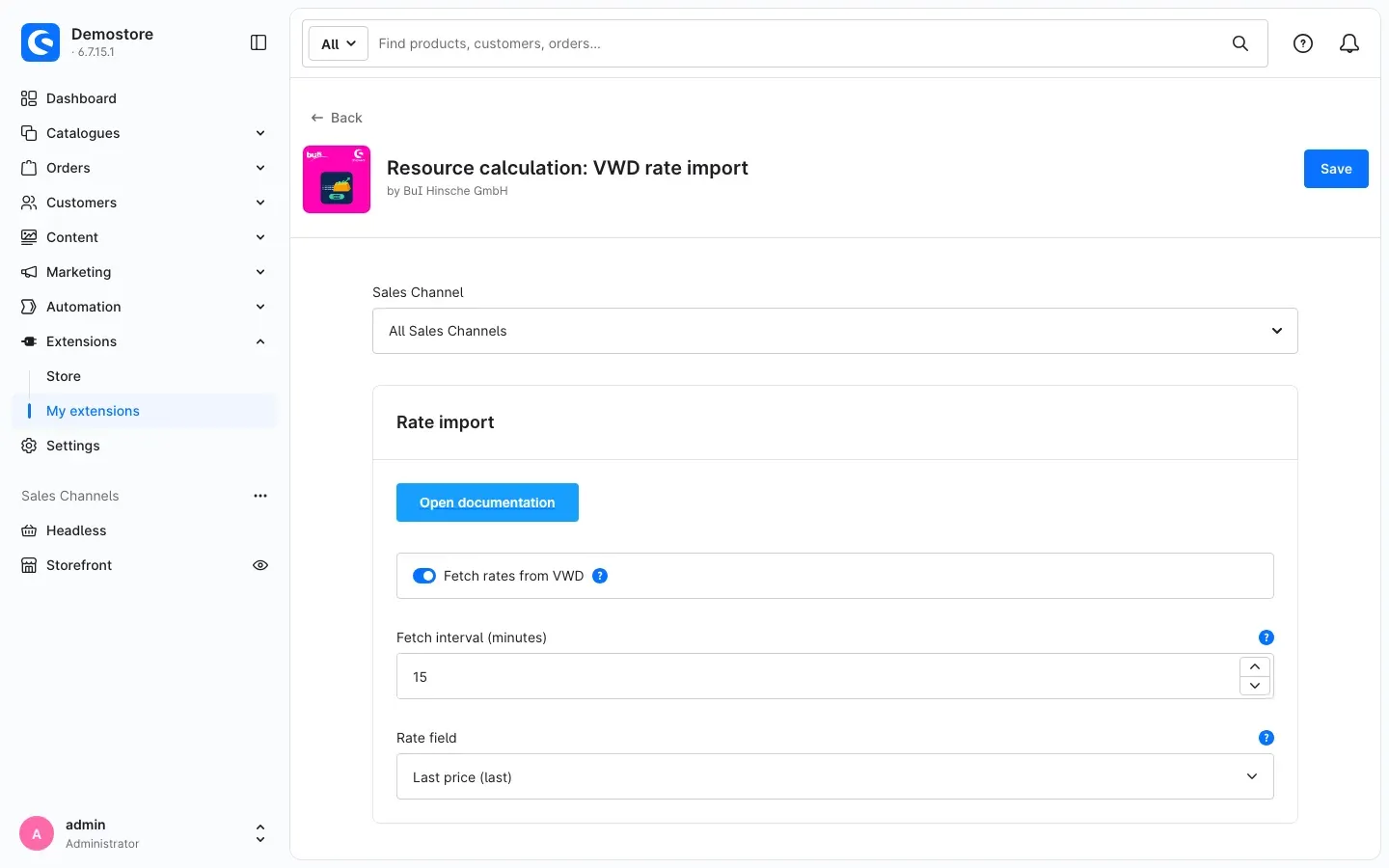 Fig. 2: The settings page with the “Rate import” area. In this example, fetching is already switched on.
 -
Enter the access data: In the Access data area, enter the Data URL, the User name and the Password from your provider. If any of these three is missing, the plugin does not fetch anything.
-
Choose the rate field: In the Rate import area, use Rate field to choose which rate is taken over. Fetch interval (minutes) is set to 15 after installation.
-
Switch fetching on: Turn on Fetch rates from VWD.
-
Save: Click Save at the top right.
-
Check the result: On its next scheduled run, the plugin fetches the rates. You then see them under Catalogues → Resource calculation → Resource rates (chapter 5.1).
Tip: If you need the rates right away rather than on the next scheduled fetch, the person who looks after your server can start a fetch by hand (chapter 9).
Settings
You find the settings under Extensions → My extensions in the row Resource calculation: VWD rate import via Configure (Fig. 2). They are split into two areas, Rate import and Access data. After every change, click Save at the top right.
One setting for all sales channels
The rates of the resource calculation do not belong to any sales channel. That is why these settings also apply to your whole shop. Leave the Sales Channel selection at the top on All Sales Channels and enter everything there. Values you save for a single sales channel only are ignored by the plugin.
Open documentation
The Open documentation button at the very top of the Rate import area opens this manual online, in the language of your administration.
Fetch rates from VWD
The Fetch rates from VWD switch allows fetching. When it is on, the plugin fetches the rate file at the interval you set and takes over the rates. When it is off, the plugin opens no connection to the provider — neither on schedule nor on a fetch started by hand. After installation, the switch is off.
Why this is useful: You decide yourself when your shop starts contacting the provider. And you can pause fetching at any time, for example when your access data changes. Your stored rates stay as they are.
Fetch interval (minutes)
Fetch interval (minutes) sets how often the plugin fetches the rates. Values from 5 to 1440 minutes are allowed, so anything from every five minutes to once a day. After installation, the value is 15.
A change applies from the run after the next one. Until then, the plugin keeps fetching at the previous interval, and at the new interval after that. The reason: Shopware has already planned the next run, and the plugin only takes over the new value during that run.
The interval is kept by your shop’s scheduled task. It only runs if your server processes scheduled tasks — the help text at the field calls this a “scheduled task worker”. Whether this is set up is known to the person who looks after your server (chapter 9).
Why this is useful: The shorter the interval, the closer your prices stay to the market. A longer interval fits if a few updates a day are enough for you. Whether your contract with the provider limits the number of fetches is something to check with them.
Fetch interval per customer type
The resource calculation can hold its own Fetch interval (seconds) for single customer types (Catalogues → Resource calculation → Customer types). This plugin then fetches the rates of such a customer type at the interval entered there; all other customer types get their rates at the interval here. The scheduled task then runs at the shortest of these intervals, at most every 5 minutes.
For intervals below 5 minutes, your IT team starts the command resourcecalc:vwd:import every minute through a system cron job:
* * * * * cd /path/to/store && php bin/console resourcecalc:vwd:importThe command then fetches all rates that become due within the minute — several times for intervals below one minute. Command and scheduled task share the schedule: each rate is fetched only once per interval, whichever way runs. If nothing is due, the command ends at once with a notice. With php bin/console resourcecalc:vwd:import --force you fetch the rates for all customer types at once.
Rate field
Rate field lets you choose which column of the rate file is taken over as the rate. The options are:
- Last price (last) — selected after installation
- Bid price (bid)
- Ask price (ask)
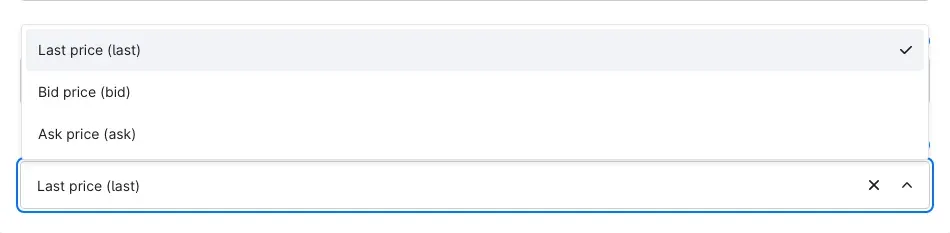 Fig. 3: The three options in the “Rate field” field.
The name in brackets is the column the plugin looks for in the rate file. The choice applies to all rates of a fetch. If the chosen column is missing from the file, the plugin takes over no rate at all in that fetch and notes the reason in the log.
Why this is useful: You decide which rate your prices are based on. Which of these columns your rate file contains is something to check with your provider.
Data URL
In Data URL, enter the address of the rate file you get from your provider.
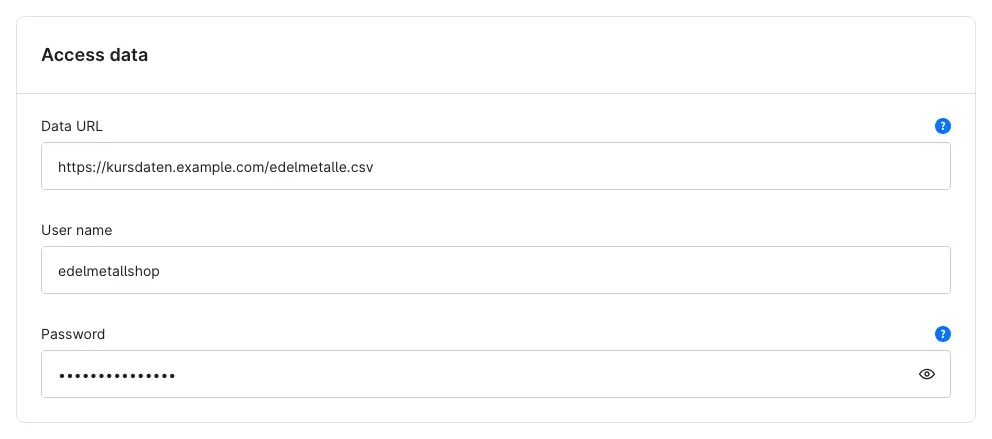 Fig. 4: The “Access data” area. Address and user name in the image are examples, the password is masked.
- If you enter the address without
https://in front, the plugin addshttps://itself. The connection is then encrypted. - Only enter
http://if your provider offers the file unencrypted only. User name and password are then sent unencrypted as well. - Never put user name and password into the address. The plugin rejects an address that contains access data and then fetches nothing.
Why this is useful: Your access data stays out of the address and is sent encrypted by default.
User name and Password
In User name and Password, enter the access data from your provider. The plugin sends both as a login with every fetch, separate from the address. The password is masked in the administration. Use the eye icon on the right of the field to reveal it.
Important: The password is shown masked, but it is stored in plain text in the system configuration of your shop.
How to use the features
How to check that the rates have arrived
What this gives you: You see at a glance which rate each resource currently has and when the last import ran.
Step by step
- Go to Catalogues → Resource calculation → Resource rates.
- Look at these columns:
- Current rate: the rate from the last fetch
- Rate currency: the currency the plugin read from the code
- Last changed: the time of the last import
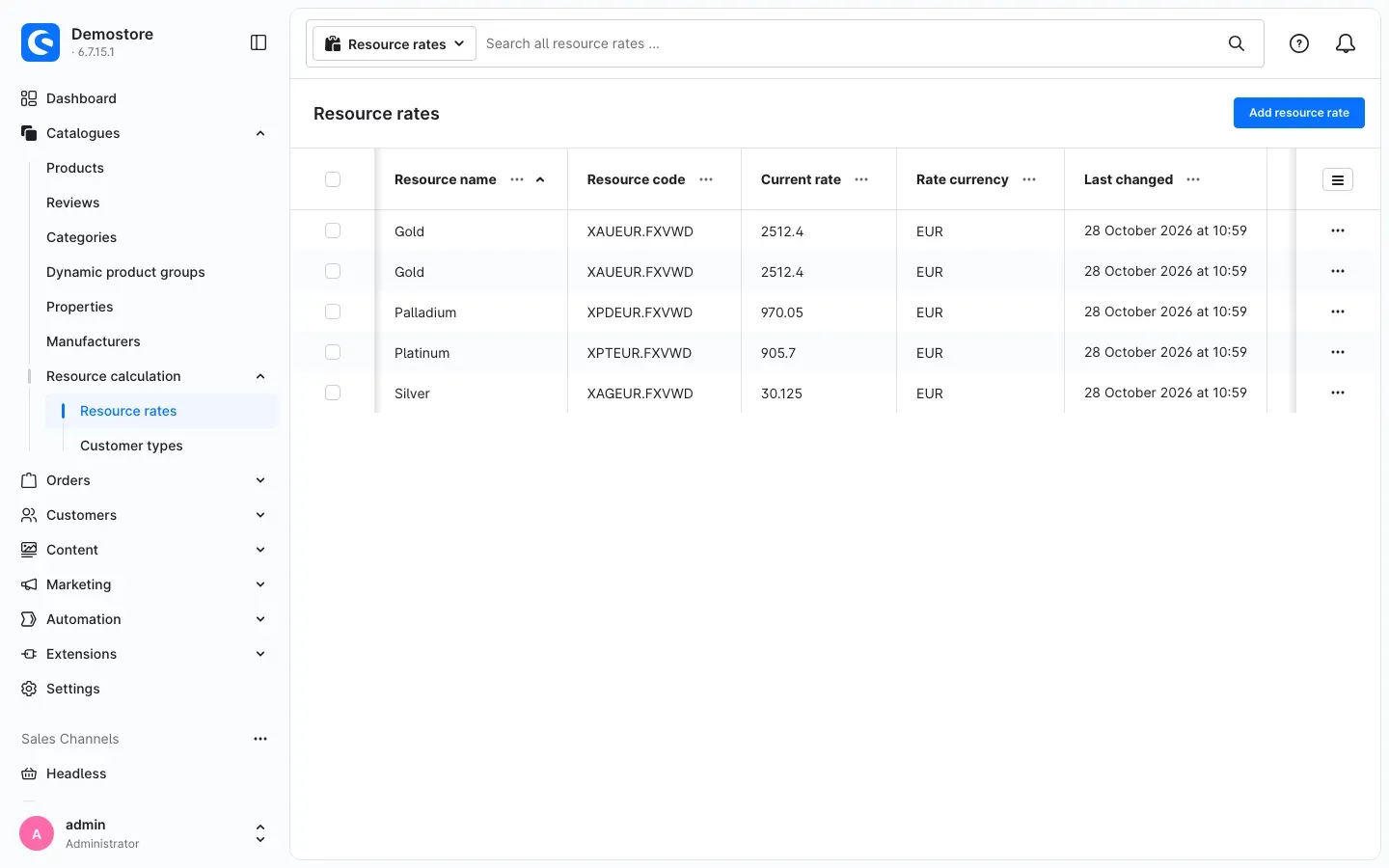 Fig. 5: Resource rates after an import with example rates. Further columns are hidden in this image. Gold appears twice in the list, once per customer type.
What happens during the import
- Every resource whose Resource code appears in the rate file gets the new rate, the rate currency and the time of the import — in every customer type. That is why both gold rows in Fig. 5 show the same rate.
- The Resource name you maintain is kept. In the example, gold is still called “Gold”, although the rate file contains a different name.
- Last changed shows the time of the import. The plugin does not take over a time stamp from the rate file.
Important: The plugin sets the Rate currency anew from the code on every import. If you changed it by hand for a resource, the next import overwrites your change.
Tip: The Resource code must be written exactly like the code in the rate file. Only then does the import find the resource.
How to recognise a rate the import has created
What this gives you: A code that newly appears in your rate file is not lost. The plugin creates it, and you decide whether you use it.
If the rate file contains a code that does not exist in your resource rates yet, the plugin creates one new rate for it in the customer type Default. It contains:
- Customer type: Default
- Resource name: the name from the rate file
- Code and Internal code: both the code from the rate file
- Variable in the formula: x
- Current market rate: the imported rate
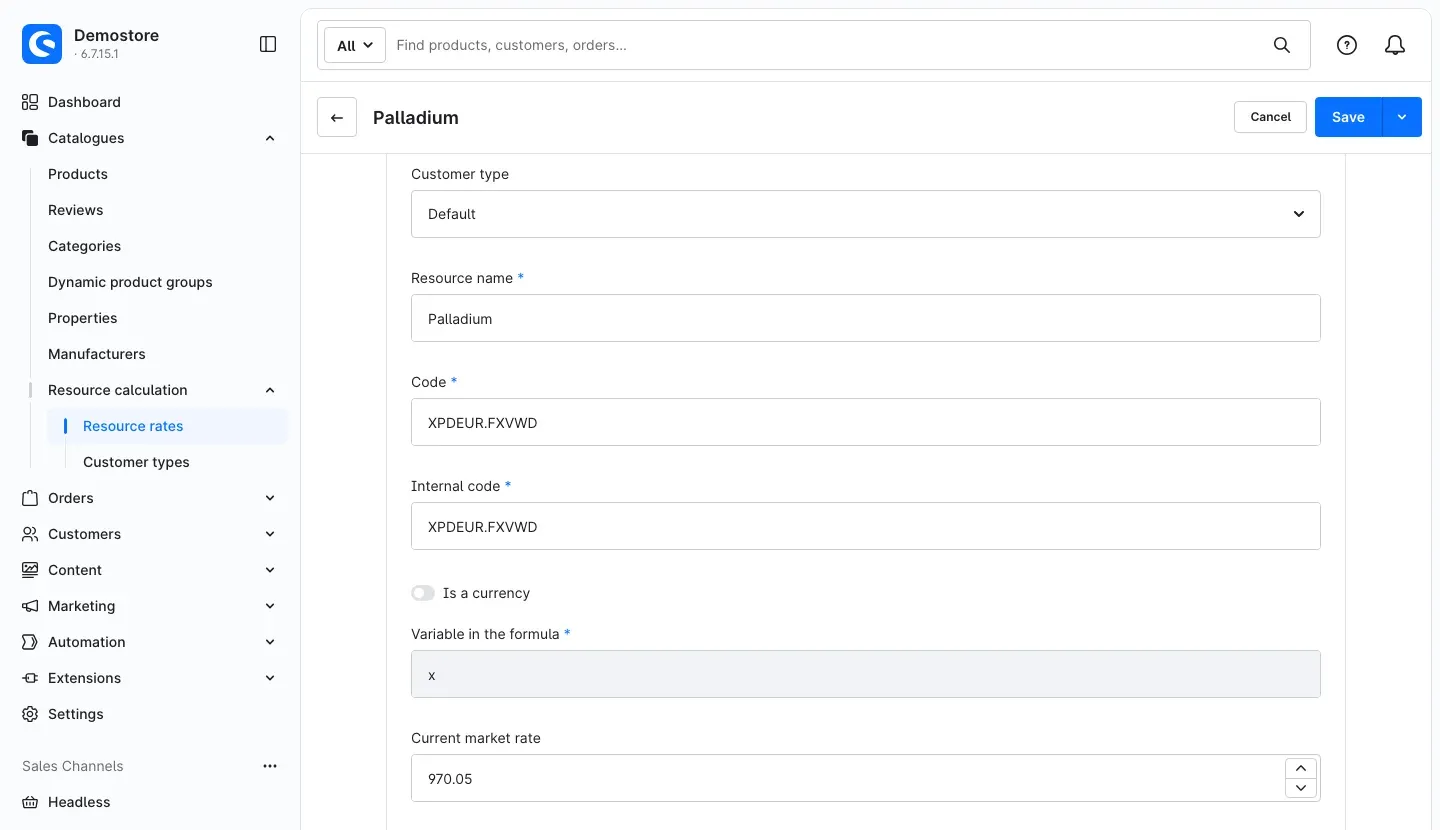 Fig. 6: In this example, palladium was newly created by the import.
Step by step
- Go to Catalogues → Resource calculation → Resource rates.
- Open the new entry (in the example Palladium).
- Adjust the Resource name if needed. It is kept on future imports.
- Click Save.
Tip: A newly created rate does not change any price yet. It only has an effect once a product uses this resource in the resource calculation. How to link a product to a resource is described in the manual of the resource calculation (chapter 8).
How the new rates affect your prices
What this gives you: Your prices follow the market without you touching a single product.
The resource calculation calculates prices from the stored rate. After an import, it calculates with the new rate. If you also use the Product buyback plugin, the Current buyback price follows the new rate too.
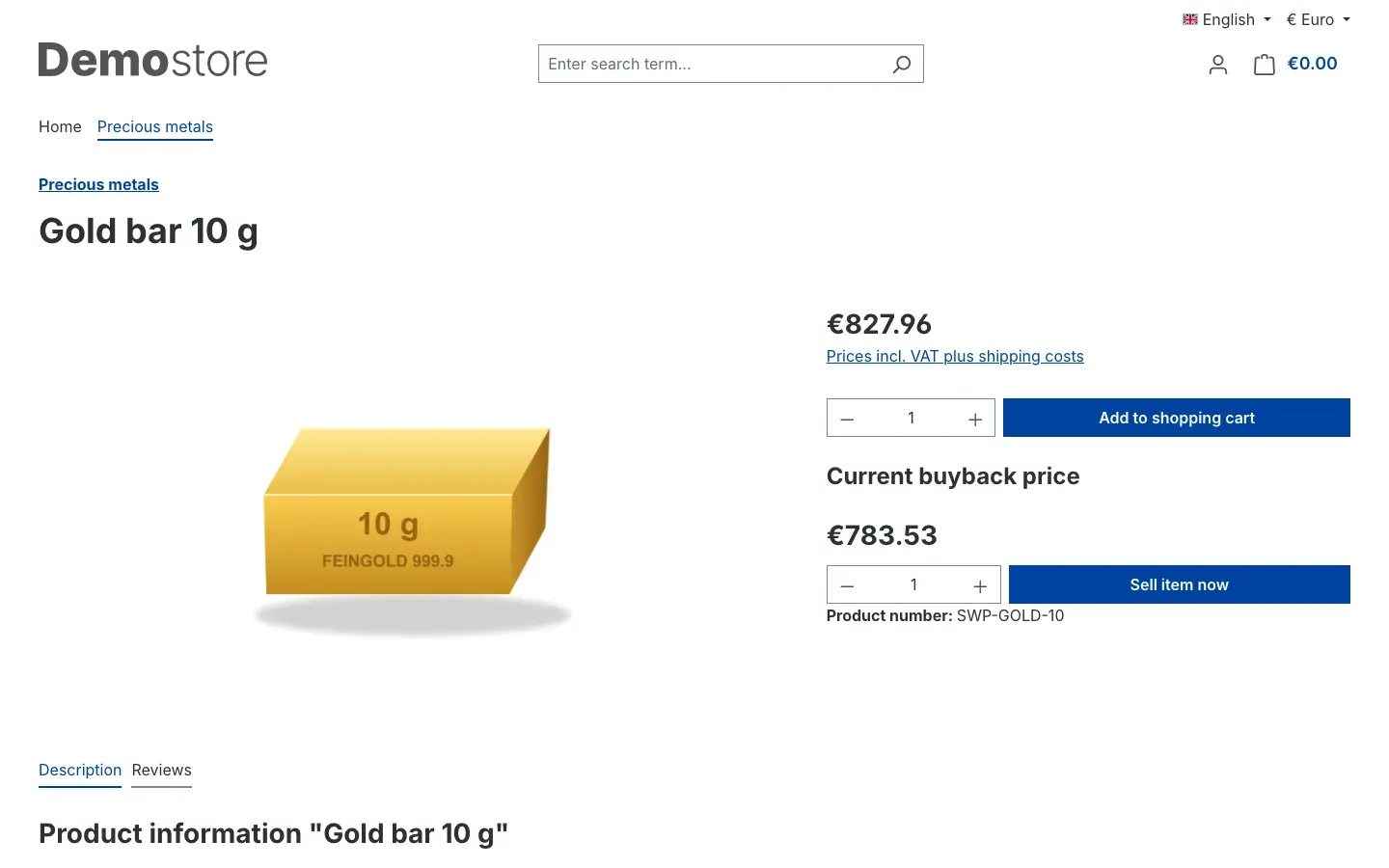 Fig. 7: Product page in the example shop. The selling price and the “Current buyback price” are calculated with the imported gold rate.
Important: The import does not update stored product prices. Your shop uses these prices for sorting, filters and exports, for example. They are renewed by a separate command of the resource calculation, which the person who looks after your server should run regularly (chapter 9).
How the plugin protects you from wrong rates
What this gives you: An error in the rate file does not turn your product into a €0 offer.
The plugin checks every rate before taking it over. It discards these values, and the previously stored rate stays in place:
- a rate of 0
- a negative rate
- an empty value or anything that is not a number — this includes a rate with a comma (
2512,40) instead of a point (2512.40) - a rate where characters 4 to 6 of the code do not form a three-letter currency
Lines with more or fewer columns than the first line of the file are skipped.
If the plugin cannot read the file as a whole, it takes over no rate at all in that fetch. This happens if
- the address cannot be reached or the server answers with an error,
- the answer is empty or not a rate file,
- a required column is missing: the code, the name or the column of the chosen rate field,
- the file contains no rates apart from the first line.
In all cases the reason is in the log (chapter 9).
How to pause fetching
What this gives you: You stop the connection to the provider without uninstalling the plugin and without losing your settings.
Step by step
- Go to Extensions → My extensions and click Configure in the row Resource calculation: VWD rate import.
- Turn off Fetch rates from VWD.
- Click Save.
From then on, the plugin opens no more connections. Your rates stay as they are. You can maintain them by hand again under Catalogues → Resource calculation → Resource rates. To continue, turn the switch back on.
Important: As long as fetching is switched on, every import overwrites a rate you entered by hand if its code appears in the rate file.
Troubleshooting
The rates do not change
Possible cause: Fetching is switched off, the access data is incomplete or scheduled tasks are not running in your shop.
How to fix it:
- Open the plugin settings and check whether Fetch rates from VWD is switched on.
- Check whether Data URL, User name and Password are filled in. If one of them is missing, the plugin fetches nothing.
- Check whether Sales Channel at the top shows All Sales Channels and your values are entered there.
- Look at the Last changed column under Catalogues → Resource calculation → Resource rates. If the time is old, ask the person who looks after your server to check whether scheduled tasks are running and to look at the log (chapter 9).
The address contains user name and password
Cause: Some addresses contain the access data directly, for example in the form https://user:password@…. The plugin rejects such an address and fetches nothing.
How to fix it: Remove user name and password from the Data URL and enter them in the User name and Password fields. Then click Save.
The provider offers the file unencrypted only
Cause: If the Data URL contains neither http:// nor https://, the plugin fetches via https://. If your provider offers the file unencrypted only, the fetch fails.
How to fix it: Enter the address with http:// in front. Keep in mind: user name and password are then sent unencrypted.
No rate at all was taken over in a fetch
Possible cause: The plugin could not read the file as a whole — it was unreachable, empty, not a rate file, or a required column was missing (chapter 5.4).
How to fix it:
- Check the Data URL for typos.
- Check whether the column of your chosen Rate field is in the file. Otherwise change the Rate field.
- Get the reason from the log (chapter 9) and clarify it with your provider.
A single resource does not get a new rate
Possible cause: The Resource code differs from the code in the file, the rate in the file is invalid, or the line has the wrong number of columns.
How to fix it:
- Compare the Resource code under Catalogues → Resource calculation → Resource rates character by character with the code in the rate file.
- Check with your provider whether the rate in the file is a number greater than 0 with a point as decimal separator.
- Discarded rates are listed with their reason in the log (chapter 9).
A new code is not created as a rate
Possible cause: In the customer type Default, there is already a rate whose Internal code equals this code. Or the customer type Default is missing. In both cases the import creates nothing.
How to fix it: Under Catalogues → Resource calculation → Resource rates, check whether a rate in the customer type Default already carries this code as Internal code. Under Catalogues → Resource calculation → Customer types, check whether the customer type Default exists.
The resource name from the file is not taken over
Cause: This is intended. For existing rates, your Resource name is kept. The plugin only uses the name from the file when it creates a new rate.
How to fix it: Nothing to do. If you want a different name, change the Resource name by hand.
The rate currency changed after the import
Cause: On every import, the plugin reads the currency from characters 4 to 6 of the code and sets it anew.
How to fix it: If the currency is wrong, check with your provider which code stands for the rate you want.
The new fetch interval does not apply right away
Cause: A change applies from the run after the next one. Until then, the plugin keeps fetching at the previous interval (chapter 4).
How to fix it: Nothing to do. The new interval applies by itself after that.
Sorting, filters or exports still show old prices
Cause: Stored product prices are not renewed by this import but by a command of the resource calculation.
How to fix it: Ask the person who looks after your server to run this command regularly (chapter 9).
The plugin cannot be installed or activated
Possible cause: The plugin requires the resource calculation.
How to fix it: Check under Extensions → My extensions whether Resource calculation is installed and active. Install and activate it first, then the rate import.
FAQ
Q: Do I need my own VWD access?
A: Yes. The plugin contains no access and no rate data. You get the address, user name and password from your own contract with the provider.
Q: Which rates can I fetch?
A: The plugin takes over the rates that are in your rate file. Which resources and codes the file contains is defined by your contract with the provider. Check this with them.
Q: Can I fetch rates differently per sales channel?
A: No. The rates of the resource calculation do not belong to any sales channel. The settings therefore apply to the whole shop.
Q: Does an imported rate apply to all customer types?
A: Yes. Every rate with this resource code gets the new value, whatever its customer type. The plugin creates new codes in the customer type Default only. In the resource calculation, customer types without their own rate use the rate from Default.
Q: Do I have to start fetching by hand?
A: No. When Fetch rates from VWD is switched on, the scheduled task fetches the rates at the interval you set. A fetch by hand is possible in addition (chapter 9).
Q: Are my prices recalculated right after the import?
A: Partly. From then on, the resource calculation calculates with the new rate. Stored product prices for sorting, filters and exports are renewed by a command of the resource calculation (chapters 5.3 and 9).
Q: Does the plugin send data to external servers?
A: Only when you switch on Fetch rates from VWD. It then fetches the file from your Data URL and sends user name and password with it. It never sends customer or order data.
Q: Does the plugin also read other file formats or other providers?
A: No. It reads exactly one text file with a semicolon as separator and a header line (chapter 9).
Q: I already use an older version. Do I have to do anything after the update?
A: Usually not. If a Data URL was entered before the update, the update switches on Fetch rates from VWD. So your import keeps running. Details are in chapter 9.
Q: What happens to my rates when I uninstall the plugin?
A: The imported rates stay in the resource calculation. Shopware removes the plugin’s scheduled task. Shopware only removes the settings if you do not keep the data when uninstalling.
For administrators / Technical details
This section is aimed at technical administrators. You do not need it for normal use.
System requirements
- Shopware: 6.7.7 or later (6.7)
- PHP: 8.2 or later
- Resource calculation (
SwpResourceCalcSix) 6.7, installed and active - For fetching on schedule: scheduled tasks being processed
- The shop server must be able to reach the entered data URL
Installation via the command line
If the plugin is already in your shop, install and activate it like this. The resource calculation comes first:
bin/console plugin:refresh
bin/console plugin:install --activate SwpResourceCalcSix
bin/console plugin:install --activate SwpResourceCalcVwdSix
bin/console cache:clear
Scheduled task
Fetching on schedule is done by the scheduled task swp.resource_calc_vwd.rate_import (default: every 15 minutes). It only runs if scheduled tasks and the message queue are being processed, for example with:
bin/console scheduled-task:run
bin/console messenger:consume
To start a single run:
bin/console scheduled-task:run-single swp.resource_calc_vwd.rate_importIf Fetch rates from VWD is switched off, the task keeps running but opens no connection. On every run, the plugin writes the configured Fetch interval (minutes) into the schedule of this task. At that moment, Shopware has already planned the next run at the old interval. That is why a change applies from the run after the next one.
Fetching by hand
bin/console resourcecalc:vwd:importThe former command name resourcecalcvwd:cron still works. You do not have to change existing cron jobs.
The output lists the updated and the newly created codes and the number of discarded rates. The command ends without error if rates were written or if fetching is switched off (then with a warning, without a connection). It ends with an error if access data is missing, fetching or reading the file fails, or not a single rate was written. You can use this to monitor a cron job.
Updating stored product prices
The import only writes the rates. The stored product prices for sorting, filters and exports are renewed by the command of the resource calculation:
bin/console resourcecalc:cronThe resource calculation has no scheduled task for this. Schedule the command via your server’s cron.
Connection to the provider
- One single GET request to the data URL per fetch. User name and password are sent as HTTP basic authentication, never as part of the address.
- Without a protocol in the address,
https://is used. The plugin only useshttp://if it is entered explicitly. - An address with access data, without a server name or with a protocol other than
http/httpscounts as a missing data URL. The plugin then fetches nothing and notes the missing entry in the log. The same applies to an empty user name or an empty password. - Limits per fetch: 10 seconds waiting for an answer, 30 seconds in total, at most 5 MB, at most 3 redirects. If the server answers with a status outside 200 to 299, the fetch is aborted.
- Apart from this request, the plugin sends nothing to external servers, and no customer or order data.
- The password is stored in plain text in the shop’s system configuration.
Structure of the rate file
This is how the file must be structured so that the plugin can read it:
- Text, one line per rate, columns separated by semicolons. Empty lines and a byte order mark at the start of the file are ignored.
- The first line names the columns. Required are
#vwdcode(code),name(resource name) and the column of the chosen rate field:last,bidorask. Further columns are allowed and ignored by the plugin. - Every rate line has exactly as many columns as the first line. Otherwise the plugin skips the line and notes it in the log.
- Rates with a point as decimal separator and without thousands separators, for example
2512.40. Values such as2512,40or2.512,40are discarded. - The currency is characters 4 to 6 of the code, in capital letters (
XAUEUR.FXVWDgivesEUR). - The plugin does not take over a time stamp from the file. The time of the import counts as the change time.
Example of a file the plugin can read. Codes, names and rates are invented example values, not data from any provider:
#vwdcode;name;date;last;bid;ask
XAUEUR.FXVWD;Gold Unze 999.9;2026-10-27 16:30:00;2512.40;2511.90;2513.10
XAGEUR.FXVWD;Silber Unze;2026-10-27 16:30:00;30.125;30.100;30.150
The plugin was built for this structure. Whether your rate file looks exactly like this — column names, decimal separator, availability via https:// — is something to check with your provider before going live.
Logs
var/log/SwpResourceCalcVwdSix-<date>.log— summary per import (number of rates, updated and created codes, discarded rates with reason), incomplete access data, connection errors, unreadable answers and skipped lines.var/log/SwpResourceCalcSix-<date>.log— the log of the resource calculation. Discarded rates are listed there as well.
Updating from earlier versions
- Update from a version before 6.7.0: if a data URL was entered, the update switches on Fetch rates from VWD. Existing shops therefore keep importing.
- If the switch was never saved (for example because the plugin files were replaced without an update), an entered data URL counts as switched on.
- A per-sales-channel switch from earlier versions had no effect. Installation and update remove it.
- If the data URL contains no protocol, the plugin fetches via
https://. If your provider offers the file unencrypted only, enterhttp://explicitly. - The former command name
resourcecalcvwd:cronstill works.
Uninstallation
The plugin has no tables of its own. The imported rates stay in the resource calculation. Shopware removes the scheduled task and — if you do not keep the data — the plugin settings.
This manual was written for Resource calculation: VWD rate import version 6.7.0.
More manuals
Address Validation: House Number Check & Corrections
Address validation at the point of entry: the plugin spots missing house numbers, can suggest corrections via Google and helps you send fewer parcels that come back undeliverable.
Open manual Shopware 6Admin Password Reminder
Admin Password Reminder: your backend users renew their passwords on time, prompted after login and by a daily email. Premium locks expired accounts until the password is changed.
Open manual Shopware 6Advent Calendar | Doors with products, coupons and promotions
Advent calendar for your shopping experiences: doors open on time without clearing the cache, give nothing away in the page source and reveal coupons, products or your own content.
Open manualNeed a team that keeps your shop running?
We have been maintaining Shopware shops for more than 20 years, including updates, hotfixes and the plugins you are configuring right now.