Cart Quantity 0 Removes Item
Your customers type a 0 into the cart quantity field and the line item is gone at once. On the cart page and in the ajax cart, no error message and switchable per sales channel.
On this page
- Introduction
- What you achieve with this plugin
- Who is this plugin for?
- What the plugin does not change
- Installation and activation
- Configuration
- Enable plugin for this sales channel
- Allow quantity 0 on the cart page
- Allow quantity 0 in the ajax cart
- Show a message after the item was removed
- Appearance of the remove button
- Hide shipping costs until a delivery address is known
- How it works in the shop
- How a customer removes an item on the cart page
- How it works in the ajax cart
- How it works on the order confirmation page
- How the cart looks without the remove button
- How the summary looks with shipping costs hidden
- Troubleshooting
- A 0 cannot be entered in the cart
- Some items show no hint and do not accept the 0
- The remove button is still there although “Hidden” is selected
- The customer sees the message “This item cannot be removed.”
- No confirmation appears after an item is removed
- Shipping costs are shown although the setting is on
- The settings take effect in the wrong shop
- FAQ
- For administrators / technical details
- System requirements
- Installation via the command line
- Where the settings are stored
- Behaviour with invalid input
- Known limits
Introduction
In standard Shopware, a customer can only reduce the quantity of a cart item down to 1. To actually get rid of the item, they have to hit the remove button — a second control somewhere else in the row, and an easy one to miss on a phone.
This plugin makes the 0 usable in the quantity field that is already there: as soon as a customer types a 0, the item is gone from the cart. No intermediate step, no error message, no confirmation dialogue.
What you achieve with this plugin
- Your customers remove an item exactly where they are already typing — in the quantity field.
- This works on the cart page, in the ajax cart (the one that opens from the shopping cart icon) and on the order confirmation page right before the purchase.
- You decide per sales channel whether and where the 0 applies — a B2B channel can use it while the B2C channel keeps the standard behaviour.
- You can leave the remove button unchanged, make it smaller or hide it completely.
- Optionally you hide the shipping costs while no delivery address is known and show an explanatory note with a link to your shipping information instead.
Who is this plugin for?
For shop operators who want a tidier cart that is easier to operate on a phone. You do not need any programming knowledge: install, activate, set the switches if you want to — that is all.
What the plugin does not change
It does not swap any design and it does not replace existing controls. Prices, totals, discounts and the checkout process stay exactly as your shop presents them today. Any item that cannot sensibly be removed by a 0 — a discount or credit row, for example — keeps behaving exactly as it does in standard Shopware.
Installation and activation
After the purchase the plugin is available directly in your administration — there is nothing to download.
- Log in to your Shopware administration.
- Open Extensions → My extensions.
- Find the entry Cart Quantity 0 Removes Item in the list and click Install next to it.
- Then switch the plugin on using the toggle to the left of the entry. The toggle turns blue as soon as the plugin is active.
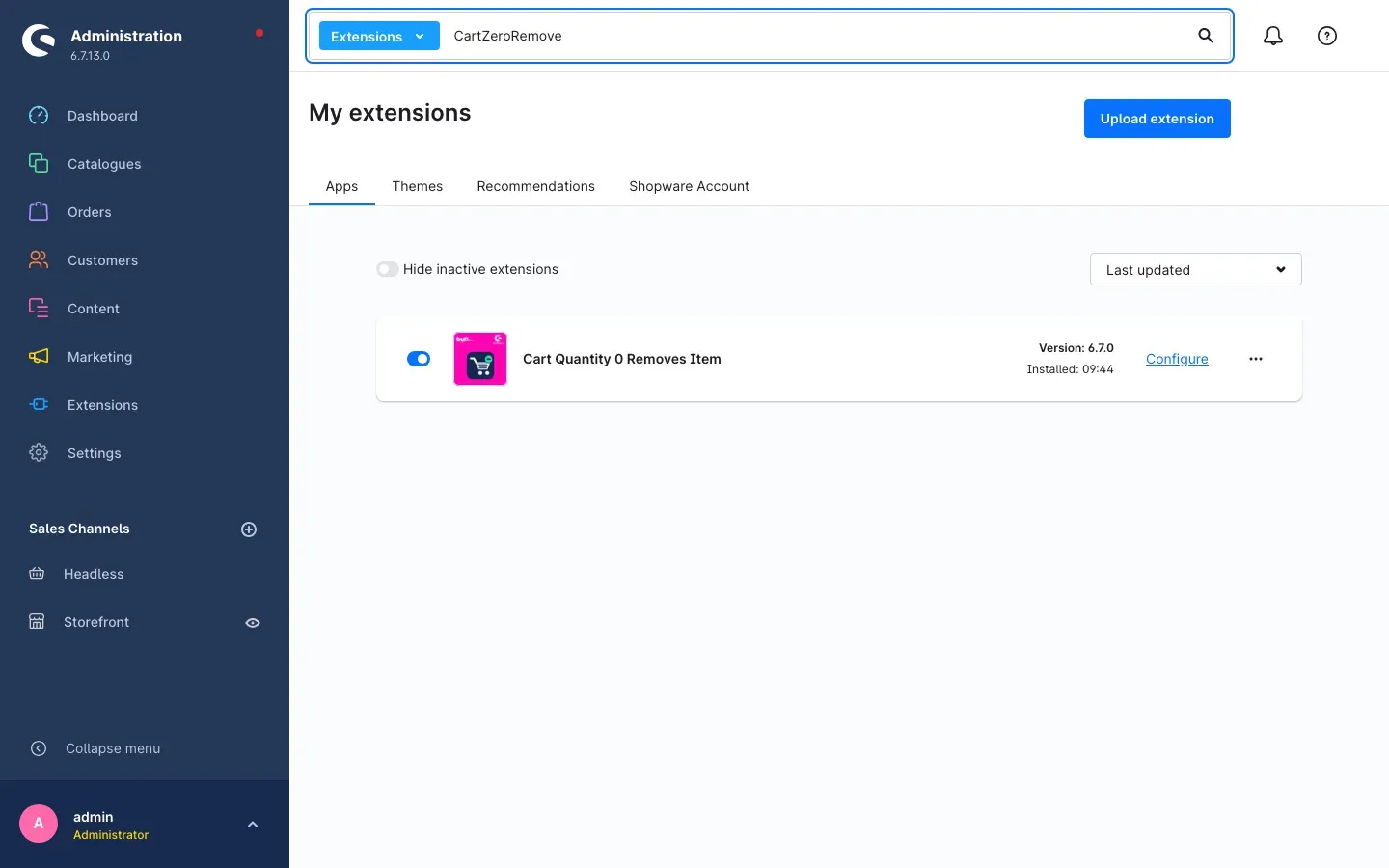 Fig. 1: The entry under “My extensions” — the toggle on the left, version, installation time and the “Configure” link on the right
If you cannot spot the entry in a long list, type part of the name into the search field at the top, for example CartZeroRemove.
Important: Right after activation the storefront may still show the previous state, because your shop has cached the page. In that case clear the cache once under Settings → System → Caches & indexes and reload the cart.
If Cart Quantity 0 Removes Item does not appear in the list at all, your Shopware account is not yet connected to the shop. You set that up under Extensions → My extensions on the Shopware Account tab.
The plugin is ready to use immediately after activation: quantity 0 applies on the cart page, on the order confirmation page and in the ajax cart, and your customers receive a short confirmation after an item is removed. Nothing else needs to be set up.
Configuration
You reach the settings via Extensions → My extensions. Click Configure next to the entry Cart Quantity 0 Removes Item.
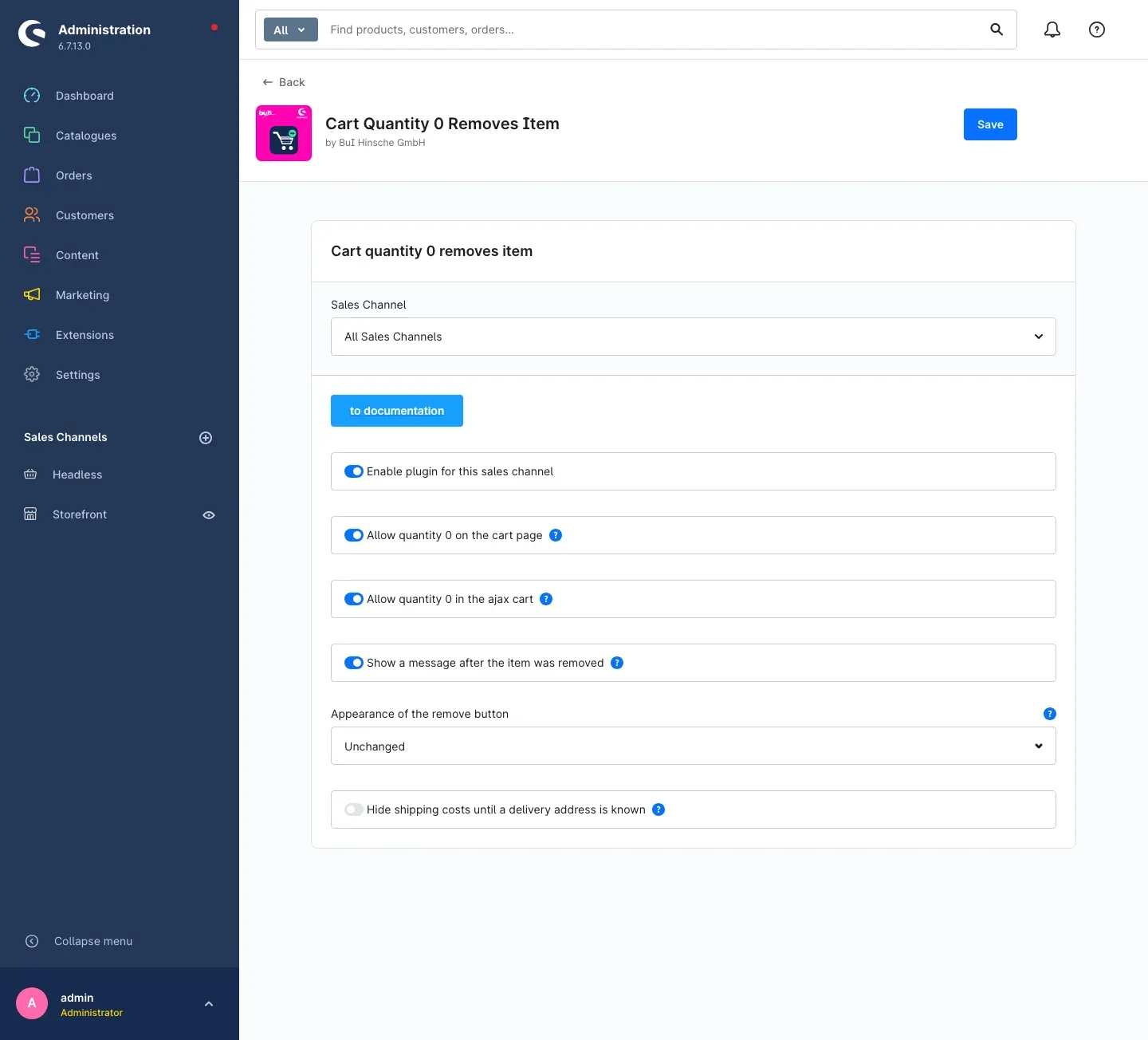 Fig. 2: The configuration page with the sales channel selection, the “to documentation” button and all six settings
At the very top there is the Sales Channel selection. As long as it shows All Sales Channels, your settings apply to every shop. If you pick an individual sales channel instead, everything you change afterwards only applies to that one channel — so you can use the feature in your trade shop, for example, and leave it out of the consumer shop.
The to documentation button opens this manual in your browser, always in the language of your administration.
After each change, click Save in the top right corner. Only then does the change take effect in the shop.
Enable plugin for this sales channel
Enable plugin for this sales channel decides whether the plugin does anything at all in this shop. The switch is on by default.
If you switch it off, the cart behaves exactly like standard Shopware, as if the plugin were not installed: the quantity can only be reduced to 1, the remove button appears at its usual size, and the shipping cost note no longer appears either.
Why this is useful: you can try the feature out in one channel before releasing it everywhere — and withdraw it within seconds if you change your mind, without uninstalling the plugin.
Allow quantity 0 on the cart page
Allow quantity 0 on the cart page controls the full cart page your customers reach from the shopping cart icon. The switch is on.
It also covers the order confirmation page in the checkout, because Shopware shows the same quantity field there. If you switch it off, both places keep the standard behaviour; the ajax cart is not affected.
Why this is useful: if you only want to offer quantity 0 in the quick ajax cart, switch it off here — the detailed cart page then stays exactly as your customers know it.
Allow quantity 0 in the ajax cart
Allow quantity 0 in the ajax cart controls the small cart that slides in from the right when a customer clicks the shopping cart icon or adds a product to the cart. The switch is on.
Why this is useful: this is where customers correct their cart most often without leaving the page. If you do not want to offer the quick route, switch it off here without touching the cart page.
Show a message after the item was removed
When Show a message after the item was removed is on — which is the default — the green message The item has been removed from your cart. appears after an item is removed.
If you switch the message off, the item disappears completely silently. The cart updates, nothing else happens.
Why this is useful: the message confirms to the customer that the change was applied — which matters when the removed item was at the top of the list while the customer is reading further down. If you deliberately keep messages to a minimum in your shop, switch it off.
Appearance of the remove button
Appearance of the remove button decides what happens to the familiar remove button (the cross at the right-hand end of the row). You can choose:
- Unchanged — the button stays exactly as Shopware ships it. This is the default.
- Small — the button remains present and usable, but is displayed more discreetly so that the quantity field leads visually.
- Hidden — the button disappears and the quantity field becomes the only way to remove an item.
Why this is useful: a tidy cart with a single control per row feels calmer and is easier to hit on narrow screens. How the cart looks without the remove button shows what that looks like.
Important: Hidden only takes effect on items where the customer can really type the 0. Wherever Shopware does not show a usable quantity field, the remove button stays in place — otherwise there would be no way left to remove that item. This mainly affects products with a maximum purchase quantity of 1 (including the last item of a clearance stock), digital download products and the address page in the checkout. So a cart without any way to remove an item cannot occur.
Hide shipping costs until a delivery address is known
Hide shipping costs until a delivery address is known is the only setting that is off by default.
If you switch it on, your shop no longer shows a shipping cost amount in the cart summary and in the ajax cart while the customer has not provided a delivery address yet. In place of the amount there is the note Plus shipping costs – the amount is confirmed as soon as the delivery address is known., followed by the sentence The total shown provisionally includes the cost of the default shipping method. and a Shipping information link to your shipping information page. As soon as a delivery address exists, the shop shows the amount as usual again. How the summary looks with shipping costs hidden shows what that looks like.
Why this is useful: as long as the address is missing, the shipping amount in the shop is only an assumption based on the default country. The note says so openly instead of showing a figure that changes later.
Important: this setting is deliberately off, because it changes how prices are presented in your shop. Check the price indication rules that apply to you before switching it on (in Germany: PAngV, sec. 312a BGB), and ask your legal adviser if in doubt. Free shipping is never hidden, by the way: if the shipping costs are 0.00 with a known address, that amount stays visible.
How it works in the shop
This chapter shows what your customers see after activation. You do not have to explain anything to them — the hint below the quantity field does that.
How a customer removes an item on the cart page
What this gives you: the fastest way to get rid of an item — with no need to aim at a small icon.
Below the quantity field in the Quantity column, the hint Enter quantity 0 to remove this item. appears. That makes the route self-explanatory.
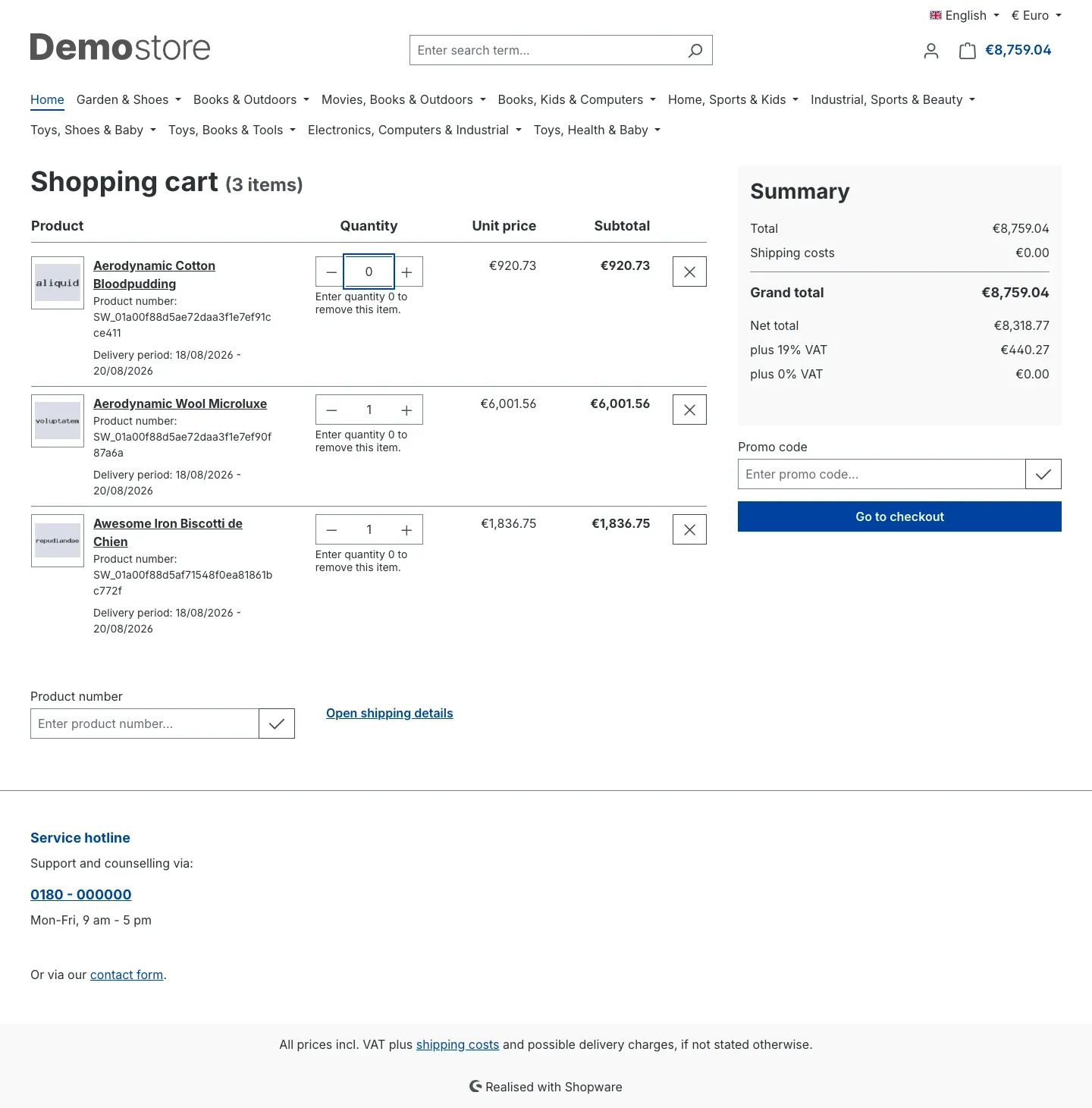 Fig. 3: The customer has entered a 0 in the first row; the hint appears below every quantity field
Step by step
- The customer opens the cart via the shopping cart icon in the top right corner.
- In the Quantity column they select the number in the relevant row and type a
0. - As soon as they leave the field, the change is applied automatically — no further click is needed.
The item disappears, the summary on the right recalculates, and the green message The item has been removed from your cart. appears at the top. The heading shows the new number of items.
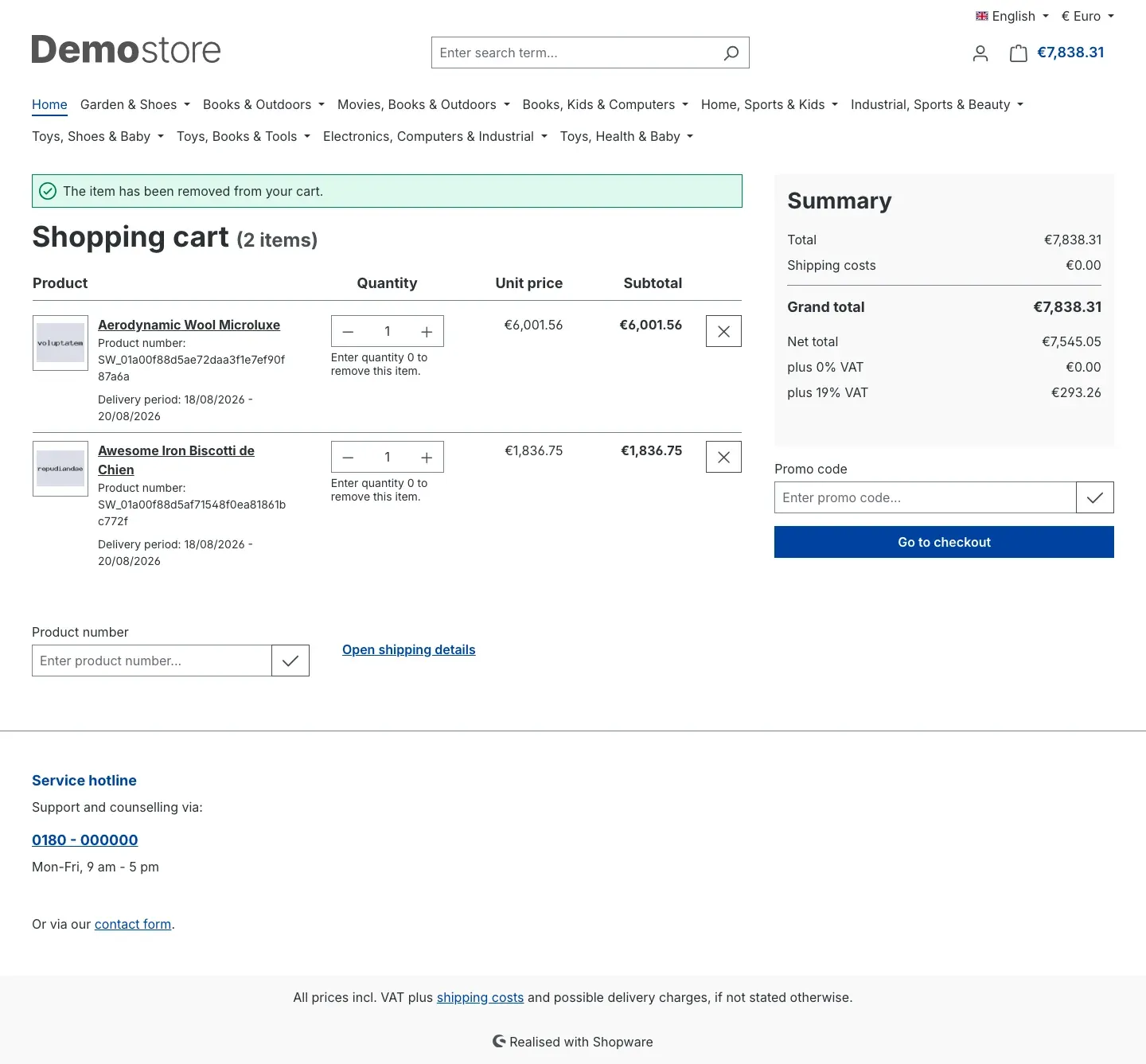 Fig. 4: After the removal — confirmation message, one item less and recalculated totals
Tip: only the one row that contains the 0 is ever removed. All other items and a redeemed promo code stay untouched.
How it works in the ajax cart
What this gives you: customers tidy up their cart without leaving the product page — the most common case in everyday use.
The ajax cart slides in from the right as soon as a customer clicks the shopping cart icon. The field next to Quantity can be set to 0 here as well; the full hint text is not displayed there to save space.
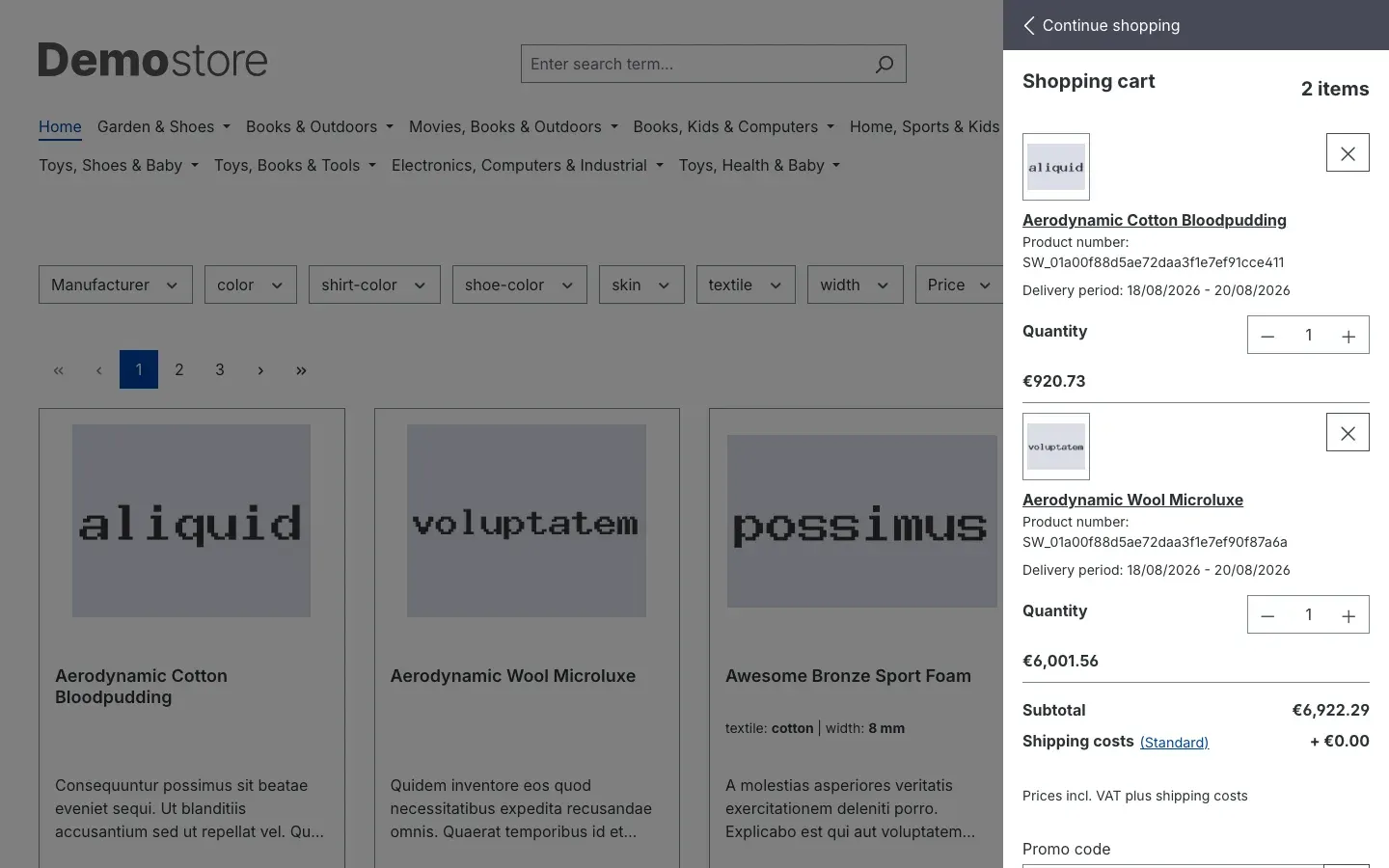 Fig. 5: The ajax cart with a quantity field for each item
The item disappears from the panel straight away, and the subtotal and shipping cost row are recalculated immediately. The customer stays on the page they were on.
How it works on the order confirmation page
What this gives you: even in the last step before the purchase, a customer can drop an item instead of leaving the checkout.
On the Complete order page, Shopware shows the same item list with quantity field and hint as on the cart page. The 0 works in exactly the same way here.
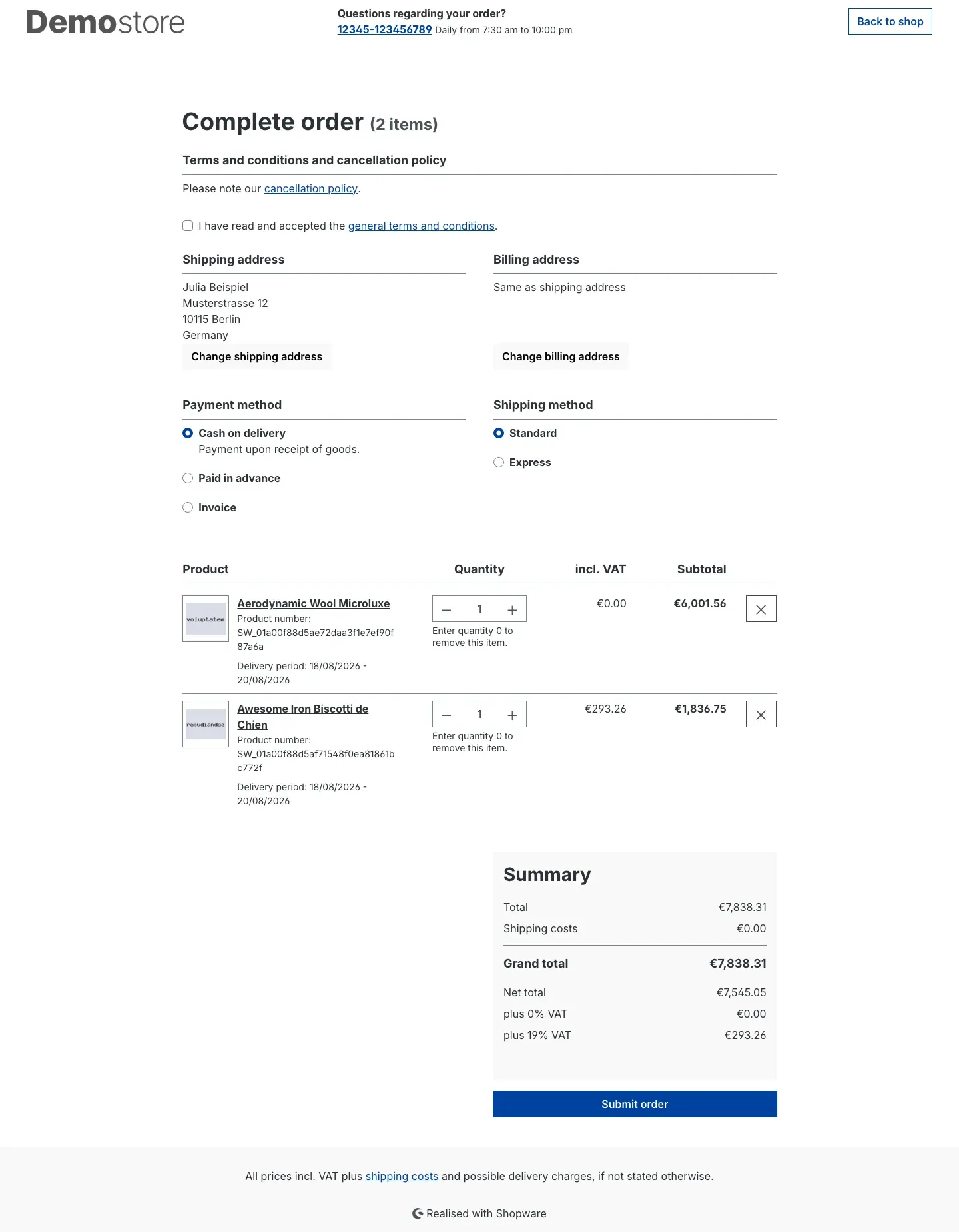 Fig. 6: The order confirmation page with the same quantity field and the same hint
This page is covered by the Allow quantity 0 on the cart page setting (see Allow quantity 0 on the cart page). On the address page of the checkout, Shopware deliberately shows no quantity field; every item keeps its remove button there.
How the cart looks without the remove button
What this gives you: one row, one control — the cart feels calmer, and there is nothing left to miss on a phone.
If Appearance of the remove button is set to Hidden, the cross at the right-hand end disappears. What remains is the quantity field with its hint.
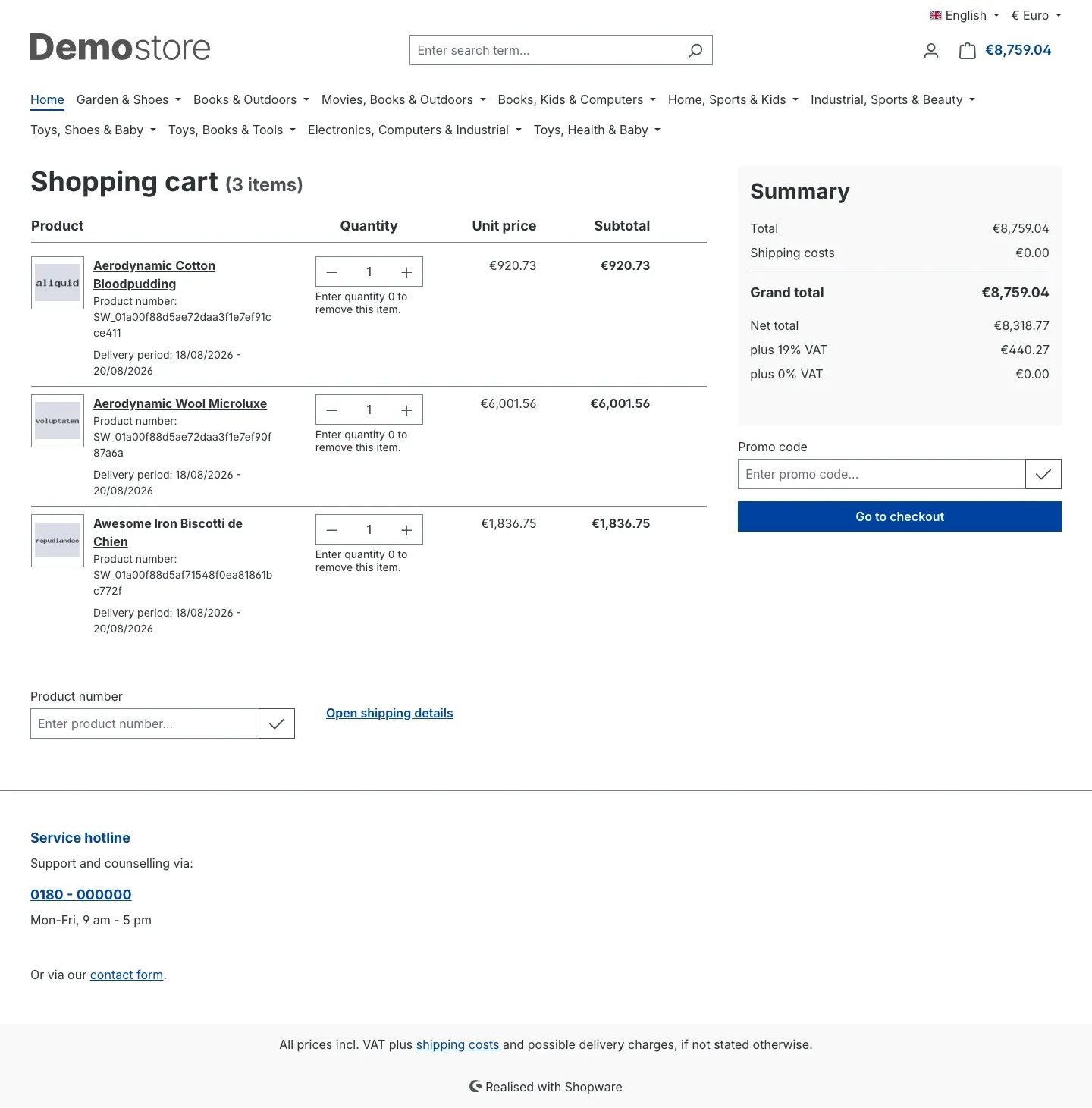 Fig. 7: Cart page with the remove button hidden — items are removed via quantity 0 only
For items that cannot be removed via the 0, the button stays visible (see the note in Appearance of the remove button). Both variants can therefore appear next to each other in one item list — that is intended and makes sure every item stays removable.
How the summary looks with shipping costs hidden
What this gives you: no amount that jumps later — a clear sentence and the route to your shipping information instead.
If Hide shipping costs until a delivery address is known is on, the summary shows the note plus the Shipping information link in place of the amount.
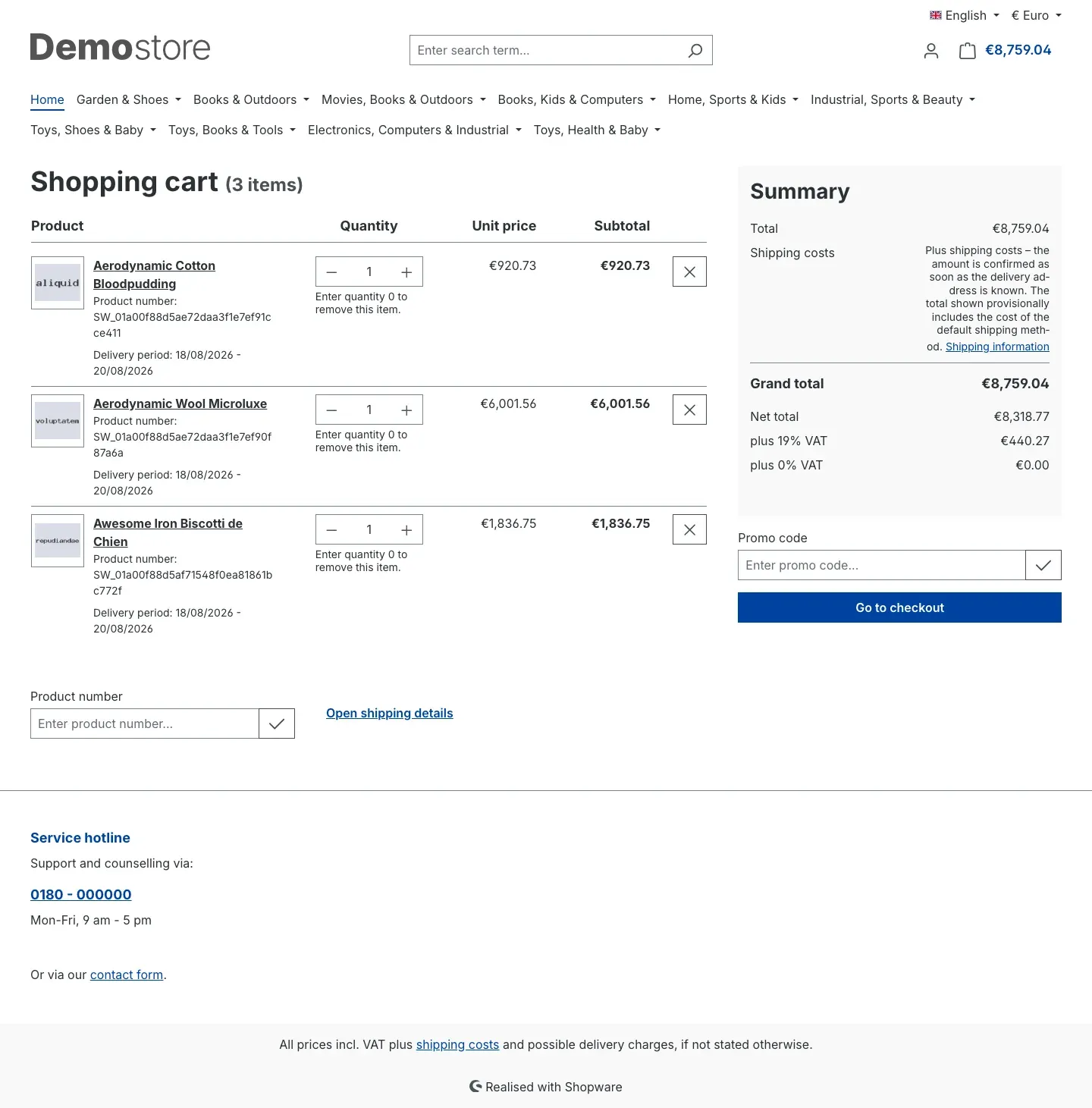 Fig. 8: Summary without a shipping cost amount — in its place the note with a link to the shipping information page
The label and position of the row stay unchanged, and so does the Grand total row below it. That is why the note states explicitly that the total shown provisionally already includes the cost of the default shipping method. As soon as a delivery address is known, the shop shows the amount again.
Troubleshooting
A 0 cannot be entered in the cart
What causes it: either the plugin is switched off for this sales channel, or the affected surface is deselected, or your shop is still serving a cached version of the page.
How to fix it:
- Open Extensions → My extensions and check that the toggle to the left of the entry is switched on.
- Click Configure and select the exact channel you are testing in under Sales Channel at the top.
- Check Enable plugin for this sales channel as well as Allow quantity 0 on the cart page and Allow quantity 0 in the ajax cart.
- Save, then clear the cache under Settings → System → Caches & indexes and reload the cart in the shop.
Some items show no hint and do not accept the 0
What causes it: these items are excluded from removal via the 0. This affects products with a maximum purchase quantity of 1 (including the last item of a clearance stock), digital download products as well as discount, promotion, credit and bundle items.
How to fix it: nothing to do — this is intended. These items keep their remove button and can still be removed that way.
The remove button is still there although “Hidden” is selected
What causes it: it stays exactly where the customer cannot type a 0 — otherwise the item could no longer be removed at all. On the address page in the checkout this is always the case, because no quantity field is shown there.
How to fix it: nothing to do. If you want the button to remain unchanged everywhere, set Appearance of the remove button to Unchanged.
The customer sees the message “This item cannot be removed.”
What causes it: a 0 was submitted for an item that must not be removed this way — a discount row or an item inside a bundle, for example.
How to fix it: the cart stays unchanged in that case; nothing is lost. The item can still be removed with its remove button.
No confirmation appears after an item is removed
What causes it: the setting Show a message after the item was removed is switched off.
How to fix it: switch it back on in the configuration and save.
Shipping costs are shown although the setting is on
What causes it: the note only replaces the amount while no delivery address is known. As soon as a customer is logged in or has entered an address as a guest, the normal display applies again. Free shipping is never hidden either, and in a cart without a delivery — one containing only download products, for example — the note does not appear.
How to fix it: nothing to do. To reproduce the case, open the cart in a private browser window, that is without logging in and without a stored address.
The settings take effect in the wrong shop
What causes it: the Sales Channel selection at the top of the configuration page pointed at a different entry when you saved.
How to fix it: select the sales channel you want, set the switches again and save. All Sales Channels defines the value that applies everywhere you have not set anything different.
FAQ
Q: Do I have to explain to my customers that a 0 removes the item?
A: No. The hint Enter quantity 0 to remove this item. appears below every quantity field on the cart page and on the order confirmation page.
Q: Does the familiar remove button disappear?
A: Only if you want it to. By default it stays unchanged. You can make it smaller or hide it — but it is only hidden where quantity 0 is actually available.
Q: Can a customer empty their whole cart by accident?
A: No. Only the row containing the 0 is removed. All other items stay untouched, and the product can be added to the cart again at any time — nothing is ordered at this point.
Q: Does this work with discounts and promo codes?
A: Discount, promotion and credit rows cannot be removed via the 0; they keep their usual behaviour. A redeemed promo code stays in place when a product item is removed, as long as its conditions are still met.
Q: Can I use the feature in only one of my shops?
A: Yes. All six settings can be set per sales channel. Select the channel you want at the top of the configuration page before you change the switches.
Q: Can I offer quantity 0 in the ajax cart only?
A: Yes. Switch Allow quantity 0 on the cart page off and Allow quantity 0 in the ajax cart on. The other way round works just as well.
Q: Do I need a particular theme?
A: The plugin works with the Shopware storefront structure and does not replace existing controls, which makes it compatible with common themes. After the installation your theme should be rebuilt once — see For administrators / technical details.
Q: Does the plugin also work in an app or a headless shop?
A: No. The feature belongs to the storefront of your shop. Connections that operate the cart through the shop interface bring their own quantity logic.
Q: Does anything change about my orders or invoices?
A: No. What is removed is an item in the cart, that is before the order is placed. The plugin changes nothing about completed orders, documents or payments.
Q: What happens if I switch the plugin off again?
A: The cart immediately behaves like standard Shopware again. Nothing your customers could see is left behind.
Q: Are my settings lost when I uninstall the plugin?
A: When you uninstall, Shopware removes the stored settings of the plugin. If you choose to keep the data during uninstallation, the settings are preserved and are available again after a reinstall.
For administrators / technical details
This section is aimed at technical administrators. You do not need it for normal use.
System requirements
- Shopware: 6.7
- PHP: 8.2 or newer
- Storefront: the plugin only takes effect in the storefront and requires it.
Installation via the command line
After the plugin has been placed in the shop directory:
bin/console plugin:refresh
bin/console plugin:install --activate SwpCartZeroRemoveSix
bin/console cache:clear
bin/console theme:compile
theme:compile is required because the plugin ships its own storefront styles (the hint text and the small remove button). There is no additional build step for the administration.
Where the settings are stored
The plugin has no tables of its own, makes no database changes and runs no scheduled tasks. The six settings live in the Shopware configuration and are evaluated per sales channel. Shopware clears them up itself on uninstallation; the option to keep the data is respected.
Behaviour with invalid input
Whether an item may be removed via quantity 0 is decided by the server alone — the interface merely shows the result of that decision. A hand-crafted request does not get past it: only whole, non-negative quantities are accepted, and only standalone top-level product items may be removed via the 0. Rejected attempts are recorded in your shop log, with technical identifiers only and never with customer data.
Known limits
- Storefront only. Access through the shop interface (headless, app, PWA) uses its own quantity logic; the plugin has no effect there.
- Other extensions of the same quantity field. The plugin passes the quantity details of an item to the standard template in a set of its own. Extensions that read those details as a property, the way standard Shopware does, keep working unchanged. A third-party extension that queries them through a method call instead may fail at this point; no such call exists in standard Shopware. Workaround: switch off the plugin, or the affected surface, for that sales channel.
- The shipping cost note. It only replaces the amount while no customer delivery address exists. Switching country through the context menu does not count as a known address, because postcode and house number can trigger surcharges.
This manual was written for Cart Quantity 0 Removes Item version 6.7.0.
More manuals
Blog: Posts, Categories & Comments
Stop running WordPress next to your shop. Write posts, categories, authors and moderated comments in Shopware, then build the blog pages in Shopping Experiences.
Open manual Shopware 6Cart Extras
Your customer sees in the cart how much is missing before the free gift or the discount. Below your minimum order value, the plugin adds exactly the shortfall as a surcharge.
Open manual Shopware 6Customer Group Popup
Private buyer or trade customer? Let visitors pick their own customer group, by popup, during registration or automatically from the VAT ID. Prices fit from page one.
Open manualNeed a team that keeps your shop running?
We have been maintaining Shopware shops for more than 20 years, including updates, hotfixes and the plugins you are configuring right now.