Customer Group Popup
Private buyer or trade customer? Let visitors pick their own customer group, by popup, during registration or automatically from the VAT ID. Prices fit from page one.
On this page
- Introduction
- Installation and activation
- Enabling the plugin for a sales channel
- Preparing your customer groups
- Basic configuration
- The three display modes in detail
- As a popup when entering the shop
- By dropdown in the customer registration
- Customer group change if UST-ID is filled during registration
- Account configuration
- Cookie and data protection
- Troubleshooting
- Frequently asked questions
- For administrators
Introduction
Many shops sell to more than one audience: private customers see gross prices, business customers net prices, resellers get different terms again. In Shopware, customer groups control those differences — but normally nobody ever picks one as long as the visitor is not logged in.
That is exactly where this plugin comes in. It lets your visitors choose their own customer group, using whichever route fits your shop:
- as a popup right when entering the shop, so the correct prices are shown from the very first page,
- as a select field during registration, so everyone signs up in the right group,
- automatically based on the VAT ID, so business customers end up in the business group without doing anything.
On top of that you can show a switch in the top bar that allows the customer group to be changed at any time — much like the language and currency selectors. Logged-in customers may also change their group in their own account if you allow it.
The choice takes effect across the whole shop immediately: prices, tax display, and every rule tied to the customer group.
Installation and activation
You purchased the plugin through the Shopware Store, so it is already available in your backend and only needs to be installed and activated.
- In the backend, open Extensions → My extensions.
- Find the entry Customer Group Popup in the list.
- Click Install. Shopware sets the plugin up — this takes only a few seconds.
- Then switch on the toggle to the left of the name. The toggle turns blue once the plugin is active.
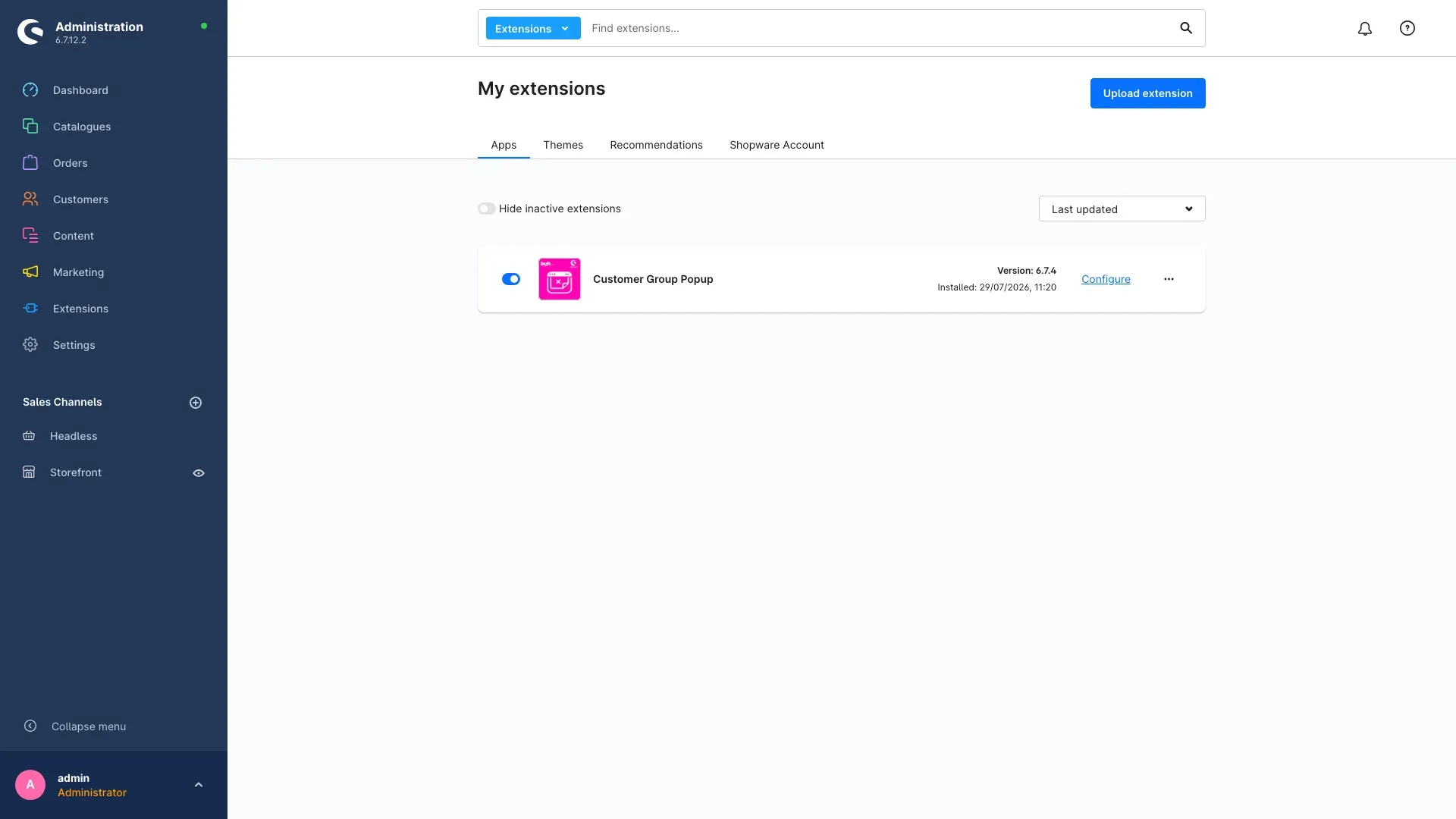
That’s it. The Configure link on the right of the row takes you to the settings page used by the following chapters.
Important: Right after installation the customer group selection is not yet visible in your shop. It only becomes active once you enable it for the sales channel you want (chapter 3) and release at least one customer group (chapter 5).
Enabling the plugin for a sales channel
The plugin is switched on and off per sales channel. If you run a B2C and a B2B shop, for example, you can offer the customer group selection in one channel and switch it off entirely in the other — without uninstalling the plugin.
- Open the plugin’s configuration page.
- At the top, under Sales Channel, pick the shop the settings should apply to.
- In the Configuration Channel card, turn Enable plugin for this sales channel on.
- Click Save in the top right.
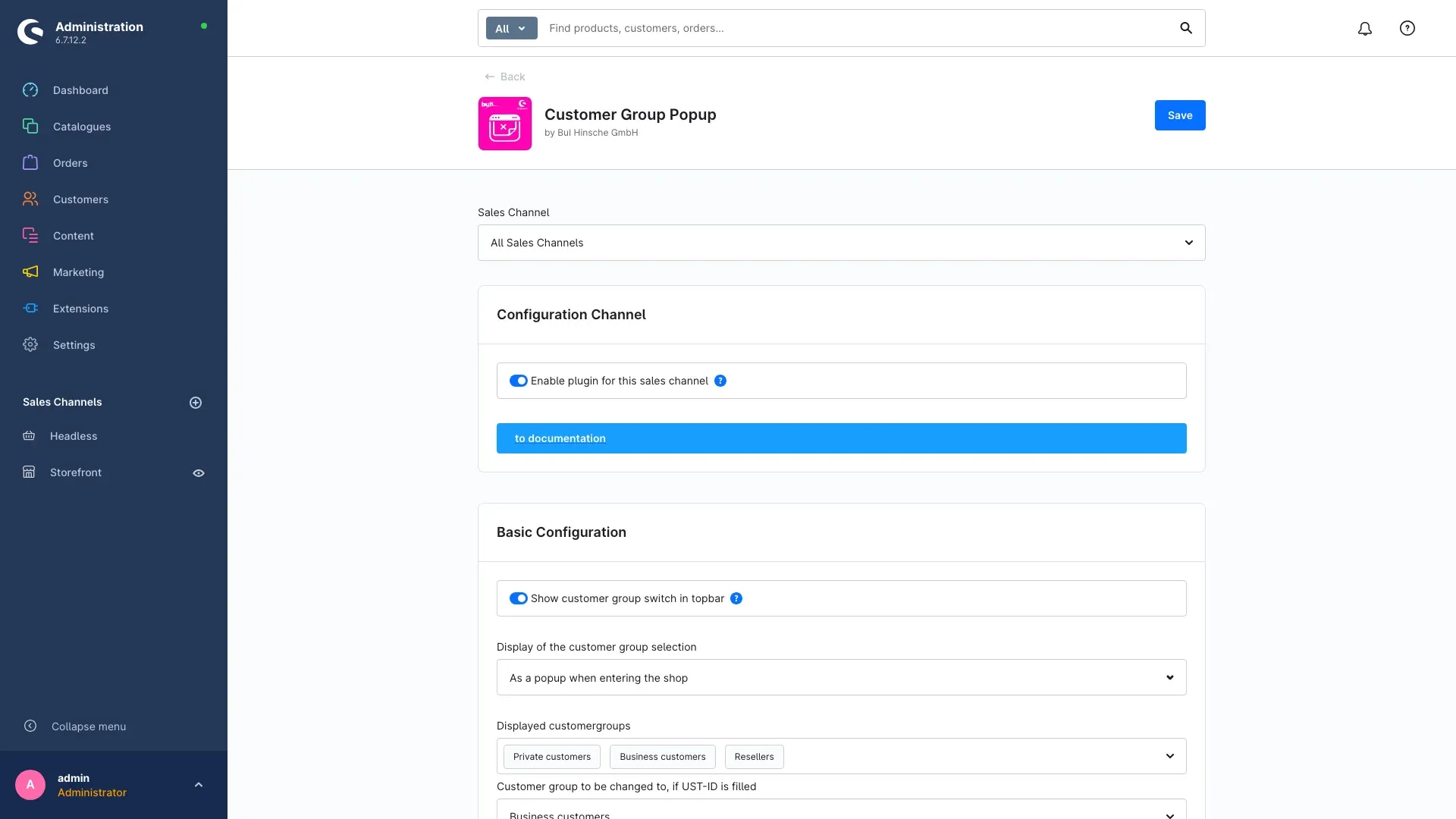
If this switch is off, the plugin has no effect in that channel: no popup, no switch, no customer group selection during registration. It is also the quickest way to disable the feature temporarily.
Tip: The All Sales Channels option sets a shared baseline. If you then select an individual channel and change something there, that channel uses the deviating value. This way you maintain one baseline and only the exceptions individually.
The to documentation button in the same card opens this manual on the web at any time.
Preparing your customer groups
The plugin shows the customer groups that already exist in your shop. Before you release the selection, it is worth reviewing those groups — because their names are exactly what your visitors will read in the popup.
You find them under Settings → Customer → Customer groups. That is also where you decide whether a group sees gross or net prices.
Open a group and you will find the Custom fields card at the bottom, with a Customer group popup tab. The plugin adds two entries here:
Display name — the text your visitors read in the popup, the switch and the select fields. If you leave it empty, the regular name of the customer group is shown. This is useful when the internal name is not customer-friendly: a group called “B2B-net-tier-2” can appear as “Business customers” to the visitor.
Commercial — when you turn this on, the plugin treats the group as a commercial customer group. If someone picks such a group, the account type during registration and in the account switches to a commercial account automatically, so company name and VAT ID are requested. For private groups, leave it off.
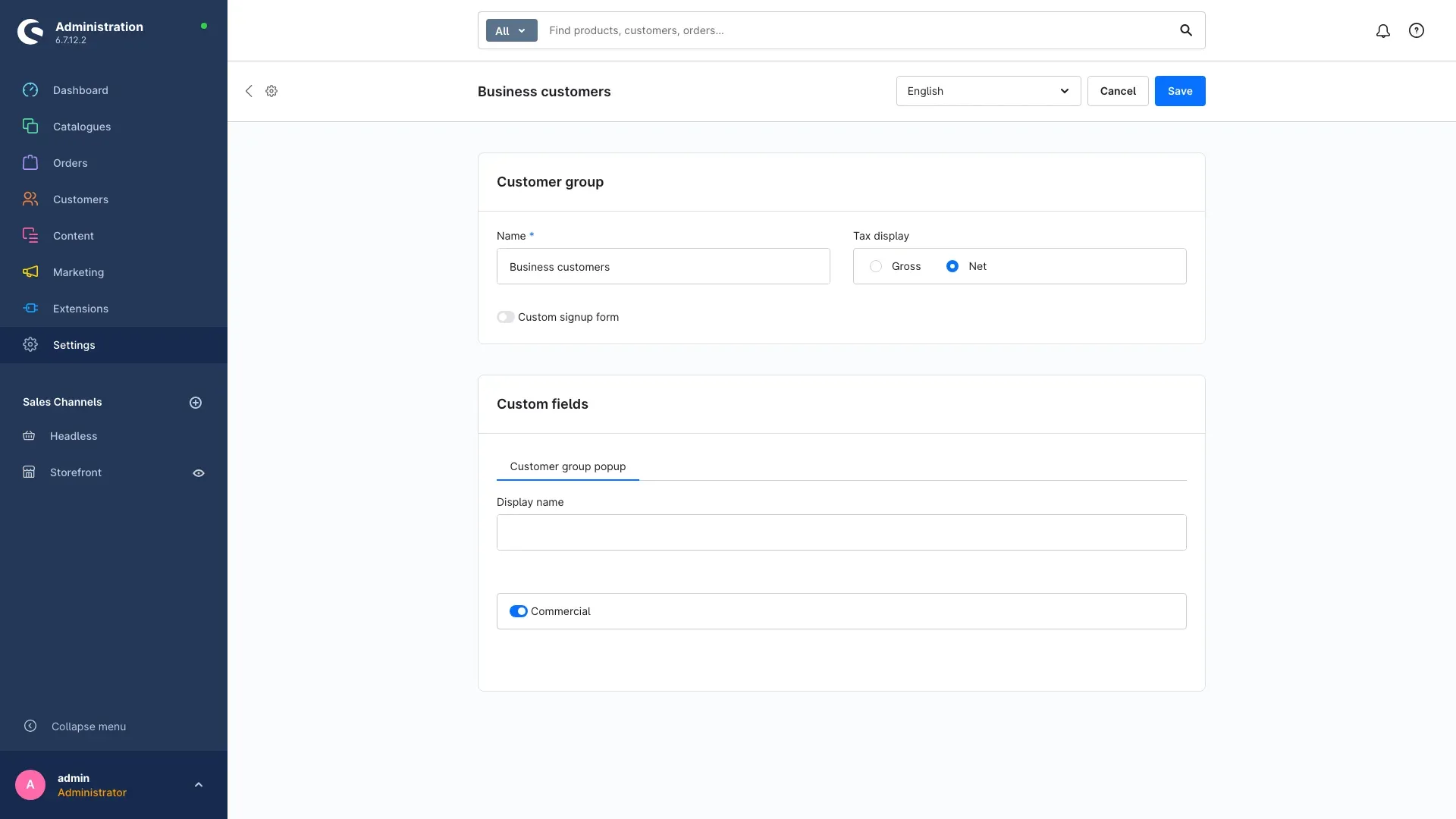
Both entries can be maintained per language: switch the language at the top right of the customer group page and enter the matching display name.
Basic configuration
Back on the plugin’s configuration page you find the Basic Configuration card. It decides how and where the customer group selection appears.
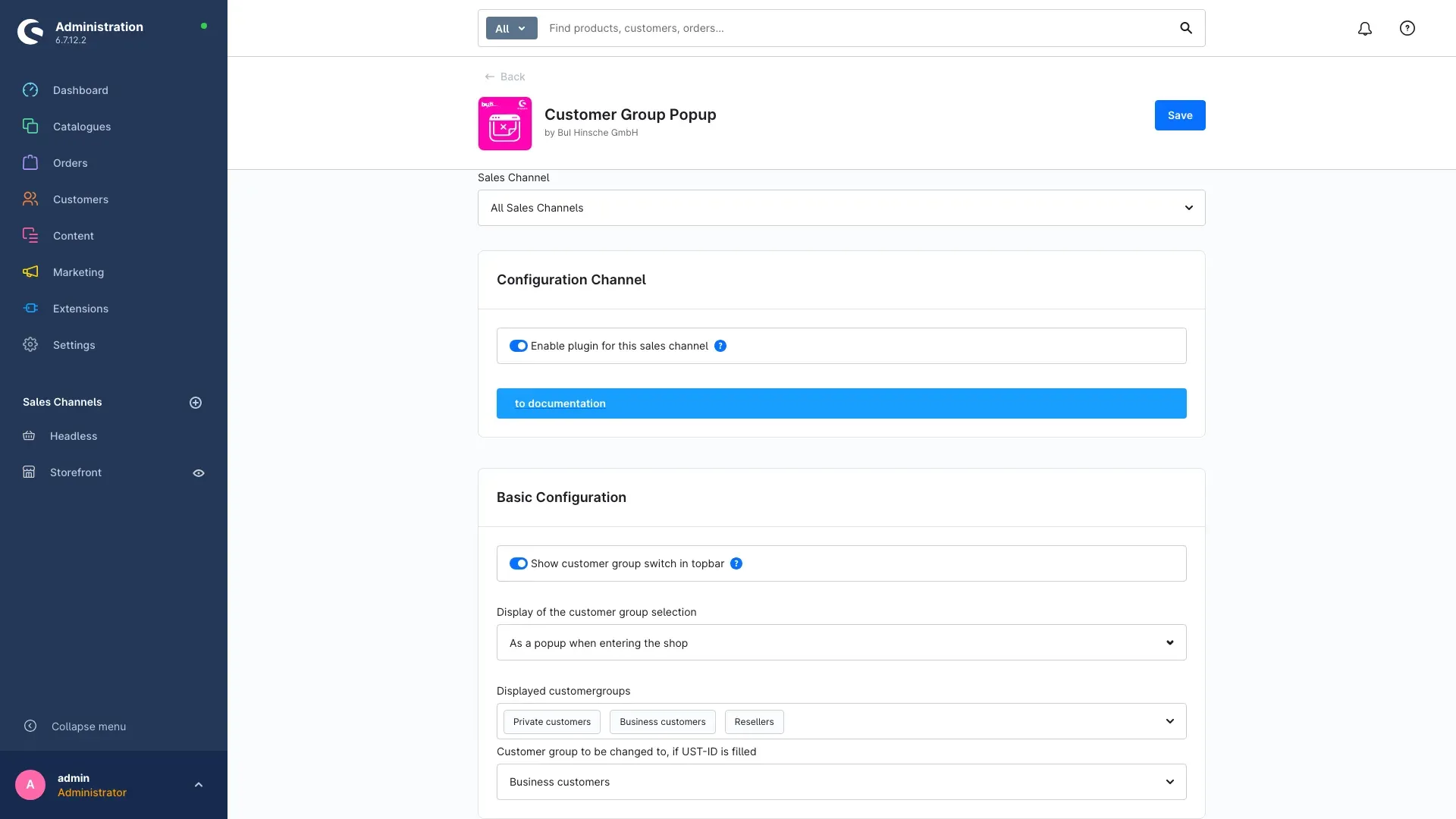
Show customer group switch in topbar Shows a select field with the current customer group at the top of the shop, next to language and currency. Visitors can change their group at any time, not just on their first visit. We recommend leaving the switch on: anyone who picked the wrong group once will find their way back without detours.
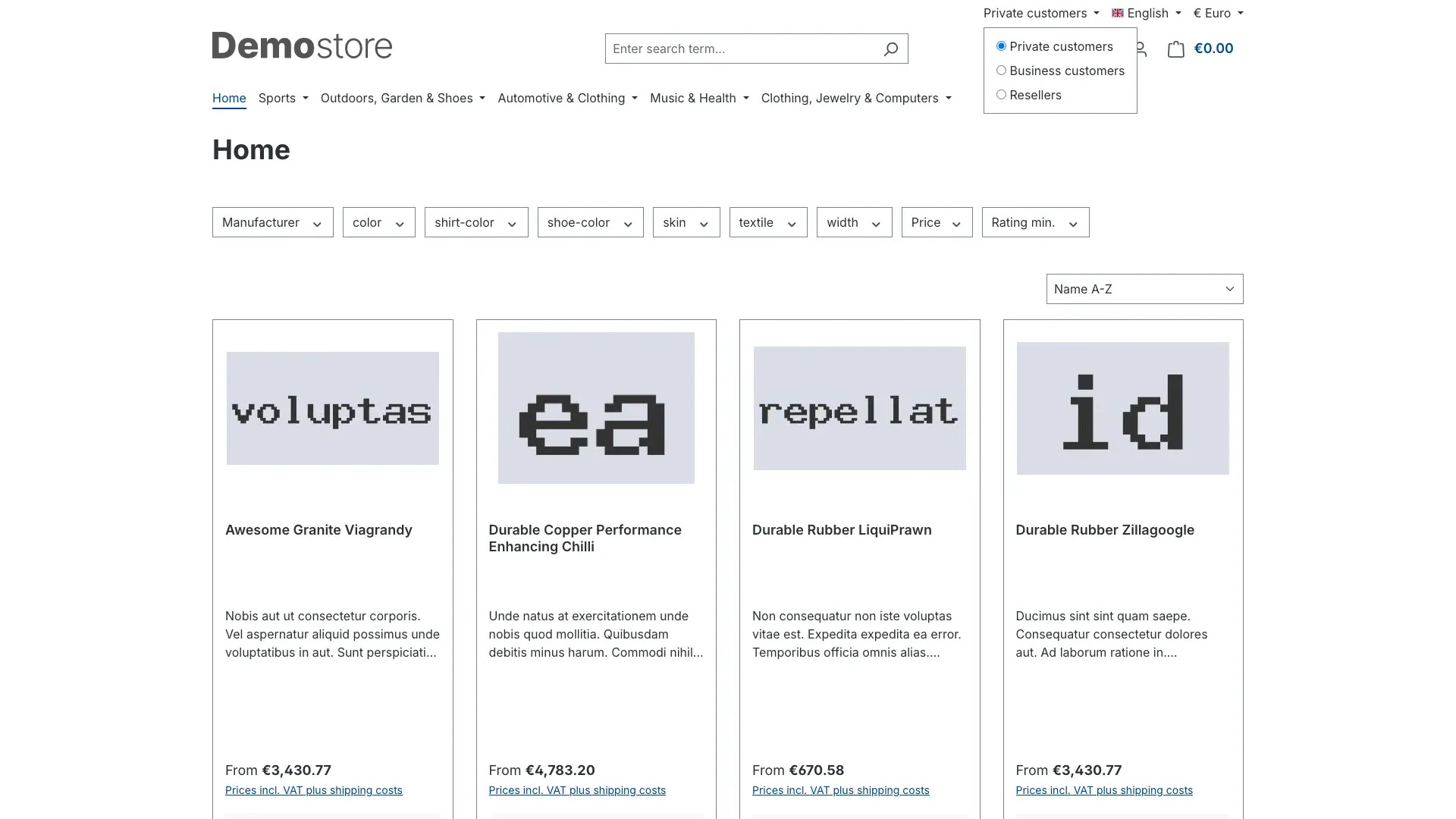
When opened, the switch lists every released group with the current one marked. A click changes the group and reloads the page with the new prices — the visitor stays on the same page.
Display of the customer group selection This is where you decide how the customer group is requested. Chapter 6 describes all three options in detail.
Displayed customergroups The most important setting: enter every group your visitors are allowed to choose from. The field accepts any number of groups, and the order you enter them in is the order shown in the popup. Put the group that fits most visitors first.
Groups you do not enter here never appear in the selection — handy for internal groups such as staff or test conditions.
As long as this field is empty, no selection appears in the shop — not even when the plugin is enabled for the channel. This is the most common reason for “nothing happens”.
Customer group to be changed to, if UST-ID is filled The target group for the automatic switch. It is only used by the display mode “Customer group change if UST-ID is filled during registration” — enter your business customer group there.
Save the card before you switch over to the shop.
The three display modes in detail
As a popup when entering the shop
The most prominent option — and the right one when prices differ noticeably between your audiences. On the first visit, a window covers the page and asks: Choose your customer group. Below it there is one button per released group.
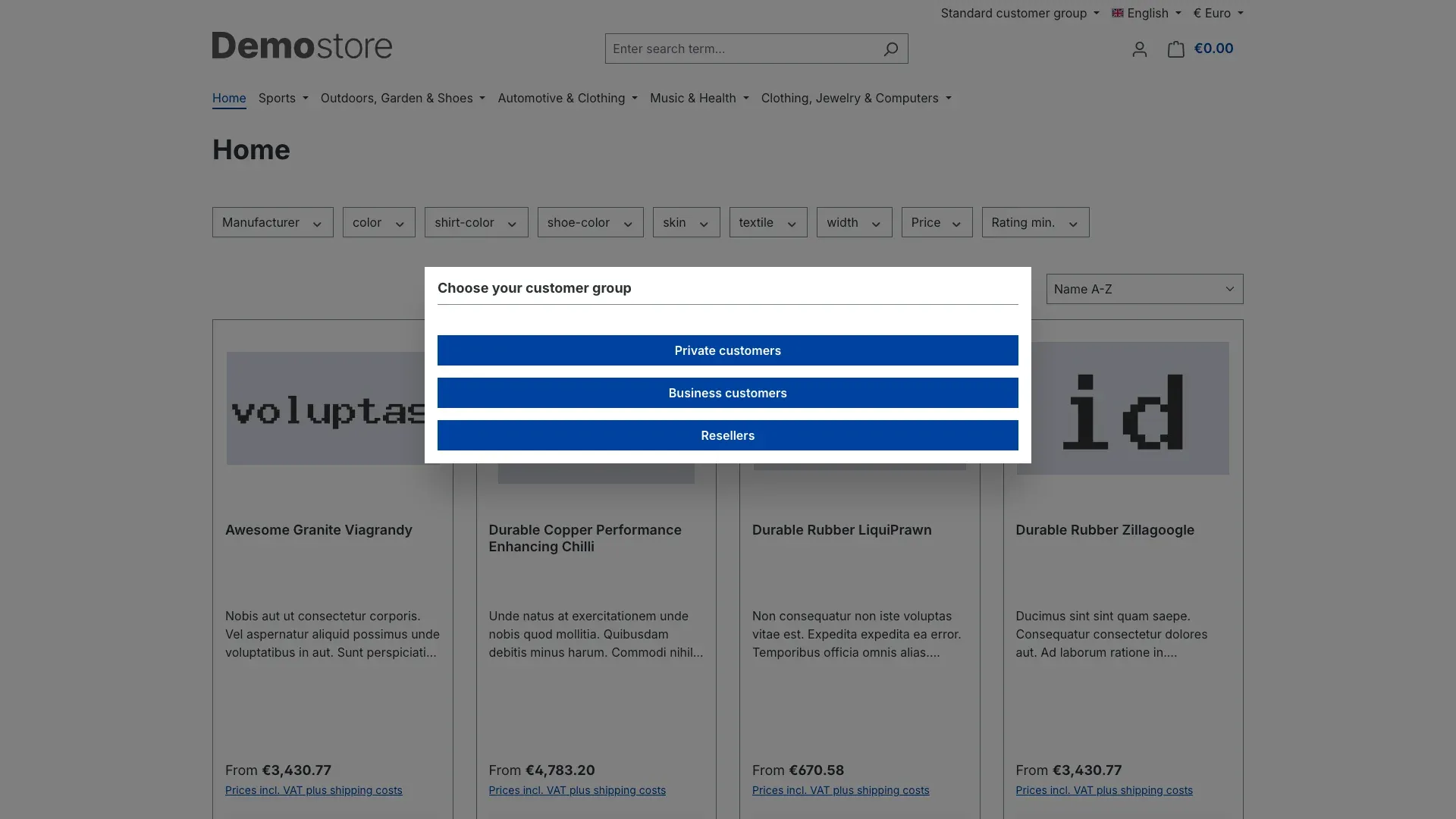
One click is enough: the window closes, the page reloads and shows the prices of the selected group from then on. The window cannot be dismissed without picking a group — which rules out anyone browsing on with the wrong prices.
The decision is stored for 30 days. On the next visit the popup therefore does not appear again; the group is changed via the switch in the top bar instead.
The plugin recognises search engine crawlers and lets them through without the popup, so your pages are indexed normally.
By dropdown in the customer registration
The discreet option: the shop stays untouched on the first visit and the customer group is only requested when an account is created. On the registration page, the mandatory Customer group field sits at the very top of the form.
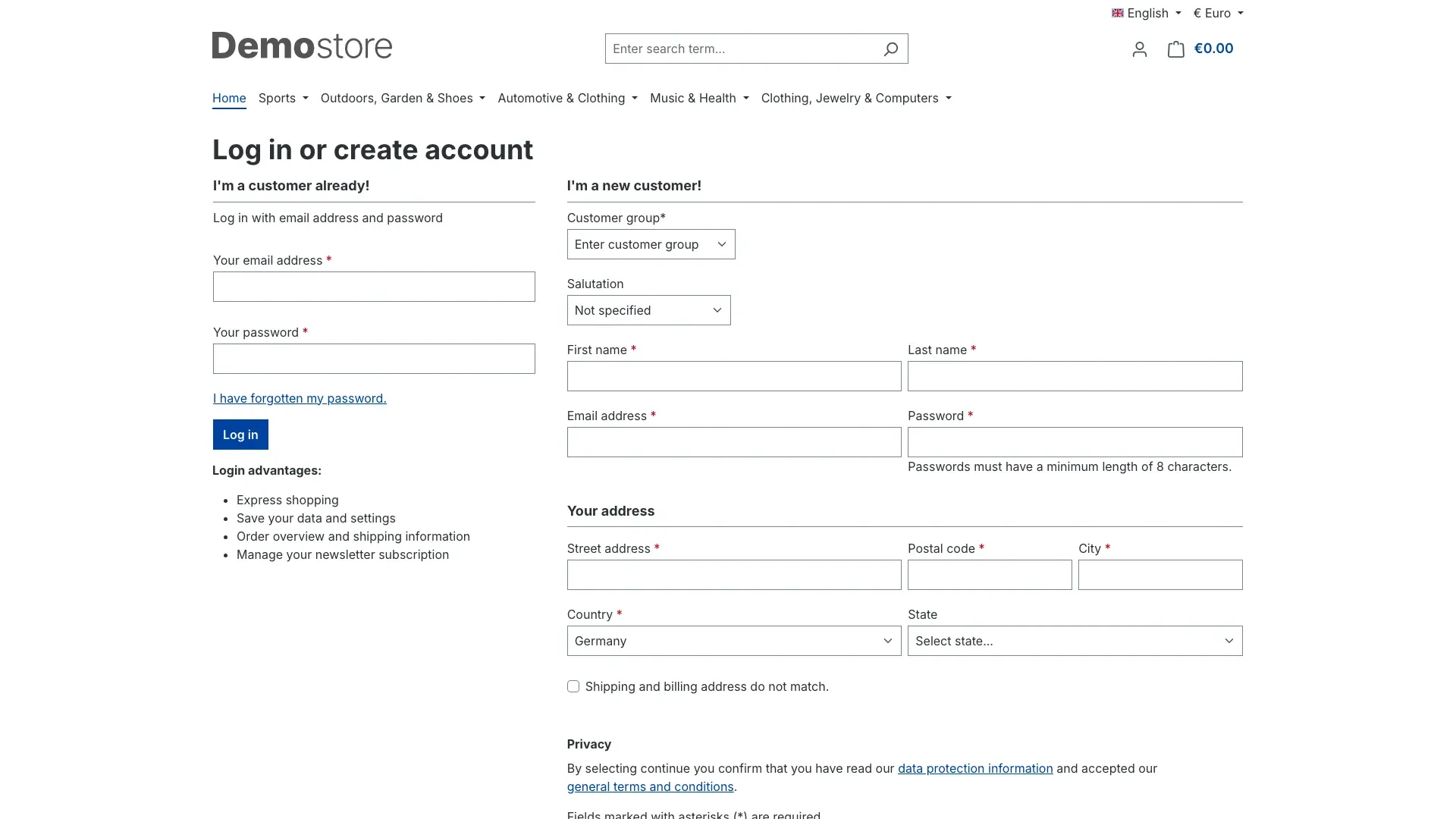
The field has to be filled in before the registration can be submitted. If the selected group is marked as “Commercial” (chapter 4), the form switches to a commercial account automatically and asks for company name and VAT ID.
If the registration fails — because the email address is already taken, for instance — the selected customer group is preserved and does not have to be picked again.
With this display mode the switch in the top bar is deliberately hidden, so that the group cannot deviate from the registration afterwards.
Customer group change if UST-ID is filled during registration
The automatic option, with no question asked of the visitor at all. The shop looks exactly as it always does. If someone enters a VAT ID during registration, the account is assigned to the customer group you configured under Customer group to be changed to, if UST-ID is filled when it is created.
This is the most convenient route for shops that identify business customers by their VAT ID anyway: whoever provides one automatically gets net prices and business terms, everyone else stays in the default group.
If the field is left empty, nothing changes — so there are no false positives for private customers.
Account configuration
The third card on the configuration page concerns logged-in customers.
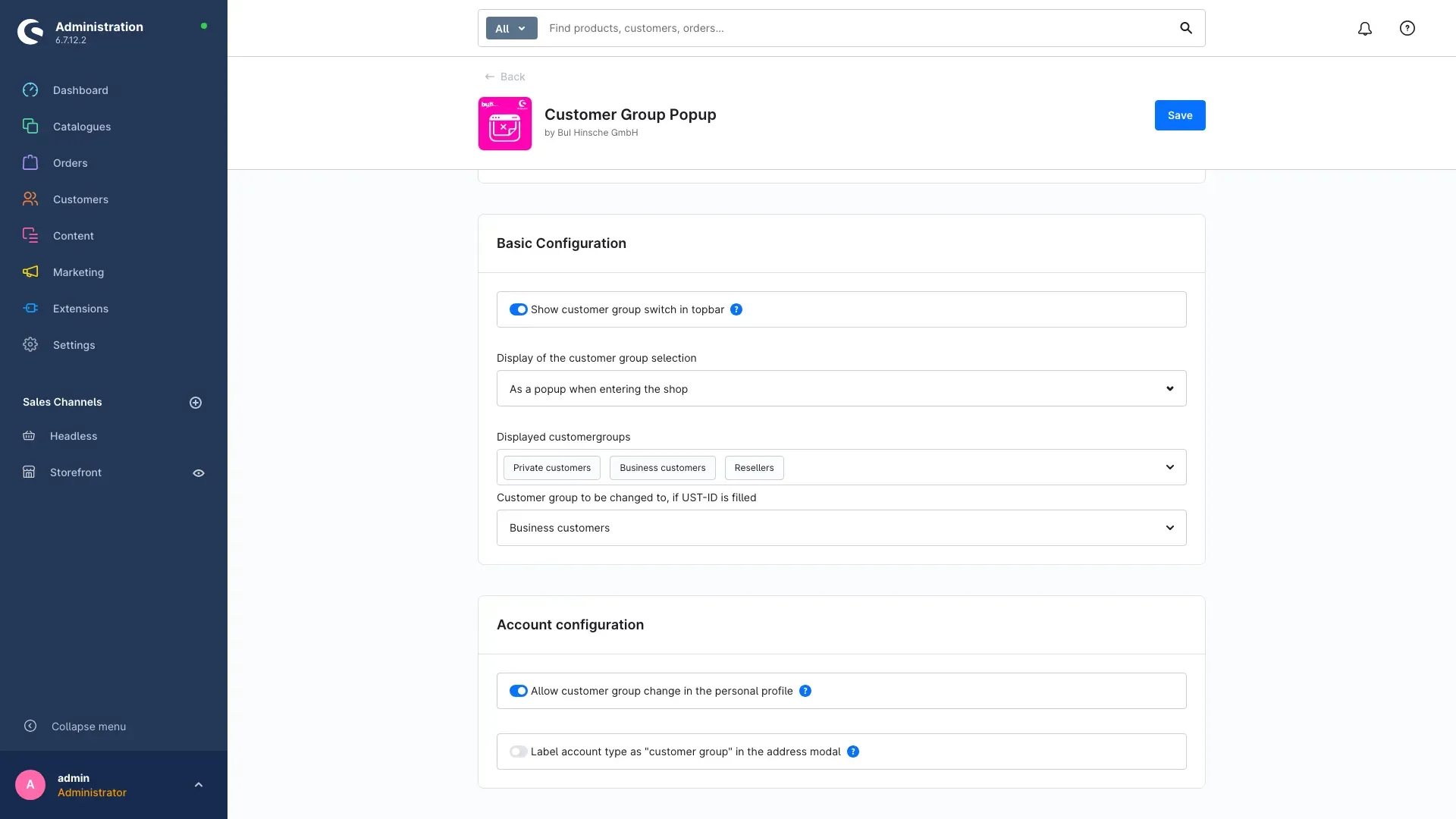
Allow customer group change in the personal profile With this setting active, logged-in customers find a Customer group select field under Account → Your profile and can change their group permanently. The account type — private or commercial — switches along with the selected group automatically.
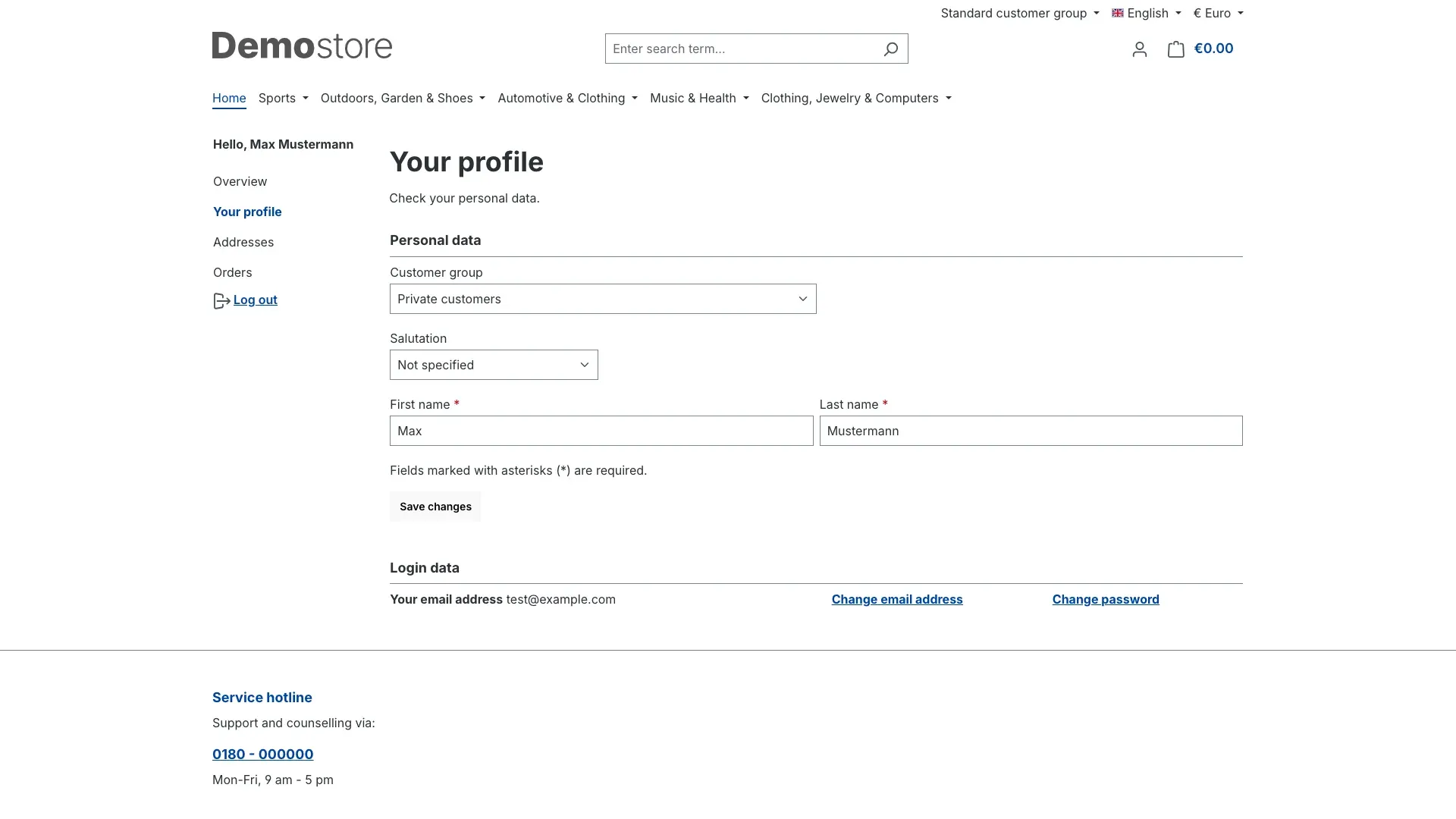
Leave the setting off if group assignment is a sales decision in your business and should not be changed by customers themselves. That is why it is off by default.
Label account type as “customer group” in the address modal When editing an address, Shopware shows an Account type select field with the private and commercial options. This setting labels that field Customer group instead. It is purely cosmetic and helps wherever you consistently talk about customer groups throughout the shop — the available options themselves do not change.
Cookie and data protection
So that the selected customer group survives a page change, the plugin stores it in a cookie with a lifetime of 30 days.
This cookie is listed among the technically required cookies in your shop’s cookie settings dialog, labelled customer group pop-up. Classifying it as technically required is deliberate: without this cookie the shop cannot keep the selected price display, so the feature would be unusable.
Only the identifier of the selected customer group is stored. No personal data is collected, nothing is transmitted to third parties, and no user behaviour is analysed.
If a visitor clears their cookies, the popup appears again on their next visit and the shop starts in the default customer group.
Troubleshooting
No customer group selection appears in the shop
Work through these points in order — this sequence gets you to the cause fastest:
- Is the plugin installed and activated under Extensions → My extensions?
- Is Enable plugin for this sales channel set for the right sales channel on the configuration page? Check the selector at the top — it is easy to have a different channel selected than the one you are looking at in the browser.
- Is at least one group entered under Displayed customergroups? An empty field suppresses the selection entirely.
- Did you click Save after making the change?
- Finally, clear the shop cache under Settings → System → Caches & indexes.
The popup no longer appears
That is the normal behaviour after the first choice: the decision is stored for 30 days. To test again, open the shop in a private browser window or delete the cookies for your shop address.
The switch is missing from the top bar
Check two things: is Show customer group switch in topbar enabled? And is the display mode set to By dropdown in the customer registration? With that mode the switch is hidden on purpose.
Prices do not change after the selection
Then the selected customer groups do not differ in price. The tax display (gross or net) is defined per group under Settings → Customer → Customer groups; differing prices are maintained on the product as a price for the respective customer group. The plugin switches the group — which prices sit behind it is up to your shop.
A technical name appears in the popup
Enter a customer-friendly text in the Display name field on the customer group (chapter 4).
An error page appears after the selection
This can happen when a customer group was deleted while it is still referenced in a visitor’s cookie. The plugin catches such cases and falls back to the default group silently. Should the error still occur, clear the shop cache.
Frequently asked questions
Do I have to set up all three display modes? No. Exactly one is active at a time — the one you pick under Display of the customer group selection.
Can I use different display modes in different sales channels? Yes. Every setting of the plugin can be set separately per sales channel. Select the channel at the top and adjust the values.
Does the selection also affect customers who are already logged in? Logged-in customers permanently belong to the group stored in their account. That assignment can be changed through the account profile — provided you enabled Allow customer group change in the personal profile — or by you in the backend under Customers.
How long does the selection last? 30 days, after which the question is asked again on the next visit.
Does the plugin affect loading times? No. The selection is delivered while the page is being built; there are no additional background requests. The page cache separates customer groups cleanly, so the prices of another group are never delivered.
Does the plugin work with my theme? Yes. The plugin extends the standard building blocks of the Shopware storefront and adopts their styling. With heavily customised themes — particularly when the top bar or the registration form have been replaced — it is worth a quick look at the shop after setup.
Can I change the texts in the popup?
Yes. The heading and the labels are snippets and can be found under Settings → Shop → Snippets; search for customer-group there. The names of the groups themselves are changed via the display name on the customer group.
What happens when I uninstall? When uninstalling you can choose whether your data is kept. The plugin’s custom fields on the customer groups are only removed if you decide against keeping the data. Your customer groups themselves and the assignment of your customers remain untouched in either case — those are managed by Shopware, not by the plugin.
For administrators
This section is intended for whoever looks after your shop technically. You do not need it for day-to-day work with the plugin.
System requirements
| Shopware | 6.7 |
| PHP | 8.2 or newer |
| Required components | Shopware Core, Shopware Storefront |
Behaviour in the page cache The selected customer group is part of the storefront cache key. Pages are cached separately per customer group, which rules out any mixing of prices between groups.
Robustness All extension points of the plugin are guarded against errors: should a problem occur, the page is delivered without the customer group selection instead of showing an error page. Details are written to the shop log.
Values from the cookie The customer group identifier from the cookie is validated before every use — both for its format and for whether the group still exists. Manipulated cookie values or references to deleted groups lead to a silent fallback to the default group.
Uninstalling When uninstalling with the option to keep the data, the custom fields on the customer groups are preserved. Without that option they are removed together with their field set.
More manuals
Admin Password Reminder
Admin Password Reminder: your backend users renew their passwords on time, prompted after login and by a daily email. Premium locks expired accounts until the password is changed.
Open manual Shopware 6Age Check
Tobacco, spirits, knives: visitors who do not confirm their age never see the restricted items at all. You tick a box per product, the plugin hides it everywhere.
Open manual Shopware 6AI Media Labelling
AI labelling for images and videos: flag a media item once in the media manager and the badge with your notice appears wherever it shows up in your shop. No template work needed.
Open manualNeed a team that keeps your shop running?
We have been maintaining Shopware shops for more than 20 years, including updates, hotfixes and the plugins you are configuring right now.