CMS PowerPack: Elements, Column Layouts & Scheduling
Shopping Experiences without template work: 14 elements, 13 column layouts, display periods and rules per block. Plan campaigns ahead and your shop switches them on time.
On this page
- Introduction
- What you achieve with this plugin
- Who is this plugin for?
- Installation
- Getting Started
- Settings
- Enable plugin for this sales channel
- Layouts in header, footer and checkout
- Snippets in products and categories
- Maps
- How to add elements and layouts to a shopping experience
- The PowerPack elements
- Notice
- Call to action
- Testimonial
- Tabs
- Accordion
- Info bar and icon bar
- Countdown
- Counter
- Parallax image
- Action card
- Image comparison
- Divider and spacer
- Map
- HTML and CSS
- Placeholders and data mapping in elements
- Column and card layouts
- Gradient, animation and visibility for blocks and sections
- Layouts in the header, footer and checkout
- Snippet placeholders in products and categories
- Maps and privacy
- Switching from NetzpPowerPack6
- Troubleshooting
- The PowerPack blocks do not appear in the “Blocks” sidebar
- An element appears in the designer but not in the shop
- A block does not appear on time at the start of its display period
- A block with a rule looks the same for all visitors
- The map only shows the address
- A snippet placeholder is shown as text in the shop
- The rule selection in the PowerPack panel stays empty
- FAQ
- For administrators and technical details
- System requirements
- Installation via the command line
- Scheduled task for the display period
- Rule visibility and HTTP cache
- Permissions
- Uninstallation
- Composable Frontends and Store API
Introduction
The CMS PowerPack adds 14 new elements, 13 column and card layouts and date and rule based visibility for every block and section to your shop’s shopping experiences. You build campaign pages, guides, FAQ sections and home pages directly in the shopping experience designer – without any programming.
What you achieve with this plugin
- You add notices, call to action areas, testimonials, tabs, accordions, an info bar, countdowns, counters, parallax images, action cards, image comparisons, dividers, maps and your own HTML code to any shopping experience.
- You arrange content in two, three, four or six columns – of equal or different widths – and place image and text side by side as cards.
- You give every block and every section a colour gradient and an appear animation, including Shopware’s standard blocks.
- You decide from when and until when a block is visible and which customers see it (rules from the Rule Builder). The shop refreshes itself when a period starts or ends.
- You show any shopping experience layout in the header, in the footer, on the cart page, on the order confirmation page and on the order completion page – separately for each sales channel.
- You use snippets in product names, product descriptions and category descriptions.
- Your customers only load maps after giving their consent; they manage the consent in the cookie manager.
Who is this plugin for?
For shop owners, editors and marketing teams who want more flexibility in their shopping experiences. The plugin also replaces the NetzpPowerPack6 plugin – see Switching from NetzpPowerPack6 for how to switch.
Installation
After your purchase the plugin is available directly in your Administration – there is nothing to download.
- Log in to your Shopware Administration (
yourshop.com/admin). - Open Extensions → My extensions and the Apps tab.
- In the row CMS PowerPack: Elements, Column Layouts & Scheduling, click Install.
- Activate the plugin with the switch on the left of the row – done.
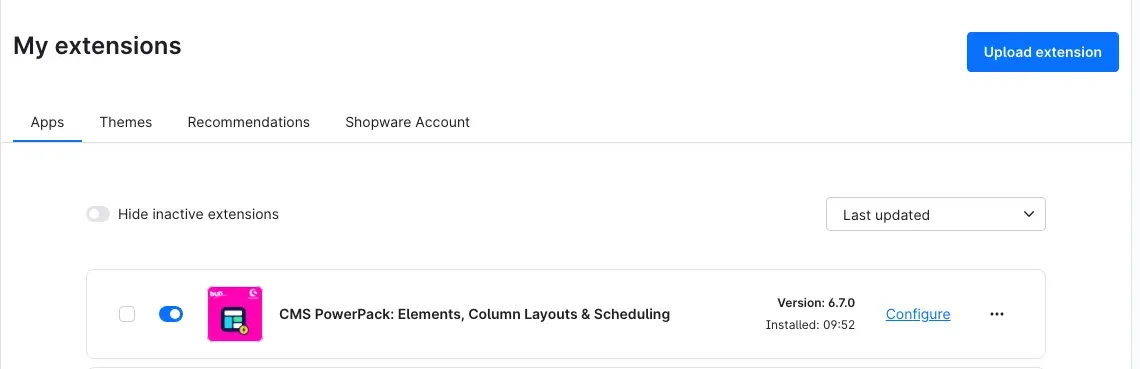
Fig. 1: The plugin is installed and active. Configure takes you to the settings.
If the plugin is not listed, your Shopware account is not yet connected to the shop. You can do this under Extensions → My extensions on the Shopware Account tab.
Getting Started
-
Open the settings: under Extensions → My extensions, click Configure in the row of the plugin.
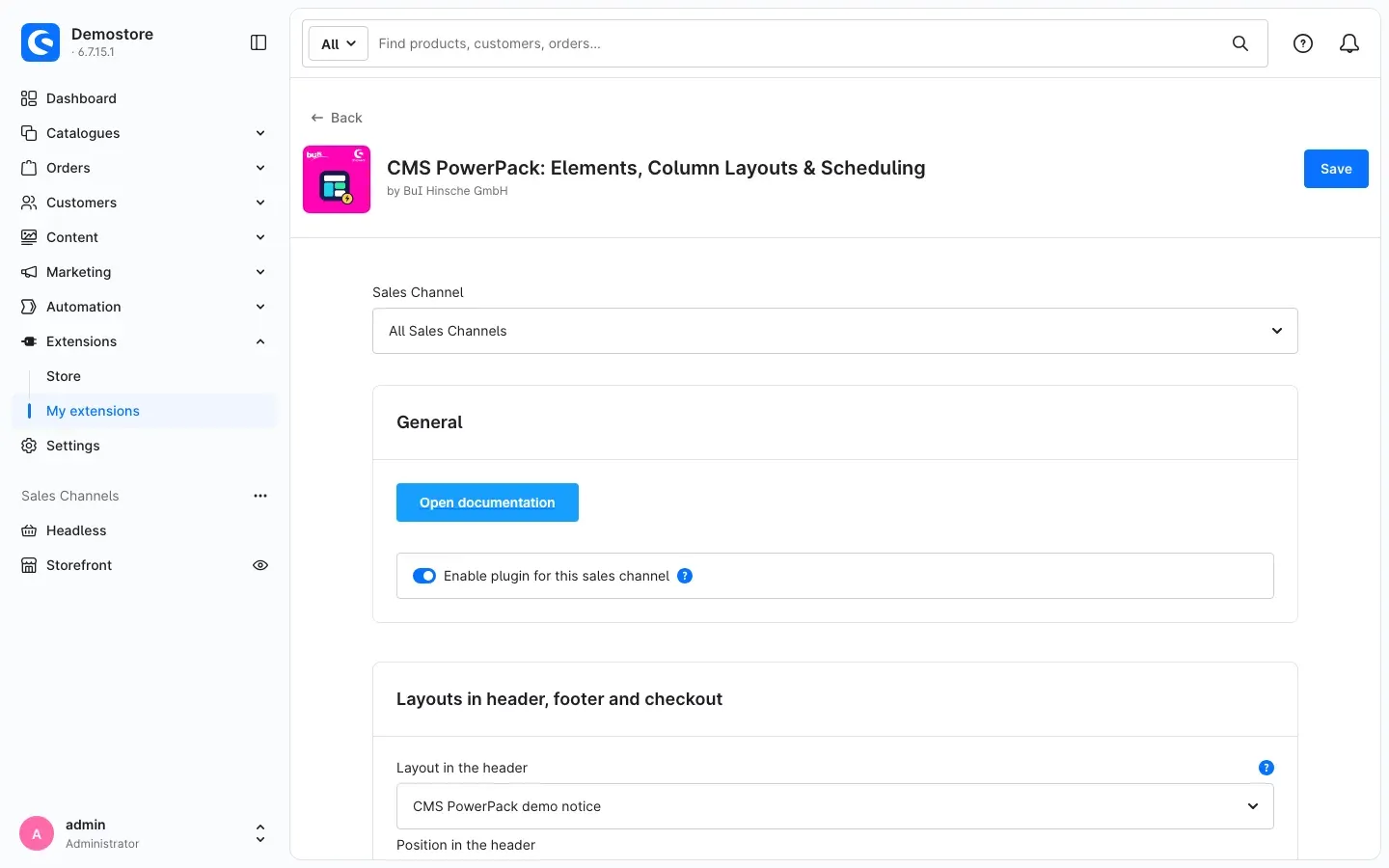
Fig. 2: At the very top you choose the sales channel, followed by the settings cards.
-
Switch the plugin on: the switch Enable plugin for this sales channel is on after installation. You do not need to set anything else to use the elements.
-
Design your first shopping experience: open Content → Shopping Experiences, choose a layout or create a new one and add the PowerPack blocks. How to add elements and layouts to a shopping experience shows how.
-
Check the result: open the page in your shop to which you assigned the layout.
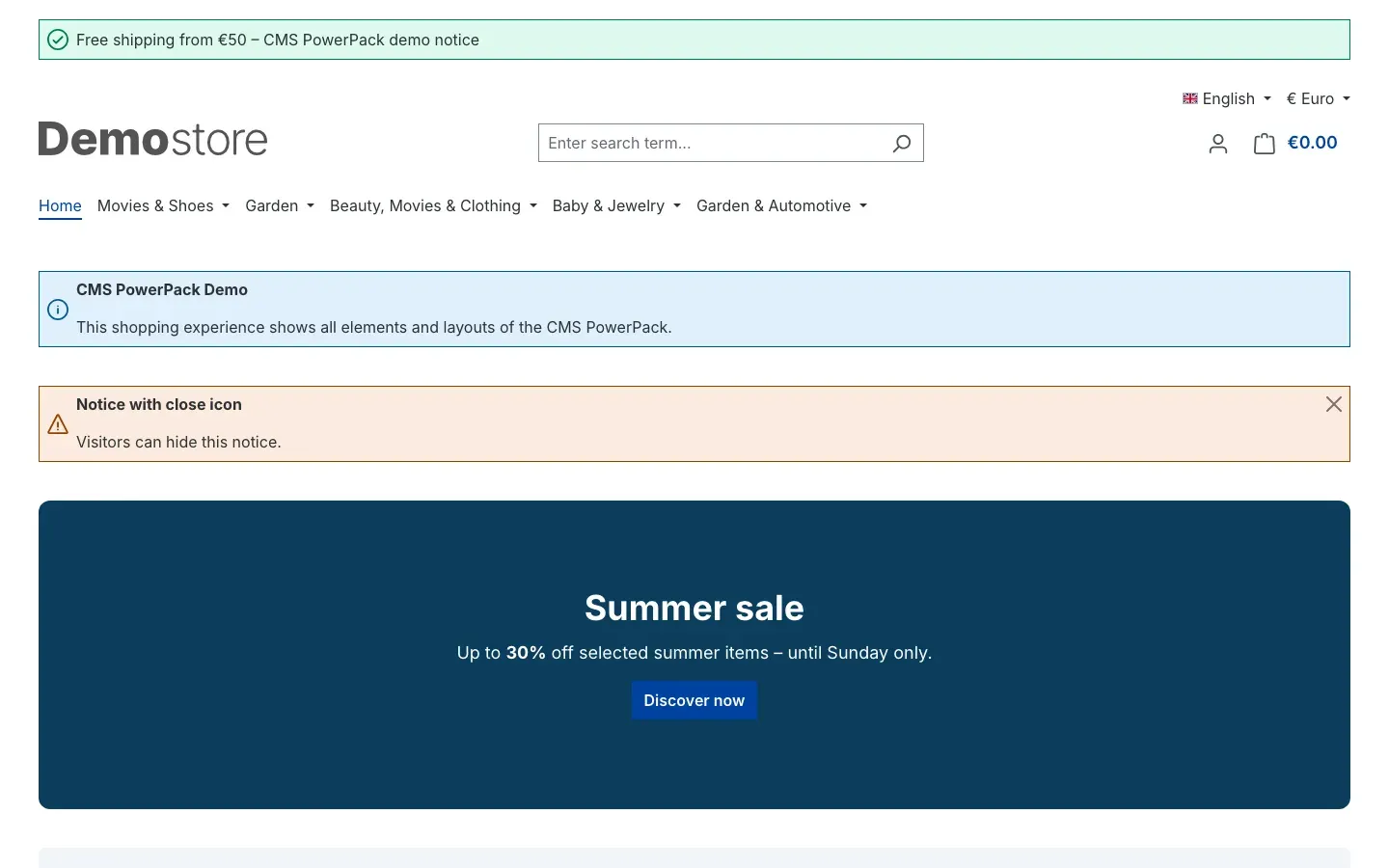
Fig. 3: The result in the shop – here with a layout in the header and two notices.
Tip: The Open documentation button in the settings takes you to this manual online at any time.
Settings
You find the settings under Extensions → My extensions → Configure in the row of the plugin. At the very top, choose under Sales Channel which shop the settings apply to. All Sales Channels sets the default; you can configure individual sales channels differently. Save your changes with Save at the top right.
Enable plugin for this sales channel
The switch Enable plugin for this sales channel on the General card decides whether the plugin works in this sales channel. It is on by default. If you switch it off, this sales channel shows no PowerPack elements and no layouts in the header, footer and checkout, and it does not replace snippet placeholders.
Why this is useful: if you run, for example, a B2B and a B2C shop, you can use the PowerPack in just one of them – without uninstalling the plugin.
Layouts in header, footer and checkout
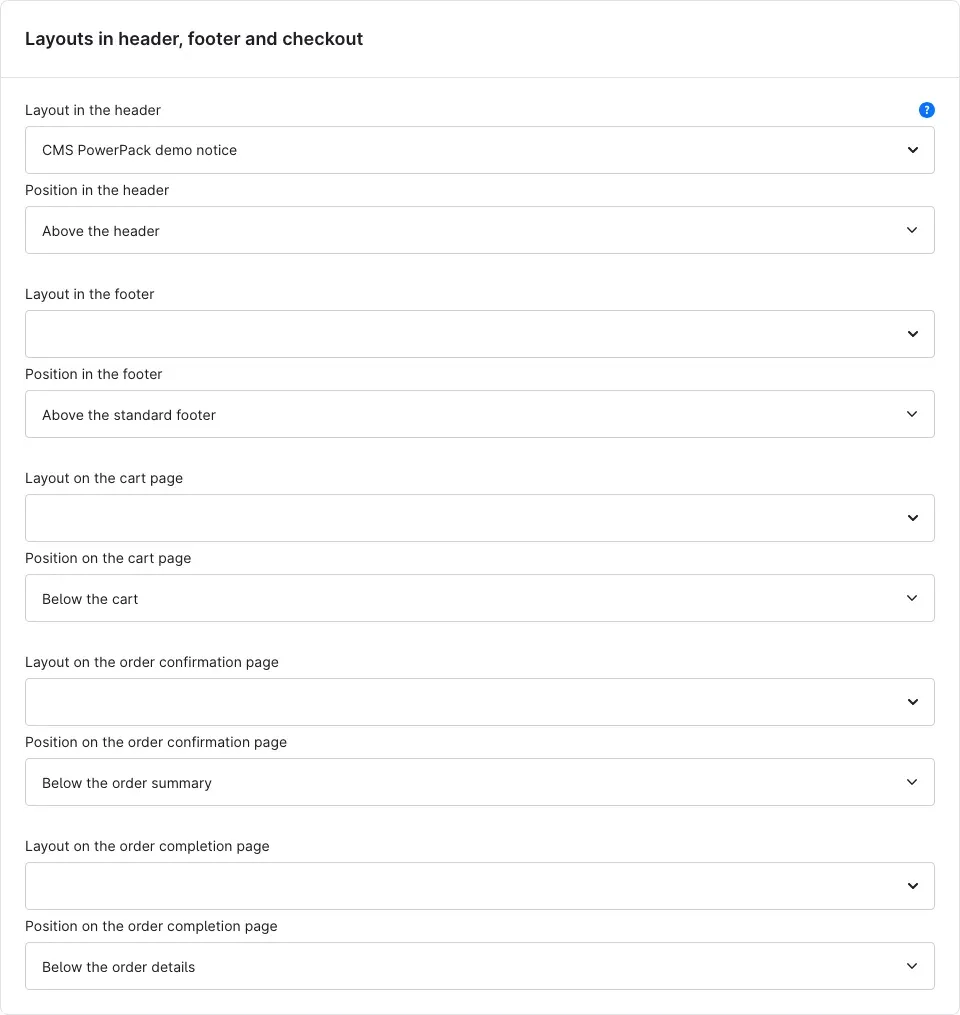
Fig. 4: For each place you choose a layout and its position.
On this card you choose, for each place, a shopping experience layout that is shown in the shop in addition to the regular content. Each place has a position:
- Layout in the header and Position in the header: Above the header or Below the main navigation. The layout appears on every page of the sales channel – ideal for a notice bar or trust symbols.
- Layout in the footer and Position in the footer: Above the standard footer or Below the standard footer.
- Layout on the cart page and Position on the cart page: Above the cart or Below the cart.
- Layout on the order confirmation page and Position on the order confirmation page: Above the order summary or Below the order summary.
- Layout on the order completion page and Position on the order completion page: Above the order details or Below the order details.
If you leave a layout field empty, nothing is shown at that place. Layouts in the header, footer and checkout describes this in detail.
Snippets in products and categories
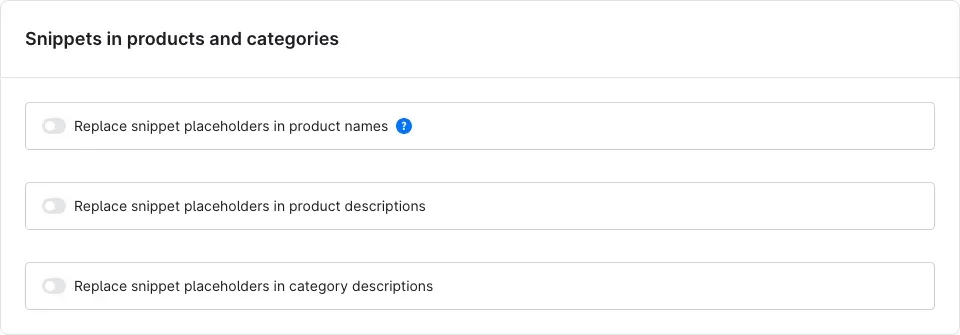
Fig. 5: Three switches for product name, product description and category description.
The switches Replace snippet placeholders in product names, Replace snippet placeholders in product descriptions and Replace snippet placeholders in category descriptions decide where the shop replaces placeholders such as {{ "snippet.key"|trans }} with the text of the snippet. All three switches are off by default.
Why this is useful: you maintain recurring texts – a care instruction or a warranty statement, for example – in one place and in all languages. Details are in Snippet placeholders in products and categories.
Maps
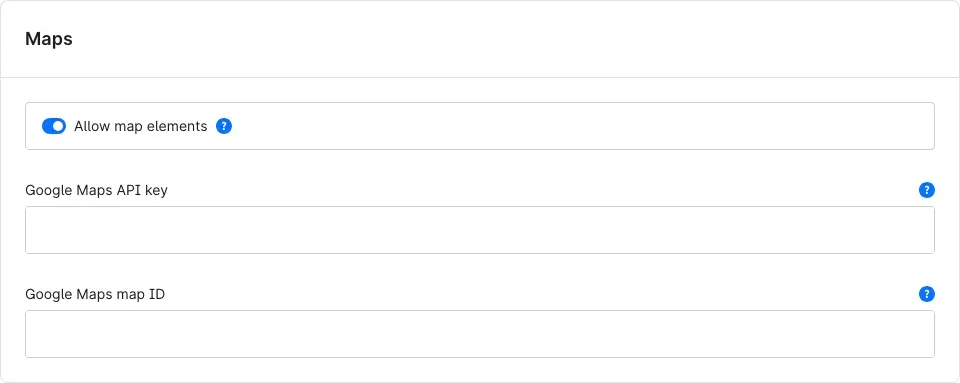
Fig. 6: The settings for the “Map” element.
- Allow map elements: when the switch is on (default), map elements show a map from OpenStreetMap or Google Maps. When you switch it off, they only show the address text and the shop makes no request to a map provider.
- Google Maps API key: only needed if you choose the provider Google Maps in a map element. Restrict the key to your shop domain in the Google Cloud console.
- Google Maps map ID: the map ID from the Google Cloud console. Google requires it for the marker on the map. Without it the plugin uses the development ID
DEMO_MAP_ID.
More in Maps and privacy.
How to add elements and layouts to a shopping experience
What you get: all PowerPack building blocks are available in the shopping experience designer just like Shopware’s standard blocks – by click and drag.
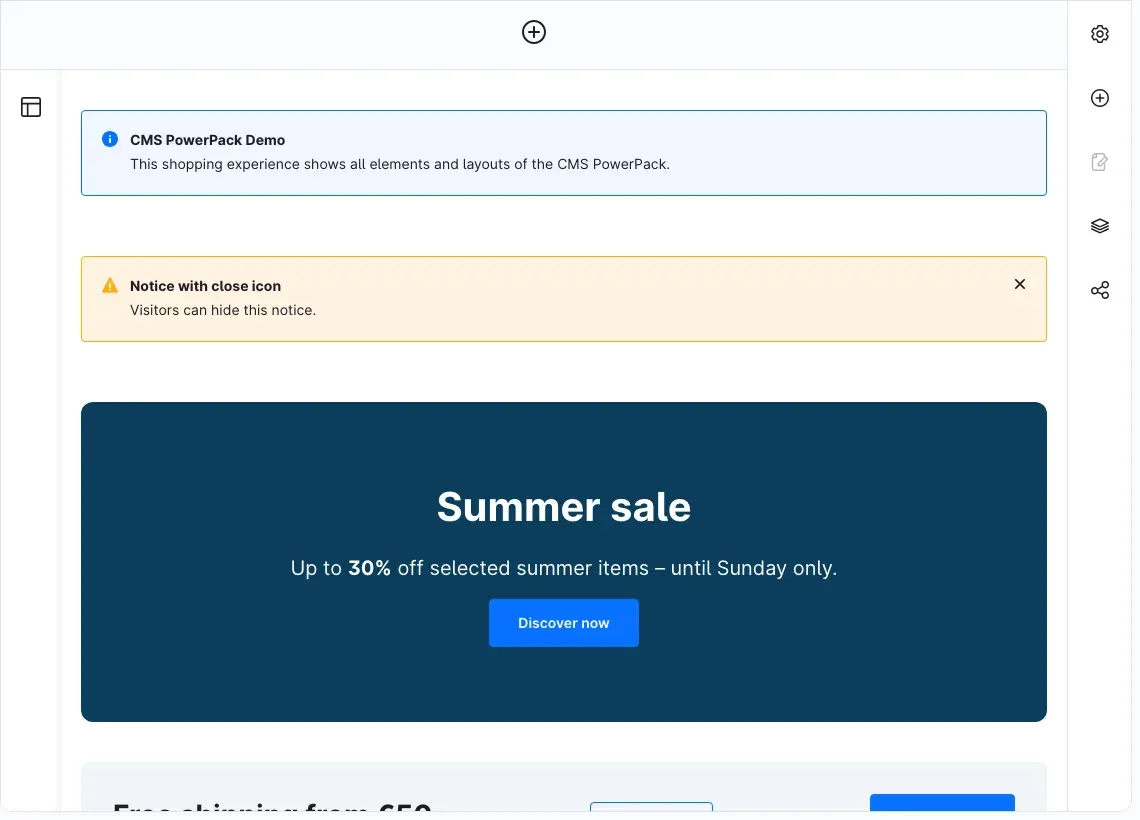
Fig. 7: A shopping experience with PowerPack elements in the designer.
Step by step
-
Open Content → Shopping Experiences and click a layout – or create a new one with Create new layout.
-
Open the Blocks area in the sidebar on the right.
-
Under Block category, choose PowerPack elements for the 14 elements or PowerPack layouts for the column and card layouts.
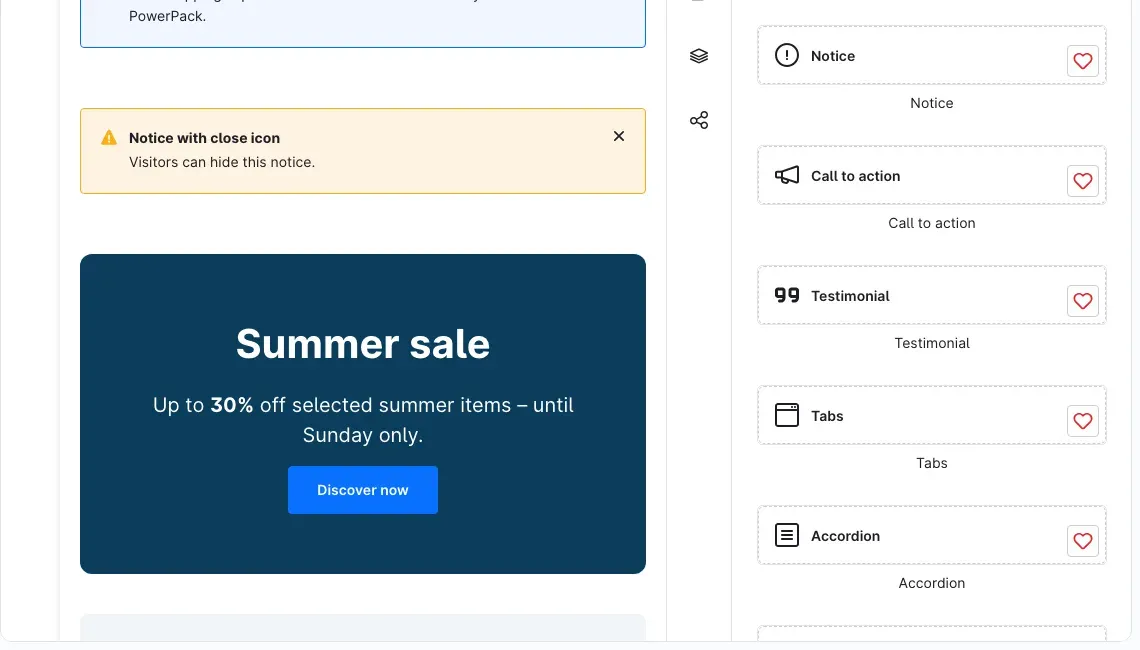
Fig. 8: The element blocks in the category “PowerPack elements”.
-
Drag the block you want to the right place in the shopping experience.
-
Click the block and then the cog icon in the element to open the Element settings. Enter your content and close the dialog with Done.
-
Save the layout with Save at the top right.
Important: you can only add blocks in the system default language. Switch to your shop’s default language at the top right first. You then enter the texts for further languages in the element settings while the respective language is selected.
Tip: the heart icon on a block adds it to your favourites. You then find it faster in the block category Favourites.
The PowerPack elements
Each element has its own block in the category PowerPack elements. You open the settings with the cog icon in the element (see How to add elements and layouts to a shopping experience); they are spread across tabs such as Content, Settings and Design. If you leave a colour field empty, the element uses the colours of your theme.
Notice
What you get: you highlight important information in colour – delivery times, promotions or holiday closures, for example.
On the Content tab you enter Heading and Content. On the Settings tab you choose the colour under Type (Info, Success, Warning, Error, Primary, Secondary, Light, Dark), add a matching symbol with Show icon and let visitors hide the notice with Dismissible: they then close it with a close icon until they open the next page. Fig. 3 in Getting Started shows how this looks.
Call to action
What you get: you build campaign banners, teasers and contact areas from up to 20 freely arranged building blocks – texts, buttons and images – on a colour area or a background image.
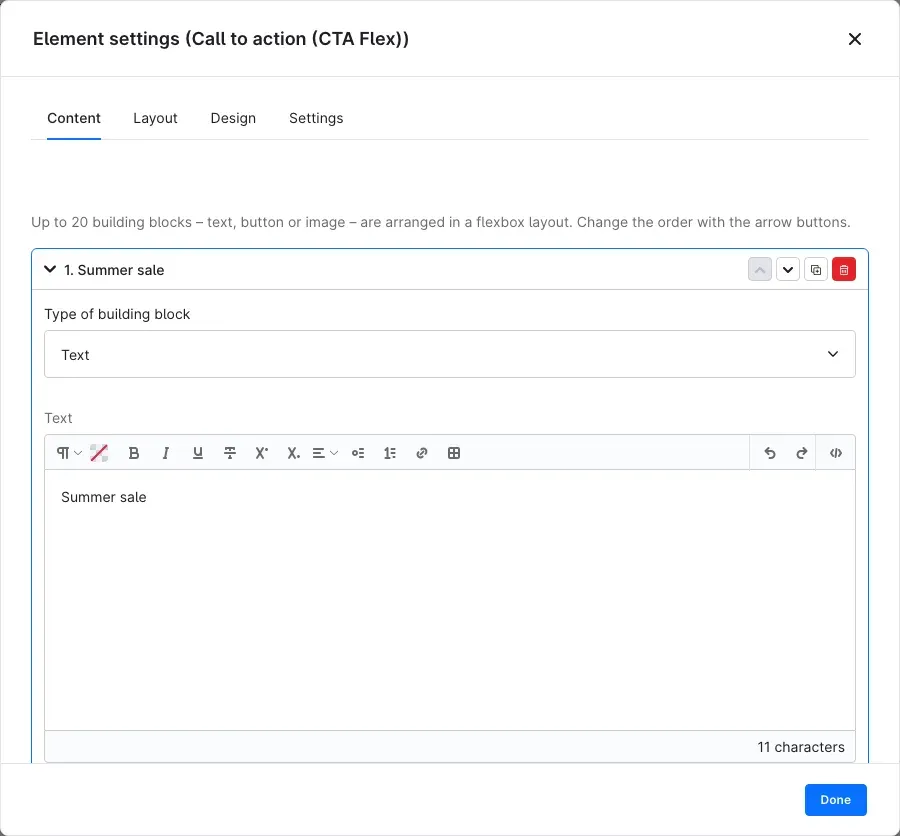
Fig. 9: Each building block can be expanded, moved, duplicated and removed.
- Content: Add building block creates a new building block; under Type of building block you choose between text, button and image. You change the order with the arrow icons Move up and Move down.
- For Text you set the HTML tag (Paragraph (p), Heading 1 to Heading 6 or Neutral (div)) in addition to the text, plus Font size, Font weight, Text colour and Alignment. Use only one heading 1 per page – it structures the page for search engines and screen readers.
- For Button you enter the Button label and the link target and choose Button style and Button size. With Open link in new tab the target opens in a new tab.
- For Image you choose the Image, an Alternative text for screen readers, the Width (%) and optionally Crop round.
- Layout: under Arrangement you decide whether the building blocks are Stacked or Side by side. Stack on smartphones, Distribution (main axis), Alignment (cross axis), Gap between blocks (px), Inner spacing (px) and Minimum height (px) control spacing and alignment.
- Design: Background image with Image mode (Original size, Whole image, Fill area) and Image alignment, plus Background colour, Text colour, Overlay colour, Overlay opacity (%) and Corner radius (px).
- Settings: if you enter a link here, the whole element becomes clickable; buttons inside keep their own target. The Label for screen readers describes the link target (empty: “Learn more”). Under Additional CSS classes you add your own classes for styling with CSS.
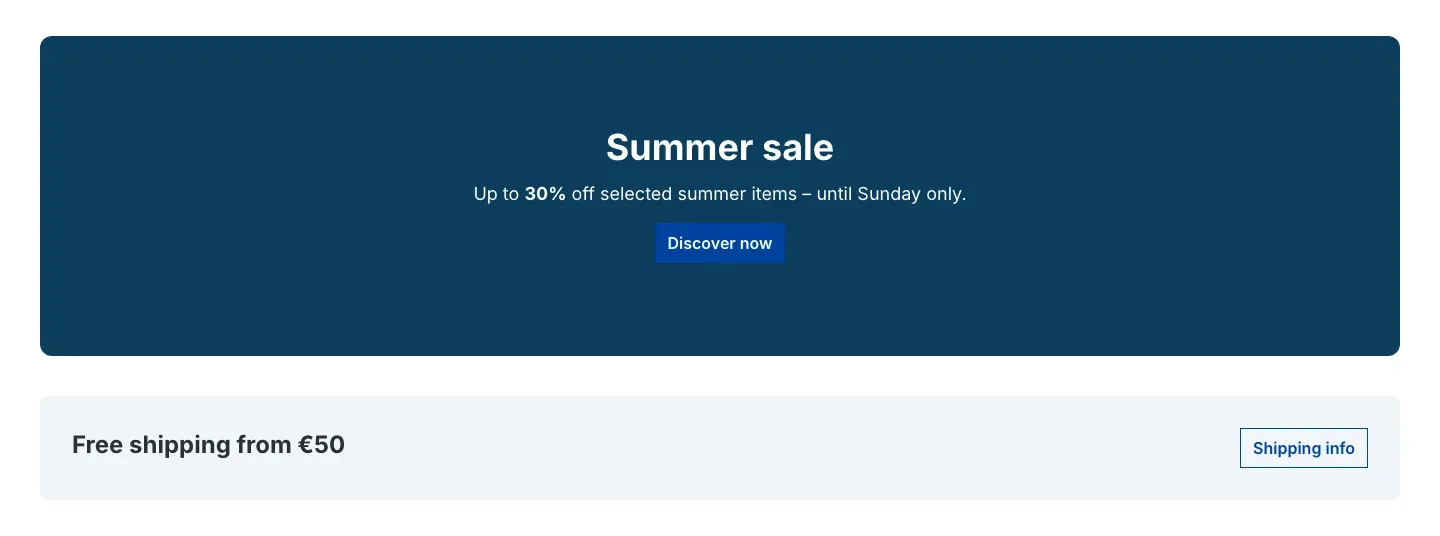
Fig. 10: A campaign banner and a shipping bar – both built with the call to action.
Testimonial
What you get: you show reviews and recommendations from happy customers with stars.
On the Content tab you choose a Photo (shown round) and enter Quote, Name and Addition – company, location or job title, for example; the addition is appended to the name with a comma. Under Rating you choose No rating or 1 to 5 stars in half steps. On the Settings tab you set Arrangement (Image left or Image on top), Alignment, Text colour, Background colour and Star colour.
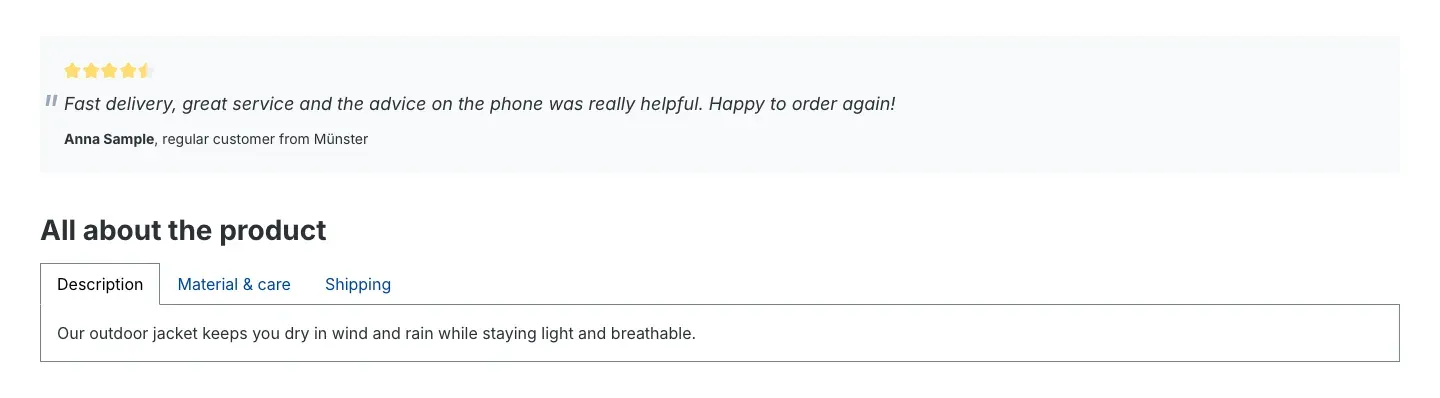
Fig. 11: A testimonial at the top, the tabs element below.
Tabs
What you get: you arrange a lot of information compactly on tabs – description, material and shipping, for example.
On the Content tab you optionally enter a Heading above the tabs with its Heading level. Add tab creates up to 20 tabs, each with Tab title and Content. On the Settings tab you choose under Display between Tabs and Buttons (pills) and under Alignment between Left, Centred, Right and Full width.
Accordion
What you get: you build FAQ sections in which visitors only expand the answers they are interested in – optionally with markup for search engines.
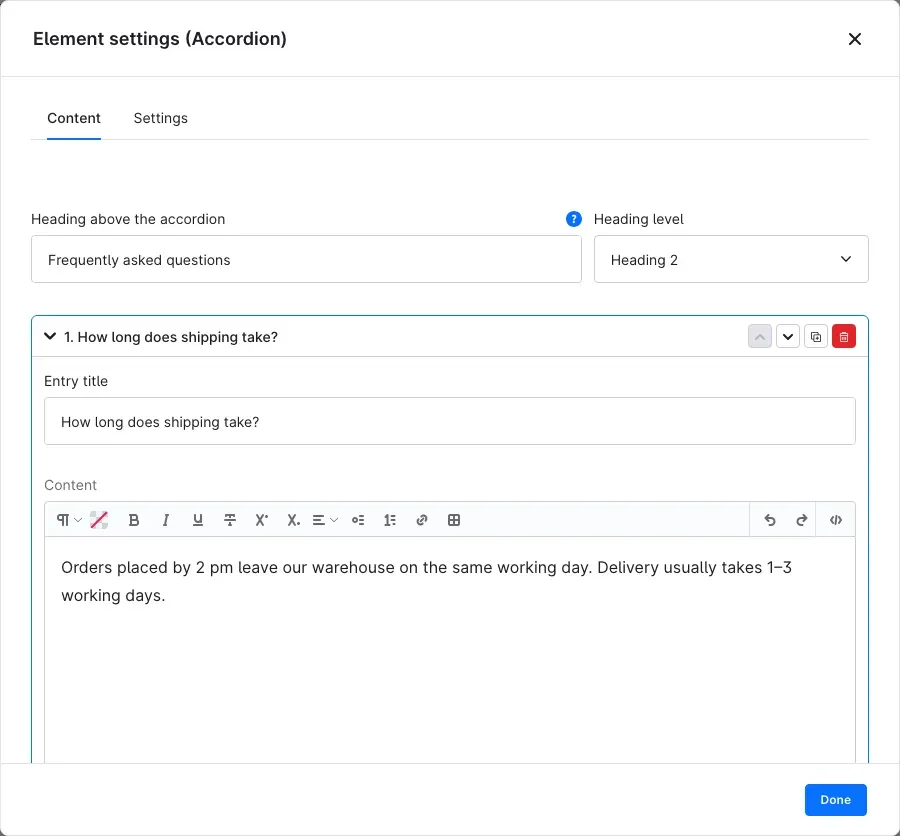
Fig. 12: Heading, heading level and the entries of the accordion.
On the Content tab you optionally enter the Heading above the accordion and its Heading level. Add entry creates up to 20 entries, each with Entry title and Content. The Settings tab contains:
- Heading level of the entries – for a clean outline, choose one level below the accordion heading.
- Show first entry opened – the first entry is expanded when the page loads.
- Allow several entries to be open – when the switch is off, opening an entry closes the others.
- Mark up as FAQ for search engines – outputs the entries as structured data for questions and answers. Only use this for real questions and answers and at most once per page.
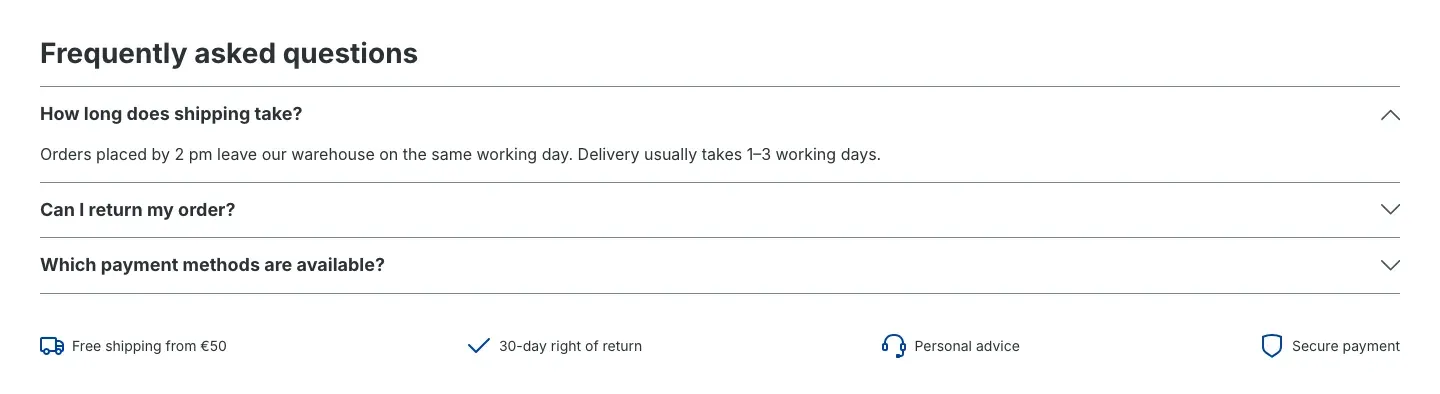
Fig. 13: An FAQ section built with the accordion, the info bar below.
Info bar and icon bar
What you get: you present benefits such as shipping, returns or personal advice compactly with symbols – on smartphones optionally rotating in a single line.
- Content: Add info point creates up to 12 info points. Each info point has a Text, an Icon from the Shopware symbols (choose with Choose icon …) or a Custom icon (image) that replaces the selected icon, and optionally a link with Open link in new tab.
- Settings: Arrangement (Side by side or Stacked), Alignment (Left, Centred, Right, Evenly distributed) and Display on smartphones: Wrap shows all info points, Rotating shows one info point at a time on small screens and switches after the Rotation interval (seconds) – ideal for the header.
- Design: Icon size (rem), Text size (rem), Icon colour and Text colour.
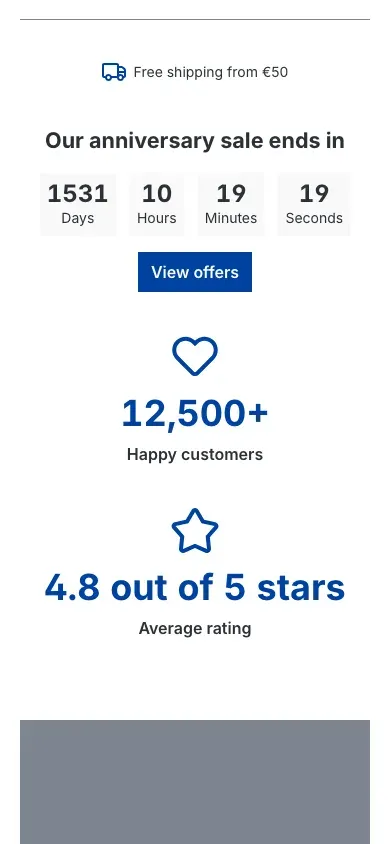
Fig. 14: On smartphones the info bar shows one info point after another.
Countdown
What you get: you create urgency for promotions, season starts or events – with a remaining time that is the same for every visitor.
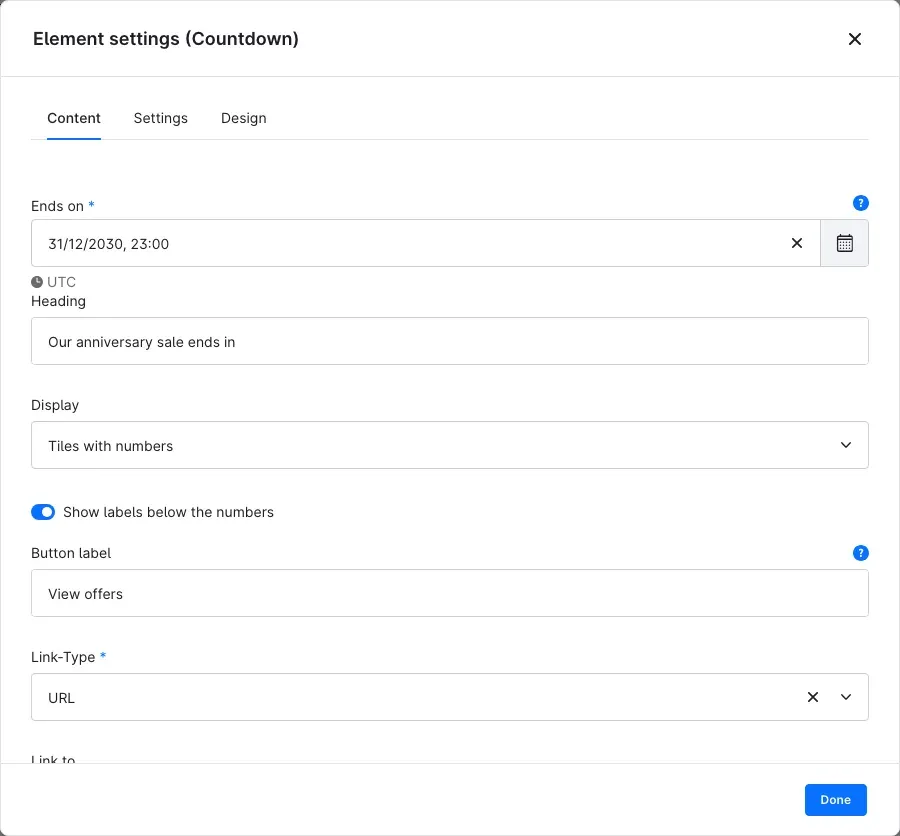
Fig. 15: End date, heading, display and button of the countdown.
- Content: under Ends on you choose the point in time in your time zone; it is stored time-zone neutral, so visitors everywhere see the same remaining time. Without an end date the countdown is not shown in the shop. Then Heading and Display: Tiles with numbers or Text line. For the text line, write a sentence under Text with the placeholders
{days},{hours},{minutes}and{seconds}, e.g. “Only {days} days until the concert”. Show labels below the numbers shows “Days”, “Hours” etc. below the tiles. With a Button label and a link target you add a button below the countdown. - Settings: under After expiry you decide whether the countdown disappears (Hide countdown) or shows a Text after expiry (Show text), plus the Alignment.
- Design: Number colour, Label colour and Tile background.
Note: if the end date is in the past, the designer tells you; the shop then applies the After expiry setting.
Counter
What you get: you present key figures such as happy customers or ratings with a number that counts up. The counter starts as soon as it becomes visible.
- Content: Heading, Start value, Target value, Prefix (directly before the number, e.g. “+” or “€”) and Suffix (directly after it, e.g. “ kg” or “ %”). Under Text you define the sentence that is shown:
{counter}shows the running counter with prefix and suffix,{start}and{end}are also available – e.g. “Already {counter} of {end} trees planted”. You also choose an Icon or a Custom icon (image). - Settings: Duration (milliseconds) – the time the counter needs from start to target value, regardless of the size of the difference –, Decimal places and Alignment.
- Design: Number colour, Heading colour and Icon colour.
The number uses the format of the shop language, so the English shop shows “12,500”, for example.
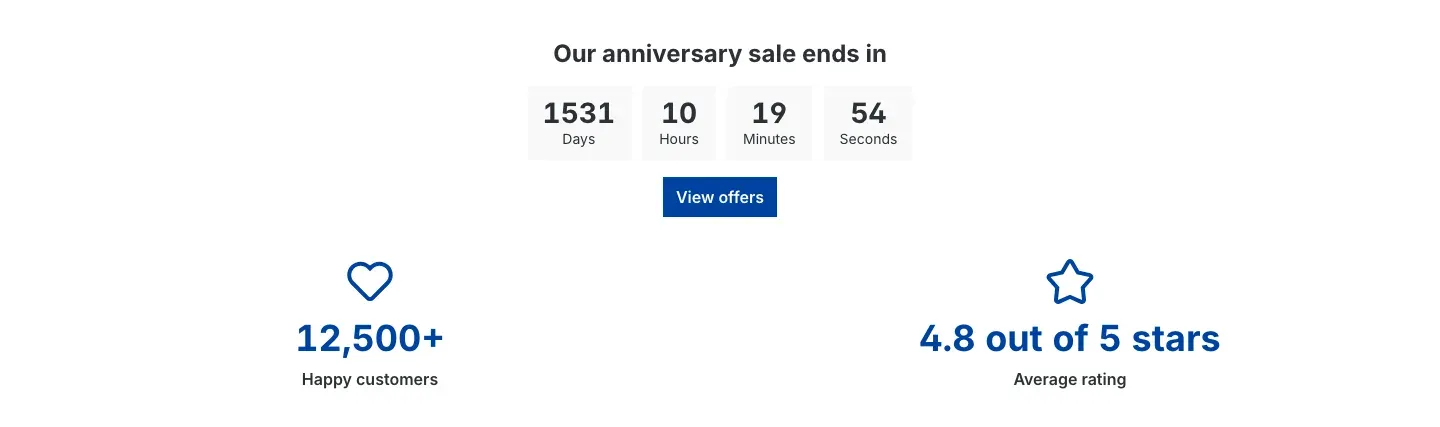
Fig. 16: A countdown with tiles and button at the top, two counters below.
Parallax image
What you get: a large image with text over which the content glides while scrolling – ideal as a stage for campaigns.
- Content: Image – use a landscape image at least 1920 px wide; smartphones automatically load a smaller thumbnail. Below it the Text on top of the image (optional).
- Settings: Height (px), Effect (Fixed (parallax) or Scrolling), Alignment and Vertical alignment of the text. On touch devices and with reduced motion enabled in the operating system the image scrolls normally.
- Design: Text colour, Overlay colour and Overlay opacity (%) – a dark overlay makes light text easier to read.
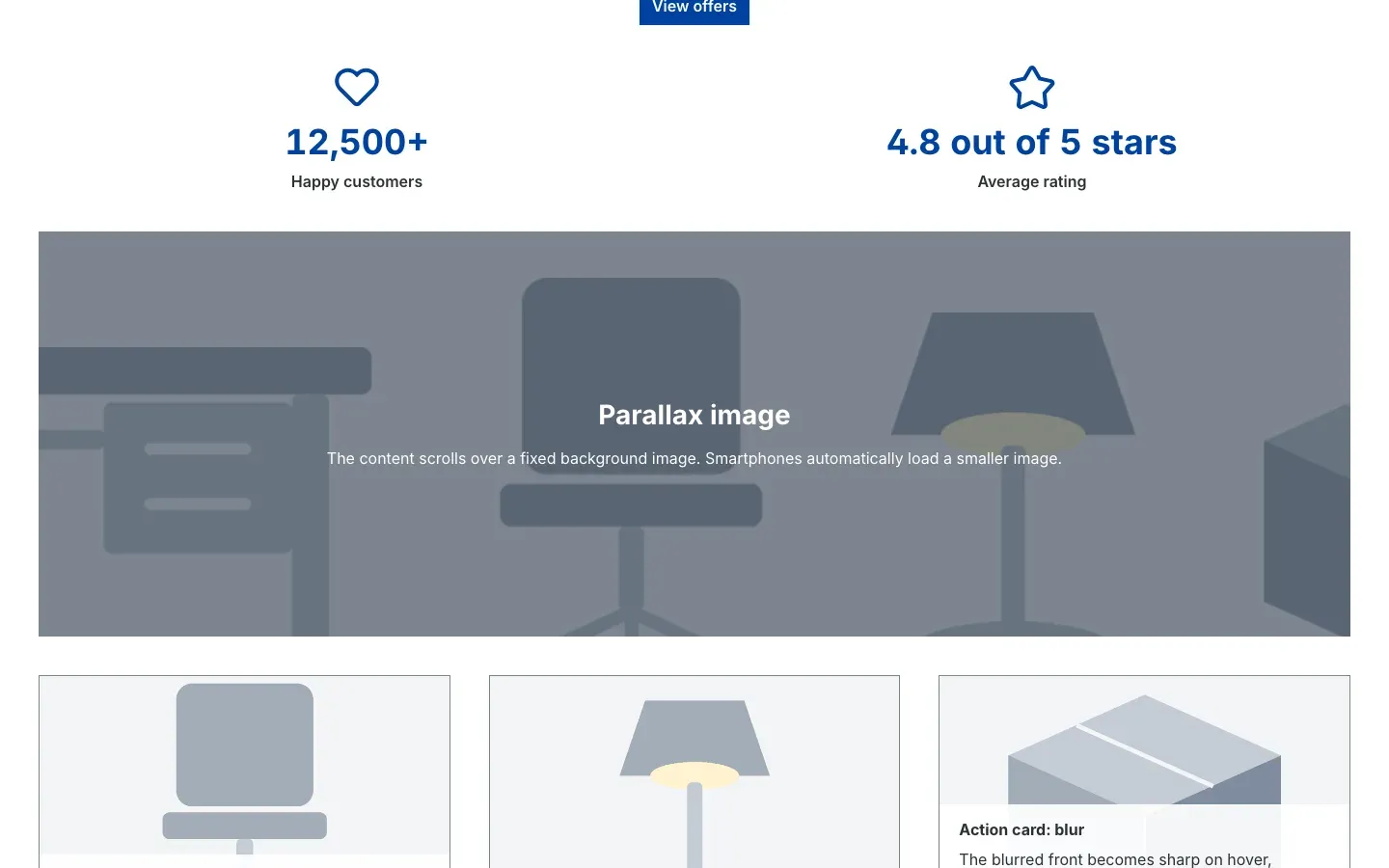
Fig. 17: The parallax image with a dark overlay.
Action card
What you get: cards with image and text that react on hover, tap or keyboard focus – for product presentations, vouchers or teasers.
Fig. 18: The front with image, heading and text.
-
Front and Back: each with Image, Heading and Text.
-
Link: the link target, Open link in new tab and the Button label (empty: “Learn more”). Without a link no button is shown.
-
Settings: under Action you choose how the card reacts:
- Flip – the card flips to the back with button on hover, tap or keyboard focus.
- Reveal – the back with button slides over the front.
- Blur – no back: the blurred front becomes sharp and the button is visible right away. With Keep text sharp the text always stays readable.
- Popup – the back with button opens in a dialog.
- Static (whole card linked) – no back: the whole front links to the target.
You also set the Height (px) and the Icon bottom right, which tells visitors that the card reacts.
Tip: in the designer, Show front and Show back switch the preview between the two sides.
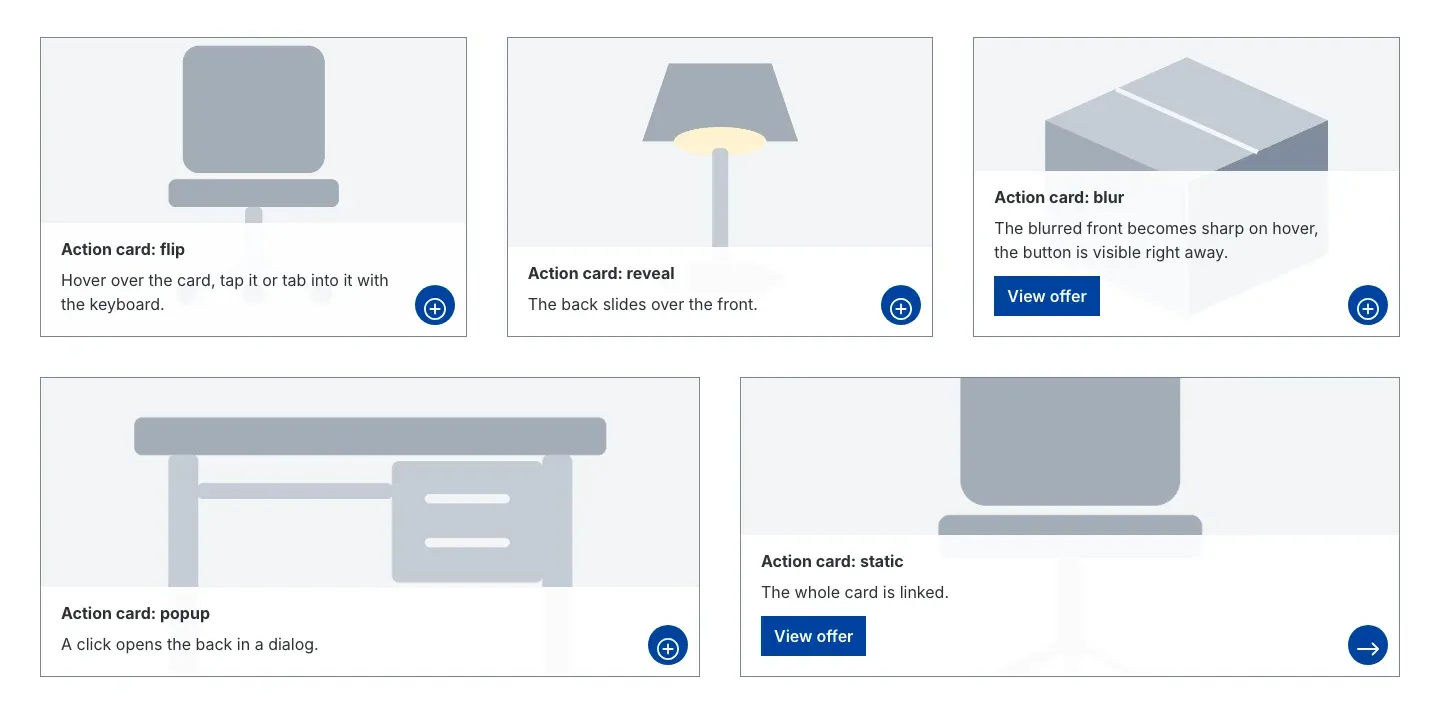
Fig. 19: The five actions compared.
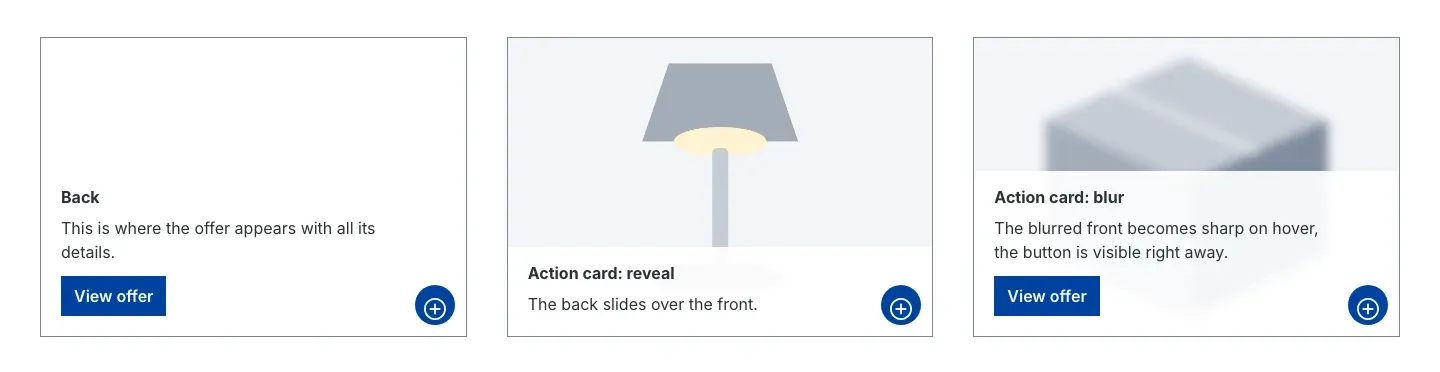
Fig. 20: On hover the left card shows its back with button.
Image comparison
What you get: visitors compare two images with a slider – before and after, with and without accessories, for example. The divider can be moved with mouse, finger and keyboard.
- Content: Image 1 (before) and Image 2 (after), each with a Caption. Use both images in the same aspect ratio.
- Settings: Height (px) (0 = the height follows the aspect ratio of image 2), Start position of the divider (%), Divider colour, Smooth movement, Round handle and Stack vertically – the divider then moves from top to bottom instead of left to right.
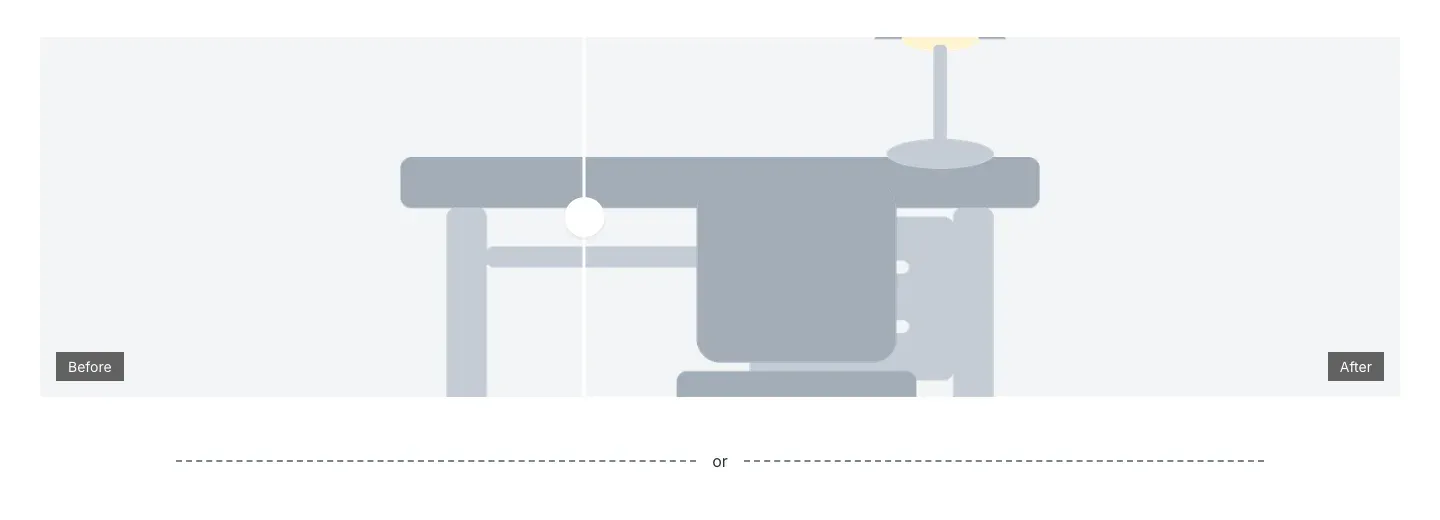
Fig. 21: The image comparison at the top, the divider with the text “or” below.
Divider and spacer
What you get: you structure pages with a line, a short text or a symbol – or simply add space between two blocks.
All settings are on one page: Height (px) is the total height of the element – without a line it becomes plain spacing. Under Line you choose None (spacing only), Solid, Dashed, Dotted or Double, plus Line width (px), Line colour and Width (%). Optionally you put a Text in the middle of the line, e.g. “or”, or an Icon, and choose the Text colour.
Map
What you get: you show your location on a map from OpenStreetMap or Google Maps – privacy-friendly, because the map only loads after consent.
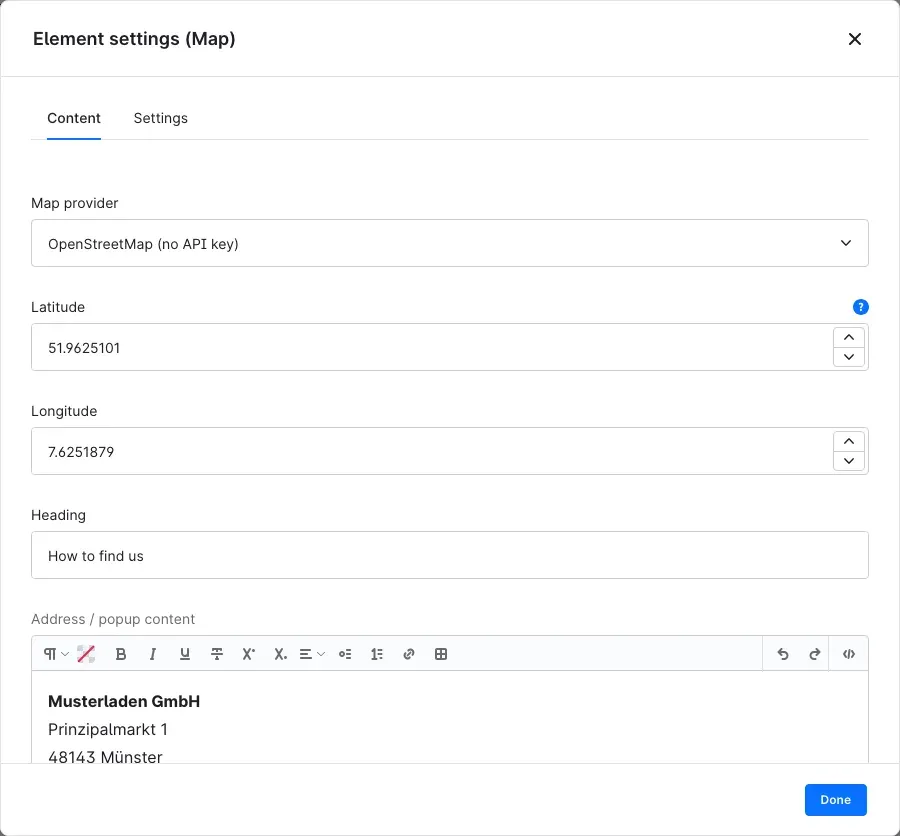
Fig. 22: Map provider, coordinates, heading and address.
- Content: under Map provider you choose OpenStreetMap (no API key) or Google Maps. You set the location with Latitude and Longitude in decimal degrees, e.g. 51.9606649. Tip: in OpenStreetMap, right-click the location → Show address to see the coordinates. Then Heading and Address / popup content: this text is shown below the map and, with Google Maps, also in the marker popup. Without consent or with maps disabled only this text remains visible.
- Settings: Zoom level (1 = world, 15 = streets, 20 = buildings), Height (px) and Load only after consent (default: on). With Google Maps you also choose the Map type: Road map, Satellite, Satellite with labels or Terrain.
Important: Google Maps needs an API key and a map ID in the plugin settings (card Maps). Without a key the shop only shows the address text.
Maps and privacy describes how consent works in the shop.
HTML and CSS
What you get: you insert your own code – a service provider’s form, a table or your own styling with <style>, for example.
Enter the code in the field HTML and CSS code. It is inserted into the page unchanged – including <style>, classes and attributes the text editor would remove.
Important: the code is output in the shop without any checks. Broken HTML can destroy the page layout, embedded scripts run for every visitor. Only insert content from third parties after reviewing it.

Fig. 23: Three badges from the HTML element at the top, the layout “3 columns (1/4 · 1/2 · 1/4)” below.
Placeholders and data mapping in elements
In the texts of the elements notice, call to action, testimonial, tabs, accordion, action card and HTML / CSS you can use placeholders such as {{ category.name }} or {{ product.name }}. On category and product pages the shop replaces them with the name of the category or product. This way you design a layout once and use it for many categories.
In layouts for category and product pages you can also map content instead of entering it – just like with Shopware’s standard elements: Heading and Content of the notice, the Background image of the call to action, the front and back images of the action card and both images of the image comparison.
Column and card layouts
What you get: you arrange any elements in columns – of equal or different widths – and keep image and text together as a pair on smartphones.
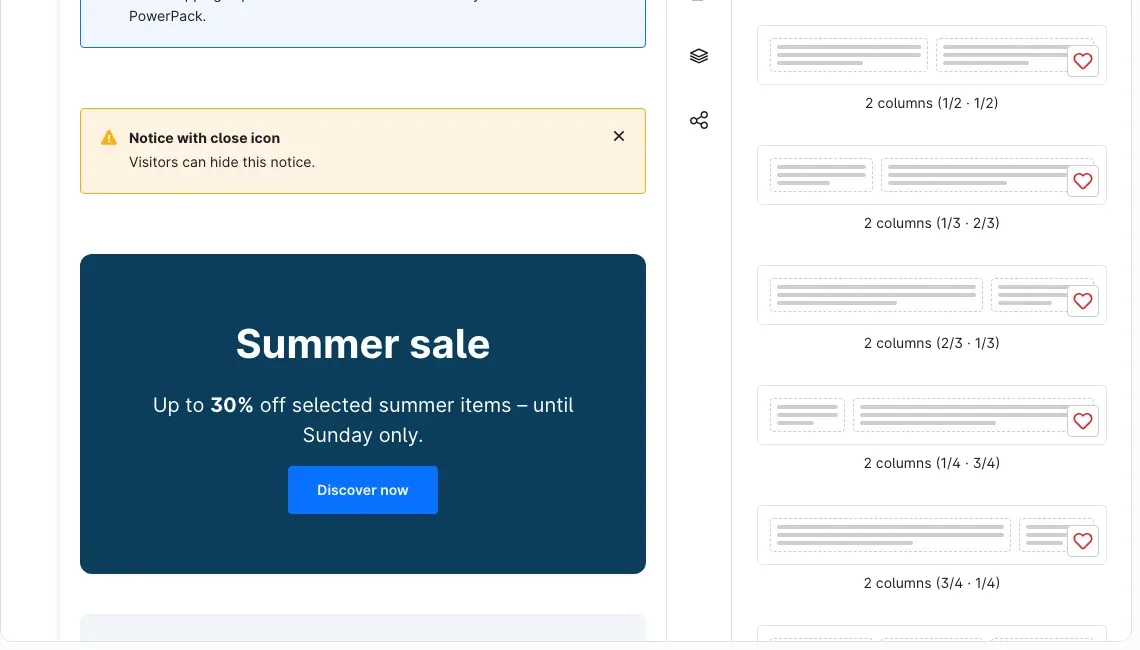
Fig. 24: The layout blocks in the category “PowerPack layouts”.
The block category PowerPack layouts contains 13 layouts:
- 2 columns (1/2 · 1/2), 2 columns (1/3 · 2/3), 2 columns (2/3 · 1/3), 2 columns (1/4 · 3/4) and 2 columns (3/4 · 1/4)
- 3 columns (equal width), 3 columns (1/4 · 1/2 · 1/4), 3 columns (1/2 · 1/4 · 1/4) and 3 columns (1/4 · 1/4 · 1/2)
- 4 columns (equal width) and 6 columns (equal width)
- 2 columns, image & text and 4 columns, image & text – cards made of one image and one text each
Each column initially contains a text or an image. With the replace icon in the element you swap it for any other element – PowerPack elements included. This way, for example, two counters or three action cards sit side by side (see Fig. 16 and Fig. 19).
On tablets two columns sit side by side at half width each, on smartphones the columns are stacked. With the image and text cards each image stays above its text on smartphones.
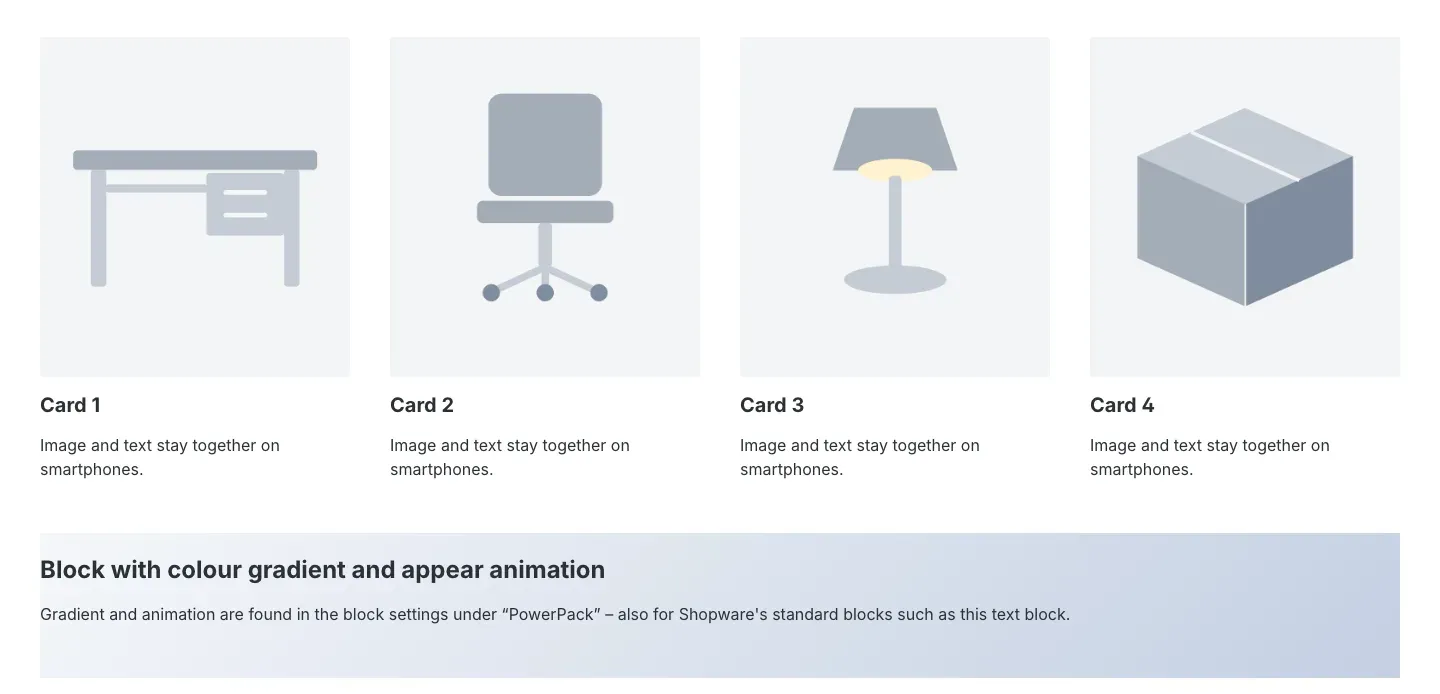
Fig. 25: Four image and text cards, below them a standard text block with colour gradient (see chapter 8).
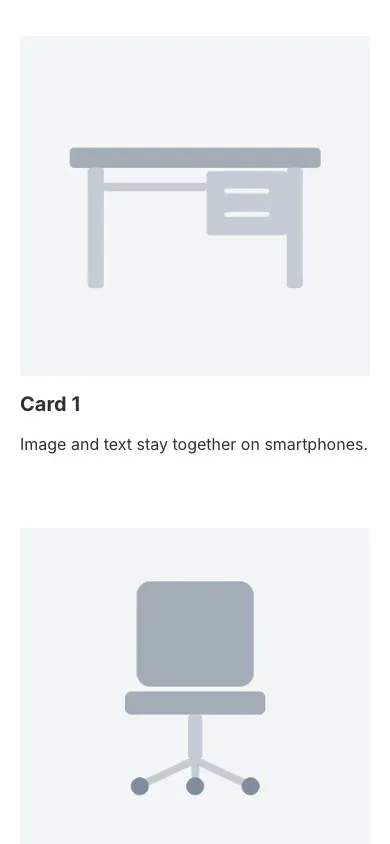
Fig. 26: On smartphones image and text stay together as a pair.
Gradient, animation and visibility for blocks and sections
What you get: every block and every section – Shopware’s standard blocks included – gets a colour gradient, an appear animation, a display period and optionally rules for who sees it. This lets you plan promotions in advance and show content to specific customer groups.
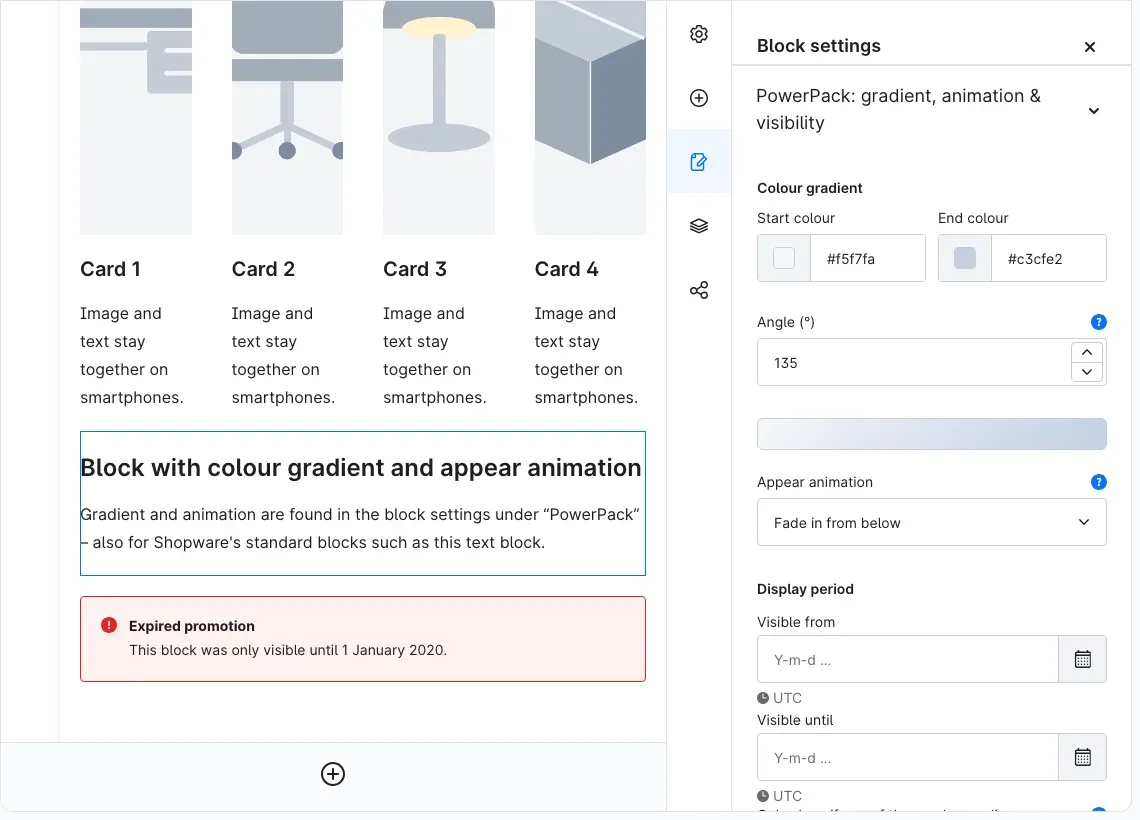
Fig. 27: Colour gradient and appear animation of a text block.
Step by step
- Open the shopping experience in the designer and click the block you want. The Block settings open in the sidebar. For a section, click the icon to the left of the section; the Section settings open.
- Expand the panel PowerPack: gradient, animation & visibility.
- Set the values you want and save the layout.
Colour gradient
Under Colour gradient you choose Start colour and End colour and set the direction with Angle (°): from -180 to 180, where 180 runs top to bottom and 90 left to right. A preview shows the gradient immediately. The gradient lies on top of the block’s background colour; a background image takes precedence.
Appear animation
Under Appear animation you choose None, Fade in, Fade in from below, Fade in from above, Fade in from the right, Fade in from the left or Zoom in. The animation plays once as soon as the block becomes visible while scrolling. Visitors who enabled reduced motion in their operating system see the content immediately.
Display period
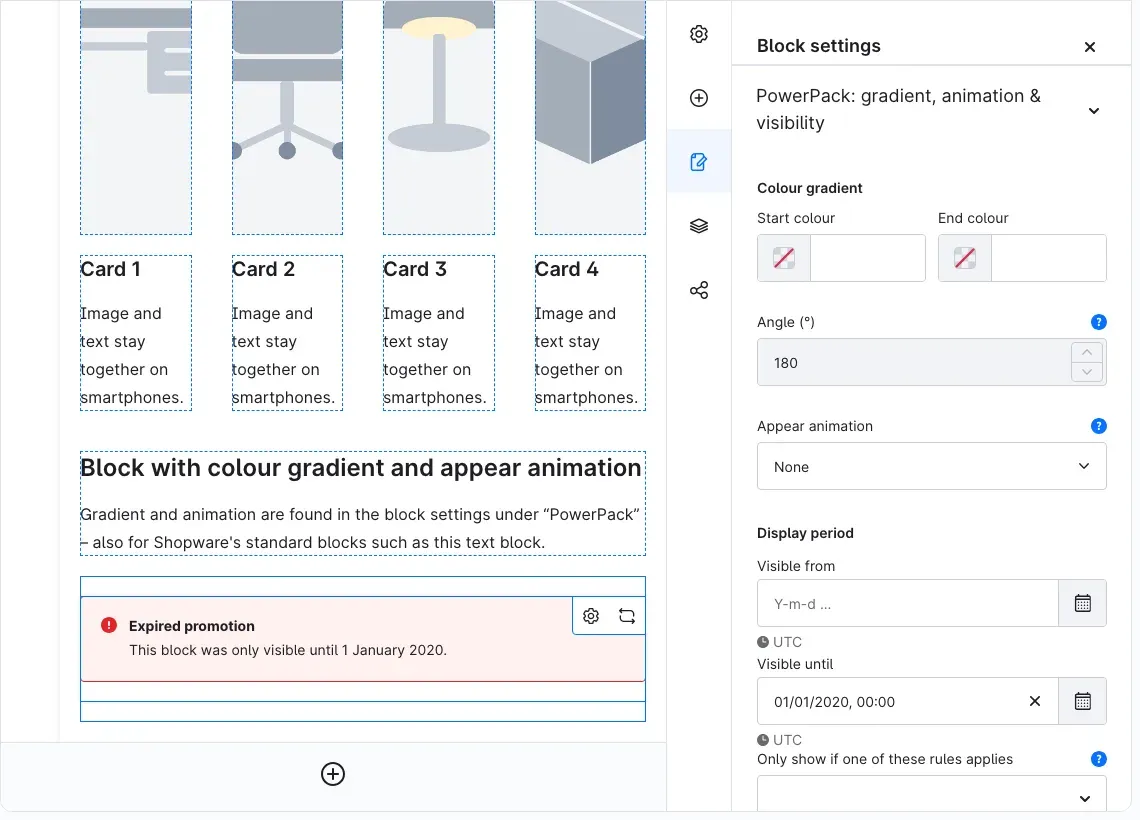
Fig. 28: This notice was only visible until 1 January 2020 – that is why it no longer appears in the shop.
With Visible from and Visible until you define the period in which the block or section appears in the shop. You can also fill in just one of the two fields. If the end is before the start, the designer tells you – the content would never be shown.
Good to know: the shop cache is cleared automatically at the start and end of the period. A scheduled task that runs every 5 minutes takes care of this, so a block appears or disappears within a few minutes of the time you set. The settings apply to all languages.
Rules
Under Only show if one of these rules applies you choose rules from the Rule Builder, e.g. a customer group or a cart value. The block then only appears if at least one of the selected rules applies. If the field is empty, the block is visible to everyone. You create new rules under Settings → Rule Builder.
Important: selecting rules requires the permission “Rule Builder – view” for your user account. If it is missing, the panel tells you.
Reset PowerPack settings removes gradient, animation, period and rules of the selected block or section in one go.
Layouts in the header, footer and checkout
What you get: you show a notice bar, trust symbols, vouchers or service information at fixed places in your shop – designed with all shopping experience elements and separately for each sales channel.
Step by step
- Under Content → Shopping Experiences, create a layout with Create new layout, for example of the layout type Shop page, and design the content – with a notice or an info bar, for example.
- Open the plugin settings and choose the Sales Channel at the top.
- On the card Layouts in header, footer and checkout, choose the layout for the place you want and its position (see Settings).
- Click Save.
The layout now appears at the chosen place – in the example as a green notice bar above the header (Fig. 3).
Tip: if you choose different layouts for different sales channels, each shop shows its own bar. The assignment applies to all languages; you translate the texts as usual in the layout itself.
Good to know: if you delete an assigned layout, that place in the shop simply stays empty – no errors occur.
Snippet placeholders in products and categories
What you get: you maintain recurring texts once as a snippet – in all languages – and insert them with a placeholder into product names, product descriptions and category descriptions. If you change the snippet, the text changes everywhere.
Step by step
-
Under Settings → Snippets, create a snippet with New snippet, for example with the name
care.notice, and enter the texts for your languages. -
In the plugin settings, on the card Snippets in products and categories, switch on the switches for the fields in which you want to use placeholders (see Settings).
-
Write the placeholder into the field, for example into the product description:
{{ "care.notice"|trans }} -
Save the product or category. In the shop the text of the snippet appears at this place in the visitor’s language.
Single and double quotation marks are both allowed. In descriptions the shop outputs the snippet text as plain text; if your snippet contains HTML that should appear as HTML, write {{ "care.notice"|trans|raw }}.
Important: only snippets are replaced. Other Twig expressions – conditions, loops or variables, for example – are not executed by the plugin; they remain as text. This protects your shop from program code being executed through product data.
Maps and privacy
What you get: maps load nothing from OpenStreetMap or Google before your visitors have agreed. Visitors manage their consent in Shopware’s cookie manager.
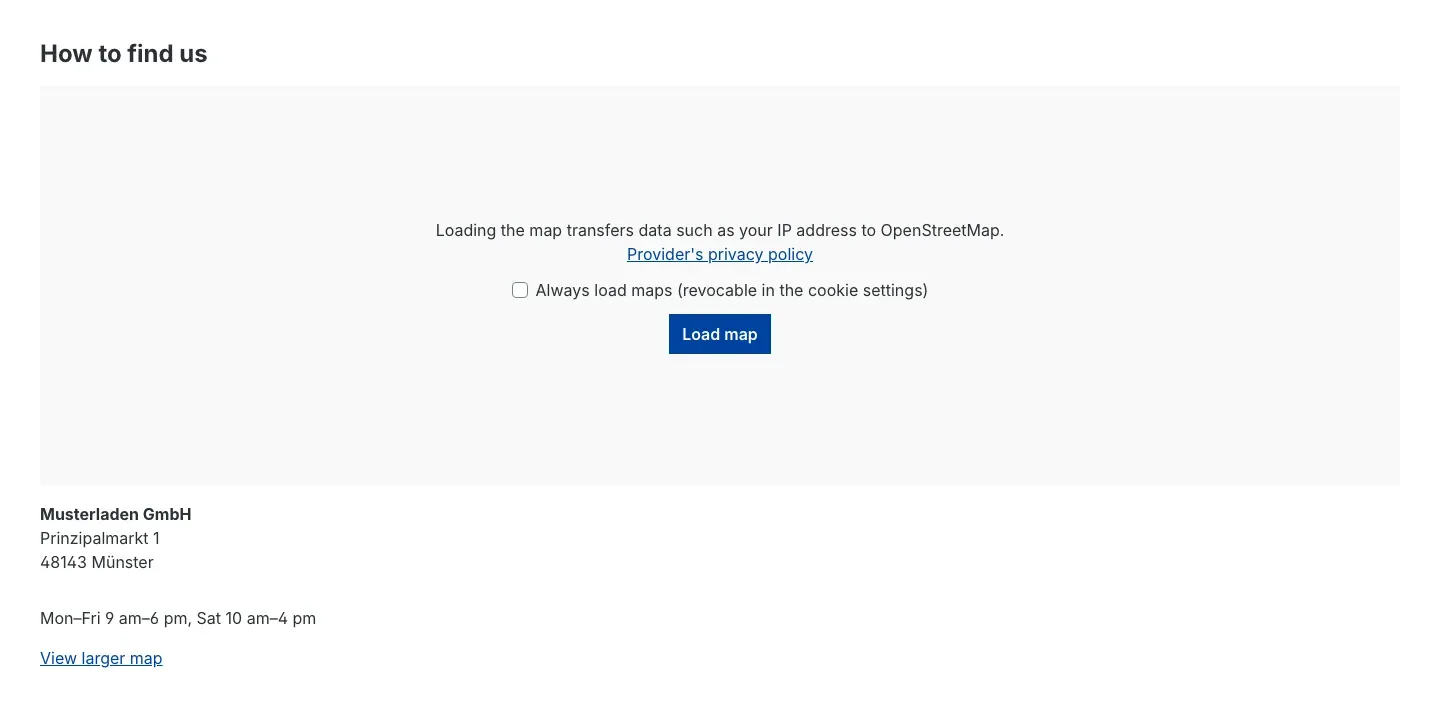
Fig. 29: Before consent the element shows a notice, a link to the provider’s privacy policy and the “Load map” button.
This is how it works in the shop:
- Instead of the map, the visitor sees a notice that loading the map transfers data such as the IP address to the map provider, plus a link to the Provider’s privacy policy.
- Load map loads the map for this page view. If the visitor ticks Always load maps (revocable in the cookie settings) first, the shop loads maps without asking in future.
- Below the map are the address and the link View larger map.
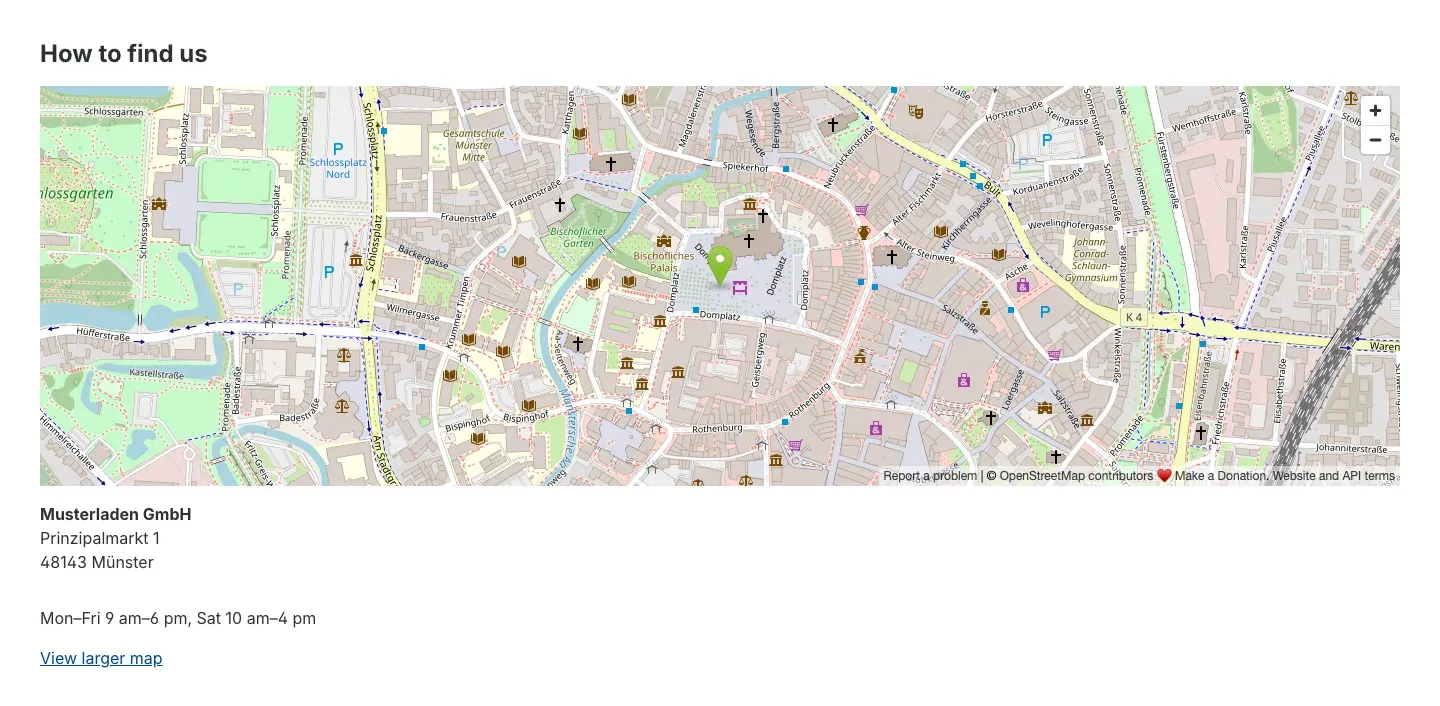
Fig. 30: The loaded map with marker and address.
In Shopware’s cookie manager the entry Maps (OpenStreetMap, Google Maps) appears in the group Comfort features. There visitors grant or revoke their consent permanently.
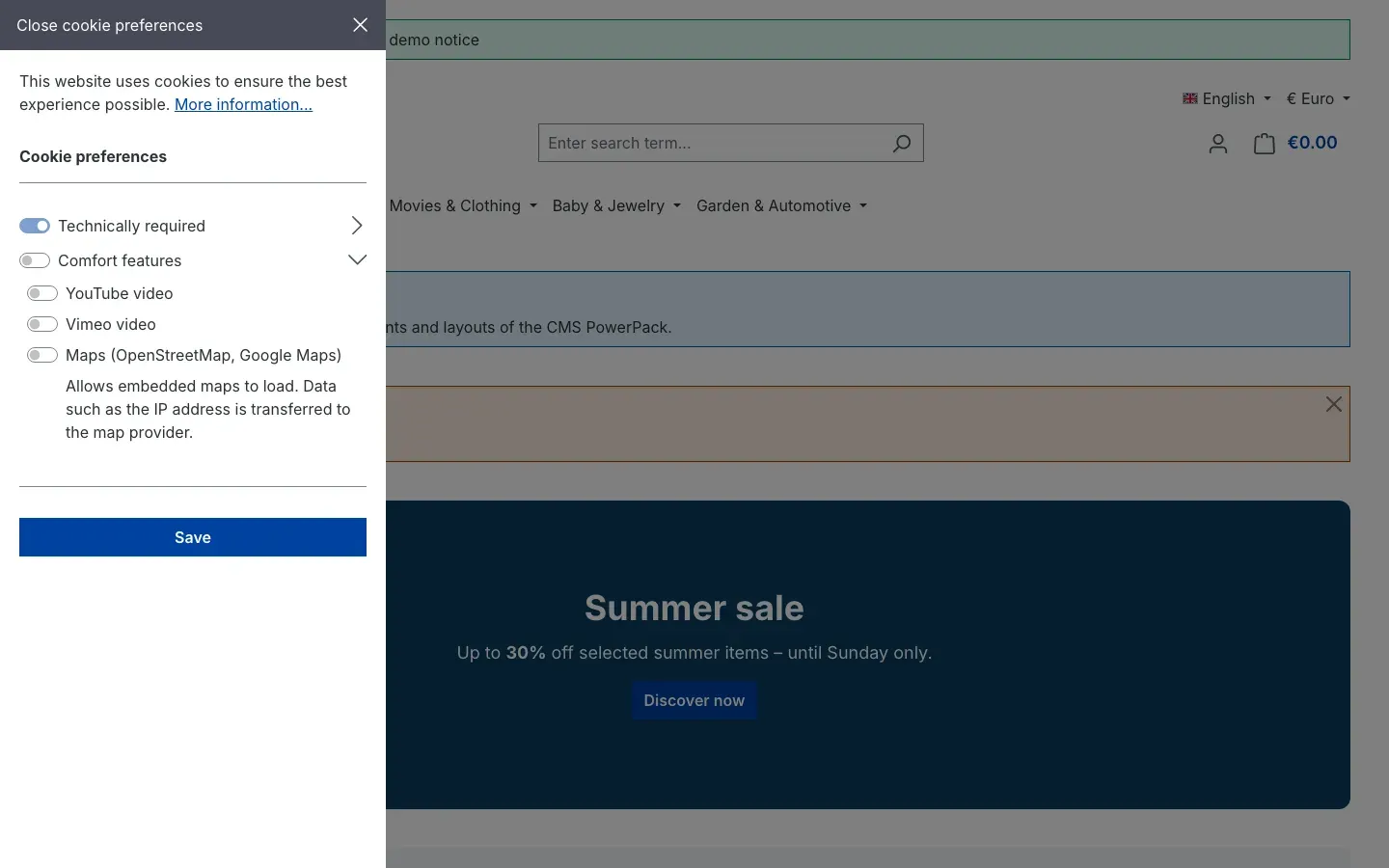
Fig. 31: The entry for maps in the cookie settings.
- With the switch Load only after consent in the map element (Settings tab), consent is on by default. Only switch it off if your own consent tool protects the page – otherwise the map loads content from the provider immediately.
- With Allow map elements in the plugin settings you switch maps off completely for a sales channel. Map elements then only show the address and the cookie manager entry disappears.
Tip: mention the map providers in your privacy policy if you use maps.
Switching from NetzpPowerPack6
The CMS PowerPack covers the functions of NetzpPowerPack6 and adds to them. There is no automatic migration: the plugin does not convert layouts that contain NetzpPowerPack6 elements.
How to proceed:
- Rebuild layouts: in your shopping experiences, replace the Netzp blocks with the corresponding PowerPack blocks (see The PowerPack elements and Column and card layouts). Copy texts and images into the element settings.
- Reassign header, footer and completion layouts: the assignment now lives in the plugin settings, per sales channel and shared by all languages (see Layouts in the header, footer and checkout). The cart page and the order confirmation page are new.
- Set the scheduling and rules again: enter display period and rules in the panel PowerPack: gradient, animation & visibility (see Gradient, animation and visibility for blocks and sections). You no longer have to clear the cache yourself on the key date.
- Check product and category texts: the notation
{{ "snippet.key"|trans }}keeps working once you switch on the switches on the card Snippets in products and categories. Other Twig expressions in your texts, however, remain as text – replace them with snippets or fixed text (see Snippet placeholders in products and categories). - Visibility by device: to show content only on smartphone, tablet or desktop, use the Visibility setting with Devices that Shopware provides in the block and section settings.
Tip: rebuild the layouts in a test environment first and check them before you deactivate NetzpPowerPack6 in your live shop.
Troubleshooting
The PowerPack blocks do not appear in the “Blocks” sidebar
Cause: the plugin is not active, or you are not editing the layout in the system default language.
Solution:
- Check under Extensions → My extensions that the plugin’s switch is on.
- Switch to your shop’s default language at the top right of the designer – blocks can only be added there.
- Reload the Administration.
An element appears in the designer but not in the shop
Cause: the plugin is switched off for this sales channel, the display period has not started yet or has ended, none of the selected rules applies – or the countdown has no end date.
Solution:
- In the plugin settings for this sales channel, check the switch Enable plugin for this sales channel.
- In the panel PowerPack: gradient, animation & visibility of the block and the section, check Visible from, Visible until and the rules.
- Clear the cache: Settings → Caches & indexes → Clear cache.
A block does not appear on time at the start of its display period
Cause: the cache is refreshed by a scheduled task every 5 minutes. If the task does not run in your shop, the old page stays in place.
Solution: clear the cache under Settings → Caches & indexes → Clear cache and ask your technical contact to check the scheduled tasks (see For administrators and technical details).
A block with a rule looks the same for all visitors
Cause: in shops with certain performance options the cache only takes rules about products into account (see For administrators and technical details).
Solution: have your technical contact check the cache settings, or control the display with a display period instead of a rule.
The map only shows the address
Cause: Allow map elements is switched off, or you chose Google Maps without entering an API key.
Solution: switch on Allow map elements, or enter Google Maps API key and Google Maps map ID – or choose OpenStreetMap (no API key) in the element.
A snippet placeholder is shown as text in the shop
Cause: the switch for this field is off, the notation is wrong, or the snippet does not exist.
Solution:
- Switch on the matching switch on the card Snippets in products and categories.
- Check the notation:
{{ "name.of.the.snippet"|trans }}. - Check under Settings → Snippets that a snippet with exactly this name exists.
The rule selection in the PowerPack panel stays empty
Cause: your user account lacks the permission “Rule Builder – view”.
Solution: ask an administrator to give your role this permission.
FAQ
Q: Do the PowerPack elements work in all languages of my shop?
A: Yes. You maintain the element texts per language in the element settings. Gradient, animation, display period and rules apply to all languages.
Q: Can I use the PowerPack settings for Shopware’s standard blocks too?
A: Yes. Colour gradient, appear animation, display period and rules are available for every block and every section.
Q: Do I have to clear the cache after a scheduled promotion?
A: No. The shop clears it automatically at the start and end of the period with a scheduled task that runs every 5 minutes.
Q: Do I need an API key for maps?
A: Only for Google Maps. OpenStreetMap works without a key.
Q: Does the map load anything before the visitor agrees?
A: No. As long as Load only after consent is on, the map only loads after a click on Load map or after consent in the cookie manager.
Q: Can I switch the plugin off in one sales channel?
A: Yes, with the switch Enable plugin for this sales channel in the plugin settings after choosing the sales channel at the top.
Q: Is my NetzpPowerPack6 content taken over?
A: No, there is no automatic migration. Switching from NetzpPowerPack6 describes how to switch.
Q: Do the elements work in a headless shop?
A: Yes. All content is available via the Store API; developer details are in For administrators and technical details.
For administrators and technical details
This section is aimed at technical administrators and developers. You do not need it for normal use.
System requirements
- Shopware: 6.7.3 to 6.7.x – the plugin registers the map consent through a cookie manager event that only exists from Shopware 6.7.3.
- PHP: 8.2 or newer
- Database: MySQL 8.0 / MariaDB 10.11 or newer
Installation via the command line
php bin/console plugin:refresh
php bin/console plugin:install SwpCmsPowerPackSix --activate
php bin/console cache:clear
The plugin’s storefront styles are included the next time the theme is compiled (php bin/console theme:compile).
Scheduled task for the display period
The task swp_cms_power_pack.visibility_cache runs every 300 seconds. It looks for blocks and sections whose display period has started or ended since the last run and clears the cache of the affected layouts specifically. A missed run is caught up the next time. Scheduled tasks and the message queue must be running in your shop (cron job or worker, or the admin worker).
Rule visibility and HTTP cache
In the Shopware 6.7 default, the HTTP cache key contains all active rules of the visitor; rule based visibility then also works for cached pages. If the optional feature flags PERFORMANCE_TWEAKS or CACHE_REWORK are active, the cache key only takes rules about products into account. Rule based visibility is then only reliable on pages that are not delivered from the HTTP cache.
Permissions
The plugin has no area of its own in the Administration. The elements and the panel PowerPack: gradient, animation & visibility use the permissions of the shopping experiences. Selecting rules additionally requires read access to the Rule Builder. The HTML / CSS element outputs code unchecked; only grant write access to shopping experiences to trusted users.
Uninstallation
If you uninstall the plugin without keeping its data, it removes the PowerPack settings (gradient, animation, display period, rules) from all blocks and sections. Blocks with PowerPack elements remain in your layouts – replace or remove them first.
Composable Frontends and Store API
After loading, all element data is available in slot.data of the Store API (apiAlias swp_cms_power_pack_element). If the plugin is switched off in the sales channel, slot.data only contains { "active": false } – the frontend then renders nothing. Display period and rules are already applied when loading: hidden blocks and sections are missing from the response. Gradient and animation are available as the extension swpPowerPack (apiAlias swp_cms_power_pack_display) on the block or section: gradient (ready-made CSS linear-gradient(...)), animation and styleId.
Store API route for the layouts in the header, footer and checkout:
| Route | Method | Purpose |
|---|---|---|
/store-api/swp-cms-power-pack/zone/{zone} | GET, POST | resolved shopping experience layout of a place in the sales channel; zone is header, footer, cart, confirm or finish |
The response (apiAlias swp_cms_power_pack_zone) contains zone, position (before or after) and cmsPage – the fully resolved layout as with /store-api/cms/{id}, or null if no layout is assigned, the layout was deleted or the plugin is switched off in the sales channel. The frontend renders cmsPage with CmsPage from @shopware/cms-base-layer at the reported position.
Component names for Composable Frontends (following resolveCmsComponent):
| Element | Element component | Block component |
|---|---|---|
| Notice | CmsElementSwpPpAlert | CmsBlockSwpPpAlert |
| Call to action | CmsElementSwpPpCta | CmsBlockSwpPpCta |
| Testimonial | CmsElementSwpPpTestimonial | CmsBlockSwpPpTestimonial |
| Tabs | CmsElementSwpPpTabs | CmsBlockSwpPpTabs |
| Accordion | CmsElementSwpPpAccordion | CmsBlockSwpPpAccordion |
| HTML / CSS | CmsElementSwpPpHtml | CmsBlockSwpPpHtml |
| Map | CmsElementSwpPpMap | CmsBlockSwpPpMap |
| Countdown | CmsElementSwpPpCountdown | CmsBlockSwpPpCountdown |
| Counter | CmsElementSwpPpCounter | CmsBlockSwpPpCounter |
| Parallax image | CmsElementSwpPpParallax | CmsBlockSwpPpParallax |
| Action card | CmsElementSwpPpActionCard | CmsBlockSwpPpActionCard |
| Image comparison | CmsElementSwpPpImageCompare | CmsBlockSwpPpImageCompare |
| Info bar / icon bar | CmsElementSwpPpInfobar | CmsBlockSwpPpInfobar |
| Divider / spacer | CmsElementSwpPpDivider | CmsBlockSwpPpDivider |
The layout blocks are named CmsBlockSwpPpGrid25050, CmsBlockSwpPpGrid23367, CmsBlockSwpPpGrid26733, CmsBlockSwpPpGrid22575, CmsBlockSwpPpGrid27525, CmsBlockSwpPpGrid3Equal, CmsBlockSwpPpGrid3255025, CmsBlockSwpPpGrid3502525, CmsBlockSwpPpGrid3252550, CmsBlockSwpPpGrid4Equal, CmsBlockSwpPpGrid6Equal, CmsBlockSwpPpImageTextCards2 and CmsBlockSwpPpImageTextCards4. Their slots are named col-1 to col-6 or image-1/text-1 to image-4/text-4. Column widths in twelfths: 2-50-50 = 6/6, 2-33-67 = 4/8, 2-67-33 = 8/4, 2-25-75 = 3/9, 2-75-25 = 9/3, 3-equal = 4/4/4, 3-25-50-25 = 3/6/3, 3-50-25-25 = 6/3/3, 3-25-25-50 = 3/3/6, 4-equal = 3 per column, 6-equal = 2 per column. On tablets two columns take 6/12 each, on smartphones they are stacked.
If a frontend has no component for an element yet, Composable Frontends shows a placeholder with the expected component name in development mode.
This manual was written for CMS PowerPack: Elements, Column Layouts & Scheduling version 6.7.0.
More manuals
Address Validation: House Number Check & Corrections
Address validation at the point of entry: the plugin spots missing house numbers, can suggest corrections via Google and helps you send fewer parcels that come back undeliverable.
Open manual Shopware 6Admin Password Reminder
Admin Password Reminder: your backend users renew their passwords on time, prompted after login and by a daily email. Premium locks expired accounts until the password is changed.
Open manual Shopware 6Advent Calendar | Doors with products, coupons and promotions
Advent calendar for your shopping experiences: doors open on time without clearing the cache, give nothing away in the page source and reveal coupons, products or your own content.
Open manualNeed a team that keeps your shop running?
We have been maintaining Shopware shops for more than 20 years, including updates, hotfixes and the plugins you are configuring right now.