Crossselling in Cart
Crossselling in the cart: the plugin shows your products' cross-selling below the cart and in the cart sidebar, so customers still spot matching accessories before checkout.
On this page
- Introduction
- What you achieve with this plugin
- Who is this plugin for?
- What the plugin does not do
- Requirements
- Installation
- Getting started
- Settings
- Choosing the sales channel
- Enable plugin for this sales channel
- Number of products
- Random selection across all cart items
- Display in the off-canvas cart
- Maintaining cross-selling on the product
- Step by step
- What it looks like in the store
- On the cart page
- In the sidebar as a slider
- In the sidebar as a list
- Changing the heading
- Updating from older versions
- Troubleshooting
- No recommendations appear below the cart
- No recommendations appear in the sidebar
- Fewer products appear than configured
- A product shows “Details” instead of “Add to shopping cart”
- The recommendations look different in my theme than in the figures
- FAQ
- For administrators / Technical details
- System requirements
- Installation via the command line
- Data and privacy
- Customizing in the theme
Introduction
Crossselling in Cart helps you show your customers matching accessories and complementary products right before they buy.
What you achieve with this plugin
- On the cart page, your customers see a slider headed “Often bought together” below the cart.
- If you like, the same recommendations also appear in the sidebar that opens after a product has been added (the off-canvas cart), either as a slider or as a list.
- The plugin uses the cross-selling you already maintain on your products. You don’t have to set up anything twice.
- Customers can add a recommended product to the cart directly from the cart page.
- Products that are already in the cart are not offered again. Each product appears only once, even if it is assigned as cross-selling to several products.
- You configure everything per sales channel and can switch the plugin off entirely in individual stores.
Who is this plugin for?
For store owners who maintain cross-selling on their products (for example “Matching accessories”) and want to show it not only on the product page but also in the cart. This makes it more likely that customers order complementary products along with their purchase.
What the plugin does not do
The plugin does not calculate its own recommendations. There are no purchase statistics, no artificial intelligence and no automatic analysis of orders. “Often bought together” is only the heading. Which products appear is determined solely by the cross-selling on your products.
Requirements
- Shopware 6.7
- The products your customers put into the cart have at least one active cross-selling (see Maintaining cross-selling on the product). Without cross-selling, the area below the cart stays empty.
Installation
After your purchase, the plugin is available directly in your Administration. You don’t need to download anything.
- Log in to your Shopware Administration (
yourstore.com/admin). - Open Extensions → My extensions. You’ll find the plugin in the Apps tab.
- Next to Crossselling in Cart, click Install.
- Activate the plugin with the switch to the left of the plugin icon.
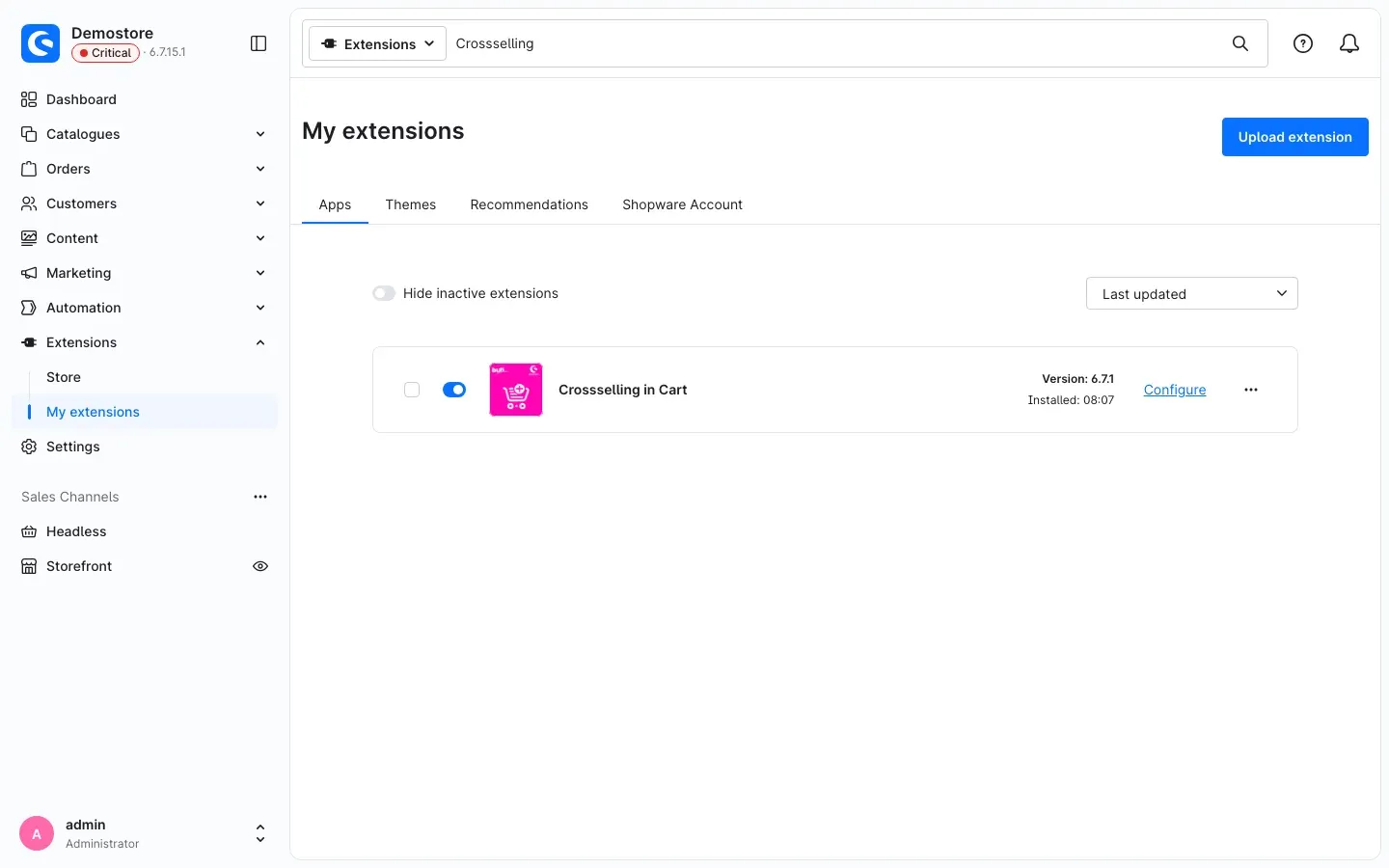 Fig. 1: The installed and active plugin under Extensions → My extensions, Apps tab
Once the plugin is installed and active, its row shows the version and the Configure link.
If Crossselling in Cart does not appear in the list, your Shopware account is not yet connected to the store. You can do this under Extensions → My extensions in the Shopware Account tab by logging in with your Shopware account.
Getting started
- Open the settings: Go to Extensions → My extensions and click Configure next to Crossselling in Cart.
- Check the display: The switch Enable plugin for this sales channel is already on. Recommendations therefore appear on the cart page right away.
- Enable the sidebar (optional): Set Display in the off-canvas cart to Show as slider or Show as list if the recommendations should also appear right after a product has been added. Click Save.
- Maintain cross-selling: Add cross-selling to your products if you haven’t done so yet (see Maintaining cross-selling on the product).
- Check the result: In your store, add a product that has cross-selling to the cart and open the cart page. Below the cart you now see the slider “Often bought together”.
Settings
Open the settings under Extensions → My extensions via the Configure link next to Crossselling in Cart. All settings are in the card Cross-selling in the cart.
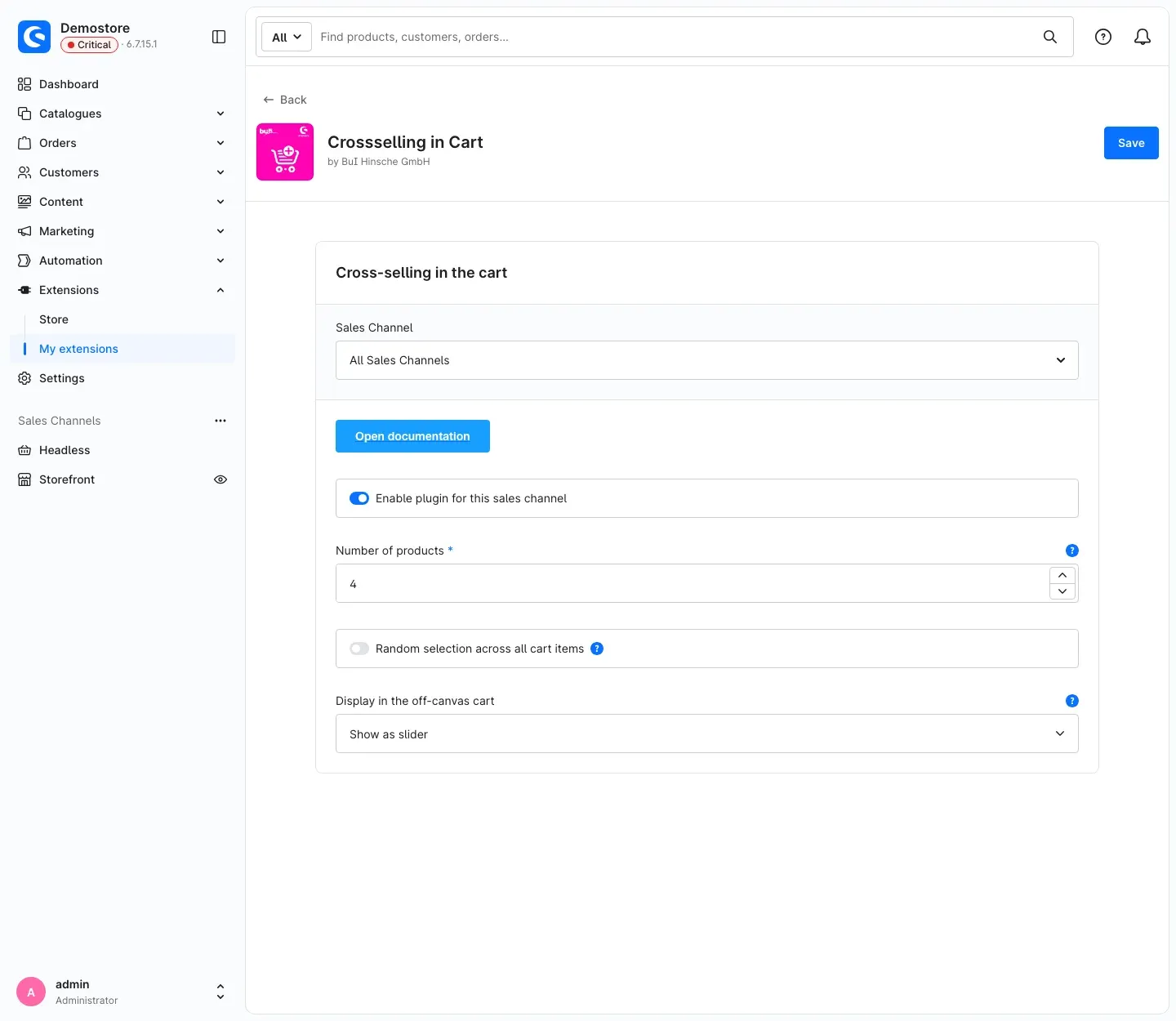 Fig. 2: The configuration with sales channel selection, the “Open documentation” button and all settings
Choosing the sales channel
At the very top, select under Sales Channel which store your settings apply to. With All Sales Channels you define the default for all stores. If you select a single sales channel, you can set individual values differently there. Anything you don’t change there is taken from the default.
Below it you’ll find the Open documentation button. It takes you directly to this manual on bui-hinsche.com.
Enable plugin for this sales channel
The switch Enable plugin for this sales channel determines whether recommendations appear in the selected store. It is on by default. If you switch it off, the store shows no recommendations, neither on the cart page nor in the sidebar.
Why this is useful: If you run several sales channels, for example one store for business customers and one for consumers, you can use the recommendations only where they fit. You don’t have to uninstall the plugin for this.
Number of products
Under Number of products you enter the maximum number of recommendations the cart shows. The default is 4. The value is an upper limit: if there are fewer matching cross-selling products, fewer appear.
Why this is useful: A small number keeps the area tidy and doesn’t distract from the purchase. A larger number offers more choice, which customers can browse in the slider.
Random selection across all cart items
The switch Random selection across all cart items determines which recommendations are shown when several products are in the cart. It is off by default.
- Off: Recommendations follow the order of the cart. First come the cross-selling products of the first item, then those of the second, and so on, until the configured number is reached.
- On: The plugin collects the cross-selling of all items in the cart and picks as many at random as you set under Number of products.
Why this is useful: When the cart holds many products, random selection makes sure that not only the accessories of the first item are shown. The customer sees a new mix every time.
Display in the off-canvas cart
The off-canvas cart is the sidebar that opens after a customer has added a product to the cart. Under Display in the off-canvas cart you decide whether and how recommendations appear there:
- Do not show: No recommendations appear in the sidebar. This is the default.
- Show as slider: Recommendations appear as a compact slider to browse.
- Show as list: Recommendations are listed one below the other, each with image, name, price and the Details button.
Why this is useful: The customer sees the sidebar immediately after adding a product, which is exactly the right moment for matching accessories. The list shows all recommendations at a glance, the slider saves space.
After every change, click Save at the top right.
Maintaining cross-selling on the product
What this gives you: The products in the cart come exclusively from the cross-selling of your products. Whatever you assign here is what your customers will later see below the cart.
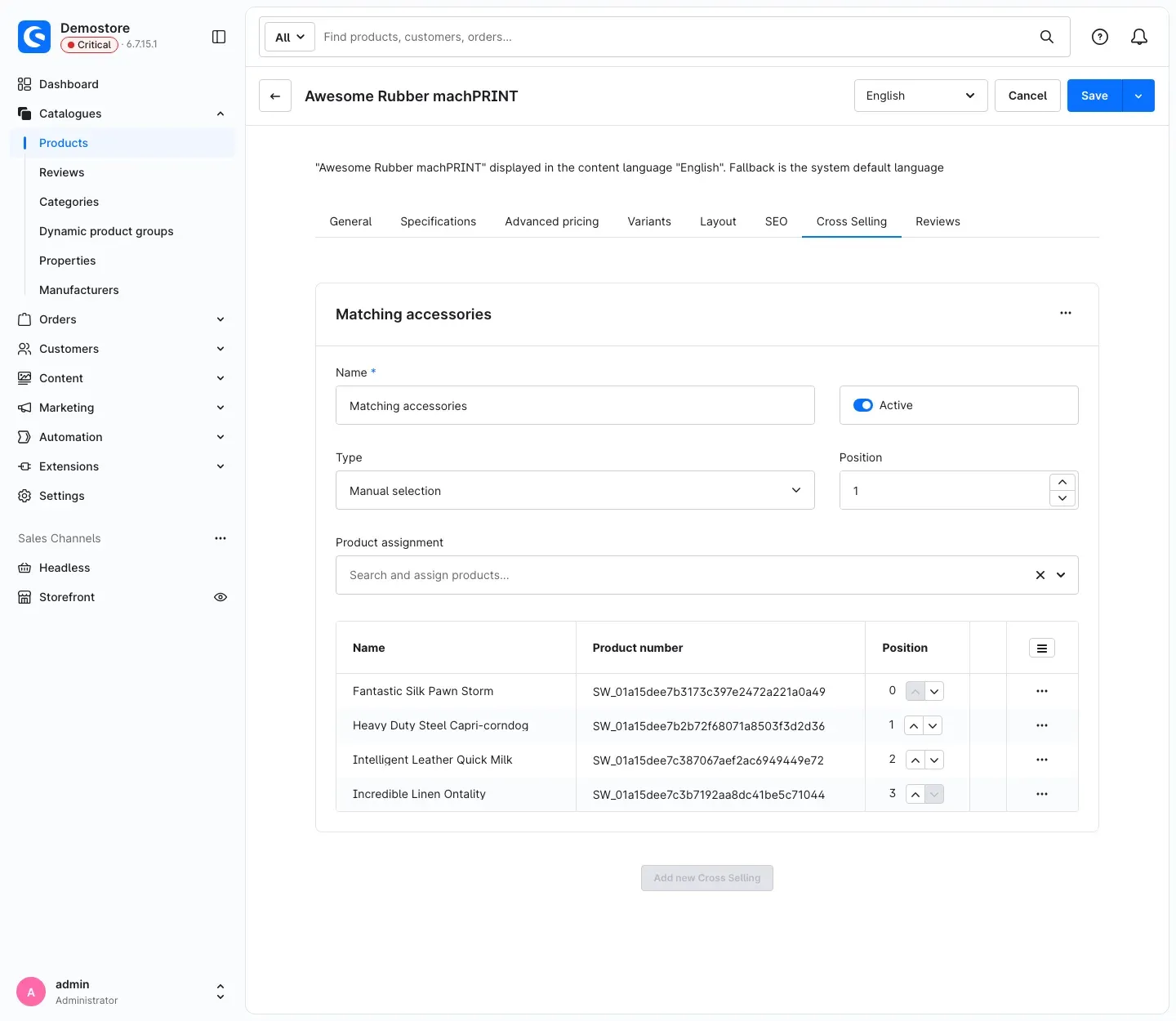 Fig. 3: “Cross Selling” tab of a product with the cross-selling “Matching accessories” and four assigned products
Step by step
- Go to Catalogues → Products and open the product for which you want to show recommendations.
- Switch to the Cross Selling tab.
- Click Add new Cross Selling.
- Fill in the details:
- Name: a name for the cross-selling, for example “Matching accessories”.
- Active: Switch the cross-selling on. Only active cross-selling appears in the cart.
- Type: With Manual selection you pick the products one by one. Alternatively, you can choose a dynamic product group here. You maintain the product groups themselves under Catalogues → Dynamic product groups.
- Product assignment: With manual selection, search for the products you want here and add them. The Position in the table sets their order.
- Click Save.
Tip: The order you set in the product assignment also determines the order in the cart, as long as random selection is switched off.
Important: If a recommended product is already in the cart, it is not offered again. If a product is assigned to several products, it still appears only once.
What it looks like in the store
On the cart page
What this gives you: On the cart page, customers review their order before going to checkout. That’s exactly where they see the slider “Often bought together” with matching products below the cart.
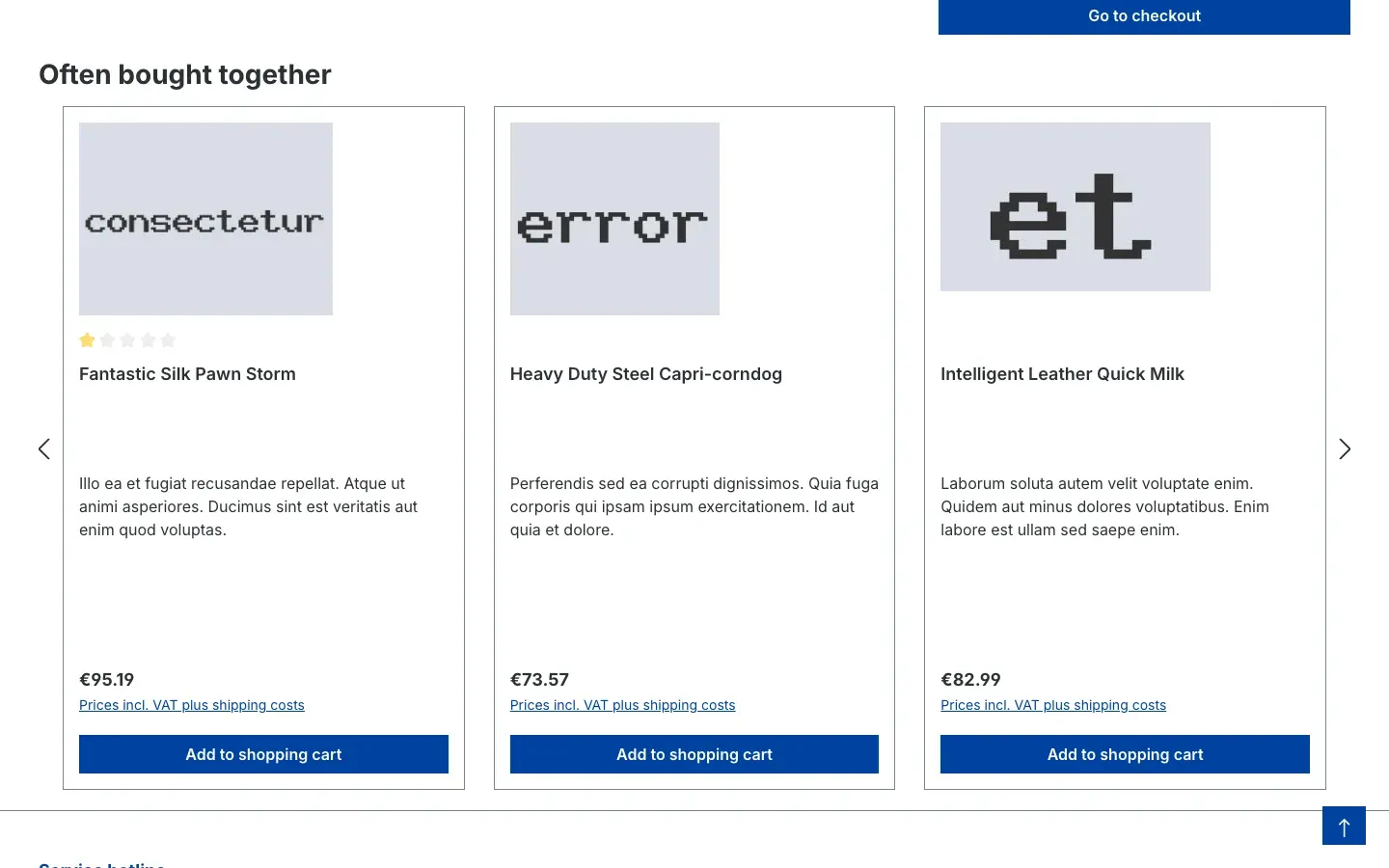 Fig. 4: Slider “Often bought together” below the cart
- Customers browse the recommendations with the arrows on the left and right.
- Clicking Add to shopping cart adds the product. The cart page then reloads and shows the product in the cart. At the same time, it disappears from the recommendations.
- Clicking the image or name opens the product page.
Good to know: If a recommended product has variants or graduated prices, the product box shows the Details button instead of Add to shopping cart. This lets the customer choose the right variant or quantity on the product page first. This is the standard behavior of Shopware’s product boxes.
The recommendations appear only on the cart page, not on the subsequent checkout pages.
In the sidebar as a slider
What this gives you: Right after adding a product, the customer sees matching accessories in the sidebar without leaving the page.
To do this, set Display in the off-canvas cart to Show as slider.
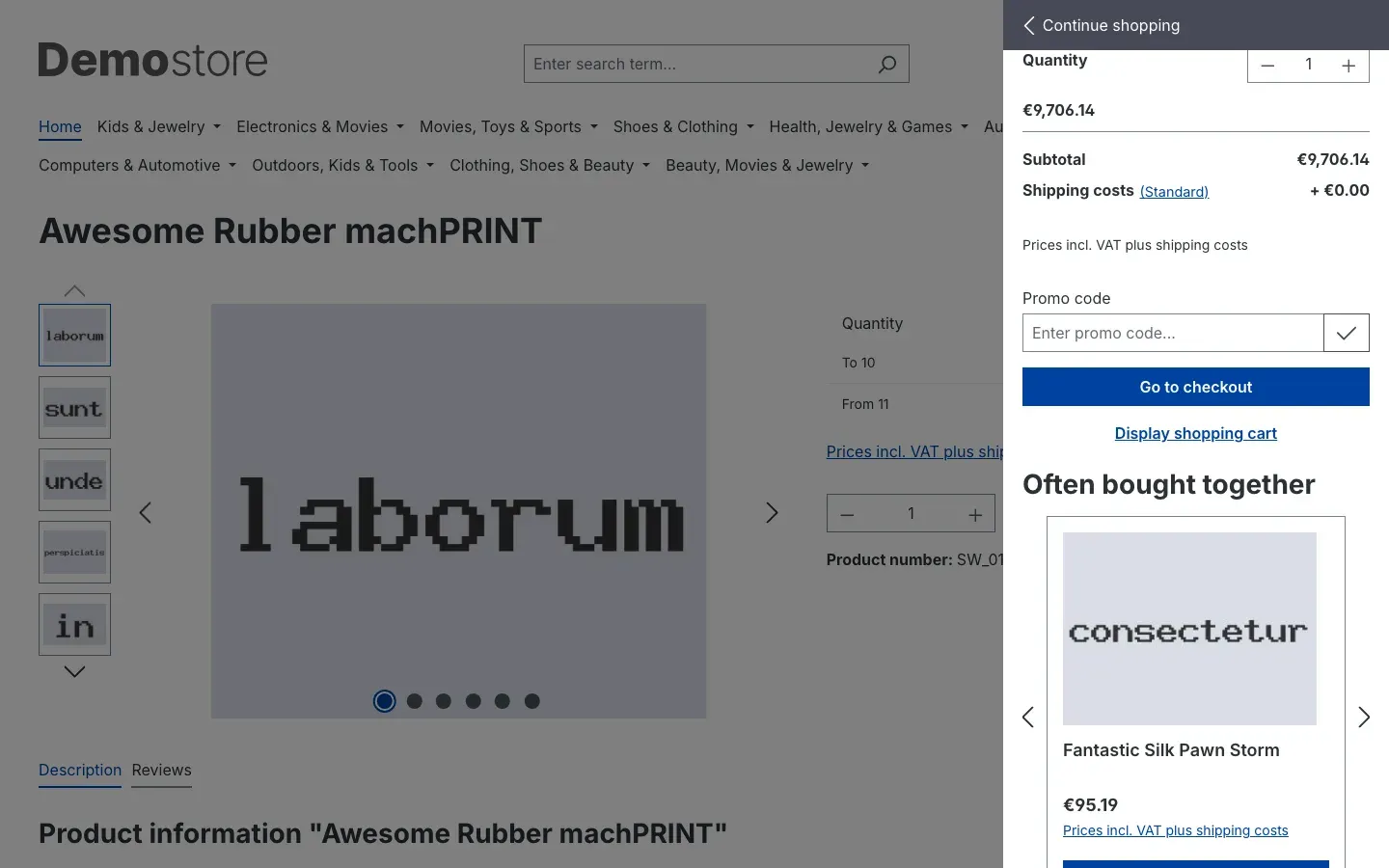 Fig. 5: Sidebar with the slider “Often bought together” below the buttons “Go to checkout” and “Display shopping cart”
In the sidebar as a list
What this gives you: The list shows all recommendations one below the other. The customer sees at a glance what else is available.
To do this, set Display in the off-canvas cart to Show as list.
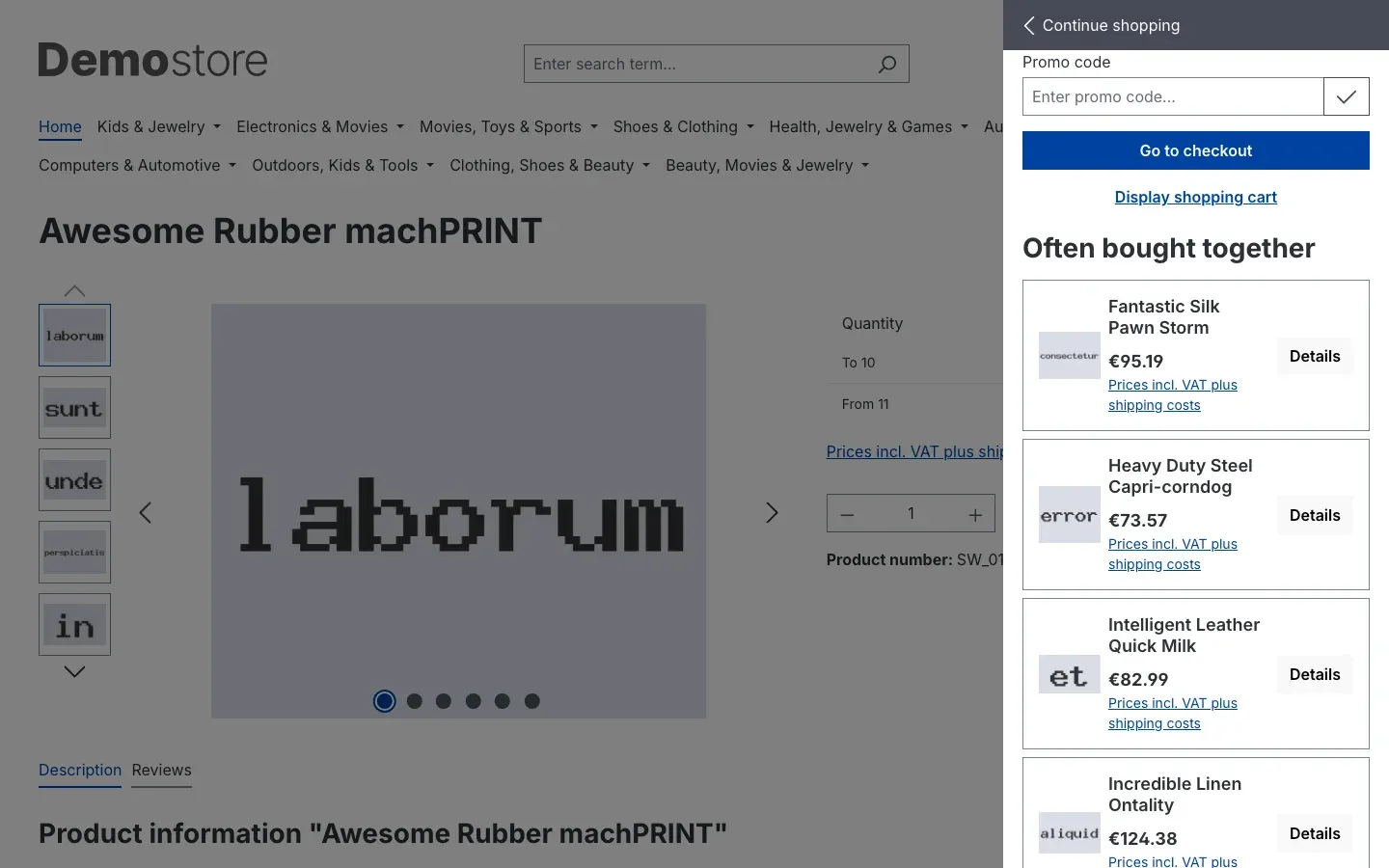 Fig. 6: Sidebar with recommendations as a list, each with image, name, price and the “Details” button
Clicking Details, the image or the name opens the product page.
Changing the heading
What this gives you: If “Often bought together” doesn’t suit your store, you can replace the heading with your own text, for example “You might also like”.
The heading is a snippet. These texts are included:
- German: “Oft zusammen gekauft”
- English: “Often bought together”
- Dutch: “Vaak samen gekocht”
To change it:
- Go to Settings → Snippets.
- Open the snippet set of the language you want to change.
- Search for the text “Often bought together”.
- Enter your own text and save.
The new heading applies to both the cart page and the sidebar. If you run several languages, adjust the snippet in each set.
Updating from older versions
When updating from an older version (up to 6.07.00), there are two changes you should know about:
- Your setting is kept. The former switch is now called Enable plugin for this sales channel. If you had switched the display on or off in a sales channel, the update carries this setting over for each channel. You don’t need to set anything again.
- The slider now appears on the cart page only. It used to be shown on all checkout pages. Now it appears only on the cart page, so that completing the order is not disturbed.
Also new: products that are already in the cart are no longer offered, and the sidebar uses Shopware’s own product display.
Tip: After the update, take a look at the cart page and the sidebar in your store. If you use a heavily customized theme, your theme developer may need to adjust the display.
Troubleshooting
No recommendations appear below the cart
Possible causes:
- The switch Enable plugin for this sales channel is off for this sales channel.
- The products in the cart have no cross-selling, or the cross-selling is not Active.
- All products from the cross-selling are already in the cart.
- The products in the cross-selling are not visible in the store, for example because they are inactive or not assigned to the sales channel.
How to fix it:
- Open the plugin configuration, select your sales channel at the top and check the switch Enable plugin for this sales channel.
- Open one of the products in the cart under Catalogues → Products, Cross Selling tab, and check whether a cross-selling exists and is Active.
- Clear the cache under Settings → System → Caches & indexes.
No recommendations appear in the sidebar
Cause: The setting Display in the off-canvas cart is set to Do not show. This is the default.
How to fix it: Set it to Show as slider or Show as list and click Save.
Fewer products appear than configured
Cause: Number of products is an upper limit. Only as many products appear as the cross-selling of the cart items provides. Products already in the cart and duplicates are left out.
How to fix it: Assign more products to the cross-selling of the products in the cart.
A product shows “Details” instead of “Add to shopping cart”
Cause: The product has variants or graduated prices. In that case, Shopware’s product box always shows the Details button so the customer can choose the variant or quantity on the product page.
How to fix it: Nothing to do, this is intended behavior.
The recommendations look different in my theme than in the figures
Cause: The figures show Shopware’s default theme. A heavily customized theme may display spacing, fonts or product boxes differently.
How to fix it: Give your theme developer the section For administrators / Technical details. It describes where the display can be adjusted.
FAQ
Q: Where do the recommended products come from?
A: Exclusively from the cross-selling you maintain on your products (Cross Selling tab on the product). The plugin does not pick products on its own.
Q: Does the plugin analyze which products are actually often bought together?
A: No. “Often bought together” is only the heading. You can change it under Settings → Snippets (see Changing the heading).
Q: Can I use dynamic product groups as cross-selling?
A: Yes. If you choose a dynamic product group instead of manual selection in the product’s cross-selling, the plugin shows the products of that group.
Q: Can I show the recommendations in one sales channel and not in another?
A: Yes. Select the sales channel at the top of the configuration and switch off Enable plugin for this sales channel there.
Q: Are products offered that the customer already has in the cart?
A: No. The plugin hides these products automatically.
Q: Do the recommendations also appear on the checkout pages after the cart?
A: No. They appear on the cart page and, if you enable it, in the sidebar.
Q: Is my data kept if I uninstall the plugin?
A: The cross-selling on your products belongs to Shopware and is kept in any case. On uninstall, the plugin only removes its own settings.
For administrators / Technical details
This section is intended for technical administrators and theme developers. You don’t need it for normal use.
System requirements
- Shopware: 6.7
- PHP: 8.2 or later
Installation via the command line
For stores that manage plugins via the command line:
php bin/console plugin:refresh
php bin/console plugin:install SwpCrosssellingInCartSix --activate
php bin/console cache:clear
Data and privacy
- The plugin does not create any database tables of its own.
- It does not connect to any external services.
- It does not store any personal data.
- On uninstall, it only removes its plugin configuration.
Customizing in the theme
The display lives in two partial templates shared by the cart page and the sidebar:
storefront/swp-crossselling-in-cart/slider.html.twigwith the blocksswp_crossselling_in_cart_slider,swp_crossselling_in_cart_slider_headlineandswp_crossselling_in_cart_slider_elementstorefront/swp-crossselling-in-cart/list.html.twigwith the blocksswp_crossselling_in_cart_list,swp_crossselling_in_cart_list_headline,swp_crossselling_in_cart_list_item,swp_crossselling_in_cart_list_item_image,swp_crossselling_in_cart_list_item_infoandswp_crossselling_in_cart_list_item_action
The slider uses Shopware’s product slider. For your own styles, the CSS classes with the prefix .swp-crossselling-in-cart are available, for example .swp-crossselling-in-cart__headline for the heading.
The snippet for the heading is swpCrosssellingInCart.headline.
This manual was created for Crossselling in Cart version 6.7.1.
More manuals
Admin Password Reminder
Admin Password Reminder: your backend users renew their passwords on time, prompted after login and by a daily email. Premium locks expired accounts until the password is changed.
Open manual Shopware 6Age Check
Tobacco, spirits, knives: visitors who do not confirm their age never see the restricted items at all. You tick a box per product, the plugin hides it everywhere.
Open manual Shopware 6AI Media Labelling
AI labelling for images and videos: flag a media item once in the media manager and the badge with your notice appears wherever it shows up in your shop. No template work needed.
Open manualNeed a team that keeps your shop running?
We have been maintaining Shopware shops for more than 20 years, including updates, hotfixes and the plugins you are configuring right now.