Customer group packing units
Packing units per customer group: consumers buy single items, trade customers only in 12, 24 or 36. One sales channel, one product, and you set the steps right on the product.
On this page
- Introduction
- What you achieve with this plugin
- Who is this plugin for?
- Installation
- Getting Started
- Settings
- Which sales channel you are configuring
- Open documentation
- Enable plugin for this sales channel
- Continue quantity steps automatically up to the maximum quantity
- How to continue the steps
- How to use the features
- How to set packing units for a customer group
- How the plugin continues your steps
- What your customers see in the shop
- How far the selection goes
- Remaining stock in clearance sales
- Troubleshooting
- The shop still shows the normal quantity field
- The selection list ends earlier than expected
- The selection list shows more quantities than I entered
- The product cannot be ordered by a customer group or disappears from the cart
- A value I entered is not offered
- The quantities only apply in one language
- A buy button still appears in the listing
- The “Customer group dependent packing units” tab is missing on the product
- FAQ
- For administrators / Technical details
- System requirements
- Installation via the command line
- Where the quantities are stored
- Log file
- Update from version 6.7.1
- Uninstalling
Introduction
With Customer group packing units you define, for every product, the quantities in which a particular customer group may order it. Consumers buy single items, for example, while trade customers can only order 12, 24 or 36 — in the same sales channel and on the same product.
What you achieve with this plugin
- You enter separate quantities per customer group on the product, for example
12;24;36. - On the product detail page and in the shopping cart, your customers choose from a list of valid quantities instead of typing any number.
- The smallest quantity you enter is also the minimum order quantity for that customer group.
- If a different quantity still ends up in the cart, for example through a quick order, the cart rounds it up to the next valid step.
- If you like, the plugin continues your steps on its own. You only enter the first values.
- Customer groups without an entry buy the product as usual.
- You switch the plugin on or off per sales channel and configure it there individually.
Who is this plugin for?
For shop owners who serve consumers and trade customers in the same shop and want to sell only complete packs to trade customers — cartons, crates, packages. Typical examples are pet supplies, beverage retail or technical wholesale.
Installation
After your purchase, the plugin is available directly in your Administration — you don’t need to download anything.
- Log in to your Shopware Administration (
yourshop.com/admin). - Open Extensions → My extensions.
- Next to Customer group packing units, click Install.
- Activate the plugin with the toggle next to the entry — done.
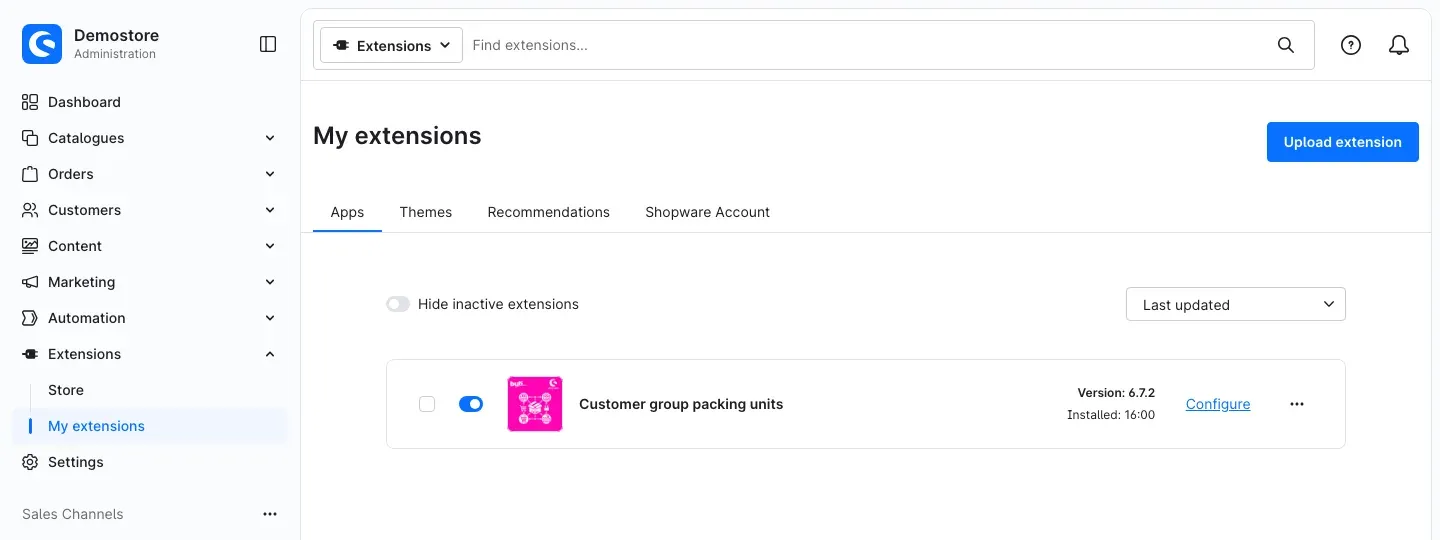
Fig. 1: The active plugin under Extensions → My extensions. “Configure” takes you to the settings.
As soon as the plugin is active, every product has a new section for the packing units (see How to use the features).
If Customer group packing units does not appear in the list, your Shopware account is not yet connected to the shop. You can do this under Extensions → My extensions by logging in with your Shopware account.
Getting Started
Your first product is set up in three steps:
- Check the settings: Open Extensions → My extensions and click Configure next to the plugin. The toggle Enable plugin for this sales channel is already switched on after installation. You don’t have to change anything here to get started.
- Enter quantities on the product: Under Catalogues → Products, open a product, switch to the Specifications tab and, in the Custom fields card, on the Customer group dependent packing units tab, enter the allowed quantities for a customer group, for example
12;24;36. Click Save. - Check the result: In the storefront, log in with a customer account of that customer group and open the product. Instead of the quantity field you now see a selection list with the allowed quantities.
You will find the individual steps with screenshots in Settings and How to use the features.
Settings
To open the settings, go to Extensions → My extensions and click Configure next to the plugin.
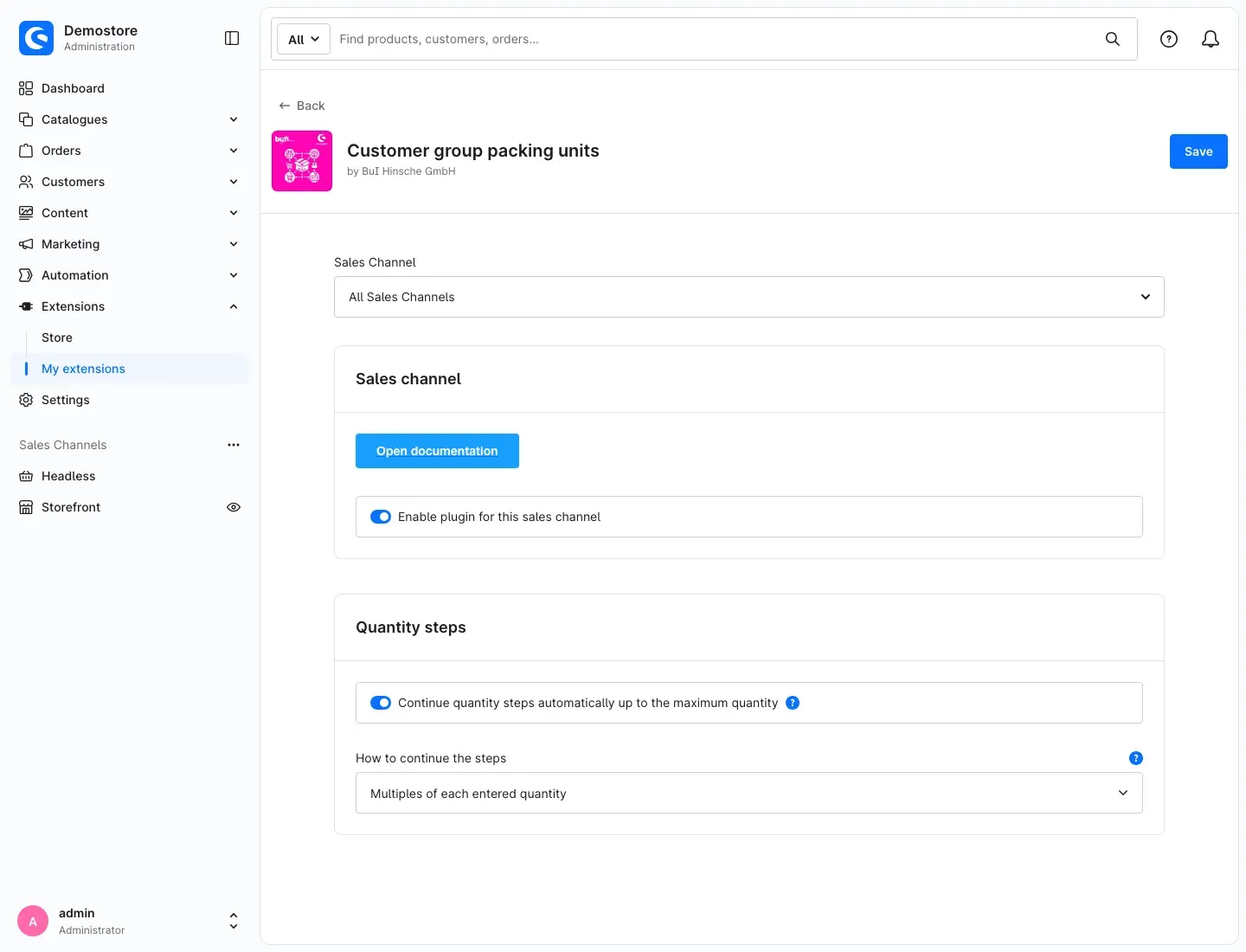
Fig. 2: The configuration page with the “Sales Channel” selection at the top and the cards “Sales channel” and “Quantity steps”.
Next to some settings you see a small info icon. Hover over it to see a short explanation with an example.
Which sales channel you are configuring
At the very top of the page, use Sales Channel to choose what your settings apply to. All Sales Channels sets the default for the entire shop. If you choose a single sales channel, you can set different values there. Anything you don’t change there is taken over from the default.
Why this is useful: If you run, for example, a separate trade shop and a consumer shop, you can configure the plugin differently in one of them or switch it off entirely.
Open documentation
The Open documentation button takes you straight to this manual on bui-hinsche.com — in the language you use in the Administration.
Enable plugin for this sales channel
The Enable plugin for this sales channel toggle defines whether the packing units apply in the selected sales channel. It is switched on by default. If you switch it off, the shop behaves in that channel as if the plugin did not exist: all customers can order any quantity again. The quantities entered on your products are kept and apply again as soon as you switch the toggle back on.
Why this is useful: You can, for example, use the steps only in your trade channel and switch them off in your consumer channel without deleting the entries on your products.
Continue quantity steps automatically up to the maximum quantity
If the Continue quantity steps automatically up to the maximum quantity toggle in the Quantity steps card is switched on, the plugin continues the quantities you entered on its own — up to the highest quantity that may be ordered for the product (more on this in How far the selection goes). It is switched on by default. What the continuation looks like is defined with How to continue the steps.
If you switch the automatic determination off, the shop offers exactly the quantities you entered on the product — no more, no less.
Why this is useful: With the automatic determination, two or three numbers are enough for a long series of steps. Without it, you keep full control, for example if there are only three fixed pack sizes.
How to continue the steps
How to continue the steps defines the pattern the automatic determination uses to continue your steps. The selection only has an effect if Continue quantity steps automatically up to the maximum quantity is switched on. Multiples of each entered quantity is selected by default.
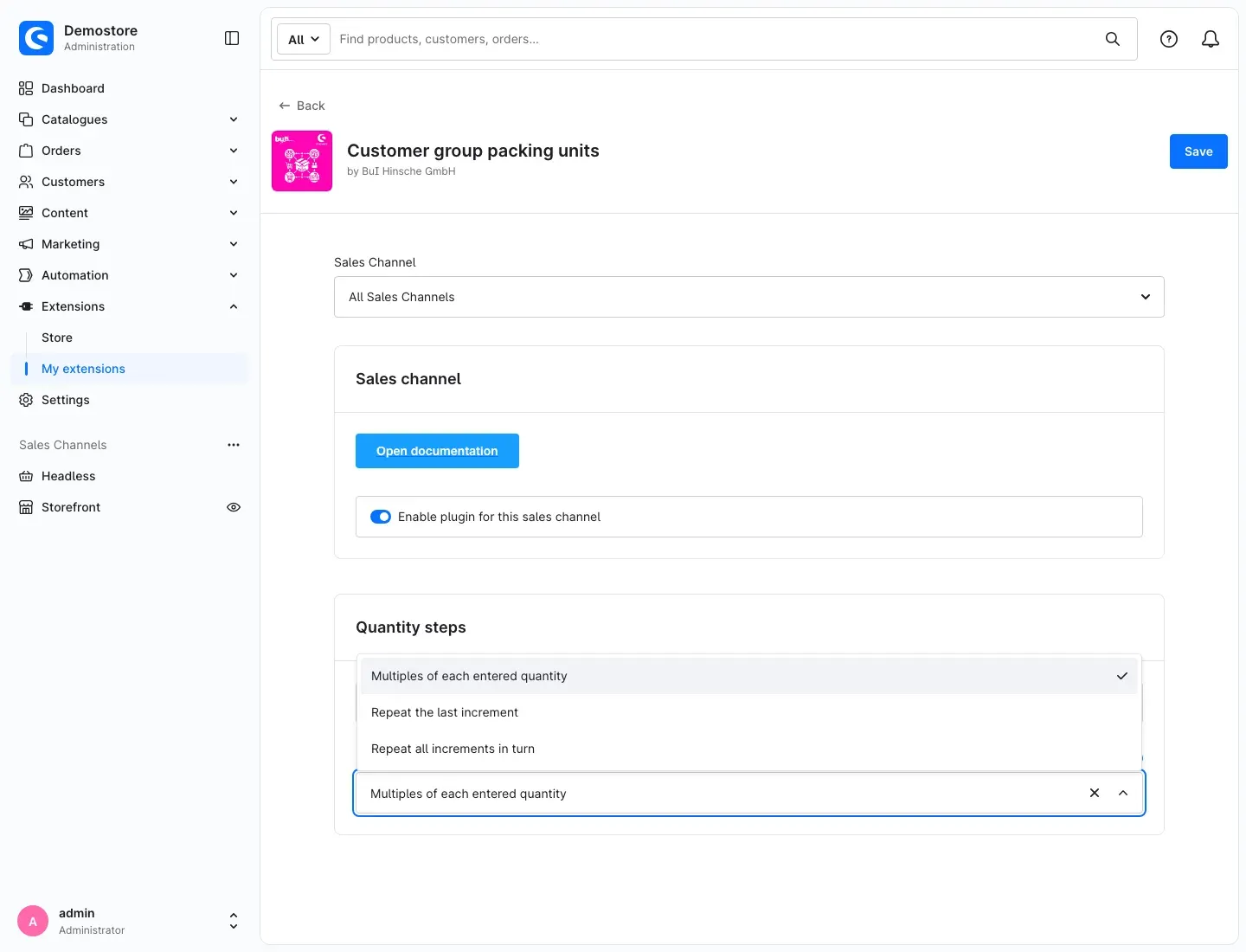
Fig. 3: The “How to continue the steps” selection with the options “Multiples of each entered quantity”, “Repeat the last increment” and “Repeat all increments in turn”.
- Multiples of each entered quantity: Every number you enter continues as its own increment. With a maximum of 100,
12;24;36becomes 12, 24, 36, 48, 60, 72, 84, 96. With a maximum of 24,4;6becomes 4, 6, 8, 12, 16, 18, 20, 24 — all multiples of 4 and of 6. - Repeat the last increment: The difference between the last two numbers repeats. With a maximum of 30,
5;10becomes 5, 10, 15, 20, 25, 30. - Repeat all increments in turn: The differences between your numbers repeat in order. With a maximum of 30,
2;5;10(differences 2, 3 and 5) becomes 2, 5, 10, 12, 15, 20, 22, 25, 30.
Why this is useful: Multiples of each entered quantity represents packs that can be ordered any number of times. Repeat the last increment fits when small starter quantities are allowed and it continues in even steps after that. Repeat all increments in turn is for recurring, uneven patterns.
Don’t forget to save your changes with Save at the top right.
How to use the features
How to set packing units for a customer group
What this gives you: You decide on the product in which quantities each individual customer group may order. Customer groups without an entry keep buying as usual.
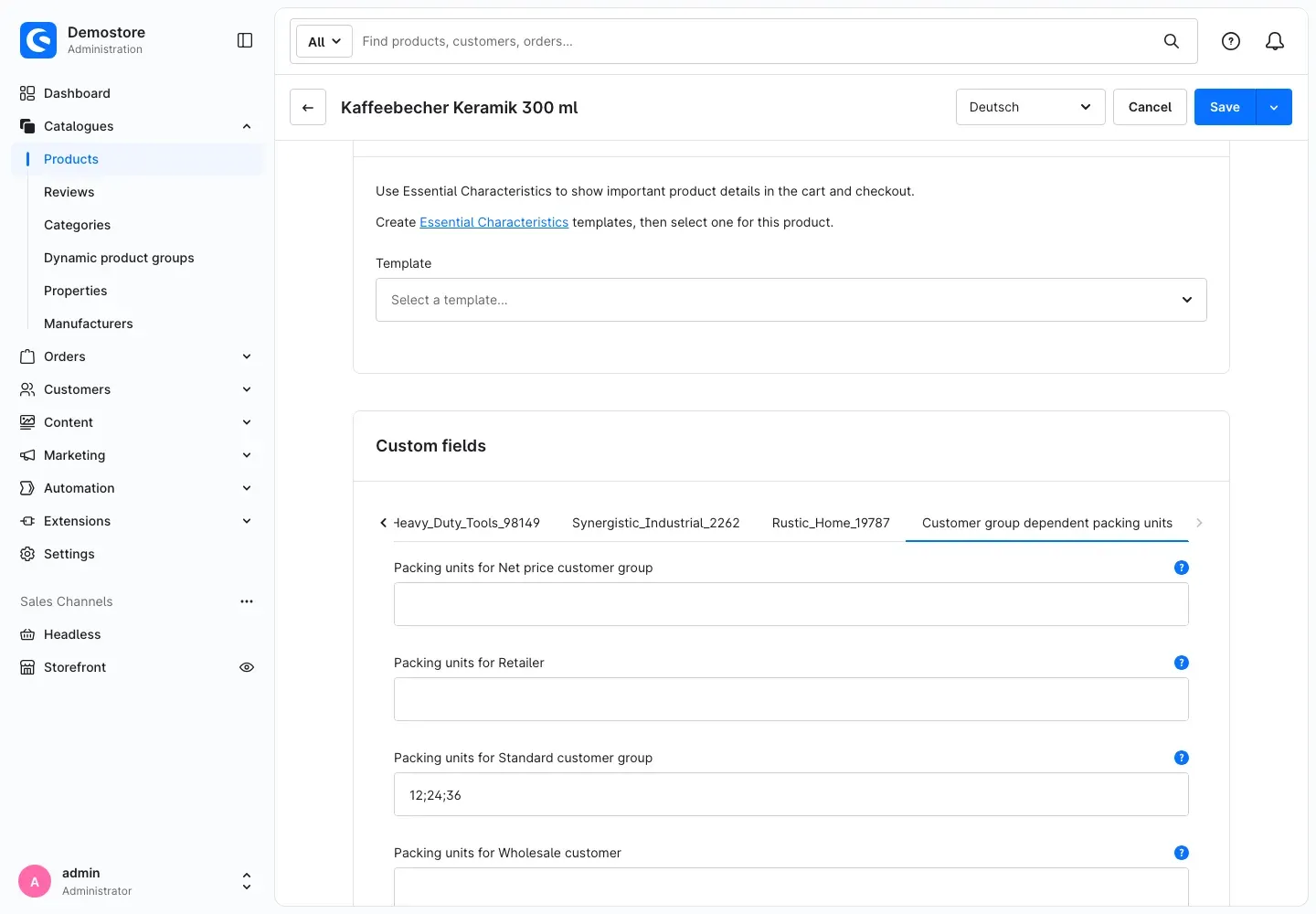
Fig. 4: One field per customer group. Here the standard customer group may only order the product in 12, 24 or 36 pieces.
Step by step
- Go to Catalogues → Products and open the product.
- Switch to the Specifications tab.
- Scroll to the Custom fields card and choose the Customer group dependent packing units tab. If there are many tabs, use the arrow to the right of the tabs to scroll.
- You see a separate field for every customer group in your shop, labelled Packing units for followed by the name of the group. In the field of the customer group you want, enter the allowed quantities:
- whole numbers greater than 0 only,
- several quantities separated by semicolon, comma or space, for example
12;24;36,12,24,36or12 24 36, - the order doesn’t matter —
36;12;24works the same way.
- Leave the fields of all customer groups empty that should buy the product normally.
- Click Save.
Tip: The smallest quantity you enter is automatically the minimum order quantity for this customer group. If you enter
12;24;36, the group cannot order fewer than 12 pieces.
Important: A comma separates values, it is not a decimal mark:
2,5means the quantities 2 and 5. The plugin ignores decimals with a point (2.5), negative numbers, 0 and text; the remaining valid values in the field still apply. If the field contains no valid value at all, the plugin treats it like an empty field: the customer group buys the product normally, and the plugin’s log file contains a notice (see For administrators / Technical details).
Tip: Leave Min. order quantity and Purchase steps on the product at 1. Shopware checks these two values as well and could otherwise shift the plugin’s quantities.
Which language to enter the quantities in
Custom fields on products are translatable in Shopware. Therefore always enter the quantities while the default language of your shop is selected at the top of the Administration. These values apply in all languages. If you enter quantities while another content language is selected (for example German), they only apply to that language — customers in the other languages then buy without restriction.
Variants
Variants inherit the quantities from the main product, field by field per customer group. If you enter quantities for a customer group on a variant, only these apply to this variant for this customer group; the fields of all other customer groups are still inherited from the main product.
Field labels
Each field shows the name of the customer group in the language of the Administration: the English Administration shows, for example, Packing units for Retailer, the German one Verpackungseinheiten für Händler. If a customer group has no name of its own in a language, its name from the default language is shown.
New, renamed and deleted customer groups
You don’t have to create the fields yourself. If you create a new customer group under Settings → Customer → Customer groups, the plugin automatically adds the matching field to all products. If you rename a customer group, the label is updated. If you delete a customer group, its field is removed together with the quantities entered.
How the plugin continues your steps
What this gives you: You don’t have to type long series of steps number by number.
If Continue quantity steps automatically up to the maximum quantity is switched on in the settings, the plugin adds to your entries following the pattern you chose under How to continue the steps. You will find the examples in Settings under “How to continue the steps”.
If the automatic determination is switched off, the shop offers only the quantities you entered. 12;24;36 then results in exactly the three quantities 12, 24 and 36.
In both cases, the shop does not offer quantities above the product’s maximum quantity.
What your customers see in the shop
What this gives you: Your customers can only order valid quantities. No more opened cartons and no more follow-up questions.
The following changes only apply to customers of the customer group for which you entered quantities on the product, and only in sales channels where the plugin is enabled. All other customers see the product as usual.
On the product detail page
Instead of the quantity field, a selection list with the valid quantities appears next to Add to shopping cart. The smallest quantity is preselected. If you maintained a Packaging unit on the product (for example “carton” and the plural “cartons”), it appears to the right of the selection list. Screen readers announce the selection list as “Quantity” and tell the customer that the product is only available in fixed packing units.
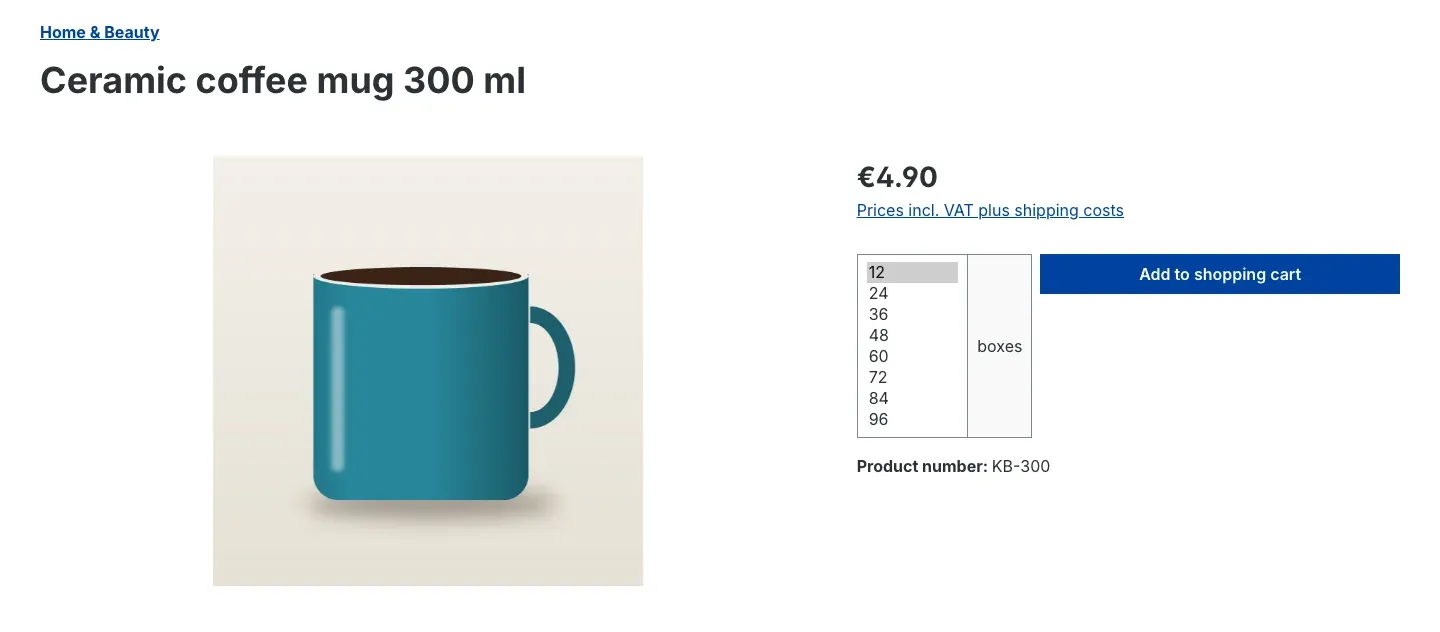
Fig. 5: On the product detail page the customer chooses from 12, 24, 36 … 96, with the packing unit “boxes” shown next to it — here with the setting “Multiples of each entered quantity” and the entry 12;24;36.
In listings and search results
So that your customer chooses the quantity deliberately, the product card shows a Details button instead of a buy button for affected products. A click opens the product detail page. The button looks like Shopware’s own Details button that your theme shows, for example, for products with variants.
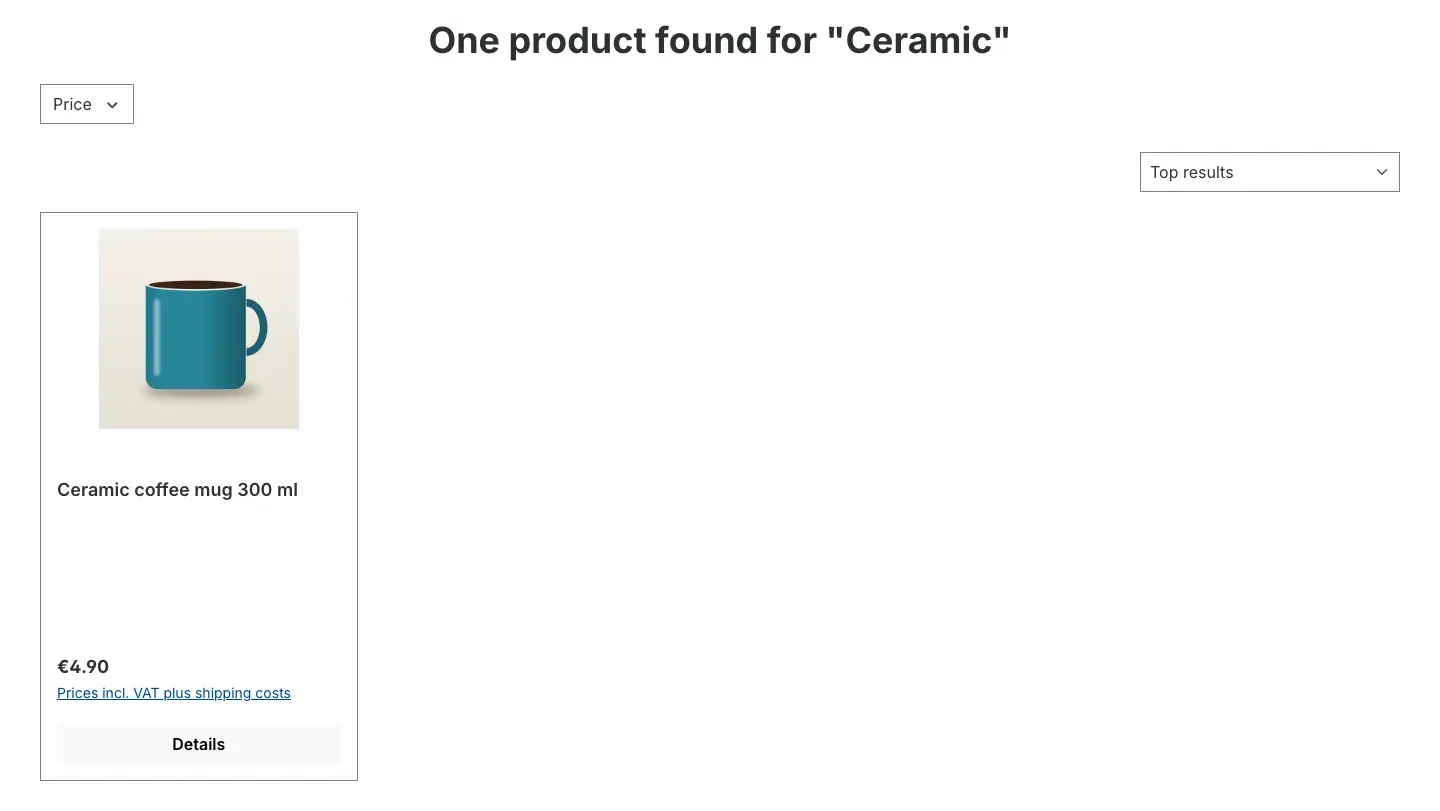
Fig. 6: In the search results, “Details” leads to the detail page, where the customer chooses the quantity.
This only applies to shops in which Shopware shows buy buttons in listings at all. You control this under Settings → Commerce → Products with Display buy buttons in listings.
In the shopping cart
In the shopping cart, too, your customer changes the quantity only via a selection list with the valid quantities. After a change, the selection in the off-canvas cart keeps the focus, so keyboard and screen reader users can continue right away.
If a customer logs in and thereby belongs to a different customer group, that group’s quantities apply in the cart immediately. If the new customer group has no quantities on the product, the normal quantity field appears again.
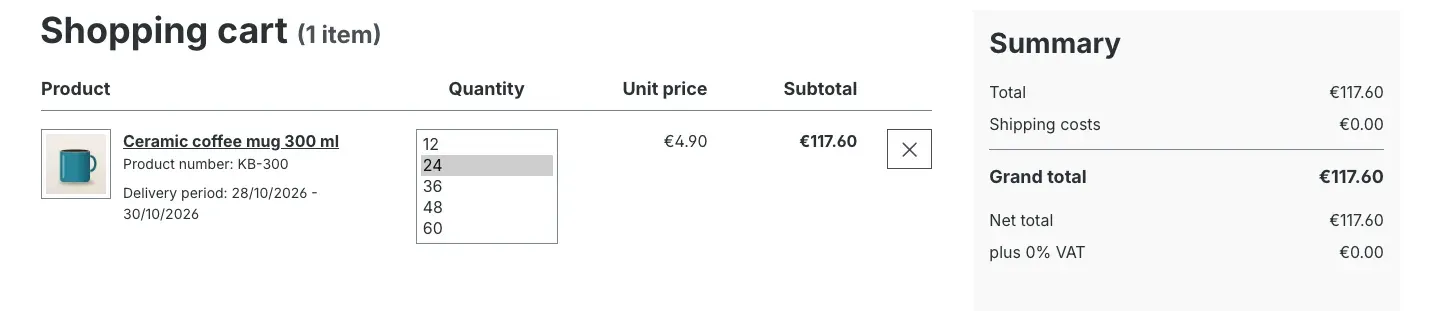
Fig. 7: The shopping cart offers the same quantities as the detail page.
When a different quantity ends up in the cart
If a quantity that doesn’t match the steps ends up in the cart — for example through a quick order or an interface — the cart rounds it up to the next valid step. With 12;24;36, 17 becomes 24. If the quantity is above the largest step, the largest step applies.
Your customer sees a notice in the cart, for example: The quantity of “Ceramic coffee mug 300 ml” was changed to 24. This product is only available in fixed packing units.
Content and base price
Shopware shows content and base price as usual. The plugin does not change this information.
Shopping experiences
The selection list also appears in shopping experiences with the Buy box element. If your customer switches the variant there, the buy box shows the quantities of the new variant.
How far the selection goes
What this gives you: You know why the selection list ends at a certain number, and you can control it.
The selection ends at the product’s maximum quantity. It is determined as follows:
- If you entered a Max. order quantity on the product, that value applies.
- Otherwise the Maximum quantity from Settings → General → Cart settings applies. In a shop with Shopware’s default settings this is 100 — which is why the selection in Fig. 5 ends at 96.
- If the product is marked as Clearance sale, the available stock is the upper limit.
Tip: If the selection should go further, increase the Max. order quantity on the product.
Remaining stock in clearance sales
What this gives you: The last pieces of a discontinued product remain sellable.
If a product is marked as Clearance sale and the stock is below the smallest step, the customer group can buy exactly this remaining stock. If, for example, only 5 pieces are left with steps of 12, 5 is the only quantity offered.
This does not apply to products that are not marked as clearance sale. If every quantity entered there is above the maximum quantity, the product cannot be ordered by this customer group (see Troubleshooting).
Troubleshooting
The shop still shows the normal quantity field
Why this happens: Nothing is entered on the product for the customer group of the logged-in customer, the entry contains no valid value, or the plugin is switched off in the sales channel.
How to fix it:
- Check which customer account you are logged in with in the storefront. Without logging in, the customer group your sales channel uses for guests applies.
- Open the product under Catalogues → Products, Specifications tab, Custom fields card, Customer group dependent packing units tab. Check whether the field of exactly this customer group contains values — whole numbers only, separated by semicolon, comma or space. Also check whether the values were entered in the default language (see How to set packing units for a customer group).
- Open the plugin settings, choose the affected Sales Channel at the top and check whether Enable plugin for this sales channel is switched on.
- Clear the cache: Settings → System → Caches & indexes → Clear cache.
The selection list ends earlier than expected
Why this happens: The selection ends at the product’s maximum quantity.
How to fix it: Check the Max. order quantity on the product and the Maximum quantity under Settings → General → Cart settings. For clearance sale products, the stock also limits the selection. See How far the selection goes for details.
The selection list shows more quantities than I entered
Why this happens: Continue quantity steps automatically up to the maximum quantity is switched on, so the plugin continues your steps.
How to fix it: If only the quantities you entered should apply, switch off the automatic determination in the plugin settings and click Save.
The product cannot be ordered by a customer group or disappears from the cart
Why this happens: All valid quantities you entered are above the product’s maximum quantity. Then there is no valid step. The product is treated as unavailable for this customer group; if it is already in the cart, it is removed and your customer sees the notice that the product is not available at the moment.
How to fix it: Enter a smaller quantity on the product or increase the Max. order quantity. For clearance sale products, remaining stock below the smallest step stays purchasable (see Remaining stock in clearance sales).
A value I entered is not offered
Why this happens: The value is not a whole number greater than 0 (for example 2.5, -6 or twelve), or it is above the product’s maximum quantity.
How to fix it: Enter whole numbers only, separated by semicolon, comma or space, and check the maximum quantity as described in How far the selection goes. The plugin’s log file lists the values it skipped (see For administrators / Technical details).
The quantities only apply in one language
Why this happens: The quantities were entered while a content language other than the default language was selected in the Administration.
How to fix it: Select the default language at the top of the Administration, enter the quantities there and click Save. Then clear the values in the other language so that the same quantities apply everywhere.
A buy button still appears in the listing
Why this happens: The Details button only appears for customers of the customer group for which quantities are entered on the product. Other customer groups buy the product normally and therefore see the usual buy button.
How to fix it: Log in with a customer account of the affected customer group and check again.
The “Customer group dependent packing units” tab is missing on the product
Why this happens: The plugin is not active. When it is deactivated, it hides the fields; the values entered remain stored.
How to fix it: Open Extensions → My extensions and switch the plugin back on with the toggle next to the entry.
FAQ
Q: Can I set different quantities for consumers and resellers?
A: Yes, that’s exactly what the plugin is built for. Each customer group has its own field on the product, for example 1;2;3 for consumers and 12;24;36 for resellers.
Q: What happens with customer groups without an entry?
A: Nothing special. If the field stays empty, this customer group buys the product normally with the usual quantity field.
Q: Does the plugin change my prices or create tiered prices?
A: No. The plugin only controls which quantities may be ordered. You keep maintaining prices, tiered prices and discounts in Shopware as usual.
Q: Can a customer bypass the steps via a quick order or an interface?
A: No. The cart checks every quantity, no matter where it comes from, and rounds an invalid quantity up to the next valid step.
Q: Does the order of the numbers matter?
A: No. 36;12;24 works the same as 12;24;36.
Q: May I use a comma or space instead of a semicolon?
A: Yes. 12;24;36, 12,24,36 and 12 24 36 work the same.
Q: What applies to variants?
A: Variants inherit the quantities from the main product. If you enter quantities for a customer group on a variant, only these apply to this variant for this customer group.
Q: Are decimal quantities such as 2.5 metres possible?
A: No. The plugin only works with whole numbers; a comma separates two quantities. It is not intended for goods sold by the metre or by area.
Q: Can I use the plugin together with our “Area Calculator” plugin?
A: Not on the same product, because both plugins control the order quantity. On different products in the same shop, that’s no problem.
Q: Can I use the plugin in only one of my sales channels?
A: Yes. Choose the sales channel at the top of the plugin settings and switch Enable plugin for this sales channel on or off there.
Q: Do I need to do anything after creating a new customer group?
A: No. The plugin adds the matching field to your products automatically.
Q: Does it work with my theme?
A: With themes based on the Shopware default theme, as a rule yes, because the plugin extends the Shopware templates instead of replacing them. If your theme has completely redesigned the quantity selection on the detail page or in the cart, test it in your test shop first.
Q: What happens to my data if I uninstall the plugin?
A: You decide when uninstalling. If you tick Remove all app data permanently in the dialog, the plugin deletes its settings and all quantities entered. Without the tick they are kept and are available again after reinstalling.
Q: Does the plugin send data to external services?
A: No. All settings and quantities stay in your Shopware database.
For administrators / Technical details
This section is intended for technical administrators. You don’t need it for normal use.
System requirements
- Shopware: 6.7
- PHP: 8.2 or later
Installation via the command line
php bin/console plugin:refresh
php bin/console plugin:install --activate SwpPackingUnitsSix
php bin/console cache:clear
Where the quantities are stored
The plugin does not create any database tables of its own and does not change any Shopware tables. The quantities are stored in a separate custom field set on the product, with one text field per customer group. The quantities are checked in Shopware’s own cart, so the check also applies to orders placed via quick order or an interface.
Log file
The plugin writes notices to its own log file: var/log/SwpPackingUnitsSix-<date>.log. It records, for example, which invalid value was skipped on which product, when a field without a valid value was ignored, when a quantity was adjusted to a valid step and when a product was removed from the cart because all steps are above the maximum quantity.
Update from version 6.7.1
As of version 6.7.2, the sales channel toggle is called Enable plugin for this sales channel. During the update, the plugin automatically takes over your previous setting for every sales channel — you don’t need to set anything again.
Uninstalling
If you uninstall the plugin without keeping the data (tick at Remove all app data permanently), it removes its configuration and all packing unit fields including the values entered. If you keep the data, both are retained.
This manual was written for Customer group packing units version 6.7.2.
More manuals
Address Validation: House Number Check & Corrections
Address validation at the point of entry: the plugin spots missing house numbers, can suggest corrections via Google and helps you send fewer parcels that come back undeliverable.
Open manual Shopware 6Admin Password Reminder
Admin Password Reminder: your backend users renew their passwords on time, prompted after login and by a daily email. Premium locks expired accounts until the password is changed.
Open manual Shopware 6Advent Calendar | Doors with products, coupons and promotions
Advent calendar for your shopping experiences: doors open on time without clearing the cache, give nothing away in the page source and reveal coupons, products or your own content.
Open manualNeed a team that keeps your shop running?
We have been maintaining Shopware shops for more than 20 years, including updates, hotfixes and the plugins you are configuring right now.