
Daily Currency Updates (European Central Bank)
Updating exchange rates by hand eats time every single week. This plugin pulls the official ECB reference rates and writes them into every matching currency in your shop.
On this page
- Introduction
- What you get from this plugin
- Who is this plugin for?
- Installation
- Getting started
- Settings
- View documentation
- Activate plugin for this channel
- Daily currency updates
- Daily update time
- Update currencies
- How to use the features
- How to set the time of the daily update
- How to update the rates immediately
- How to allow team members to run the instant update
- How to check the current conversion factors
- How your customers see prices in their currency
- Troubleshooting
- The rates are no longer updated
- The “Update currencies” button is greyed out
- An error message appears after the click
- One particular currency is not updated
- The currencies are still there after uninstalling
- FAQ
- For administrators / Technical details
- System requirements
- Rate source
- Installation via the command line
- Updating via the command line
- Timing of the automatic update
Introduction
Exchange rates change every day. If your shop shows prices in foreign currencies, the conversion rates stored in it get a little more outdated with each passing day — and your customers see prices that no longer match the real rate.
Daily Currency Updates (European Central Bank) takes care of this for you: once a day the plugin fetches the official reference rates published by the European Central Bank (ECB) and writes them to the currencies in your shop automatically.
What you get from this plugin
- Your foreign-currency prices are based on current, official rates every day — without you doing anything.
- You decide at what time the daily update runs, for example at night when your shop is quiet.
- You can refresh the rates instantly at the click of a button whenever you do not want to wait for the next day.
- You decide which team members are allowed to run that instant update.
- You can see the currently valid conversion rate at any time in your familiar currency overview.
Who is this plugin for?
For every shop that offers prices in more than one currency — whether internationally focused or with the occasional customer abroad. The euro is the basis for all rates.
Good to know: The plugin never changes your product prices. It only maintains the conversion rate of your currencies. The conversion itself is handled by Shopware as usual.
Installation
After the purchase, the plugin is available directly in your Administration — there is nothing to download.
- Log in to your Shopware Administration (
YourShop.com/admin). - In the left-hand navigation, open Extensions → My extensions.
- In the row for Daily Currency Updates (European Central Bank), click Install.
- Then activate the plugin using the toggle at the far left of the row.
 Fig. 1: The activated plugin in “My extensions”, with the “Configure” link that opens the settings
When the toggle is blue, the plugin is running. The row also shows the installed version and the Configure link, which takes you to the settings at any time.
Something happens right after activation: The plugin adds common world currencies that do not yet exist in your shop — among them US dollar, British pound, Swiss franc, Polish złoty as well as Swedish and Norwegian krone — and immediately fetches the current ECB rates. Currencies that already exist are left untouched: nothing is duplicated and nothing is overwritten.
If Daily Currency Updates (European Central Bank) does not appear in the list, your Shopware account is not yet connected to the shop. Sign in with your Shopware account under Extensions → My extensions; the plugin will then appear automatically.
Getting started
-
Open the settings: Go to Extensions → My extensions and click Configure in the plugin’s row.
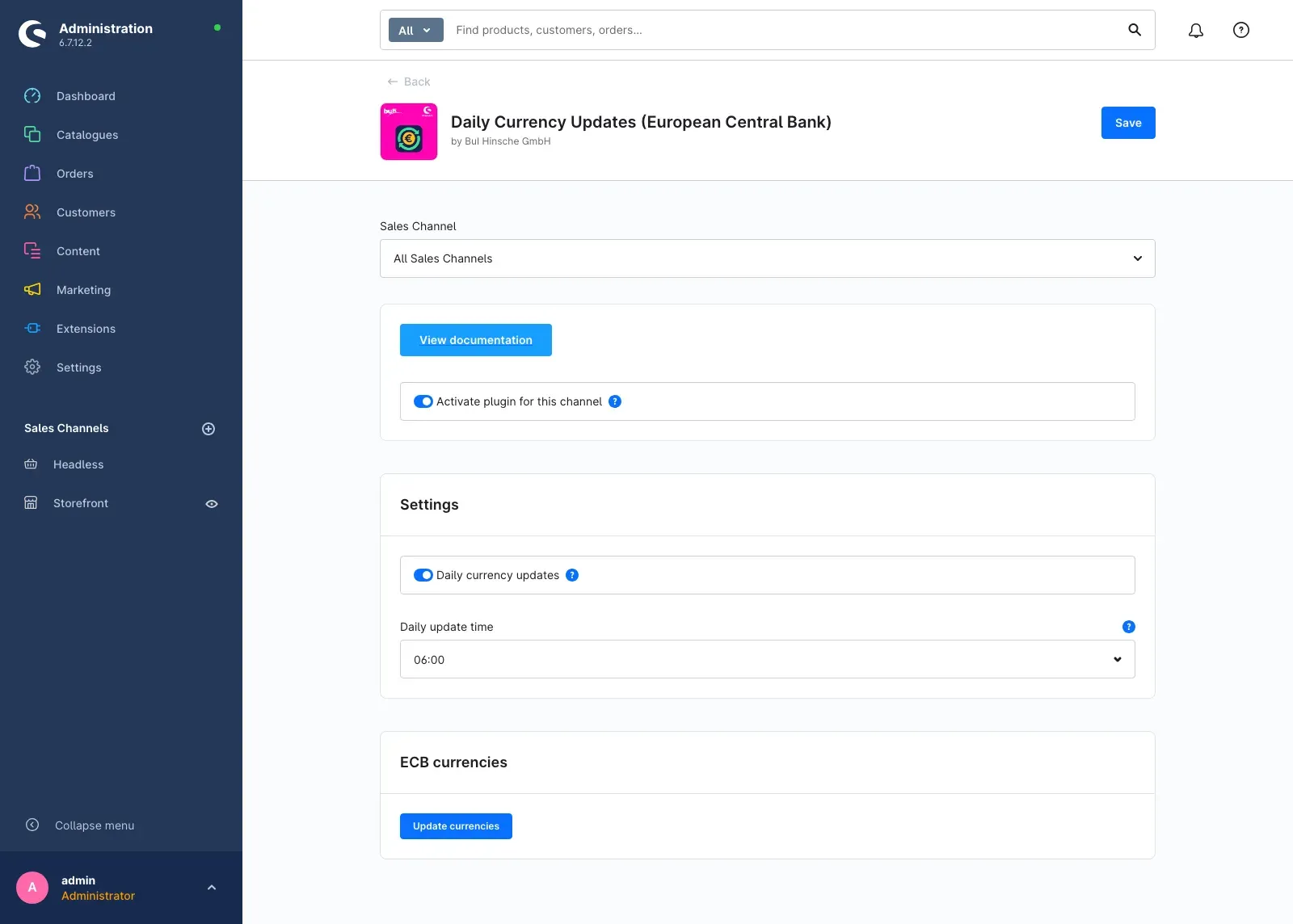 Fig. 2: The configuration page with all of the plugin’s settings
 -
Nothing to change: Everything is switched on out of the box — the daily update runs every morning at 06:00 from now on.
-
Adjust the time (optional): If another time suits you better, select it under Daily update time and click Save in the top right corner.
-
Check the result: Open Settings → Currencies. The Factor column now shows the current ECB conversion rates.
That is all it takes to get started. Everything else in this manual is detail you only need on demand.
Settings
You reach the settings via Extensions → My extensions and the Configure link in the plugin’s row.
Fig. 3: Sales channel selector, “View documentation” button, master switch, the “Settings” card and the “ECB currencies” card
At the very top, Sales Channel lets you choose which shop the settings below apply to. With the preselected All Sales Channels you define the values for your entire shop — exactly right to begin with.
View documentation
The View documentation button at the top opens the current online manual for this plugin in a new browser tab. Handy if you want to look something up while setting things up, without leaving the Administration.
Activate plugin for this channel
The Activate plugin for this channel toggle turns the plugin’s master switch on or off. When it is off, no automatic currency updates run at all. It is switched on by default.
What it is good for: It lets you pause the plugin temporarily — for example to deliberately freeze the rates during a price campaign — without having to uninstall it.
Worth understanding: In Shopware, currency rates are a setting of the whole shop, not of an individual sales channel. The toggle therefore controls whether an update happens; the updated rates then always apply shop-wide.
Daily currency updates
The Daily currency updates toggle in the Settings card determines whether the rates are fetched automatically once a day. It is switched on by default.
What it is good for: Switch it off if you prefer to maintain the rates yourself. Your shop then no longer connects to the ECB — you can still update the rates manually at any time (see How to update the rates immediately).
Daily update time
Under Daily update time you select the full hour at which the automatic update should run — from 00:00 to 23:00. The default is 06:00, early in the morning before the selling day begins.
What it is good for: You move the update into a time window when your shop is quiet. The decisive clock is the one on your server.
Update currencies
The ECB currencies card holds the Update currencies button. One click fetches the rates immediately, without waiting for the next automatic update. Described in detail in How to update the rates immediately.
Do not forget: Changes to the settings only take effect once you click Save in the top right corner.
How to use the features
How to set the time of the daily update
What you get from it: The rates are fetched exactly when it suits your shop best — at night, for example, so the prices are already current in the morning.
Step by step
-
Open Extensions → My extensions and click Configure in the plugin’s row.
-
Make sure the Daily currency updates toggle is switched on.
-
Click the Daily update time select field.
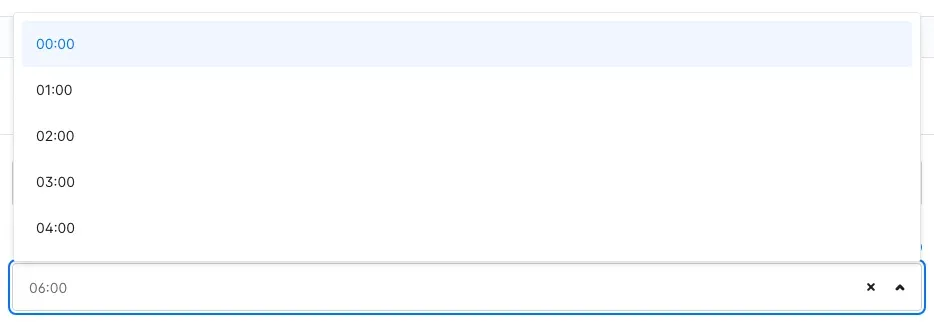 Fig. 4: The list of full hours from 00:00 to 23:00
 -
Choose the full hour you want.
-
Click Save in the top right corner.
Notes
Tip: The ECB publishes its reference rates on bank working days in the early afternoon. A time in the late afternoon or at night ensures your shop always carries the rates of the most recent publication day.
Important: The decisive clock is the one on your server, not the one on your own computer. Your hosting provider or agency can help you with any questions about it.
How to update the rates immediately
What you get from it: The current rates land in your shop right away — for example straight after installation, after a maintenance window, or before you review prices.
Step by step
- Open the plugin’s configuration page.
- Scroll down to the ECB currencies card.
- Click Update currencies.
- Wait a moment — a confirmation appears in the top right corner after a few seconds.
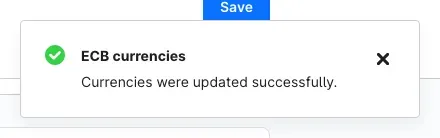 Fig. 5: The message “Currencies were updated successfully.”
Notes
Tip: You can run the instant update as often as you like. It does not replace the automatic update, it complements it.
Important: If an error message appears instead of the confirmation, your server was unable to fetch the rates. Troubleshooting explains how to check this.
How to allow team members to run the instant update
What you get from it: You decide who may refresh the rates manually. Team members without this permission see the Update currencies button greyed out and cannot click it; a note explains that the permission is missing. As an administrator you are always allowed.
Step by step
-
Go to Settings → System → Users & permissions.
-
Open the role you want to adjust, or create a new one.
-
In the additional permissions, find the ECB currency updates section.
-
Switch on the Trigger manual on-demand update permission.
 Fig. 6: The “Trigger manual on-demand update” permission in the “ECB currency updates” section
 -
Save the role.
Notes
Tip: The automatic daily update is independent of this permission — it keeps running in the background, no matter who is logged in.
How to check the current conversion factors
What you get from it: You see at a glance which rates currently apply in your shop — and whether the update is working.
Step by step
-
Go to Settings → Currencies.
-
Look at the Factor column. It shows the current conversion rate for every currency.
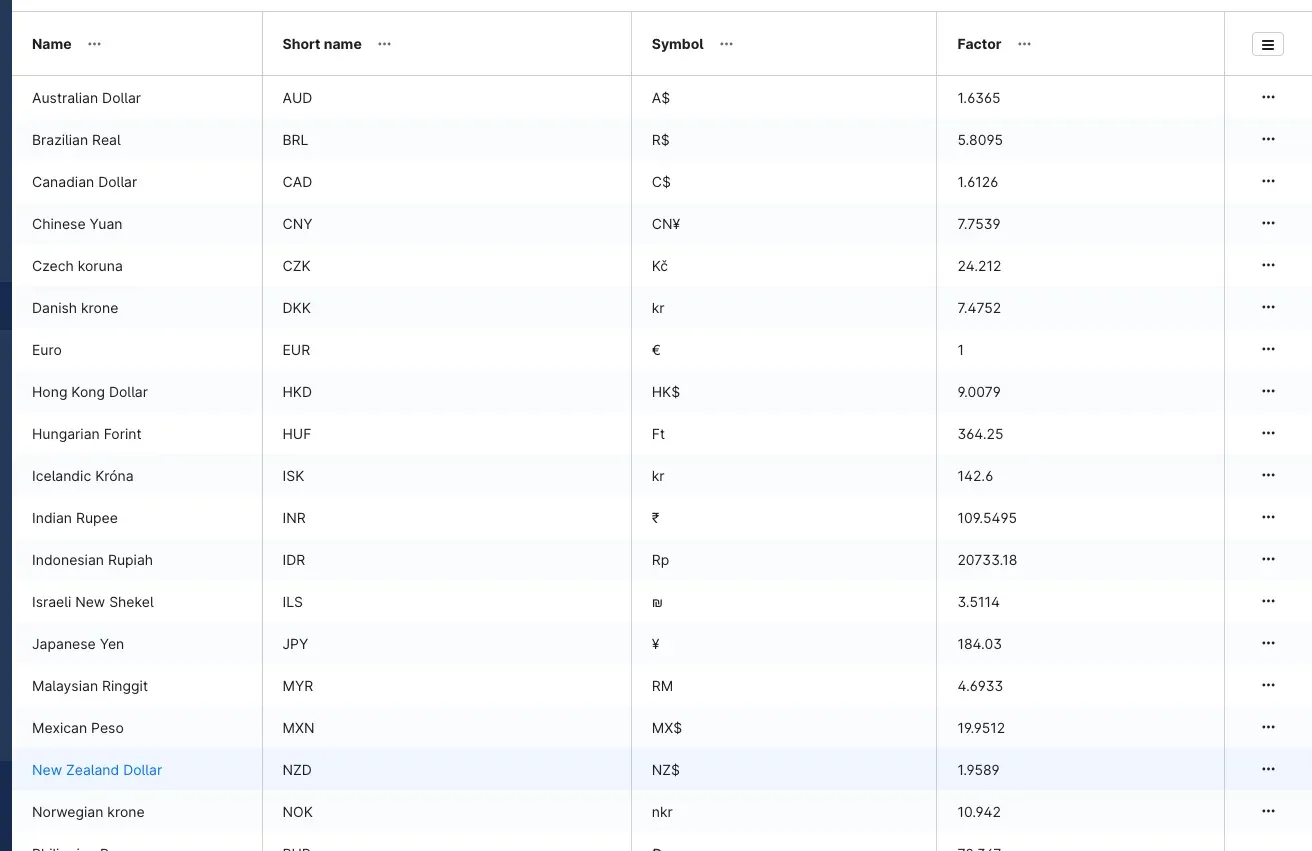 Fig. 7: The currency overview with the conversion rates maintained by the plugin
 -
Click a currency to see it in detail.
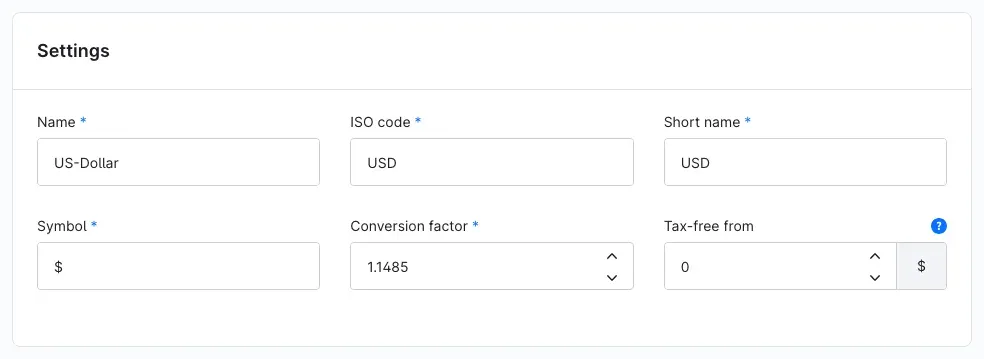 Fig. 8: Detail view of the US dollar with its current conversion rate
Notes
How to read the factor: It tells you how many units of the foreign currency correspond to one euro. If the US dollar shows 1.1485, for example, an item priced at €10.00 converts to US$11.49. The euro is the basis and always keeps the factor 1.
Important: The plugin only changes this factor. A currency’s name, symbol, code and rounding settings stay exactly as you configured them — you can adjust them manually at any time.
How your customers see prices in their currency
What you get from it: Your customers pick their currency in the shop and immediately see converted prices — based on the current rates the plugin maintains.
This requires that you have assigned more than one currency to the sales channel in question. You do that in the sales channel settings as usual.
Your customers then use the currency selector in the shop header.
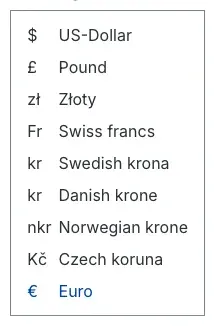 Fig. 9: The currency selector in the shop, as your customers see it
Once selected, all prices are displayed converted.
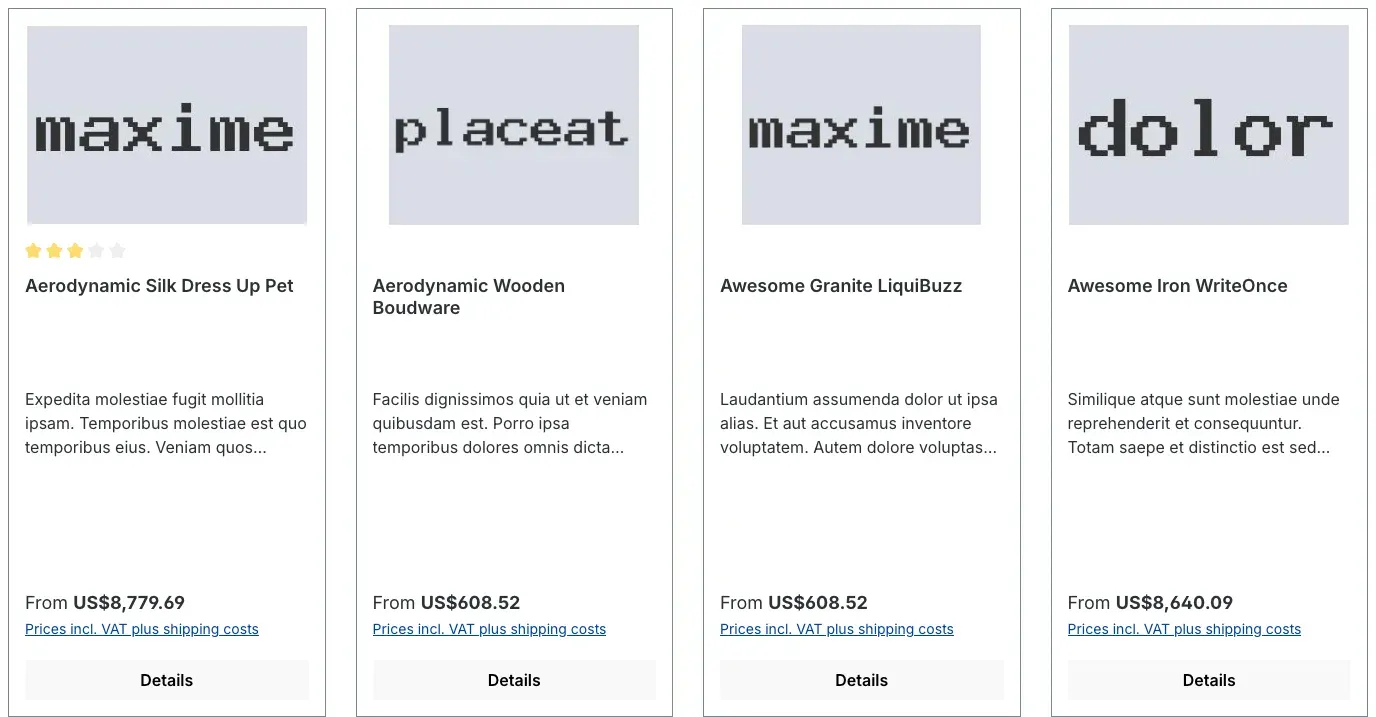 Fig. 10: The same product overview, switched to US dollars
Notes
Important: The plugin does not interfere with your product prices. It only keeps the conversion rates up to date — the conversion itself is done by Shopware. If you have stored a fixed price in a foreign currency for a product, that price still takes precedence.
Troubleshooting
The rates are no longer updated
What causes it: Either one of the two toggles is off, or your shop’s background processing has stopped.
How to fix it:
- Open the plugin’s configuration page and check that Activate plugin for this channel and Daily currency updates are switched on.
- As a counter-check, click Update currencies. If the confirmation appears, fetching works in principle — in that case the background processing is the culprit.
- Ask your hosting provider or agency to check that your shop’s scheduled tasks are being executed regularly.
The “Update currencies” button is greyed out
What causes it: Your user account lacks the permission for the instant update.
How to fix it: Ask an administrator to grant the Trigger manual on-demand update permission to your role — see How to allow team members to run the instant update.
An error message appears after the click
What causes it: Your server could not fetch the rates from the ECB — usually because there is no outgoing internet connection, or because the source is briefly unavailable.
How to fix it:
- Try again after a few minutes.
- If the error persists, pass the message on to your hosting provider or agency. For security reasons the message in the Administration deliberately contains no technical detail; the exact cause is recorded in your shop’s log.
One particular currency is not updated
What causes it: The ECB publishes reference rates for a fixed set of currencies only. The plugin cannot update currencies outside that list.
How to fix it: Maintain the factor of that currency manually under Settings → Currencies. The plugin will not overwrite it.
The currencies are still there after uninstalling
What causes it: That is intentional. When the plugin is removed, your currencies remain so that existing orders and prices are not disrupted. Only the automatic update stops.
How to fix it: If you do not want to keep individual currencies, remove them yourself under Settings → Currencies.
FAQ
Q: Where do the exchange rates come from?
A: From the official euro reference rates of the European Central Bank — the same rates that banks and public authorities use as a reference.
Q: How often are the rates updated?
A: Once a day, at the time you chose. In addition, you can trigger an instant update yourself at any time.
Q: Does the plugin change my product prices?
A: No. It only updates the conversion rate of your currencies. The prices you have entered remain unchanged.
Q: Which currencies are added during installation?
A: Common world currencies for which the ECB publishes rates — among them US dollar, British pound, Swiss franc, Japanese yen, Polish złoty and the Scandinavian krone currencies. Only currencies that do not yet exist are created; your existing currencies are left untouched.
Q: Do I have to configure something for every sales channel?
A: No. For the standard case the setting under All Sales Channels is enough. The rates themselves apply shop-wide anyway.
Q: Can I prevent the connection to the ECB entirely?
A: Yes. Switch Daily currency updates off. Your shop will then no longer connect to the ECB unless you click Update currencies yourself.
Q: Is any personal data transmitted?
A: No. Your server merely retrieves a publicly available rate table. No customer or order data leaves your shop.
Q: What happens if the ECB does not deliver any rates one day?
A: The last valid rates simply stay in place and your shop continues to run normally; the next attempt updates them again. Implausible values are additionally discarded so that a faulty retrieval cannot distort your prices.
For administrators / Technical details
This section is aimed at technical administrators. You do not need it for normal use of the plugin.
System requirements
- Shopware: 6.7
- PHP: 8.2 or newer, with the
ext-simplexmlextension - Database: MySQL 8.0 / MariaDB 10.11 or newer
- Outgoing connection: HTTPS access to
www.ecb.europa.eu - Background processing: a running worker or regularly executed scheduled tasks — otherwise no automatic daily update takes place
Rate source
The official daily file published by the ECB is retrieved:
https://www.ecb.europa.eu/stats/eurofxref/eurofxref-daily.xmlThe euro is the base currency. Values that are technically implausible are discarded and never written to the shop.
Installation via the command line
composer require swp/ecb-currencies-six
bin/console plugin:refresh
bin/console plugin:install SwpEcbCurrenciesSix --activate
bin/console cache:clear
Updating via the command line
For your own cron jobs or deployments, the update can also be triggered directly:
bin/console swp-ecb:currencyTiming of the automatic update
The plugin’s scheduled task wakes up hourly and performs the update exactly once per day — at the configured hour, in the server’s time zone. All other wake-ups of that day do nothing and open no connection.
More manuals
Admin Password Reminder
Admin Password Reminder: your backend users renew their passwords on time, prompted after login and by a daily email. Premium locks expired accounts until the password is changed.
Open manual Shopware 6Age Check
Tobacco, spirits, knives: visitors who do not confirm their age never see the restricted items at all. You tick a box per product, the plugin hides it everywhere.
Open manual Shopware 6AI Media Labelling
AI labelling for images and videos: flag a media item once in the media manager and the badge with your notice appears wherever it shows up in your shop. No template work needed.
Open manualNeed a team that keeps your shop running?
We have been maintaining Shopware shops for more than 20 years, including updates, hotfixes and the plugins you are configuring right now.