Display Net/Gross Price
Shows the net or gross price next to the regular price depending on the customer group – on the product page, in listings and for tier prices, can be enabled per sales channel.
On this page
- Introduction
- What you achieve with this app
- Who is this app for?
- Installation
- Getting Started
- Settings
- Sales Channel
- Activate plugin for this channel
- Net/Gross price in Listing
- Net/Gross content price
- How to Use the Features
- How to decide whether net or gross is added
- What the product page looks like
- How tier prices are shown
- How the value appears in the listing
- Products without a base price
- How to change the labels
- How to try the app in the demo
- Troubleshooting
- No additional value appears below the price
- The value is missing in the listing but shows on the product page
- The line “Content net” or “Content gross” is missing
- It says “net” although I expected “gross” (or the other way round)
- The additional value is missing only with my theme
- FAQ
- For Administrators / Technical Details
- System requirements
- What the app contains
- Installing in a self-hosted store via the command line
Introduction
The Display Net/Gross Price app helps you show your customers the net and the gross price at the same time — without a switcher and without an extra click.
Shopware shows exactly one price per customer group: gross or net. The app leaves that price as it is and adds the other value directly below it. If the customer group sees gross prices, the line below the price reads, for example, “net: €2.10”. If it sees net prices, it reads “gross: €2.50”.
What you achieve with this app
- Your customers see net and gross one below the other, on the product page and in the category.
- The question “Is this net or gross?” is answered by the page itself.
- One store for consumers and trade customers: the app follows the customer group automatically. You don’t maintain a second set of prices.
- Every tier in the tier price table gets its own counterpart value.
- The base price (for example the price per kilo) is also shown net or gross.
- You decide per sales channel whether and where the app is active.
Who is this app for?
For store owners who serve both consumers and trade customers — for example wholesalers with their own B2B channel, mixed stores for trades and private customers, or food retailers with base prices. The app runs in Shopware Cloud and in self-hosted stores with Shopware 6.7.
Installation
After your purchase, the app is available directly in your Administration — you don’t need to download anything.
-
Log in to your Shopware Administration (
yourstore.com/admin). -
Open Extensions → My extensions and switch to the Apps tab.
-
Find the entry Display Net/Gross Price and click Install.
-
Activate the app with the switch to the left of the entry. When the switch is blue, the app is active.
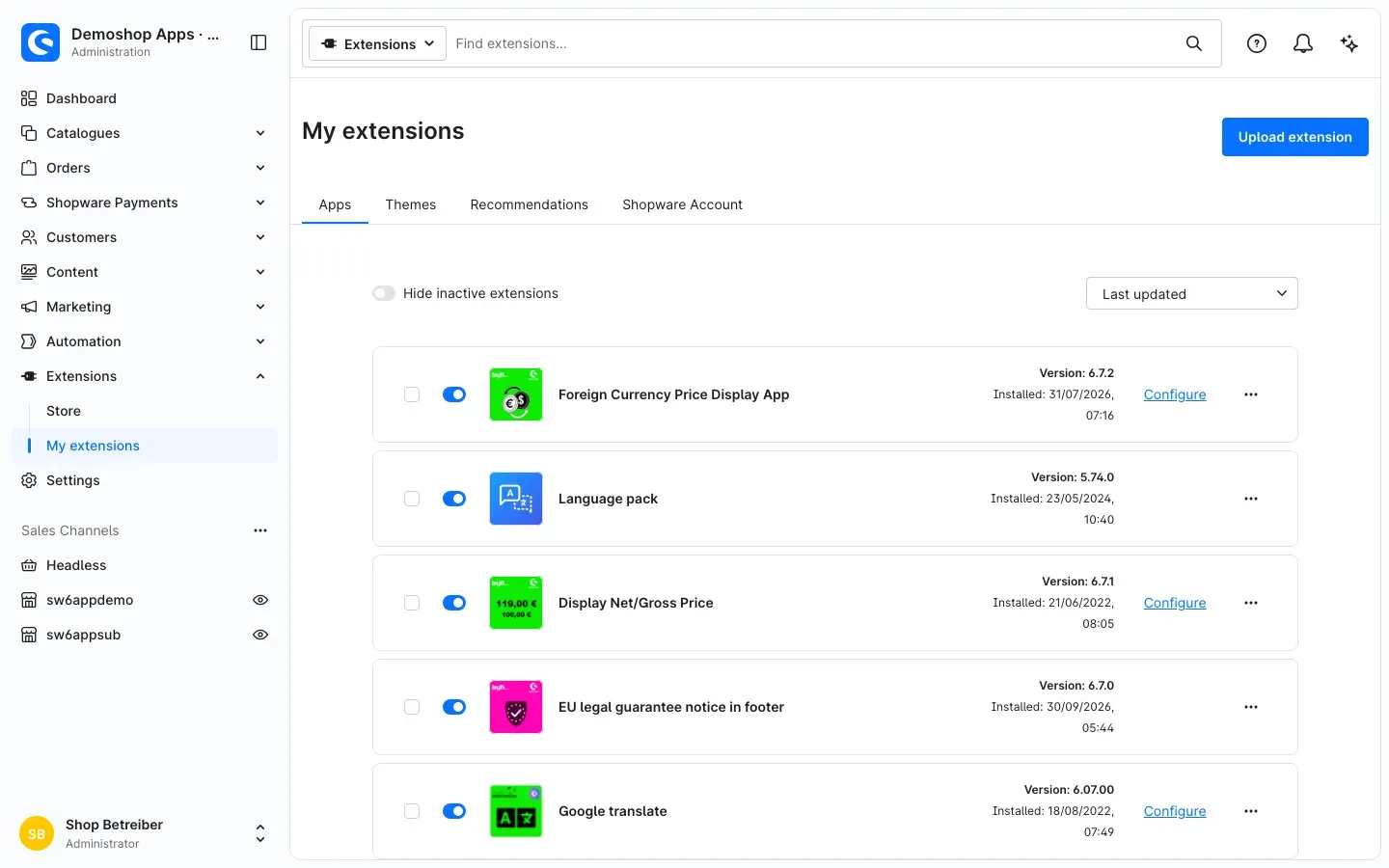 Fig. 1: The active app in the “Apps” tab — with its switch and the “Configure” link
Done. All settings of the app are switched on by default, so your store shows the additional net or gross value right away.
If Display Net/Gross Price does not appear in the list, your Shopware account is not yet connected to the store. You can do this under Extensions → My extensions in the Shopware Account tab by logging in with your Shopware account.
Getting Started
-
Open the settings: Go to Extensions → My extensions, Apps tab, and click Configure next to Display Net/Gross Price.
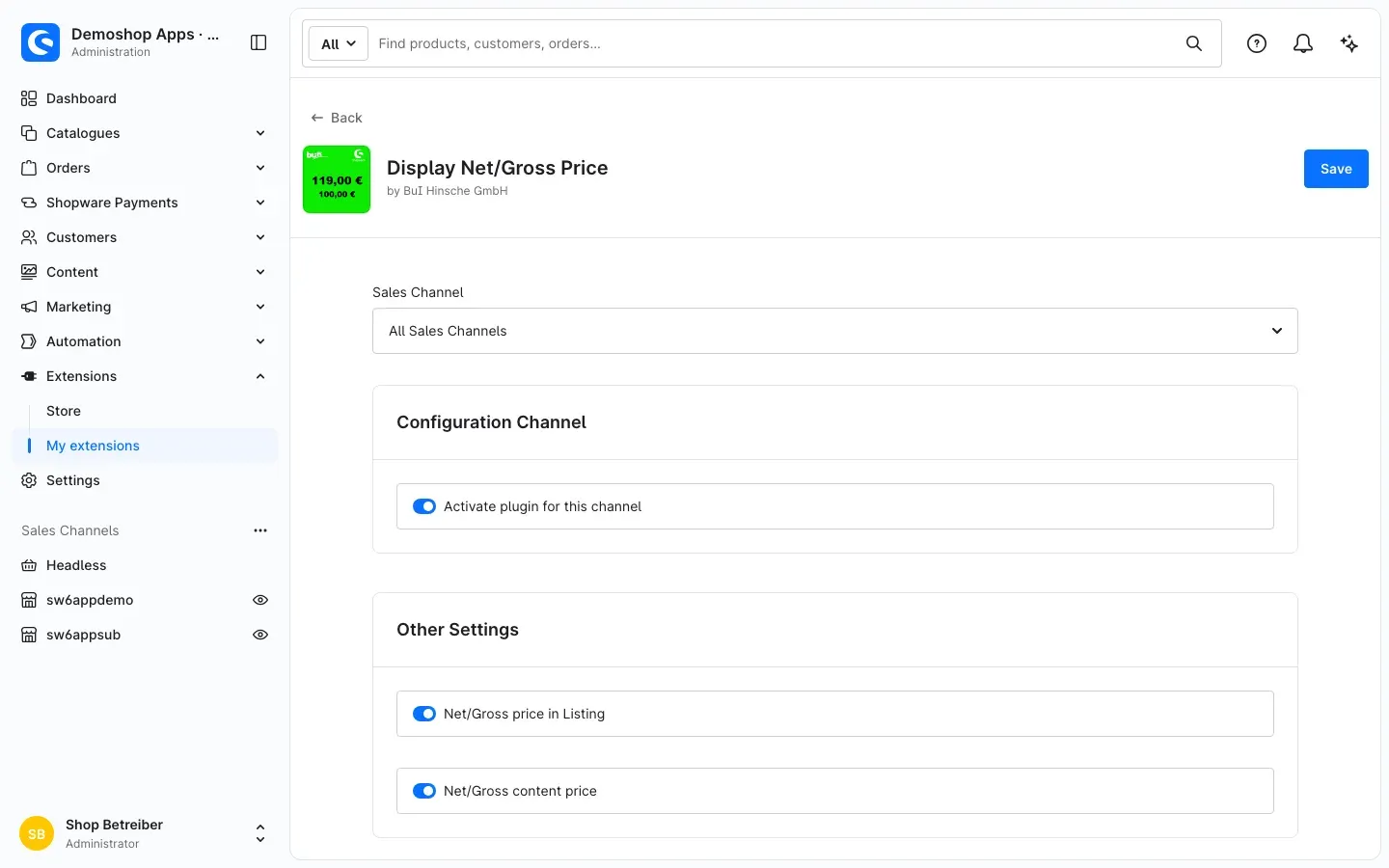 Fig. 2: The configuration page with all three switches
 -
Check the essentials: The switch Activate plugin for this channel is on. That is all you need to get started.
-
See the result: Open a product page in your store. Below the price you now see “net: …” (for customer groups with gross prices) or “gross: …” (for customer groups with net prices).
Settings
You find the settings under Extensions → My extensions → Apps via the Configure link next to Display Net/Gross Price (see Fig. 2). After every change, click Save in the top right corner.
All three switches are on by default.
Sales Channel
At the top of the page, under Sales Channel, you choose which store the switches below apply to. The default is All Sales Channels — whatever you set there applies to every channel unless you set something different for an individual channel.
Why this is useful: If you run a consumer store and a B2B store, you configure each channel separately. Select the channel, change the switches and save.
Activate plugin for this channel
With Activate plugin for this channel in the Configuration Channel card, you switch the app on or off for the selected sales channel. When it is off, this channel shows prices exactly as in standard Shopware — and the other two switches have no effect either.
Why this is useful: You use the app only in specific stores without uninstalling it. Example: on in the B2B channel, off in the consumer store.
Net/Gross price in Listing
With Net/Gross price in Listing in the Other Settings card, you decide whether the additional value also appears in the product boxes — on category pages, in search results and wherever else Shopware shows products as tiles. When it is off, the value appears on the product page only.
Why this is useful: If you want to keep category pages as clean as possible, you switch the extra line off there and keep it on the product page.
Net/Gross content price
With Net/Gross content price you decide whether the app also adds to the base price. A separate line then appears, such as “Content net: 750 gram (€2.80* / 1000 gram)” or “Content gross: …”. In the listing, this line only appears if Net/Gross price in Listing is switched on as well.
Why this is useful: For food, drinks or goods sold by length, customers often compare the price per kilo or litre. With this line they see that value net and gross too. If you don’t need it, switch the line off.
How to Use the Features
How to decide whether net or gross is added
What you get: You don’t need to assign anything by hand. The app recognises from the customer group which value is missing and adds exactly that one.
What counts is the Tax display of the customer group:
- Gross — the store shows gross prices; the app adds the net value below (“net: …”).
- Net — the store shows net prices; the app adds the gross value below (“gross: …”).
Step by step
- Go to Settings → Customer groups.
- Open the customer group you want, for example your trade customer group.
- Under Tax display, select Gross or Net.
- Click Save.
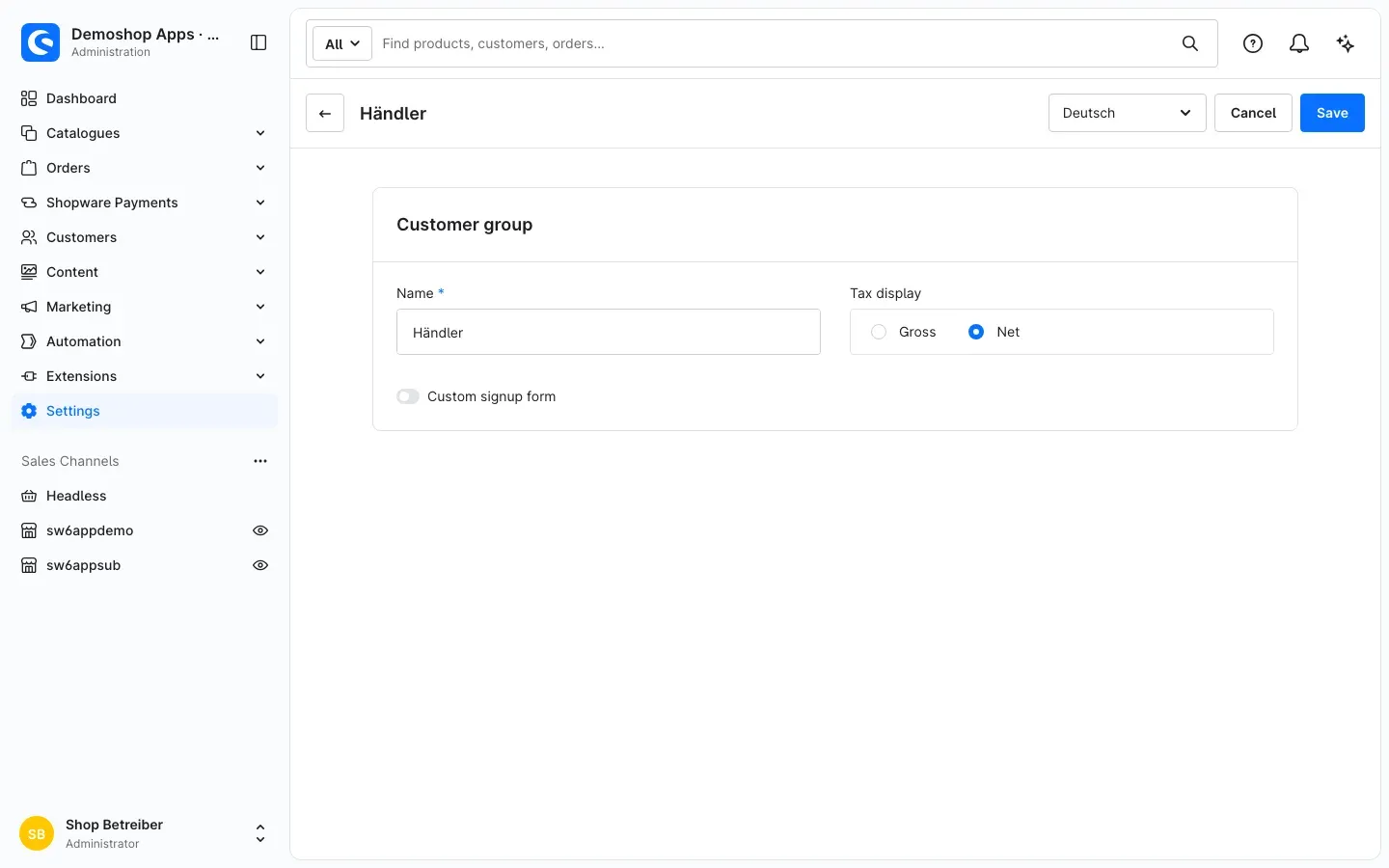 Fig. 3: The customer group “Händler” (trade customers) with the tax display set to “Net”
Tip: Visitors who are not logged in see the prices of the customer group assigned to the sales channel. For a pure B2B channel with net prices, assign it a customer group whose tax display is Net.
What the product page looks like
What you get: Your customers see both prices on the product page at a glance.
The additional value appears below the price. If Net/Gross content price is on and the product has a base price, the line “Content net” or “Content gross” follows.
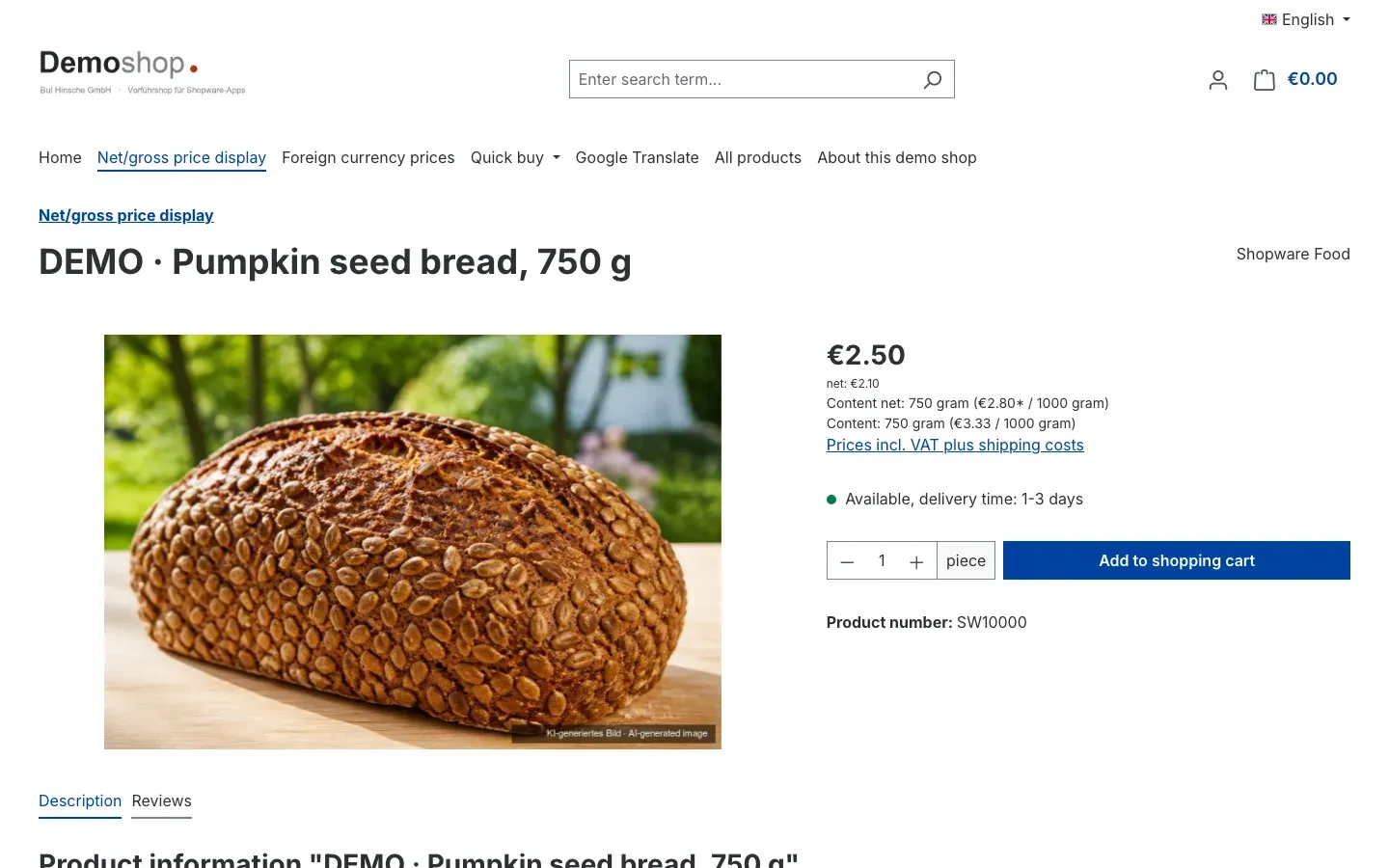 Fig. 4: Customer group with gross prices — €2.50, below it “net: €2.10” and “Content net: 750 gram (€2.80* / 1000 gram)”
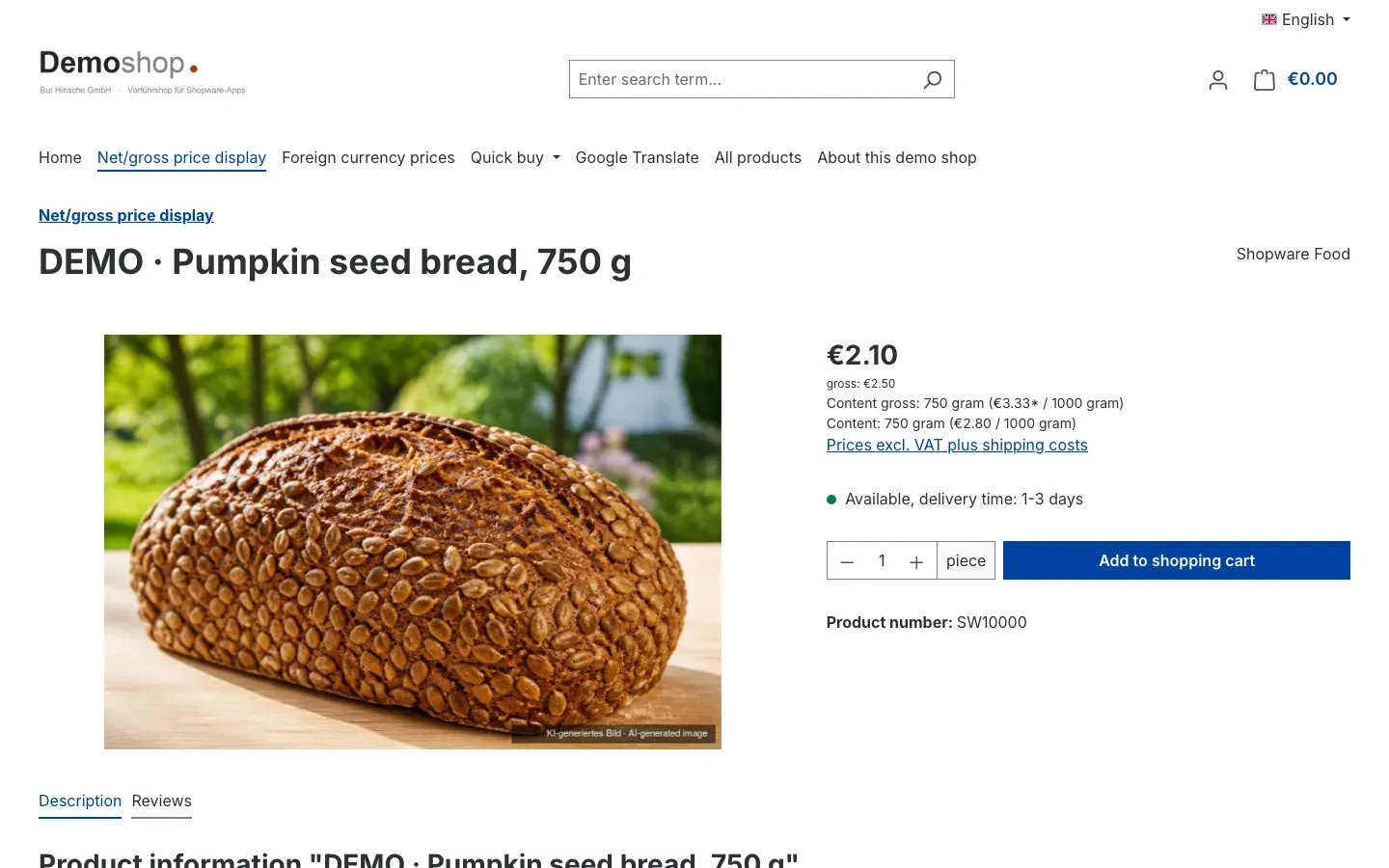 Fig. 5: Customer group with net prices — €2.10, below it “gross: €2.50” and “Content gross: 750 gram (€3.33* / 1000 gram)”
The line “Content: …” directly below comes from Shopware itself and stays in place. It shows the base price as the customer group sees it. The app’s line adds the other value, so both base prices appear one below the other.
If a product has variants (for example colours or sizes), the additional value follows the selected variant. When your customer switches the variant, “net” or “gross” updates as well.
How tier prices are shown
What you get: Customers ordering larger quantities see both values for every tier and don’t need to do any conversion for their own calculations.
If a product has tier prices, Shopware shows a table with quantity and unit price on the product page. The app adds the matching net or gross value to every row. No setting is required.
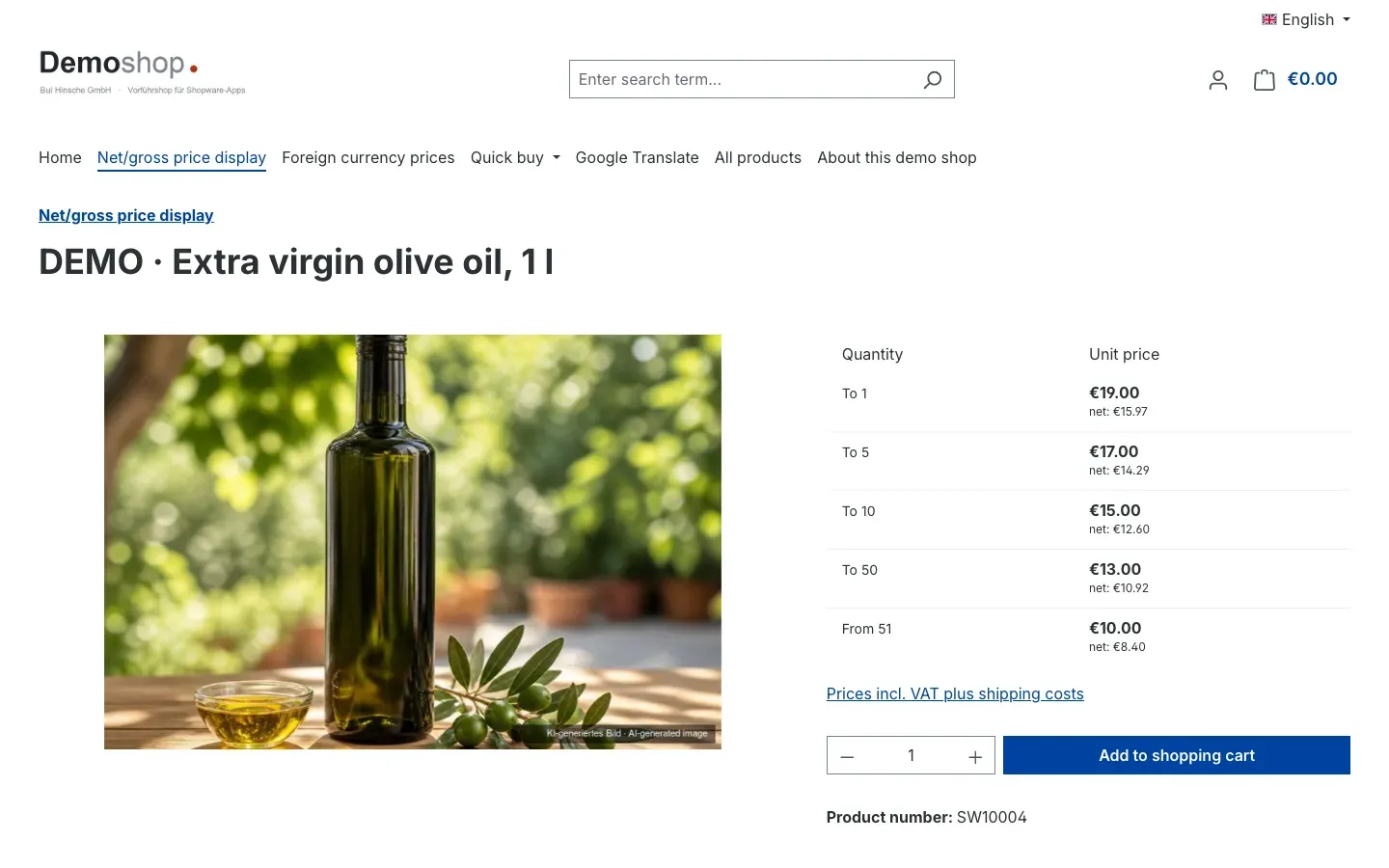 Fig. 6: Every tier shows its own net value, e.g. “€19.00” with “net: €15.97” below
How the value appears in the listing
What you get: Your customers can compare right on the category page without opening every product.
If Net/Gross price in Listing is on, the additional value appears below the price in every product box. If Net/Gross content price is on as well, products with a base price also show the line “Content net” or “Content gross”.
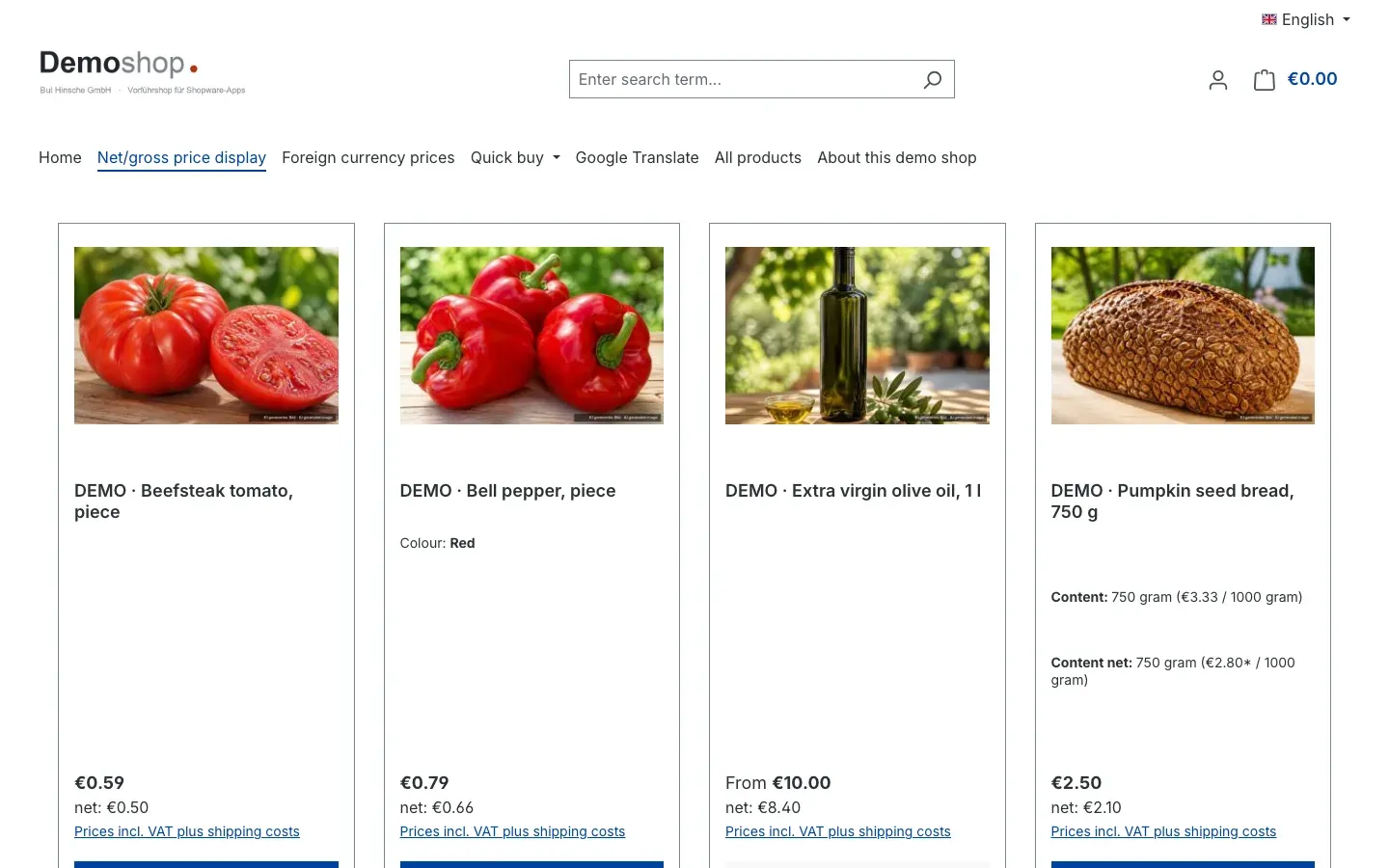 Fig. 7: In the listing, “net: …” appears below every price; the bread additionally shows “Content net”
Products without a base price
What you get: Your product pages stay tidy — no empty label is left behind.
If a product has no purchase unit (for example a watermelon sold per piece), the app shows only the additional net or gross value. Since version 6.7.1, the line “Content net” or “Content gross” is omitted completely.
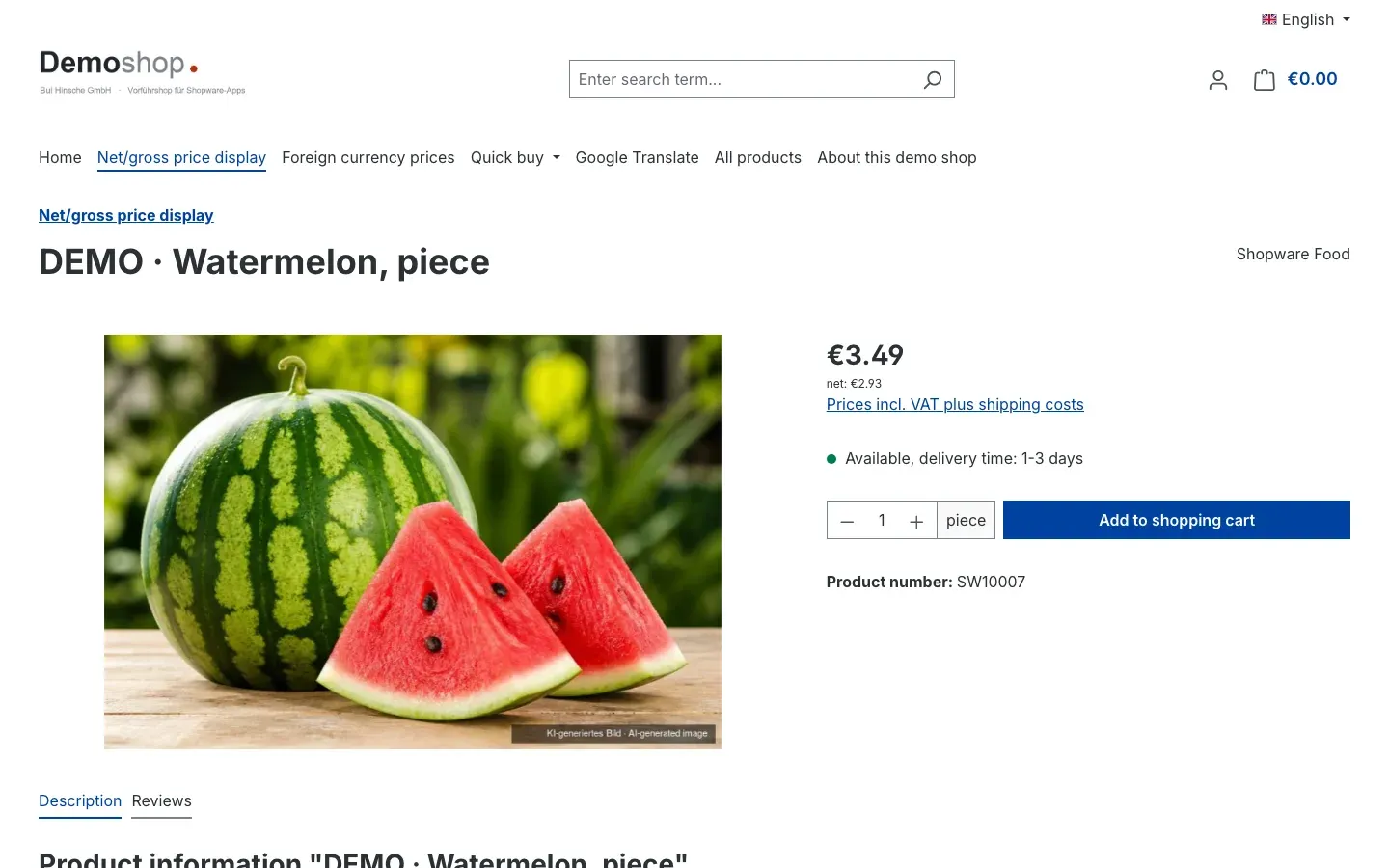 Fig. 8: Product without a purchase unit — only “net: €2.93”, no content line
How to change the labels
What you get: If you’d rather not use “net” or “Content gross”, you write your own text — no code needed.
The labels come from snippets and are included in German, English and Dutch. You change them under Settings → Snippets: open the snippet set for your language and search for swp-displaynetpriceapp. You will find four entries — for “net”, “gross”, “Content net:” and “Content gross:”. Enter your text and save.
How to try the app in the demo
What you get: You see every case live before you switch the app on in your own store.
- Gross view for consumers: https://sw6appdemo.bui-demo.com
- Net view for trade customers: https://sw6appsub.bui-demo.com
Open the category Net/gross price display (German storefront: Netto/Brutto-Preisanzeige). It contains products with a base price, with tier prices, with variants and without a purchase unit.
Important: The app is a display feature only. Cart, checkout and invoice remain unchanged — the price Shopware calculates for the customer group still applies there.
Troubleshooting
No additional value appears below the price
Cause: The app is switched off for this sales channel, the app itself is not active, or the cache is still serving the old page.
How to fix it:
- Open Extensions → My extensions, Apps tab, and check that the switch next to Display Net/Gross Price is on.
- Click Configure, select your store under Sales Channel and check that Activate plugin for this channel is on. Save.
- Clear the cache: Settings → System → Caches & indexes → Clear cache.
The value is missing in the listing but shows on the product page
Cause: The switch Net/Gross price in Listing is off for this sales channel.
How to fix it: Switch it on in the app configuration, making sure the correct sales channel is selected, and save.
The line “Content net” or “Content gross” is missing
Cause: Either Net/Gross content price is switched off, or the product has no purchase unit and therefore no base price. In the listing, Net/Gross price in Listing must be on as well.
How to fix it: Check both switches in the configuration. If a product should show a base price, maintain its purchase unit and unit of measure in the product data.
It says “net” although I expected “gross” (or the other way round)
Cause: The app follows the Tax display of the customer group you are currently browsing the store with. As a guest, that is the customer group of the sales channel.
How to fix it: Check the tax display of that group under Settings → Customer groups (see How to decide whether net or gross is added). For testing, log in with a customer account in the right group.
The additional value is missing only with my theme
Cause: The app extends the price areas of the Shopware storefront. If your theme completely rebuilds these areas, the additional value may be missing.
How to fix it: Test with the standard Shopware theme. If the value appears there, contact us (see Support) and tell us which theme you use.
FAQ
Q: Can my customers switch between net and gross?
A: No. The app shows the second value in addition and deliberately has no switcher. The main price stays exactly as Shopware calculates it for the customer group.
Q: Does the app change prices in the cart, the checkout or on the invoice?
A: No. It is a display feature on the product page and in the listing only. Everything Shopware calculates and charges stays unchanged.
Q: Which tax rate does the app use?
A: The tax rate of each individual product. Products with different VAT rates are therefore each converted correctly.
Q: Why are there two lines for the base price?
A: Shopware itself shows the line “Content: …” in your customer group’s price. The app adds the line “Content net” or “Content gross” with the other value.
Q: Can I use the app in just one sales channel?
A: Yes. In the configuration, select the store under Sales Channel and switch Activate plugin for this channel on or off there.
Q: Can I change the “net” or “gross” label?
A: Yes, under Settings → Snippets (see How to change the labels).
Q: Is any data sent to external services?
A: No. The app sends no data to external servers and does not process personal data.
Q: What is left after uninstalling?
A: Nothing you need to clean up. The app does not create any data of its own. After removal, your store shows prices as in standard Shopware again.
For Administrators / Technical Details
This section is intended for technical administrators. You don’t need it for normal use.
System requirements
- Shopware: 6.7 — Shopware Cloud or self-hosted
- No app server of its own, no credentials, no external calls
What the app contains
- Storefront templates, snippets (German, English, Dutch) and a small stylesheet — nothing else.
- No tables of its own, no custom fields, no changes to Shopware’s original tables.
- The calculation runs while the page is built, using the price data Shopware loads anyway. The app makes no database queries of its own.
- The templates extend the storefront’s price areas and keep their content. Other extensions in the same place are preserved.
Installing in a self-hosted store via the command line
If the app is located in the folder custom/apps/SwpDisplayNetPriceApp, install it like this:
bin/console app:refresh
bin/console app:install --activate SwpDisplayNetPriceApp
bin/console theme:compile
bin/console cache:clear
This manual was written for Display Net/Gross Price version 6.7.1.
More manuals
Address Validation: House Number Check & Corrections
Address validation at the point of entry: the plugin spots missing house numbers, can suggest corrections via Google and helps you send fewer parcels that come back undeliverable.
Open manual Shopware 6Admin Password Reminder
Admin Password Reminder: your backend users renew their passwords on time, prompted after login and by a daily email. Premium locks expired accounts until the password is changed.
Open manual Shopware 6Advent Calendar | Doors with products, coupons and promotions
Advent calendar for your shopping experiences: doors open on time without clearing the cache, give nothing away in the page source and reveal coupons, products or your own content.
Open manualNeed a team that keeps your shop running?
We have been maintaining Shopware shops for more than 20 years, including updates, hotfixes and the plugins you are configuring right now.