Foreign Currency Price Display App
Displays every storefront price in an additional currency of your choice: listing, search suggest, product page, cart, off-canvas and checkout, converted at the sales channel rate.
On this page
- Introduction
- What you achieve with this app
- Who is this app for?
- Installation
- Getting started
- Settings
- Enable app for this sales channel
- Price Display
- Foreign currency
- Documentation (German) and Documentation (English)
- How to use the features
- How the foreign price appears in listings and search
- How the foreign price appears on the product page
- How the foreign price follows the shopping cart
- What your customer sees at checkout
- How to set the conversion rate
- How to show only the foreign currency price
- How to switch the app off in individual sales channels
- Troubleshooting
- No second price appears in the shop
- The second price is identical to the regular price
- The currency you want is not offered
- Changes from the configuration do not show up in the shop
- The setting applies to the wrong shop
- FAQ
- For administrators / technical details
- System requirements
- Type of extension
- Data and privacy
- Conversion and behaviour without configuration
- Performance
- Languages
Introduction
The Foreign Currency Price Display App places a second amount next to every price in your shop, in a currency of your choice. Customers from Switzerland, the UK or the US immediately see what an item costs in the currency they think in — without switching the storefront and without reaching for a calculator.
What you achieve with this app
- Your customers see a second price in your preferred currency next to the shop price — from the product listing all the way to the final checkout page.
- You stay in control of the rate: the app uses the conversion factor you already maintain for each currency in Shopware. There is no external rate service and no extra subscription.
- You decide whether both prices appear side by side or whether only the foreign currency price is shown.
- You switch the display on or off per sales channel — your B2B channel can show the dollar price while your B2C channel stays with euros.
- Your orders remain untouched: the second amount is a display only. Charging and documenting still happen in the currency that is active in the sales channel.
Who is this app for?
For anyone selling to customers abroad on a regular basis: shops close to a border, tourism and travel offers, B2B merchants working with an internal reference currency. You do not need any developer knowledge — two settings are enough, and the app fits into your existing theme without any rework.
Installation
After purchase, the app is available directly in your Administration — there is nothing to download.
- Log in to your Shopware Administration.
- Open Extensions → My extensions.
- Find the entry Foreign Currency Price Display App in the list and click Install next to it.
- Then switch the app on using the toggle to the left of the entry. A blue toggle means the app is active.
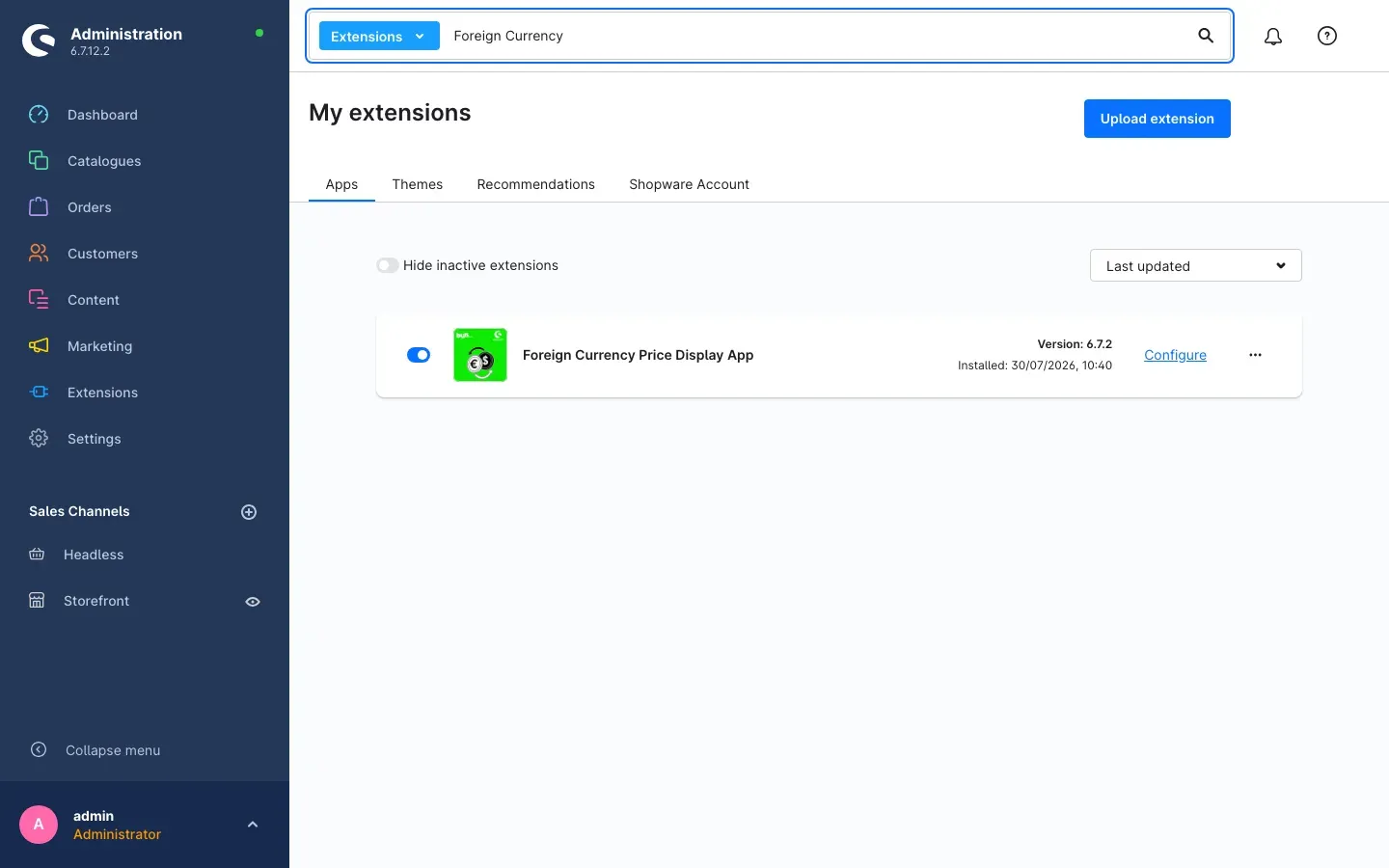 Fig. 1: The app is installed and activated. On the right you see the version and the Configure link.
As soon as the app is active, the Configure link appears on the right of the entry. It takes you straight to the settings — which is exactly where the next chapter continues.
If Foreign Currency Price Display App does not appear in the list, your Shopware account is not yet connected to the shop. Set up the connection under Extensions → My extensions on the Shopware Account tab; the app then appears in the list automatically.
Getting started
After installation, three steps are enough to get the second price into your shop.
-
Open the settings: under Extensions → My extensions, click Configure on the app entry.
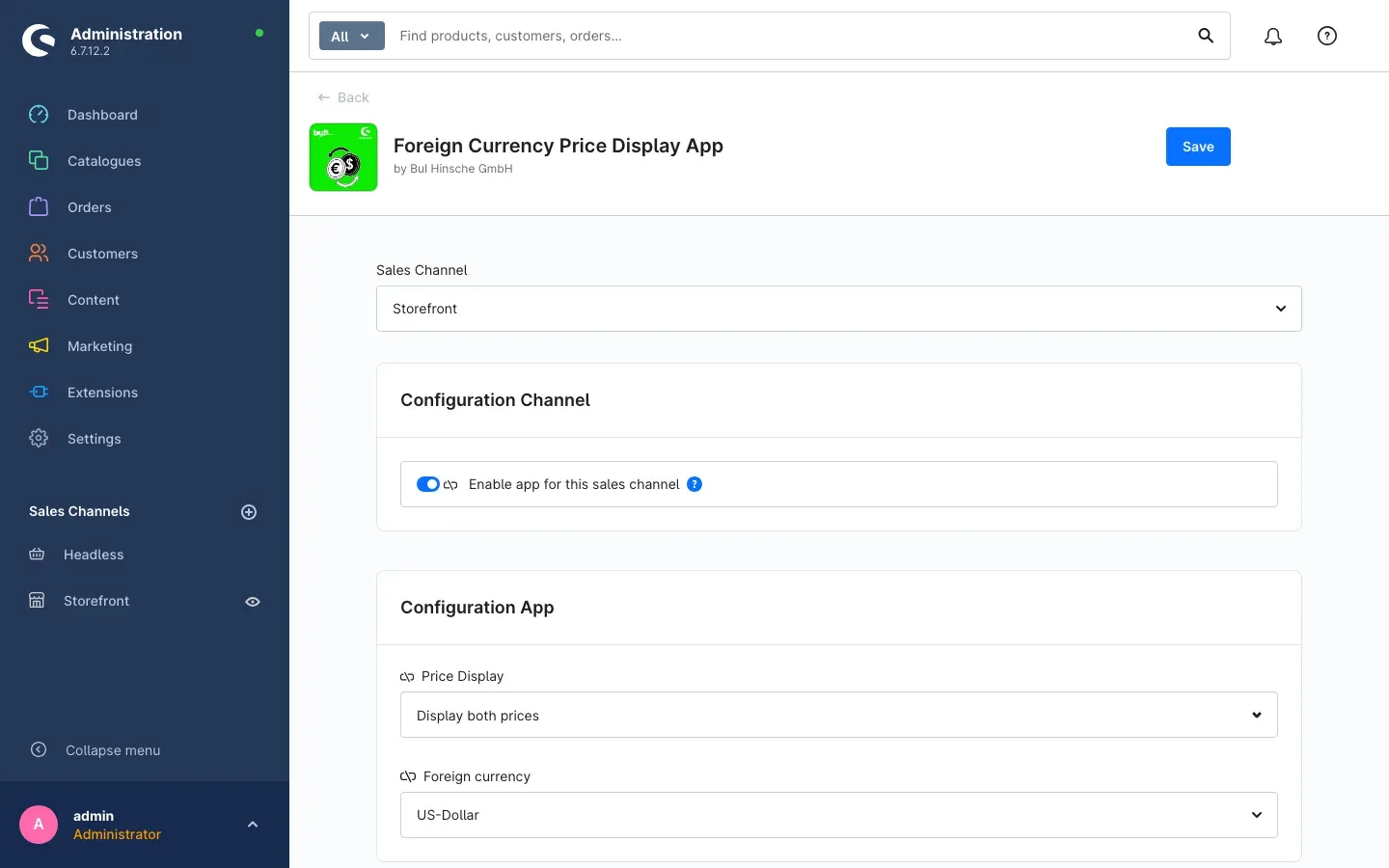 Fig. 2: The configuration page. At the top you choose the sales channel, below it you find the two cards Configuration Channel and Configuration App.
 -
Choose the sales channel: the Sales Channel selector sits at the top of the page. Pick the shop you want to set up — for example Storefront. Everything below applies to exactly that channel.
-
Choose your currency: in the Configuration App card, open the Foreign currency selector and pick the currency your customers should additionally see. Then click Save in the top right corner.
Check the result: open your shop and go to any product page. The familiar price is now accompanied by the same amount in your chosen currency. If nothing changes, clear the cache (Settings → System → Caches & indexes) and reload the page.
Important: the app only works with currencies that already exist in your shop. The Foreign currency selector shows exactly those currencies you maintain under Settings → Shop → Currencies.
Settings
You will find all settings on the configuration page of the app: Extensions → My extensions → Configure. The Sales Channel selector sits at the very top — everything you set below always applies to the channel selected there. If you run several sales channels, set each one up individually.
Enable app for this sales channel
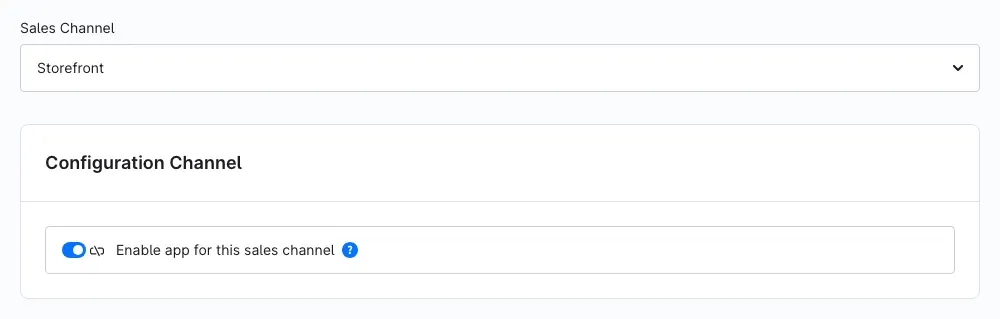 Fig. 3: The Configuration Channel card with the switch for the selected sales channel.
The Enable app for this sales channel switch in the Configuration Channel card decides whether a second price appears in the selected sales channel at all. It is switched on by default. If you switch it off, that channel shows the shop currency only — exactly as if the app were not installed.
Why this is useful: you can use the display specifically where international customers shop and leave it out of your domestic channel, without uninstalling the app.
Price Display
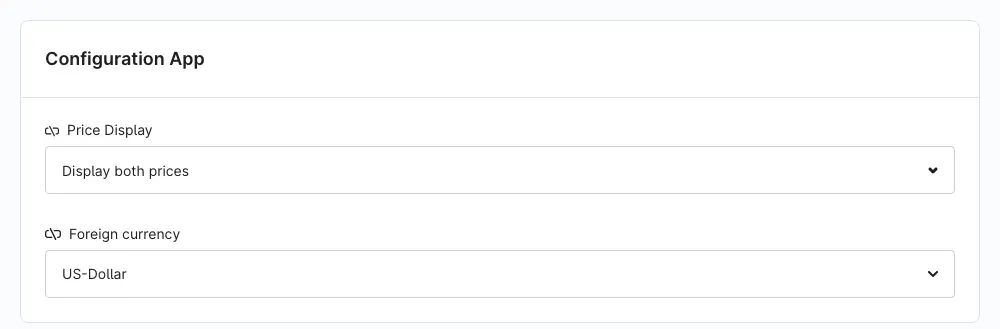 Fig. 4: The Configuration App card with the Price Display selector and the Foreign currency selector.
The Price Display selector determines how many amounts your customer sees. You have two options:
- Display both prices — the familiar shop price and the converted amount appear next to or below each other. This is the default and the option customers find easiest to interpret.
- Display only foreign currency price — your shop shows the converted amount only. The price in the shop currency disappears from the display.
Why this is useful: if a sales channel almost exclusively addresses an international audience, a single amount looks calmer. In every other case Display both prices is the safe choice, because your customer keeps the reference to the currency actually charged.
Foreign currency
The Foreign currency selector determines which currency the second amount is shown in. It offers every currency set up in your shop under Settings → Shop → Currencies. If your currency is missing from the list, create it there first.
Why this is useful: a single selection lets you serve the audience that matters most to you — Swiss francs for a neighbouring market, US dollars for overseas.
Important: as long as no currency is selected here, your shop simply shows the price in the shop currency as usual. This causes no error and no empty line — the second amount is just missing.
Documentation (German) and Documentation (English)
At the bottom of the configuration page you find the Documentation card with two fields: Documentation (German) and Documentation (English). They contain the web addresses of this manual. The fields are deliberately not editable — you copy the link using the icon at the end of the field and open it in your browser.
Why this is useful: you can reach the current manual straight from your Administration, without searching for it.
How to use the features
How the foreign price appears in listings and search
What this gives you: customers see which price range they are in while they are still browsing — no need to open a product page to convert anything.
As soon as a foreign currency is selected and saved, the app adds the second amount to every product card automatically. There is nothing else to set up.
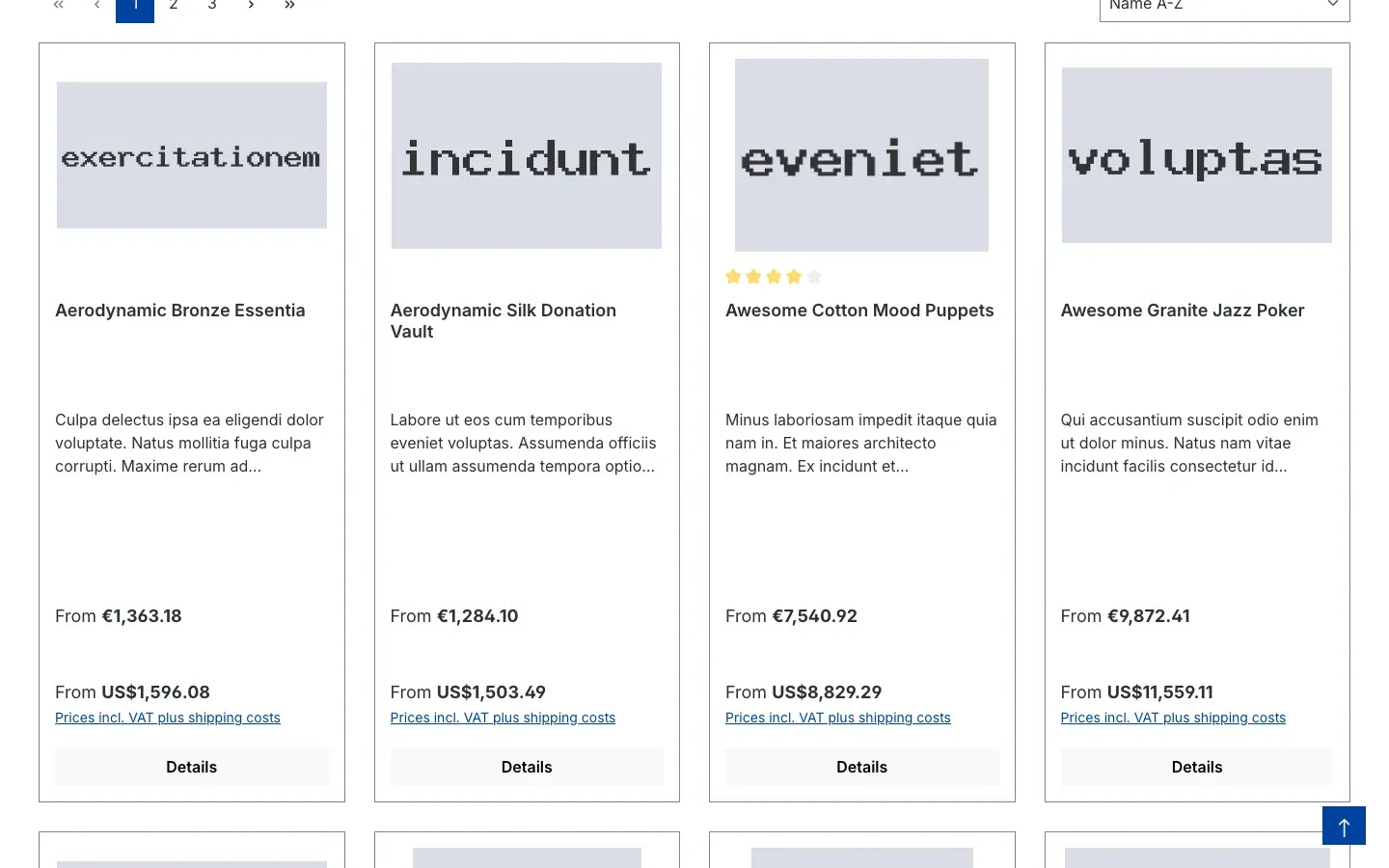 Fig. 5: Every product card shows the price in the shop currency and, below it, in the foreign currency.
The suggestions that appear while typing in the search field also get the second amount.
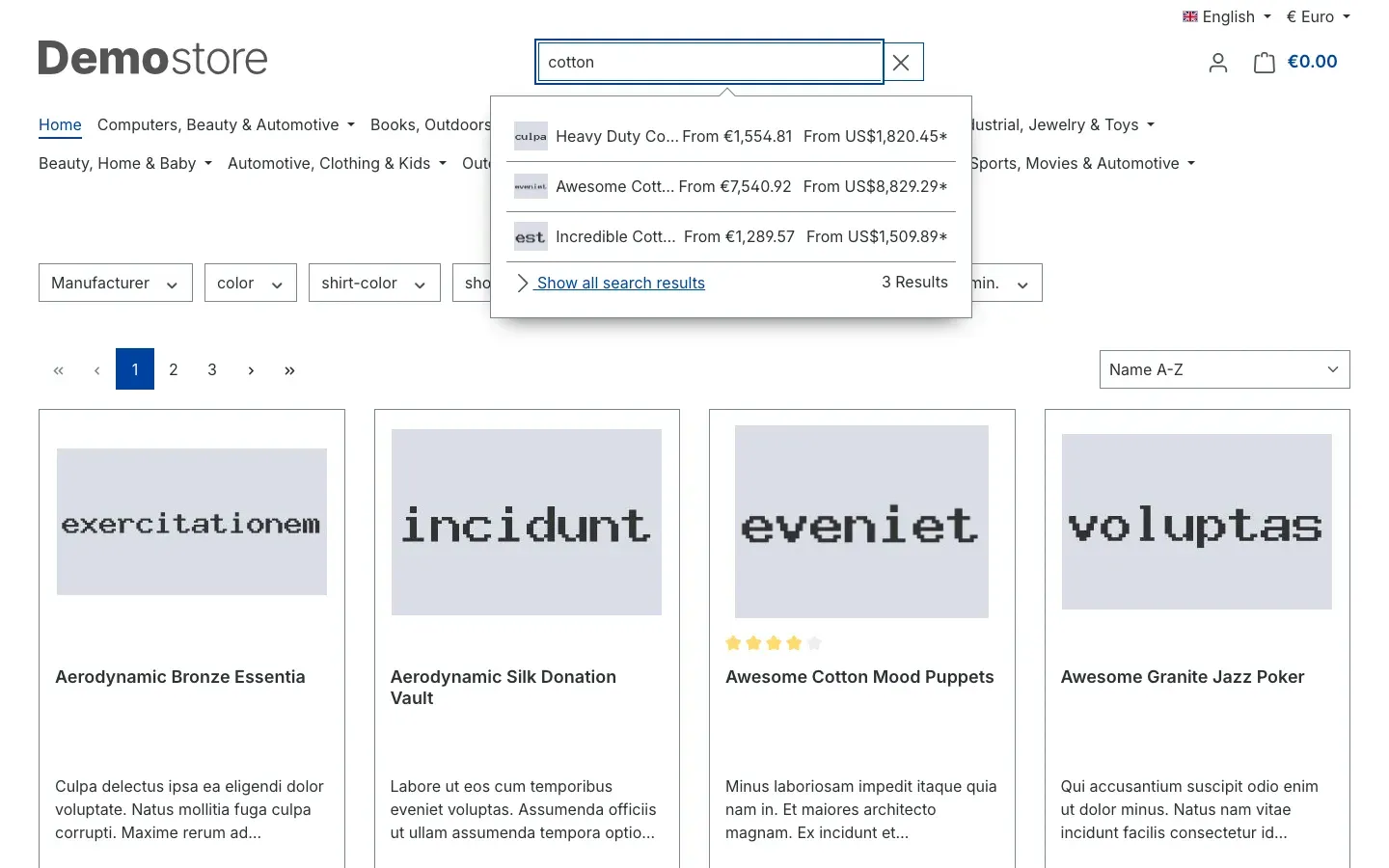 Fig. 6: The result list below the search field shows both amounts.
Tip: after setting things up, check a category page with items across different price ranges. That way you see at a glance whether the rate is set realistically.
How the foreign price appears on the product page
What this gives you: on the page where the buying decision is made, the familiar amount sits right next to the shop price — including base prices, strike-through prices and graduated prices.
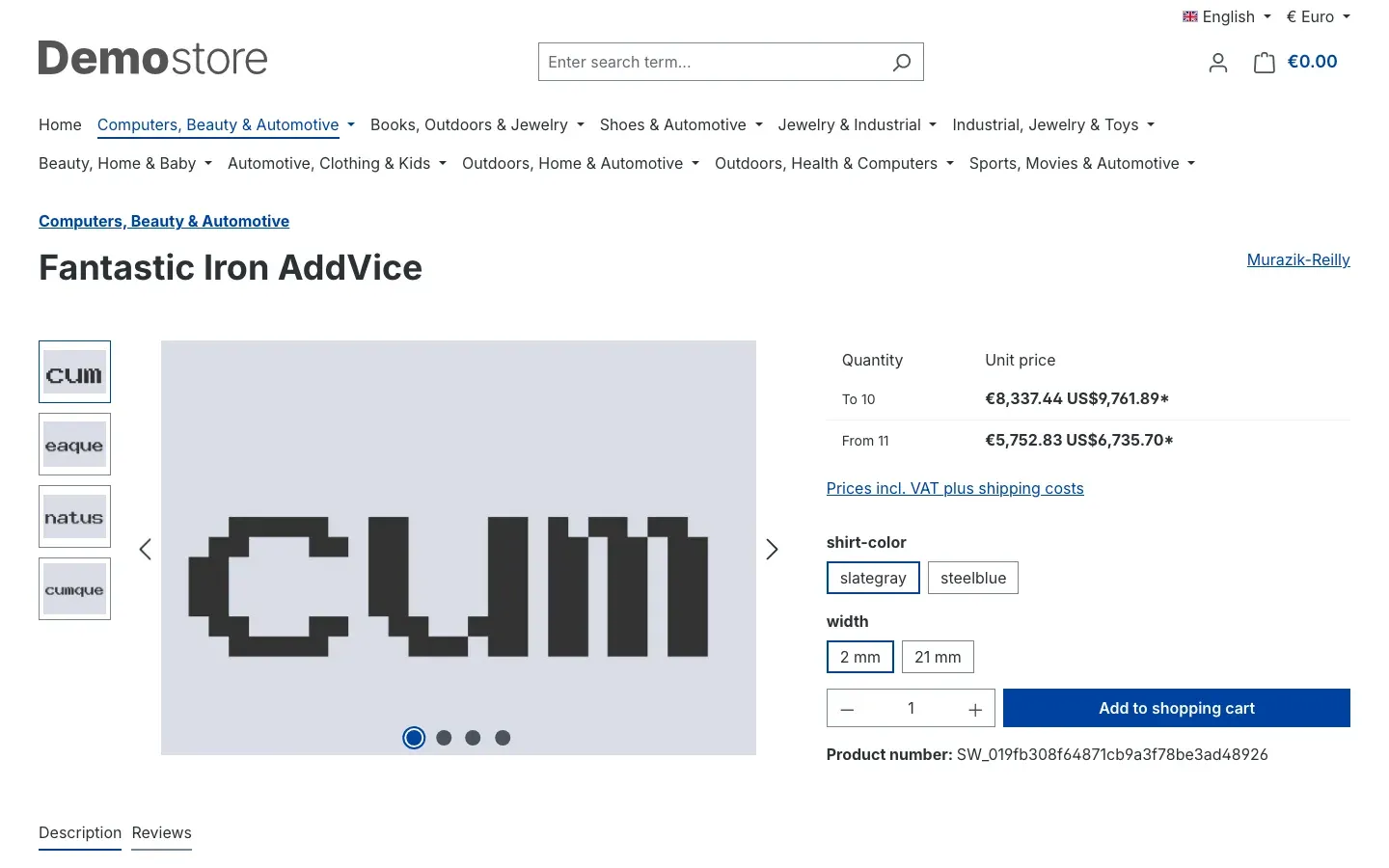 Fig. 7: The product page shows the price in both currencies.
The app does not stop at the main price. It also converts:
- the base price per unit of measure, for example “per 100 ml”,
- a strike-through price including the discount indicator when an item is reduced,
- every tier of a graduated price table.
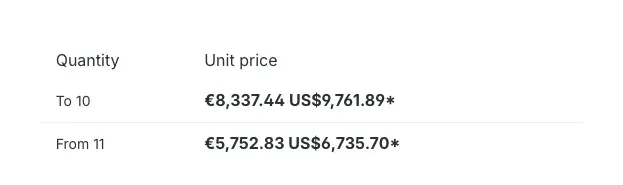 Fig. 8: Every quantity tier gets its own foreign currency amount.
Tip: graduated prices are exactly where customers otherwise reach for a calculator. Check the table on one of your best-selling items manually once you have finished the setup.
How the foreign price follows the shopping cart
What this gives you: your customer does not lose sight of the second amount once something is in the cart — neither in the cart overview, nor in the side panel, nor in the header.
On the shopping cart page, a second block titled Summary (Foreign Currency) appears next to the familiar Summary. It repeats the total, shipping costs, grand total, net total and VAT share in the selected currency. In addition, every cart line shows unit price and subtotal in both currencies.
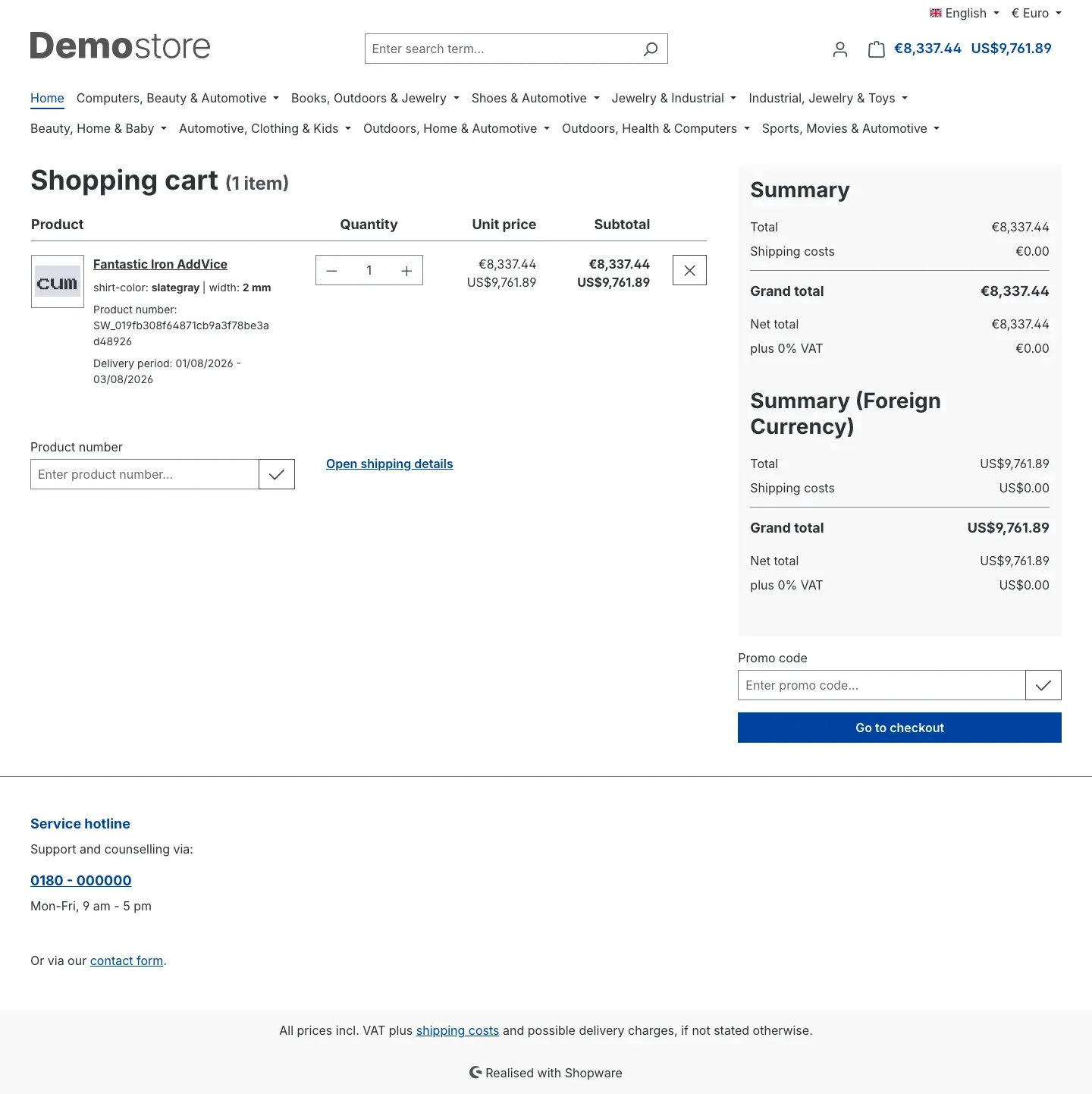 Fig. 9: On the right, the Summary (Foreign Currency) block sits below the regular summary.
When your customer adds an item to the cart, Shopware slides the cart in from the side. There you find the Show in foreign currency button: one click expands the overview in the foreign currency.
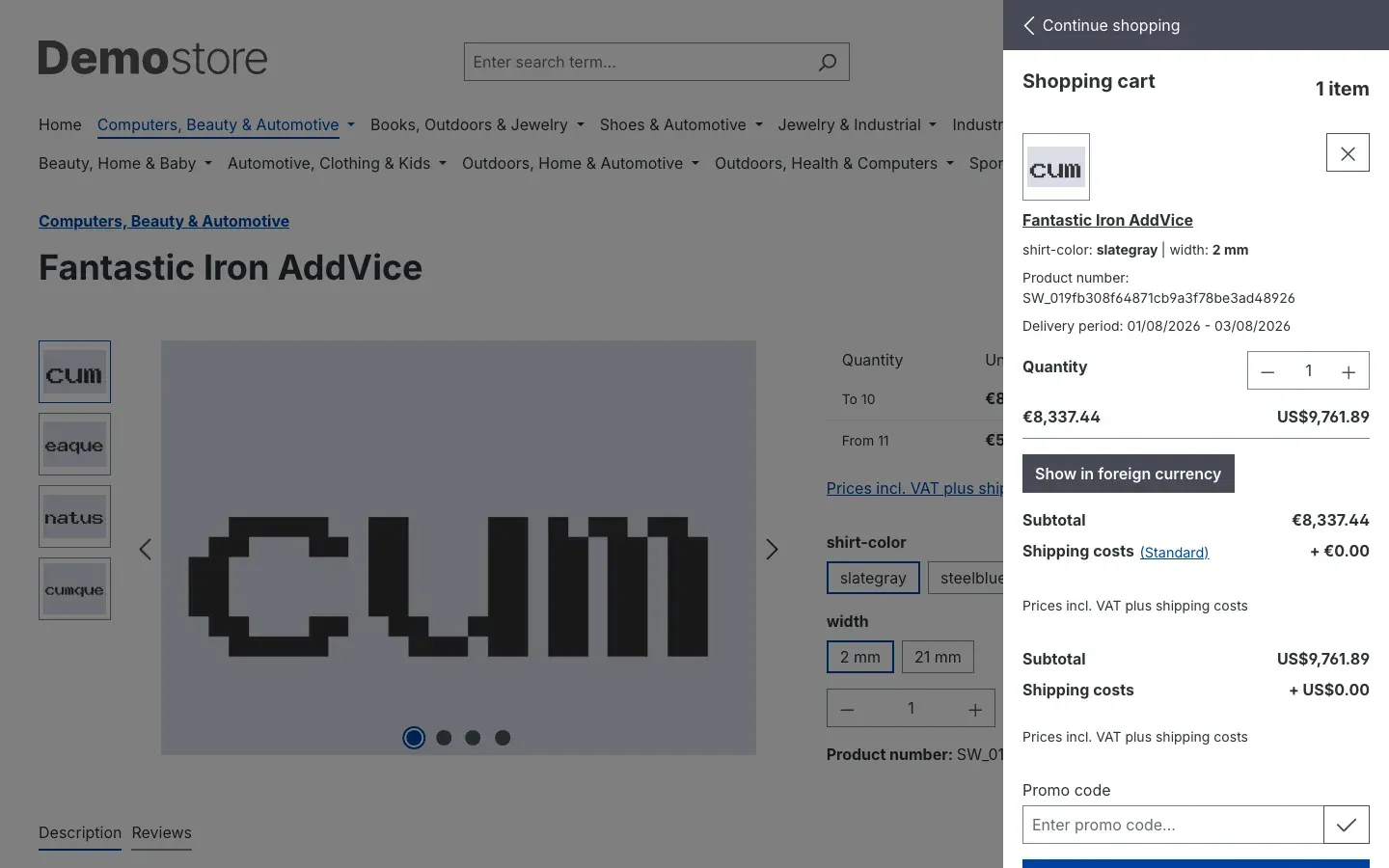 Fig. 10: The Show in foreign currency button opens the second overview.
The total next to the cart icon in your shop header shows both amounts as well.
 Fig. 11: Both totals appear side by side in the top right corner.
What your customer sees at checkout
What this gives you: the amount your customer has been calculating with does not disappear on the very last step before the purchase. That removes uncertainty from the checkout.
The Summary (Foreign Currency) block accompanies the whole ordering process: the registration and login page, the order confirmation page and the page shown after the purchase.
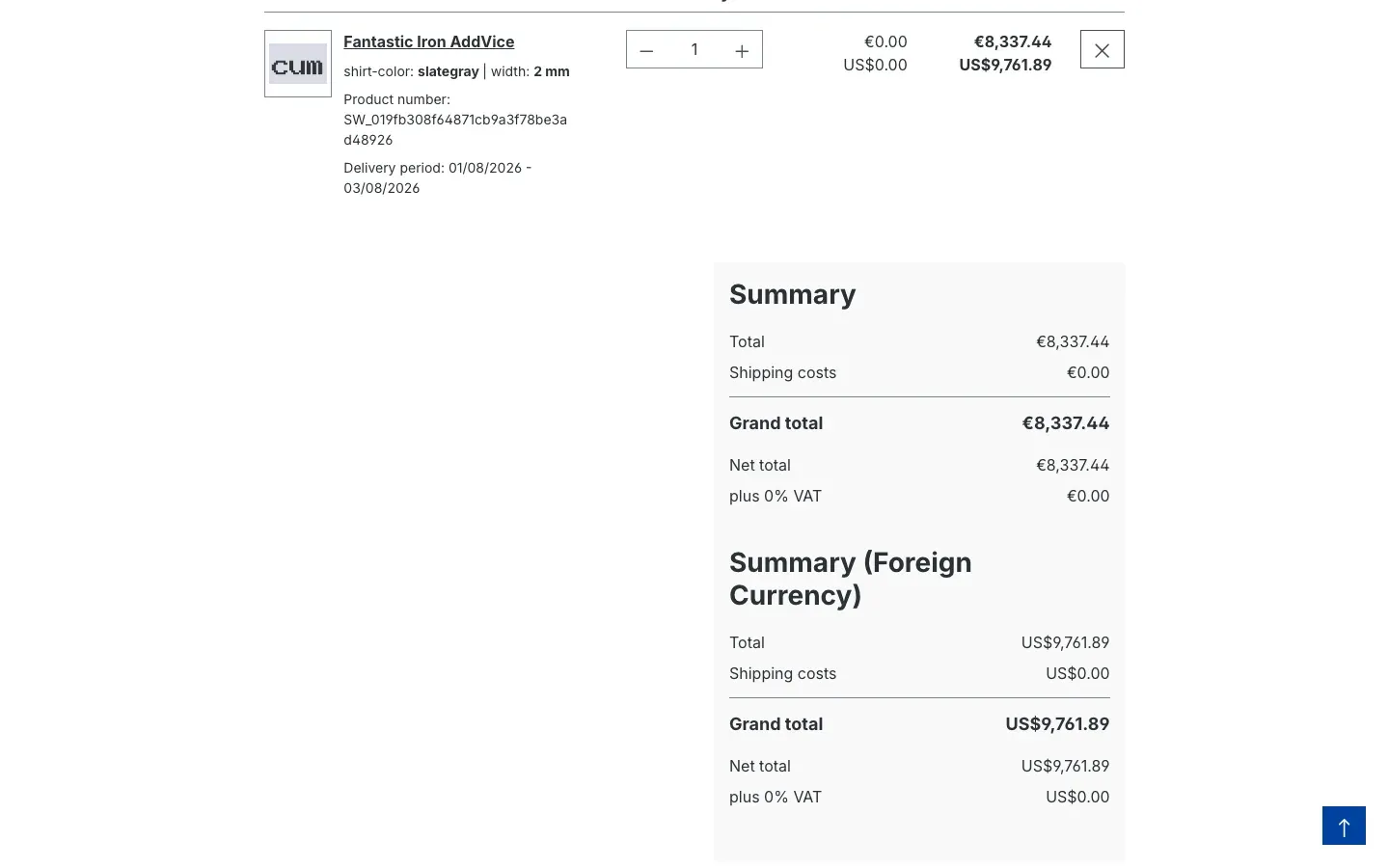 Fig. 12: On the order confirmation page, both summaries appear below each other.
Important: the foreign currency amount is a display for your customer only. Payment, calculation and the documented order still use the currency that is active in the sales channel. Nothing changes for your accounting or your payment provider.
How to set the conversion rate
What this gives you: you keep full control over the rate. The app brings no rate service of its own and never changes an amount by itself — it calculates with the value you store in Shopware.
Step by step
- Go to Settings → Shop → Currencies.
- Click the currency you selected as your foreign currency — US-Dollar in this example.
- Enter the rate you want in the Conversion factor field.
- Click Save in the top right corner.
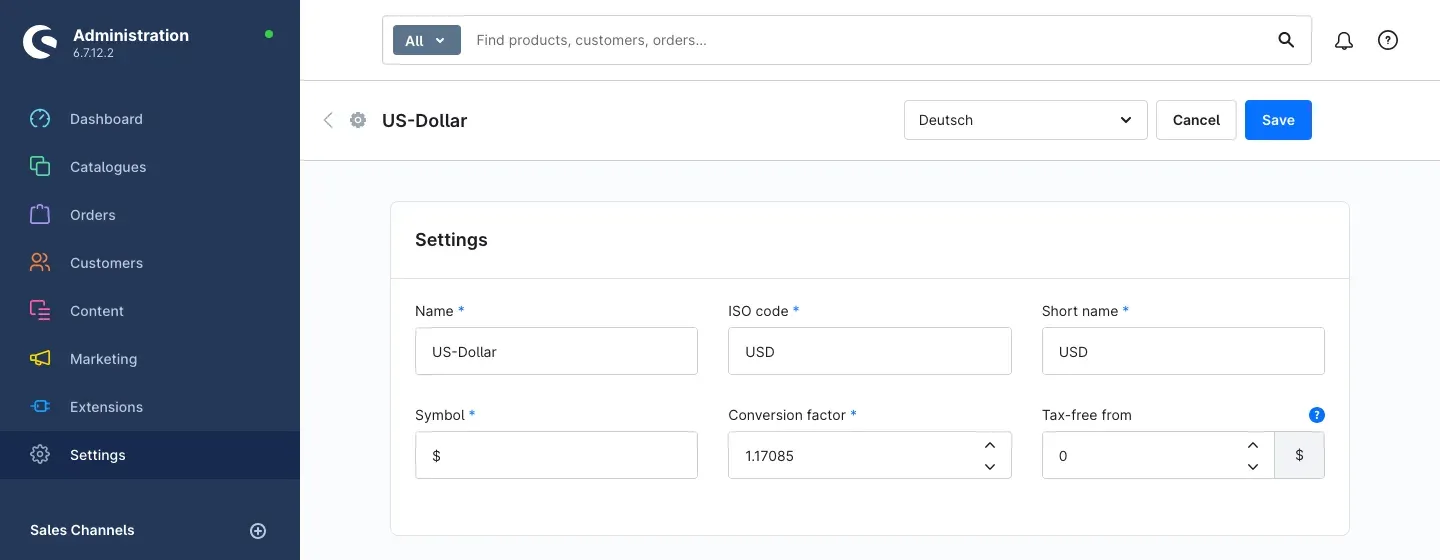 Fig. 13: The conversion factor of the currency determines the rate the app calculates with.
The factor describes how much one unit of your default currency is worth in this currency. With a conversion factor of 1.17085 for US-Dollar, €8,337.44 in the shop becomes US$9,761.89 in the display.
Tip: rates fluctuate. Set yourself a fixed routine — once a week or at the start of each month, for example — and adjust the factor then. A change takes effect immediately everywhere the app shows the second price.
Important: never enter
0as the conversion factor. Your shop stays available and simply shows the regular price, but the foreign currency display disappears entirely until you enter a sensible value.
How to show only the foreign currency price
What this gives you: in a sales channel serving almost exclusively an international audience, a single price looks tidier than two amounts stacked on top of each other.
Step by step
- Open Extensions → My extensions and click Configure on the app entry.
- Select the Sales Channel you want at the top.
- In the Configuration App card, set Price Display to Display only foreign currency price.
- Click Save.
From now on, listing, search, product page, cart and checkout show the converted amount only.
Important: the order overview and order details in the customer account still show the price in the shop currency. Those pages reflect a completed order, and that order was charged in the shop currency. Your customer therefore always sees a price there — never an empty line.
How to switch the app off in individual sales channels
What this gives you: you run several shops in one Shopware installation and only need the second price in one of them. Instead of uninstalling the app, you simply keep it quiet in the other channels.
Step by step
- Open Extensions → My extensions and click Configure on the app entry.
- Select the sales channel in which the display should not appear.
- In the Configuration Channel card, switch Enable app for this sales channel off.
- Click Save.
That channel now shows the shop currency only. All other channels remain unchanged.
Troubleshooting
No second price appears in the shop
What causes it: in most cases either no foreign currency is selected, or the app is switched off for the sales channel in question.
How to fix it:
- Open Extensions → My extensions and check that the toggle next to the app is switched on.
- Click Configure and select the affected Sales Channel at the top.
- In the Configuration Channel card, check that Enable app for this sales channel is switched on.
- In the Configuration App card, check that a currency is selected under Foreign currency.
- Save, then clear the cache: Settings → System → Caches & indexes.
The second price is identical to the regular price
What causes it: the conversion factor of the selected currency is set to 1, or to a value that matches the factor of your shop currency. The conversion then produces the same amount.
How to fix it: go to Settings → Shop → Currencies, open the currency concerned and enter the actual rate in the Conversion factor field. Save and reload your shop.
The currency you want is not offered
What causes it: the app only offers currencies that already exist in your shop.
How to fix it:
- Go to Settings → Shop → Currencies.
- Create the currency you need and enter its Conversion factor as well.
- Return to the configuration page of the app and select it under Foreign currency.
Changes from the configuration do not show up in the shop
What causes it: Shopware serves pages from its cache, which still holds the state from before your change.
How to fix it: open Settings → System → Caches & indexes and clear the cache. Then reload the shop page in your browser (ideally holding the shift key so your browser cache is bypassed too).
The setting applies to the wrong shop
What causes it: the Sales Channel selector at the top of the configuration page was set to a different channel when you saved.
How to fix it: open the configuration page again, select the correct sales channel at the top, make the setting there and save.
FAQ
Q: Are my customers actually charged in the foreign currency?
A: No. The second amount is purely a display aid. Payment, calculation and the recorded order still use the currency active in the sales channel.
Q: Do I need a rate service or an additional subscription?
A: No. The app calculates with the conversion factor you maintain for each currency under Settings → Shop → Currencies. No rates are fetched from the internet.
Q: Does the rate update automatically?
A: No, and that is intentional. The rate only changes when you change the Conversion factor of the currency. That way no price display appears that you did not trigger yourself.
Q: Can I show a different currency per sales channel?
A: Yes. The switch, the currency selection and the display option all apply to the sales channel selected at the top of the configuration page. Set up each channel one after the other and save each time.
Q: Can I display more than one foreign currency at the same time?
A: No. Exactly one additional currency is shown per sales channel.
Q: Does my theme need to be adapted?
A: No. The app extends the standard areas of the Shopware storefront and falls back to the original display whenever a conversion is not possible.
Q: What happens if I uninstall the app again?
A: Your shop shows the familiar prices only. No price data is left behind, because the app never writes any — only its own configuration is stored.
Q: Does my customer see the second amount in the order confirmation email or on the invoice?
A: No. The display works in the storefront — listing, search, product page, cart, off-canvas cart, header and checkout. Emails and documents continue to use the currency actually charged.
For administrators / technical details
This section is aimed at technical administrators. You do not need it for day-to-day use.
System requirements
- Shopware: 6.7
- No further extensions required, no dependency on other apps or themes.
Type of extension
This is an app, not a classic plugin with its own program code. It is installed and activated through the extension manager; no command line access is required for a normal installation.
Data and privacy
The app creates no database tables of its own, extends no existing tables and writes no additional fields on products or orders. Only its own configuration is stored, in the Shopware system configuration.
No data is sent to external servers, no cookies are set, no personal data is processed and no log files are written. The permissions requested are read-only access to currencies, sales channels and the system configuration.
Conversion and behaviour without configuration
The displayed amount is the price divided by the conversion factor of the active sales channel currency and multiplied by the factor of the selected foreign currency. Both amounts are formatted according to the rules of their respective currency.
If no foreign currency is selected, if the app is switched off for the channel, or if a conversion factor is set to 0, the storefront renders its unchanged standard display. None of these cases produces an error page.
Performance
Each page request adds one database query to load the configured currency; from the second request onwards the Shopware cache takes over. In a sales channel where the app is switched off, that query is not made at all.
Languages
The texts of the app ship in German, English and Dutch — both the labels in the Administration and the texts in the storefront.
This manual was created for Foreign Currency Price Display App version 6.7.0.
More manuals
Admin Password Reminder
Admin Password Reminder: your backend users renew their passwords on time, prompted after login and by a daily email. Premium locks expired accounts until the password is changed.
Open manual Shopware 6Age Check
Tobacco, spirits, knives: visitors who do not confirm their age never see the restricted items at all. You tick a box per product, the plugin hides it everywhere.
Open manual Shopware 6AI Media Labelling
AI labelling for images and videos: flag a media item once in the media manager and the badge with your notice appears wherever it shows up in your shop. No template work needed.
Open manualNeed a team that keeps your shop running?
We have been maintaining Shopware shops for more than 20 years, including updates, hotfixes and the plugins you are configuring right now.