Google Translate
Google Translate as an app: your visitors pick one of up to 81 languages in the top bar and you maintain no language packs. Set per sales channel, loads only after cookie consent.
On this page
- Introduction
- What this app does for you
- Who is this app for?
- Installation
- Getting Started
- Settings
- Sales Channel
- Enable app for this sales channel
- Languages offered in Google Translate
- How to Use the Features
- How your visitors agree to the translation
- What the selector looks like in your shop
- What a translated page looks like
- The selector in the checkout
- The selector on smartphones
- Note for ThemeWare
- Limits of Machine Translation
- Troubleshooting
- The selector does not appear in the shop
- The selector is missing even though everything is switched on
- Shopware’s language switcher has disappeared
- A language is missing from the selector
- FAQ
- For Administrators / Technical Details
- System requirements
- Installation without the store (self-hosted)
- Cookie
- Display
Introduction
The Google Translate app adds the Google Translate language selector to your storefront. Your visitors pick a language there, and Google Translates the page right in their browser — without you installing language packs or maintaining texts twice.
What this app does for you
- Your visitors read product pages, categories and the checkout in their own language.
- You decide per sales channel whether the selector appears and which languages it offers.
- Google is only loaded once your visitor has agreed in the cookie notice.
- The selector sits in the top bar of your shop and additionally in the slim header of the checkout.
Who is this app for?
For shop owners with visitors from many countries for whom a separate, maintained Shopware language does not pay off — for example occasional traffic from abroad, or a first test of whether a new market orders at all.
Installation
After purchase, the app is available directly in your Administration — there is nothing to download.
- Log in to your Shopware Administration (
yourshop.com/admin). - Open Extensions → My extensions and switch to the Apps tab.
- Click Install next to Google Translate.
- Activate the app using the toggle to the left of the app icon — done.
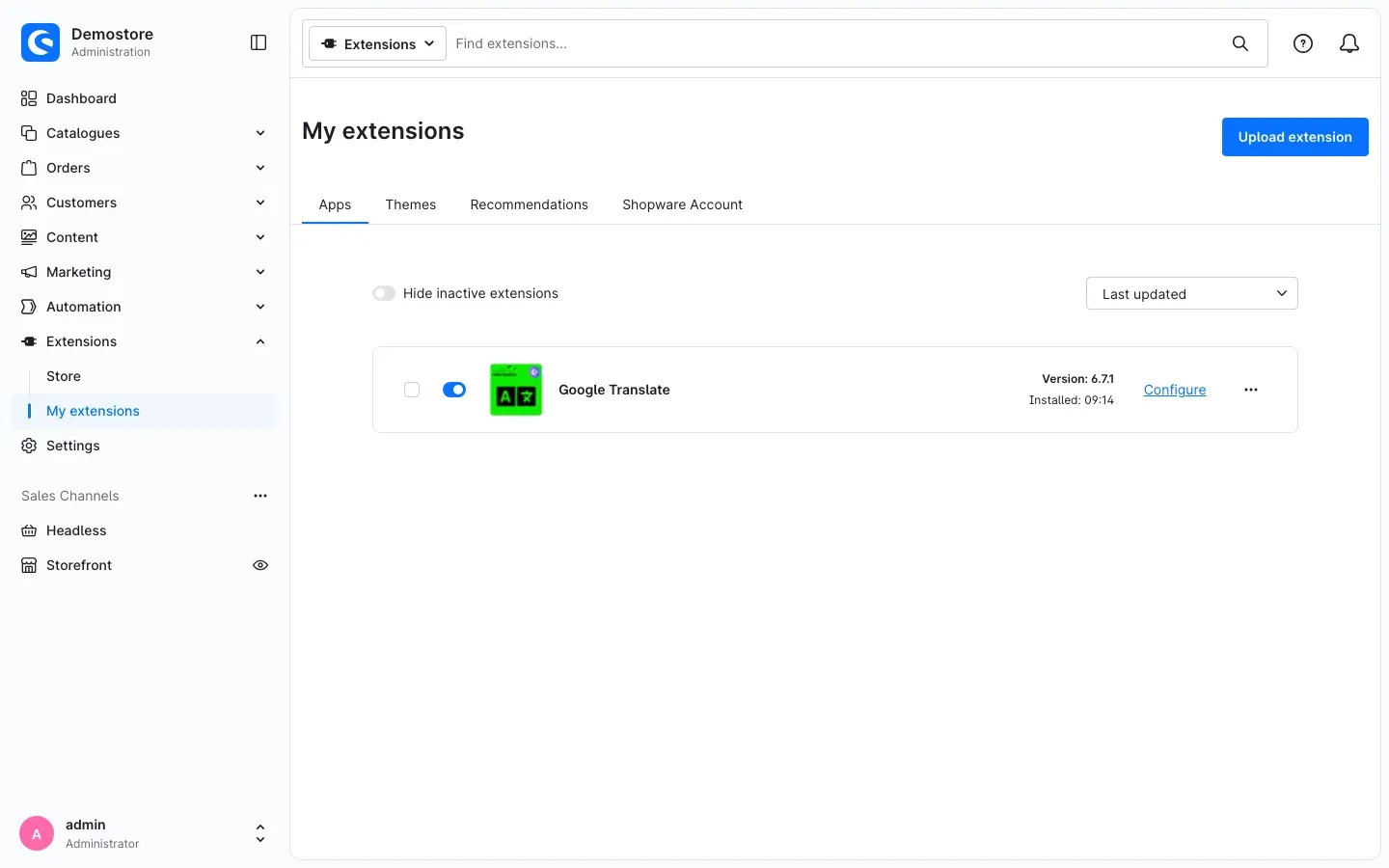 Fig. 1: The app in the “Apps” tab — the toggle is on, and the “Configure” link is on the right.
If Google Translate does not appear in the list, your Shopware account is not yet connected to the shop. You do this under Extensions → My extensions by logging in with your Shopware account.
Important: After installation, the app is not visible in any sales channel. In the next step you switch it on for the sales channels you want.
Getting Started
Three steps make the selector appear in your shop:
- Open the settings: Under Extensions → My extensions, click Configure next to Google Translate.
- Choose the sales channel and switch it on: At the top under Sales Channel, select your shop (for example “Storefront”), switch on Enable app for this sales channel and choose the languages you want to offer under Languages offered in Google Translate. Click Save.
- Check the result: Open your shop and agree to the Google Translate entry in the cookie notice — the Select Language selector then appears at the top right.
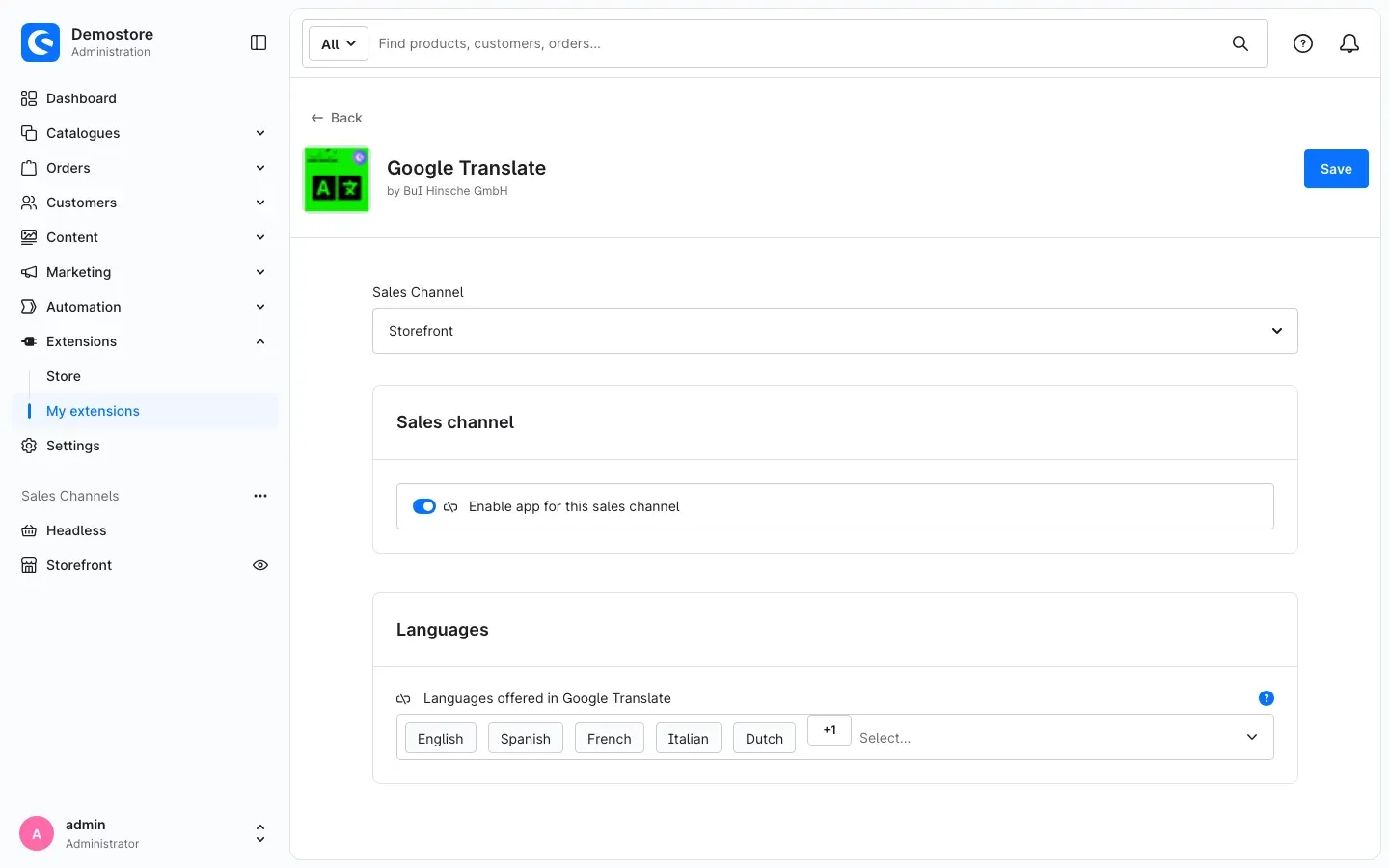 Fig. 2: The app settings, here for the “Storefront” sales channel.
Settings
You open the settings under Extensions → My extensions → Apps via the Configure link next to Google Translate. The page has two sections: Sales channel and Languages.
Sales Channel
At the very top, under Sales Channel, you choose which shop you are editing. All Sales Channels sets values that apply to every sales channel unless you enter something specific there. If you choose a specific sales channel, the values apply only there.
Why this is useful: If you run a wholesale shop and a retail shop, for example, you offer the selector only in the retail shop and leave the wholesale shop unchanged.
Enable app for this sales channel
The Enable app for this sales channel toggle in the Sales channel section decides whether the selector appears in the selected sales channel. By default the toggle is off — the app shows nothing until you deliberately switch it on.
Why this is useful: You switch the translation on or off per sales channel without uninstalling the app.
Languages offered in Google Translate
In the Languages offered in Google Translate field in the Languages section, you choose the languages your visitors find in the selector. Click into the field to open the list and select the languages you want one after another. The list contains 81 languages. Selected languages appear as small boxes in the field; the small cross on a box removes that language again.
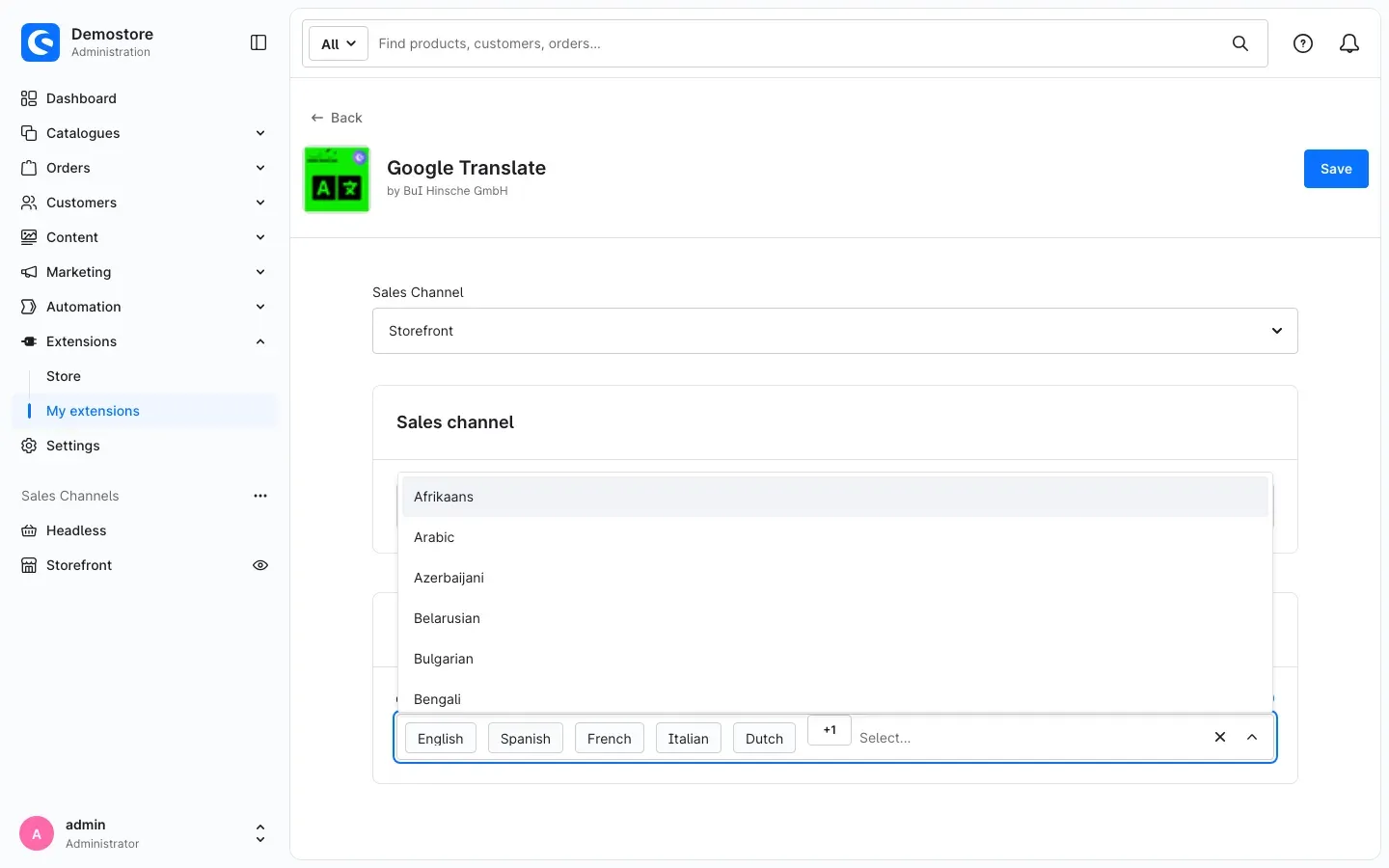 Fig. 3: The opened language list.
Without at least one selected language, the selector stays hidden in the shop — even if Enable app for this sales channel is switched on.
Why this is useful: You offer exactly the languages your visitors actually come from, instead of an endless list.
Tip: Google does not offer the language the visitor is currently viewing the shop in. If you select English and the visitor is in the English part of your shop, English is missing from their selector.
Remember to click Save after every change.
How to Use the Features
How your visitors agree to the translation
What this gives you: Google is only loaded once your visitor allows it. Before that, their browser sends no data to Google.
The app adds its own entry Google Translate to the Shopware cookie notice. Your visitor finds it after clicking Configure in the cookie notice. If they switch on Google Translate and click Save, the page reloads and the selector appears.
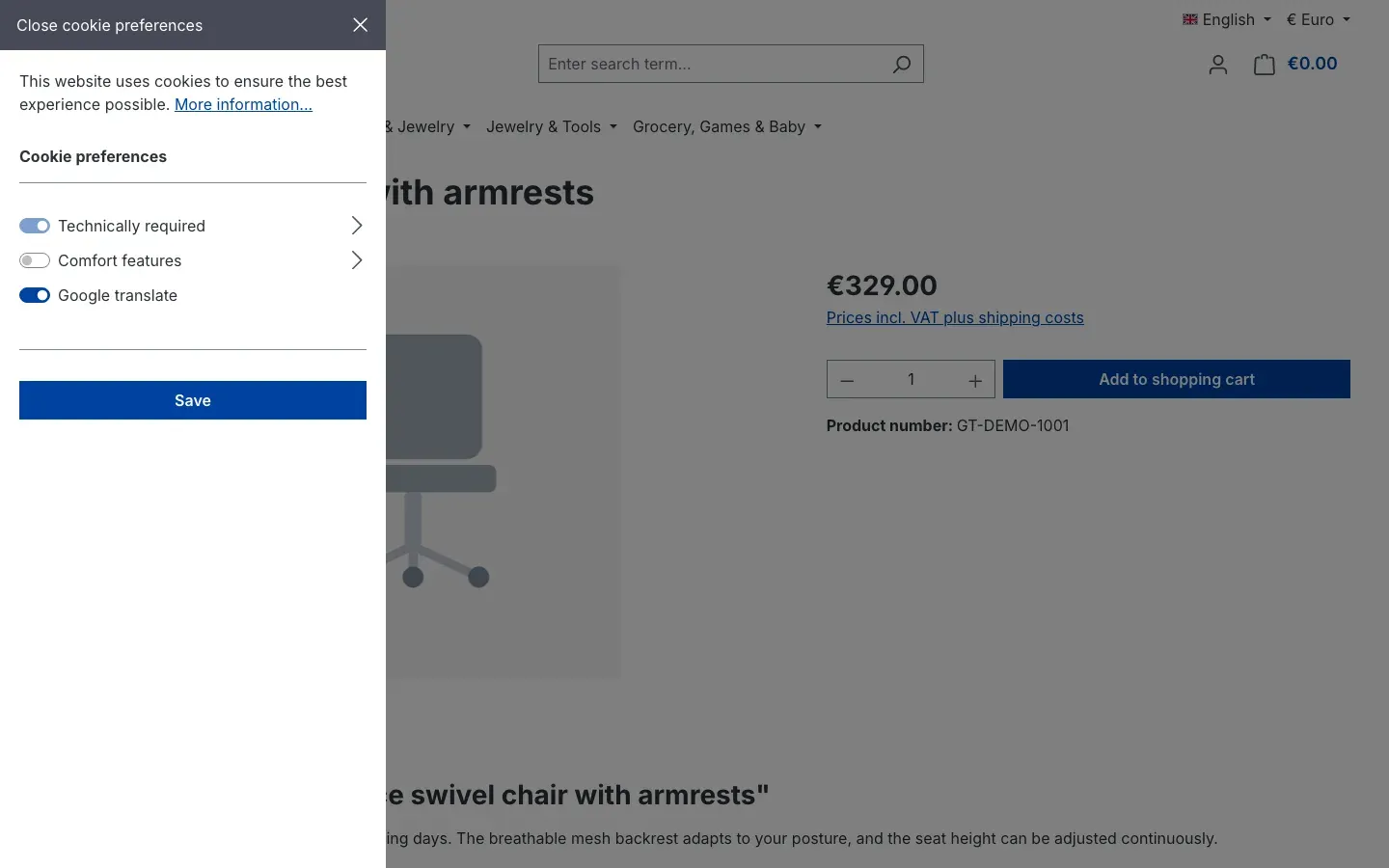 Fig. 4: The “Google Translate” entry in your shop’s cookie preferences.
If the visitor withdraws their consent later, the page also reloads and the selector is no longer loaded. The consent is valid for 30 days.
Important: If your visitor only allows the technically required cookies, they will not see a selector. This is intended — without consent, Google is not loaded.
What the selector looks like in your shop
What this gives you: Your visitors find the translation in a fixed, clearly visible place at the top right of the shop.
After consent, the Select Language selector sits in the top bar of your shop, right in front of the language and currency switcher.
 Fig. 5: “Select Language” in the top bar next to “English” and “Euro”.
Clicking it opens the list of languages you selected in the settings.
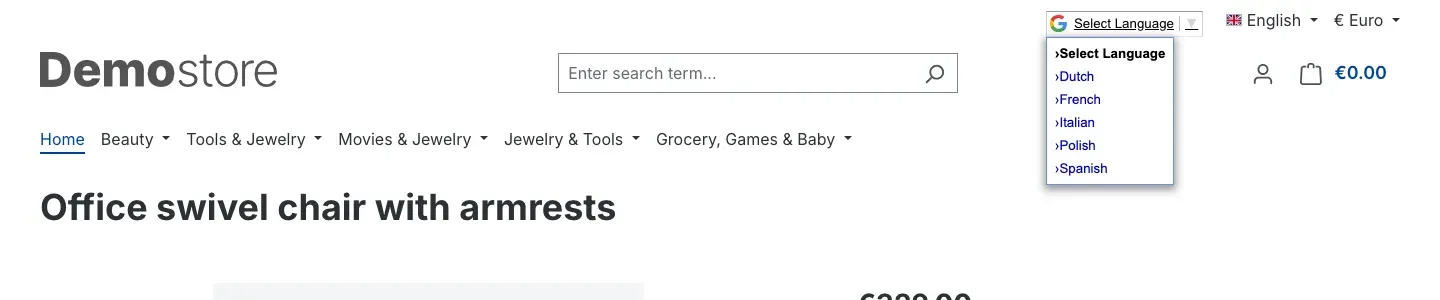 Fig. 6: Only the languages from your settings are offered.
So that the selector also fits on medium-sized screens, the app hides Shopware’s language and currency switcher as long as the browser window is narrower than 1,200 pixels. On wider screens, all three sit side by side.
What a translated page looks like
What this gives you: Your visitor understands product descriptions, prices and controls even though you maintain the page in one language only.
When your visitor picks a language, Google Translates the entire page in their browser: navigation, product name, description, buttons and price notes. At the top of the browser window, Google’s bar appears with Translated to: and the Show original button, which takes the visitor back to the original language at any time. The chosen language is kept while the visitor continues browsing the shop.
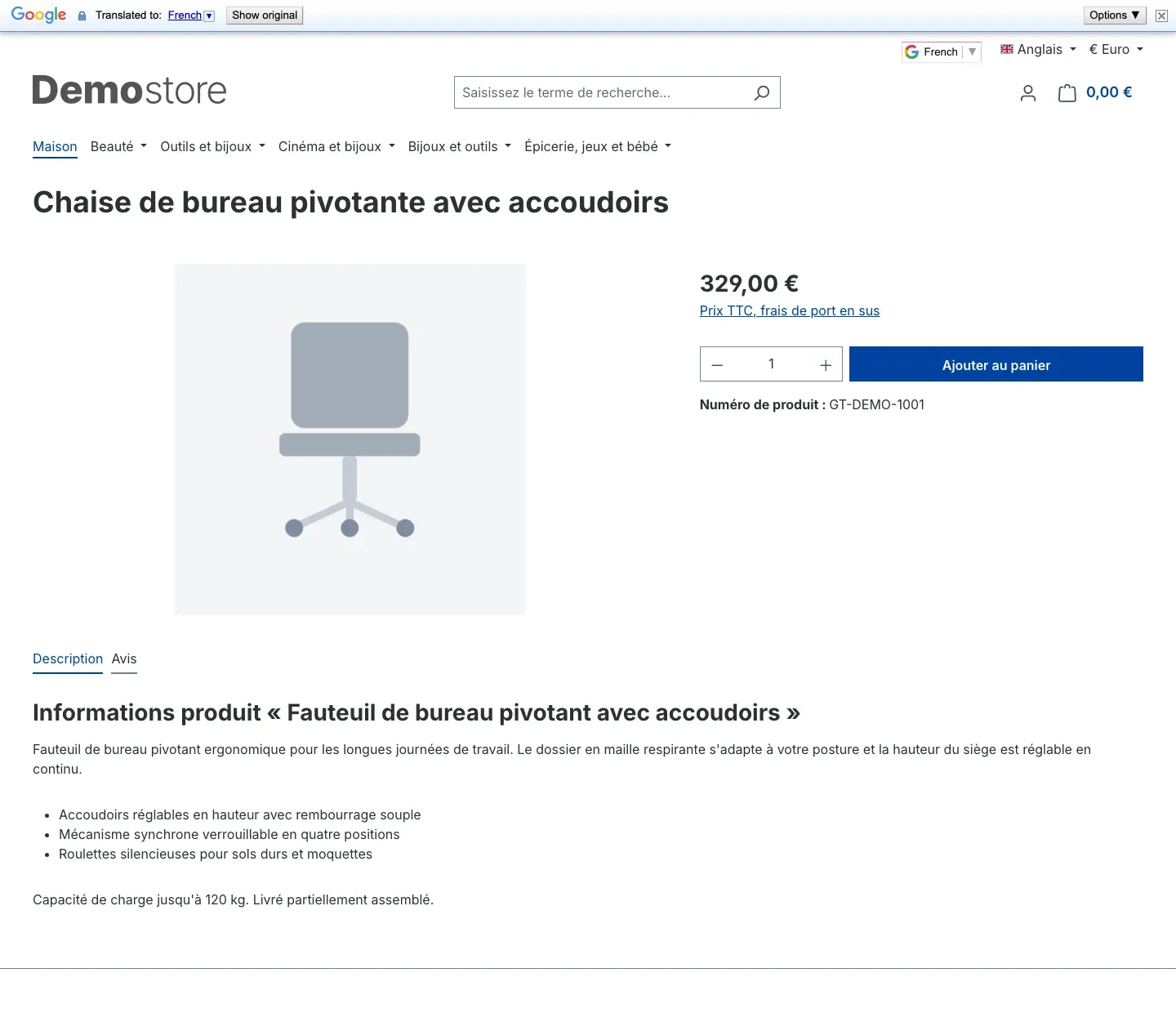 Fig. 7: The product page after choosing “French” — Google’s bar at the top, and the selector now shows “French”.
Good to know: Google Translates every piece of text on the page — including the label of your Shopware language switcher (in the picture, “English” becomes “Anglais”). Your Shopware language itself does not change.
The selector in the checkout
What this gives you: Anyone who gets stuck in the checkout switches the language there instead of abandoning the purchase.
In the checkout, Shopware shows a slim header without a top bar. The app additionally places the Select Language selector at the top right there.
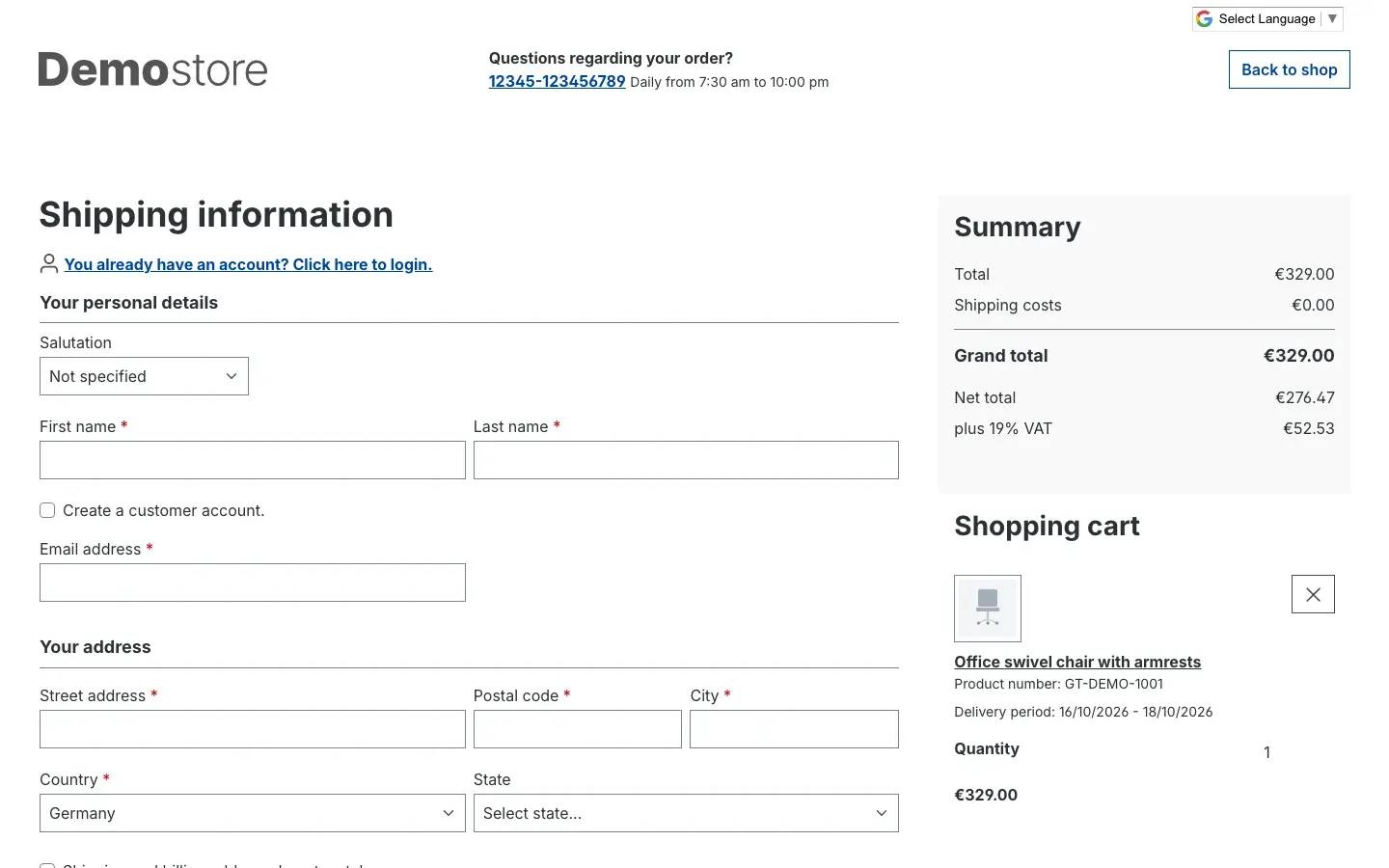 Fig. 8: The checkout with “Select Language” at the top right above “Back to shop”.
The selector on smartphones
What this gives you: Mobile visitors can reach the translation too.
Shopware normally hides the top bar on small screens. The app shows it there as well, so the selector stays reachable. It then sits above the logo; the language and currency switcher are hidden.
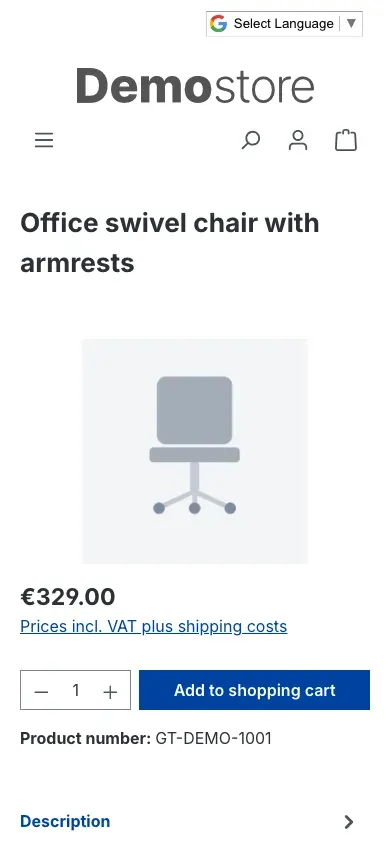 Fig. 9: On a smartphone, “Select Language” appears above the logo.
Note for ThemeWare
The app places the selector in the top bar of your shop. If you use a ThemeWare theme, the top bar must be switched on in the theme settings — otherwise there is no room for the selector in the header. Themes that completely replace the top bar or the checkout header with their own elements may not show the selector. Check this in your shop after installation.
Limits of Machine Translation
The app embeds Google’s translation tool. This comes with limits you should know about:
- Machine translation: Google Translates automatically. This is usually enough to understand product pages; with technical terms, wordplay and legal texts, Google is sometimes off.
- Proper names: Shop names, brands and product names often stay untranslated or are translated literally.
- Look cannot be customised: The design, labels and language of the selector, as well as the bar at the top of the browser, come from Google. The app only decides where the selector sits and which languages it offers. Which language the selector itself is labelled in (for example “Select Language” or “Sprache auswählen”) is decided by Google based on the visitor’s location and browser.
- Browser only: The translation happens on the visitor’s side and is not stored in your shop. Search engines continue to see your original texts, so the app does not add visibility in search results.
- No replacement for a Shopware language: Emails, invoices and other documents stay in your shop’s language. For your core markets, a maintained Shopware language is the better choice.
- Data protection: Google is a third-party provider. After consent, your visitor’s browser loads Google’s script; from then on, Google processes the page content and the visitor’s usual connection data. Add Google Translate to your privacy policy. The app does not take the legal assessment for your shop off your hands — clarify its use with qualified legal counsel.
- Connection to Google: If Google cannot be reached by the visitor (for example due to a firewall or an ad blocker), the selector does not appear.
Troubleshooting
The selector does not appear in the shop
Cause: Usually one of three conditions is missing: the toggle is off, no language is selected, or the visitor has not agreed to the Google Translate cookie.
How to fix it:
- Open Extensions → My extensions → Apps and click Configure next to Google Translate.
- At the top under Sales Channel, select exactly the sales channel you are testing in.
- Check that Enable app for this sales channel is on and that at least one language is listed under Languages offered in Google Translate. Click Save.
- Open your shop, click Configure in the cookie notice, switch on Google Translate and click Save.
- If that does not help, clear the cache: Settings → System → Caches & indexes → Clear cache.
The selector is missing even though everything is switched on
Cause: Google’s script is blocked — for example by an ad blocker, a firewall or a privacy extension in the browser — or your theme hides the top bar.
How to fix it: Test in another browser without extensions. If you use ThemeWare, switch on the top bar in the theme (see section 5.6).
Shopware’s language switcher has disappeared
Cause: This is intended. With a browser window narrower than 1,200 pixels, the app hides the language and currency switcher so the selector has room.
How to fix it: Both reappear on wider screens. If you need Shopware’s language switcher on narrow screens too, switch the app off for that sales channel.
A language is missing from the selector
Cause: Either you did not select it in the settings, or it is the language the visitor is currently viewing the page in — Google does not offer that one.
How to fix it: Add the language under Languages offered in Google Translate in the correct sales channel and click Save.
FAQ
Q: Does the app translate my product texts permanently?
A: No. Google Translates the page only in the visitor’s browser. Nothing is stored or changed in your shop.
Q: Do I need a Google account or a key from Google?
A: No. The app embeds Google’s public translation tool. You do not enter any credentials.
Q: Can I offer different languages per sales channel?
A: Yes. You set the toggle and the language selection for each sales channel separately. A sales channel can also stay without a selector entirely.
Q: Can I customise the look of the selector?
A: No. The design and texts of the selector come from Google. The app only decides where it sits and which languages it offers.
Q: Why does the selector say “Sprache auswählen” although my shop is in English?
A: Google chooses the selector’s label based on the visitor’s location and browser, not on your shop’s language. A visitor from Germany may see “Sprache auswählen”, a visitor from the UK “Select Language”.
Q: What happens if a visitor withdraws their consent?
A: The page reloads, and Google’s script is no longer loaded. The selector disappears.
Q: Are emails and invoices translated?
A: No. The translation only affects the pages the visitor views in the browser.
Q: What happens when I uninstall the app?
A: The selector and the cookie entry disappear from your shop. The app creates no tables of its own and stores no customer data.
For Administrators / Technical Details
This section is aimed at technical administrators. You do not need it for normal use.
System requirements
- Shopware: 6.7
- The app needs no app server of its own and no files on your web space; it also runs in Shopware Cloud.
Installation without the store (self-hosted)
If you run Shopware yourself and received the app as a directory, place it under custom/apps/SwpGoogleTranslateApp and install it on the command line:
php bin/console app:refresh
php bin/console app:install --activate SwpGoogleTranslateApp
php bin/console theme:compile
php bin/console cache:clear
Cookie
The app registers the Google Translate entry in the Shopware cookie notice. After consent, it sets the googleTranslateSix cookie with a lifetime of 30 days. Only then does the browser load the script from translate.google.com. The shop server itself sends no data to Google.
Display
The app forces Shopware’s top bar to show at every screen width and hides Shopware’s language and currency switcher below 1,200 pixels. In the checkout, the selector sits in the slim header.
This manual was written for Google Translate (App) version 6.7.1.
More manuals
Admin Password Reminder
Admin Password Reminder: your backend users renew their passwords on time, prompted after login and by a daily email. Premium locks expired accounts until the password is changed.
Open manual Shopware 6Age Check
Tobacco, spirits, knives: visitors who do not confirm their age never see the restricted items at all. You tick a box per product, the plugin hides it everywhere.
Open manual Shopware 6AI Media Labelling
AI labelling for images and videos: flag a media item once in the media manager and the badge with your notice appears wherever it shows up in your shop. No template work needed.
Open manualNeed a team that keeps your shop running?
We have been maintaining Shopware shops for more than 20 years, including updates, hotfixes and the plugins you are configuring right now.