
Image Gallery: Grid, Masonry, Slider and Lightbox
Image gallery that fills itself: point it at a media folder or a tag. Show it as grid, masonry or slider with lightbox in shopping experiences and on product pages.
On this page
- Introduction
- What you achieve with this plugin
- Who is this plugin for?
- Installation
- Getting started
- Settings
- Enable plugin for this sales channel
- Use file name as image title
- Media custom field for the link URL and Media custom field for the link text
- Settings for the product detail page
- How to manage your galleries
- Edit, duplicate or delete a gallery
- How to create a gallery
- General tab: name, description and title image
- Images tab: where the images come from
- Add and sort single images
- Maintain image texts and links
- Gallery from a media folder
- Gallery from tags
- Assignment tab: products and sales channels
- How to show a gallery in a shopping experience
- Add the block
- Configure the element
- How to show galleries on product pages
- What the gallery looks like in your shop
- The four views
- The large view (lightbox)
- On smartphones
- Permissions for your team
- Multiple sales channels and languages
- Sales channels
- Languages
- Troubleshooting
- The “Image galleries” entry is missing under Content
- The gallery does not appear in the shop
- No gallery appears on the product page
- The folder or tag gallery finds no images
- A link is not accepted
- Changes do not appear in the shop right away
- FAQ
- For administrators / Technical details
- System requirements
- Installation via the command line
- Data and media
- Store API (headless, Composable Frontends)
- Cache
- Data protection
Introduction
With Image Gallery: Grid, Masonry, Slider and Lightbox you create image galleries once and show them wherever they belong: in shopping experiences and directly on product pages.
What you achieve with this plugin
- You maintain a gallery in one place and use it in as many shopping experiences and on as many product pages as you like. Replace an image once and it is replaced everywhere.
- Your gallery can fill itself: you pick a media folder or a tag, and new files appear in the gallery automatically.
- You choose the right view: Grid, Masonry, Justified rows or Slider with five effects.
- Your customers open every image in a large view (lightbox) with zoom, swipe gestures, caption and thumbnail strip — on smartphones, too. Videos play right inside it, documents such as PDFs can be downloaded.
- Single images can get their own title, description and link, for example to the matching category — in every language of your shop.
Who is this plugin for?
For shop owners and editors who want to show references, projects, use cases, events or a look behind the scenes without putting each gallery together again in every shopping experience. The plugin does not replace the product images at the top of the product page — galleries are shown in addition.
Installation
After the purchase, the plugin is available in your Administration right away — there is nothing to download.
- Log in to your Shopware Administration (
yourshop.com/admin). - Open Extensions → My extensions.
- Next to Image Gallery: Grid, Masonry, Slider and Lightbox, click Install.
- Activate the plugin with the switch to the left of the entry — done.
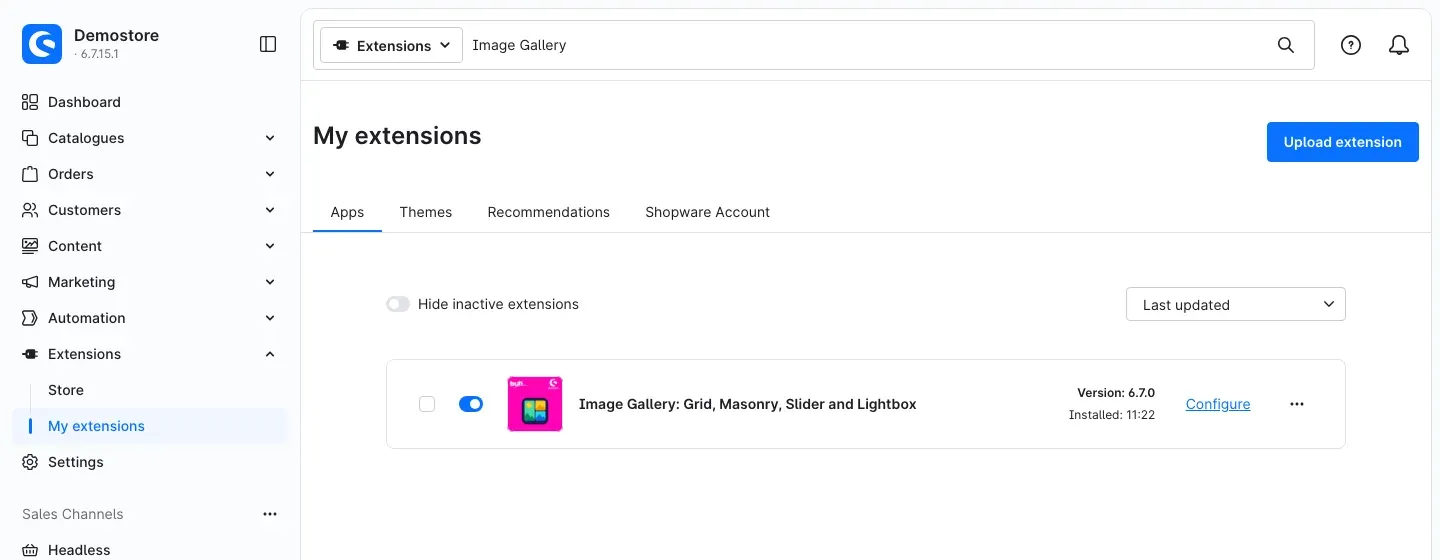 Fig. 1: The plugin under Extensions → My extensions — installed, active and with the “Configure” link
If the plugin does not show up in the list, your Shopware account is not yet connected to the shop. You do this under Extensions → My extensions in the Shopware Account tab.
After the installation, you will find the new entry Image galleries under Content in the Administration.
Getting started
Four steps to your first gallery in the shop:
- Create a gallery: Open Content → Image galleries and click Add gallery. Enter a name and choose the image source on the Images tab — for example an existing media folder. Click Save (chapter 6).
- Add it to a shopping experience: Open your layout under Content → Shopping Experiences, add the Image gallery block from the Images block category and select your gallery (chapter 7).
- Or assign it to a product: On the gallery’s Assignment tab, select the products on whose pages it should appear (chapter 8).
- Check the result: Open the page in your shop. Clicking an image opens the large view.
You do not need to touch the plugin settings to get started. They mainly control how galleries appear on product pages.
Settings
You open the settings under Extensions → My extensions via the Configure link next to the plugin.
At the top, choose under Sales Channel which shop the settings apply to. All Sales Channels sets the default; for a single sales channel you can override every setting. This way you can show galleries as their own tab in your B2C shop, for example, and not at all in your B2B shop.
The Open documentation button takes you straight to this manual.
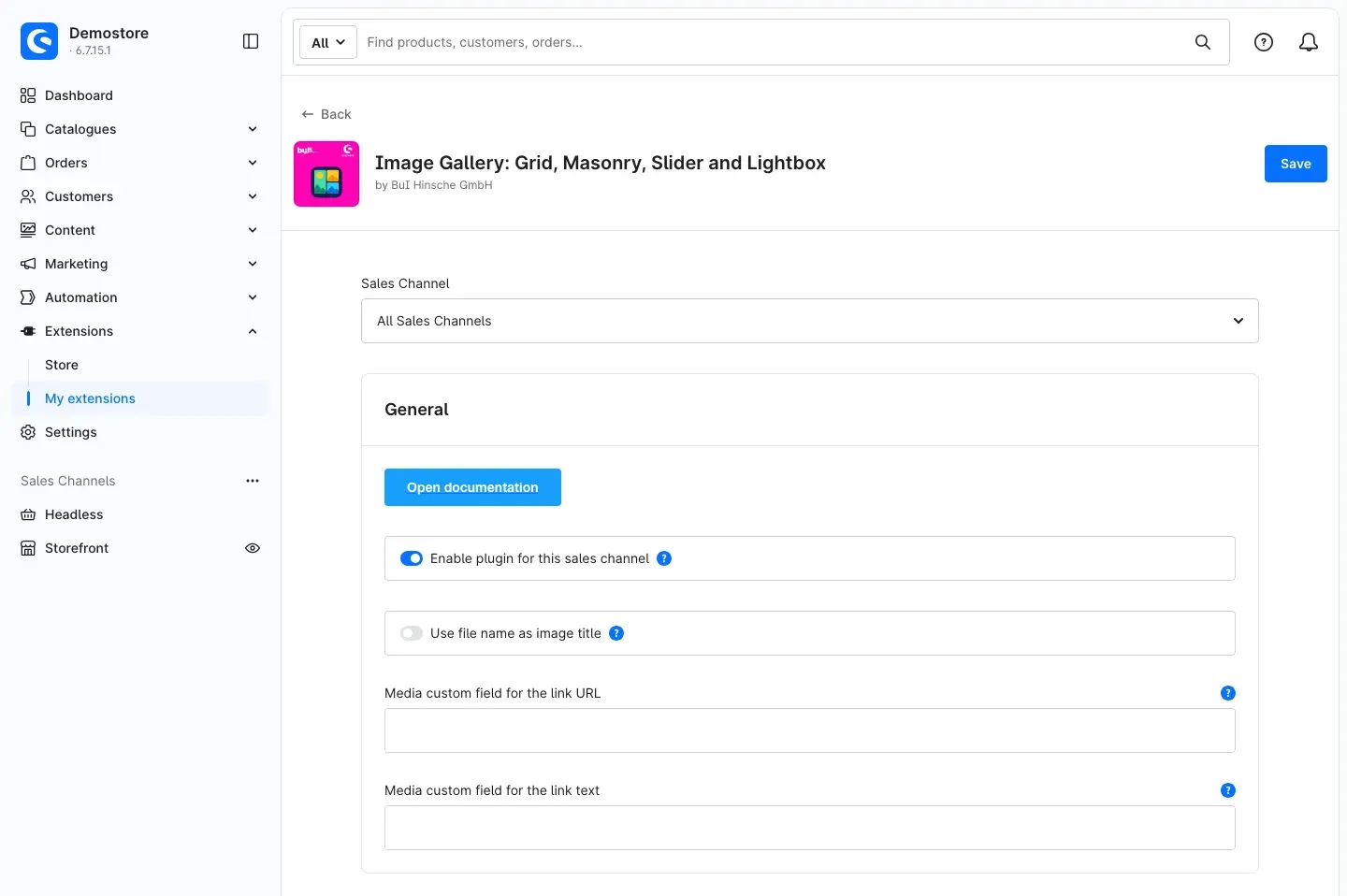 Fig. 2: The configuration with the sales channel selection and the “General” section
Enable plugin for this sales channel
The Enable plugin for this sales channel switch decides whether galleries appear in this sales channel at all. It is switched on by default. If you switch it off, the sales channel no longer shows any gallery — neither in shopping experiences nor on product pages nor in connected frontends.
Why this is useful: You run several shops and want to show galleries in only one of them without uninstalling the plugin.
Use file name as image title
If Use file name as image title is switched on, the gallery shows the file name (without extension) as title and caption — but only if neither the gallery image nor the media library has a title. The switch is off by default.
Why this is useful: Your files already have meaningful names such as “Kitchen-Oak-Country” and you do not want to enter every title by hand.
Media custom field for the link URL and Media custom field for the link text
Both fields are optional. If you already maintain links in your own custom fields on your media (for example from a previous gallery plugin), enter the technical name of these custom fields here. You find it under Settings → System → Custom fields. The plugin then reads the link and the button text from these fields.
The fields apply to galleries from media folders and tags, and wherever the gallery image itself has no link. If such a link points to an external website, it opens in a new window.
Why this is useful: You are switching from another gallery plugin and keep your existing links without entering them again.
Settings for the product detail page
In the Product detail page section you decide where and how galleries appear that you have assigned to a product. These values do not apply to shopping experiences — there you set everything directly on the block (chapter 7).
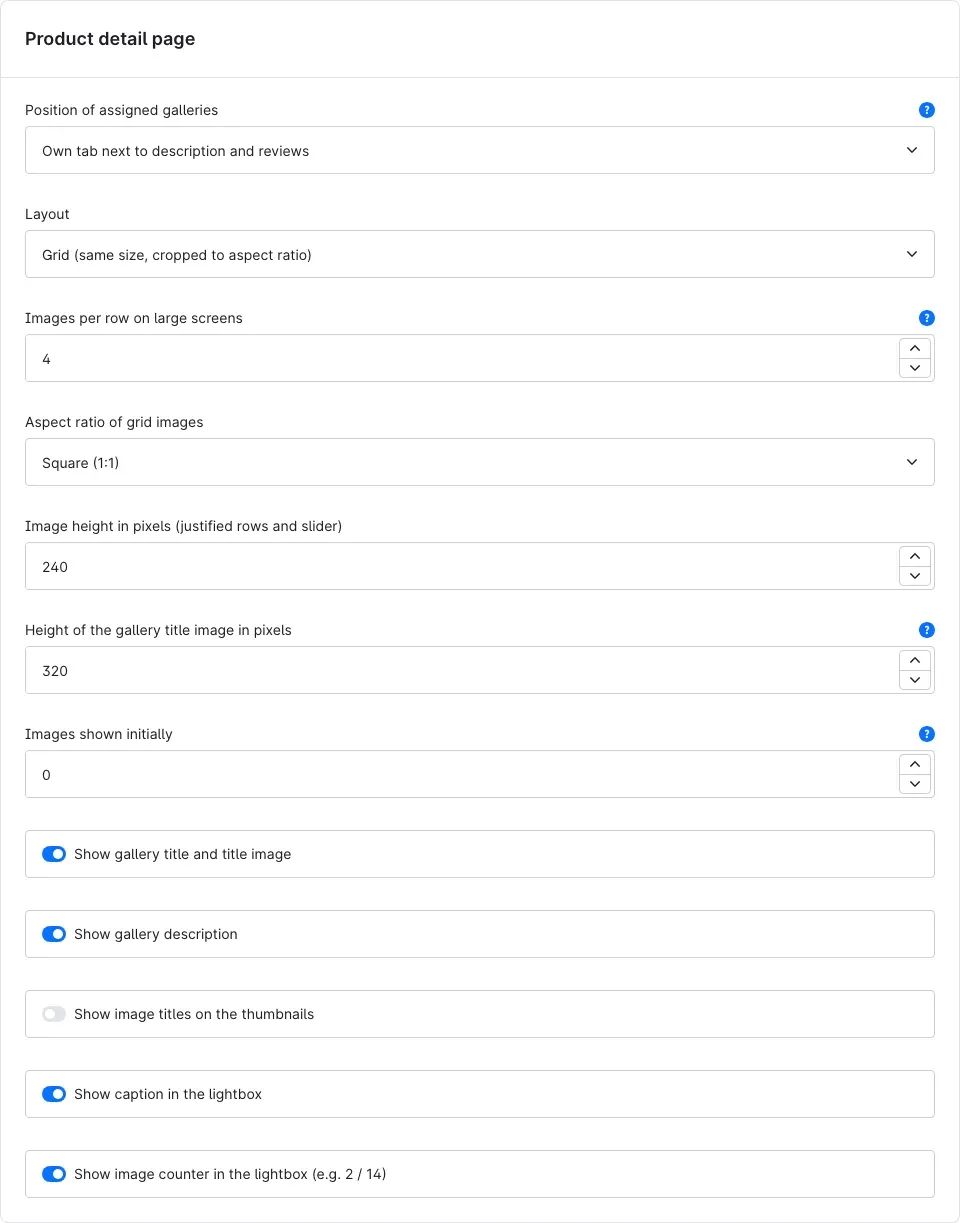 Fig. 3: The “Product detail page” section
Position of assigned galleries — where the gallery appears on the product page:
- Own tab next to description and reviews (default): the gallery gets its own Gallery tab.
- Below the buy button: the gallery sits in the buy box right below the add-to-cart button.
- Below the product description: the gallery follows the description text on the Description tab.
- Do not show: assigned galleries do not appear on product pages in this sales channel.
Layout — the view on the product page: Grid (same size, cropped to aspect ratio) (default), Masonry (columns, original image format), Justified rows (equal height, full width) or Slider. Chapter 9 shows how the views differ.
Images per row on large screens — how many images sit side by side (1 to 12, default 4). Applies to grid, masonry and slider. Smaller screens automatically show fewer: at most 4 on tablets, at most 2 on smartphones.
Aspect ratio of grid images — the format grid images are cropped to: Square (1:1) (default), Landscape (4:3), Landscape (3:2), Widescreen (16:9), Portrait (3:4), Portrait (2:3) or Original (no cropping).
Image height in pixels (justified rows and slider) — how tall the images are in these two views (80 to 1200, default 240).
Height of the gallery title image in pixels — how tall the title image above the gallery is (default 320). With 0 it appears in its original height.
Images shown initially — how many images are visible right away. The rest appear via the Show more button. With 0 (default) all images are shown at once.
The switches below show or hide content:
- Show gallery title and title image (default: on)
- Show gallery description (default: on)
- Show image titles on the thumbnails (default: off)
- Show caption in the lightbox (default: on)
- Show image counter in the lightbox (e.g. 2 / 14) (default: on)
Click Save at the top right after every change.
Good to know: On the product page the large view is always switched on, with thumbnail strip and zoom effect on hover. The slider effect used there is Slides (list).
How to manage your galleries
What you get: All galleries of your shop are in one list. You see at a glance where the images come from and which gallery is active.
Open Content → Image galleries.
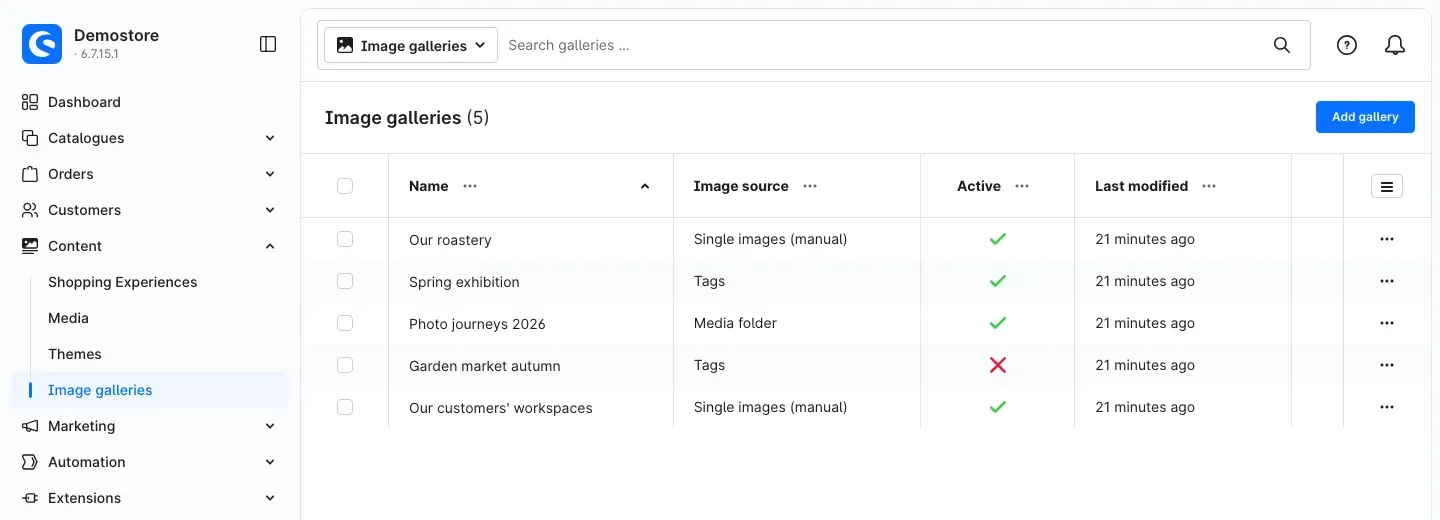 Fig. 4: The list under Content → Image galleries
For each gallery the list shows:
- Name — click it to open the gallery.
- Image source — Single images (manual), Media folder or Tags.
- Active — a green tick for active, a red cross for inactive galleries. Inactive galleries do not appear anywhere in the shop.
- Last modified
Use the search bar at the top (Search galleries …) to find a gallery by its name.
Edit, duplicate or delete a gallery
Click … at the end of a row. The menu offers:
- Edit — opens the gallery.
- Duplicate — creates a copy with all images, texts and assignments and opens it right away. The copy starts out inactive so it does not appear twice in the shop by accident. Rename it, adjust it and then switch it to Active.
- Delete — removes the gallery. Your files in the media library are kept.
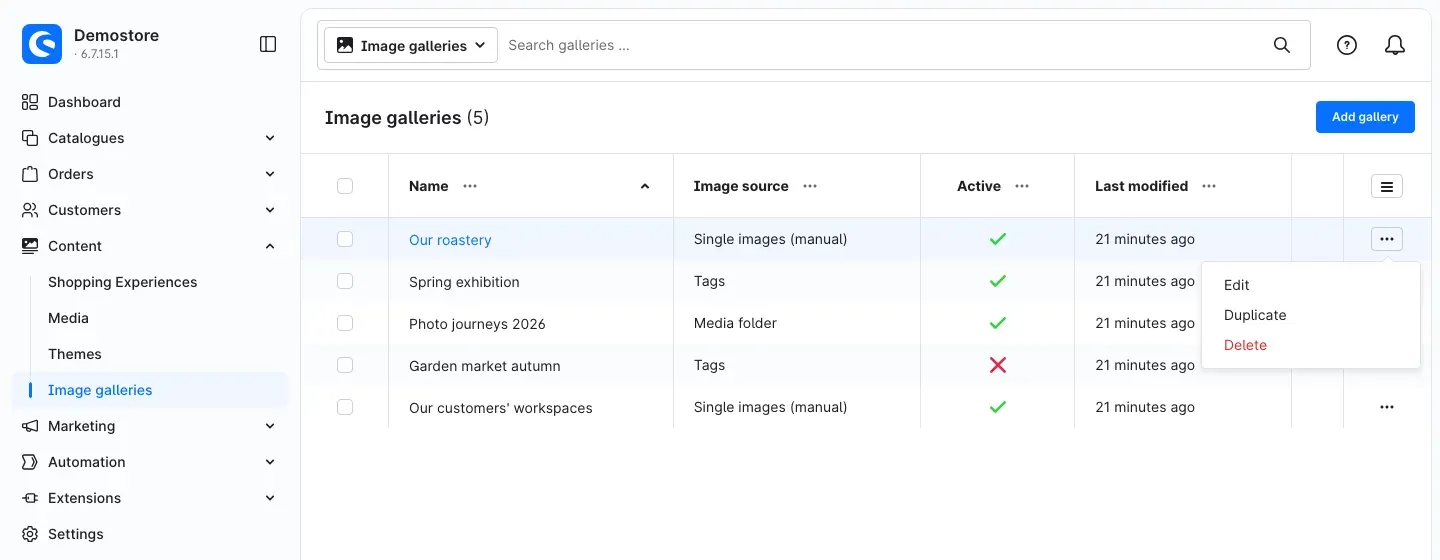 Fig. 5: The menu of a gallery in the list
To delete several galleries at once, tick their check boxes on the left.
How to create a gallery
What you get: A gallery is a record of its own with name, description, title image and images. You create it once and use it everywhere afterwards.
Under Content → Image galleries, click Add gallery. The gallery has three tabs: General, Images and Assignment.
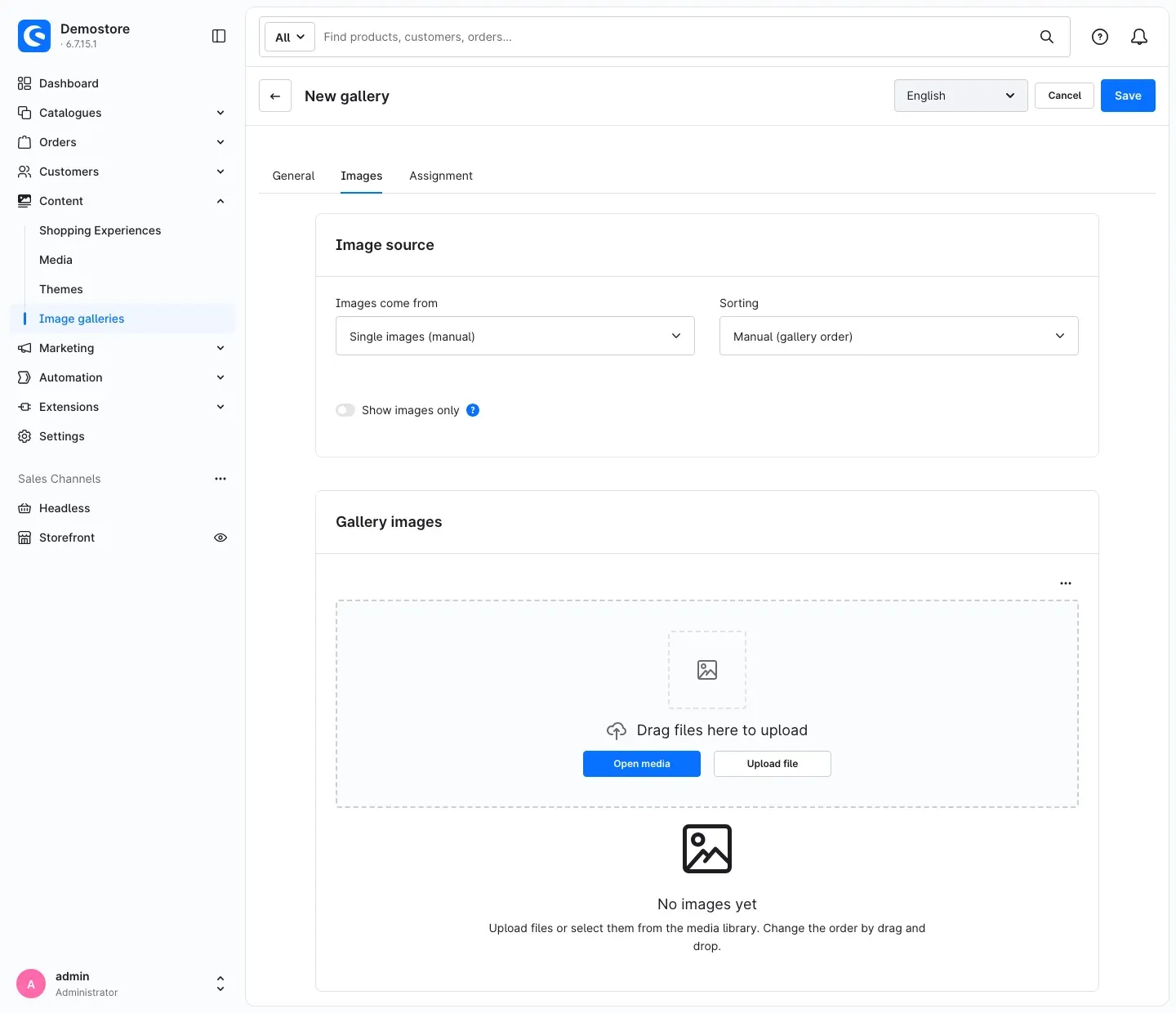 Fig. 6: A new, still empty gallery on the “Images” tab
General tab: name, description and title image
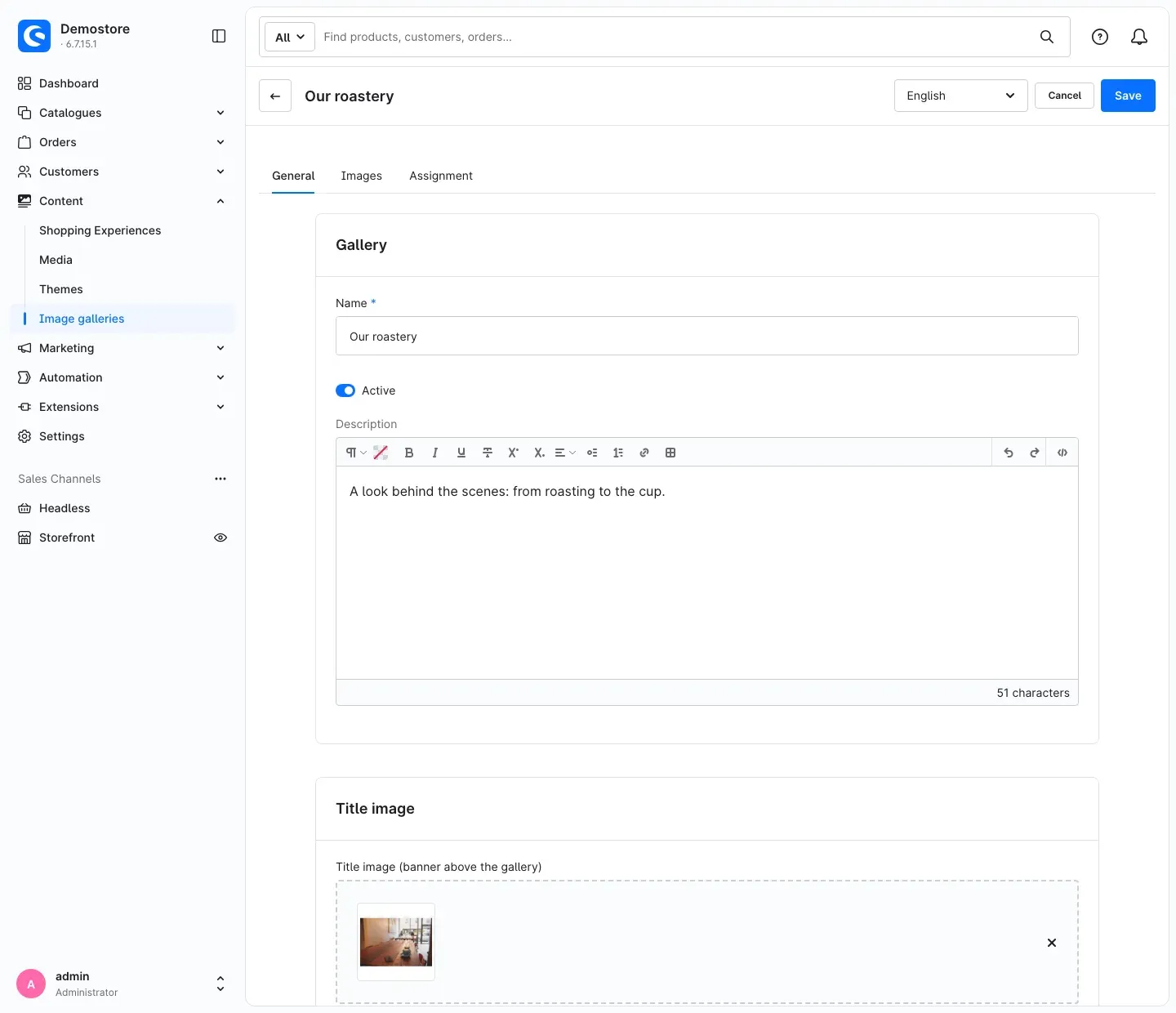 Fig. 7: The “General” tab with name, active switch, description and title image
- Name — required. The name appears in the shop as the gallery heading and helps you find the gallery in lists and selection fields.
- Active — only active galleries appear in the shop. New galleries are active.
- Description — optional text shown above the images in the shop. You can format it with the editor.
- Title image (banner above the gallery) — an optional image shown in the shop as a wide banner above the heading. Upload it or pick it from the media library.
Images tab: where the images come from
Under Images come from, choose one of three image sources:
- Single images (manual) — you put the images together yourself and decide their order.
- Media folder — the gallery shows all files of a folder from the media library.
- Tags — the gallery shows all files that carry a certain tag.
Under Sorting you set the order: Manual (gallery order) (single images only), Newest first, Oldest first, Random, File name A–Z or File name Z–A. Random reshuffles the images on every page view.
The Show images only switch hides videos, audio files and documents. If it is off, the gallery shows these files, too: videos and audio files play in the large view, documents can be downloaded or opened there.
Add and sort single images
With the image source Single images (manual) the Gallery images section appears.
- Drag files into the Drag files here to upload area or click Upload file. The plugin stores uploaded files in the media library in the “Image galleries” folder.
- Pick images that are already in your media library via Open media. You can select several files at once.
- Change the order by dragging an image to the desired position.
- Click Save.
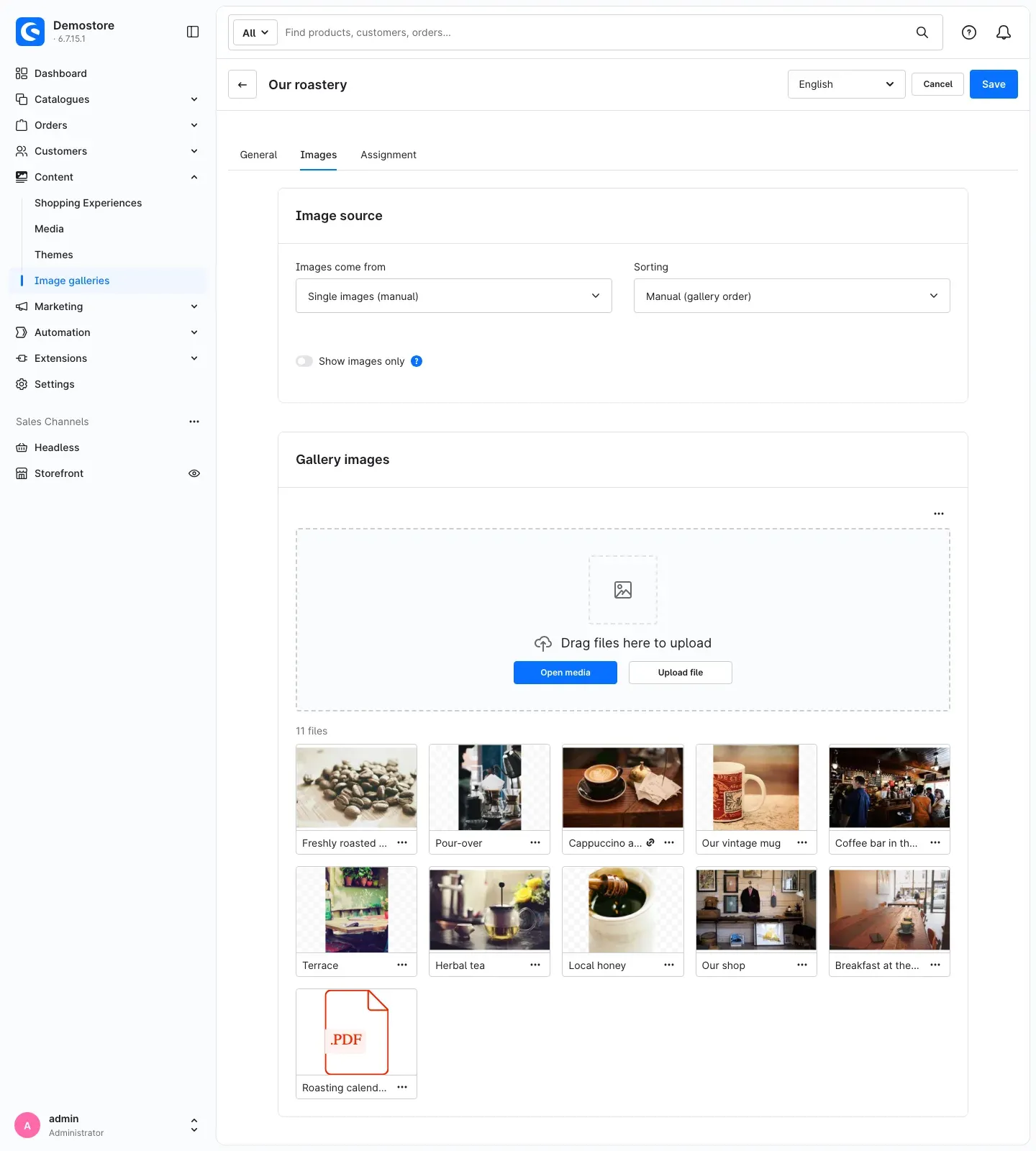 Fig. 8: A gallery of single images — the image source at the top, the images in their order below
Above the image list you see how many files the gallery contains. A small chain icon next to the title tells you that an image has a link. If you add a file that is already part of the gallery, the message This file is already part of the gallery. points this out.
Every image has its own menu (…) with two entries:
- Edit image texts and link
- Remove from gallery — takes the image out of the gallery. The file stays in the media library.
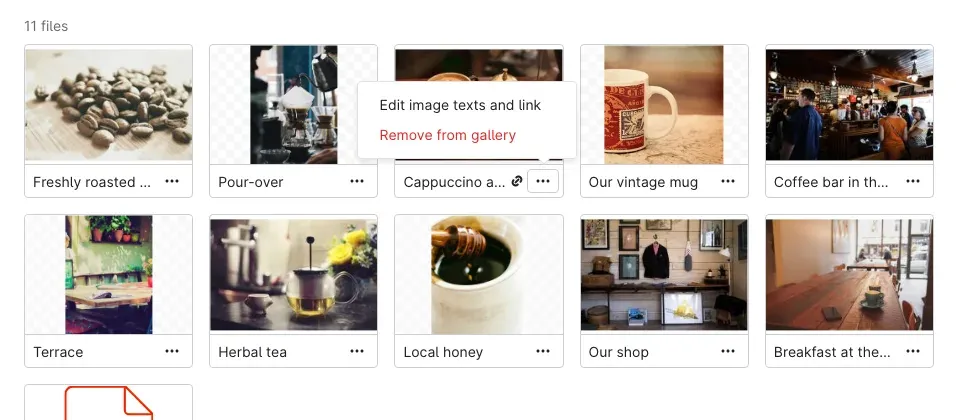 Fig. 9: The menu of a single image
Maintain image texts and links
What you get: Every image tells its own story and, if you like, leads your customers further — for example to the matching category.
In the menu of an image, choose Edit image texts and link. The Edit gallery image dialog opens:
- Title — appears in the shop below the thumbnail (if switched on) and as caption in the large view. If you leave it empty, the gallery uses the title from the media library.
- Description — a short text shown below the title in the large view.
- Link — an address the image points to. Allowed are full addresses (
https://…), paths in your shop (/category/…) as well asmailto:andtel:. - Link text — the text of the button at the image. If you leave it empty, it reads Learn more.
- Open link in a new window — opens the link in a new browser tab.
Click Apply and then Save in the gallery.
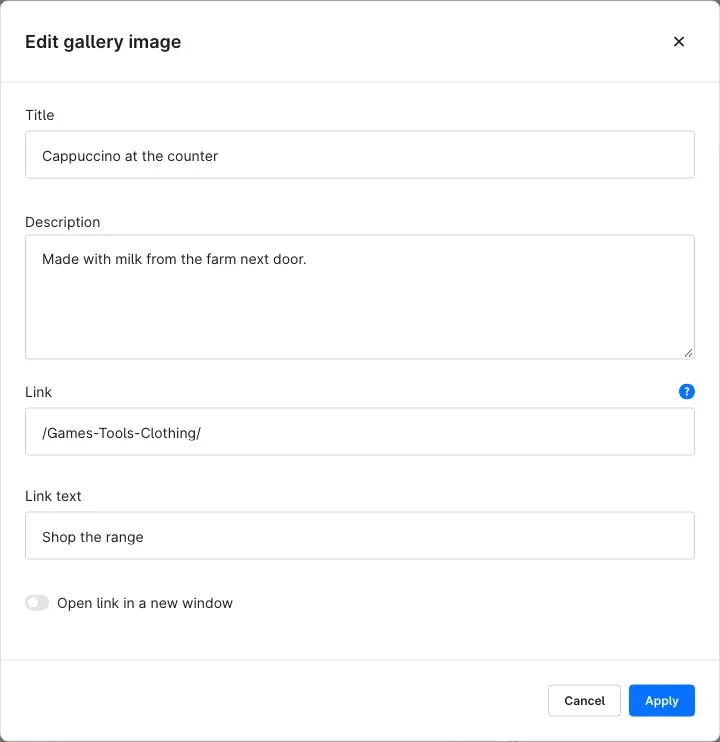 Fig. 10: Title, description and link of a single image
Important: For your safety the plugin checks every link. If you enter an address that is not allowed, the message This link is not allowed. Allowed are https://, http://, mailto:, tel: and paths starting with /. appears and the Apply button stays disabled. In the shop, too, the plugin never outputs links with other prefixes such as
javascript:.
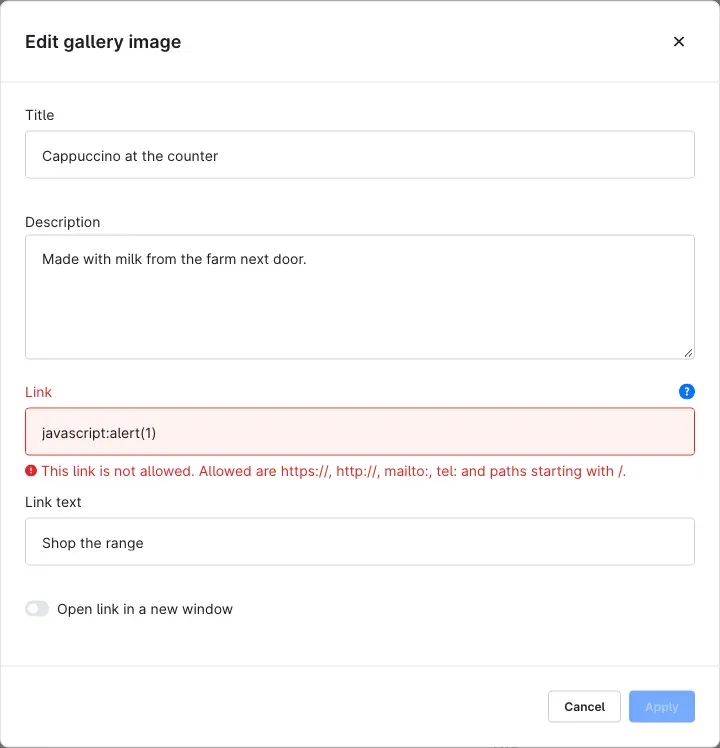 Fig. 11: A link that is not allowed is rejected
Gallery from a media folder
What you get: You simply upload new photos to the folder — the gallery shows them automatically without you opening the gallery.
- Under Images come from, choose Media folder.
- Under Media folder, choose the folder.
- Switch on Include subfolders if the files from all subfolders should appear as well.
- Choose the Sorting and click Save.
The Preview of matches section immediately shows how many files match and which ones.
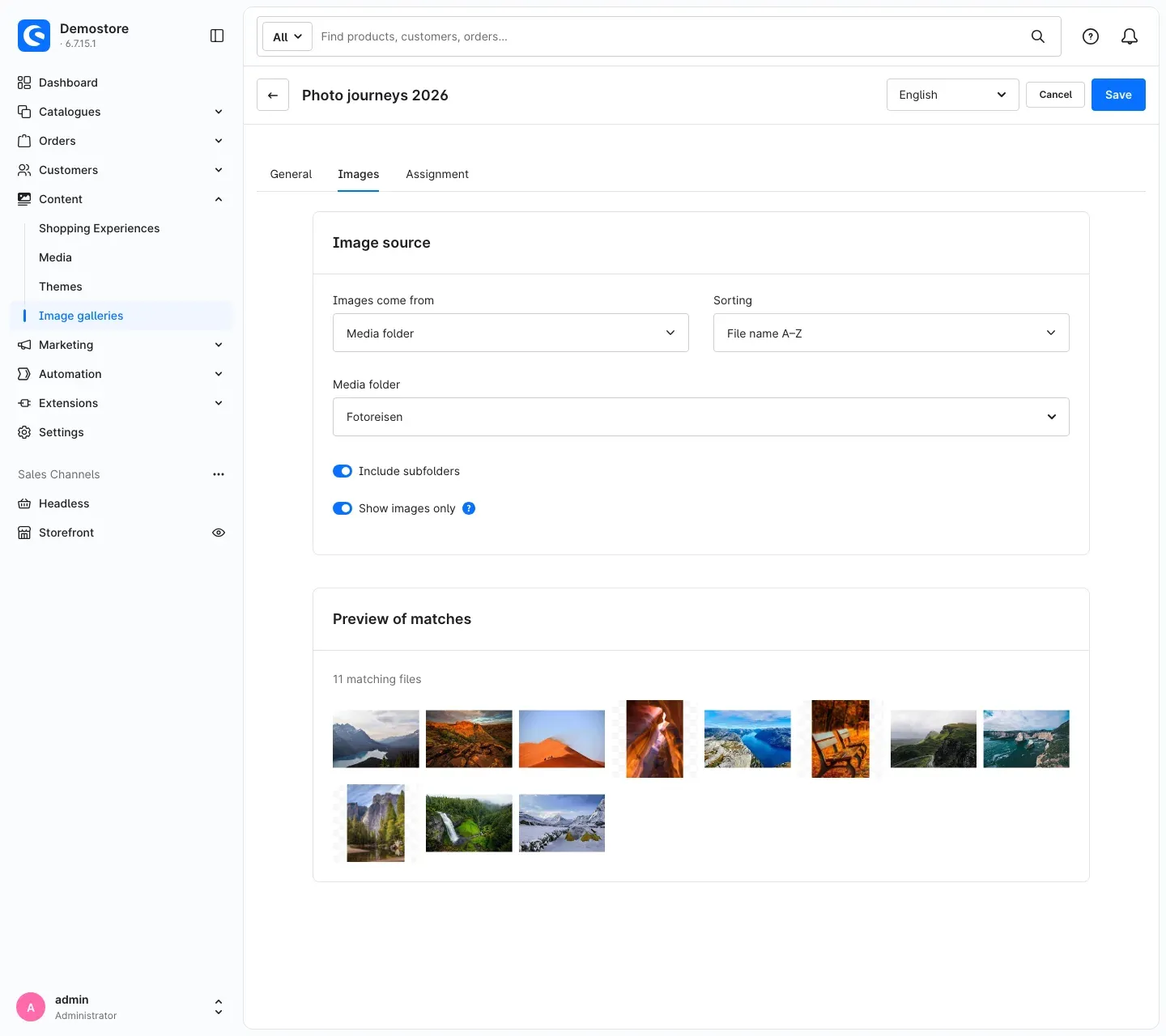 Fig. 12: A gallery from the “Fotoreisen” folder including its subfolders
Gallery from tags
What you get: You assign a tag in the media library — and the gallery collects all files with this tag, no matter which folder they are in.
- Under Images come from, choose Tags.
- Under Tags, choose one or more tags.
- Under Match, decide which files appear:
- At least one tag — every file that carries one of the selected tags.
- All tags — only files that carry all selected tags at the same time.
- Choose the Sorting and click Save.
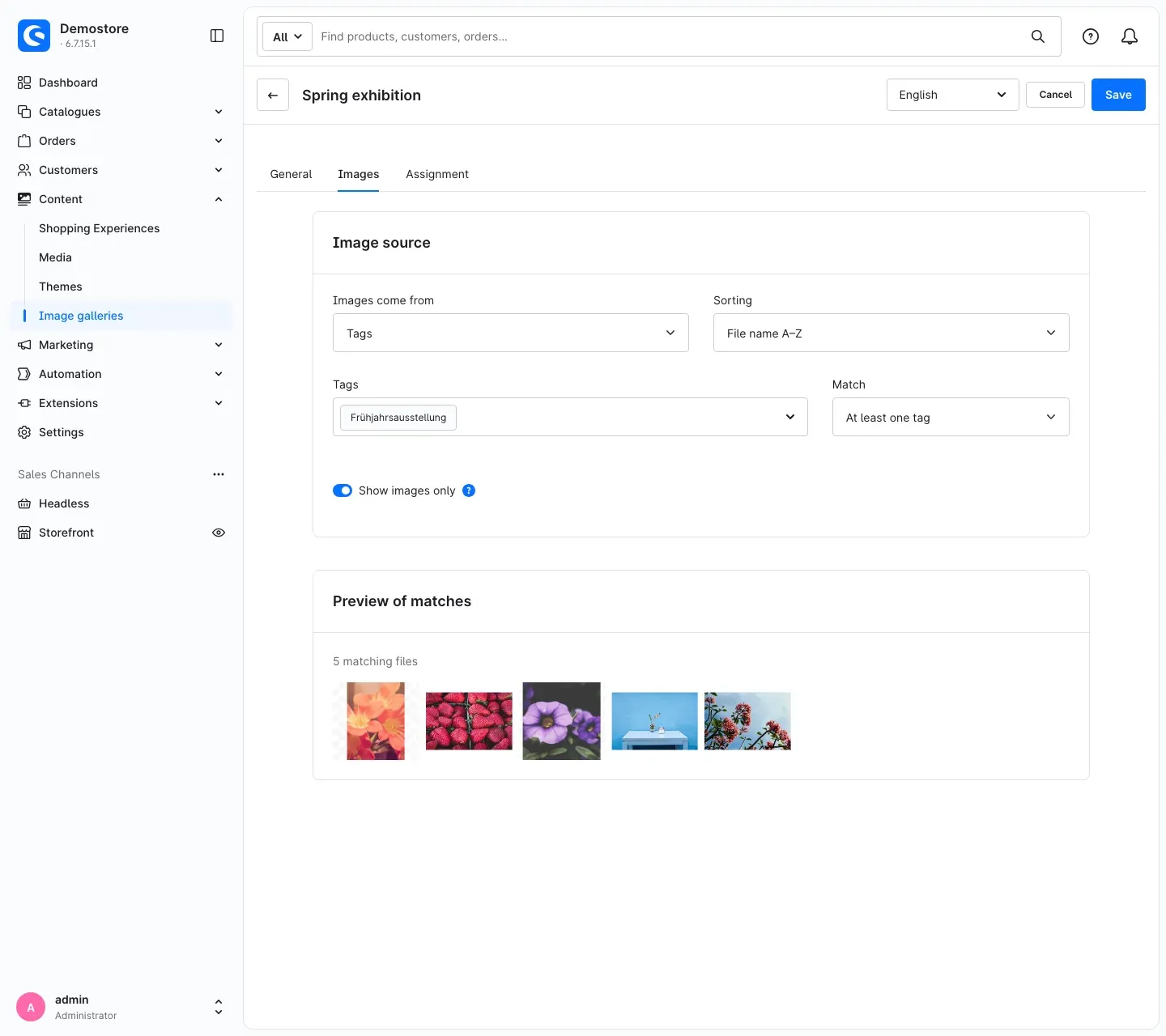 Fig. 13: A gallery of all files tagged “Frühjahrsausstellung”
You assign tags in the media library under Content → Media: select a file and enter the tag in the Tags section of the sidebar.
Tip: For folder and tag galleries you maintain title and alt text directly in the media library. The gallery uses the title as image title and the alt text as description for search engines and screen readers.
Important: The gallery only shows public files. Private files from the media library appear neither in the preview nor in the shop. Each gallery shows at most 500 files.
Assignment tab: products and sales channels
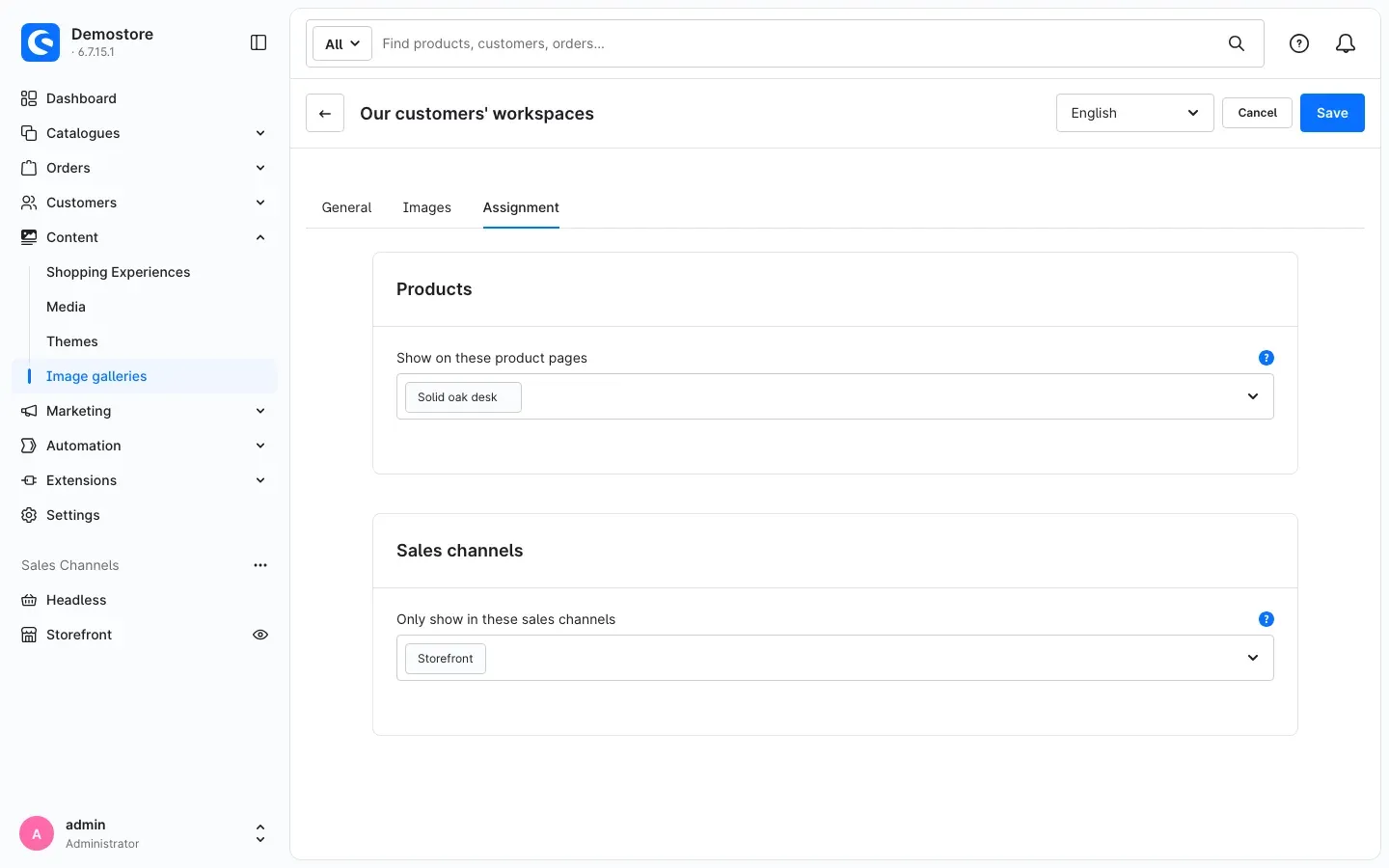 Fig. 14: The gallery appears on the page of the product “Solid oak desk” and only in the “Storefront” sales channel
- Show on these product pages — select the products on whose detail page the gallery should appear. If you assign the gallery to a main product, all of its variants show the gallery as well. Where and how it appears on the product page is set in the plugin settings (chapter 4).
- Only show in these sales channels — limits the gallery to individual sales channels. If you leave the field empty, the gallery appears in all sales channels.
Then click Save.
How to show a gallery in a shopping experience
What you get: You place the gallery on any page of your shop — home page, category, landing page or product layout — and decide view, columns and large view right there.
Add the block
- Open Content → Shopping Experiences and then the layout you want.
- In the bar on the right, click the plus icon to open the Blocks.
- Under Block category, choose Images.
- Drag the Image gallery block to the desired position in the layout.
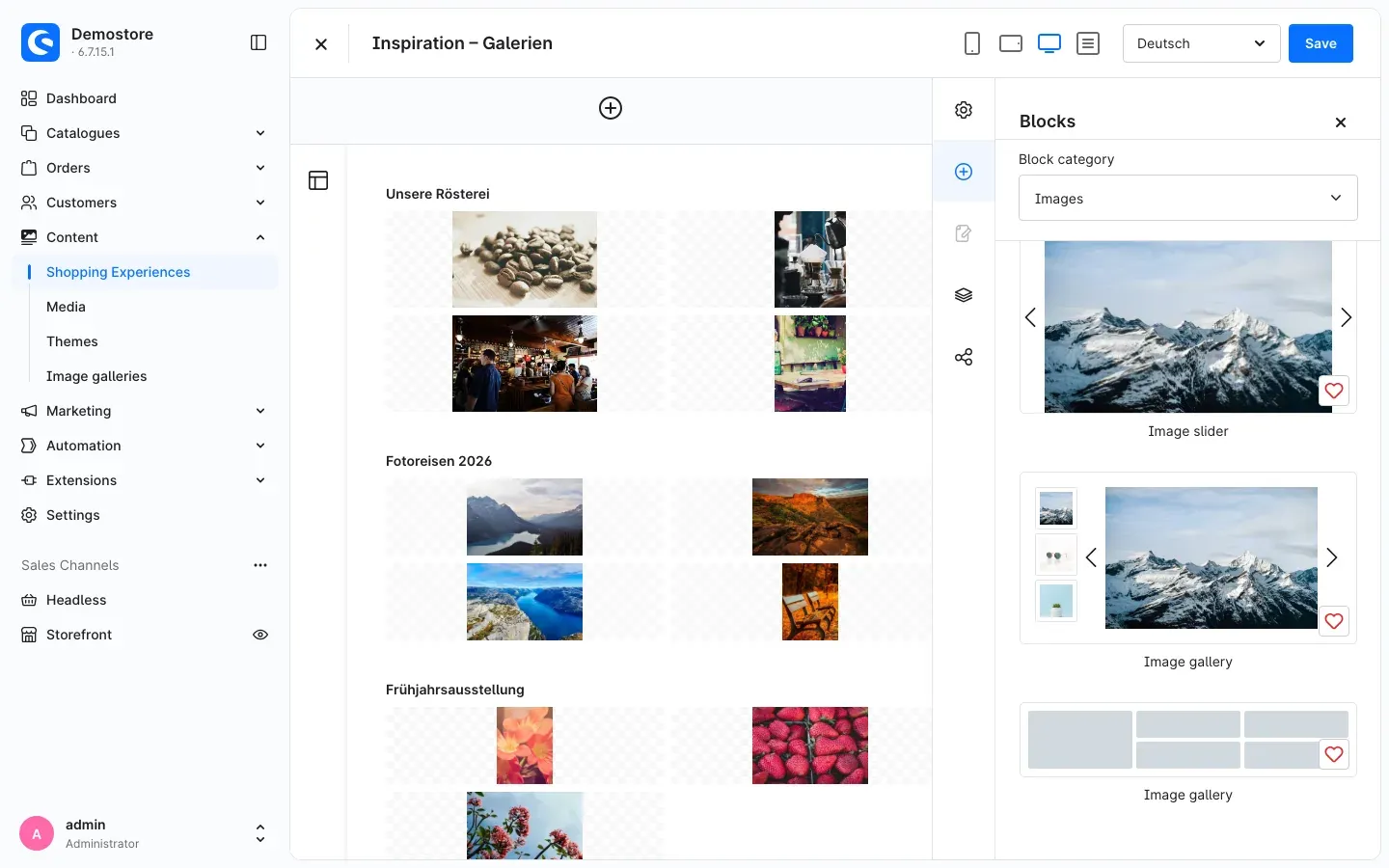 Fig. 15: The “Image gallery” block in the “Images” block category; on the left the preview of galleries already placed. Blocks are added in the shop’s default language — German in this example shop.
Note: You add blocks in your shop’s default language. In other languages, the block selection is locked.
Configure the element
Click the block in the layout and then the cog icon. The Element settings (Image gallery) dialog opens with up to four tabs. Done applies the settings; remember to save the layout afterwards.
Content tab
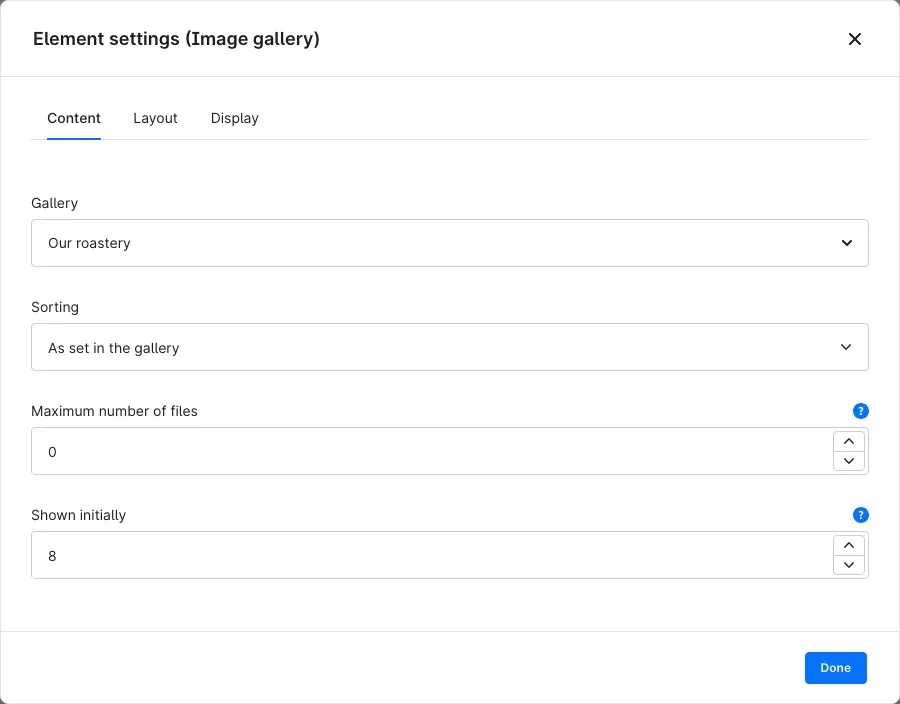 Fig. 16: Gallery, sorting and number of images
- Gallery — which gallery appears here.
- Sorting — with As set in the gallery the gallery’s sorting applies. You can also set a different sorting for this spot, for example Random on the home page.
- Maximum number of files — limits the gallery at this spot. 0 shows all files (at most 500).
- Shown initially — how many images are visible right away. More appear via Show more; every click reveals the same number of further images. 0 shows all at once. The field is locked for the slider.
Layout tab
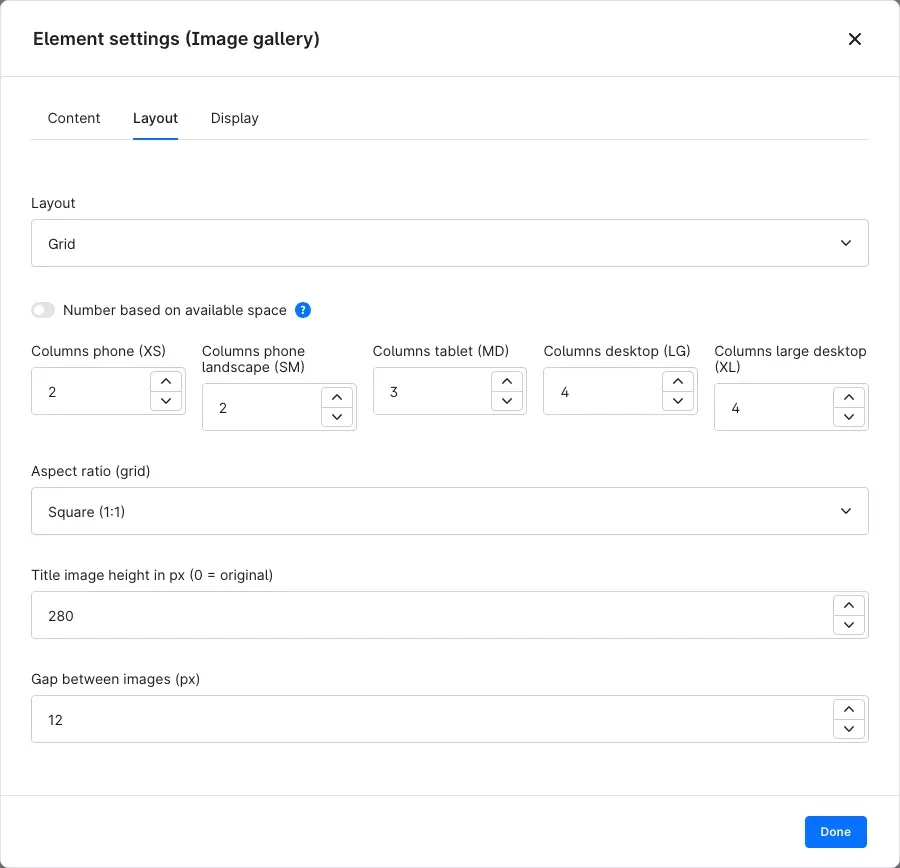 Fig. 17: Layout “Grid” with columns per screen size
- Layout — Grid, Masonry, Justified rows or Slider (chapter 9).
- Number based on available space — instead of fixed columns per screen size, the number adapts to the available width. For grid and masonry you then set under Minimum width per image (px) how wide an image should be at least.
- Columns phone (XS), Columns phone landscape (SM), Columns tablet (MD), Columns desktop (LG) and Columns large desktop (XL) — how many images sit side by side per screen size (1 to 12).
- Aspect ratio (grid) — grid only: the format images are cropped to, from Square (1:1) to Original (no cropping).
- Image height in px (justified rows and slider) — for these two views only.
- Title image height in px (0 = original)
- Gap between images (px) — from 0 to 64.
Only the fields that fit the chosen layout are shown.
Display tab
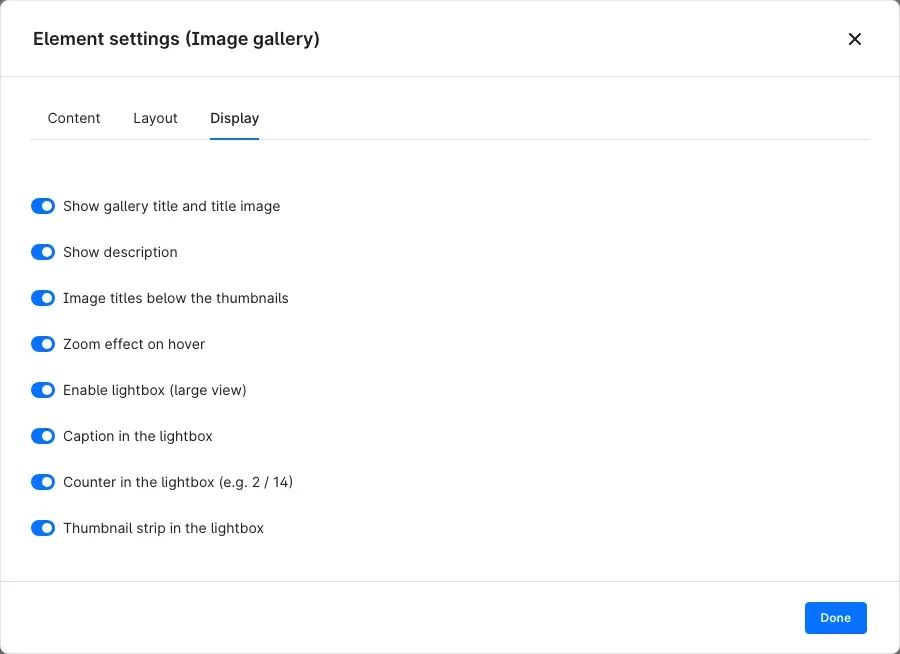 Fig. 18: What the gallery shows and how the large view works
- Show gallery title and title image
- Show description
- Image titles below the thumbnails
- Zoom effect on hover — slightly enlarges an image as soon as the mouse moves over it.
- Enable lightbox (large view) — clicking an image opens the large view. If the lightbox is off and an image has a link, clicking the image leads straight to the link.
- Caption in the lightbox, Counter in the lightbox (e.g. 2 / 14) and Thumbnail strip in the lightbox — only appear when the lightbox is switched on.
Set up the slider
If you choose the Slider layout, the Layout tab additionally shows the Slider effect field, and a further Slider tab appears.
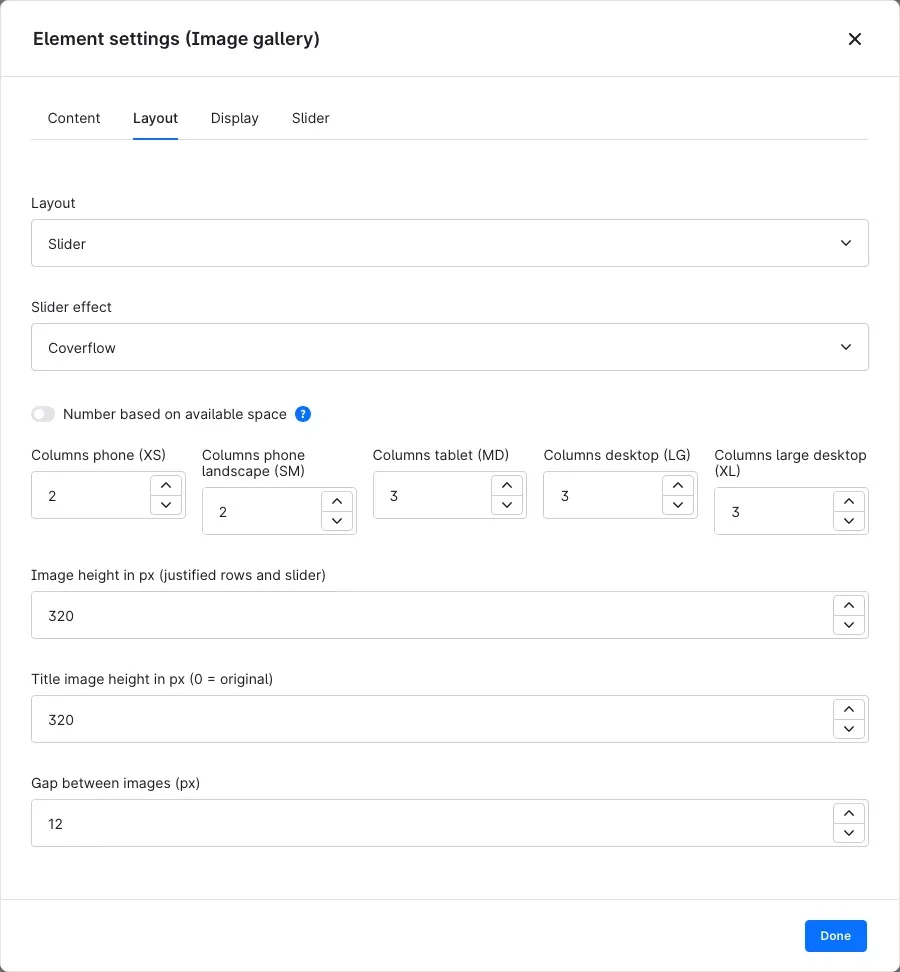 Fig. 19: Layout “Slider” with the “Coverflow” effect
Slider effect offers five effects:
- Slides (list) — several images side by side that move sideways.
- Coverflow — the middle image is in front, its neighbours are slightly rotated.
- Flip, Cube and Hero (fade) — always exactly one image, with flip, cube or fade effect. The column fields are not used here.
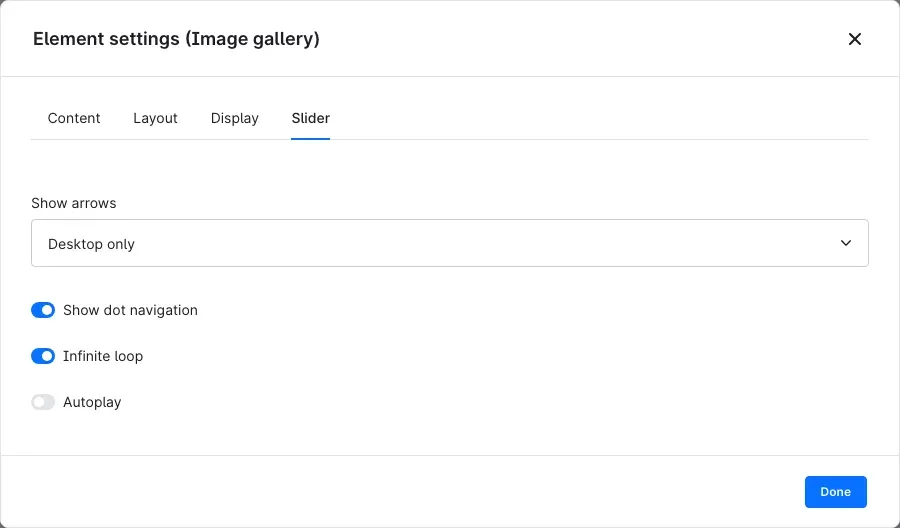 Fig. 20: Arrows, dots, infinite loop and autoplay
On the Slider tab:
- Show arrows — Never, Desktop only or Desktop and mobile.
- Show dot navigation
- Infinite loop — after the last image, the first one follows.
- Autoplay — the slider moves on its own. Display time per image (ms) sets how long each image stays (1000 to 30000 milliseconds, i.e. 1 to 30 seconds). It pauses while the mouse is over the slider.
Tip: In the layout editor the block shows a preview of the selected gallery. If no gallery is selected, it reads Please select a gallery in the settings. If the gallery is inactive, This gallery is inactive and not shown in the shop. points this out.
How to show galleries on product pages
What you get: Assembly photos, references or use cases appear exactly where your customers decide to buy.
- Open the gallery under Content → Image galleries.
- On the Assignment tab, select the products under Show on these product pages (chapter 6).
- Click Save.
- In the plugin settings, decide in the Product detail page section where and how galleries appear (chapter 4).
Own tab (default): next to Description and Reviews, the Gallery tab appears.
 Fig. 21: The gallery on its own “Gallery” tab
Below the buy button: the gallery sits in the buy box. When your customer switches the variant, the gallery stays visible there.
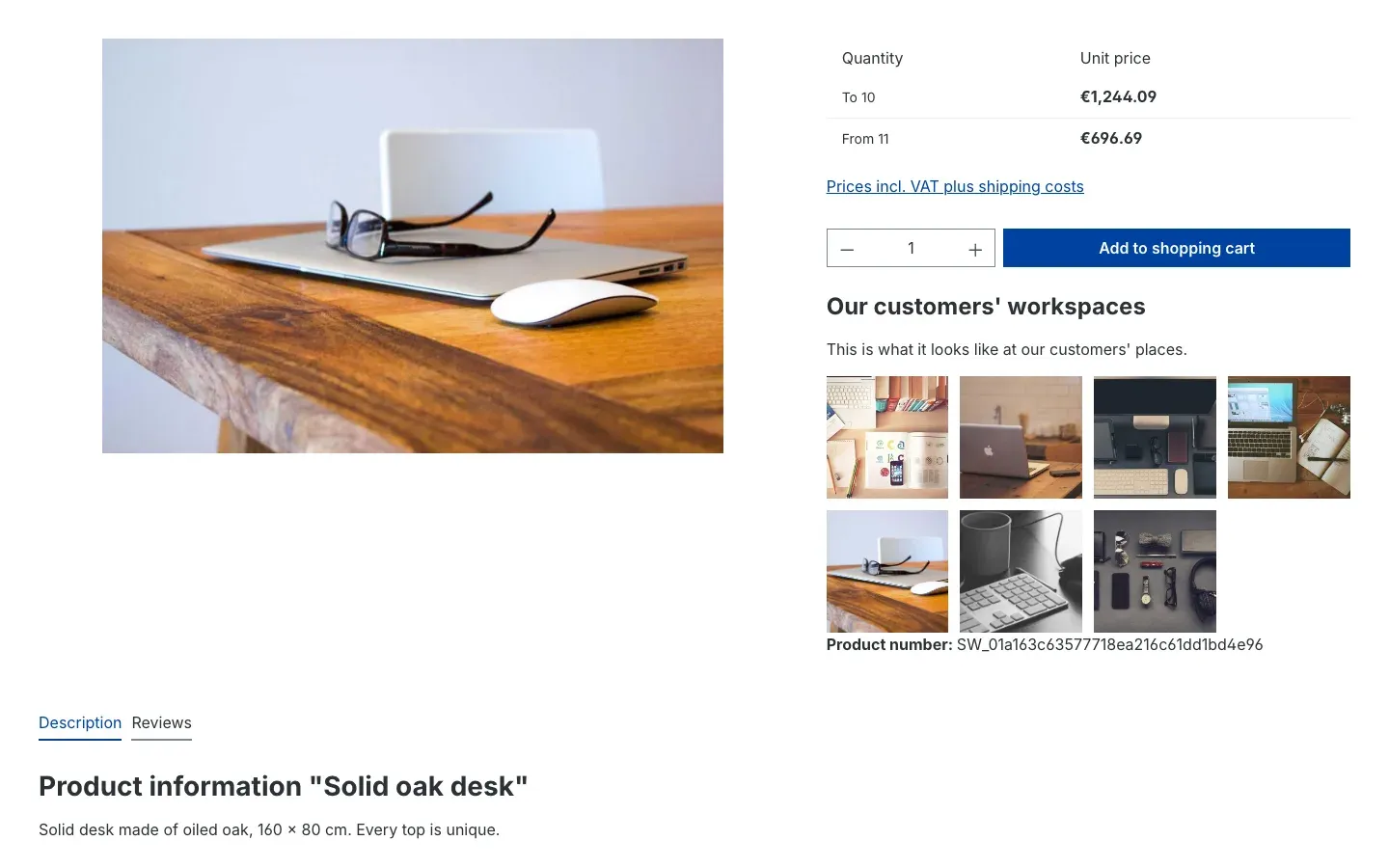 Fig. 22: The gallery below the add-to-cart button
Below the product description: the gallery follows the description text on the Description tab.
 Fig. 23: The gallery below the product description
Good to know:
- Variants also show the galleries of their main product. If you additionally assign a gallery of its own to a single variant, its page shows both.
- If a product has several galleries, they appear one below the other, sorted alphabetically by name — at most ten per product.
- The product images at the top of the product page remain unchanged.
What the gallery looks like in your shop
The four views
Grid — all images the same size and cropped to a common aspect ratio. Ideal for uniform product or detail photos. Above the gallery you can show title image, name and description; below it the Show more button appears if you limit the number of images shown initially.
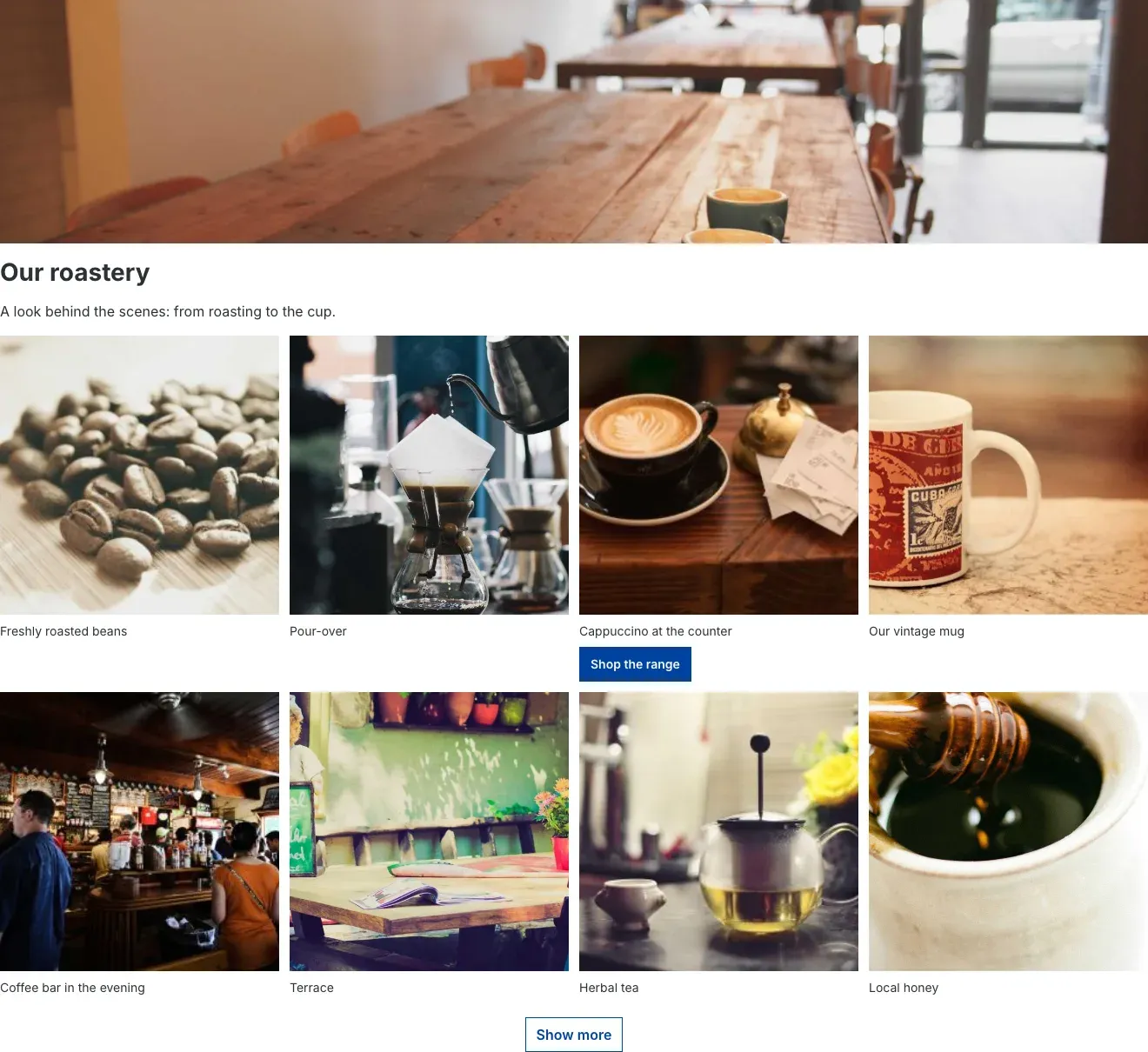 Fig. 24: Grid with title image, image titles, a link button and “Show more”
Masonry — columns with images in their original format. Portrait and landscape images sit side by side without cropping.
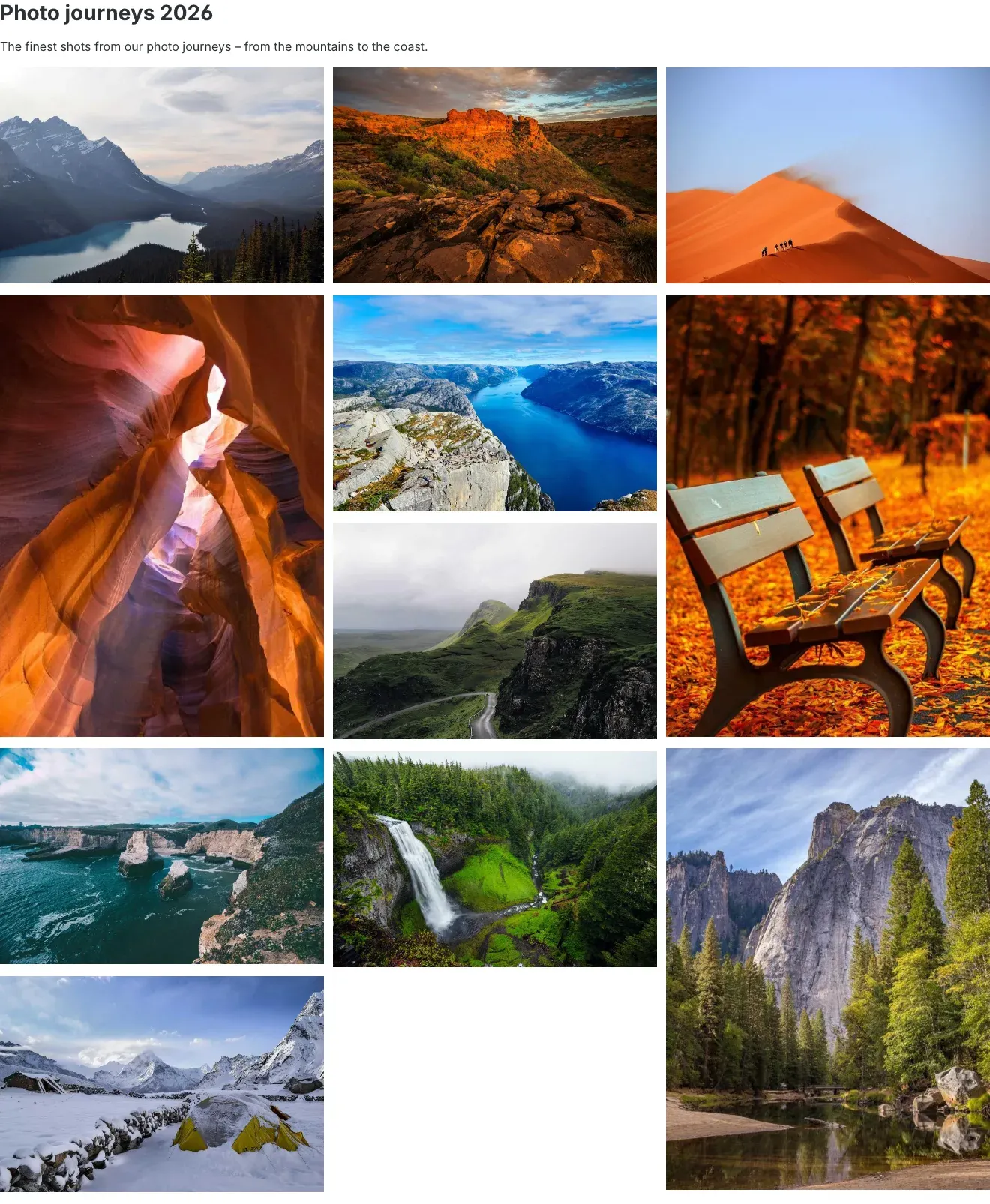 Fig. 25: Masonry with mixed portrait and landscape images
Justified rows — all images of a row have the same height and together fill the full width. Ideal for photo series.
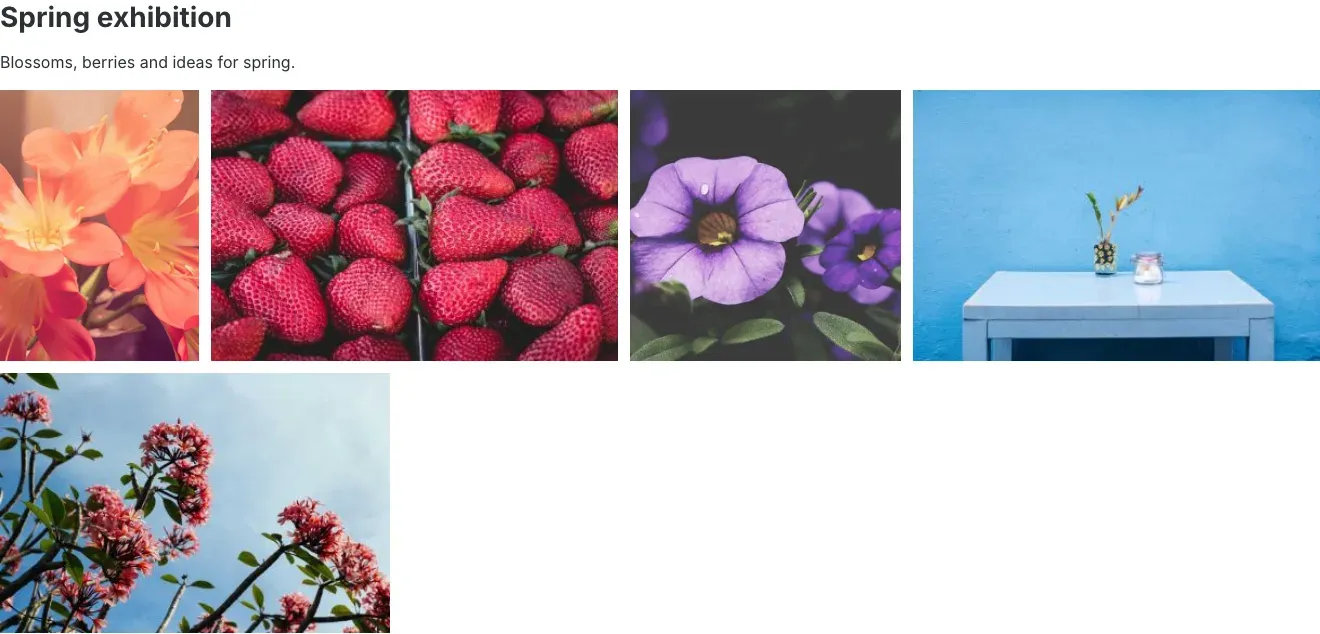 Fig. 26: Justified rows with equal height
Slider — the images move sideways, with arrows, dots or automatically.
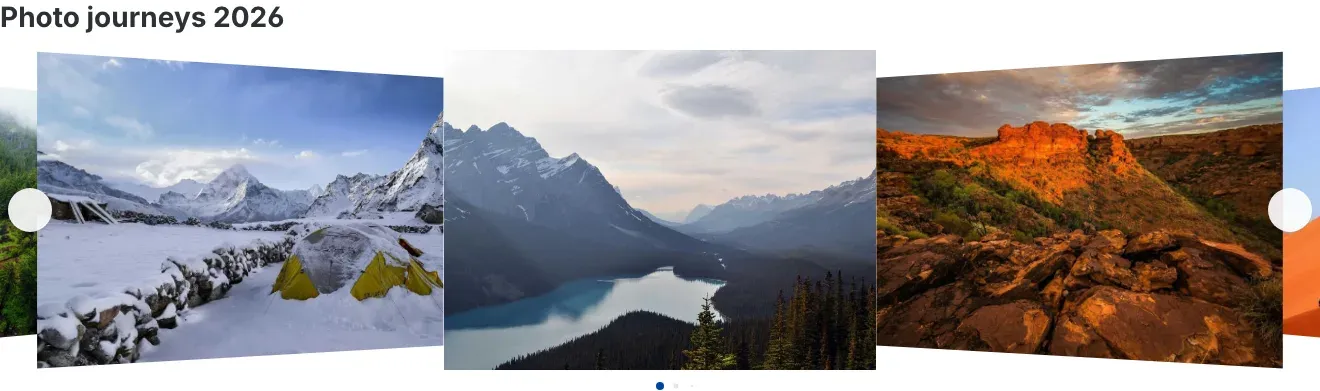 Fig. 27: Slider with the “Coverflow” effect
The large view (lightbox)
Clicking an image opens the large view. Your customers see:
- the counter at the top left (for example 3 / 11),
- the magnifier for zooming and the cross for closing at the top right,
- title and description below the image, plus the image’s link button,
- the thumbnail strip at the bottom to jump straight to any image.
They browse with the arrows on the left and right, with the arrow keys of the keyboard or with a swipe on the smartphone. A double click zooms in; while zoomed in, they move the section with the mouse or a finger. The Escape key closes the large view.
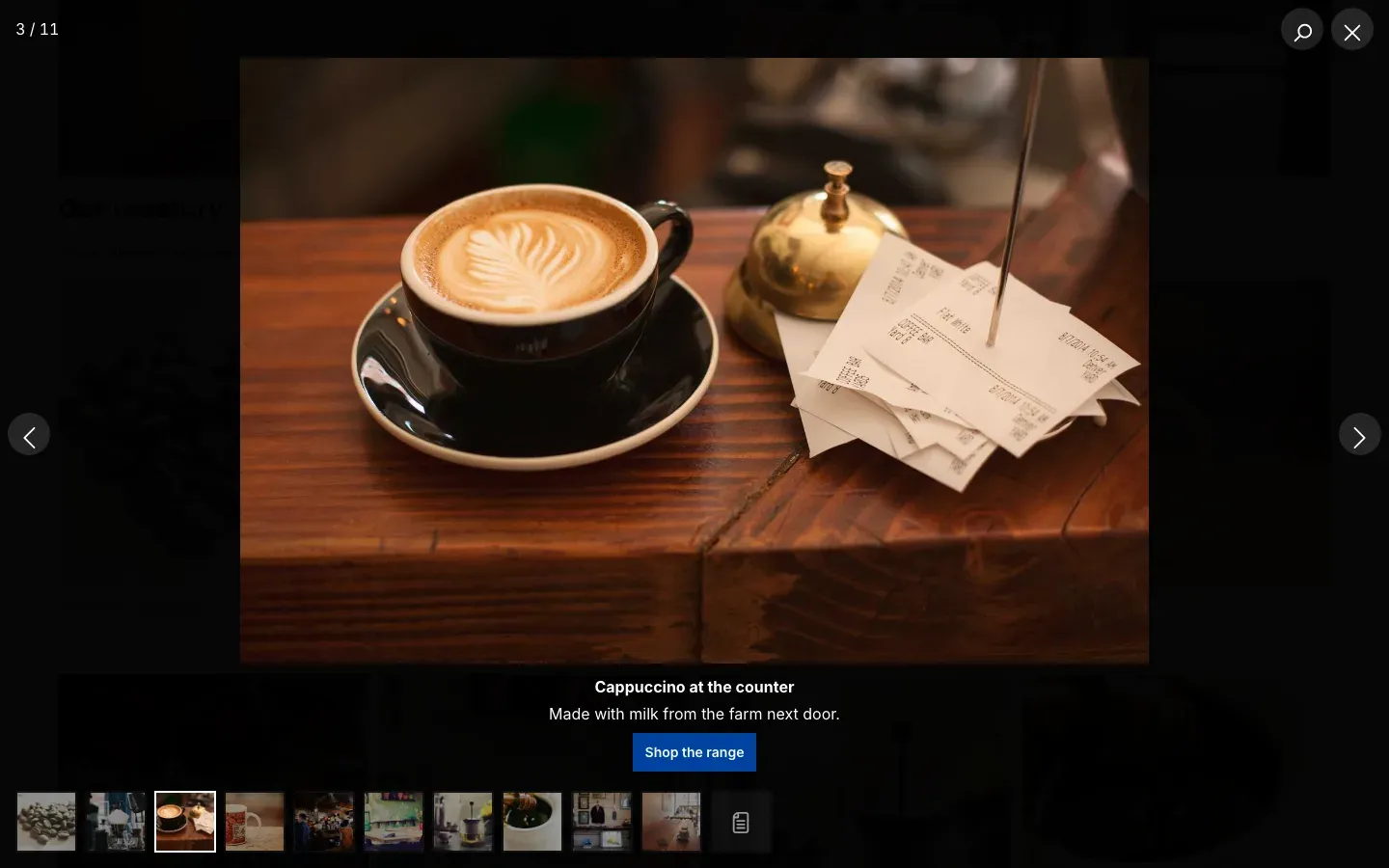 Fig. 28: The large view with counter, caption, link button and thumbnail strip
Videos and audio files play directly in the large view. Documents such as PDFs appear with the Download and Open buttons.
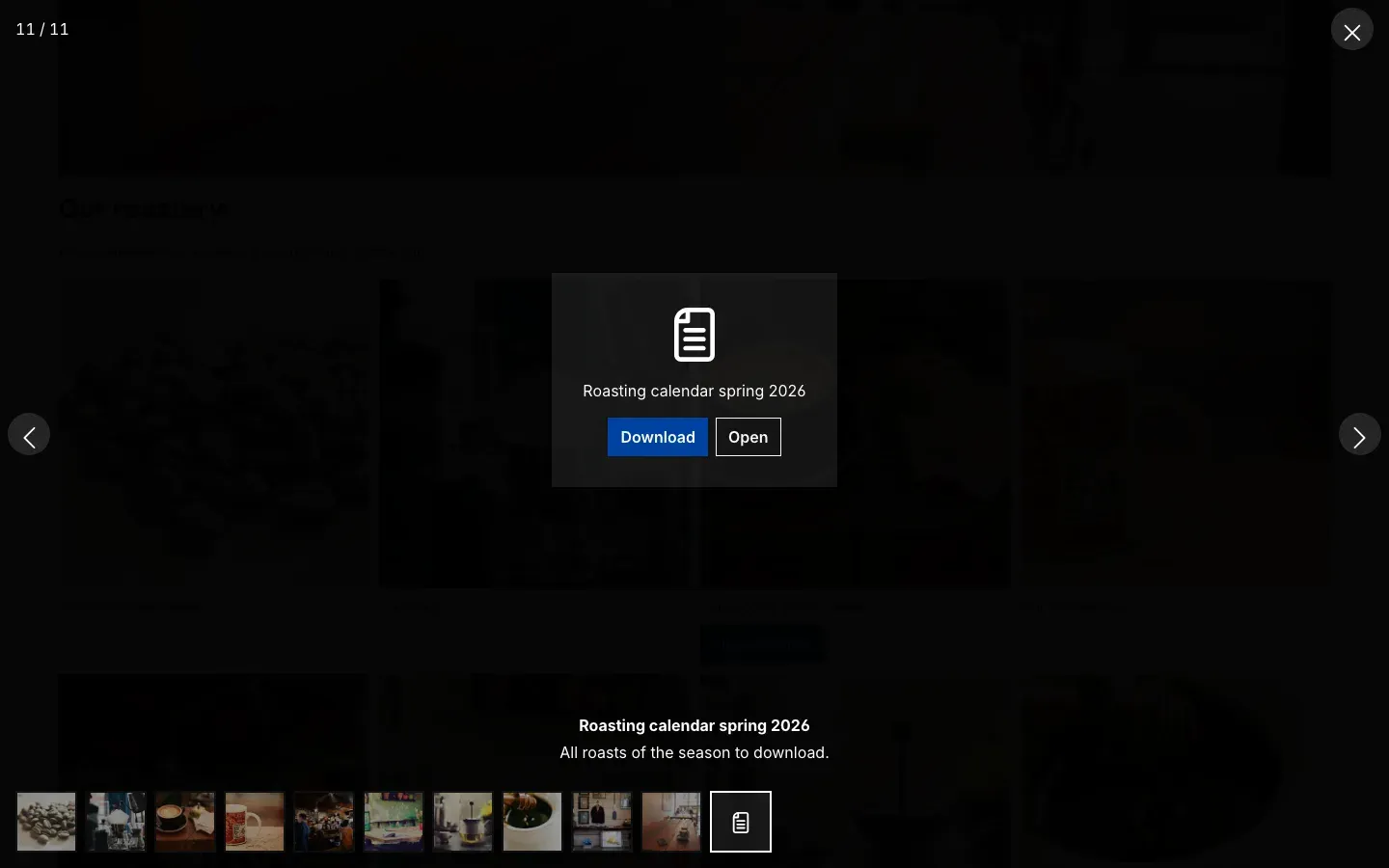 Fig. 29: A PDF in the large view
On smartphones
On small screens the gallery shows as many columns as you have set for phones. The large view uses the full screen width and reacts to swipe gestures.
On the product page, tapping the Gallery tab opens the gallery as a side panel, just like the description and reviews. Close menu takes your customer back to the product page.
 Fig. 30: Grid with two columns on a smartphone
 Fig. 31: The large view on a smartphone
Permissions for your team
What you get: You decide who may view, edit, create or delete galleries.
Open Settings → System → Users & permissions and the role you want in the Roles section. In the Content area you find the Image galleries row with the columns View, Edit, Create, Delete and All.
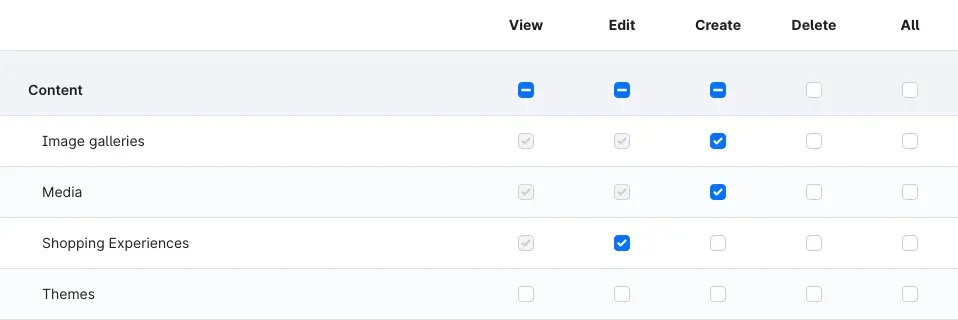 Fig. 32: The “Redaktion” role may view, edit and create image galleries, but not delete them
- View — open the list and the galleries without changing anything.
- Edit — change galleries, add and upload images. Includes View.
- Create — create and duplicate galleries. Includes View and Edit.
- Delete — delete galleries.
Anyone allowed to view shopping experiences may also select a gallery in the element settings.
Multiple sales channels and languages
Sales channels
You control galleries on three levels:
- Plugin per sales channel — Enable plugin for this sales channel switches all galleries of a sales channel on or off (chapter 4).
- Gallery per sales channel — Only show in these sales channels limits a single gallery (chapter 6).
- Product page per sales channel — position and layout on product pages are set separately for each sales channel (chapter 4).
Languages
Name and description of the gallery as well as title, description, link and link text of single images are maintained per language. Choose the language at the top right of the gallery, enter the texts and save. If a translation is missing, the shop shows the text of the default language.
For a new gallery, save it in the default language first; after that you can switch the language.
For galleries from media folders and tags, image titles and alt texts come from the media library — you maintain them there per language as well.
Troubleshooting
The “Image galleries” entry is missing under Content
Cause: The plugin is not active yet, or your role lacks the View permission for image galleries.
How to fix it:
- Check under Extensions → My extensions that the switch next to the plugin is on.
- Check your role under Settings → System → Users & permissions (chapter 10).
- Reload the Administration.
The gallery does not appear in the shop
Cause: One of the conditions for display is not met.
How to fix it:
- Is the gallery Active (General tab)?
- Is your sales channel selected under Only show in these sales channels — or is the field empty?
- Is Enable plugin for this sales channel switched on in the plugin settings for this sales channel?
- Does the gallery contain any files at all? For folder and tag galleries, the Preview of matches shows what is found.
- Did you save the shopping experience layout after adding the block and assign the layout to the page?
No gallery appears on the product page
How to fix it:
- Is the product (or its main product) selected on the Assignment tab?
- Is Position of assigned galleries in the plugin settings for this sales channel set to something other than Do not show?
- For the positions Own tab and Below the product description, your product layout needs the area with description and reviews. For Below the buy button, it needs the buy box. Some themes replace these areas entirely — in that case, try a different position.
The folder or tag gallery finds no images
Cause: The files are private, sit in a subfolder or do not carry all selected tags.
How to fix it:
- Switch on Include subfolders if the files are in subfolders.
- For tags, set Match to At least one tag if a file does not have to carry all tags.
- If Show images only is on, videos and documents do not appear.
- The gallery never shows private files.
A link is not accepted
Cause: For security reasons the plugin only allows links starting with https://, http://, mailto:, tel: or /.
How to fix it: Enter the full address including https://, or a path in your shop starting with /.
Changes do not appear in the shop right away
Cause: Normally the plugin refreshes the affected pages itself. In rare cases an upstream cache (for example an external cache of your hosting provider) still holds the old page.
How to fix it: Clear the cache under Settings → System → Caches & indexes with Clear cache and reload the page.
FAQ
Q: Does the plugin replace the product images on the product page?
A: No. The product images stay as they are. Galleries are shown in addition — as their own tab, below the buy button or below the description.
Q: Can I embed YouTube or Vimeo videos?
A: No. The gallery shows video files from your media library. It does not embed videos from external platforms.
Q: I currently use another gallery plugin. How do I switch?
A: The plugin does not take over existing galleries automatically; you create them again. You can pick your media folders and tags directly as image source. If you maintained links in custom fields on your media so far, enter their technical names in the plugin settings (chapter 4).
Q: Can I use the same gallery several times?
A: Yes. A gallery can sit in as many shopping experiences and be assigned to as many products as you like. In a shopping experience you set the view separately for every spot.
Q: How many images may a gallery have?
A: Each gallery shows at most 500 files. For large galleries, use Shown initially to limit how many images are visible right away; the rest come via Show more.
Q: Will large galleries slow down my shop?
A: Hardly. The gallery loads the images in a suitable size and only when they scroll into view. Large view and slider are only loaded on pages that need them.
Q: Is the gallery multilingual?
A: Yes. Name, description and the texts of single images are maintained per language (chapter 11). The user interface is available in German, English and Dutch.
Q: Does the plugin send data to external servers or set cookies?
A: No. The slider technology is included in the plugin itself.
Q: What happens to my galleries when I uninstall the plugin?
A: If you choose to keep the data when uninstalling, all galleries are kept. Otherwise the plugin removes its galleries. Your files in the media library are kept in both cases.
For administrators / Technical details
This section is aimed at technical administrators. You do not need it for normal use.
System requirements
- Shopware: 6.7
- PHP: 8.2 or later
- Database: MySQL 8.0 / MariaDB 10.11 or later
Installation via the command line
If the plugin is located in the custom/plugins folder of your shop, install it like this:
php bin/console plugin:refresh
php bin/console plugin:install SwpGallerySix --activate
php bin/console cache:clear
Data and media
- Galleries, gallery images, their translations and the assignments to products, tags and sales channels are stored in tables of their own. Shopware’s tables remain unchanged.
- During installation the plugin creates the “Image galleries” media folder as default folder for gallery uploads, with thumbnails in all configured sizes.
- When uninstalling without keeping the data, the plugin removes its tables and the default folder assignment. Files in the media library are kept.
Store API (headless, Composable Frontends)
Two routes deliver galleries including their resolved files; both accept GET and POST and, like every Store API route, expect the sales channel’s access key:
| Route | Content |
|---|---|
/store-api/swp-gallery/{galleryId} | one gallery with its files, the total count and a flag telling whether the order should be shuffled |
/store-api/swp-gallery/product/{productId} | the galleries of a product and its main product, at most ten, sorted by name |
Optional parameters: sorting (manual, newest, oldest, random, name_asc, name_desc) and limit (at most 500). If the gallery is unknown, inactive, not released for the sales channel or the plugin is switched off in the sales channel, the first route responds with 404 and the error code SWP_GALLERY__NOT_FOUND. The Store API only delivers links with the allowed prefixes.
With random sorting the list comes with the flag shuffle: true; the frontend then shuffles the order itself on every request.
The data of the shopping experience element is delivered with the page via the Store API. For Composable Frontends the component names are:
- Block:
CmsBlockSwpGallery - Element:
CmsElementSwpGallery
The plugin does not ship a ready-made frontend component; you build the presentation in your frontend yourself.
Cache
The gallery output carries cache tags of its own. When a gallery, one of its images, an assignment or a tag changes, the plugin clears exactly the affected entries. Changes in the media library (title, alt text, file, tags, folder) refresh all pages with a gallery on their next request. Product pages without a gallery are not affected; they are rebuilt once a gallery is assigned to their product.
Data protection
The plugin does not send data to external servers, sets no cookies and stores no personal data. The Swiper slider library (MIT licence) is included in the plugin.
This manual was written for Image Gallery: Grid, Masonry, Slider and Lightbox version 6.7.0.
More manuals
Address Validation: House Number Check & Corrections
Address validation at the point of entry: the plugin spots missing house numbers, can suggest corrections via Google and helps you send fewer parcels that come back undeliverable.
Open manual Shopware 6Admin Password Reminder
Admin Password Reminder: your backend users renew their passwords on time, prompted after login and by a daily email. Premium locks expired accounts until the password is changed.
Open manual Shopware 6Advent Calendar | Doors with products, coupons and promotions
Advent calendar for your shopping experiences: doors open on time without clearing the cache, give nothing away in the page source and reveal coupons, products or your own content.
Open manualNeed a team that keeps your shop running?
We have been maintaining Shopware shops for more than 20 years, including updates, hotfixes and the plugins you are configuring right now.