Margin Scheme: Differential Taxation § 25a and 0 % VAT for Solar
Margin scheme under § 25a UStG and the 0% VAT rate for solar in one plugin: required notices in shop and documents, the buyer declaration stored on the order, set per sales channel.
On this page
- Introduction
- What you achieve with this plugin
- Who is this plugin for?
- Installation
- Getting Started
- Settings
- Sales channel
- Open documentation
- Enable plugin for this sales channel
- Enable differential taxation
- Additional taxes treated as differentially taxed
- Statement on invoices (§ 14a (6) UStG)
- Show notice in product listings (margin scheme)
- Hide the “0 % VAT” row when it only stems from differentially taxed items
- Enable 0 % VAT for solar products
- Default price display
- Information page (opens as modal window)
- Customer groups without 0 % VAT
- Only for these delivery countries
- Require confirmation of eligibility at checkout
- Show notice in product listings (solar)
- How to Use the Features
- How to mark second-hand goods for the margin scheme
- What your customers see in the shop
- How your documents carry the required statement
- How to flag solar products
- How your customer declares eligibility
- How to find the declaration on the order
- How to switch from another extension
- Troubleshooting
- The margin scheme notice does not appear
- A solar product costs the regular price
- The “0 % VAT” row is still shown
- The product cannot be saved
- The customer cannot place the order
- FAQ
- For Administrators / Technical Details
- System requirements
- Installation via the command line
- Taking over the solar flag from another extension
- Headless frontends
- Data and page cache
Introduction
The plugin helps you with two special VAT cases in your online shop: you sell second-hand goods under the German margin scheme (§ 25a UStG) with the notices your customers need to see, and you sell solar products at the zero VAT rate (§ 12 (3) UStG) to buyers who are eligible for it.
What you achieve with this plugin
- Your customers see a notice on every margin scheme item: in product listings, on the product page, in the cart, at checkout, after placing the order and in the order history of their customer account.
- Cart, checkout, customer account and documents no longer show a “0 % VAT” row that makes used goods look tax-exempt.
- Your invoices carry the statement required by § 14a (6) UStG and show ”§ 25a” in the tax column instead of a rate — without editing any document template.
- You maintain each solar product once, with its regular tax rate. Eligible buyers automatically pay the net price with 0 % VAT.
- The buyer’s declaration on the zero rate is stored on every order as your record.
- You enable both features separately, each per sales channel.
Who is this plugin for?
For shop operators who sell second-hand goods, works of art, collector’s items or antiques under the margin scheme, and for retailers of solar panels, inverters, storage and balcony solar kits in Germany.
Important: The plugin does not calculate the margin or the VAT on it — that remains part of your accounting. The notice and declaration texts are suggestions. Agree them with your tax advisor and test everything in a test sales channel before going live.
Installation
After your purchase, the plugin is available directly in your Administration — there is nothing to download.
- Log in to your Shopware Administration (
yourshop.com/admin). - Open Extensions → My extensions.
- Next to Margin Scheme: Differential Taxation § 25a and 0 % VAT for Solar, click Install.
- Activate the plugin with the switch next to the entry — done.
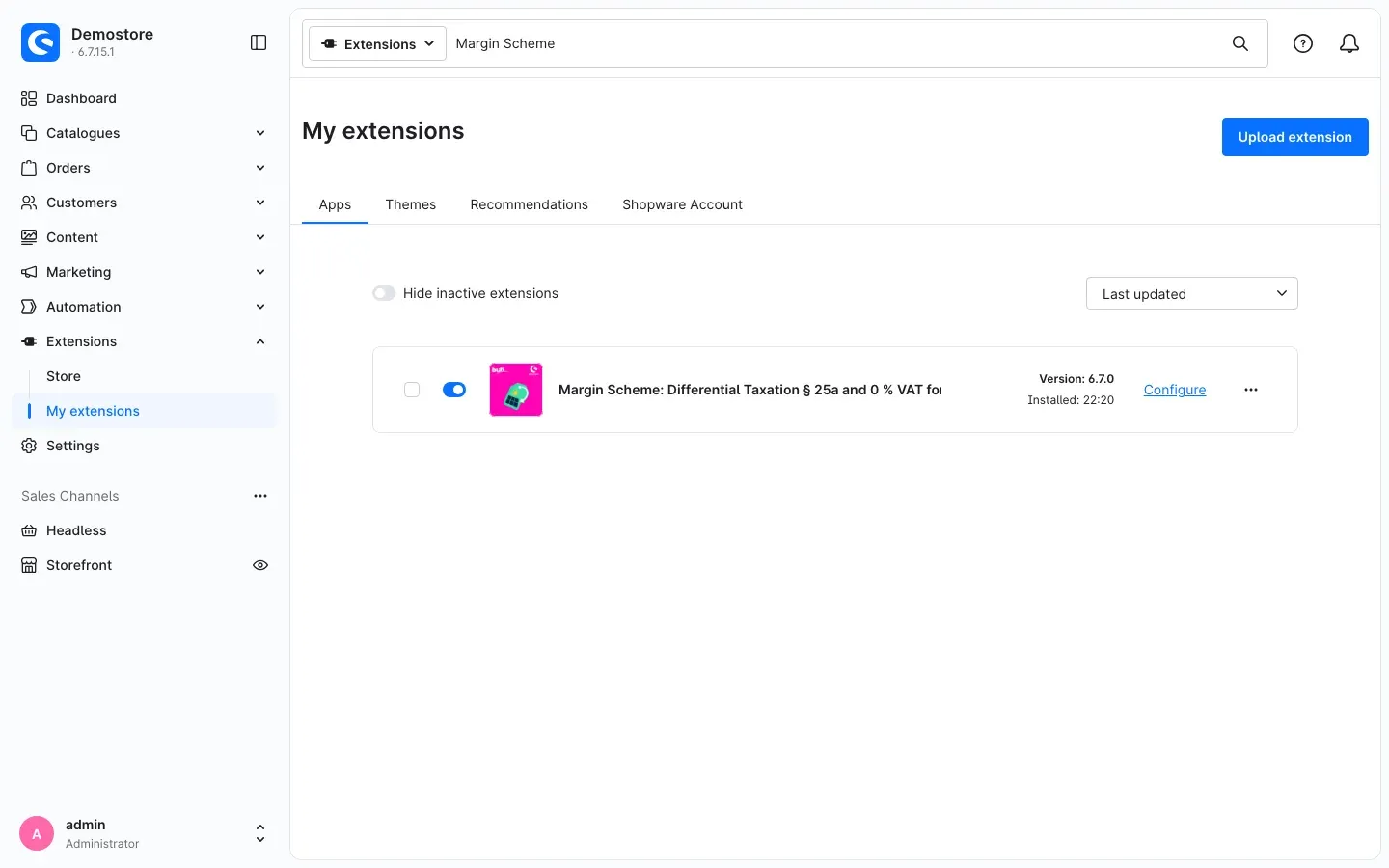 Fig. 1: The plugin under “My extensions”, installed and active
During installation the plugin creates the tax Differenzbesteuerung (§ 25a UStG) with 0 %. You assign this tax to your second-hand goods later. The tax name is in German and stays the same in every language of the Administration.
If the plugin does not appear in the list, your Shopware account is not yet connected to the shop. Connect it under Extensions → My extensions by logging in with your Shopware account.
Getting Started
-
Open the settings: Under Extensions → My extensions, click Configure next to the plugin.
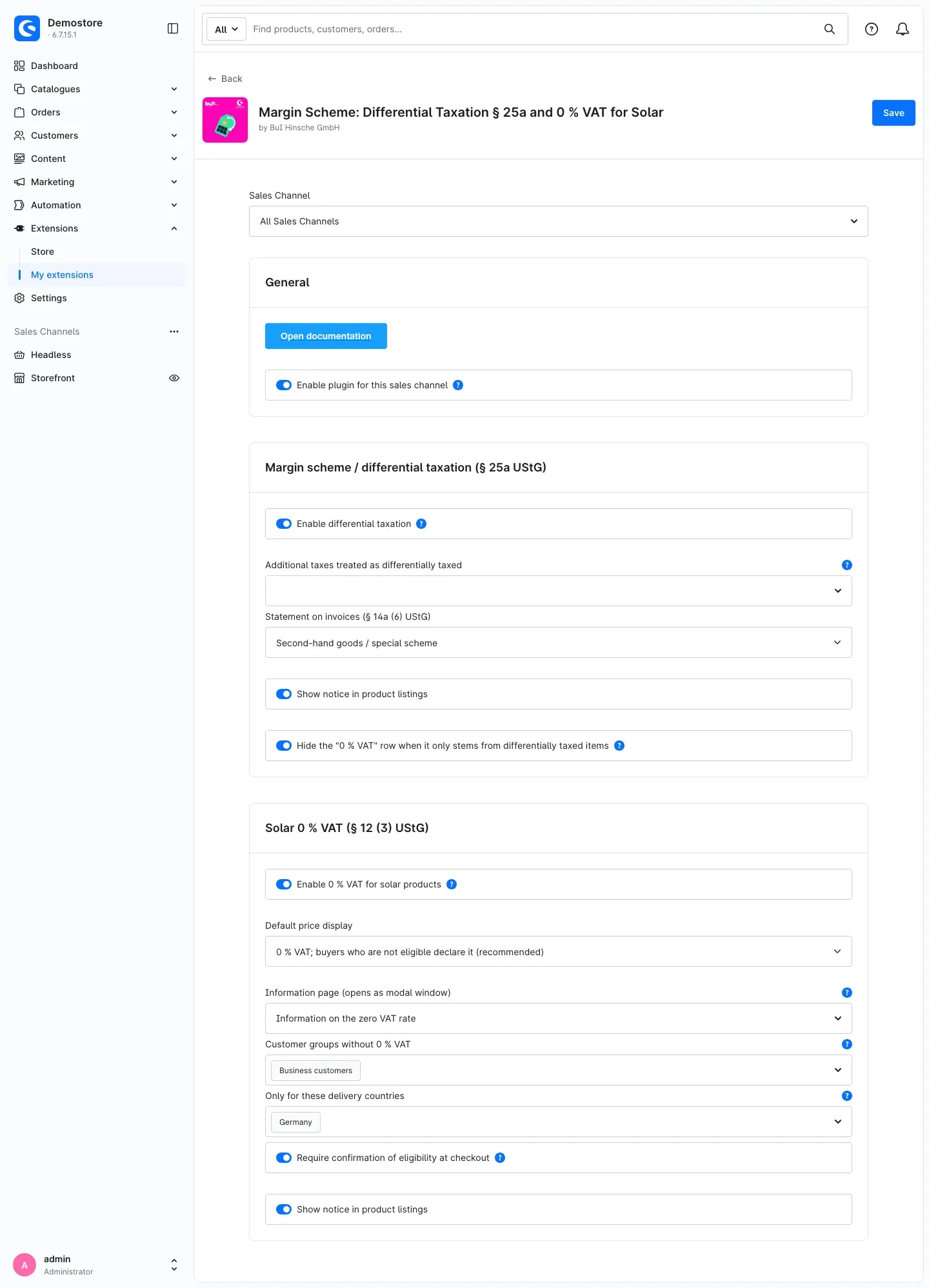 Fig. 2: The configuration page with the cards “General”, “Margin scheme / differential taxation (§ 25a UStG)” and “Solar 0 % VAT (§ 12 (3) UStG)”
 -
Set the essentials: The margin scheme is enabled right away. Only check which statement belongs on your invoices — second-hand goods, works of art, or collector’s items and antiques. If you sell solar products, also switch on Enable 0 % VAT for solar products. Then click Save.
-
Check the result: Assign the tax Differenzbesteuerung (§ 25a UStG) to a second-hand product (chapter 5.1) and open it in the shop. Below the price you now see the margin scheme notice.
Settings
You find the settings under Extensions → My extensions, button Configure next to the plugin.
Fig. 3: All settings of the plugin
Sales channel
At the very top, choose under Sales Channel which shop the settings apply to. All Sales Channels sets the default. If you select a single sales channel, you can override every setting there.
Why this is useful: If you run one shop for private customers and one for business customers, you can, for example, enable the zero rate in the private customer shop only.
Open documentation
The Open documentation button in the General card opens this manual on the web, in the language of your Administration.
Enable plugin for this sales channel
With Enable plugin for this sales channel you switch the plugin on or off for the selected sales channel. It is switched on by default. When it is off, your products keep their tax and no notices are shown in the shop.
Why this is useful: You can pause the plugin in one sales channel without uninstalling it.
Enable differential taxation
Enable differential taxation in the Margin scheme / differential taxation (§ 25a UStG) card switches on all margin scheme notices. It is switched on by default.
Why this is useful: If you do not sell second-hand goods in a sales channel, switch the notices off there.
Additional taxes treated as differentially taxed
In Additional taxes treated as differentially taxed you select further taxes that the plugin treats like Differenzbesteuerung (§ 25a UStG). The field is empty by default. Only select taxes with 0 %.
Why this is useful: If you used another extension for the margin scheme so far, select its 0 % tax. The plugin then treats existing products and orders the same way — you do not have to change a single product.
Statement on invoices (§ 14a (6) UStG)
With Statement on invoices (§ 14a (6) UStG) you choose which statement appears on your documents:
- Second-hand goods / special scheme — the default,
- Works of art / special scheme,
- Collector’s items and antiques / special scheme.
Why this is useful: An antiques dealer switches to “Collector’s items and antiques / special scheme” once, and every affected invoice carries the matching statement from then on.
Show notice in product listings (margin scheme)
Show notice in product listings in the Margin scheme / differential taxation (§ 25a UStG) card also shows the short notice in category and search result listings. It is switched on by default. On the product page, in the cart, at checkout and on documents the notice appears regardless of this setting.
Why this is useful: If your product tiles get too busy, switch the notice off in listings.
Hide the “0 % VAT” row when it only stems from differentially taxed items
Hide the “0 % VAT” row when it only stems from differentially taxed items hides the “0 % VAT” row in the cart, at checkout, in the customer account and on documents. It is switched on by default. If other items with 0 % are in the cart, for example solar products at the zero rate, the row stays visible.
Why this is useful: Under the margin scheme, VAT must not be shown separately. A “0 % VAT €0.00” row would make your used goods look tax-exempt.
Enable 0 % VAT for solar products
Enable 0 % VAT for solar products in the Solar 0 % VAT (§ 12 (3) UStG) card switches on the zero rate for flagged solar products. It is switched off by default. Only use this feature with gross price display.
Why this is useful: Only with this switch do the buyer declaration, the notices and the price without VAT appear in the shop.
Default price display
With Default price display you decide which price your shop shows as long as the buyer has not declared anything:
- 0 % VAT; buyers who are not eligible declare it (recommended) — the default. The shop shows the net price with 0 % VAT. Buyers who are not eligible tick the declaration and pay the regular price.
- Regular VAT; eligible buyers declare their eligibility — the shop shows the regular price. Eligible buyers tick the declaration and then pay the net price.
Why this is useful: Clarify with your tax advisor which approach suits your shop.
Information page (opens as modal window)
In Information page (opens as modal window) you select a shopping experience of the type “Landing page” that contains the legal information on the zero rate. Your customer opens it via the More information link next to the declaration. If nothing is selected, a short built-in explanation expands below the declaration instead.
Why this is useful: You write the information yourself and agree the wording with your legal advisor.
Customer groups without 0 % VAT
In Customer groups without 0 % VAT you select customer groups that always pay the regular tax rate. These customers do not see a declaration.
Why this is useful: This is how you exclude business customers from the zero rate.
Only for these delivery countries
In Only for these delivery countries you restrict the zero rate to certain delivery countries. If the field is empty, it applies to all countries. § 12 (3) UStG applies to supplies in Germany — select Germany to restrict it accordingly.
Require confirmation of eligibility at checkout
With Require confirmation of eligibility at checkout your customer must explicitly confirm before placing the order that the conditions for the zero rate are met. It is switched off by default. Without the tick, the order cannot be placed.
Why this is useful: You get an explicit confirmation from the buyer on every order with the zero rate.
Show notice in product listings (solar)
Show notice in product listings in the Solar 0 % VAT (§ 12 (3) UStG) card shows the short solar notice in category and search result listings. It is switched on by default.
How to Use the Features
How to mark second-hand goods for the margin scheme
What this gives you: As soon as a product carries the tax Differenzbesteuerung (§ 25a UStG), all notices in the shop and on documents appear automatically.
Step by step
- Go to Catalogues → Products and open the second-hand product.
- On the General tab, in the Prices card, select Differenzbesteuerung (§ 25a UStG) under Tax rate.
- Enter the selling price as usual.
- Click Save.
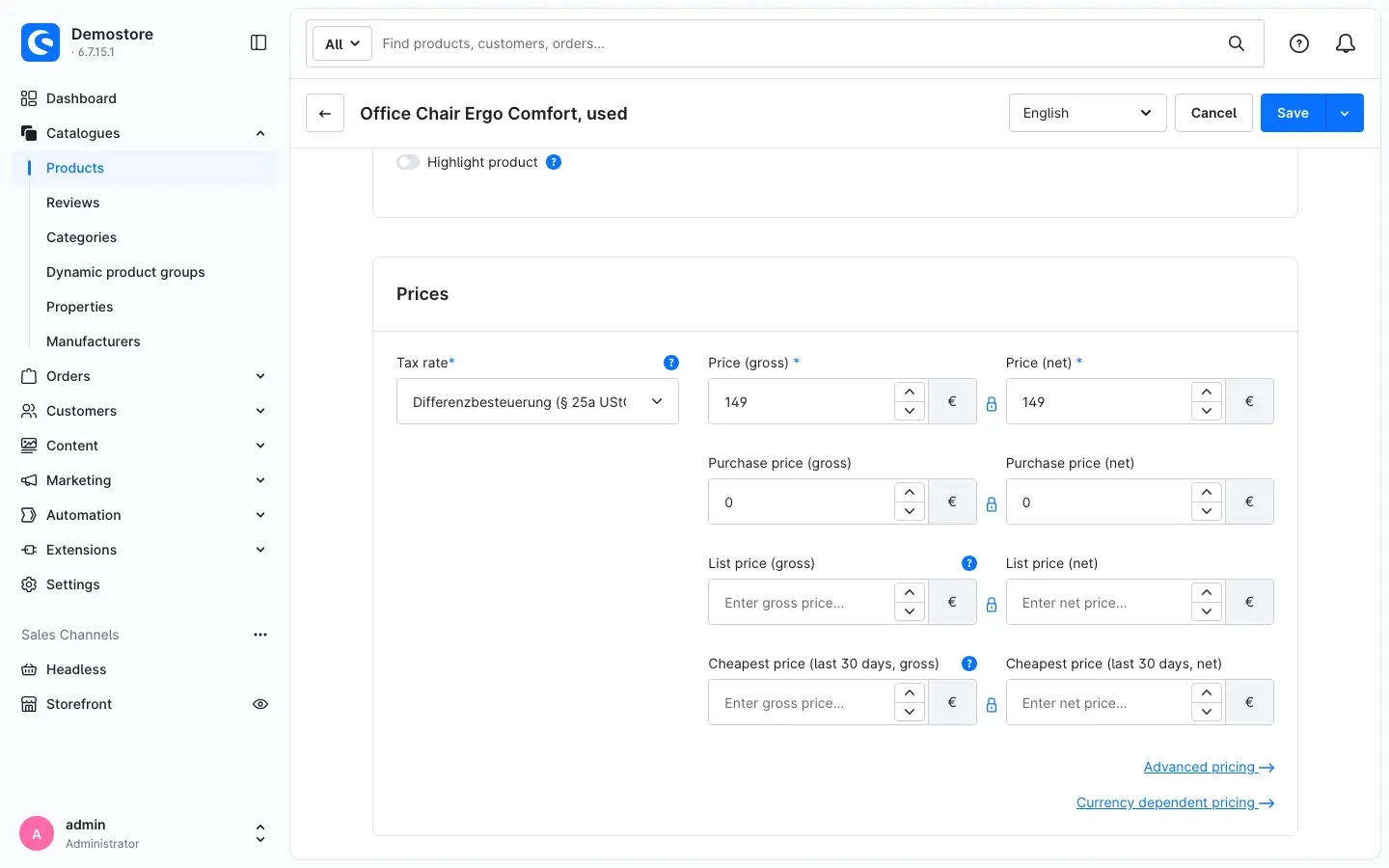 Fig. 4: The tax “Differenzbesteuerung (§ 25a UStG)” in the “Prices” card
Tip: New goods in the same shop keep their regular tax rate. You can sell second-hand and new goods side by side without restrictions.
What your customers see in the shop
What this gives you: Your customers learn, right where they see the price, why no VAT is shown.
In product listings the notice “Margin scheme (§ 25a UStG)” appears below the price. Solar products carry the notice “0 % VAT under § 12 (3) UStG”. New goods show no notice.
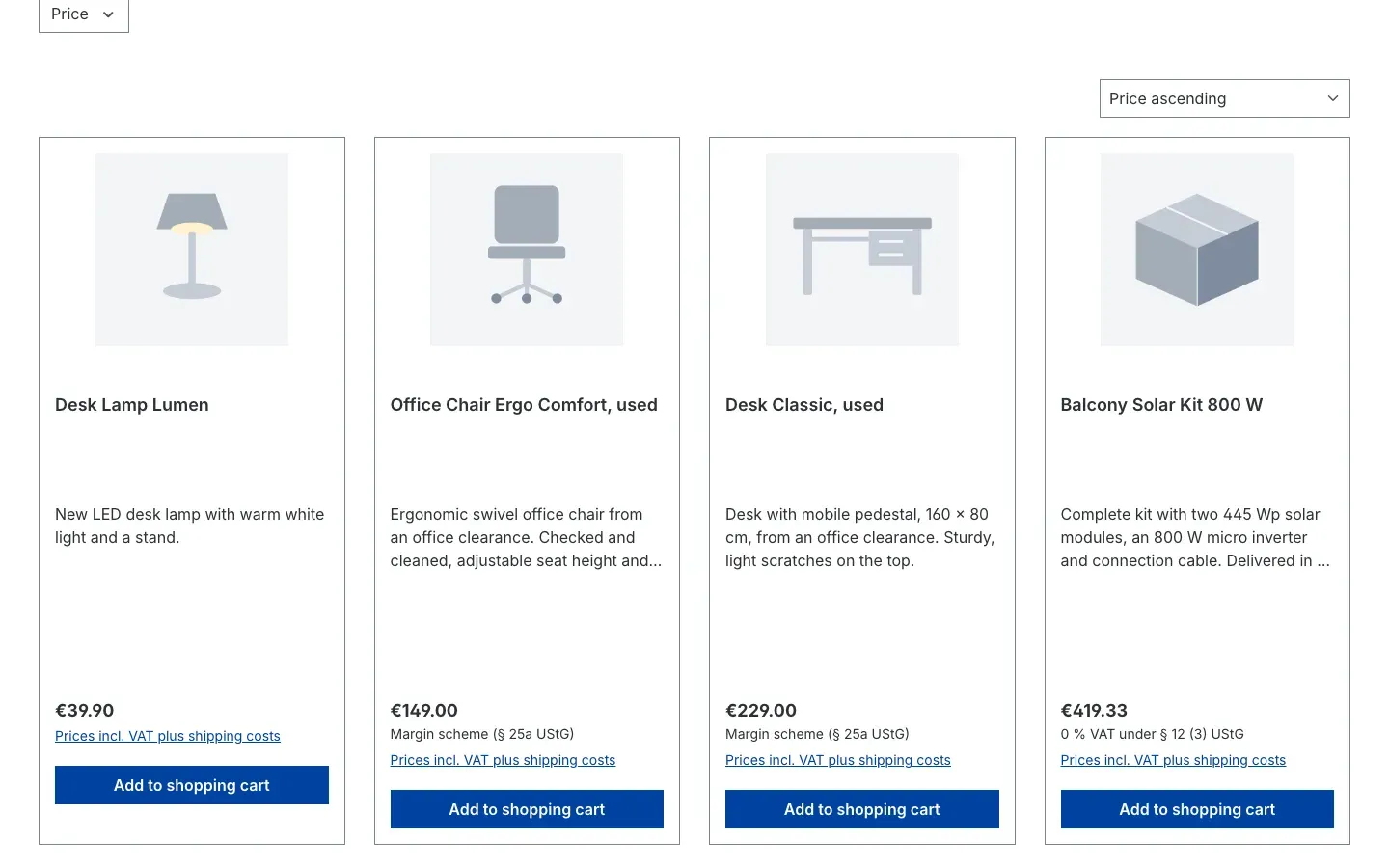 Fig. 5: Notices below the prices in the product listing
On the product page the detailed notice “Margin scheme under § 25a UStG – VAT is not shown separately.” appears below the price.
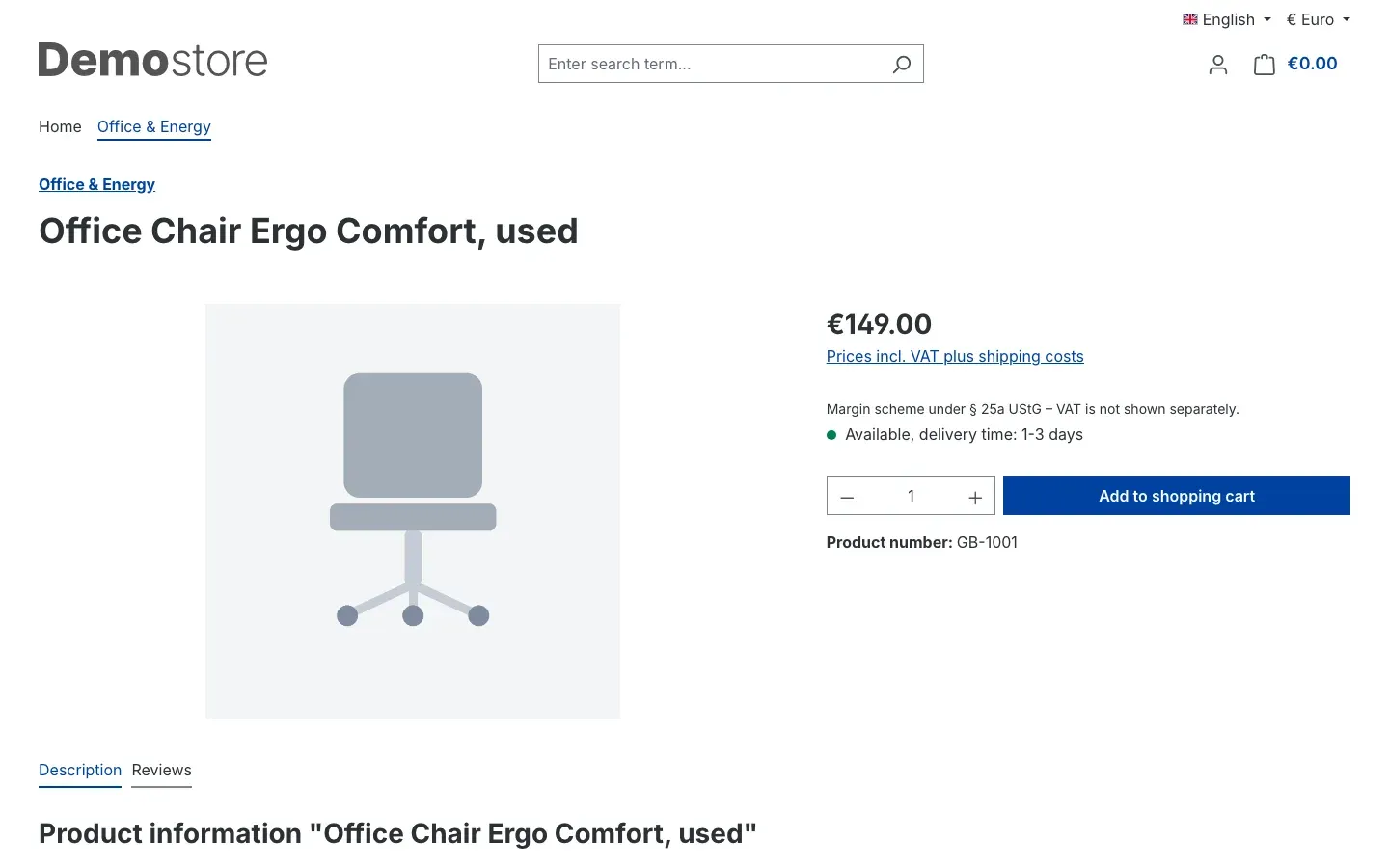 Fig. 6: The notice on the product page of a second-hand product
In the off-canvas cart and in the cart, every margin scheme item carries the notice “Margin scheme (§ 25a UStG)”. Below the totals it says: “Contains items under the margin scheme (§ 25a UStG). The VAT included is not shown separately.”
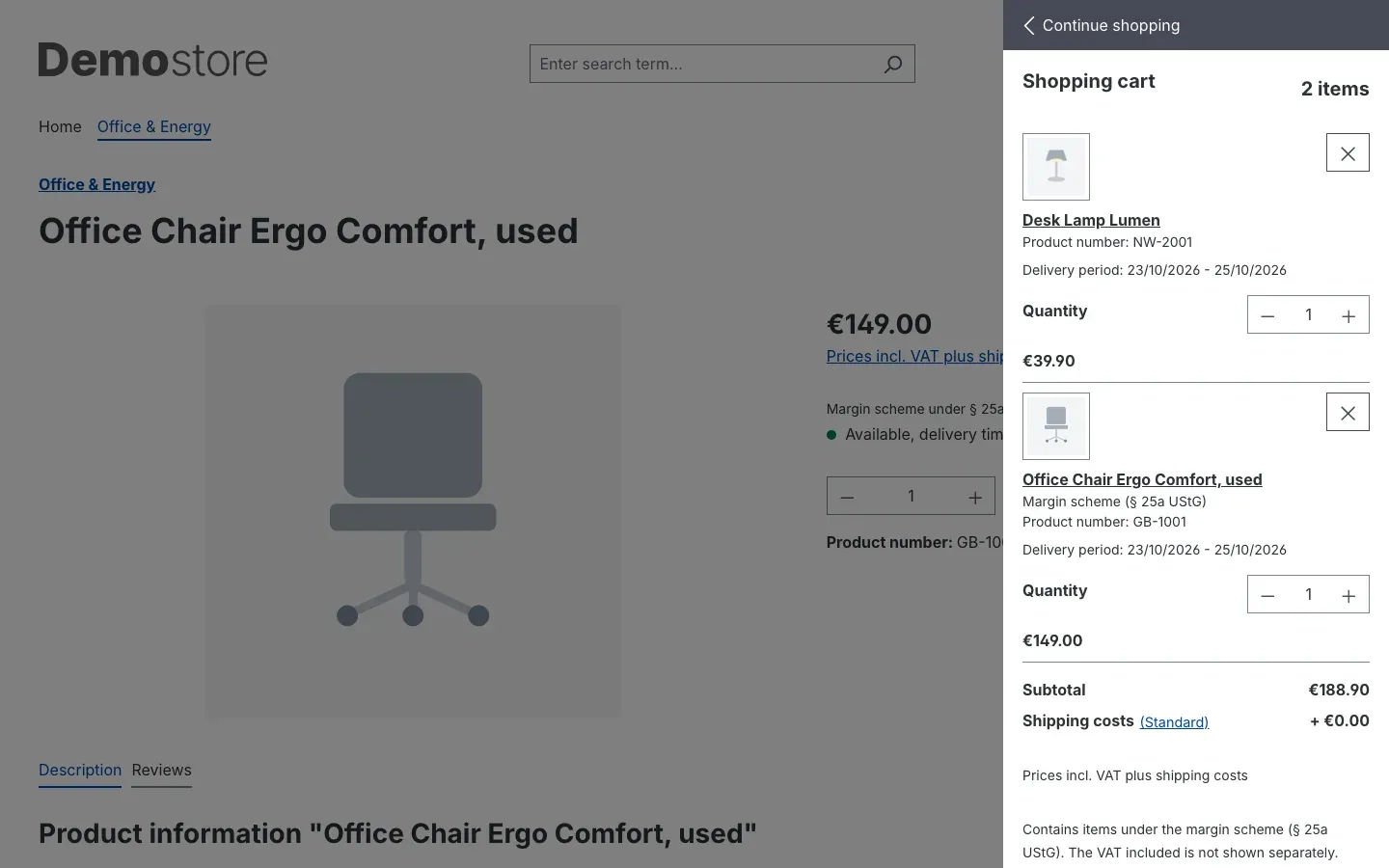 Fig. 7: Line and summary notice in the off-canvas cart
If the “0 % VAT” row only stems from margin scheme items, the plugin hides it. The summary then only shows the VAT of the other items.
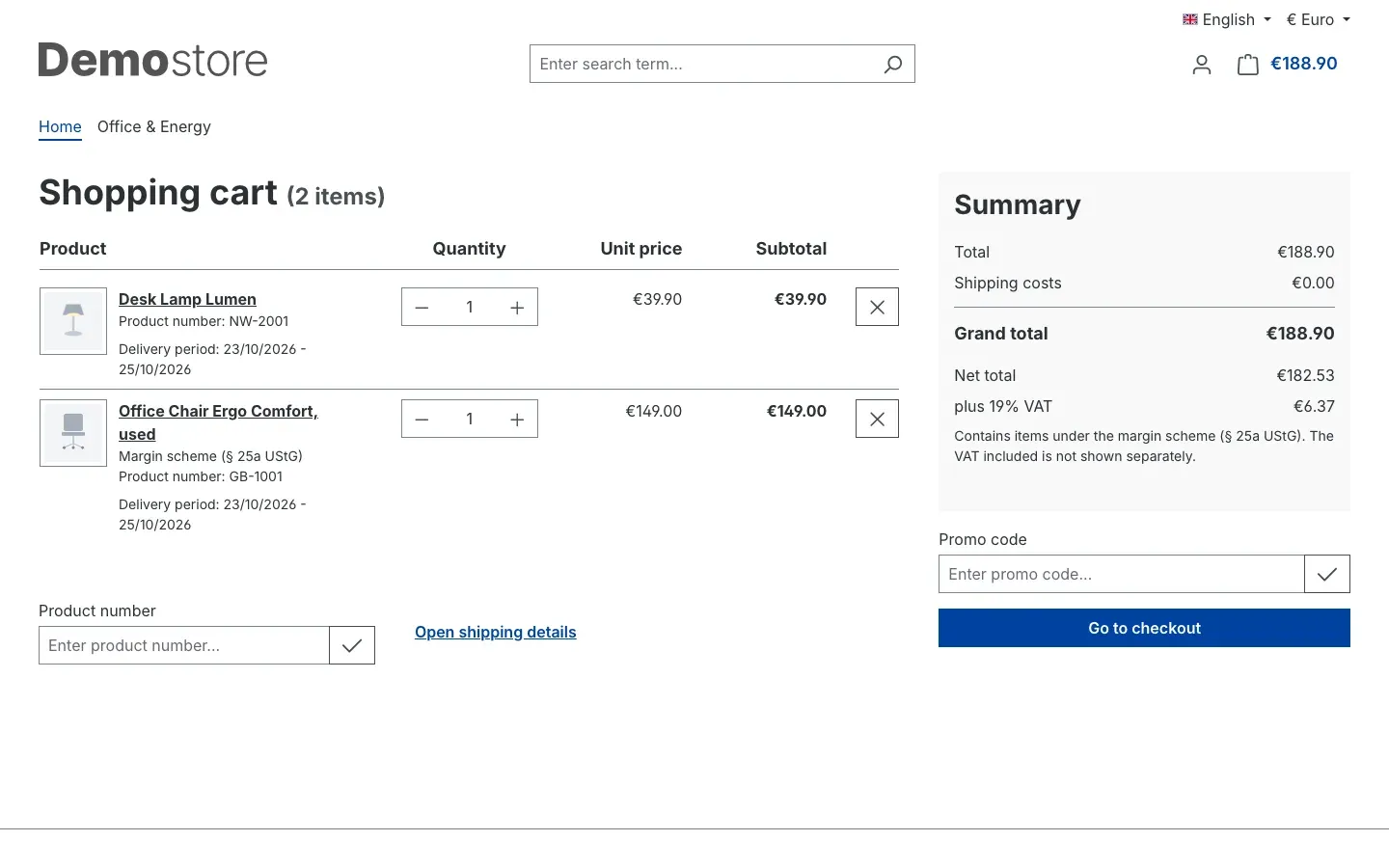 Fig. 8: The cart only shows the 19 % VAT row of the new item
At checkout, after placing the order and in the order history of the customer account the same line and summary notices appear. At checkout and after placing the order, the “incl. VAT” column shows ”§ 25a” instead of an amount for margin scheme items. If the order also contains solar products at the zero rate, it additionally says “Contains photovoltaic products at the zero rate (§ 12 (3) UStG).” — and the “0 % VAT” row stays visible, because it then also stems from these products.
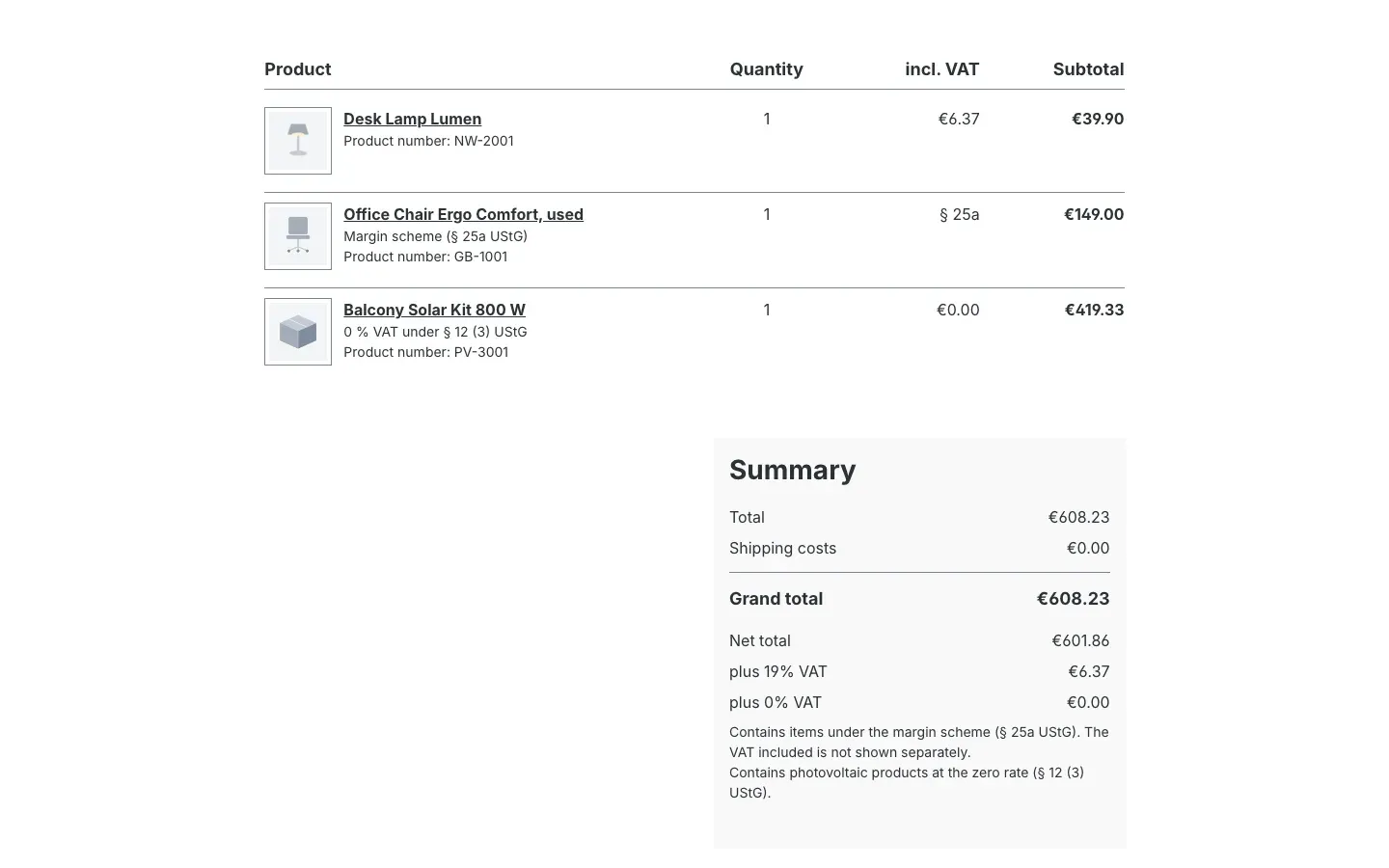 Fig. 9: Notices after placing the order
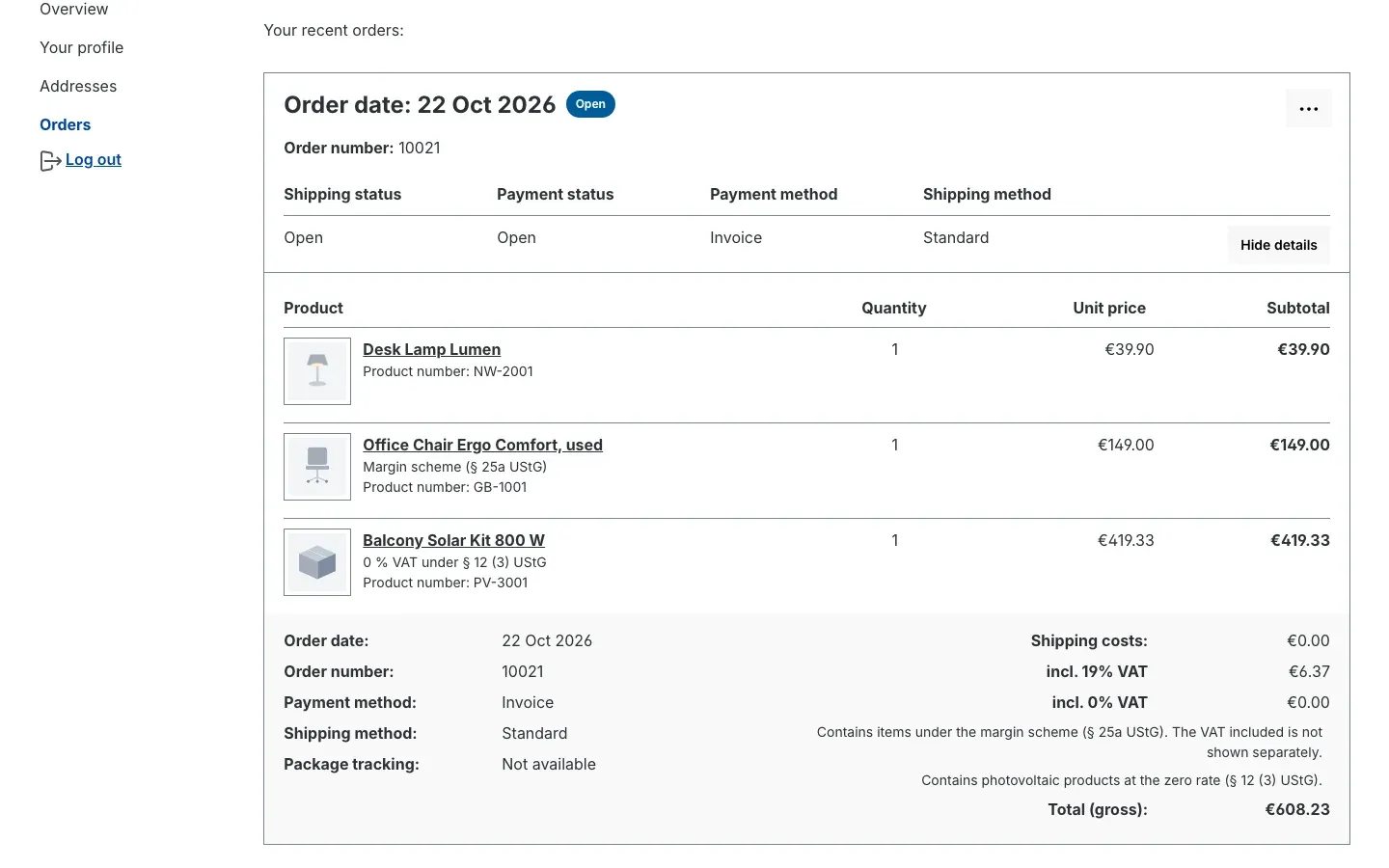 Fig. 10: The expanded order under “Orders” in the customer account
How your documents carry the required statement
What this gives you: Invoices, cancellation invoices, credit notes and delivery notes contain the required information without you touching a document template.
Create documents as usual, for example under Orders → Overview, open the order, Documents tab, Create new document. If the document contains margin scheme items, it shows:
- below the item, the notice “Margin scheme (§ 25a UStG)”,
- in the tax column, ”§ 25a” instead of a tax rate,
- below the totals, the statement you selected in the settings, for example “Margin scheme – Second-hand goods”, followed by “Positions marked as margin scheme are taxed under § 25a UStG. The VAT included is not shown separately.”
Solar items at the zero rate carry the notice “Zero rate (§ 12 (3) UStG)”, and below the totals it says “The marked photovoltaic positions are subject to the zero rate under § 12 (3) UStG.”
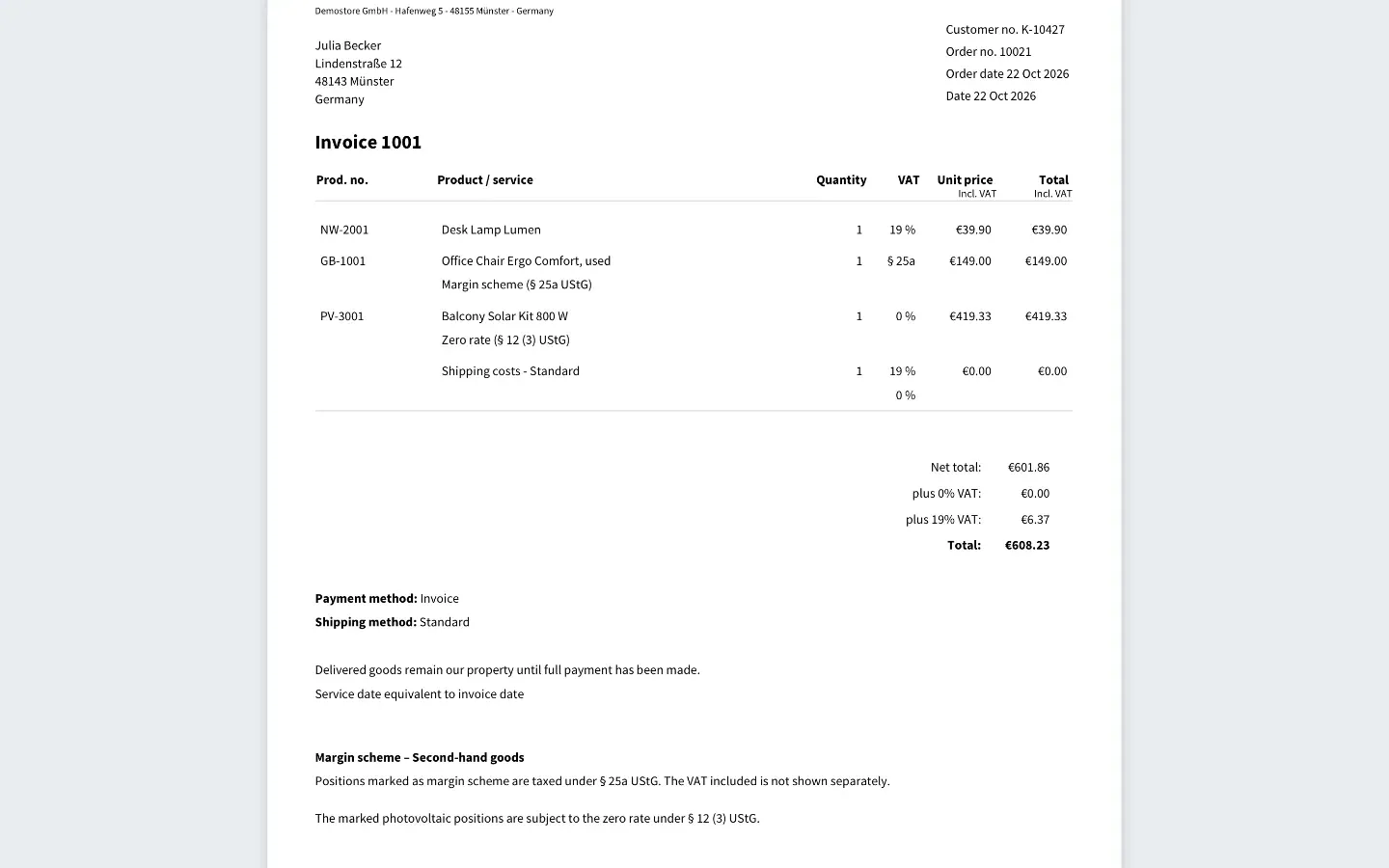 Fig. 11: Invoice with ”§ 25a” in the tax column and the required statement
The credit note shows the statement and hides the “0 % VAT” row; the credit positions themselves carry no notice. The delivery note contains no prices and therefore only shows the notice below the item. Documents without affected items stay unchanged.
How to flag solar products
What this gives you: You maintain each solar product once, with its regular tax rate and gross price. For eligible buyers the plugin calculates the net price with 0 % VAT — at 19 % VAT, €499.00 gross becomes €419.33.
Step by step
- Go to Catalogues → Products and open the solar product.
- On the General tab, keep the regular tax rate, for example 19 %.
- Open the Specifications tab and go to the Custom fields card.
- On the Special VAT schemes tab, switch on Solar: 0 % VAT under § 12 (3) UStG.
- Click Save.
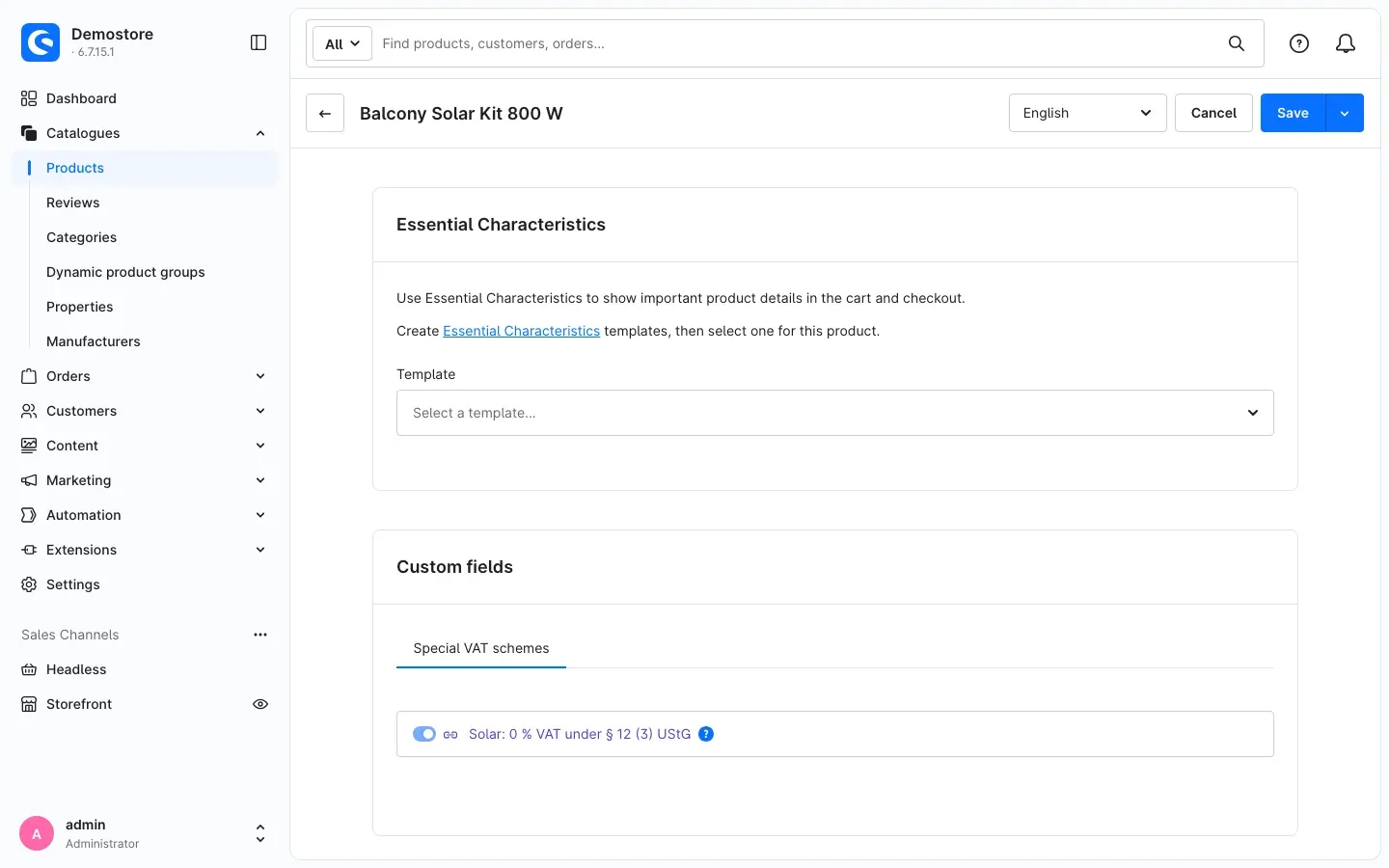 Fig. 12: The switch “Solar: 0 % VAT under § 12 (3) UStG” in the “Custom fields” card
Tip: Setting the switch once in the default language of your shop is sufficient. In other content languages the Administration shows the value as inherited.
Important: Internally, the plugin creates a second tax Photovoltaik 0 % (§ 12 Abs. 3 UStG) – intern, nicht zuweisen. Do not assign it to any product — saving is then rejected. If you delete this tax, the zero rate is only available again after the next plugin update.
How your customer declares eligibility
What this gives you: Your customers decide themselves whether they use the zero rate, and the price adjusts immediately.
On the product page the line below the price states how the product is charged, for example “Price with 0 % VAT (zero rate under § 12 (3) UStG)”. Below it is the declaration to tick. With the default setting it reads “I hereby declare that I do not belong to the group of eligible persons under § 12 (3) UStG.” If the customer ticks it, the shop shows the regular price.
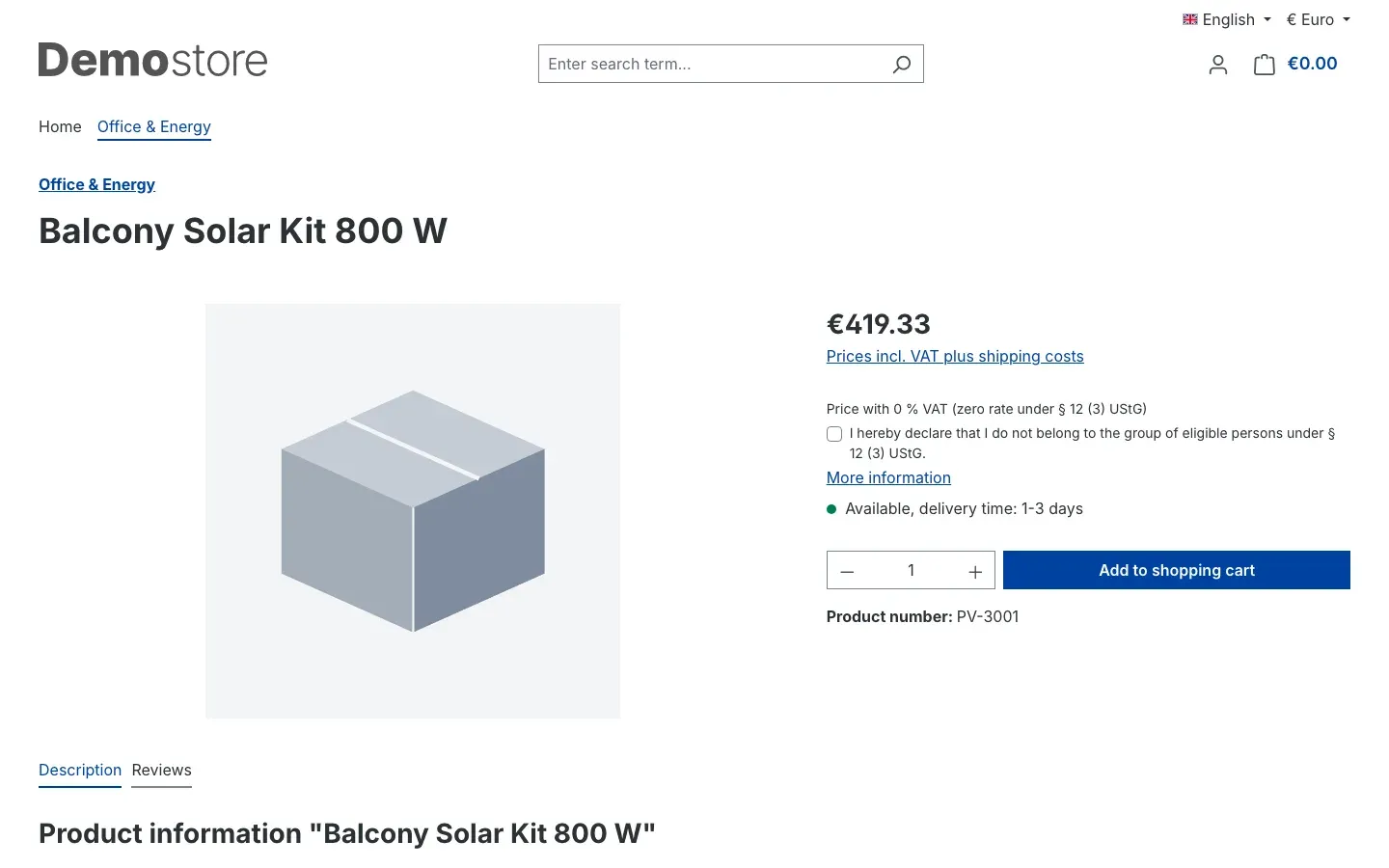 Fig. 13: Price with 0 % VAT and declaration on the product page
Via More information your customer opens the information page you selected in the settings.
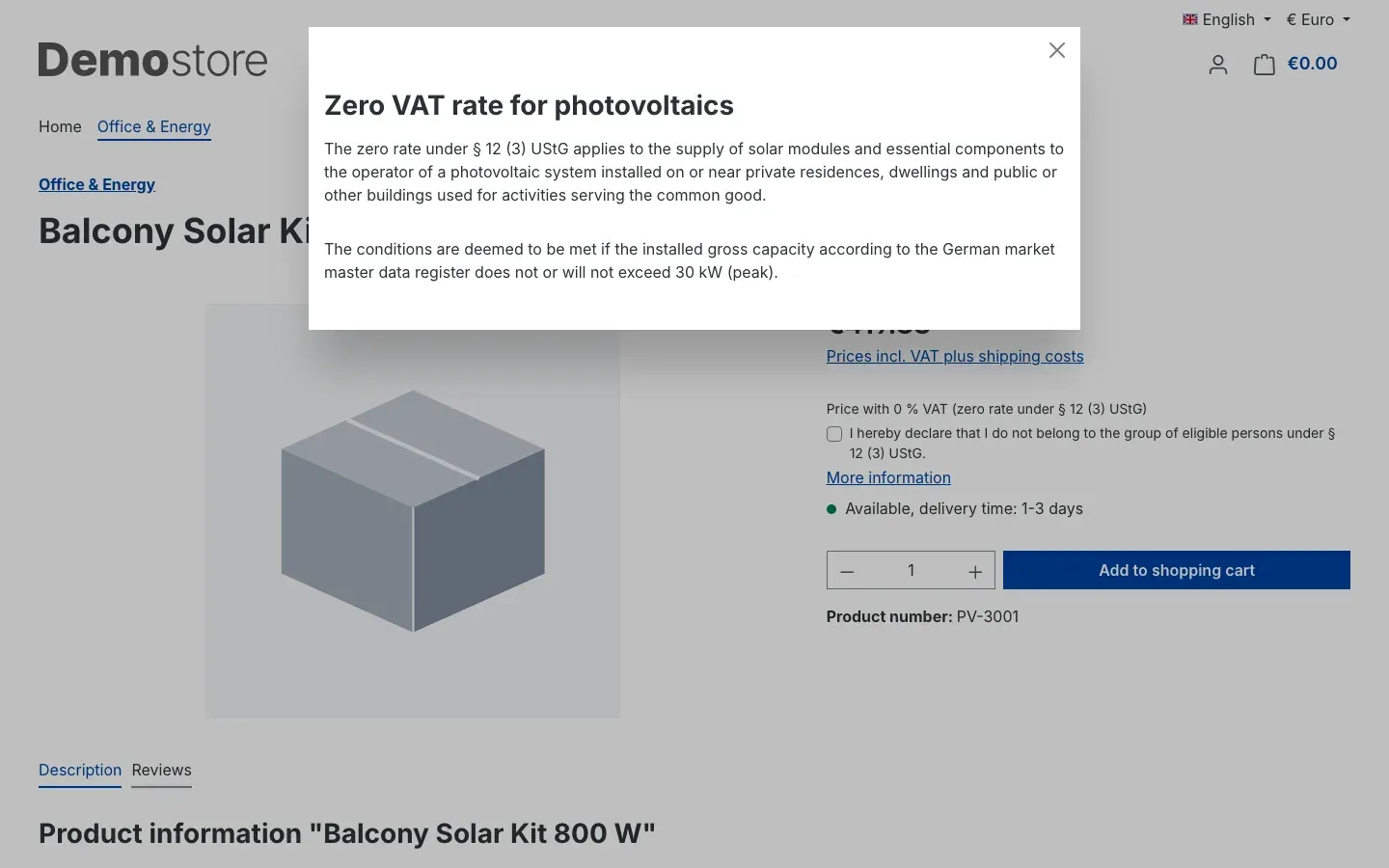 Fig. 14: The information page on the zero rate in a modal window
In the cart and at checkout the shop shows the card Zero VAT rate for photovoltaics (§ 12 (3) UStG) as soon as solar products are in the cart. It states the current status, for example “The marked photovoltaic products are charged with 0 % VAT.”, and contains the same declaration. It also points out that the declaration applies to all solar products of the order.
If you require a confirmation, checkout additionally shows “I confirm that the conditions of § 12 (3) UStG are met for the photovoltaic products charged with 0 % VAT.” Without this tick the order cannot be placed, and the shop reports “Please confirm the conditions for the zero VAT rate.”
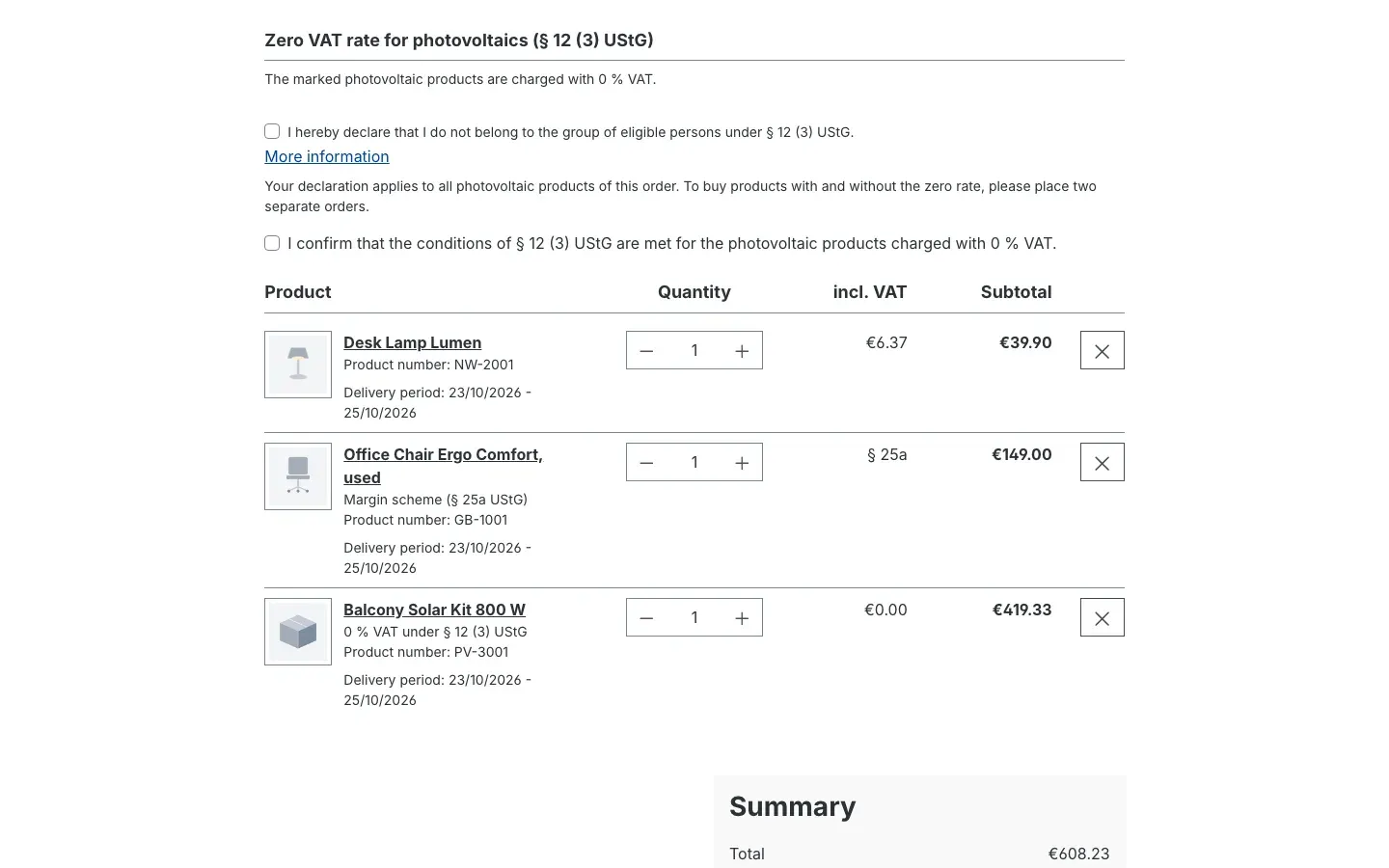 Fig. 15: The solar card with declaration and confirmation at checkout
Tip: Customers in excluded customer groups and orders to delivery countries that are not enabled see no declaration and pay the regular price.
How to find the declaration on the order
What this gives you: For every order with solar products you have a record of what the buyer declared.
Step by step
- Go to Orders → Overview and open the order.
- Switch to the Details tab.
- In the Custom fields card, the Solar 0 % VAT tab shows the field Buyer declaration (§ 12 (3) UStG).
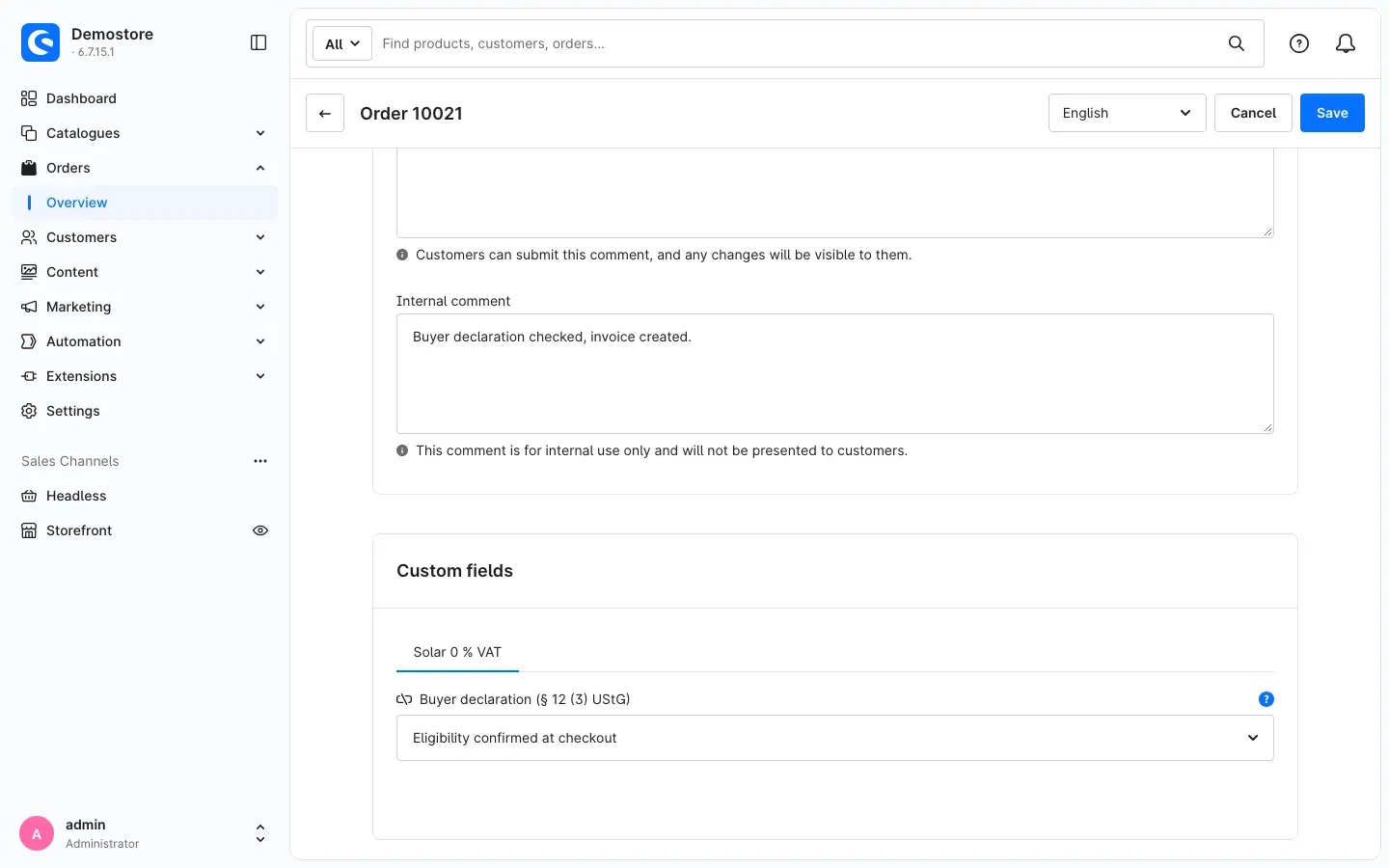 Fig. 16: The buyer declaration in the “Custom fields” card
The plugin fills the field automatically when the order is placed. Possible entries:
- Eligibility assumed (no declaration to the contrary) — with the default setting, the buyer did not tick anything,
- Eligibility declared by the buyer — the buyer declared their eligibility,
- Eligibility confirmed at checkout — the buyer also ticked the confirmation at checkout,
- Buyer declared not to be eligible,
- No eligibility declared (regular tax rate),
- Not available for customer group or delivery country.
Tip: If you recalculate the order in the Administration, the tax rate stays as the customer ordered.
How to switch from another extension
What this gives you: You take over existing products and orders without changing them one by one.
- In the settings, select the 0 % tax of your previous extension under Additional taxes treated as differentially taxed and click Save. All products with this tax get the notices immediately.
- If you flagged solar products in another custom field so far, your technical administrator can take over the flag (chapter 9).
Troubleshooting
The margin scheme notice does not appear
Cause: The plugin is switched off in the sales channel, the margin scheme is disabled, the product carries a different tax, or the cache is outdated.
How to fix it:
- In the settings for the sales channel, check Enable plugin for this sales channel and Enable differential taxation.
- On the product, check under Tax rate that Differenzbesteuerung (§ 25a UStG) or one of the additionally selected taxes is chosen.
- If the notice is only missing in listings, check Show notice in product listings.
- Clear the cache: Settings → System → Caches & indexes, button Clear cache.
A solar product costs the regular price
Cause: The zero rate is switched off, the product is not flagged, the customer belongs to an excluded customer group, the delivery country is not enabled, or the customer declared not to be eligible.
How to fix it:
- Check Enable 0 % VAT for solar products in the sales channel concerned.
- Check the switch Solar: 0 % VAT under § 12 (3) UStG on the product (chapter 5.4).
- Check Customer groups without 0 % VAT and Only for these delivery countries.
- If Regular VAT; eligible buyers declare their eligibility is selected, the shop only shows the net price after the customer has declared their eligibility.
The “0 % VAT” row is still shown
Cause: Besides the second-hand goods, the cart or document contains other items with 0 %, for example solar products at the zero rate. In that case the row deliberately stays. Also check that Hide the “0 % VAT” row when it only stems from differentially taxed items is switched on.
The product cannot be saved
Cause: The internal tax Photovoltaik 0 % (§ 12 Abs. 3 UStG) – intern, nicht zuweisen is selected on the product.
How to fix it: Select the regular tax rate again and switch on the solar flag instead (chapter 5.4).
The customer cannot place the order
Cause: You require a confirmation of eligibility, and the customer has not ticked it at checkout. The shop then shows “Please confirm the conditions for the zero VAT rate.”
How to fix it: The customer ticks the confirmation or declares not to be eligible. If you do not need the confirmation, switch off Require confirmation of eligibility at checkout.
FAQ
Q: Does the plugin calculate the VAT on my margin?
A: No. The plugin marks margin scheme items in the shop and on documents. Purchase price, margin and the VAT on it are determined by your accounting.
Q: Do I have to create solar products twice, with and without VAT?
A: No. You switch on Solar: 0 % VAT under § 12 (3) UStG on the product. The product keeps its regular tax rate, and eligible buyers pay the net price with 0 % VAT.
Q: Can a customer buy solar products with and without the zero rate in one order?
A: No. The declaration applies to all solar products of an order. In the cart and at checkout the shop points out that two separate orders are needed for this.
Q: Does the plugin work with net price display or in a sales channel for business customers?
A: The margin scheme does. The zero rate for solar products is designed for gross price display. Exclude customer groups with net display under Customer groups without 0 % VAT or switch the zero rate off in that sales channel.
Q: Does the plugin change my order confirmation emails?
A: No. The plugin does not change email templates automatically. If needed, add the notice to the template yourself. The e-invoice (ZUGFeRD, XRechnung) also stays as Shopware creates it.
Q: Does the plugin work with my theme?
A: Usually yes. If your theme heavily customises cart, checkout or documents, check the notices in a test sales channel first.
Q: What happens to my data when I uninstall the plugin?
A: If you do not keep the data, the plugin removes its custom fields on products and orders. The two 0 % taxes remain, because products, orders and documents refer to them. If you keep the data, everything is preserved.
Q: Does the plugin send data to external services?
A: No. The buyer’s declaration stays in your Shopware database as part of the order.
For Administrators / Technical Details
This section is intended for technical administrators. You do not need it for normal use.
System requirements
- Shopware: 6.7
- PHP: 8.2 or higher
Installation via the command line
bin/console plugin:refresh
bin/console plugin:install --activate SwpDiffTaxSix
bin/console cache:clear
Taking over the solar flag from another extension
The console command sets the solar flag on all products whose previous custom field is switched on. With --dry-run it only counts the affected products without changing anything.
bin/console swp:diff-tax:migrate-pv-flag --source=<name_of_previous_custom_field> --dry-run
bin/console swp:diff-tax:migrate-pv-flag --source=<name_of_previous_custom_field>
The plugin writes its log to var/log/SwpDiffTaxSix-<date>.log.
Headless frontends
For headless frontends, the Store API route /store-api/swp-diff-tax/photovoltaic-declaration reads and sets the buyer’s declaration. The classification of a product is available in the product extension swpDiffTax.
Data and page cache
The plugin creates no tables of its own and does not alter Shopware tables. It creates the two 0 % taxes and one custom field set each for products and orders. The buyer’s declaration is part of the page cache key — product pages stay in the HTTP cache. The plugin sends no data to external servers.
This manual was written for Margin Scheme: Differential Taxation § 25a and 0 % VAT for Solar version 6.7.0.
More manuals
Address Validation: House Number Check & Corrections
Address validation at the point of entry: the plugin spots missing house numbers, can suggest corrections via Google and helps you send fewer parcels that come back undeliverable.
Open manual Shopware 6Admin Password Reminder
Admin Password Reminder: your backend users renew their passwords on time, prompted after login and by a daily email. Premium locks expired accounts until the password is changed.
Open manual Shopware 6Advent Calendar | Doors with products, coupons and promotions
Advent calendar for your shopping experiences: doors open on time without clearing the cache, give nothing away in the page source and reveal coupons, products or your own content.
Open manualNeed a team that keeps your shop running?
We have been maintaining Shopware shops for more than 20 years, including updates, hotfixes and the plugins you are configuring right now.