Popups & Notifications: Banners, Notice Bars, Slide-ins
Popups, banners and notice bars that only appear where they belong: targeted by page, schedule, device and rule, with a countdown, a coupon code and a newsletter sign-up.
On this page
- Introduction
- What you achieve with this plugin
- Who is this plugin for?
- Installation
- Getting started
- Settings
- Enable plugin for this sales channel
- Count impressions and clicks
- Maximum number of messages shown at the same time
- Time zone for weekdays and times of day
- How to keep track of your notifications
- Edit, preview, duplicate or delete a notification
- How to create a notification
- General
- Content
- Design
- How to control when, how often, where and for whom it appears
- When — the trigger
- How often — the frequency
- Where — pages, categories, addresses and devices
- Who — visitors and rule
- Period and times
- How to check a notification in advance
- What your visitors see
- Popup (modal)
- Message (toast)
- Notice bar
- Banner
- Slide-in
- How to read the statistics
- Show again to all visitors
- Reset statistics
- Data protection and cookies
- Troubleshooting
- The entry “Popups & notifications” is missing from the menu
- A notification does not appear in the shop
- A scheduled notification appears a few minutes late
- The notification looks different from what you expected
- My preview link no longer works
- FAQ
- For administrators / technical details
- System requirements
- Permissions
- Data and cache
- Headless shops
- Installation via the command line
Introduction
With Popups & Notifications you show your visitors notices, promotions and offers exactly where they belong: as a popup, as a small message in a corner of the screen, as a notice bar above the page, as a banner or as a slide-in with a tab at the edge of the screen.
What you achieve with this plugin
- You manage all notices of your shop in one place — under Marketing → Popups & notifications.
- For every notification you decide what it shows, how it looks, when it appears, how often and for whom.
- Promotions start and end on their own: you set the period, weekdays and daily times in advance.
- Your visitors are not annoyed: a notification appears as often as you specify — for example once per visit or until the visitor closes it.
- You add building blocks such as a countdown, a coupon code with a copy button and a newsletter sign-up without any programming.
- Anonymous statistics show you how often a notification appeared and how often visitors reacted to it.
Who is this plugin for?
For shop owners and marketing managers who want to place promotions, delivery notices, coupons or the newsletter sign-up in a targeted way — without needing a separate plugin for every kind of notice.
Installation
After your purchase, the plugin is available directly in your Administration — you do not need to download anything.
- Log in to your Shopware Administration (
yourshop.com/admin). - Open Extensions → My extensions.
- Next to Popups & Notifications: Banners, Notice Bars, Slide-ins, click Install.
- Activate the plugin with the switch next to the entry — done.
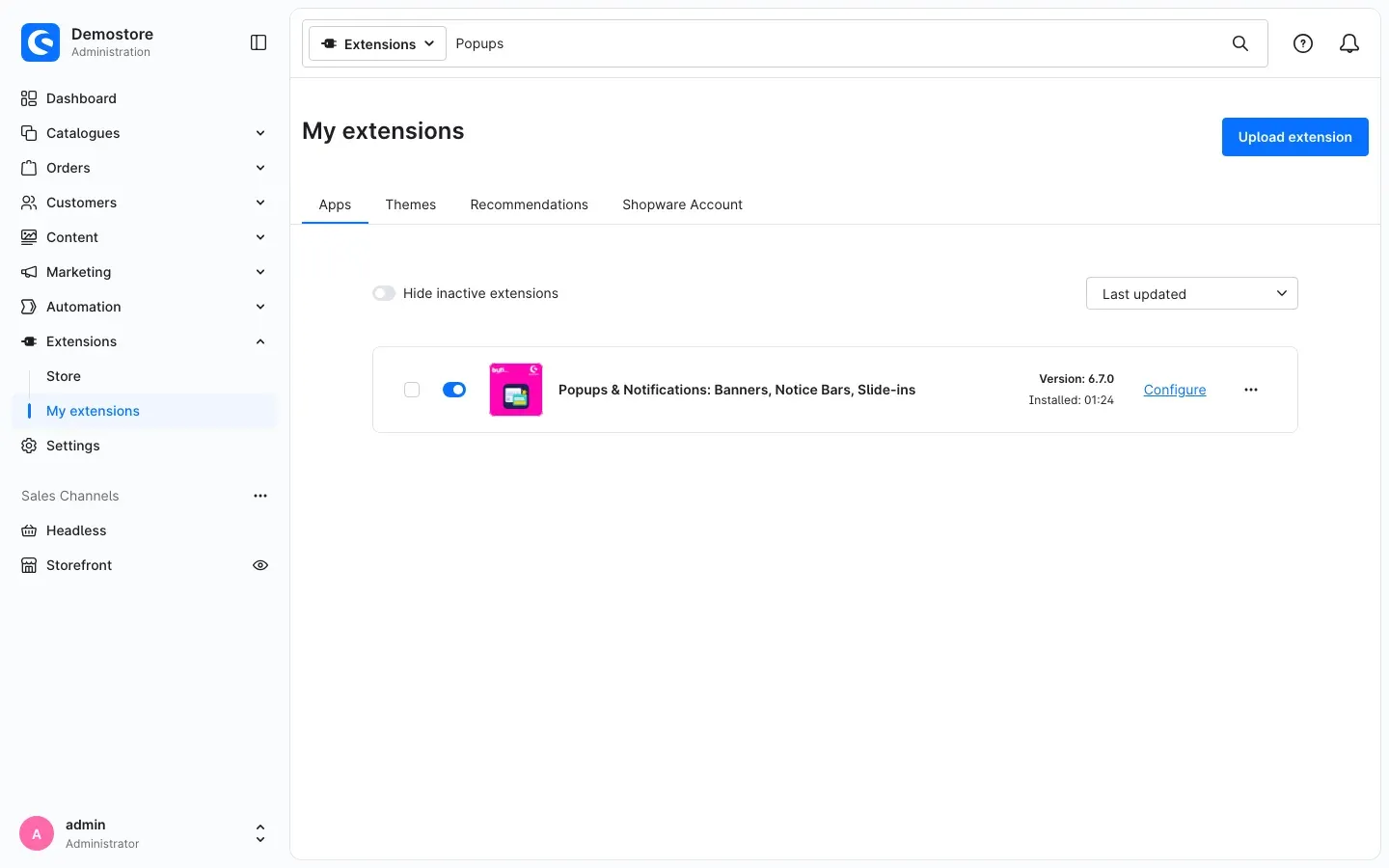 Fig. 1: The plugin is installed and active. “Configure” takes you to its settings.
If the plugin does not appear in the list, your Shopware account is not yet connected to the shop. You do this under Extensions → My extensions by logging in with your Shopware account.
After activation you will find the new entry Popups & notifications under Marketing in the main menu.
Getting started
This is how you get your first notification into the shop within a few minutes:
- Check the plugin: Under Extensions → My extensions, click Configure next to the plugin and make sure Enable plugin for this sales channel is switched on (chapter 4). This is the default.
- Create a notification: Open Marketing → Popups & notifications and click Add notification.
- Set the basics: On the General tab enter a Name, choose the Type — a Notice bar is a good start — and switch on Active.
- Write the text: On the Content tab enter a Headline and a Text.
- Save: Click Save in the top right.
- Look at the result: Click Preview, select your storefront domain and click Open preview. The notification appears immediately (chapter 8).
Without further settings the notification appears on every page of your shop until the visitor closes it. You can then refine its look, schedule, frequency and audience at your own pace.
Settings
You find the basic settings of the plugin under Extensions → My extensions: click Configure next to the plugin. At the very top you select the Sales Channel. With All Sales Channels the values apply everywhere; if you select a single sales channel, you can set different values there.
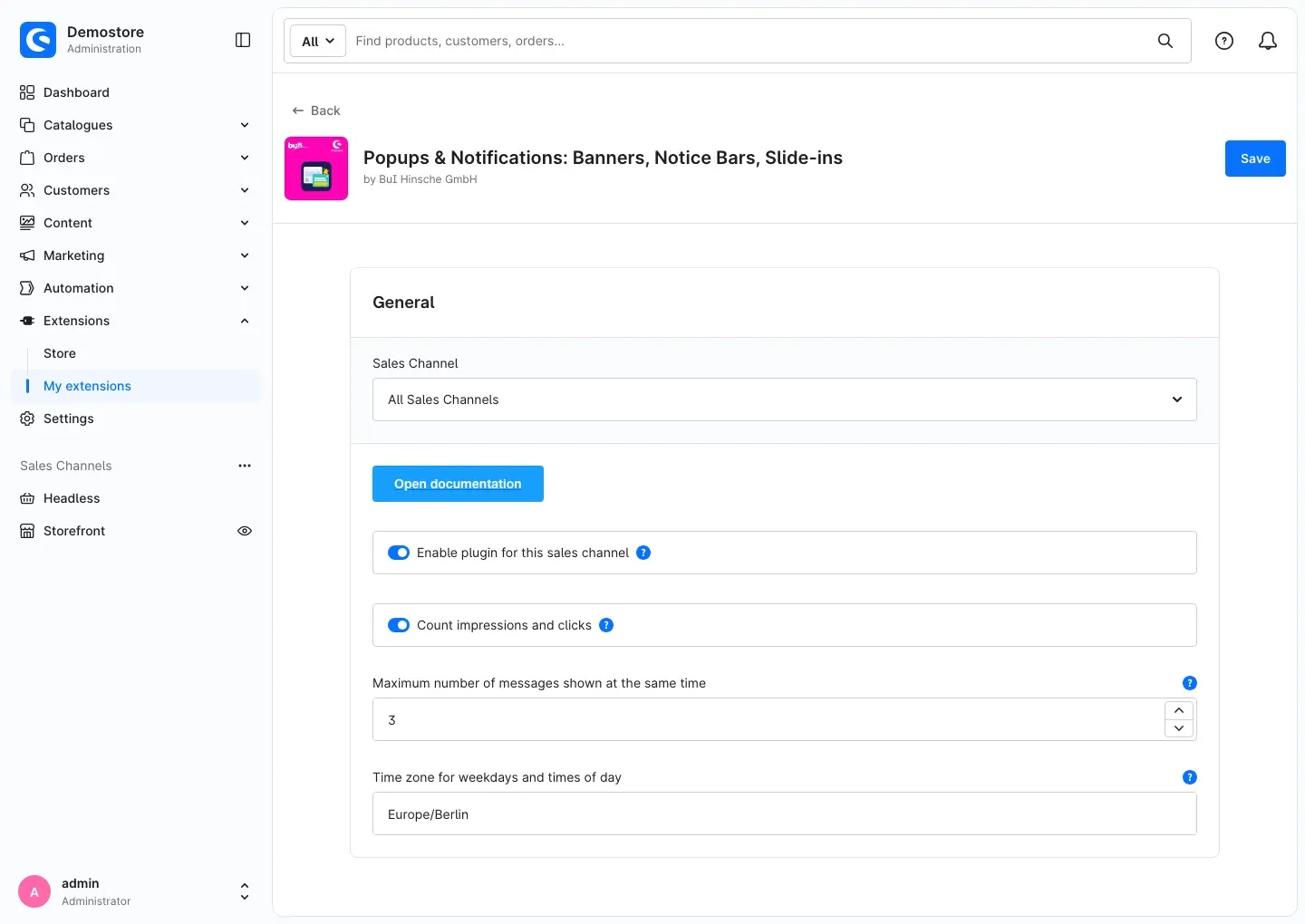 Fig. 2: The plugin configuration with the “Open documentation” button and all settings
Open documentation takes you straight to this manual.
Enable plugin for this sales channel
This switch decides whether the plugin shows any notifications in the selected sales channel at all. When it is switched off, no popup, banner or notice of this plugin appears there — your notifications remain saved. The switch is on by default.
Why this is useful: If you run, for example, a B2C and a B2B shop, you can silence all notifications in the B2B shop without uninstalling the plugin.
Count impressions and clicks
When switched on, the plugin anonymously counts for every notification how often it appeared, how often its button was clicked, how often it was closed and how often it led to a newsletter sign-up or a copied coupon code. No cookies, no IP addresses and no visitor IDs are stored. Counting is on by default.
Why this is useful: Without figures you cannot tell which notification works. If you do not want to count anything in a sales channel, switch it off there. You see the figures on the Statistics tab of each notification (chapter 10).
Maximum number of messages shown at the same time
This setting applies to the type Message (toast) — the small notices in a corner of the screen. You decide how many of them can be visible at the same time (1 to 5). Further messages wait until one is closed. Popups are always shown one after another anyway. The default is 3.
Why this is useful: It keeps too many messages from piling up over your shop when several promotions run at once.
Time zone for weekdays and times of day
Enter the time zone that notifications limited to weekdays or times of day follow, for example Europe/Berlin. This applies regardless of where the visitor is. The default is Europe/Berlin.
Why this is useful: If a notification is set to appear daily from 8 am to 6 pm, this always refers to your shop’s time.
After making changes, click Save in the top right.
How to keep track of your notifications
What this gives you: The overview shows you at a glance which notifications are currently running, which are scheduled or expired and how often they were seen.
Open Marketing → Popups & notifications.
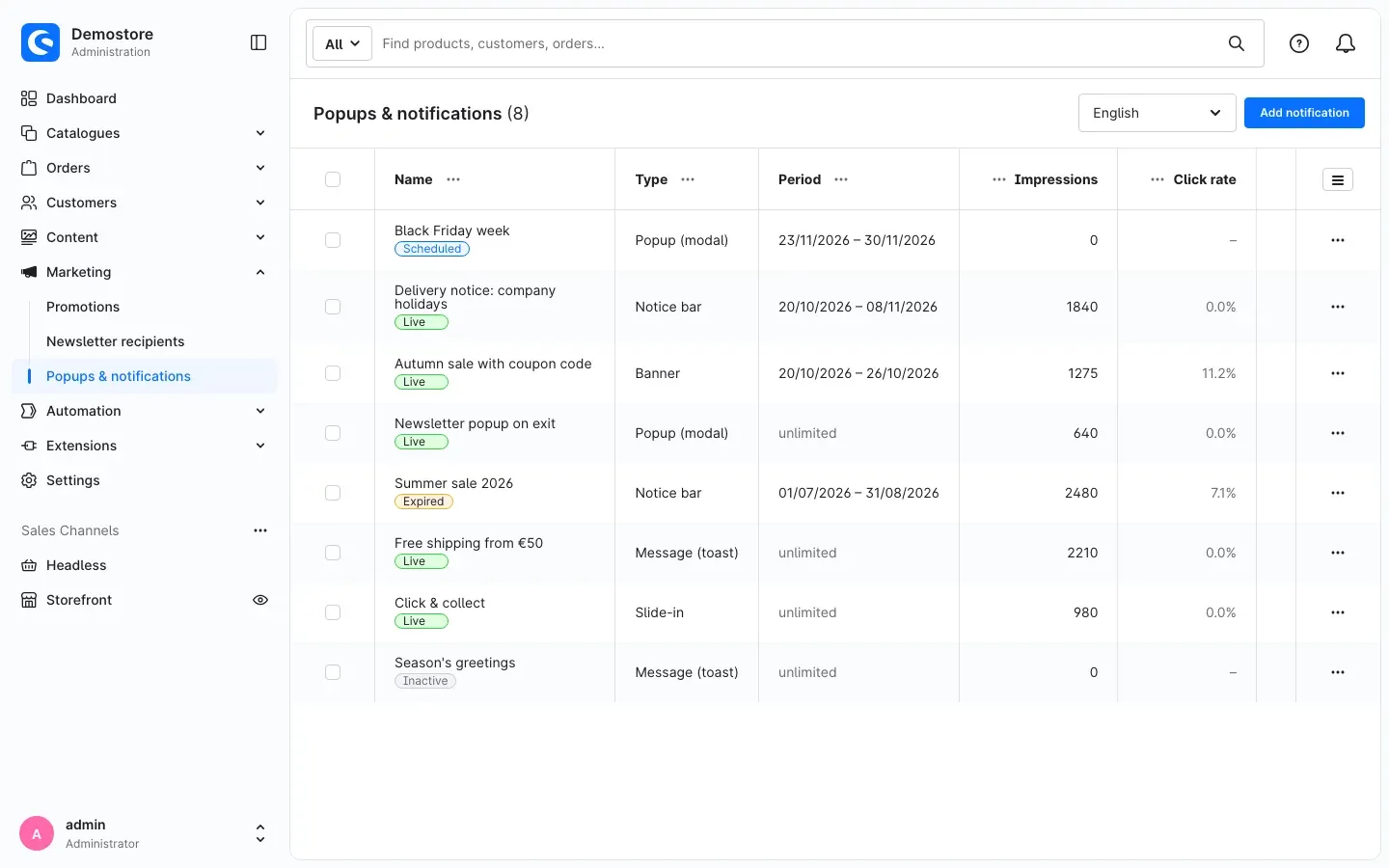 Fig. 3: The overview of all notifications
For every notification the list shows:
- Name, with a coloured status label below it: Live (currently running), Scheduled (the period has not started yet), Expired (the period is over) or Inactive (switched off).
- Type and Period (or “unlimited”).
- Impressions and Click rate from the statistics.
Click a column header to sort the list; use the search field at the top to find a notification by its name. The icon to the right of the column headers shows and hides further columns — for example Active, Priority and Clicks, which are hidden by default.
Edit, preview, duplicate or delete a notification
Click … at the end of a row to open further actions:
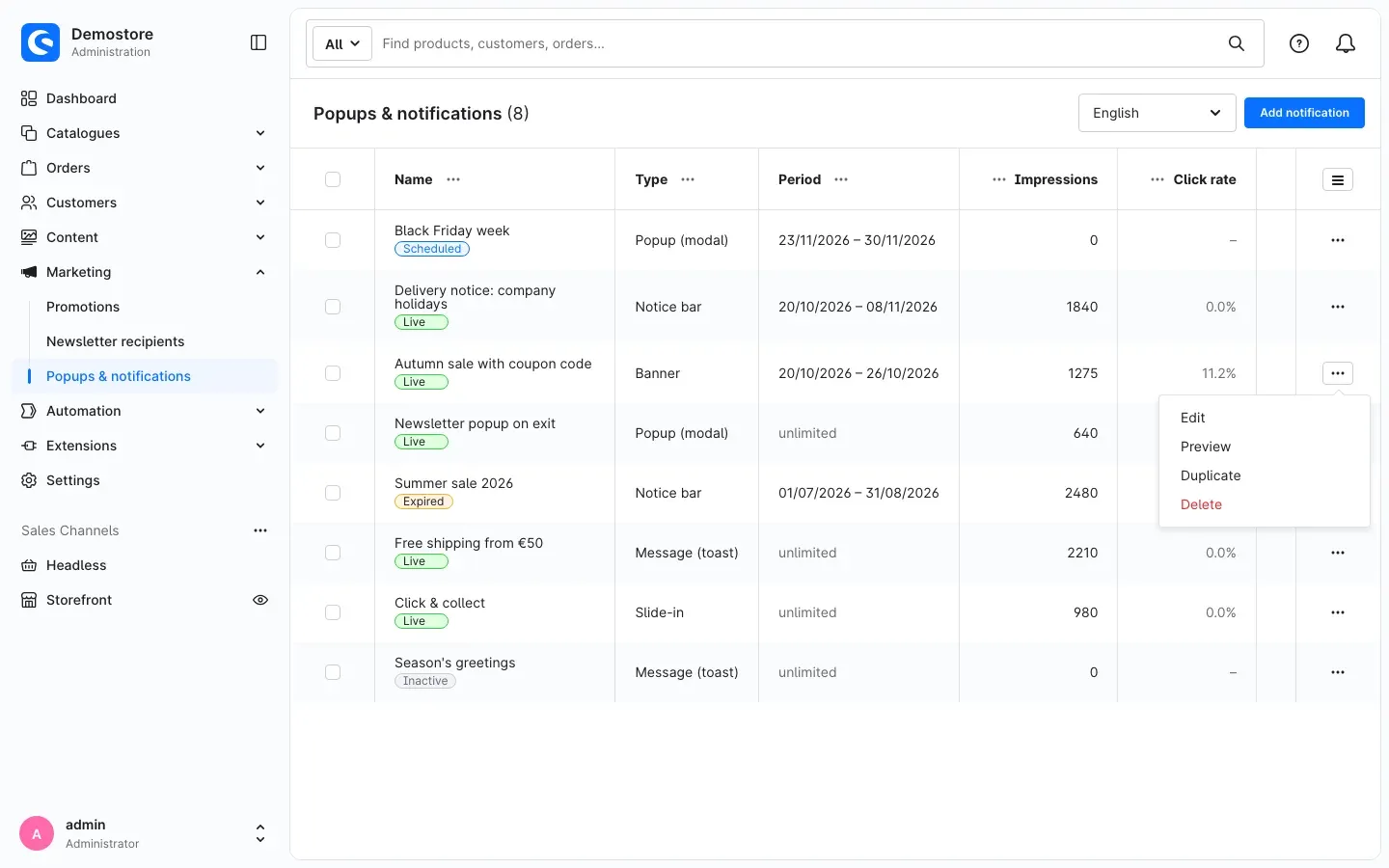 Fig. 4: The actions “Edit”, “Preview”, “Duplicate” and “Delete”
- Edit opens the notification.
- Preview opens the preview of this notification (chapter 8).
- Duplicate creates a copy with the suffix “(copy)” in its name. The copy is switched off at first, so it cannot go live by accident.
- Delete removes the notification.
Tip: For similar promotions — say, a different coupon every weekend — duplicate a proven notification and change only the text and the period.
How to create a notification
What this gives you: You put together every notification on five tabs: General, Content, Design, Display rules and Statistics.
In the overview, click Add notification or the name of an existing notification. In the top right you find Cancel, Preview and Save. The language selection next to them switches the language in which you edit the texts.
General
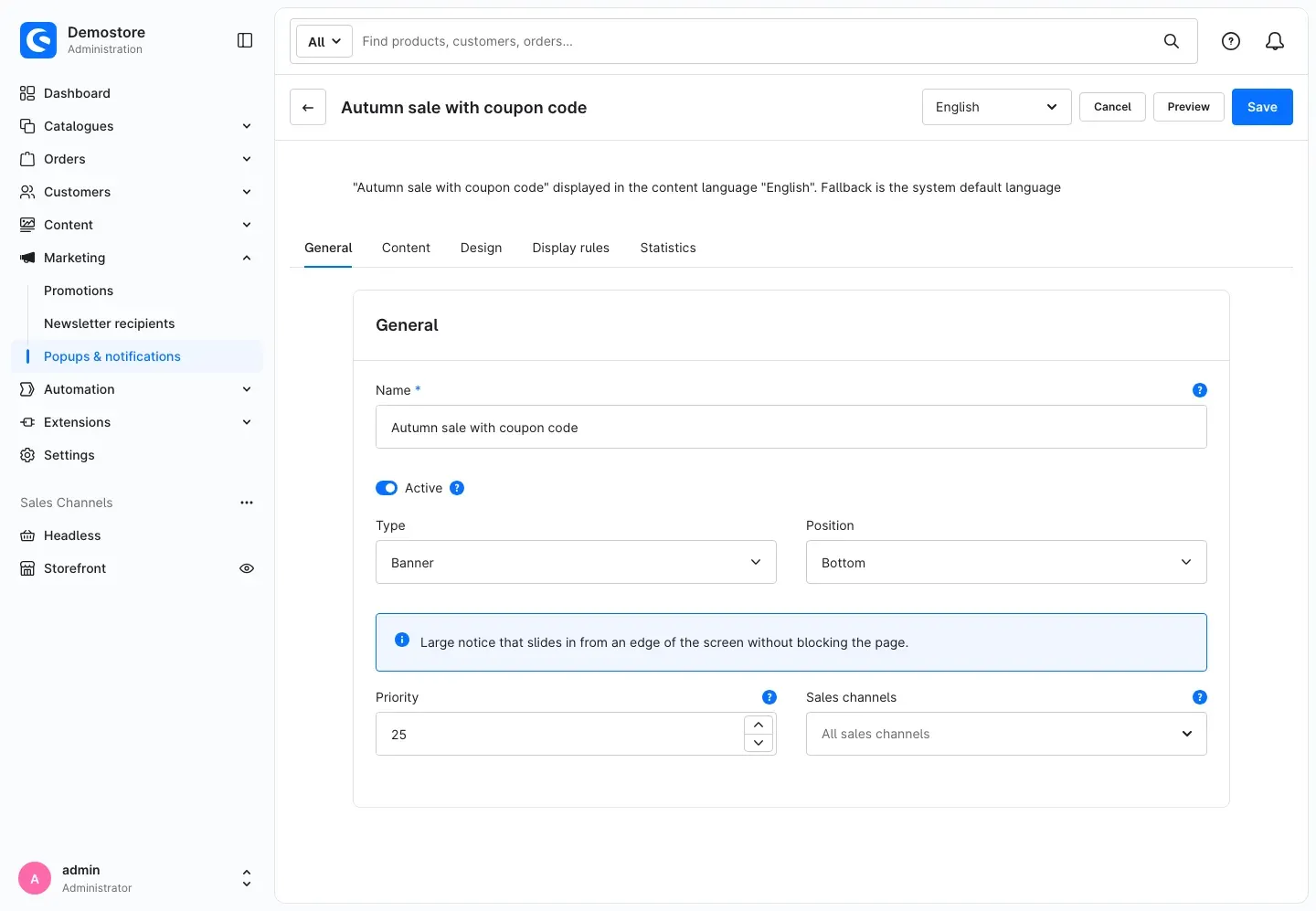 Fig. 5: The “General” tab with type, position, priority and sales channels
- Name: an internal name that only you see in the Administration — for example “Autumn sale with coupon code”.
- Active: only active notifications appear in the shop. Inactive ones never appear, whatever else you set. A new notification is switched off at first.
- Type: it decides how the notification appears in the shop. Below the selection, a short note describes how the selected type behaves. Chapter 9 shows what the types look like in the shop.
- Popup (modal) — appears in the centre above a darkened background; the visitor closes it before clicking on.
- Message (toast) — a small message in a corner of the screen; several messages stack up and the page stays usable.
- Notice bar — a bar across the full width; at the top it pushes the page content down, at the bottom it stays fixed.
- Banner — a large notice that slides in from an edge of the screen without blocking the page.
- Slide-in — a tab at the edge of the screen; the content slides in as soon as the visitor clicks it.
- Position: where the notification appears. The available positions depend on the type — a message, for example, appears at the top or bottom, each on the left, in the centre or on the right; a banner at the top, bottom, left or right; a notice bar at the top or bottom.
- Priority: if several notifications are due at the same time, the one with the higher value appears first.
- Sales channels: leave the field empty to show the notification in all sales channels, or select individual sales channels.
Content
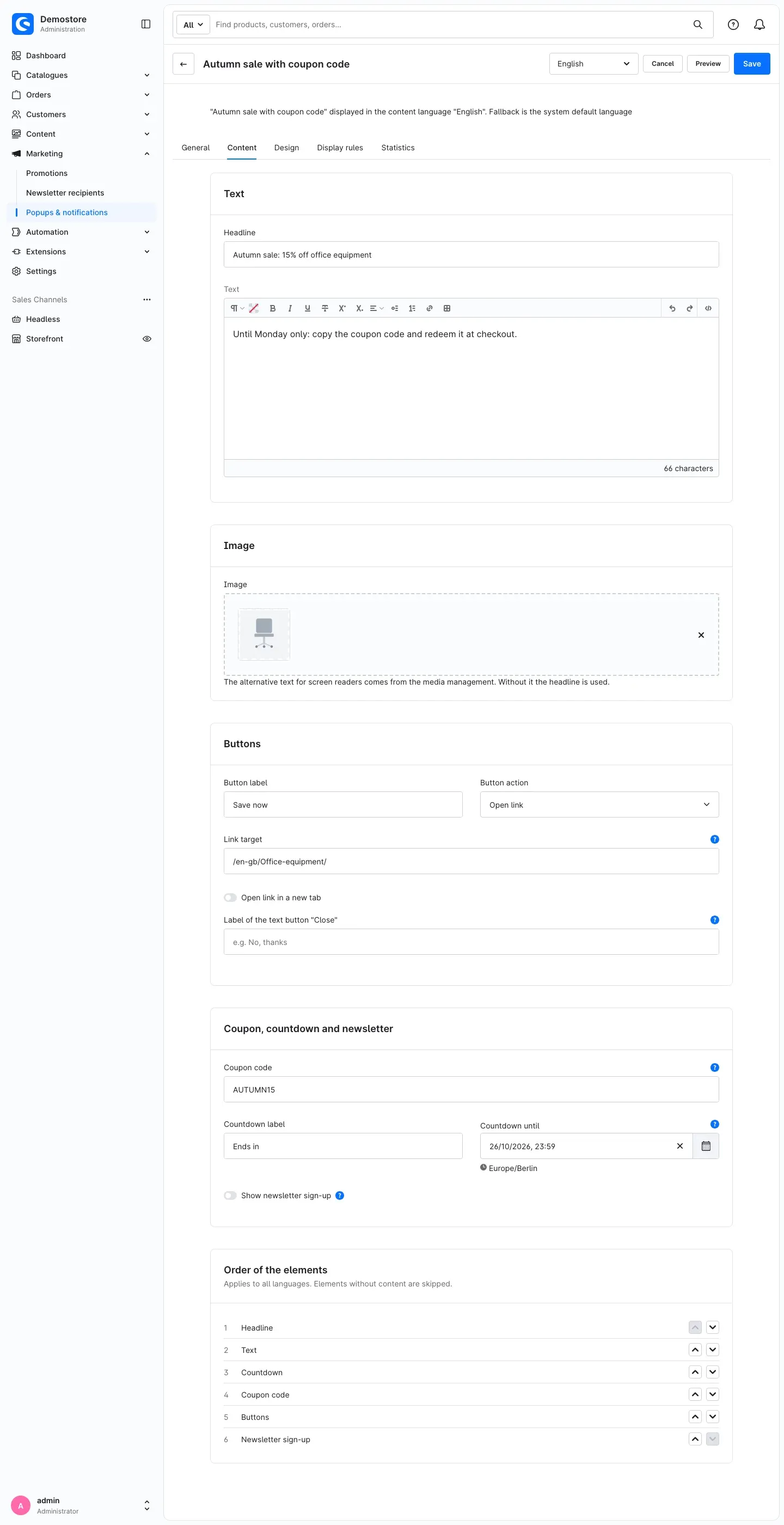 Fig. 6: The “Content” tab with text, image, buttons, coupon, countdown, newsletter and the order of the elements
Text
- Headline and Text: you format the text in the editor — for example bold, italic, as a list or with a link.
- Tab label (slide-in only): the text on the tab at the edge of the screen. Without text, only the icon is shown.
Image
Select an image from the media library or upload a new one. The plugin takes the alternative text for screen readers from the media library; if it is missing, the headline is used. The browser only loads the image when the notification actually appears.
Buttons
- Button label and Button action: the main button can Open link, Close notification or Open link and close notification.
- Link target: a full address (
https://…) or a path in your shop, for example/sale. - Open link in a new tab: opens the link target in a new browser tab.
- Label of the text button “Close”: an optional second button that closes the notification — for example “No, thanks”.
Coupon, countdown and newsletter
- Coupon code: appears together with a button that copies the code to the clipboard. You create the code itself as usual under Marketing → Promotions — the plugin only displays it.
- Countdown label and Countdown until: the countdown counts down days, hours, minutes and seconds to the selected time. It only appears when you enter a date here. An end under Show until (chapter 7.5) alone does not start a countdown.
- Show newsletter sign-up: adds a sign-up form. It uses your shop’s newsletter sign-up — with double opt-in, captcha (including Google reCAPTCHA v2 and v3) and privacy notice. When the sign-up is switched on, you also set the Placeholder of the e-mail field, the Sign-up button label and the Message after sign-up.
Important: The countdown and the newsletter sign-up do not appear in messages (toasts) — there is not enough space.
Order of the elements
Use the arrows to set the order in which headline, text, countdown, coupon code, buttons and newsletter sign-up appear. The order applies to all languages; elements without content are skipped.
Translating texts: switch to another language with the language selection at the top and enter the translated texts there. Structure, image and order apply to all languages together.
Design
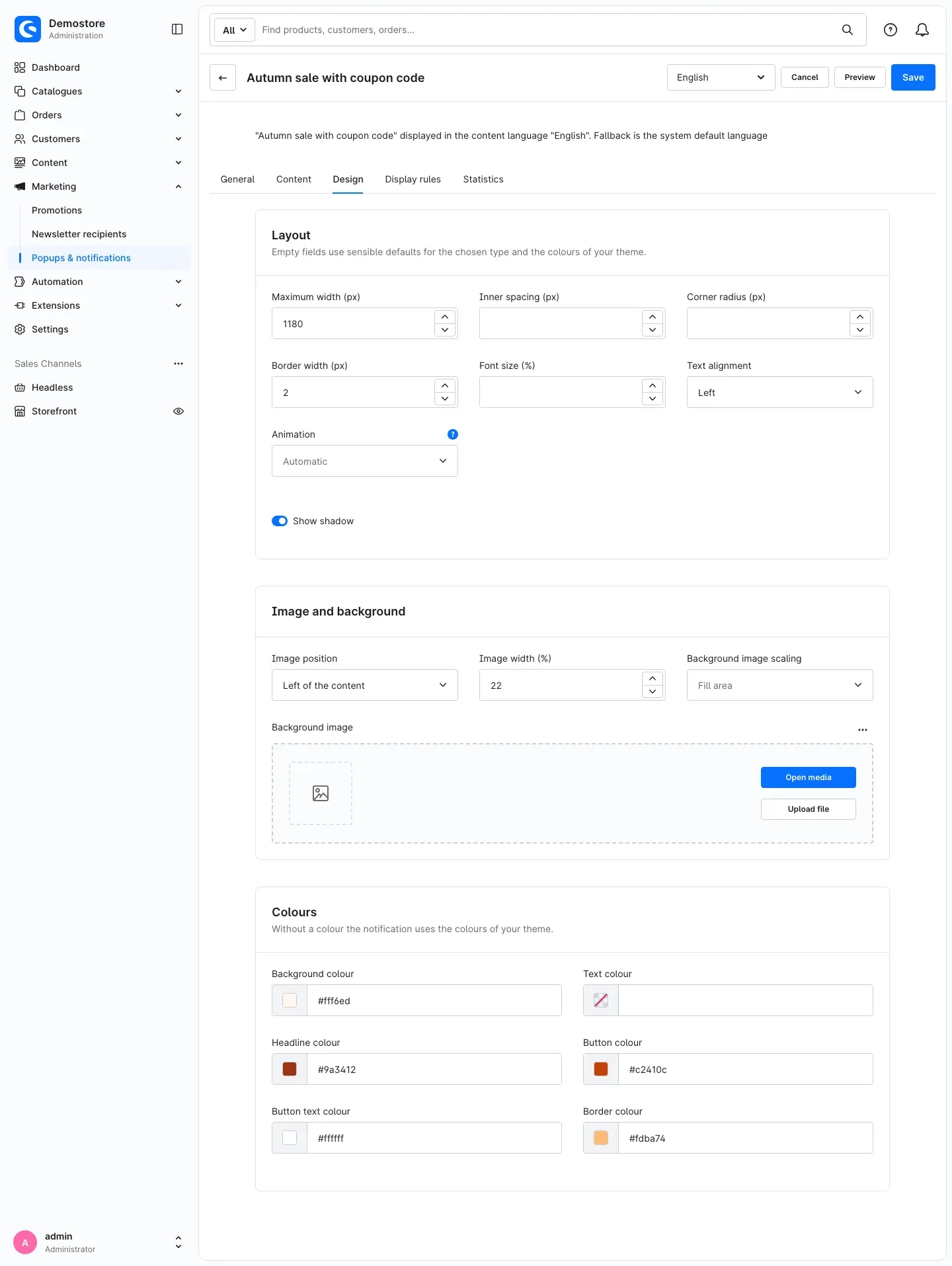 Fig. 7: The “Design” tab with layout, image and background, and colours
What this gives you: Without your own values, every notification uses the colours and fonts of your theme and therefore matches your shop from the start. Empty fields use suitable defaults for the selected type.
- Layout: Maximum width, Inner spacing, Corner radius, Border width, Font size, Text alignment, Animation and Show shadow. For a slide-in you also choose the Tab icon. Visitors who have set reduced motion in their system always see the notification without animation.
- Image and background: the Image position — above, below, left or right of the content or as background —, depending on the position the Image width or the Maximum image height, plus a separate Background image and its Background image scaling (“Fill area” or “Show whole image”).
- Colours: Background colour, Text colour, Headline colour, Button colour, Button text colour and Border colour; for a popup also the Overlay colour of the dark background behind it.
After all changes, click Save.
How to control when, how often, where and for whom it appears
What this gives you: On the Display rules tab you make sure your notification only appears when it fits — at the right time, on the right pages, for the right visitors and no more often than necessary.
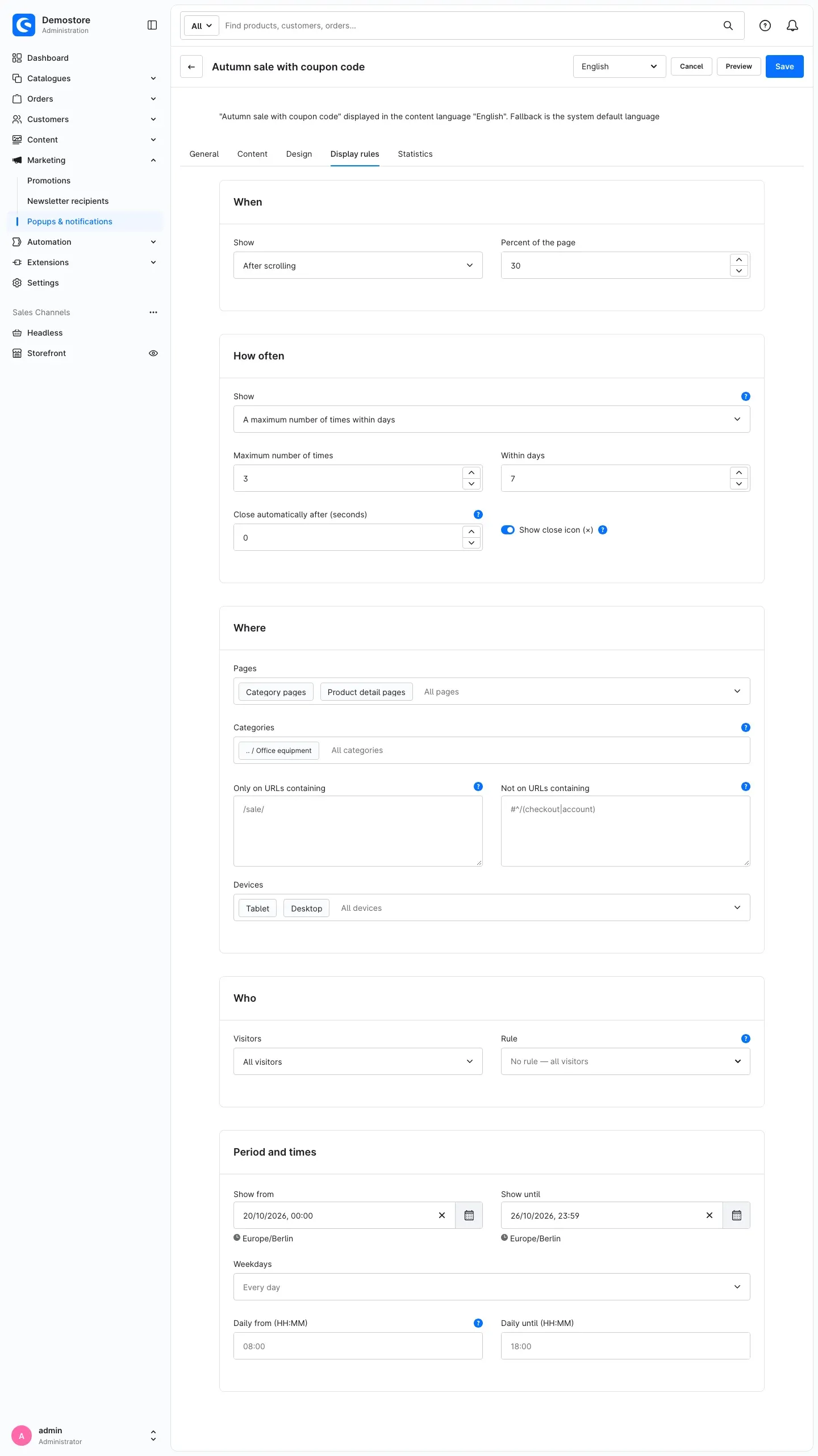 Fig. 8: The “Display rules” tab with the sections When, How often, Where, Who, and Period and times
When — the trigger
Under Show in the When section you choose when the notification appears on a page:
- Immediately — as soon as the page has loaded.
- After a delay — after the number of seconds you enter.
- After scrolling — as soon as the visitor has scrolled down the percentage of the page you enter (100 at most).
- After inactivity — when the visitor does nothing for the number of seconds you enter.
- When leaving the page (exit intent) — on a computer when the mouse leaves the window towards the top; on smartphones and tablets when the visitor scrolls back up quickly.
- After a number of page views — from the page view you enter within the current visit (100 at most). Every page view of the visit counts, including pages on which the notification itself does not appear.
- Only via link — the notification only appears when a visitor clicks a specific link. The Administration shows you the link right below the selection. You place it, for example, in a Shopping Experience, in the footer or in a product description.
How often — the frequency
Under Show in the How often section you decide how often a visitor sees the notification:
- On every page view
- Once per visit
- Only once
- A maximum number of times within days — enter Maximum number of times and Within days, for example at most 3 times in 7 days.
- Until the visitor closes it
- Until the visitor clicks the button
The visitor’s browser remembers which notifications they have already seen — without a cookie and without personal data.
In the same section you find:
- Close automatically after (seconds): 0 means the notification stays open. The timer pauses while the mouse or keyboard focus is on the notification.
- Show close icon (×) (not for slide-ins): shows the icon for closing. Without the icon, the notification closes via its buttons or automatically. So that visitors are never stuck, the following applies to a popup: if it has neither a closing button — the text button “Close” or a main button with the action Close notification or Open link and close notification — nor auto close, the shop shows the icon anyway. The Administration points this out with a note.
- Close on click outside (popup only): a click on the darkened background closes the popup.
Where — pages, categories, addresses and devices
- Pages: choose the page types on which the notification appears — Home page, Category pages, Product detail pages, Search results, Shopping cart, Checkout, Order confirmation, Customer account, Landing pages or Other pages. Empty means all pages.
- Categories: the notification appears on the selected categories, their sub-categories and the products within. This way you show a coupon only in the range it applies to.
- Only on URLs containing and Not on URLs containing: one entry per line, each a part of the address, for example
/sale/. A leading#starts a regular expression, for example#^/blog/[0-9]+. - Devices: Smartphone, Tablet and/or Desktop. Empty means all devices.
Who — visitors and rule
- Visitors: All visitors, Only visitors who are not logged in or Only logged-in customers. This way you show the newsletter sign-up only to guests, for example.
- Rule: an optional rule from the Shopware Rule Builder, for example for a customer group or a minimum cart value. A rule used by a notification cannot be deleted.
Period and times
- Show from and Show until: the period in which the notification appears. Before it, the overview shows it as Scheduled, afterwards as Expired.
- Weekdays: empty means every day, otherwise only on the selected days.
- Daily from (HH:MM) and Daily until (HH:MM): a daily time window on every selected weekday. Leave empty for the whole day.
Weekdays and times follow the time zone from the plugin configuration (chapter 4).
Tip: This is how you set up a weekend promotion: Show from Friday 18:00, Show until Sunday 23:59 — it starts and ends on its own.
Important: So that a scheduled notification starts and ends on time, the plugin checks every 5 minutes whether anything changes and then clears your shop’s cache. A notification may therefore appear or disappear up to about 5 minutes after the time you set.
How to check a notification in advance
What this gives you: With the preview you see a notification in the real shop before your visitors do — even if it is still switched off or only scheduled.
- Save the notification. The preview always shows the saved state.
- Click Preview in the top right — or Preview under … in the overview.
- Under Storefront domain, select the domain in which you want to see the notification, for example the German or the English domain of your shop.
- Click Open preview.
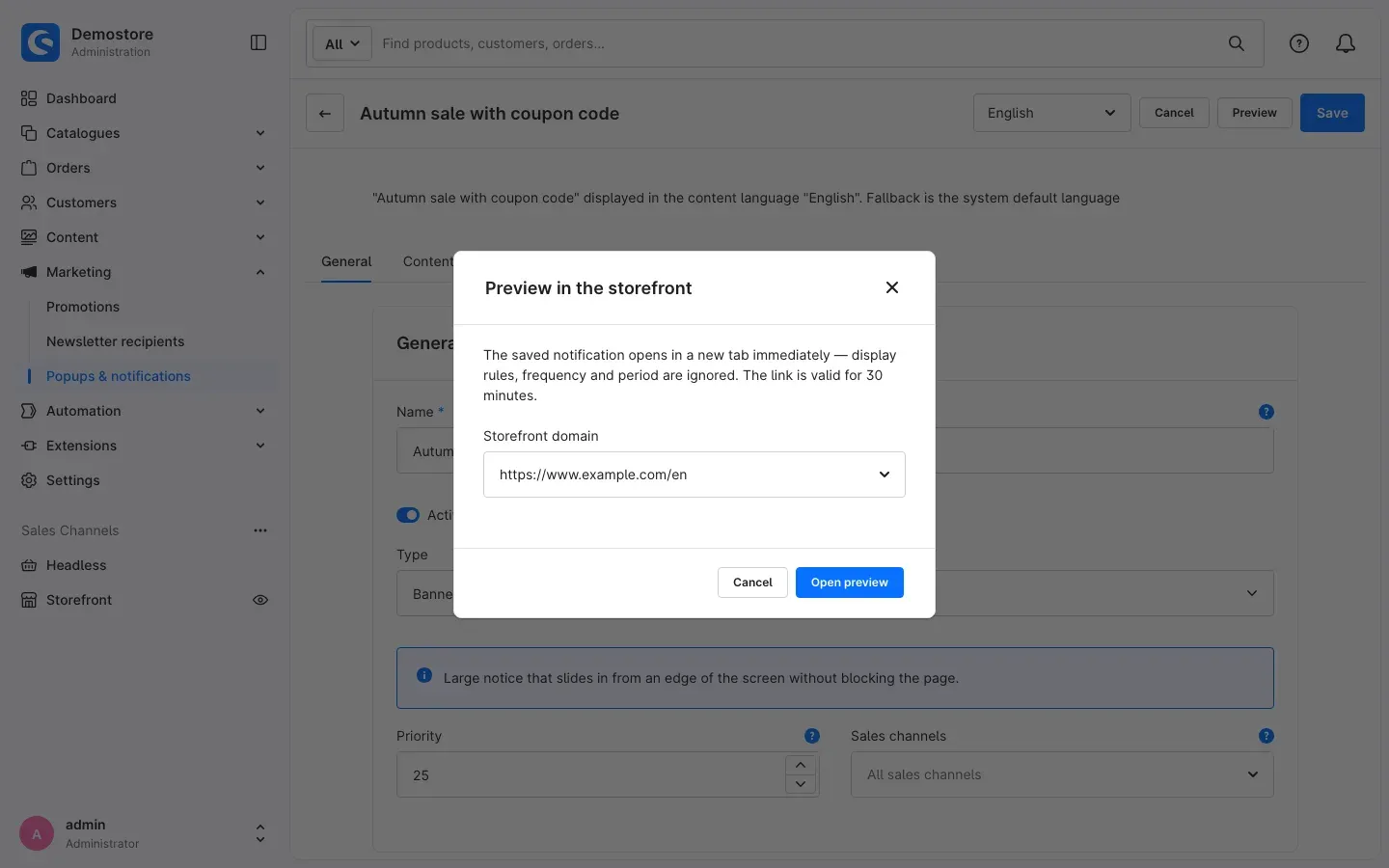 Fig. 9: The “Preview in the storefront” dialog with the selection of the storefront domain
The notification opens immediately in a new tab. Display rules, frequency and period are ignored. A note at the top of the page says that this is a preview; search engines do not index the page.
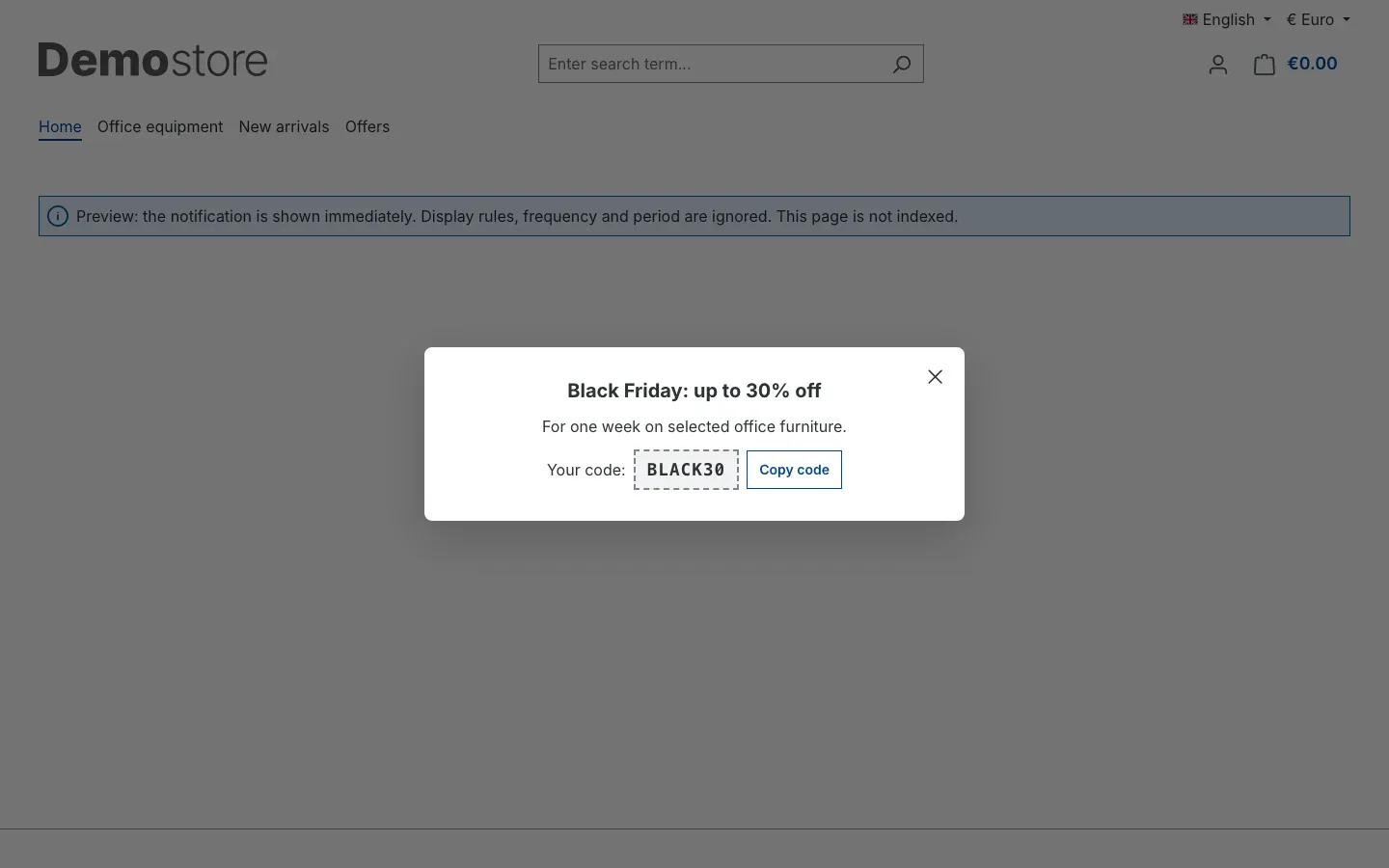 Fig. 10: Preview of a notification that is still scheduled — the “Preview” note at the top, the notification above it
Important: The preview link is valid for 30 minutes. If you open an expired or invalid link, the shop shows a normal page with a corresponding note. Then simply create a new link in the Administration.
What your visitors see
The following examples show every type the way your visitors see it in the shop.
Popup (modal)
What this gives you: Full attention for an important message — for example the newsletter sign-up with an image that appears to guests when they are about to leave the page.
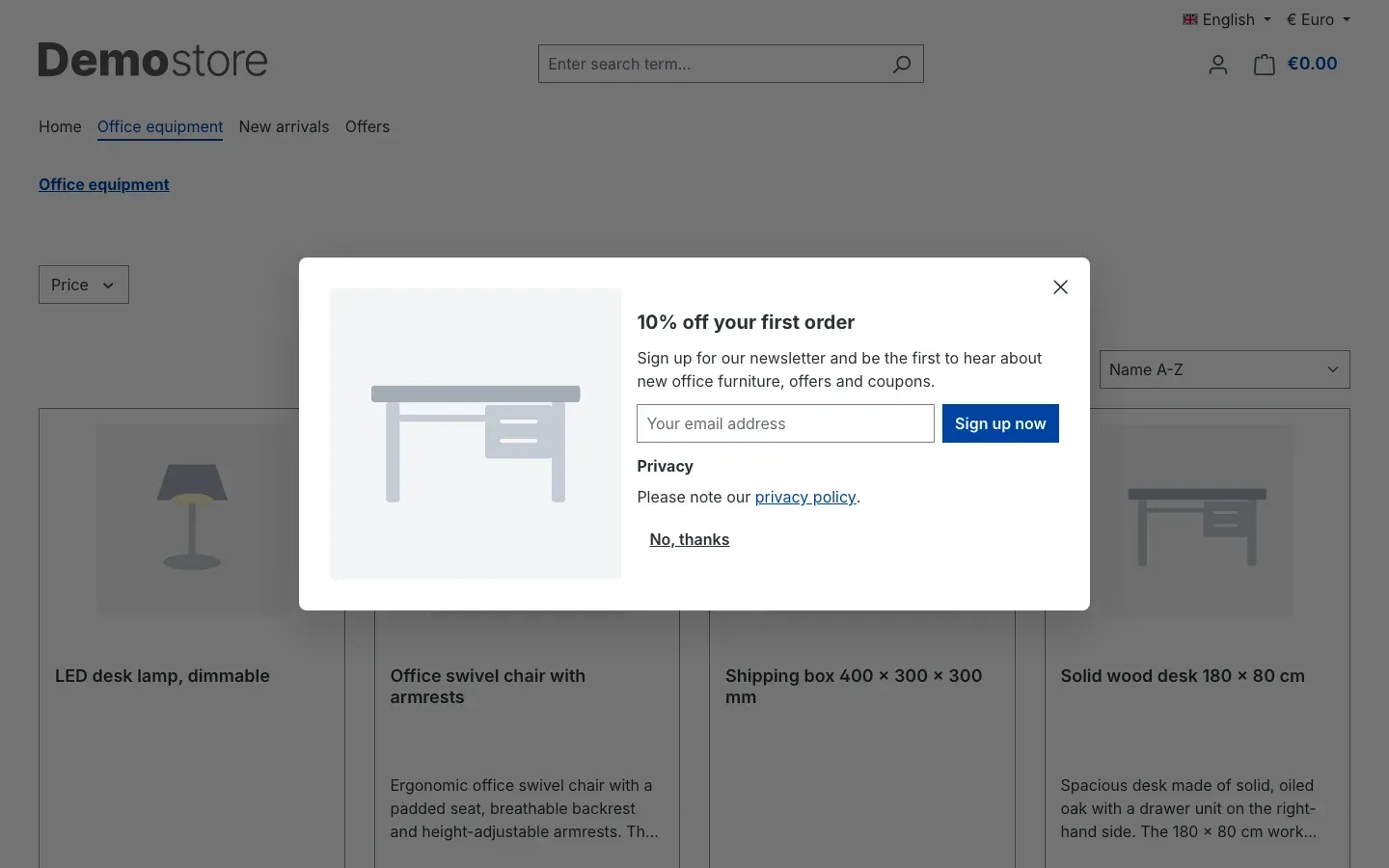 Fig. 11: Popup with an image on the left, headline, text, newsletter sign-up and the text button “No, thanks”
Message (toast)
What this gives you: A short notice that does not get in the way — for example “Free shipping from €50” on product pages, a few seconds after the page has loaded.
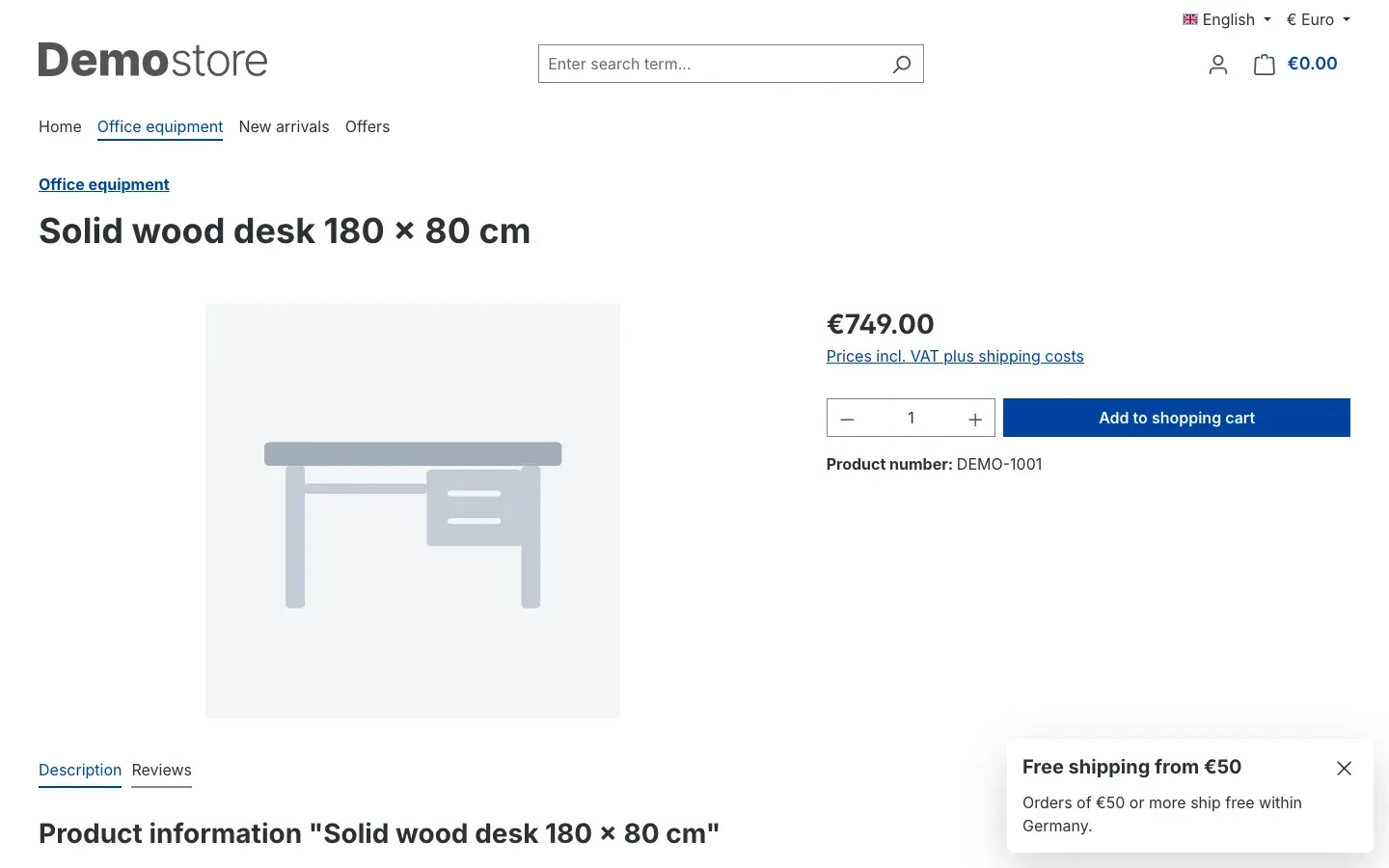 Fig. 12: Message in the bottom right of a product page
Notice bar
What this gives you: A notice that is present on every page without covering any content — for example about company holidays.
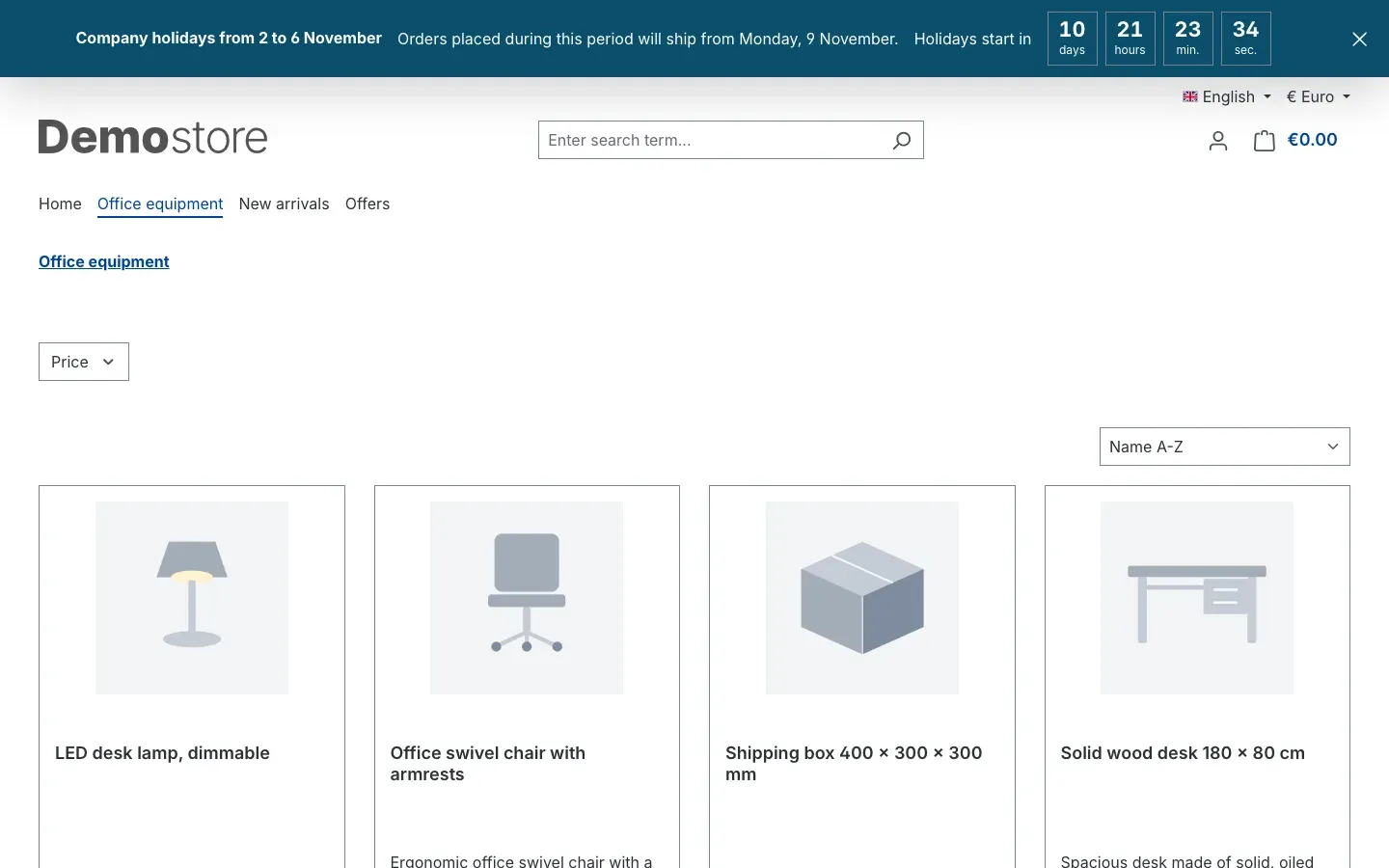 Fig. 13: Notice bar at the top with its own colour and a countdown to the start of the holidays
Banner
What this gives you: Room for a whole promotion — image, countdown, coupon code and button.
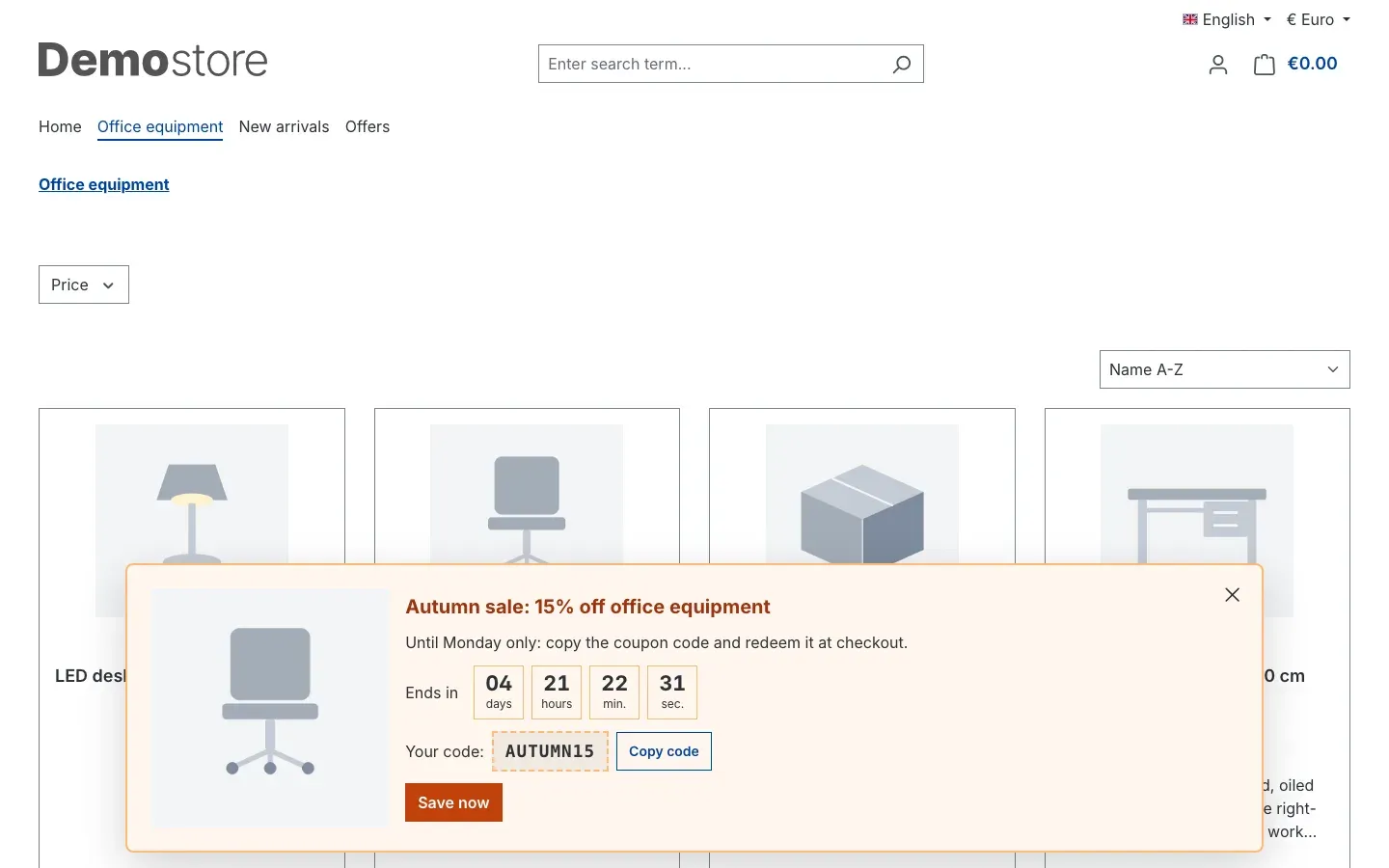 Fig. 14: Banner at the bottom with image, countdown, coupon code with “Copy code” and a button
When the visitor clicks Copy code, the coupon code ends up on their clipboard and they redeem it at checkout.
Slide-in
What this gives you: Additional information for everyone who is looking for it — the tab at the edge of the screen only opens the content when clicked.
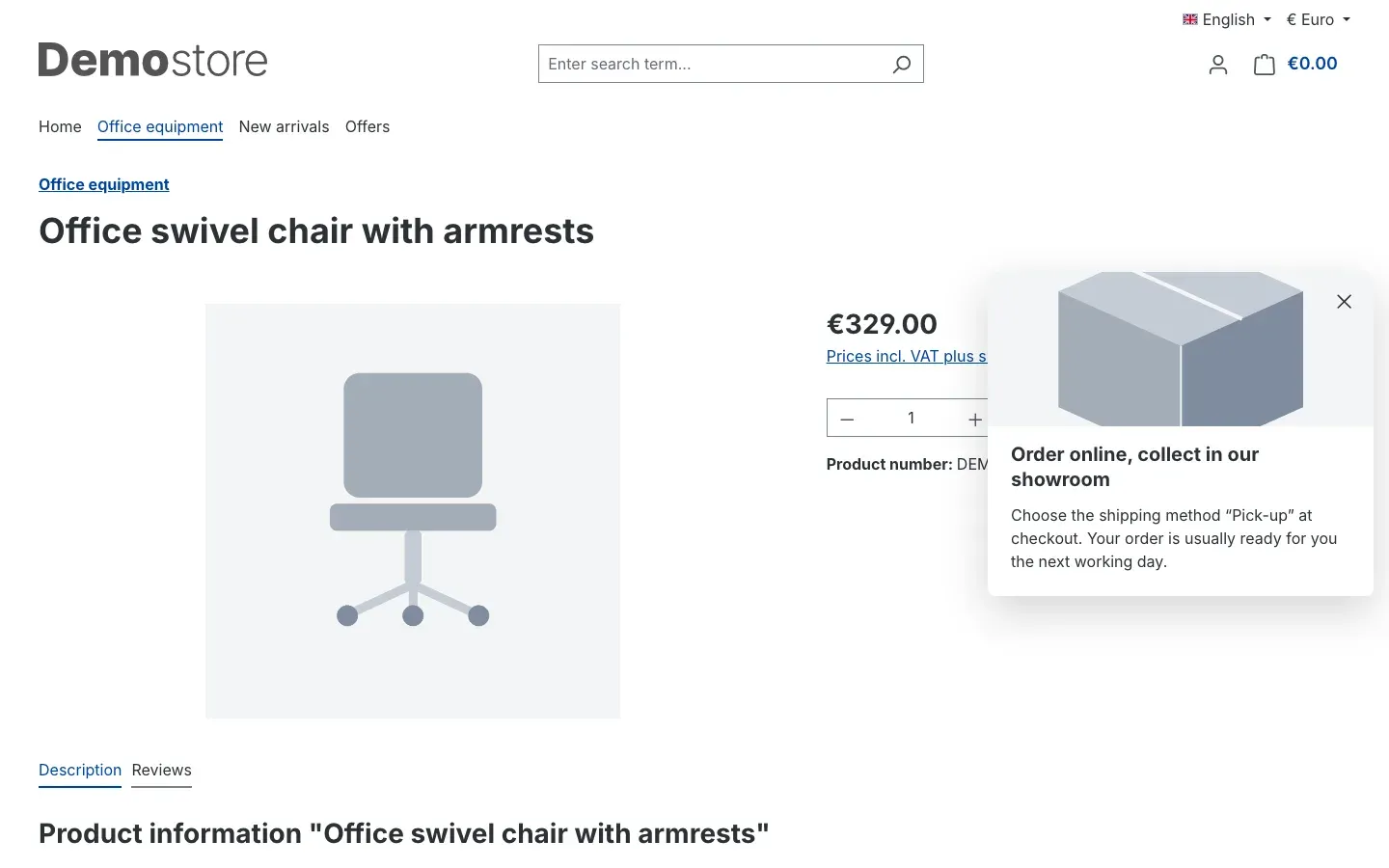 Fig. 15: Open slide-in with image, headline and text
How to read the statistics
What this gives you: You see which notification has an effect — and which one you had better rephrase or switch off.
Open a notification and switch to the Statistics tab.
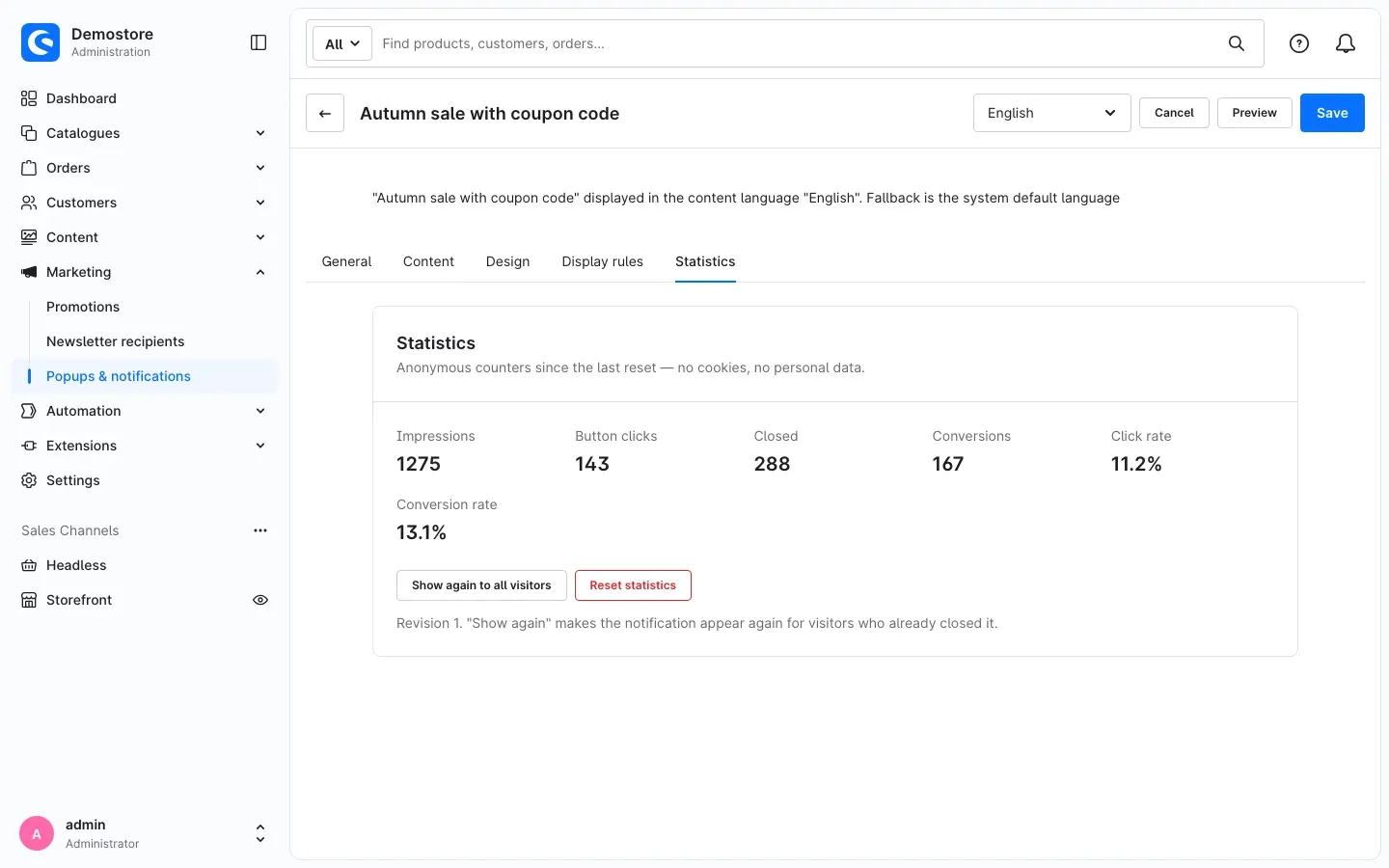 Fig. 16: The “Statistics” tab with counters and rates
- Impressions: how often the notification appeared.
- Button clicks: how often the main button was clicked.
- Closed: how often it was closed.
- Conversions: newsletter sign-ups and copied coupon codes.
- Click rate and Conversion rate: clicks and conversions in relation to impressions.
The counters run since the last reset and contain no cookies and no personal data.
Show again to all visitors
Show again to all visitors makes the notification appear again for all visitors — including those who have already closed it. The revision shown below increases by one each time.
Why this is useful: you have changed a promotion substantially and want everyone to see it once more.
Reset statistics
Reset statistics sets all counters of this notification to zero. The Administration asks for confirmation first — this cannot be undone.
Important: Both actions are locked while the notification has unsaved changes. Save first; the Administration points this out.
Good to know: The statistics are a simple, anonymous counter. They count events, not people, and do not limit how often something is counted. The figures are therefore guide values for comparing your notifications with each other — they do not replace web analytics.
Data protection and cookies
- The plugin does not send any data to external servers and does not load third-party scripts.
- The statistics only store counters per notification — without IP address, cookie or visitor ID. You can switch them off per sales channel (chapter 4).
- The visitor’s browser remembers which notifications they have already seen or closed. From Shopware 6.7.3, the cookie settings of your shop list the entry Popups & notifications under Technically required for this.
- The newsletter sign-up uses your shop’s sign-up with double opt-in and privacy notice. You find the recipients as usual under Marketing → Newsletter recipients.
The legal assessment for your shop is your responsibility. If in doubt, please clarify the use with a legal advisor.
Troubleshooting
The entry “Popups & notifications” is missing from the menu
Cause: the plugin is not activated yet, or your user role lacks the permission.
Solution:
- Open Extensions → My extensions and check that the plugin is installed and active.
- Ask an administrator to grant your role the permissions for Popups & notifications under Settings → System → Users & permissions (chapter 15).
A notification does not appear in the shop
How to proceed:
- Open the Preview (chapter 8). If the notification appears there, it is set up correctly — the display rules are the reason.
- Check the status in the overview: only Live appears. Scheduled appears later, Expired no longer does.
- In the plugin configuration, check that Enable plugin for this sales channel is switched on for your sales channel.
- On the Display rules tab, check pages, categories, addresses, devices, visitors, rule, weekdays and times. A single restriction can be enough to hide the notification on your test page.
- If you have already seen or closed the notification, your browser remembers it. Open the shop in a private browser window, or use Show again to all visitors on the Statistics tab.
- With the trigger When leaving the page (exit intent), the notification only appears when you move the mouse out of the window at the top — and not within the first seconds after the page has loaded.
A scheduled notification appears a few minutes late
Cause: the plugin checks every 5 minutes whether a notification starts or ends. For this, your shop’s scheduled tasks must be running.
Solution: usually it is enough to wait a few minutes. If the notification does not start at all, ask your administrator to check that your shop’s scheduled tasks are running.
The notification looks different from what you expected
Solution: on the Design tab, leave empty the fields that should match your theme — the notification then uses the colours and fonts of your theme. Check every change in the preview.
My preview link no longer works
Cause: preview links are valid for 30 minutes.
Solution: open the notification in the Administration and create a new link via Preview.
FAQ
Q: How many notifications can I create?
A: As many as you like. On a single page, the plugin considers up to 100 notifications that are active at the same time, the ones with the highest priority first.
Q: Does the plugin work with my theme?
A: Yes. Without colours of its own, every notification uses the colours and fonts of your theme. For themes that change the page structure significantly, it is best to check the result in the preview first.
Q: Does the plugin slow down my shop?
A: No. The notifications come with the page itself, without an additional request to the server, and your shop’s cache stays active. The browser only loads images once a notification appears.
Q: Can I use the plugin in one sales channel only?
A: Yes. Switch on Enable plugin for this sales channel only in the sales channels you want. In addition, you assign each notification to individual sales channels on the General tab.
Q: Do visitors without JavaScript see the notifications?
A: No. Weekday, time, device, trigger and frequency are checked by the visitor’s browser. If JavaScript is switched off, no notification appears.
Q: Does exit intent detect every visitor who leaves the page?
A: Not every one. On a computer, the plugin detects the mouse leaving the window towards the top. Smartphones and tablets have no mouse — there, scrolling back up quickly counts as the signal, and that does not catch every exit.
Q: Does the plugin send newsletters?
A: No. The sign-up in the popup uses your shop’s newsletter sign-up; the recipients end up in Shopware. Shopware or your newsletter system continues to send the newsletters.
Q: Can I take over notifications from another popup plugin?
A: No, there is no import. With Duplicate you can quickly create similar notifications, though.
Q: What happens to my notifications when I uninstall the plugin?
A: If you keep the data when uninstalling, everything is preserved. If you remove it, the plugin deletes all notifications and the statistics. Uploaded images remain in the media library.
For administrators / technical details
This section is aimed at technical administrators. You do not need it for normal use.
System requirements
- Shopware: 6.7
- PHP: 8.2 or later
- The shop’s scheduled tasks must be running so that notifications with a period start and end on time.
Permissions
Under Settings → System → Users & permissions, roles have the entry Popups & notifications in the Marketing area with the levels View, Edit, Create and Delete.
Data and cache
- The plugin creates its own tables for notifications, translations, assignments to sales channels and categories and the statistics, plus its own media folder. Shopware’s original tables remain unchanged.
- Notifications are rendered on the server together with the page; the HTTP cache stays active. Every change clears the affected cache immediately, and a scheduled task checks every 5 minutes whether a notification starts or ends.
Headless shops
For shops with their own frontend, the plugin provides the notifications that match a page, and the counting of the statistics, via the Store API. Your frontend then renders them itself.
Installation via the command line
php bin/console plugin:refresh
php bin/console plugin:install SwpNotificationsSix --activate
php bin/console cache:clear
This manual was written for Popups & Notifications version 6.7.0.
More manuals
Address Validation: House Number Check & Corrections
Address validation at the point of entry: the plugin spots missing house numbers, can suggest corrections via Google and helps you send fewer parcels that come back undeliverable.
Open manual Shopware 6Admin Password Reminder
Admin Password Reminder: your backend users renew their passwords on time, prompted after login and by a daily email. Premium locks expired accounts until the password is changed.
Open manual Shopware 6Advent Calendar | Doors with products, coupons and promotions
Advent calendar for your shopping experiences: doors open on time without clearing the cache, give nothing away in the page source and reveal coupons, products or your own content.
Open manualNeed a team that keeps your shop running?
We have been maintaining Shopware shops for more than 20 years, including updates, hotfixes and the plugins you are configuring right now.