
Prefill Contact Form
Prefill the contact form for logged-in customers: salutation, name, email and phone are already there. Customers only type their message, and no personal data lands in the page cache.
On this page
- Introduction
- What you achieve with this plugin
- Who is this plugin for?
- Installation
- Getting Started
- Settings
- Sales Channel
- Open documentation
- Enable plugin for this sales channel
- How to Use the Features
- How logged-in customers see the prefilled contact form
- How visitors who are not logged in see the contact form
- Where the plugin works
- How your customers’ data stays protected
- Troubleshooting
- The form stays empty although I am logged in
- The “Phone” field stays empty
- The “Salutation” field stays empty
- A field does not show the data from the customer account
- FAQ
- For Administrators / Technical Details
- System requirements
- How customer data gets into the form
- Compatibility with custom themes
- Installation via the command line
Introduction
Prefill Contact Form saves your logged-in customers from typing their own details into the contact form.
A regular customer is logged in, has a question about an order and opens your contact form. Without the plugin, they type their first name, last name, email address and phone number — data your store already knows. With the plugin, it is already there.
What you achieve with this plugin
- Logged-in customers find Salutation, First name, Last name, Your email address and Phone already filled in.
- Your customers only write the Subject and Comment — exactly the part only they know.
- You receive enquiries with correct contact details from the customer account instead of typos in the email address.
- Whatever your customer has already typed always stays. The plugin only fills empty fields.
- No customer ever sees another customer’s data — even if your store caches its pages.
- You switch the feature on or off for each sales channel individually.
Who is this plugin for?
For every store owner whose customers log in and ask questions through the contact form — especially B2B stores with regular customers and stores that get many questions about orders. You do not need to change your Shopping Experiences or your theme.
Installation
After purchase, the plugin is available directly in your Administration — there is nothing to download.
- Log in to your Shopware Administration (
YourStore.com/admin). - Open Extensions → My extensions.
- Click Install next to Prefill Contact Form.
- Activate the plugin with the switch next to the entry — done.
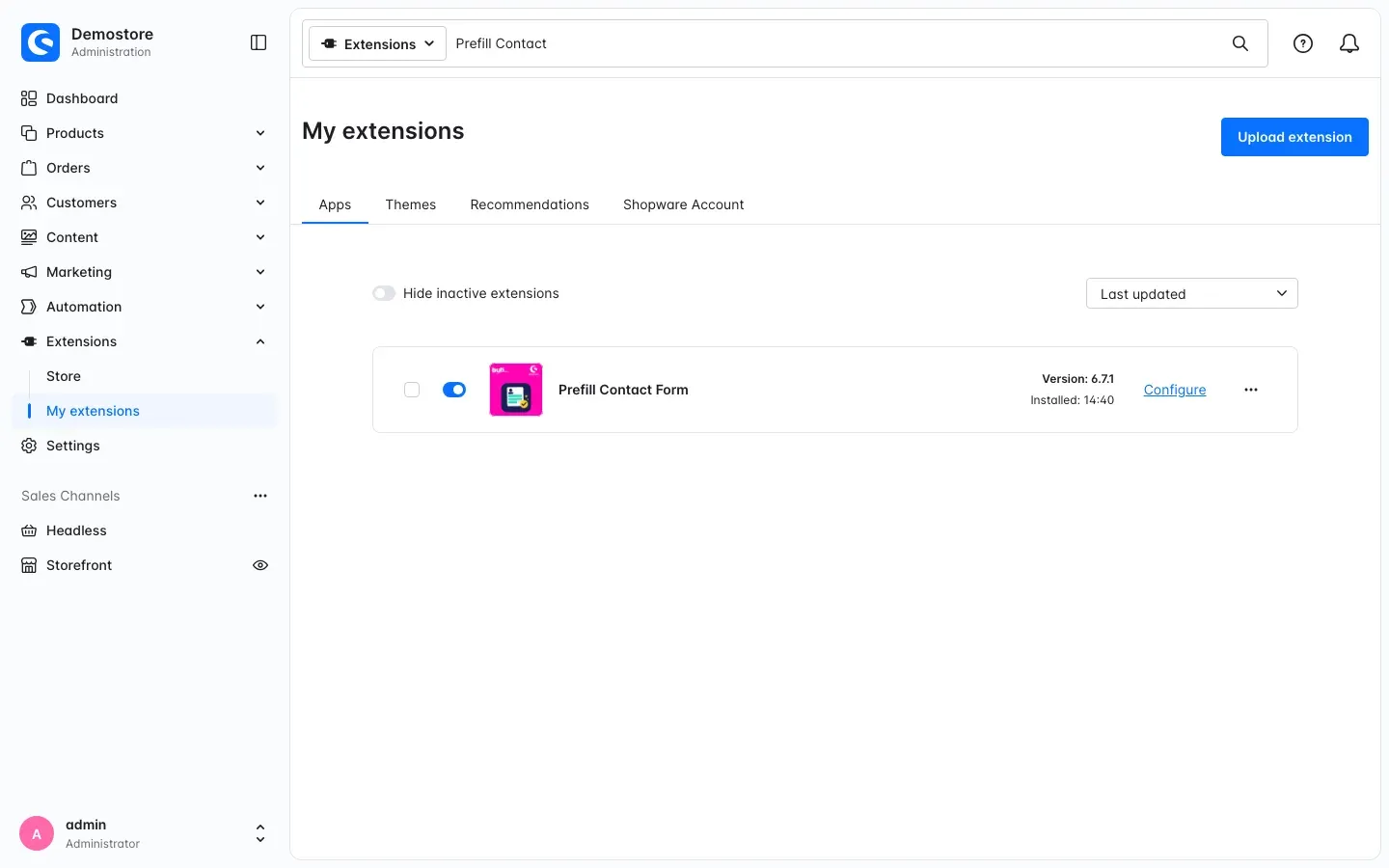 Fig. 1: The plugin is installed and active — the switch to the left of the icon is on.
If Prefill Contact Form does not appear in the list, your Shopware account is not yet connected to the store. You do this under Extensions → My extensions by logging in with your Shopware account.
Getting Started
As soon as it is activated, the plugin already works in all sales channels. You do not need to configure anything.
- Check the settings: Open Extensions → My extensions and click Configure next to the plugin. The switch Enable plugin for this sales channel is on by default.
- Find the contact form: The plugin works on every page of your store that shows the contact form — for example your contact page.
- Check the result: Log in to your store with a customer account and open the contact page. Salutation, first name, last name, email address and phone are already in the form.
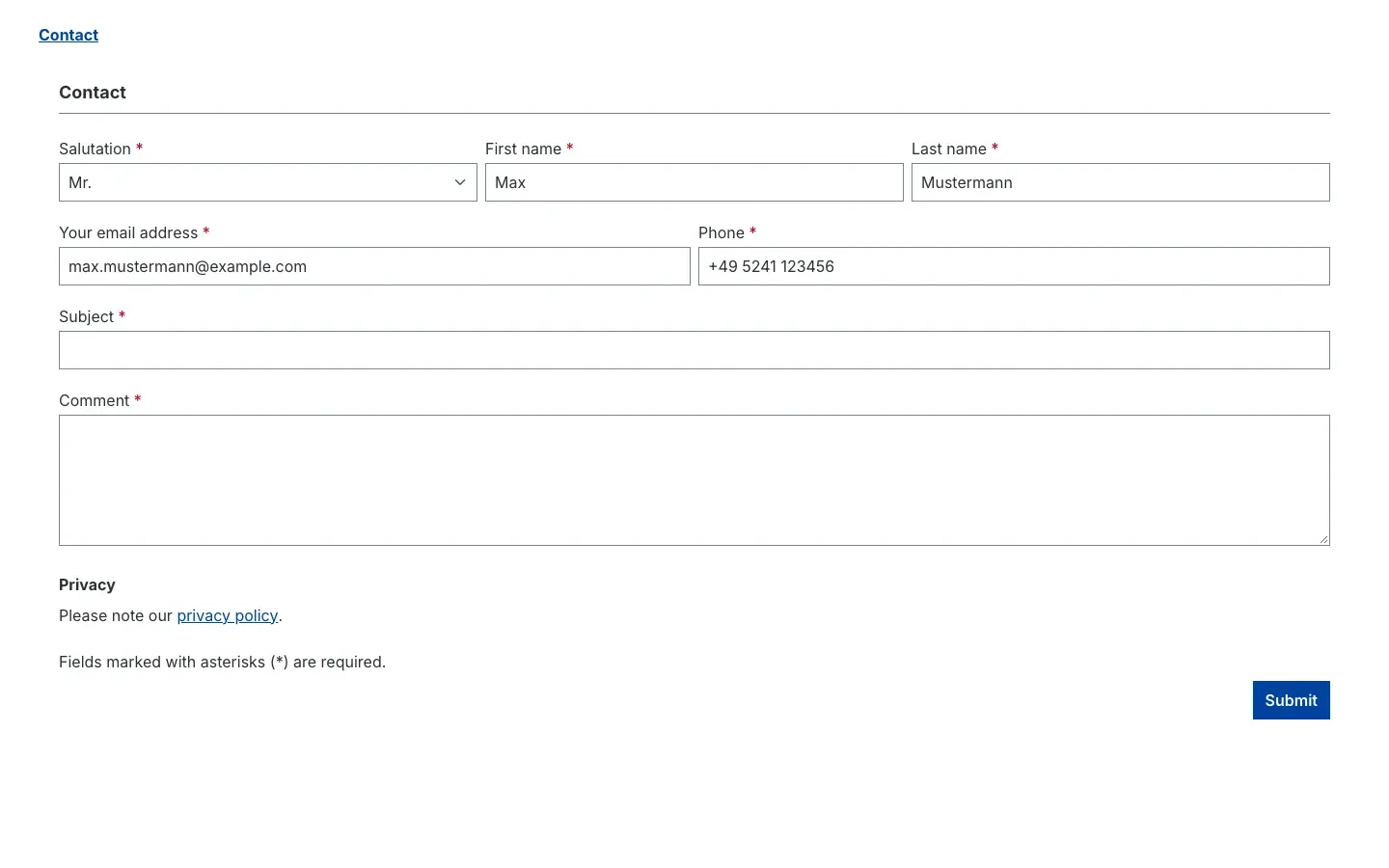 Fig. 2: A logged-in customer opens the contact page — their details are already filled in.
Settings
You find the settings under Extensions → My extensions. Click Configure next to Prefill Contact Form.
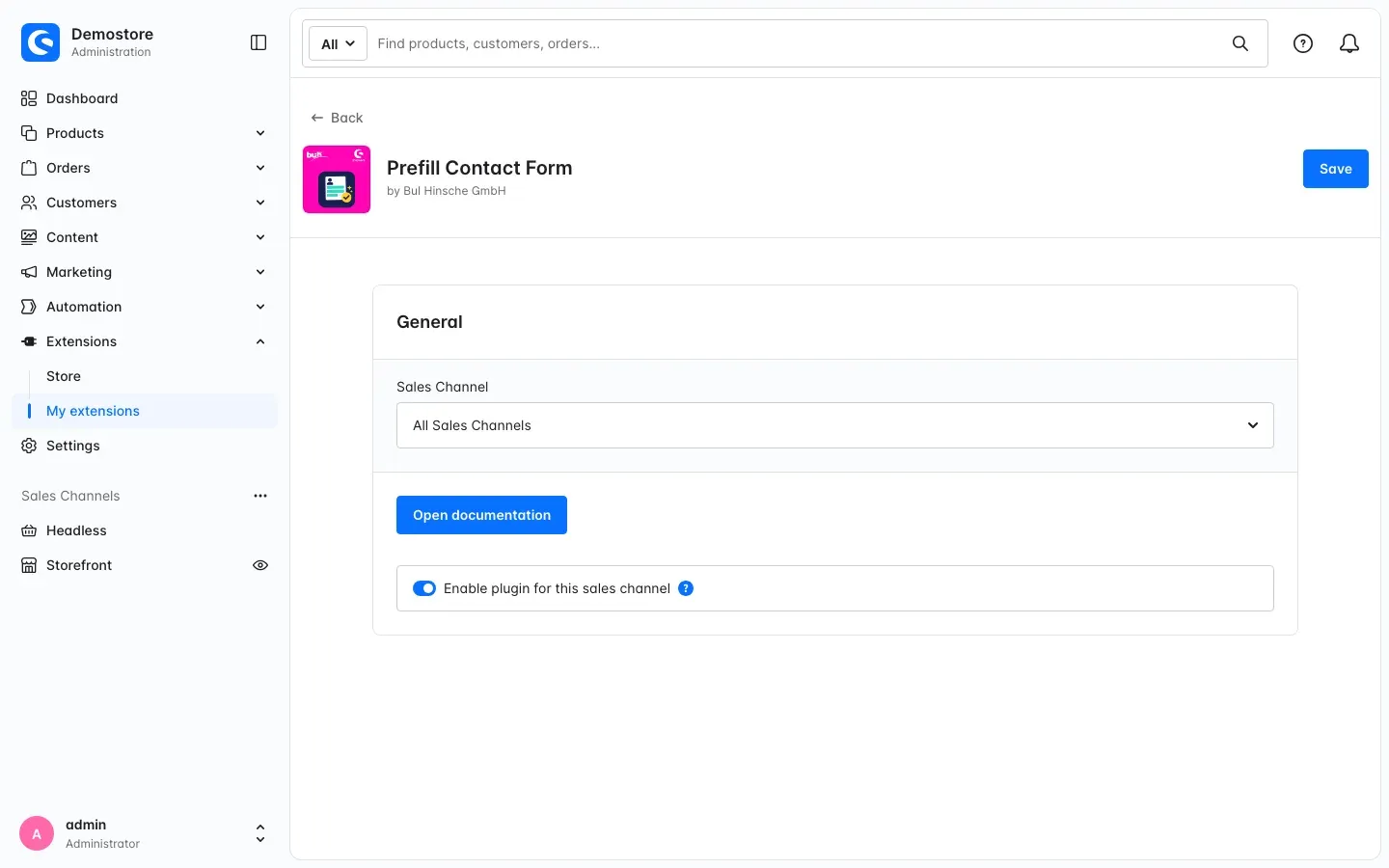 Fig. 3: The configuration page with the sales channel selection, the “Open documentation” button and the sales channel switch.
The page shows the card General. It contains three things:
Sales Channel
At the top, choose under Sales Channel which store you are editing the setting for. The default is All Sales Channels. What you set there applies to every sales channel that has no setting of its own.
Why this is useful: You can use the same basic setting for all stores and only deviate where you really want to.
Open documentation
The Open documentation button takes you straight to this manual on our website.
Enable plugin for this sales channel
The switch Enable plugin for this sales channel decides whether the contact form is prefilled in the selected sales channel. It is on by default. If you switch it off, your customers in this sales channel see the normal, empty contact form — the plugin stays installed.
Why this is useful: If you run several sales channels, you use the feature only where it fits — for example in your B2B store but not in your B2C store.
There are no other settings. The plugin also does not add its own area to the Administration.
How to Use the Features
How logged-in customers see the prefilled contact form
What you get: Your customers save typing up to five fields, and you receive enquiries with the right contact details.
When a logged-in customer opens a page with your contact form, the plugin fills in their details shortly after the page has loaded:
- Salutation, First name, Last name and Your email address come from the customer account.
- Phone comes from the billing address — provided a phone number is stored there. If not, the field stays empty.
- Subject and Comment stay empty. Your customer fills them in and then clicks Submit.
Fig. 4: Salutation, first name, last name, email address and phone are filled in; subject and comment are empty.
The plugin deliberately works like this:
- It never overwrites anything. The plugin only fills fields that are still empty. Whatever your customer has already typed, or what their browser has restored automatically, stays.
- The salutation is only set if it matches the selection. If the salutation from the customer account is not in your store’s selection list, the Salutation field stays unchanged.
- Your customer can change everything. The prefilled values are normal entries. If they want a reply at a different email address, they simply overwrite it.
Tip: If you want customers to be required to fill in the Phone field, you set this in Shopware’s basic settings — not in the plugin. The plugin fills the field either way as soon as the billing address contains a phone number.
How visitors who are not logged in see the contact form
What you get: Nothing changes for guests. They see the form exactly as before.
A visitor who is not logged in sees the usual empty contact form. Without a customer account, there is no data to prefill.
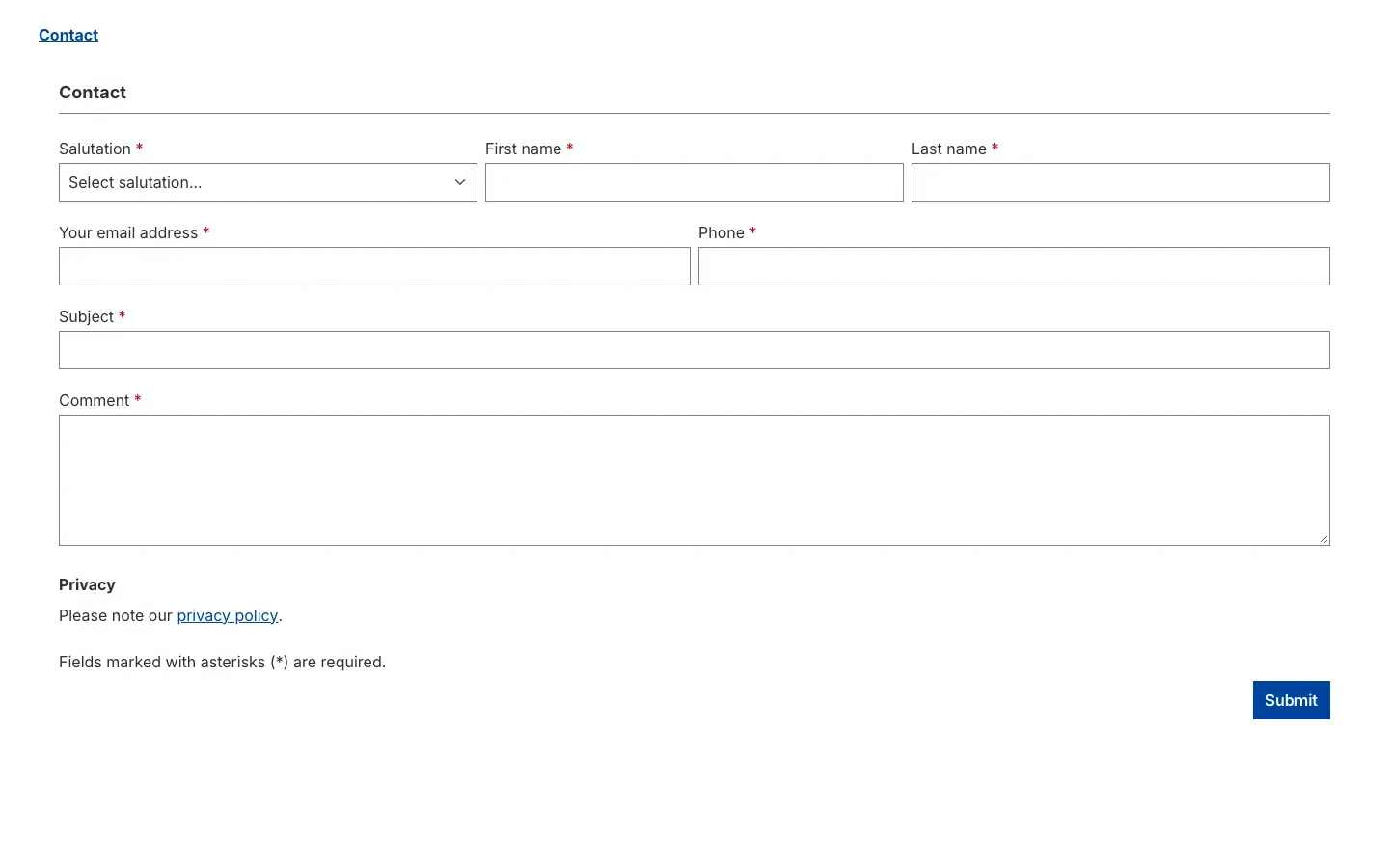 Fig. 5: Without logging in, the contact form stays empty.
Where the plugin works
What you get: You do not need to rebuild any pages or add new fields.
The plugin works wherever your store shows the Shopware contact form:
- on your standard contact page,
- on every Shopping Experience where you added the Form element and set it up as a contact form — for example on an additional service page.
The plugin does not prefill other forms, such as the newsletter sign-up or forms from third-party form builders.
Important: The plugin also works with custom themes as long as the contact form fields keep their standard names. If your theme replaces the contact form completely with its own version, prefilling may not happen there.
How your customers’ data stays protected
What you get: You can keep delivering your contact page quickly from the cache without customer data ending up in the wrong hands.
Many stores cache pages so they load faster. If the plugin wrote customer data directly into the page, another visitor could see the cached page with this data. That is why the plugin works differently:
- The contact page itself never contains customer data.
- Only after the page has loaded in your customer’s browser does the browser fetch the logged-in customer’s data. This request is never cached.
- This way, every customer only ever sees their own data.
The plugin does not send any data to external servers and stores nothing additional.
Troubleshooting
The form stays empty although I am logged in
Possible causes:
- The switch Enable plugin for this sales channel is off for this sales channel.
- The plugin is not active.
- JavaScript is disabled or blocked in the browser. The form then simply stays empty — your customer can still fill it in and send it as usual.
- Your theme replaces the contact form with its own version that uses different field names.
How to fix it:
- Open Extensions → My extensions and check that the switch next to Prefill Contact Form is on.
- Click Configure, select the affected store under Sales Channel and check that Enable plugin for this sales channel is on. Then click Save.
- Reload the contact page in the store.
- If the form still stays empty, test it with Shopware’s standard theme. If it works there, contact our support and tell us the name of your theme.
The “Phone” field stays empty
Cause: No phone number is stored in the customer’s billing address. The plugin only takes the phone number from the billing address.
How to fix it: Your customer adds their phone number to their billing address in the customer account. From the next visit to the contact page, it appears in the form.
The “Salutation” field stays empty
Cause: The salutation from the customer account is not in the selection list of your store’s contact form, or no salutation is stored in the customer account.
How to fix it: No action needed — your customer selects the salutation themselves. The plugin deliberately does not set a salutation that does not exist in your store.
A field does not show the data from the customer account
Cause: The field was already filled — by your customer or by their browser. The plugin never overwrites existing entries.
How to fix it: No action needed. If your customer clears the field and reloads the page, the plugin fills in the data from the customer account.
FAQ
Q: Which fields does the plugin fill in?
A: Salutation, first name, last name, email address and phone. The first four come from the customer account, the phone number from the billing address. Subject and comment stay empty.
Q: Does the plugin overwrite what my customer has already entered?
A: No. The plugin only fills empty fields.
Q: Can a customer see another customer’s data?
A: No. Customer data is never part of the cached page. The browser fetches it on every visit specifically for the logged-in customer, and this request is never cached.
Q: What do visitors who are not logged in see?
A: The normal, empty contact form — exactly as without the plugin.
Q: Can I use the plugin in only one sales channel?
A: Yes. In the configuration, select the store under Sales Channel and switch Enable plugin for this sales channel on or off there.
Q: Do I need to change my Shopping Experiences or my theme?
A: No. The plugin works with the existing contact form. Only if your theme replaces the contact form completely with its own version using different field names may prefilling not happen there.
Q: Does my customer have to fill in the “Phone” field?
A: You decide that in Shopware’s basic settings, not in the plugin. The plugin fills the field in any case if the billing address contains a phone number.
Q: Does the plugin send data to external services?
A: No. The plugin only shows the logged-in customer their own data and stores nothing additional. Whether its use is legally appropriate for your store is best checked with your legal advisor.
For Administrators / Technical Details
This section is intended for technical administrators. You do not need it for normal use.
System requirements
- Shopware: 6.7 (from 6.7.0)
- PHP: 8.2 or newer, as required by Shopware 6.7
- No own database tables, no custom fields, no changes to Shopware tables.
How customer data gets into the form
- The contact page is delivered without customer data and therefore stays fully cacheable. For logged-in customers, the form only contains an invisible placeholder with the address of the data request.
- After the page has loaded, the browser calls
GET /widgets/swp-prefilled-contact-form/customer. - The response carries
Cache-Control: private, no-storeand is cached neither by the HTTP cache nor by a reverse proxy. - Updating from version 6.07.00: that version still wrote customer data into the page. If you use Varnish or a CDN, clear its cache once after the update. Shopware’s internal HTTP cache does not need to be cleared by hand.
- For guests and for sales channels with the switch turned off, the request responds with
204 No Content; the form then stays empty. - Without JavaScript there is no request; the form stays empty and works normally.
- The phone number comes from the customer’s active billing address.
- Whether the phone field is required is controlled by the Shopware basic setting
core.basicInformation.phoneNumberFieldRequired; the plugin does not evaluate it. - Each visit adds one small request — only for logged-in customers and only on pages with a contact form.
Compatibility with custom themes
The plugin extends the Shopware contact form of the Shopping Experiences. Custom themes work as long as the form fields keep their standard names (salutationId, firstName, lastName, email, phone).
Installation via the command line
php bin/console plugin:refresh
php bin/console plugin:install SwpPrefilledContactFormSix --activate
php bin/console cache:clear
This manual was created for Prefill Contact Form version 6.7.1.
More manuals
Address Validation: House Number Check & Corrections
Address validation at the point of entry: the plugin spots missing house numbers, can suggest corrections via Google and helps you send fewer parcels that come back undeliverable.
Open manual Shopware 6Admin Password Reminder
Admin Password Reminder: your backend users renew their passwords on time, prompted after login and by a daily email. Premium locks expired accounts until the password is changed.
Open manual Shopware 6Advent Calendar | Doors with products, coupons and promotions
Advent calendar for your shopping experiences: doors open on time without clearing the cache, give nothing away in the page source and reveal coupons, products or your own content.
Open manualNeed a team that keeps your shop running?
We have been maintaining Shopware shops for more than 20 years, including updates, hotfixes and the plugins you are configuring right now.