Product buyback
Buyback without email ping-pong: your customers sell you items through a separate buyback cart, at a formula or fixed price, with an ownership declaration at checkout.
On this page
- Introduction
- What you achieve with this plugin
- Who is this plugin for?
- Installation
- Getting started
- Settings
- Enable plugin for this sales channel
- Rounding rules
- Rounding - customer groups with rounding
- Decimal accuracy of the formula
- Customer number for the shipping address of buybacks
- How to set up the buyback rule
- How to set the buyback price of a product
- Opening the buyback settings of a product
- Adding the price row for the buyback rule
- How to set up a calculated buyback price
- How to set up a fixed buyback price
- How to set up buyback on request
- How to control buyback quantity, stock and the regular buy box
- maximum stock
- maximum buyback quantity per cart
- buyback only
- How to apply settings to a whole category
- How your customers sell you items
- Buyback price on the product page
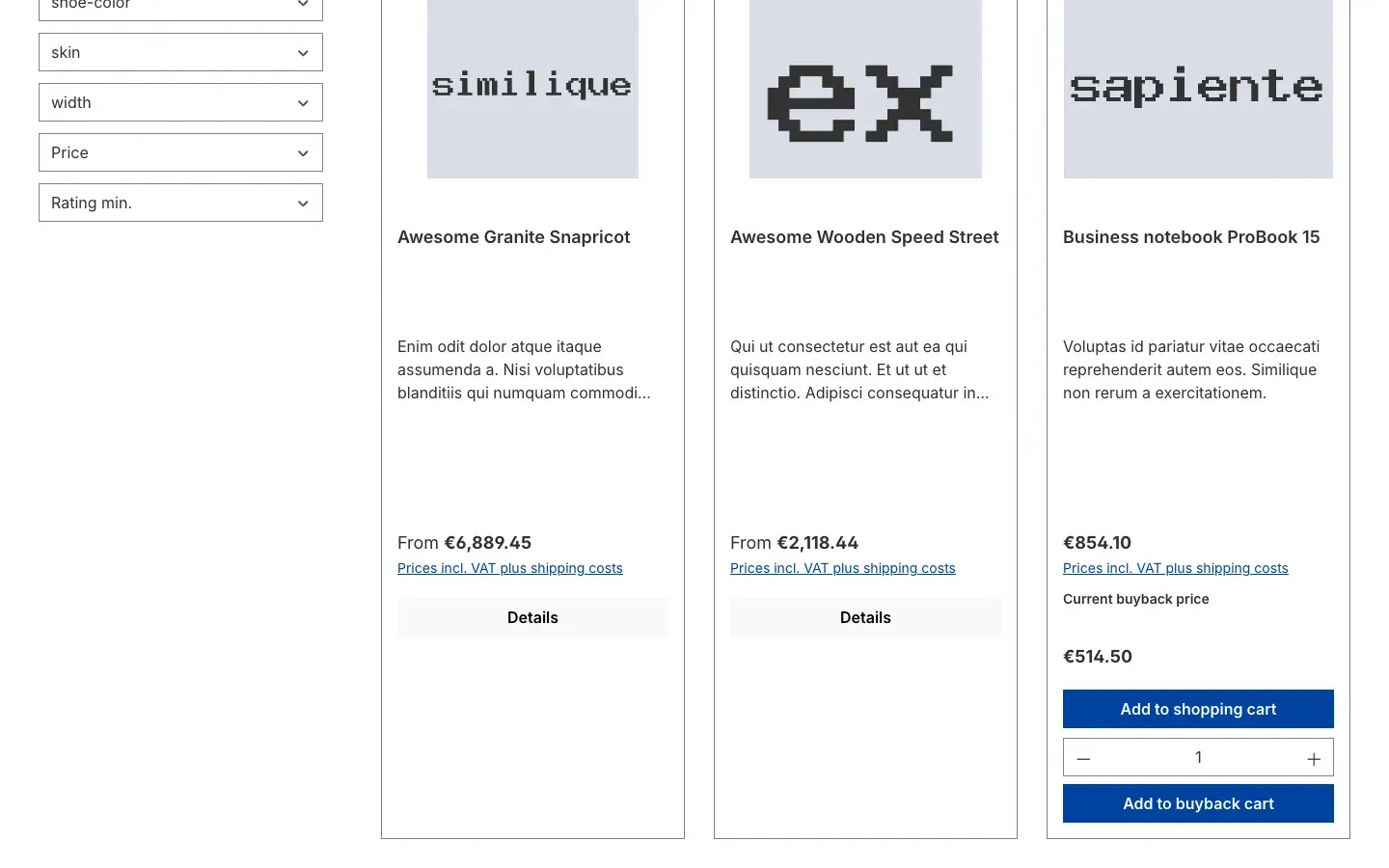
- Buyback price in listings
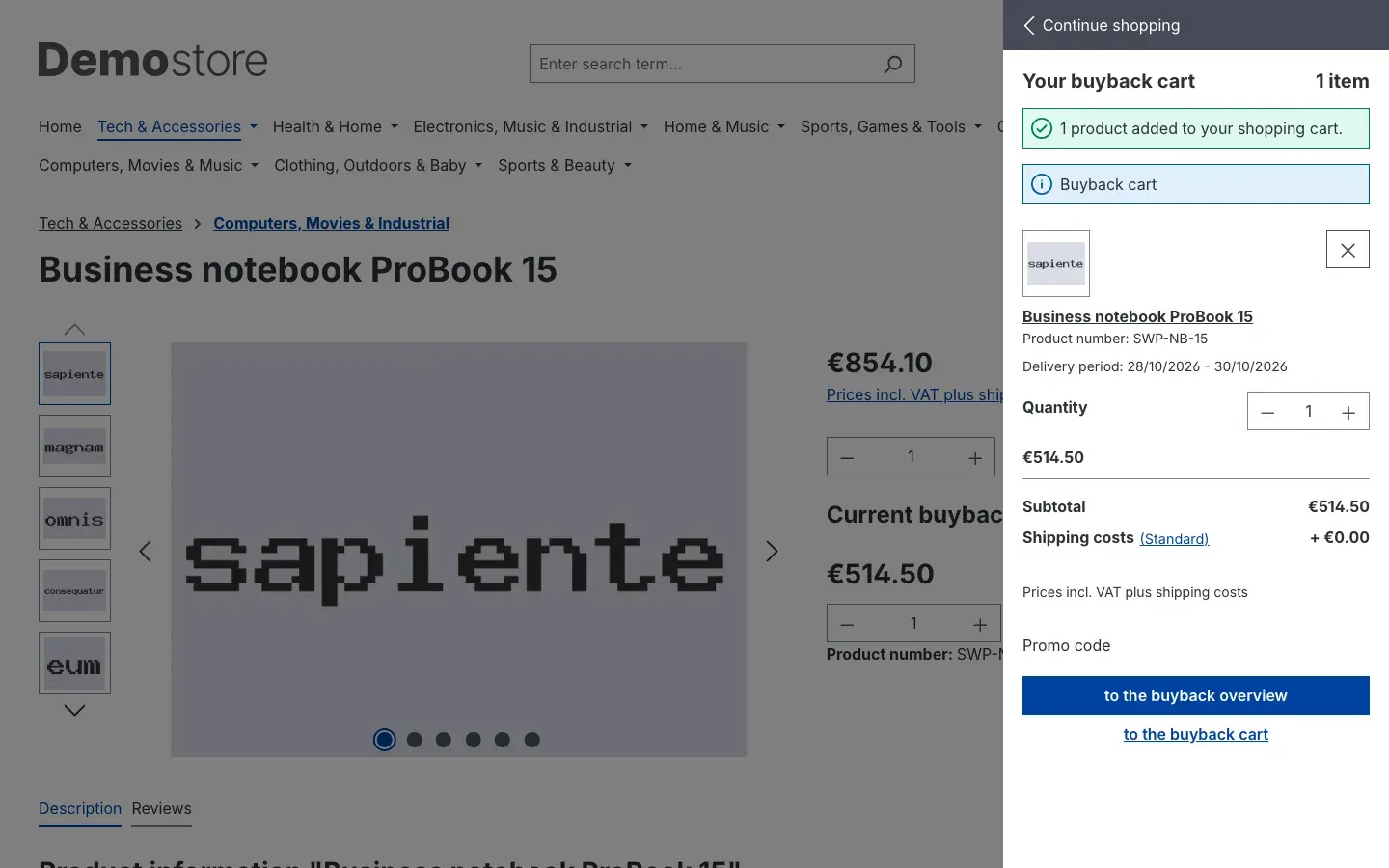
- The buyback cart
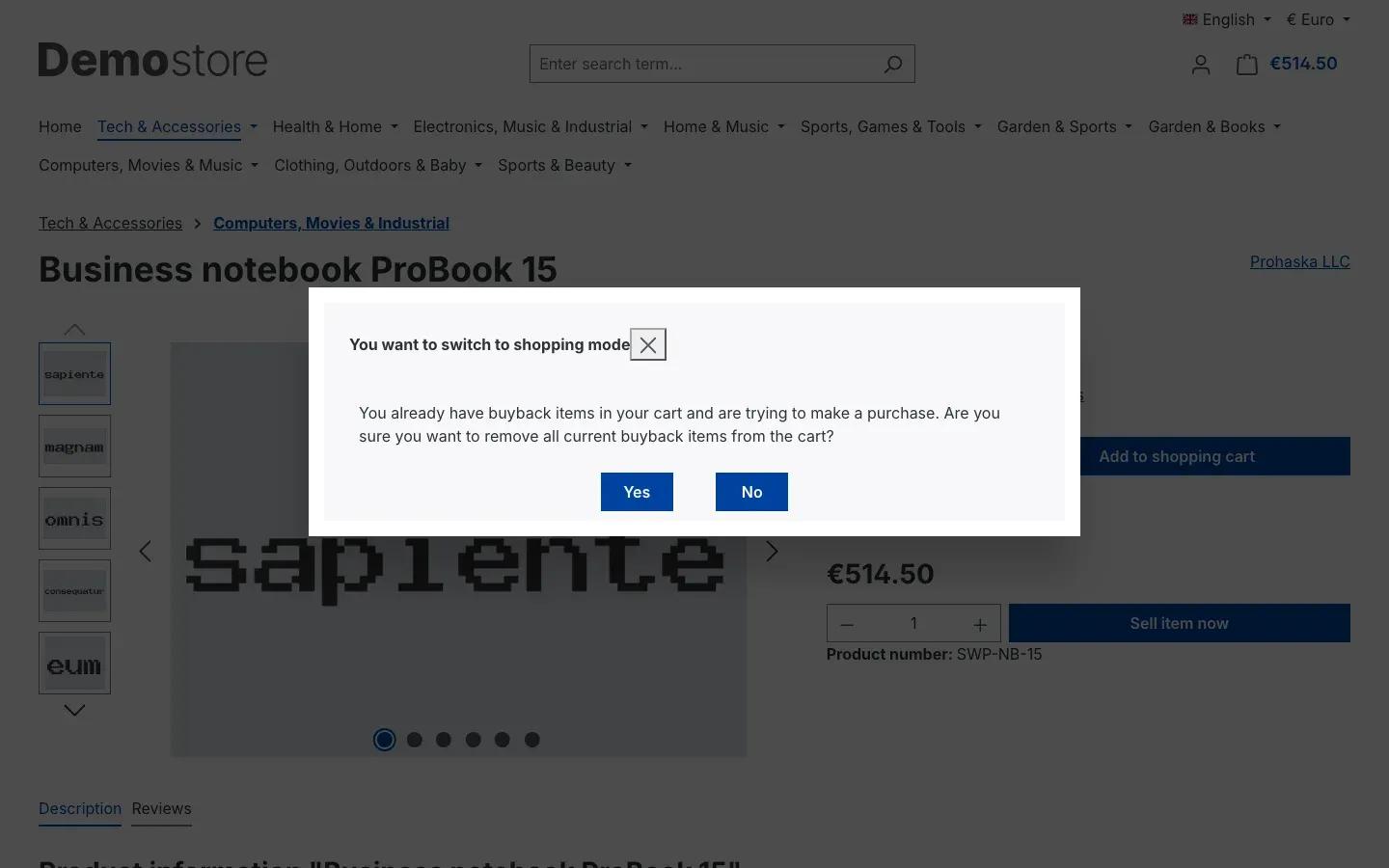
- Switching between buying and selling
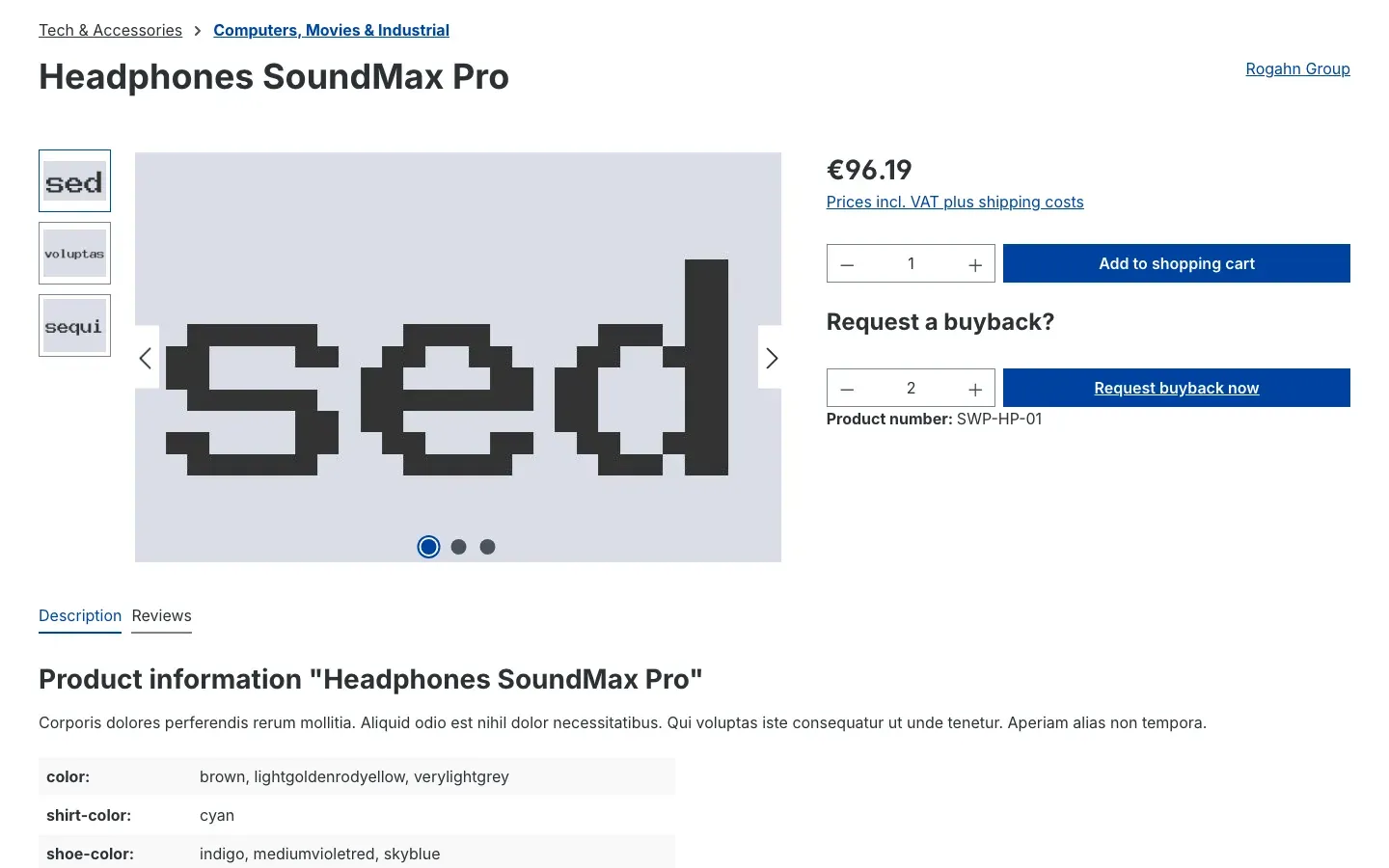
- Buyback on request
- The buyback overview
- The finish page
- How to recognise and handle incoming sales
- Troubleshooting
- The product shows neither a buyback price nor “Sell item now”
- The buyback price equals the full net selling price
- The shop shows the buyback price as the regular selling price
- Rounding does not apply
- The buyback overview does not show your buyback address
- The “Mirror settings to articles” button is greyed out
- The “Custom fields” entry in the price row menu is greyed out
- Your customer cannot submit the sale
- "Request buyback now” does not open a contact form
- FAQ
- For administrators / Technical details
- System requirements
- Installation via the command line
- Updating stored buyback prices
- Log file
- Permissions
- Headless and Store API
- Data storage and privacy
Introduction
Product buyback helps you buy items back from your customers directly through your shop — with a clear price, a separate buyback cart and a declaration of ownership, instead of emails, phone calls and prices you work out by hand every time.
What you achieve with this plugin
- Your customers see the current buyback price on the product and sell you the item with one click on Sell item now.
- You set the buyback price per product: calculated from a formula (for example 60 % of your net selling price, with surcharges, minimum and maximum price and rounding) or as a fixed amount.
- Items offered to you go into a separate buyback cart. Buying and selling never get mixed up; before the cart switches direction, the shop asks first.
- Before submitting, your customer confirms a declaration of ownership. No tick, no buyback request.
- The goods are automatically sent to your buyback address, for example your warehouse.
- You only buy what you need: with a stock cap, buyback stops once your shelves are full.
- For one-off items you show Request buyback now instead of a price — your contact form opens with the product and quantity in the subject.
- Every sale reaches you as a regular Shopware order, flagged as a buyback.
- You switch buyback on or off per sales channel.
Who is this plugin for?
For shop owners who buy goods back from their customers: bullion dealers, shops for used or refurbished electronics, dealers in collectables, and anyone who currently handles trade-ins by email.
Important: The plugin does not pay anyone and does not inspect goods. Receiving, checking and paying out remain with you.
Installation
Once purchased, the plugin is available directly in your Administration — there is nothing to download.
-
Log in to your Shopware Administration (
yourshop.com/admin). -
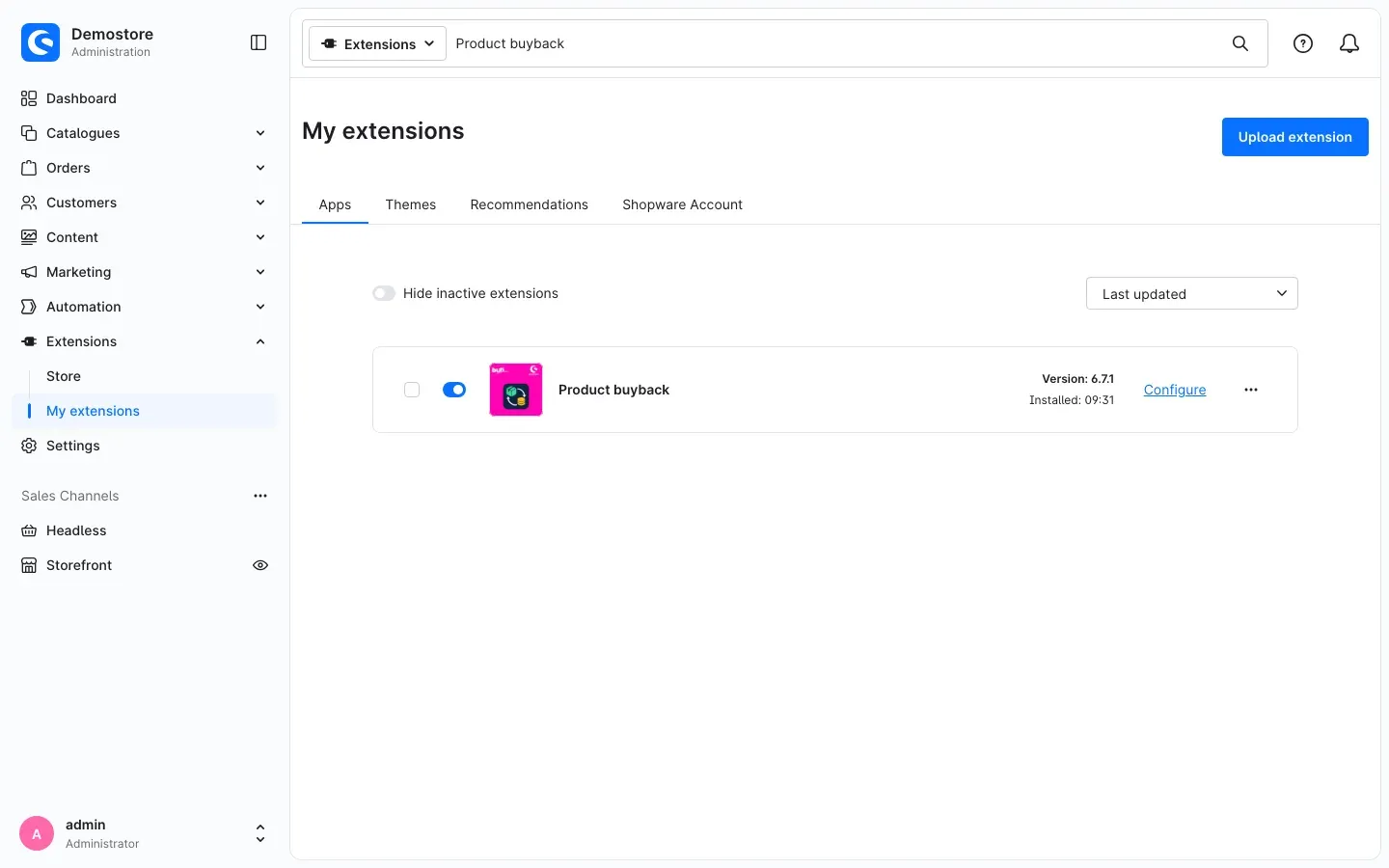
Open Extensions → My extensions.
-
Next to Product buyback, click Install.
-
Activate the plugin with the switch next to the entry — done. The Configure link now appears next to the entry.
If Product buyback does not appear in the list, your Shopware account is not yet connected to the shop. You do this under Extensions → My extensions by logging in with your Shopware account.
Note: During installation, Shopware downloads a small calculation library for the price formulas. Your server needs internet access at that moment. If the installation fails, pass the section For administrators / Technical details on to your technical support.
Getting started
Five steps are needed before your first item can be bought back. Each one is described in its own chapter.
- Switch the plugin on and set the buyback address: Open Extensions → My extensions and click Configure next to Product buyback. Check the switch for your sales channel and enter the customer number whose shipping address receives the goods. → Settings
- Create the buyback rule: In the Rule Builder you create one rule that recognises buyback items. All buyback prices are attached to this rule. → How to set up the buyback rule
- Set the buyback price on the product: Choose between a calculated and a fixed price and add a price row for your buyback rule. → How to set the buyback price of a product
- Optional limits: stock cap, maximum quantity per cart and “buyback only”. For many products at once, use the category. → How to control buyback quantity, stock and the regular buy box and How to apply settings to a whole category
- Check the result: Open the product in your shop. Below the regular buy box you now see Current buyback price and the Sell item now button. → How your customers sell you items
Tip: Try buyback with a single product first and run through one complete sale before you switch your whole range.
Settings
You find the settings under Extensions → My extensions: click Configure next to Product buyback.
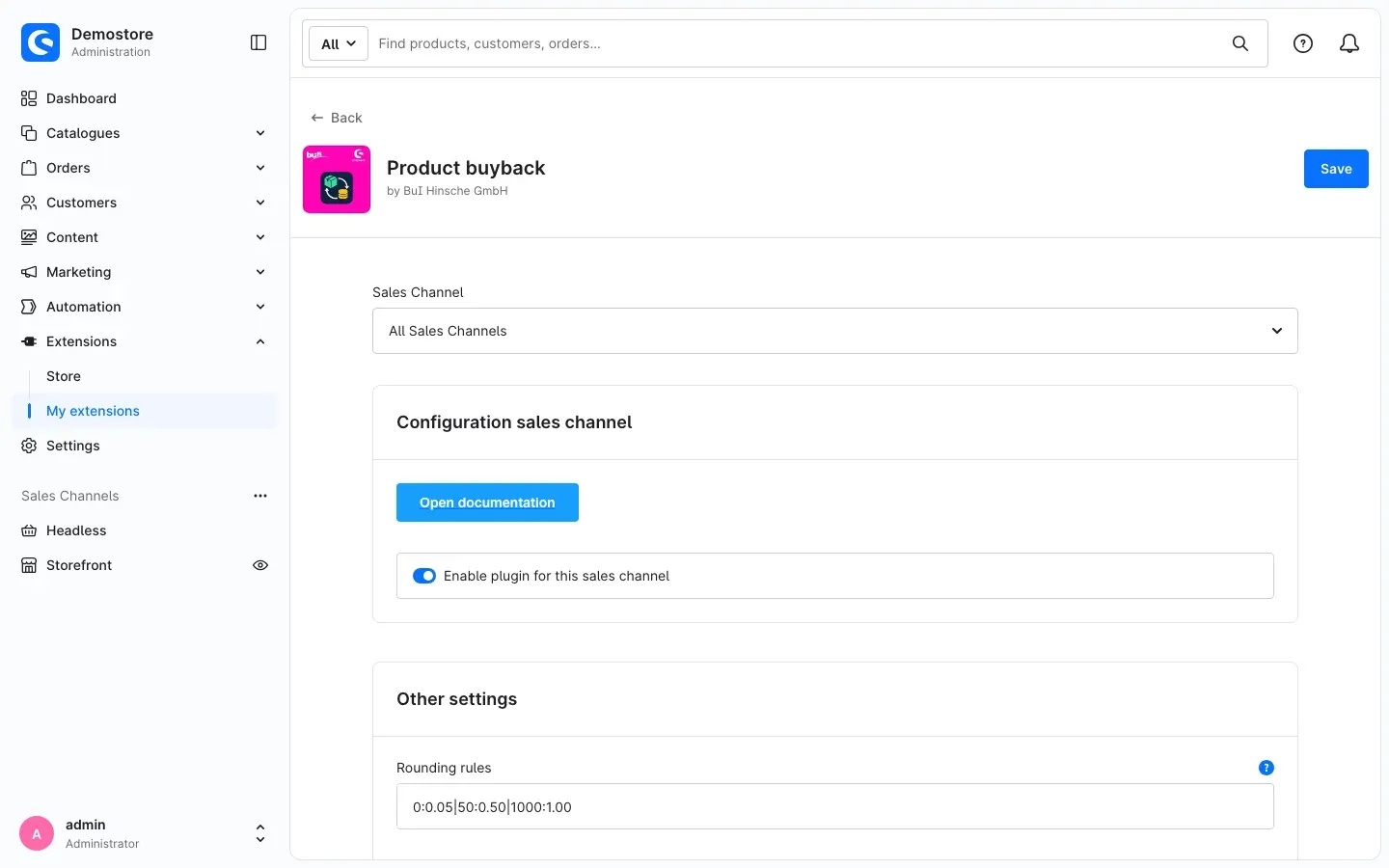
At the top, under Sales Channel, you choose what your settings apply to. All Sales Channels sets the default for every channel. If you select a single sales channel, you can set individual values differently there. Click Save at the top right after every change.
The Open documentation button takes you to this manual at any time.
Enable plugin for this sales channel
The Enable plugin for this sales channel switch decides whether buyback is offered in the selected sales channel. It is on by default. If you switch it off, that channel no longer shows buyback prices, sell buttons or the buyback cart; the rest of your shop keeps running as before.
Why this is useful: If you run one channel for consumers and one for trade customers, you offer buyback exactly where you want it — without uninstalling the plugin.
Rounding rules
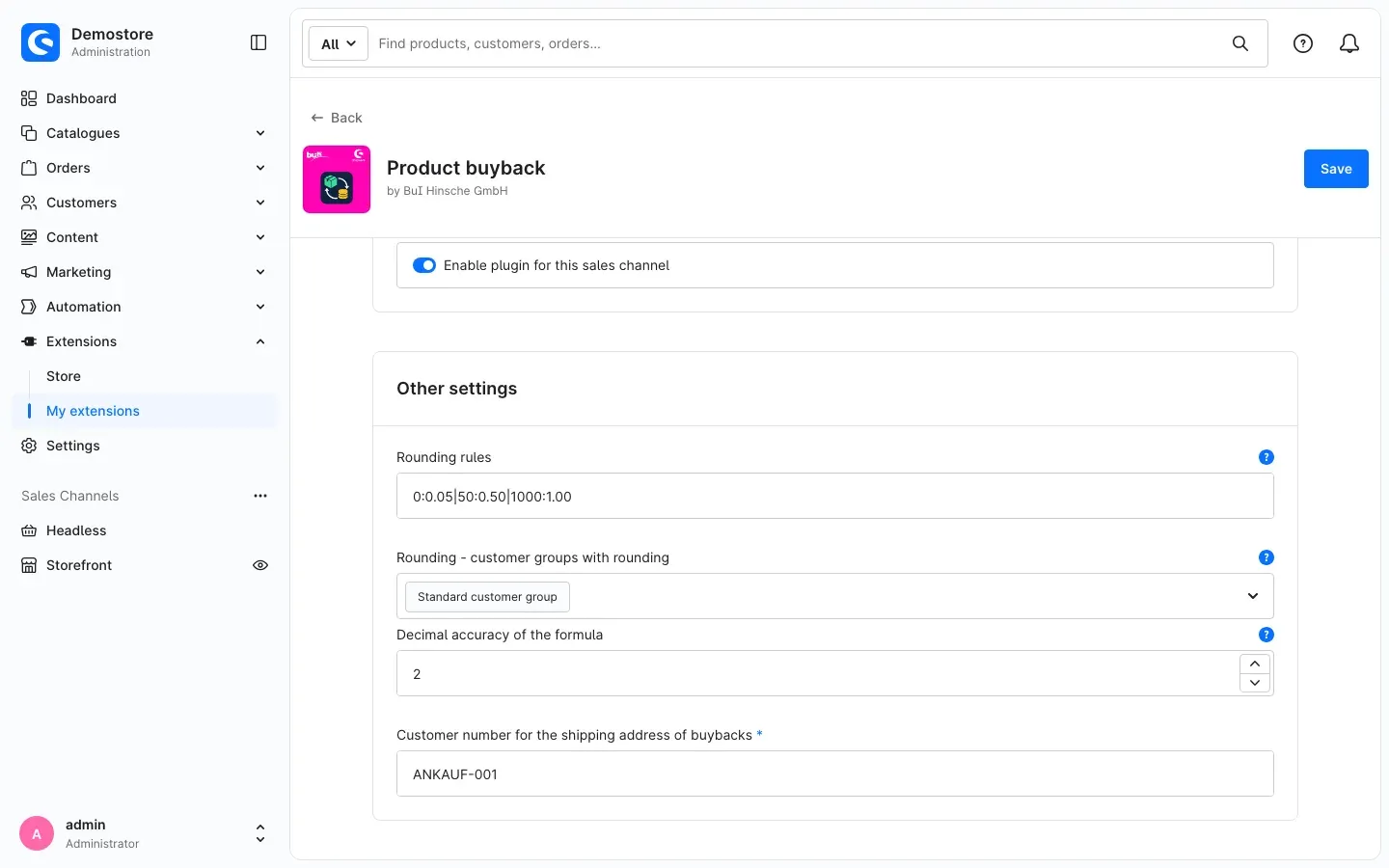
Rounding rules round calculated buyback prices to clean amounts instead of odd cent values. You enter price limits and rounding steps as pairs, separated by a vertical bar: limit:step|limit:step.
Example: 0:0.05|50:0.50|1000:1.00 means
- amounts up to 50 are rounded to 5 cents,
- amounts above 50 to 50 cents,
- amounts above 1000 to whole units.
Write the pairs in ascending order of the limit and use a dot as the decimal separator. Each amount is rounded to the nearest step, based on the amount including the product’s VAT. The preset value is 0, which means no rounding; an empty field works the same way.
Rounding only applies to calculated buyback prices (see How to set the buyback price of a product) and only to the customer groups you select in the next field. Fixed buyback prices always stay exactly as you entered them.
Why this is useful: An offer of 515.00 reads better than one of 514.84 — and is easier for your customer to compare.
Rounding - customer groups with rounding
In Rounding - customer groups with rounding you select the customer groups the rounding rules apply to. All other customer groups get the exact calculated amount. If you select no customer group, nobody gets rounded prices — even if you have entered rounding rules.
Why this is useful: Consumers see clean amounts, trade customers work with exact prices.
Decimal accuracy of the formula
Decimal accuracy of the formula sets how many decimal places of your price formula’s result are used. The preset is 16 places. For money amounts, 2 places are common.
Why this is useful: If your formula works with rates or weights, 2 places keep long decimal tails out of your prices.
Customer number for the shipping address of buybacks
In Customer number for the shipping address of buybacks you enter the customer number of a customer account whose default shipping address becomes the shipping address of every sale. The field is marked with an asterisk; you need to fill it in.
How to set it up:
- Under Customers, create a customer account for your goods-in, for example “Ankauf Lager GmbH”.
- Give it a default shipping address — the address your customers should send the goods to.
- Enter that account’s customer number here, for example
ANKAUF-001, and click Save.
In the buyback overview your customer sees this address as the shipping address and cannot change it. Their billing address remains their own.
Why this is useful: You never have to send anyone your address again. If you run several warehouses, enter a different customer number per sales channel.
How to set up the buyback rule
What this gives you: The buyback rule is the key to every buyback price. It recognises items in the buyback cart, and in each product’s advanced pricing the buyback price is attached to it. You create it once and use it for all products.
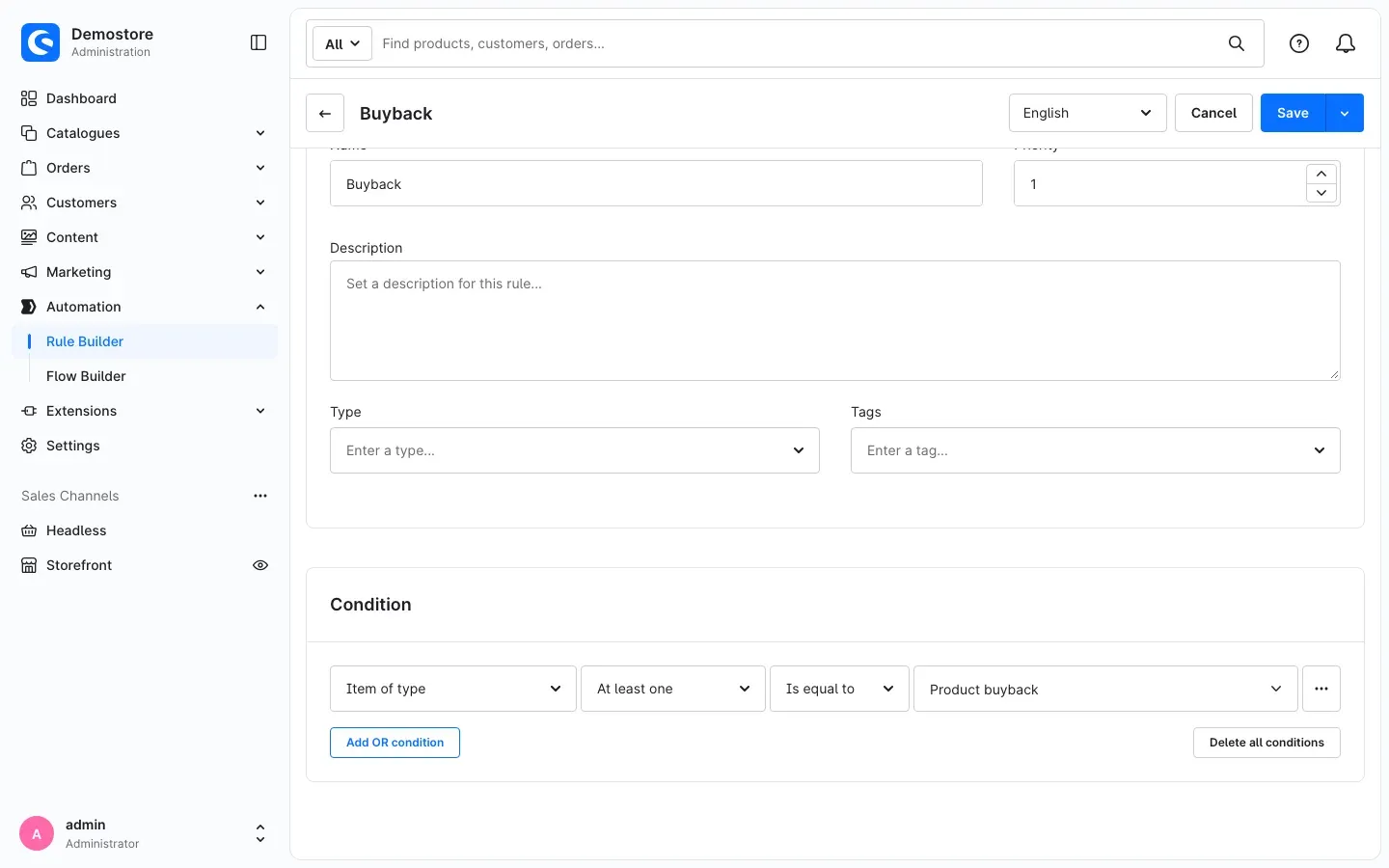
Step by step
- Go to Automation → Rule Builder and create a new rule.
- Enter a Name, for example “Buyback”.
- Under Priority, enter a low value, for example
1. It must be lower than the priority of your rules for selling prices. - In the Condition card, set the condition as follows:
- Item of type
- At least one
- Is equal to
- Product buyback
- Click Save.
The Product buyback option is added by the plugin; without the plugin this item type does not exist.
Important: Always give the buyback rule a lower priority than your rules for selling prices. Otherwise your shop may show the buyback price as the regular selling price.
How to set the buyback price of a product
What this gives you: You decide per product what you pay for it — calculated automatically, as a fixed amount, or only on request after inspection.
| You want to … | Then … |
|---|---|
| pay a price that follows your selling price automatically | switch on calculation active and add a formula (How to set up a calculated buyback price) |
| pay a fixed amount | leave calculation active off and enter the amount in the price row (How to set up a fixed buyback price) |
| quote a price only after inspection | switch on Buyback on request (How to set up buyback on request) |
Opening the buyback settings of a product
- Go to Catalogues → Products and open the product.
- Switch to the Specifications tab and scroll to the Custom fields card.
- Click the Product buyback tab.
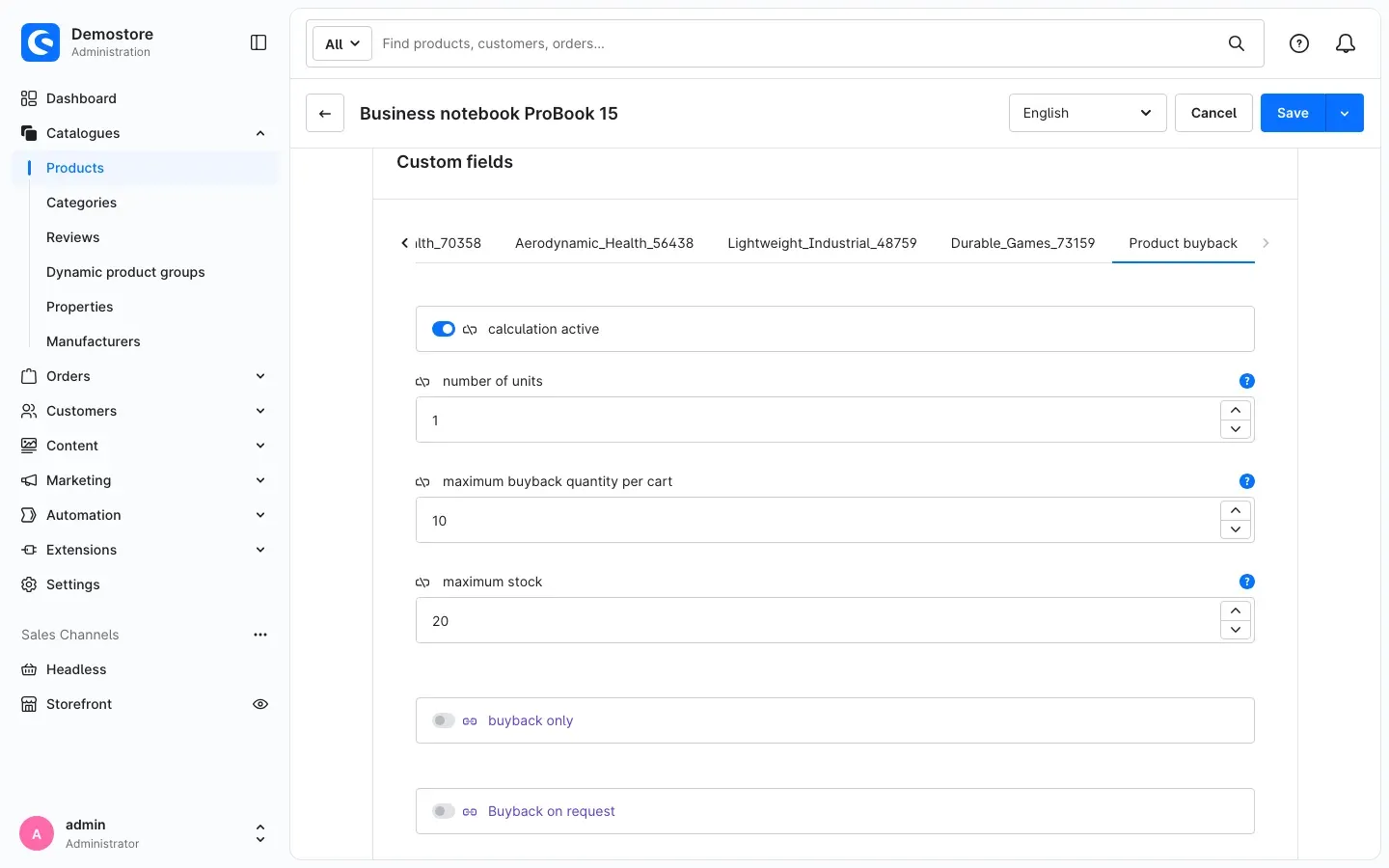
This is where you find all buyback settings of the product:
- calculation active — calculated price (on) or fixed price (off), see How to set up a calculated buyback price and How to set up a fixed buyback price
- number of units — a value for the formula, see How to set up a calculated buyback price
- maximum buyback quantity per cart and maximum stock — see How to control buyback quantity, stock and the regular buy box
- buyback only — see How to control buyback quantity, stock and the regular buy box
- Buyback on request — see How to set up buyback on request
Click Save at the top right after every change.
Adding the price row for the buyback rule
Both the calculated and the fixed price need a price row for your buyback rule on the product.
- In the product, switch to the Advanced pricing tab.
- Select your buyback rule, for example “Buyback”. If the product already has advanced prices, use Add pricing rule to add another section and select the buyback rule there.
- Enter an amount in the Price row — what you enter depends on the method you choose (see How to set up a calculated buyback price and How to set up a fixed buyback price).
- Click Save.
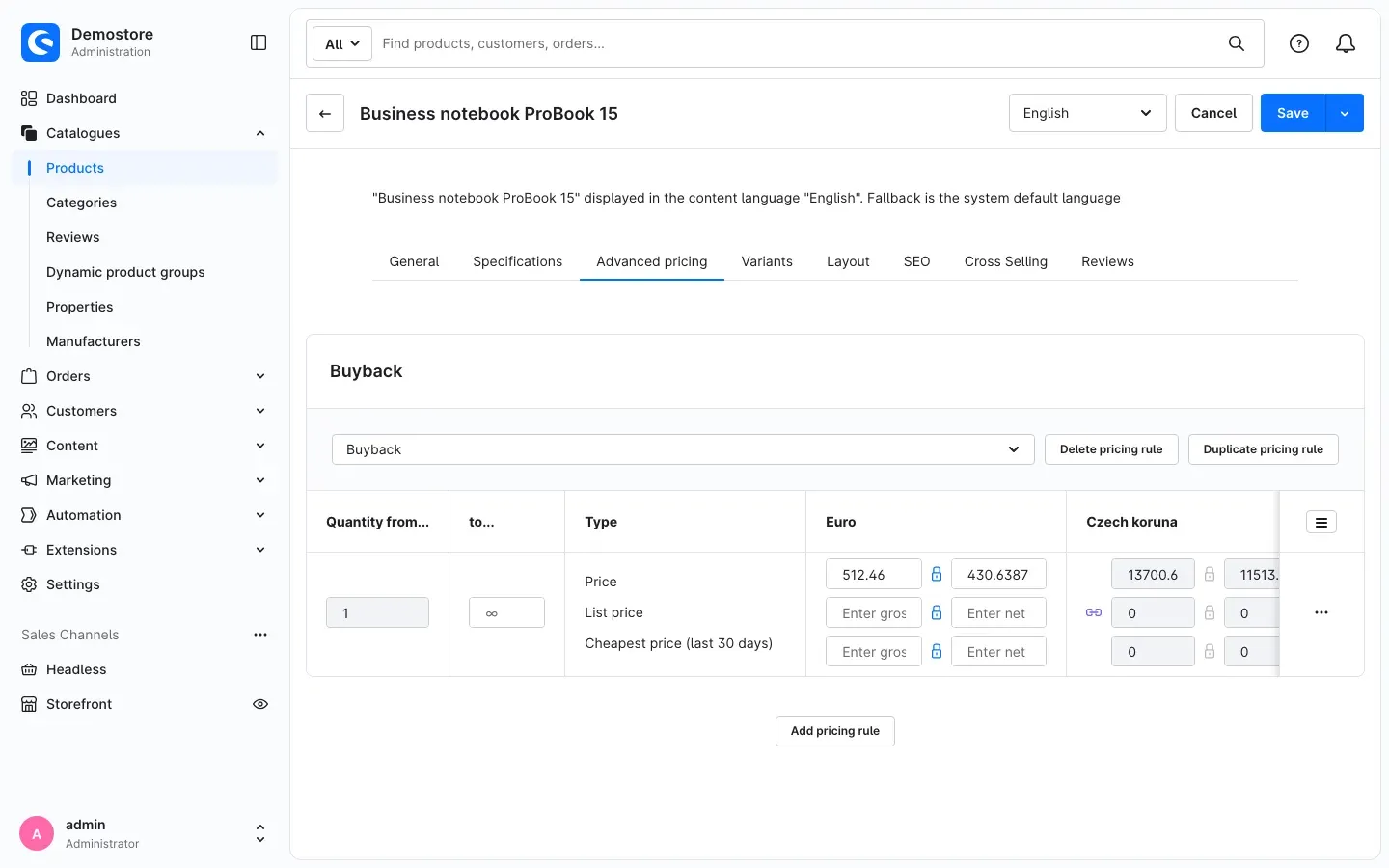
Tip: As with regular tiered prices, you can use Quantity from… and to… to add several rows for different quantities. Each row gets its own price or formula.
How to set up a calculated buyback price
What this gives you: The buyback price follows your selling price automatically. When you change the selling price, the buyback price follows — no more working it out by hand.
-
Switch on calculation active on the product (see Opening the buyback settings of a product).
-
Add the price row for the buyback rule (see Adding the price row for the buyback rule). The amount in the Price row does not matter for the calculated price; the shop recalculates it every time the product is shown.
-
Click the … menu at the end of the price row and select Custom fields.
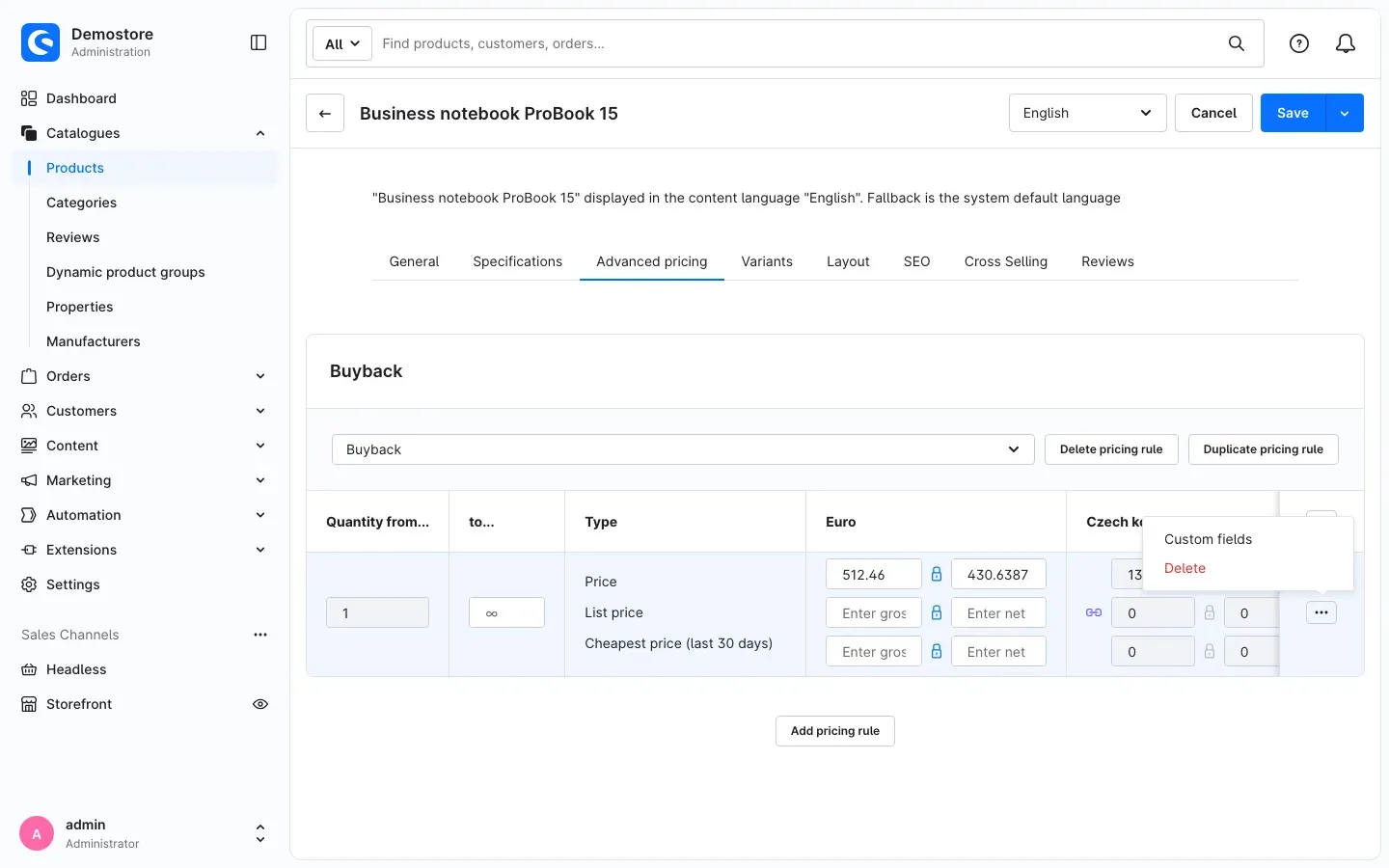
-
In the Custom fields window, enter the calculation in the Product buyback tab:
- formula: the rule for calculating the buyback price, for example
x*b*0.6 - percentage based surcharge: a surcharge in per cent added to the result of the formula
- absolute surcharge: a fixed amount added on top
- min price: the lowest buyback price — if the result is lower, this value applies
- max price: the highest buyback price — if the result is higher, this value applies
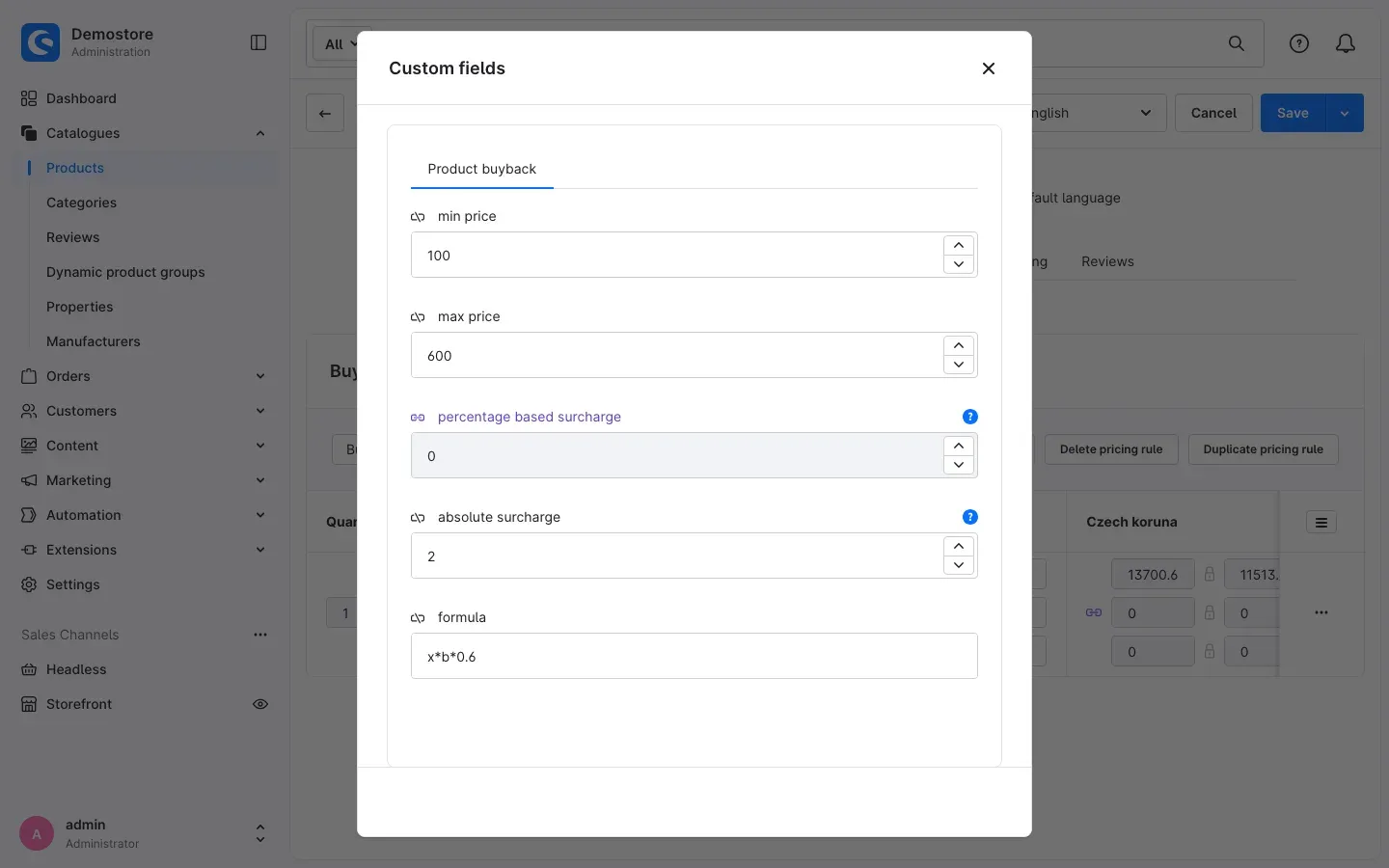
- formula: the rule for calculating the buyback price, for example
-
Close the window with the X at the top right and click Save in the product.
How to write the formula
Three placeholders are available in the formula:
- x — the net selling price of the product
- b — the value of number of units on the product; if the field is empty, the plugin uses 1
- y — the currency factor; it is normally 1, and you do not need it in the formula
You calculate with +, -, *, / and brackets. Use a dot for decimals, so 0.6, not 0,6.
Example: If a product costs 100.00 net and number of units is 1, the formula x*b*0.6 gives a buyback price of 60.00 — 60 % of your net selling price. With an absolute surcharge of 2 this becomes 62.00. If min price is 100, you pay 100.00 instead.
The order is always: formula → percentage and absolute surcharge → minimum and maximum price → rounding (only for the customer groups you selected in the settings).
Important: If you leave the formula empty or it contains an error, the plugin uses
x*b— the full net selling price. So check the buyback price in your shop after saving.
Tip: number of units is useful when the buyback price is based on a price per unit, for example a rate per gram multiplied by the product’s weight.
How to set up a fixed buyback price
What this gives you: You always pay the same amount for a product — no formula needed.
- Leave calculation active switched off on the product (see Opening the buyback settings of a product).
- Add the price row for the buyback rule (see Adding the price row for the buyback rule) and enter the amount you pay in the gross price field of the Price row — for example 280.
- Click Save.
Your customer sees exactly this amount as the buyback price. Formula, surcharges, minimum and maximum price and rounding rules do not apply to a fixed price. If you run several currencies, the amount entered for each currency applies.
Important: Without a price row for the buyback rule and with calculation active switched off, the shop offers no buyback for this product.
How to set up buyback on request
What this gives you: For one-off items whose price depends on their condition, you show no price and let your customer send you an enquiry instead. You quote a price after inspection.
- Switch on Buyback on request on the product (see Opening the buyback settings of a product).
- Click Save.
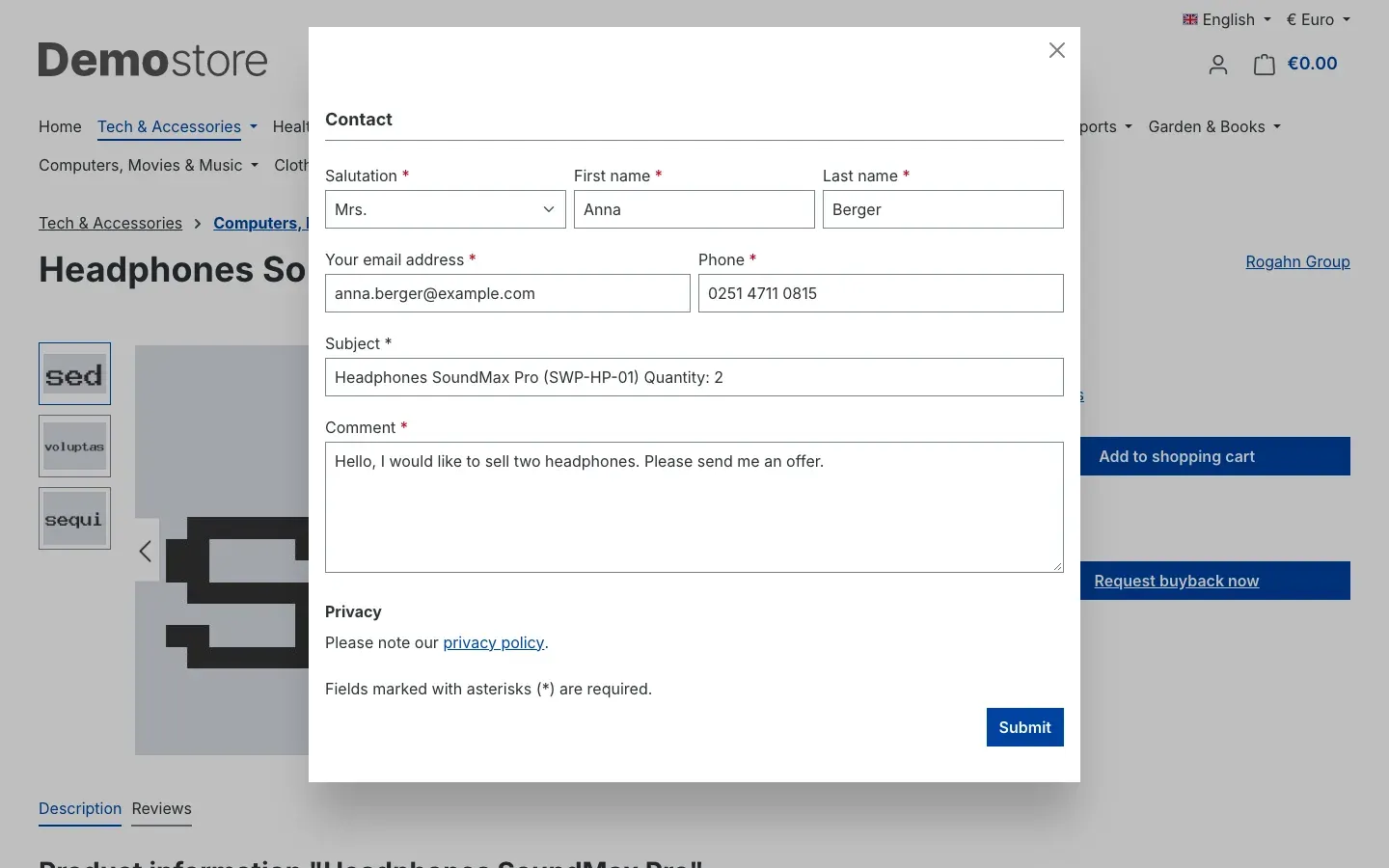
You do not need a price row for the buyback rule. Instead of a buyback price and buyback cart, the product page now shows Request a buyback? with a quantity selector and the Request buyback now button. It opens your shop’s contact form; the subject is prefilled with product name, product number and quantity. How your customers sell you items shows what this looks like for your customer.
The enquiry reaches you like any other message from your contact form. The plugin uses the page that is set as the contact page in your shop.
Tip: Buyback on request takes priority: when it is on, the product always shows the enquiry, even if it also has a calculated or fixed buyback price.
How to control buyback quantity, stock and the regular buy box
What this gives you: You only buy as much as you need, and you decide whether a product is also sold normally.
All three settings are on the product in the Specifications tab, Custom fields card, Product buyback tab (see Fig. 5 in Opening the buyback settings of a product).
maximum stock
maximum stock sets the stock level up to which you buy a product back. The shop only offers buyback while the product’s available stock is below this value. Once it is reached, the buyback price and sell button disappear — the product is shown as normal again.
- Empty field: no stock cap, you buy back without limit.
0: no buyback for this product.
In addition, a customer can only offer as many units at once as are missing up to the stock cap. Example: maximum stock 20, available stock 12 — your customer can sell at most 8 units.
Important: The plugin does not add bought-back goods to your stock automatically. Book goods into stock yourself when they arrive — only then do they count towards the stock cap.
maximum buyback quantity per cart
maximum buyback quantity per cart limits how many units of a product a customer can offer in one sale. With 0 or an empty field, the maximum quantity your shop generally allows per cart item applies.
If your customer enters more in the buyback cart, the shop resets the quantity to the allowed amount and shows: “The product ”…” can only be bought back a maximum of … times.”
Why this is useful: You spread buyback across several customers instead of filling your whole quota from one.
buyback only
buyback only hides the regular buy box for this product — the selling price and Add to shopping cart disappear from the product page and the listing. Only buyback (or the enquiry) remains visible. The switch is off by default.
Why this is useful: For products you only buy in and never sell, for example old handsets in a shop for refurbished electronics.
How to apply settings to a whole category
What this gives you: Instead of opening a hundred products one by one, you switch calculation active and buyback only on or off for a whole category with one click.
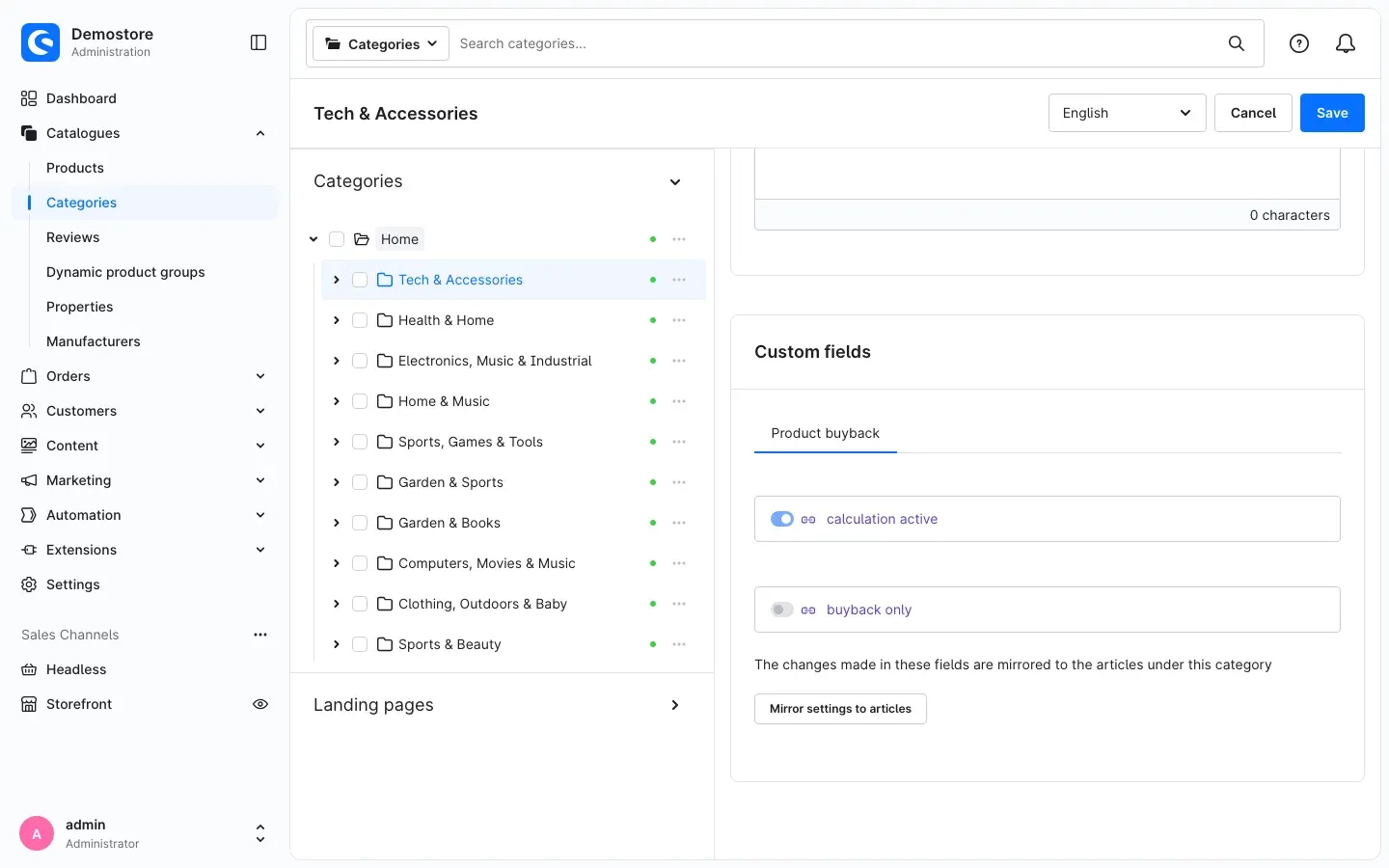
Step by step
- Go to Catalogues → Categories and select the category.
- In the General tab, scroll to the Custom fields card and open the Product buyback tab.
- Set calculation active and buyback only the way they should apply to the products.
- Click Save at the top right. Only then can you click the button in the next step.
- Click Mirror settings to articles.
- Confirm the question Are you sure? with Save.
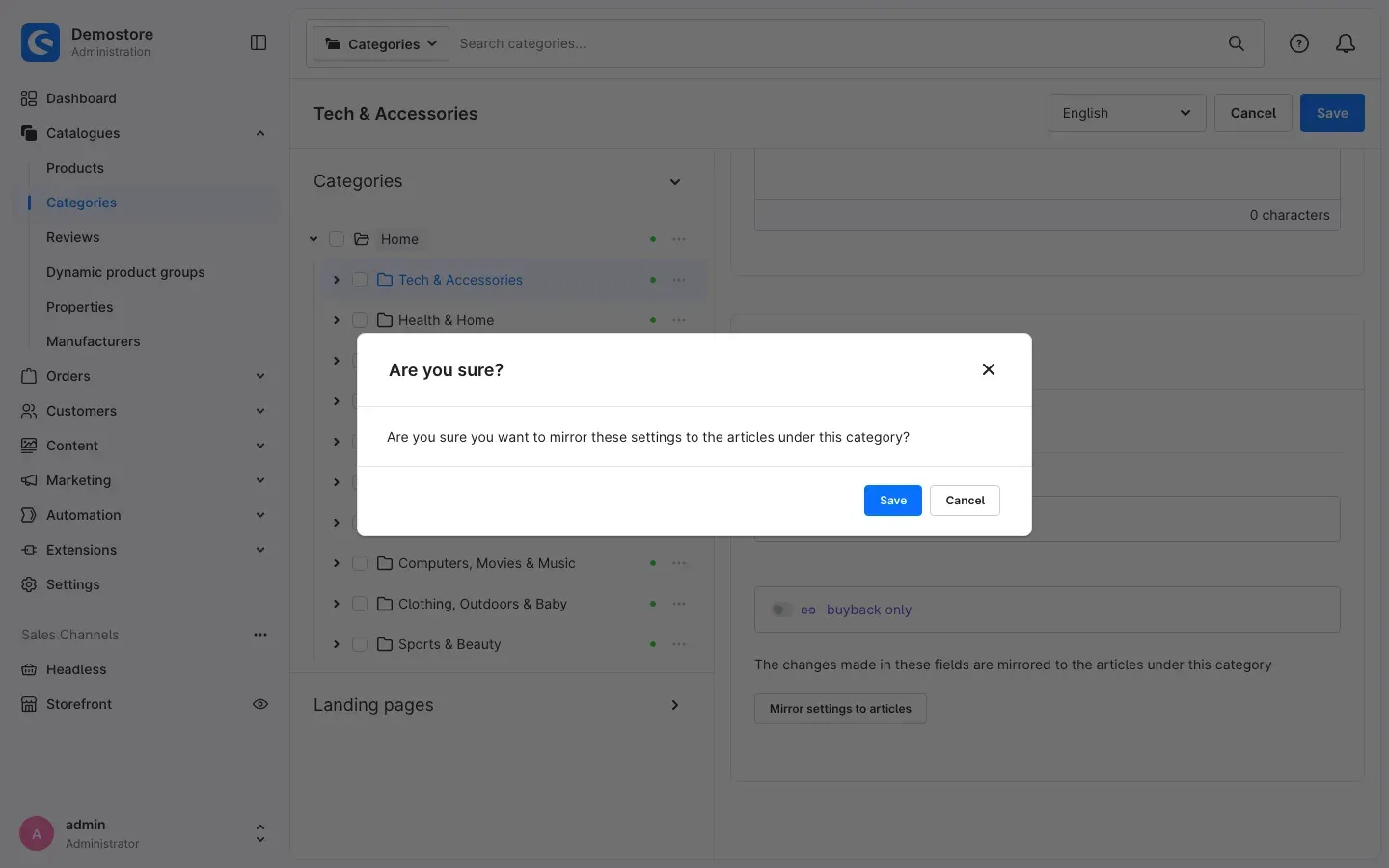
A notification tells you how many products the settings were applied to. They are applied to all products in the category and its sub-categories; the sub-categories receive the same settings.
Important: Applying overwrites calculation active and buyback only on every one of these products — including those you had set differently by hand. Formulas, price rows and the other buyback settings of the products stay unchanged.
Tip: If the button is greyed out, you have not saved the category yet, or you lack the permission to edit categories and products.
How your customers sell you items
What this gives you: This is the process from your customer’s point of view — so you know what they see and can answer their questions.
Buyback price on the product page
Below the regular buy box, the product page shows Current buyback price, a quantity selector and the Sell item now button.
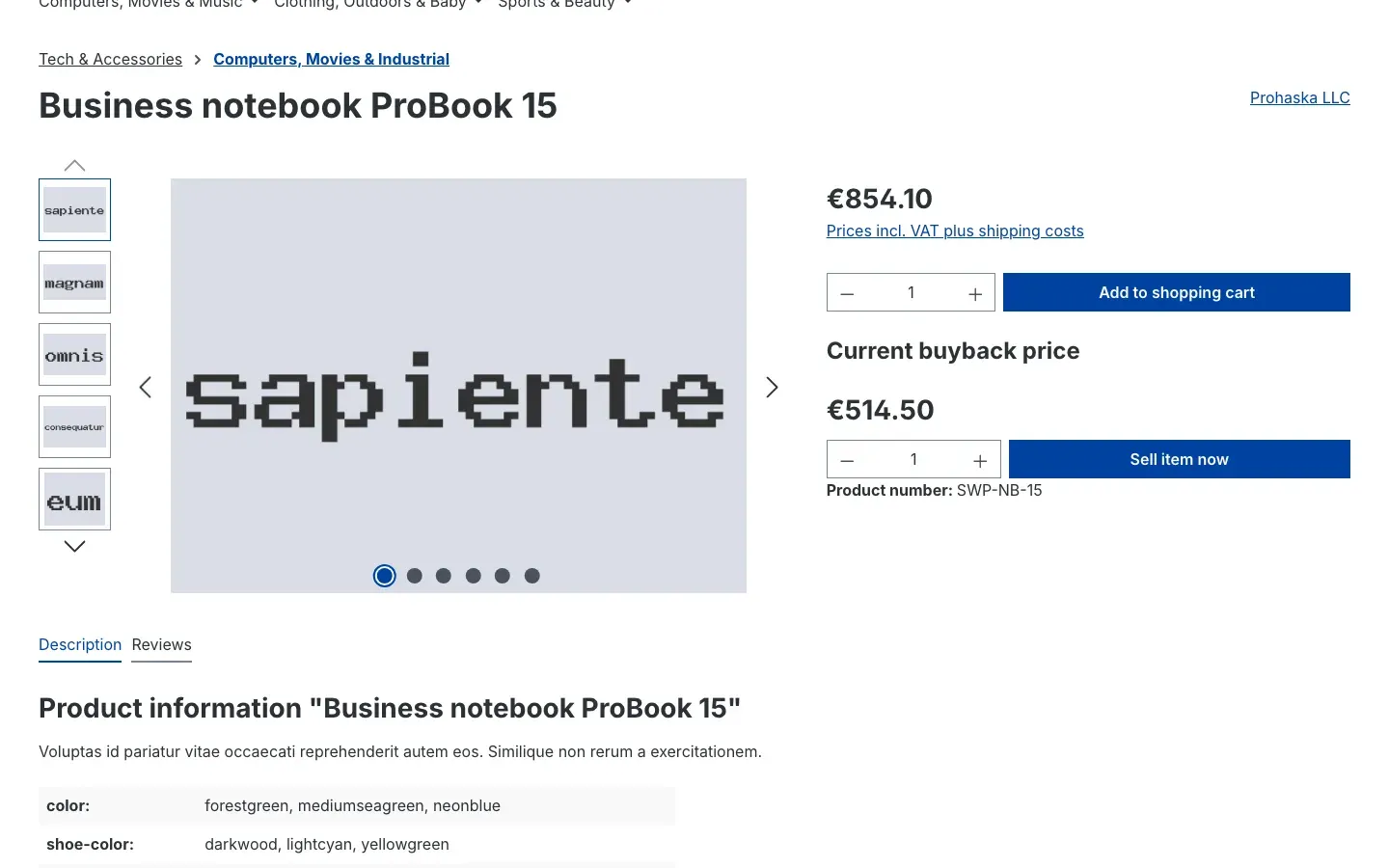
Buyback price in listings
Category pages and product sliders also show Current buyback price with the buyback price below the selling price, together with the Add to buyback cart button. The note on VAT and shipping costs appears only with the selling price, not with the buyback price — after all, you pay this amount to your customer.
The buyback cart
After the click, the cart opens as Your buyback cart with the notice Buyback cart. From here your customer continues with to the buyback overview, or opens the full view with to the buyback cart.
Switching between buying and selling
A cart is either a purchase or a sale. If your customer adds something from the other direction, the shop asks first:
- Purchases in the cart and the customer wants to sell: You want to switch to buyback mode
- Buyback items in the cart and the customer wants to buy: You want to switch to shopping mode
With Yes, the shop removes the items of the other direction and adds the new item. With No, the cart stays unchanged.
Buyback on request
For products with Buyback on request, the page shows Request a buyback? with a quantity selector and the Request buyback now button instead of a buyback price. In the listing, the Request buyback button leads to the product page.
After the click the Contact form opens. The Subject is prefilled with product name, product number and quantity and cannot be changed. Your customer adds their details and sends the enquiry with Submit.
The buyback overview
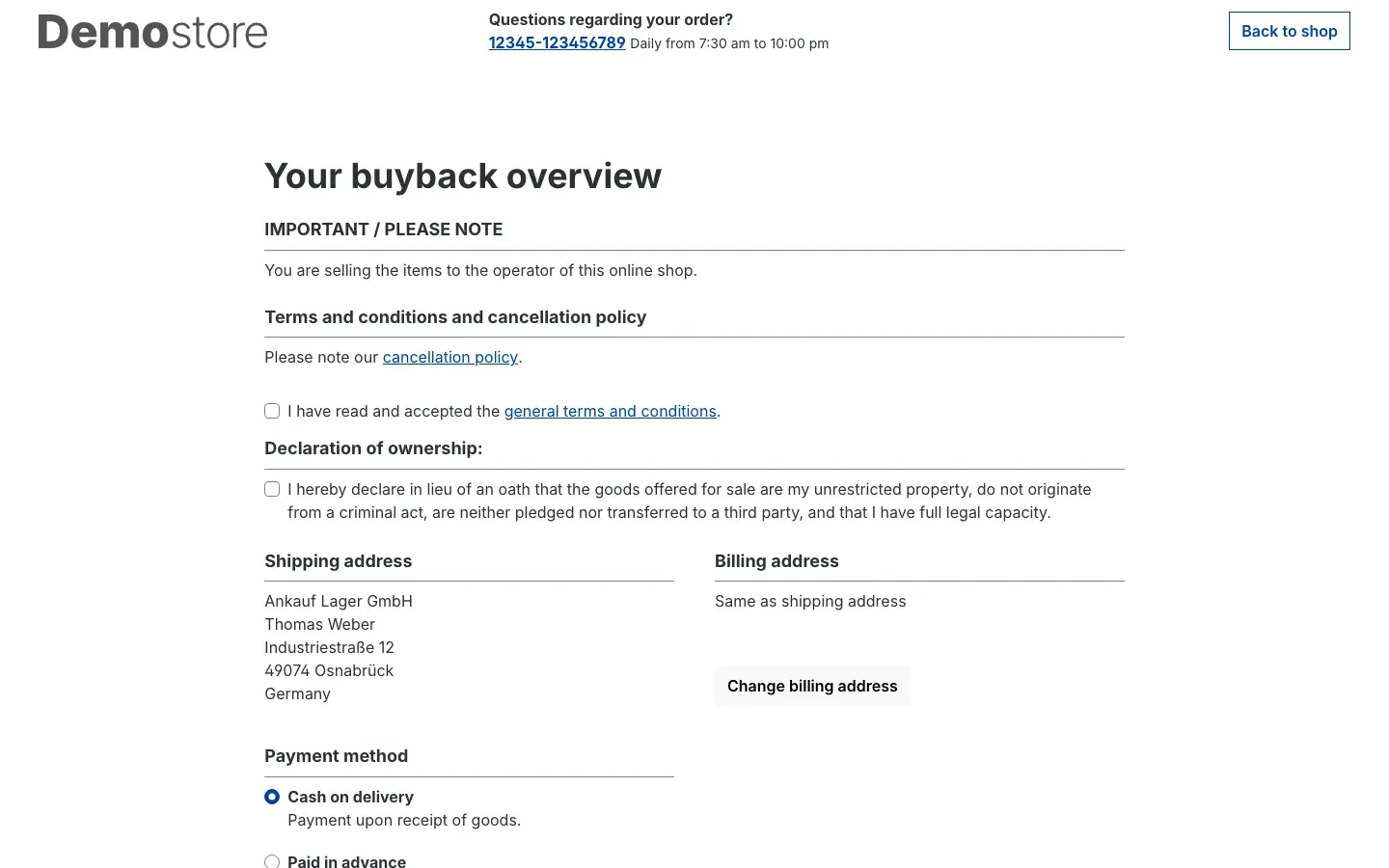
Instead of the order overview, your customer sees Your buyback overview:
- At the top, the notice IMPORTANT / PLEASE NOTE — “You are selling the items to the operator of this online shop.”
- Below your terms and conditions follows the Declaration of ownership: as a mandatory tick box. Without it the sale cannot be submitted; your customer then sees “Please confirm the declaration of ownership.”
- The Shipping address is the address from your settings. Your customer cannot change it. The Billing address is their own.
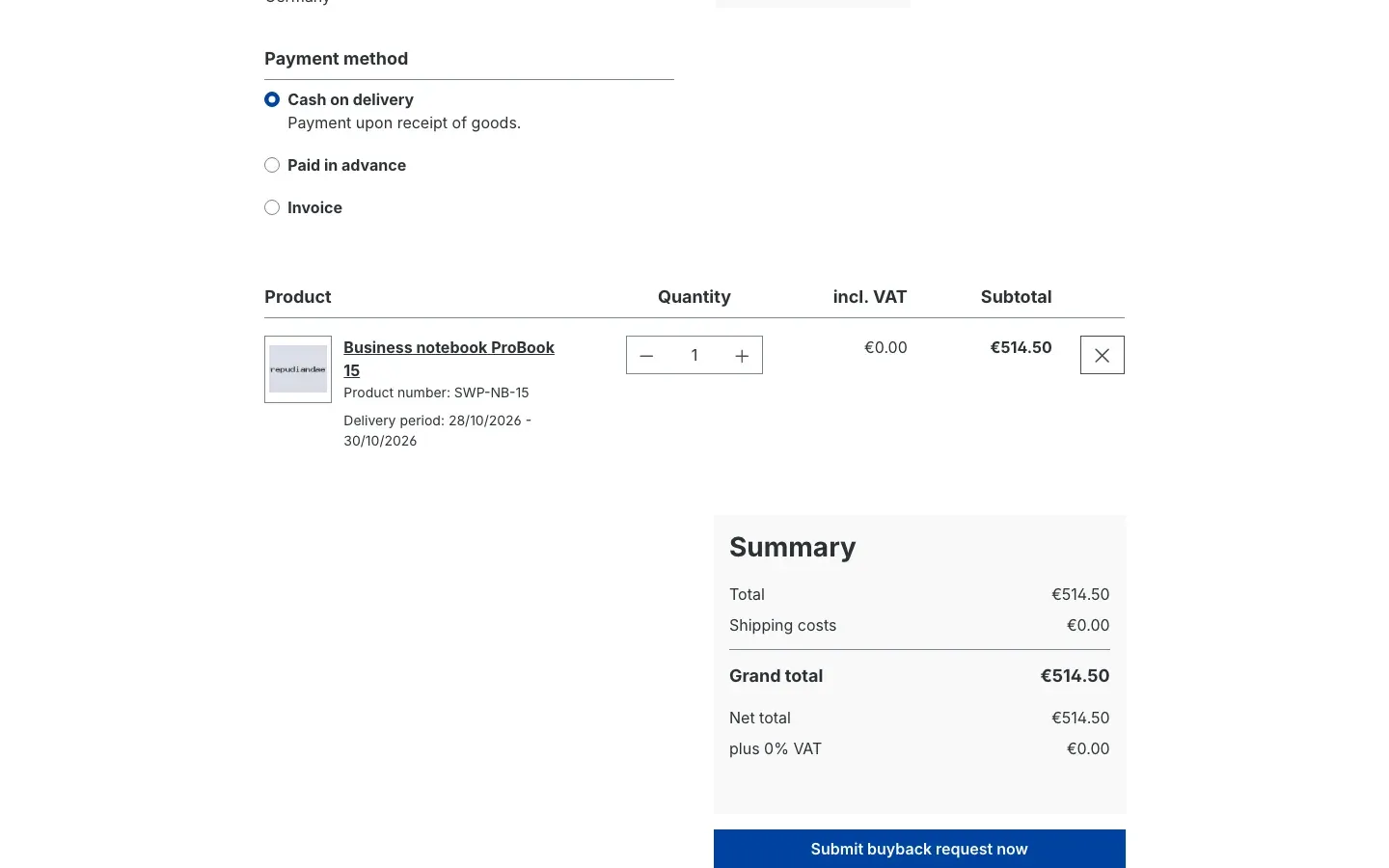
Further down are your shop’s payment methods and the items with their buyback price. Buyback items are tax-free; the summary shows 0 % VAT. With Submit buyback request now your customer submits the sale.
The finish page
Finally the shop says Thank you for your buyback request at followed by your shop name, shows Your buyback number: and the notice A confirmation email for your buyback request has been sent.
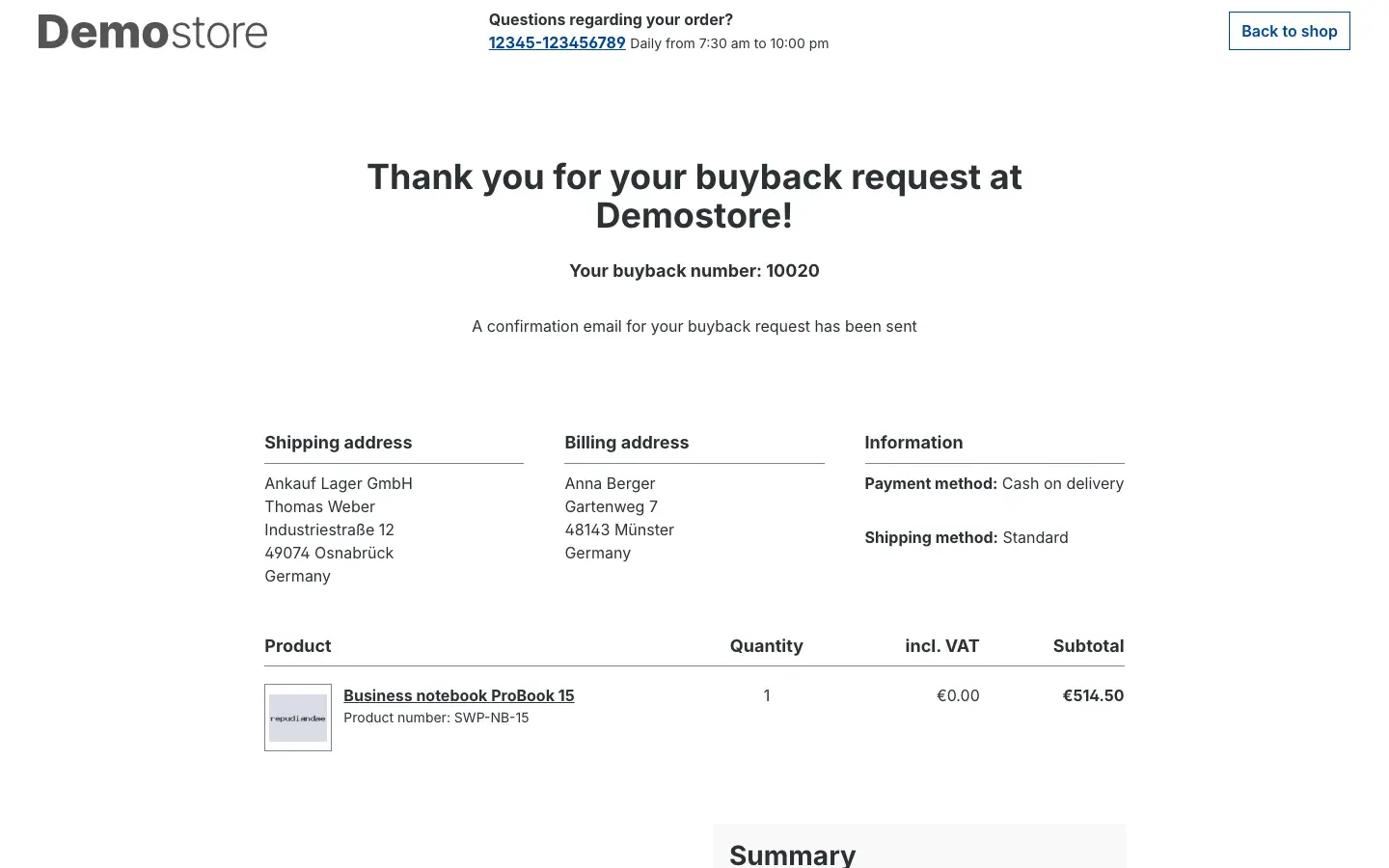
The plugin does not send an email of its own: your customer receives the order confirmation your shop sends for every order.
How to recognise and handle incoming sales
What this gives you: Every sale arrives as a regular order in your Administration. You handle it with the tools you already know.
- Go to Orders → Overview and open the order. The order number is the buyback number your customer saw on the finish page.
- In the General tab, scroll to the Custom fields card and open the Product buyback tab.
- If the buyback status switch is on, this is a sale from your customer to you.
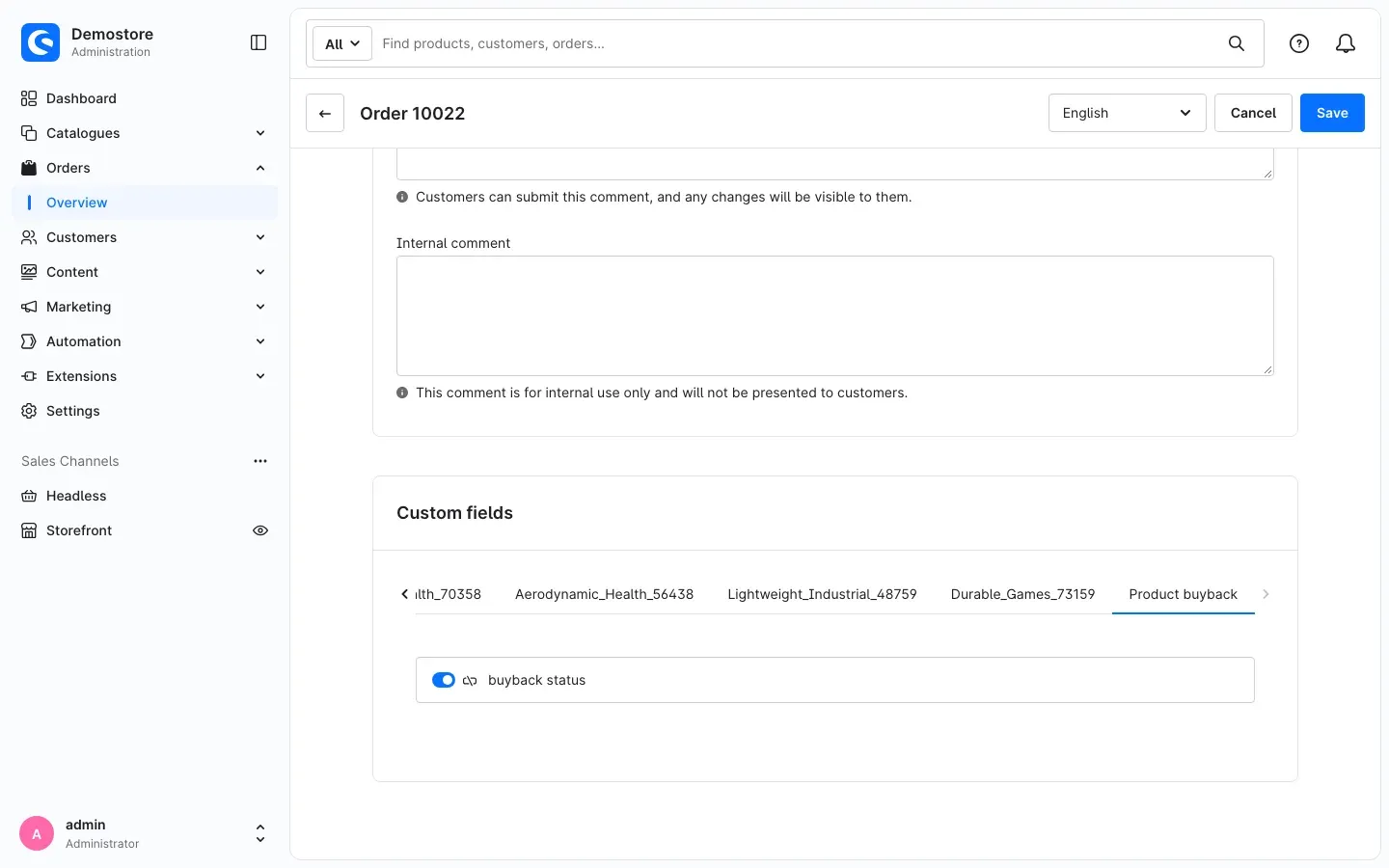
The plugin sets buyback status as soon as the finish page of the sale is displayed. The shipping address is your buyback address, the billing address is your customer’s.
From there you carry on as usual: receive the goods, check them, increase the stock and pay your customer. The plugin does none of these steps.
Troubleshooting
The product shows neither a buyback price nor “Sell item now”
Cause: One of the conditions for buyback is missing.
How to fix it:
- In the settings, check that Enable plugin for this sales channel is switched on for this sales channel.
- If calculation active is off on the product, the product needs a price row for your buyback rule under Advanced pricing (see How to set up a fixed buyback price).
- Check maximum stock: if it is
0, or the available stock is already at or above the value, the shop offers no buyback. - Check the buyback rule: the condition must read Item of type — Is equal to — Product buyback (see How to set up the buyback rule).
The buyback price equals the full net selling price
Cause: The formula in the price row is empty or contains an error. The plugin then uses x*b.
How to fix it: Open Custom fields from the … menu of the price row and check the formula. Only use x, y and b as placeholders and write decimals with a dot (see How to set up a calculated buyback price). Technical administrators find the error message in the plugin’s log file (see For administrators / Technical details).
The shop shows the buyback price as the regular selling price
Cause: The buyback rule has a higher priority than your rules for selling prices.
How to fix it: Open the buyback rule under Automation → Rule Builder and set its Priority below that of your pricing rules for selling.
Rounding does not apply
Cause: Rounding depends on several conditions.
How to fix it:
- Select your customer’s customer group under Rounding - customer groups with rounding.
- Check Rounding rules:
0or an empty field means “no rounding”. Every pair needs a step, for example50:0.50. - Fixed prices are never rounded — rounding only applies to calculated buyback prices.
The buyback overview does not show your buyback address
Cause: The plugin cannot find a customer account with a default shipping address for the customer number you entered. The customer’s own shipping address then remains.
How to fix it: In the settings, check that Customer number for the shipping address of buybacks is correct for this sales channel and that the customer account with this number has a default shipping address.
The “Mirror settings to articles” button is greyed out
Cause: The category has unsaved changes, or you lack the permission to edit categories.
How to fix it: Click Save first. If the button stays grey, ask your administrator for edit permissions for categories and products.
The “Custom fields” entry in the price row menu is greyed out
Cause: You lack the permission to edit products.
How to fix it: Ask your administrator for edit permissions for products.
Your customer cannot submit the sale
Cause: The Declaration of ownership: or your terms and conditions have not been confirmed.
How to fix it: Your customer ticks both boxes in the buyback overview. If the declaration of ownership is missing, the shop shows “Please confirm the declaration of ownership."
"Request buyback now” does not open a contact form
Cause: No contact page is set in your shop.
How to fix it: Set a contact page with a contact form in your shop’s basic settings.
FAQ
Q: Can a customer buy and sell in the same cart?
A: No, and that is intentional. A cart is either a purchase or a sale. If your customer adds something from the other direction, the shop asks first whether the existing items should be removed (see How your customers sell you items).
Q: What happens when a customer logs in with a filled buyback cart?
A: If their customer account still holds purchases from an earlier visit, the shop removes them on login; the buyback cart is kept. The same applies the other way round. This keeps buying and selling separate in that case too.
Q: Does the plugin pay the buyback amount to my customer?
A: No. The plugin creates the sale as an order with buyback prices. Receiving, checking and paying out, for example by bank transfer, remain with you.
Q: Can I offer separate payment or shipping methods for sales?
A: The plugin does not change payment or shipping methods; your customer sees those of your shop. Shopware does, however, let you tie payment and shipping methods to a rule — you can use your buyback rule for that.
Q: Does the buyback price change when I change the selling price?
A: For a calculated price, yes, immediately: the shop calculates it from your current net selling price every time. A fixed price stays until you change it.
Q: Can I offer buyback in only one sales channel?
A: Yes. Switch Enable plugin for this sales channel on or off per channel. Rounding rules and the buyback address are also set per channel.
Q: Does it work with my theme?
A: Usually yes. The plugin extends the standard areas of the Shopware storefront for the buy box, product box, cart and checkout. If your theme completely replaces exactly these areas, it may need an adjustment. Test before going live.
Q: Why does my customer see “A confirmation email for your buyback request has been sent” although the plugin sends no email?
A: The confirmation is the order confirmation your shop sends for every order. If you want different wording for sales, adjust that confirmation in your shop.
Q: What happens to my data when I uninstall?
A: If you keep the plugin data when uninstalling, everything stays. Otherwise the plugin removes its custom fields on products, price rows, categories and orders. Your buyback rule, the advanced prices and the orders remain.
For administrators / Technical details
This section is aimed at technical administrators. You do not need it for everyday use.
System requirements
- Shopware: 6.7
- PHP: 8.2 or higher
- Composer and internet access during installation and updates: Shopware installs the library
denissimon/formula-parser(MIT licence) via Composer, which evaluates the price formulas.
Installation via the command line
php bin/console plugin:refresh
php bin/console plugin:install --activate SwpPurchaseArticlesSix
php bin/console cache:clear
Updating stored buyback prices
The shop recalculates buyback prices every time; no background job is needed for that. If you also want the calculated values stored in the advanced prices, for example for reporting or exports, run this command:
php bin/console purchasearticles:cronIt writes the calculated buyback price into the price rows of the buyback rule for all active products with calculation active switched on, in batches of 250 products. It calculates with the settings of the oldest active storefront sales channel in which the plugin is switched on.
The plugin does not register a scheduled task for this. If the command should run regularly, set up a cron job on the server, for example hourly:
0 * * * * cd /path/to/your/shop && php bin/console purchasearticles:cronLog file
The plugin writes to its own log file at var/log/SwpPurchaseArticlesSix-<date>.log and keeps it for 14 days. Among other things, it records when a price formula could not be evaluated.
Permissions
- Only users who may edit products can use the Custom fields entry in a price row menu.
- Mirror settings to articles requires edit permissions for categories and products.
Headless and Store API
The buyback cart works through the regular cart route of the Store API; the cart calculates the buyback price. The buyback price display on product pages and listings exists only in the Shopware storefront — in a headless frontend you build it yourself.
Data storage and privacy
- The plugin creates no database tables of its own and does not change any Shopware tables. All values are stored in custom fields on product, price row, category and order, and in the plugin configuration.
- The plugin sends no data to external services.
- The declaration of ownership is checked before submission but not stored as a separate field.
- When uninstalling without keeping data, the plugin removes its custom field sets.
This manual was written for Product buyback version 6.7.1.
More manuals
Address Validation: House Number Check & Corrections
Address validation at the point of entry: the plugin spots missing house numbers, can suggest corrections via Google and helps you send fewer parcels that come back undeliverable.
Open manual Shopware 6Admin Password Reminder
Admin Password Reminder: your backend users renew their passwords on time, prompted after login and by a daily email. Premium locks expired accounts until the password is changed.
Open manual Shopware 6Advent Calendar | Doors with products, coupons and promotions
Advent calendar for your shopping experiences: doors open on time without clearing the cache, give nothing away in the page source and reveal coupons, products or your own content.
Open manualNeed a team that keeps your shop running?
We have been maintaining Shopware shops for more than 20 years, including updates, hotfixes and the plugins you are configuring right now.