
Product configurator advanced prices
Volume discounts instead of price on request: your customer enters a quantity and instantly sees the matching tier price. Add-on for the SwpProductOptionsSix configurator.
On this page
- Introduction
- What you achieve with this plugin
- Who is this plugin for?
- Installation
- Getting started
- Settings
- Sales Channel
- Enable plugin for this sales channel
- To the documentation
- How to use the functions
- How to set tiered prices for a product option
- How to set deviating tiered prices for a single product
- How to check the result in the shop
- Troubleshooting
- The “Advanced prices” tab is missing on the product option
- No price scale appears in the shop
- The customer sees a different price than expected
- A row cannot be deleted
- The buttons are greyed out
- The message “This rule is already used for a price rule.” appears
- FAQ
- For administrators / technical details
- System requirements
- Installation via the command line (Composer)
- Uninstalling and data
- Permissions
Introduction
Important: Add-on plugin – requires the Product Configurator (
SwpProductOptionsSix). This plugin is an extension of the base plugin Product Configurator and only works together with it. Without the installed, active and separately purchased Product Configurator from version 6.7.12, this plugin has no function.
Product configurator advanced prices adds quantity discounts to your product configurator: for every option your customers select in the configurator you can store tiered prices — and the shop automatically calculates with the price that matches the chosen quantity.
An example: for the option Digital print, printing costs €5.00 for 1 to 9 items, €4.00 from 10 items and €3.00 from 50 items. The customer enters a quantity, immediately sees the matching unit price and the new total for the configuration.
What you achieve with this plugin
- You grant quantity discounts on individual configurator options — not only on the product as a whole.
- Your customers see the full price scale as soon as they look at the option and recognise at which quantity it becomes cheaper.
- You control prices through the rules from the Rule Builder, so you can show retailers different tiers than end customers.
- You can deviate from the general tiers for a single product without changing the option for all other products.
- You maintain prices in several currencies — either derived from your default currency or with individual amounts per currency.
Who is this plugin for?
For shops that use the product configurator and work with quantities there: print shops, promotional and textile finishers, manufacturers of components, accessories or signage — wherever an additional service becomes cheaper at higher quantities.
Installation
After your purchase the plugin is available directly in your administration — there is nothing to download.
- Log in to your Shopware administration (
YourShop.com/admin) - Open Extensions → My extensions
- Make sure the Product configurator is already installed and active in the same list — it is the basis for the tiered prices
- Click Install next to Product configurator advanced prices
- Activate the plugin using the switch to the left of the entry
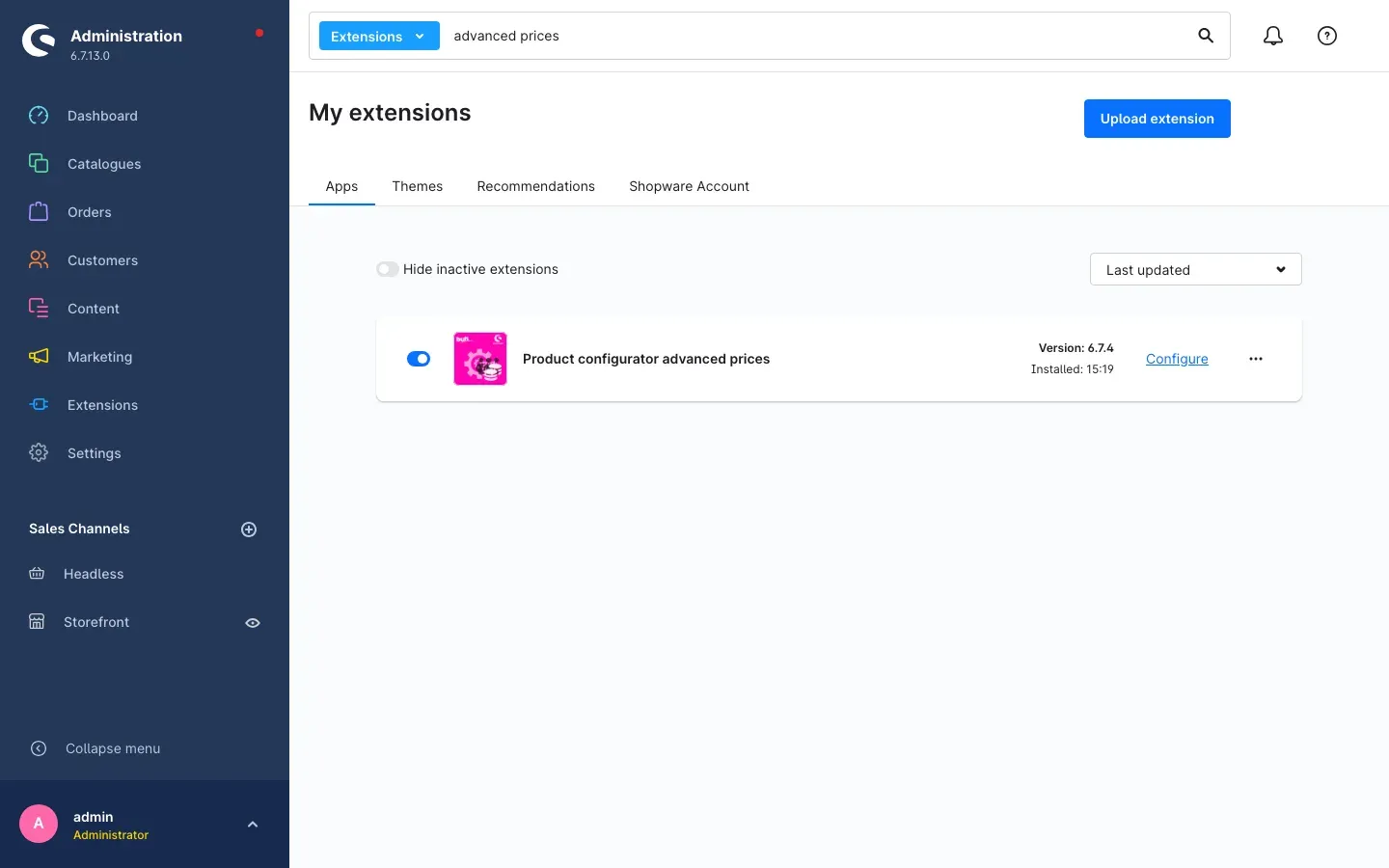 Fig. 1: “My extensions” showing the installed and active plugin in version 6.7.3
Once activated, every product option offers the new Advanced prices tab.
If Product configurator advanced prices does not appear in the list, your Shopware account is not yet connected to the shop. You can do this under Extensions → My extensions in the Shopware Account tab.
Tip: Searching the list for
advanced pricesfinds the entry faster. The search field at the top is set to Extensions for this.
Getting started
Three steps take you to your first price tier in the shop:
-
Check the settings: Open Extensions → My extensions and click Configure in the plugin row. The switch Enable plugin for this sales channel is on by default — normally there is nothing to change here.
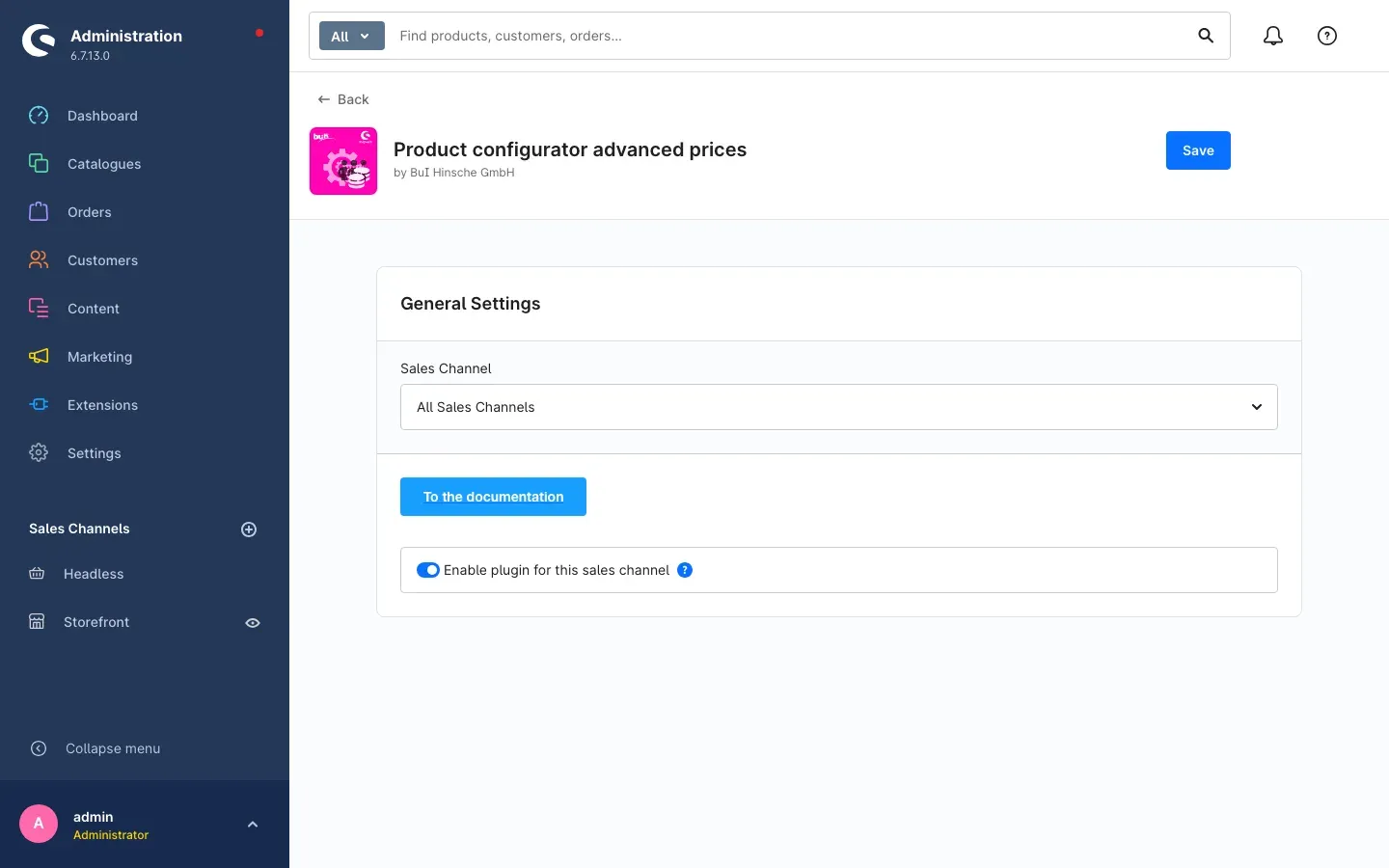 Fig. 2: The configuration page with the sales channel selection and the activation switch
 -
Store tiered prices: Open the product option you want to give quantity discounts for and switch to the Advanced prices tab. Enter your quantity ranges and prices, then save (see How to use the functions).
-
Check the result: Open a product in the shop that this option is assigned to. The option selection now shows the price scale, and the Calculation of your configuration: box shows the price belonging to the quantity entered.
Settings
You find the settings via Extensions → My extensions; click Configure in the Product configurator advanced prices row.
Fig. 3: The “General Settings” card with the documentation button and the activation switch
The page is deliberately lean: the actual work happens on the product options, here you only define in which shops the tiered prices apply at all.
Sales Channel
The Sales Channel selection at the top determines which of your shops the setting below applies to. As long as it says All Sales Channels, your setting applies everywhere. If you select an individual sales channel, only that one deviates from the general state.
What this is good for: You can show the quantity discounts in your trade shop and switch them off in the end-customer shop — with the same products and the same options.
Enable plugin for this sales channel
The Enable plugin for this sales channel switch determines whether tiered prices are calculated and displayed in the shop selected above. The switch is on by default. If you turn it off, the options fall back to the normal price from the product configurator; your maintained tiers are preserved and reappear as soon as you switch it back on.
What this is good for: You can end a discount campaign or narrow down a problem without uninstalling the plugin and without losing your price work.
Changes only take effect once you click Save at the top right.
To the documentation
The blue To the documentation button opens this manual in its current version in your browser — in the language you use the administration in.
How to use the functions
There are two equally valid ways to maintain tiered prices:
- On the product option — the tier applies to every product this option is assigned to. This is the standard case.
- On the individual product — you override the general tier for this one product only.
How to set tiered prices for a product option
What this gives you: You define centrally, once, how the price of an option develops with quantity. Every product offering this option then automatically calculates with this tier.
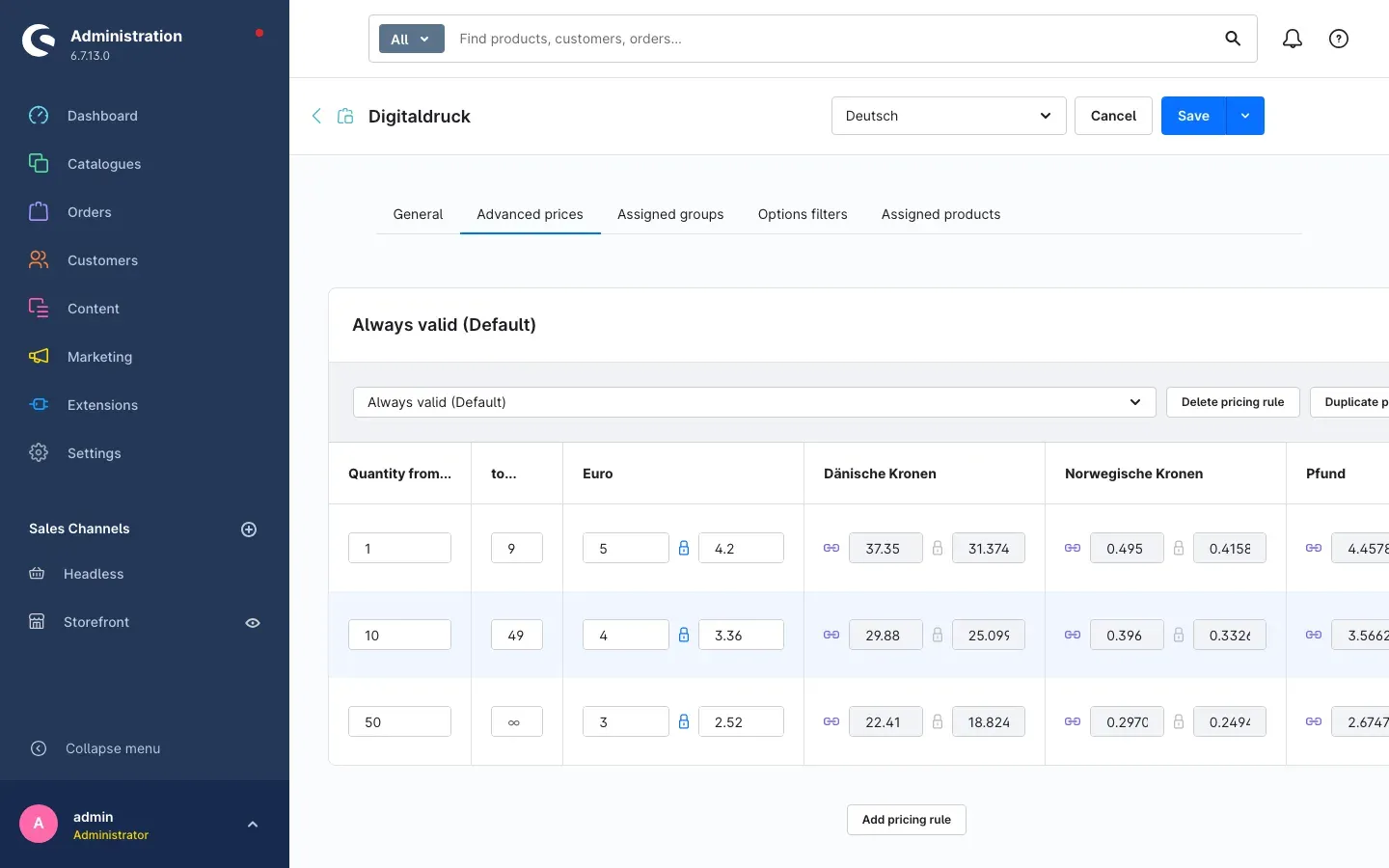 Fig. 4: The “Advanced prices” tab on the option “Digitaldruck” with three price tiers
Step by step
- In the administration, open Extensions → Product configurator → Options
- Click the option whose price you want to tier — in the example above this is Digitaldruck
- Switch to the Advanced prices tab
- Use Select a conditional rule… to choose who these prices apply to. The rules offered come from your Rule Builder; Always valid (Default) means “for all customers”. The name of the selected rule then appears as the heading above the price table.
- Enter the quantity ranges:
- Quantity from…: the quantity this row starts at. The first row must always start at 1.
- to…: the quantity it applies up to. If you leave the field empty it shows the infinity sign ∞ — the row is then open-ended, meaning “from this quantity upwards”.
- In the column of your default currency — Euro in the example — enter the price per item for this quantity range
- Click Save at the top right
The rows build on each other: as soon as you enter an upper limit in one row, the next row automatically starts at the next higher quantity. Gaps or overlaps are therefore not possible.
Further pricing rules for other customer groups
Add pricing rule below the table creates a second tier for a different conditional rule — cheaper prices for retailers, for example. If you already maintained a suitable tier, Duplicate pricing rule is faster: it copies the existing quantity ranges and prices into a new rule that you only need to adjust.
If several of your rules apply to a customer at the same time, exactly one of them is used — not several at once and not the cheapest one. With overlapping target groups, check the order of your rules in the Rule Builder.
Delete pricing rule removes a complete tier including all its rows. Individual rows are removed via the context menu at the right-hand edge of the row using Delete.
Prices in additional currencies
If your shop runs several currencies, each gets its own column — in the example, alongside Euro, the currencies configured in the shop. These columns are initially linked to your default currency and filled using its conversion factor; the small chain symbol to the left of the field indicates this state. Clicking it releases the link so you can enter your own amount — useful for round house prices instead of odd converted figures. The same symbol restores the link.
Within one currency there are two fields for gross and net. The lock symbol between them keeps both in step via the product’s tax rate: you enter one value and the other is calculated accordingly.
Tip: Start with a single rule for all customers and a manageable number of steps — three to four tiers are easy for customers to read and cover most cases.
Important: The first row must start at quantity 1. Otherwise fields stay locked and the note The start value of the first listing price has to be 1. appears.
How to set deviating tiered prices for a single product
What this gives you: Special conditions apply to one particular product — a larger area, more elaborate material, a promotional price — without you having to create a second option and touch all other products.
The same way of working is also available directly on the product:
- Open the product in the administration
- Go to the place where the product configurator options are assigned to the product and open the editing view of the assigned option
- In that dialog, click the Advanced prices link
- The Advanced prices window opens. It works exactly like the tab in How to use the functions: select a conditional rule, enter quantity ranges and prices, add or duplicate further rules.
- Click Apply prices and then save the product
The top of the window always states which prices you are currently working with:
- The prices shown are currently those defined for the option itself — you see the general tier. As soon as you change and apply it here, it applies to this product only.
- The prices shown are currently those defined on the product — a dedicated tier already exists for this product. Delete overwrite discards it, and the product calculates with the option’s general tier again.
In the overview of the options assigned to the product, the adv. prices column shows a checkmark when tiered prices exist for that option. If the checkmark is followed by a second symbol in brackets, a dedicated override applies to this product.
Important: The window initially only transfers your entries into the opened product. The deviating prices are stored permanently only once you save the product itself.
How to check the result in the shop
What this gives you: You see exactly what your customer sees — and can verify your tier before it affects live revenue.
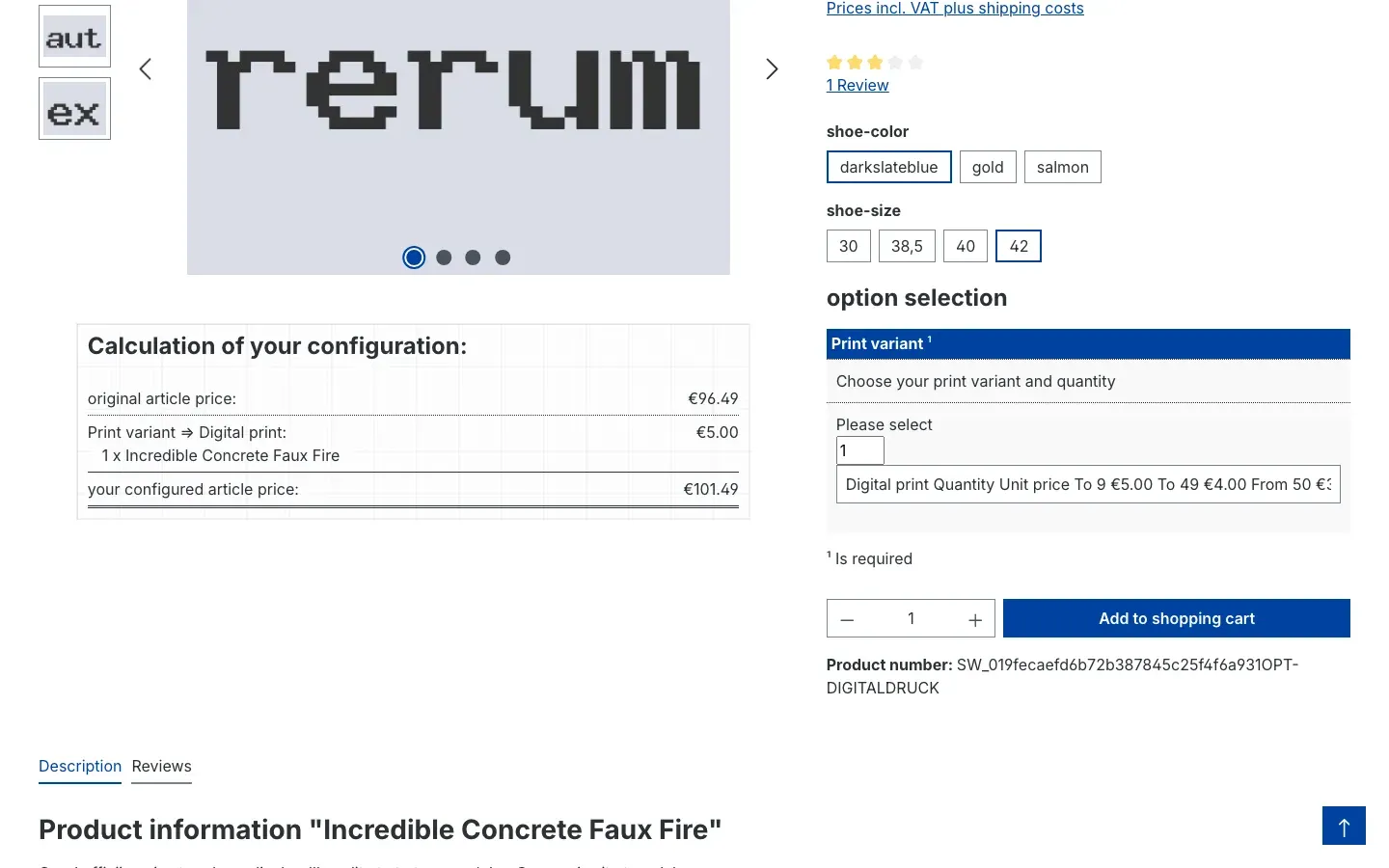 Fig. 5: Product page with the price scale in the option selection and the configuration calculation
- In the shop, open the product page of a product the option is assigned to
- Under option selection you find the option. Next to its name the full scale appears with the columns Quantity and Unit price — in the example To 9 €5.00, To 49 €4.00, From 50 €3.00.
- Enter the desired quantity in the option’s quantity field
- The Calculation of your configuration: box on the left updates immediately. It lists the original article price:, the selected option with its calculated price and below that the your configured article price:
- Add to shopping cart takes over exactly this configured price
This is how the customer reads the scale: a row with To applies up to that quantity, the last row with From is open-ended and applies to all larger quantities.
Troubleshooting
The “Advanced prices” tab is missing on the product option
Why this happens: The plugin is not active, the base plugin is missing, or the administration still shows an outdated state from the cache.
How to fix it:
- Open Extensions → My extensions and check that both Product configurator and Product configurator advanced prices are active
- Clear the cache: Settings → System → Caches & indexes → Clear cache
- Reload the administration in your browser
No price scale appears in the shop
Why this happens: In most cases the plugin is switched off for this sales channel, or the conditional rule does not apply to the visitor.
How to fix it:
- Open the plugin configuration page, select the affected Sales Channel at the top and check that Enable plugin for this sales channel is on
- On the option’s Advanced prices tab, check whether a tier is stored for a rule that applies to your visitors. For “all customers” this is Always valid (Default).
- Check that the option is assigned to the product at all
- Then clear the cache
The customer sees a different price than expected
Why this happens: A different conditional rule applies than you assumed, or the quantity ranges do not match the quantity entered.
How to fix it:
- Check the quantity ranges: is the desired quantity really covered by a row?
- Check whether several of your rules apply to the same customer — exactly one of them is used
- Check whether a dedicated override exists for this product (How to use the functions); it takes precedence over the general tier
A row cannot be deleted
Why this happens: Every pricing rule needs at least one quantity step. Trying to delete the last one shows the message At least one price tier needed. Try deleting the entire pricing rule instead.
How to fix it: Use Delete pricing rule if the tier should be removed entirely.
The buttons are greyed out
Why this happens: Either your user account lacks the edit permission for the product configurator options, or an empty pricing rule without a selected conditional rule already exists.
How to fix it:
- Assign a rule to the empty entry via Select a conditional rule… or remove it with Delete pricing rule
- Otherwise ask an administrator to grant you edit permissions for the product configurator (Settings → System → Users & permissions)
The message “This rule is already used for a price rule.” appears
Why this happens: A tier already exists for the selected conditional rule on this option. Each rule may occur only once.
How to fix it: Edit the existing tier of that rule instead of creating a second one.
FAQ
Q: Do I strictly need the product configurator?
A: Yes. This plugin extends the product configurator with tiered prices and has no effect without it. It must be installed and active.
Q: Do these tiered prices replace the regular tiered prices of my products?
A: No. They apply to the options in the configurator. The product’s own price remains untouched and is listed in the calculation as original article price:.
Q: Can I show retailers different tiers than end customers?
A: Yes. Create a separate pricing rule per target group and select the matching conditional rule from the Rule Builder there.
Q: What happens if two of my rules apply to the same customer?
A: Exactly one tier is used. Which one depends on the order of your rules in the Rule Builder — not on which one is cheaper. With overlapping target groups you should set that order deliberately.
Q: How do I express “from 100 items”?
A: Enter 100 under Quantity from… and leave to… empty. The field then shows ∞ and the row applies to all quantities from 100 upwards. In the shop it appears as From 100.
Q: Do I have to maintain prices for every currency?
A: No. Additional currencies are linked to your default currency and filled via the conversion factor. Only if you want a different amount do you release the link using the chain symbol.
Q: Can I switch the tiered prices off temporarily?
A: Yes, per sales channel using the Enable plugin for this sales channel switch. Your maintained prices are preserved.
Q: Will my tiered prices be lost when uninstalling?
A: When uninstalling you can choose whether the plugin data should be kept. If you decide against it, the maintained tiered prices are removed. The product configurator options themselves remain.
Q: Does a price change affect items that have already been ordered?
A: No. Existing orders keep the prices that applied at the time of ordering.
For administrators / technical details
This section is aimed at technical administrators. You do not need it for normal use.
System requirements
- Shopware: 6.7 (line 6.7.12 or newer)
- PHP: 8.2 or newer
- Base plugin: Product configurator (
swp/productoptions-six) 6.7.12 or newer, installed and active
Installation via the command line (Composer)
composer require swp/productoptions-six-advancedprices
php bin/console plugin:refresh
php bin/console plugin:install SwpProductOptionsSixAdvancedPrices --activate
php bin/console cache:clear
Uninstalling and data
When uninstalling without keeping user data, the plugin settings and the maintained tiered prices are removed. The product configurator options and their base data remain untouched because they belong to the base plugin.
Permissions
Editing the tiered prices requires the edit permission for the product configurator options. Without it the buttons remain visible in the interface but cannot be used. Roles and permissions are maintained under Settings → System → Users & permissions.
This manual was created for Product configurator advanced prices version 6.7.3.
More manuals
Admin Password Reminder
Admin Password Reminder: your backend users renew their passwords on time, prompted after login and by a daily email. Premium locks expired accounts until the password is changed.
Open manual Shopware 6Age Check
Tobacco, spirits, knives: visitors who do not confirm their age never see the restricted items at all. You tick a box per product, the plugin hides it everywhere.
Open manual Shopware 6AI Media Labelling
AI labelling for images and videos: flag a media item once in the media manager and the badge with your notice appears wherever it shows up in your shop. No template work needed.
Open manualNeed a team that keeps your shop running?
We have been maintaining Shopware shops for more than 20 years, including updates, hotfixes and the plugins you are configuring right now.