
Product configurator Balance calculation
The default option is already in the product price, yet your configurator still prints £101.50 per option. This plugin recalculates and shows the real surcharge: +£12.50.
On this page
- Introduction
- What this plugin does for you
- Who is this plugin for?
- Installation
- Prerequisite: the product configurator must be in place
- Install and activate the plugin
- Getting Started
- Settings
- Enable plugin for this sales channel
- Display of the balance price
- How to Use the Features
- How to switch an option group to surcharges
- How your customers see the prices in the shop
- How to control surcharges per sales channel
- How to return to the familiar price display
- Troubleshooting
- The shop still shows the full option prices
- The prices do not change when the customer switches the selection
- The preselected option still shows a price
- Only one of several groups shows surcharges
- One sales channel shows surcharges, another does not
- A notification appears in the administration after an update
- The plugin cannot be installed
- FAQ
- For Administrators / Technical Details
- System requirements
- Installation via the command line (Composer)
- How the surcharge is calculated
- Tax calculation under OSS
- Instant recalculation in the browser
- Sales channel binding
- Uninstalling
Introduction
Important: Add-on plugin – requires the Product Configurator (
SwpProductOptionsSix). This plugin is an extension of the base plugin Product Configurator and only works together with it. Without the installed, active and separately purchased Product Configurator from version 6.7.12, this plugin has no function.
Product configurator Balance calculation makes sure your customers only see the surcharge for each choice in the configurator — no longer the full price of the option.
Here is an example: your standard version costs €7.50 and is already included in the product price. If the customer picks a different version for €10.00, the configurator used to show “€10.00” — even though the product only becomes €2.50 more expensive. With this plugin it shows ”+€2.50”. Customers immediately see what their decision really costs them.
What this plugin does for you
- Your customers see the real surcharge for every option instead of the full option price.
- The preselected version is shown without a surcharge — it is already part of the product price.
- When the customer changes the selection, every surcharge in that group is recalculated instantly — without reloading the page.
- If an option is cheaper than the preselection, the saving appears as a minus amount.
- You decide per sales channel whether the surcharge display applies or the original prices stay in place.
- Fewer questions and fewer abandoned baskets, because nobody has to do the maths.
Who is this plugin for?
For everyone already using the product configurator to sell products with equipment variants: furniture, windows and doors, vehicles and accessories, signage, technical components — anywhere a basic version is included in the product price and the customer can swap it for another one.
Installation
Prerequisite: the product configurator must be in place
This plugin is an extension and does not work on its own. It requires the product configurator SwpProductOptionsSix, because all it does is change how that configurator displays its option prices.
The product configurator must be installed and active in your shop before you continue here. Without it, the balance calculation cannot do anything useful — nothing changes in the shop.
Install and activate the plugin
After your purchase the plugin is available directly in your administration — there is nothing to download.
-
Log in to your Shopware administration (
YourShop.com/admin) -
Open Extensions → My extensions
-
Find the entry Product configurator Balance calculation in the list and click Install next to it
-
Then activate the plugin using the switch on the left of the entry
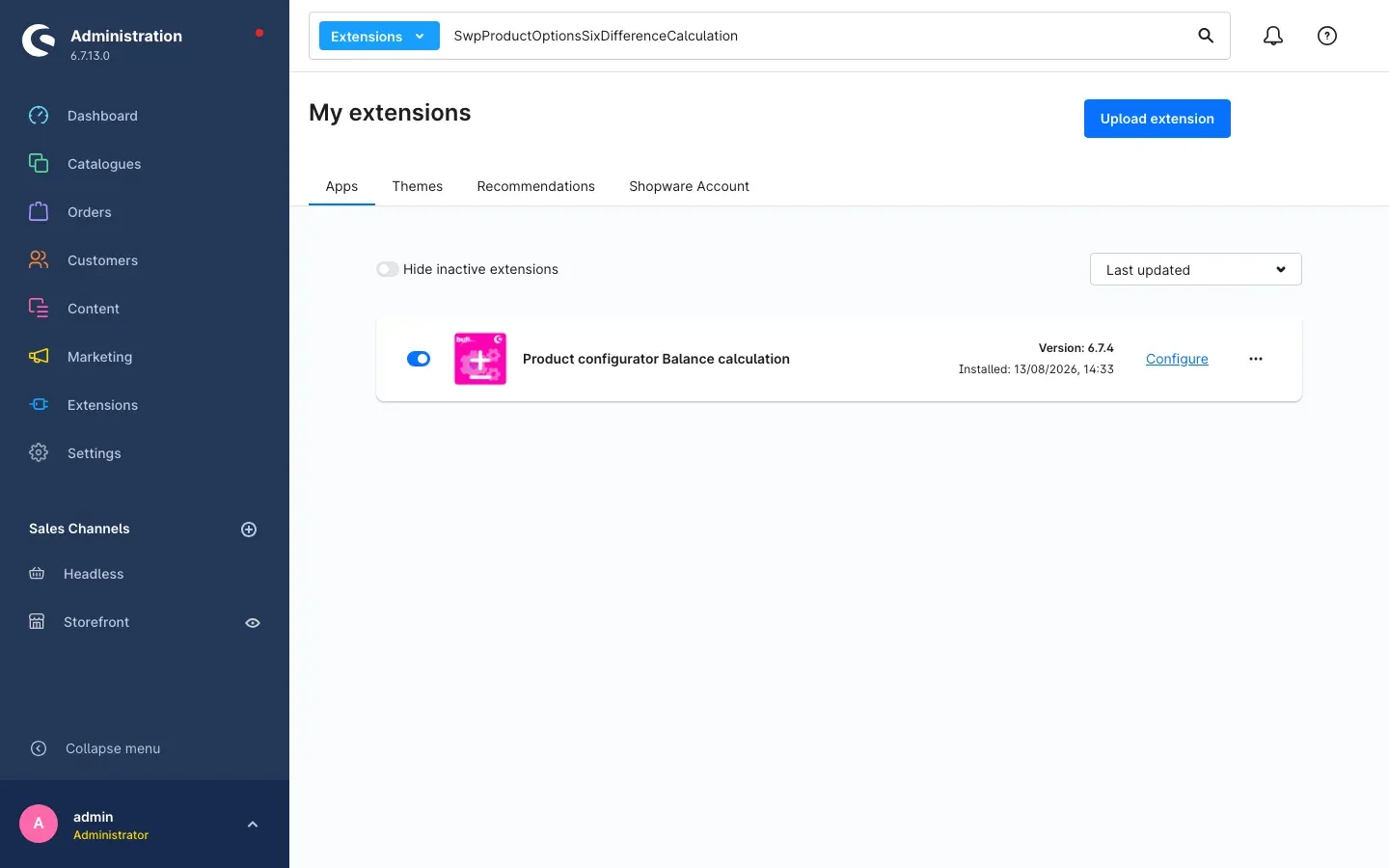 Fig. 1: The plugin is installed and active — the switch on the left is on, the version and the Configure link are on the right.
 -
That’s it. The Configure link next to the entry takes you straight to the settings.
If Product configurator Balance calculation does not appear in the list, your Shopware account is not yet connected to the shop. You can do that under Extensions → My extensions on the Shopware Account tab.
Tip: If the list gets long, type the plugin name into the search at the top and set the search filter on the left to Extensions.
Getting Started
Four steps to see the result in your shop:
-
Open the settings: Settings → Extensions → Product configurator Balance calculation
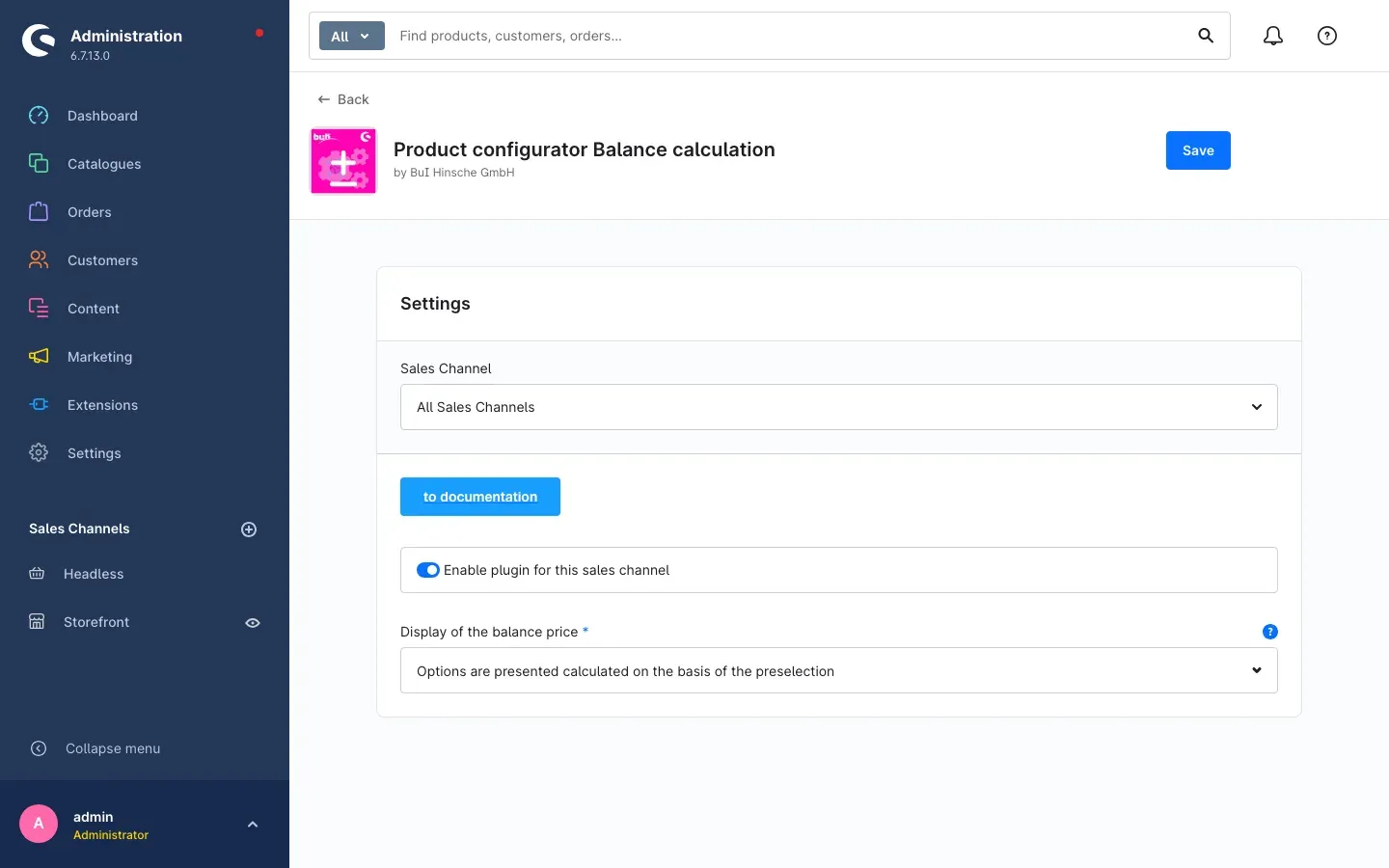 Fig. 2: The configuration page with the sales channel selection, the activation switch and the Display of the balance price field.
 -
Check the essentials: the Enable plugin for this sales channel switch is already on, and Display of the balance price is set to Options are presented calculated on the basis of the preselection. That is the recommended setting — there is nothing you need to change for now.
-
Switch your options over: for an option group to be calculated as a surcharge, it must use the calculation Difference calculation (multi) in the product configurator and have one preselected option. See How to switch an option group to surcharges for how to do this.
-
Check the result: open a product page with that option group in your shop. Instead of full prices you now see surcharges such as +€2.50, and the preselected option has no price at all.
Settings
You will find the settings under Settings → Extensions → Product configurator Balance calculation. You can reach the same page from Extensions → My extensions via the Configure link next to the plugin.
Fig. 3: All plugin settings at a glance.
At the very top, Sales Channel determines which shop the settings below apply to. All Sales Channels is the base setting that applies everywhere as long as you do not store a different value for an individual channel. Changes only take effect once you click Save in the top right.
The to documentation button opens the current online manual at any time — in the same language you are currently working in inside the administration.
Enable plugin for this sales channel
The Enable plugin for this sales channel switch determines whether the surcharge display works at all in the shop selected above. It is switched on by default.
If you switch it off, the plugin stays installed but no longer takes effect in this sales channel: the options show their full prices again.
Why this is useful: if you run several sales channels — for example a consumer shop and a trade shop — you can use the surcharge display exactly where it matches your pricing logic. It also lets you turn the feature off for a quick test without uninstalling the plugin.
Display of the balance price
Display of the balance price determines which price your customers read on the configurator options. The field must always have a value; by default it is set to the first choice.
- Options are presented calculated on the basis of the preselection — the recommended and preset choice. Every option shows the difference to the currently selected version, for example +€2.50. The selected version itself has no surcharge.
- Options are displayed with original price — every option shows its full stored price again, exactly as it would without this plugin.
The help text behind the question mark icon to the right of the label says the same: even if it is possible to display the original option prices, price transparency with the calculated values is recommended.
Why this is useful: the second choice is your way back. If you want the familiar display for a while — to compare prices against a price list, or to show a colleague the raw values — you switch here and switch back later. Your stored prices are not affected in any way.
How to Use the Features
How to switch an option group to surcharges
What you get from this: only after this change does the plugin start calculating. From then on, customers see the difference to their current choice in that group instead of the full price.
The plugin works per option group and only when two things apply:
- The options in the group use the calculation Difference calculation (multi). This plugin adds that entry to the list you use in the product configurator to define how an option’s price is calculated. You will find it wherever you maintain the prices of the configurator options — both in the option management and in the configurator overview on the product.
- One option in the group is preselected. It is the reference point everything is calculated against — usually the version already included in the product price.
Step by step
- In the product configurator, open the option group you want to switch over.
- Set the calculation of the options in that group to Difference calculation (multi).
- Make sure exactly one option in the group is marked as the preselection.
- Save your change.
- Open the product page in your shop and check the display.
Important: without a preselection the plugin has no reference point. The group then stays unchanged and continues to show the full prices — no error message appears.
Tip: switch one group on a single test product first and look at it in the shop. Once the result is right, move on to the remaining groups.
How your customers see the prices in the shop
What you get from this: your customers can see at a glance what a version costs on top — and no longer have to calculate it themselves.
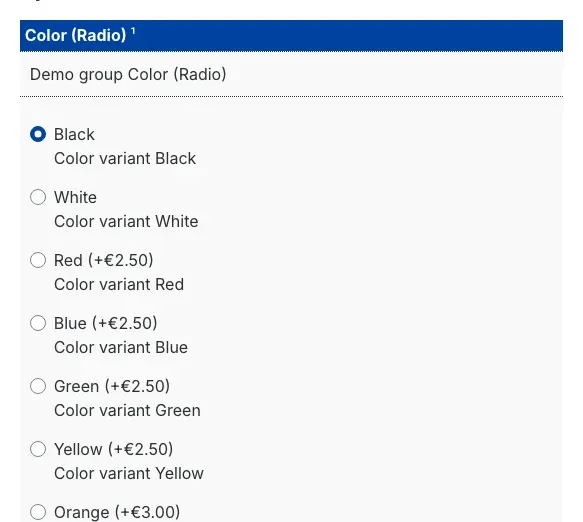 Fig. 4: The “Color (Radio)” group on a product page. “Black” is preselected and shown without a price, the remaining colours show their surcharge in brackets.
How to read the display:
- The preselected option is shown without a price. In the example that is “Black” — it is included in the product price and costs nothing extra.
- More expensive options show a plus, in the example (+€2.50) for “Red” and (+€3.00) for “Orange”. That is exactly the amount the customer pays on top.
- If an option costs the same as the preselection, no price is shown either — “White” in the example. Switching to it is free of charge for the customer.
- Cheaper options show a minus, for example (-€2.50). The customer saves that amount.
- Amounts appear in the currency and notation of the shop the customer is currently browsing.
When the customer changes the selection within a group, every surcharge in that group is recalculated instantly — the newly selected option becomes the reference point. The page does not reload, the prices are there without any waiting time.
An example using the values from figure 4: while “Black” is selected, “Red” shows (+€2.50) and “Orange” shows (+€3.00). If the customer switches to “Red”, red becomes the new reference point: red then has no surcharge, orange only shows (+€0.50), and black appears at (-€2.50) as the cheaper alternative.
Tip: the final product price is not affected — it is still formed from the product price and the selected options as usual. The plugin only changes how the option prices are displayed, not how much the customer pays in the end.
How to control surcharges per sales channel
What you get from this: one shop calculates with surcharges while the next one stays as it was — without a second plugin and without maintaining prices twice.
Step by step
- Open Settings → Extensions → Product configurator Balance calculation
- At the top, use Sales Channel to select the shop the rule should apply to
- Set the Enable plugin for this sales channel switch the way you need it there
- Click Save in the top right
- Repeat this for every other sales channel that should differ
As long as you do not store a value of your own for a channel, the setting from All Sales Channels applies there automatically.
Important: always check which entry is selected under Sales Channel before you save. If you change All Sales Channels by mistake, it affects every shop that has no setting of its own.
How to return to the familiar price display
What you get from this: you can undo the surcharge display at any time without changing anything about your options or prices.
You have two options, depending on how far the rollback should go:
| Goal | What to do |
|---|---|
| Change only the price display, keep the plugin otherwise active | Switch Display of the balance price to Options are displayed with original price and click Save |
| Shut the plugin down completely in one sales channel | Switch Enable plugin for this sales channel off and click Save |
In both cases the options show their full prices again. Your settings on the options themselves are kept — switch back and the surcharge display takes effect immediately.
Troubleshooting
The shop still shows the full option prices
What causes it: in most cases one of the conditions under which the plugin calculates at all is missing.
How to fix it — check in this order:
- Is the plugin installed under Extensions → My extensions and is the switch next to it on?
- Is the product configurator itself installed and active? Without it this extension has nothing to recalculate.
- On the configuration page, is Enable plugin for this sales channel switched on for exactly the sales channel you are browsing? Check the Sales Channel selection at the top of the page.
- Is Display of the balance price set to Options are presented calculated on the basis of the preselection?
- Are the options in the affected group set to Difference calculation (multi)?
- Is one option in that group marked as the preselection?
- Finally, clear the cache: Settings → System → Caches & indexes → Clear cache
The prices do not change when the customer switches the selection
What causes it: the initial display is delivered by the server, the instant recalculation on click is handled by the browser. If the display stays put, the shop is usually still working with an outdated state of its shop files.
How to fix it:
- Clear the cache: Settings → System → Caches & indexes → Clear cache
- Fully reload the product page in your browser (
Ctrl+F5, on MacCmd+Shift+R) - Also check the page in a private browser window to rule out cached files
- If it stays the same, the refresh of the shop files after installation may have been incomplete — contact your service provider or our support
The preselected option still shows a price
What causes it: a different option in that group is probably marked as the preselection than you expect — or several are marked.
How to fix it: open the group in the product configurator and make sure that exactly the version included in the product price is marked as the preselection. Save, clear the cache, open the product page again.
Only one of several groups shows surcharges
What causes it: the plugin works per group. The remaining groups still use their previous calculation.
How to fix it: switch the other groups to Difference calculation (multi) as well and set a preselection in each of them.
One sales channel shows surcharges, another does not
What causes it: both settings apply per sales channel. The channel that behaves differently apparently has a value of its own stored.
How to fix it: open the configuration page, select the affected shop under Sales Channel at the top and compare the two settings. Then click Save.
A notification appears in the administration after an update
What causes it: after every update of the plugin a notification is stored in the administration: “Please check your plugin configuration to ensure that all settings are still correct”. This is a reminder, not an error message.
How to handle it: open the configuration page, briefly review the two settings and save. You can then dismiss the notification.
The plugin cannot be installed
What causes it: if the product configurator is missing or installed in a version that is too old, Shopware refuses to install this extension.
How to fix it: first install and activate the product configurator, or bring it up to date (Extensions → My extensions). After that the balance calculation can be installed.
FAQ
Q: Does the plugin change the prices my customers actually pay?
A: No. It only changes the display of the option prices in the configurator. The product price, the basket and the order are still calculated exactly as before.
Q: Do I have to adjust my stored option prices?
A: No. You maintain your prices exactly as before. The plugin only forms the difference at display time.
Q: Does the plugin work without the product configurator?
A: No. It is purely an extension to it and has no effect without it.
Q: Does the setting apply to all my shops at once?
A: Only if you make it under All Sales Channels. If you select an individual sales channel at the top, your change applies there only.
Q: What happens if an option is cheaper than the preselected one?
A: The amount then appears with a minus in front of it — the customer sees the saving.
Q: Why does one option show no price at all?
A: Because it costs the same as the currently selected version, so there is no surcharge to show. The same applies to the preselected option itself.
Q: Can I use the surcharge display for individual option groups only?
A: Yes. The plugin only calculates in the groups you have set to Difference calculation (multi). All others stay unchanged.
Q: Do international customers see the surcharges in their currency?
A: Yes. The amounts are output in the currency and notation of the shop the customer is currently browsing.
Q: What happens to my settings if I uninstall the plugin?
A: When uninstalling, Shopware asks whether your data should be kept. If you decide against it, the two settings of this plugin are removed. The configurator options and their prices are kept in any case.
Q: Do I have to clear the cache after switching a group over?
A: Usually not. If you do not see the change immediately, clear it under Settings → System → Caches & indexes.
For Administrators / Technical Details
This section is aimed at technical administrators. You do not need it for normal use.
System requirements
- Shopware: 6.7 (Core and Storefront)
- PHP: 8.2 or newer
- Mandatory: the product configurator
swp/productoptions-sixfrom version 6.7.12
Installation via the command line (Composer)
composer require swp/productoptions-six-differencecalc
php bin/console plugin:refresh
php bin/console plugin:install SwpProductOptionsSixDifferenceCalculation --activate
php bin/console cache:clear
How the surcharge is calculated
The calculation only applies to options using the calculation type Difference calculation (multi), and only if a preselection exists in the same group. The displayed amount is the option price with its sign, reduced by the price of the preselected option:
displayed amount = (sign × option price) − price of the preselected optionNet and gross are calculated separately, after which the amount runs through Shopware’s regular tax calculation. The preselected option is set to 0.00. Percentage option prices and options with assigned products are included with their actual value. The original option price is retained internally and is not lost in the process.
Tax calculation under OSS
If OSS operation is active (country-dependent tax rates), the gross prices of the options involved are rebuilt from the net price and the applicable tax rate before the difference is formed. Otherwise the difference would be distorted by two gross values taxed at different rates.
Instant recalculation in the browser
The initial values are delivered by the server. When the customer changes the selection within a group, a storefront script forms the new differences directly in the browser — without another server request. The script reads the language and currency for formatting from two data entries the plugin adds to the configurator. If one of them is missing or JavaScript is disabled, the server-side initial display remains untouched; only the instant update on switching is then unavailable.
Sales channel binding
Both settings are evaluated per sales channel. Without a channel-specific entry, the value from All Sales Channels applies.
Uninstalling
When uninstalling without keeping the data, the plugin removes its own settings from the configuration of all sales channels. Product configurator data is not touched.
This manual was written for Product configurator Balance calculation version 6.7.3.
More manuals
Age Check
Tobacco, spirits, knives: visitors who do not confirm their age never see the restricted items at all. You tick a box per product, the plugin hides it everywhere.
Open manual Shopware 6Blog: Posts, Categories & Comments
Stop running WordPress next to your shop. Write posts, categories, authors and moderated comments in Shopware, then build the blog pages in Shopping Experiences.
Open manual Shopware 6Cart Extras
Your customer sees in the cart how much is missing before the free gift or the discount. Below your minimum order value, the plugin adds exactly the shortfall as a surcharge.
Open manualNeed a team that keeps your shop running?
We have been maintaining Shopware shops for more than 20 years, including updates, hotfixes and the plugins you are configuring right now.