Product configurator Batchprocessing
Maintain the product configurator options on one product, then roll them out to any number of others in one run. Either added to the targets or reset fully to the template.
On this page
- Introduction
- What you achieve with this plugin
- Who is this plugin for?
- Requirements
- Installation
- The settings page of the plugin
- Getting started
- How to copy options to several products
- The “Batch processing” tab
- The way through the product list
- The confirmation dialog
- The result
- Who may use batch processing
- Troubleshooting
- The “Batch processing” tab is missing
- Clicking “Start processing” does nothing
- No dialog appears when starting from the product list
- A red error message appears
- A message about missing permissions appears
- The new options are not visible in the shop
- FAQ
- For administrators and technical details
- System requirements
- Installation via the command line (Composer)
- Update on a manual deployment
- Data handling and safety
Introduction
Important: Add-on plugin – requires the Product Configurator (
SwpProductOptionsSix). This plugin is an extension of the base plugin Product Configurator and only works together with it. Without the installed, active and separately purchased Product Configurator from version 6.7.12, this plugin has no function.
Product configurator Batchprocessing helps you copy the options of one product to any number of other products in a single run — instead of opening every product and setting it up by hand.
The plugin is an add-on for the product configurator. The product configurator defines the choices your customers get on a product — colour, size or material, for example. Those assignments are normally maintained per product. This is exactly where batch processing comes in: you set up one product properly, make it the source product and roll its options out to an entire product group.
What you achieve with this plugin
- You copy the options of a fully maintained product to one or many other products with just a few clicks instead of repeating the work.
- You decide on every run whether the options of the target products are added to or completely replaced.
- You can also carry over the configurator settings of the source product: whether the configurator is shown in the shop at all, how it is displayed and whether it is inherited by variants.
- You start the transfer either from a dedicated batch processing area or directly from the product list.
- Your customers see the new choices in the shop right after the run — the plugin refreshes the affected product pages by itself.
Who is this plugin for?
For everyone who uses the product configurator in daily business and needs identical or similar choices on many products: ranges with uniform colour or size selections, made-to-measure goods, accessory groups, furniture or textile ranges. The bigger your catalogue, the more time a batch run saves.
You do not need any technical knowledge. Everything happens inside the Shopware administration.
Requirements
Batch processing is an add-on for the product configurator and cannot work without it:
- The product configurator plugin is installed and active (version 6.7.12 or newer).
- Your products are maintained in the product configurator, which means options, groups and sets already exist for you to work with.
- At least one product is fully set up and serves as your template — your later source product.
Batch processing does not add anything your customers see in the shop. It works exclusively in the administration and changes the assignments that the product configurator then renders in the shop.
Installation
After the purchase the plugin is available directly in your administration — there is nothing to download.
- Log in to your Shopware administration (
YourShop.com/admin). - Open Extensions → My extensions.
- Make sure the product configurator is already installed and active in that list. Without it, batch processing has nothing to work with.
- Click Install next to Product configurator Batchprocessing.
- Then activate the plugin with the toggle next to the entry — done.
If Product configurator Batchprocessing does not appear in the list, your Shopware account is not yet connected to the shop. You can do this under Extensions → My extensions by logging in with your Shopware account.
The settings page of the plugin
The plugin does not need any setup. There is exactly one switch and it is already in the right position after installation.
Open the settings via Extensions → My extensions and the three-dot menu next to the entry.
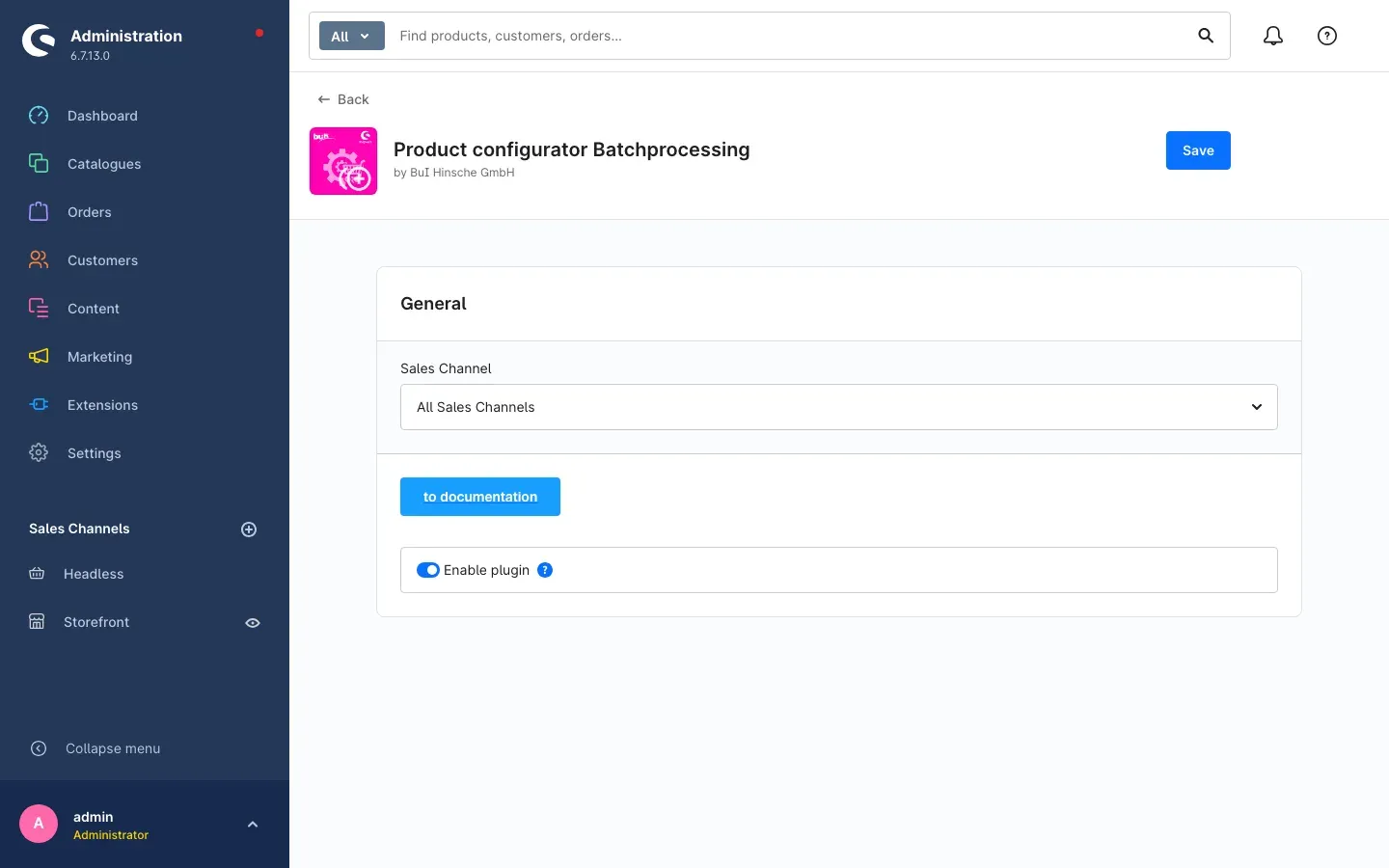 Fig. 1: The settings page with the “Enable plugin” toggle and the “to documentation” button
Enable plugin
The Enable plugin toggle decides whether batch processing may run at all. It is switched on by default. If you switch it off, a started batch run is refused and not a single assignment is changed — the user interface stays visible, it simply stops writing.
Why this is useful: You can put batch processing on hold temporarily, for instance during a large catalogue clean-up or an import, without uninstalling the plugin.
The switch applies to the whole shop and not to individual sales channels. Above the card you will see the usual Sales channel selection with the entry All sales channels — it has no different effect here, because batch processing is purely an administration tool and never appears in the shop itself.
The to documentation button takes you from this page to the current online manual at any time.
Getting started
This is how you get your first result within a few minutes:
- Prepare the template: Open the product you want to use as a template and set up its options in the product configurator completely. This product is your source product. If it has no options, there is nothing to copy.
- Open batch processing: Switch to the Productoptions area of your product configurator and open the Batch processing tab. You recognise the page by the heading Productoptions → Batchprocessing and by the tab row Batch processing · Sets · Groups · Options.
- Choose source and targets: Pick your template in the Source product card and the products that should receive it in the Target products card.
- Start the run: Click Start processing in the top right corner and confirm the dialog with Processing.
- Check the result: Open one of the target products in the product configurator — the options of your template are now there as well. A look at the shop shows the new choices on the product page.
The individual steps are described in detail in the next chapter.
How to copy options to several products
There are two ways into batch processing. Both lead to the same result, they only differ in how the source product is determined.
| Way | When to use it |
|---|---|
| The Batch processing tab | You want to choose source and targets freely — the usual way. |
| Product list, entry open batch modal | You already have the source product in front of you in the product list and want to start right away. |
The “Batch processing” tab
What this gives you: You choose source and targets in a single view and can see at any time which products you have already collected.
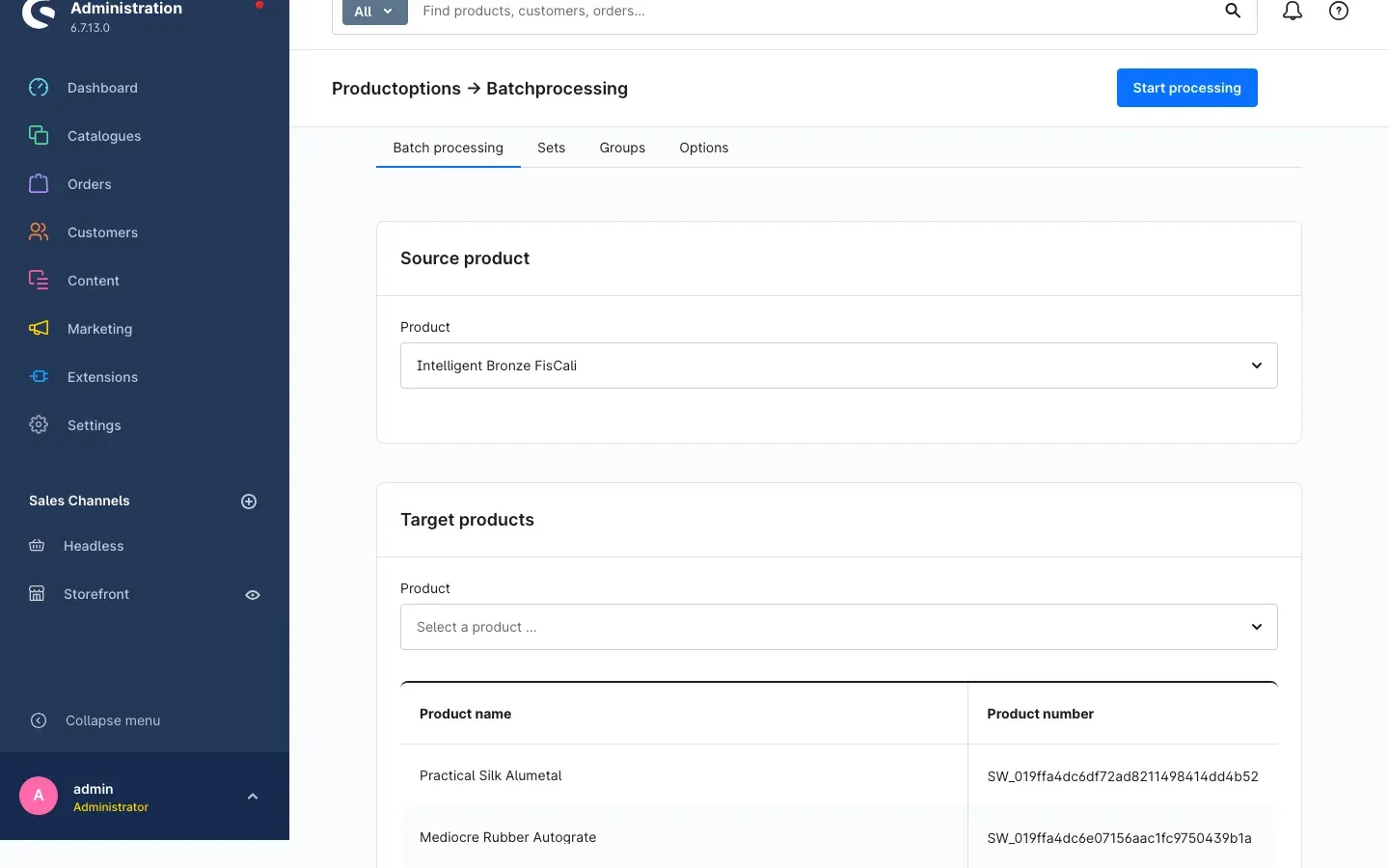 Fig. 2: Source product selected, two target products in the list
Step by step
- Open the Productoptions area of your product configurator and click the Batch processing tab.
- In the Source product card, select your template under Product. Click the Select a product … field and type a few letters of the product name — the result list filters as you type. Variants are shown with their properties, so you can pick a single variant as the template.
- In the Target products card, select the products that should receive the options one after another under Product. Every selected product immediately appears in the list below with its Product name and Product number.
- The selection list stays open, so you can click several products in a row.
- Products you have already chosen are highlighted in the list. Clicking a highlighted product again removes it from the target list — that is how you correct an accidental selection.
- Click Start processing in the top right corner.
- Confirm the dialog as described in section The confirmation dialog.
Tip: Take a quick look at the target product list before you start. It is your last chance to check what the run will touch — once you confirm, the assignments are written.
Important: The Start processing button only reacts when a source product is selected and at least one target product is in the list. If nothing happens when you click it, one of the two is missing.
The way through the product list
What this gives you: You start the transfer right where you are already looking at your template product — without changing areas. The product from the list automatically becomes the source product.
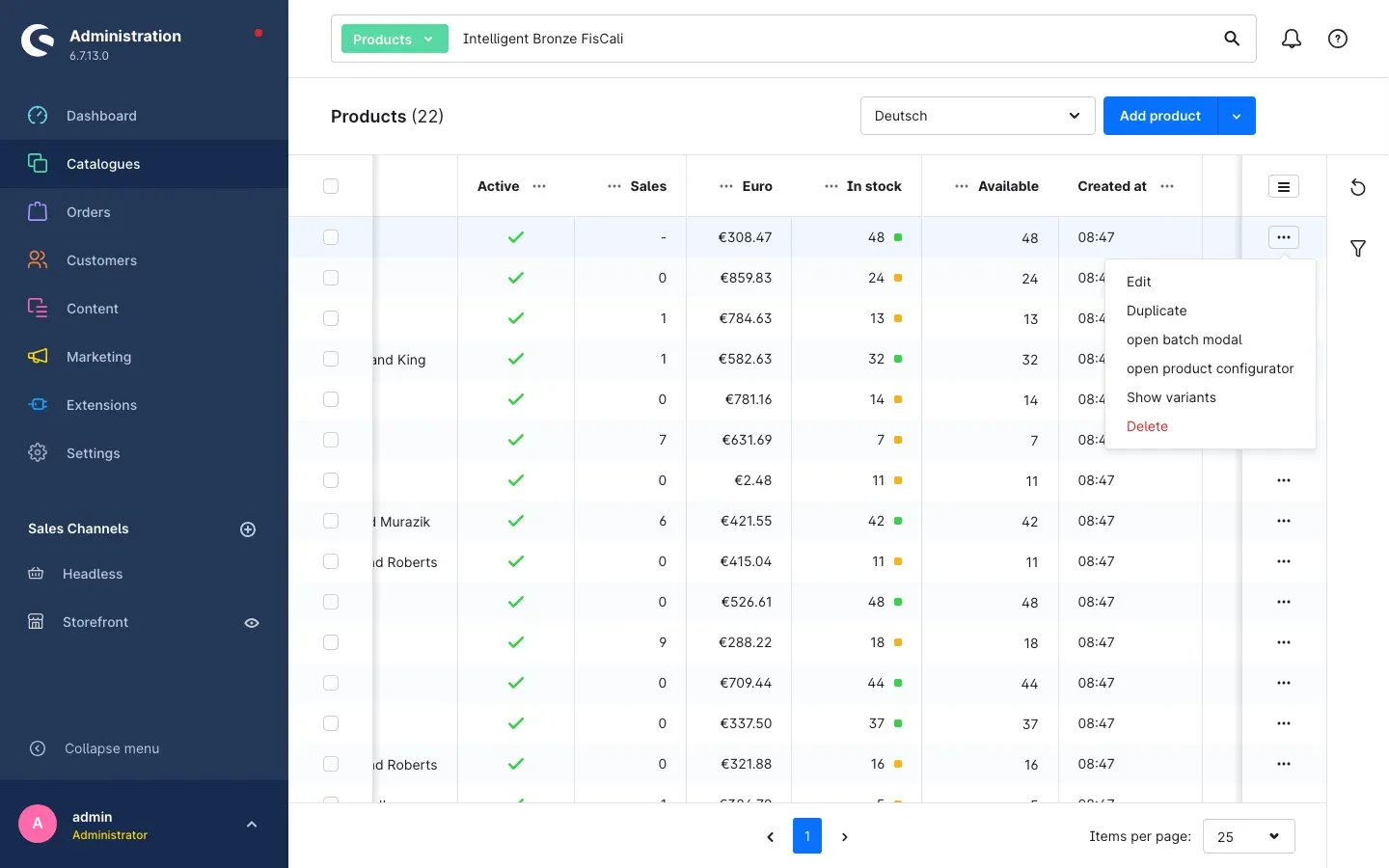 Fig. 3: The “open batch modal” entry in the context menu of the product list
Step by step
- Open Catalogues → Products.
- Find the row with the product whose options you want to copy.
- Click the three-dot button at the right-hand end of the row.
- Choose open batch modal.
- Shopware switches to the product configurator of that product and opens the Processing… window. There you select your target products under Product, exactly as described in section 5.1.
- Click Start Processing and confirm the dialog that follows.
The product you started from is automatically the source and is skipped during the transfer — a product cannot copy its options onto itself.
Tip: You can also reach the same dialog inside the product. In the product configurator area of a product, the Batch processing button sits above the option list.
The confirmation dialog
Before anything is written, the plugin asks you once more. This is also where you decide how the existing assignments of the target products are treated.
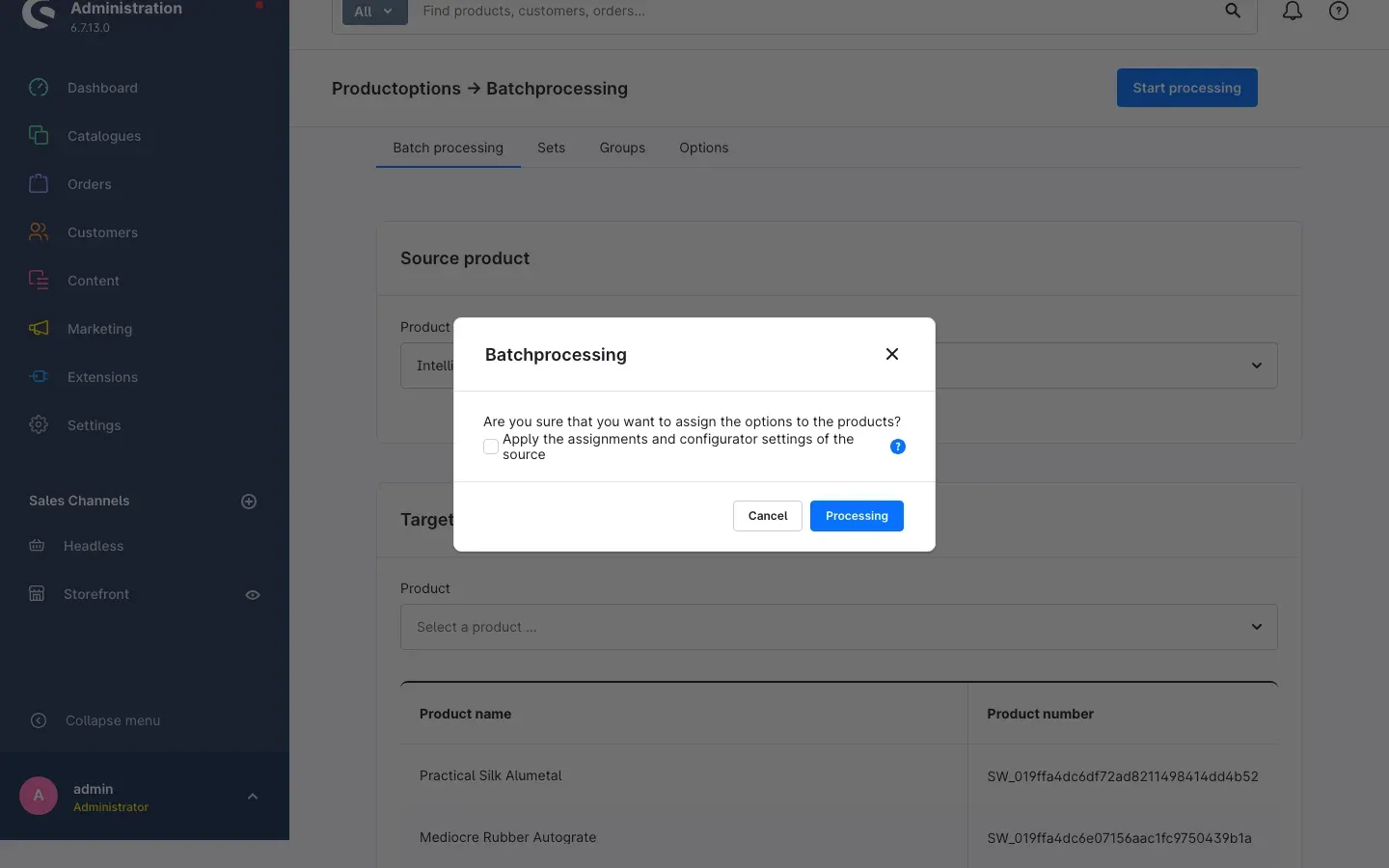 Fig. 4: The “Batchprocessing” dialog with the apply option
The Batchprocessing dialog asks: Are you sure that you want to assign the options to the products? Below it there is a checkbox, and in the footer you find the Cancel and Processing buttons.
Apply the assignments and configurator settings of the source
This checkbox is the most important decision of the whole operation:
- Without the checkbox (default): The options of the source product are added to the target products. Whatever was already assigned there stays in place, and the configurator settings of the target products remain unchanged.
- With the checkbox: The existing option assignments of the target products are removed first and then replaced by those of the source. In addition, the product-specific configurator settings of the source product are copied: whether the configurator is shown, its display and the inheritance to variants. Afterwards the target products are exact copies of the template.
Why this is useful: Without the checkbox you carefully extend an established range with additional choices. With the checkbox you align a product group completely with your template — handy when different assignments have grown over time.
Important: The checkbox deletes existing assignments of the target products. There is no undo function. Only tick it if you really want to bring the target products fully in line with the template — and try it on a single, non-critical target product the first time.
Processing starts the transfer. Cancel or the × in the top right corner aborts it; the form is cleared in that case, so you have to select source and targets again afterwards.
The result
After a successful run the message Success appears in the top right corner with the text The assignments were written without errors. The form is then empty and ready for the next run.
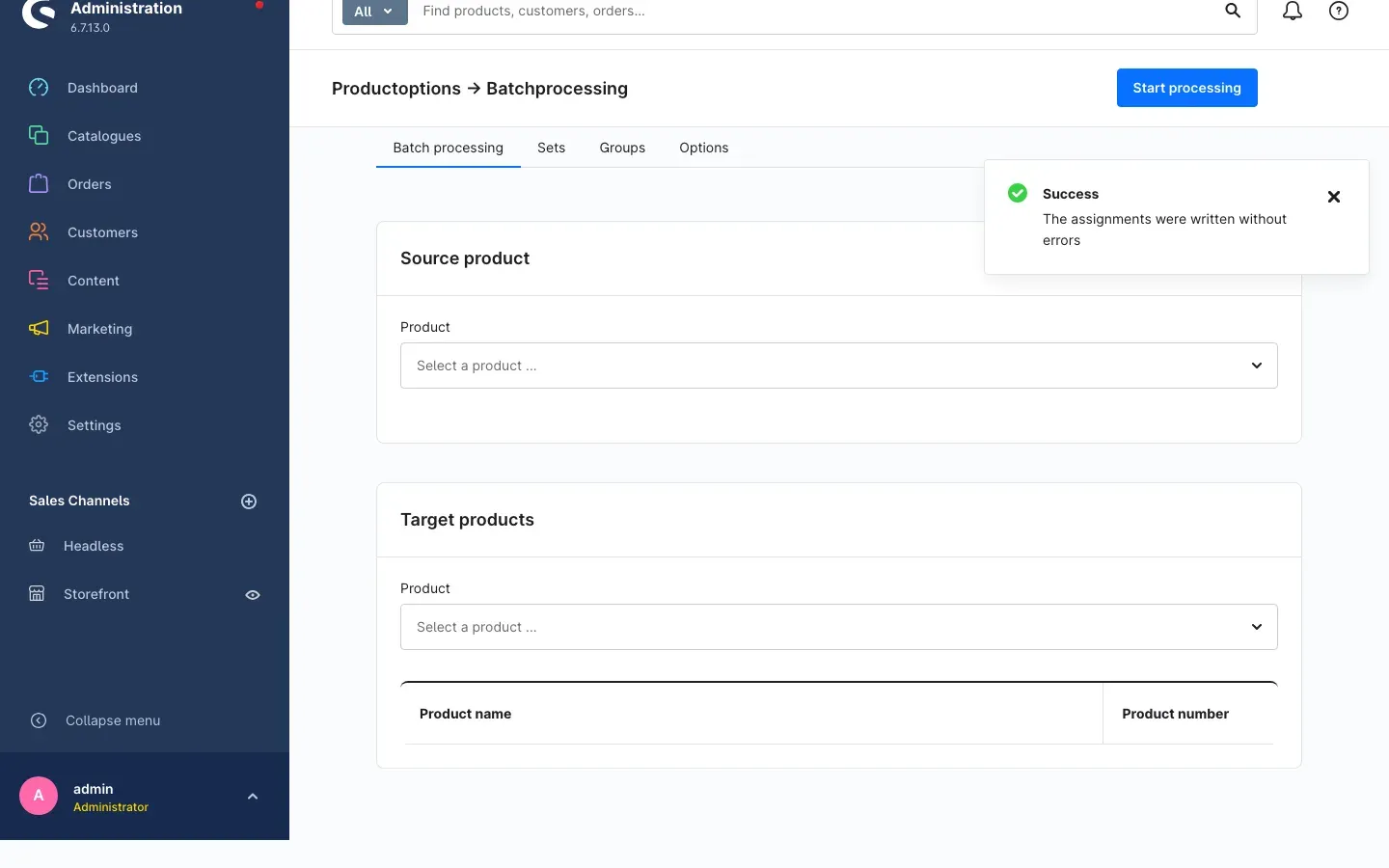 Fig. 5: The success notification after the transfer has finished
The best way to check the result:
- Open one of the target products in the product configurator. The options of your template are now listed there.
- Call up the same product in the shop. The new choices are visible immediately — the plugin refreshes the product pages of the target products on its own, so you do not have to clear any cache.
If something went wrong, a red Error message appears instead. What the individual texts mean and what to do is described in Troubleshooting.
Who may use batch processing
What this gives you: You grant batch processing exactly to the staff who need it — and you can grant the right to overwrite existing assignments separately.
You assign the rights as usual through the roles of your staff under Settings → System → Users & permissions. Inside the role you find the Product configurator: batch processing area among the additional permissions, with two entries:
- Copy options onto target products — allows a batch run to be executed. Without this right the person cannot use the page.
- Overwrite assignments and configurator settings of the target products — additionally allows the checkbox from section 5.3, that is, replacing existing assignments.
Why this is useful: Staff who should roll out new options but must not delete anything only get the first right. If they tick the checkbox anyway, the run is refused and nothing is changed.
Troubleshooting
The “Batch processing” tab is missing
What causes it: Either the plugin is not activated, or the product configurator is missing or switched off. An outdated cache can be the reason as well.
How to fix it:
- Open Extensions → My extensions and check that both the product configurator and Product configurator Batchprocessing have the status Active.
- Clear the cache: Settings → System → Caches & indexes → Clear cache.
- Reload the administration in your browser (Ctrl + Shift + R, on a Mac Cmd + Shift + R).
Clicking “Start processing” does nothing
What causes it: Either the source product is missing or the target product list is empty. The plugin only opens the confirmation dialog once both are present.
How to fix it: Check the Source product card for an entry and the list under Target products for at least one row.
No dialog appears when starting from the product list
What causes it: During a test run we noticed that the way through the product list occasionally does not open a visible dialog. In that case the cause lies outside batch processing, in the configurator page of the product.
How to fix it: Use the first way — the Batch processing tab from section 5.1. It is not affected by this behaviour and produces the same result. Simply select the product you wanted to start from as the Source product there. If the behaviour occurs repeatedly, please report it to our support and tell us which product it happened on.
A red error message appears
All messages start with An error occurred while writing the assignments and then name the cause:
| Message | What to do |
|---|---|
| The plugin is switched off in the plugin settings; nothing was changed. | Switch Enable plugin back on in the settings page (see Installation). |
| The source product was not recognised. | Select the source product again. It may have been deleted in the meantime. |
| At least one target product was not recognised. | Remove the target products from the list and select them again. |
| No target product was selected. | Add at least one target product. |
| The source product has no options; nothing was changed. | Maintain the options of the source product in the product configurator first. Only what exists can be copied. |
| The operation was cancelled; nothing was changed. | Try the run again, ideally with fewer target products. If it persists, contact your administrator: the details are in the shop error log. |
| Unknown cause. | As above — the shop error log names the reason. |
In all of these cases nothing was changed. You can safely repeat the run after correcting the issue.
A message about missing permissions appears
What causes it: Your role is missing one of the two rights from Who may use batch processing. A common case: the apply checkbox is ticked but the right to overwrite is missing.
How to fix it: Ask an administrator to assign the missing right — or run the batch without the checkbox if the options only need to be added.
The new options are not visible in the shop
What causes it: The options were copied, but the product does not display its configurator. Whether and how the configurator appears is a product configurator setting on the individual product — and it is only carried over if you ticked the checkbox from section 5.3.
How to fix it:
- Open a target product in the product configurator and check whether the display of the configurator is switched on there.
- Run the batch again with the checkbox ticked if the target products should also take over the display settings of the template.
- Then clear the cache: Settings → System → Caches & indexes → Clear cache.
FAQ
Q: How many target products can I select at once?
A: There is no fixed upper limit. The plugin writes the assignments in bundles and copes with long lists. With very many target products the run simply takes longer — in that case work in several rounds so you keep the overview.
Q: Are the options copied or moved?
A: Copied. The source product stays unchanged and keeps its options.
Q: Can a product copy its options onto itself?
A: No. The source product is skipped during the transfer, even if it appears in the target list.
Q: Can I undo a run?
A: No, there is no undo function. Without the checkbox this is uncritical because options are only added. With the checkbox existing assignments are removed — test that case with a single target product first.
Q: What happens if an option is already assigned to the target product?
A: It stays assigned exactly once. No duplicate entries are created.
Q: Can I use single variants as source or target?
A: Yes. Both selection fields show variants with their properties, so you can pick a specific variant.
Q: Do I have to clear the cache after a run?
A: No. The plugin refreshes the product pages of the target products itself, so the changes are visible in the shop immediately.
Q: Does the plugin work per sales channel?
A: No. It is an administration tool and never appears in the shop. The Enable plugin switch therefore applies to the whole shop.
Q: What happens if I uninstall batch processing?
A: The option assignments that were already copied remain in place — they belong to the product configurator. You only lose the ability to start further batch runs.
Q: Do I really need the product configurator?
A: Yes. Batch processing copies its assignments and has no function without it.
For administrators and technical details
This section is aimed at technical administrators. You do not need it for normal use.
System requirements
- Shopware: 6.7 (version 6.7.12 or newer, in line with the requirement of the product configurator)
- PHP: 8.2 or newer
- Dependency: plugin
swp/productoptions-sixfrom version 6.7.12, installed and active
Installation via the command line (Composer)
composer require swp/productoptions-six-batch
php bin/console plugin:refresh
php bin/console plugin:install SwpProductOptionsSixBatch --activate
php bin/console cache:clear
Update on a manual deployment
When updating through the Shopware Community Store, Shopware rebuilds the administration automatically — no further step is required.
If the plugin is instead deployed to a server by exchanging files, the administration has to be rebuilt as well. Without this step, changed interfaces stay invisible even though the database is already up to date:
php bin/console plugin:refresh
php bin/console plugin:update SwpProductOptionsSixBatch
php bin/console administration:build
php bin/console cache:clear
Afterwards reload the browser once with a hard refresh (Ctrl/Cmd + Shift + R).
Data handling and safety
- The plugin only writes to the product configurator’s own tables. Shopware core tables are left untouched.
- Deleting and writing run inside one database transaction: if the operation is aborted, the deletion is rolled back as well. A half-processed state cannot occur.
- After writing, the product pages of the target products are removed from the cache in a targeted way.
- If the Enable plugin switch is off, the operation ends before anything is read or written.
- Details about aborted runs are stored in the shop error log (the plugin’s own log channel). Only fixed, translated message texts are returned to the user interface.
This manual was created for Product configurator Batchprocessing version 6.7.2.
More manuals
Admin Password Reminder
Admin Password Reminder: your backend users renew their passwords on time, prompted after login and by a daily email. Premium locks expired accounts until the password is changed.
Open manual Shopware 6Age Check
Tobacco, spirits, knives: visitors who do not confirm their age never see the restricted items at all. You tick a box per product, the plugin hides it everywhere.
Open manual Shopware 6AI Media Labelling
AI labelling for images and videos: flag a media item once in the media manager and the badge with your notice appears wherever it shows up in your shop. No template work needed.
Open manualNeed a team that keeps your shop running?
We have been maintaining Shopware shops for more than 20 years, including updates, hotfixes and the plugins you are configuring right now.