Product configurator OSS
Ship configurable products across the EU and your cart still charges the surcharges at your home VAT rate. This add-on rebuilds every option price from its net value instead.
On this page
- Introduction
- What you achieve with this plugin
- Who is this plugin for?
- Requirements
- Installation
- Getting Started
- Settings
- Sales Channel
- to documentation
- Activate plugin for this channel
- How to Use the Plugin
- How to switch the recalculation off for a single sales channel
- How to verify the recalculation in the shopping cart
- What the plugin also covers for you
- Troubleshooting
- The entry “Product configurator OSS” does not appear under “My extensions”
- The surcharge does not change when I change the delivery country
- The surcharge stays the same although everything is switched on — for a business customer
- The configuration page will not open
- Nothing happens in the shop after I changed the toggle
- FAQ
- For Administrators / Technical Details
- System requirements
- Installation via the command line (Composer)
- How the recalculation happens
- Cache behaviour
- Fault tolerance and logging
- Data protection
- Updating from an older version
Introduction
Important: Add-on plugin – requires the Product Configurator (
SwpProductOptionsSix). This plugin is an extension of the base plugin Product Configurator and only works together with it. Without the installed, active and separately purchased Product Configurator from version 6.7.12, this plugin has no function.
Product configurator OSS makes sure the surcharges of your product options are calculated in the shopping cart with the tax rate of the delivery country — instead of the tax rate of your own country.
The plugin is an add-on to the Product configurator. It adds no new screen to your shop and it does not change the prices you maintain. It only does the maths at the moment the shopping cart is built.
What you achieve with this plugin
- Your net amount stays the same, wherever you ship. Sell the same option to Germany, to France or to the Netherlands and the same amount stays with you. What changes is the gross price your customer sees.
- Your customers see the surcharge with the tax rate of their own country. As soon as a shipping address in another EU country is set, the plugin recalculates the options.
- You do not maintain a second price list. Which rate applies is decided by the tax rules that already exist in your shop.
- You decide per sales channel. One channel recalculates, another one stays exactly as before.
- Your price data is left untouched. The plugin never writes back into your options. Switch it off and everything is as it was.
Who is this plugin for?
For shop operators who sell configurable products with surcharges and ship to other EU countries — in other words, who account under the One-Stop-Shop (OSS) scheme. Typical cases are furniture, interior and promotional product shops where several surcharges add up per order.
Without EU shipping, or without surcharges in the Product configurator, this plugin brings you nothing.
Legal note: The plugin recalculates prices. It does not create an OSS report, it does not create tax rules and it does not decide whether or from when the OSS scheme applies to you. Please clarify the tax side with your tax adviser.
Requirements
This plugin is an add-on. It works exclusively on the surcharges of the Product configurator and therefore requires it:
- The Product configurator (version 6.7.12 or newer) is installed and active in your shop.
- Your shop has tax rules for the EU countries you ship to. Without a matching rule for the destination country, your shop uses the default rate of the tax group — and the surcharge does not change.
- Your sales channel displays gross prices. In a channel with net display — a pure B2B channel, for instance — the plugin deliberately stays out of the way.
Installation
After your purchase the plugin is available directly in your administration — there is nothing to download.
-
Log in to your Shopware administration.
-
Open Extensions → My extensions.
-
Find the entry Product configurator OSS in the list and click Install next to it.
-
Then switch the plugin on using the toggle to the left of the entry.
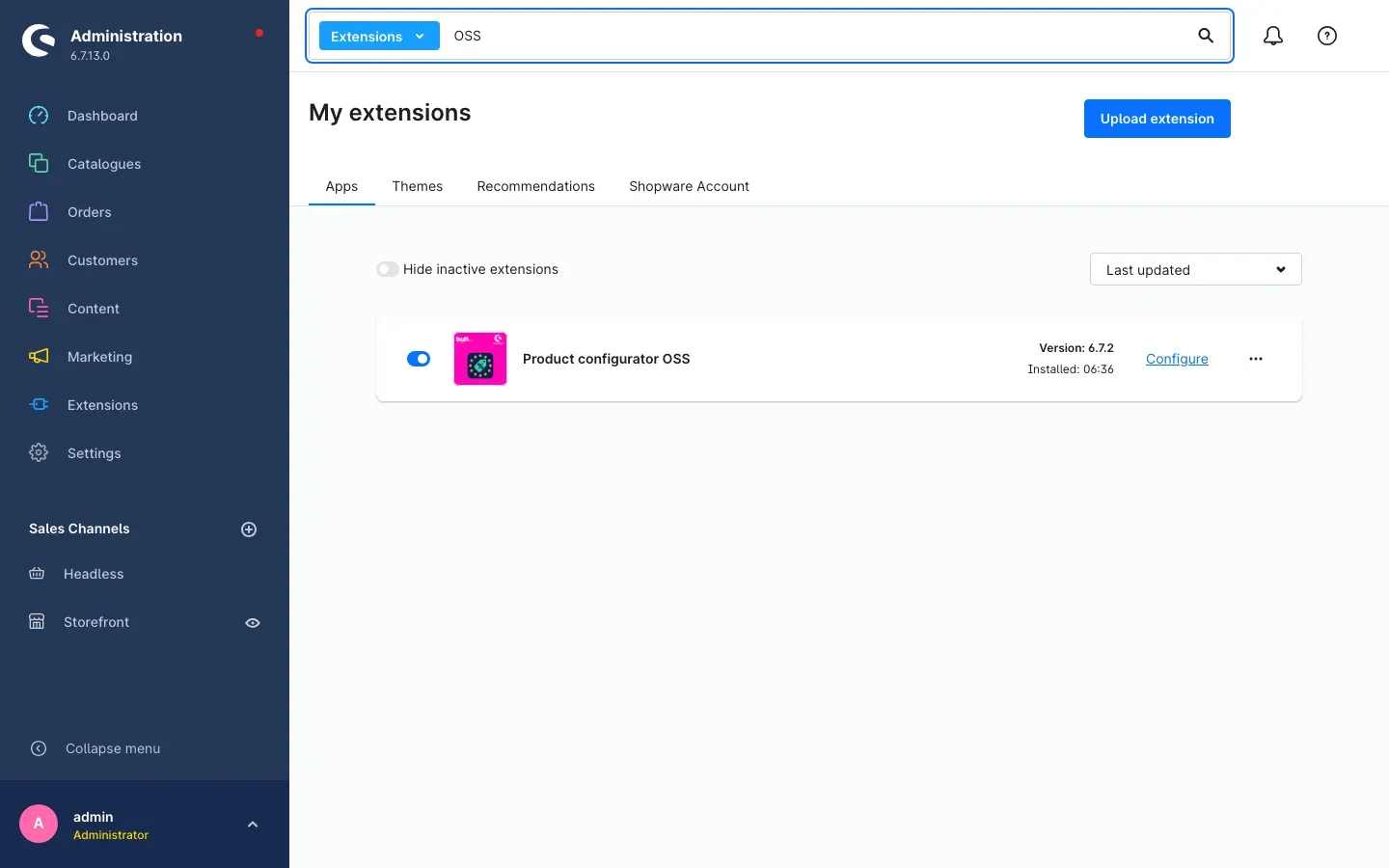 Fig. 1: The entry “Product configurator OSS” under “My extensions” — the toggle on the left is switched on, the Configure link appears on the right.
Once the toggle is blue and the Configure link appears on the right, the plugin is ready to use.
Entry not in the list? Then your shop is not yet connected to the Shopware account you bought the plugin with. You sign in on the same page via the Shopware Account tab.
Getting Started
Three steps tell you whether the plugin is doing its job.
-
Open the settings: Under Extensions → My extensions, click Configure in the Product configurator OSS row.
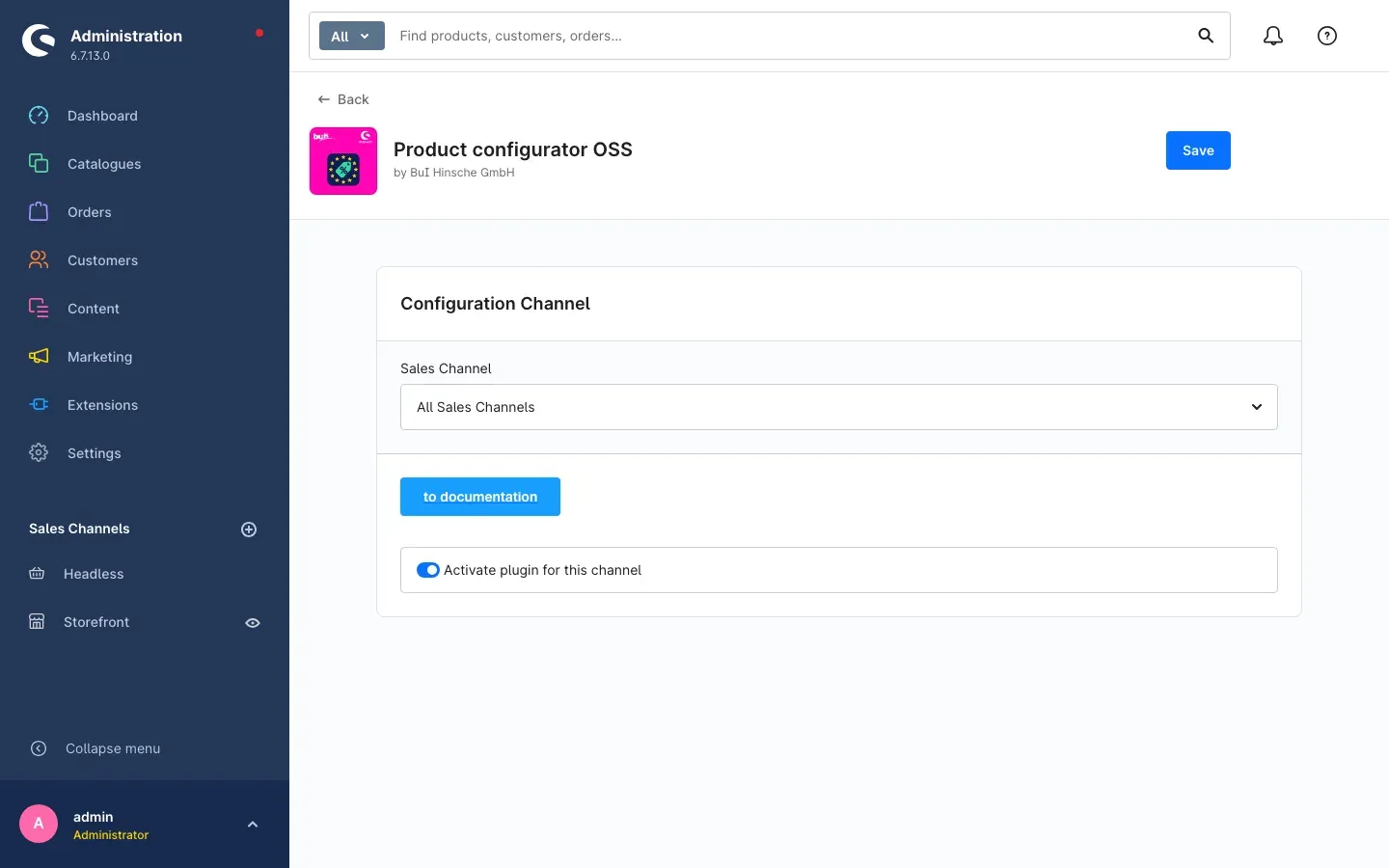 Fig. 2: The configuration page with the card “Configuration Channel”, the Sales Channel selector, the to documentation button and the Activate plugin for this channel toggle.
 -
Check the channel: At the top, Sales Channel decides which shop the setting below applies to. The Activate plugin for this channel toggle is switched on by default, so usually there is nothing to do here. If you do change something, click Save in the top right.
-
Check the result: In your shop, add a configurable product with a surcharge to the cart and try it once with a domestic and once with an EU shipping address. The surcharge under Product Configuration follows the country. How to Use the Plugin shows what that looks like.
Settings
You find the settings under Extensions → My extensions via the Configure link in the Product configurator OSS row. Everything you can set sits on a single card titled Configuration Channel.
Fig. 3: The complete configuration of the plugin — there are deliberately no further settings.
Sales Channel
At the very top, the Sales Channel selector defines which of your shops the setting below applies to. As long as it shows All Sales Channels, you are editing the base value that applies everywhere. Pick a single channel instead and only that channel deviates from the base value.
What this is good for: You can switch the recalculation on precisely where you sell to consumers across the EU — and keep working unchanged in another channel, for example your B2B or Swiss shop.
to documentation
The blue to documentation button opens this manual as a web page in a new browser tab, in the language of your administration.
What this is good for: You find the explanation for a setting without leaving the page or searching for a link.
Activate plugin for this channel
The Activate plugin for this channel toggle decides whether the surcharges of the product options are recalculated for the delivery country in the selected sales channel. Switched on, the plugin recalculates; switched off, the price calculation of the Product configurator stays unchanged. By default the toggle is switched on.
What this is good for: If you run several sales channels, you let the OSS recalculation run only where it belongs — without uninstalling the plugin. The toggle is read on every page request: a change takes effect immediately, no cache clearing needed.
Important: After every change, do not forget the Save button in the top right. If you switch the sales channel first, your change is lost.
How to Use the Plugin
How to switch the recalculation off for a single sales channel
What this gives you: You sell across the EU to consumers through one channel, but only to business customers or domestically through a second one. Then only the first channel should recalculate.
Step by step
- Go to Extensions → My extensions and click Configure in the Product configurator OSS row.
- At the top, pick the channel that should stay unchanged under Sales Channel.
- Switch Activate plugin for this channel off.
- Click Save in the top right.
All other channels remain unaffected and keep recalculating.
Tip: To switch the plugin off everywhere, select All Sales Channels and switch it off there. Individual channels for which you previously set something different keep their own setting.
How to verify the recalculation in the shopping cart
What this gives you: In two minutes you see with your own eyes that the surcharge follows the delivery country — before the first real order arrives.
Step by step
-
Open your shop and add a configurable product with a surcharge to the cart.
-
In the cart, expand the Product Configuration area. Every selected option is listed there with its surcharge.
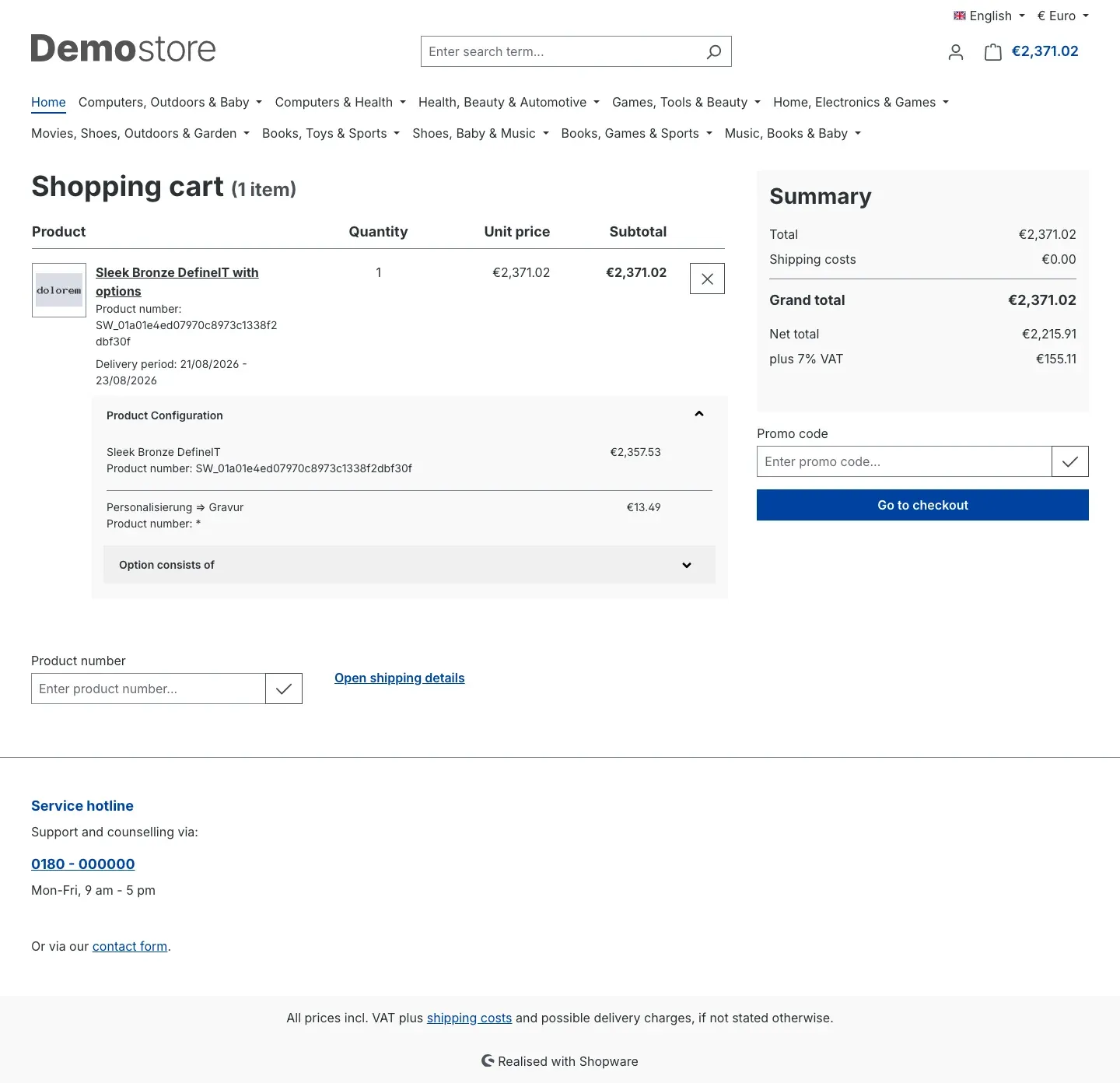 Fig. 4: Shopping cart with delivery inside Germany. The option “Personalisierung ⇒ Gravur” costs €13.49; the Summary on the right shows “plus 7% VAT”.
 -
Sign in as a customer with a shipping address in another EU country — or enter such an address during checkout.
-
Look at the same surcharge again.
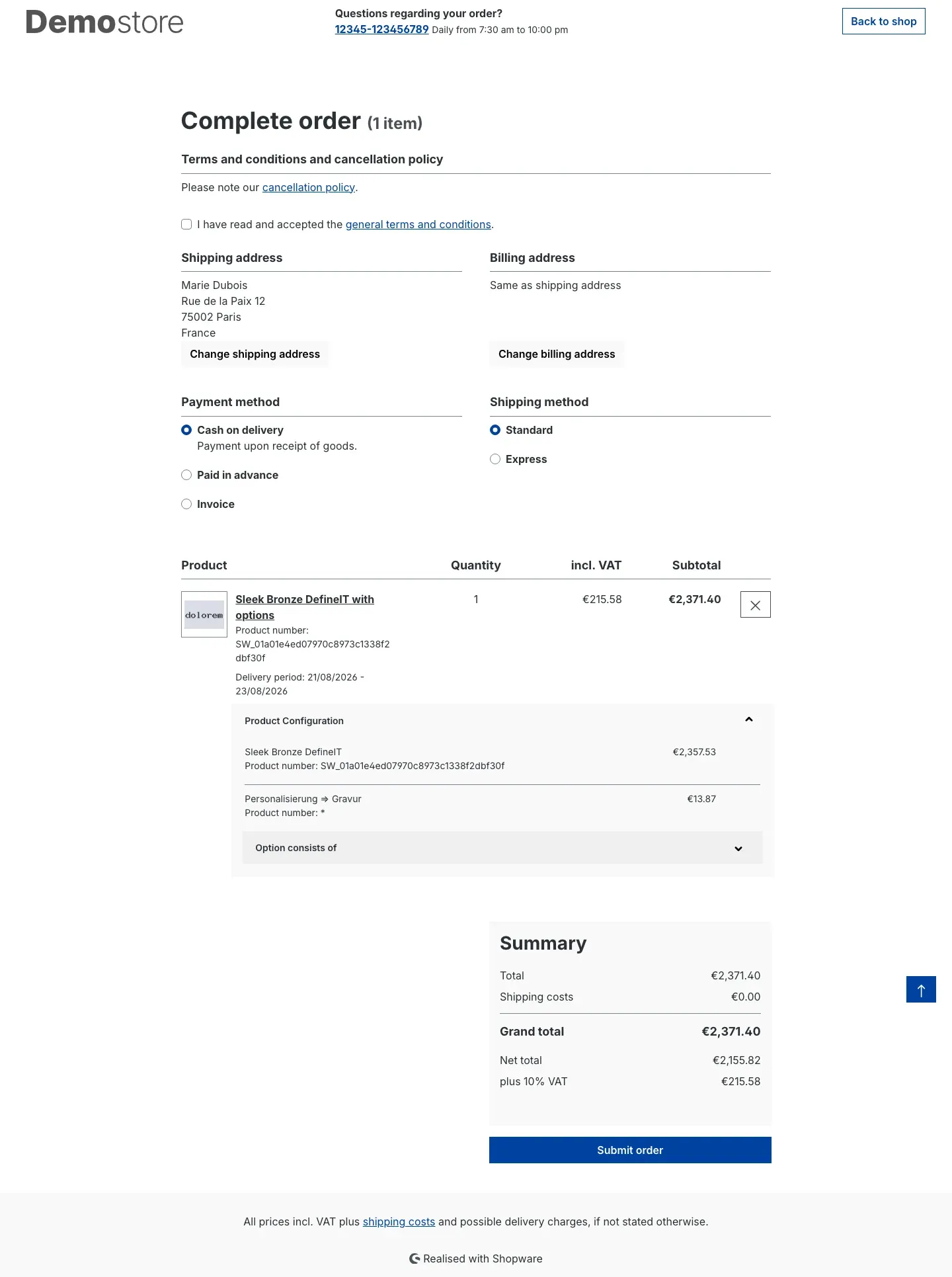 Fig. 5: The same product under Complete order with a shipping address in France. The same option now costs €13.87 and the Summary shows “plus 10% VAT”.
What you are looking at: The net amount of the option is identical in both cases (around €12.61). Only the gross price moves with the tax rate of the delivery country — from €13.49 to €13.87. That is exactly the difference the plugin makes: without it, both carts would show €13.49 and the difference would come out of your margin.
Tip: The price of the product itself (€2,357.53 in the example) is handled by Shopware and stays the same in both pictures. The plugin only takes care of the product option lines below it.
What the plugin also covers for you
What this gives you: You do not have to keep special cases in mind — the plugin behaves the same way across all price variants of the Product configurator.
- Tier prices are included. If an option has prices staggered by quantity, every quantity step is recalculated the same way. No step is left behind on the old tax rate.
- Rounding follows your shop. The gross amount is rounded according to the rounding setting of your currency — including currencies with five-cent or five-centime steps.
- With net display, the plugin stays out. If a cart runs in net mode — a business customer with net display, or a tax-free intra-community delivery — the calculation of the Product configurator is left unchanged.
- A missing precondition does no harm. If the product cannot be resolved, a tax rule is missing, or an option has no price in the cart currency, the plugin skips exactly that spot. The cart stays complete and keeps calculating normally.
Troubleshooting
The entry “Product configurator OSS” does not appear under “My extensions”
What causes it: Your shop is not yet connected to the Shopware account you bought the plugin with.
How to fix it:
- Open Extensions → My extensions.
- Switch to the Shopware Account tab and sign in there.
- Switch back to the Apps tab — the entry is now in the list.
The surcharge does not change when I change the delivery country
What causes it: Usually one of four preconditions is not met.
How to fix it — in this order:
- Under Extensions → My extensions, check that the toggle next to Product configurator OSS is switched on.
- Click Configure, select the affected channel under Sales Channel and check that Activate plugin for this channel is switched on.
- Check that the Product configurator itself is installed and active. Without it there are no surcharges for the add-on to work on.
- Check that your shop has its own tax rule for the destination country. Without it, your shop calculates the whole cart with the default rate — and the surcharge rightly stays the same.
The surcharge stays the same although everything is switched on — for a business customer
What causes it: The cart runs in net mode. This is not a fault: with net display the net amount is the leading value anyway, so there is nothing to recalculate.
How to fix it: Nothing to do. Test the recalculation with a customer who sees gross prices instead.
The configuration page will not open
What causes it: The plugin is installed but not switched on — then the Configure link is missing.
How to fix it:
- Open Extensions → My extensions.
- Switch on the toggle to the left of Product configurator OSS.
- If the link still does not appear, clear your shop cache via Settings in the administration and reload the page.
Nothing happens in the shop after I changed the toggle
What causes it: Almost always Save was not clicked, or the sales channel was switched beforehand.
How to fix it: Open the configuration page again, select the same channel, set the toggle as intended and click Save in the top right. After that a fresh page request in the shop is enough — the toggle takes effect immediately.
FAQ
Q: Does the plugin change the prices I maintain in my product options?
A: No. The plugin only calculates at the moment the cart is built. Nothing is overwritten in your data. Switch it off and everything looks exactly as before.
Q: Do I really need the Product configurator?
A: Yes. The plugin is an add-on and works exclusively on the surcharges of the Product configurator. Without it there is nothing to do.
Q: How does the plugin know which tax rate applies?
A: From the tax rules stored in your shop. The plugin brings no tax rates of its own and maintains no country list.
Q: Does the recalculation apply to tier prices as well?
A: Yes, to every quantity step of an option.
Q: What about the price of the product itself?
A: Shopware already handles that under OSS. This plugin closes exactly the gap that was left open: the surcharges from the Product configurator.
Q: Can I use the plugin in one channel and not in another?
A: Yes. The Activate plugin for this channel toggle applies per sales channel.
Q: Does the plugin create my OSS report?
A: No. It only makes sure the correct tax rate is applied to the options in the cart. Reporting and payment remain your task.
Q: Do my customers see anything new in the shop?
A: No — no additional texts, notices or buttons. Only the gross amount shown for the options changes.
Q: What happens when I uninstall it?
A: Nothing is left behind. The plugin creates no data of its own that would need cleaning up.
For Administrators / Technical Details
This section is aimed at technical administrators. You do not need it for normal use.
System requirements
- Shopware: 6.7
- PHP: 8.2 or newer
- Product configurator (
swp/productoptions-six): version 6.7.12 or newer, installed and active
Installation via the command line (Composer)
composer require swp/productoptions-six-oss
php bin/console plugin:refresh
php bin/console plugin:install SwpProductOptionsSixOSS --activate
php bin/console cache:clear
How the recalculation happens
The add-on hooks into the price calculation at exactly two points and brings nothing else with it: no database tables of its own, no migration, no own routes, no storefront templates, no custom fields. Shopware standard tables remain unchanged.
- When the sales channel context is built, the plugin checks once per request whether the channel is switched on and notes the result on the context.
- When the option prices are calculated, it replaces the gross value of every option and every tier step with “net × (1 + tax rate)”. The tax rate comes from the tax rules of the context; rounding follows the rounding setting of the context currency.
Afterwards the calculation of the base plugin always runs on — even when the recalculation was skipped. That way no cart is ever left without option prices.
Cache behaviour
Both hooks are deliberately placed so that the channel toggle is evaluated outside the context cache: it is read per request, so a change takes effect without clearing any cache. The second hook sits behind the price calculations of the base plugin, so that its result is the basis of the recalculation. Both hook points are fixed and should not be overridden.
Fault tolerance and logging
If reading the configuration fails — during a database hiccup, for example — the storefront still responds: the plugin switches itself off for that request and writes a line to its own log channel. The channel lives in the shop log directory (swp_product_options_six_oss_*.log), records errors only and rotates over 14 files.
The recalculation is also skipped for a switched-off channel, in net or tax-free contexts, for an unresolvable product, a missing tax assignment, and for options without a price in the cart currency.
Data protection
The plugin sends no data to external servers, processes no personal data and sets no cookies.
Updating from an older version
Up to version 6.7.1 the channel toggle carried a different internal name. On installation and on update the plugin carries existing settings over automatically, per sales channel; no manual step is needed.
This manual was created for Product configurator OSS version 6.7.1.
More manuals
Age Check
Tobacco, spirits, knives: visitors who do not confirm their age never see the restricted items at all. You tick a box per product, the plugin hides it everywhere.
Open manual Shopware 6Blog: Posts, Categories & Comments
Stop running WordPress next to your shop. Write posts, categories, authors and moderated comments in Shopware, then build the blog pages in Shopping Experiences.
Open manual Shopware 6Cart Extras
Your customer sees in the cart how much is missing before the free gift or the discount. Below your minimum order value, the plugin adds exactly the shortfall as a surcharge.
Open manualNeed a team that keeps your shop running?
We have been maintaining Shopware shops for more than 20 years, including updates, hotfixes and the plugins you are configuring right now.