Product configurator separate products
Two individually configured items, but the cart says quantity 2? This add-on gives every configuration its own line item. Switchable per sales channel.
On this page
- Introduction
- What this extension does for you
- Who is this extension for?
- Requirements
- Installation
- Getting started
- Settings
- Sales Channel
- Activate plugin for this channel
- How to use the features
- How to give every configuration its own cart line item
- How to apply the behaviour to selected sales channels only
- Troubleshooting
- The extension does not appear in the list of extensions
- The cart still merges identical configurations
- No option selection appears on the product page at all
- Nothing changes in the shop after switching it on
- FAQ
- For administrators / technical details
- System requirements
- Installation via the command line (Composer)
- How the behaviour works technically
- Data handling and uninstallation
- Languages
Introduction
Important: Add-on plugin – requires the Product Configurator (
SwpProductOptionsSix). This plugin is an extension of the base plugin Product Configurator and only works together with it. Without the installed, active and separately purchased Product Configurator from version 6.7.12, this plugin has no function.
Product configurator separate products makes sure every configured product gets its own line in the shopping cart — even when two products were configured in exactly the same way.
Without this extension, Shopware merges two identically configured products into one cart line item with a quantity of 2. To the customer it then looks as if they ordered one product twice, instead of two individually configured pieces. With this extension, every configuration stays visible on its own.
What this extension does for you
- Your customers see every configuration they added to the cart as a separate line item — with its own row, its own quantity and its own price.
- You can remove each line item individually without the other one disappearing along with it.
- Your customers can order the same configuration several times without the line items merging — handy when one of them still needs to be changed later on.
- You decide per sales channel whether this behaviour applies.
Who is this extension for?
For every shop operator who uses the Product configurator and wants configurations to stay individually traceable: made-to-measure furniture and components, printed or engraved items, bundles of several pieces that look alike but are produced separately.
Requirements
This extension is an add-on. It does not come with a configurator of its own; it only changes the way configured products are placed in the shopping cart.
For it to take effect, the Product configurator extension must already be installed and active in your shop. That is where you define which options a product offers, what they cost and how they appear on the product page — this add-on changes none of that.
In short:
- Product configurator — answers the question “Which options can the customer choose?”
- Product configurator separate products — answers the question “How does the finished configuration end up in the cart?”
Important: If the Product configurator is not installed or not active, this add-on has no effect. There would also be nothing to separate, because without the configurator there are no configurations.
Installation
After your purchase, the extension is available directly in your Administration — there is nothing to download.
- Log in to your Shopware Administration (
YourShop.com/admin) - Open Extensions → My extensions
- Next to Product configurator separate products, click Install
- Then activate the extension using the toggle to the left of the entry
If everything worked, your list looks like this: the toggle on the left is switched on, the version and installation time are shown on the right, and next to them the Configure link.
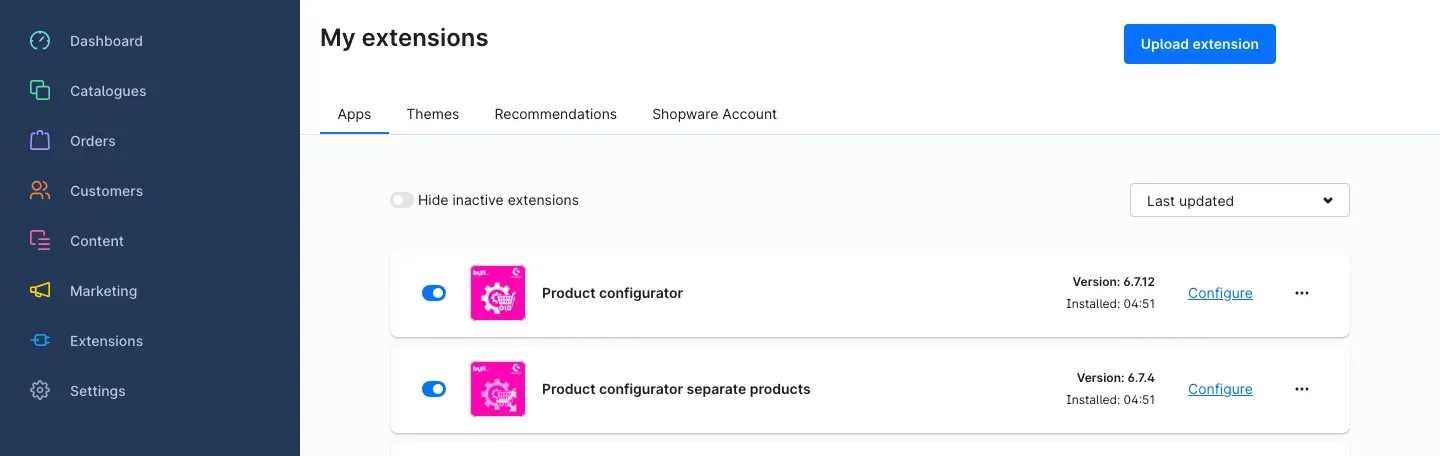 Fig. 1: My extensions — the add-on “Product configurator separate products” is installed and active, right below the base plugin “Product configurator”.
Make sure that Product configurator is switched on in the same list as well (see Requirements). Only both entries together produce the intended result.
If Product configurator separate products does not appear in the list, your shop is not yet connected to your Shopware account. You can set this up under Extensions → My extensions by logging in with your Shopware account on the Shopware Account tab.
The extension is not effective right after installation — it also needs to be switched on for the sales channel you want. The next chapter explains how.
Getting started
-
Open the settings: Under Extensions → My extensions, click Configure in the Product configurator separate products row
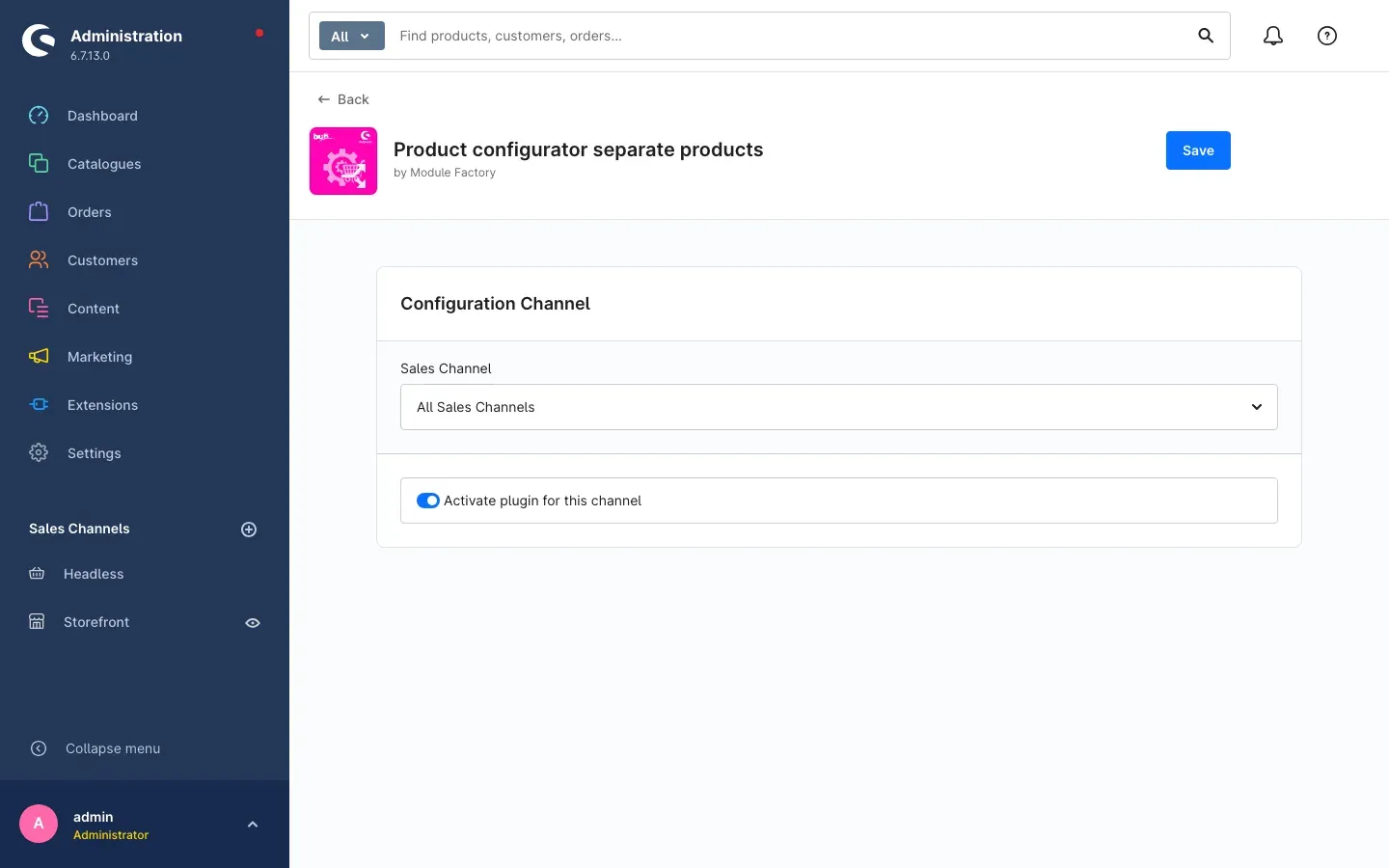 Fig. 2: The configuration page with the sales channel selection and the toggle “Activate plugin for this channel”.
 -
Choose the sales channel: At the top, Sales Channel initially shows All Sales Channels. With that, your setting applies to the whole shop. If you want the behaviour in one specific shop only, select the sales channel you want instead.
-
Switch the extension on: Turn on Activate plugin for this channel.
-
Save: Click Save in the top right corner.
-
Check the result: Open a product with options in your shop, add the same configuration to the cart twice and take a look: the cart now shows two line items with a quantity of 1 each, instead of one line item with a quantity of 2.
Settings
You find the settings under Extensions → My extensions via the Configure link in the extension’s row. The page is headed Product configurator separate products; below it sits the Configuration Channel area.
Fig. 3: The complete set of settings of this extension — a sales channel selection and one toggle.
Sales Channel
The Sales Channel selection determines which of your shops the setting below applies to. The default All Sales Channels means the value applies everywhere you have not set anything different.
What this is good for: If you run, for example, a consumer shop and a trade shop, you can use separate cart line items in the consumer shop and keep the familiar merging behaviour in the trade shop. To do so, set one channel and save, then switch to the other one and save again.
Activate plugin for this channel
Activate plugin for this channel switches the separate cart handling on for the sales channel selected above. While the toggle is off, the cart behaves exactly as it does without this extension: identically configured products end up in one shared line item with an increased quantity. Right after installation the toggle is off — so you need to switch it on deliberately.
What this is good for: You can try the new behaviour in a test channel first and roll it out everywhere later. And if it turns out not to suit you, you simply switch it off here instead of uninstalling the extension.
Tip: Do not forget to click Save in the top right corner after every change. If you switch the sales channel without saving, your change is lost.
How to use the features
The extension has exactly one job, and it does that job on its own as soon as it is switched on for the sales channel. There are no extra entries on the product, no per-article maintenance and no additional area in the Administration.
How to give every configuration its own cart line item
What this does for you: In the cart, your customers see every configuration they added as a separate row. Each row can be viewed and removed separately — and later in the order it is clear that two individual pieces were ordered.
Step by step
-
Open a product in your shop that has options set up in the Product configurator. On the product page, the option selection area appears with the option groups — in the example the group Color with the choice Red.
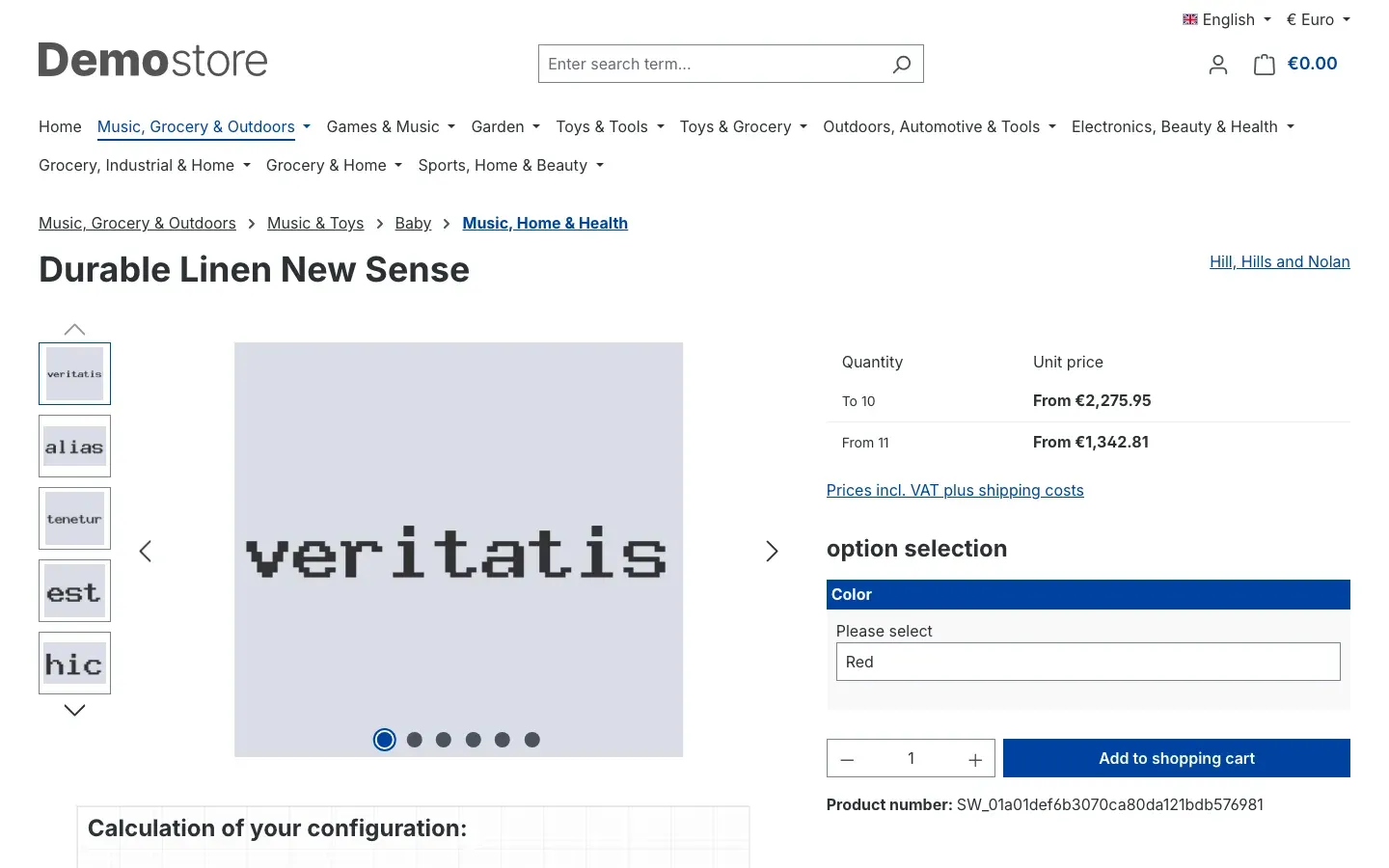 Fig. 4: Product page with the option selection — this is where the process starts that the add-on hooks into.
 -
Choose the options you want and click Add to shopping cart.
-
Go back to the product page, select exactly the same options again and click Add to shopping cart once more.
-
Open the shopping cart.
The result: The cart now holds 2 items — the same product with the same configuration twice, each with a quantity of 1. Without the extension there would be a single line item with a quantity of 2 here.
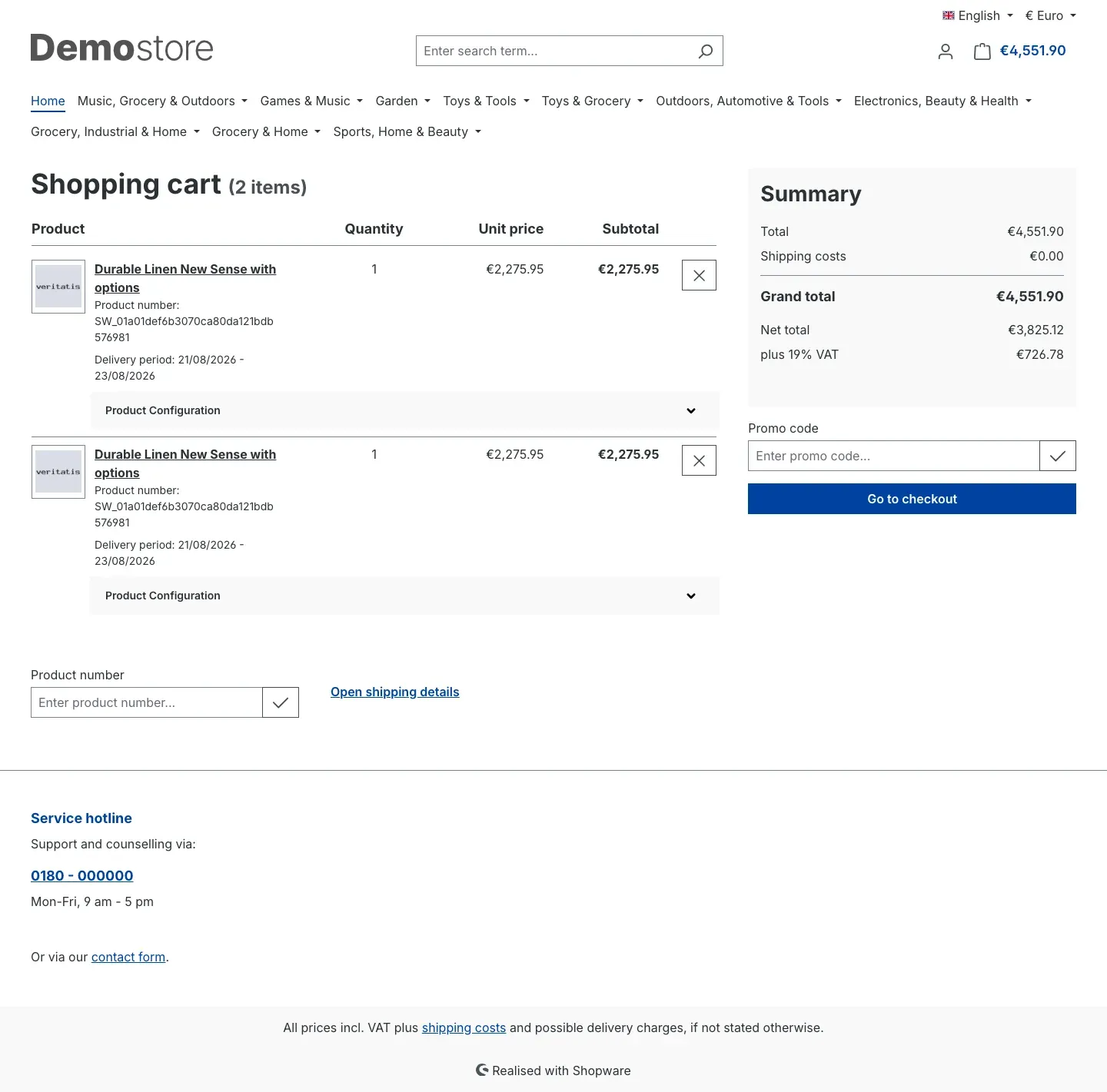 Fig. 5: Shopping cart after adding the same configuration twice — two separate line items with a quantity of 1 each, instead of one line item with a quantity of 2.
Tip: The expandable Product Configuration area below each line item shows your customer which options belong to that exact row. This pays off especially when the configurations are meant to differ later on.
How to apply the behaviour to selected sales channels only
What this does for you: You decide separately for each of your shops whether configurations are merged or kept apart.
Step by step
- Open Extensions → My extensions and click Configure in the Product configurator separate products row
- Under Sales Channel, select the shop the setting should apply to
- Turn Activate plugin for this channel on or off
- Click Save
- Repeat steps 2 to 4 for every further sales channel
Important: When you change the setting, it affects carts that are filled from that moment on. Line items a customer already had in the cart stay the way they were stored.
Troubleshooting
The extension does not appear in the list of extensions
What causes it: The shop is not yet connected to the Shopware account you used to purchase the extension.
How to fix it:
- Open Extensions → My extensions
- Switch to the Shopware Account tab and log in with your Shopware account
- Return to the Apps tab — the extension is now in the list
The cart still merges identical configurations
What causes it: In most cases the extension is still switched off for that sales channel — right after installation the toggle is off.
How to fix it:
- Open Extensions → My extensions and check that the toggle to the left of Product configurator separate products is switched on
- Click Configure and select exactly the shop you are testing in under Sales Channel
- Check that Activate plugin for this channel is switched on, then click Save
- Clear the cache: Settings → System → Caches & indexes → Clear cache
- Reload the product page in your shop and add the configuration to the cart again
If it still happens, check the cart you already filled: line items added before you switched the extension on stay merged. Empty the cart once and start the test again.
No option selection appears on the product page at all
What causes it: This is not down to this add-on but to the Product configurator. Either it is not active, or no options are set up for this product.
How to fix it:
- Check under Extensions → My extensions whether Product configurator is switched on
- Check in the Product configurator’s manual whether options are assigned to the product
Nothing changes in the shop after switching it on
What causes it: The shop is still serving your visitors the cached version of the page, or your shop’s presentation files have not been rebuilt since the installation.
How to fix it:
- Clear the cache: Settings → System → Caches & indexes → Clear cache
- Open the product page in a new private browser window
- If it still happens, contact your administrator — after installation the shop’s presentation files need to be rebuilt once (see For administrators / technical details)
FAQ
Q: Do I have to buy the Product configurator as well?
A: Yes. This extension is an add-on and requires the Product configurator. Without it there are no configurable products, and therefore nothing to separate.
Q: Does anything change about my options, prices or the product page?
A: No. Selection, surcharges and presentation still come entirely from the Product configurator. This add-on only steps in at the moment a finished configuration is added to the cart.
Q: Does this affect ordinary articles without options?
A: No. Only products that are added to the cart together with a configuration get their own line item. All other articles behave as before — identical articles are still merged into one line item with an increased quantity.
Q: What happens if a customer sets the quantity to 3 on the product page?
A: Then one line item with a quantity of 3 is created. Only configurations added one after another are kept apart. If your customer wants three separate line items, they add the configuration to the cart three times individually.
Q: Can I use the extension in one shop and not in another?
A: Yes. The toggle applies per sales channel — see How to apply the behaviour to selected sales channels only.
Q: What happens to carts that are already filled when I change the setting?
A: Line items that are already stored stay as they are. The new setting applies to everything added to the cart from then on.
Q: Can I switch the extension off without uninstalling it?
A: Yes, in two ways: either you turn Activate plugin for this channel off, or you deactivate the extension completely using the toggle under Extensions → My extensions.
Q: Do I lose my setting when I uninstall the extension?
A: When uninstalling, Shopware asks whether your data should be kept. If you decline, this extension’s setting is removed as well.
Q: Does the extension store data of its own in my shop?
A: No. It only stores its own setting and does not change any Shopware data.
For administrators / technical details
This section is aimed at technical administrators. You do not need it for normal use.
System requirements
- Shopware: 6.7 (Storefront required)
- Product configurator (
swp/productoptions-six): 6.7.12 or newer - PHP: 8.2 or newer
Installation via the command line (Composer)
composer require swp/productoptions-six-separateproducts
php bin/console plugin:refresh
php bin/console plugin:install SwpProductOptionsSixSeparateProducts --activate
php bin/console cache:clear
Afterwards, rebuild the storefront assets so that the bundled storefront extension is delivered:
bin/build-storefront.shHow the behaviour works technically
When the add-to-cart form is submitted, a storefront extension adds a unique timestamp to the configuration data. This lets Shopware tell two otherwise identical configurations apart and store them as separate cart lines. Whether the addition happens is decided by the channel setting, which is rendered into the page on the server side.
Data handling and uninstallation
The extension does not change any Shopware core tables, does not create tables or records of its own and runs no database migrations. On uninstall, its own system configuration is removed unless “keep user data” was chosen during uninstallation.
Languages
The extension’s interface and metadata are available in German, English and Dutch.
This manual was created for Product configurator separate products version 6.7.3.
More manuals
Address Validation: House Number Check & Corrections
Address validation at the point of entry: the plugin spots missing house numbers, can suggest corrections via Google and helps you send fewer parcels that come back undeliverable.
Open manual Shopware 6Admin Password Reminder
Admin Password Reminder: your backend users renew their passwords on time, prompted after login and by a daily email. Premium locks expired accounts until the password is changed.
Open manual Shopware 6Advent Calendar | Doors with products, coupons and promotions
Advent calendar for your shopping experiences: doors open on time without clearing the cache, give nothing away in the page source and reveal coupons, products or your own content.
Open manualNeed a team that keeps your shop running?
We have been maintaining Shopware shops for more than 20 years, including updates, hotfixes and the plugins you are configuring right now.