Shariff Social Sharing: Share Buttons Without Tracking
Social share buttons without tracking: your visitors share products and pages on 13 networks, and until they click, your shop loads no third-party script and sets no cookie.
On this page
- Introduction
- What this plugin does for you
- Who is this plugin for?
- Installation
- Getting started
- Settings
- Settings per sales channel
- General
- Placement
- Design
- How to use the features
- How the buttons appear on product pages
- How to match the buttons to your shop design
- How to show the buttons on shop pages, landing pages and category pages
- How to place the buttons in shopping experiences
- How to use the global bar
- What your visitors experience when sharing
- How to switch from the Shariff plugin by netzperfekt
- Troubleshooting
- The buttons do not appear in the shop
- The “Copy link” or “Share via app” button is missing
- The Threema button does nothing
- The fixed bar is missing on smartphones
- Labels and heading are missing in the fixed bar
- The share dialog opens in a new tab instead of a popup
- FAQ
- For administrators / Technical details
- System requirements
- Activation via the command line
- Storefront snippets
- How the share links are created
- Headless frontends (Store API)
- Icon licences
Introduction
Shariff Social Sharing adds share buttons for social networks, messengers and email to your shop — without your shop sending any data to Facebook, X & Co. before a visitor clicks a button.
What this plugin does for you
- Your customers share products, guides and campaign pages with one click on Facebook, X, Pinterest, LinkedIn, XING, WhatsApp, Telegram, Threema, Bluesky, Threads, Mastodon, Reddit and diaspora* — plus email, print, copy link and the share dialog of the device.
- The buttons are ordinary links. When a page loads, your shop loads no script, font or image from any network, sets no cookie for it and sends no request to a third party. Only the click takes the visitor to the chosen service.
- You decide where the buttons appear: on product pages, on shop pages and landing pages, on category pages, as a bar above the footer or fixed to the edge of the screen — and precisely placed as a block in your shopping experiences.
- You adapt style, size, colour and alignment to your shop design.
- Everything can be configured and switched off per sales channel.
Who is this plugin for?
For shop owners who want to encourage recommendations via social networks without exposing their visitors to data transfers to those networks as soon as a page loads. It also replaces the discontinued Shariff plugin by netzperfekt (see How to switch from the Shariff plugin by netzperfekt).
Installation
After your purchase the plugin is available directly in your Administration — there is nothing to download.
- Log in to your Shopware Administration (
yourshop.com/admin). - Open Extensions → My extensions.
- Next to Shariff Social Sharing: Share Buttons Without Tracking, click Install.
- Activate the plugin with the switch next to the entry — done.
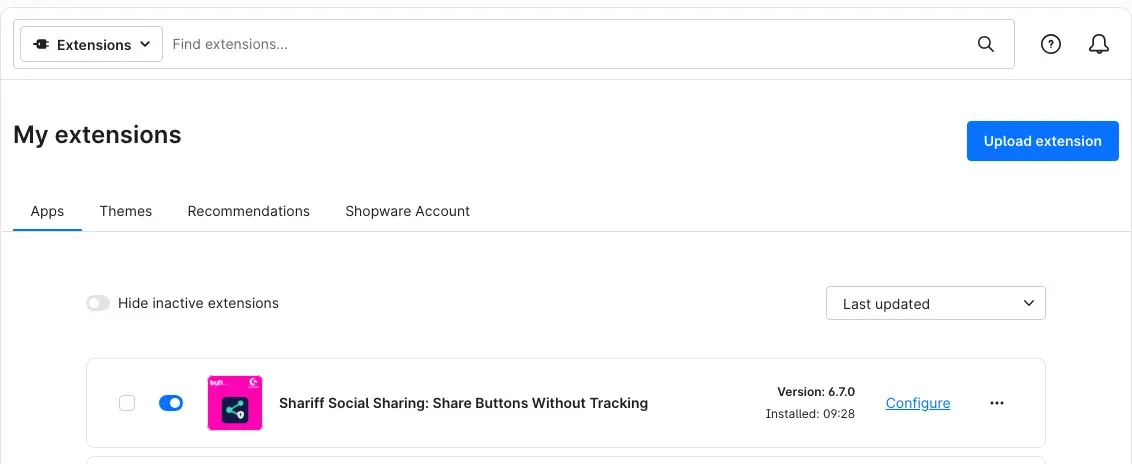 Fig. 1: The plugin under Extensions → My extensions — the switch is on, next to it the “Configure” link
Right after activation the buttons appear on your product pages below the product number — with Facebook, X, Pinterest, WhatsApp, Telegram, email and copy link.
If Shariff Social Sharing does not appear in the list, your Shopware account is not yet connected to the shop. You do this under Extensions → My extensions in the Shopware Account tab by logging in with your Shopware account.
Getting started
-
Open the settings: Go to Extensions → My extensions and click Configure next to Shariff Social Sharing.
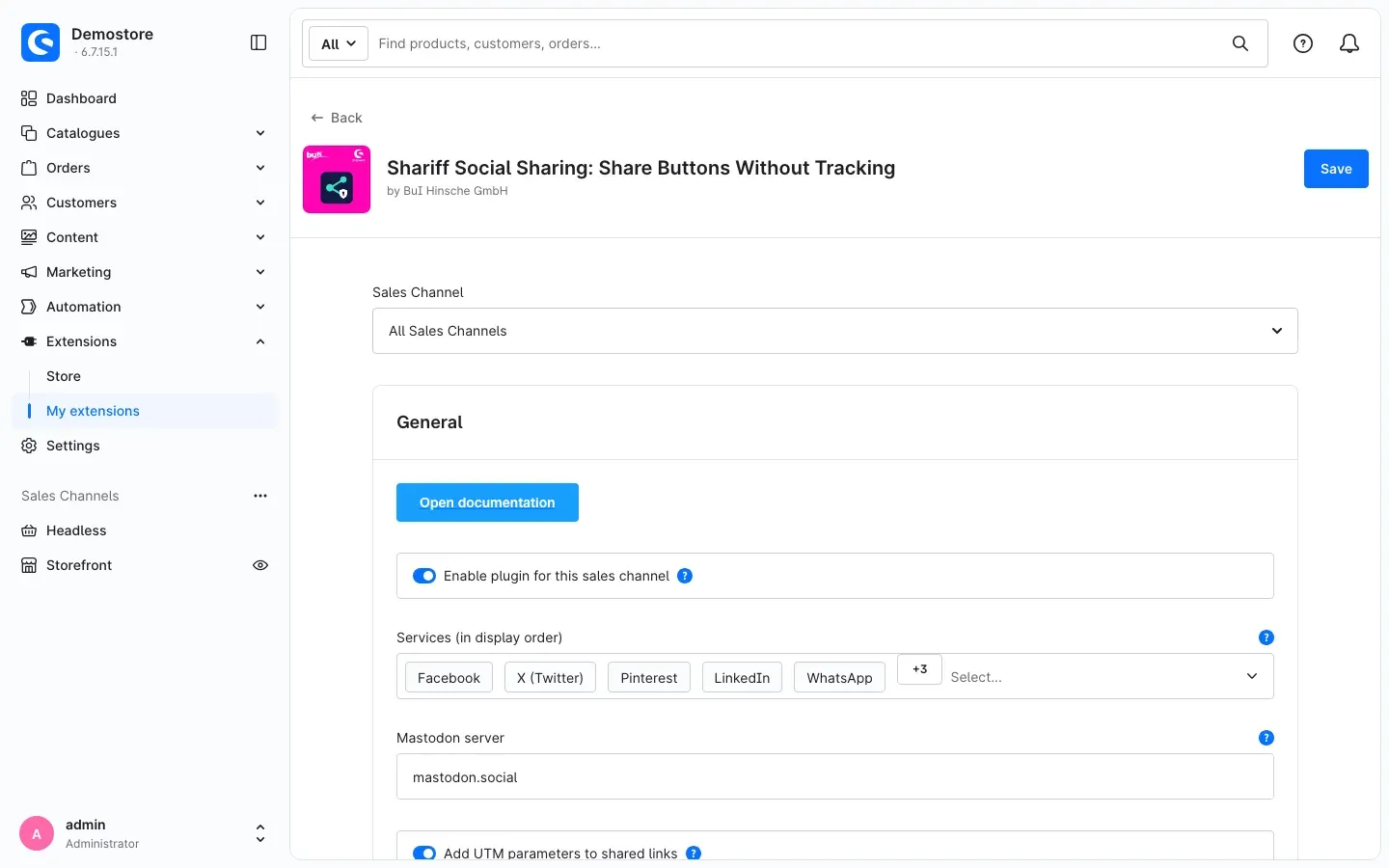 Fig. 2: The configuration page with the sales channel selection, the “Open documentation” button and the first settings
 -
Choose the services: In the field Services (in display order) you decide which buttons your customers see. The buttons appear in the order in which you select the services. Then click Save in the top right corner.
-
Check the result: Open any product page in your shop. You will see the share buttons below the product number.
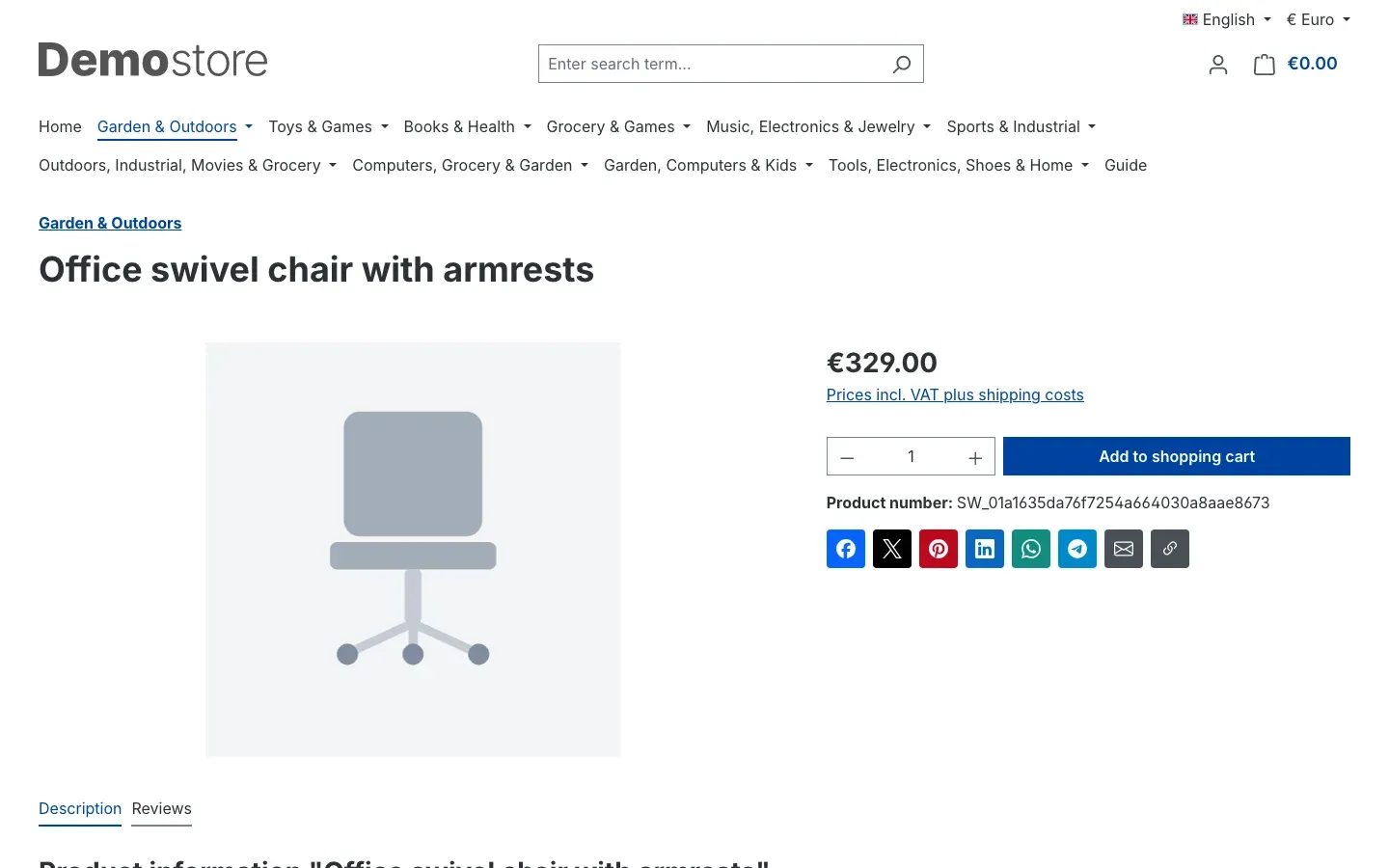 Fig. 3: The buttons below the product number — this is how it looks after installation
All further settings are optional. They are described in the next chapter.
Settings
You reach the settings via Extensions → My extensions → Configure next to Shariff Social Sharing. They are grouped into three areas: General, Placement and Design. After every change, click Save in the top right corner.
Settings per sales channel
At the very top, under Sales Channel, you choose which shop the settings apply to. With All Sales Channels you set the values for all sales channels at once. If you select a single sales channel, you can enter different values there — anything you do not change there is taken over from All Sales Channels.
Why this is useful: If you run, for example, a shop for consumers and a shop for business customers, you can show WhatsApp and Pinterest in one and LinkedIn and XING in the other — or switch the buttons off completely in one channel.
General
Open documentation
The Open documentation button opens this manual in a new browser tab.
Enable plugin for this sales channel
The Enable plugin for this sales channel switch decides whether the share buttons appear in the selected sales channel. It is on by default. If you switch it off, all buttons of this channel disappear — including the blocks in your shopping experiences — without having to uninstall the plugin.
Services (in display order)
Here you choose the buttons your customers see. Available are Facebook, X (Twitter), Pinterest, LinkedIn, XING, WhatsApp, Telegram, Threema (app only), Bluesky, Threads, Mastodon, Reddit, diaspora*, E-mail, Print, Copy link and Share via app (system share dialog). Preselected are Facebook, X (Twitter), Pinterest, WhatsApp, Telegram, E-mail and Copy link.
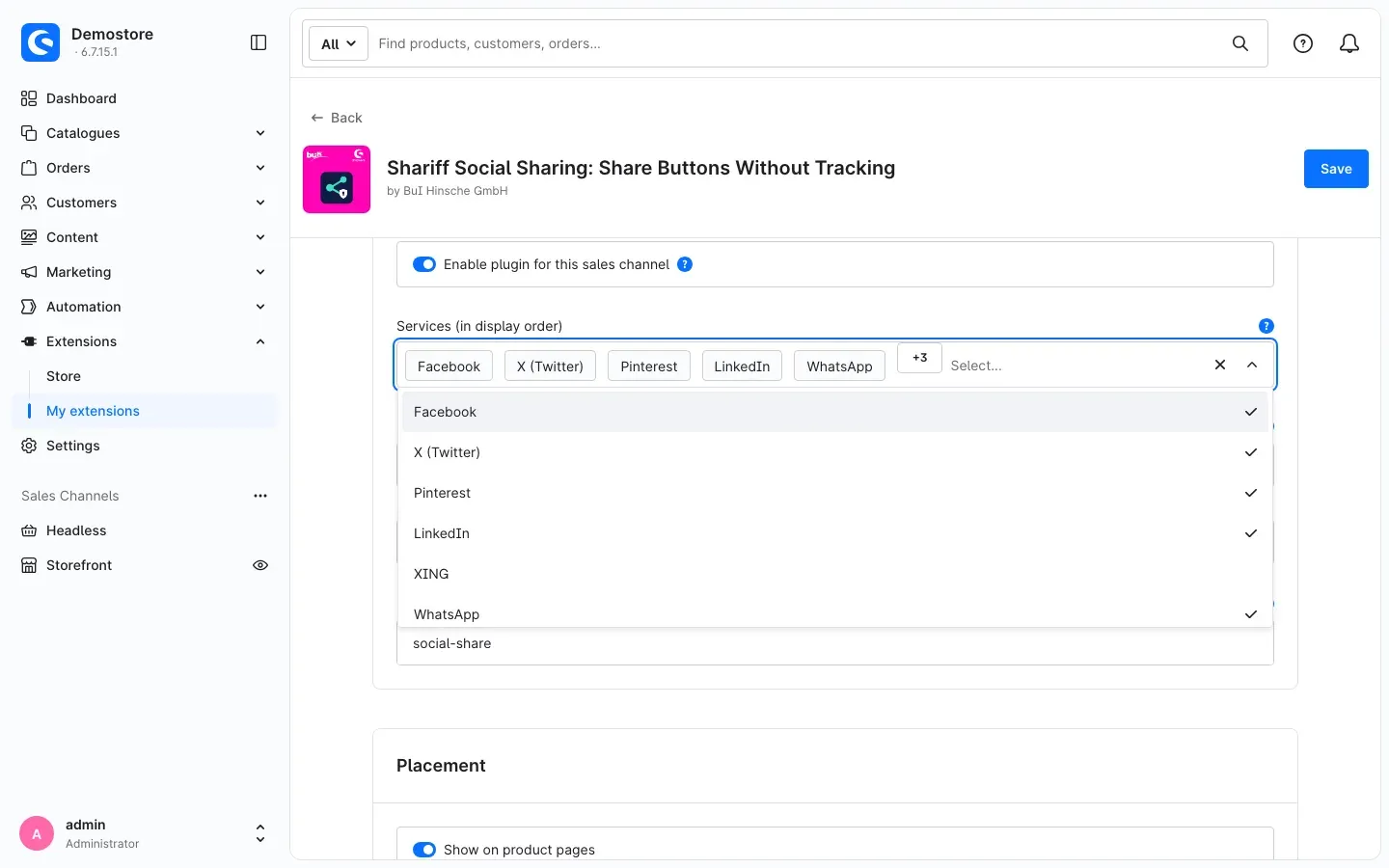 Fig. 4: The list of services — selected services are ticked
The buttons appear in the order in which you selected the services. To change the order, remove a service and add it again — it then moves to the end.
Some services behave in a special way:
- E-mail opens the visitor’s email program. The page title is the subject, the link is in the message.
- Print opens the browser’s print dialog for the current page.
- Copy link puts the address of the page on the clipboard. The button only appears if your shop is served securely via HTTPS.
- Share via app opens the share dialog of the device, from which the visitor can pick any installed app. The button only appears in browsers that offer such a dialog — mainly on smartphones and tablets.
- Threema only works if the visitor has the Threema app installed. That is why it is not preselected.
Why this is useful: Choose the channels your target group actually uses. Fewer buttons often look tidier and are used more.
Mastodon server
Mastodon consists of many independent servers. In the Mastodon server field you enter the server on which the share dialog opens — for example mastodon.social (preset) or the server where your shop has its own profile. Enter only the name of the server, without https://. If the entry is invalid, the plugin uses mastodon.social.
Add UTM parameters to shared links
With Add UTM parameters to shared links the plugin adds campaign information to the shared links. Your analytics tool then shows how many visitors came via shared links and through which service. The setting is off by default.
Why this is useful: You can see whether the buttons pay off and which networks bring visitors.
UTM campaign
Under UTM campaign you set the campaign name under which the visits appear in your analytics tool. The preset is social-share. Letters, digits, dot, hyphen and underscore are allowed. The setting only takes effect if Add UTM parameters to shared links is switched on.
Placement
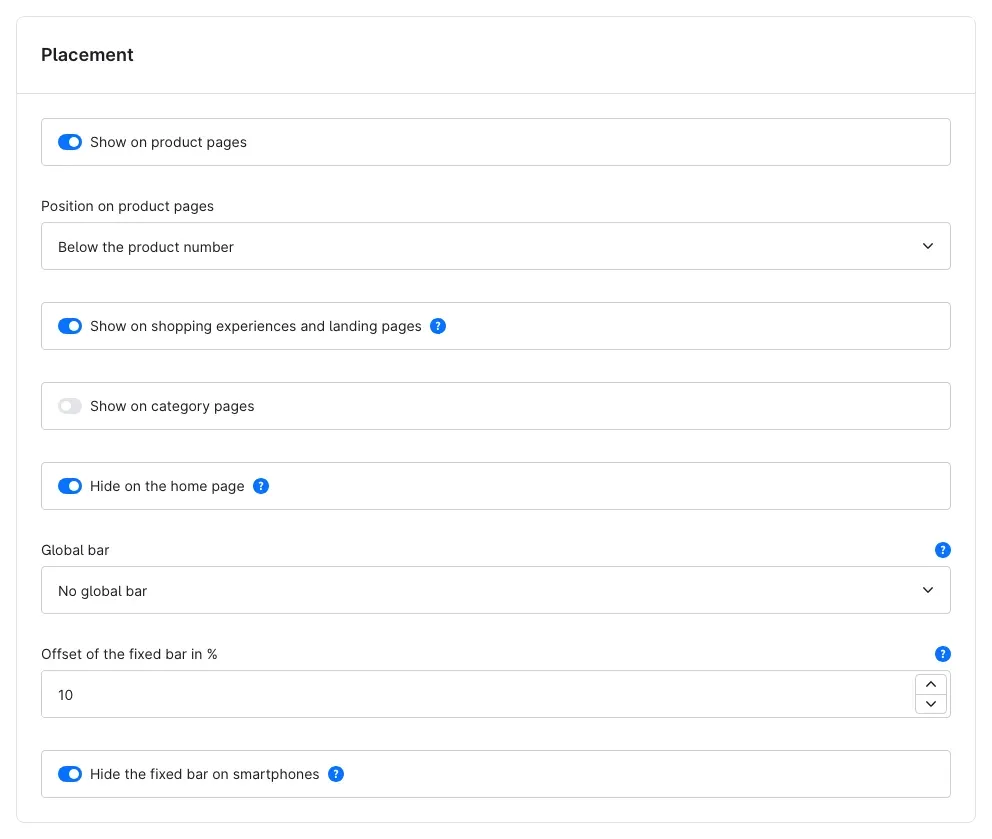 Fig. 5: The “Placement” area with its default values
Show on product pages
If Show on product pages is switched on (default), the buttons appear on every product page. The name of the product and — for Pinterest — its main image are shared.
Position on product pages
Under Position on product pages you choose where the buttons sit in the buy box: Below the product number (default) or Below the buy button.
Show on shopping experiences and landing pages
If Show on shopping experiences and landing pages is switched on (default), the buttons appear below the content of your shop pages and landing pages — for example below guides, campaign pages or your “About us” page.
Show on category pages
With Show on category pages the buttons also appear on category pages, below the product listing. The setting is off by default.
Hide on the home page
Hide on the home page is switched on by default. The buttons below the content and the global bar then do not appear on your home page. A Share buttons block that you place in the home page layout yourself is not affected by this setting — it stays visible.
Global bar
The Global bar shows the buttons on every page of your shop — except in the checkout, the customer account, the wishlist and the search. You can choose:
- No global bar (default)
- Above the footer — the buttons are centred above the end of the page
- Fixed on the left edge and Fixed on the right edge — a vertical bar that stays at the edge of the screen while scrolling
- Fixed at the bottom edge — a horizontal bar at the bottom of the screen
In a fixed bar the plugin always shows icons only, without labels and without heading, so that the bar stays narrow.
Offset of the fixed bar in %
With Offset of the fixed bar in % you move a fixed bar. For a bar on the left or right edge, the value sets the distance from the bottom edge of the window; for a bar at the bottom edge, the distance from the left edge of the window. Allowed values are 0 to 90, the preset is 10.
Hide the fixed bar on smartphones
On narrow screens a fixed bar would cover content. That is why Hide the fixed bar on smartphones is switched on by default: below a window width of 768 pixels the fixed bar disappears. The buttons on product pages, below content and above the footer remain visible.
Design
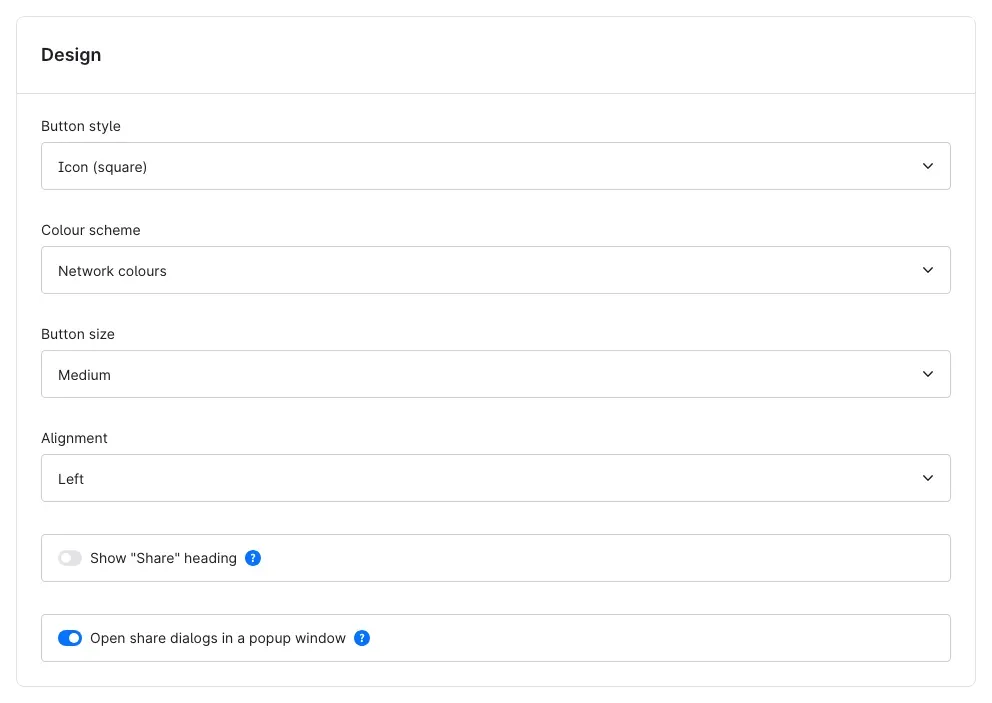 Fig. 6: The “Design” area with its default values
Button style
Under Button style you choose the shape of the buttons: Icon (square) (default), Icon (round) or Icon and label. With a label, the name of the service appears next to each icon — very easy to understand, but it needs more space.
Colour scheme
Under Colour scheme you can choose Network colours, Grey, White and Shop colour (primary colour of the theme). Network colours is preset.
- Network colours shows every button in the colour of its service with a white icon, for example Facebook in blue and Pinterest in red. E-mail, print, copy link and share appear in dark grey.
- Grey shows grey buttons. When a visitor moves the mouse over a button, the colour of the respective network appears.
- White shows white buttons with a border and icons in the network colour. On mouse-over the button fills with that colour.
- Shop colour (primary colour of the theme) colours all buttons in the main colour of your shop design. If you change the colour in the theme, the buttons follow.
Button size
With Button size you choose between Small, Medium (default) and Large.
Alignment
Under Alignment you set whether the buttons are aligned Left (default), Centred or Right. The bar above the footer is always centred.
Show “Share” heading
If Show “Share” heading is switched on, the word “Share” appears in front of the buttons. The heading is off by default. You can change the text under Settings → Localisation → Snippets (see For administrators / Technical details).
Open share dialogs in a popup window
If Open share dialogs in a popup window is switched on (default), a network’s share dialog opens in a small window above your shop — the visitor stays on your page. If the setting is off, a new tab opens. On smartphones and tablets, with blocked popups or without JavaScript, a new tab always opens.
How to use the features
How the buttons appear on product pages
What this does for you: Customers recommend a product right where they decide on it.
After installation the buttons are below the product number (Fig. 3). To move them closer to the buy button:
- Open the plugin configuration (Extensions → My extensions → Configure).
- In the Placement area, under Position on product pages, select Below the buy button.
- Click Save.
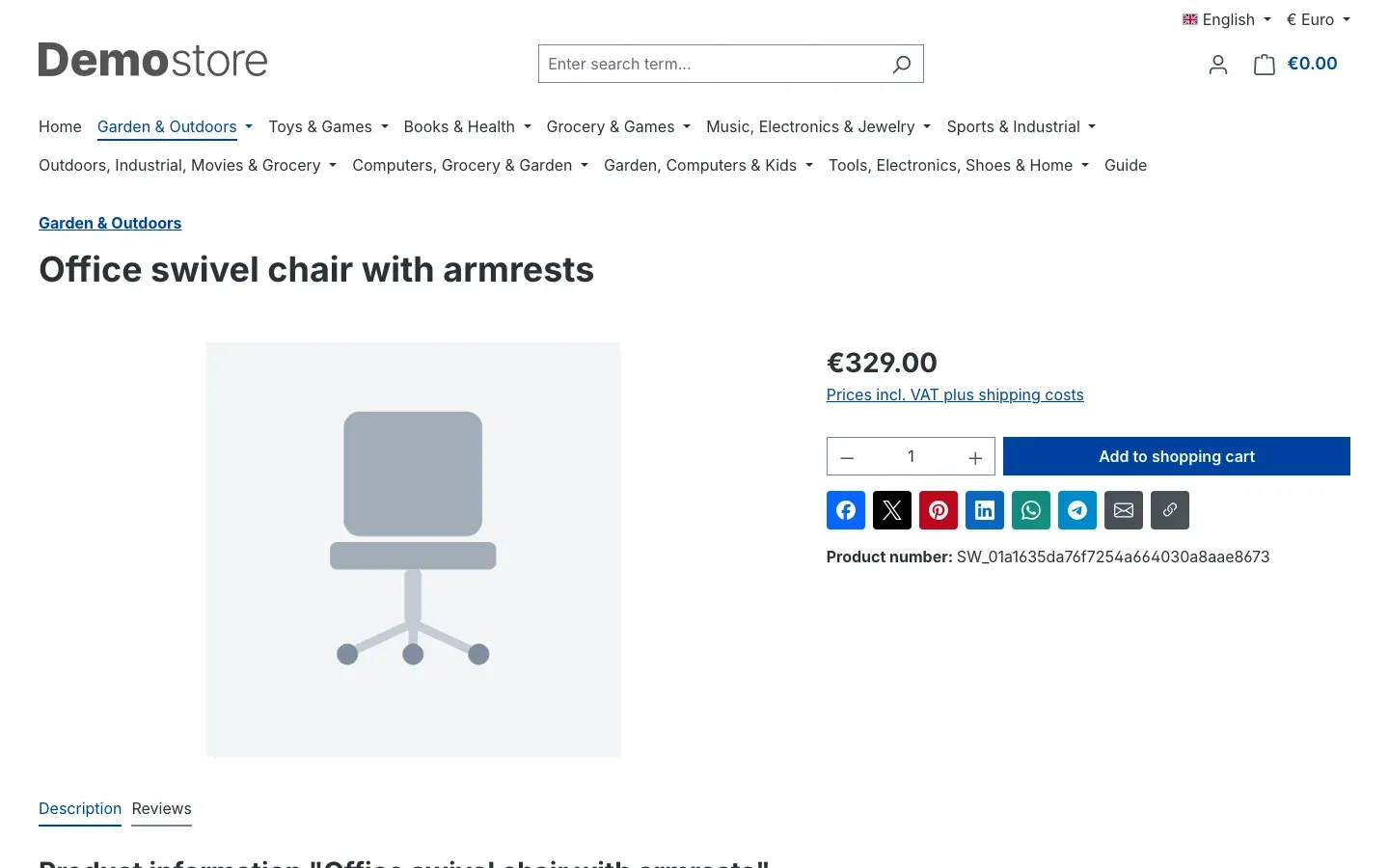 Fig. 7: Position “Below the buy button”
On a smartphone the buttons wrap onto another line automatically:
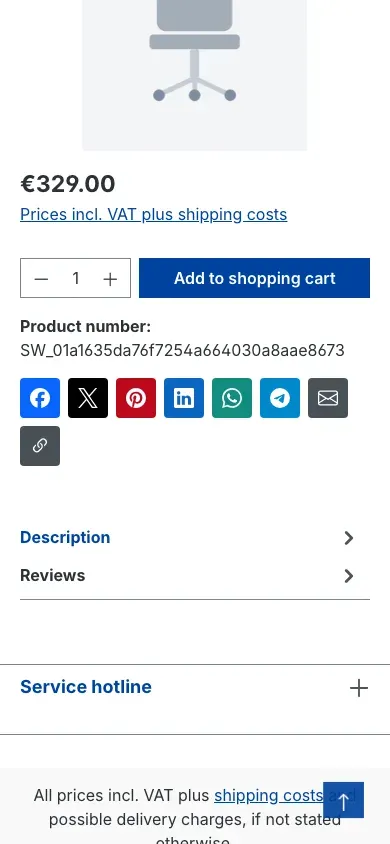 Fig. 8: The buttons on a smartphone
How to match the buttons to your shop design
What this does for you: The buttons blend into your design — subtle or eye-catching, as you prefer.
In the Design area you combine button style, colour scheme, size and alignment freely. Three examples:
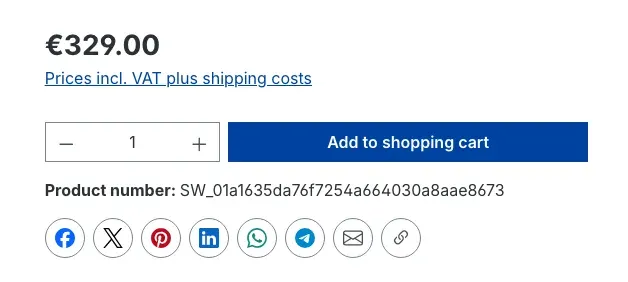 Fig. 9: Button style “Icon (round)” with colour scheme “White”
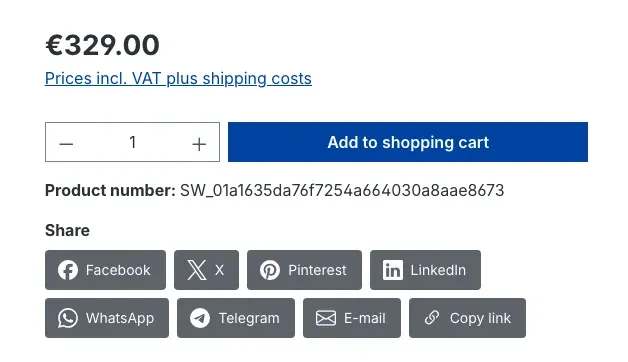 Fig. 10: “Icon and label”, colour scheme “Grey” and the “Share” heading
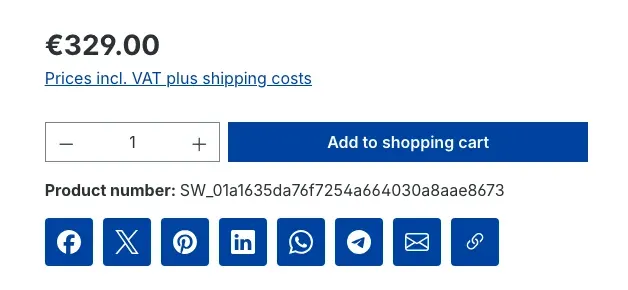 Fig. 11: Colour scheme “Shop colour” with button size “Large”
Tip: Always check new settings on a smartphone as well. “Icon and label” needs two or more lines there.
How to show the buttons on shop pages, landing pages and category pages
What this does for you: Guides, campaign pages and entire product ranges get shared, too — not just single products.
On shop pages and landing pages the buttons already appear below the content after installation, because Show on shopping experiences and landing pages is switched on:
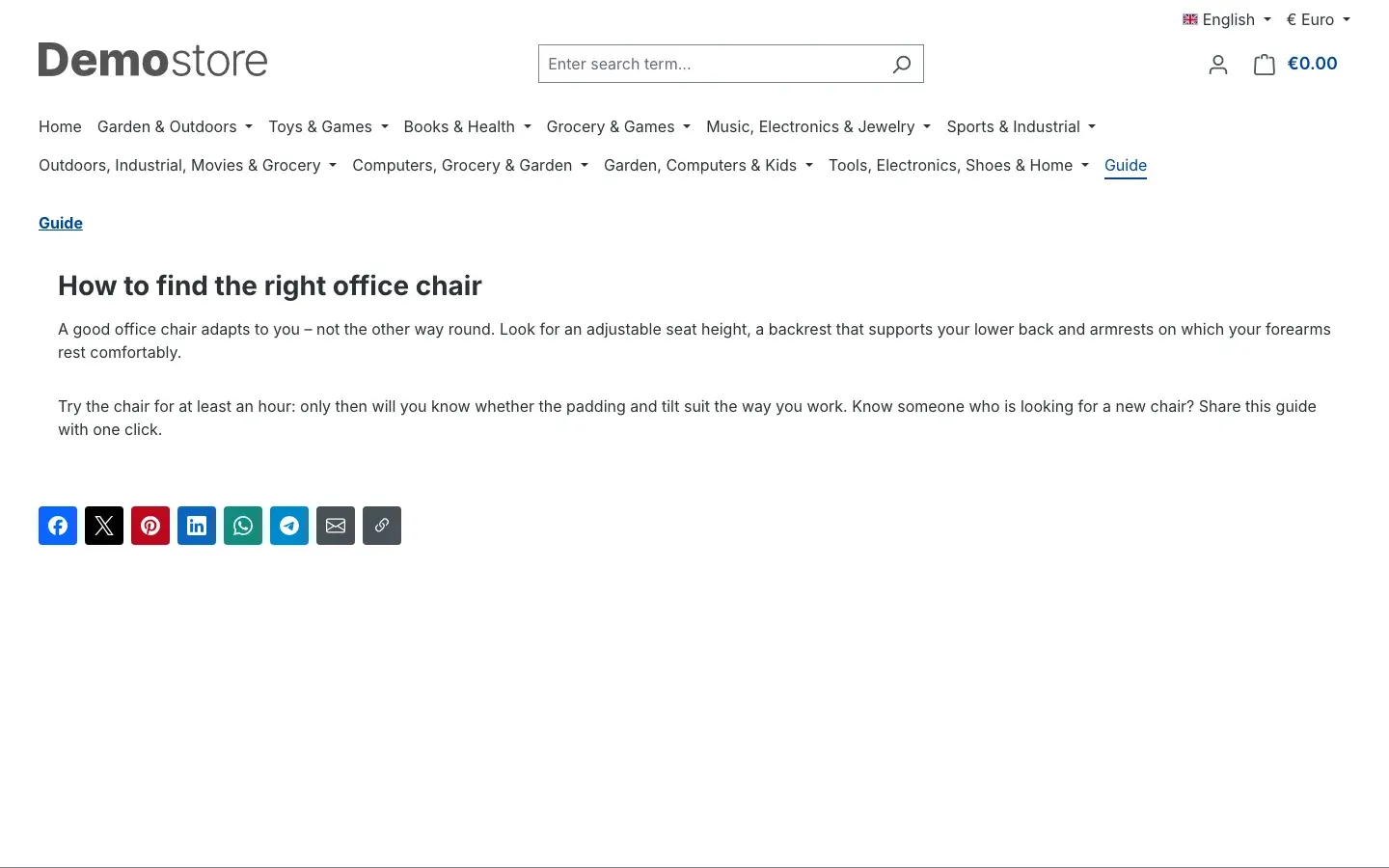 Fig. 12: The buttons below the content of a shop page
For category pages, switch on Show on category pages in the Placement area and click Save. The buttons then appear below the product listing:
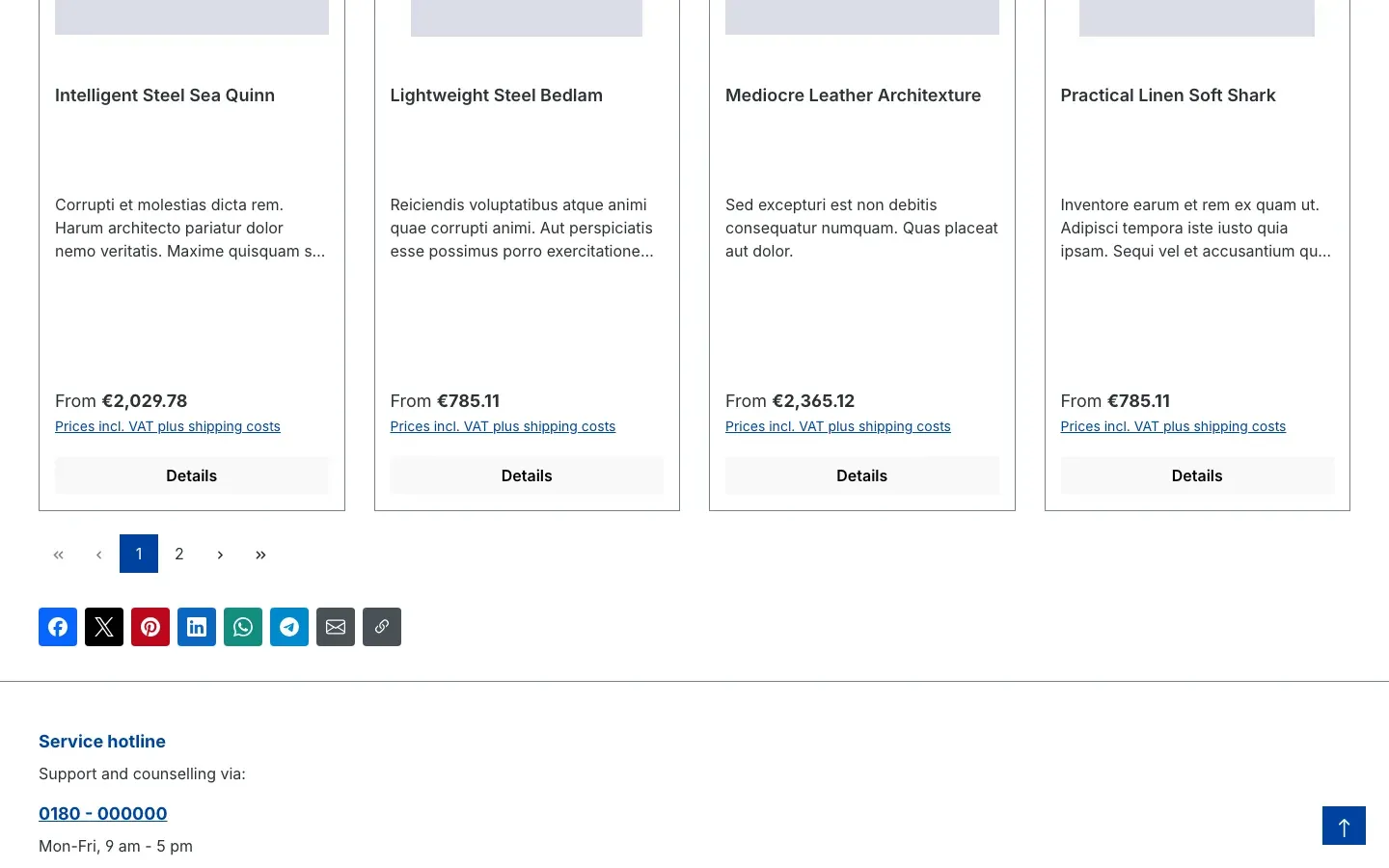 Fig. 13: The buttons below the product listing of a category
How to place the buttons in shopping experiences
What this does for you: You put the buttons exactly where they work best in a layout — for example directly below a guide text — and give them their own design there.
Step by step
-
Go to Content → Shopping Experiences and open the layout you want to edit.
-
Click the plus icon in the sidebar on the right. The Blocks area opens.
-
Under Block category, select Text. At the very bottom of the list you will find Share buttons.
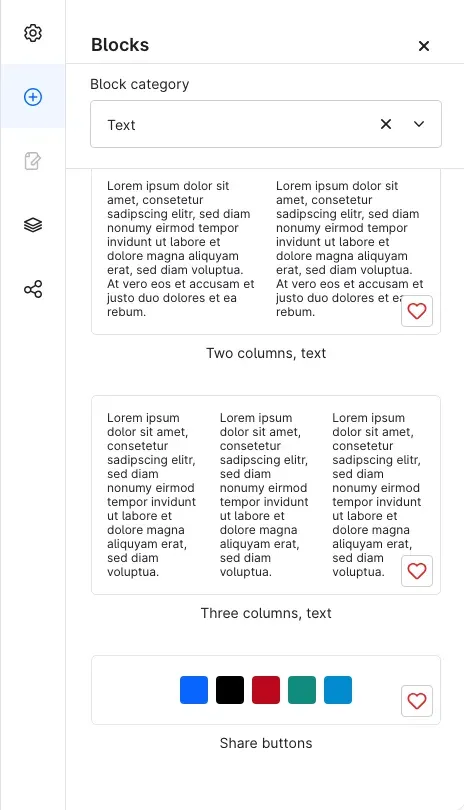 Fig. 14: The “Share buttons” block in the block category “Text”
 -
Drag the block to the desired position in the layout.
-
Click the element in the layout and then the cog icon. The dialog Element settings (Share buttons) opens.
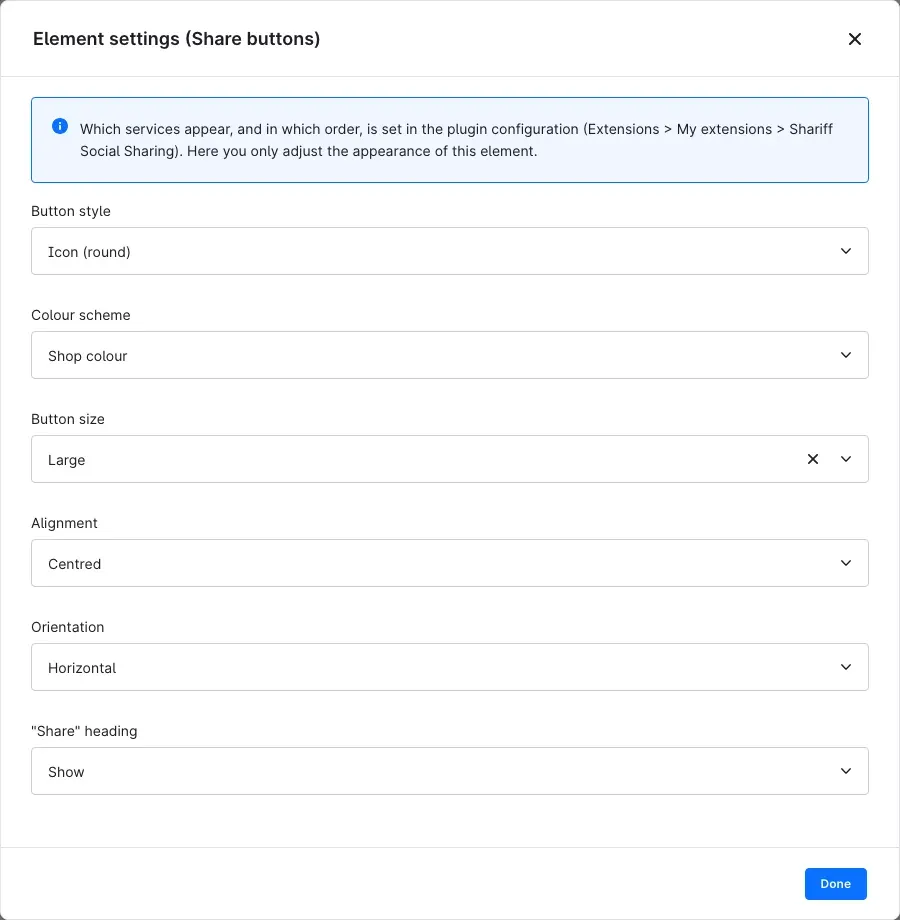 Fig. 15: The element settings — here a round, large appearance in the shop colour with heading
 -
Define how the buttons look in this element:
- Button style, Colour scheme, Button size and Alignment — with Like plugin configuration the element takes over the value from the plugin configuration.
- Orientation: Horizontal or Vertical.
- “Share” heading: Like plugin configuration, Show or Hide.
-
Click Done and then Save in the top right corner.
-
If the layout is not yet assigned to a page, assign it via the layout assignment area in the sidebar (button Assign layout).
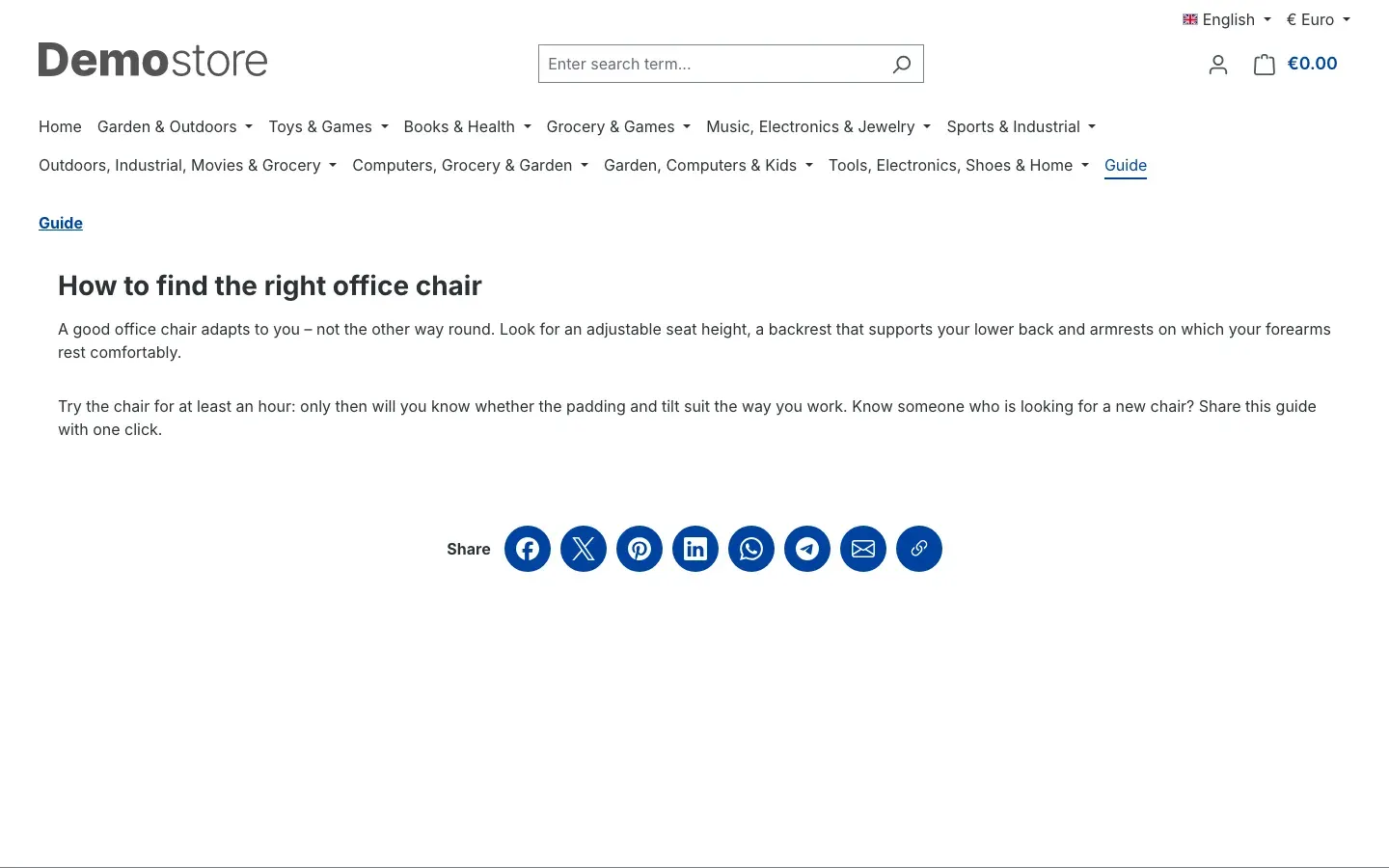 Fig. 16: The element below a guide text, with its own design
Which services appear, and in which order, is still set in the plugin configuration — the element takes them over. The block appears regardless of the switches in the Placement area, also on the home page. It only stays empty if the plugin is switched off for the sales channel.
Tip: If you place the element on a shop page or landing page yourself, switch off Show on shopping experiences and landing pages. Otherwise the automatic bar additionally appears below the content.
Tip: If you place the element in a product page layout, it shares the product with its name and — for Pinterest — its image.
How to use the global bar
What this does for you: The buttons are available on every page without having to add them everywhere individually.
- Open the plugin configuration and choose the desired position under Global bar in the Placement area.
- For a fixed bar, adjust Offset of the fixed bar in % and Hide the fixed bar on smartphones if needed.
- Click Save.
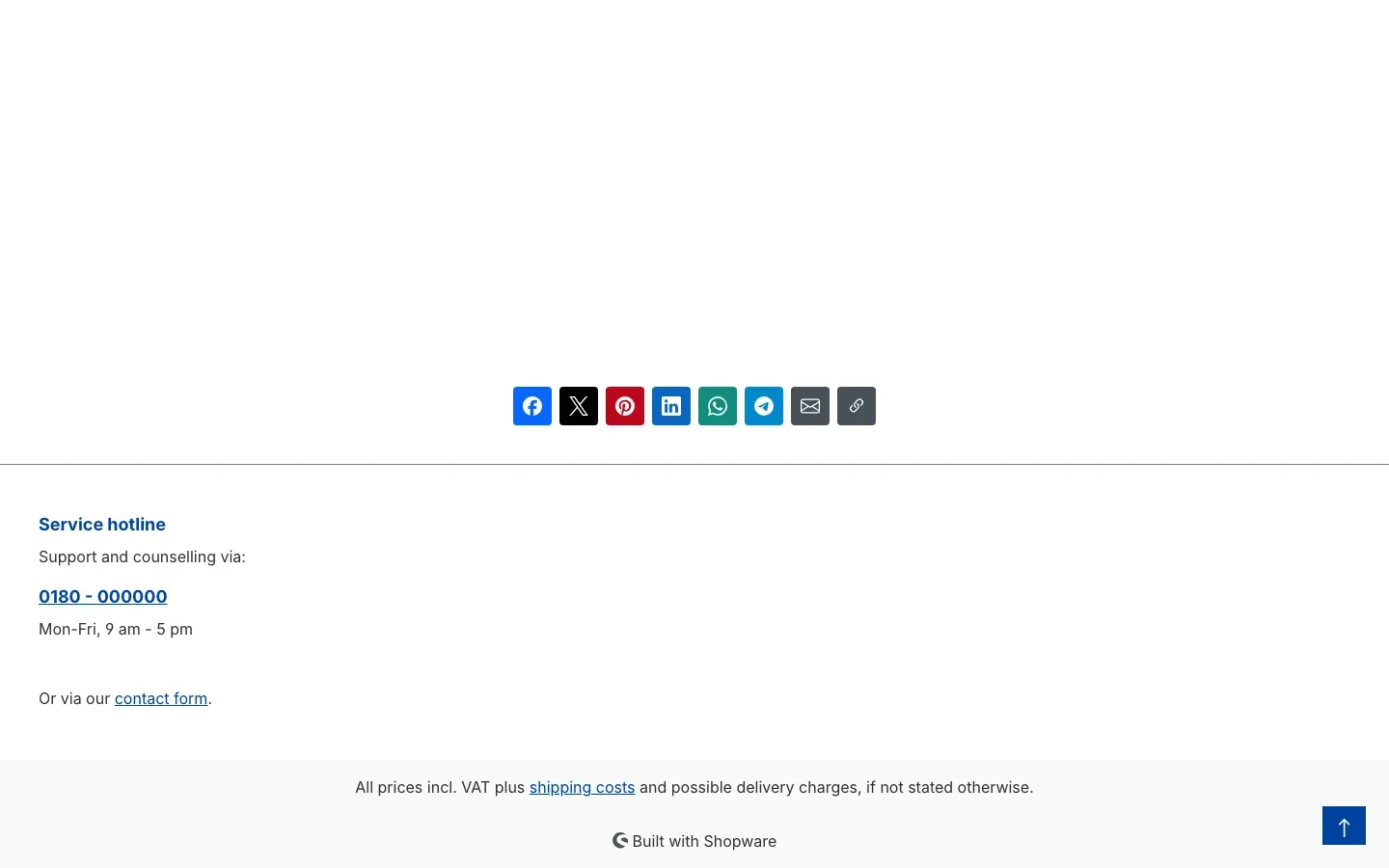 Fig. 17: Global bar “Above the footer”
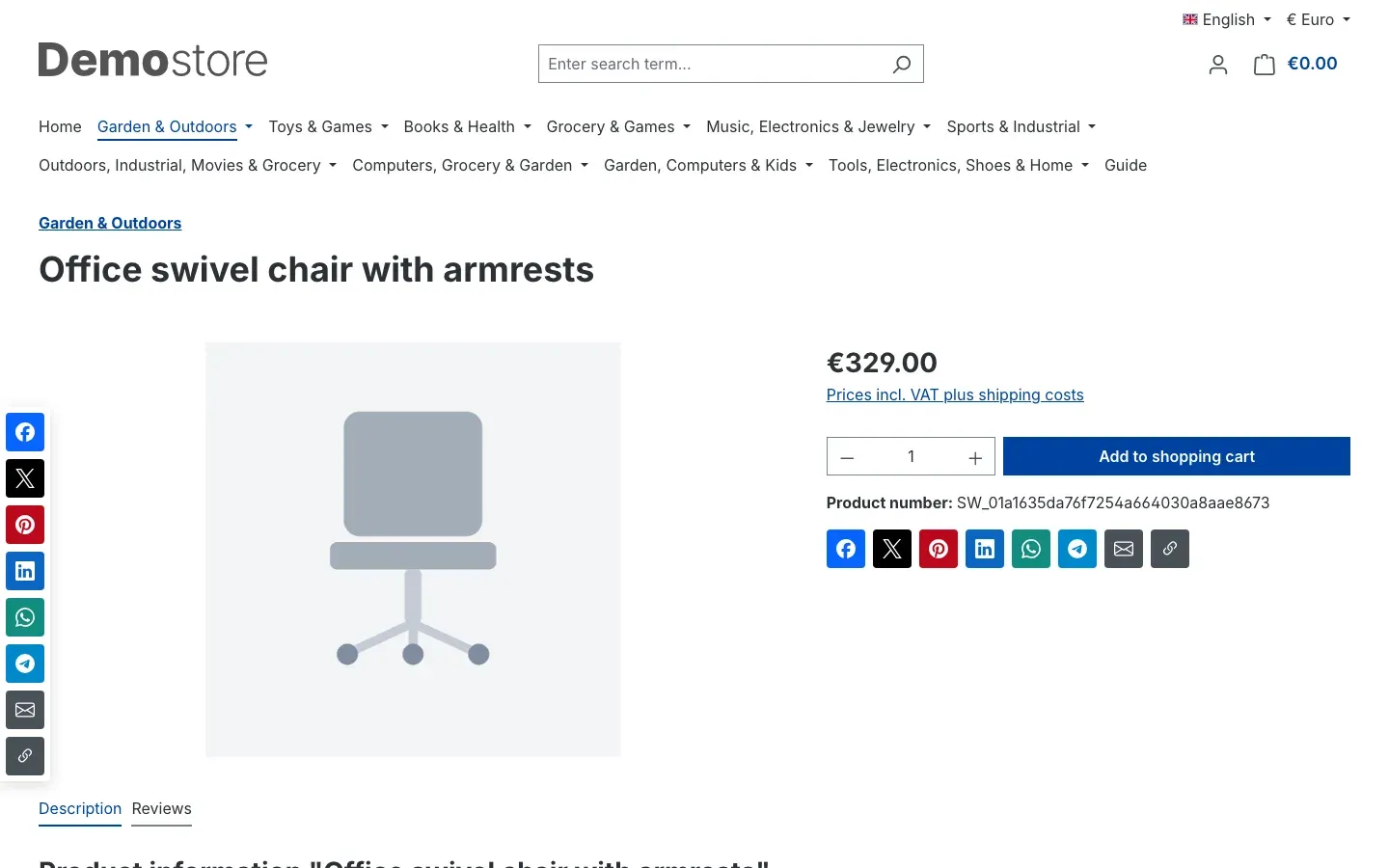 Fig. 18: Global bar “Fixed on the left edge” — here in addition to the buttons on the product page
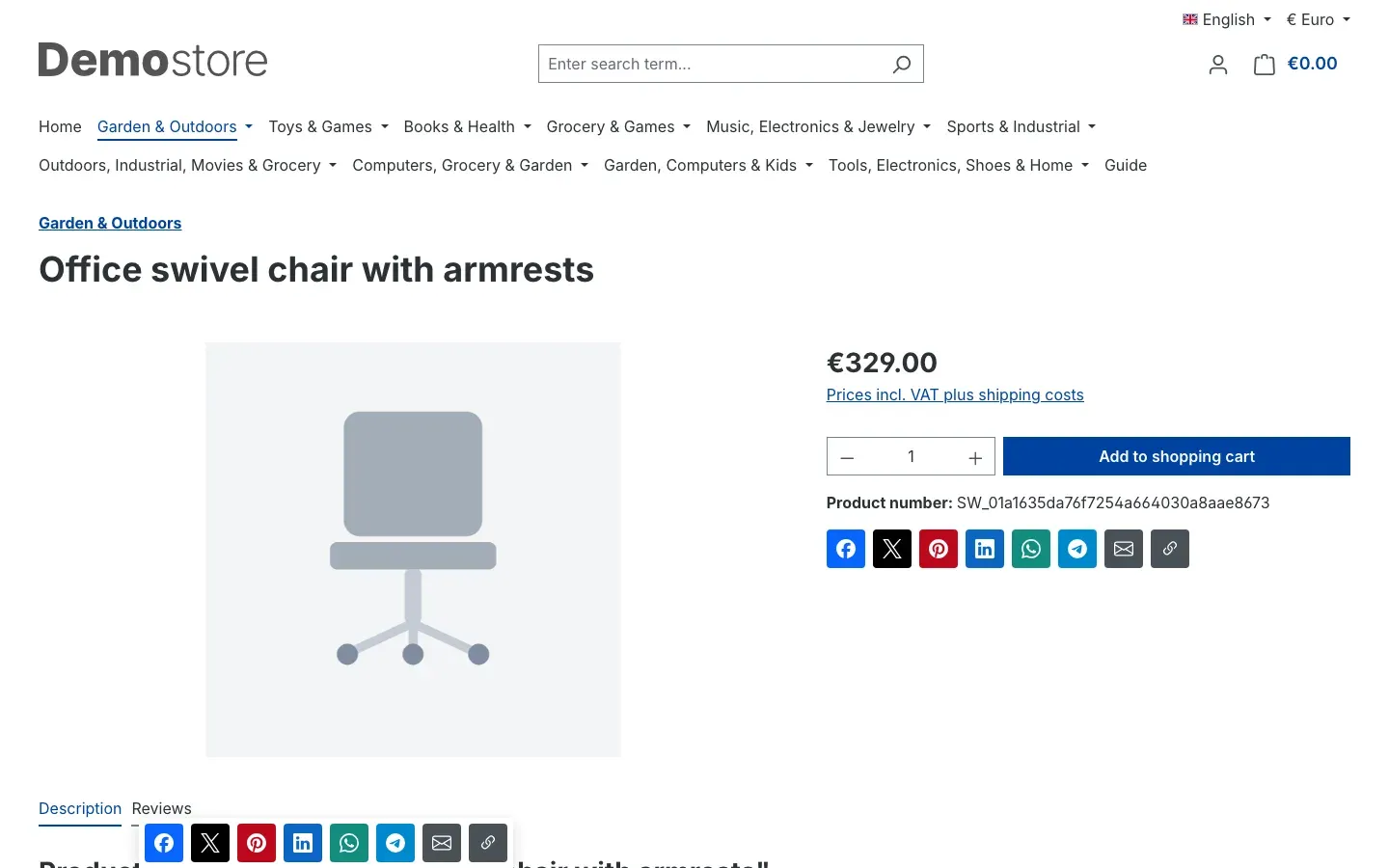 Fig. 19: Global bar “Fixed at the bottom edge”
Important: The global bar never appears in the checkout, the customer account, the wishlist or the search — these pages are personal and are not meant to be shared.
What your visitors experience when sharing
What this does for you: You know what happens after the click and can answer your customers’ questions.
- Before the click the page loads nothing from the networks. The buttons are normal links and also work without JavaScript.
- After clicking a network, its share dialog opens — in a popup window or in a new tab, depending on your setting. Only now does the visitor get in touch with the network.
- What gets shared is the address of the current page, without filter or campaign information from the address bar. If Add UTM parameters to shared links is on, your own campaign information is added.
- Copy link confirms the click with a short message below the buttons:
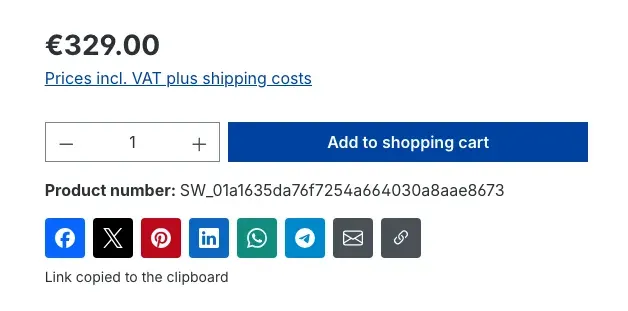 Fig. 20: Message “Link copied to the clipboard”
How to switch from the Shariff plugin by netzperfekt
What this does for you: You replace the discontinued plugin with a maintained solution without your customers missing their share buttons.
- Install and activate Shariff Social Sharing as described in Installation.
- Set up services, placement and design. The settings of the old plugin are not taken over — best write them down beforehand.
- Then deactivate the old plugin under Extensions → My extensions so that the buttons do not appear twice.
- Check product pages, shopping experiences and the end of your shop pages.
Troubleshooting
The buttons do not appear in the shop
Possible causes: The plugin is switched off for the sales channel, no service is selected, the relevant placement is switched off — or the cache still shows the old state.
How to fix it:
- Open Extensions → My extensions and check that the switch next to Shariff Social Sharing is on.
- Open the plugin configuration and select the affected Sales Channel at the top. Check Enable plugin for this sales channel and that at least one service is selected under Services (in display order).
- In the Placement area, check the switch for the affected page. On the home page, Hide on the home page prevents the buttons below the content and the global bar.
- Clear the cache: Settings → System → Caches & indexes → Clear cache.
The “Copy link” or “Share via app” button is missing
Cause: Both buttons need JavaScript. In addition, Copy link only appears if your shop is served via HTTPS. Share via app only appears in browsers that offer the device’s share dialog — mainly on smartphones and tablets.
How to fix it: Make sure your shop runs on HTTPS. For Share via app no change is needed — the button appears automatically on suitable devices.
The Threema button does nothing
Cause: Threema links open the Threema app. If it is not installed on the device, nothing happens.
How to fix it: Nothing to do — or remove Threema (app only) from the services if your customers rarely use the app.
The fixed bar is missing on smartphones
Cause: Hide the fixed bar on smartphones is switched on (default).
How to fix it: Switch the setting off if the bar should also appear on smartphones. Then check that it does not cover any content.
Labels and heading are missing in the fixed bar
Cause: This is intended. A fixed bar always shows icons only, so that it stays narrow.
How to fix it: No change needed. If you need labels, choose Above the footer under Global bar.
The share dialog opens in a new tab instead of a popup
Cause: On smartphones and tablets, with blocked popups or without JavaScript a new tab always opens. The same applies if Open share dialogs in a popup window is switched off.
How to fix it: No change needed — sharing works in both cases.
FAQ
Q: Does the plugin load scripts or cookies from Facebook, X & Co.?
A: No. The buttons are ordinary links. When a page loads, your shop transfers no data to the networks, and the plugin sets no cookies. Only when a visitor clicks a button does the page of the chosen network open.
Q: Can I change the order of the buttons?
A: Yes. The buttons appear in the order in which you selected the services. Remove a service and add it again, and it moves to the end.
Q: Does the plugin show how often a page has been shared?
A: No. For that your shop would have to query the networks on every page view — which is exactly what the plugin avoids.
Q: Can I show different buttons in each sales channel?
A: Yes. Select the sales channel at the top of the plugin configuration and set your own values there.
Q: Can I show the buttons only in a specific shopping experience?
A: Yes. Switch off the automatic placements you do not need and place the Share buttons block only in the layouts you want (see How to place the buttons in shopping experiences).
Q: Does the plugin also work with a headless frontend?
A: Yes. For frontends that do not use the Shopware Storefront, the plugin provides the ready-made share links via an interface. Details for your developers are in For administrators / Technical details.
Q: What happens to the share buttons in my shopping experiences if I uninstall the plugin?
A: If you choose Remove all app data permanently when uninstalling, the plugin removes the Share buttons blocks from your layouts. Without this option they remain in your layouts and are shown again as soon as the plugin is installed and activated again.
For administrators / Technical details
This section is aimed at technical administrators. You do not need it for normal use.
System requirements
- Shopware: 6.7 from version 6.7.11 — the plugin uses the Storefront component system, which only exists since 6.7.11
- PHP: 8.2 or newer
- Database: as required by Shopware 6.7
Activation via the command line
If the plugin is already in the shop (for example after purchasing it via the Shopware account), you can also activate it on the console:
php bin/console plugin:refresh
php bin/console plugin:install SwpShariffSix --activate
php bin/console cache:clear
Storefront snippets
All texts of the share bar are found under Settings → Localisation → Snippets in the swpShariff area. The “Share” heading is the snippet swpShariff.headline. The names of the networks are not translated.
How the share links are created
- The server creates the links while building the page. Icons are embedded directly in the page as graphics; no files are loaded from any network.
- The canonical address of the page is shared, without query parameters.
- JavaScript is only needed for popup windows, print, copy link and the device’s share dialog. Without JavaScript the network and email links remain usable; the other buttons are then not shown.
- With UTM parameters switched on, every link carries
utm_source(service),utm_medium(social, for emailemail) andutm_campaign(value of UTM campaign). - Besides the checkout, customer account, wishlist and search, the global bar is also excluded from the maintenance page and the payment pages.
- Shop colour (primary colour of the theme) reads the primary colour of the active theme at runtime; no further step is needed after a theme change.
Headless frontends (Store API)
For frontends that use the Store API (for example Shopware Composable Frontends), the route /store-api/swp-shariff/share-bar (GET or POST) returns the ready-made buttons for an address:
- Parameters:
url(required, absolute http(s) address, at most 2,048 characters),title(optional, at most 300 characters),media(optional, image address for Pinterest) - Response: the display values of the sales channel and the list
buttonswith service, kind, link, colour and icon. If the plugin is switched off in the channel,activeis false and the list is empty. - Invalid parameters are answered with HTTP 400.
In the frontend the shopping experience element is called CmsElementSwpShariff, the block CmsBlockSwpShariff. The element delivers no data, because the buttons depend on the address of the page: the frontend component calls the route with the current address and applies the element settings to the display.
Icon licences
The icons come from Simple Icons (CC0 1.0) and Bootstrap Icons (MIT). The licence texts are located in the plugin under src/Resources/LICENSES/.
This manual was written for Shariff Social Sharing version 6.7.0.
More manuals
Address Validation: House Number Check & Corrections
Address validation at the point of entry: the plugin spots missing house numbers, can suggest corrections via Google and helps you send fewer parcels that come back undeliverable.
Open manual Shopware 6Admin Password Reminder
Admin Password Reminder: your backend users renew their passwords on time, prompted after login and by a daily email. Premium locks expired accounts until the password is changed.
Open manual Shopware 6Advent Calendar | Doors with products, coupons and promotions
Advent calendar for your shopping experiences: doors open on time without clearing the cache, give nothing away in the page source and reveal coupons, products or your own content.
Open manualNeed a team that keeps your shop running?
We have been maintaining Shopware shops for more than 20 years, including updates, hotfixes and the plugins you are configuring right now.