Resource calculation: StoneX rate import
StoneX rate import for the resource calculation: instead of typing rates in by hand, the plugin fetches the ask rate per currency pair from StoneX and writes it to your resource rates.
On this page
- Introduction
- What you achieve with this plugin
- Who is this plugin for?
- What you need
- Installation
- Getting started
- Settings
- Which sales channel the settings apply to
- Open documentation
- Fetch rates from StoneX
- Fetch interval (minutes)
- Fetch interval per customer type
- Data URL
- Token ID
- How to prepare your resource rates for the import
- How the import recognises your rate entries
- Connect an existing rate entry to StoneX
- Supply dealers and other customer types
- If you do not know the pairs of your access yet
- How the rate import works
- What the import writes to your resource rates
- New pairs, new rate entries
- What happens to invalid rates
- When your customers see the new rate
- Selling and buying back at the same rate
- How to check that the import is running
- How to switch over from an earlier version
- Troubleshooting
- The rates do not change
- The import creates new entries instead of updating mine
- A pair never receives a rate
- The dealer rate was overwritten
- The prices do not match the imported rate
- Sorting by price, price filters or exports show old prices
- A change to the fetch interval has no effect
- The configuration or the plugin is missing
- FAQ
- For administrators / Technical details
- System requirements
- Installation via the command line
- Fetching through the scheduled task
- Fetching by command or crontab
- Messages and exit codes of the command
- Request and answer format
- What the import writes
- Log
- Privacy and settings
- Update from versions before 6.7.0
- Deactivating and uninstalling
Introduction
With Resource calculation: StoneX rate import you fetch your resource rates from StoneX instead of typing them into the resource rates of the resource calculation by hand. For each currency pair, the plugin fetches the ask rate and writes it into the matching rate entries at the pace you set.
What you achieve with this plugin
- Nobody types in rates any more. They go straight into the resource rates under Catalogues → Resource calculation → Resource rates.
- You set the pace: from every 5 minutes up to once a day.
- One fetch supplies every customer type. Dealer and consumer entries with the same code get the same rate. Different terms stay where they always were: in the rate adjustment.
- Bad values never break a price. A rate of zero, a negative rate or a value that cannot be read is discarded, and the stored rate stays.
- If you also run the Product buyback plugin, your calculated buyback prices follow the imported rate too.
- You control the connection. Fetching is off out of the box. Only when you switch it on does your shop contact StoneX.
Who is this plugin for?
For shops that calculate their prices with the resource calculation and get their rates from StoneX — for example precious metal dealers selling bars and coins.
What you need
- The Resource calculation plugin, version 6.7, installed and active. The rate import writes into its resource rates. Without the resource calculation, there is nowhere to write the rates.
- Access to the StoneX rate interface: the Data URL, meaning the address of the rate interface, and the Token ID. You get both from StoneX, not with the plugin. Which rates your access includes and what it costs is something you agree with StoneX directly.
- A server that starts the fetch regularly. Your IT team sets this up (For administrators / Technical details).
Good to know: How to set up resource rates, customer types, products and the price calculation is described in the resource calculation manual: https://www.bui-hinsche.com/en/documentation/resource-calculation. This manual only covers what the rate import adds.
Installation
After your purchase, the plugin is available directly in your Administration — there is nothing to download.
- Log in to your Shopware Administration (
yourstore.com/admin). - Open Extensions → My extensions.
- Check that Resource calculation is installed and active. If it is not, install and activate it first. The rate import builds on it.
- Click Install next to Resource calculation: StoneX rate import.
- Activate the plugin with the switch to the left of the plugin icon — done.
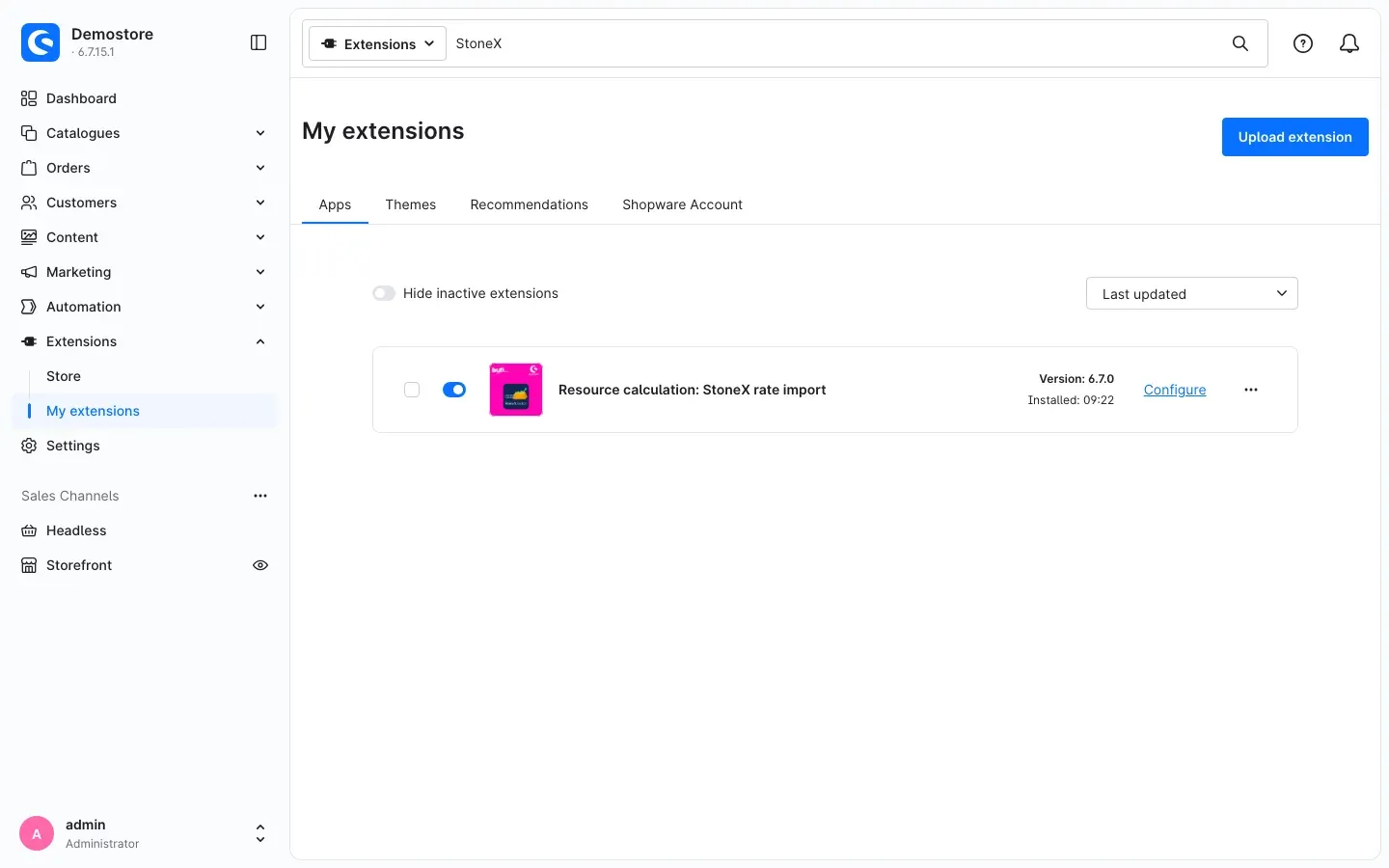 Fig. 1: Resource calculation: StoneX rate import under My extensions — installed and active
After installation, fetching is switched off. Your shop only connects to StoneX once you switch on Fetch rates from StoneX (Settings).
If Resource calculation: StoneX rate import does not appear in the list, your Shopware account is not yet connected to the shop. You do this under Extensions → My extensions on the Shopware Account tab by logging in with your Shopware account.
Getting started
Five steps bring the first rates from StoneX into your shop:
- Have your access data ready: Keep the Data URL and the Token ID from StoneX at hand.
- Prepare your resource rates: Under Catalogues → Resource calculation → Resource rates, enter the currency pair in the Code field of every entry that should get its rate from StoneX, for example XAUEUR (How to prepare your resource rates for the import).
- Enter your access data: Under Extensions → My extensions, click Configure next to Resource calculation: StoneX rate import. On the Access data card, enter the Data URL and the Token ID (Settings).
- Switch on fetching: On the Rate import card, switch on Fetch rates from StoneX, set the Fetch interval (minutes) and click Save in the top right corner.
- Check the result: Once the first fetch has run, open the resource rates. The Current rate and Last changed columns show you that the import has done its work (How to check that the import is running). Your IT team can also start the first fetch by hand straight away.
Tip: Run your first fetch with your own access in a test shop, then check the log together with your IT team. This way you can see which pairs your access delivers and which entries the import creates before it writes rates in your live shop.
Settings
To open the settings, go to Extensions → My extensions and click Configure next to Resource calculation: StoneX rate import. After each change, click Save in the top right corner.
Which sales channel the settings apply to
At the top of the page, Shopware offers the Sales Channel selection. Leave it at All Sales Channels and enter everything there. Rates do not belong to any sales channel, so the settings of this plugin apply to your whole shop. Values you enter for a single sales channel only are not used by the plugin.
In which sales channel prices are calculated from the rates is still decided by the Enable plugin for this sales channel switch of the resource calculation.
Open documentation
The Open documentation button at the very top of the Rate import card takes you straight to this manual online.
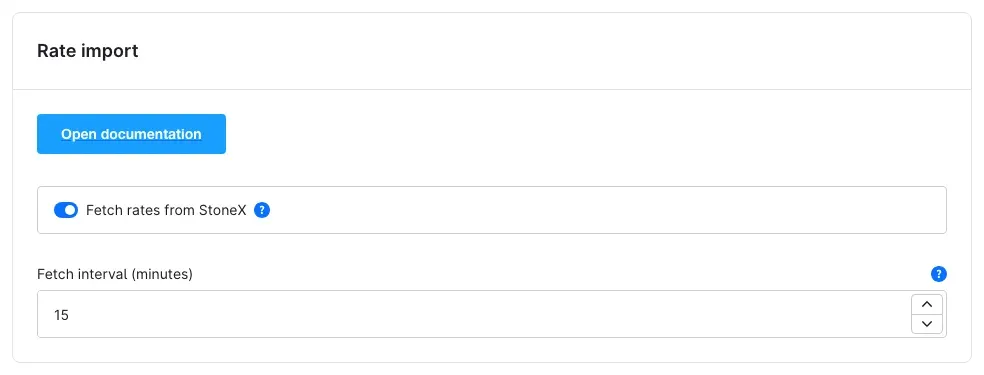 Fig. 2: The Rate import card with the Open documentation button, the switch Fetch rates from StoneX turned on and a fetch interval of 15
Fetch rates from StoneX
The Fetch rates from StoneX switch defines whether your shop fetches rates from StoneX. Switched on, the scheduled task and the command resourcecalc:stonex:import connect to StoneX with the details from the Access data card. Switched off, no connection to StoneX is made. The switch is off by default.
Why this is useful: You switch on fetching only once your access data and your resource rates are prepared. To pause the import, switch it off again. Your rates then stay as they were last imported, and you can maintain them by hand as usual.
Fetch interval (minutes)
The Fetch interval (minutes) field defines how often the scheduled task fetches the rates. Values from 5 to 1440 minutes are allowed; the default is 15. With 60 you fetch the rates every hour, with 1440 once a day. If the field stays empty, 15 applies.
A change does not take effect immediately: it applies from the run after the next one of the scheduled task.
The interval requires a running worker for scheduled tasks on your server. If your IT team starts the command through a crontab, it only fetches what is due by the schedule (For administrators / Technical details).
Why this is useful: You match the pace to how often you need a fresh rate. One rate a day is enough? Use 1440. Want to sell close to the market? Go down to 5 minutes.
Fetch interval per customer type
The resource calculation can hold its own Fetch interval (seconds) for single customer types (Catalogues → Resource calculation → Customer types). This plugin then fetches the rates of such a customer type at the interval entered there; all other customer types get their rates at the interval here. The scheduled task then runs at the shortest of these intervals, at most every 5 minutes.
For intervals below 5 minutes, your IT team starts the command resourcecalc:stonex:import every minute through a system cron job:
* * * * * cd /path/to/store && php bin/console resourcecalc:stonex:importThe command then fetches all rates that become due within the minute — several times for intervals below one minute. Command and scheduled task share the schedule: each rate is fetched only once per interval, whichever way runs. If nothing is due, the command ends at once with a notice. With php bin/console resourcecalc:stonex:import --force you fetch the rates for all customer types at once.
Data URL
On the Access data card, enter the address of the StoneX rate interface under Data URL. You get it from StoneX.
- If you leave out the protocol, the plugin uses https://.
- Only enter http:// if StoneX offers the interface unencrypted only. The Token ID is then transmitted unencrypted.
- Do not put login data such as a user name or password into the address. The plugin rejects such an address, and the fetch does not start.
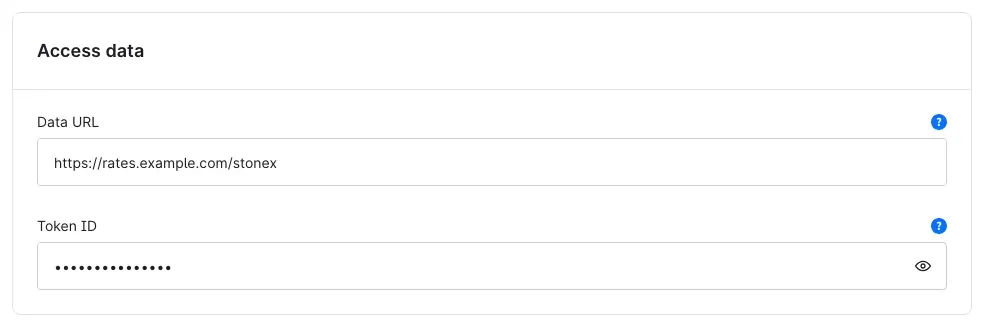 Fig. 3: The Access data card with example values. The Data URL https://rates.example.com/stonex is an example address, not a real StoneX address. The Token ID is masked.
Token ID
Under Token ID, enter the key your shop uses to identify itself to StoneX. You get it from StoneX as well. The plugin sends the Token ID to StoneX with every fetch, but never as part of the address. It never writes it to the log.
If the Data URL or the Token ID is missing, the fetch does not start.
Important: The Administration shows the Token ID masked. It is, however, stored in plain text in your shop’s system configuration. Only give access to the Administration and the database to people you would also trust with the Token ID.
How to prepare your resource rates for the import
What this gives you: The import writes the rate into exactly the entries you intend it for — including the existing entries your products already calculate with. You do not have to change anything on your products.
How the import recognises your rate entries
The answer from StoneX contains one currency pair per rate, for example XAUEUR, together with its ask rate. The import looks for every entry in the resource rates whose Code matches this pair exactly. In the list of resource rates, the code appears in the Resource code column.
Your products, on the other hand, refer to the Internal code field, for example GOLD. The import never touches the internal code of an existing entry. This keeps the link to your products intact.
Important: The resource calculation manual says that the Code field plays no role in the calculation. That is true for the price calculation. For the rate import, however, the code is the key: only entries whose code matches the pair receive the rate from StoneX.
Connect an existing rate entry to StoneX
- Open Catalogues → Resource calculation → Resource rates and the entry there, for example Gold.
- Under Code, enter the currency pair, for example XAUEUR. Write it exactly as it appears in the answer from StoneX.
- Leave the Internal code unchanged, for example GOLD. Your products are linked to it.
- Click Save.
On the next fetch, the entry receives the ask rate in the Current market rate field. The import sets the Currency field to match the pair: the last three letters are the rate currency, so EUR for XAUEUR.
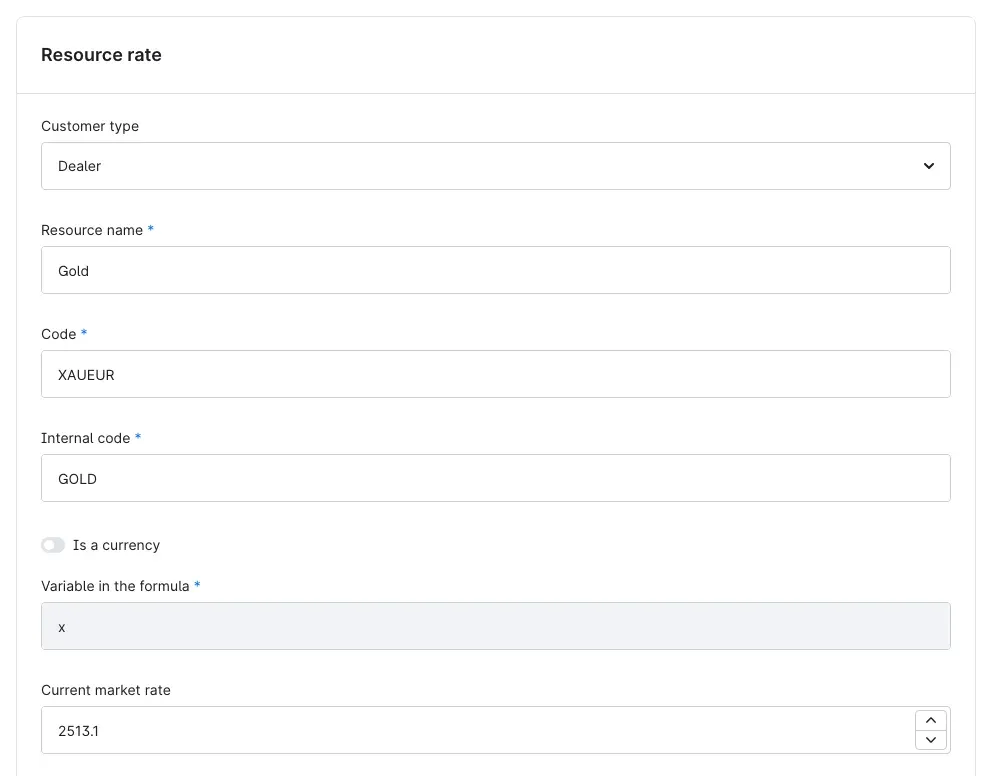 Fig. 4: The rate entry Gold in the customer type Dealer after the import: code XAUEUR, internal code GOLD, current market rate 2513.1
Good to know: The rate values in the figures of this manual are example values, not from StoneX.
Tip: The rate applies to the unit of measure in which your access delivers the rates. Which unit that is, you clarify with StoneX. On the product, the Number of units and the formula need to match it. The resource calculation manual explains how in section 5.1 and chapter 7.
Supply dealers and other customer types
The import writes the rate into every entry with a matching code, in every customer type. If you keep a separate entry for dealers, give it the same code as the entry in the customer type Default. Both then receive the same rate in a single run — unless the dealer customer type has its own fetch interval; then it receives its rate at its own pace. As before, the dealer entry also has the same internal code as the Default entry (resource calculation manual, section 6.2).
A dealer rate you maintain by hand is overwritten by the import. Set the difference between dealers and consumers in the Rate adjustment of the dealer entry instead. In the example, Calculation active is switched on there and Surcharge in percent is set to −1. Dealers therefore calculate with a rate 1 % below the imported market rate.
If an entry should keep a rate you maintain by hand, give it a code that does not appear in the answer from StoneX. The import then leaves it alone.
If you do not know the pairs of your access yet
For every pair without an entry with a matching code, the import creates one new entry in the customer type Default (New pairs, new rate entries). You can use this: run the first fetch in a test shop in which no entry carries such a code yet. Afterwards, every pair of the answer appears as a new entry in the list of resource rates. You then copy the code into your own entries.
Tip: Prepare your entries in the live shop before you switch on fetching there. Otherwise the import first creates an additional entry for every pair, and your own entries do not receive a rate yet.
How the rate import works
What this gives you: Once you know what the import writes and what it leaves alone, you can trace every rate in your resource rates.
The fetch runs as a scheduled task at your fetch interval, or on command, started by your IT team through a crontab, for example.
What the import writes to your resource rates
With every fetch, the plugin reads the currency pair and the ask rate from each entry in the answer from StoneX. Every rate entry with a matching code then receives:
- the ask rate in the Current market rate field,
- the rate currency, taken from the last three letters of the pair, in the Currency field,
- the time of the import, which you see in the Last changed column.
Resource name, internal code and the rate adjustment settings stay as you created them. The import does not change your shop currencies.
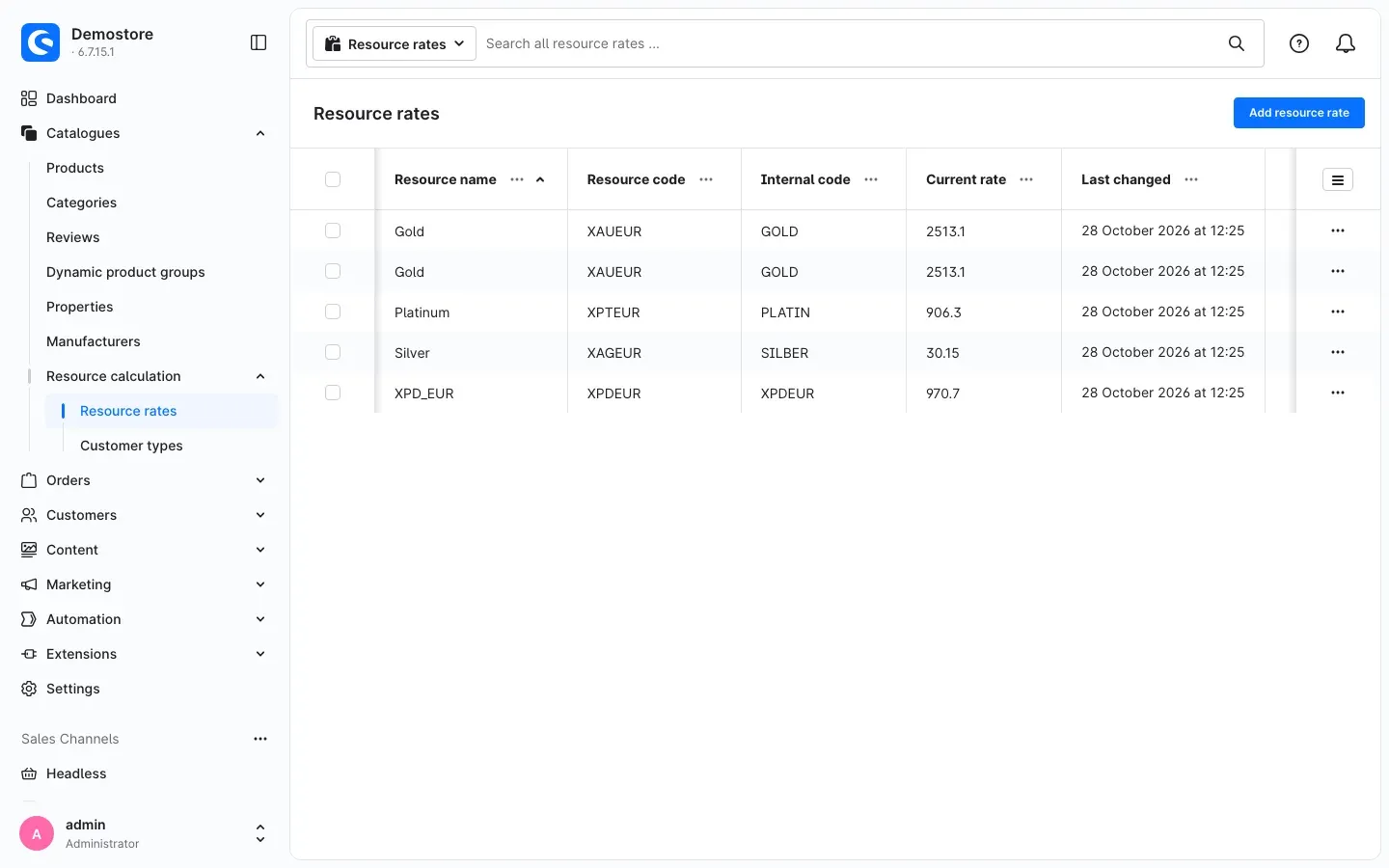 Fig. 5: The resource rates after the import: Gold twice with 2513.1 (customer types Default and Dealer), Silver with 30.15, Platinum with 906.3 and the newly created entry XPD_EUR with 970.7. The Last changed column shows the day of the import.
If a rate is quoted in a currency other than your default currency, the resource calculation converts it with the factor you maintain for that currency in Shopware under Settings → Localisation → Currencies (resource calculation manual, section 5.1). The import does not set this factor.
New pairs, new rate entries
If there is no entry with a matching code for a pair yet, the import creates one new entry:
- Customer type: Default
- Resource name: the pair with an underscore, for example XPD_EUR
- Code and Internal code: the pair, for example XPDEUR
- Variable in the formula: x
- Current market rate: the ask rate
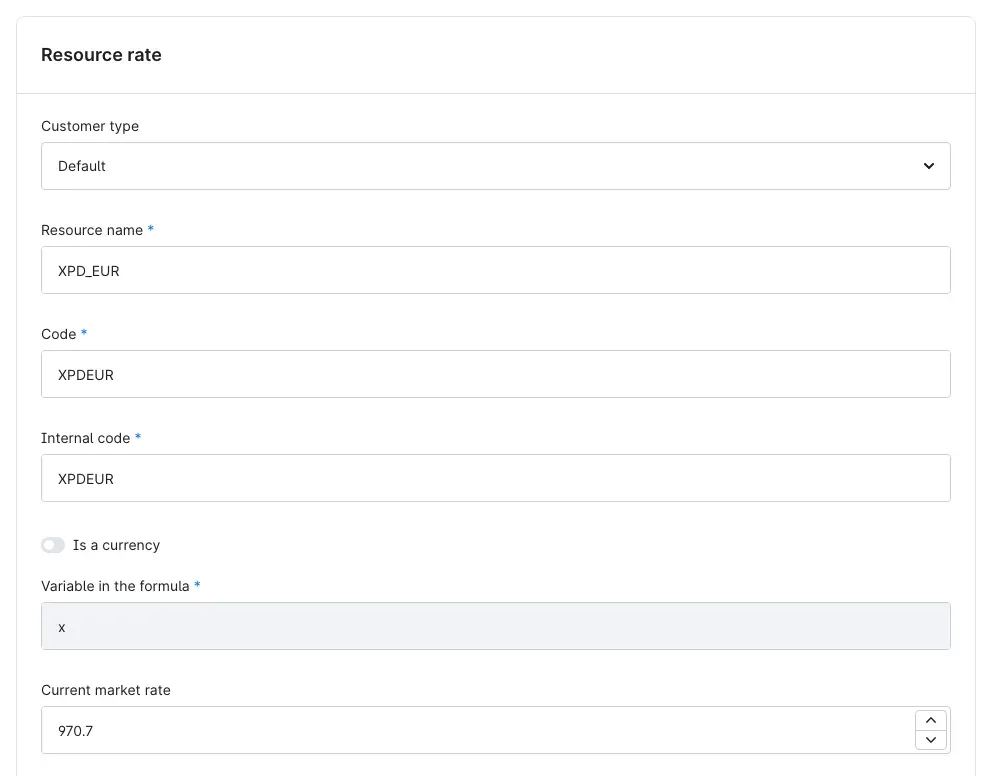 Fig. 6: The entry XPD_EUR created by the import in the customer type Default, with code and internal code XPDEUR, variable x and current market rate 970.7
Such an entry only takes effect once a product uses it as its resource. You have these options:
- Use it: Choose the entry on the product under Resource (resource calculation manual, section 7.2). You may change the resource name, for example to Palladium. The import does not overwrite it.
- Leave it: If you do not need the pair, simply leave the entry where it is. It receives the new rate with every fetch but has no effect on any price.
- Delete it: This achieves little. As long as the pair is in the answer and no other entry carries its code, the next import creates the entry again.
Did the import create an entry although you already have one of your own for this resource? Then your entry was missing the matching code. Add it there (Connect an existing rate entry to StoneX). You can delete the created entry afterwards. Because your own entry now carries the code, the import does not create it again.
Important: If the customer type Default already contains an entry whose internal code matches the pair, the import does not create a second one. It then discards the rate for this pair. In this case, enter the pair as Code in the existing entry.
What happens to invalid rates
- If a rate arrives as zero, negative or not as a number, the import discards it. The stored rate stays. This matters, because without a rate the resource calculation calculates with the value 1.
- Entries in the answer without a currency pair are skipped by the import and noted in the log.
- If StoneX cannot be reached or the answer cannot be read, the import changes nothing in your resource rates. Your IT team finds the reason in the plugin log (For administrators / Technical details).
When your customers see the new rate
The resource calculation recalculates the prices on the product page, in categories and in sliders on every call. Your customers therefore see the new rate on their next page view.
Sorting by price, price filters and exports, however, use the stored product price. The import does not write it. That is still the job of the command resourcecalc:cron of the resource calculation, which your IT team runs regularly (resource calculation manual, chapter 14).
Selling and buying back at the same rate
If you also run the Product buyback plugin and your buyback prices are calculated from the resource rate, they follow the imported rate too. How to set up a calculated buyback price is described in the Product buyback manual, section 6.3. Below the buy box, the product page then shows Current buyback price with the calculated amount. Selling price and buyback price rise and fall with every import, and you never touch a price.
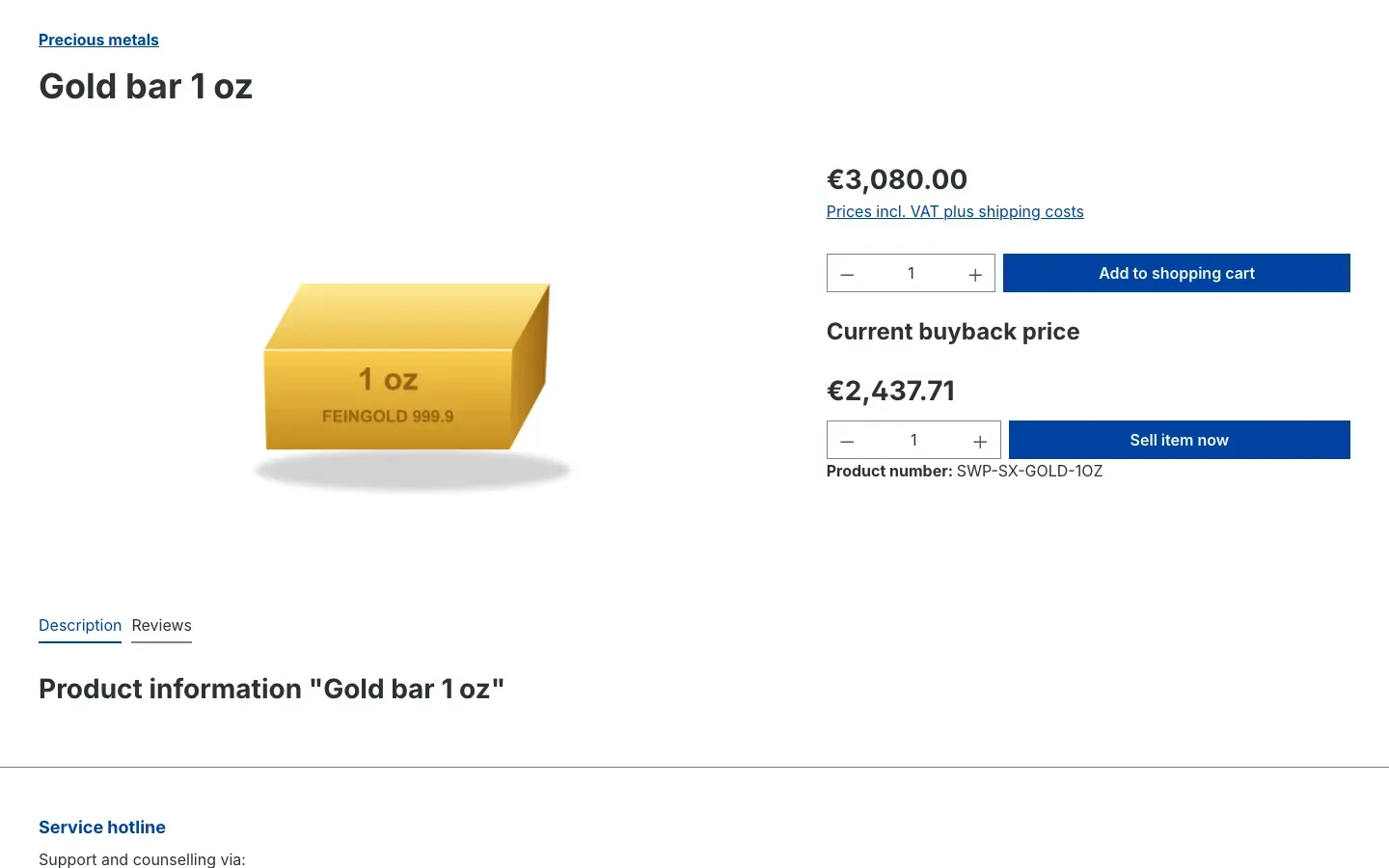 Fig. 7: The product page Gold bar 1 oz with the price calculated from the rate and, below it, “Current buyback price” from Product buyback
How to check that the import is running
What this gives you: You see at a glance whether your rates are fresh — without access to the server.
- Open Catalogues → Resource calculation → Resource rates.
- Look at the Last changed column. For each entry, it shows when its rate was last written. For entries supplied by the import, that is the last fetch.
- Compare the Current rate column with the rates of your StoneX access.
- Look out for new entries with an underscore in the resource name, for example XPD_EUR. They show pairs for which there was no entry with a matching code yet (New pairs, new rate entries).
If Last changed stays the same over several fetch intervals, Troubleshooting helps you further.
The plugin records the details of every fetch in its log: which codes it updated, which it created and how many rates it discarded. Ask your IT team to show you the log after the first fetch (For administrators / Technical details).
How to switch over from an earlier version
What this gives you: Before the update, you know what stays the same and where you should take one look.
If you used the rate import before version 6.7.0, the following applies after the update:
- Fetching keeps running. If a Data URL was entered, the update switches on Fetch rates from StoneX by itself.
- Data URL and Token ID are kept. You do not have to enter them again.
- Your crontab keeps running. The command is now called resourcecalc:stonex:import. The former name resourcecalcstonex:cron keeps working.
- The scheduled task is new. If a worker for scheduled tasks runs on your server, it also fetches the rates at the Fetch interval (minutes). Crontab and scheduled task share one schedule and never fetch twice (For administrators / Technical details).
- The unused switch “Activate plugin for this channel” has been removed.
- The import no longer sets currency factors. Up to version 6.06.00 it also set the exchange factors of USD and EUR and created missing currencies. Since 6.7.0 it no longer does. Check your factors under Settings → Localisation → Currencies and maintain them there yourself.
- New pairs are now created. For pairs without a matching entry, the import now creates one entry in the customer type Default. In earlier versions, this step never took effect. Look at the resource rates after the first fetch (New pairs, new rate entries).
Troubleshooting
The rates do not change
Cause: Usually one of these:
- Fetch rates from StoneX is switched off.
- The Data URL or the Token ID is missing. Or the Data URL is invalid, for example because login data is part of the address.
- Neither a worker for scheduled tasks nor a crontab runs on the server.
- The connection to StoneX fails, or the answer is not a readable rate list.
- No entry in your resource rates carries the matching code. The import then creates new entries instead of updating yours (next section).
How to fix it:
- In the configuration, under All Sales Channels, check whether Fetch rates from StoneX is switched on (Settings).
- Check Data URL and Token ID on the Access data card and compare them with the details from StoneX. The address must contain neither a user name nor a password.
- Ask your IT team to start the fetch once by hand. The command states the reason directly, for example missing access data or a connection error (For administrators / Technical details).
- Ask your IT team to check whether the worker for scheduled tasks or the crontab is running.
The import creates new entries instead of updating mine
Cause: The Code of your entry does not match the pair in the answer from StoneX. For a pair without a matching code, the import creates a new entry in the customer type Default.
How to fix it: Copy the Code from the created entry into your own entry, for example XAUEUR (Connect an existing rate entry to StoneX). You can delete the created entry afterwards.
A pair never receives a rate
Cause:
- The customer type Default already contains an entry with the pair as its internal code, but with a different code. The import then discards the rate (New pairs, new rate entries).
- The rate arrives as zero, negative or not as a number. The import then discards it, and the stored rate stays.
- The pair is not in the answer of your access. Which pairs your access includes is down to StoneX, not the plugin.
How to fix it: Enter the pair as Code in the existing entry. Discarded rates are also noted by the resource calculation in its own log — your IT team can look up the reason there (For administrators / Technical details). If the pair is missing from the answer, contact StoneX.
The dealer rate was overwritten
Cause: The dealer entry carries the same code as the Default entry. It then receives the same imported rate with every fetch.
How to fix it: Set the difference in the Rate adjustment of the dealer entry. If the entry should keep a rate you maintain by hand, give it a code that does not appear in the answer from StoneX (Supply dealers and other customer types).
The prices do not match the imported rate
Cause: Usually the unit of measure, the currency or the rate adjustment do not fit together.
How to fix it:
- Check whether Number of units and the formula on the product match the unit of measure of your StoneX rate (Connect an existing rate entry to StoneX).
- Check the factor of the rate currency under Settings → Localisation → Currencies. The import does not set it.
- Check the rate adjustment: surcharges and fallback rate change the rate before it goes into the formula.
- The resource calculation manual describes further causes in chapter 11.
Sorting by price, price filters or exports show old prices
Cause: These functions read the stored product price. It is not written by the import but by the command resourcecalc:cron of the resource calculation.
How to fix it: Ask your IT team to run this command regularly, for example shortly after the rate import (resource calculation manual, chapter 14).
A change to the fetch interval has no effect
Cause: The scheduled task does not pick up a new interval immediately; it applies from the run after its next one. If your IT team starts the fetch through a crontab, the pace of the crontab applies anyway.
How to fix it: Wait for a few fetches. If the fetch runs through a crontab, ask your IT team to adjust the pace there.
The configuration or the plugin is missing
Cause: The plugin has probably not been activated yet, the resource calculation is not active, or the cache is outdated.
How to fix it:
- Open Extensions → My extensions.
- Check whether the switches next to Resource calculation and next to Resource calculation: StoneX rate import are on.
- Clear the cache: Settings → System → Caches & indexes → Clear cache.
FAQ
Q: What do I need from StoneX?
A: A Data URL, meaning the address of the StoneX rate interface, and a Token ID. You get both from StoneX, not with the plugin. Which rates your access includes and what it costs is something you agree with StoneX directly.
Q: Which rates does the plugin fetch?
A: Whatever the answer of your access contains: one currency pair per entry together with its ask rate. Which pairs those are is down to your access with StoneX, not the plugin.
Q: Does the plugin work without the resource calculation?
A: No. The plugin writes the rates into the resource rates of the resource calculation. Without the resource calculation 6.7, installed and active, there is nowhere to write them.
Q: Which rate entries receive the new rate?
A: Every entry in the resource rates whose code matches the currency pair, in every customer type. For a pair without a matching entry, the import creates one new entry in the customer type Default.
Q: Can I exclude individual pairs from the import?
A: No, there is no setting for that. A pair you do not need ends up once as an entry of its own in the customer type Default. As long as no product uses this entry, it has no effect on any price.
Q: Can I still maintain rates by hand?
A: Yes. The import leaves entries alone whose code does not appear in the answer from StoneX. Entries with a matching code are overwritten on the next fetch. If Fetch rates from StoneX is switched off, you maintain all rates by hand.
Q: Do my product prices change straight away?
A: The prices shown in the shop do, on the next page view. The resource calculation recalculates them on every call with the current rate. Sorting by price, price filters and exports catch up once the command resourcecalc:cron of the resource calculation has run.
Q: Does the plugin also update my shop currencies?
A: No. The import only writes resource rates. You maintain the exchange factors of your currencies in Shopware under Settings → Localisation → Currencies.
Q: What happens if a rate is missing or StoneX cannot be reached?
A: A rate of zero, a negative or a non-numeric value is discarded and the stored rate stays. If StoneX cannot be reached or the answer cannot be read, the import changes nothing. Your IT team finds the reason in the plugin log.
Q: Can I control fetching per sales channel?
A: No. Rates have no sales channel, so the settings apply to the whole shop. In which sales channel prices are calculated from the rates is still decided by the switch of the resource calculation.
Q: Is any data sent to external services?
A: Yes, to StoneX, and only there. The plugin calls only the Data URL you entered, only while fetching is switched on, and sends the Token ID with it. No customer data or personal data leaves your shop. The plugin sets no cookies.
Q: What happens when I uninstall the plugin?
A: The plugin creates no tables of its own. Shopware removes the configuration unless you keep the data. The imported rates stay in the resource rates of the resource calculation, where you can keep maintaining them by hand.
For administrators / Technical details
This section is intended for technical administrators. You do not need it for normal use.
System requirements
- Shopware: 6.7.7 or later (required by Resource calculation)
- PHP: 8.2 or later
- Resource calculation (
SwpResourceCalcSix) 6.7, installed and active - The server must be able to reach the Data URL you entered.
Installation via the command line
If the plugin is already in the shop, install and activate it like this. Skip the second line if the resource calculation is already active:
php bin/console plugin:refresh
php bin/console plugin:install --activate SwpResourceCalcSix
php bin/console plugin:install --activate SwpResourceCalcStonexSix
php bin/console cache:clear
Fetching through the scheduled task
The scheduled task is called swp.resource_calc_stonex.rate_import; its default interval is 900 seconds. On every run, it applies the configured Fetch interval (minutes) (5 to 1440) to its entry in the scheduled_task table if the value has changed. Because the scheduler has already calculated the next run, a changed interval only applies from the run after the next one.
It requires a running scheduler with a worker, for example:
php bin/console scheduled-task:run
php bin/console messenger:consume
If fetching is switched off, the task makes no connection. If access data is missing, it writes a warning to the log. Connection and format errors are logged as errors.
Fetching by command or crontab
php bin/console resourcecalc:stonex:importThe former name resourcecalcstonex:cron keeps working. Example crontab line for every 15 minutes:
*/15 * * * * cd /path/to/store && php bin/console resourcecalc:stonex:importChoose one way: if the worker for scheduled tasks also runs, the scheduled task fetches at the fetch interval as well. The stored product prices are still written by php bin/console resourcecalc:cron of the resource calculation, with a crontab line of its own (resource calculation manual, chapter 14).
Messages and exit codes of the command
| Situation | Output | Exit code |
|---|---|---|
| Fetching switched off | Warning Fetching rates from StoneX is switched off in the plugin configuration. No connection was made. | 0 |
| Access data incomplete or Data URL invalid | StoneX access data incomplete, missing: url, token (lists what is missing) | 1 |
| Connection failed | StoneX request to <host> failed: <reason> | 1 |
| HTTP status outside 2xx | StoneX (<host>) answered with HTTP status <status> | 1 |
| Answer is not a rate list | StoneX response is not a rate list: <reason> | 1 |
| Rates written | Overview with Updated codes, Created codes and Discarded quotes, followed by StoneX rates imported. Product prices are stored by the command resourcecalc:cron. | 0 |
| Answer read, but no rate written | The same overview, followed by the warning No rate was written. Details: log file SwpResourceCalcSix of the resource calculation. | 1 |
A Data URL counts as invalid if it contains a user name or password, or if it does not use http:// or https://.
Request and answer format
- Request:
GETto the Data URL with the headersTokenID: <Token ID>andAccept: application/json. Without a protocol,https://is prepended. - Expected answer: JSON with the list
result, each entry withPairandAsk:
{
    "result": [
        { "Pair": "XAUEUR", "Ask": 2513.1 },
        { "Pair": "XPDEUR", "Ask": 970.7 }
    ]
}- Mapping: code =
Pair. Resource name when created =Pairwith an underscore after the third character (XAU_EUR). Rate currency = last three characters in upper case. Rate =Askas a number or numeric text; anything else is passed on as 0 and discarded. - Entries without
Pairare skipped (warning in the log). If the answer contains no entry withPair, it counts as invalid. - Limits per fetch: 10 seconds per connection, 30 seconds in total, an answer of at most 5 MB, at most 3 redirects.
- The plugin reads the format that earlier versions already read. The import was tested against simulated answers in this format. Run the first fetch with real access in a test shop for this reason.
What the import writes
- Writes go exclusively through the rate import of the resource calculation into its resource rates, in one write per fetch.
- Matching is based on the Code field (
resourceCode) across all customer types. Rate, rate currency and change time are written. - Unknown codes are created once in the customer type Default (internal code = code, variable x). If that internal code is already taken there, the rate is discarded.
- Rates of zero, negative and non-numeric rates are discarded; the stored rate stays. The resource calculation logs the reason.
- Shop currencies and stored product prices stay untouched.
- The only other write is the interval of the scheduled task.
Log
The plugin writes to var/log/SwpResourceCalcStonexSix-<date>.log:
StoneX rates imported— summary of every import with the number of rates, updated and created codes, and discarded rates with their reasonStoneX rate import skipped: access data incomplete— missing access dataStoneX rates could not be fetched— connection error with host name and error codeStoneX response could not be read— unreadable answerStoneX rate skipped: Pair missing— skipped entry with its position
Discarded rates are also listed in var/log/SwpResourceCalcSix-<date>.log of the resource calculation. Only the host name of the Data URL is logged, never the Token ID. How long Shopware keeps the files is set by the Shopware parameter shopware.logger.file_rotation_count.
Privacy and settings
- External call only to the Data URL you entered, and only while Fetch rates from StoneX is switched on. The Token ID is sent as a header; no customer data and no personal data are sent.
- No storefront extension, no cookies.
- The Token ID is masked in the Administration but stored in plain text in the system configuration.
- The settings are read without a sales channel, that is from All Sales Channels. Values for individual sales channels have no effect.
Update from versions before 6.7.0
- The Data URL and Token ID settings keep their values.
- The former channel switch is removed from the configuration.
- If a Data URL is entered, the update switches on Fetch rates from StoneX.
- If the switch is missing from the configuration altogether, for example because the plugin code was replaced without a plugin update, an entered Data URL means fetching is on.
Deactivating and uninstalling
- Deactivate: The plugin no longer fetches rates. The imported rates stay in the resource rates.
- Uninstall: The plugin has no tables of its own. Shopware removes the configuration including the Token ID unless you keep the data; Shopware also removes the scheduled task. The imported rates and the entries created by the import stay in the resource rates of the resource calculation.
This manual was written for Resource calculation: StoneX rate import version 6.7.0.
More manuals
Address Validation: House Number Check & Corrections
Address validation at the point of entry: the plugin spots missing house numbers, can suggest corrections via Google and helps you send fewer parcels that come back undeliverable.
Open manual Shopware 6Admin Password Reminder
Admin Password Reminder: your backend users renew their passwords on time, prompted after login and by a daily email. Premium locks expired accounts until the password is changed.
Open manual Shopware 6Advent Calendar | Doors with products, coupons and promotions
Advent calendar for your shopping experiences: doors open on time without clearing the cache, give nothing away in the page source and reveal coupons, products or your own content.
Open manualNeed a team that keeps your shop running?
We have been maintaining Shopware shops for more than 20 years, including updates, hotfixes and the plugins you are configuring right now.