
Time-based Surcharge for Resource Calculation
Time surcharge for Resource Calculation: at times you set, say overnight or at weekends, the plugin adds a fixed amount or a percentage to your sales price.
On this page
- Introduction
- What you achieve with this plugin
- What you need
- Who is this plugin for?
- Installation
- Getting started
- Settings
- Sales Channel
- Open documentation
- Enable plugin for this sales channel
- How to use the features
- How to enter a time-based surcharge
- How to write the times
- How the surcharge affects the price
- How to check the result in your shop
- Troubleshooting
- The plugin cannot be activated
- The tab “Time-based surcharge (sale only)” is missing
- The price in the shop does not include a surcharge
- An entry in the times field has no effect
- Sorting or the price filter use the price without surcharge
- The surcharge is much higher or lower than expected
- FAQ
- For administrators / Technical details
- System requirements
- Installation via the command line
- Traceability on the order
- Log file for unreadable time entries
- Stored prices
- Time zone
- Deactivating and uninstalling
- Data protection
Introduction
Time-based Surcharge for Resource Calculation helps you raise your sales price automatically at fixed times, for example overnight, at weekends or on bank holidays. You no longer have to change prices by hand and set them back later.
In the Shopware Store the plugin is called “Resource Calculation Time Surcharge”. In your administration it appears as “Time-based Surcharge for Resource Calculation”.
What you achieve with this plugin
- You set a surcharge on a price row of your products: as a fixed amount or as a percentage.
- You write the times at which it applies as short text in one field, for example
Fr, 18:00 - Mo, 09:00for the weekend. - During these times the surcharge is automatically part of the price your customers see on the product page and in the cart. Afterwards the price without surcharge applies again.
- Buyback prices stay untouched. The surcharge only applies to sales.
- For each sales channel you decide whether the surcharge applies there.
What you need
- The Resource Calculation plugin, installed and active. The surcharge is added to the price that Resource Calculation calculates.
- You do not need any other plugins. Product buyback is not required. If you use it, buyback prices stay free of the surcharge.
Who is this plugin for?
For shop owners who calculate their sales prices from a rate with Resource Calculation, for example for precious metals, and who want a buffer in the price at certain times.
Installation
After your purchase the plugin is available directly in your administration. You do not need to download anything.
Important: Install and activate Resource Calculation first. Only then install and activate this plugin.
- Log in to your Shopware administration (
YourShop.com/admin). - Open Extensions → My extensions. You find the plugins on the Apps tab. The search at the top of the page finds the entry quickly, for example with “Time-based surcharge”.
- Next to Time-based Surcharge for Resource Calculation, click Install.
- Activate the plugin with the switch to the left of the entry. Done.
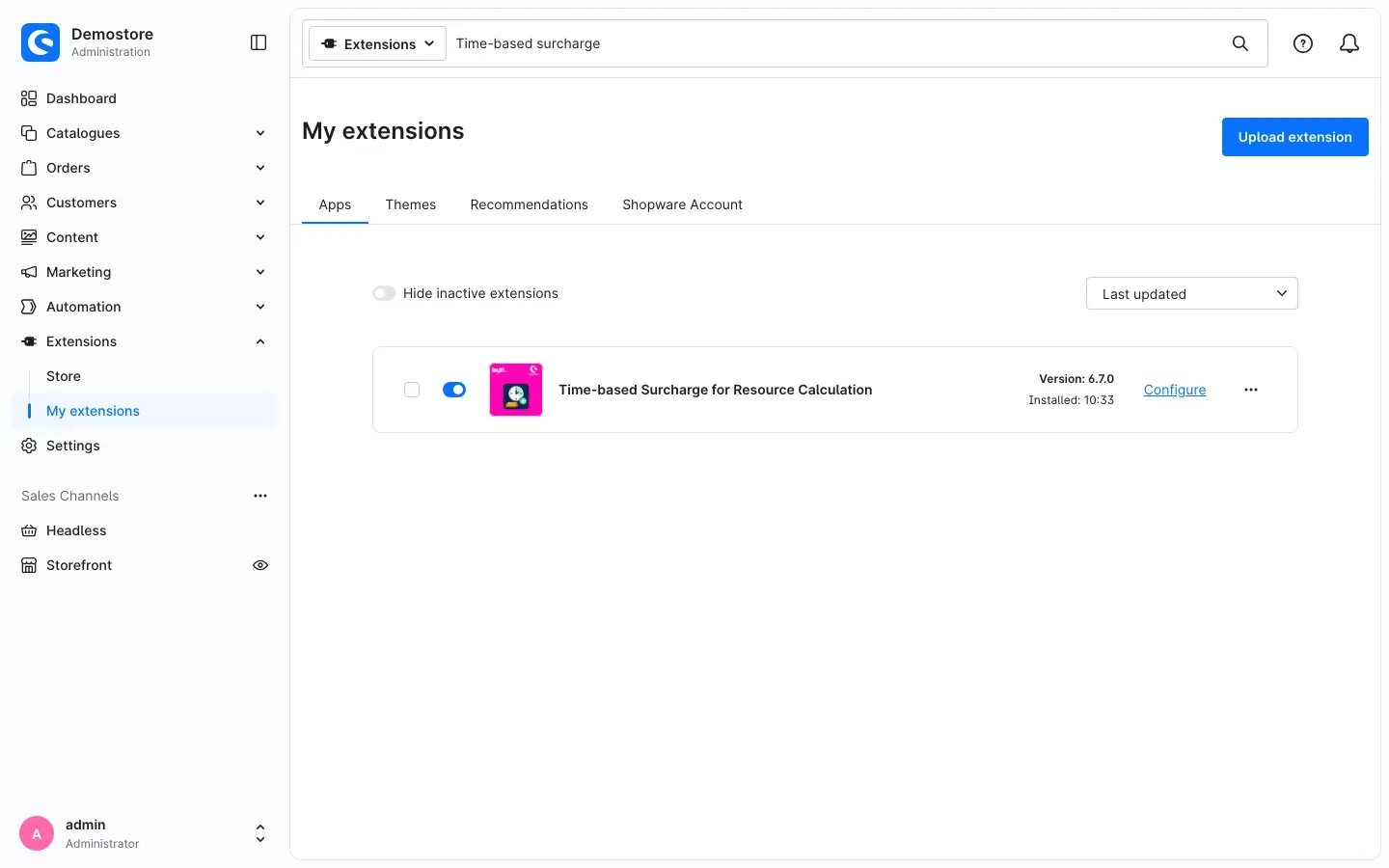 Fig. 1: The plugin is installed and active, the switch is on. “Configure” takes you to the settings.
If Time-based Surcharge for Resource Calculation does not appear in the list, your Shopware account is not yet connected to the shop. You do this under Extensions → My extensions on the Shopware Account tab by logging in with your Shopware account.
Getting started
Set up your first time-based surcharge in four steps:
- Check the sales channel: Open Extensions → My extensions and click Configure next to the plugin. The switch Enable plugin for this sales channel is on from the start. More in Settings.
- Enter the surcharge: Open a product, go to the Advanced pricing tab and open the Custom fields of the price row you want. Enter the value and the times there. Step by step: How to enter a time-based surcharge. How to write the times is described in How to write the times.
- Save the product: Click Save at the top right.
- Check the result: Open the product page in your shop while one of your times applies. The price then includes the surcharge. See How to check the result in your shop.
Tip: Try out new times on a test product first before you enter them on many products.
Settings
You find the settings under Extensions → My extensions: next to Time-based Surcharge for Resource Calculation, click Configure.
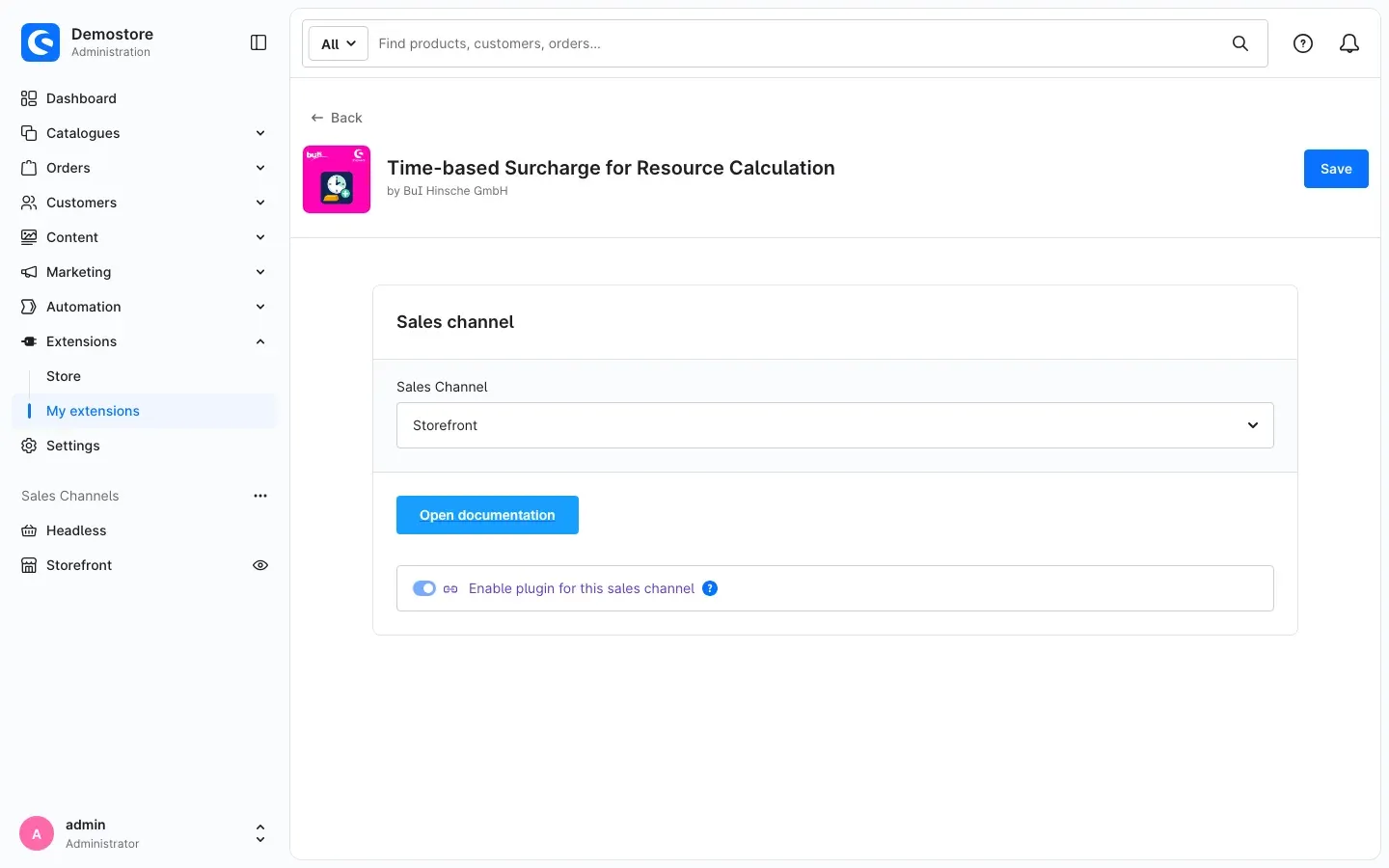 Fig. 2: Configuration page with the “Sales Channel” selection, the “Open documentation” button and the switch “Enable plugin for this sales channel”.
Here you only decide in which sales channels the surcharge applies. You do not maintain the amount and the times here, but on the price rows of your products (see How to enter a time-based surcharge).
Sales Channel
At the top of the page, under Sales Channel, you choose which channel your setting applies to. The default is All Sales Channels. What you set there applies to every channel for which you do not set anything of its own.
Why this is useful: You set once for all channels what should apply in most cases, and only deviate from it in individual channels.
Open documentation
The Open documentation button takes you to the online documentation of this plugin, matching the language of your administration.
Why this is useful: You have the manual right where you configure the plugin.
Enable plugin for this sales channel
The switch Enable plugin for this sales channel decides whether the time-based surcharge applies in the selected sales channel. It is on by default. If you switch it off, prices in this channel get no surcharge, even if values and times are entered on the price rows. Your entered values are kept. The question mark next to the switch shows a short help text.
Why this is useful: If you run several sales channels, for example one for resellers and one for consumers, you let the surcharge apply only where you need it.
How to proceed:
- Under Sales Channel at the top, select the channel you want.
- Switch Enable plugin for this sales channel on or off.
- Click Save at the top right.
How the switched-off setting shows in the shop is shown in How to check the result in your shop, figure 6.
How to use the features
How to enter a time-based surcharge
What this gives you: You enter once how high the surcharge is and when it applies. The plugin then switches it on and off by itself.
Before you start: the surcharge only applies to prices calculated by Resource Calculation. The price row must therefore already be set up with Resource Calculation. Its settings are in the same dialog on the Resource calculation tab; they are described in the Resource Calculation manual.
In this manual, “price row” means a row of the price table on the Advanced pricing tab, that is a row with the columns Quantity from… and to….
Step by step
-
Go to Catalogues → Products and open the product you want.
-
Switch to the Advanced pricing tab.
-
In the pricing rule, find the price row that should get the surcharge. At the far right of this row, click the button with the three dots (…) and choose Custom fields.
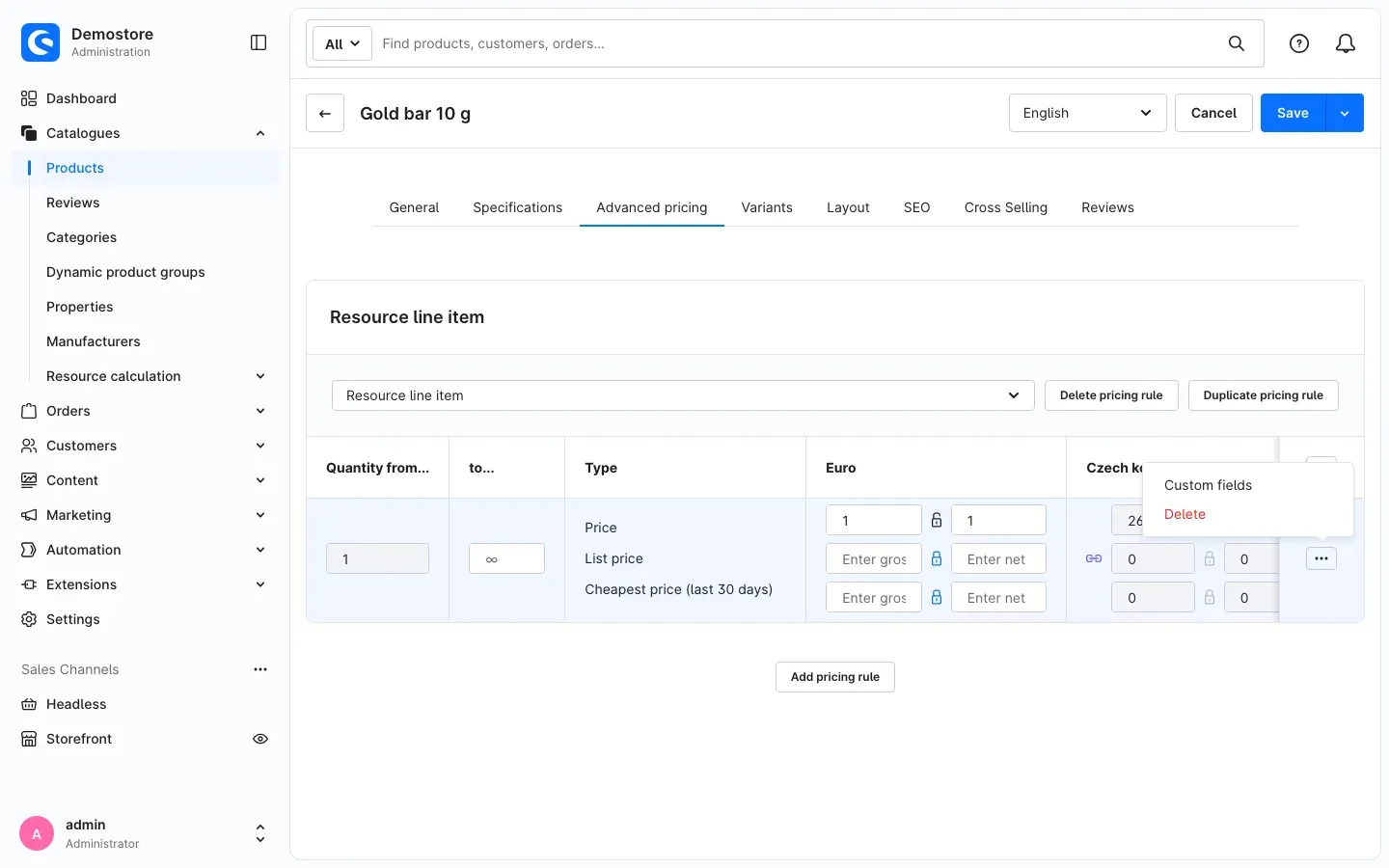 Fig. 3: On the “Advanced pricing” tab, the three dots of the price row open the entry “Custom fields”. In the example the pricing rule is called “Resource line item”.
 -
In the Custom fields dialog, switch to the Time-based surcharge (sale only) tab.
-
Enter the details:
- SALE ONLY: surcharge value (net value / percentage value): the size of the surcharge. Without a tick at “percentage surcharge” this is a net amount per item, with a tick it is a percentage. You can enter at most two decimal places. If the field is empty or contains 0, there is no surcharge.
- SALE ONLY: percentage surcharge: Without a tick, the value is added to the net price as an amount. With a tick, the plugin takes the value as a percentage of the net price.
- SALE ONLY: times: when the surcharge applies. Separate several times with a semicolon. If the field is empty, there is no surcharge. How to write the times is described in How to write the times.
-
Close the dialog with the X at the top right.
-
Click Save at the top right so the product is saved with your details.
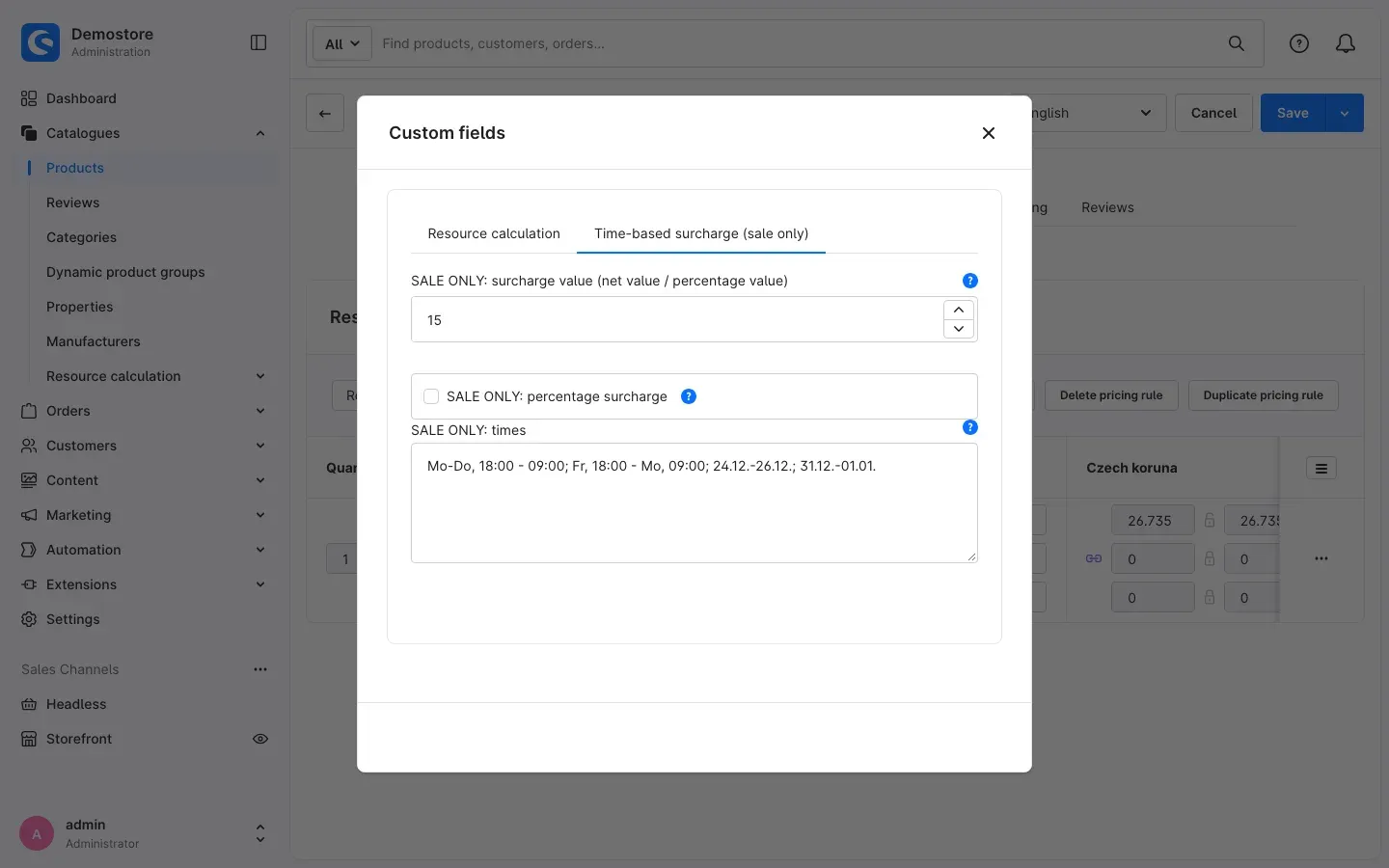 Fig. 4: Tab “Time-based surcharge (sale only)” with a surcharge of 15 as a fixed amount (no tick at “percentage surcharge”) and the times from the example in chapter 5.2.
Tip: The question mark next to each field shows a short help text for that field.
Important: “SALE ONLY” means: the surcharge only applies to sales prices. If you use Product buyback, buyback prices always stay without surcharge, even if a value is entered on a buyback pricing rule.
Important: The surcharge only applies to the price row on which you enter it. If a pricing rule has several tiers, that is several rows with different quantities, enter it on every row that should get it. The cart calculates with the tier that matches the quantity bought. The product page, however, shows only one price, calculated from one of the tiers. If your tiers have different surcharges, this price can differ from the cart price. If you enter the same surcharge on all tiers, both match.
How to write the times
What this gives you: One single field is enough for all times, whether nights, weekends or bank holidays. You write them in a short form you can read at a glance.
The basic rules
- Separate several entries with a semicolon (
;). Spaces, line breaks and a semicolon at the end do no harm. - Write weekdays as their German two-letter abbreviations:
Mo(Monday),Di(Tuesday),Mi(Wednesday),Do(Thursday),Fr(Friday),Sa(Saturday),So(Sunday). Use these abbreviations in an English administration as well. - Write dates day first, then month, each followed by a dot:
03.10.applies every year on 3 October,31.10.2026only on exactly this day. - Write times with a colon, for example
17:00. - There are two forms: time of day on specific days (form 1) and continuous span (form 2).
Form 1: Time of day on specific days
You write <days>, <from> - <to>. The time applies on each of the days named.
| Entry | Applies |
|---|---|
Mo, 17:00 - 19:00 | every Monday from 17:00 to 19:00 |
03.10., 17:00 - 19:00 | every year on 3 October from 17:00 to 19:00 |
31.10.2026, 17:00 - 19:00 | only on 31 October 2026 from 17:00 to 19:00 |
Mo-Fr, 17:00 - 19:00 | Monday to Friday, on each of these days from 17:00 to 19:00 |
31.12.-03.01., 08:00 - 12:00 | every year from 31 December to 3 January, on each of these four days from 08:00 to 12:00 |
31.12.2026-03.01.2027, 08:00 - 12:00 | only on these four days, each from 08:00 to 12:00 |
- Without a time the whole day applies:
Mo-Fr,24.12.or31.12.-03.01.. Writing00:00 - 24:00means the same. - Over midnight: If the end time is before the start time, the entry runs over midnight. It belongs to the day on which it starts.
Mo, 22:00 - 06:00therefore applies from Monday 22:00 to Tuesday 06:00. Early Monday morning is not included.
Form 2: Continuous span
You write <day>, <time> - <day>, <time>. The surcharge applies without interruption from the start to the end, nights included.
| Entry | Applies |
|---|---|
Fr, 18:00 - Mo, 09:00 | every weekend from Friday 18:00 to Monday 09:00 |
31.12., 08:00 - 03.01., 12:00 | every year across the turn of the year, continuously from 31 December 08:00 to 3 January 12:00 |
31.12.2026, 08:00 - 03.01.2027, 12:00 | once, continuously from 31 December 2026 08:00 to 3 January 2027 12:00 |
- Start and end are of the same kind: weekday to weekday or date to date.
- If the year is given on one side only, the span applies once. The missing year follows from the order.
The difference in one example
| Entry | Applies |
|---|---|
31.12.-03.01., 08:00 - 12:00 | on four days, each from 08:00 to 12:00 |
31.12., 08:00 - 03.01., 12:00 | continuously from 31 December 08:00 to 3 January 12:00 |
For both forms
- The end is not included:
17:00 - 19:00ends at 18:59. From 19:00 the price without surcharge applies again. - German local time: The plugin always uses the time in Germany, including summer and winter time. How your server’s clock is set does not matter.
- Overlaps: If two entries overlap, the surcharge still applies only once.
- Typing errors: If the plugin cannot read an entry, it skips it. The other entries still apply. Typical typing errors are listed in Troubleshooting.
The example from figure 4
Mo-Do, 18:00 - 09:00; Fr, 18:00 - Mo, 09:00; 24.12.-26.12.; 31.12.-01.01.
| Entry | Applies |
|---|---|
Mo-Do, 18:00 - 09:00 | Monday to Thursday, each from 18:00 to 09:00 on the following day. The last of these nights therefore ends on Friday at 09:00. |
Fr, 18:00 - Mo, 09:00 | continuously from Friday 18:00 to Monday 09:00 |
24.12.-26.12. | every year, all day from 24 to 26 December |
31.12.-01.01. | every year, all day on 31 December and 1 January |
Taken together: you sell without surcharge only Monday to Friday from 09:00 to 18:00. If one of these days falls on 24 to 26 December, 31 December or 1 January, the surcharge applies during the day as well.
How the surcharge affects the price
What this gives you: You know in advance exactly which price your customers see.
- Fixed amount (no tick at “percentage surcharge”): the value is added to the net price as a net amount per item. With a value of 20, €1,000.00 net becomes €1,020.00 net.
- Percentage (tick at “percentage surcharge”): the new net price is net price × (1 + value / 100). With a value of 2.5, €1,000.00 net becomes €1,025.00 net.
- VAT: The surcharge is a net amount. The product’s VAT is added to it as well: €20.00 net becomes €23.80 gross at 19%. In figures 5 to 7 the product is tax-free (0% VAT), which is why the €15.00 surcharge is the same net and gross there.
- Order of steps: The surcharge is the very last step: after the surcharges, the rounding and the minimum and maximum price of Resource Calculation. None of these steps changes the surcharge. A maximum price therefore does not cap it, and a rounded price can become uneven again through a percentage surcharge.
- Part of the price: The surcharge is included in the price. It does not appear as a separate line, neither on the product page nor in the cart nor on documents.
- The moment of the order counts: For the order, the moment the cart is calculated when the order is placed is decisive. If a customer puts a product in the cart before your time starts and orders only afterwards, they pay the price with surcharge. If your time ends before the order is placed, the surcharge no longer applies.
- Cached pages: If your shop uses the HTTP cache, cached pages with a time-dependent price expire exactly at the next start or end of one of your times. The next request calculates the price again. Product and category pages therefore show the surcharge on time, even if the page was cached before.
- Sorting and price filter: Resource Calculation stores the prices from its regular rate update without surcharge. Sorting by price and the price filter work with these stored prices and therefore do not know the surcharge.
- Only with a price from Resource Calculation: Products for which Resource Calculation is switched off and a fixed price is entered get no surcharge.
How to check the result in your shop
What this gives you: You see that the surcharge applies before your first customer pays it.
- In your shop, open the product page while one of your entered times applies (German local time).
- Compare the price with the price outside your times. During your times it includes the surcharge.
- Put the product into the cart with Add to shopping cart. The cart shows the price with surcharge as well.
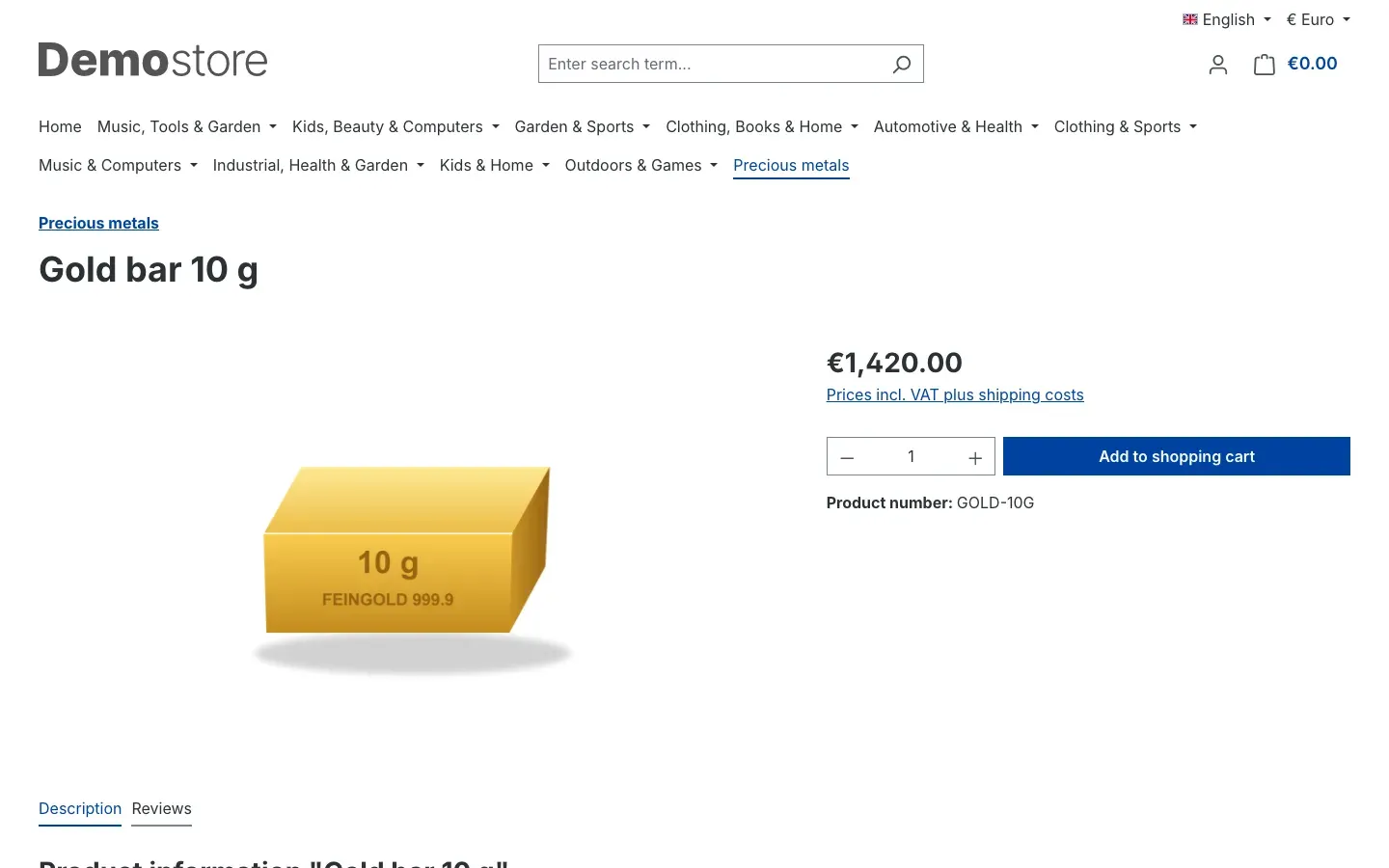 Fig. 5: Product page while an entered time applies: €1,420.00. That is €1,405.00 from Resource Calculation plus a €15.00 surcharge. The surcharge is not shown separately.
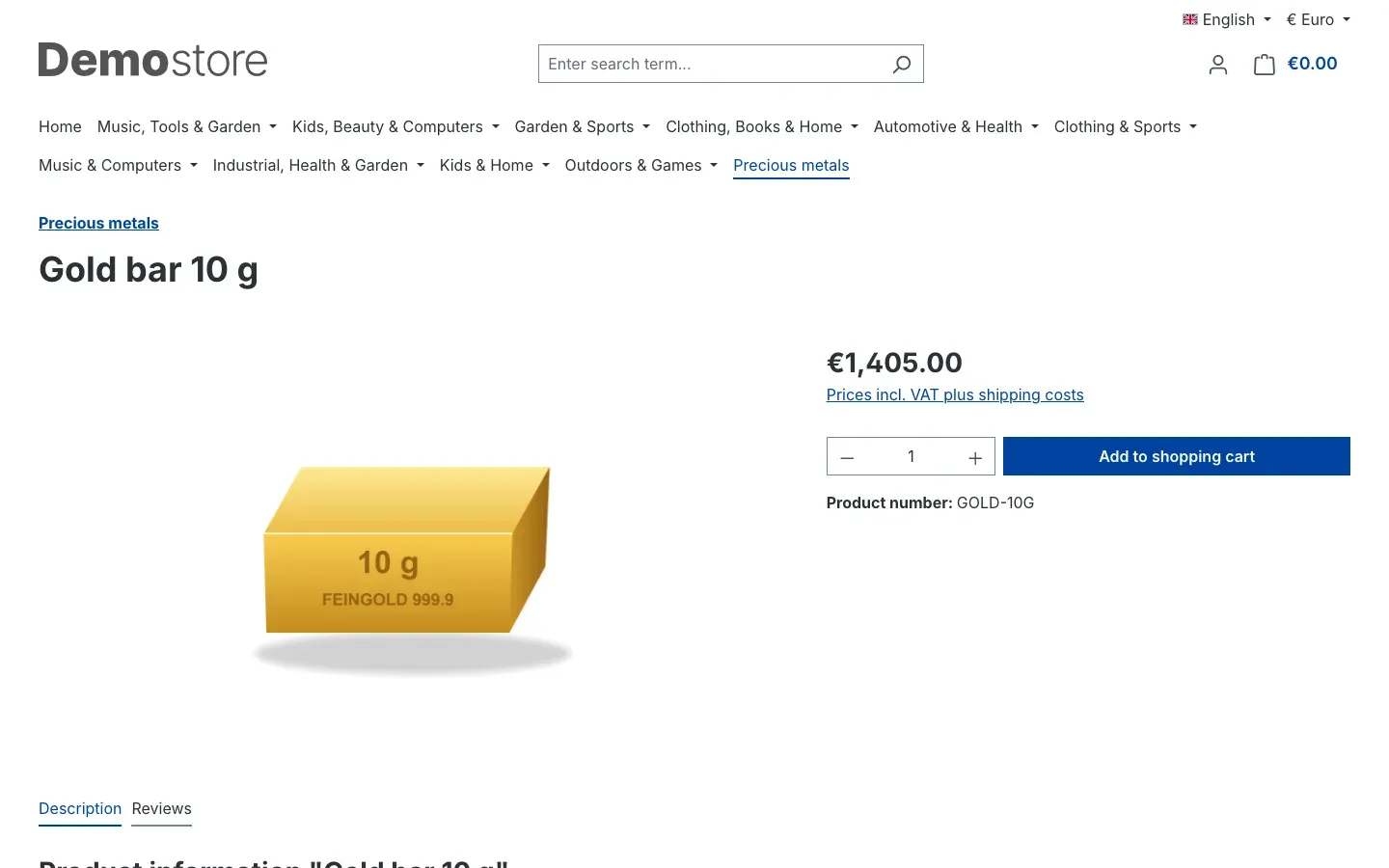 Fig. 6: The same product after the switch “Enable plugin for this sales channel” was turned off for this channel: €1,405.00, that is without surcharge.
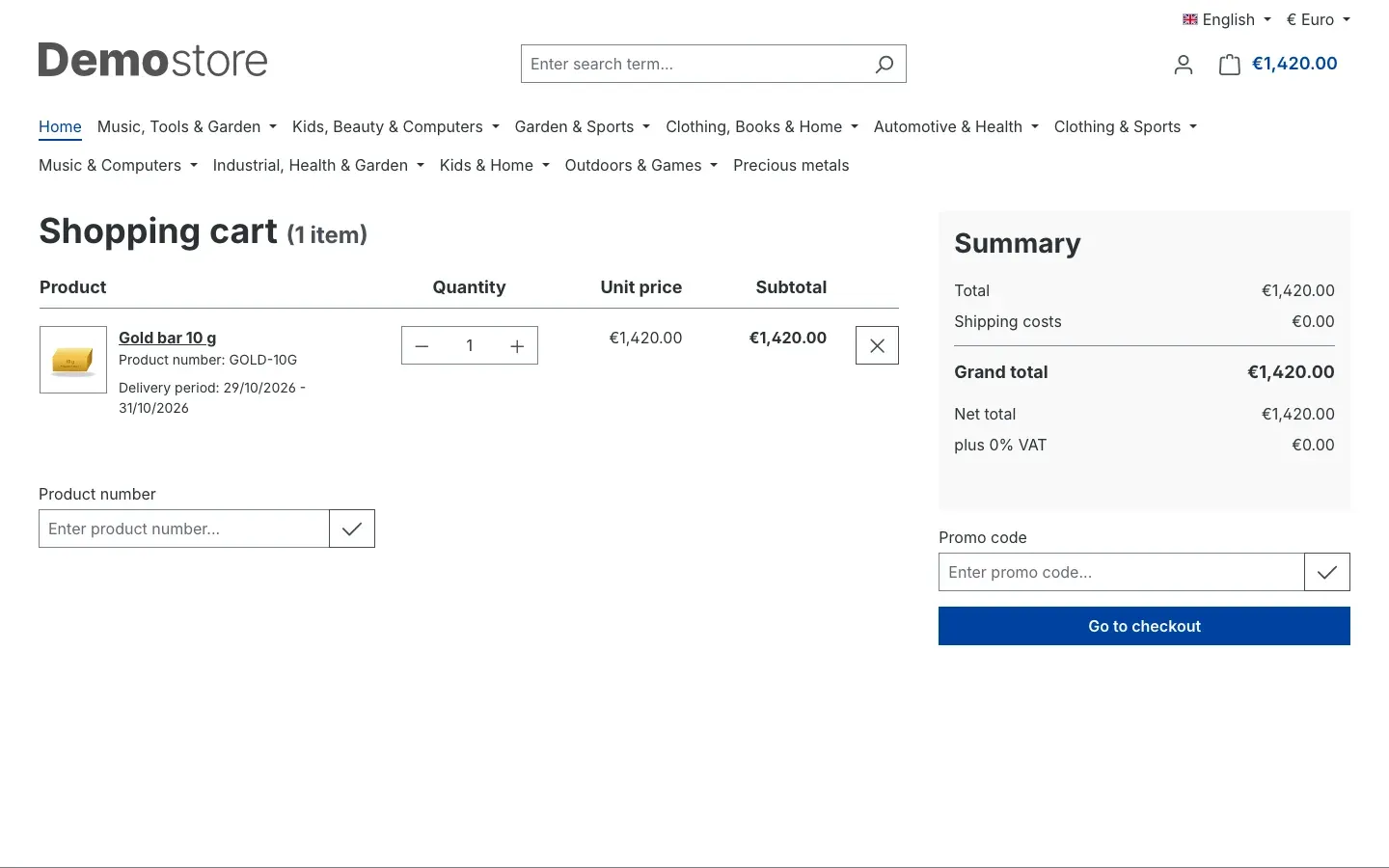 Fig. 7: In the cart, unit price and subtotal include the surcharge: €1,420.00.
Tip: For a quick test, temporarily enter only the abbreviation of today’s weekday on a test product, for example
Moon a Monday. Without a time the whole day applies. Remove the entry again after the test and save the product.
Troubleshooting
The plugin cannot be activated
Cause: Resource Calculation is missing, not active or too old. If it is too old, activation stops with an error message that contains, among other things, “Update SwpResourceCalcSix before activating the time-based surcharge.”
How to fix it:
- Open Extensions → My extensions.
- Check that Resource Calculation is installed and active.
- Bring Resource Calculation up to date for Shopware 6.7.
- Then activate Time-based Surcharge for Resource Calculation again.
The tab “Time-based surcharge (sale only)” is missing
Cause: The plugin is not installed or not activated. If even the Custom fields entry in the menu of the price row is missing, Resource Calculation is not active: this entry and the dialog belong to Resource Calculation, the tab belongs to this plugin.
How to fix it:
- Open Extensions → My extensions.
- Check that Resource Calculation and Time-based Surcharge for Resource Calculation are both installed and active.
- Then reload the administration in your browser and open the product again.
The price in the shop does not include a surcharge
Cause: Usually one of the conditions for the surcharge is missing.
How to fix it: Go through these points in order:
- Does the field SALE ONLY: surcharge value (net value / percentage value) contain a value greater than 0, and is the field SALE ONLY: times filled in?
- Did you save the product with Save at the top right after entering the details?
- Is Enable plugin for this sales channel switched on for the sales channel in which you check (see Settings)?
- Does your time really apply right now? German local time is decisive. The end is not included, and an entry over midnight belongs to the day on which it starts.
- Did you enter the surcharge on the right price row? With several tiers it only applies to the row it is entered on.
- Does the price come from Resource Calculation? Products with a fixed price get no surcharge.
- Are you checking a buyback price? Buyback prices never get a surcharge.
An entry in the times field has no effect
Cause: The plugin cannot read the entry and skips it. The other entries in the field still apply. Common causes:
| Written as | What is missing or wrong |
|---|---|
17:00 - 19:00 | The day is missing. Correct is, for example, Mo, 17:00 - 19:00. |
Mo, 17:00 | The end time is missing. |
Mo, 17:00 - 17:00 | Start and end are the same. |
Mo, 25:00 - 26:00 | The time lies outside the day. |
Fr, 18:00 - 03.01., 12:00 | A continuous span mixes a weekday and a date. |
A date that does not exist, such as 31.02., also makes an entry unreadable.
How to fix it:
- Correct the entry according to the rules in How to write the times.
- Save the product.
Your technical contact can look up which entry was skipped in the plugin’s log file (see For administrators / Technical details).
Sorting or the price filter use the price without surcharge
Cause: This is intended. Sorting and the price filter work with the stored prices of Resource Calculation, and these do not include the surcharge.
How to fix it: Nothing to do. The product page and the cart show the price with surcharge.
The surcharge is much higher or lower than expected
Cause: The tick at SALE ONLY: percentage surcharge is set differently than intended. With a tick, a value of 15 means fifteen percent of the net price; without a tick it means €15.00 net per item.
How to fix it: Open the custom fields of the price row, set or remove the tick and save the product.
FAQ
Q: Do I need Resource Calculation for this?
A: Yes. The plugin adds its surcharge to the price that Resource Calculation calculates. Without it there is nothing to add to.
Q: Do I also need to install Product buyback?
A: No. If you use Product buyback, buyback prices stay without surcharge, even if a value is entered on a buyback pricing rule.
Q: Does my customer see the surcharge as a separate line?
A: No. The surcharge is part of the price. It appears as a separate line neither in the shop nor on documents.
Q: Is the value net or gross?
A: Net. A fixed amount applies net per item, and the product’s VAT is added. At 19%, €20.00 net becomes €23.80 gross. A percentage refers to the finally calculated net price.
Q: Which time does the plugin go by?
A: Always German local time, including summer and winter time. The time zone of your server does not matter. A different time zone cannot be set.
Q: Does the moment when the customer puts the product in the cart count?
A: No. For the order, the moment the cart is calculated when the order is placed counts.
Q: What happens if two of my times overlap?
A: The surcharge still applies only once. It is not calculated twice.
Q: Can I set different times or amounts for each sales channel?
A: No. Value and times belong to the price row of the product. Per sales channel you only switch the surcharge on or off.
Q: How do I write a bank holiday that should apply all day?
A: Only the date, without a time: 24.12. applies every year on the whole of 24 December. Write several days as a span, for example 24.12.-26.12..
Q: Does the plugin work with my theme?
A: The plugin does not bring its own display in the shop. It only changes the calculated price. How the price is displayed is up to Resource Calculation and your theme.
Q: What happens to my values when I uninstall the plugin?
A: If you keep the data when uninstalling, everything is kept. If you do not keep it, the plugin removes its custom fields and the tab. The values on the price rows remain in the database but no longer have any effect. If you install the plugin again, they are back.
For administrators / Technical details
This section is intended for technical administrators. You do not need it for normal use.
System requirements
- Shopware: 6.7. Resource Calculation requires 6.7.7 or later.
- PHP: 8.2 or newer
- Resource Calculation: version 6.7 (requires Shopware 6.7.7 or later), installed and active. If the installed version does not yet provide the required interface, activation stops with an error message.
- Product buyback: not required. The two plugins have been tested together: buyback prices get no surcharge, while the sales price of the same product does.
Installation via the command line
If the plugin is already in your shop, you can also install and activate it on the console. Resource Calculation must be installed and active beforehand. Run the commands in the root directory of the shop:
bin/console plugin:refresh
bin/console plugin:install --activate SwpResourceCalcTimeSurchargeSix
bin/console cache:clear
Traceability on the order
The applied surcharge is stored on the order line item in the payload field under swpTimeSurcharge: the value, whether it was a percentage, the matching time entry, the net and gross amount and the moment of the calculation. These details do not appear in the shop or on documents. You can read them, for example, via the Admin API.
If a product has several Resource Calculation price rows (tiers), these details describe the tier that applies to the quantity ordered.
Log file for unreadable time entries
The plugin reports unreadable entries in the field SALE ONLY: times as a warning in its own log file:
var/log/SwpResourceCalcTimeSurchargeSix-<date>.logThe message names the skipped part and the complete field content. It is written as soon as a price is calculated with this field, that is when a value is entered and the switch for the sales channel is on. The plugin writes the message at most once a day per field content, so the file does not grow with many page views.
Stored prices
The regular rate run (cron job) of Resource Calculation writes the prices without surcharge to the database. Sorting and the price filter use these stored prices. The surcharge is only added during the live price calculation, for example for the product page and the cart.
Time zone
The times are always evaluated in the Europe/Berlin time zone, regardless of the server’s time zone. The time zone cannot be configured.
Deactivating and uninstalling
- Deactivating: No surcharge applies any more. The entered values are kept.
- Uninstalling and keeping the data: custom fields and entered values remain stored.
- Uninstalling without keeping the data: The plugin removes its custom fields and the tab “Time-based surcharge (sale only)”. Values already stored on price rows remain in the database without effect. After reinstalling, they are visible and effective again.
Data protection
The plugin does not connect to any external services and does not store any personal data.
This manual was written for Time-based Surcharge for Resource Calculation version 6.7.0.
More manuals
Address Validation: House Number Check & Corrections
Address validation at the point of entry: the plugin spots missing house numbers, can suggest corrections via Google and helps you send fewer parcels that come back undeliverable.
Open manual Shopware 6Admin Password Reminder
Admin Password Reminder: your backend users renew their passwords on time, prompted after login and by a daily email. Premium locks expired accounts until the password is changed.
Open manual Shopware 6Advent Calendar | Doors with products, coupons and promotions
Advent calendar for your shopping experiences: doors open on time without clearing the cache, give nothing away in the page source and reveal coupons, products or your own content.
Open manualNeed a team that keeps your shop running?
We have been maintaining Shopware shops for more than 20 years, including updates, hotfixes and the plugins you are configuring right now.