Zendesk Integration | Customer Data, Chat and Tickets
Zendesk meets Shopware: your agents see the customer, orders, tracking numbers and invoices right in the ticket. Plus the Zendesk chat in your shop and tickets from the contact form.
On this page
- Introduction
- What you achieve with this plugin
- Who is this plugin for?
- Requirements
- Installation
- Getting Started
- Settings
- Settings per sales channel
- The “General” card
- How to set up the Zendesk app
- Step by step
- Which sales channels deliver data to Zendesk
- What the sidebar should show
- How to work with the sidebar in Zendesk
- Customer and key figures
- Orders, tracking and documents
- Insert order details into your reply
- Jump to the Administration
- Search by email address, order number or customer number
- Several matches
- How to renew or revoke the access key
- Renew the key
- Revoke the key
- How to add the Zendesk chat to your shop
- Step by step
- Exclude pages
- Cookie consent and help button
- Language
- Prefill name and email (Classic only)
- Conversation tags (Messaging only)
- How Zendesk recognises logged-in customers
- Step by step
- How contact requests become Zendesk tickets
- Step by step
- What the ticket contains
- Tags, priority and internal note
- What happens when Zendesk has a problem
- Data protection
- Troubleshooting
- Messages in the Zendesk sidebar
- Messages while setting up in the shop
- Error messages in the connection test
- The chat does not appear in the shop
- Contact requests do not arrive as tickets in Zendesk
- The plugin does not appear under My extensions or is not active
- FAQ
- For Administrators / Technical Details
- System requirements
- Installation via the command line
- Zendesk app and access key
- Tickets from the contact form
- Chat widget
- Headless / Store API
- Log file
- Uninstallation
Introduction
Zendesk Integration connects your Shopware shop with Zendesk. Your support team sees the customer, orders, tracking numbers and invoices right next to the ticket, your visitors reach you through the Zendesk chat, and messages from the contact form arrive as tickets in Zendesk.
What you achieve with this plugin
- Answers without switching windows: Next to every ticket in Zendesk you see the matching Shopware customer with their orders, payment and delivery status, tracking numbers and documents such as invoices or delivery notes.
- Order details in your reply with one click: “Insert into reply” writes order number, order date, status and tracking into the reply text.
- A chat in your shop that respects your cookie settings: If you want, the Zendesk chat only loads once the visitor has agreed.
- Contact requests as tickets: Every message from the contact form becomes a Zendesk ticket in the name of the customer, optionally with tags, priority and an internal note with customer data.
- Controlled per sales channel: You decide per sales channel which of the three functions is active.
The three parts — sidebar in Zendesk, chat in the shop and tickets from the contact form — are independent of each other. You can start with one and add the others later.
Who is this plugin for?
For shop owners who run their customer service in Zendesk, and for the support teams who answer tickets there.
Requirements
- Your own Zendesk account.
- For the sidebar: a Zendesk plan that allows private apps. These are Suite Growth or higher and Support Professional or higher. Chat and tickets from the contact form do not need a private app.
- For the sidebar: your shop must be reachable from the internet via
https://. Zendesk fetches the data directly from your shop. Directory protection (a password prompt in front of the shop) or a shop that is only reachable inside your company network locks the sidebar out. - For tickets from the contact form: an API token from your Zendesk account and the email address of the Zendesk user the token belongs to.
- For the chat: the key of your Zendesk web widget (Messaging or Classic).
Installation
After purchase, the plugin is available directly in your Administration — there is nothing to download.
- Log in to your Shopware Administration (
yourshop.com/admin). - Open Extensions → My extensions.
- Next to Zendesk Integration | Customer Data, Chat and Tickets, click Install.
- Activate the plugin with the switch next to the entry — done.
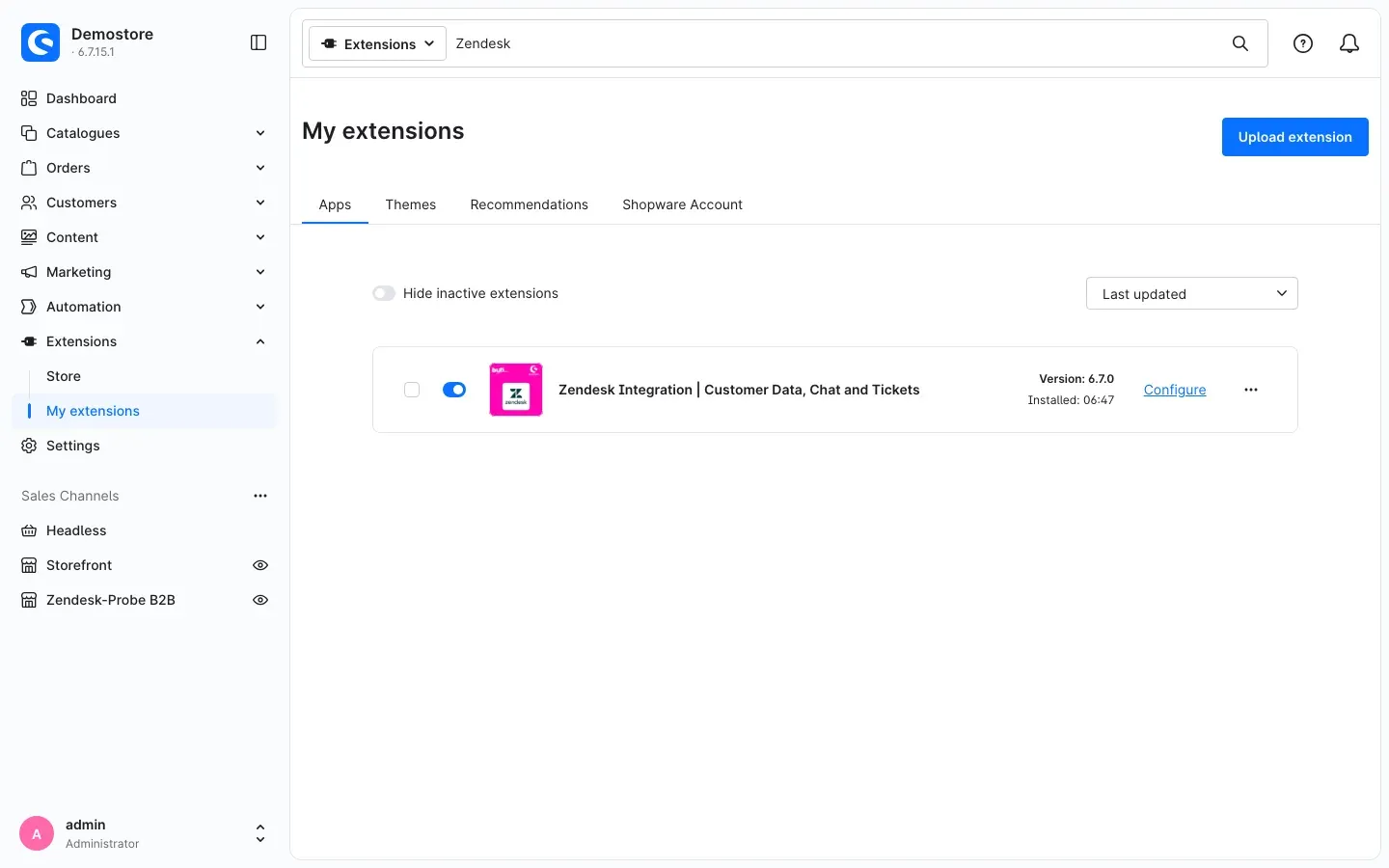 Figure 1: The plugin is installed and active. “Configure” opens the settings.
If Zendesk Integration does not appear in the list, your Shopware account is not yet connected to the shop. You can do this under Extensions → My extensions by logging in with your Shopware account.
Getting Started
- Open the settings: Go to Extensions → My extensions and click Configure next to the plugin.
- Choose the sales channel: At the very top, choose under Sales Channel which shop you are configuring. All Sales Channels sets the default for all of them.
- Pick a function: Decide where to start:
- Show customer data in Zendesk → How to set up the Zendesk app
- Show the chat in the shop → How to add the Zendesk chat to your shop
- Create tickets from contact requests → How contact requests become Zendesk tickets
- Save: Click Save at the top right.
- Check the result: Open a ticket of a shop customer in Zendesk, visit your shop or send a test message through the contact form — depending on the function you have set up.
Settings
You find the settings under Extensions → My extensions → Configure next to the plugin. They are grouped into five cards:
| Card | Purpose | Described in |
|---|---|---|
| General | Switch the plugin on and off per sales channel, open the documentation | this chapter |
| Zendesk app (ticket sidebar) | Show customer data and orders in Zendesk | How to set up the Zendesk app |
| Chat and help widget | Show the Zendesk chat in the shop | How to add the Zendesk chat to your shop |
| Messaging authentication | Recognise logged-in customers in the chat as verified | How Zendesk recognises logged-in customers |
| Zendesk API (tickets from the contact form) | Create Zendesk tickets from contact requests | How contact requests become Zendesk tickets |
After every change, click Save at the top right.
Settings per sales channel
The Sales Channel selection at the top of the page defines which shop your settings apply to. Under All Sales Channels you set the defaults. If you choose a single sales channel, you can enter different values there — anything you do not change there is taken from All Sales Channels.
This way you can, for example, run your B2C shop with chat and sidebar, while your B2B channel only sends tickets from the contact form to a different Zendesk account.
One exception: The access key for the Zendesk app always applies to the whole shop, no matter which sales channel is selected at the top. Which sales channels deliver data to Zendesk is controlled per sales channel with a separate switch (see How to set up the Zendesk app).
The “General” card
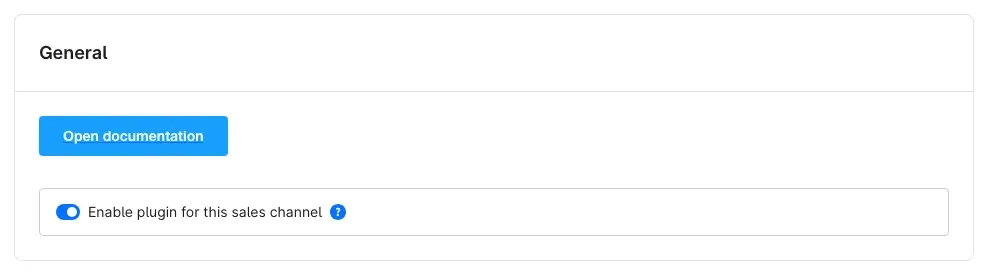 Figure 2: The “General” card with the documentation button and the main switch
Open documentation takes you straight to this manual.
The switch Enable plugin for this sales channel defines whether the plugin does anything at all in the selected sales channel. If you switch it off, all Zendesk functions are off there: the widget, the customer data in the Zendesk sidebar and the tickets from the contact form. It is switched on by default.
Why this is useful: You can shut down a sales channel without touching the settings of the individual functions — for example a test channel or a shop that another team looks after.
How to set up the Zendesk app
What this gives you: Next to every ticket in Zendesk, your agents see the matching Shopware customer: contact details, billing address, key figures and all orders with status, tracking numbers and documents. The plugin builds the Zendesk app for this itself — with your shop address already filled in.
The data stays in your shop. The app only fetches it when an agent opens a ticket or a user in Zendesk. It uses an access key that you generate in the shop and can revoke at any time.
Important: For this part you need a Zendesk plan with private apps, and your shop must be reachable from the internet via
https://(see Requirements).
Step by step
You do all steps in the shop in the Zendesk app (ticket sidebar) card under Connection to the Zendesk app. The same steps are also shown there in short form under How to set up the app in Zendesk.
-
Generate the access key. Click Generate access key. The new key appears in the New access key field.
-
Copy the key right away. Click the copy icon on the right of the field and keep the key at hand until you have entered it in Zendesk. The key is shown only this once — Shopware does not store it in plain text. If it gets lost, simply generate a new one.
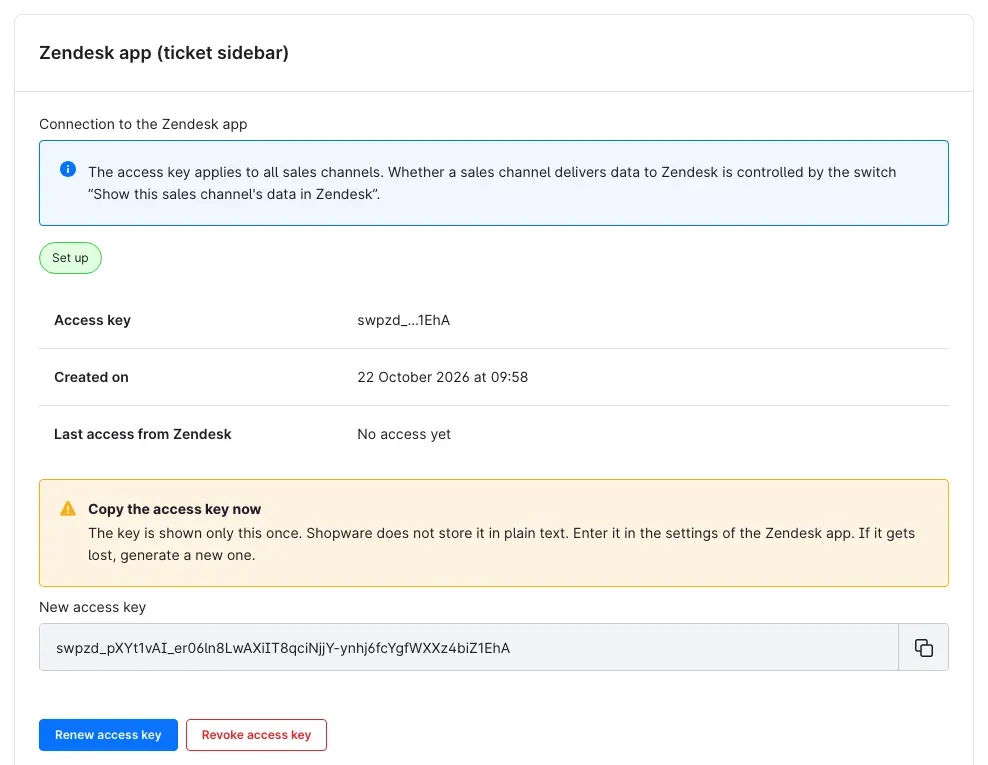 Figure 3: The new access key is shown once and can be copied with the copy icon.
 -
Check the shop address. The Shop address for Zendesk field already contains the address of your shop. It must be the public address at which Zendesk reaches your shop, and it must start with
https://. Change it if you open the Administration through a different address than your customers use for the shop. -
Download the Zendesk app. Click Download Zendesk app (ZIP). Your browser saves a ZIP file — do not unpack it, Zendesk needs it exactly as it is.
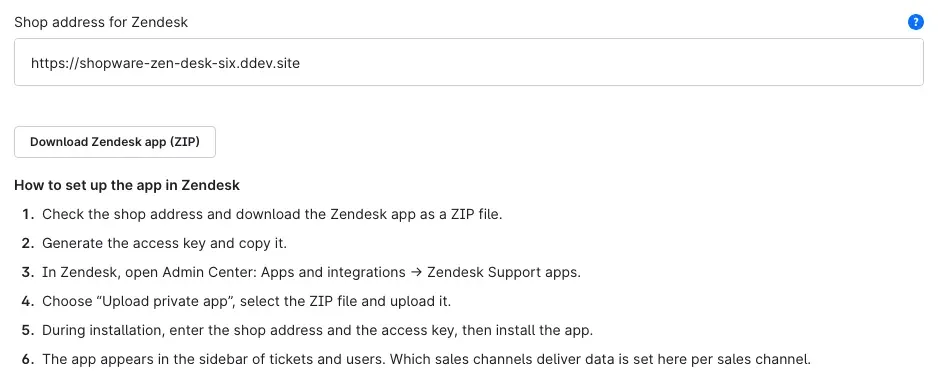 Figure 4: Shop address, download of the Zendesk app and the setup steps in short form
 -
Open Admin Center in Zendesk. Log in to Zendesk and open Admin Center: Apps and integrations → Zendesk Support apps.
-
Upload the private app. Choose Upload private app, select the ZIP file and upload it.
-
Enter shop address and access key. During installation, Zendesk asks for two settings:
- Shop address: already filled in with the address from step 3.
- Access key: paste the copied key here. It starts with
swpzd_.
Then install the app.
-
Open a ticket. Open a ticket of a shop customer in Zendesk. The app Shopware Customers & Orders appears in the sidebar and shows the customer matching the requester’s email address.
-
Check the connection. Back in the shop, the card now shows the status Set up. Last access from Zendesk shows when the app last fetched data. The value is updated at most every five minutes.
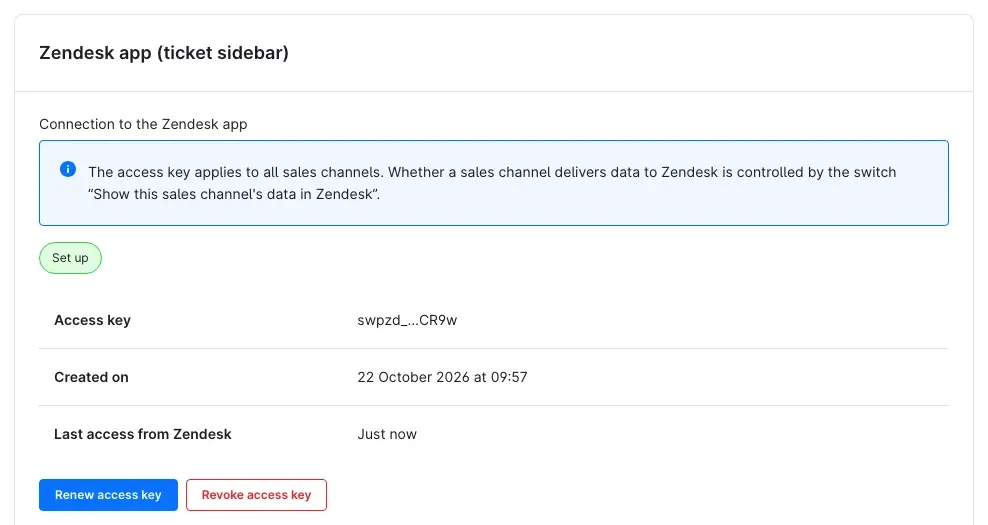 Figure 5: The connection works: status, end of the access key, creation date and last access from Zendesk
Tip: To generate the key, your Administration user needs permission to edit settings and to view customers, orders and documents. Without these permissions, the button is greyed out and a note below it explains why.
Which sales channels deliver data to Zendesk
The access key applies to the whole shop. Whether the customers and orders of a sales channel appear in Zendesk is decided per sales channel with the switch Show this sales channel’s data in Zendesk. It is switched on by default. Switch it off, for example, for a B2B channel that is served by a different Zendesk account. If the main switch Enable plugin for this sales channel is off in a sales channel, that channel does not deliver any data either.
What the sidebar should show
You set the following options in the same card, also per sales channel. They apply to the customers and orders of the respective channel.
Custom fields (technical names, comma-separated): Here you choose customer custom fields that additionally appear in the sidebar, such as a VIP flag or a service note. Enter the technical names of the fields separated by commas, for example custom_customer_vip,custom_customer_note. You find the technical name under Settings → System → Custom fields. In the sidebar, the field then appears with its label.
Orders shown per customer: Defines how many orders the sidebar lists per customer, newest first. Possible values are 1 to 50, default 10. The order count and revenue in the key figures still cover all orders, not only the listed ones.
Show line items: Shows the ordered items with quantity, product number and price in every order. Switched on by default.
Show documents (invoices, delivery notes, credit notes): Shows the documents of an order. Your agents open the PDF through a link that is valid for five minutes. Switched on by default. Switch it off if your support team should not see invoices.
How to work with the sidebar in Zendesk
What this gives you: Your team answers questions like “Where is my parcel?” or “Could you send me the invoice again?” without opening the Shopware Administration.
The app Shopware Customers & Orders appears in Zendesk in the sidebar of tickets, new tickets and users. It uses the language the agent has set in Zendesk (German, English or Dutch, otherwise English).
Customer and key figures
When a ticket opens, the app automatically searches for the requester’s email address; on a user page, for the user’s email address. If you change the requester of the ticket, it loads the matching customer again.
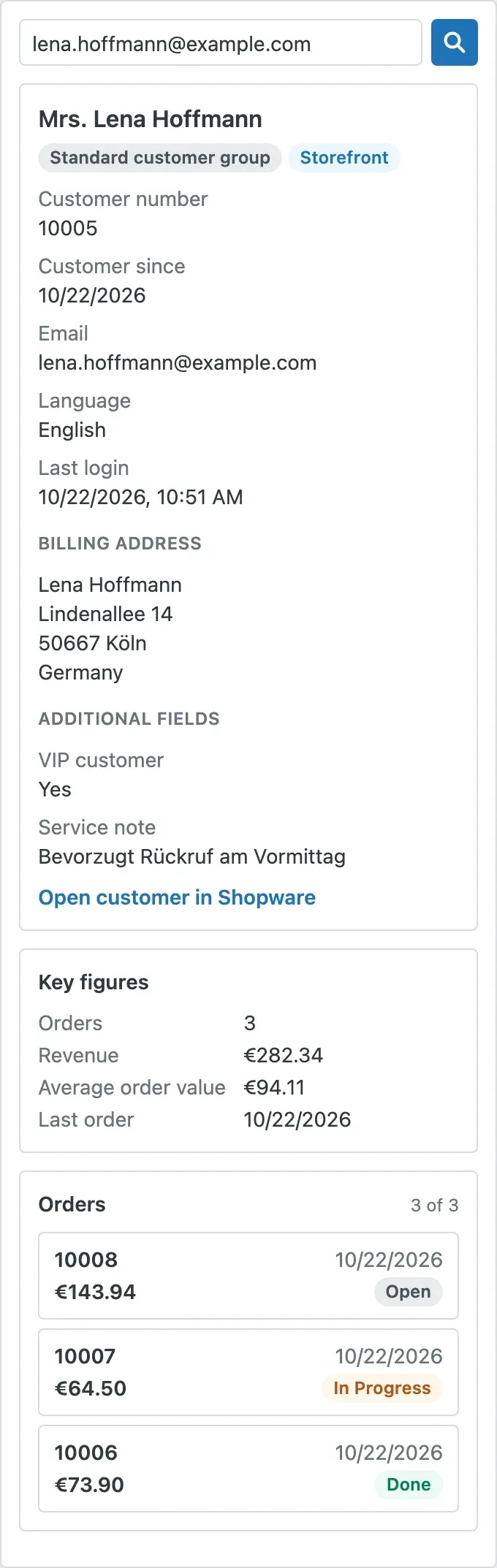 Figure 6: Sidebar with customer data, key figures and orders
At the top you see the customer with customer group and sales channel, below that Customer number, Customer since, Email, phone, company and VAT ID (if available), Language, Last login, the Billing address and the Additional fields you selected in the settings. Badges such as Guest, Order without account, Newsletter or Inactive show at a glance who you are dealing with.
Key figures shows Orders (count), Revenue (excluding cancelled orders), Average order value and Last order (date).
Orders, tracking and documents
Orders lists the customer’s orders, newest first, with order number, date, amount and status. At the top right, “3 of 3” shows how many orders are listed and how many there are in total. Click an order to expand it.
 Figure 7: Expanded order with status, tracking number, line items and documents
In the expanded order you see:
- the status of Order, Payment and Delivery,
- Sales channel, Payment method and Shipping method,
- the Tracking numbers — if the shipping method has a tracking link in Shopware, the number is clickable,
- the Shipping address,
- the Items with quantity, item and total price (if switched on),
- the Documents such as delivery note or invoice (if switched on).
Open a document: Click a document. The PDF opens in a new tab. For security reasons, the link behind it is only valid for five minutes. If you need the document again later, simply click it again in the sidebar. If your browser blocks the new window, the app shows an Open PDF link instead.
Insert order details into your reply
In an expanded order, click Insert into reply. The app writes order number, order date, status, payment, delivery and the tracking numbers with link into your reply text. Afterwards, the message “Inserted into the reply.” appears.
The button is only available in tickets. A user page has no reply to insert anything into.
Jump to the Administration
Open customer in Shopware and Open order in Shopware take you straight to the customer or the order in your Shopware Administration. You need to be logged in to the Administration for this. The sidebar itself only displays data — you still change orders in the Administration.
Search by email address, order number or customer number
There is a search field at the top of the sidebar. Enter an email address, an order number or a customer number and click the magnifying glass next to it (Search) or press Enter. This helps, for example, when the customer writes from a different email address than the one they ordered with.
If you search for an order number, the sidebar shows the customer of that order and opens the matching order right away — you do not need to look for it in the list.
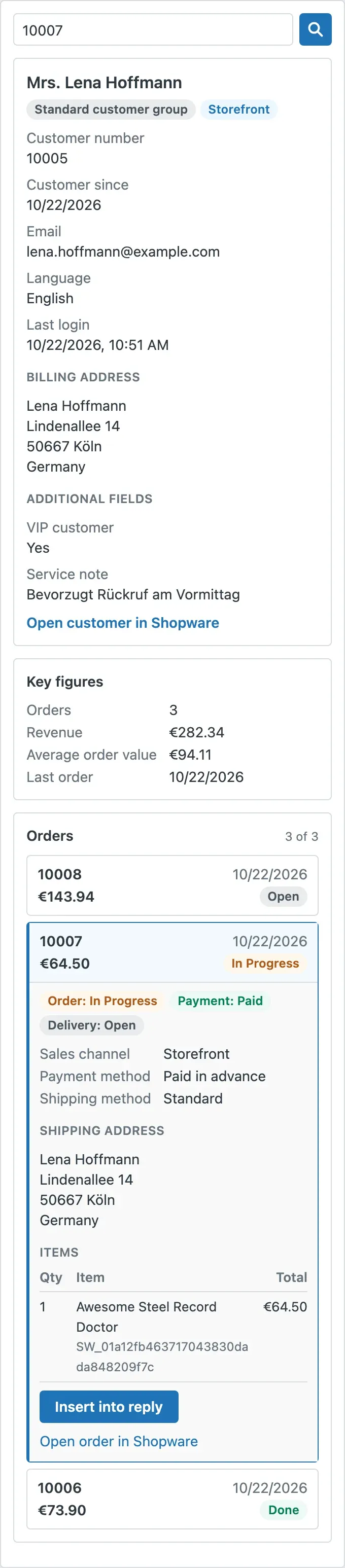 Figure 8: Searching by order number opens the matching order
Several matches
If there are several matching customers — for example a customer account in two sales channels, or a customer account plus earlier guest orders — a Matches selection appears at the top. Use it to switch between the customers. The sidebar shows at most ten matches. If there are more, the notice “There are more matches. Please refine the search.” appears. Then search, for example, by order or customer number.
Tip: The sidebar only shows customers and orders from sales channels for which Show this sales channel’s data in Zendesk is switched on.
How to renew or revoke the access key
What this gives you: You stay in control of who accesses your customer data from Zendesk. If a key has fallen into the wrong hands, or if you stop using Zendesk, you block access immediately.
Renew the key
-
In the Zendesk app (ticket sidebar) card, click Renew access key.
-
Confirm the prompt with Renew key.
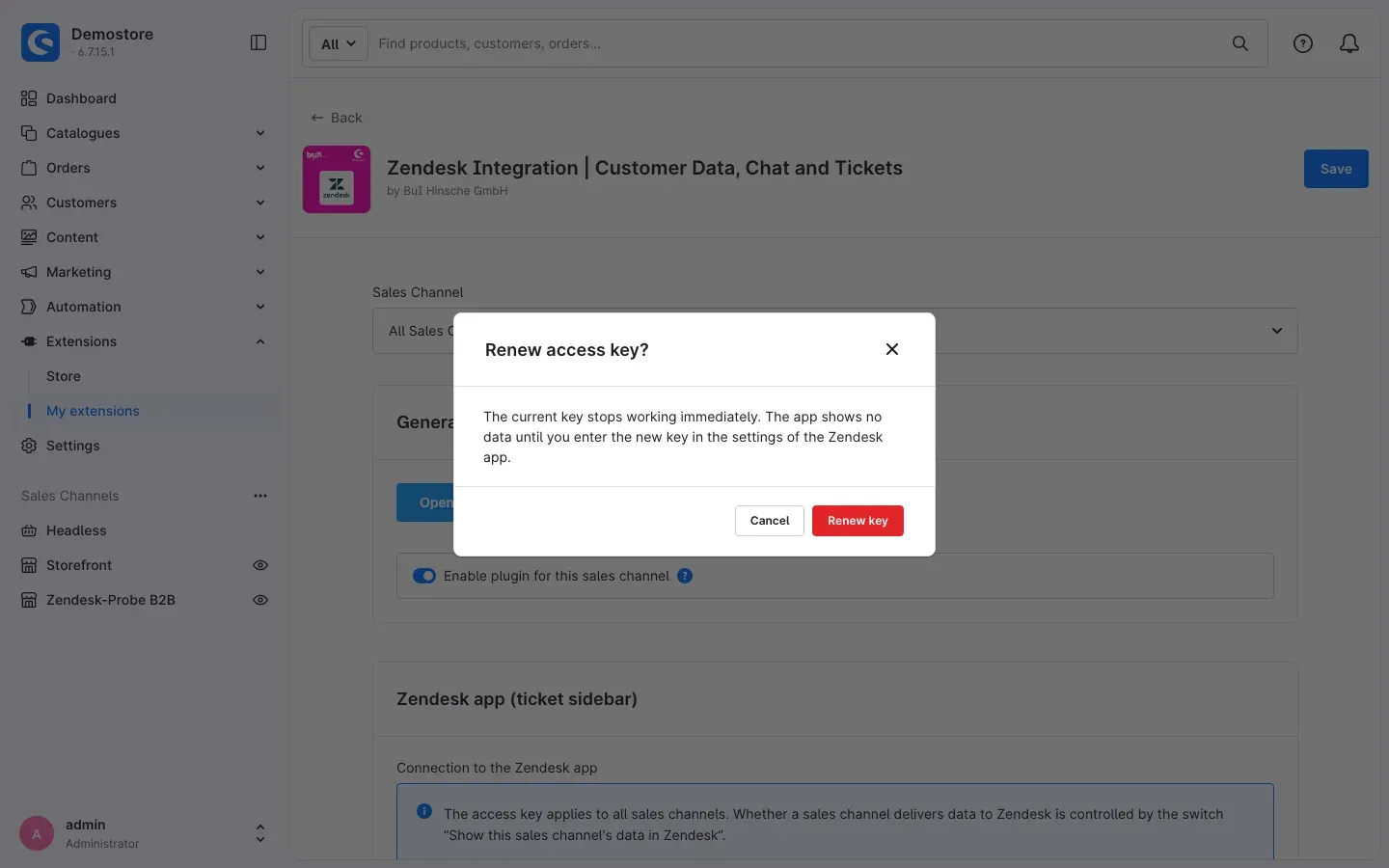 Figure 9: Confirmation prompt before renewing the access key
 -
Copy the new key from the New access key field — again, it is shown only once.
-
In Zendesk, open the settings of the app Shopware Customers & Orders and replace the old key with the new one.
Important: The current key stops working immediately. The app shows no data until you enter the new key in the settings of the Zendesk app.
Revoke the key
- Click Revoke access key.
- Confirm the prompt with Revoke key.
The Zendesk app immediately loses access to customer, order and document data. Document links created earlier also become invalid. The status changes to Not set up. If you want to use the sidebar again later, generate a new key and enter it in Zendesk.
How to add the Zendesk chat to your shop
What this gives you: Your visitors reach your customer service directly in the shop through the Zendesk chat. The plugin supports Zendesk Messaging and the Classic Web Widget, can load the chat only after cookie consent and hides it on pages where it would get in the way.
You find all settings in the Chat and help widget card. They apply per sales channel.
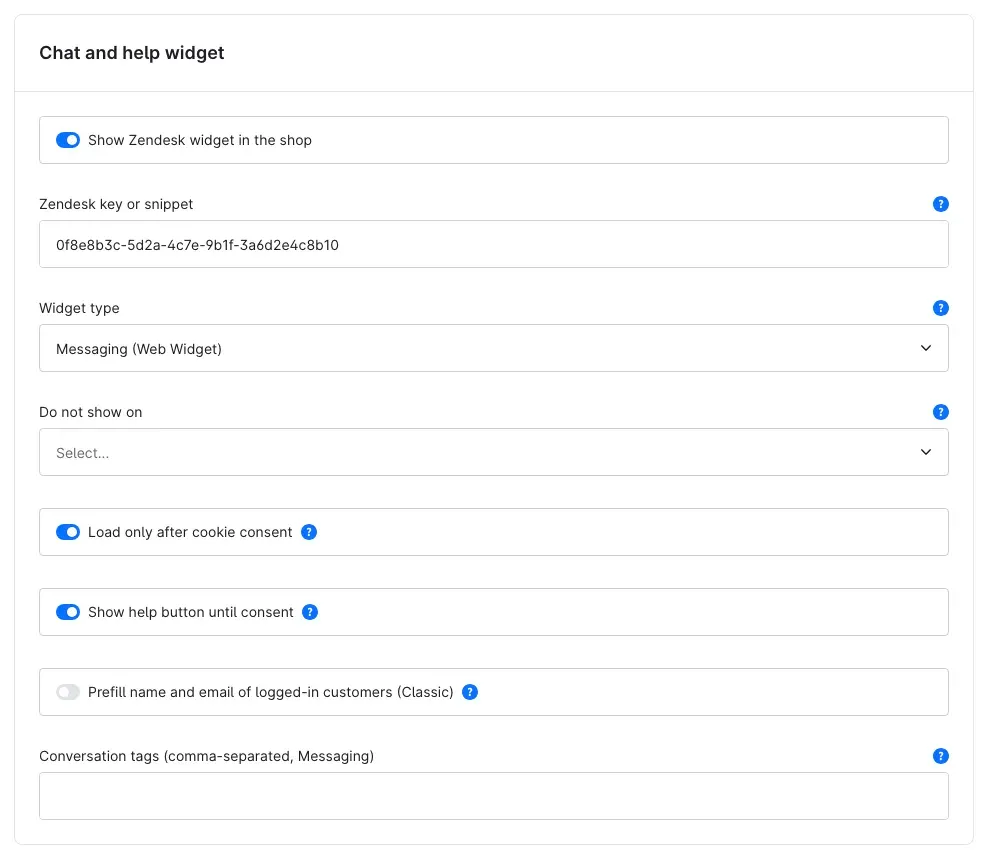 Figure 10: The “Chat and help widget” card
Step by step
- Get the key from Zendesk. In Zendesk Admin Center, open Channels → Messaging (for the Classic Web Widget Classic → Web Widget) and copy the key or the complete code snippet.
- Switch the chat on. Switch on Show Zendesk widget in the shop. The chat is off by default.
- Paste the key. Paste the key or the complete snippet into the Zendesk key or snippet field. The plugin only takes the key from it and loads the Zendesk script itself. This way, no foreign code from the configuration ends up in your shop.
- Choose the widget type. Under Widget type, choose either Messaging (Web Widget) or Classic Web Widget. The selection must match the widget type of the key in Zendesk.
- Save and open the shop in a new browser window.
Important: If the plugin does not find a valid key in the Zendesk key or snippet field, the shop does not show a chat.
Exclude pages
Under Do not show on you select pages on which the chat should not appear: Home page, Category pages, Product pages, Search results, Cart and checkout, Customer account and Landing pages. If you leave the selection empty, the chat appears on every page.
Why this is useful: Many shops hide the chat in cart and checkout so that nothing distracts from completing the order.
Cookie consent and help button
With Load only after cookie consent (switched on by default), the cookie settings of your shop get a separate entry Zendesk chat under Comfort features. The Zendesk script only loads once the visitor has agreed there. If the visitor withdraws consent later, the shop hides the chat again.
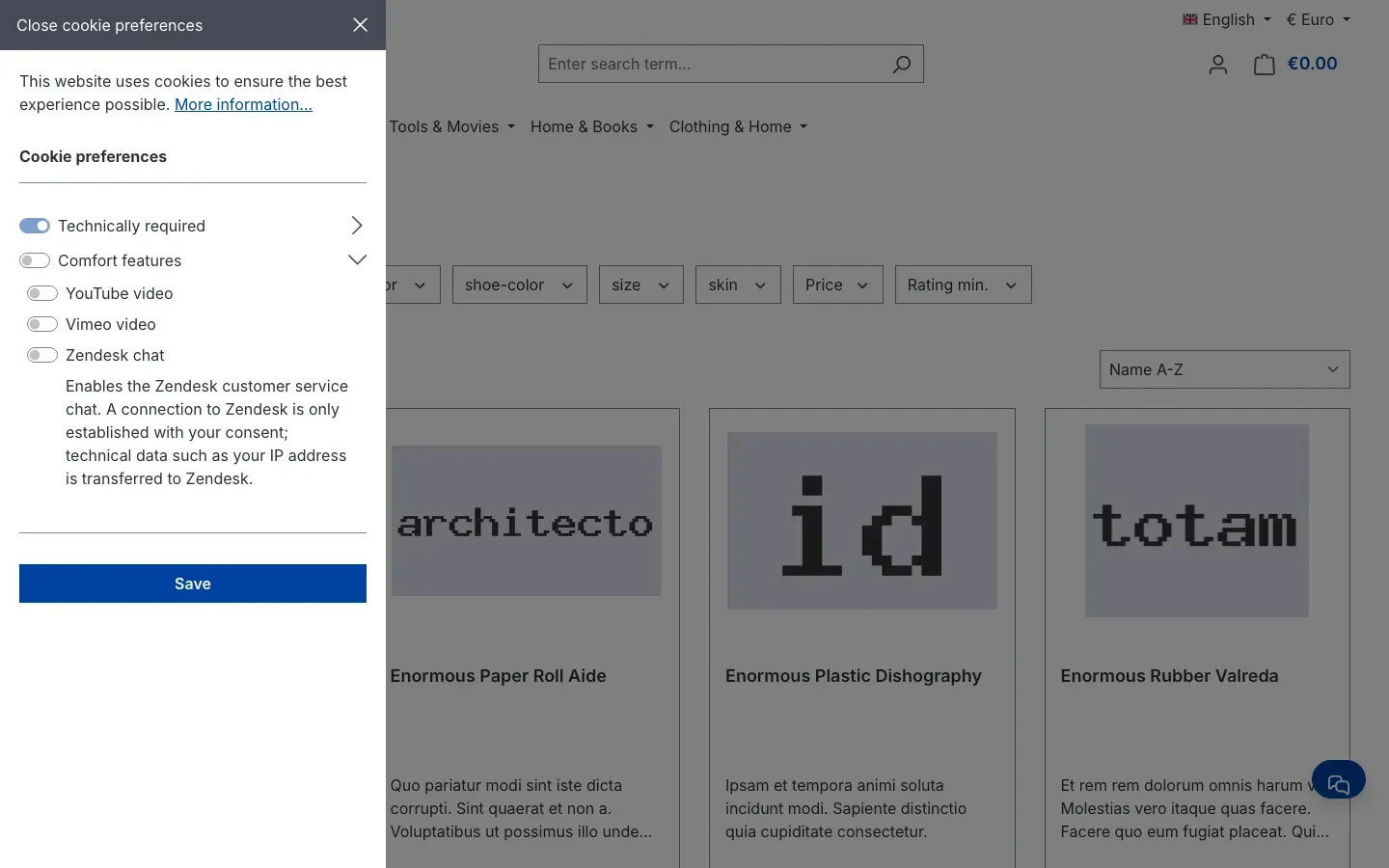 Figure 11: The “Zendesk chat” entry in the cookie settings under “Comfort features”
With Show help button until consent (switched on by default), visitors without consent still see a chat button at the bottom right. This way no contact is lost just because someone dismissed the cookie notice.
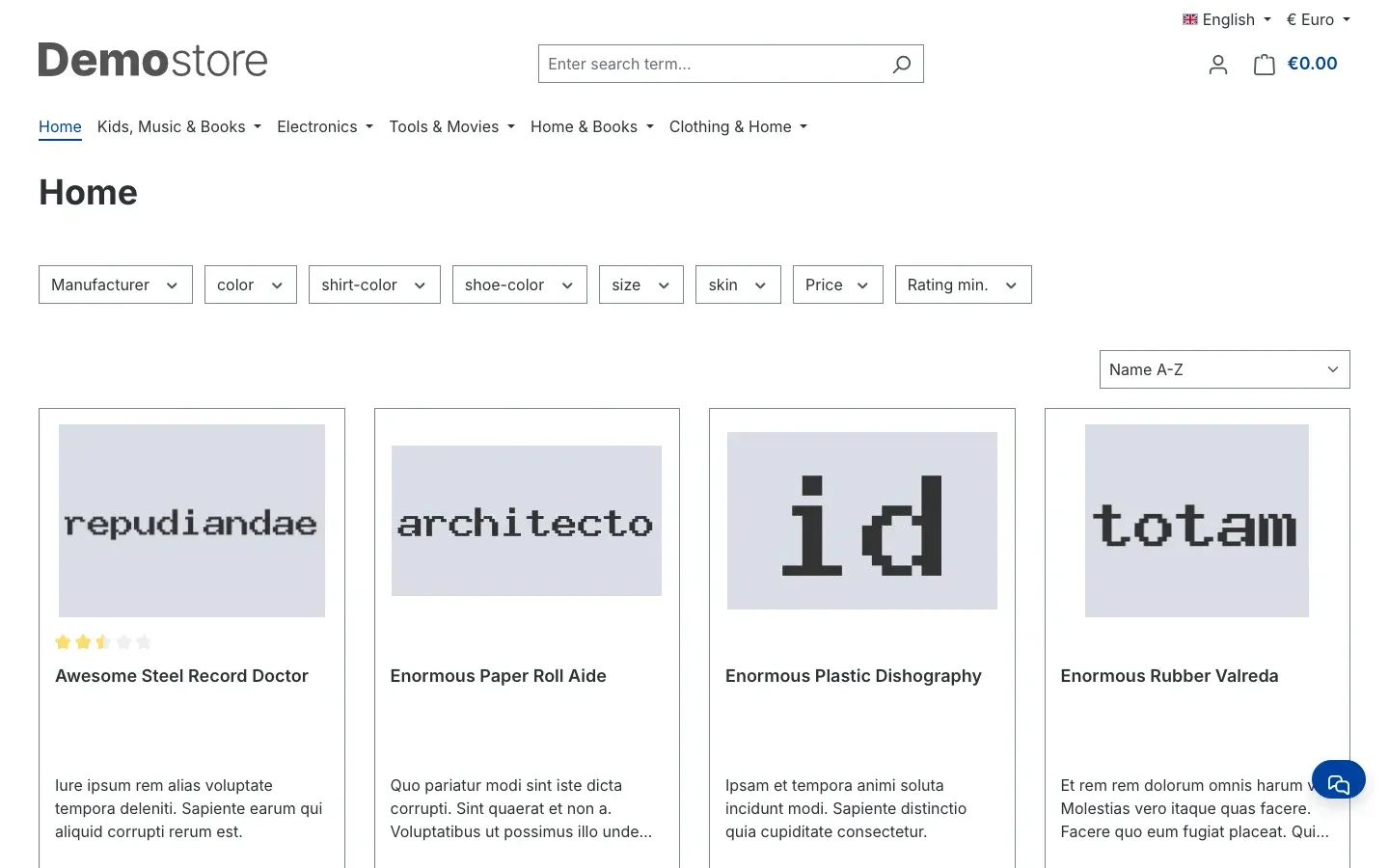 Figure 12: Help button at the bottom right while there is no consent yet
Clicking the button opens a Customer service chat notice. It explains that a connection to Zendesk is established for the chat. With Load chat the visitor agrees, and the chat opens. Cookie settings leads to the cookie settings of the shop.
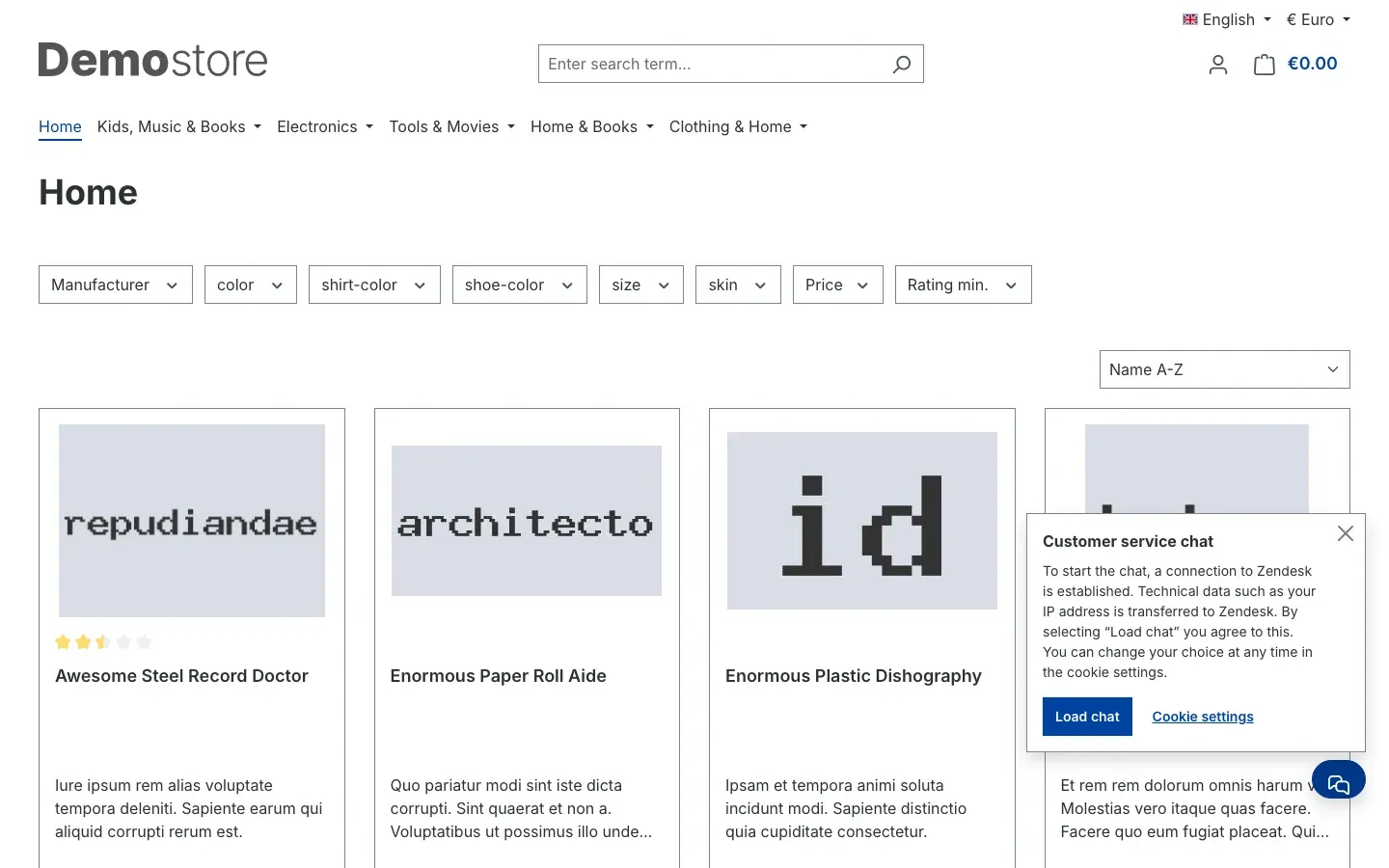 Figure 13: Notice with “Load chat” and “Cookie settings”
The help button only works while Load only after cookie consent is switched on.
Important: If you switch off Load only after cookie consent, the Zendesk script loads immediately on every page where the chat appears. Check beforehand whether this is permitted for your shop.
Language
The chat appears in the language in which the visitor is currently using your shop. You do not need to set anything for this.
Prefill name and email (Classic only)
With Prefill name and email of logged-in customers (Classic), the Classic Web Widget already fills in the name and email address of a logged-in customer. The customer does not have to type them again. This is off by default. With Messaging, the switch has no effect — use messaging authentication instead.
Conversation tags (Messaging only)
In the Conversation tags (comma-separated, Messaging) field you enter tags that Zendesk adds to every conversation started in this sales channel, for example shop-de. This lets you sort chats in Zendesk by shop or country.
How Zendesk recognises logged-in customers
What this gives you: When a customer is logged in to your shop, the shop confirms their identity to Zendesk. Your agents then see the conversation with the right customer — with a name and email address that come from the customer account and were not typed in freely.
This function is only available for the widget type Messaging (Web Widget).
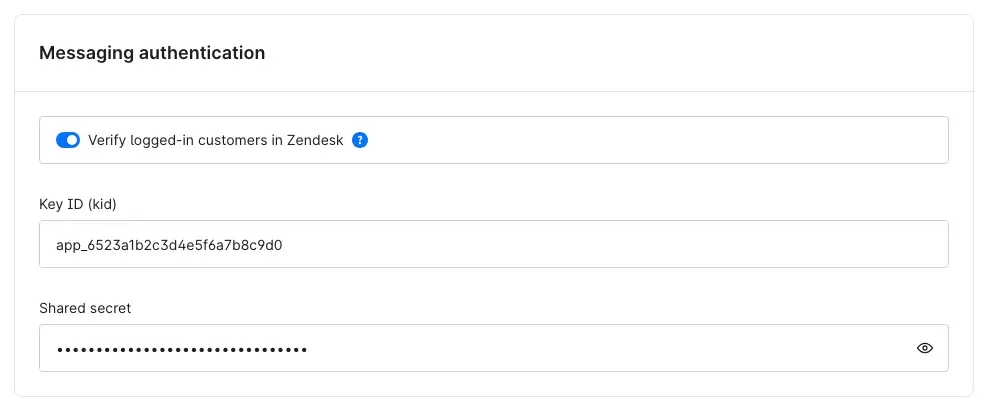 Figure 14: The “Messaging authentication” card
Step by step
- Prepare Zendesk. In Zendesk Admin Center, under Account → Security, set up end user authentication for Messaging and create a key there. You receive a key ID and a shared secret.
- Switch it on. In the Messaging authentication card, switch on Verify logged-in customers in Zendesk.
- Enter the key ID. Enter the key ID from Zendesk under Key ID (kid).
- Enter the secret. Enter the secret from Zendesk under Shared secret.
- Save.
From now on, the shop signs logged-in customers in to the chat. When a customer logs out of the shop, the shop also signs them out of the chat. Visitors who are not logged in chat as guests as before.
Important: The function only takes effect if the switch is on and both key ID and secret are entered. If one of them is missing, the chat continues without verification.
How contact requests become Zendesk tickets
What this gives you: Every message a customer sends through the contact form of your shop arrives as a ticket in Zendesk — where your support team works anyway. The ticket is in the name of the customer, so your reply goes straight to them.
You find all settings in the Zendesk API (tickets from the contact form) card. They apply per sales channel. This means each sales channel can also send its requests to its own Zendesk account.
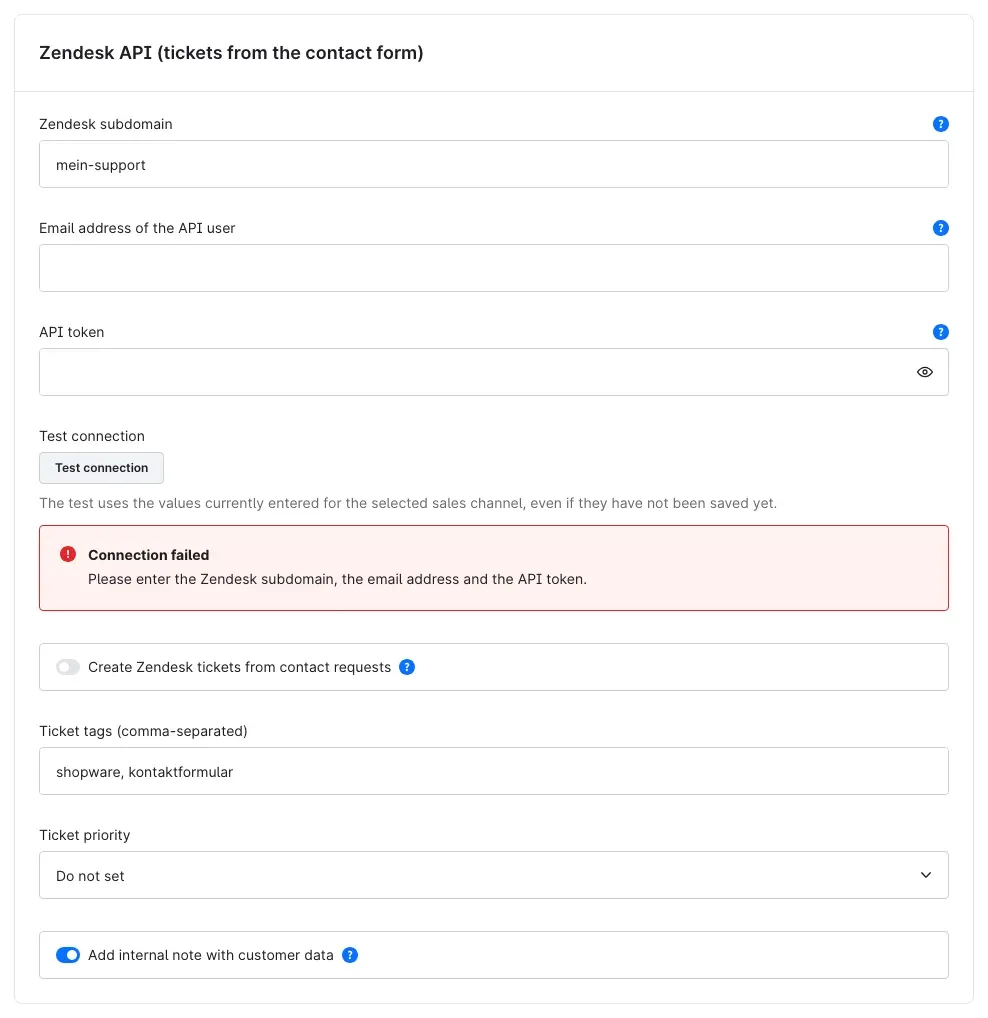 Figure 15: The “Zendesk API” card with the connection test — here with incomplete credentials
Step by step
- Create an API token in Zendesk. In Zendesk Admin Center, open Apps and integrations → APIs → Zendesk API and choose Add API token. Copy the token.
- Enter the Zendesk subdomain. Under Zendesk subdomain, enter the name of your Zendesk account, for example
mycompanyfrommycompany.zendesk.com. The full address is accepted as well. - Enter the email address. Under Email address of the API user, enter the email address of the agent or admin account that owns the API token.
- Enter the token. Paste the token under API token.
- Test the connection. Click Test connection. The test uses the values currently entered for the selected sales channel, even if they have not been saved yet. If it works, Connection successful appears with the name and role of the Zendesk user. Otherwise Connection failed appears with the reason (see Troubleshooting).
- Switch tickets on. Switch on Create Zendesk tickets from contact requests. This is off by default.
- Save and send a test message through the contact form of your shop.
What the ticket contains
Zendesk creates the ticket in the name of the customer. Name, email address, subject and message are transferred. If the customer entered a phone number, it appears below the message. If Zendesk already knows the email address, the ticket is assigned to that user; otherwise Zendesk creates the user.
Shopware still sends the usual contact form email unchanged.
Tags, priority and internal note
Ticket tags (comma-separated): Every ticket from the contact form gets these tags. The defaults are shopware, kontaktformular. Use them to filter the requests into a separate view in Zendesk. Tags arrive in Zendesk in lower case; spaces within a tag become underscores.
Ticket priority: Choose Low, Normal, High or Urgent if tickets from the contact form should get a fixed priority. With Do not set (default), the priority stays as Zendesk assigns it.
Add internal note with customer data: Adds a note to every ticket that only your agents see — not the customer. It names the sales channel, the customer number, the number of orders, the revenue excluding cancellations and a link to the customer in the Administration. If there is no customer account with this email address in this sales channel, the note says so. Switched on by default.
What happens when Zendesk has a problem
The request is sent to Zendesk in the background — so the contact form does not get slower for your customers, and the customer does not notice a problem.
- Temporary problem (Zendesk not reachable, overloaded or currently limiting requests): The plugin automatically tries again, at growing intervals over about eight hours. If Zendesk names a waiting time, the plugin respects it. A marker that Zendesk recognises protects against duplicate tickets.
- Permanent error (for example an invalid API token or a wrong subdomain): The plugin does not try again, because another attempt would not change the result.
If it still fails after the last attempt, or if there is a permanent error, Shopware stores the request with its failed messages. Your technical administrator can send it again from there once the cause has been fixed (see Technical Details). The contact form email to you is not affected.
Important: The plugin sends tickets through Shopware’s background processing. If it does not run, no tickets arrive in Zendesk (see Troubleshooting).
Data protection
Only data of the functions you switch on is sent to Zendesk. Without a function switched on, the plugin transfers nothing.
| Function | Which data | When |
|---|---|---|
| Sidebar in Zendesk | Customer data (name, contact details, billing address, customer group, selected custom fields, key figures) and order data (status, payment and shipping method, tracking numbers, shipping address, line items, documents) | only when an agent opens or searches a ticket or user in Zendesk; nothing is transferred in advance |
| Chat in the shop | technical data such as the visitor’s IP address | as soon as the Zendesk script loads in the browser — by default only after consent |
| Chat with prefill (Classic) or messaging authentication | name and email address of logged-in customers, with authentication also a customer identifier | when a logged-in customer uses the chat |
| Tickets from the contact form | name, email address, phone number, subject and message; with the internal note also sales channel, customer number, number of orders and revenue | when a customer submits the contact form |
Cookie consent: With Load only after cookie consent, the chat appears as Zendesk chat in the Comfort features group of the cookie settings. The visitor’s choice is stored for 30 days.
What you need to take care of yourself:
- Mention Zendesk in your privacy policy, together with the functions you use.
- Transferring data to Zendesk requires the usual legal basis, typically a data processing agreement with Zendesk.
These notes are not legal advice. Please check the use with qualified legal counsel.
Troubleshooting
Messages in the Zendesk sidebar
“App not set up”
The shop address is missing in the settings of the app in Zendesk. Enter it there, starting with https://.
“No access key in the shop” No access key has been generated in the shop yet, or it was revoked. Generate it as described in How to set up the Zendesk app and enter it in the settings of the app in Zendesk.
“Access key invalid” The key was renewed or revoked in Shopware. Enter the current key in the settings of the app in Zendesk. This message also appears if your shop is behind directory protection and a password prompt rejects the request from Zendesk — in that case a new key does not help, only a shop without a password prompt.
“Shop not reachable”
Shopware did not answer. Check the shop address in the app settings in Zendesk: it must be the public address of your shop, with https://. Also check that the plugin is installed and active in the shop. Then click Try again.
“Request failed” The data could not be loaded. Click Try again. If the error persists, contact your technical administrator.
“No customer found” There is no customer and no order for the searched email address or number in the released sales channels. Check:
- Is Show this sales channel’s data in Zendesk switched on in the customer’s sales channel — and Enable plugin for this sales channel as well?
- Is the customer writing from a different email address? If a customer has changed their email address in the shop, the sidebar only finds them by the new address. If they write from the old address, search for their customer number or an order number in the search field.
“This ticket has no requester email address yet.” The ticket does not have a requester with an email address yet. Search by email, order number or customer number in the search field.
“This app version (…) does not match the plugin (…).” The plugin was updated, but the app in Zendesk was not. Download the app again in Shopware with Download Zendesk app (ZIP) and upload it to Zendesk as an update of the existing private app.
“The document could not be opened.” Click the document in the sidebar again — the app fetches a fresh link. If that does not help, check in the Administration whether the document still exists in the order.
“The text could not be inserted into the reply.” Click into the reply field of the ticket and try again.
Messages while setting up in the shop
The “Generate access key” button is greyed out. Your user is missing permissions. Generating the key requires permission to edit settings and to view customers, orders and documents. An administrator can grant them through your user role.
“You do not have permission to view settings and therefore cannot set up the Zendesk app.” Your user is missing a permission here as well. Contact an administrator.
“The shop address must start with https:// and must not contain parameters.”
Correct the Shop address for Zendesk: with https:// at the start and without ? or # after it. Only then can you download the app.
“The Zendesk app package could not be created.” An error occurred while creating the ZIP file. The details are in the plugin log — pass this message on to your technical administrator.
Error messages in the connection test
“Please enter the Zendesk subdomain, the email address and the API token.” One of the three fields is empty. Fill in all three.
“The Zendesk subdomain is invalid. Example: mycompany or mycompany.zendesk.com.” Check the spelling of the Zendesk subdomain.
“There is no Zendesk account under this subdomain.” The subdomain is misspelled or does not belong to a Zendesk account. Compare it with the address you use to open Zendesk.
“Zendesk rejected the sign-in. Please check the email address and the API token.” The email address does not belong to the user of the API token, the token was copied incorrectly or it was deleted in Zendesk. Create a new token if necessary.
“Zendesk is currently limiting requests. Please try again in a minute.” Wait a minute and test again.
“Zendesk cannot be reached. Please try again later.” Zendesk or the connection to it is currently disrupted. Test again later.
The chat does not appear in the shop
What to check:
- Are Enable plugin for this sales channel and Show Zendesk widget in the shop switched on in the sales channel?
- Does the Zendesk key or snippet field contain a valid key? If in doubt, copy it from Zendesk again.
- Does the Widget type match the key in Zendesk?
- Is the current page selected under Do not show on?
- Is Load only after cookie consent switched on and you have not yet agreed to the Comfort features group or to Zendesk chat? Then only the help button appears — or nothing at all if Show help button until consent is switched off.
- Clear the cache: Settings → System → Caches & indexes → Clear cache.
Contact requests do not arrive as tickets in Zendesk
- Are Enable plugin for this sales channel and Create Zendesk tickets from contact requests switched on in the sales channel?
- Does Test connection report Connection successful in the same sales channel?
- Is your shop’s background processing running? Tickets are sent through Shopware’s message queue. As in every Shopware shop, the background processing must be running for this — either through the Administration (admin worker) or through a separate process on the server. If it does not run, the requests stay in the queue. If in doubt, ask your technical administrator or hosting provider.
- Was there a problem at Zendesk? Then the plugin keeps trying for several hours (see What happens when Zendesk has a problem).
- If the queue in your shop is set to immediate (synchronous) processing, the plugin tries at most twice when Zendesk has a problem and writes a note to the plugin log. The contact request itself still reaches you by email as usual, and your customer does not see an error. Automatic retries over several hours require the usual background processing — talk to your technical administrator about this.
The plugin does not appear under My extensions or is not active
- Open Extensions → My extensions.
- Check that the plugin is installed and the switch next to the entry is on.
- Clear the cache: Settings → System → Caches & indexes → Clear cache.
FAQ
Q: Which Zendesk plan do I need?
A: For the sidebar, a plan with private apps, i.e. Suite Growth or higher, or Support Professional or higher. Chat and tickets from the contact form do not need a private app.
Q: Does the sidebar work if my shop is behind directory protection?
A: No. Zendesk fetches the data from your shop over the internet, and a password prompt blocks that. Chat and tickets from the contact form still work.
Q: Can I change orders directly from Zendesk?
A: No. The sidebar only displays data. Open order in Shopware takes you to the order in the Administration.
Q: Does the sidebar also find guest orders?
A: Yes. Guest accounts are marked Guest, orders without a customer account Order without account.
Q: A customer changed their email address and writes from the old one. Why does the sidebar not find them?
A: The sidebar searches by the email address currently stored in the customer account. In this case, search for their customer number or an order number.
Q: Does the access key apply to all sales channels?
A: Yes, there is exactly one access key for the whole shop. Which sales channels deliver data is set per sales channel with Show this sales channel’s data in Zendesk.
Q: Can I connect several Zendesk accounts?
A: For tickets from the contact form, yes: enter separate credentials in each sales channel. The sidebar uses one access key for the whole shop; there you switch per sales channel whether its data appears.
Q: My shop has moved to a new address. What do I need to do?
A: Enter the new address in the Zendesk app (ticket sidebar) card under Shop address for Zendesk, download the app again and upload it to Zendesk as an update. Also enter the new address in the settings of the app in Zendesk.
Q: Do I need to upload the Zendesk app again after a plugin update?
A: If the sidebar reports that the app version does not match the plugin, yes: download it again and upload it to Zendesk as an update.
Q: Will I still receive the contact form email?
A: Yes. The plugin creates the ticket in addition. Shopware sends the usual email unchanged.
Q: Can I show the chat in only one sales channel?
A: Yes. Switch on Show Zendesk widget in the shop only in that sales channel.
Q: Does the chat make my shop slower?
A: The Zendesk script has its own weight. That is why it only loads if you switch the widget on — and by default only after the visitor has agreed.
Q: What happens to my data when I uninstall the plugin?
A: The plugin does not create its own tables. If you also remove the plugin data when uninstalling, it deletes the access key, and the Zendesk app immediately loses access. Tickets and conversations in Zendesk remain there.
For Administrators / Technical Details
This section is intended for technical administrators. You do not need it for normal use.
System requirements
- Shopware: 6.7, from version 6.7.3 (the entry in the cookie settings uses an interface that only exists from 6.7.3)
- PHP: 8.2 or newer
- Sidebar: shop publicly reachable via
https://, without directory protection - Tickets from the contact form: running background processing (admin worker or
messenger:consume)
Installation via the command line
php bin/console plugin:refresh
php bin/console plugin:install --activate SwpZenDeskSix
php bin/console cache:clear
Zendesk app and access key
- The app is a private Zendesk app (Zendesk Apps Framework 2.0) for the sidebar of tickets, new tickets and users. The package contains the shop address as the default value and only allows requests to the host of that address.
- The access key starts with
swpzd_and is shown only once. Only a SHA-256 hash, the last characters as a hint, the creation date and the last access are stored — in Shopware’s key-value storage, not in the system configuration. The last access is written at most every five minutes. - Zendesk sends the key through its request proxy in the
X-Swp-Zendesk-Keyheader. The agent never sees it in plain text. - Document links are signed with HMAC-SHA256 and valid for 300 seconds. Revoking the key invalidates existing links.
- The sidebar only returns records from sales channels in which the main switch and “Show this sales channel’s data in Zendesk” are switched on. At most ten matches per search.
| Method | Route | Access |
|---|---|---|
| GET | /api/swp-zendesk/sidebar/ping | access key |
| GET | /api/swp-zendesk/sidebar/lookup | access key |
| GET | /api/swp-zendesk/sidebar/document-link | access key |
| GET | /api/swp-zendesk/document/{documentId} | signed link |
| GET | /api/_action/swp-zendesk/sidebar/status | admin, read settings |
| POST | /api/_action/swp-zendesk/sidebar/token | admin, edit settings + read customers, orders, documents |
| DELETE | /api/_action/swp-zendesk/sidebar/token | admin, edit settings |
| POST | /api/_action/swp-zendesk/sidebar/app-package | admin, read settings |
| POST | /api/_action/swp-zendesk/api-test | admin, read settings |
The sidebar routes live under /api but do not require an admin login: they only check the access key or the signature and respond with Cache-Control: no-store.
Tickets from the contact form
- When the contact form is submitted, the plugin puts a message into the message queue; no call to Zendesk happens inside the customer’s request.
- The handler calls the Zendesk API at
https://<subdomain>.zendesk.com/api/v2/(find or create the user, create the ticket, internal note). The connection test usesGET /api/v2/users/me.json. - Every ticket carries an
Idempotency-Keythat stays the same across all attempts. If the ticket already exists, a further attempt only adds the note. Zendesk recognises the key for two hours: if the response to a successful creation was lost and all attempts after that fail for longer than two hours, a second ticket can occur in rare cases. - Retries on temporary errors (HTTP 429, 5xx, network errors): up to eight further attempts after 1, 2, 5, 10 and 30 minutes and 1, 2 and 4 hours. For 429, the waiting time from
Retry-Afterapplies, bounded to 30 seconds to 1 hour. - No retry on permanent errors (HTTP 400, 401, 403, 404, 422).
- Synchronous processing: If the message queue is set to synchronous processing (
sync://transport), the delays do not apply. The plugin then tries at most twice when Zendesk has a problem and writes to the plugin log:Message transport ignores delays; ticket retries stop — configure an asynchronous transport.In this case, switch to an asynchronous transport. - After the last attempt, or on permanent errors, the message ends up in the transport for failed messages:
php bin/console messenger:failed:show
php bin/console messenger:failed:retry- Start the background processing if no admin worker is running:
php bin/console messenger:consume asyncChat widget
- The plugin loads
https://static.zdassets.com/ekr/snippet.js?key=<key>itself; only the key is taken from a pasted snippet. - Configuration and customer data never appear in cached HTML. Name, email and the token for messaging authentication are fetched by the storefront script with a separate request (storefront route
/swp-zendesk/widget-identity, without HTTP cache). - Messaging authentication: JSON Web Token (HS256) with the key ID in the header, valid for 15 minutes, customer ID as
external_id. - Consent cookie:
swp-zendesk-widget, 30 days, comfort features group.
Headless / Store API
The plugin does not provide CMS elements. For custom frontends (e.g. Composable Frontends), the widget data is available through the Store API — the storefront uses the same routes:
| Method | Route | Purpose |
|---|---|---|
| GET | /store-api/swp-zendesk/widget-config | widget settings of the sales channel (key, script address, widget type, language, excluded pages, consent, tags); without HTTP cache |
| POST | /store-api/swp-zendesk/widget-identity | identity of the logged-in customer, with messaging authentication including a fresh token (15 minutes) |
Flow in a custom frontend: call widget-config; if the widget is enabled, load the script with id="ze-snippet" — if consent is required, only after consent to the named cookie. Then set language and tags; with messaging authentication call zE('messenger', 'loginUser', …) with the token from widget-identity, and zE('messenger', 'logoutUser') after logout. Customer data is only delivered by the POST route.
Log file
The plugin writes to its own log file in Shopware’s log directory: var/log/SwpZenDeskSix-<date>.log. It contains no personal data. You find notes on tickets from the contact form there (created, retried, finally failed) as well as errors while creating the app package.
Uninstallation
The plugin creates no custom tables and no migrations. If you also remove the plugin data when uninstalling, it deletes the hash, hint and timestamps of the access key from the key-value storage. If you keep the data, the key remains valid for a later reinstallation.
This manual was written for Zendesk Integration version 6.7.0.
More manuals
Address Validation: House Number Check & Corrections
Address validation at the point of entry: the plugin spots missing house numbers, can suggest corrections via Google and helps you send fewer parcels that come back undeliverable.
Open manual Shopware 6Admin Password Reminder
Admin Password Reminder: your backend users renew their passwords on time, prompted after login and by a daily email. Premium locks expired accounts until the password is changed.
Open manual Shopware 6Advent Calendar | Doors with products, coupons and promotions
Advent calendar for your shopping experiences: doors open on time without clearing the cache, give nothing away in the page source and reveal coupons, products or your own content.
Open manualNeed a team that keeps your shop running?
We have been maintaining Shopware shops for more than 20 years, including updates, hotfixes and the plugins you are configuring right now.