Events & Tickets: Sell Seminars, Courses and Event Tickets
Sell events, seminars and courses in your shop: dates with capacities, attendee details, a waiting list and PDF tickets with QR code, plus a browser-based entry app.
On this page
- Introduction
- What you achieve with this plugin
- Who is this plugin for?
- Installation
- Getting started
- Settings
- General
- Tickets and documents
- Reservation and waiting list
- Entry control
- How to manage events and dates
- How to create an event
- How to add a date
- How to create a date series
- How to change several dates at once
- How to ask for additional details per attendee
- How to print additional information on the ticket
- How to create event categories
- How to show events in your store
- How to build an event overview in a Shopping Experience
- What it looks like in the store
- How your customers book
- Choosing a date
- Attendee details in the cart
- After the order
- The ticket and the invoice
- How to use the waiting list
- How it works for your customers
- How to see the waiting list in the administration
- How to manage attendees and tickets
- The attendee list
- Editing a single ticket
- Adding external attendees without an order
- Exporting attendee lists
- Tickets in the order
- What happens when orders are cancelled or changed
- How tickets are sent automatically
- How to control admission with the entry app
- How to create a scanner access
- How to pair a device
- How to scan at the entrance
- How to revoke access for a device
- Good to know: limits and special cases
- Express checkout on the product page
- Quick view
- Disabled sales channel
- Orders created in the administration
- Maximum and reservation
- Protection against too many requests
- Troubleshooting
- The installation fails
- No date selection appears on the product page
- An event product disappears from the cart
- The customer cannot place the order
- The customer does not receive a ticket email
- A PDF export stays on “Waiting” or is “Failed”
- The entry app does not open the camera
- Paired devices report “no longer paired” or all QR codes are invalid
- Customers receive “too many requests”
- The booked seats are wrong
- The plugin does not appear in the administration menu
- FAQ
- For administrators / Technical details
- System requirements
- Composer during installation
- Background processing (message worker)
- Security key (APP_SECRET)
- Rate limits
- Entry app
- Permissions for user roles
- Uninstallation
Introduction
Events & Tickets lets you sell seminars, courses, workshops and other events directly in your Shopware store — with fixed dates, limited seats, attendee details, a waiting list, PDF tickets with QR code and an entry app for check-in on site.
What you achieve with this plugin
- You create events with as many dates as you like — one by one or as a whole series (for example every Tuesday until the end of the year).
- Your customers choose a date on the product page and see whether seats are still available.
- For every ticket, the cart asks for the attendee’s name and, if you wish, further details (for example allergies or a mobile number).
- Seats in the cart are reserved for a configurable time, so nobody buys a seat that has been taken in the meantime. Overbooking is ruled out.
- When a date is sold out, interested customers join a waiting list and are notified automatically as soon as a seat becomes free.
- After ordering, your customers receive their tickets as a PDF with QR code by email and also find them in their customer account — including a calendar entry.
- You keep track of all attendees, export attendee lists as CSV or PDF and add guests without an order.
- At the entrance, your staff scan the tickets with a smartphone or tablet — without access to the administration.
- You build overview pages with cards, lists, a slider or an event calendar in the Shopping Experiences.
Who is this plugin for?
For store owners who sell dates as well as goods: course providers, seminar and training organisers, coffee roasters and wine merchants with tastings, cooking schools, farm shops with guided tours, clubs and anyone offering seats for a specific point in time.
Installation
After purchase, the plugin is available directly in your administration — you do not need to download anything.
- Log in to your Shopware administration (
yourstore.com/admin). - Open Extensions → My extensions.
- Next to Events & Tickets: Sell Seminars, Courses and Event Tickets, click Install.
- Activate the plugin with the switch next to the entry — done.
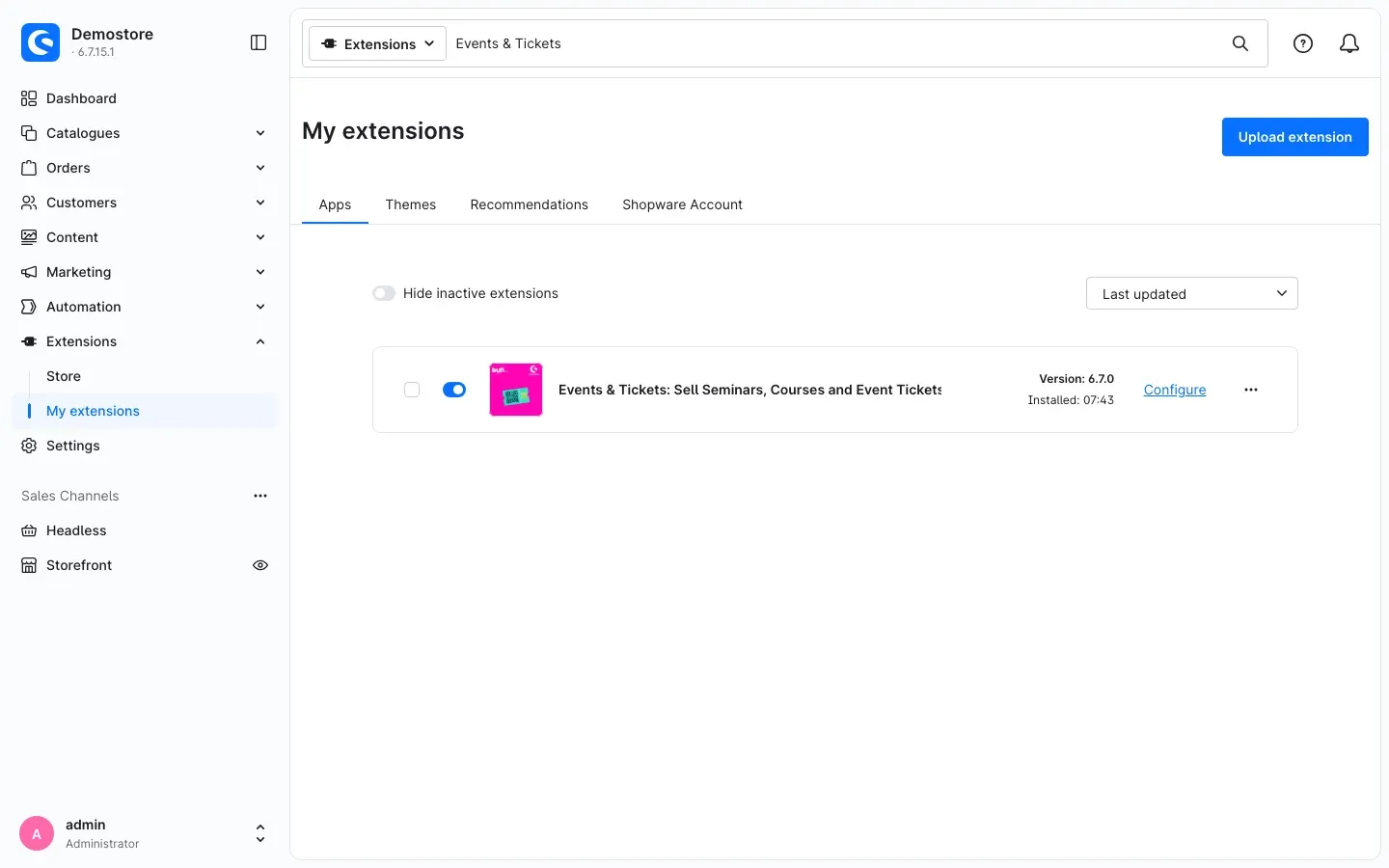 Fig. 1: Events & Tickets under Extensions → My extensions — installed, active and with the “Configure” link
Important: During installation, Shopware adds a program library for the QR codes on the tickets. To do so, your store must be allowed to run Composer during the installation. Some hosting plans block this — the installation then fails. In that case, pass the section For administrators / Technical details to your hosting provider or agency.
If the plugin does not appear in the list, your Shopware account is not yet connected to the store. You do this under Extensions → My extensions by logging in with your Shopware account.
Getting started
You can sell your first ticket within a few minutes:
- Check the settings: Under Extensions → My extensions, click Configure next to the plugin. The default settings let you start right away. Above all, check that the switch Enable plugin for this sales channel is on (see Settings).
- Create a product: Create a product under Catalogues → Products as usual, through which the tickets are sold (price, tax, image, visibility in the sales channel). In the cart, a ticket is a normal product line item — price and tax come from the product.
- Create an event: Open Catalogues → Events & Tickets, click Add event, enter a title and select the product you just created under Product for ticket sales (see How to manage events and dates).
- Create dates: In the event, switch to the Dates tab and add a date or a date series.
- Check the result: Open the product page in your store. The selection Choose a date with the bookable dates now appears there.
Tip: The supplied flow “Send event tickets” sends the tickets by email automatically after the order. You do not need to set anything up (see How tickets are sent automatically).
Settings
You find the settings under Extensions → My extensions → Events & Tickets → Configure. At the top of the General card, the Open documentation button opens this manual.
All settings apply per sales channel. First select the sales channel at the top of the page. Whatever you set under “All Sales Channels” applies to every channel in which you have not stored a value of its own. This way you can, for example, use different rules in a B2B store than in the consumer store.
General
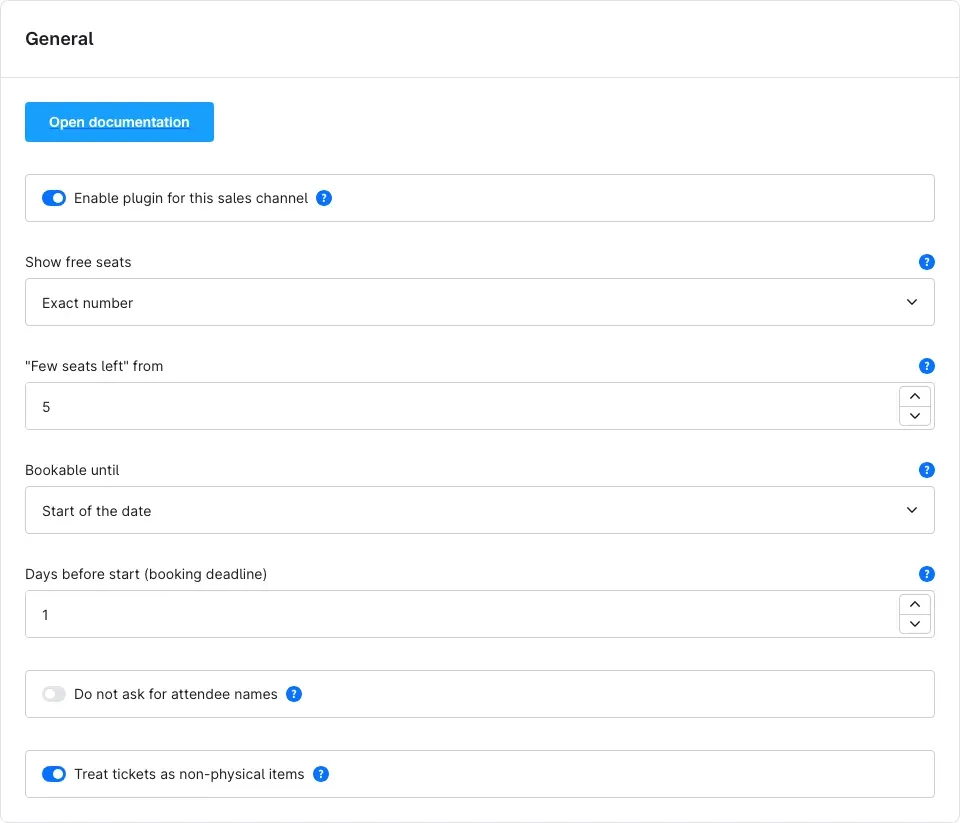 Fig. 2: “General” card
Enable plugin for this sales channel
This switch determines whether Events & Tickets is active in this sales channel. It is on by default. If you switch it off, the date selection, event overviews, waiting list and tickets disappear in this channel — without uninstalling the plugin.
Why this is useful: If you run several stores (for example one for consumers and one for resellers), you offer events only where they belong.
Important: While the switch is off, the cart in this channel removes every product that is linked to an event and tells the customer that the event cannot be booked in this store. This way nobody can buy a ticket without a date. See Good to know for details.
Show free seats
Here you decide how much your customers learn about the occupancy of a date:
- Do not show — no information about free seats is displayed.
- Approximately (available / few left / sold out) — customers see “Seats available”, “Only a few seats left” or “Sold out”. This is the default.
- Exact number — customers see the exact number, for example “Seats left: 6”.
Why this is useful: The exact number creates helpful urgency for small groups; the approximate display does not reveal how well large events are selling.
”Few seats left” from
Only used with the approximate display: as soon as a date has this number of free seats or fewer, it shows “Only a few seats left”. The default is 5. For events with many seats, choose a higher value.
Bookable until
Defines until when a date can be booked by default:
- Start of the date (default) — until it begins.
- End of the date — even while an event is running, for example a full-day trade fair.
- A number of days before the start — for example if you need to prepare materials or register attendees in advance.
A deadline you enter directly on a date in the Bookable until field always takes precedence over this setting.
Days before start (booking deadline)
Only used with A number of days before the start and defines how many days before the start booking closes. The default is 1 day. To allow booking until the start, choose Start of the date above.
Do not ask for attendee names
When this switch is on, the cart does not ask for a name per ticket. Tickets are numbered consecutively; the attendee list and the entry app then show the customer who placed the order. It is off by default — names are asked for.
Why this is useful: At open events such as an open day, the name of each guest does not matter; your customers get through checkout faster.
Treat tickets as non-physical items
When this switch is on (default), ticket line items create no delivery position and no shipping costs. Switch it off if you actually send tickets by post.
Tickets and documents
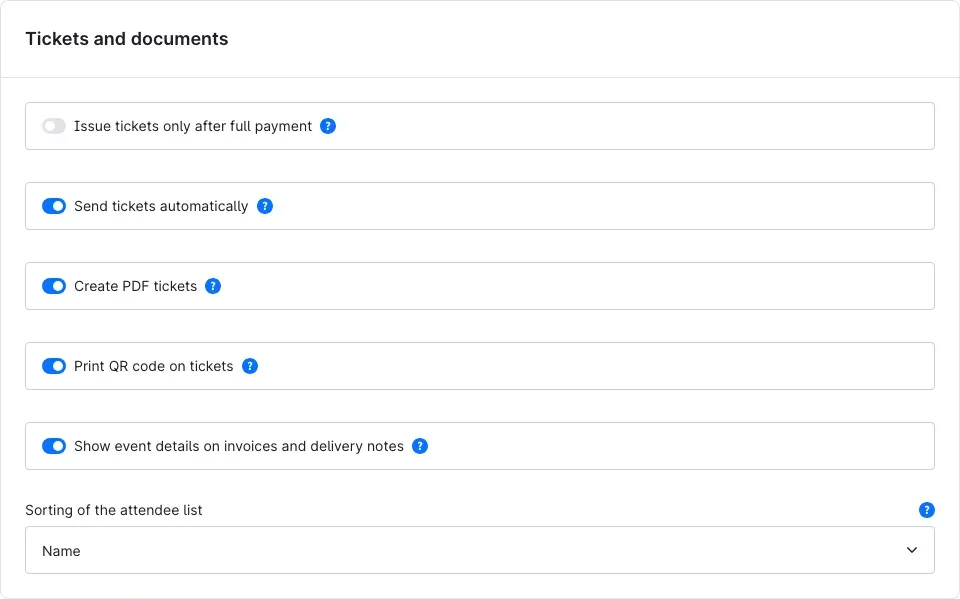 Fig. 3: “Tickets and documents” card
Issue tickets only after full payment
When this switch is on, ticket PDF, ticket email and the download in the customer account are only available once the order has been paid. Until then, the customer account shows that the tickets will be released once the payment has been received. The switch is off by default — tickets are issued immediately after the order.
Why this is useful: If you offer prepayment or payment by invoice, you avoid someone turning up with an unpaid ticket.
Send tickets automatically
When this switch is on (default), the supplied flow “Send event tickets” starts as soon as tickets are issued: it creates the ticket PDF and sends it by email. Switch it off if you prefer to send tickets manually from the order (see How to manage attendees and tickets).
Create PDF tickets
Allows the “Event ticket” document for orders of this sales channel. On by default. Switch it off if you work without PDF tickets in this channel — for example because you only tick off attendees on the list at the entrance.
Print QR code on tickets
Prints a QR code on every ticket. On by default. The entry app needs the QR code for scanning. If you work without the entry app, you can switch it off.
Show event details on invoices and delivery notes
Adds date, time and venue of the event date to ticket line items on invoice, delivery note, credit note and cancellation invoice. On by default. This way your accounting team also sees which date was paid for.
Sorting of the attendee list
Defines how the attendee list in the administration and the CSV and PDF exports are sorted: by Name (default), Ticket number or Status.
Reservation and waiting list
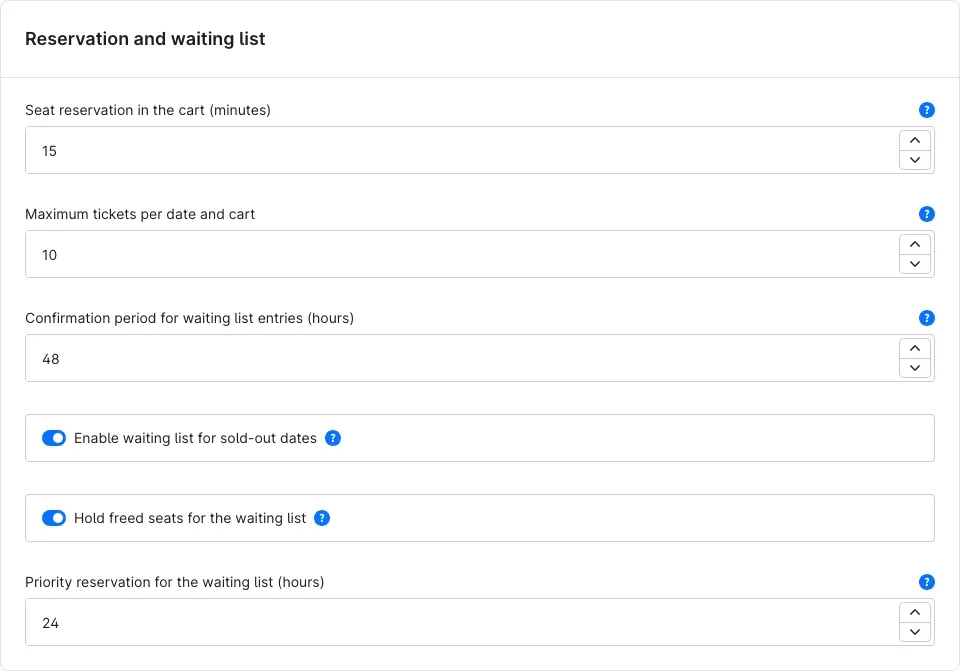 Fig. 4: “Reservation and waiting list” card
Seat reservation in the cart (minutes)
This is how long the store holds seats a customer has put in the cart. While the customer is active, the reservation is extended. The default is 15 minutes. Increase the value if your customers fill in many attendee details; reduce it for highly sought-after dates so that abandoned carts do not block seats for too long.
Maximum tickets per date and cart
Limits how many seats of one date a single cart can hold. The default is 10 tickets. If a customer puts more in the cart, the quantity is reduced to the maximum and the customer sees a notice.
Why this is useful: Individual carts cannot block an entire date. If you often sell to groups or companies, set the value higher accordingly.
Confirmation period for waiting list entries (hours)
Interested customers must confirm their waiting list entry via a link in an email. Unconfirmed entries are deleted after this time. The default is 48 hours.
Enable waiting list for sold-out dates
When this switch is on (default), customers can join a waiting list for sold-out dates and are notified as soon as a seat becomes free. See How to use the waiting list for details.
Hold freed seats for the waiting list
- On (default): a freed seat is reserved for the notified customer for the time set below. Fair to everybody who signed up early.
- Off: the waiting list only notifies — whoever books first gets the seat.
Priority reservation for the waiting list (hours)
This is how long a freed seat is held for the notified customer. The default is 24 hours. Only used while Hold freed seats for the waiting list is on. When the time runs out, the next person on the waiting list moves up.
Entry control
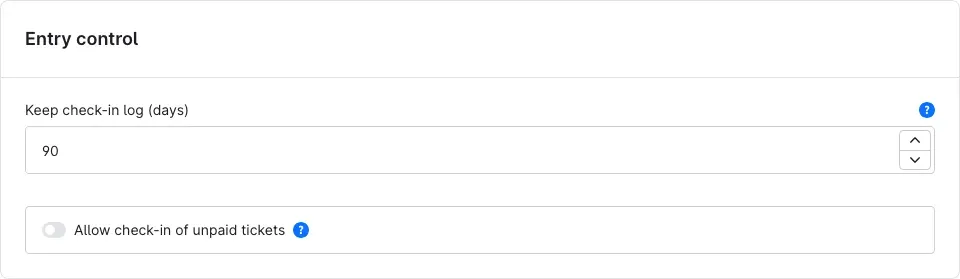 Fig. 5: “Entry control” card
Keep check-in log (days)
Every check-in, check-out and rejected scan is logged. The store deletes older entries automatically after this time. The default is 90 days; at most 180 days are possible.
Allow check-in of unpaid tickets
Off by default: the entry app rejects tickets from unpaid orders with “Unpaid – no entry”. When switched on, the app still shows the “unpaid” warning but checks the attendee in — useful if guests may pay in cash on site.
How to manage events and dates
What this gives you: You maintain all events in one place — with description, image, any number of dates, your own questions to attendees and a note for the ticket.
You find the events under Catalogues → Events & Tickets.
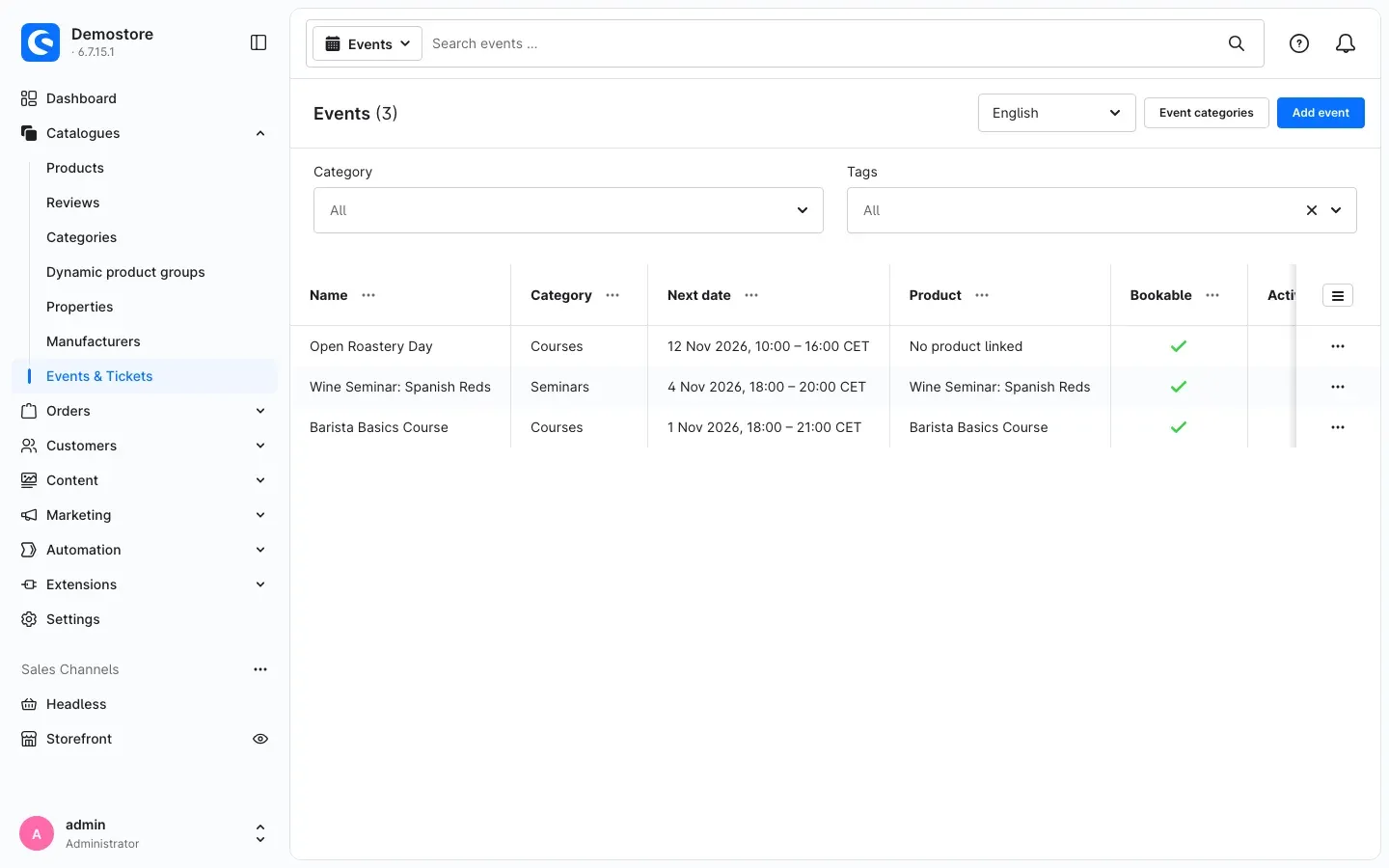 Fig. 6: The event overview with filters for category and tags
For each event, the list shows the Name, the Category, the Next date, the linked Product and whether the event is Bookable. Use the Category and Tags filters to narrow down the list. Via the menu at the end of a row, you can duplicate an event with its dates — the copy is initially inactive and not yet linked to a product.
How to create an event
- Click Add event.
- In the General tab, fill in the Basic information card:
- Title — the name of the event, for example “Barista Basics Course”.
- Teaser — a short sentence for overviews and cards.
- Description and agenda — detailed description, programme, notes.
- Event category — assigns the event to a category, for example “Courses” or “Seminars”.
- Tags — keywords customers can filter by in the event overview.
- External link — optionally, a link to further information, for example the event website.
- In the Booking card, define:
- Time zone of the event — all dates of this event are entered and shown in this time zone, independent of your own settings in the administration.
- Product for ticket sales — the product through which tickets are sold. Only main products are available, and each product belongs to one event at most. Variants of the product (for example “with lunch” / “without lunch”) sell tickets for this event as well.
- Sales channels — only appears for events without a product (see below).
- Bookable — switch off for events that are only shown for information, for example trade fairs or an open day. Customers then see “This event cannot be booked online.”
- Active — only active events appear in the store.
- In the Image card, upload an Event image.
- Click Save.
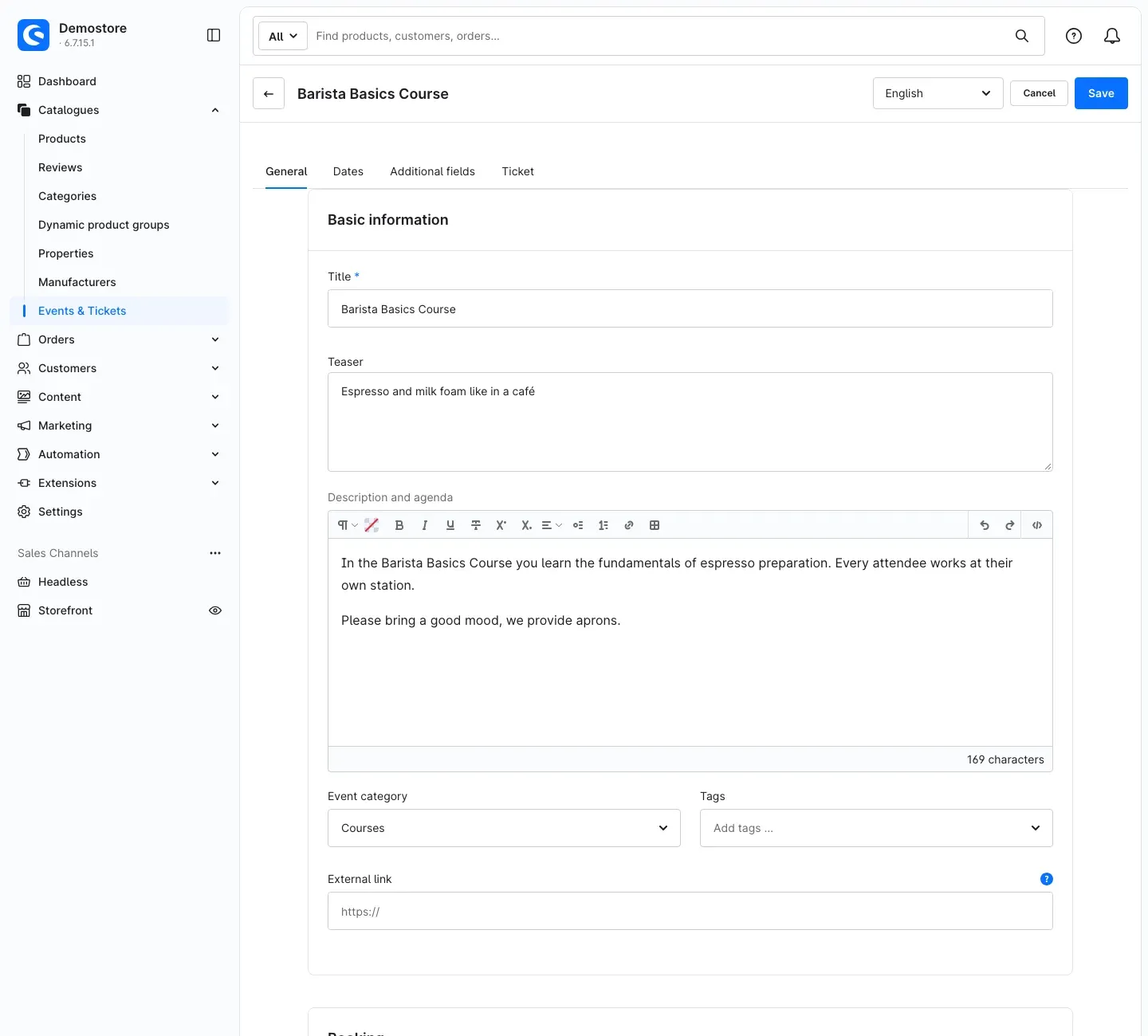 Fig. 7: “General” tab with the basic information of an event
Tip: Use the language selection at the top right to maintain title, teaser and description in every store language.
In which sales channels does an event appear?
- Events with a product follow the product: they only appear in sales channels in which the product is active and visible.
- Events without a product (for example information-only events) appear in the sales channels you select in the Sales channels field. If you leave the field empty, the event appears in all sales channels in which the plugin is active.
In the product itself (Catalogues → Products), the Event card shows whether and with which event the product is linked and when the next date takes place. If no event is linked yet, you can create it right there with Create event for this product.
How to add a date
- Open the event and switch to the Dates tab.
- Click Add date.
- Fill in the New date dialog:
- Start and End — date and time in the time zone of the event.
- Bookable until — optional. Overrides the booking deadline from the settings for this date.
- Location and Address — appear in the store, in the cart, on the ticket and in the calendar entry.
- Tickets in total — the number of seats. Leave empty for an unlimited number of seats.
- Booked elsewhere — seats you sold outside the store, for example by phone. They reduce the free seats.
- Active — only active dates can be booked.
- Click Save.
The Dates tab shows all dates with Location, Tickets in total and Booked. Show past dates with Show past dates. Via the menu at the end of a row, you can duplicate a date (the copy is initially inactive), show attendees or open the waiting list.
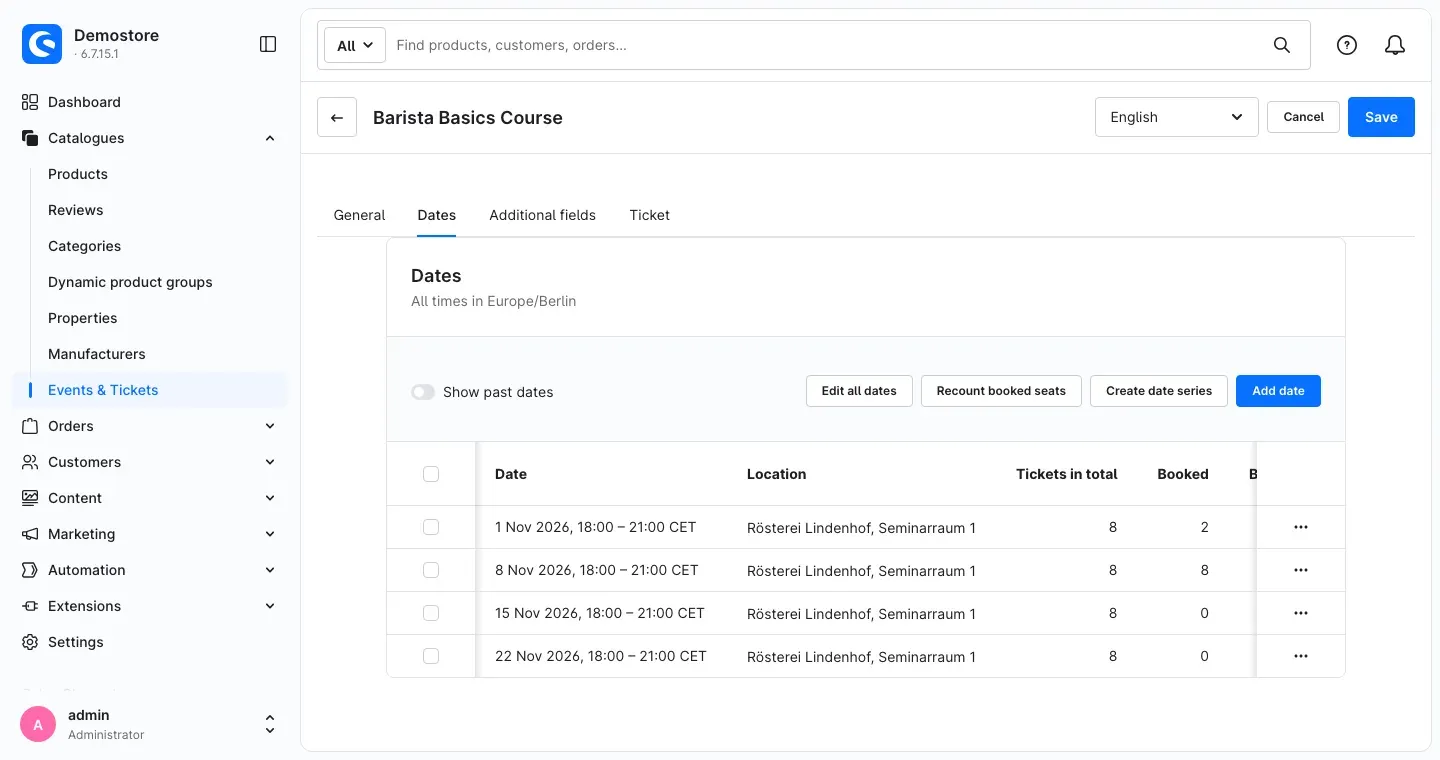 Fig. 8: “Dates” tab with booked seats per date
Important: A date for which tickets have already been sold (including cancelled ones) cannot be deleted. Deactivate it instead. The same applies to events. The capacity of a date cannot be reduced below the seats already booked.
How to create a date series
What this gives you: You create recurring courses in one step instead of entering every date individually.
- In the Dates tab, click Create date series.
- Choose the First day and Last day of the period.
- Under Repeat, choose how often the date takes place:
- Daily — with Every n days,
- Weekly — with Every n weeks and the desired weekdays (Monday to Sunday),
- Monthly — with Every n months and Day of the month. Under If the day does not exist in a month, choose whether to skip the month or use the last day of the month.
- Enter the Start time and End time. An end time before the start time ends on the following day.
- Add Location, Address and Tickets in total — these values apply to all dates of the series.
- Use Create dates as active to decide whether the dates can be booked immediately.
- Click Show preview. The preview shows which dates will be created and which already exist.
- Click Create dates.
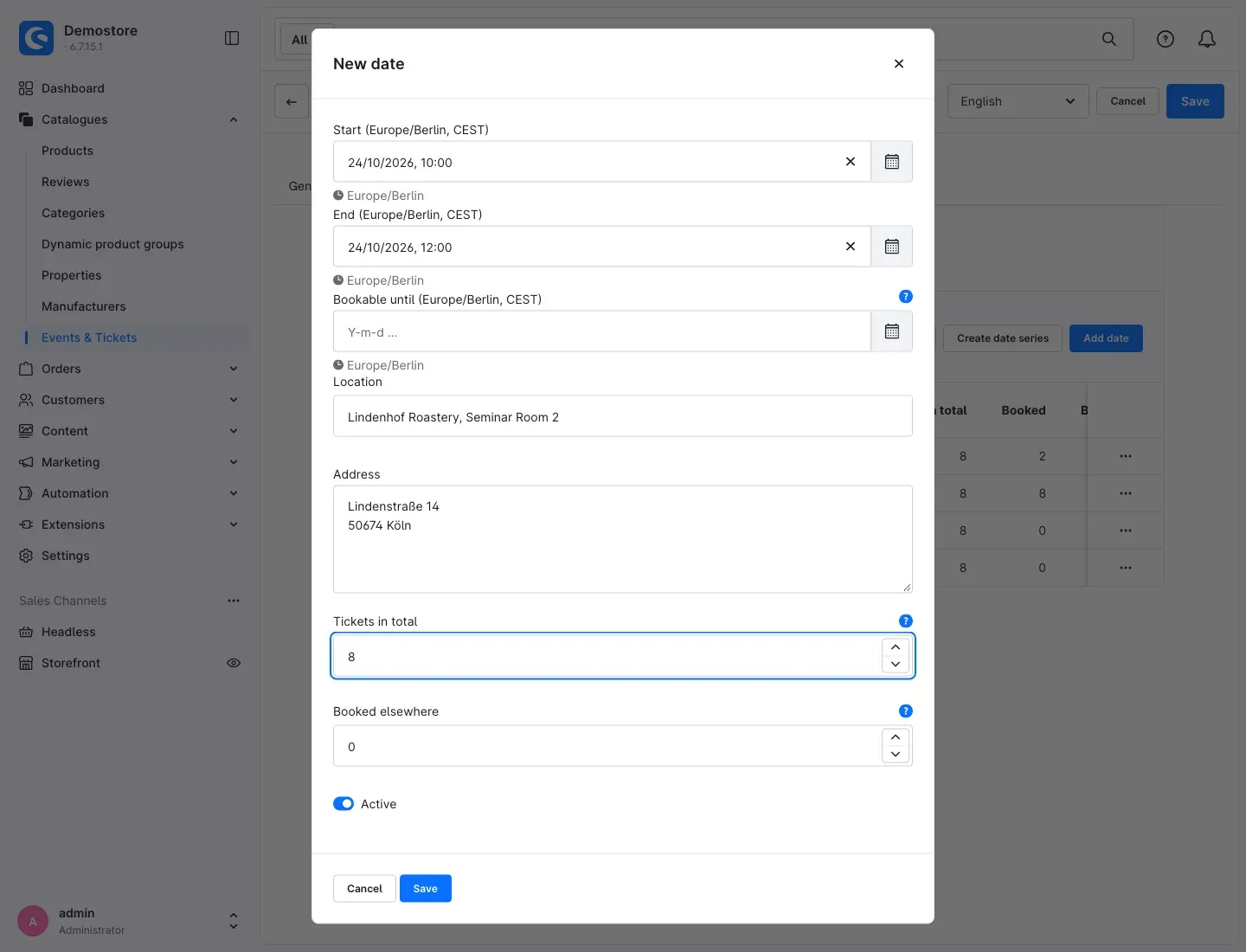 Fig. 9: “Create date series” dialog — the address applies to all dates of the series
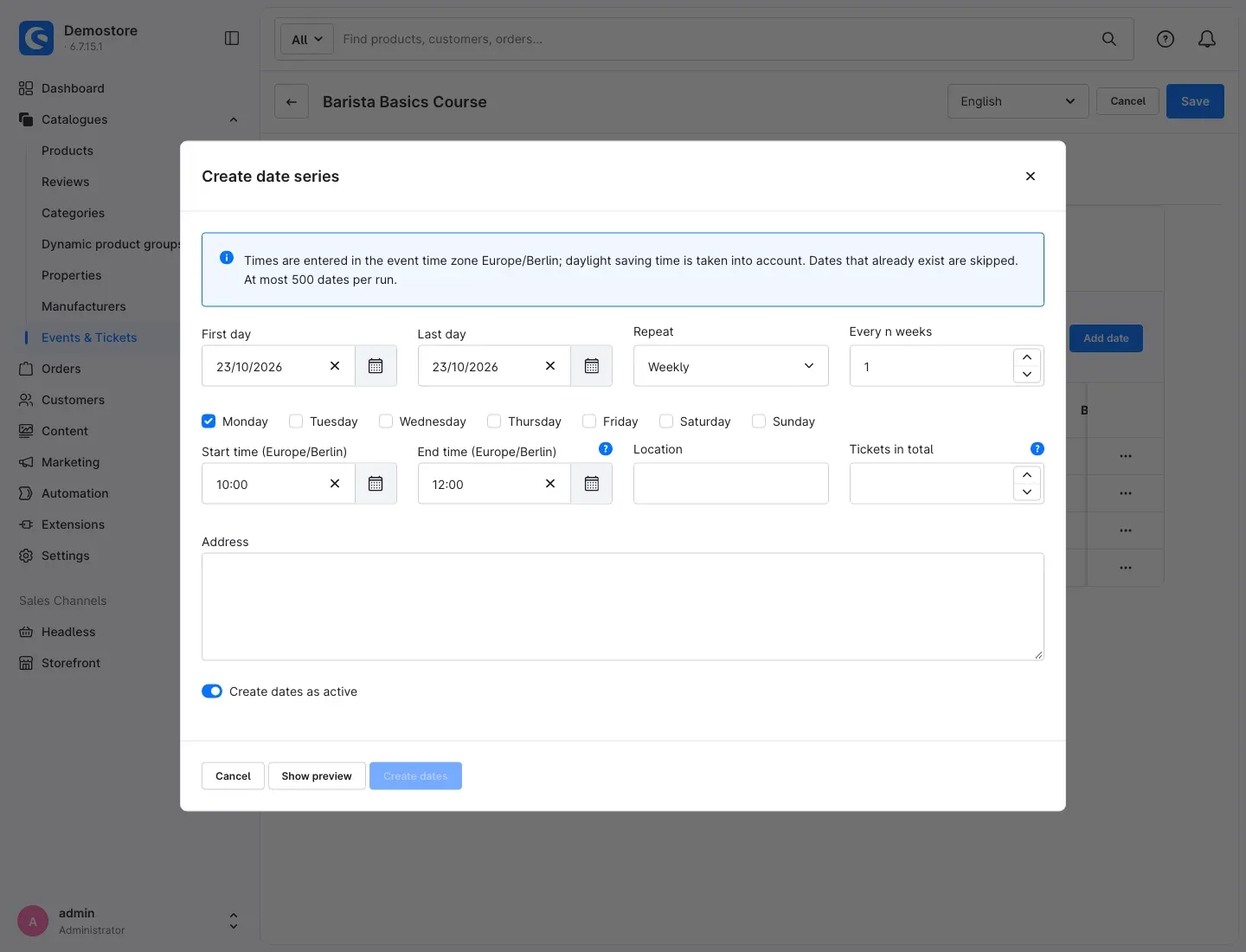 Fig. 10: “Create date series” dialog with a weekly repetition
Tip: Daylight saving time is taken into account automatically. Dates that already exist are skipped, so you can safely extend a series. At most 500 dates are created per run.
How to change several dates at once
With Edit all dates — or, if you have ticked dates in the list, Edit selected dates — you change Location, Address, Tickets in total, the seats booked elsewhere or the active state for many dates at once. Only the fields you tick are changed. Click Apply changes to save.
The Recount booked seats button recounts the booked seats of all dates from the existing tickets. This is normally not necessary, but it helps if a number looks implausible after changes to orders. The recount runs in the background; reload the page shortly afterwards.
How to ask for additional details per attendee
What this gives you: You learn at booking time what you need for planning — for example dietary requests, allergies, company or a mobile number for queries.
- Open the event and switch to the Additional fields tab.
- Click Add field.
- Enter:
- Label — the question as your customers see it.
- Technical name — a short name made of lowercase letters, digits and underscores, for example
allergies. It is used as the column name in the export. If you change it later, previous answers are no longer assigned to this column. - Type — Text, Multi-line text, Email, Phone, Number, Date, Selection or Checkbox. For Selection, create the possible answers with Add option.
- optionally Placeholder and Help text,
- Position — the order in the form,
- Required field — whether the information is mandatory.
- Save the field.
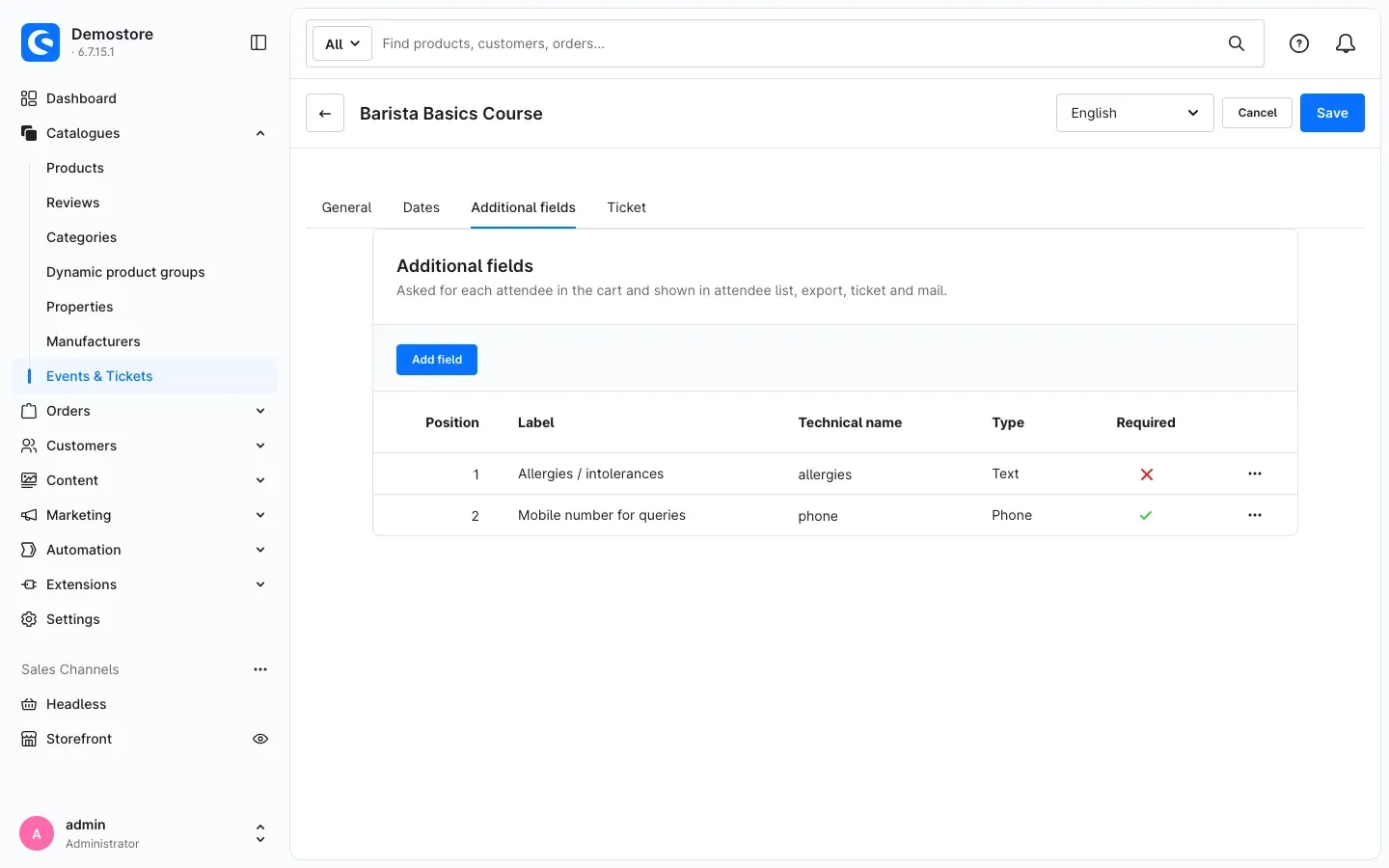 Fig. 11: “Additional fields” tab with two fields per attendee
The answers appear in the attendee list, in the export, on the ticket and in the ticket email. If you delete a field, answers already given remain on existing tickets.
How to print additional information on the ticket
In the Ticket tab, enter text under Additional information printed on the ticket that only appears on the PDF ticket — for example directions, parking or admission notes. Customers do not see this text in the store.
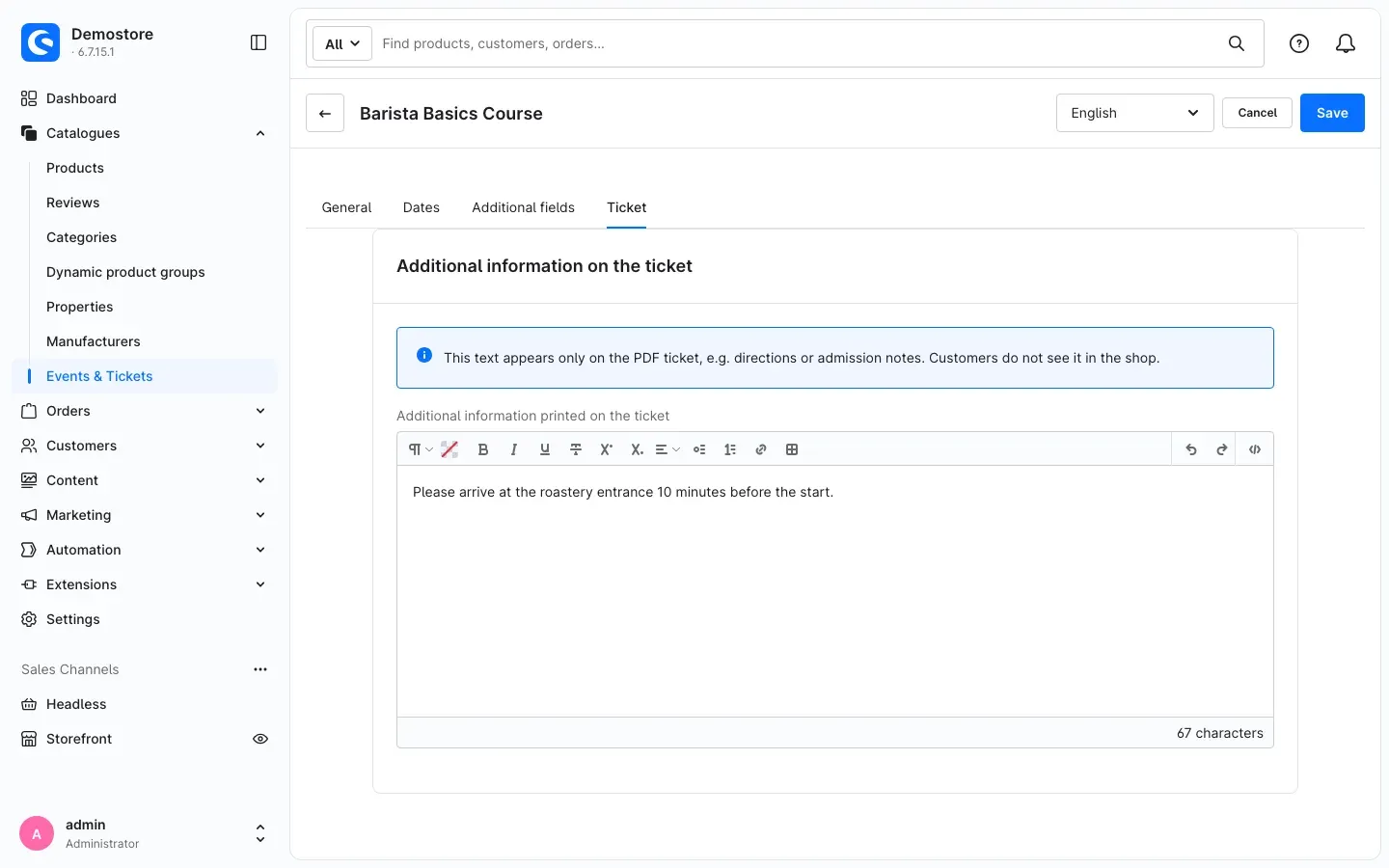 Fig. 12: “Ticket” tab with the additional information for the PDF ticket
How to create event categories
What this gives you: Categories group your events, for example into “Courses” and “Seminars”. Customers filter by them, and you can show only selected categories in a Shopping Experience.
- In the event overview, click Event categories.
- Click Add category.
- Enter Title, Teaser, Technical name (lowercase letters, digits, hyphens) and Position, and leave Active on.
- Save. Click Back to events to return to the overview.
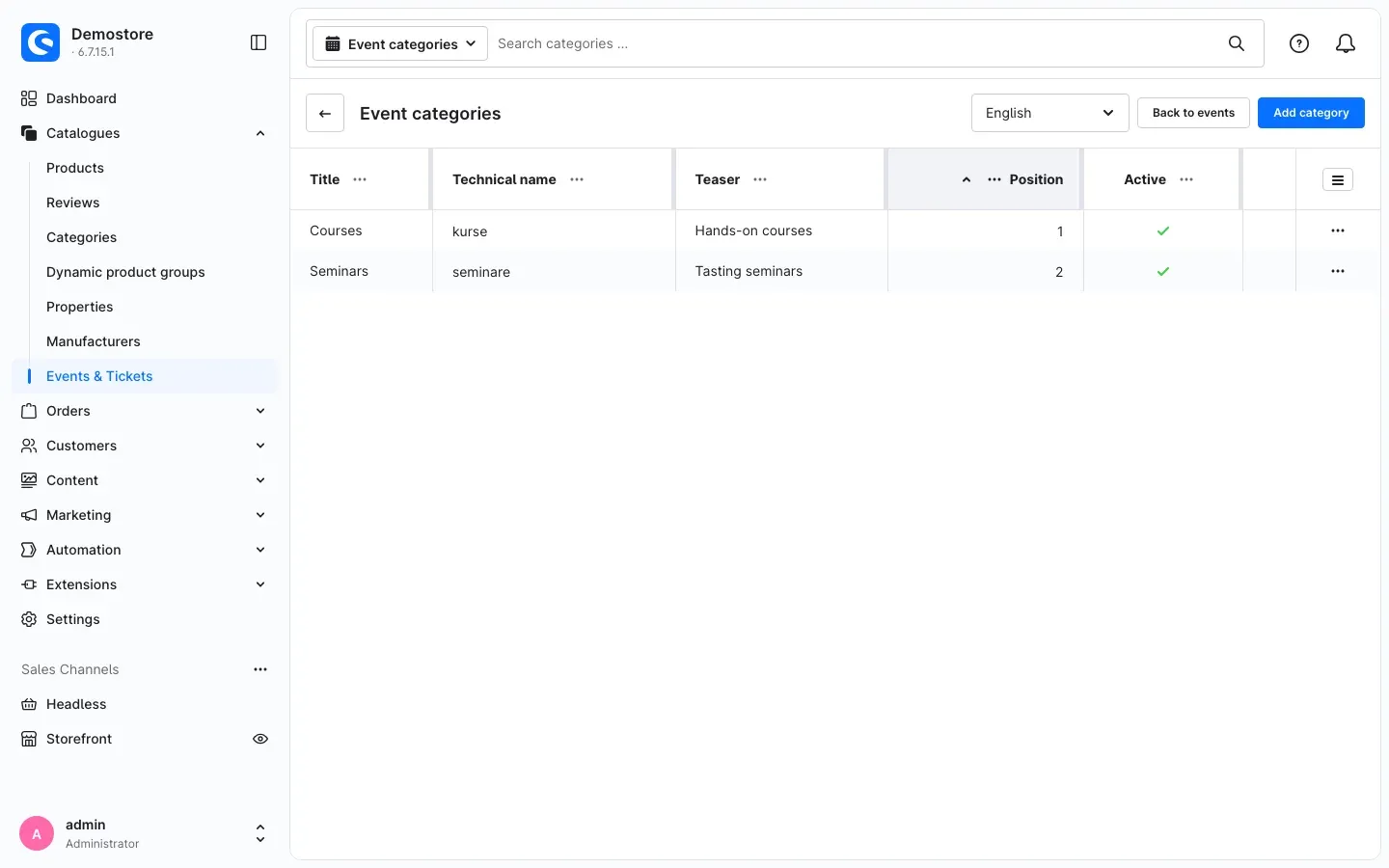 Fig. 13: The list of event categories
Tip: Your agency can use the technical name to highlight events of a category in the store, for example with a colour. If you delete a category, its events remain without a category.
How to show events in your store
What this gives you: Your customers find all upcoming dates on a page of their own — as cards, list, slider or calendar — and get to the booking with one click.
How to build an event overview in a Shopping Experience
- Open Content → Shopping Experiences and create a layout or open an existing one.
- Add the Events block. You can also combine several Events elements on one page, for example cards with a calendar below.
- Open the Element settings (Events) and define:
- Title and Title tag — the heading above the element (H2 to H6 or No title tag).
- Event categories — leave empty to show events of all categories.
- Layout — Cards, List, Compact list, Slider or Calendar.
- Number of dates — how many dates appear per page.
- Sorting — Start date ascending or Start date descending.
- Image mode — Show the whole image or Fill the area.
- Background colour of the element.
- Only show dates with free seats — hides sold-out dates.
- Show filter — customers can then filter by category, location and tags. Filters are not available for slider and calendar.
- Click Done and save the layout. Assign it to a category or page of your store as usual.
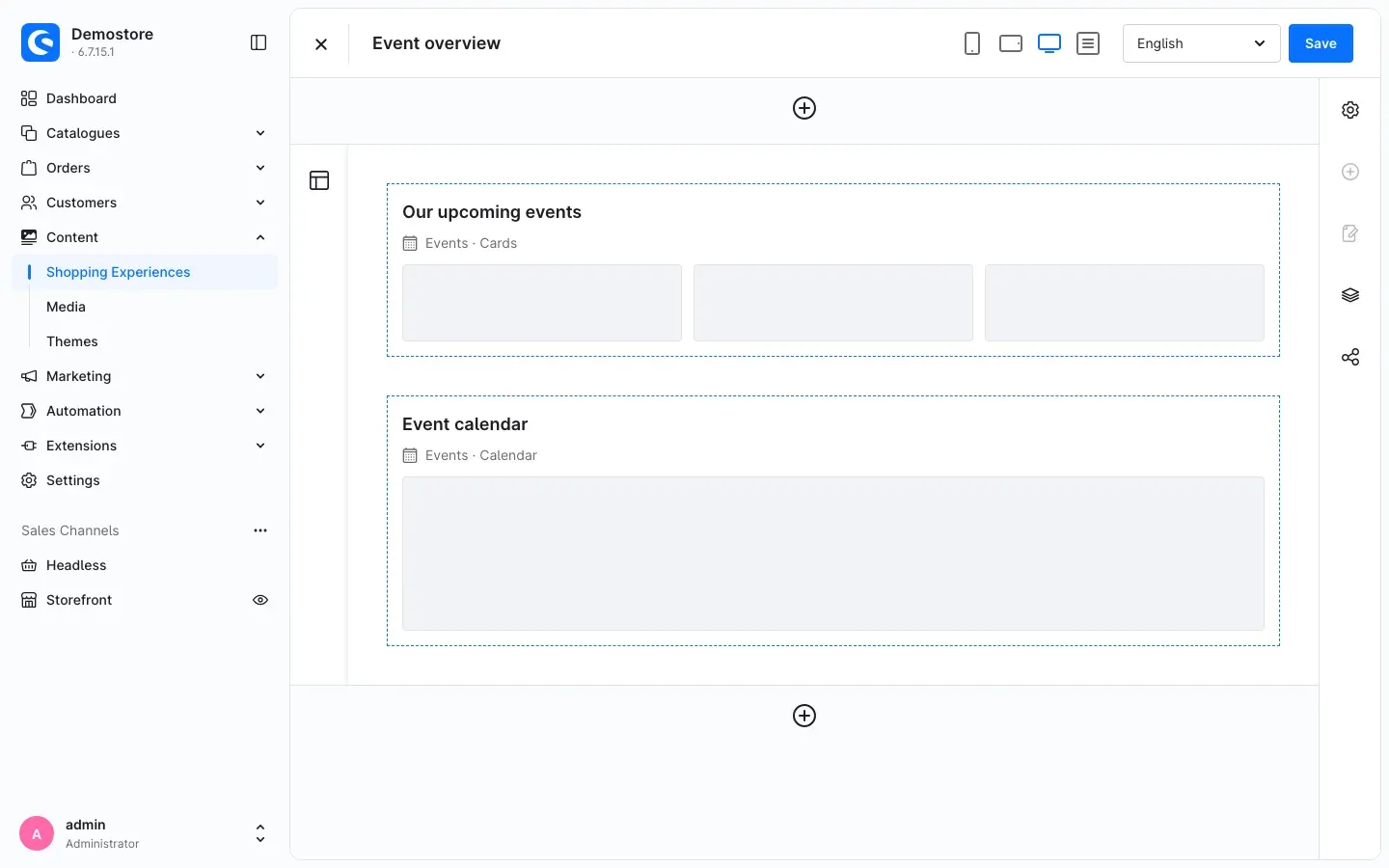 Fig. 14: Shopping Experience “Event overview” with the Cards and Calendar layouts
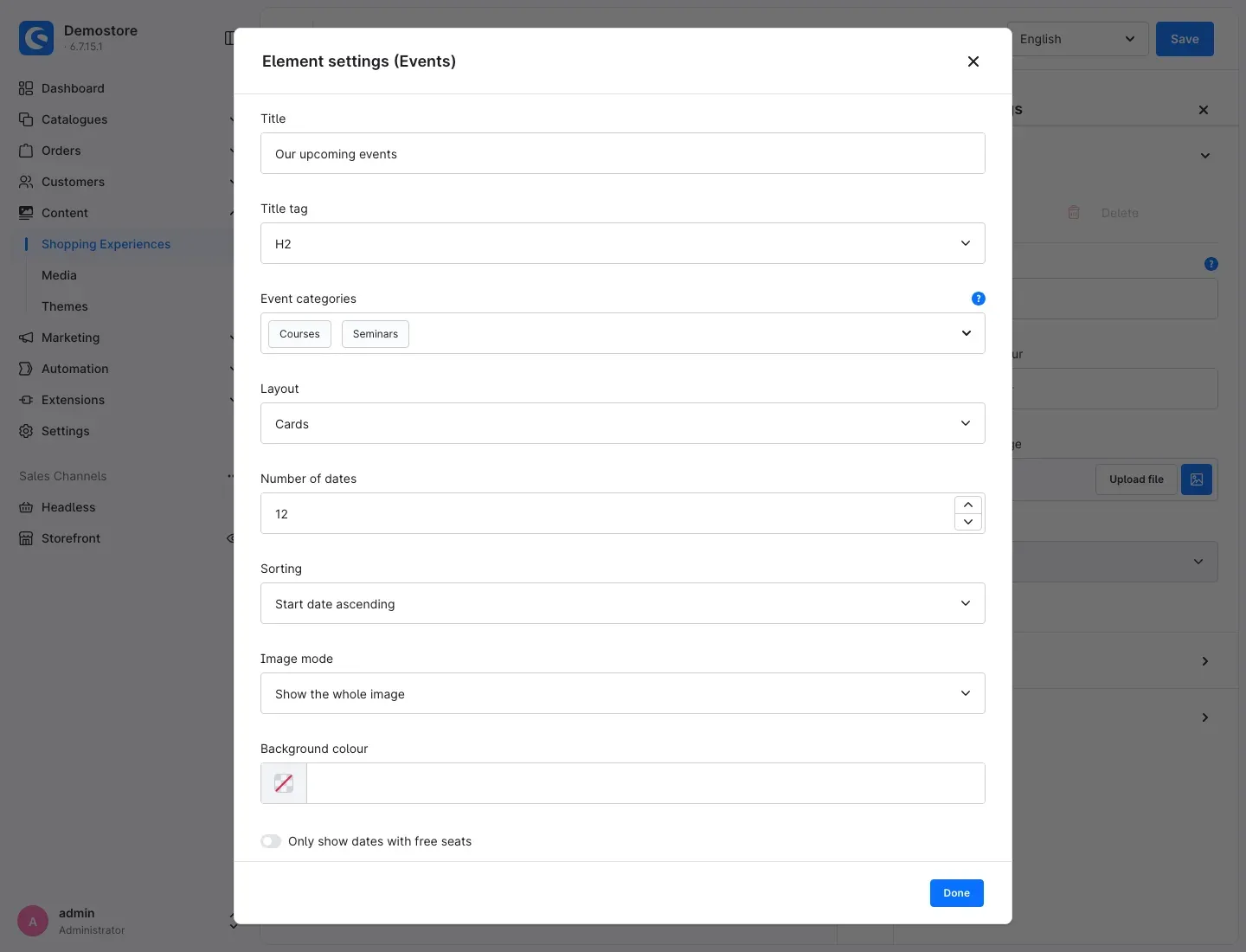 Fig. 15: Element settings of the Events element
What it looks like in the store
The overview shows image, title, date, location and availability for each date. Customers narrow down the list in the Filter dates area; Reset filter shows all dates again.
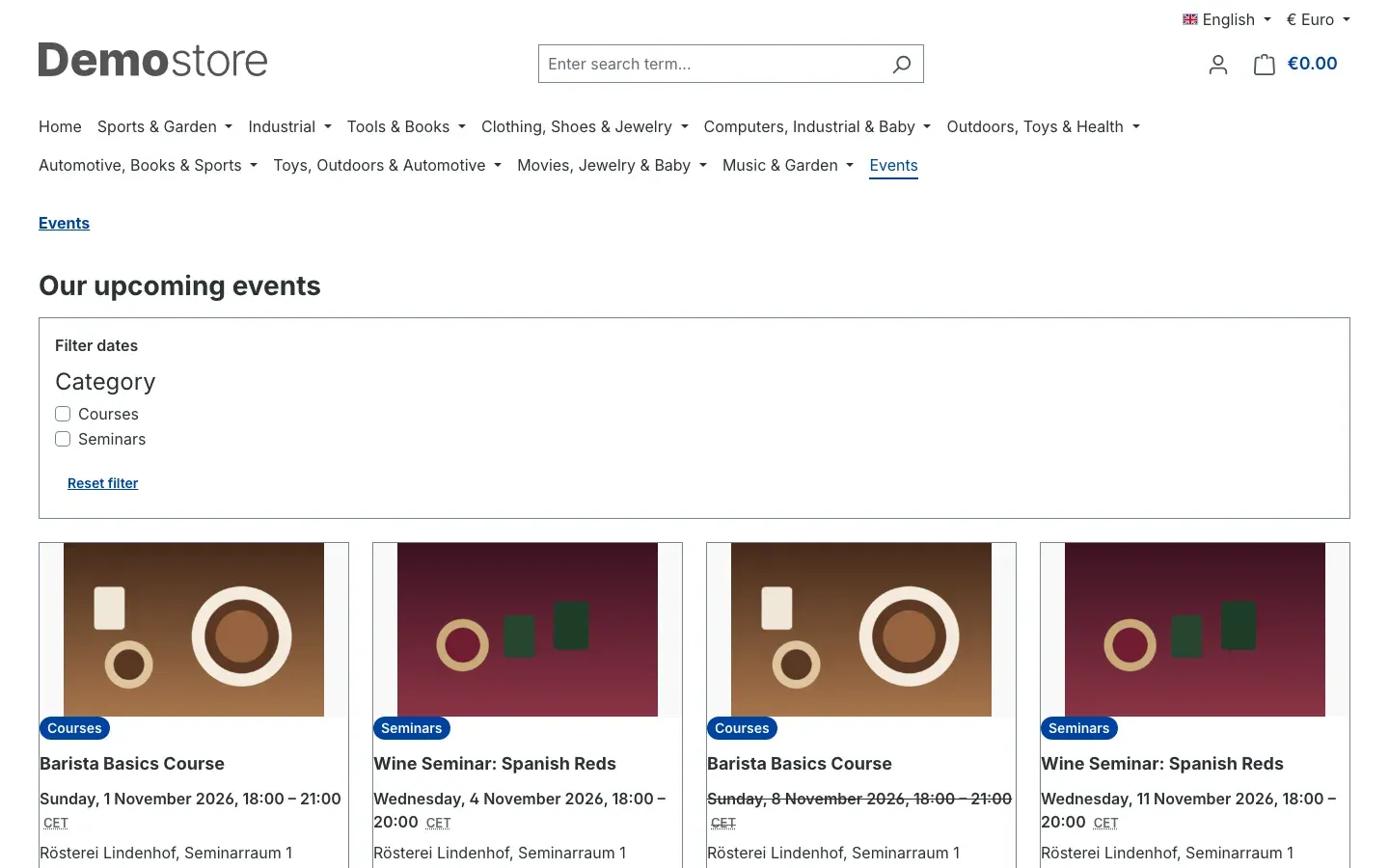 Fig. 16: Event overview with cards and a category filter
The Event calendar shows one month with all dates; customers browse month by month. On smartphones, the calendar switches to a day view.
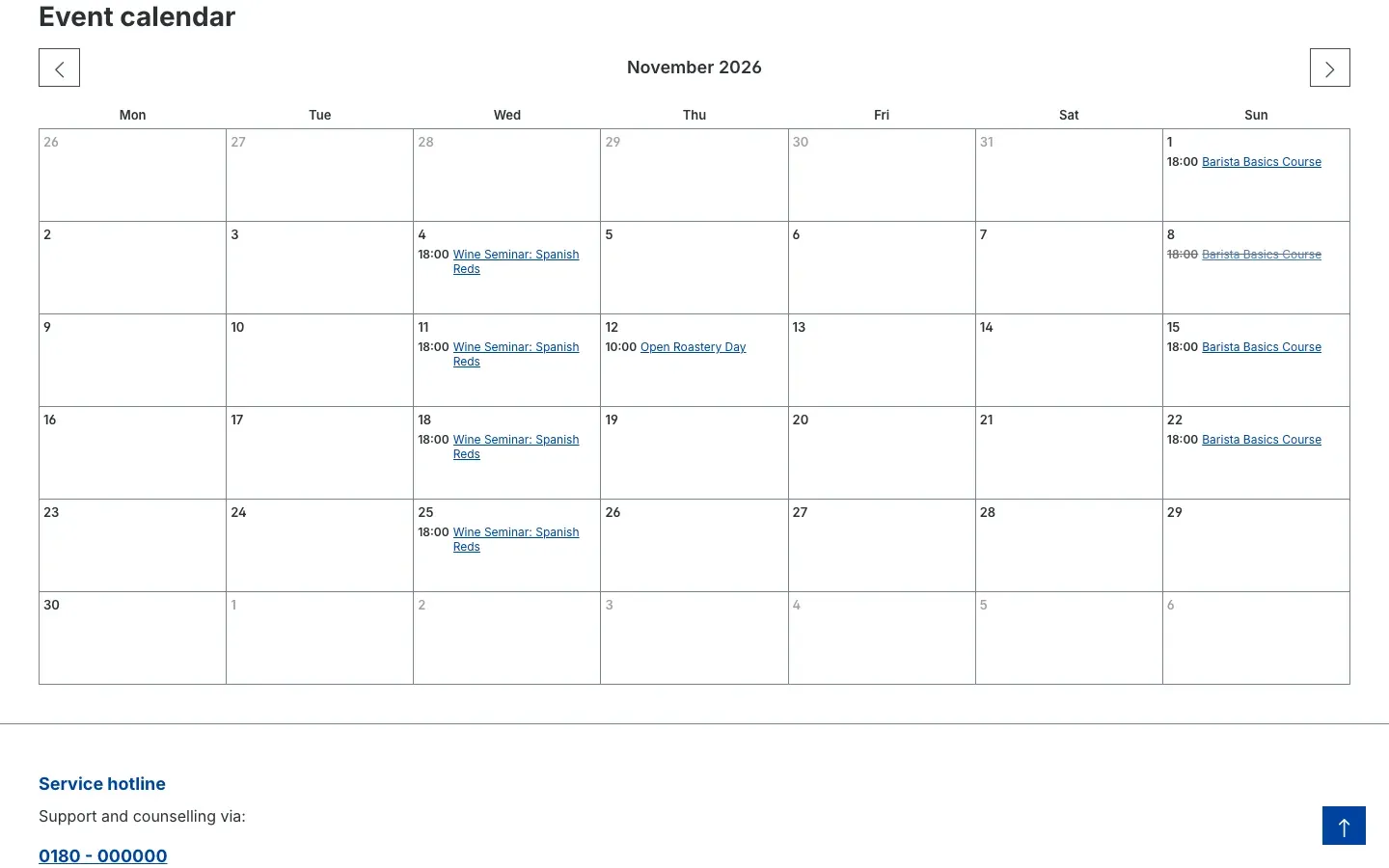 Fig. 17: The event calendar in the store
How your customers book
What this gives you: The booking process is the normal Shopware checkout — extended by date selection and attendee details. You do not need to set up anything else.
Choosing a date
On the product page of an event product, the selection Choose a date appears with all bookable dates. Depending on the setting, customers see the free seats, for example “Seats left: 6”. If a date is sold out, Sold out – join the waiting list appears with the Join waiting list button. A separate Event tab on the product page shows the description and dates.
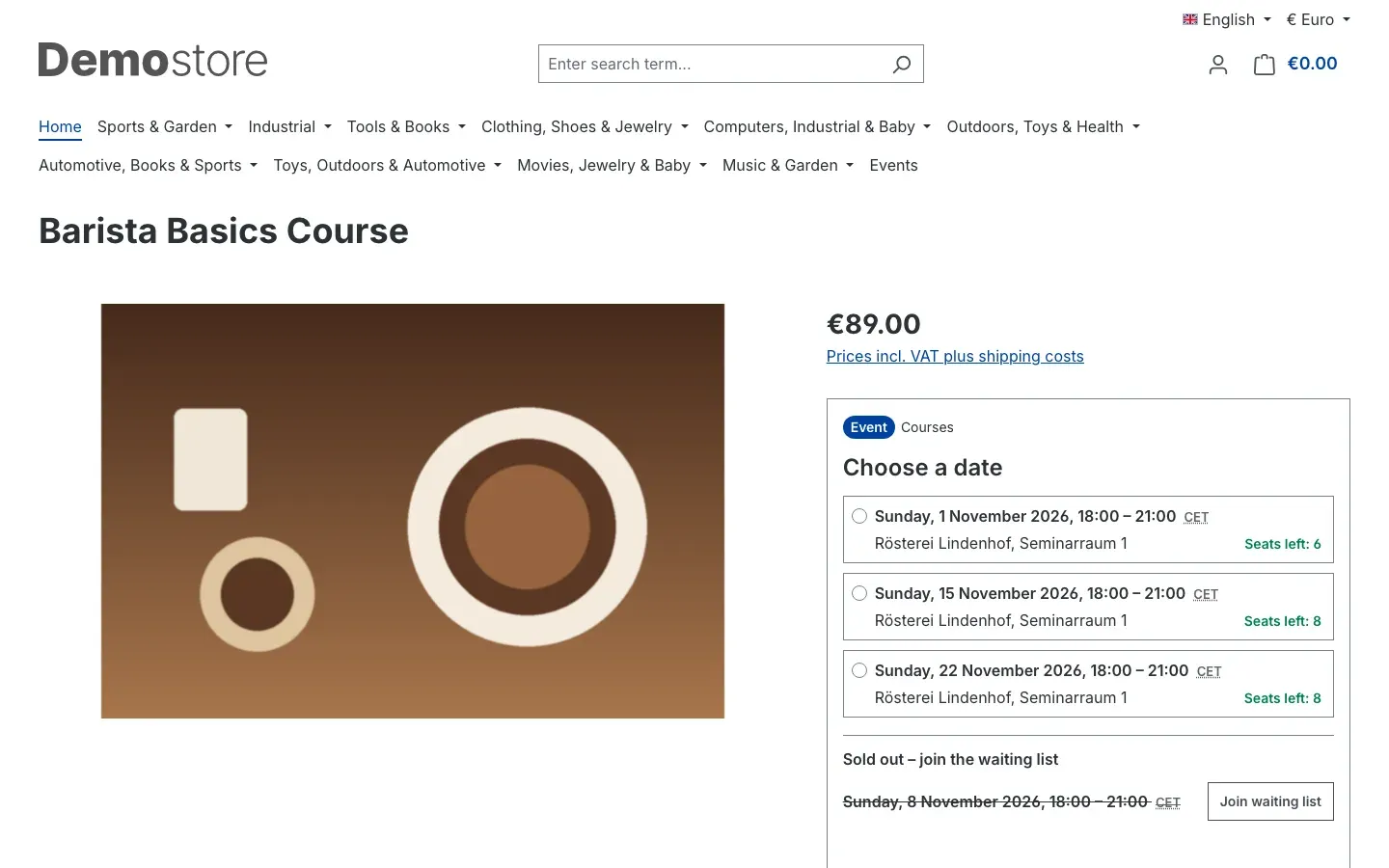 Fig. 18: Date selection with free seats and the waiting list for a sold-out date
The date selection also works on smartphones:
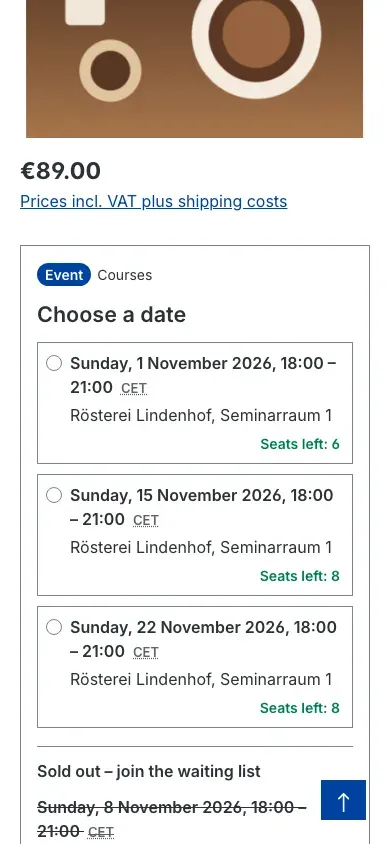 Fig. 19: Date selection on a smartphone
Only future, active dates whose booking deadline has not passed are shown. If the product has variants, the selected date is kept when the customer switches variants.
Attendee details in the cart
After adding, the cart shows date and location on the ticket line item. As long as attendee details are missing, a notice asks the customer to enter the attendee details for every ticket.
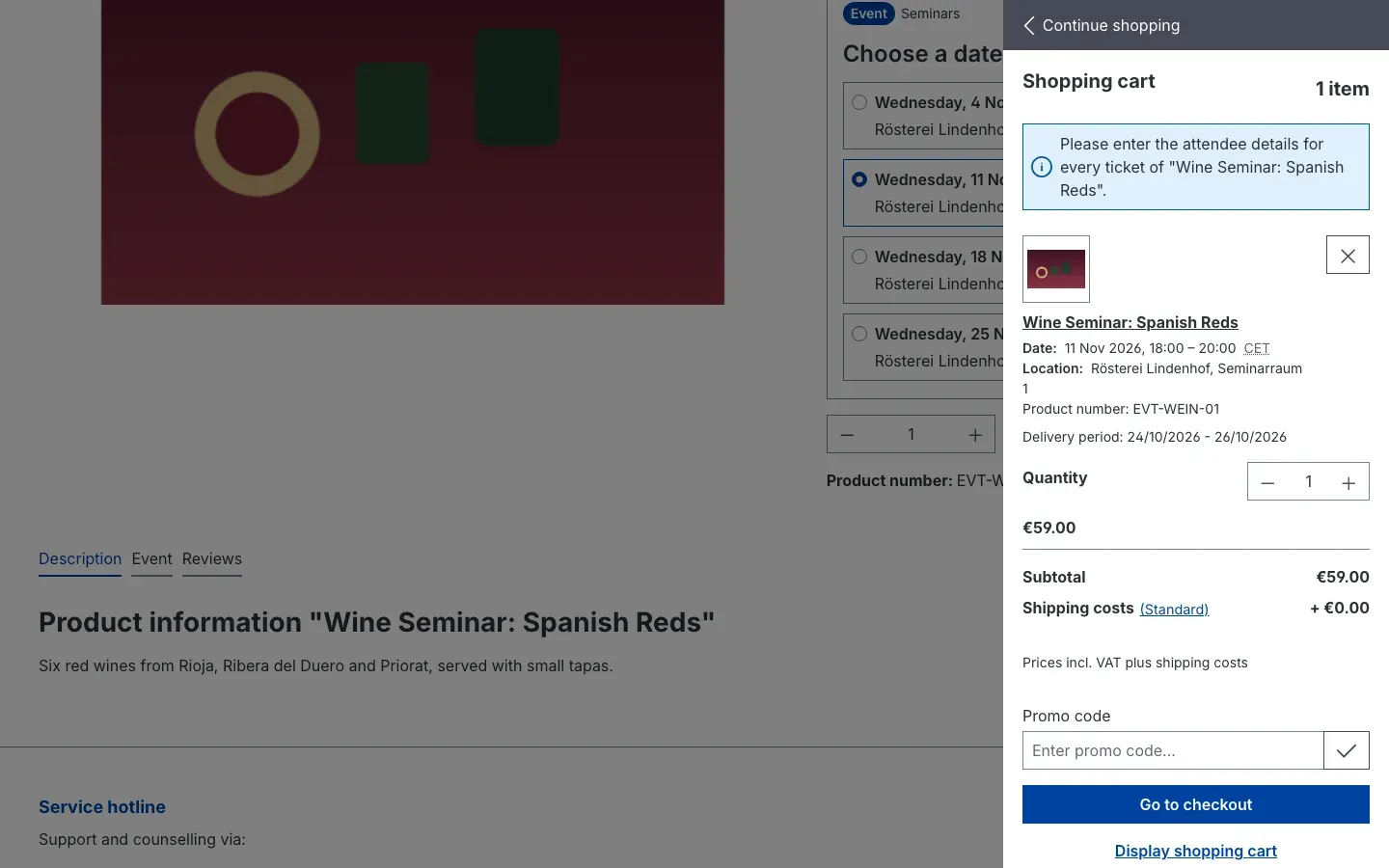 Fig. 20: The mini cart with date, location and the notice about missing attendee details
In the cart, the customer fills in First name, Last name and your additional fields for each ticket in the Attendee details area and saves them. The order can only be placed once all details are complete.
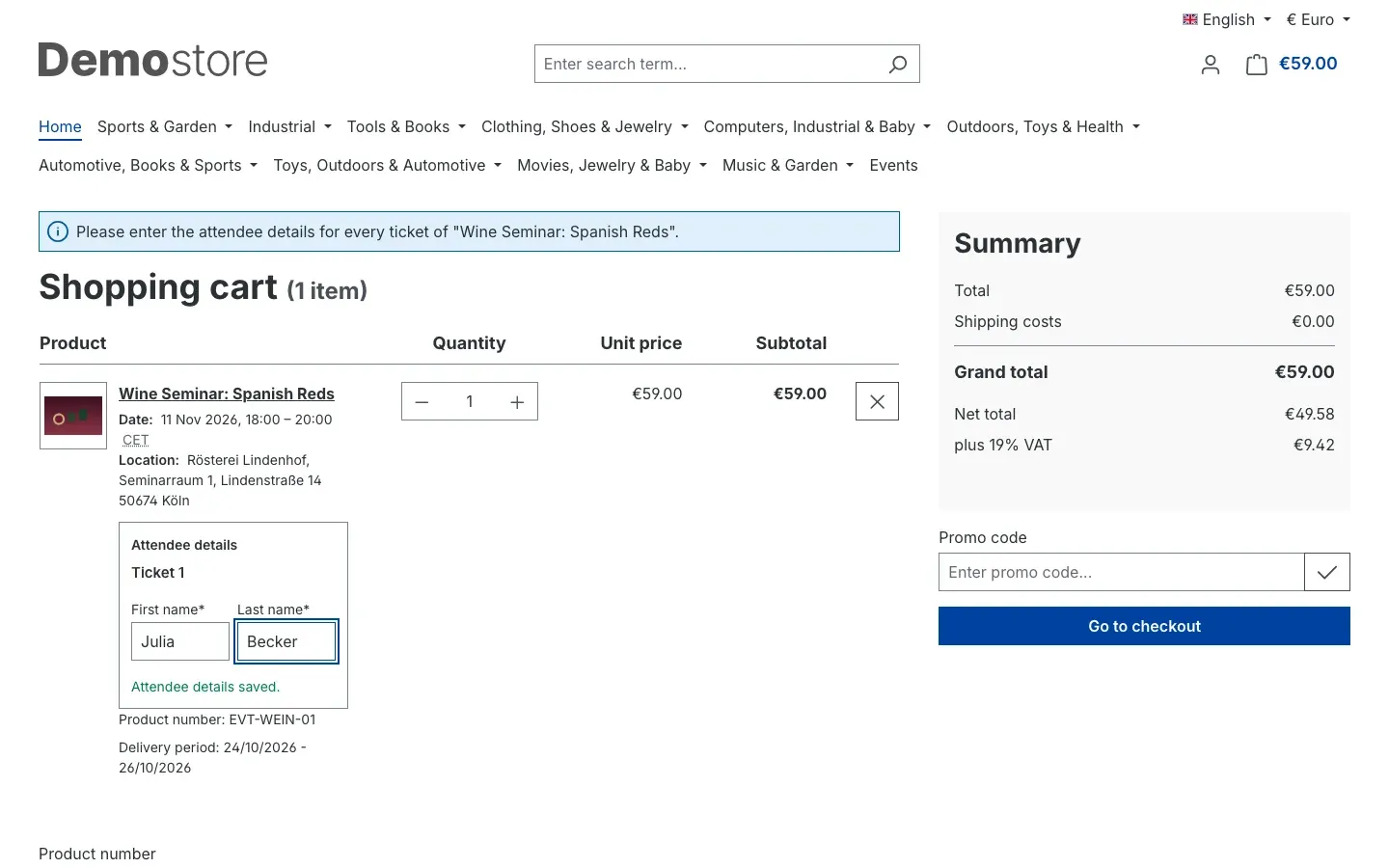 Fig. 21: Attendee details per ticket in the cart
What happens automatically in the cart:
- The seats are reserved for the configured time and extended while the customer is active (see Seat reservation in the cart).
- If not enough seats are left, the cart reduces the quantity to the free seats and informs the customer.
- If a cart exceeds the Maximum tickets per date and cart, the quantity is reduced to the maximum.
- If the date has meanwhile sold out or can no longer be booked, the cart removes the line item with a notice.
After the order
The order confirmation shows date, location and attendees for each ticket as well as the Add to calendar link, with which the customer downloads the date as a calendar file.
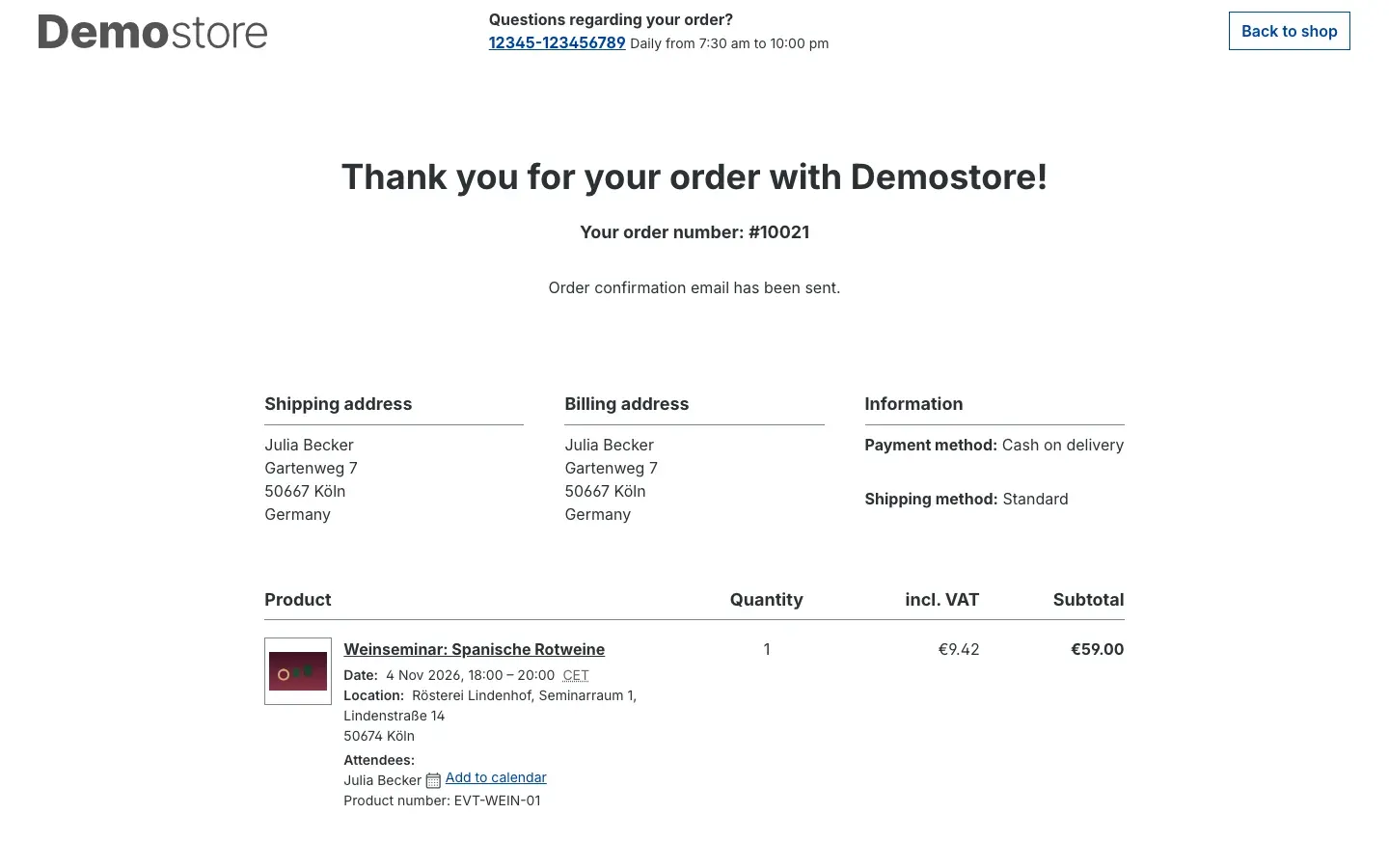 Fig. 22: Finish page with date, location, attendees and calendar entry
In their customer account, customers find all booked events under My tickets with ticket number and status, the PDF via Tickets as PDF and a Calendar entry for each date. If the PDF has not been created yet, it says “The ticket PDF will be available shortly.”
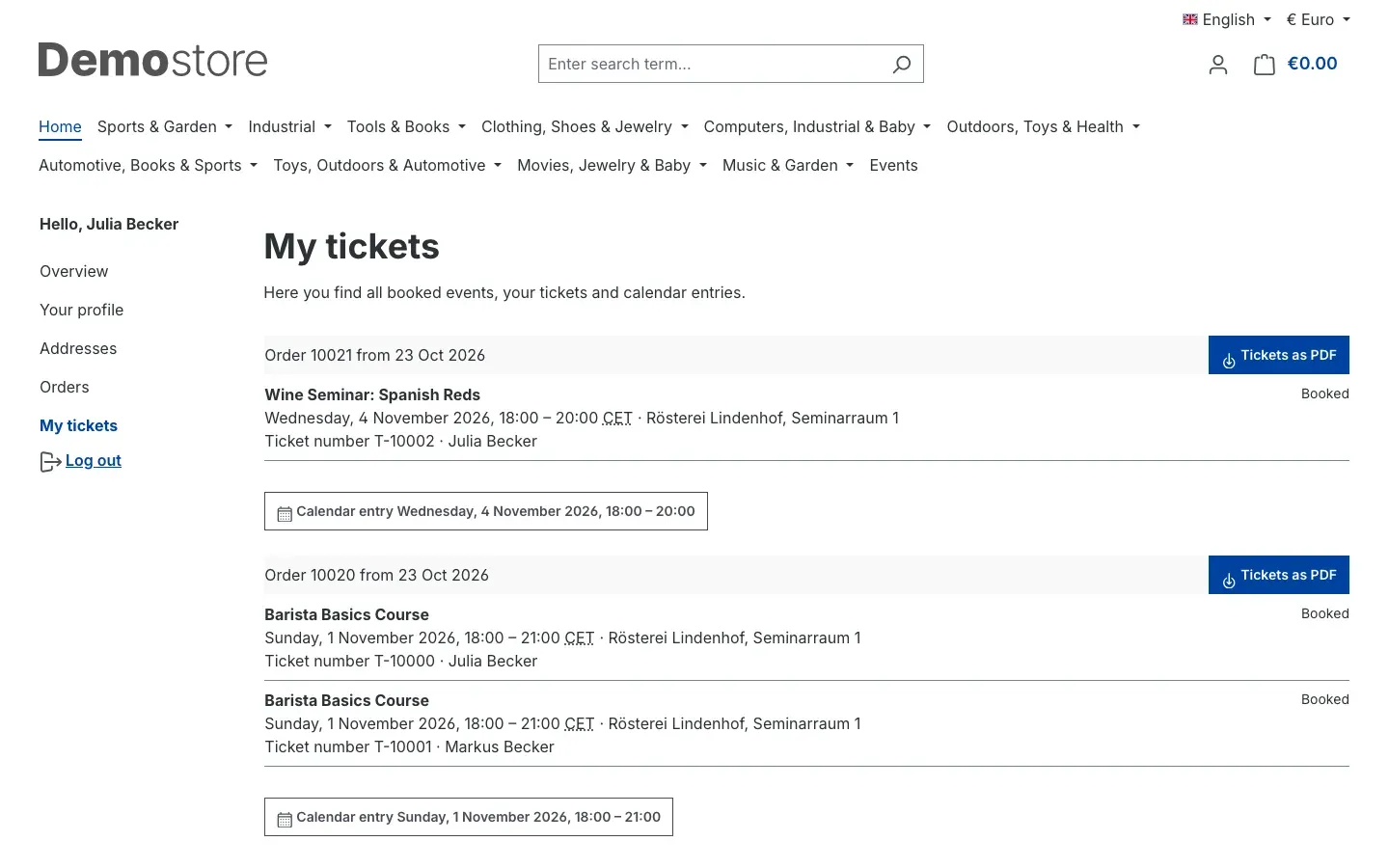 Fig. 23: Customer account → My tickets
The ticket and the invoice
The ticket PDF is called “Event ticket” and contains, for each attendee, the ticket number, name, date, venue, order number, your additional information and — if enabled — the QR code for admission. It uses the logo and layout of your Shopware documents.
Documents are created in the language of the order. The two examples below come from an order placed in German and are therefore shown in German.
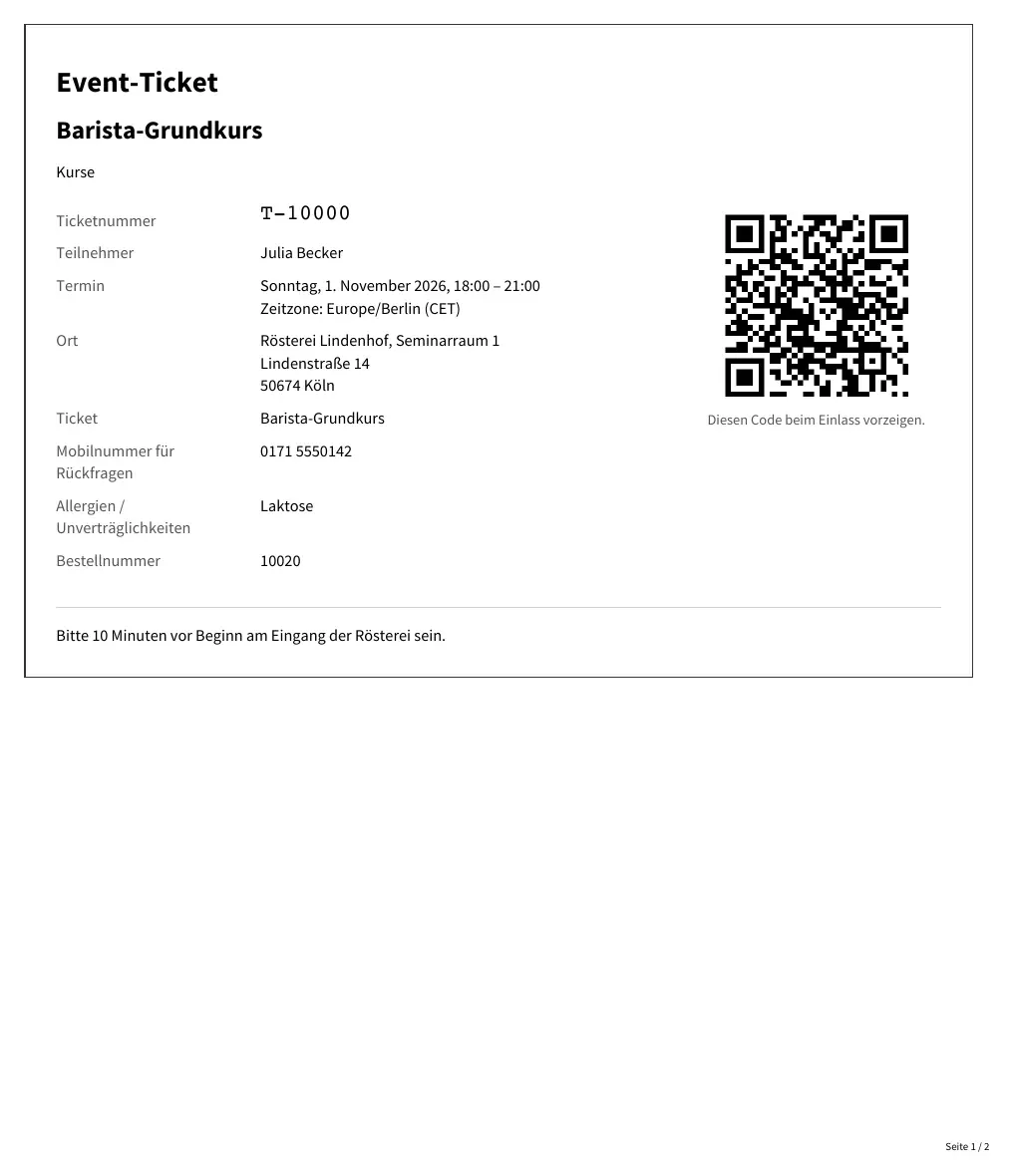 Fig. 24: The “Event ticket” document with QR code (order language German)
On invoices, delivery notes, credit notes and cancellation invoices, the plugin adds date and venue to every ticket line item if Show event details on invoices and delivery notes is on.
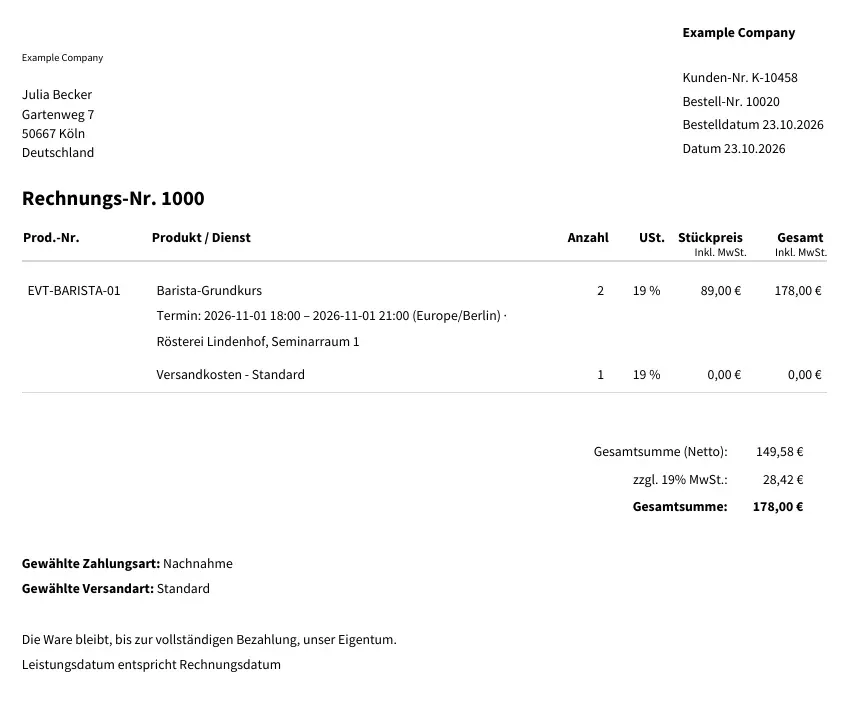 Fig. 25: Invoice with date and venue on the ticket line item (order language German)
How to use the waiting list
What this gives you: Sold-out dates do not lose interested customers. When a seat becomes free — through a cancellation, more seats or an abandoned cart — the next person moves up automatically.
How it works for your customers
- The customer clicks Join waiting list for a sold-out date.
- They enter Email address, First name, Last name and the Number of seats, accept the privacy policy and click Join the waiting list.
- They receive an email with a confirmation link (double opt-in). Only after confirmation is the entry valid.
- When a seat becomes free, the first confirmed entry receives an email. If Hold freed seats for the waiting list is on, the seat is reserved for the configured time; via the link, the customer puts it in the cart with Add seat to cart and completes the booking.
- Using a link in every email, the customer can leave the waiting list at any time; their details are then deleted.
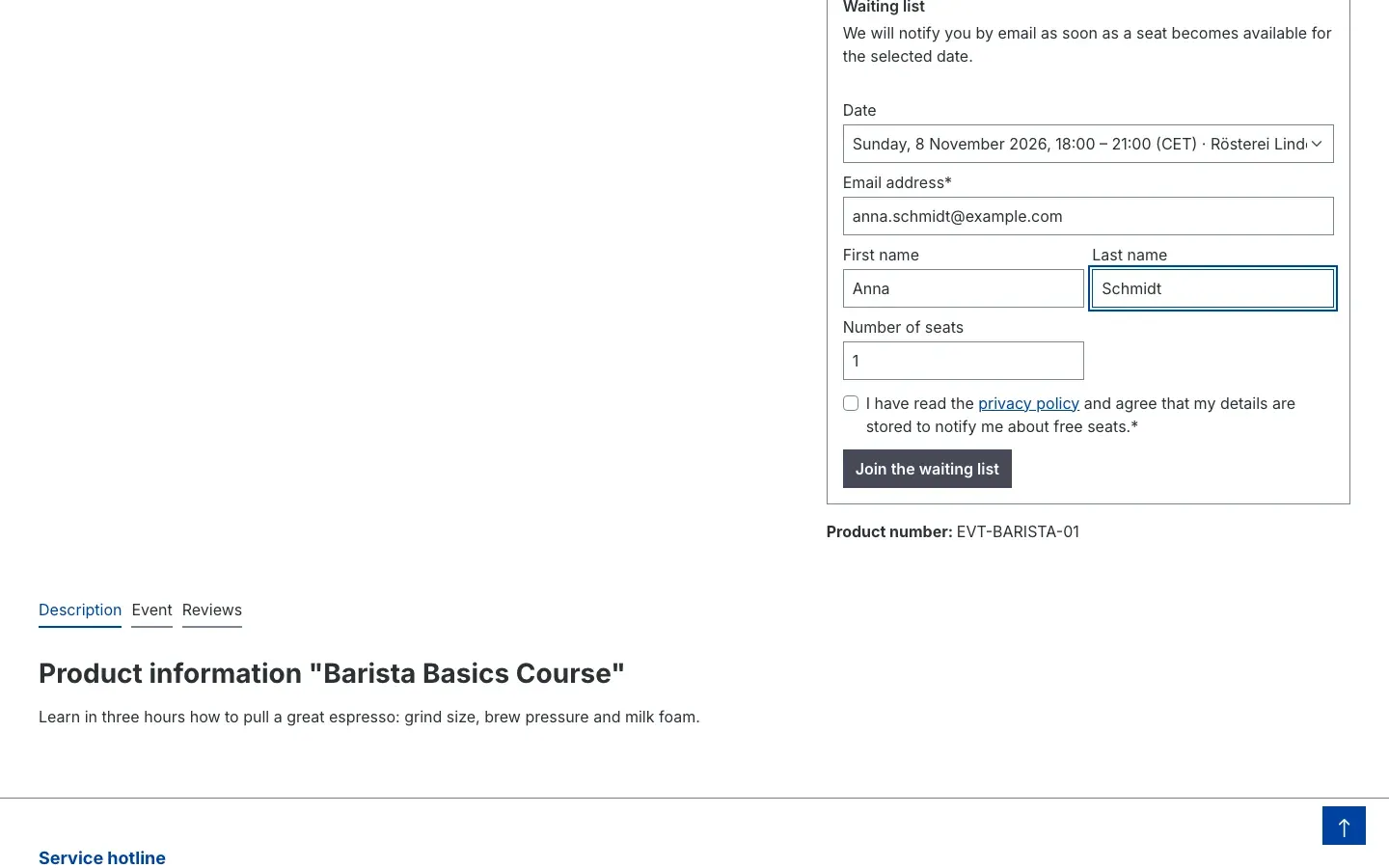 Fig. 26: The waiting list form
Good to know: Links in waiting list emails always open a page with a button first. This way, automatic link checks by some email providers do not trigger a confirmation or reservation.
How to see the waiting list in the administration
Open the event, switch to the Dates tab and choose Waiting list in the menu of the date. The dialog shows Place, Name, Email, the requested Seats, the Status and when the entry was Confirmed for each entry.
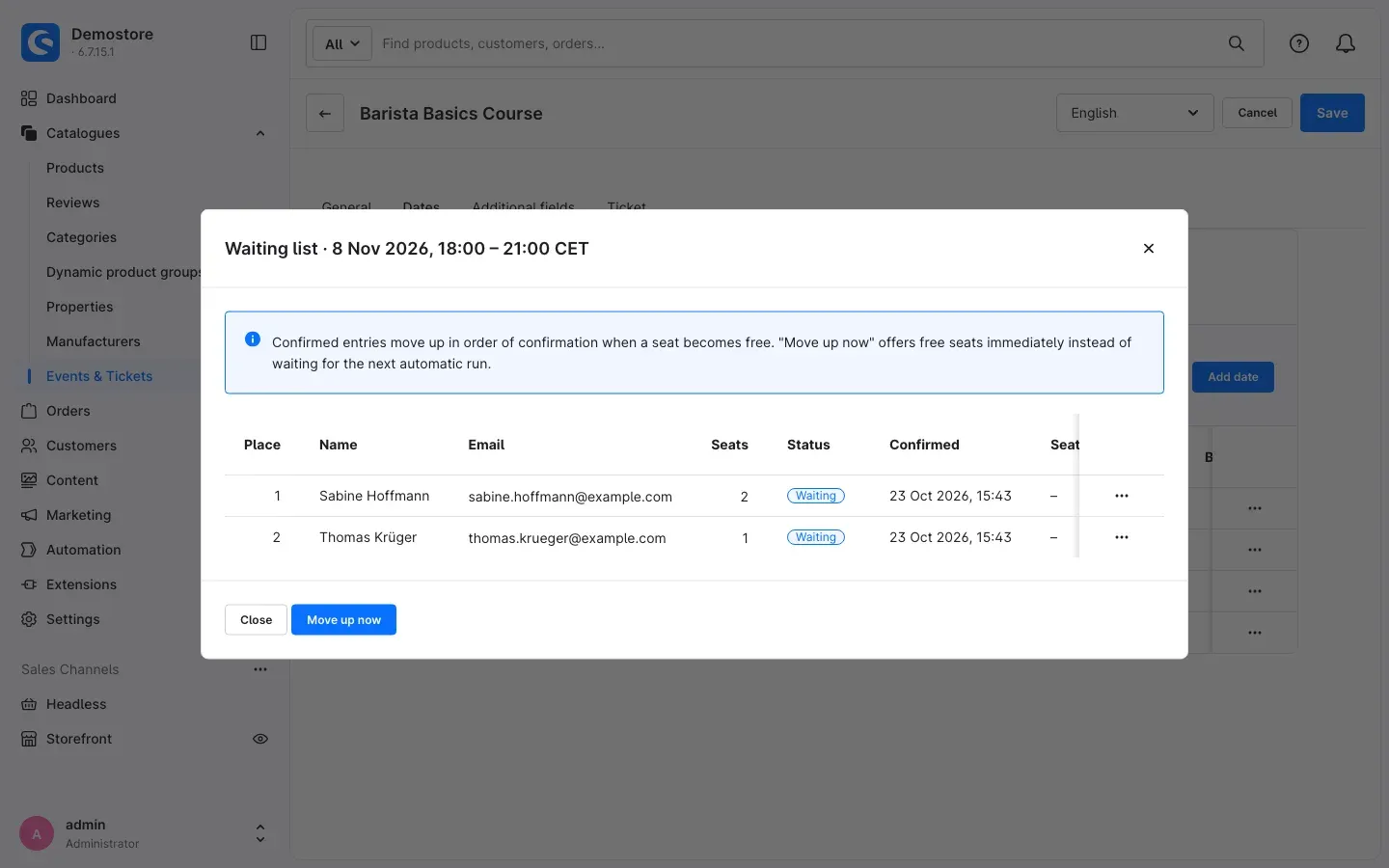 Fig. 27: The waiting list of a sold-out date
The statuses mean: Not confirmed (confirmation link not yet clicked), Waiting, Seat offered, Booked and Expired.
Confirmed entries move up in the order of their confirmation. Normally this happens automatically within a few minutes. Move up now offers free seats immediately — useful after you have increased the seats of a date. You can remove individual entries from the waiting list.
How to manage attendees and tickets
What this gives you: You see all attendees of all events in one list, change their status, reissue tickets, add guests without an order and export attendee lists for the entrance or the trainer.
The attendee list
Open Orders → Events & Tickets – Attendees.
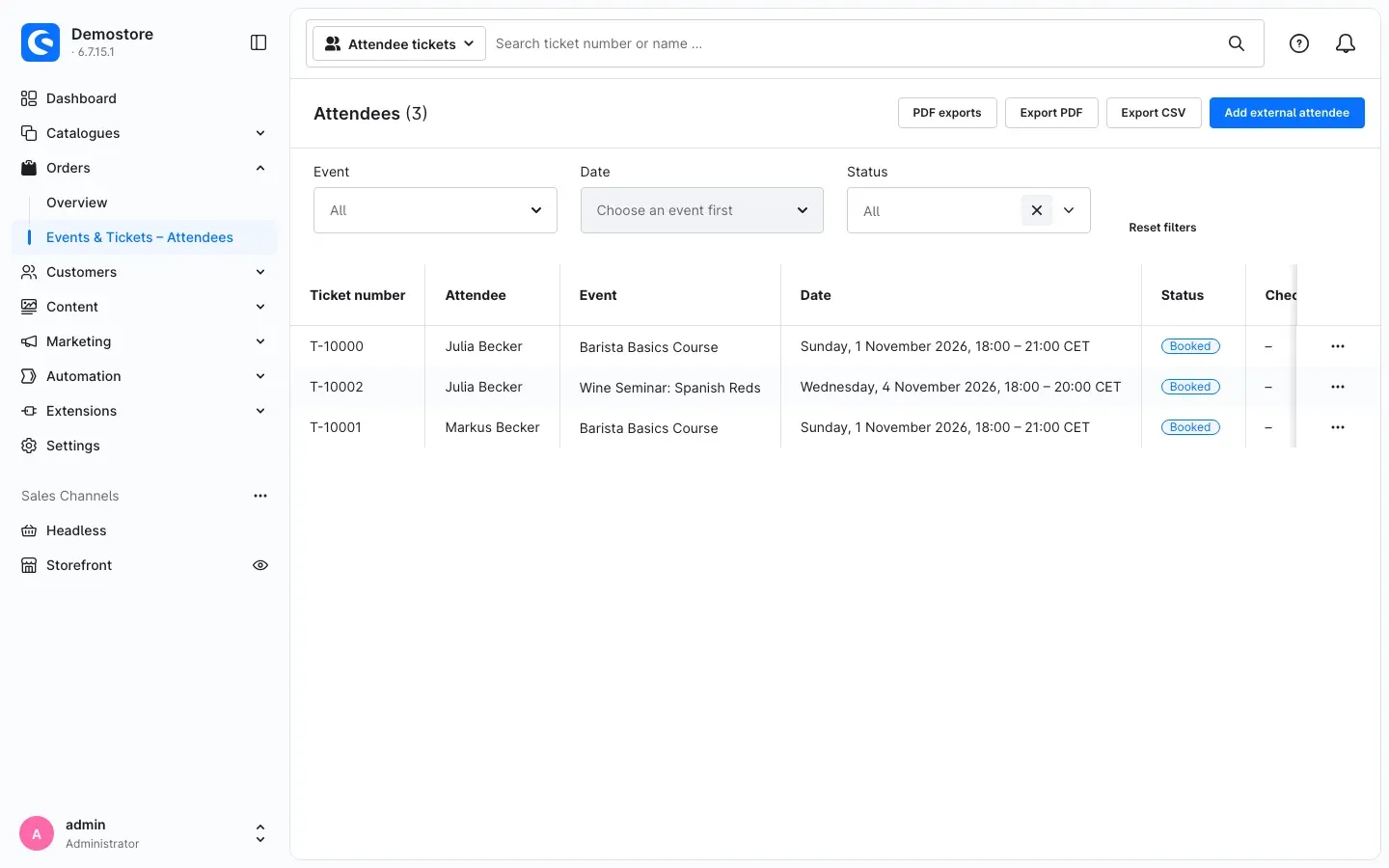 Fig. 28: The attendee list with export buttons
The list shows Ticket number, Attendee, Event, Date, Status and Check-in. At the top, you search by ticket number or name. Use the Event, Date and Status filters to narrow down the list — you can choose the date once an event is selected. Reset filters shows all attendees again.
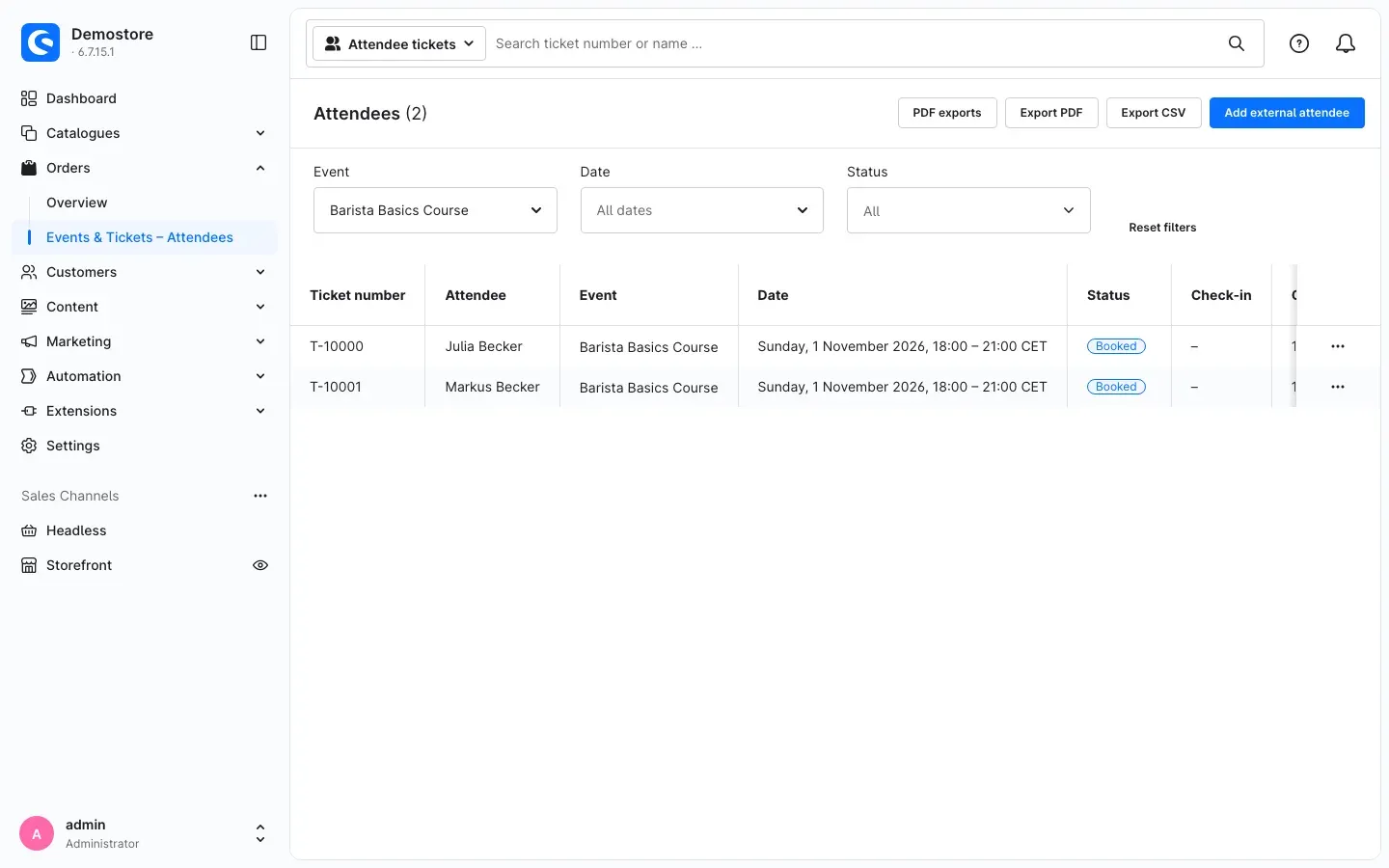 Fig. 29: Attendee list filtered by one event
Via the menu at the end of a row, you change the status directly: Check in, Check out, Cancel ticket or Restore ticket. Before cancelling, the administration asks you to confirm, naming the ticket number — in the list as well as in the ticket dialog. The booked seats of the date adjust automatically.
Editing a single ticket
Show details opens the ticket dialog. It shows status, event, date, the related order and the check-in history. You can:
- correct name, email and the answers to your additional fields,
- set the Language for ticket and mails for this attendee,
- add an Internal note that is only visible in the administration,
- check in the attendee or cancel the ticket,
- use Issue new QR code to invalidate the previous QR code — for example if a ticket was passed on or lost. Then send the ticket to the customer again.
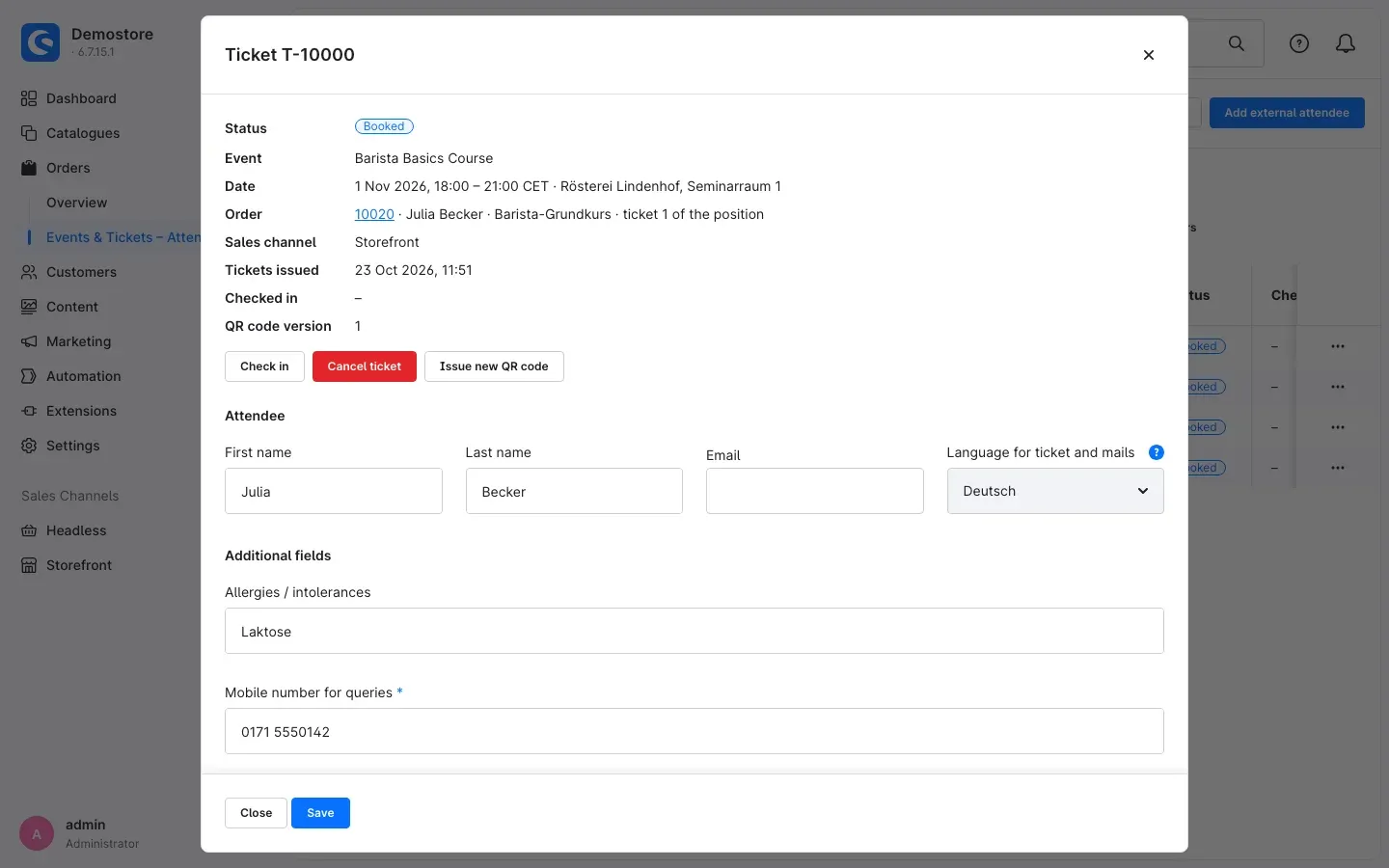 Fig. 30: The ticket dialog of an attendee
Adding external attendees without an order
What this gives you: Guests, speakers or bookings by phone get a real ticket with QR code and count towards the booked seats — without an order in the store.
- In the attendee list, click Add external attendee.
- In the Date and sales channel card, choose the Event, the Date and the Sales channel. The sales channel determines the settings for ticket PDF and entry control of these tickets.
- Choose the Language for ticket and mails.
- For each attendee, enter First name, Last name, Email and the additional fields. Use Add another attendee to enter several people at once.
- If the date is full, you can still issue tickets with Allow overbooking; you confirm this explicitly.
- Click Create tickets.
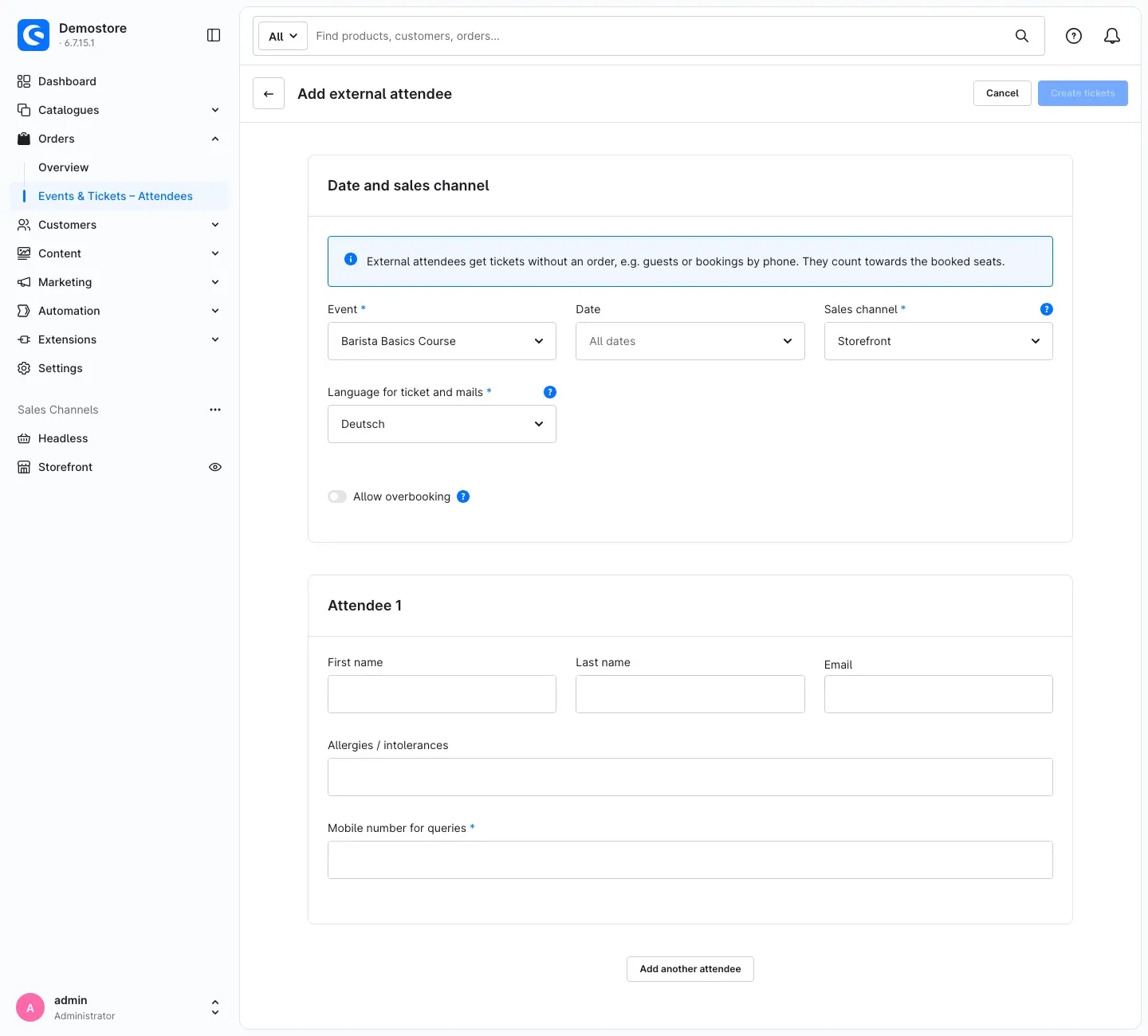 Fig. 31: “Add external attendee” page
Important: Orders you create in the administration cannot select a date. Therefore, enter attendees for such orders here as external attendees.
Exporting attendee lists
- Export CSV immediately downloads the currently filtered list as a CSV file — with email addresses, ordering customer and all additional fields. Ideal for further processing in a spreadsheet.
- Export PDF creates a print-ready attendee list. Small lists are ready immediately. Large lists are created in the background and split into several PDF files.
- Under PDF exports, you see all running and finished PDF exports with status (Waiting, Running, Ready, Failed) and progress. You download finished files there. The files are deleted automatically after a few hours.
You set the sorting of the exports under Sorting of the attendee list.
Important: The store creates large PDF exports in the background. If an export stays on Waiting, your store is currently not processing background tasks. After 60 minutes, such an export is reported as Failed. See Troubleshooting.
Tickets in the order
In the order (Orders → Overview), the Event tickets card shows all tickets of this order. There you can:
- Show ticket PDF,
- Create ticket PDF or Create ticket PDF again (for example after a name change),
- Send tickets — sends the tickets to the customer again.
If Send tickets automatically is off, you create and send the ticket PDF here manually. If the tickets have not been issued yet (for example because the payment is still open and tickets are only issued after payment), the card tells you so.
What happens when orders are cancelled or changed
- Order cancelled: the tickets are cancelled, the seats become free and the waiting list moves up.
- Cancelled order reopened: the seats are taken again and the tickets are set back to “Booked”. If the date has meanwhile filled up, the tickets stay cancelled and you receive a notice so that you can check the capacity or the order.
- Order deleted: the related tickets and attendee details are deleted as well.
- Order edited in the administration: ticket line items already booked with a date remain. If you add an event product, it is removed because the administration cannot pass a date — use external attendees instead.
How tickets are sent automatically
What this gives you: Your customers receive their tickets by email without any action on your part.
The plugin comes with the flow Send event tickets. You find it under Automation → Flow Builder. Its trigger is Events & Tickets / Tickets issued; it performs two actions: Generate documents (document “Event ticket”) and Send email (template “Event tickets”).
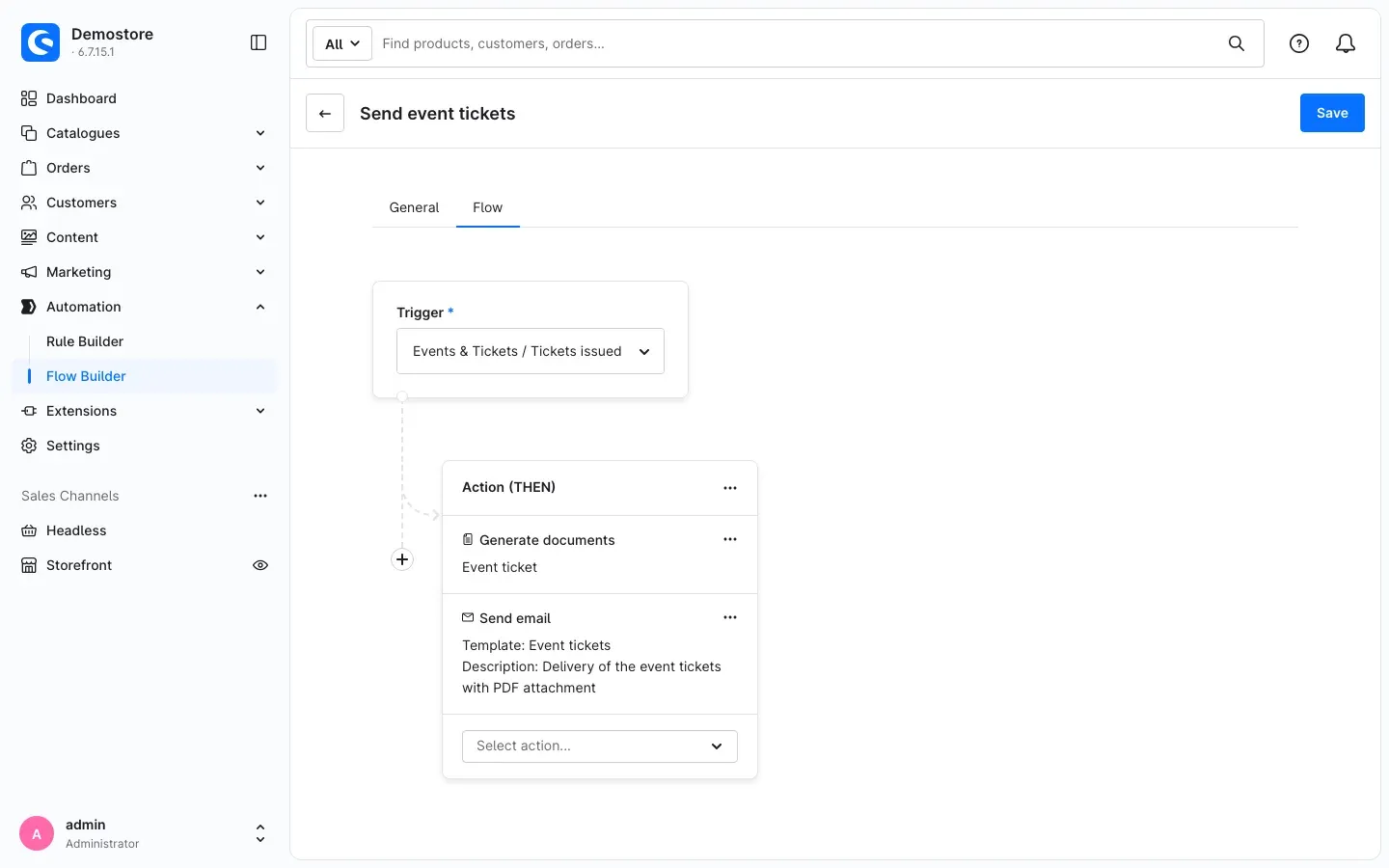 Fig. 32: The supplied flow “Send event tickets” in the Flow Builder
You control when tickets are issued with Issue tickets only after full payment. You control whether the flow starts with Send tickets automatically.
Tip: You can adjust the flow like any other flow, for example to send a copy to your team. You change the email texts in the settings under Email templates in the template “Event tickets”. For the waiting list, the plugin also supplies the templates “Event waiting list: confirm entry” and “Event waiting list: seat available”.
For your own flows, the triggers Tickets issued and Tickets cancelled are available, and the Rule Builder offers the condition Line item is event ticket.
How to control admission with the entry app
What this gives you: Your staff scan the QR codes of the tickets with a smartphone or tablet. The app immediately shows in large letters and colour whether the ticket is valid. Duplicate admissions, cancelled or wrong tickets stand out. Your staff do not need access to the administration.
How to create a scanner access
- Open Settings → Extensions → Event scanner accesses.
- Click Add access.
- Enter a Name (for example “Main entrance”), optionally a date under Valid until, and leave Active on.
- If needed, restrict the access in the Restriction card to specific Events, Event categories or Sales channels. Leaving a list empty allows everything of that kind.
- Save.
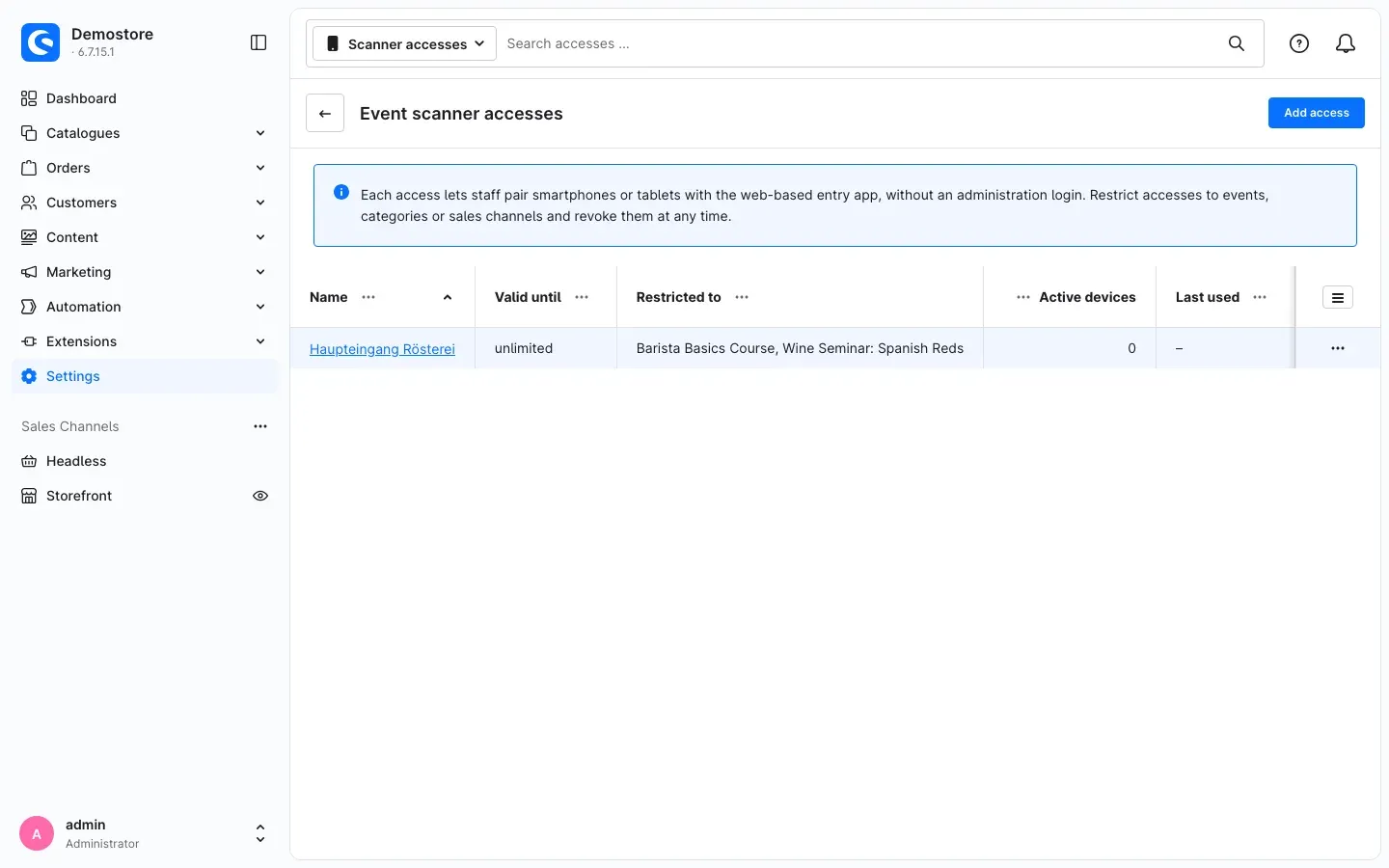 Fig. 33: The list of scanner accesses
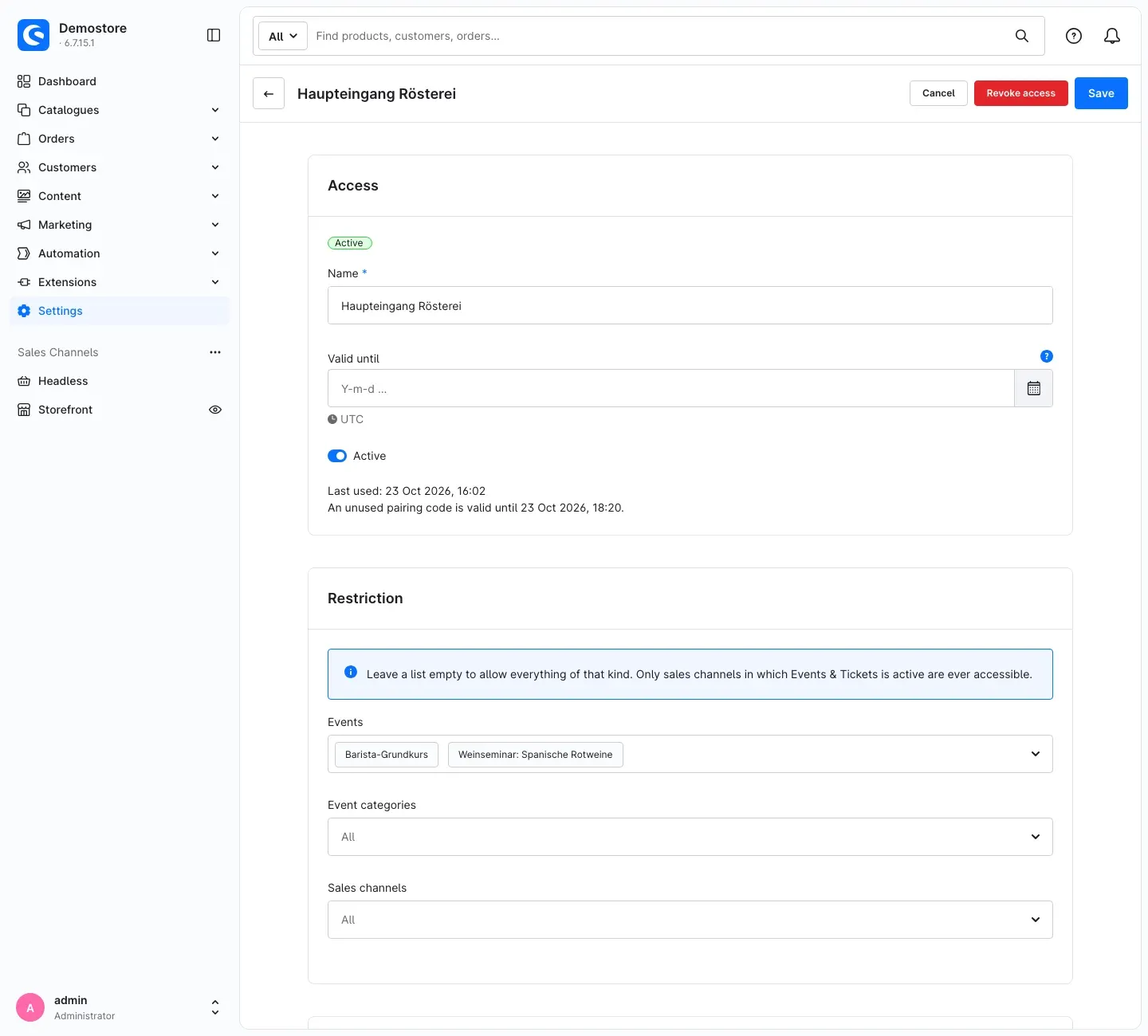 Fig. 34: A scanner access restricted to events
How to pair a device
- In the scanner access, click Pair device. A QR code and a Pairing code appear. Both are only shown now and expire soon.
- On the smartphone or tablet, open the address of the entry app in the browser. It is shown in the dialog under Address of the entry app.
- In the app, tap Scan QR code and scan the QR code on the screen — or enter the Pairing code (with Copy code you can pass it on, for example via a messenger).
- Optionally enter a Device name and tap Pair.
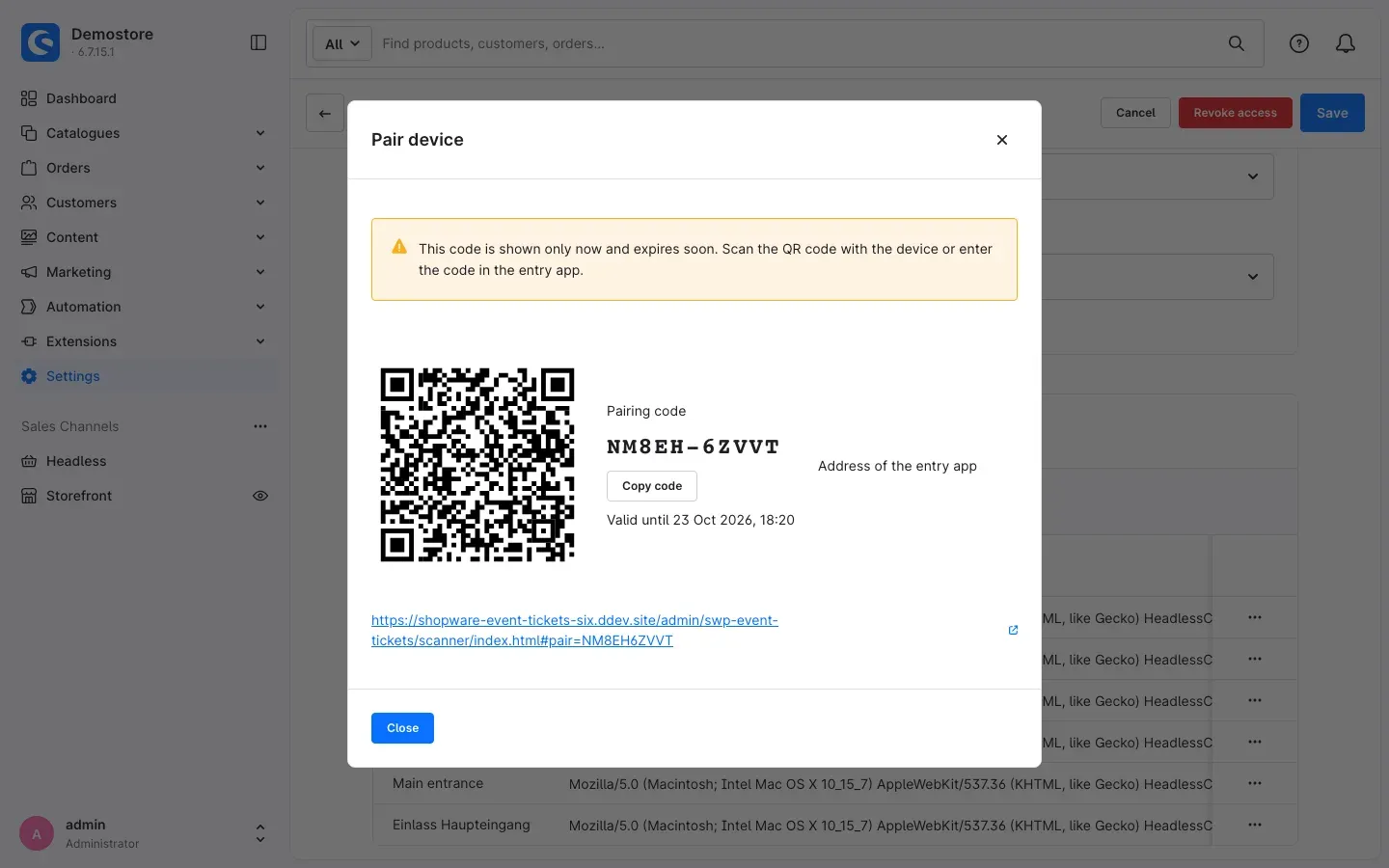 Fig. 35: “Pair device” dialog with QR code and pairing code
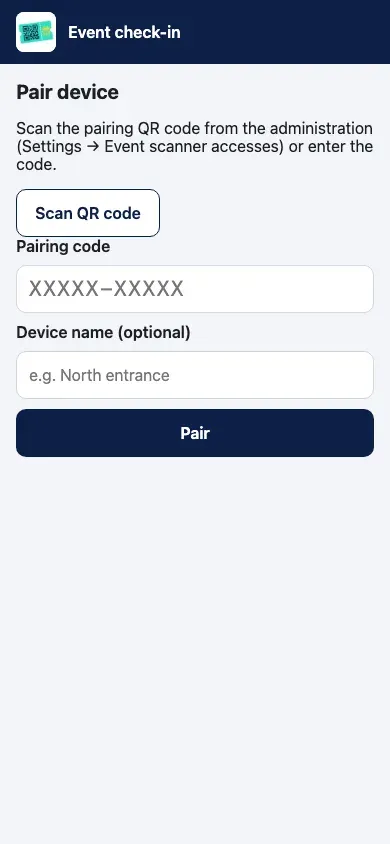 Fig. 36: The entry app on first start
Tip: Add the entry app to the home screen via the browser menu. It then starts like a normal app.
Important: The camera only works if your store is reachable via a secure connection (HTTPS) and you allow the browser to access the camera. Without a camera, the attendee list and manual check-in still work.
How to scan at the entrance
- Under Dates, choose the date you are admitting people to. The app shows running and upcoming dates of the next days.
- Under Scan, tap Start scanning and hold the ticket’s QR code inside the frame.
- The app shows the result in large letters and colour:
- Valid – admit — the attendee is checked in.
- Already checked in — with the time of the first check-in.
- Unpaid – no entry or Unpaid – checked in (depending on the setting Allow check-in of unpaid tickets).
- Cancelled, Wrong date (with the date the ticket is valid for), Not allowed or Invalid code.
- A counter shows how many attendees are already checked in.
Under Attendees, you search by name, ticket or order number and check attendees in or out manually — for example if someone has forgotten their ticket. History shows the latest check-ins. Under Settings, you choose the language of the app, sound and vibration, and can unpair the device.
Good to know: If the connection drops briefly, the app saves scans and sends them as soon as the connection is back.
How to revoke access for a device
In the scanner access, the Devices card shows all paired devices. Revoke device blocks a single device; Revoke access immediately blocks all devices of this access. A revoked access cannot be reactivated — create a new one if needed.
Good to know: limits and special cases
Express checkout on the product page
Express payment methods that add a product to the cart without the regular product form (for example PayPal Express directly on the product page) cannot pass a date. The cart removes such an event line item with a notice to select a date first. Therefore, do not offer express checkout buttons on the product page for event products.
Quick view
The quick view in product listings does not show a date selection. If a customer adds an event product to the cart there, the cart removes the line item again with a notice. The same applies to adding by product number, buy buttons in product listings and repeat orders without a date. This way, a ticket is never sold without a date.
Disabled sales channel
If Enable plugin for this sales channel is off, the cart in this channel removes all event products and tells the customer that the event cannot be booked in this store. This also applies when you edit an order of this channel in the administration: line items already booked with a date remain; newly added event products without a date are removed. You therefore do not need to hide event products in a disabled channel.
Orders created in the administration
When creating an order in the administration, no date can be selected. Enter such bookings as external attendees.
Maximum and reservation
A cart can hold at most the configured number of tickets per date (default 10). Seats in the cart are only reserved for the configured time; if a customer leaves the store, they become free again shortly after the time has expired.
Protection against too many requests
To prevent anyone from blocking seats automatically, the store limits how often tickets can be added to carts, waiting list entries can be created and scans can be performed within a short time. Normal customers do not notice this. However, if many customers share the same internet connection (for example in a company network) and book at the same time, a request may be rejected at peak times (“too many requests”). Trying again a few minutes later then works. IP addresses and email addresses are not stored in plain text for this purpose.
Troubleshooting
The installation fails
Cause: During installation, Shopware adds the QR code library via Composer. Your hosting does not allow this during plugin installation.
Solution: Give your hosting provider or agency the section For administrators / Technical details. Without this possibility, the plugin cannot be installed.
No date selection appears on the product page
Cause: Usually the product is not linked to an event, the event is inactive or not bookable, there are no active future dates, the booking deadline has passed or the plugin is switched off in the sales channel.
Solution:
- Check the Event card in the product: is an event linked, and is it bookable?
- Check Active and Bookable in the event and, in the Dates tab, whether active future dates exist.
- Check Enable plugin for this sales channel and Bookable until in the settings of the sales channel.
An event product disappears from the cart
Cause: It was added without a date (quick view, express checkout, product number, repeat order), the date has meanwhile sold out or can no longer be booked, or the plugin is switched off in this sales channel. The customer sees a notice in each case.
Solution: Customers book via the product page with Choose a date. Do not offer express buttons for event products.
The customer cannot place the order
Cause: Attendee details or a required additional field are missing for at least one ticket.
Solution: The customer fills in all details in the cart under Attendee details and saves them.
The customer does not receive a ticket email
Cause: Send tickets automatically is off, the flow “Send event tickets” is deactivated, the tickets have not been issued yet because the payment is outstanding, or the store is currently not processing background tasks.
Solution:
- Check the settings Send tickets automatically and Issue tickets only after full payment.
- Check under Automation → Flow Builder whether the flow “Send event tickets” is active.
- Send the tickets from the order with Send tickets.
- If the problem persists, check background processing with your administrator (see Technical details).
A PDF export stays on “Waiting” or is “Failed”
Cause: Large PDF exports are created in the background. If the store is not processing background tasks, the export stays waiting and is reported as failed after 60 minutes.
Solution: Ask your administrator to start background processing (message worker) and export again. In the meantime, use the CSV export, which is ready immediately, or filter by one date so that the list is small enough to be created immediately.
The entry app does not open the camera
Cause: The store is not reachable via HTTPS or the browser has denied camera access.
Solution: Open the entry app via an https:// address and allow camera access in the browser settings. Until then, check attendees in manually under Attendees.
Paired devices report “no longer paired” or all QR codes are invalid
Cause: The access was revoked or has expired — or the store’s central security key was changed on the server (see Technical details).
Solution: Pair the devices again. If the security key was changed, issue new tickets to the attendees with Issue new QR code and send them again.
Customers receive “too many requests”
Cause: Many bookings from the same internet connection within a short time, for example from a company network.
Solution: Wait a few minutes and try again. For group bookings, it is better if one person books several tickets in one cart.
The booked seats are wrong
Solution: In the Dates tab, click Recount booked seats and reload the page shortly afterwards.
The plugin does not appear in the administration menu
Cause: The plugin is not activated or the cache is outdated.
Solution:
- Open Extensions → My extensions and check whether the plugin is activated.
- Clear the cache: Settings → System → Caches & indexes → Clear cache.
FAQ
Q: How do I create a course that takes place every week?
A: With Create date series in the Dates tab: repeat Weekly, choose the weekday, set the period, check the preview, Create dates.
Q: Can I offer different prices, for example with and without lunch?
A: Yes. Create the ticket product with variants. All variants sell tickets for the same event; the price comes from the respective variant.
Q: Can I show an event for information only, without online booking?
A: Yes. Switch off Bookable in the event. The event appears in overviews and the calendar but cannot be booked.
Q: How do I handle seats booked by phone?
A: Either enter the number in the date under Booked elsewhere (capacity only), or add the people as external attendees — then they also receive a ticket.
Q: Do customers get tickets before they have paid?
A: By default, yes. Switch on Issue tickets only after full payment if tickets should only be issued once the payment has been received.
Q: What happens if a customer cancels?
A: If the order is cancelled, the tickets are cancelled and the seats become free; the waiting list moves up automatically.
Q: Can I delete an event or date once tickets have been sold?
A: No, so that no bookings are lost. Deactivate the event or date instead.
Q: Do my entrance staff need access to the administration?
A: No. The entry app is paired via a scanner access and can only check tickets. You can revoke the access at any time.
Q: What do I do if a ticket was passed on or lost?
A: Open the ticket and click Issue new QR code. The old QR code is then invalid. Afterwards, send the ticket again.
Q: Can I offer events in only one of my stores?
A: Yes. Switch the plugin off in the other sales channels with Enable plugin for this sales channel. In addition, events with a product follow the visibility of the product, and events without a product follow the selection under Sales channels.
Q: What happens to my data if I uninstall the plugin?
A: When uninstalling, you decide whether the data is kept. Without this choice, all events, dates, attendees, waiting lists, scanner accesses and ticket number ranges are deleted (see Technical details).
For administrators / Technical details
This section is intended for technical administrators, hosting providers and agencies. You do not need it for normal use.
System requirements
- Shopware: 6.7.11 or later within Shopware 6.7
- PHP: 8.2 or later with the
mbstringextension - Composer execution during plugin installation (see below)
- A running message worker (see below)
- HTTPS for the camera of the entry app
Composer during installation
The plugin requires the QR code library chillerlan/php-qrcode (MIT licence) and its dependency chillerlan/php-settings-container. It is not included in the plugin: Shopware adds it to the store’s Composer setup via Composer when the plugin is installed. Hosting or deployment setups that do not allow Composer to run during plugin installation (for example read-only file systems or blocked process execution) cannot install the plugin. In deployment setups, add the package via Composer instead:
composer require swp/event-tickets-six
php bin/console plugin:refresh
php bin/console plugin:install SwpEventTicketsSix --activate
php bin/console cache:clear
Background processing (message worker)
As recommended for every Shopware store, a message worker must be running (for example php bin/console messenger:consume async as a service). For this plugin, the following runs in the background:
- issuing tickets after order or payment,
- recounting booked seats,
- moving up and notifying the waiting list,
- large PDF exports of the attendee list (more than 500 rows; split into files of 2,000 rows each).
Without a worker, a large PDF export stays in the status “pending” (shown as Waiting in the administration) and is reported as “stalled” after 60 minutes (shown as Failed in the administration). In addition, the plugin uses scheduled tasks, among others for expiring reservations (every 5 minutes), the visibility of past dates, and cleaning up waiting lists, exports (after 24 hours) and check-in logs.
Security key (APP_SECRET)
QR codes on tickets and the credentials of paired entry devices are signed with a key derived from the store’s APP_SECRET. No key is stored in the database. As a result:
- Changing
APP_SECRETinvalidates all printed and sent QR codes as well as all paired entry devices. Issue a new code for affected tickets with Issue new QR code, send them again and pair the devices again. - Store copies (for example staging) with a different
APP_SECRETdo not accept tickets from the live store — and vice versa. - Running rate limits are reset by the change (not critical).
Rate limits
The limits apply per client and respond with HTTP 429 (“too many requests”) when exceeded:
- adding tickets to the cart: 30 per 10 minutes or 60 per hour per IP address,
- waiting list: 10 per 10 minutes or 20 per hour per IP address, plus 5 per 10 minutes or 10 per hour per email address,
- entry app: pairing attempts, device logins and scanner requests are limited as well.
Customers behind a shared IP address (company NAT, mobile network gateways) share the IP limits and may be rejected at peak times. IP and email addresses are only stored as a hash (HMAC) for the limits, never in plain text.
Entry app
The entry app is an installable web app served below the administration address (/admin/swp-event-tickets/scanner/). It needs HTTPS for camera access but no administration login: devices are bound to a scanner access via a one-time, short-lived pairing code and receive their own revocable device token (stored hashed). Access is limited to data of sales channels in which the plugin is active. For QR detection, the app uses the browser’s built-in barcode detection, otherwise the supplied library qr (MIT licence).
Permissions for user roles
Under Settings → System → Users & permissions, the following are available for roles: Events & Tickets: events, dates, categories, Events & Tickets: attendees and Events & Tickets: scanner accesses (each with View, Edit, Create, Delete) as well as the additional permission Export attendee lists (CSV, PDF).
Uninstallation
When uninstalling under Extensions → My extensions, you can choose to keep the plugin data. Without this choice, all events, dates, attendees, waiting list entries, scanner accesses, exports and the ticket number ranges are removed. The plugin does not alter Shopware’s own tables.
This manual was written for Events & Tickets version 6.7.0.
More manuals
Address Validation: House Number Check & Corrections
Address validation at the point of entry: the plugin spots missing house numbers, can suggest corrections via Google and helps you send fewer parcels that come back undeliverable.
Open manual Shopware 6Admin Password Reminder
Admin Password Reminder: your backend users renew their passwords on time, prompted after login and by a daily email. Premium locks expired accounts until the password is changed.
Open manual Shopware 6Advent Calendar | Doors with products, coupons and promotions
Advent calendar for your shopping experiences: doors open on time without clearing the cache, give nothing away in the page source and reveal coupons, products or your own content.
Open manualNeed a team that keeps your shop running?
We have been maintaining Shopware shops for more than 20 years, including updates, hotfixes and the plugins you are configuring right now.