
GDPR Suite: Retention, Anonymization & Data Subject Rights
GDPR without the manual work: the plugin anonymizes orders once the retention period ends, deletes inactive customer accounts and backs every step with a dry run and a release.
On this page
- Introduction
- What you achieve with this plugin
- Who is this plugin for?
- Installation
- Getting Started
- Settings
- General
- Orders
- Documents
- Customer accounts
- Business letters
- Run log
- The GDPR suite overview
- How to check a rule with a dry run
- How to release and run a rule
- How to prove what happened
- The run log
- Releases & confirmations
- How to handle a request from a customer
- How to keep track of restrictions and exceptions
- What you see on customer and order pages
- Button on the customer page
- Notice on the order page
- How to assign permissions
- Troubleshooting
- A rule does not run although it is switched on
- ”Release…” does not work or shows an error
- The deletion period for orders cannot be saved
- A run stays “queued”
- A run failed
- A customer account is not deleted
- The mail log is not cleaned
- The overview or buttons are missing
- FAQ
- For Administrators / Technical Details
- System requirements
- Scheduled tasks
- Runs from the command line
- Installation via the command line
- Data on uninstallation
Introduction
The GDPR Suite helps you keep personal data in your shop only as long as you really need it — and to prove it.
Customer data piles up over the years: old orders with names and addresses, customer accounts nobody has used for a long time, comments and reviews. At the same time, you may not simply delete invoices and accounting records, because statutory retention periods apply. The GDPR Suite brings both together: it removes personal data only once the period has ended, and it leaves the amounts, taxes and line items of your orders untouched.
What you achieve with this plugin
- Anonymize orders after the retention period: names, addresses and contact data are overwritten. Amounts, taxes, line items, dates and states stay — your revenue figures remain correct.
- Optionally delete orders later: as a second stage, you can have orders removed completely after a longer period.
- Delete inactive customer accounts: accounts without login and without order during a period you define are removed.
- Clean up guest accounts: guest accounts disappear once all of their orders are anonymized.
- Clean up document files and business letters: stored document files, customer comments, review author names and mail log entries are removed after their period.
- Handle erasure and restriction requests: you complete a request under Art. 17 GDPR (erasure) or Art. 18 GDPR (restriction of processing) for a single customer in a few clicks.
- Nothing happens unchecked: you count every rule in a dry run first, without any data being changed. Only after your explicit release does it take effect.
- Complete evidence: every release, revocation and confirmed warning is recorded unchangeably and kept for up to 180 days, longer via CSV export. The run log contains numbers only, no personal data.
- Per sales channel: all settings, rules and releases apply per sales channel.
Important: The GDPR Suite is no substitute for legal advice. Which retention periods apply to your shop and which role your shop plays as a document archive is decided by you as the shop operator together with your tax advisor and your data protection officer. The plugin implements your decision technically.
Good to know: The plugin offers erasure (Art. 17 GDPR) and restriction of processing (Art. 18 GDPR). There is no function for providing access to stored data.
Who is this plugin for?
For shop operators who want to fulfil their retention and deletion obligations under the GDPR and the German tax and commercial codes in an orderly way — especially shops with many years of order history, several sales channels or regular deletion requests from customers.
Installation
After purchase, the plugin is available directly in your Administration — you do not need to download anything.
- Log in to your Shopware Administration (
yourshop.com/admin). - Open Extensions → My extensions.
- Next to GDPR Suite: Retention, Anonymization & Data Subject Rights, click Install.
- Activate the plugin with the switch next to the entry — done.
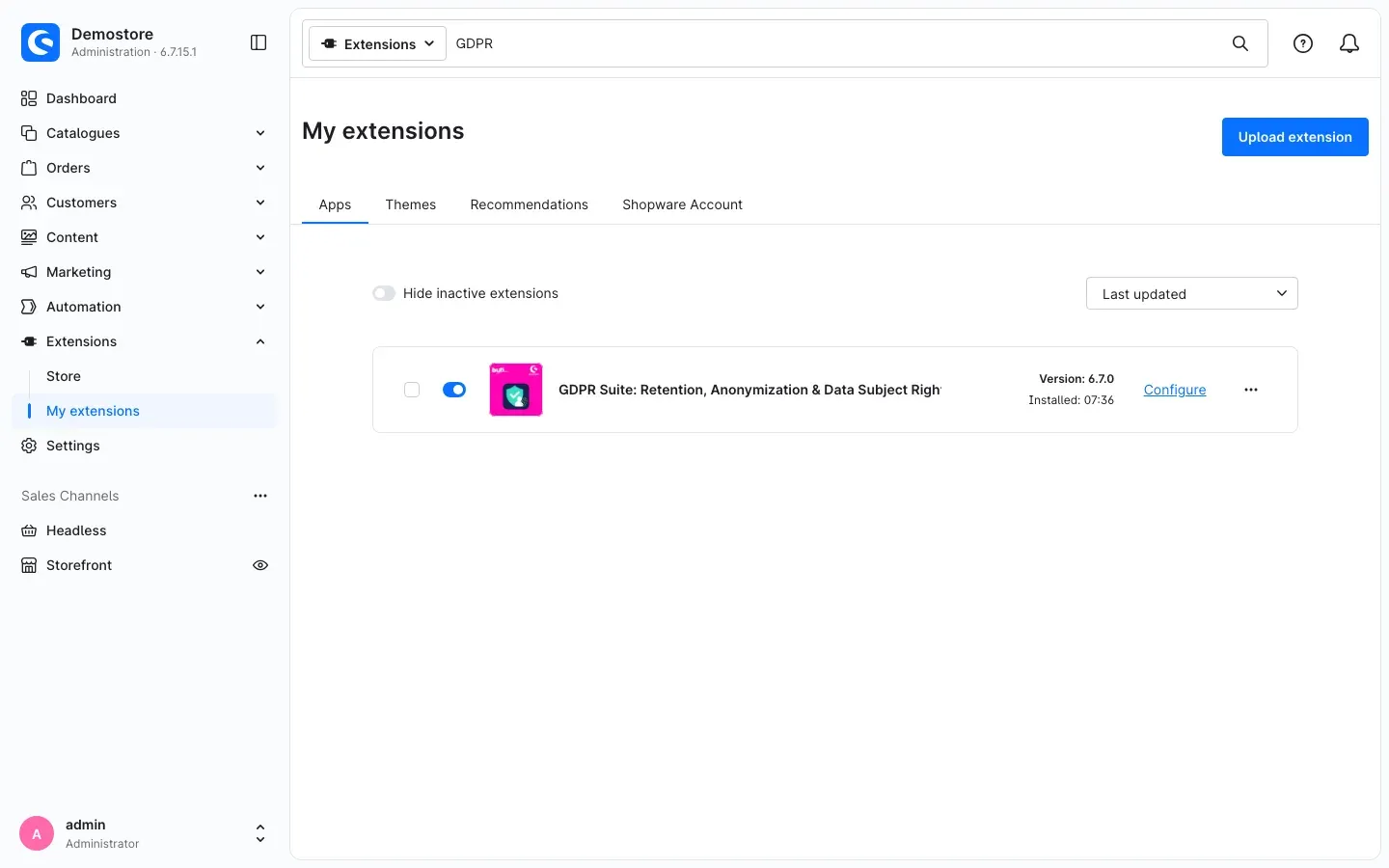 Fig. 1: The plugin is installed and active. Use “Configure” to open the settings.
If the GDPR Suite does not appear in the list, your Shopware account is not yet connected to the shop. You do this under Extensions → My extensions by logging in with your Shopware account.
Nothing happens to your data after installation: all rules are switched off by default, and every rule additionally needs a dry run and your release.
Getting Started
This is how you put the GDPR Suite into operation safely:
- Define your periods: clarify with your tax advisor and your data protection officer which periods apply to your shop.
- Open the settings: go to Extensions → My extensions and click Configure next to the GDPR Suite. Enter your periods there and switch on the rules you want (see Settings). Click Save.
- Open the overview: go to Customers → GDPR suite. Here you see all rules and their state per sales channel (see The GDPR suite overview).
- Start a dry run: for every rule you switched on, count which records would be due. Nothing is changed (see How to check a rule with a dry run).
- Release the rule: if the numbers are right, you release the rule. From then on, the daily task processes due records automatically (see How to release and run a rule).
- Check the result: the Run log shows what each run processed (see How to prove what happened).
Tip: Try the GDPR Suite on a copy of your shop first. That way you see the effect before real data is changed.
Settings
You find the settings under Extensions → My extensions → Configure next to the GDPR Suite. They are grouped into General, Orders, Documents, Customer accounts, Business letters and Run log. Save your changes with Save at the top right.
Settings per sales channel: at the very top, choose under Sales Channel what your changes apply to. With All Sales Channels you set the default values. If you choose a single sales channel, you can enter different values there — for example other periods for a shop in another country.
Important: Every change to periods or other settings that affect a rule cancels its release. The rule then shows Settings changed – release again in the overview. Start a new dry run and release the rule again. This way, no setting ever takes effect that you have not checked.
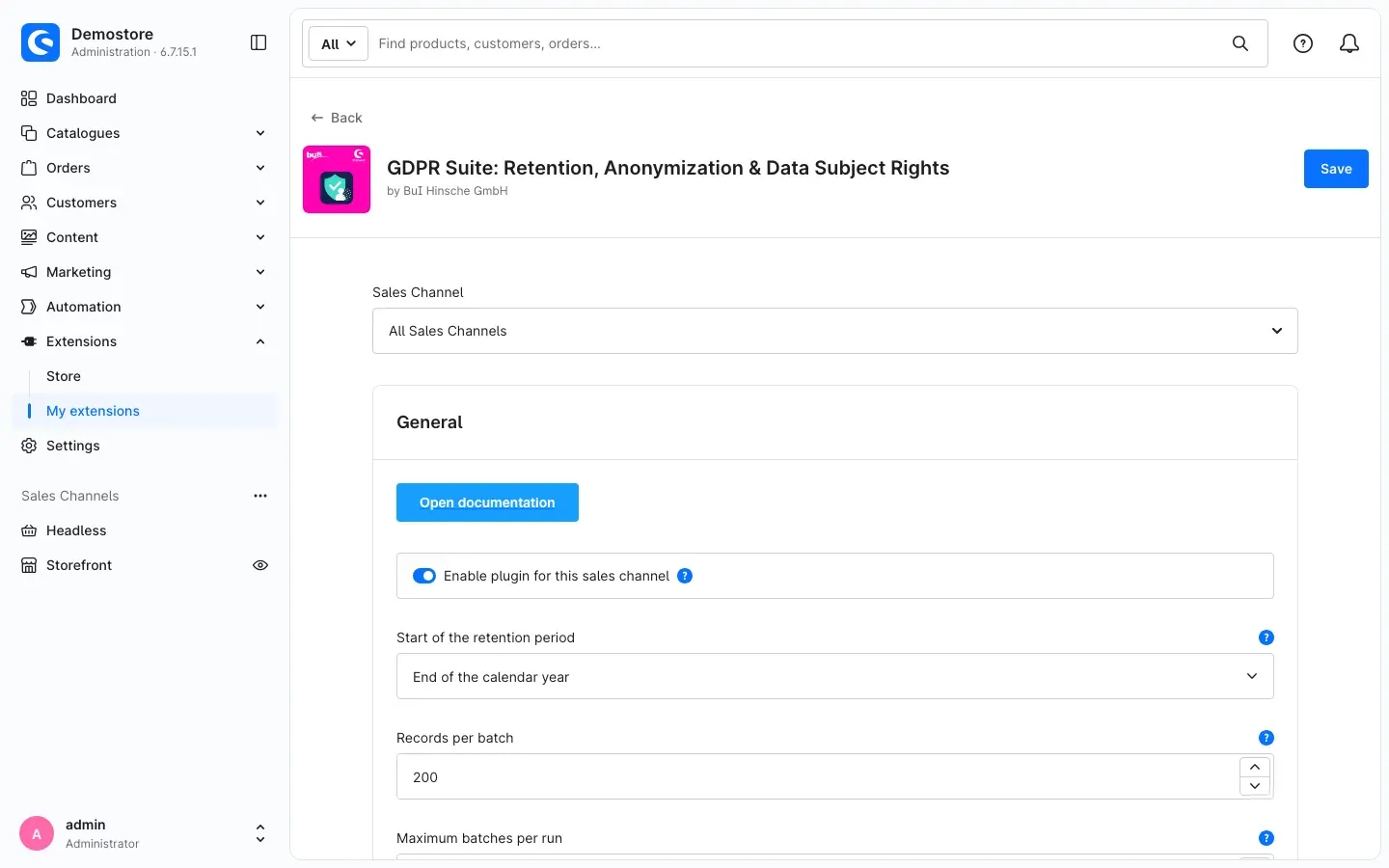 Fig. 2: The “General” section with the sales channel selection
General
Open documentation
The Open documentation button takes you directly to this manual on our website.
Enable plugin for this sales channel
The Enable plugin for this sales channel switch defines whether the GDPR Suite works in this sales channel. It is on by default. When you switch it off, no rule runs in this sales channel any more — without uninstalling the plugin. The run log of this channel also stays unchanged.
What it is good for: if you run several sales channels, you use the GDPR Suite only where you need it — or pause it for one channel while you clarify something there.
Start of the retention period
Under Start of the retention period you choose when a period starts:
- End of the calendar year (default): the period starts at the end of the year in which the record was created. This follows § 147 (4) of the German Fiscal Code (AO). Example: a record from 2017 with a period of eight years is due on 1 January 2026.
- Order date: the period starts on the day of the order.
If a document is created for an order later on (such as a credit note or a cancellation), the more recent date counts. This way an order is never processed too early.
Records per batch
Records per batch defines how many records are processed in one step. Values from 50 to 500 are allowed, the default is 200. Smaller values put less load on your server, larger ones work through big stocks faster. Usually you do not need to change anything here.
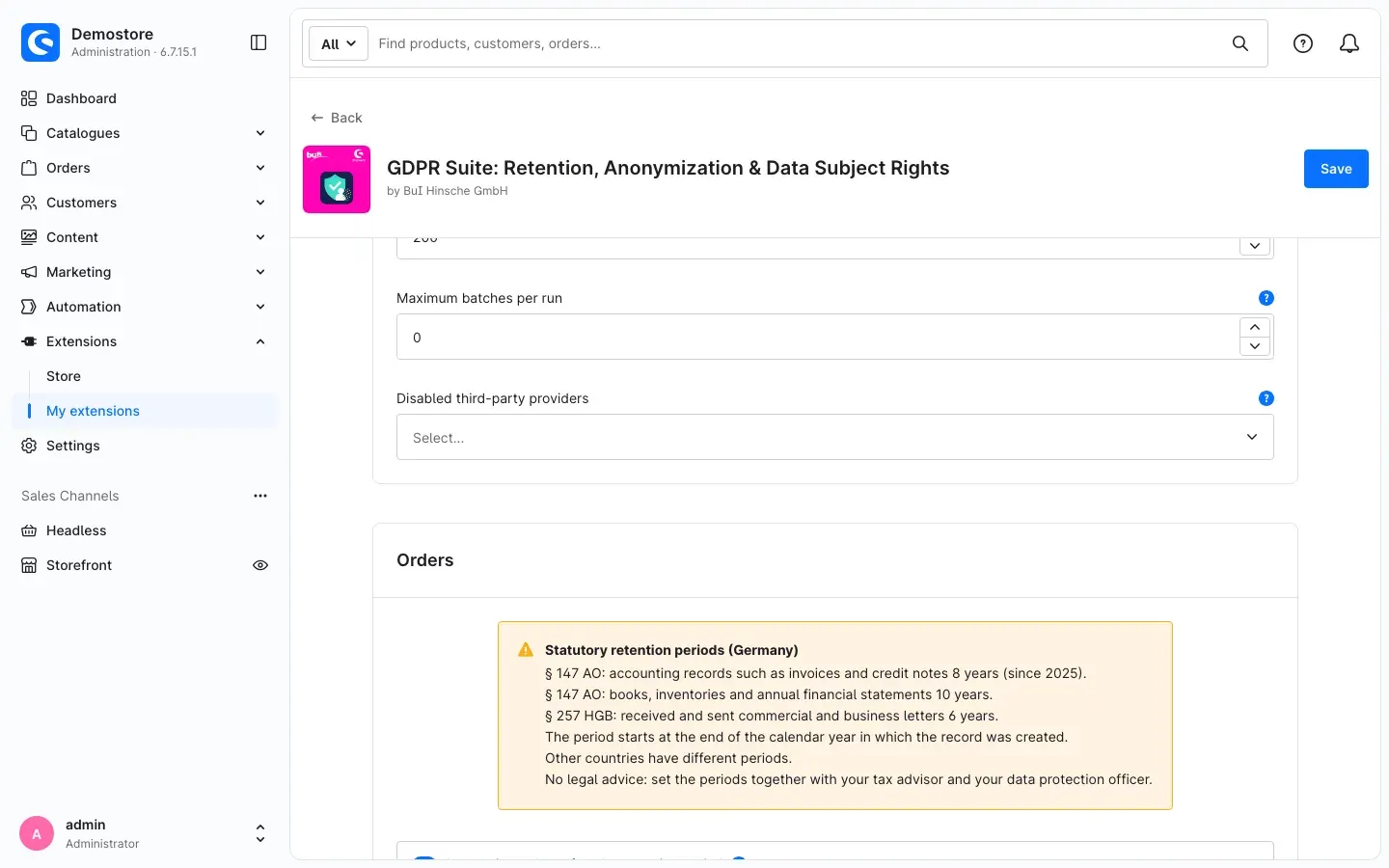 Fig. 3: Maximum batches, third-party providers and the notice on statutory periods
Maximum batches per run
With Maximum batches per run you limit how much a single run processes at once. With 0 (default) there is no limit. If you set 5, for example, a run stops after five batches; the next run continues exactly there.
What it is good for: for the very first run in a shop with many old orders, you can split the work into small portions and check the result step by step.
Disabled third-party providers
The GDPR Suite automatically detects whether certain other plugins that also store customer or order data are installed in your shop, and includes their data. Supported are:
- Shopware Commercial (B2B, quotes, subscriptions)
- PayPal
- Mollie (subscriptions)
- NetInventors Access Manager
- ChannelPilot Pro
- Coolbax external orders
- ShopStudio Blog (comments)
- Migration Assistant raw data
- FroshMailArchive
Under Disabled third-party providers you select the providers the GDPR Suite should not process. Their data is then neither anonymized nor deleted. Nothing is selected by default.
What it is good for: if another plugin already takes care of deleting its own data, you exclude it here. Data of other plugins the GDPR Suite does not know is always listed by the dry run — so you see where you should check yourself.
Orders
At the top of this section you find the notice Statutory retention periods (Germany). It summarizes the most important German periods: accounting records such as invoices and credit notes 8 years (since 2025), books, inventories and annual financial statements 10 years, commercial and business letters 6 years. Other countries have different periods. Set your periods together with your tax advisor and your data protection officer.
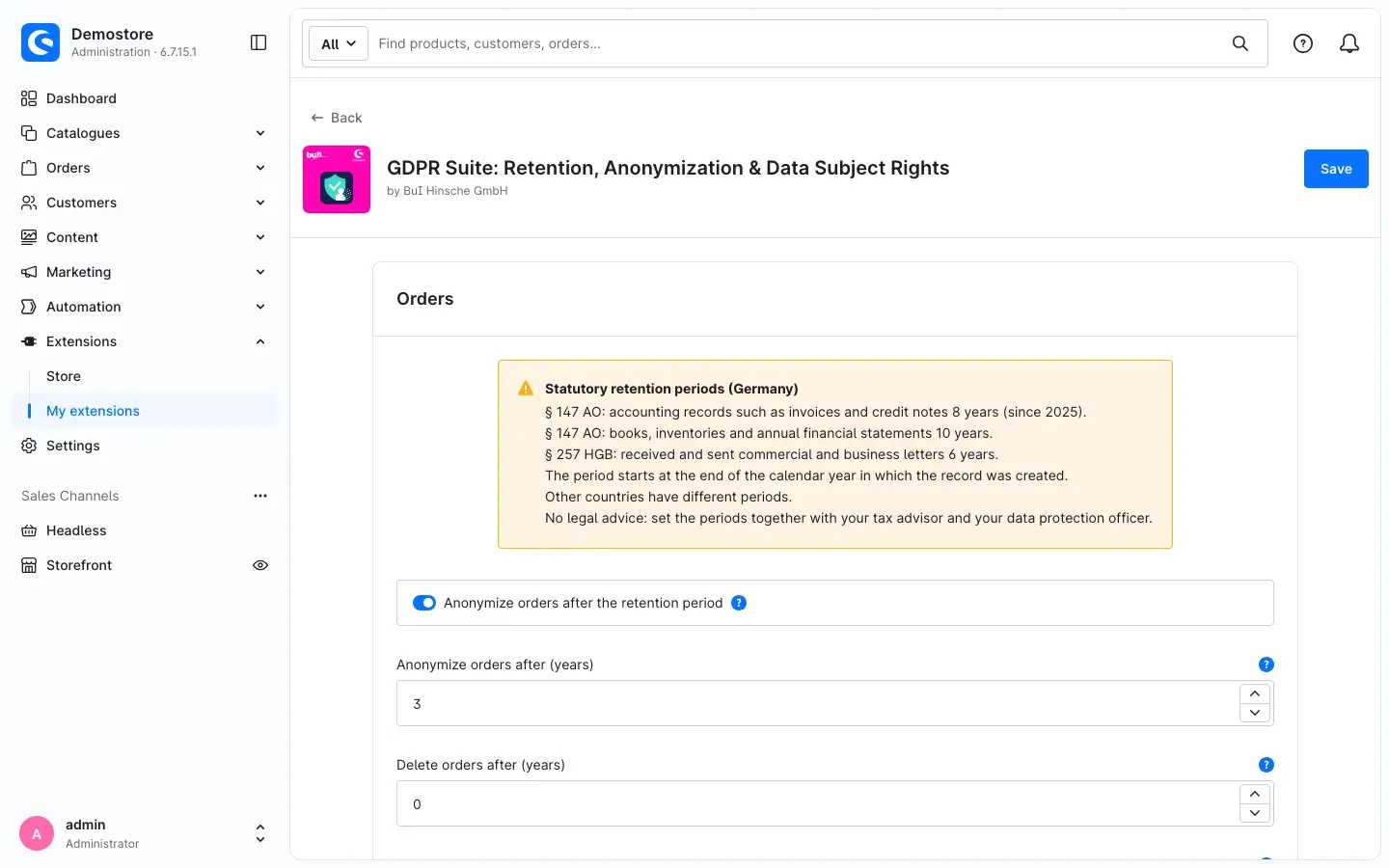 Fig. 4: Periods for anonymizing and optionally deleting orders
Anonymize orders after the retention period
Anonymize orders after the retention period switches on the rule for orders. It is off by default. Once it is active and released, names, addresses and contact data of due orders are overwritten. Amounts, taxes, line items, dates and states stay unchanged — your accounting and your revenue reports remain correct. The country of the address is always kept.
Anonymize orders after (years)
Under Anonymize orders after (years) you enter after how many years an order is anonymized. The default is 8 years — the usual period for accounting records under § 147 AO. Values from 1 to 50 years are allowed.
If you set a period shorter than 8 years, you have to confirm this explicitly when releasing the rule.
Delete orders after (years)
Delete orders after (years) is an optional second stage. With 0 or an empty field (default), orders are never deleted, only anonymized.
If you enter a number, orders older than this period are deleted irrevocably — together with documents and files, even if they were anonymized before. Restricted orders are never deleted while the restriction applies.
The deletion period must be greater than the anonymization period. If it is equal or smaller, the shop refuses to save with a message, and nothing is changed.
Important: Before you use deletion, consider the consequences: revenue statistics of earlier years change. A connected ERP system may miss orders or export them again. And as long as a tax audit or another procedure is pending, the retention period does not end (§ 147 (3) AO) — you as the operator are responsible for this. Releasing deletion therefore requires an explicit confirmation and a permission of its own (see How to assign permissions).
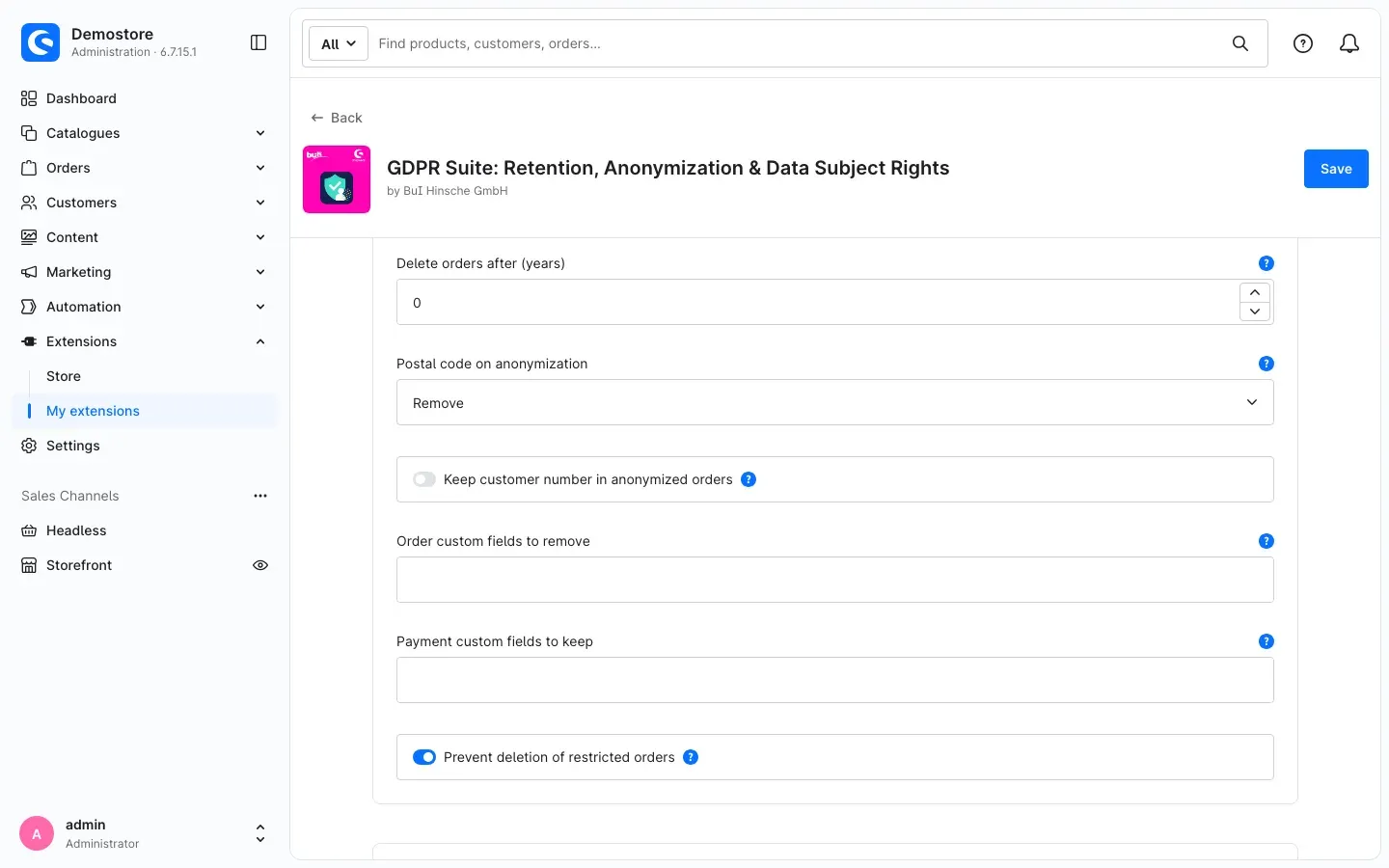 Fig. 5: What else happens during anonymization
Postal code on anonymization
Under Postal code on anonymization you choose what happens to the postal code:
- Remove (default): the postal code is deleted completely.
- Keep first two characters or Keep first character: part of the postal code stays.
What it is good for: with part of the postal code you can still analyze which regions your orders come from, without being able to identify individual persons.
Keep customer number in anonymized orders
With Keep customer number in anonymized orders, the customer number stays in the anonymized order. The switch is off by default, and the customer number is replaced. Only switch it on if your ERP system needs the customer number for reconciliation.
Order custom fields to remove
Some plugins or interfaces store additional information on orders that may contain personal data. Under Order custom fields to remove you enter the names of these custom fields, separated by commas. They are removed during anonymization.
How to find the right names: the dry run for orders shows all names found on due orders in the card Custom field and payload keys of due records. Check them for personal data and take over the relevant ones.
Payment custom fields to keep
Payment providers often store information of their own on a payment. By default, all of it is removed during anonymization. Under Payment custom fields to keep you enter the names of the custom fields that should stay, separated by commas.
What it is good for: if you still need a transaction number for queries to the payment provider, for example, you add its custom field here.
Prevent deletion of restricted orders
Prevent deletion of restricted orders (on by default) protects restricted orders from being deleted — whether someone tries to delete them in the Administration, through an interface or by import. An order is restricted when its customer account was deleted or processing was restricted while the retention period is still running.
What it is good for: orders restricted under Art. 18 GDPR must be retained until their period ends. Leave this switch on.
Documents
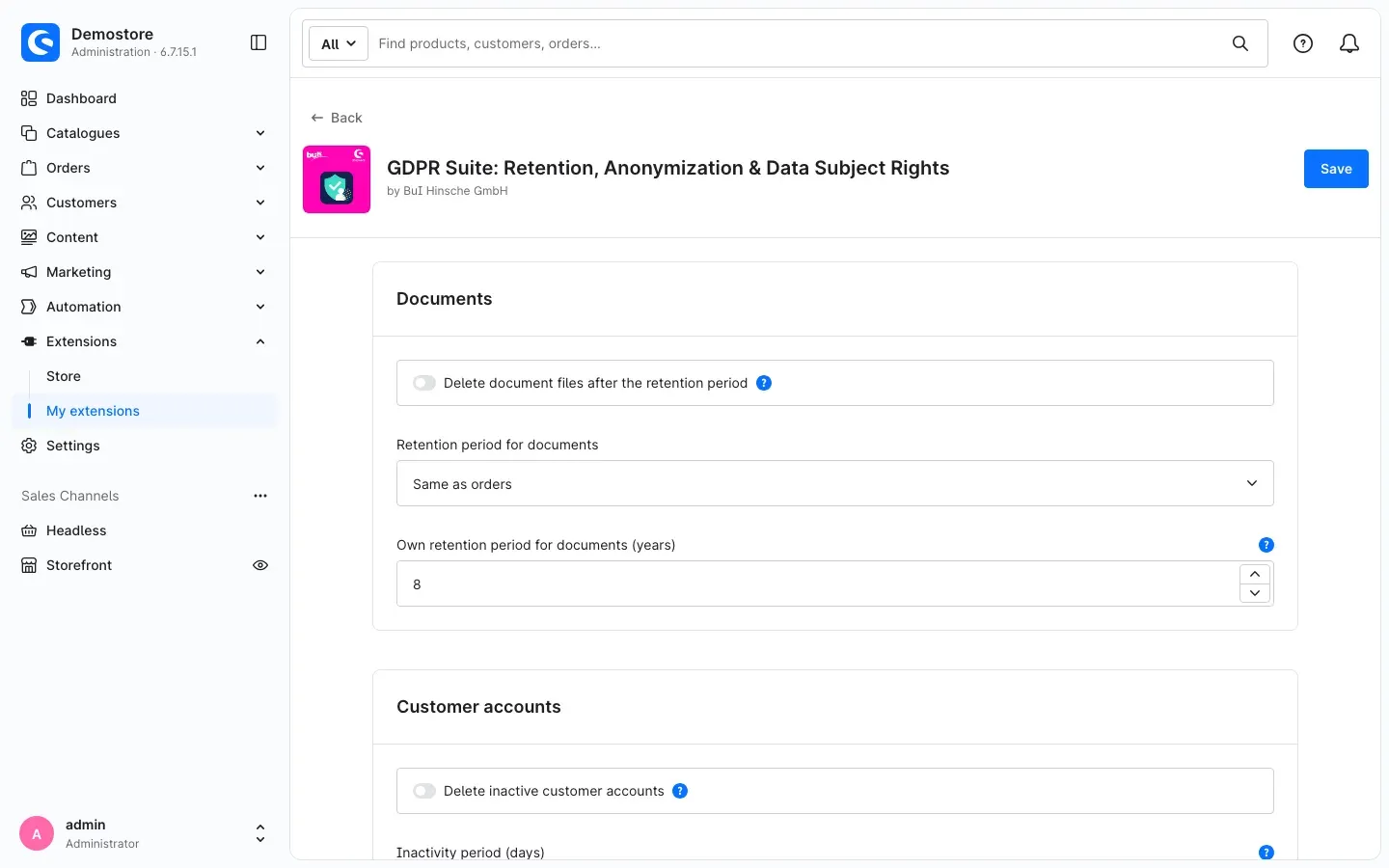 Fig. 6: Settings for stored document files
Delete document files after the retention period
Delete document files after the retention period switches on the rule for document files. It is off by default. Only the stored file is deleted, for example the PDF of an invoice. Number, type and order reference of the document stay. A file is never deleted within the period.
Good to know: if someone later opens a document without file in the Administration, Shopware renders it again from the order — then with the anonymized data. Uploaded documents are gone for good after deletion.
Retention period for documents
Under Retention period for documents you choose:
- Same as orders (default): document files follow the anonymization period of orders.
- Own period: the value of the next field applies.
Own retention period for documents (years)
Own retention period for documents (years) only applies if you selected Own period. The default is 8 years, values from 1 to 50 are allowed.
If this period is shorter than the order period, the shorter period only applies to delivery notes. Invoices, credit notes, cancellations and e-invoices are always kept at least as long as the order. A period below 8 years has to be confirmed explicitly when releasing.
Customer accounts
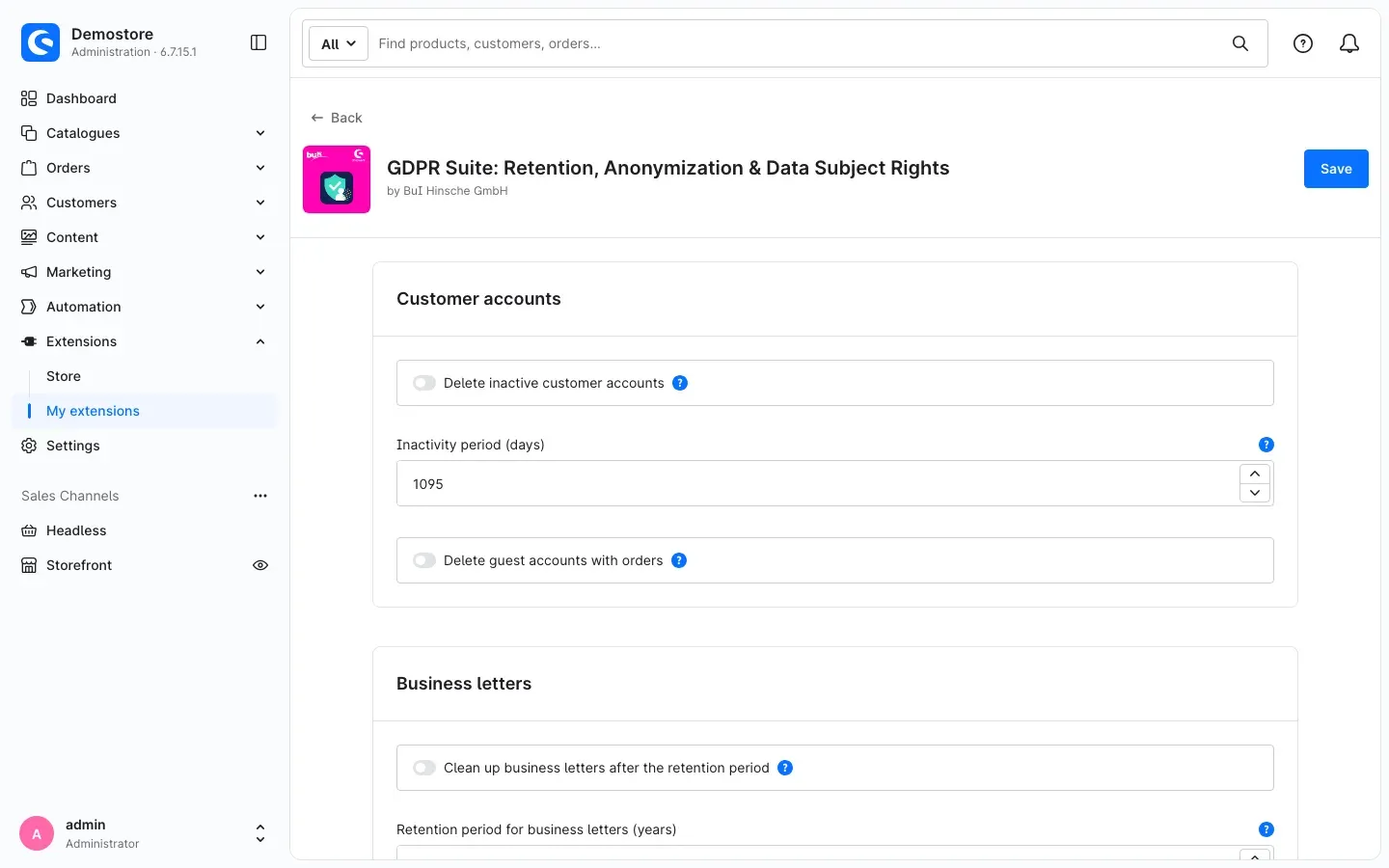 Fig. 7: Settings for inactive accounts and guest accounts
Delete inactive customer accounts
Delete inactive customer accounts switches on the rule for inactive accounts. It is off by default. Accounts that have neither logged in nor ordered within the inactivity period are deleted. Their orders stay and are restricted until the end of their retention period.
If an account cannot be deleted — for example because another plugin still refers to it — it is skipped and listed under Restrictions & exceptions (see How to keep track of restrictions and exceptions).
Inactivity period (days)
Under Inactivity period (days) you define after how many days without login and without order an account counts as inactive. The default is 1095 days (3 years). Accounts without a stored login date count from the day they were created.
A period shorter than 1095 days has to be confirmed explicitly when releasing — below 365 days with an additional warning, because customers who order only once a year would then lose their account. Check whether the period matches your privacy notice.
Delete guest accounts with orders
With Delete guest accounts with orders (off by default), the GDPR Suite removes a guest account once all of its orders are anonymized or were deleted by the plugin. This rule has no period of its own; it follows the rule for orders.
Guests who never ordered are deleted by Shopware itself. The plugin deliberately does not duplicate this. You see the state of this Shopware task in the GDPR suite overview under Scheduled tasks.
Business letters
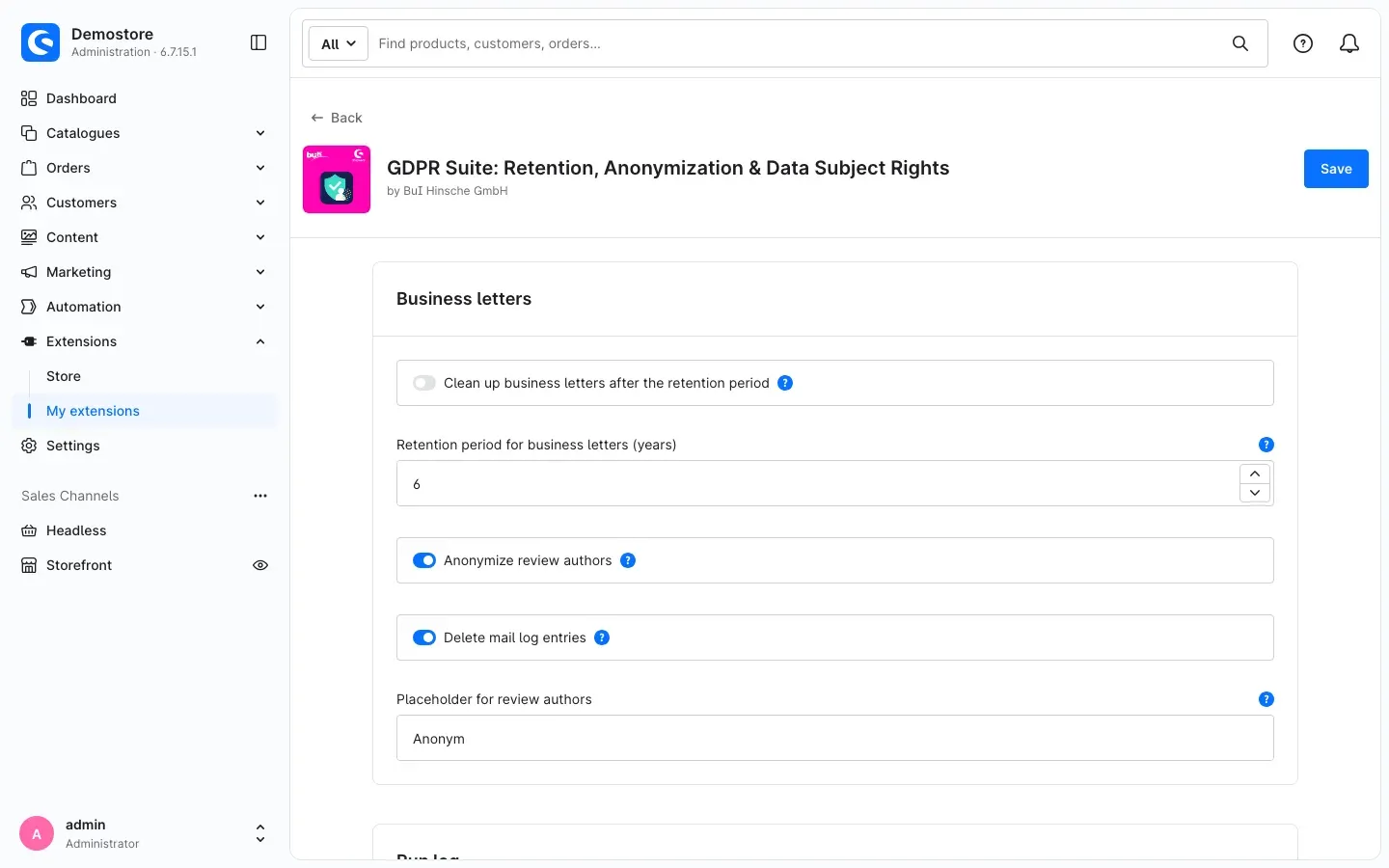 Fig. 8: Settings for comments, reviews and the mail log
Clean up business letters after the retention period
Clean up business letters after the retention period switches on the rule for business letters. It is off by default. After the period, customer comments on orders are removed and — depending on the following switches — review authors are anonymized and mail log entries are deleted.
Retention period for business letters (years)
Under Retention period for business letters (years) you enter the period. The default is 6 years, the usual period for business letters under § 257 of the German Commercial Code (HGB). Values from 1 to 50 years are allowed. A period shorter than 6 years has to be confirmed explicitly when releasing.
Anonymize review authors
With Anonymize review authors (on by default), the name and email address of the authors of old reviews are replaced. The rating and the text of the review stay — your product pages do not lose any reviews.
Delete mail log entries
With Delete mail log entries (on by default), the GDPR Suite removes old entries from the Shopware mail log. These entries contain recipients and contents of sent emails.
Good to know: the mail log does not belong to any sales channel. It is therefore only cleaned once all active sales channels have switched on and released the rule for business letters. If a channel is missing, the dry run points this out.
Placeholder for review authors
Under Placeholder for review authors you define which name appears instead of the real author on anonymized reviews. The default is Anonymous.
Run log
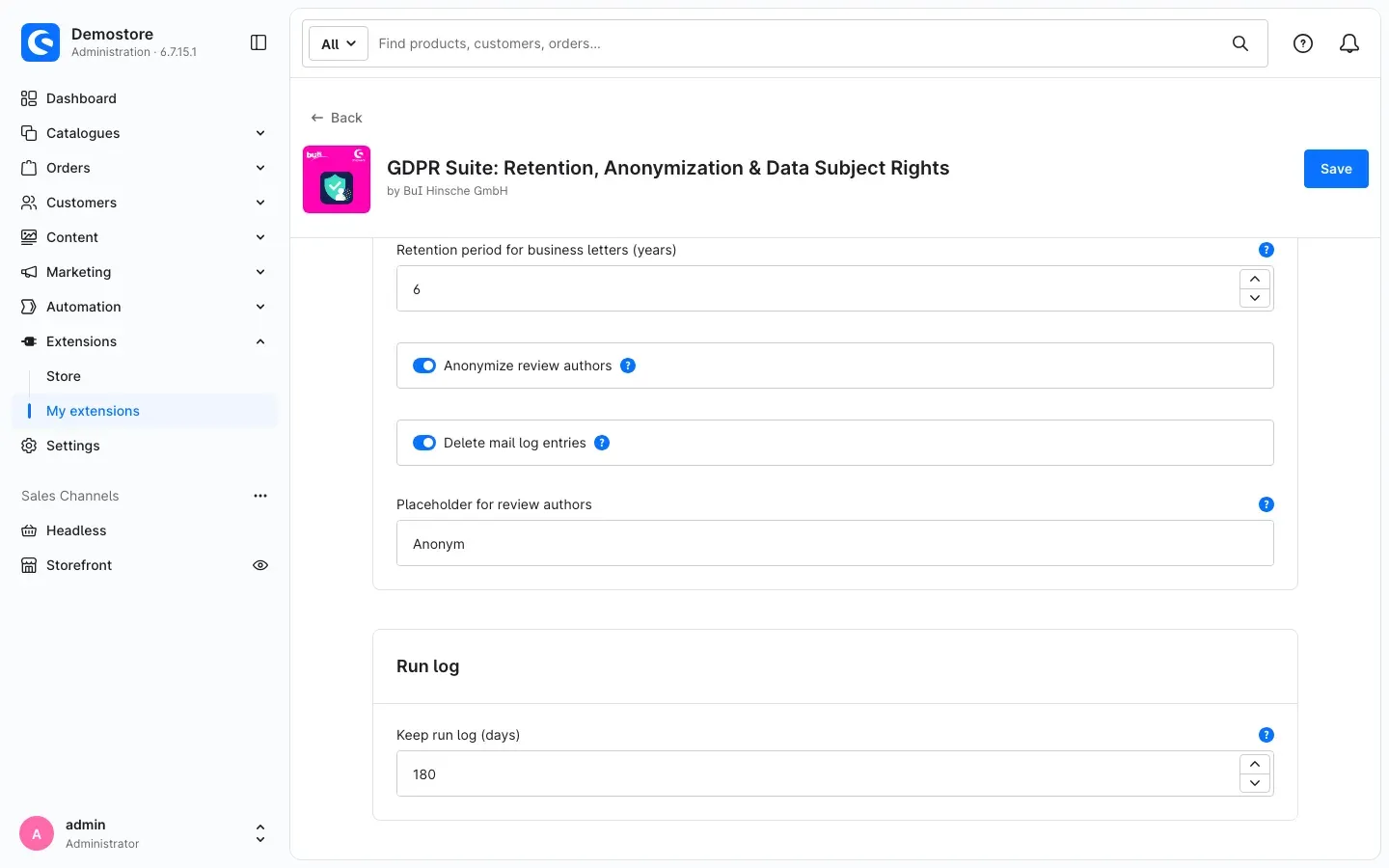 Fig. 9: Retention of the run log
Keep run log (days)
Under Keep run log (days) you define how long live runs, dry runs and the entries under Releases & confirmations are stored. Allowed are 1 to 180 days, the default is 180 days. Older entries are deleted automatically every day. The setting applies per sales channel.
Dry runs are deleted after 90 days already (earlier with a shorter period). If a dry run is the basis of an existing release, it is kept until the end of the period.
A release stays effective even when its dry run and its confirmation have been deleted. The Releases tab then shows deleted (retention period); the date under Confirmed at is kept.
Tip: if you need longer evidence, save the entries beforehand with Export CSV — once in the run log and once under Releases & confirmations (see How to prove what happened). The run log file also contains, for every run, the confirmation it is based on; revocations and erasure requests without a run of their own are only in the file under Releases & confirmations.
The GDPR suite overview
What it does for you: at a glance you see for every sales channel which rules are switched on and released, how much was due last time, and when something was last processed.
You find the overview under Customers → GDPR suite.
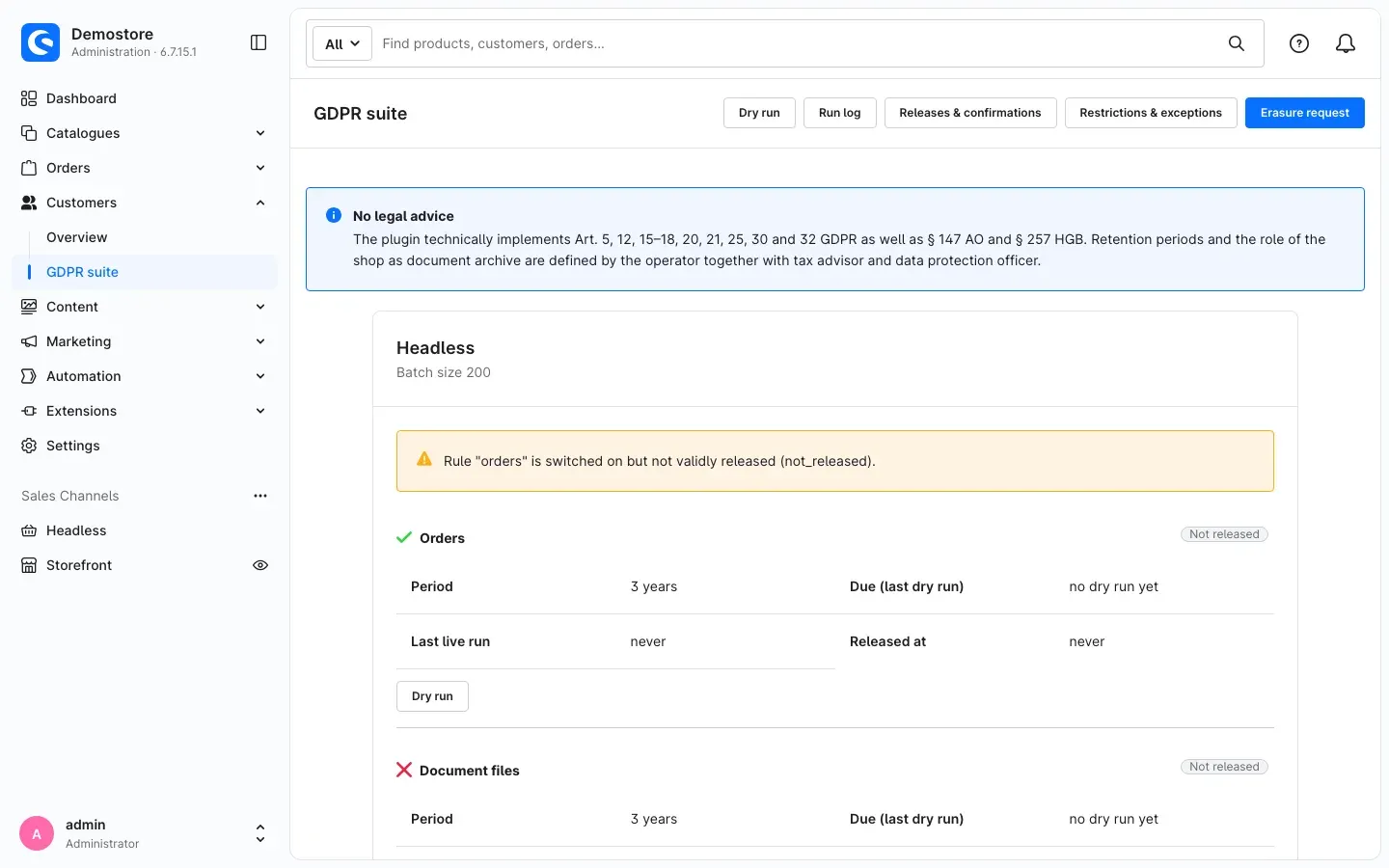 Fig. 10: The overview with the “No legal advice” notice and one card per sales channel
At the top you find the buttons to all areas:
- Dry run — check rules without changing data (How to check a rule with a dry run)
- Run log — all runs and releases (How to prove what happened)
- Releases & confirmations — the evidence of your decisions (How to prove what happened)
- Restrictions & exceptions — restricted and skipped records (How to keep track of restrictions and exceptions)
- Erasure request — handle the request of a single person (How to handle a request from a customer)
Per sales channel there is one card. Below the channel name you see the Batch size. If the GDPR Suite is switched off in a channel, the card says so directly. Below follows one section per rule — Orders, Document files, Guest accounts with orders, Inactive customer accounts and Business letters:
- A green tick shows that the rule is switched on in the settings, a red cross that it is switched off.
- On the right you see the release state: Released, Not released, Release revoked, Settings changed – release again or No documented confirmation – release again.
- Period shows the configured period, Due (last dry run) the number from the last dry run, Last live run and Released at the points in time.
- Dry run checks the rule directly, Show last run opens the most recent run.
If a rule is switched on but not validly released, the card shows a yellow notice at the top. That way you immediately see where something still needs to be done.
Below the channels, the card Scheduled tasks shows when the Daily retention run and the Daily run log cleanup last ran and will run next. It also shows when Shopware itself deletes guests without orders. The card Storage and cleanup shows how much space the GDPR Suite data takes up in your database.
How to check a rule with a dry run
What it does for you: before a rule changes data, you see exactly how many records would be due and what the effects would be. A dry run only counts — it changes no data. It is also the precondition for every release.
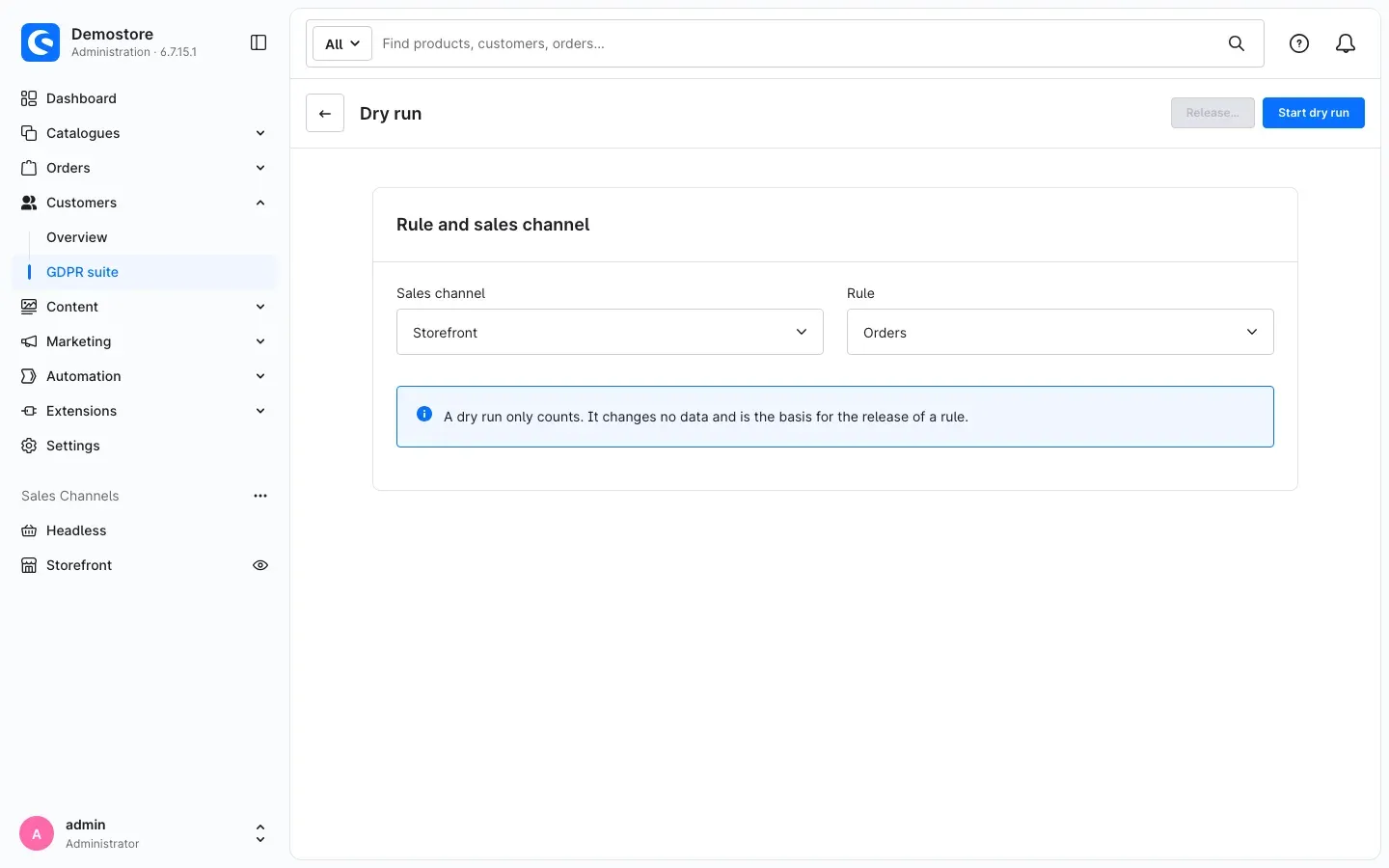 Fig. 11: Choose the rule and sales channel for the dry run
Step by step
- Go to Customers → GDPR suite and click Dry run at the top — or click Dry run directly at the rule in the card of a sales channel.
- In the card Rule and sales channel, choose the Sales channel and the Rule.
- Click Start dry run at the top right.
You can also start a dry run for a rule that is still switched off in the settings. It then shows what the rule would do.
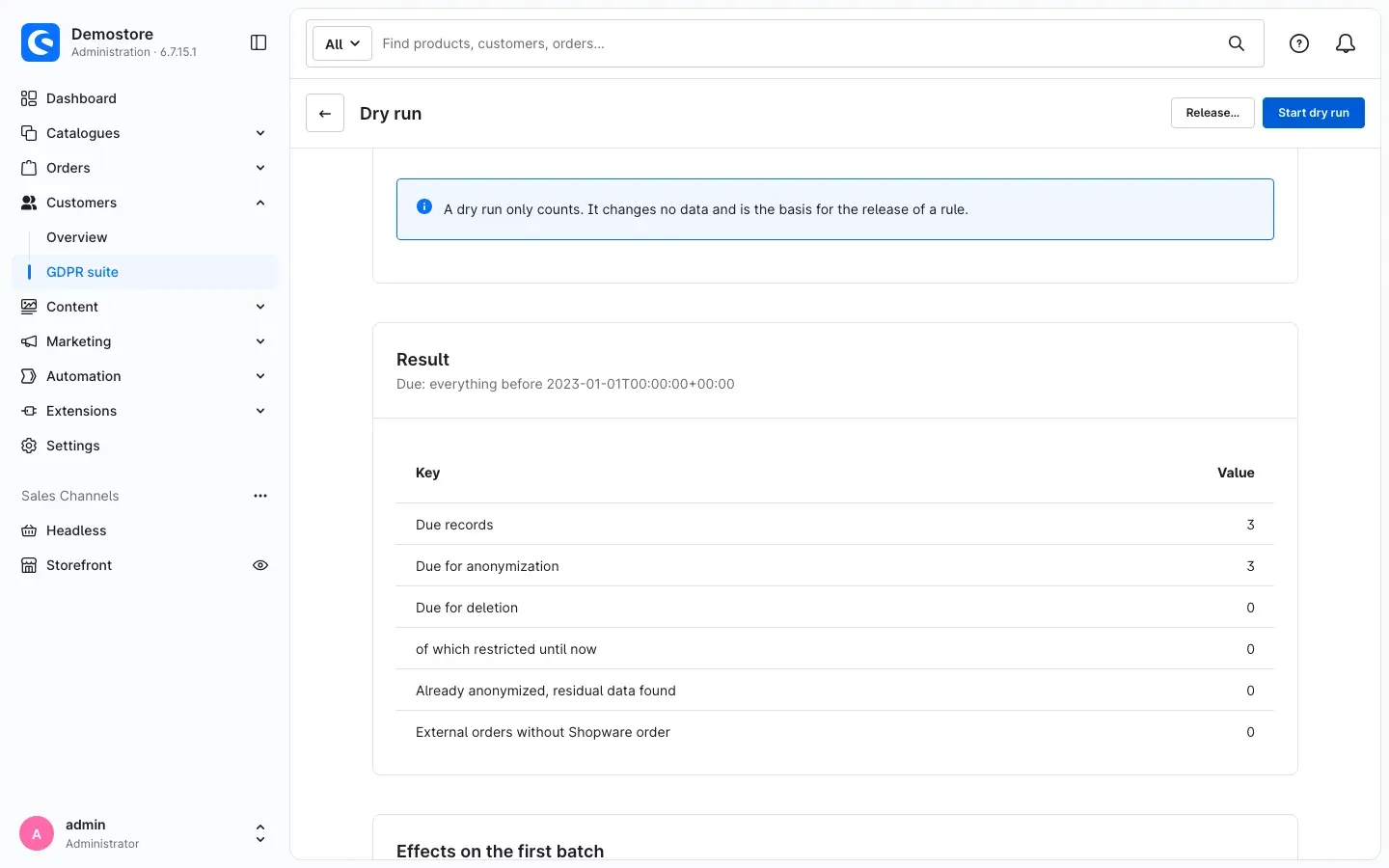 Fig. 12: The result with the due records
How to read the result
- Result: below the heading you see the cut-off date (“Due: everything before …”). Below it are the key figures, for example Due records, Due for anonymization, Due for deletion and of which restricted until now. Already anonymized, residual data found shows orders on which personal data turned up later — they are cleaned in the next run.
- Effects on the first batch: what would actually happen in the first processing step.
- Deletion stage: only appears if you set a deletion period for orders. It shows how many orders from which time span would be deleted and how much revenue is affected.
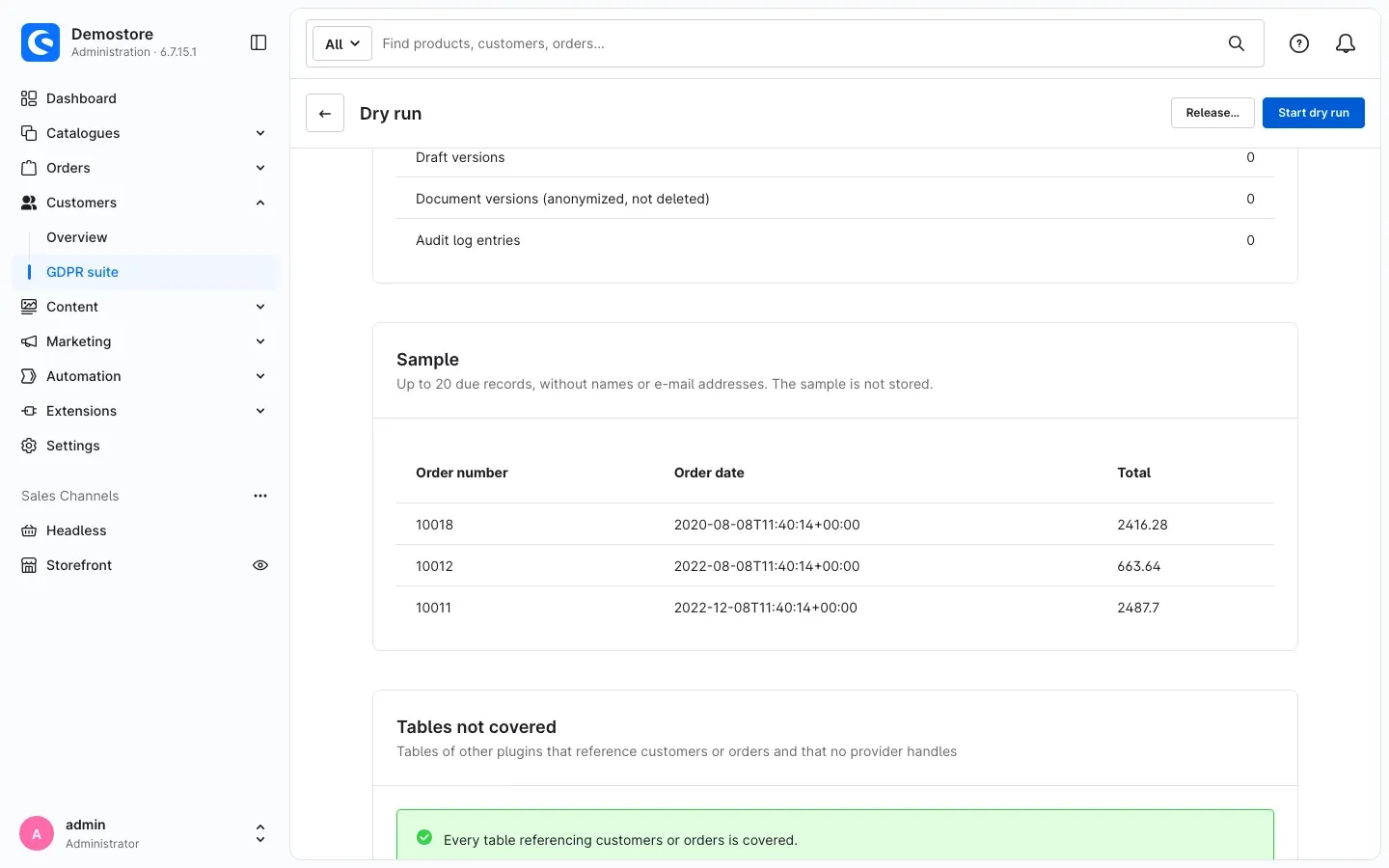 Fig. 13: The sample shows up to 20 due records without names or email addresses
- Sample: up to 20 due records — without names or email addresses, only with characteristics such as order number, order date and total. This lets you spot-check in the order list whether the right orders are covered. The sample is not stored.
- Custom field and payload keys of due records: the names of all additional information on due orders. Check them for personal data and enter affected custom fields in the settings if needed.
- Tables not covered: here the GDPR Suite lists data of other plugins related to customers or orders that it does not know. Personal data stored there stays untouched — check it yourself. If it says Every table referencing customers or orders is covered., everything is covered.
Tip: if a notice appears above the result, read it carefully. It names, for example, sales channels still blocking the mail log, or a deletion period that is too short.
How to release and run a rule
What it does for you: a rule only takes effect with your release. With it, you confirm that you checked the numbers of the dry run. The release is recorded permanently with your user name.
Preconditions
- The rule is switched on in the settings.
- For the same rule and the same sales channel, there is a finished dry run with the current settings that is at most 7 days old.
- You have the permission to release (see How to assign permissions). For a rule that deletes orders, you additionally need the permission Release the deletion of orders.
Step by step
- Start the dry run for the rule as described in How to check a rule with a dry run and check the result.
- Click Release… at the top right.
- Read the summary and all warnings in the dialog.
- For every warning, tick I have read and accept this warning.
- Tick I have checked the numbers of the dry run.
- Click Release rule.
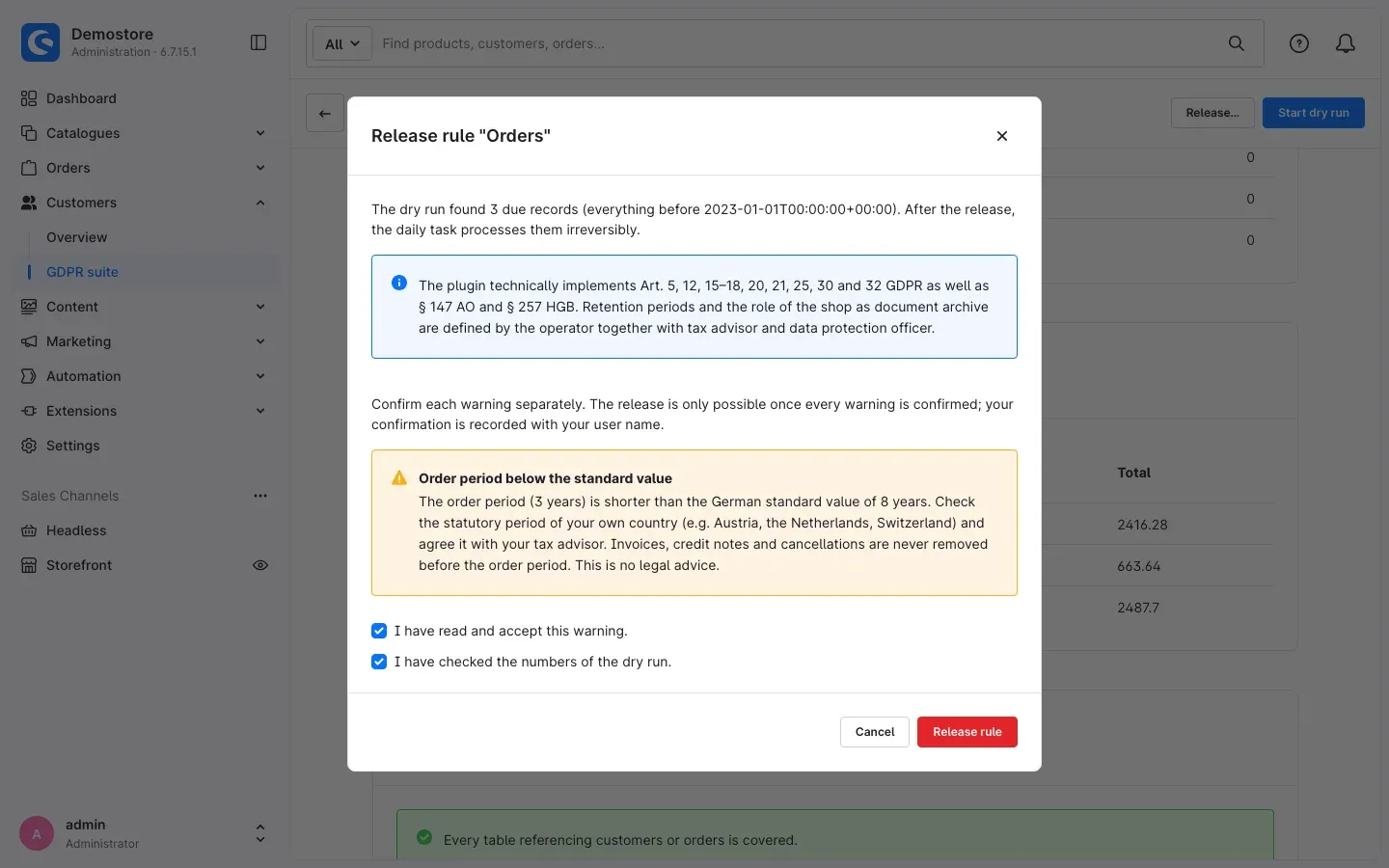 Fig. 14: Releasing is only possible once all warnings and the numbers are confirmed
Warnings appear, for example, when a period is below the German standard value or when orders are to be deleted. You confirm each warning separately. Which warnings you confirmed is shown later in Releases & confirmations.
What happens after the release
From the release on, the Daily retention run processes the due records automatically and irreversibly — every day anew, so records that become due later are covered too.
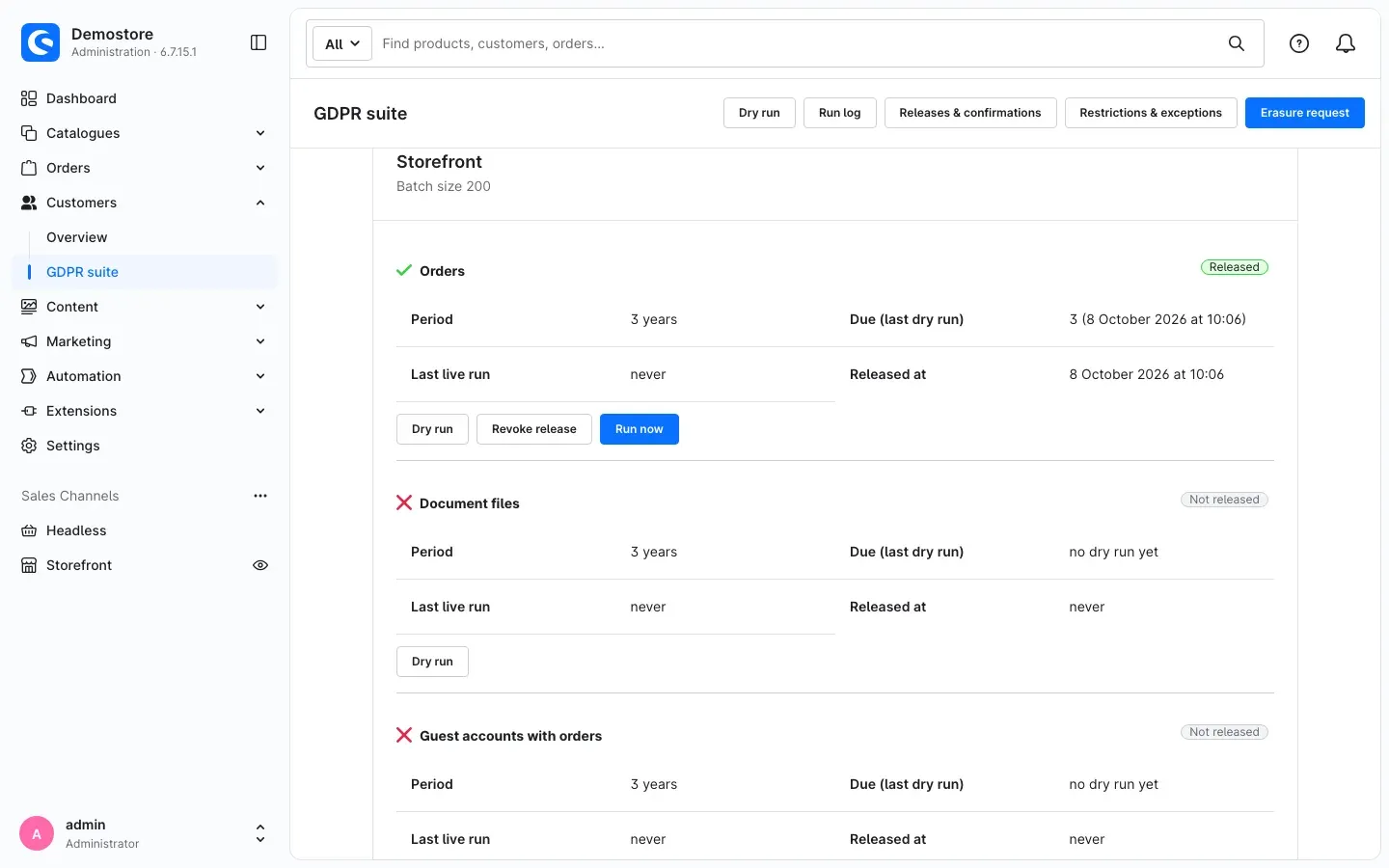 Fig. 15: The released rule with the buttons “Revoke release” and “Run now”
In the overview, the rule now shows Released and two more buttons:
- Run now: starts the run immediately instead of waiting for the next daily run. The run is queued and processed in the background. You see the progress in the Run log.
- Revoke release: stops the rule. From now on it processes no further records. Data already processed is not restored by this.
Important: if you later change settings that affect the rule — such as a period — the release automatically becomes invalid. The rule then shows Settings changed – release again. Start a new dry run and release the rule again.
Tip: with very many due records — for example the first run in a shop with a long order history — it is best to leave the work to the daily run or to ask your technical administrator to start the run directly on the server (see For Administrators / Technical Details).
How to prove what happened
What it does for you: the GDPR Suite documents every run and every decision. This lets you fulfil your accountability under Art. 5 (2) GDPR — without storing personal data in the log itself.
The run log
Click Run log in the overview.
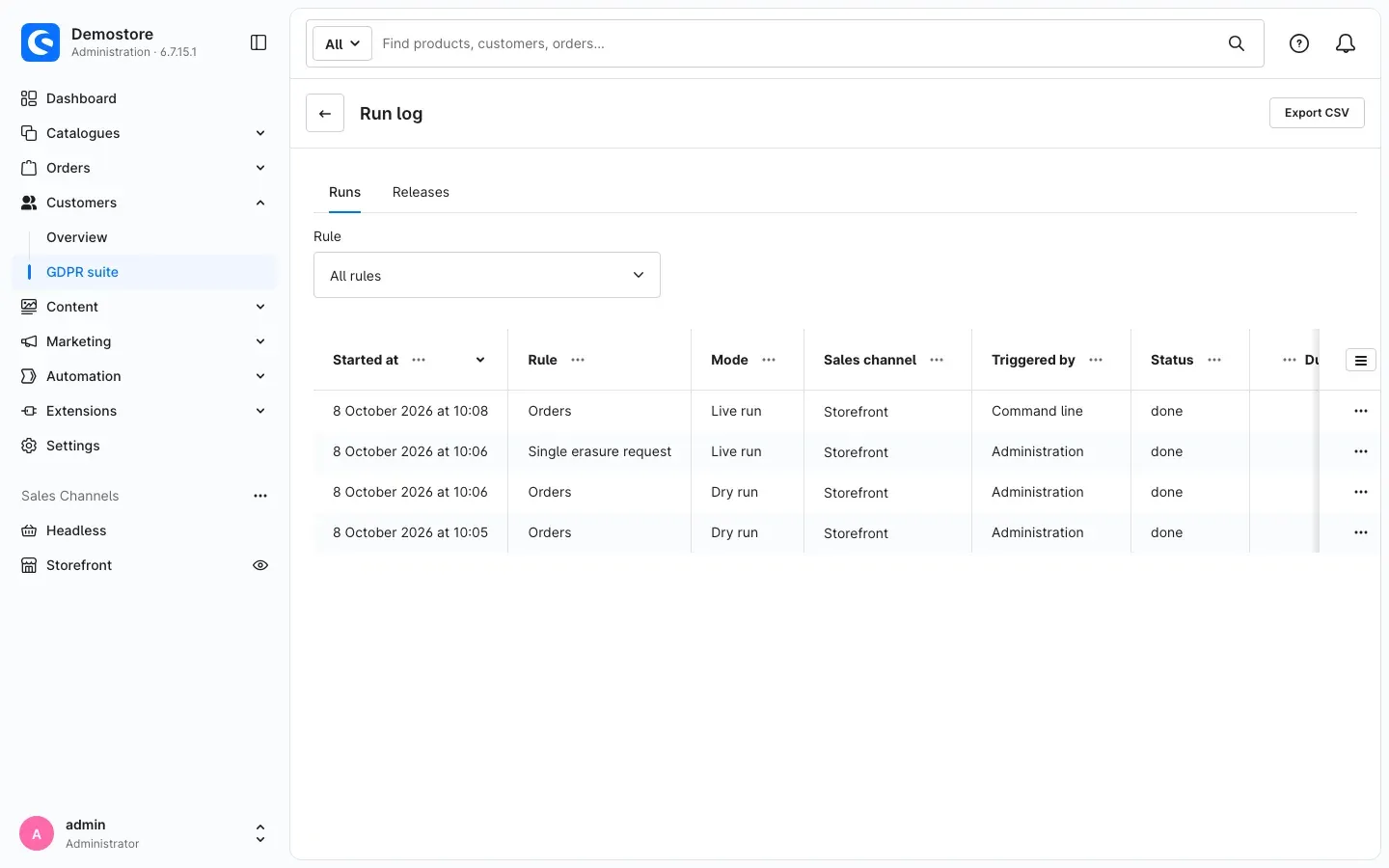 Fig. 16: All runs with rule, mode, sales channel, trigger and status
The Runs tab lists every run with Started at, Rule, Mode (Dry run or Live run), Sales channel, Triggered by (for example Scheduled task, Administration or Command line) and Status (queued, running, done, failed or aborted). In addition, you see the figures Due, Processed, Restricted, Skipped and Failed.
- Use Rule to filter the list for a specific rule.
- The Releases tab shows all releases with their time, revocation, related dry run and confirmation. If the dry run or the confirmation was deleted after the retention period, it shows deleted (retention period) — the release still stays effective.
- Export CSV downloads the run log as a spreadsheet — for your records, for example, or before old runs are deleted automatically.
Click a run to open its details.
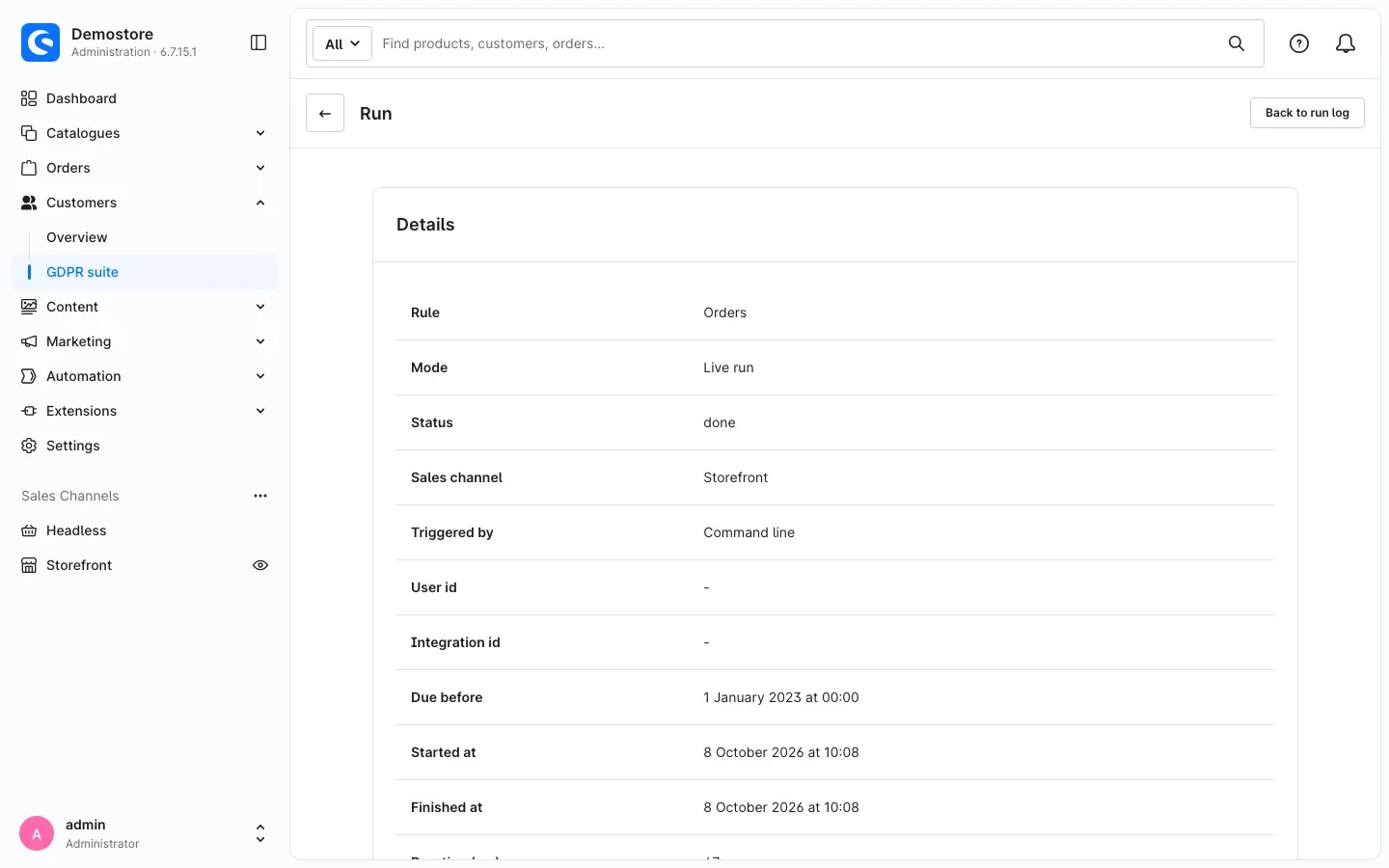 Fig. 17: Details of a live run
The Details card shows, among other things, Rule, Mode, Status, Sales channel, Triggered by, the cut-off Due before as well as Started at and Finished at. If the run is based on a release, you also see who confirmed it when and which warnings were confirmed. The Result card contains numbers only — the run log contains no personal data. Back to run log takes you back to the list.
Releases & confirmations
Click Releases & confirmations in the overview.
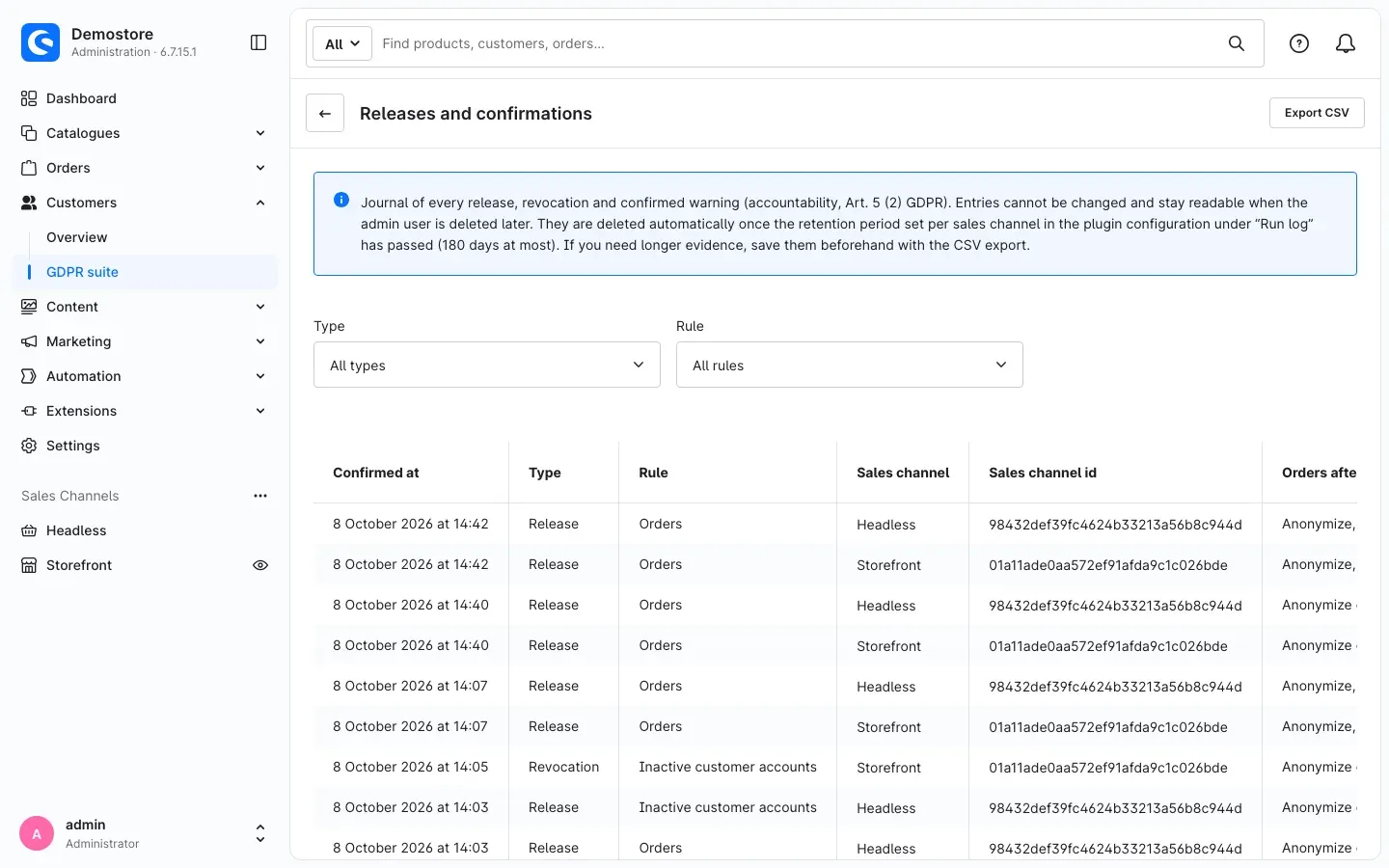 Fig. 18: The record of all releases, revocations and confirmations
Every Release, Revocation and Erasure request is listed here with its time, rule, sales channel, the periods valid at the time, the confirmed warnings and the person who confirmed. Entries cannot be changed and cannot be deleted by hand. They stay readable even if the user account of the confirming person is deleted later. Once the retention period under Run log (at most 180 days) has expired, the daily cleanup deletes them automatically.
What it is good for: if a supervisory authority asks, this list proves who checked and released which periods when. If you need the evidence for longer than the retention period, save it in time with Export CSV at the top right of this list.
With the Type and Rule fields you narrow the list down, for example to all revocations. Export CSV downloads exactly the entries that match your selection, as a spreadsheet with every detail of the list. The file contains no customer data, so for an erasure request neither the name nor the email address of the customer.
How to handle a request from a customer
What it does for you: if a person requests the erasure of their data (Art. 17 GDPR) or the restriction of processing (Art. 18 GDPR), you handle it with the Erasure request. The GDPR Suite automatically respects the retention periods: orders within their period are only restricted, not deleted. Documents are never deleted within the period.
Important: before every erasure request, verify the identity of the person making the request. You confirm this explicitly in the last step.
Step by step
- Go to Customers → GDPR suite and click Erasure request at the top. Alternatively, open the customer page and click GDPR action there (see What you see on customer and order pages) — then the customer is already selected.
- In the Customer field, search by customer number, name or email address and select the entry.
- Check the Preview.
- Choose the appropriate action (see below), tick I have verified the identity of the requesting person. and click Execute.
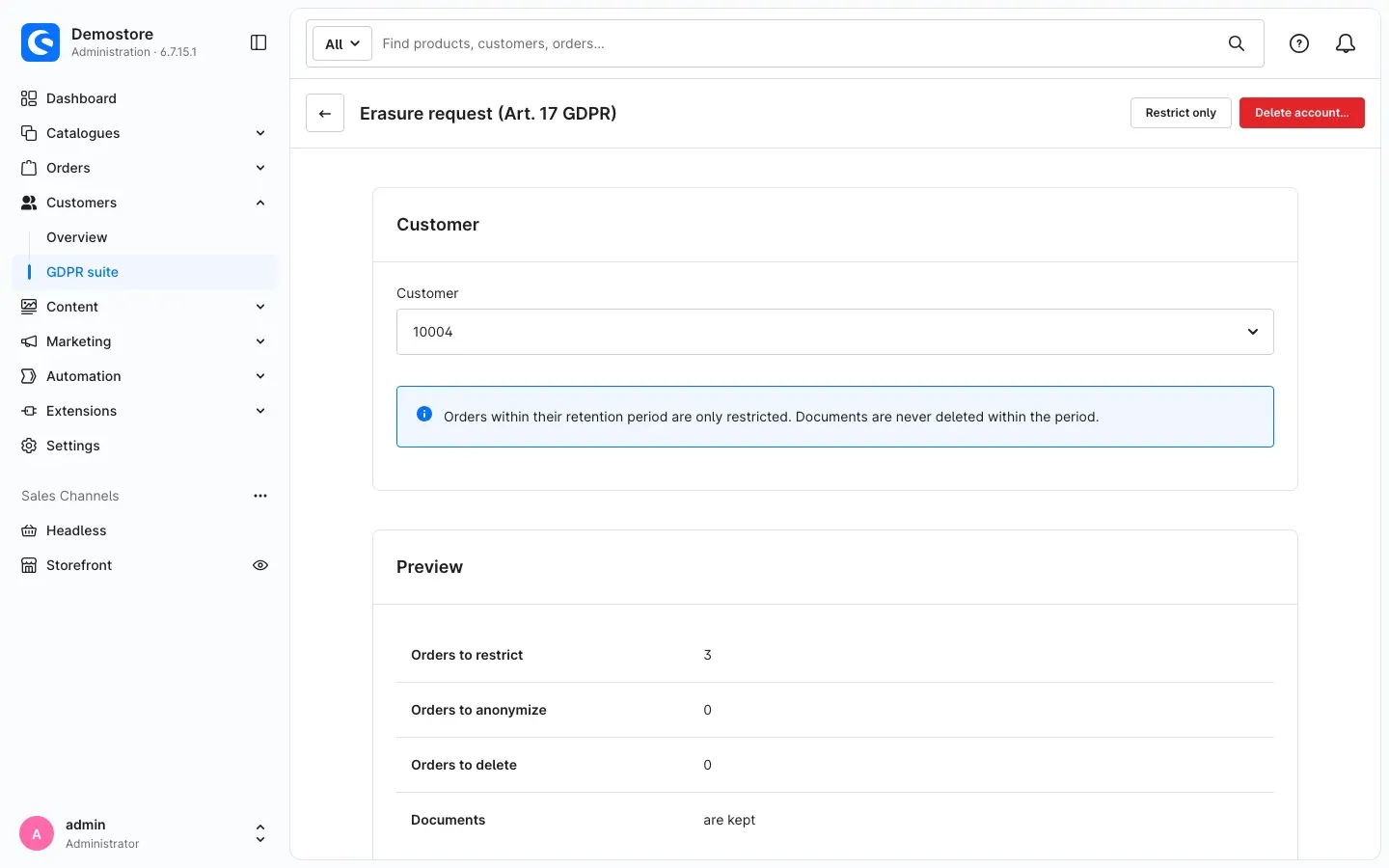 Fig. 19: The preview shows what would happen to the orders
How to read the preview
Before anything happens, the preview shows you:
- Orders to restrict — orders whose retention period is still running. They stay but are restricted.
- Orders to anonymize — orders whose period has ended.
- Orders to delete — only if you set a deletion period for orders and it has ended.
- Documents — whether documents are kept or removed together with deleted orders.
Below, you see the individual orders with the planned Action and, grouped into areas such as Customer account, Addresses, Reviews and Newsletter, which data is affected.
Restrict only — restriction of processing (Art. 18)
Click Restrict only if the person requests the restriction of processing. All orders of the customer are restricted. The account stays.
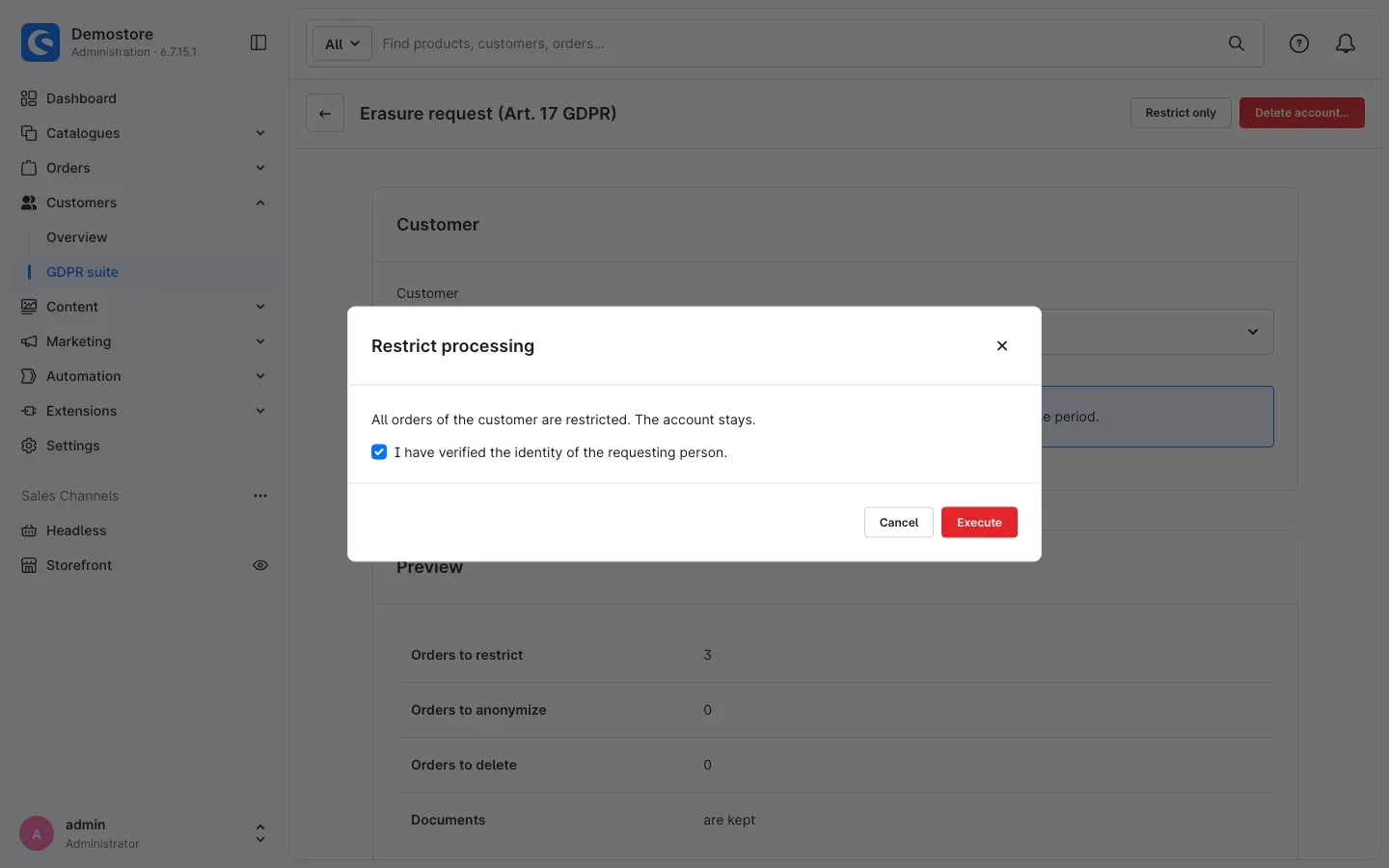 Fig. 20: Before restricting, you confirm that you verified the identity
Delete account — erasure (Art. 17)
Click Delete account… if the person requests erasure. In the dialog Delete customer account, confirm the identity and click Execute. The account is deleted irreversibly. Orders past their retention period are anonymized, all others are restricted until their period ends. In addition, for example, the author names of reviews are replaced and the newsletter subscription in the customer’s sales channel is removed.
If the dialog shows warnings — for example because orders would be deleted — you confirm them one by one, just like for a release.
Good to know: sometimes an account cannot be deleted because another plugin still depends on it — for example a running Mollie subscription or a B2B business partner with employee accounts. The preview then shows The account cannot be deleted: …. In this case, only restricting is possible. Clarify the cause (for example end the subscription) and run the erasure again afterwards.
Every request is recorded in the Run log and in Releases & confirmations. After executing, open the entry directly with Show run.
How to keep track of restrictions and exceptions
What it does for you: you see which orders are restricted, until when, and which records were skipped — so nothing is left behind unnoticed.
Click Restrictions & exceptions in the overview.
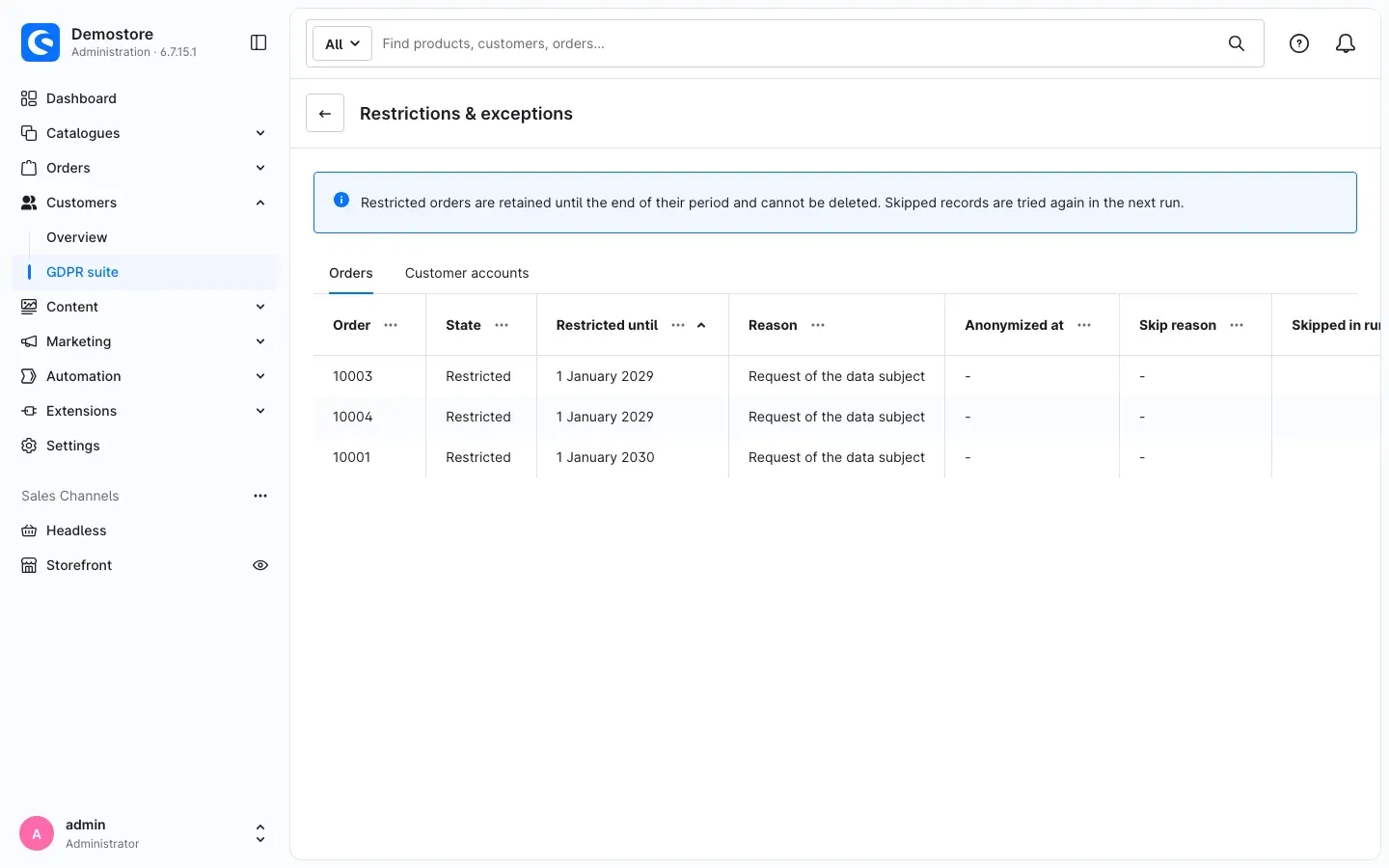 Fig. 21: Restricted orders with restriction date and reason
- Orders tab: restricted and skipped orders with State, Restricted until and Reason — for example Request of the data subject or Customer account deleted. Restricted orders are retained until the end of their period and cannot be deleted. After that, the rule for orders takes them over automatically.
- Customer accounts tab: accounts that could not be deleted, with Reason and Blocking table — for example Blocked by third-party plugin.
Skipped records are tried again automatically in the next run. Show run opens the run in which a record was skipped.
What you see on customer and order pages
What it does for you: the GDPR Suite is also visible where you work anyway. This lets you recognize restricted orders at once and start requests directly from the customer page.
Button on the customer page
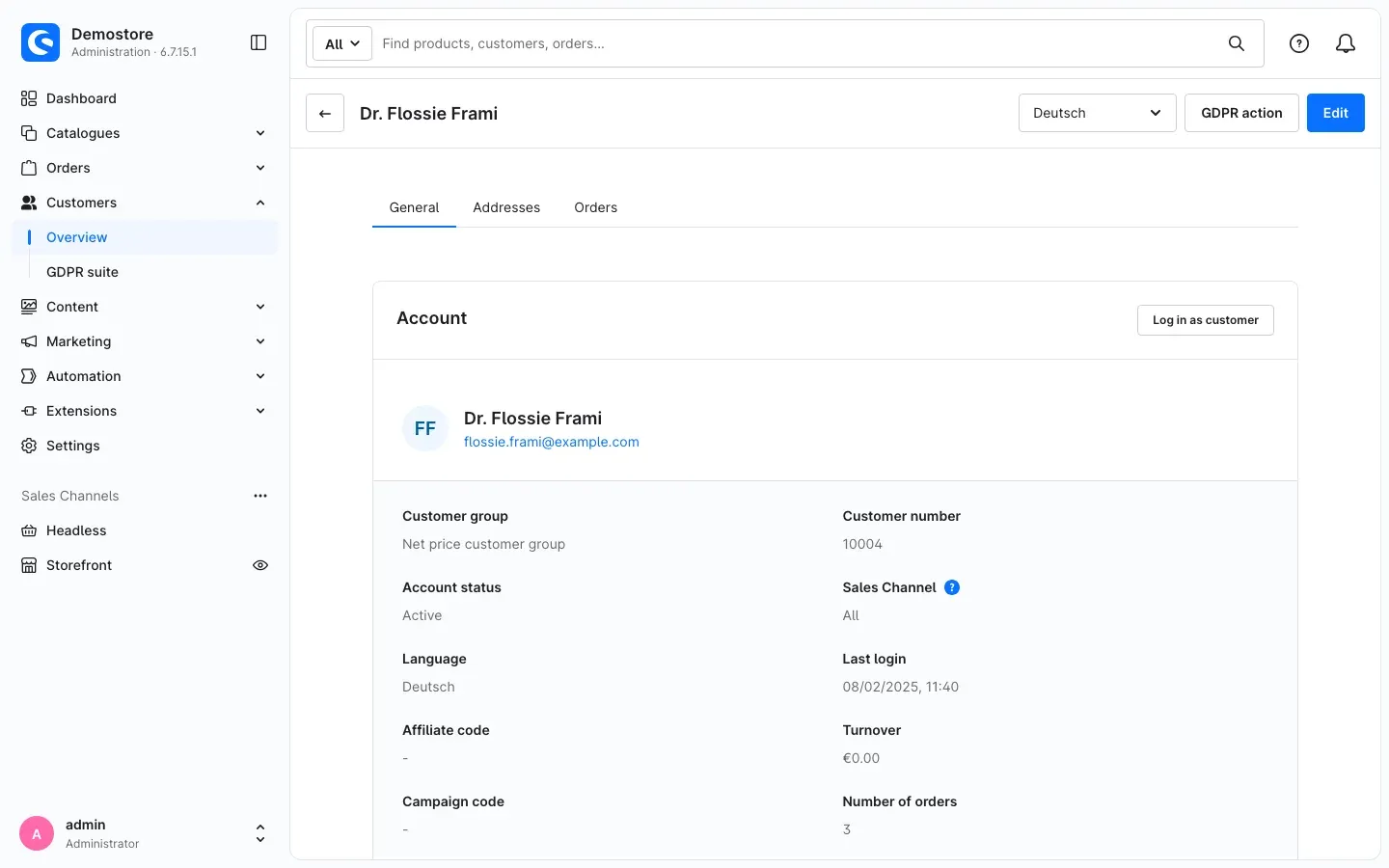 Fig. 22: The “GDPR action” button on the customer page
When you open a customer under Customers → Overview, you find the GDPR action button at the top. It takes you directly to the erasure request for this customer (see How to handle a request from a customer). The button only appears if you have the permission to execute and are not currently editing the customer page.
Notice on the order page
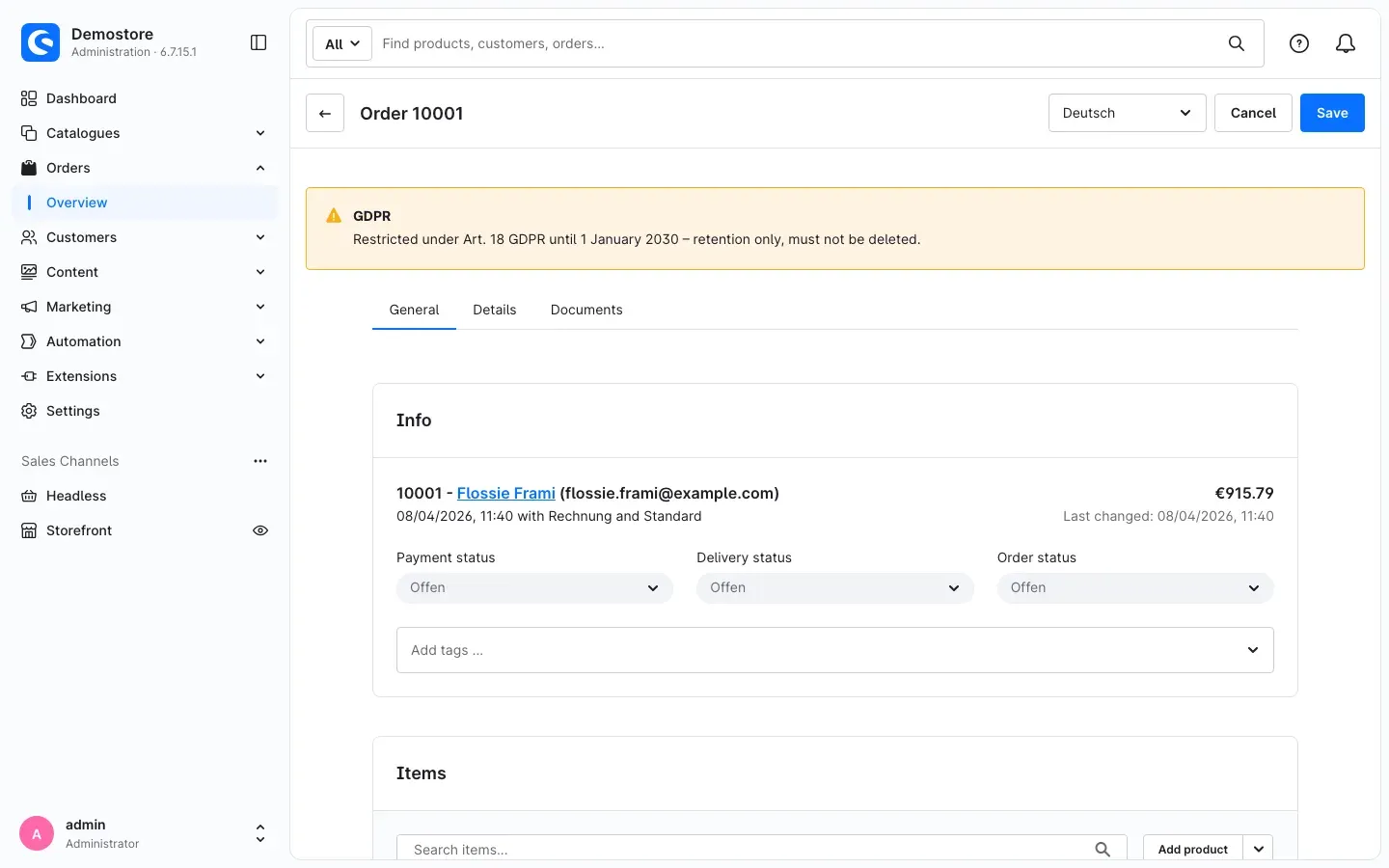 Fig. 23: The “GDPR” notice above a restricted order
If an order is restricted, the order page shows the notice GDPR above the tabs, for example: “Restricted under Art. 18 GDPR until 1 January 2030 – retention only, must not be deleted.” If an order was anonymized, it shows when the personal data was anonymized and that amounts and line items are unchanged.
How to assign permissions
What it does for you: you decide who in your team may only view the GDPR Suite, start dry runs, release rules or even release the deletion of orders.
You assign permissions in Shopware through the roles of your Administration users. In the list of permissions you find the entry GDPR suite with:
- View — view the overview, run log, releases & confirmations and restrictions & exceptions.
- Dry run & revoke — additionally start dry runs and revoke releases. Revoking is always the safe direction, which is why it belongs here.
Among the additional permissions you find under GDPR suite:
- Release and execute (anonymization; requires view and dry run) — release rules, start runs with Run now and execute erasure requests.
- Release the deletion of orders (requires release and execute) — additionally release and start rules that delete orders, and execute erasure requests that delete orders.
Tip: grant Release the deletion of orders only to a few people, for example the management. Without this permission, nobody can release the deletion of orders — not even by accident.
Troubleshooting
A rule does not run although it is switched on
Cause: a rule that is switched on also needs a valid release. The overview then shows a yellow notice and, for example, Not released or Settings changed – release again.
Solution:
- Start a new dry run for the rule and the sales channel.
- Release the rule with Release….
- Also check whether Enable plugin for this sales channel is switched on in this channel.
”Release…” does not work or shows an error
Cause: the last dry run is older than 7 days, was started with different settings, or confirmations are missing.
Solution: start a new dry run with the current settings and release the rule right afterwards. Confirm every warning separately. For rules that delete orders, you need the permission Release the deletion of orders.
The deletion period for orders cannot be saved
Cause: Delete orders after (years) must be greater than Anonymize orders after (years).
Solution: set the deletion period higher than the anonymization period, or to 0 if you do not want to delete. Check this for individual sales channels with different values as well.
A run stays “queued”
Cause: runs you start with Run now are processed in the background. If the background processing of your shop is not active, the run stays put. The same applies to the daily run.
Solution: ask your technical administrator to check the background processing and the scheduled tasks of your shop. Large runs can also be started directly on the server (see For Administrators / Technical Details). In the overview, the Scheduled tasks card shows when the daily run last ran.
A run failed
Cause: individual records could not be written, or there were several failed attempts in a row.
Solution: open the run in the Run log and look at the details. You find skipped records with their reason under Restrictions & exceptions. They are tried again in the next run. If the error persists, contact our support.
A customer account is not deleted
Cause: another plugin still refers to the account, for example a running subscription or a B2B business partner with employees.
Solution: check the reason under Restrictions & exceptions in the Customer accounts tab. Clarify the cause in the plugin concerned. The next run tries again automatically.
The mail log is not cleaned
Cause: the mail log does not belong to any sales channel and is only cleaned once all active sales channels have switched on and released the rule for business letters.
Solution: the dry run names the number of missing channels. Switch the rule on there, start a dry run for each and release it.
The overview or buttons are missing
Cause: you lack the appropriate permission, or the plugin is not active.
Solution: check under Extensions → My extensions whether the plugin is activated, and ask for the appropriate permission (see How to assign permissions).
FAQ
Q: Does the GDPR Suite change data right after installation?
A: No. All rules are switched off by default. Every rule additionally needs a dry run and your explicit release per sales channel.
Q: Are my revenue figures still correct after anonymization?
A: Yes. Amounts, taxes, line items, dates and states stay unchanged. Only names, addresses and contact data are replaced. Only if you additionally set a deletion period do orders disappear completely after it ends — then statistics of earlier years change as well.
Q: Can I undo an anonymization?
A: No. Anonymization and deletion are irreversible. Check every dry run carefully and ideally test the settings on a copy of your shop first.
Q: Which periods should I set?
A: You decide this together with your tax advisor and your data protection officer. The defaults correspond to the usual German periods: 8 years for orders and records, 6 years for business letters, 1095 days for inactive accounts. The plugin is no substitute for legal advice.
Q: What happens to the orders of a deleted customer account?
A: They stay and are restricted until the end of their retention period. After that, the rule for orders anonymizes them automatically.
Q: Can I give the requesting person a copy of the data stored about them?
A: No. The GDPR Suite offers erasure (Art. 17) and restriction of processing (Art. 18). There is no access function.
Q: Are guests without orders deleted?
A: Shopware does this itself. The GDPR Suite only takes care of guest accounts with orders. You see the state of the Shopware task in the overview under Scheduled tasks.
Q: Do the settings apply to all sales channels equally?
A: That is up to you. With All Sales Channels you set default values; for individual channels you can save different values. Releases always apply per rule and sales channel.
Q: Is personal data stored in the run log?
A: No. The run log contains numbers only. The sample in the dry run shows no names or email addresses either and is not stored.
For Administrators / Technical Details
This section is intended for technical administrators. You do not need it for normal use.
System requirements
- Shopware: 6.7
- PHP: 8.2 or newer
- Background processing: a running message queue worker and the Shopware scheduled task runner. Without a worker, runs started in the Administration (Run now, erasure requests) stay queued; without the scheduled task runner, the daily retention run and the daily run log cleanup do not run.
Scheduled tasks
- Daily retention run: checks every sales channel daily and starts a live run for every rule that is switched on and validly released. Processing happens in batches via the message queue; an interrupted run continues where it stopped the next time.
- Daily run log cleanup: deletes live runs, dry runs and the journal of releases and confirmations after the configured retention (at most 180 days), dry runs without a release after 90 days already. It runs for every sales channel, also where the plugin is switched off.
- Guests without orders are deleted by Shopware’s own task; the plugin does not duplicate it.
Runs from the command line
For large stocks or systems without a worker, starting from the command line is recommended. A live run is only possible here with a valid release from the Administration as well — releasing is not possible from the command line.
# Dry run for all rules and sales channels (changes no data)
php bin/console gdpr:retention:run --dry-run

# Live run, processed inline instead of via the message queue
php bin/console gdpr:retention:run --sync

# One rule in one sales channel, limited to 10 batches
php bin/console gdpr:retention:run --rule=orders --sales-channel=<sales-channel-id> --sync --max-bands=10

# Releases, running and stale runs and the state of the scheduled tasks
php bin/console gdpr:retention:status

# Tables referencing customers or orders and their coverage
php bin/console gdpr:fk-scan--rulecan be given several times. Values:orders(Orders),documents(Document files),guest_accounts(Guest accounts with orders),inactive_accounts(Inactive customer accounts),business_letters(Business letters). Without it: all rules for a dry run, all rules that are switched on for a live run.--sales-channelcan be given several times; without it, all sales channels apply.--syncprocesses the batches inline instead of via the message queue.--max-bandslimits a--syncrun to the given number of batches. Close to the PHP memory limit (80 % ofmemory_limit), a--syncrun ends cleanly and says so; calling the command again continues at once.gdpr:retention:statusalso accepts--sales-channel;gdpr:fk-scanprints machine-readable output with--json.- Command line runs appear in the run log with Triggered by: Command line.
Installation via the command line
php bin/console plugin:refresh
php bin/console plugin:install SwpGdprComplianceSix --activate
php bin/console cache:clear
Data on uninstallation
When uninstalling, Shopware lets you choose whether the plugin data is kept. If you keep it, the run log, restrictions and the journal of releases and confirmations remain. If you remove it, the journal is deleted as well — save your evidence beforehand with Export CSV in the run log and under Releases & confirmations.
This manual was written for GDPR Suite: Retention, Anonymization & Data Subject Rights, version 6.7.0.
More manuals
Address Validation: House Number Check & Corrections
Address validation at the point of entry: the plugin spots missing house numbers, can suggest corrections via Google and helps you send fewer parcels that come back undeliverable.
Open manual Shopware 6Admin Password Reminder
Admin Password Reminder: your backend users renew their passwords on time, prompted after login and by a daily email. Premium locks expired accounts until the password is changed.
Open manual Shopware 6Advent Calendar | Doors with products, coupons and promotions
Advent calendar for your shopping experiences: doors open on time without clearing the cache, give nothing away in the page source and reveal coupons, products or your own content.
Open manualNeed a team that keeps your shop running?
We have been maintaining Shopware shops for more than 20 years, including updates, hotfixes and the plugins you are configuring right now.