
Resource calculation: GoldFeed rate import
Rates from your GoldFeed feed go straight into the resource calculation: the plugin fetches the feed at the interval you set and updates your resource rates. No more typing them in.
On this page
- Introduction
- What you achieve with this plugin
- What you need
- What the plugin does not do
- Who is this plugin for?
- Installation
- Getting Started
- Settings
- Sales Channel
- Open documentation
- Fetch rates from GoldFeed
- Fetch interval (minutes)
- Fetch interval per customer type
- Feed URL
- How to Use the Features
- How to check that the rates arrive
- How to link your resource rates to the feed
- How to use the EUR/USD exchange rate
- How the new rates reach your prices
- How to test a new feed URL right away
- Troubleshooting
- The plugin cannot be installed
- No rates arrive at all
- One particular rate does not change
- The resource rates contain an entry I did not create
- The rates are new, but the stored product prices are not
- I changed the fetch interval, but the interval stays the same
- FAQ
- For Administrators / Technical Details
- System requirements
- Scheduled task and worker
- Import by command
- Updating stored product prices
- What the plugin takes from the response
- Limits of fetching
- Log files
- Settings apply shop-wide
- Updating from versions before 6.7.0
- Uninstallation
Introduction
Resource calculation: GoldFeed rate import fetches the rates from your GoldFeed feed and enters them in the resource rates of the resource calculation. This happens regularly and automatically. You no longer have to type in rates.
What you achieve with this plugin
- Your resource rates stay up to date. The plugin fetches the feed at the interval you set.
- A rate is updated in all customer types at once. You do not maintain it row by row. Customer types with their own fetch interval get their rates at their pace, down to below one minute if you like.
- Rates that do not exist in your resource rates yet are created once by the plugin.
- The plugin does not accept unusable values. If a rate arrives as 0, as a negative value or as no number at all, your stored rate stays.
- If you also use the Product buyback plugin, its buyback prices follow the imported rate.
- No connection without your consent. After installation, fetching is switched off.
What you need
- The Resource calculation plugin in version 6.7, installed and active. Install it before this plugin.
- The address (URL) of your GoldFeed feed. You get access from the provider. The plugin does not include any access.
- For automatic fetching, your shop must run scheduled tasks. Your hosting provider or administrator knows whether this is the case (see For Administrators / Technical Details).
What the plugin does not do
- It does not calculate product prices. The resource calculation does that (see How the new rates reach your prices).
- It does not change the currencies of your shop.
- It does not include access to GoldFeed.
Who is this plugin for?
For shop owners who price products by rate with the resource calculation, for example bars and coins, and who obtain their rates from a GoldFeed feed.
Installation
After purchase, the plugin is available directly in your Administration. You do not need to download anything.
Important: Install and activate the Resource calculation plugin first. Only then can this plugin be installed.
- Log in to your Shopware Administration (
yourshop.com/admin). - Open Extensions → My extensions. The Apps tab is open.
- Next to Resource calculation: GoldFeed rate import, click Install.
- Activate the plugin with the toggle next to the entry — done.
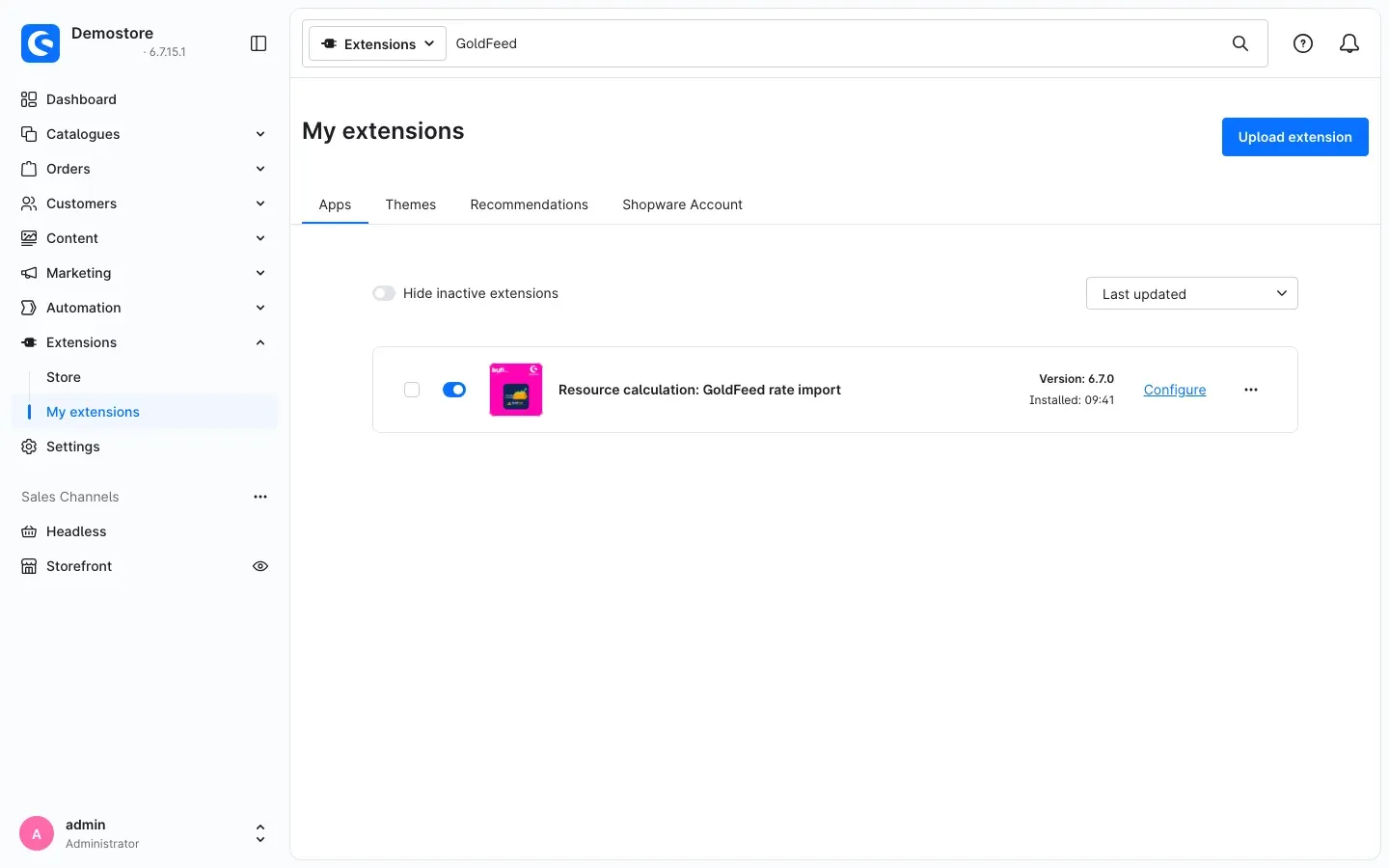 Fig. 1: The plugin is installed and active, the toggle is blue. “Configure” opens the settings.
Tip: If the list is long, type “GoldFeed” into the search bar at the top. Then you only see this plugin.
After installation, the Fetch rates from GoldFeed switch is off. Your shop does not contact the feed yet. The next chapter explains how to set up fetching.
If Resource calculation: GoldFeed rate import does not appear in the list, your Shopware account is not yet connected to the shop. You do this under Extensions → My extensions in the Shopware Account tab by logging in with your Shopware account.
Getting Started
This is how you set up the rate import in a few minutes:
-
Open the settings: Under Extensions → My extensions, click Configure next to the plugin.
-
Check the sales channel: At the top, leave Sales Channel set to All Sales Channels. The plugin only uses these values.
-
Enter the feed: In the Feed card, enter the address of your GoldFeed feed under Feed URL.
-
Switch fetching on: In the Rate import card, switch on Fetch rates from GoldFeed.
-
Check the interval: Fetch interval (minutes) is preset to 15 minutes. Change the value if you want a different interval.
-
Click Save at the top right.
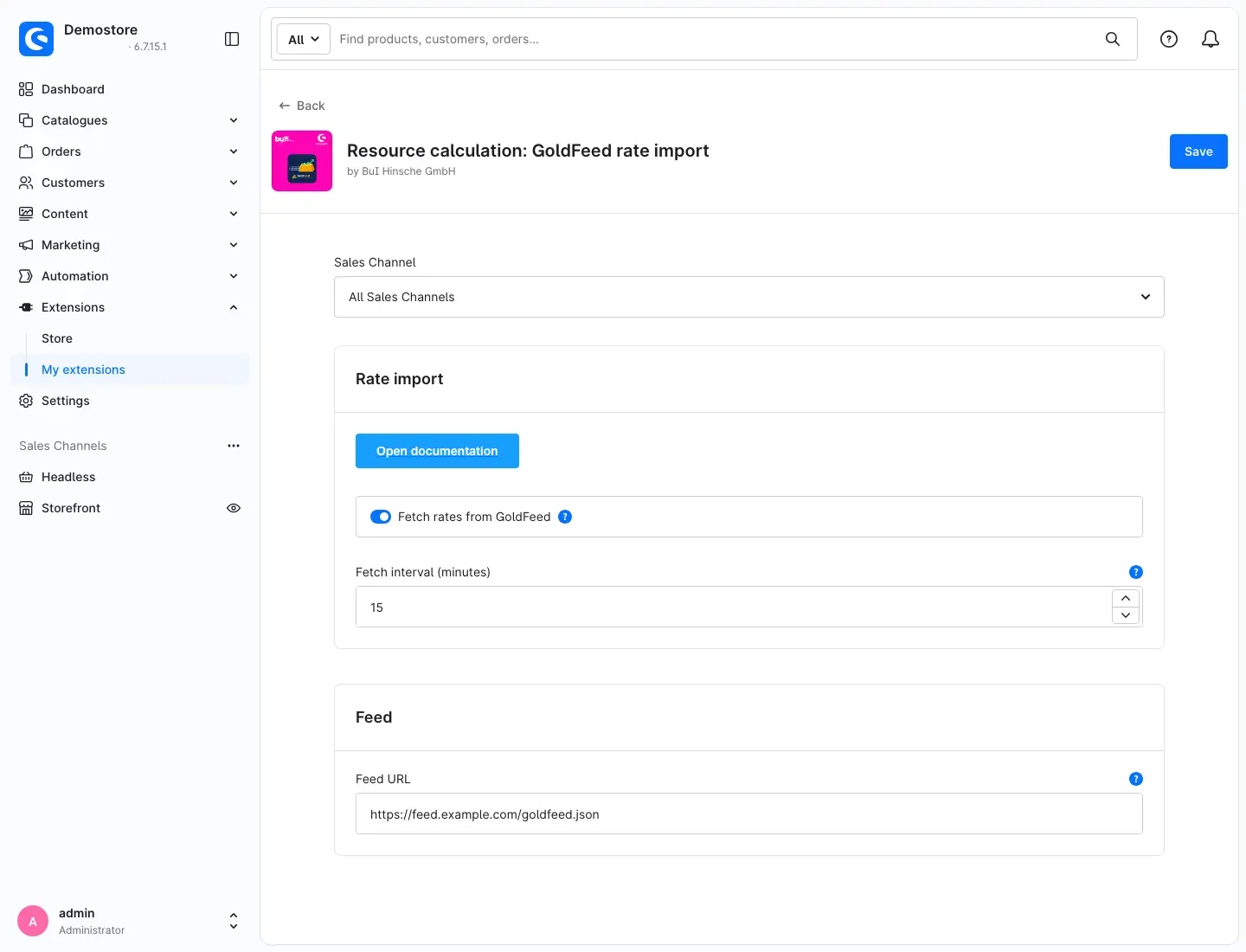 Fig. 2: The plugin settings. The feed URL in the image is only an example value. Enter the address of your own feed here.
 -
Check the result: After the first fetch, open Catalogues → Resource calculation → Resource rates. The Last changed column shows when a rate was last updated. More on this in How to check that the rates arrive.
Important: Regular fetching is done by a scheduled task of the plugin. It only runs if your shop executes scheduled tasks. If no rates arrive, ask your hosting provider or administrator about it.
Settings
You open the settings under Extensions → My extensions via Configure next to the plugin. They are split into two cards: Rate import and Feed. Next to each setting, the question mark icon shows a short explanation.
Fig. 3: The “Rate import” and “Feed” cards with all settings. The feed URL is an example value.
Remember to click Save at the top right after every change.
Sales Channel
At the very top, Sales Channel selects the channel you enter values for. For this plugin, enter everything under All Sales Channels. The plugin reads its settings for the whole shop. Values you enter for a single sales channel only are not used.
Why this is useful: The resource rates of the resource calculation do not belong to any sales channel. The imported rates therefore apply equally in all sales channels. Different prices for different customer groups are controlled in the resource calculation via the customer types.
Open documentation
The Open documentation button in the Rate import card opens the online version of this manual.
Why this is useful: You always have the manual at hand, right next to the settings.
Fetch rates from GoldFeed
The Fetch rates from GoldFeed switch enables fetching. When it is on, the scheduled task and the import command load the feed. When it is off, your shop makes no connection to GoldFeed at all. After installation, the switch is off.
Why this is useful: You decide when your shop starts fetching the feed — for example only once the feed URL is entered. If you switch fetching off later, the plugin no longer changes your resource rates. The rates imported last remain.
Fetch interval (minutes)
Fetch interval (minutes) defines how often the scheduled task fetches the rates. Possible values are 5 to 1440 minutes, i.e. from every five minutes to once a day. The preset is 15 minutes.
A change applies from the run after the next one. Fetching requires that your shop executes scheduled tasks.
Why this is useful: You choose the interval according to how often your prices should change. How often your feed itself delivers new values is something the provider can tell you.
Fetch interval per customer type
The resource calculation can hold its own Fetch interval (seconds) for single customer types (Catalogues → Resource calculation → Customer types). This plugin then fetches the rates of such a customer type at the interval entered there; all other customer types get their rates at the interval here. The scheduled task then runs at the shortest of these intervals, at most every 5 minutes.
For intervals below 5 minutes, your IT team starts the command resourcecalc:goldfeed:import every minute through a system cron job:
* * * * * cd /path/to/store && php bin/console resourcecalc:goldfeed:importThe command then fetches all rates that become due within the minute — several times for intervals below one minute. Command and scheduled task share the schedule: each rate is fetched only once per interval, whichever way runs. If nothing is due, the command ends at once with a notice. With php bin/console resourcecalc:goldfeed:import --force you fetch the rates for all customer types at once.
Feed URL
In the Feed card, enter the address of your GoldFeed feed under Feed URL, exactly as you receive it from the provider.
- If you write the address without
https://in front, the plugin addshttps://itself. - The plugin only uses
http://if you write it in front explicitly. Only enterhttp://if the feed is offered unencrypted only. - The plugin rejects addresses that contain a user name and password in the form
user:password@. It does not fetch them.
Why this is useful: Without a feed URL, the plugin does not know where to get the rates from. Of the address, the plugin writes only the host name to its log. The part of the address after a question mark (?) never appears in the log.
How to Use the Features
How to check that the rates arrive
What this gives you: You see at a glance which rates were updated and when.
Step by step
- Go to Catalogues → Resource calculation → Resource rates.
- Look at the columns Resource name, Resource code, Current rate, Rate currency and Last changed.
- After a successful import, all updated rates show the same time in the Last changed column.
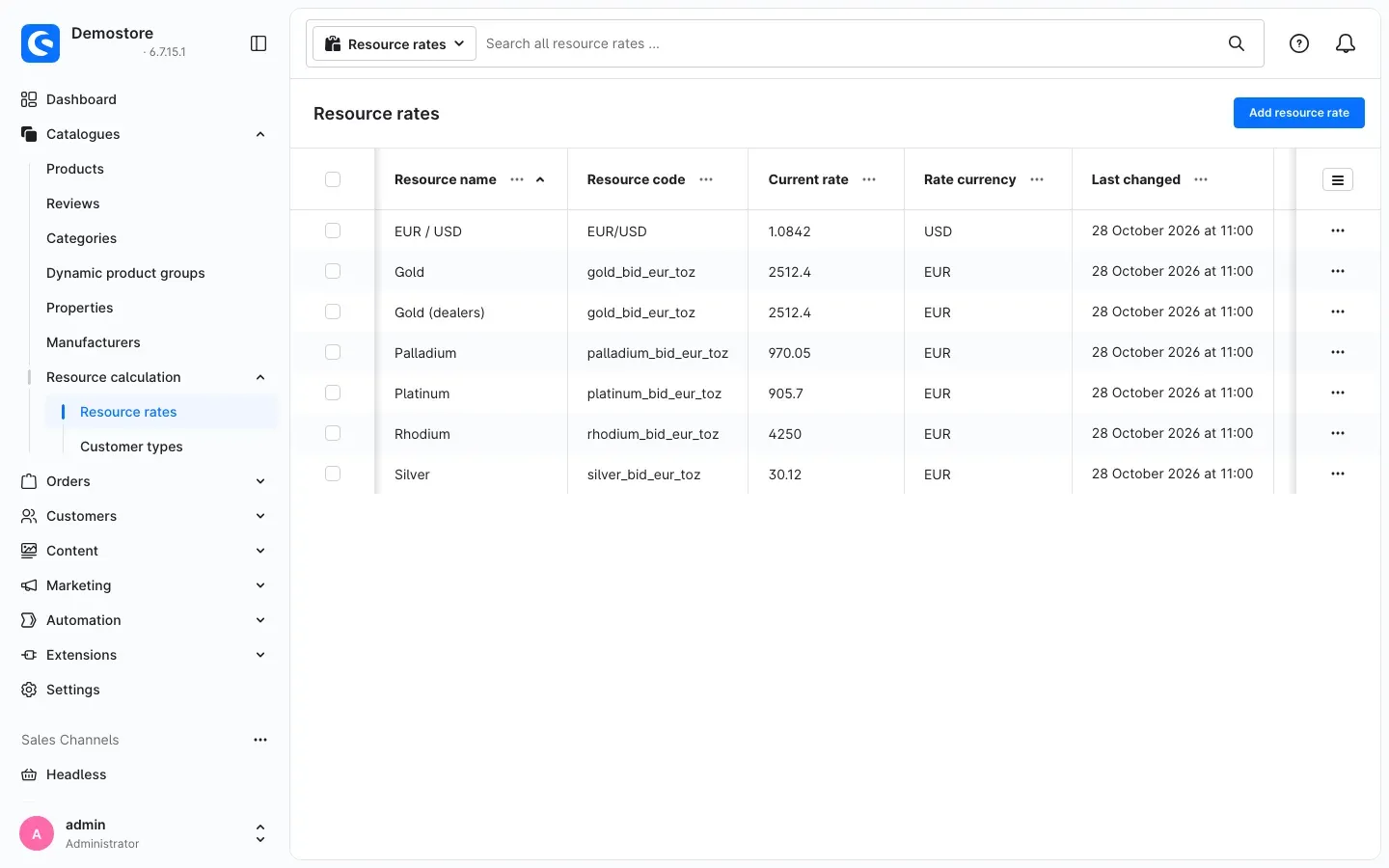 Fig. 4: Resource rates after an import in the demo shop. “Gold” and “Gold (dealers)” have the same resource code and therefore carry the same rate.
Tip: If you do not see all of these columns, show them via the icon with the three lines at the top right of the list.
If a rate shows an old time, it was not updated during the last import. You find the possible reasons in Troubleshooting.
How to link your resource rates to the feed
What this gives you: You understand which entry receives which rate. This lets you create your own entries deliberately, for example for a dealer customer type.
The plugin takes rates per metal and currency plus one exchange rate from the response of your feed (see How to use the EUR/USD exchange rate). As resource code, it uses the name under which the rate appears in the response, in the demo shop for example gold_bid_eur_toz. It does not take any other values from the response. Administrators find exactly which values in For Administrators / Technical Details.
In the detail view of an entry, the resource code is shown in the Code field. You find the imported rate in the Current market rate field.
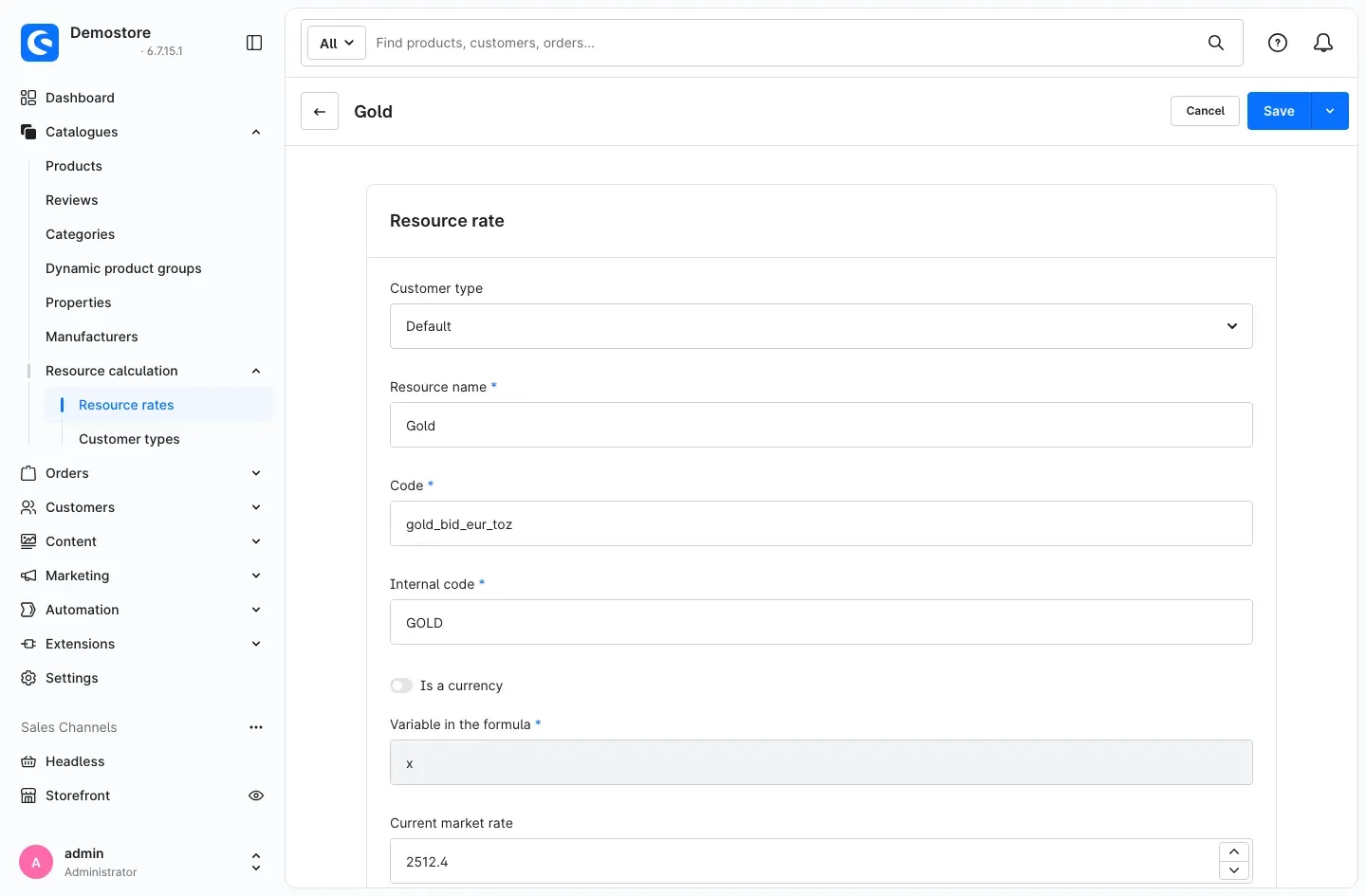 Fig. 5: Detail view of the rate “Gold”. The “Code” field shows the resource code, the “Current market rate” field the rate imported last.
This is what the plugin does during every import:
- Matching code: Every entry whose Code matches the resource code receives the new rate, the rate currency and the change time. This applies in all customer types.
- Your resource name stays: Names such as “Gold (dealers)” that you maintained yourself are not changed by the plugin.
- Unknown code: If the plugin finds no entry with this code, it creates a new one once. It is created in the customer type Default. As resource name, the plugin enters the metal, for example “Rhodium”. Internal code equals the code, Variable in the formula is
x. - Unusable value: If a rate arrives as 0, as a negative value or as no number, the plugin discards it. The stored rate stays.
Step by step: keeping a rate for another customer type
- Go to Catalogues → Resource calculation → Resource rates.
- Click Add resource rate.
- Under Customer type, select the customer type you want.
- Under Code, enter exactly the resource code the rate already has, for example from the entry in the customer type Default.
- Fill in the other fields as usual and click Save.
During the next import, your new entry receives the same rate as all other entries with this code.
Tip: Let the plugin create the missing entries during the first import. You then simply copy the resource code from the list and avoid typing errors.
Important: Check newly created entries and add your own settings where needed, such as surcharges. The plugin only enters the rate, the rate currency and the basic values mentioned above.
How to use the EUR/USD exchange rate
What this gives you: You have the exchange rate between euro and US dollar as a rate in your resource rates and can use it in the resource calculation.
The plugin imports the exchange rate as a separate entry: resource code EUR/USD, resource name EUR / USD, rate currency USD. You see it in the first row of Fig. 4.
Step by step
If you use the exchange rate as a currency in your formulas, mark it once:
- Go to Catalogues → Resource calculation → Resource rates.
- Open the entry EUR / USD.
- Switch on Is a currency. Fig. 5 shows where the switch is.
- Click Save.
Important: The plugin does not change the currencies of your shop or their exchange factors. You keep maintaining them yourself in Shopware.
How the new rates reach your prices
What this gives you: You know where your prices change and what you need to schedule for it.
The plugin only delivers the rates. The resource calculation calculates the prices from your resource rates. If you use the Product buyback plugin, its buyback prices follow the imported rate as well.
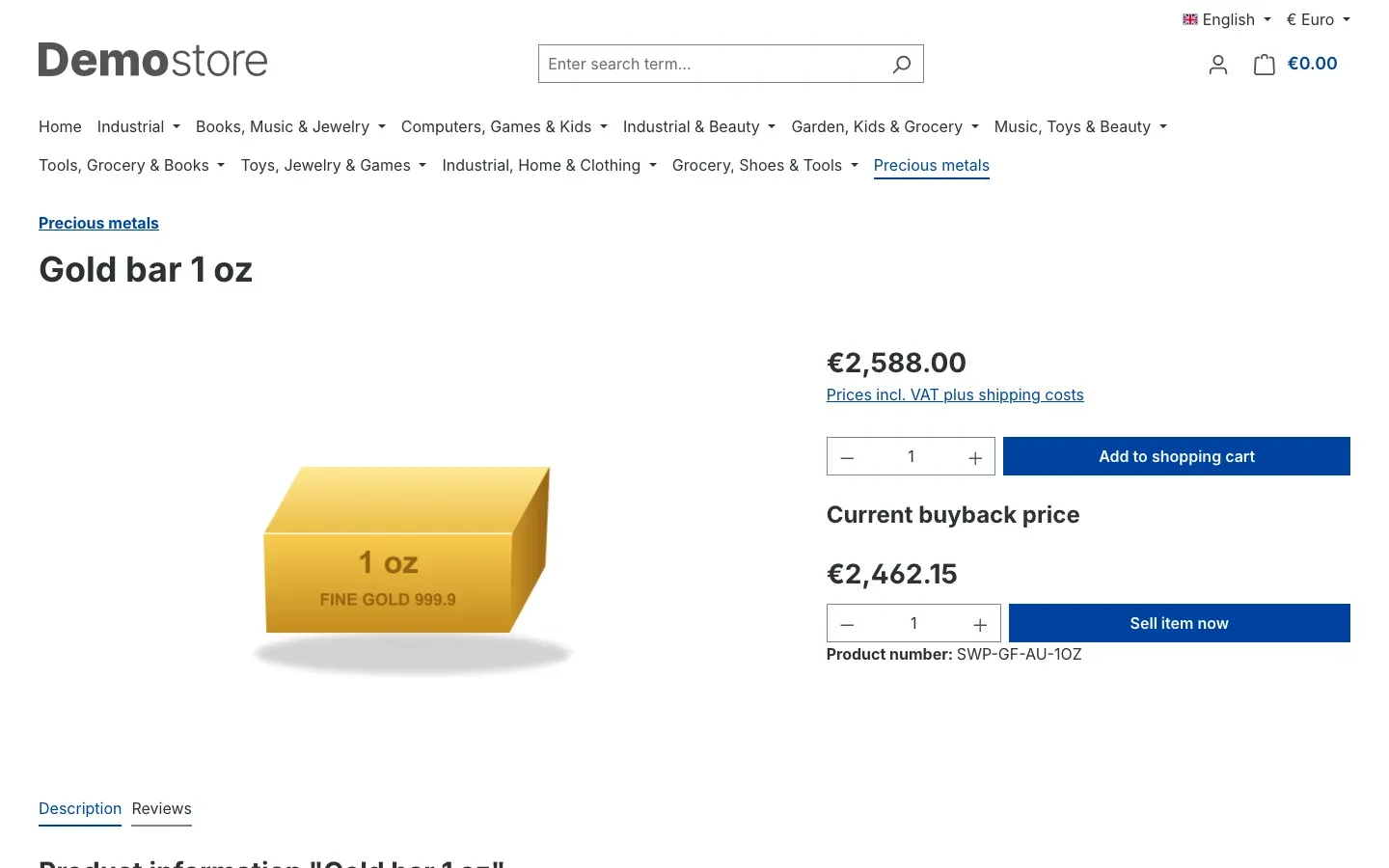 Fig. 6: Product page in the demo shop. The sales price and the “Current buyback price” of the gold bar follow the imported gold rate.
The stored product prices, which Shopware uses for sorting, filters and exports, for example, are not updated by this plugin. A command of the resource calculation does that. Your administrator schedules it regularly, ideally after the rate import (see For Administrators / Technical Details).
How to test a new feed URL right away
What this gives you: You do not have to wait for the next run of the scheduled task. You see immediately whether your feed delivers the expected rates.
Step by step
- Enter the feed URL, switch on Fetch rates from GoldFeed and click Save.
- Ask your administrator to start the import once by hand (see For Administrators / Technical Details).
- The output shows which resource codes were updated, which were created and how many rates were discarded.
- Check the result in the resource rates as described in How to check that the rates arrive.
Tip: Run this test once after setting up and after every change of the feed URL. A wrong address is noticed right away.
Troubleshooting
The plugin cannot be installed
Cause: The plugin requires the resource calculation.
Solution:
- Open Extensions → My extensions.
- First install and activate Resource calculation in version 6.7.
- Then install Resource calculation: GoldFeed rate import.
No rates arrive at all
Cause: Usually fetching is switched off, the feed URL is missing or the scheduled tasks are not running.
Solution:
- Open the settings via Configure.
- Check that Sales Channel at the top is set to All Sales Channels. The plugin does not use values for individual sales channels.
- Check that Fetch rates from GoldFeed is switched on.
- Check that Feed URL contains an address. If it contains a user name and password in the form
user:password@, the plugin does not fetch it. Enter the address without this part. Whether your feed is then reachable is something to clarify with the provider. - Click Save.
- Ask your hosting provider or administrator whether your shop executes scheduled tasks. Without them, there is no automatic fetching.
- Ask your administrator to look at the plugin’s log file. It shows whether the feed could not be reached or whether its response could not be read (see For Administrators / Technical Details).
If a fetch fails, the plugin writes nothing to your resource rates. Your stored rates remain unchanged.
One particular rate does not change
Cause: The code of the entry does not match the resource code, the feed delivered an unusable value for this rate, or the feed’s response does not contain this rate at all.
Solution:
- Open Catalogues → Resource calculation → Resource rates.
- Compare the Resource code of your entry with the entry the plugin updated. If there are two similar entries, the plugin has probably created a new one in the customer type Default. Copy its resource code to your entry.
- If the value in the feed was 0, negative or not a number, the plugin discarded it. The old rate then stays. Your administrator sees the discarded rates in the log of the resource calculation.
The resource rates contain an entry I did not create
Cause: The feed contained a resource code that did not exist in your resource rates yet. The plugin created an entry for it once in the customer type Default.
Solution: Open the entry, check it and add your own settings where needed, such as surcharges. If you delete it, the plugin creates it again during the next import as long as the feed contains this rate.
The rates are new, but the stored product prices are not
Cause: The plugin only updates the rates. The stored product prices are written by a command of the resource calculation.
Solution: Ask your administrator to schedule this command regularly (see For Administrators / Technical Details).
I changed the fetch interval, but the interval stays the same
Cause: A change of the fetch interval applies from the run after the next one.
Solution: You do not need to do anything. The new interval applies from the run after the next one.
FAQ
Q: Do I need the resource calculation for this?
A: Yes. The plugin writes the rates to the resource rates of the resource calculation. Without it, the plugin cannot be installed.
Q: Do I get access to GoldFeed with the plugin?
A: No. You get access and the address of your feed from the provider. The plugin only fetches the address you enter.
Q: How often are the rates fetched?
A: As often as you set under Fetch interval (minutes): between every 5 minutes and once a day. The preset is 15 minutes. How often your feed delivers new values is something the provider can tell you.
Q: Can I use different rates for each sales channel?
A: No. The resource rates of the resource calculation have no sales channel. The imported rates therefore apply in all sales channels. Differences per customer group are controlled in the resource calculation via the customer types.
Q: Does the plugin change my shop currencies?
A: No. It stores the EUR/USD exchange rate as a rate in your resource rates. The currencies of your shop and their exchange factors remain unchanged.
Q: Does the plugin send my customers’ data?
A: No. The plugin only fetches the feed address you entered, and only when Fetch rates from GoldFeed is switched on. It does not send any customer or order data. As with any request on the internet, the provider sees the IP address of your server.
Q: I used the plugin before version 6.7.0. Does the import keep running after the update?
A: Yes, if you had entered a feed URL before. The update then switches on Fetch rates from GoldFeed. The former switch “Activate plugin for this channel” no longer exists. An existing cron job with the former command name keeps working (see For Administrators / Technical Details).
Q: What happens to my data when I uninstall the plugin?
A: Shopware removes the plugin’s scheduled task. If you choose to remove the data when uninstalling, Shopware also deletes the plugin’s settings. Otherwise they are kept. The imported rates belong to the resource calculation and remain in its resource rates.
For Administrators / Technical Details
This section is intended for technical administrators. You do not need it for normal use.
System requirements
- Shopware: 6.7.7 or later (6.7)
- PHP: 8.2 or later
- Resource calculation plugin: 6.7, installed and active, installed before this plugin
- Network: The server must be able to reach the entered feed address.
The plugin creates no tables of its own and ships no storefront code.
Scheduled task and worker
Regular fetching is done by the scheduled task swp.resource_calc_goldfeed.rate_import. It only runs with a scheduled task worker, for example:
bin/console scheduled-task:run
bin/console messenger:consume
A changed Fetch interval (minutes) applies from the run after the next one, because the next run is already scheduled.
Import by command
You can start the import at any time by hand or from a cron job:
bin/console resourcecalc:goldfeed:importThe former command name resourcecalcgoldfeed:cron keeps working. Existing crontabs do not need to be changed. The command, too, only fetches the feed when Fetch rates from GoldFeed is switched on.
Possible output:
- Fetching switched off: warning “Fetching rates from GoldFeed is switched off in the plugin configuration. No connection was made.” — exit code 0, no connection.
- Feed URL missing or invalid: “GoldFeed feed URL missing or invalid (url)” — exit code 1.
- Fetching or reading the response failed: error message with the reason — exit code 1.
- Success: overview with “Updated codes”, “Created codes” and “Discarded quotes” (number of discarded rates), followed by “GoldFeed rates imported. Product prices are stored by the command resourcecalc:cron.” — exit code 0.
- No rate written: “No rate was written. Details: log file SwpResourceCalcSix of the resource calculation.” — exit code 1.
Updating stored product prices
The import does not calculate product prices. The stored product prices for sorting, filters and exports are written by the command of the resource calculation. It has no scheduled task. Schedule it via the system cron, preferably after the rate import:
bin/console resourcecalc:cronWhat the plugin takes from the response
The following behaviour is defined in the plugin. Which values your feed actually contains is determined by the provider. After setting up, check once by command that the expected rates arrive.
- The response must be a JSON object.
- Fields whose name follows the pattern
<metal>_bid_<currency>_<unit>are imported, for examplegold_bid_eur_toz. The resource code is the field name, the resource name is the metal (with a capital first letter), the rate currency is the third part of the name. - The field
exchange_rateis imported under the resource codeEUR/USDwith the resource name “EUR / USD” and the rate currency USD. - All other fields are ignored.
- A value must be a number or a number as text. Anything else counts as 0 and is discarded.
- If the response is empty, is not a valid JSON object or contains none of the fields mentioned, the plugin writes nothing and logs “GoldFeed response could not be read”.
Writing is done through the rate import of the resource calculation: every entry with a matching code receives rate, rate currency and change time, in all customer types. Unknown codes are created once in the customer type “Default”. Rates of 0, negative or non-numeric rates are discarded, the stored rate stays.
Limits of fetching
- One GET request to the entered address,
http://orhttps://only. No customer or order data is sent. - At most three redirects.
- A fetch ends after 30 seconds at the latest.
- Responses larger than 5 MB are discarded.
- If the server does not answer with a success status, the fetch counts as failed.
- Addresses with credentials in the form
user:password@are rejected.
Log files
var/log/SwpResourceCalcSixGoldFeed-<date>.log: summary of every import, connection errors and unreadable responses. Typical messages: “GoldFeed rates imported”, “GoldFeed rates could not be fetched”, “GoldFeed response could not be read”, “GoldFeed rate import skipped: feed URL missing or invalid”. Of the feed address, only the host name is logged, never the part after?.var/log/SwpResourceCalcSix-<date>.log: the resource calculation additionally logs the discarded rates here.
Settings apply shop-wide
The plugin reads its settings for the whole shop, i.e. the values under All Sales Channels. Values entered for individual sales channels are not used.
Updating from versions before 6.7.0
- If a feed URL was entered before the update, the update switches on Fetch rates from GoldFeed. The import keeps running.
- The former switch “Activate plugin for this channel” has been removed.
- The former command name
resourcecalcgoldfeed:cronkeeps working. - The plugin no longer changes shop currencies. Former versions set exchange factors.
Uninstallation
On uninstallation, Shopware removes the scheduled task. Shopware only removes the plugin’s configuration if removing the data is chosen during uninstallation. The plugin has no uninstall step of its own. The resource rates belong to the resource calculation and are kept.
This manual was written for Resource calculation: GoldFeed rate import version 6.7.0.
More manuals
Address Validation: House Number Check & Corrections
Address validation at the point of entry: the plugin spots missing house numbers, can suggest corrections via Google and helps you send fewer parcels that come back undeliverable.
Open manual Shopware 6Admin Password Reminder
Admin Password Reminder: your backend users renew their passwords on time, prompted after login and by a daily email. Premium locks expired accounts until the password is changed.
Open manual Shopware 6Advent Calendar | Doors with products, coupons and promotions
Advent calendar for your shopping experiences: doors open on time without clearing the cache, give nothing away in the page source and reveal coupons, products or your own content.
Open manualNeed a team that keeps your shop running?
We have been maintaining Shopware shops for more than 20 years, including updates, hotfixes and the plugins you are configuring right now.