Main Products in Search: Group Variants
Main product search without duplicates: the plugin groups variants into their main product on the search results page and in the search suggestions. Hit counts stay correct.
On this page
- Introduction
- What you achieve with this plugin
- Who is this plugin for?
- Installation
- Getting Started
- Settings
- General section
- Display section
- Search index section
- How to Use the Features
- How your customers see the grouped search suggestions
- How your customers see the grouped search results page
- How to show your customers the choice of variants
- How to choose which article appears as the hit
- How to rebuild the search index
- How to use the plugin in selected sales channels only
- Troubleshooting
- The search still shows every variant separately
- After deactivating and reactivating, the search shows all variants
- The variant hint does not appear
- Newly created or imported articles are missing from the search
- The “Build MySQL index now” button is greyed out
- Message “The grouping index could not be built.”
- Message “The index status could not be loaded.”
- The plugin does not appear in My extensions or has no effect
- FAQ
- For Administrators / Technical Details
- System requirements
- Installation from the command line
- Building the search index from the command line
- Behaviour during operation
- Log file
- Notes for theme developers
- Headless frontends
- Uninstalling
Introduction
With Main Products in Search: Group Variants, your shop search shows every article only once – even if it comes in many colours or sizes.
Without the plugin, every variant appears as a hit of its own. A shirt in ten colours takes up ten places in the result list. Your other articles slip further down, and the hit count counts variants instead of articles.
What you achieve with this plugin
- Your customers see one hit per article in the search instead of many near-identical variants.
- The hit count, filters, sorting and pagination refer to articles, not to single variants.
- This applies to the search results page and to the search suggestions that open while typing in the search field.
- Variants stay findable: if a customer searches for a detail of a single variant, such as its product number, the matching main product appears.
- If you want, your customers see right at the hit that more variants are available – for example “Available in 3 variants”.
- You decide everything per sales channel. One shop can group variants while another keeps showing every variant.
- Your product data stays unchanged. The plugin only changes what the search shows.
Who is this plugin for?
For shop owners with articles in several variants – for example fashion in colours and sizes, electronics in different editions or accessories in different lengths. The plugin works in the search. It does not change the category pages of your shop.
Installation
After purchase, the plugin is available directly in your Administration – there is nothing to download.
- Log in to your Shopware Administration (
yourshop.com/admin). - Open Extensions → My extensions.
- Find the entry Main Products in Search: Group Variants in the list and click Install next to it.
- Activate the plugin with the switch to the left of the plugin name – done.
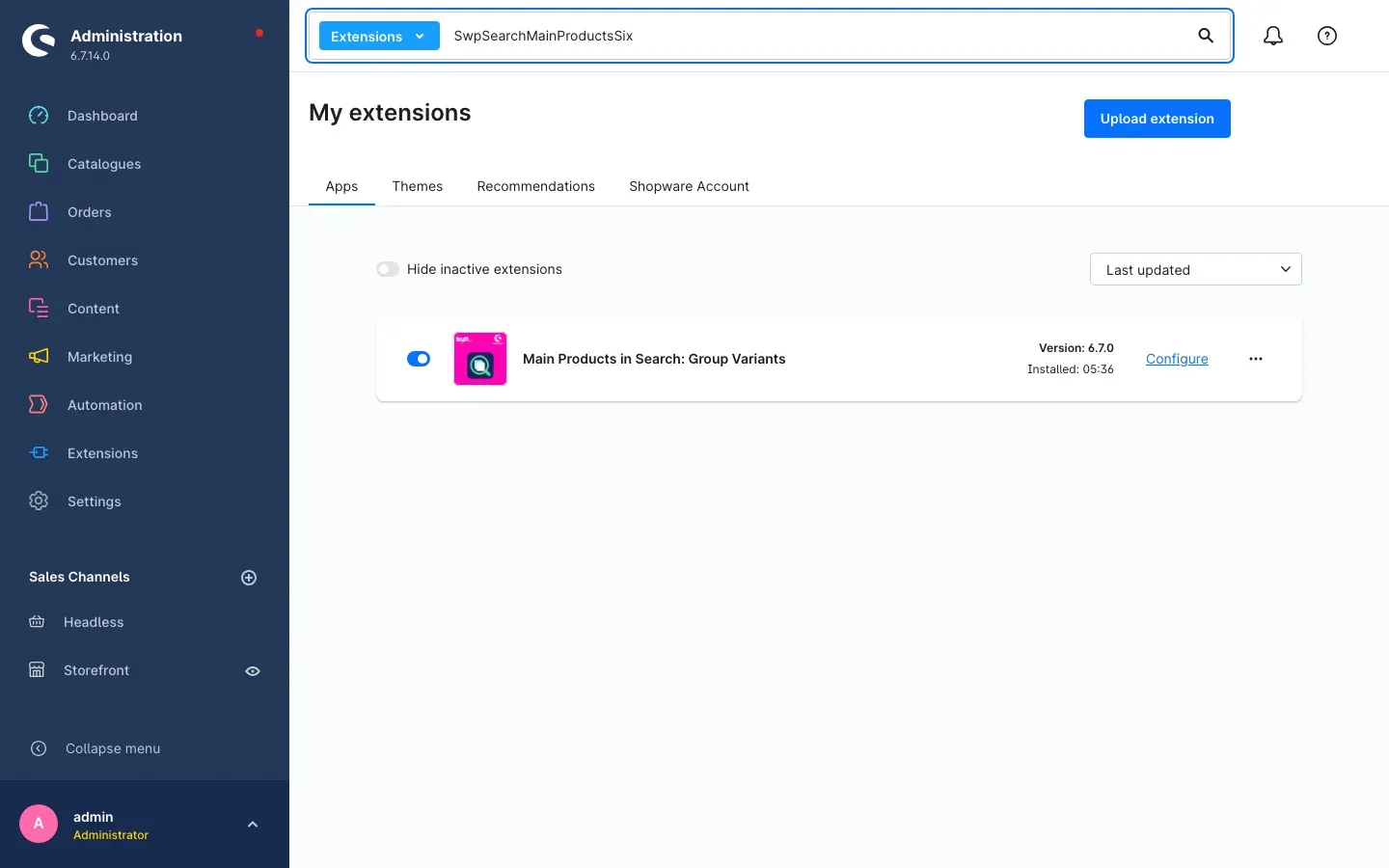
Figure 1: The installed and active plugin under Extensions → My extensions
Once activated, the plugin starts building its search index on its own. This index remembers which variant belongs to which main product. Until it is finished, the search looks exactly as it did without the plugin. Getting Started shows how to check its status.
If Main Products in Search: Group Variants does not appear in the list, your Shopware account is not yet connected to the shop. You can do this under Extensions → My extensions in the Shopware Account tab by logging in with your Shopware account.
Getting Started
The plugin comes with sensible defaults: all switches are on and the variant hint with number is active. You do not need to configure anything to get started. Just check that the search index is ready.
-
Open the settings: Go to Extensions → My extensions and click Configure next to the plugin.
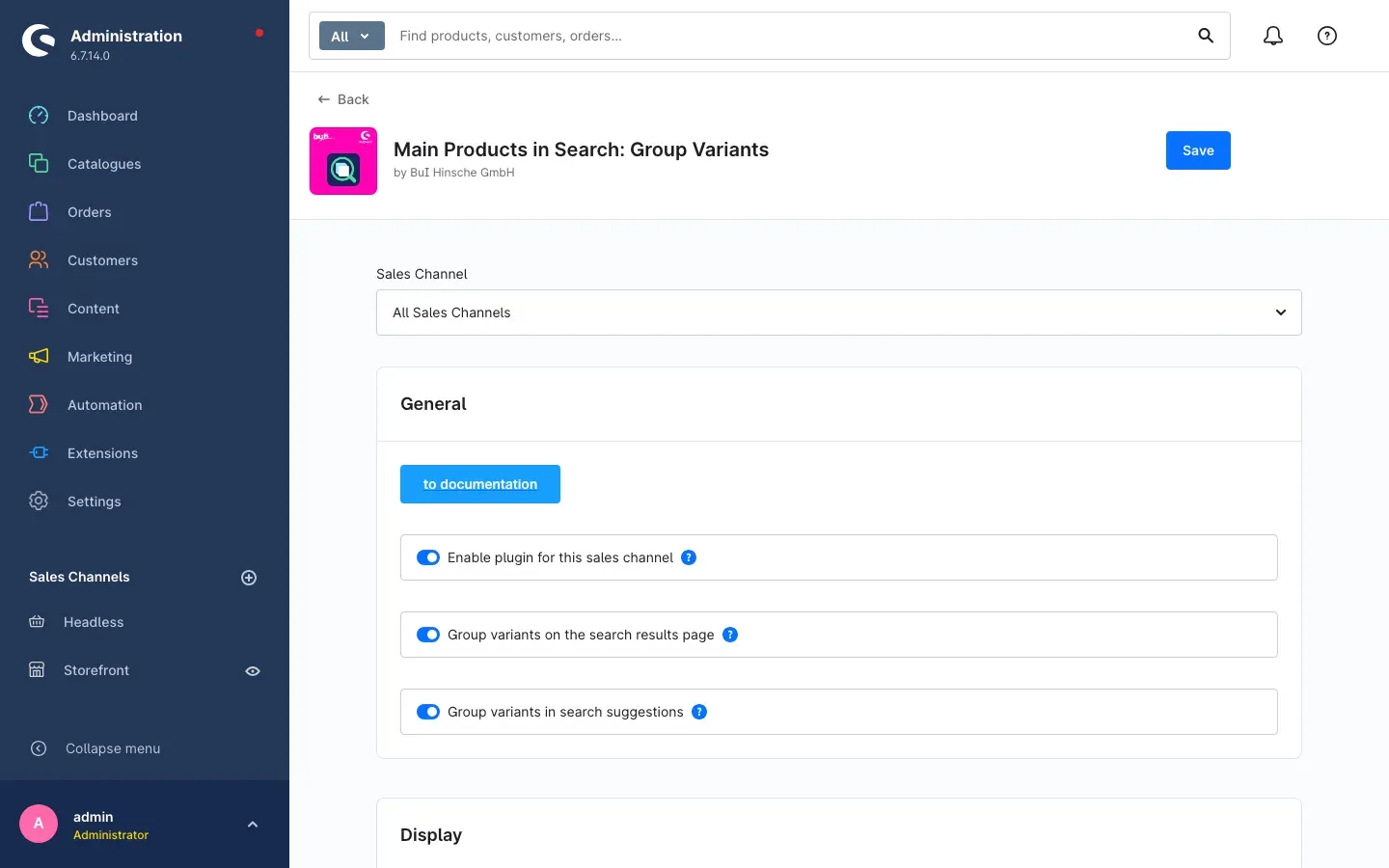
Figure 2: The configuration page with the sales channel selection and the General section
-
Check the search index: Scroll down to the Search index section. If it shows a green box MySQL grouping index with the text “Ready – search groups variants into their main product.”, you are all set. If it says “Not fully built yet.”, click Build MySQL index now (details in Settings).
-
Check the result: Open your shop and search for an article that comes in several variants. Instead of every single variant, you now see one hit for the article. Examples can be found in How to Use the Features.
Tip: If your shop uses OpenSearch or Elasticsearch for product search, the Search index section also shows the status of that search index. If it is not ready yet, your administrator or hosting provider needs to rebuild it once (see For Administrators / Technical Details).
Settings
You find the settings under Extensions → My extensions via Configure next to the plugin (see figure 2).
Choose a sales channel: At the very top, use Sales Channel to choose which shop the settings apply to. With All Sales Channels you set the default for all shops. If you pick a single sales channel, you can store different values for that shop.
Help texts: The question mark next to a setting shows a short explanation right in the Administration.
Remember to save: Apply your changes with Save in the top right corner. The plugin makes sure on its own that the search in your shop uses the new settings.
General section
to documentation
The to documentation button opens this manual in your browser. This way you have the description of every setting at hand while you configure.
Enable plugin for this sales channel
Enable plugin for this sales channel switches the plugin on or off for the sales channel selected at the top – without uninstalling it. The switch is on by default.
Why this is useful: If you run several shops, you use the plugin only where it fits. Group variants in your consumer shop and keep listing every variant in your trade shop, where buyers search by article number. With the switch off, the search in that shop behaves as it did without the plugin.
Group variants on the search results page
Group variants on the search results page decides whether the page with all search hits shows only one hit per main product. Hit count, filters and pagination then follow the main products. The switch is on by default.
Why this is useful: Your customers see more different articles on the first results page. If you switch off only this setting, the plugin keeps grouping the search suggestions, but the search results page shows every variant again.
Group variants in search suggestions
Group variants in search suggestions does the same for the suggestion list that opens while typing in the search field. The switch is on by default.
Why this is useful: The suggestion list only has a few places. Without grouping, a single article with many variants quickly takes up all of them.
Display section
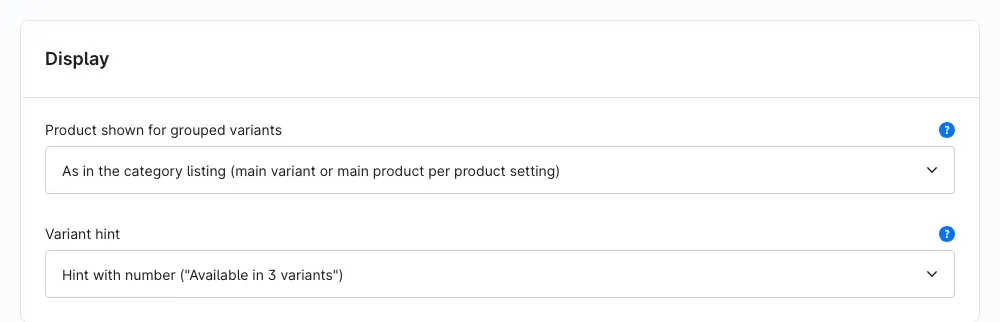
Figure 3: The Display section with its two selection fields
Product shown for grouped variants
Product shown for grouped variants decides which article appears as the hit for a group of variants. By default, As in the category listing (main variant or main product per product setting) is selected.
- As in the category listing (main variant or main product per product setting): The search shows the same article as your category pages. You set which one that is on the product itself, as usual (see How to choose which article appears as the hit).
- Always the main product: The search always shows the main product with its lowest variant price. When a customer clicks it, the product page opens the matching or cheapest available variant.
Why this is useful: With Always the main product, the search looks consistent no matter how the individual products are set up. With the default, the search stays in line with your category pages.
Variant hint
Variant hint decides whether a note about further variants appears below the product name of a hit. By default, Hint with number (“Available in 3 variants”) is selected.
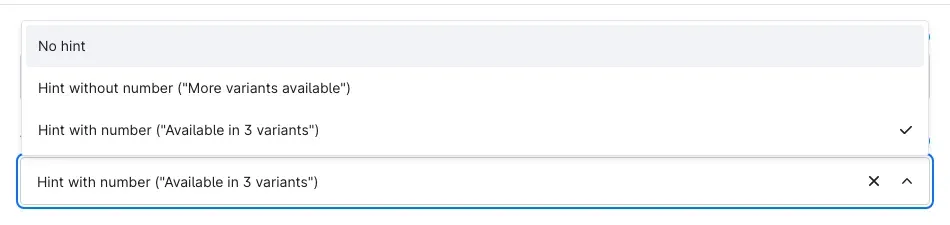
Figure 4: The three options for the variant hint
- No hint: Nothing extra appears below the product name.
- Hint without number (“More variants available”): The customer sees that there is a choice, but not how much.
- Hint with number (“Available in 3 variants”): The customer sees how many variants are behind the hit.
Only active variants that are visible in this sales channel are counted. The hint appears from 2 variants. It is shown on the search results page and in the search suggestions – in each case only where grouping is switched on.
Why this is useful: Your result list stays tidy, and still no choice gets lost. The customer knows that colour, size or edition can be chosen on the product page.
Search index section
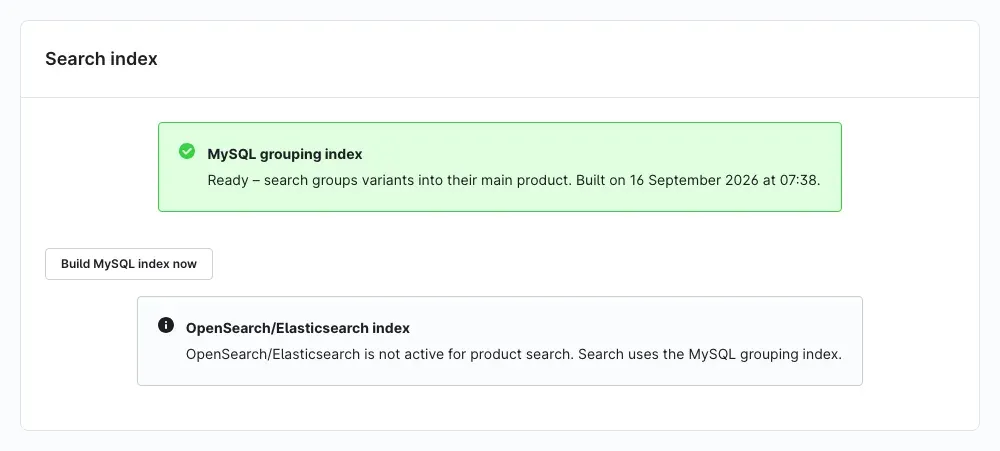
Figure 5: The Search index section with the status of both search indexes
This section shows whether the plugin can already work in the search. There is nothing to configure here.
MySQL grouping index – the plugin’s search index for the standard Shopware search:
- Green box with “Ready – search groups variants into their main product.”: Everything is fine. The date shows when the index was last fully built.
- “Not fully built yet.”: The search still shows all variants as without the plugin. Click Build MySQL index now.
Build MySQL index now fully rebuilds the index. While it runs, you see a progress bar labelled “Building index …”. Keep the page open until the message “The grouping index has been fully built.” appears. Your search remains available as usual in the meantime.
OpenSearch/Elasticsearch index – only relevant if your shop uses OpenSearch or Elasticsearch for product search:
- “OpenSearch/Elasticsearch is not active for product search. Search uses the MySQL grouping index.”: Your shop uses the standard search. Only the MySQL grouping index matters for you.
- “Ready – OpenSearch search groups variants into their main product.”: Everything is fine.
- “The product index does not contain the grouping field yet.”: The search still shows all variants as without the plugin. The search index needs to be rebuilt once. Your administrator or hosting provider takes care of this (see For Administrators / Technical Details).
How to Use the Features
How your customers see the grouped search suggestions
What you get: While still typing, your customers see different articles instead of the same product in every colour. They find what they are looking for faster.
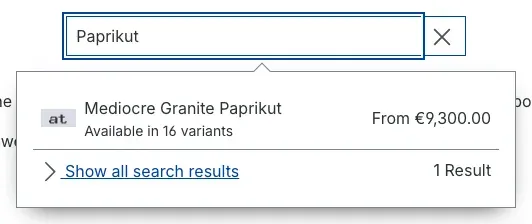
Figure 6: Search suggestions with a grouped article and variant hint
Step by step
- Make sure Group variants in search suggestions is switched on (see Settings).
- Open your shop and type the name of an article with several variants into the search field.
- The article appears once in the suggestion list. Depending on your setting, the variant hint appears below it – in the example “Available in 16 variants”.
- The number of results next to Show all search results also counts articles instead of variants. In the example it says “1 Result” instead of 16.
How your customers see the grouped search results page
What you get: The search results page shows your range instead of repetition. The hit count is correct, and filters and pagination refer to real articles.
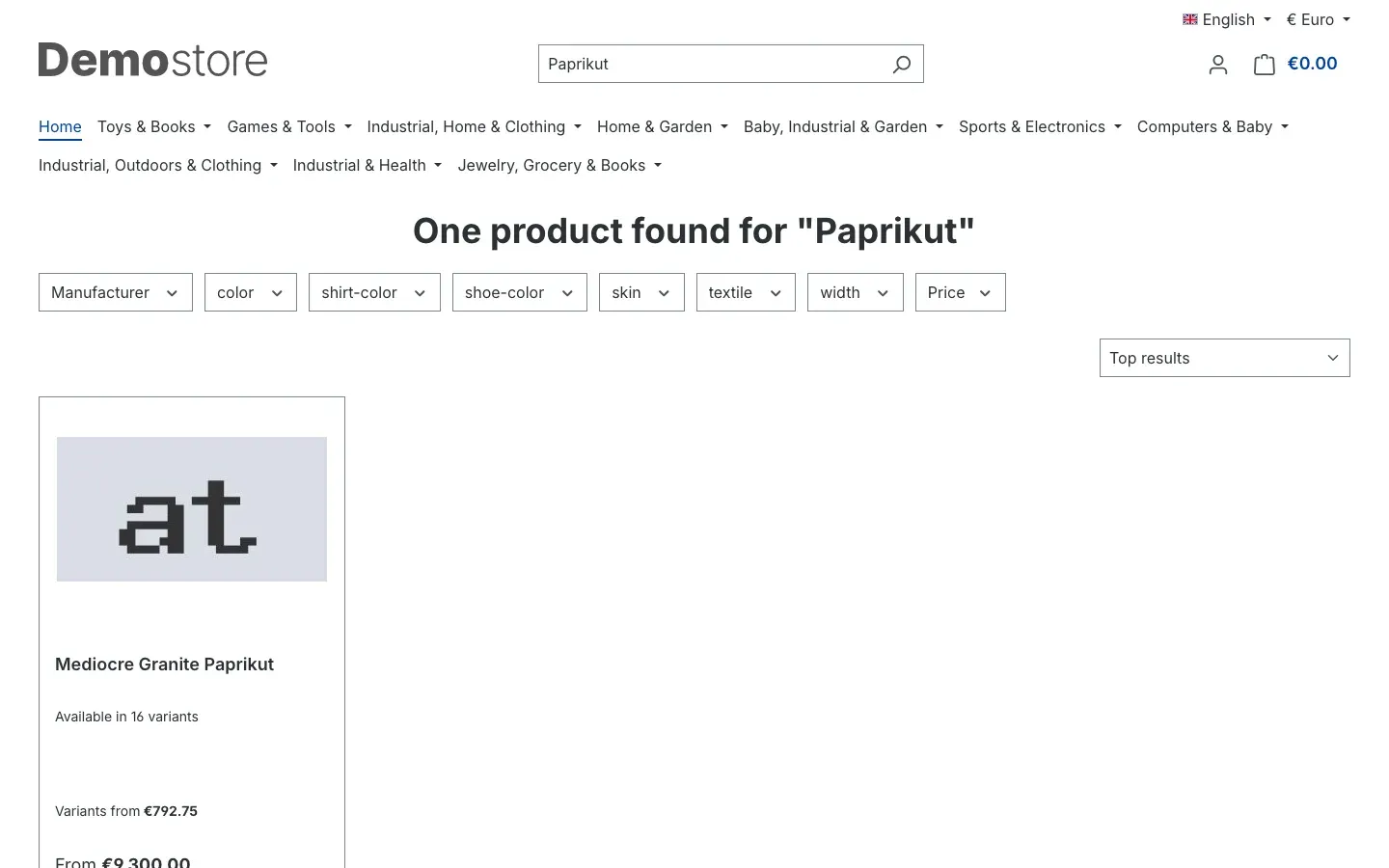
Figure 7: Search results page with a corrected hit count and one hit per article
Step by step
- Make sure Group variants on the search results page is switched on (see Settings).
- Open your shop, enter a search term and confirm the search – or click Show all search results in the search suggestions.
- The headline counts articles. In the example it says “One product found for “Paprikut"" – without the plugin there would be 16 hits.
- Every article appears once. Filters and sorting work as usual, just on articles instead of variants.
Tip: Use an article with many variants for your check. That is where you see the difference most clearly.
How to show your customers the choice of variants
What you get: Customers see at a glance that an article comes in several editions – even though it appears only once in the result list.
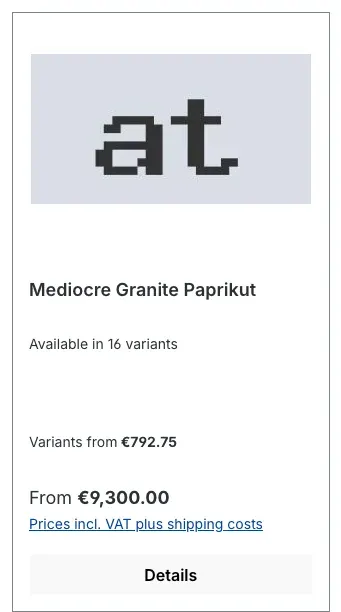
Figure 8: The variant hint below the product name on the product card
Step by step
- Open the plugin configuration and select the sales channel you want under Sales Channel at the top.
- In the Display section, choose the right option under Variant hint:
- Hint with number (“Available in 3 variants”) if your customers should see the number.
- Hint without number (“More variants available”) if a general note is enough.
- No hint if nothing should appear below the product name.
- Click Save.
- Search your shop for an article with at least two variants. The hint appears below the product name.
Important: The hint only counts variants that are active and visible in this sales channel. If an article has only one visible variant there, no hint appears.
How to choose which article appears as the hit
What you get: You decide whether your customers see a specific variant in the search – such as the most popular colour – or always the main product with the lowest price.
Step by step – the same for all articles
- Open the plugin configuration and select the sales channel you want under Sales Channel at the top.
- In the Display section, choose Always the main product under Product shown for grouped variants.
- Click Save.
The search now shows the main product with its lowest variant price for every group of variants. The product card then shows a “From” price and the Details button, because the customer chooses the variant on the product page.
Step by step – per article, as on your category pages
- Keep As in the category listing (main variant or main product per product setting) selected under Product shown for grouped variants.
- Open the article under Catalogues → Products and switch to the Variants tab.
- Click Storefront presentation. Under Product listings you decide whether the Main product or a specific variant is shown.
- Save the article.
The search then shows the same article as your category pages.
How to rebuild the search index
What you get: After a large import, or if the search shows every variant separately again, one click brings the index up to date.
Step by step
- Open the plugin configuration and scroll to the Search index section (see figure 5).
- Click Build MySQL index now.
- Wait until the message “The grouping index has been fully built.” appears. Keep the page open until then.
- The MySQL grouping index box now shows “Ready – search groups variants into their main product.” with the new date.
Tip: The plugin assigns new articles to their main product on its own during normal operation. You only need a rebuild if the Search index section reports a missing build or if new articles still do not show up in the search after a while.
How to use the plugin in selected sales channels only
What you get: You control each shop separately, without uninstalling the plugin.
Step by step
- Open the plugin configuration.
- Under Sales Channel at the top, choose the shop in which the plugin should not work.
- In the General section, switch off Enable plugin for this sales channel.
- Click Save.
In that shop, the search shows every variant separately again. In all other shops the plugin stays active. In the same way, you can set the variant hint or the displayed article separately for each sales channel.
Troubleshooting
The search still shows every variant separately
Possible causes:
- The search index has not been fully built yet.
- The plugin or grouping is switched off for this sales channel.
- Your shop uses OpenSearch or Elasticsearch, and that search index has not been rebuilt yet.
- The page is still served from your shop’s cache.
How to fix it:
- Open the configuration and check the Search index section. If it says “Not fully built yet.”, click Build MySQL index now (see How to rebuild the search index).
- If the OpenSearch/Elasticsearch index says “The product index does not contain the grouping field yet.”, ask your administrator or hosting provider to rebuild the search index (see For Administrators / Technical Details).
- Select the affected sales channel under Sales Channel at the top and check that Enable plugin for this sales channel and Group variants on the search results page or Group variants in search suggestions are switched on.
- Clear the cache: Settings → System → Caches & indexes → Clear cache.
After deactivating and reactivating, the search shows all variants
Why this happens: When the plugin is deactivated, it resets its search index, because it cannot follow new or changed articles during that time. After activation it rebuilds the index on its own.
How to fix it:
- Wait a moment, then check the Search index section.
- If the index is not finished yet, click Build MySQL index now.
- If your shop uses OpenSearch or Elasticsearch, that search index also needs to be rebuilt (see For Administrators / Technical Details).
The variant hint does not appear
Possible causes:
- No hint is selected under Variant hint.
- The article has fewer than two active, visible variants in this sales channel.
- You are looking at a category page. The hint only appears in the search.
- Grouping is switched off at this place, or the search index is not ready yet. The hint only appears where the plugin actually groups variants.
- Your theme replaces the product card or the search suggestions entirely with its own templates.
How to fix it:
- Check the Variant hint setting for the right sales channel.
- Check on the article that at least two variants are active and visible in the sales channel.
- Check the Search index section and the switches in the General section.
- If the theme is the cause, pass the notes from For Administrators / Technical Details on to your theme developer.
Newly created or imported articles are missing from the search
Why this happens: After a large import, Shopware processes new articles in the background. As long as a new article has not yet been assigned to a main product, the grouped search does not show it.
How to fix it:
- Wait a few minutes and search again.
- If the article still does not appear, click Build MySQL index now in the Search index section (see How to rebuild the search index).
The “Build MySQL index now” button is greyed out
Why this happens: Either a build is currently running, or your user account lacks the required permission. In the second case, the note “Building the index requires the permission to manage extensions.” appears below the button.
How to fix it: Wait until a running build has finished. If the permission is missing, ask someone with administrator rights to give your role the Manage extensions permission.
Message “The grouping index could not be built.”
Why this happens: A request failed during the build, for example because of a brief connection problem or a timeout on the server.
How to fix it:
- Reload the configuration page.
- Click Build MySQL index now again and keep the page open until the build has finished.
- If the error occurs again, ask your administrator to check the plugin’s log file (see For Administrators / Technical Details), or contact our support.
Message “The index status could not be loaded.”
Why this happens: The Administration could not retrieve the status of the search index, for example because of a brief connection problem or a missing permission.
How to fix it: Reload the page. If the message remains, check with someone with administrator rights whether your role has the Manage extensions permission.
The plugin does not appear in My extensions or has no effect
Why this happens: The plugin is probably not installed or activated yet, or the cache is outdated.
How to fix it:
- Open Extensions → My extensions.
- Check that the plugin is installed and the switch next to the plugin name is on.
- Clear the cache: Settings → System → Caches & indexes → Clear cache.
FAQ
Q: Does the plugin change my product data?
A: No. Main variant, visibility and prices of your articles stay unchanged. The plugin stores the mapping from variant to main product in a table of its own and only changes what the search shows.
Q: Does the plugin also work on my category pages?
A: No. The plugin works on the search results page and in the search suggestions. What appears on category pages is still set on the product via Storefront presentation.
Q: Can my customers still find a specific variant?
A: Yes. If a customer searches for a detail of a single variant, such as its product number, the matching main product appears. The customer picks the exact variant on the product page. Which details the search looks at is set as usual in the Shopware settings under Search.
Q: Why do I still see all variants right after installing?
A: Because the plugin’s search index is still being built. Until it is finished, the search behaves as it did without the plugin. You find the status and the rebuild button in the Search index section of the plugin configuration.
Q: Do I need to clear the cache after changing the settings?
A: Usually not. After saving, the plugin makes sure on its own that the search uses the new settings. If you still do not see the change after a few minutes, clear the cache under Settings → System → Caches & indexes.
Q: Why do some articles in the search show a “From” price and a “Details” button?
A: When the search shows the main product, the customer has to choose the variant on the product page first. That is why the lowest variant price is shown as a “From” price, and the Details button replaces the add-to-cart button.
Q: Does the plugin work with OpenSearch or Elasticsearch?
A: Yes. After installation, the OpenSearch or Elasticsearch search index needs to be rebuilt once. The Search index section in the plugin configuration shows whether this has already happened.
Q: Can I use the plugin in only one of several sales channels?
A: Yes. Select the sales channel at the top of the configuration and switch off Enable plugin for this sales channel there (see How to use the plugin in selected sales channels only).
Q: Does the plugin slow down my search?
A: The mapping from variants to their main product is stored in advance and is not recalculated on every page view. For the variant hint, one count is added per results page.
Q: What happens if something goes wrong with the grouped search?
A: Your customers still get results. The plugin then falls back to the normal Shopware search and shows the variants as without the plugin.
Q: What happens to my data when I uninstall?
A: Open Extensions → My extensions, open the three-dot menu (…) of the plugin and click Uninstall. If you switch on Remove all app data permanently in the following window, Shopware deletes the plugin’s table. If you leave the switch off, the table is kept. Your articles stay unchanged either way.
For Administrators / Technical Details
This section is intended for technical administrators, hosting providers and theme developers. You do not need it for normal use.
System requirements
- Shopware: 6.7.13 and above
- PHP: 8.2 or newer
- Search: standard Shopware search (MySQL) or OpenSearch/Elasticsearch
- Background processing: The first build of the search index after activation runs through Shopware’s message queue. Without running background processing, build the index with the Build MySQL index now button or from the command line.
Installation from the command line
If the plugin is already present in the shop, install and activate it like this:
bin/console plugin:refresh
bin/console plugin:install --activate SwpSearchMainProductsSix
bin/console cache:clear
Building the search index from the command line
The plugin’s MySQL grouping index:
bin/console dal:refresh:index --only=swp_search_main_products.product_group.indexerWith OpenSearch/Elasticsearch, the product index must contain the plugin’s grouping field. Rebuild the Shopware search index for this:
bin/console es:indexAs soon as the new product index is active, the Search index section reports “Ready – OpenSearch search groups variants into their main product.” After deactivating and reactivating the plugin, this rebuild is needed once more.
Behaviour during operation
- The plugin creates one table of its own,
swp_search_main_product_group. Shopware core tables stay unchanged. - The plugin keeps track of new articles and changed variant assignments on its own. Pure price, stock or text changes do not trigger any follow-up work. This keeps large imports lean.
- As long as the relevant search index is not ready, the search responds exactly as it did without the plugin.
- If the grouped search fails, the plugin retries the request once with the normal Shopware search.
- Changes to the plugin configuration invalidate the affected cached search pages on their own.
- On deactivation, the plugin resets the status of both search indexes. On activation, it triggers the rebuild of the MySQL grouping index on its own.
- The status display and the rebuild in the Administration require the Manage extensions permission.
Log file
The plugin writes errors to a log file of its own in the Shopware log directory: var/log/swp_search_main_products_<environment>.log. Only errors are logged, and the files rotate over 14 days. Where an error message could contain parts of a search term, only the error type and error code are recorded.
Notes for theme developers
The plugin renders the variant hint through two storefront templates and keeps the original content in both:
- Product card: block
component_product_box_nameinstorefront/component/product/card/box-standard.html.twig - Search suggestions: block
layout_search_suggest_result_variationinstorefront/layout/header/search-suggest.html.twig
If a theme replaces one of these blocks without parent(), the hint is missing at that place. Grouping itself is not affected, because it happens before rendering.
Headless frontends
The plugin also works in the Store API: the search routes /store-api/search and /store-api/search-suggest return grouped results as soon as the settings for the sales channel of the access key provide for it. The data for the variant hint is available on the product under extensions.swpSearchMainProducts, with the count variantCount and the selected hint type hintMode.
Uninstalling
When uninstalling, the Remove all app data permanently switch in the uninstall window decides: switched on, the table swp_search_main_product_group is deleted; switched off, it is kept.
This manual was written for Main Products in Search: Group Variants version 6.7.0.
More manuals
Age Check
Tobacco, spirits, knives: visitors who do not confirm their age never see the restricted items at all. You tick a box per product, the plugin hides it everywhere.
Open manual Shopware 6AI SEO All-in-One: SEO and GEO suite for Shopware 6
Google finds your shop, ChatGPT never mentions it. This plugin checks both in one run, fills empty meta fields from templates and turns the findings into a to-do list.
Open manual Shopware 6Area Calculation
Area calculation on the product page: your customer knows the square metres, not the number of packs. The plugin works it out, adds the offcut and fills the quantity field.
Open manualNeed a team that keeps your shop running?
We have been maintaining Shopware shops for more than 20 years, including updates, hotfixes and the plugins you are configuring right now.