Order Export | CSV, Excel, XML and JSON with schedule
Order export without the manual work: the plugin builds order files as CSV, Excel, XML or JSON on a schedule and sends them by email or SFTP. Only new orders, if you like.
On this page
- Introduction
- What you can do with this plugin
- Who is this plugin for?
- Installation
- What your shop needs for exports
- Getting started
- Settings
- “General” card
- “Delivery” card
- “Maintenance” card
- How to export orders
- Step by step
- How to set up export profiles
- Managing profiles
- Editing a profile
- “General” card
- “Fields” card
- “Format and values” card
- “Filters” card
- How to export automatically on a schedule
- Step by step
- How to send export files by email or SFTP
- Prerequisite: allow delivery in the settings
- Sending the file by email
- Uploading the file to a server
- If delivery is switched off
- When does an order count as exported?
- How to use the export history
- Export run details
- How to export selected orders from the order overview
- Step by step
- How to avoid exporting orders twice
- Exporting new orders only
- Viewing the export status of an order
- How to grant permissions for the order export
- Step by step
- Troubleshooting
- The export stays in the status “Queued”
- The schedule does not start an export
- The file is empty or contains fewer orders than expected
- Line item or product fields stay empty
- The history shows “Delivery skipped”
- The history shows “Delivery failed” or “Partially sent”
- The stored credentials can no longer be read
- “The Excel file would exceed the maximum of 1,048,576 rows”
- “At most 100 orders can be exported at once”
- “An export is already running for this profile”
- An export ends with “The export stopped making progress and was ended”
- Excel shows umlauts or accented characters incorrectly
- The menu entry “Export orders” is missing
- The “Settings” tab is missing in the “Export orders” area
- FAQ
- For administrators / Technical details
- System requirements
- Scheduled tasks and background processing
- Installation via the command line
- Console commands
- Switching from another order exporter
- File storage
- Log
- Encryption of credentials
- Database and uninstallation
Introduction
Order Export gets your orders out of Shopware as a file: as CSV, Excel (XLSX), JSON or XML, structured exactly the way your accounting, your ERP system or your fulfilment partner needs it. At the click of a button, on a schedule or straight from the order overview.
What you can do with this plugin
- You create an export profile for each recipient: which fields, which file format, which orders. After that, one click is enough.
- You choose from more than 140 fields in 11 groups, plus custom fields of the order, customer, addresses, line items and products. You decide on column headers and column order yourself.
- You export either one row per order (typical for accounting) or one row per line item (typical for ERP systems).
- A schedule creates the file daily, weekly or monthly on its own. If you like, the plugin sends it by email or uploads it to a server via SFTP, FTPS or FTP.
- With “Only orders not yet exported”, no order is exported twice. The order detail page shows when which profile exported an order.
- Large periods are processed in the background in steps. You keep working in the meantime, and a progress bar shows the current state.
- The history lists every export: with trigger, number of orders, delivery result and the option to download the file again.
Who is this plugin for?
For shop owners and teams who pass order data on regularly: to the tax advisor, to an ERP system, to a fulfilment partner or for their own analyses in Excel. The plugin only reads orders. It does not change any order and has no effect on the shop your customers see.
Installation
After the purchase, the plugin is available directly in your Administration. You do not need to download anything.
- Log in to your Shopware Administration (
yourshop.com/admin). - Open Extensions → My extensions.
- Next to Order Export | CSV, Excel, XML and JSON with schedule, click Install.
- Activate the plugin with the switch to the left of the plugin icon. When the switch is blue, the plugin is active.
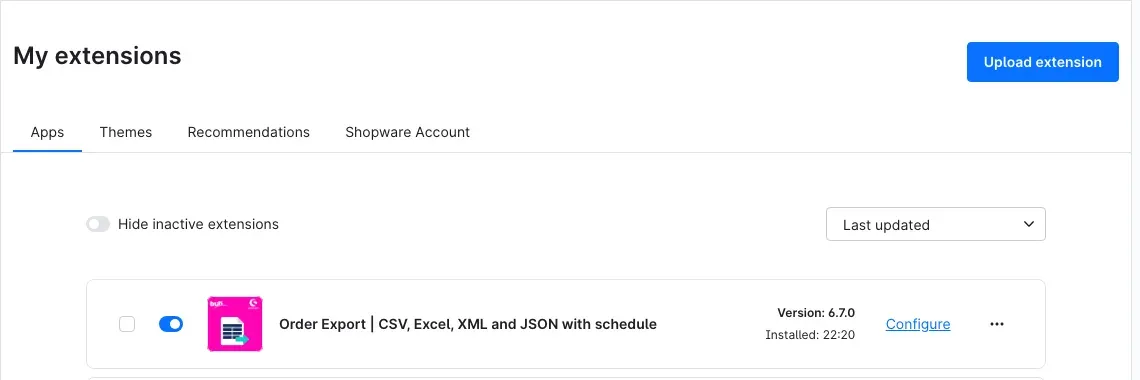 Figure 1: The plugin in “My extensions”, installed and active. “Configure” takes you to the settings.
After activation, you will find the new menu entry Export orders under Orders.
If the plugin does not appear in the list, your Shopware account is not yet connected to the shop. You can do this under Extensions → My extensions by logging in with your Shopware account.
What your shop needs for exports
An export does not run in your browser window but in the background of the shop. There is a good reason for this: a file with many thousands of orders would be far too much for a single page request. The plugin therefore processes every export in small steps, using Shopware’s background processing. The same applies to everything that is meant to happen without you:
- creating the export file,
- starting exports on a schedule,
- delivery by email or SFTP/FTP,
- marking orders as “exported”,
- automatically deleting old export runs,
- resuming an export that got stuck.
For this, Shopware needs two things running on the server: scheduled tasks (for example, they check every five minutes whether a schedule is due) and running background processing that does the actual work.
With Shopware’s default settings, the Administration itself takes over part of this work as long as someone is logged in and the browser window is open. For an export that you start and watch yourself, this may be enough. For schedules it is not: an export at 6 a.m. is meant to run even when nobody is logged in. For this, a cron job for the scheduled tasks and a permanently running worker must be set up on the server. Many hosting providers set this up on request, and for some it is already standard. The commands for your hosting provider are in For administrators / Technical details.
How to tell that something is missing: an export stays in the status Queued in the history, or a schedule permanently shows Not yet for “Last run”.
Getting started
This is how you get your first export file in a few minutes.
-
Check the settings: in Extensions → My extensions, click Configure next to the plugin. The defaults are fine to start with. Only one thing matters: if you want to send files by email or SFTP later, you have to allow this here explicitly. All settings are explained in Settings.
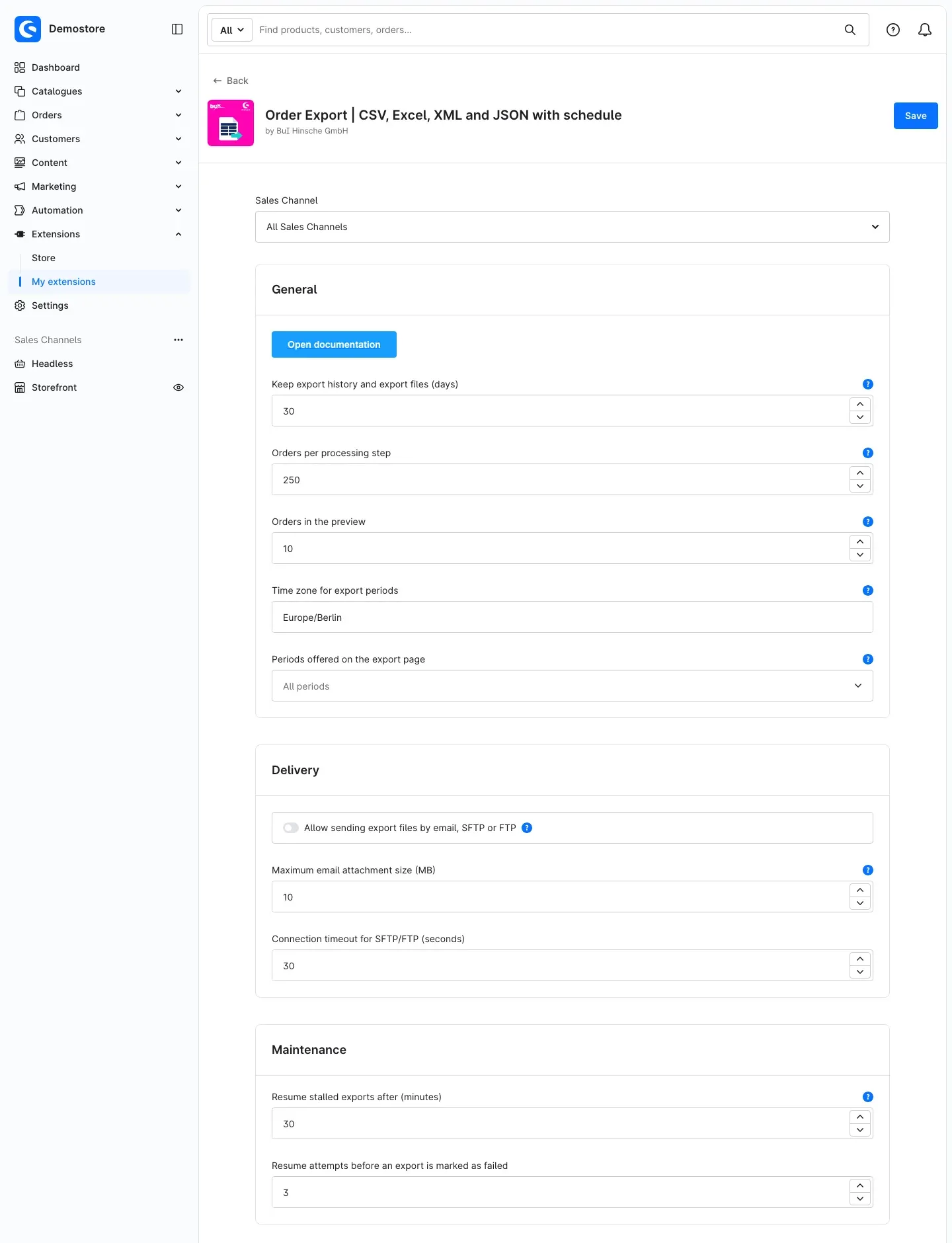 Figure 2: The configuration page with the cards “General”, “Delivery” and “Maintenance”.
 -
Open the area: in the menu on the left, click Orders → Export orders.
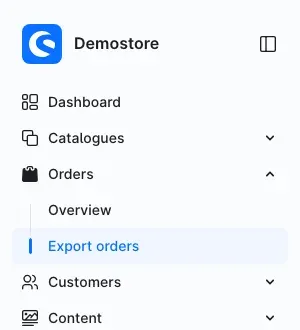 Figure 3: The new menu entry “Export orders” under “Orders”.
 -
Create your first profile: switch to the Profiles tab and click Create profile. Enter a Name, click Set standard fields in the Fields card and then Save at the top right. This gives you a ready-to-use CSV profile with the most important order, customer, address, shipping and payment data. Details in How to set up export profiles.
-
Export: switch to the Export tab, choose a profile and a period, look at the Preview and click Start export. Once the export has finished, click Download. Details in How to export orders.
Settings
You can reach the settings in two ways:
- via Extensions → My extensions → Configure (see figure 2), or
- directly in the plugin via Orders → Export orders → Settings tab. Only users with the permission “Manage extensions” see this tab.
Both ways show the same fields. After making a change, click Save at the top right. At the very top of the “General” card, the Open documentation button opens this manual.
Important: all settings on this page apply to the whole shop. On the configuration page, leave the Sales Channel selection at the top set to All Sales Channels. The plugin ignores values that you save for a single sales channel only. Which sales channels go into a file is defined in the export profile (“Filters” card).
“General” card
Keep export history and export files (days)
Defines how long the plugin keeps past export runs and their files. After that, it deletes both automatically, once a day. Allowed values are 1 to 180 days; the default is 30 days.
Why this is useful: export files contain names, addresses and email addresses of your customers. Keep them only as long as you really need them. The information about which order has already been exported is not affected: it is not lost when old runs are deleted.
Orders per processing step
The plugin processes large exports in the background in steps. This value defines how many orders go into one step. Allowed values are 50 to 1,000; the default is 250.
Why this is useful: smaller values need less memory per step. If a large export fails on a small hosting plan, set a smaller value here. Larger values mean fewer steps. Usually you do not need to change anything.
Orders in the preview
Before an export, the preview shows you the first orders as they will appear in the file. Here you set the maximum number. Allowed values are 1 to 50; the default is 10.
Time zone for export periods
The time zone determines when a day, a month or a year begins and ends. An export for “Yesterday” therefore covers exactly yesterday in this time zone. The default is Europe/Berlin. Enter other time zones in the same notation, for example Europe/London or Europe/Amsterdam.
This value applies to all profiles without their own time zone. A profile can have its own time zone (“General” card in the profile). If the value entered here is invalid, the plugin uses UTC and shows a note when you save a profile.
Periods offered on the export page
Here you select which periods are available on the Export tab. Without a selection (shown as All periods), all 16 periods are available.
Why this is useful: if your team only uses “Yesterday” and “Previous month”, this keeps the list short and clear. Schedules and the console command still know all periods.
“Delivery” card
Allow sending export files by email, SFTP or FTP
This switch is the plugin’s data protection switch. By default it is off. In this case, no export file leaves the shop: files can only be downloaded in the Administration. Only when you switch it on may profiles send their files to the email recipients and SFTP/FTP servers entered there.
Why this is useful: export files contain personal data. With this switch you decide in one place, for the whole shop, whether any data may leave the shop at all. While it is off, the delivery settings in the profiles stay saved but are not used. In the history, such runs show Delivery skipped.
Maximum email attachment size (MB)
The plugin does not send export files larger than this value by email. Allowed values are 1 to 25 MB; the default is 10 MB. The run then gets the delivery status Delivery failed with a note that the file is too large.
Why this is useful: many mail servers reject large attachments. Set the value to match your mail server and those of your recipients. For large files, SFTP or the download is the better choice.
Connection timeout for SFTP/FTP (seconds)
This is how long the plugin waits at most for a response from the target server. Allowed values are 5 to 120 seconds; the default is 30 seconds. Increase the value if a slow server aborts uploads with a connection error.
“Maintenance” card
Resume stalled exports after (minutes)
If an export makes no progress for this long, for example because the server was restarted in the meantime, the plugin resumes it automatically where it stopped. Allowed values are 5 to 240 minutes; the default is 30 minutes.
Resume attempts before an export is marked as failed
This is how often the plugin tries to resume a stalled export. After that, it ends the export with the status Failed. Allowed values are 1 to 10 attempts; the default is 3.
Why this is useful: a single hiccup in background processing does not immediately lead to a missing export. If background processing stays off permanently, however, you find out through the failed run in the history.
How to export orders
What this gives you: with a few clicks you get a file with exactly the orders of a period, structured according to your export profile.
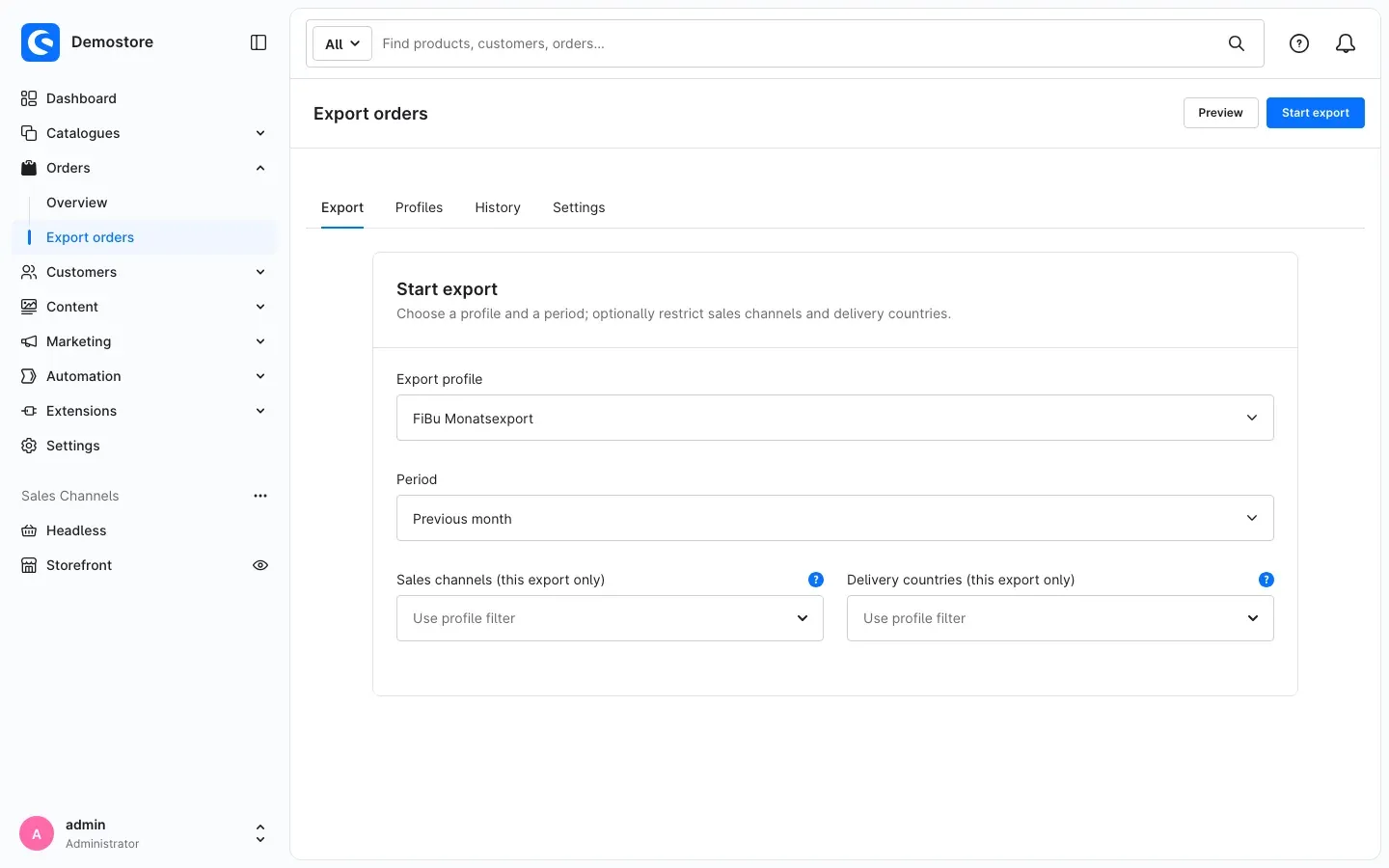 Figure 4: The “Export” tab with the selected profile and period.
Step by step
-
Go to Orders → Export orders. The Export tab is already open.
-
Under Export profile, select the profile you want. All active profiles are available. If you do not have one yet, the page shows No active export profile yet and a Create profile button.
-
Under Period, choose which orders go into the file. The profile’s default period is preselected. The periods in detail:
- Today: from midnight until now.
- Yesterday: the whole of yesterday.
- Last 7 days and Last 30 days: the seven or thirty full days before today. Today is not included.
- Current week: from Monday midnight until now.
- Previous week: the last complete week from Monday to Sunday.
- Current month: from the first of the month until now.
- Previous month: the whole of the last calendar month.
- Month before last: the calendar month before that, so in June it is April.
- Current quarter and Previous quarter: the current quarter until now, or the last complete quarter.
- Current year and Previous year: from 1 January until now, or the whole of the last calendar year.
- Since last export: everything from the end of the period this profile last exported until now. If there has been no export with this profile yet, it covers all orders.
- All orders: no time restriction.
- Custom date range: you enter two calendar days under From and To (inclusive). Both days are included in full.
You can restrict which periods appear here in the settings (see Settings). When a day begins is determined by the time zone of the profile or of the settings.
-
Optionally, you narrow down this one export further: under Sales channels (this export only) and Delivery countries (this export only). If you leave the fields empty (shown as Use profile filter), the filters from the profile apply. A selection replaces the profile filter for this export only; the profile itself stays unchanged.
-
Click Preview at the top right to check the result in advance.
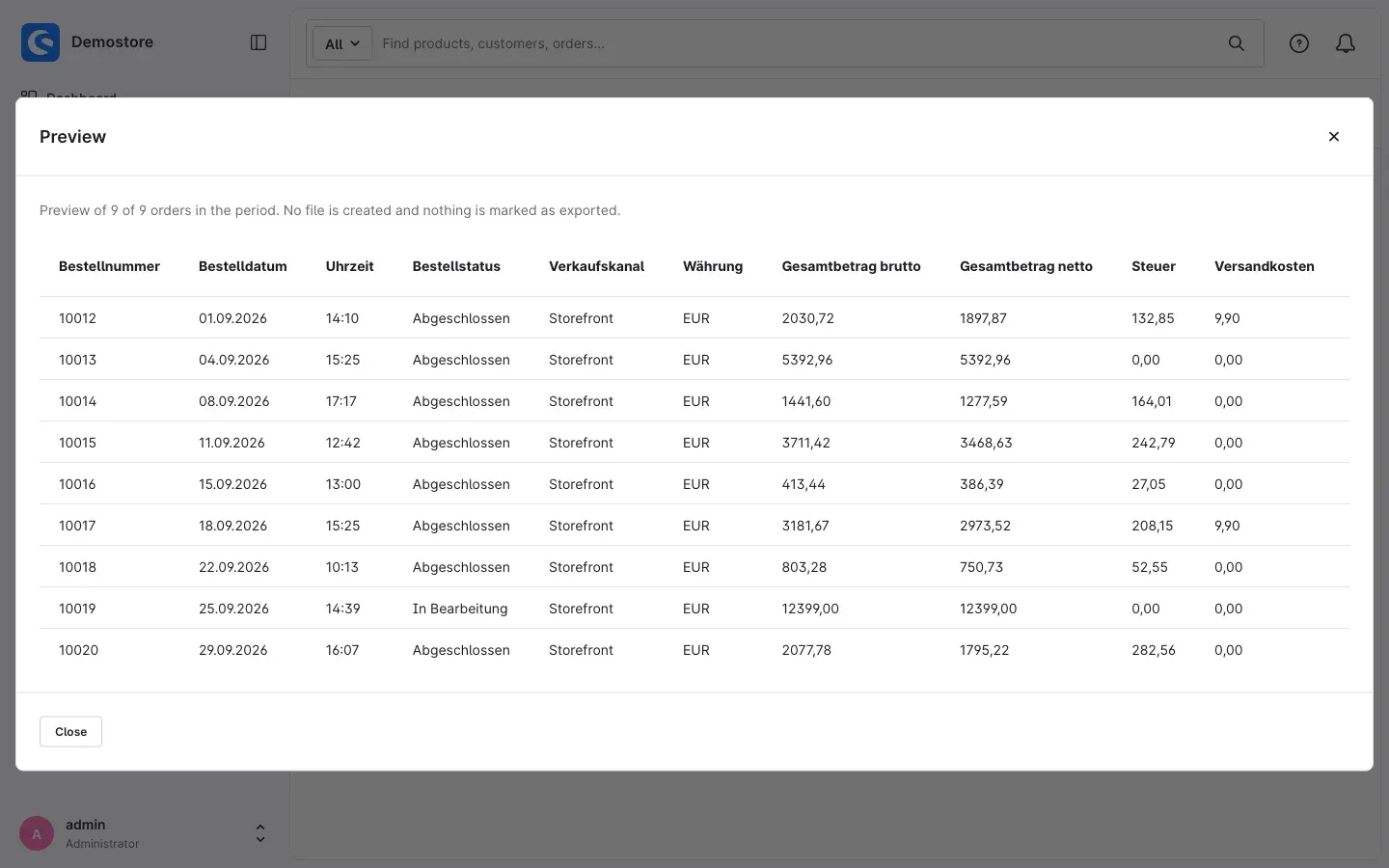 Figure 5: The preview shows the first orders with the profile’s columns.
The preview shows the first orders with the profile’s column headers. Above them you see how many orders the period contains in total. No file is created and no order is marked as exported. Close the preview with Close.
-
Click Start export at the top right. A message confirms that the export is running in the background. Below, the Progress card appears.
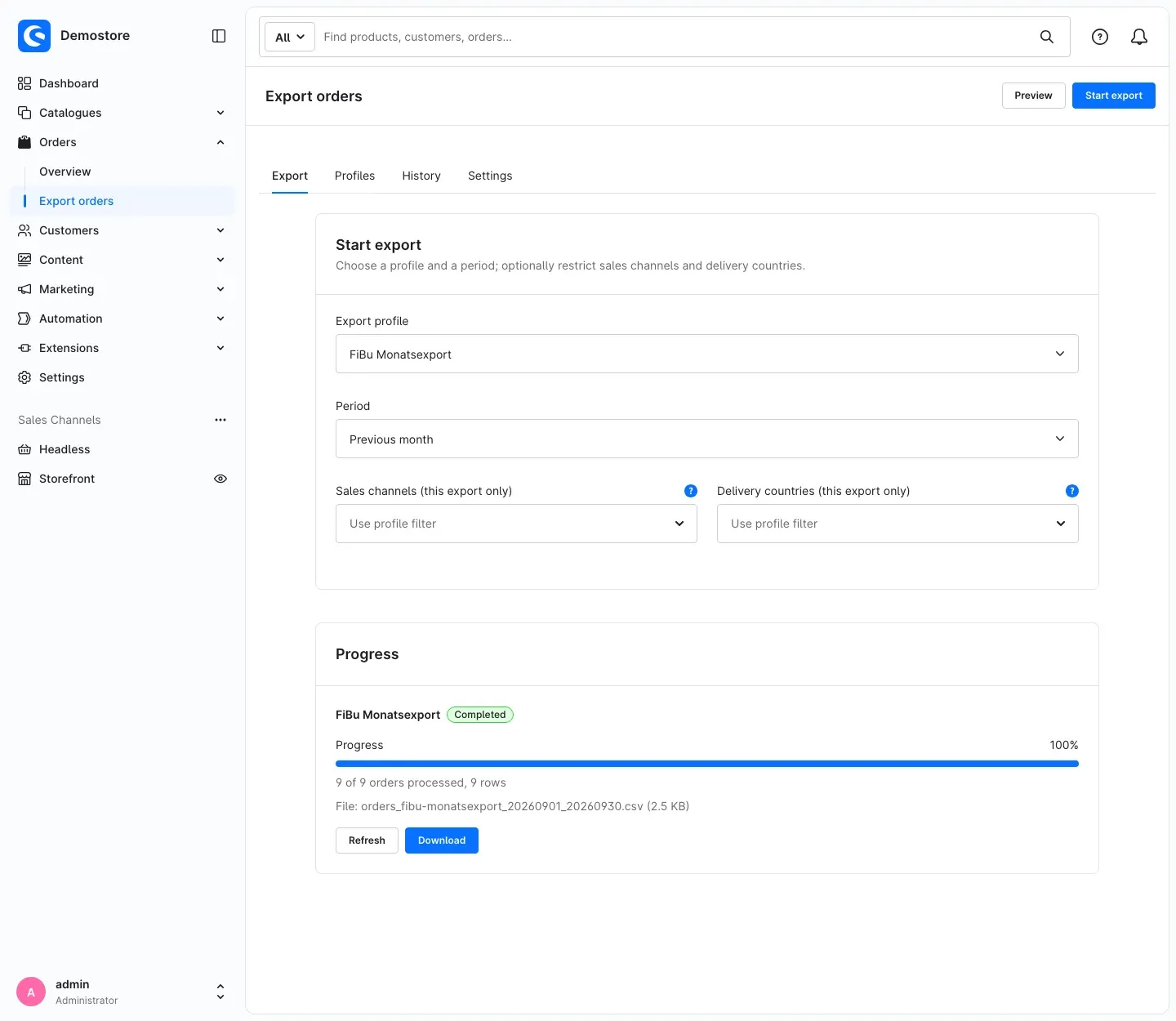 Figure 6: The “Progress” card after the export has finished, with file name and “Download”.
 -
The card shows the status, a progress bar and the number of processed orders and rows. When the export is Completed, the file name and file size appear. Click Download to save the file.
The card refreshes automatically. After 15 minutes, the automatic refresh stops, but the export continues in the background. You can then fetch the current state with Refresh. You can also leave the page: the export keeps running, and you will find it later on the History tab (see How to use the export history).
While an export is running, you can stop it with Cancel export.
Important: if delivery by email or SFTP/FTP is set up in the profile and allowed in the settings, the plugin also sends the file for an export that you start manually here.
Tip: you only see the Preview and Start export buttons with the additional permission “Start exports” (see How to grant permissions for the order export). If the selected profile has no fields yet, a notice points this out, and exporting is only possible once fields have been added.
How to set up export profiles
What this gives you: a profile stores everything that makes up an export file: fields, file format, number and date formats, filters, schedule and delivery. You create a profile once for each recipient. After that, you export with one click, always with the same structure.
Managing profiles
You find the profiles under Orders → Export orders → Profiles tab.
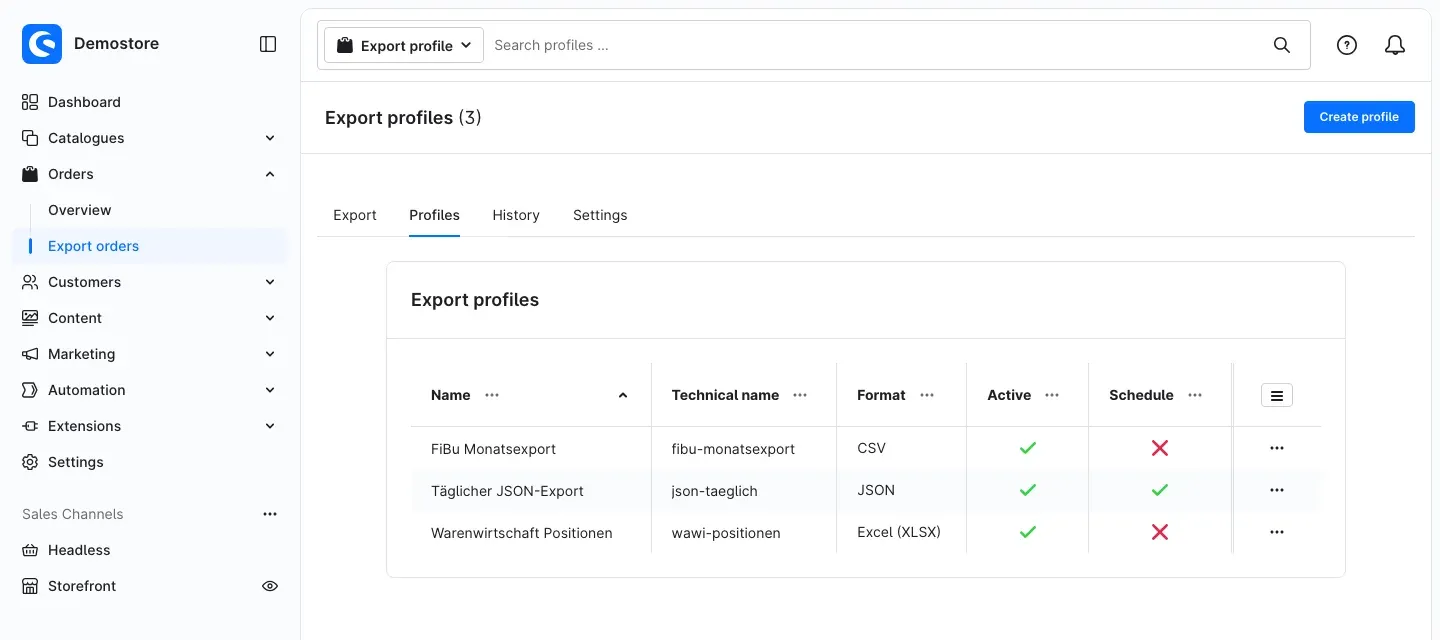 Figure 7: The list of export profiles with name, technical name, format and status.
For each profile, the list shows the Name, the Technical name, the Format and whether the profile is Active and has an active Schedule. With the icon with three lines at the top right of the list (list settings), you can additionally show the columns Next run and Last run. Use the search bar at the top (“Search profiles …”) to find a profile by name or technical name.
- Create a profile: click Create profile at the top right.
- Edit a profile: click the name of the profile, or click Edit in the menu with the three dots at the end of the row.
- Duplicate a profile: in the menu with the three dots, click Duplicate. The plugin creates a copy with the suffix “(Copy)” in its name and opens it. The copy’s schedule is switched off and its technical name is empty, so nothing runs twice. This is a quick way to set up a second profile for a similar recipient. Without the permission “Manage delivery by email, SFTP and FTP”, the copy gets no credentials, and email delivery and upload are switched off in it.
- Delete a profile: in the menu with the three dots, click Delete and confirm with Delete. The profile’s previous export runs remain in the history until their retention period ends. The “exported” markings that this profile has set on orders, however, are deleted together with the profile.
Editing a profile
A profile consists of several cards: General, Fields, Format and values, Filters, Schedule and Delivery. At the top right you find these buttons:
- Save stores your changes. The plugin then checks the profile. If it finds errors, the box Errors in the profile appears at the top; exports with this profile fail until you fix them. Notes that you should check are listed under Notes on the profile.
- Preview shows the result with your current entries, even if they are not saved yet. It uses the profile’s default period.
- Duplicate creates a copy of the profile.
- Cancel takes you back to the profile list.
“General” card
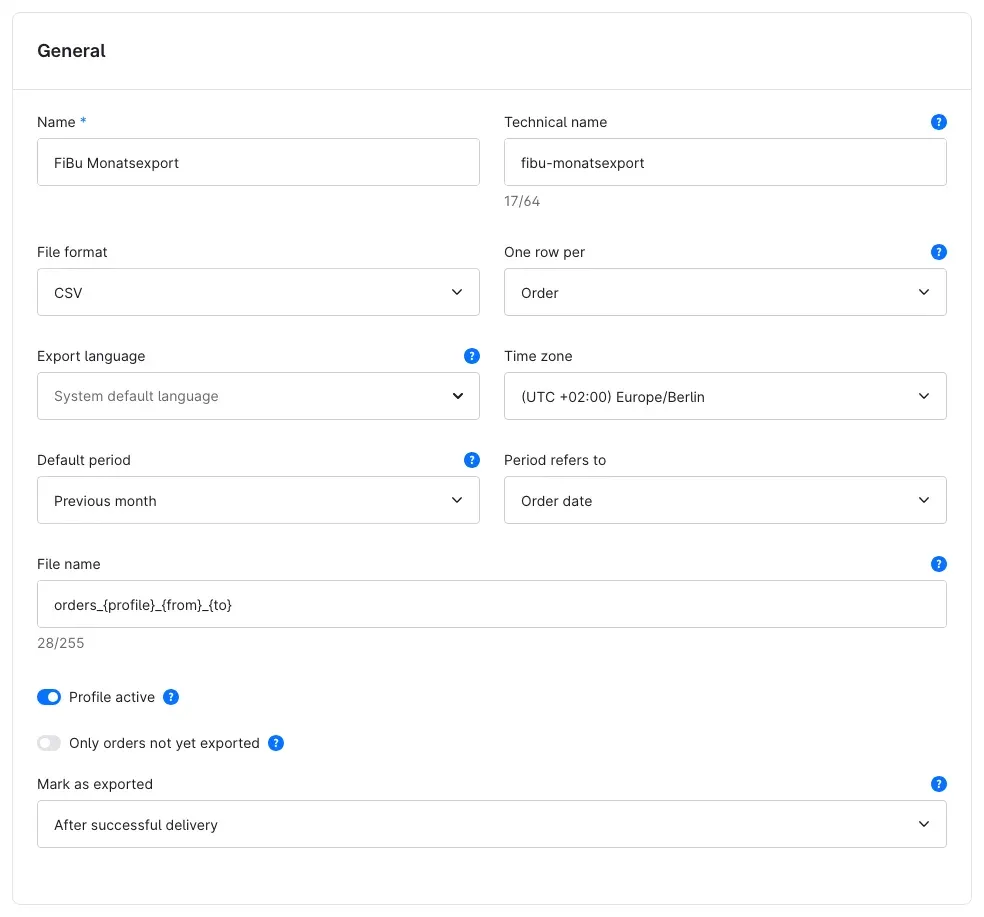 Figure 8: The “General” card of an export profile.
- Name: the profile’s name in all lists and selection fields. Required.
- Technical name: optional. A unique short name, for example
accounting-monthly. You need it for the console command and for the{profile}placeholder in the file name. Letters, digits, hyphens and underscores are allowed, up to 64 characters. - File format: CSV, Excel (XLSX), JSON or XML. The matching settings are in the “Format and values” card.
- One row per: Order creates one row per order, for example for accounting. Line item creates one row per order line item, for example for an ERP system; the order fields are then repeated in every row. In JSON and XML, each order is one entry in the file, and line item fields appear there as a list of line items below the order.
- Export language: states, shipping and payment methods, product names and document labels appear in this language in the file. Without a selection, the system default language applies. The email with the export file is also sent in this language.
- Time zone: applies to the periods, the schedule time and all dates in the file. Without a selection, the time zone from the settings applies.
- Default period: preselected on the “Export” tab and used by the console command if no period is given there. “Custom date range” is not available here.
- Period refers to: Order date is the date stated on the order. Order creation date is the moment the order was saved in the shop. Usually both are the same. For orders transferred into the shop later, they can differ.
- File name: the pattern for the name of the export file. The plugin adds the file extension itself. The default is
orders_{profile}_{from}_{to}, which results in a name likeorders_fibu-monatsexport_20260901_20260930.csv. These placeholders are available:{profile}: the profile’s technical name; without a technical name, the profile name in lower case,{format}: the file format,{date}and{datetime}: date, or date and time, of the export,{from}and{to}: first and last day of the period (empty for “All orders”),{trigger}: what triggered the export,{run}: a short identifier of the export run, useful for unique file names.
- Profile active: only active profiles appear on the “Export” tab and in the order overview, and only they run on a schedule. New profiles are active.
- Only orders not yet exported: orders that have already been exported with this profile are skipped. More on this in How to avoid exporting orders twice.
- Mark as exported: defines when an order counts as “exported with this profile”: After successful delivery (default) or After the file has been created. If no delivery is set up for the profile, the plugin marks orders once the file has been created; a notice below the field points this out.
“Fields” card
Here you define which columns the file contains and in which order.
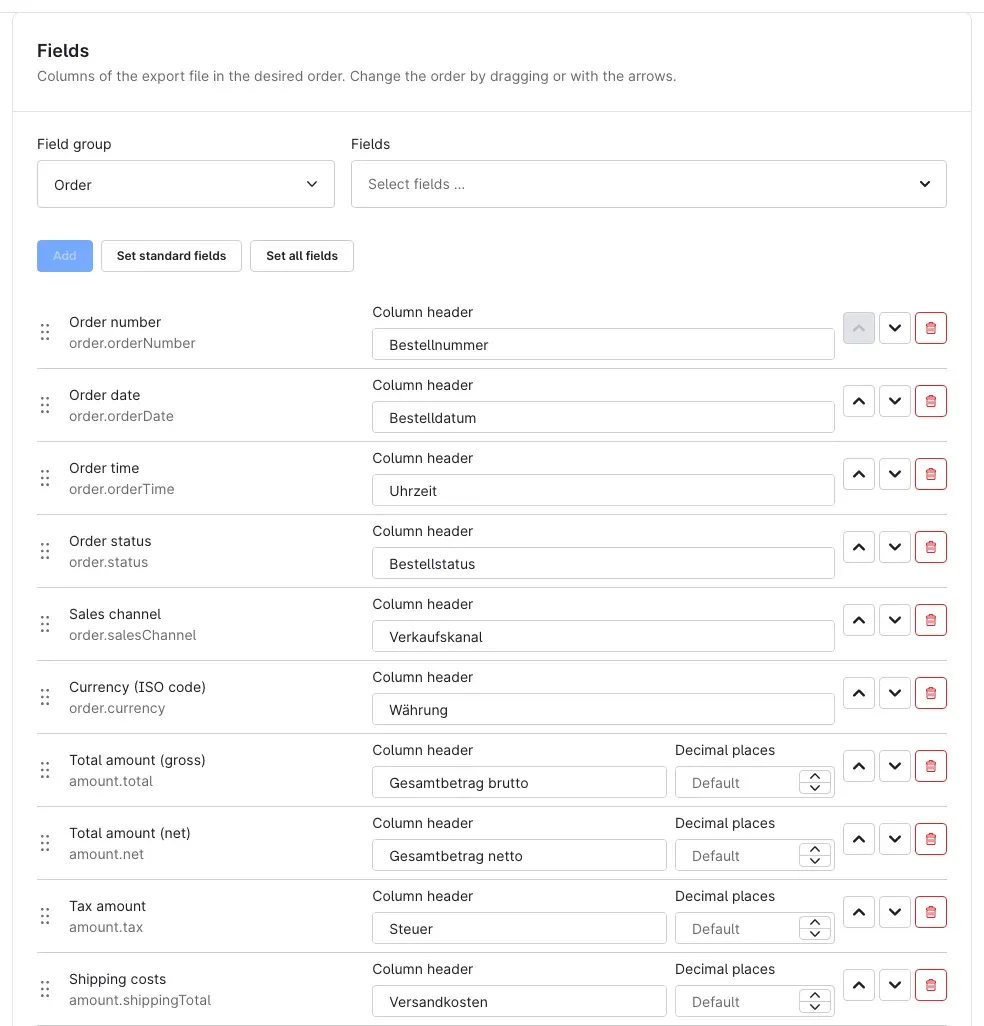 Figure 9: The “Fields” card with the field selection at the top and the column list below.
Adding fields:
- Under Field group, choose one of the groups: Order, Amounts, Customer, Billing address, Shipping address, Delivery, Payment, Documents, Line items, Product or Static values.
- Under Fields, select one or more fields.
- Click Add. The fields appear in the column list below.
Two buttons make it faster:
- Set standard fields replaces the columns with a ready-made selection of the most important fields: order number, date, time and status, sales channel, currency, gross, net, tax and shipping cost amounts, customer number, email address and name, billing address, shipping method, delivery status, payment method and payment status.
- Set all fields replaces the columns with all available fields and switches the profile to one row per line item.
Both ask for confirmation first (Replace fields?), because custom column headers are lost in the process. Confirm with Replace.
Fields that need an extra value: some fields need a value before you can add them. Add them one at a time:
- Custom fields (order, customer, billing address, shipping address, line item, product): select the custom field under Select custom field. Its name is filled into Technical name of the custom field. Custom fields of other plugins that are not in the selection can be entered there directly by their technical name. For the custom field of a line item, you always enter the technical name directly.
- Tax amount for tax rate and Taxable amount for tax rate (Amounts group): enter the rate under Tax rate (%), for example 19 or 7. This gives you a separate column per tax rate, as accounting often requires.
- Static value (Static values group): enter the text that should appear in every row under Static value, for example a client number for the import.
Adjusting columns: each row of the column list stands for one column of the file. Below the field name, the field’s technical name is shown in grey.
- Column header: the column’s name in the header row. If you leave the field empty, the technical name is used.
- Decimal places: appears for number fields. With Default, the value from the “Format and values” card applies.
- Order: drag a row by the handle on the left (six dots) to the position you want, or use the Move up and Move down arrows on the right.
- Remove: a click on the red bin icon removes the column.
Save the profile when you are done.
“Format and values” card
Here you set how the file is built technically and how numbers, dates and lists look in it. The upper area adapts to the selected file format.
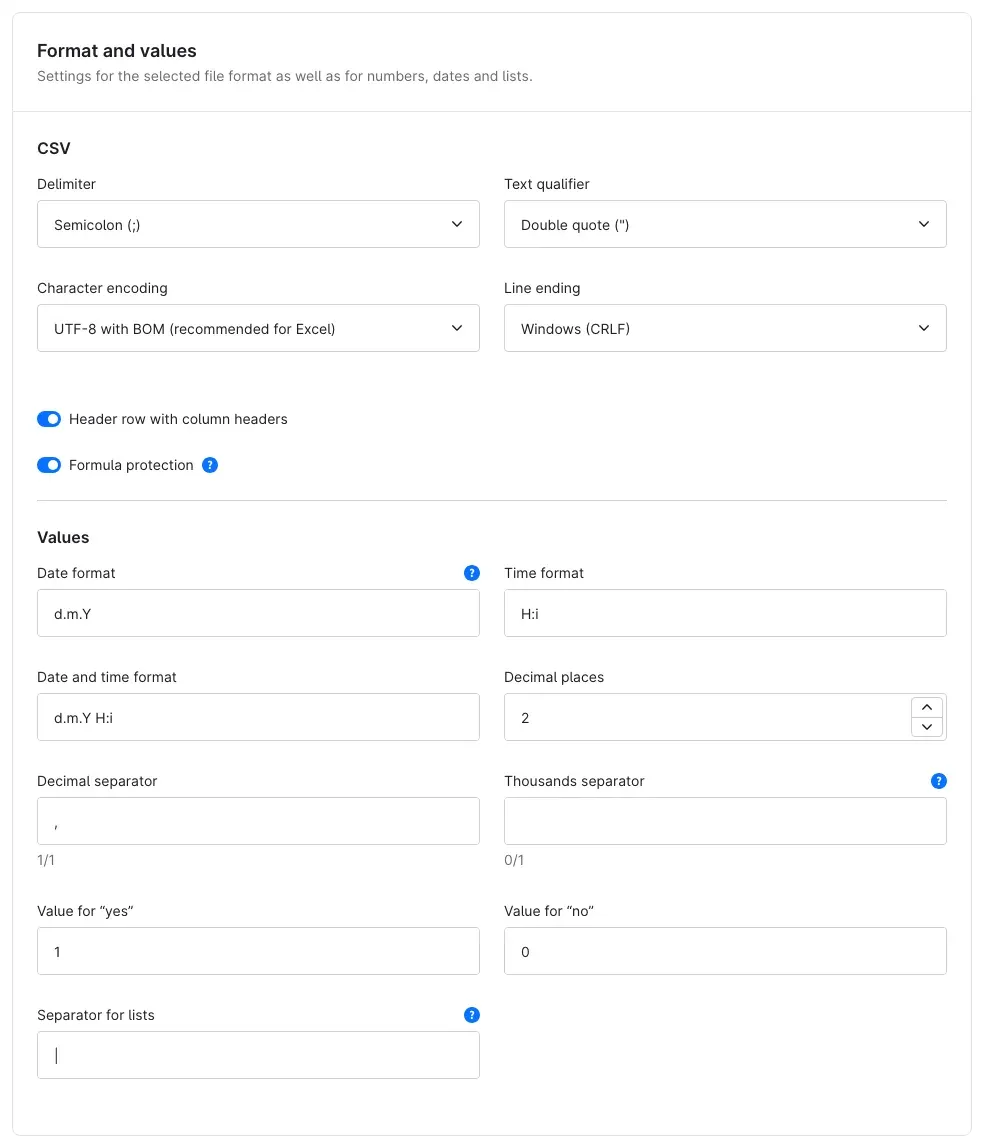 Figure 10: The “Format and values” card for a CSV profile.
For CSV:
- Delimiter: Semicolon (;), Comma (,), Tab or Pipe (|). German versions of Excel usually expect the semicolon.
- Text qualifier: Double quote (”), Single quote (’) or None.
- Character encoding: UTF-8, UTF-8 with BOM (recommended for Excel), Windows-1252 or ISO-8859-1. With “UTF-8 with BOM”, Excel displays umlauts and accented characters correctly. Older ERP systems often expect Windows-1252 or ISO-8859-1.
- Line ending: Windows (CRLF) or Unix (LF). If in doubt, ask the recipient.
- Header row with column headers: writes the column headers into the first row.
- Formula protection: text values starting with =, +, -, @ or a tab are prefixed with an apostrophe. This prevents a spreadsheet program from executing, for example, a customer comment starting with “=” as a formula. Keep the protection switched on if the file is opened in Excel.
For Excel (XLSX): Worksheet name, Header row with column headers, Freeze header row (the first row stays visible while scrolling) and Filter in header row (filter arrows in every column). An Excel file holds at most 1,048,576 rows.
For JSON: Value identifiers defines whether values appear under the field’s technical name or under your column header. Pretty print writes the file with indentation and line breaks. With more than 10,000 orders, the plugin writes compactly anyway.
For XML: Root element, Element per order, Element for the line item list and Element per line item define the names of the XML elements. Letters, digits, dots, hyphens and underscores are allowed; a name must not start with a digit or “xml”. Value identifiers works as for JSON. If you choose the column header, the plugin replaces characters that are not allowed in XML.
Values (for all formats):
- Date format, Time format and Date and time format: for example
d.m.Yfor 31.12.2026 orY-m-dfor 2026-12-31.H:igives a time like 14:30. - Decimal places: number of decimal places for amounts and other numbers; the default is 2.
- Decimal separator and Thousands separator: for example a full stop and empty for 1234.56. If you leave the thousands separator empty, numbers appear without thousands separation.
- Value for “yes” and Value for “no”: how yes/no values appear in the file, for example for “Guest order”. The defaults are 1 and 0.
- Separator for lists: separates several values in one cell, for example several tags or tracking numbers.
Rows per line item: this area appears when you have chosen one row per Line item in the “General” card.
- Exported line item types: Product, Promotion, Credit, Custom line item and Container. Remove types that your target system should not process, for example promotions.
- Order fields in first row only: subsequent rows of the same order then only contain the line item fields.
- Shipping costs as separate line item: adds a row with shipping method and shipping costs to each order. Under Product number of the shipping line item you define the product number of this row.
“Filters” card
The filters define which orders go into the file in the first place.
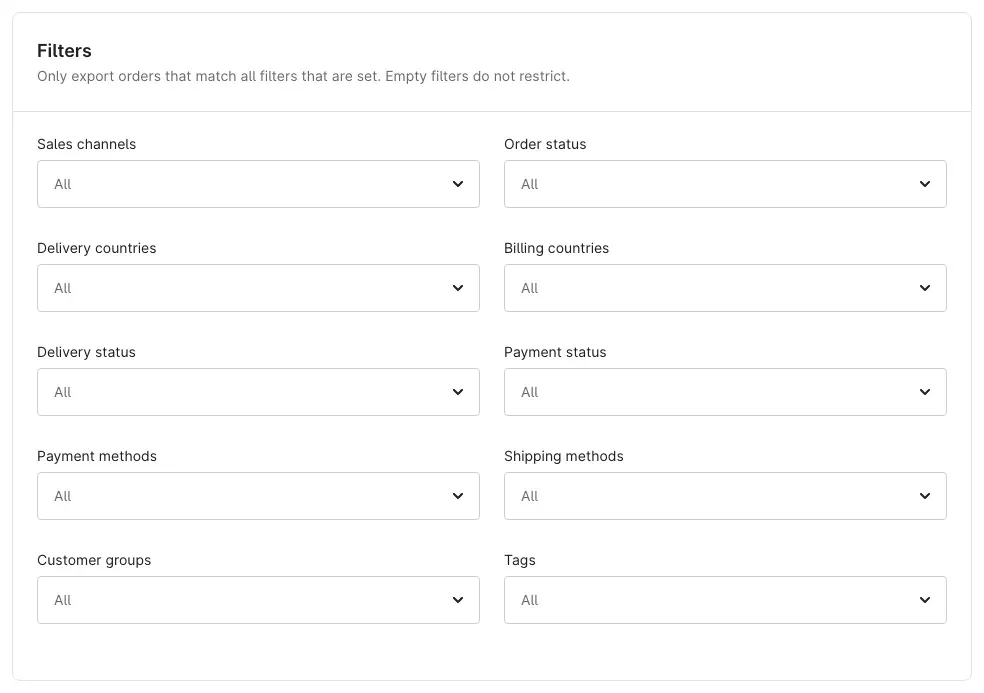 Figure 11: The “Filters” card. “All” means: no restriction.
The available filters are Sales channels, Order status, Delivery countries, Billing countries, Delivery status, Payment status, Payment methods, Shipping methods, Customer groups and Tags. An empty filter (shown as All) does not restrict anything. If you select several values in one filter, one of them is enough. If you set several filters, an order must match all of them.
Example: a profile for your fulfilment partner filters on the payment status “Paid” and a specific shipping method. The partner then only receives the orders it is actually supposed to ship.
Tip: if you run several sales channels, for example a B2B shop and a consumer shop, simply create a separate profile for each channel with the matching filter.
The Schedule and Delivery cards are explained in How to export automatically on a schedule and How to send export files by email or SFTP.
How to export automatically on a schedule
What this gives you: the file is created on its own, for example every morning at 6 a.m. with yesterday’s orders, or on the first of the month with the whole previous month. Together with delivery (see How to send export files by email or SFTP), it reaches the recipient before you are at your desk.
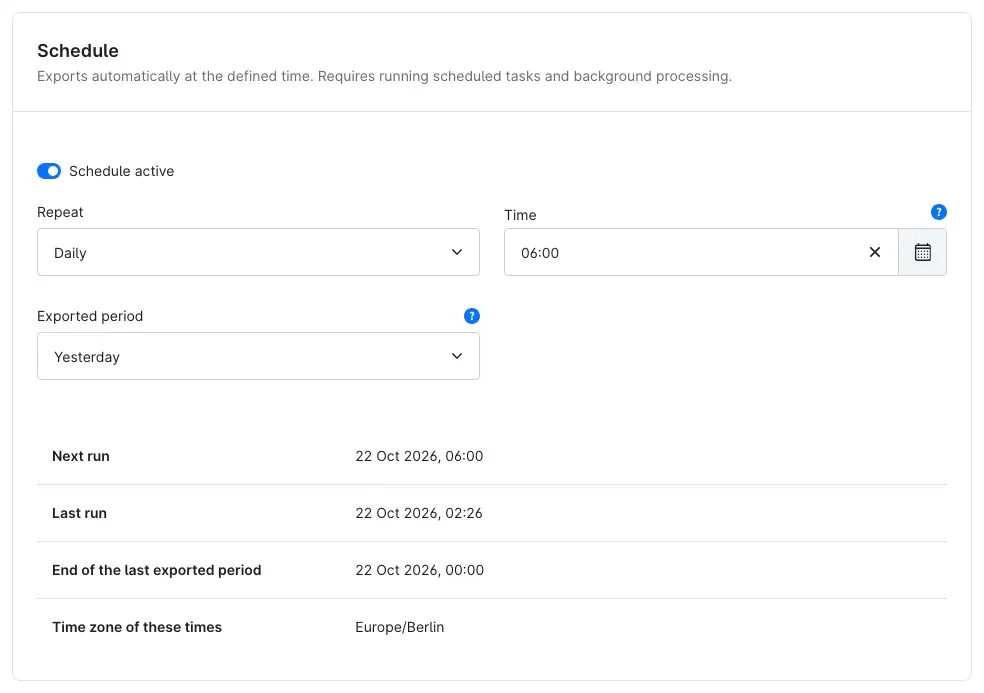 Figure 12: The “Schedule” card with a daily run at 6:00 for the period “Yesterday”.
Step by step
- Open the profile (Profiles tab, click the name) and scroll to the Schedule card.
- Switch on Schedule active.
- Under Repeat, choose Daily, Weekly or Monthly.
- Under Time, enter the start time you want. The export starts within about five minutes after this time.
- For weekly repetition, choose the Day of week; for monthly repetition, the Day of month: the 1st to the 28th or Last day.
- Under Exported period, choose which orders the run exports. The period refers to the time of the run: “Yesterday” for a daily export in the morning, “Previous month” for a monthly export on the first.
- Click Save.
Below the entries, the card shows when the Next run is due, when the Last run took place and where the End of the last exported period lies. The row Time zone of these times names the time zone in which all these times and the schedule time apply: the profile’s time zone or, if the profile has none, the one from the settings.
Important: a schedule only runs if the profile is active. If it is inactive, the card points this out. In addition, scheduled tasks and background processing must be running on the server (see Installation). If background processing was not active at the scheduled time, the plugin catches up on a missed run once, as soon as it is running again.
Tip: for ERP systems, a daily schedule with the period “Since last export” and “Only orders not yet exported” switched on works well. Each run then continues seamlessly from the previous one, and no order is exported twice.
How to send export files by email or SFTP
What this gives you: the finished file automatically ends up where it is needed: as an email attachment in your tax advisor’s inbox or via SFTP in your ERP system’s import folder. Delivery is possible for every export created with the profile: manually, on a schedule or from the order overview.
Prerequisite: allow delivery in the settings
By default, no file leaves the shop. To allow a profile to send files, switch on Allow sending export files by email, SFTP or FTP in the Delivery card of the settings (see Settings). To edit a profile’s delivery settings, you also need the permission “Manage delivery by email, SFTP and FTP” (see How to grant permissions for the order export).
You find the delivery settings in the profile, in the Delivery card.
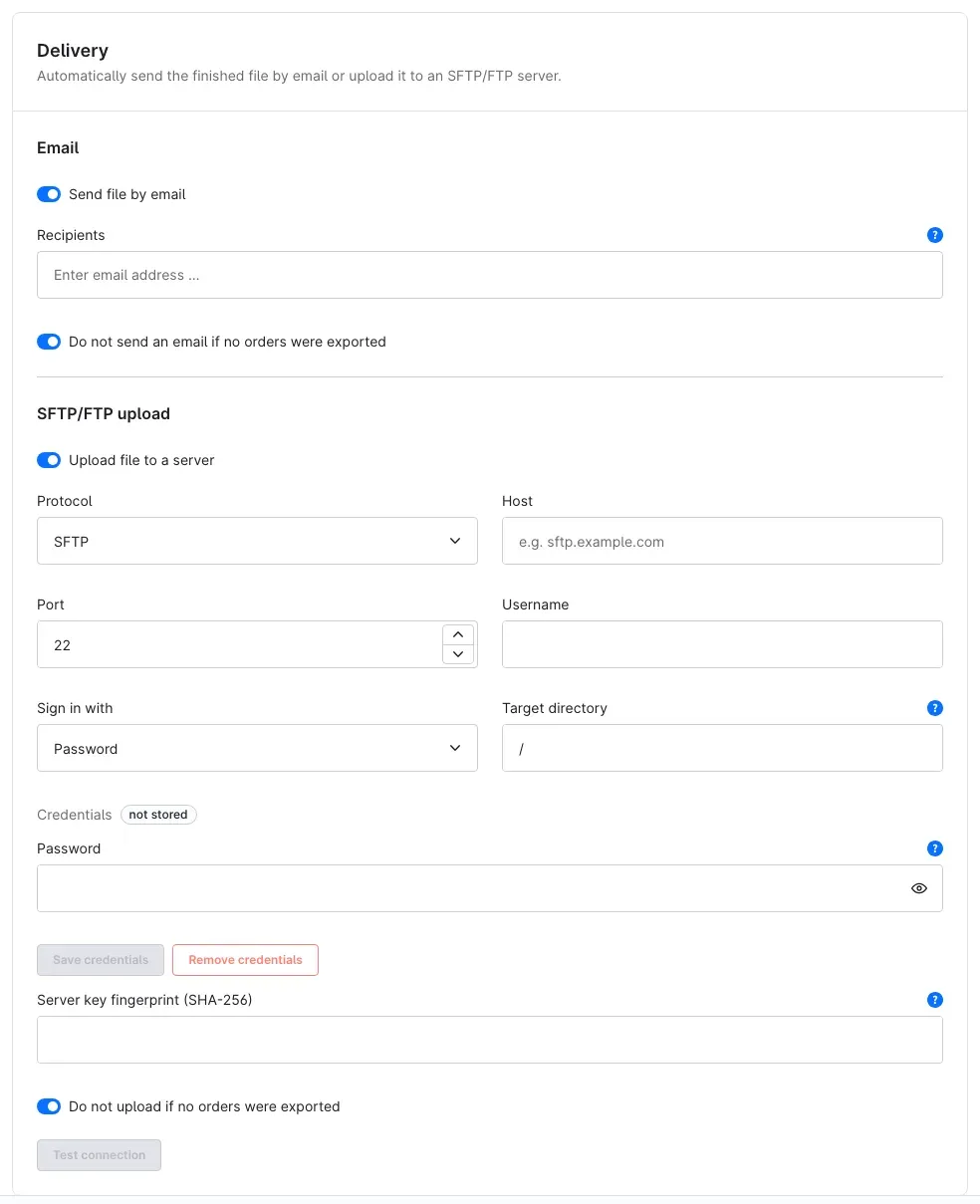 Figure 13: The “Delivery” card with the “Email” and “SFTP/FTP upload” areas.
Sending the file by email
- Open the profile and scroll to the Delivery card.
- In the Email area, switch on Send file by email.
- Under Recipients, enter an email address and press Enter. Repeat this for further recipients. Up to 20 addresses are possible.
- Keep Do not send an email if no orders were exported switched on if your recipients should not receive empty files.
- Click Save.
The plugin sends the file as an attachment through your shop’s email delivery. If the file is larger than allowed in the settings, it is not sent by email (see “Maximum email attachment size” in Settings).
Customising subject and text of the email: the plugin comes with its own email template. You find it under Settings → Content → Email templates with the type Order export: export file. There you adjust subject and text as for any other template. The email is sent in the profile’s export language.
Uploading the file to a server
- In the SFTP/FTP upload area, switch on Upload file to a server.
- Choose the Protocol:
- SFTP: encrypted, the recommended choice.
- FTPS: encrypted. Also choose the FTPS mode: Explicit (port 21) or Implicit (port 990). The server’s operator can tell you which mode the server uses.
- FTP (unencrypted): transfers credentials and file in plain text. The plugin warns about this. For personal data, use SFTP or FTPS.
- Enter the Host (for example
sftp.example.com), the Port and the Username. The port is prefilled to match the protocol. - Under Sign in with, choose either Password or Private key. Signing in with a key is only available for SFTP.
- Under Target directory, enter the folder on the server, for example
/import/orders. The plugin first uploads the file under a temporary name and renames it afterwards. This way, your target system never picks up a half-transferred file. - If the profile is new, click Save now. Credentials can only be stored for a saved profile.
- Enter the Password, or for a key the Private key and, if there is one, the Key passphrase. Then click Save credentials. Next to Credentials, the label then reads stored.
- For FTP and FTPS, Passive mode controls the connection type. Keep it switched on unless your server operator specifies otherwise.
- Keep Do not upload if no orders were exported switched on if no empty files should end up on the server.
- Click Test connection. The plugin reports whether the connection works and whether it may write to the target directory.
- Finally, click Save.
Credentials are protected: the plugin stores password, key and passphrase encrypted and never shows them again. To change them, enter them again and click Save credentials. Remove credentials deletes them. Credentials can only be stored once the profile has been saved.
Credentials only apply to their server: together with the credentials, the plugin remembers protocol, host, port and username. If you change any of them, it does not send the stored credentials to the new server. The Delivery card then shows “The credentials belong to a different server – please enter them again”. Enter the password or key again, click Save credentials and save the profile.
Server fingerprint (SFTP only): the field Server key fingerprint (SHA-256) holds the identifier of your SFTP server. Once it is stored, the plugin only connects to exactly this server. This protects against file and credentials ending up on an impostor server. If you leave the field empty, the plugin adopts the fingerprint automatically on the first successful Test connection of a saved profile or on the first successful delivery, and stores it in the profile; a message confirms this. If possible, compare it with the information from your server operator. If you test a server that is not yet saved in the profile, the plugin shows the reported fingerprint; Adopt fingerprint enters it, then save the profile.
Tip: Test connection can only be clicked once a host has been entered and delivery is allowed in the settings. The test uses your current entries and a freshly entered password, otherwise the stored credentials – but only as long as protocol, host, port and username match them. As host, a name or IP address is allowed, including your own network; local addresses such as
localhostor127.0.0.1are not accepted.
If delivery is switched off
As long as delivery is switched off in the settings, the “Delivery” card shows the notice Delivery disabled at the top. You can still enter and save the delivery settings. They are only used once you allow delivery. Until then, the runs of this profile show Delivery skipped in the history.
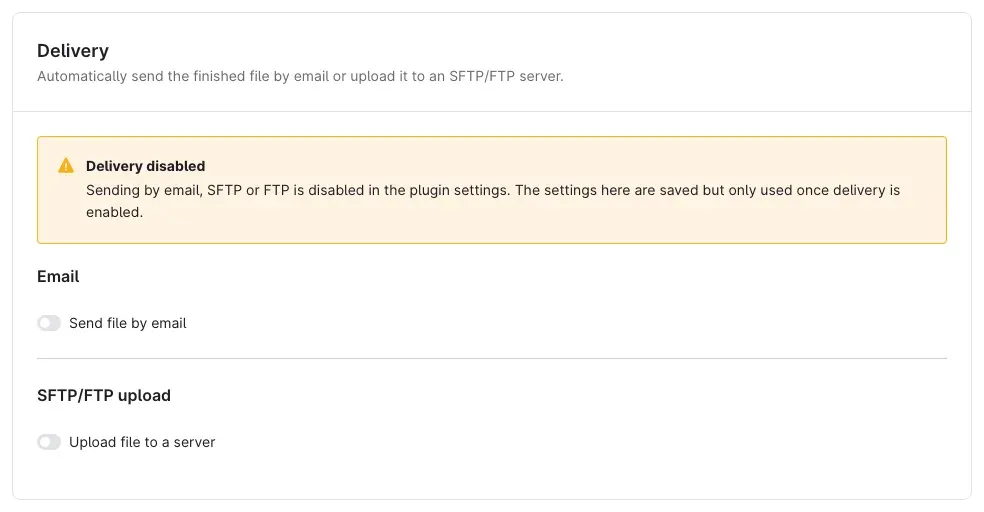 Figure 14: If delivery is switched off in the settings, the “Delivery” card shows the notice “Delivery disabled”.
When does an order count as exported?
If Mark as exported is set to After successful delivery in the profile, the plugin only marks the orders once all configured delivery channels have succeeded. If, for example, the upload fails, the orders stay unmarked. A profile with “Only orders not yet exported” therefore includes them again in the next run. After a successful Send again from the history, the plugin catches up on the marking (see How to use the export history).
How to use the export history
What this gives you: the history shows every export, whether started manually, from the order overview, on a schedule or by console command. You download files again, send them once more or find out why a delivery did not work.
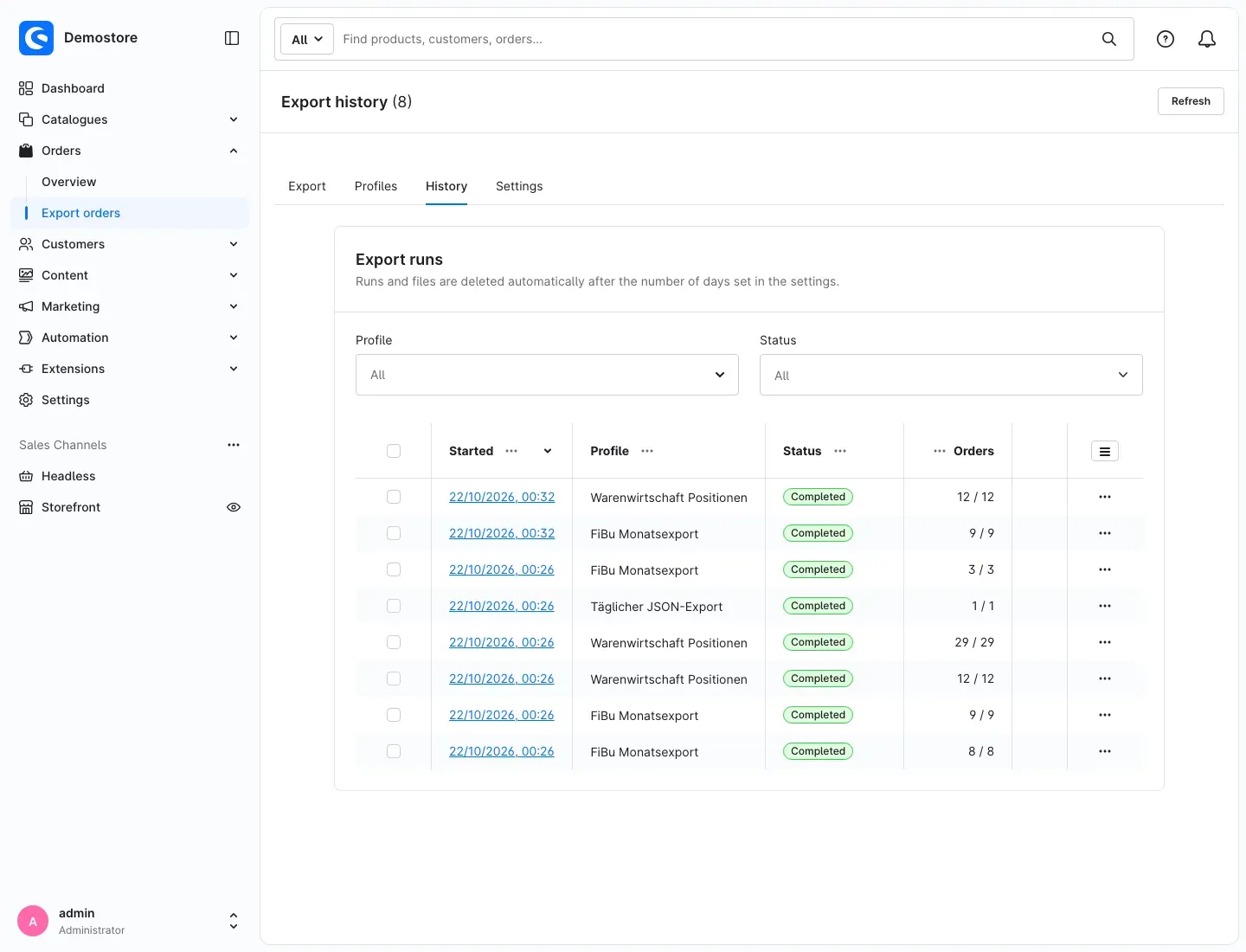 Figure 15: The “History” tab with the export runs.
Open Orders → Export orders → History tab. Use Profile and Status to filter the list. Refresh at the top right loads the current state.
For each run, the list shows:
- Started: date and time. A click on it opens the details.
- Profile: which profile was used. The name remains visible even if the profile has been deleted in the meantime.
- Status: Queued, Running, Creating file, Sending, Completed, Failed or Cancelled. If delivery is set up, the delivery result appears next to it, for example “Delivery: Sent”.
- Orders: processed orders and orders in the period, for example “12 / 12”.
You can show further columns with the icon with three lines at the top right of the list (list settings): Triggered by, User, Rows, File, File size and Delivery.
In the menu with the three dots at the end of a row you find Show details, Download and Delete. To delete several runs at once, tick the boxes on the left and click Delete at the top of the list.
Export run details
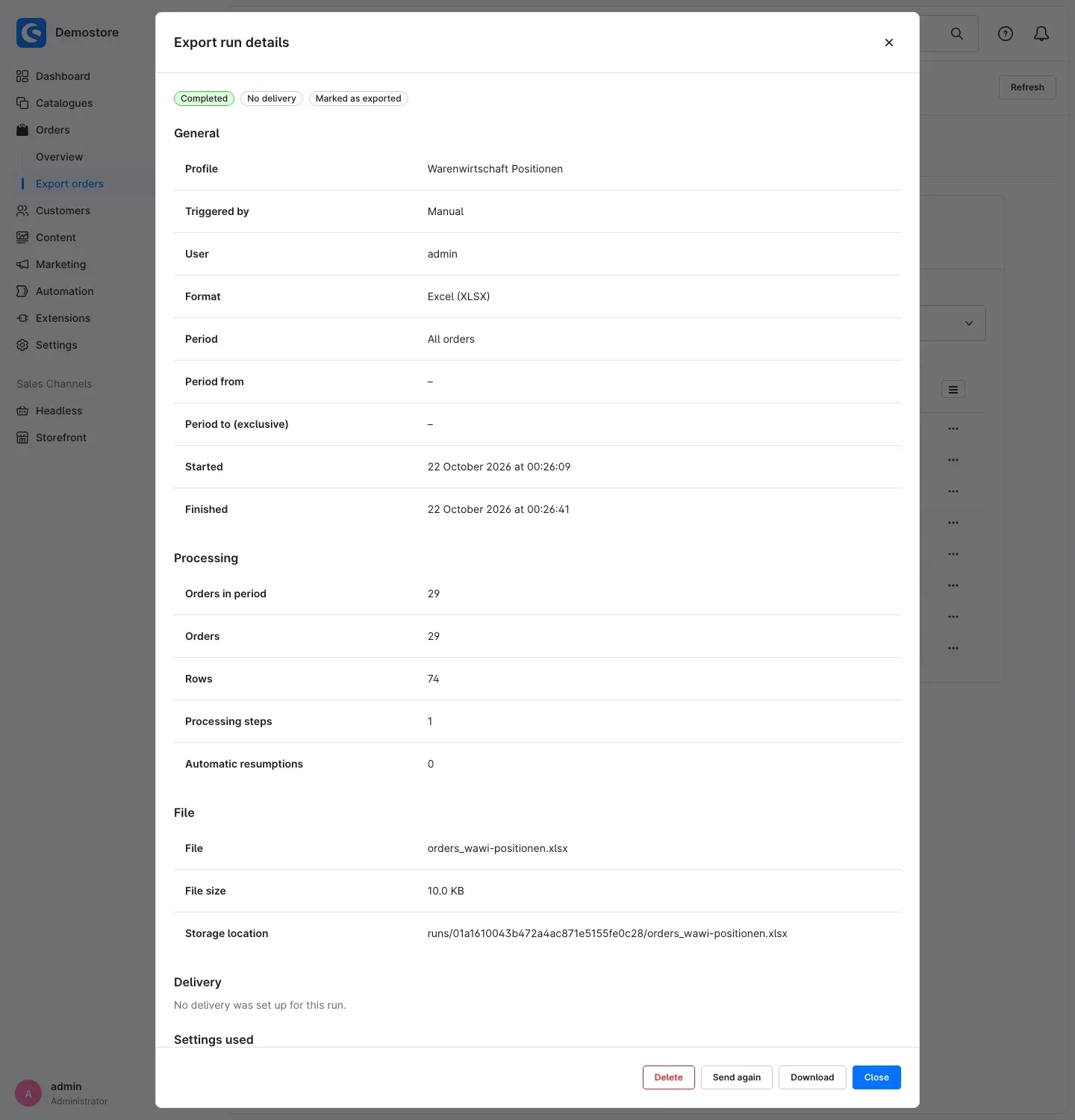 Figure 16: The details of an export run with status, processing, file and delivery.
At the top there are three badges: the run status, the delivery status and whether the orders have been marked as exported. Below them follow these sections:
- General: profile, trigger, user, format, period with start and end, and start and end of the run.
- Processing: orders in the period, processed orders, rows, number of processing steps and of automatic resumptions.
- File: file name, file size and storage location.
- Delivery: for each channel (email or SFTP/FTP upload) the result, the number of recipients or the target path, the time and, if applicable, the error in plain language.
- Settings used: the profile settings this run was created with. Helpful if you have changed the profile since.
If a run has failed, a red box at the top shows the reason.
At the bottom of the window you find the actions:
- Download: downloads the file.
- Send again: sends the file once more to the recipients and servers from the profile, for example after a failed upload.
- Cancel export: appears as long as the run has not finished.
- Delete: deletes the run including its file, after a confirmation. The “exported” marking of the orders is kept.
- Close: closes the window.
Tip: the plugin deletes runs and files automatically after the number of days set in the settings. If you need a file for longer, download it in time.
How to export selected orders from the order overview
What this gives you: you only need a few specific orders in a file, for example for a subsequent delivery? Then select them directly in the order overview and export them with a profile, without any period.
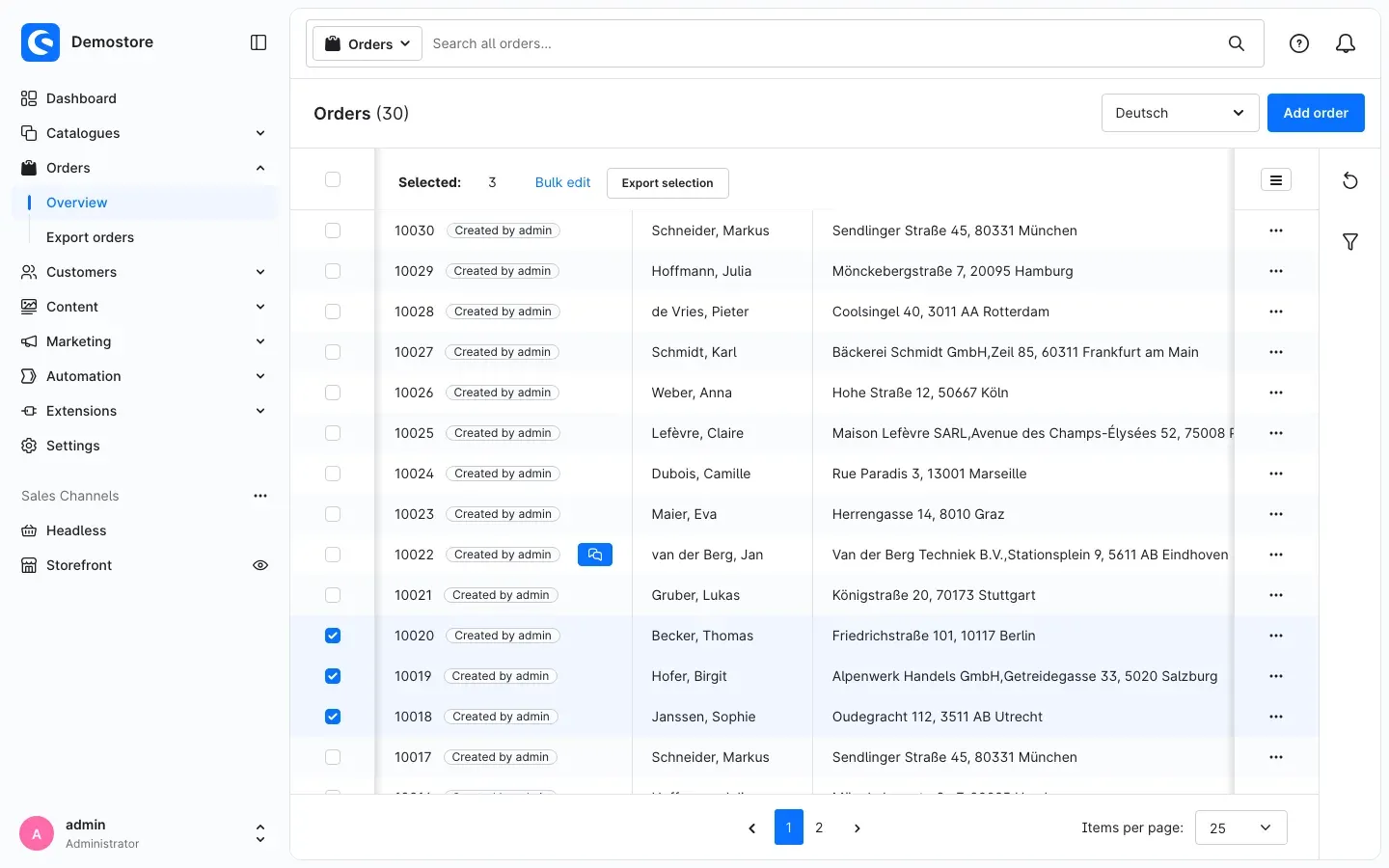 Figure 17: After selecting orders, the order overview shows the “Export selection” button.
Step by step
-
Go to Orders → Overview.
-
Tick the boxes on the left in front of the orders you want.
-
In the bar above the list, click Export selection.
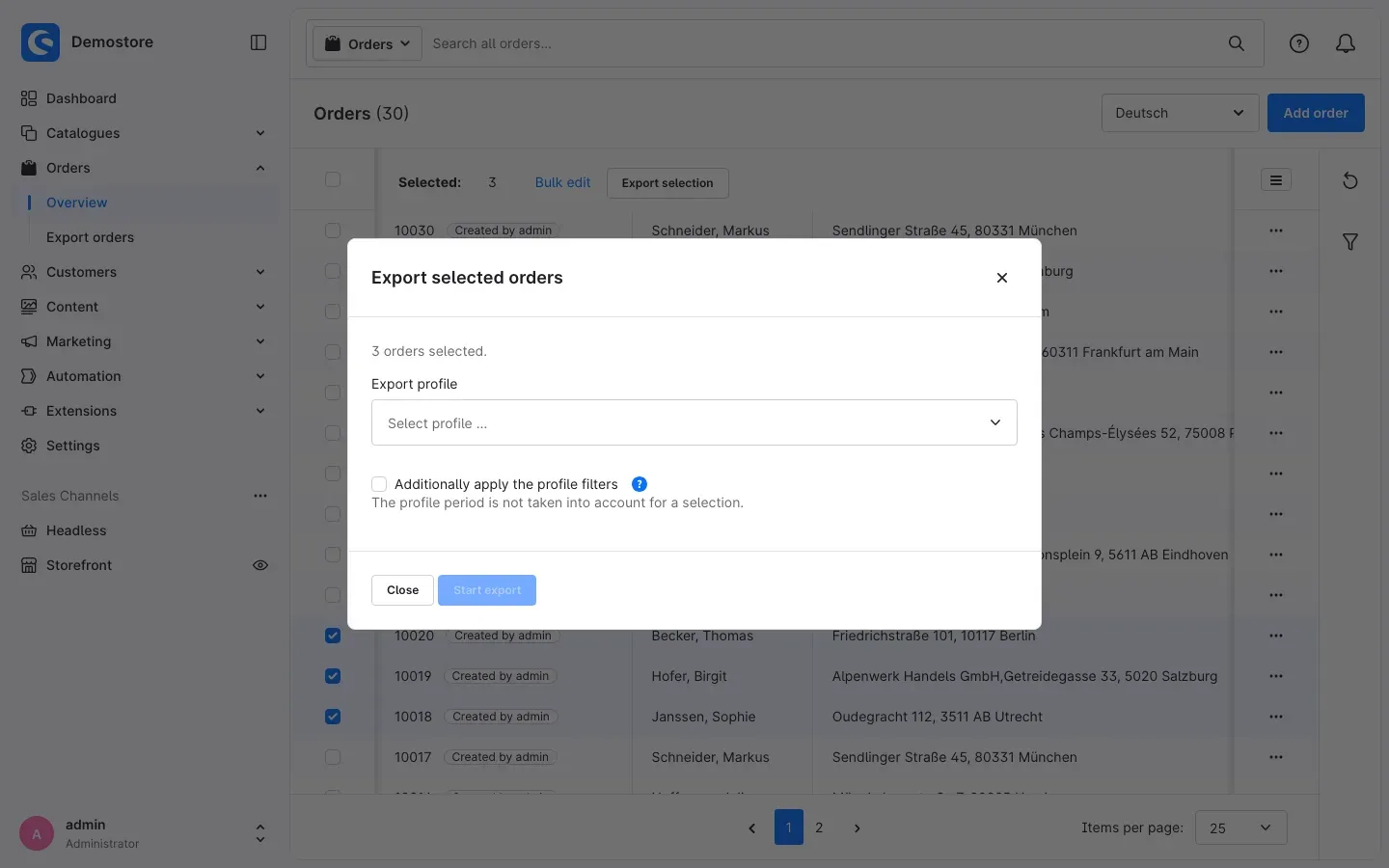 Figure 18: The “Export selected orders” dialog.
 -
In the Export selected orders dialog, choose the profile under Export profile.
-
Decide whether the profile’s filters should also apply. Without Additionally apply the profile filters, the plugin exports all selected orders regardless of the profile’s filters. With this option, orders that do not match the filters are left out. “Only orders not yet exported” also only takes effect with this option.
-
Click Start export. The dialog shows the progress. Once the export has finished, download the file with Download.
The profile’s period plays no role for a selection. If delivery is set up and allowed in the profile, the plugin also sends this file. The exported orders are marked as exported, as with any other export. An export of a selection does not move the starting point for “Since last export”.
Important: you can export at most 100 orders at once. For larger quantities, use the “Export” tab with a period and filters. You only see the Export selection button with the permission “Start exports”.
How to avoid exporting orders twice
What this gives you: your ERP system receives each order exactly once, and you can see on every order whether and when it was exported.
Exporting new orders only
The plugin remembers for each profile which orders it has already exported. In the profile’s General card, switch on Only orders not yet exported. Every export with this profile then skips the orders the profile has already delivered.
Mark as exported defines when an order counts as exported:
- After successful delivery: only once all configured delivery channels (email, upload) have succeeded. If delivery fails, the order stays open and is included again in the next run. This is the safe choice for ERP systems and accounting.
- After the file has been created: as soon as the file is finished, regardless of delivery.
The marking applies per profile. If a second profile exports the same order, that is independent of it. So you can keep track separately of what has already been delivered to accounting and to the ERP system.
Important: if delivery is set up for the profile but switched off in the settings, nothing is sent. If “Mark as exported” is set to “After successful delivery”, the orders then stay unmarked; the run details show Marking pending. Once you have allowed delivery, catch up with Send again in the history.
While an export with a profile that uses “Only orders not yet exported” is running, the plugin does not allow a second export with the same profile to start. This way, two runs cannot overlap.
Viewing the export status of an order
Open an order via Orders → Overview. Further down on the order detail page you find the Order export card.
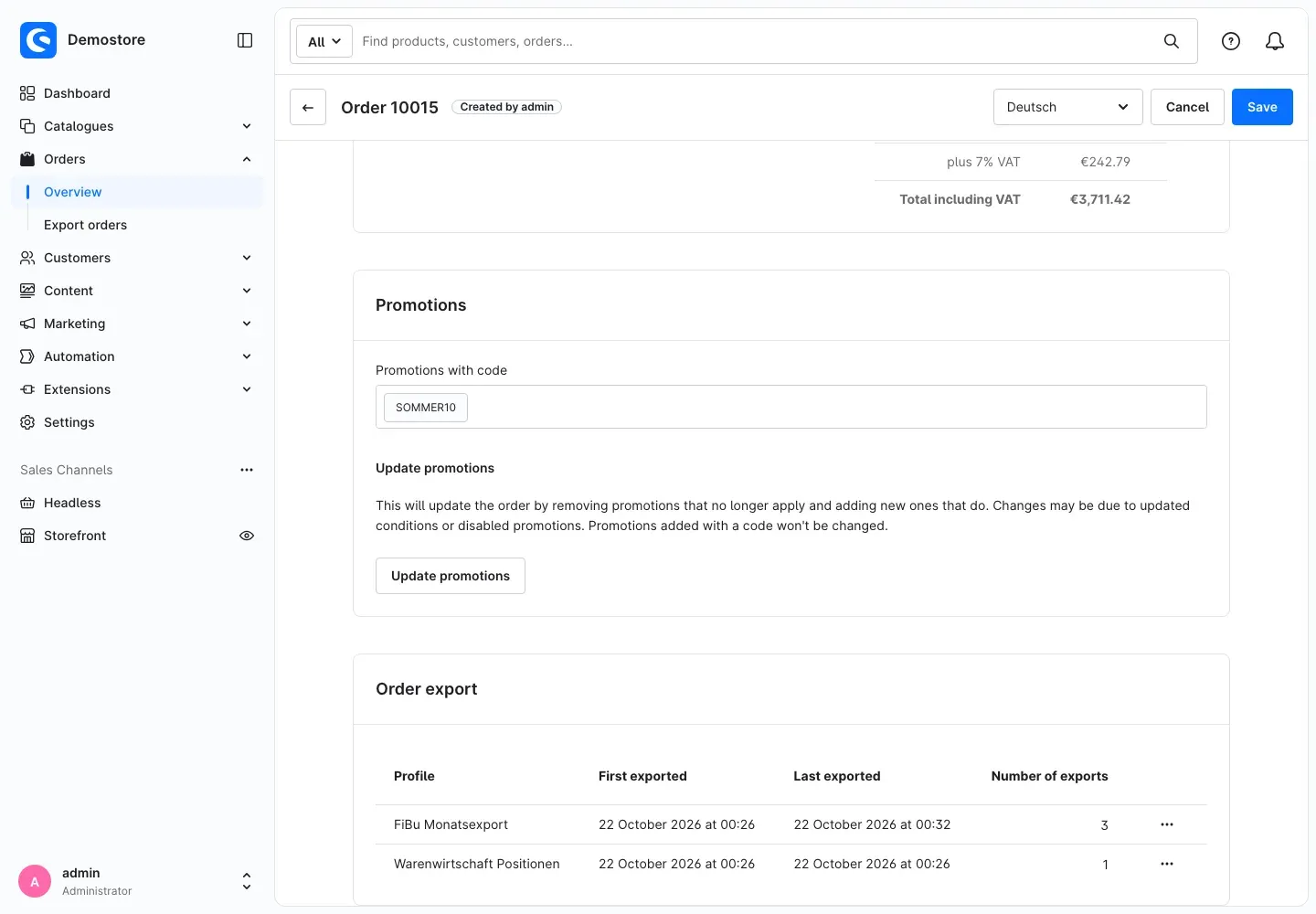 Figure 19: The “Order export” card on the order detail page shows which profiles exported the order.
For each profile, the card shows when the order was First exported and Last exported, and the Number of exports. With Download last export file in the menu with the three dots at the end of the row, you download the file of the last export, as long as it is still kept. If the order has never been exported, the card reads This order has not yet been exported with any profile.
How to grant permissions for the order export
What this gives you: you decide who may change profiles, who may only export and who may set up delivery. For example, accounting can download files without accidentally changing a profile.
Step by step
-
Go to Settings → System → Users & permissions.
-
In the Roles card, open the role you want or click Create role.
-
In the Permissions table, find the row Order export in the Orders section and tick the boxes you need.
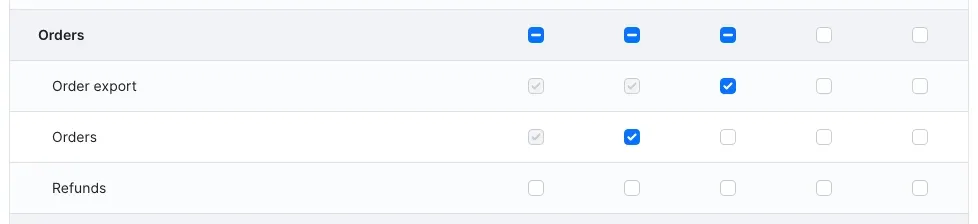 Figure 20: The “Order export” row in the “Orders” section of the role permissions.
- View: the user opens the “Export orders” area, sees profiles and history, and sees the “Order export” card on the order detail page. This also requires the permission to view orders; Shopware sets it automatically.
- Edit: change profiles.
- Create: create and duplicate profiles.
- Delete: delete profiles and export runs.
- All: all four permissions at once.
-
In the Additional permissions card, set the appropriate switches in the Order export section.
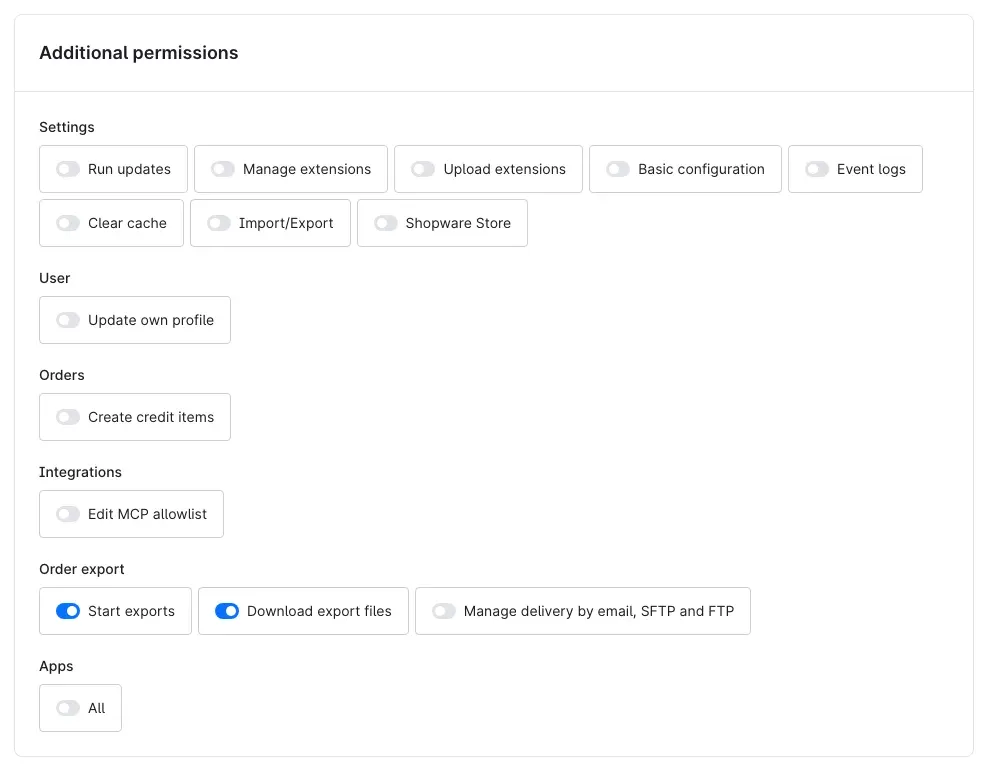 Figure 21: The plugin’s additional permissions.
- Start exports: view the preview, start and cancel exports, export orders from the order overview.
- Download export files: download files from the progress card, the history and the order detail page.
- Manage delivery by email, SFTP and FTP: edit the “Delivery” card in the profile, store credentials, test the connection and send files again. Requires the “Edit” permission. Without this permission, the shop rejects every change to recipients, server and delivery switches, even when it comes through the programming interface (API).
-
Click Save.
Only users with the permission Manage extensions in the Settings section of the additional permissions see the plugin settings (“Settings” tab in the “Export orders” area).
Tip: a typical split: accounting gets “View”, “Start exports” and “Download export files”. Whoever looks after the interface to the ERP system additionally gets “Edit”, “Create” and “Manage delivery by email, SFTP and FTP”.
Troubleshooting
The export stays in the status “Queued”
Cause: the shop’s background processing is not running. The export has been created, but nothing is processing it.
Solution:
- Keep the Administration open for a moment and click Refresh in the history. If the Administration processes background tasks itself, the export then gets going.
- If it stays where it is, ask your hosting provider to set up background processing (worker) and scheduled tasks. The commands are in For administrators / Technical details.
The schedule does not start an export
Cause: usually the scheduled tasks are not running on the server, or the profile or its schedule is not active.
Solution:
- In the profile, check whether Profile active and Schedule active are switched on and whether the “Schedule” card shows a Next run.
- Check the Time zone of these times. The time applies in this time zone.
- If Last run permanently shows Not yet even though the time has passed, the cron job for the scheduled tasks is missing. Contact your hosting provider (see Installation).
The file is empty or contains fewer orders than expected
Cause: the period, the filters or “Only orders not yet exported” restrict more than expected. In this case the preview shows No orders found.
Solution:
- Check the profile’s period and time zone. A “Yesterday” in UTC starts at 1 or 2 a.m. in Germany, for example.
- Check the Filters card in the profile and the fields Sales channels (this export only) and Delivery countries (this export only) on the “Export” tab.
- If Only orders not yet exported is switched on, orders that have already been exported are intentionally left out. For a complete export, switch the option off temporarily.
- Check Period refers to: order date and order creation date can differ for orders transferred later.
Orders that come in while an export is running no longer go into that file. They are included in the next export.
Line item or product fields stay empty
Cause: the profile creates one row per order. Line item and product fields then stay empty in CSV and Excel. A notice points this out when you save.
Solution: in the General card, set One row per to Line item.
The history shows “Delivery skipped”
Cause: delivery is switched off in the settings. The run details show the corresponding message for the delivery. If “Delivery skipped” appears without this message, the export was empty and “Do not send an email …” or “Do not upload …” was switched on.
Solution:
- In the settings, switch on Allow sending export files by email, SFTP or FTP and save.
- Open the run details in the history and click Send again.
The history shows “Delivery failed” or “Partially sent”
Cause: at least one delivery channel did not work. In the run details, the Delivery section names the reason, for example:
- The export file is too large to be sent by email. Increase the maximum email attachment size in the settings (up to 25 MB) or use SFTP.
- The email with the export file could not be sent. Check your shop’s email settings.
- Could not connect to the server. Check host, port, username and credentials in the profile and use Test connection.
- The credentials belong to a different server – please enter them again. Host, port, protocol or username were changed after the credentials were saved. Enter the credentials again in the Delivery card and click Save credentials.
- The file could not be uploaded to the server. Check the target directory and whether the user may write there.
Solution: fix the cause in the profile, save it and click Send again in the run details.
The stored credentials can no longer be read
Cause: the plugin encrypts credentials with a key of your shop installation. After a server move or a new installation, this key no longer matches.
Solution: open the profile, enter the password or key again in the Delivery card and click Save credentials. Then check with Test connection.
“The Excel file would exceed the maximum of 1,048,576 rows”
Cause: Excel cannot store more rows in one worksheet. With one row per line item, this limit is reached sooner than you might think.
Solution: choose a shorter period or switch the profile to CSV. CSV has no such limit.
“At most 100 orders can be exported at once”
Cause: exporting from the order overview is limited to 100 selected orders.
Solution: export larger quantities via the Export tab with a period and filters.
“An export is already running for this profile”
Cause: the profile uses “Only orders not yet exported”, and an export with it has not finished yet.
Solution: wait until the running export has finished (History tab). If it stays stuck, check the background processing.
An export ends with “The export stopped making progress and was ended”
Cause: the export got stuck, and the automatic resume attempts did not help either. Almost always, background processing is not running reliably.
Solution: have your hosting provider check the background processing and then start the export again. For very large exports on small hosting plans, a smaller value for Orders per processing step helps.
Excel shows umlauts or accented characters incorrectly
Cause: Excel does not recognise the character encoding of the CSV file.
Solution: in the profile under Format and values, set the Character encoding to UTF-8 with BOM (recommended for Excel), or choose the file format Excel (XLSX) right away.
The menu entry “Export orders” is missing
Cause: the plugin is not active, your user lacks the “View” permission for the order export, or the cache is out of date.
Solution:
- Open Extensions → My extensions and check whether the plugin’s switch is on.
- Check your user’s role (see How to grant permissions for the order export).
- Clear the cache under Settings → System → Caches & indexes with Clear cache and reload the Administration.
The “Settings” tab is missing in the “Export orders” area
Cause: only users with the permission “Manage extensions” see this tab.
Solution: open the settings via Extensions → My extensions → Configure with a user who has this permission, or add the permission to the role.
FAQ
Q: Does the plugin change my orders?
A: No. The plugin only reads orders. It stores which orders have already been exported separately. Nothing changes in the shop your customers see either.
Q: Does the plugin create a DATEV file?
A: No. The plugin creates CSV, Excel (XLSX), JSON and XML with freely chosen fields, but no DATEV format. For handing data over to a tax advisor, a CSV with invoice number, amounts and tax per tax rate is often enough. Check beforehand which format your tax advisor expects.
Q: Is the file also sent when I start the export manually?
A: Yes, if delivery is set up in the profile and allowed in the settings. This applies to exports from the “Export” tab, from the order overview and on a schedule.
Q: Does the plugin work with several sales channels?
A: Yes, via the filters in the profile. The plugin settings apply to the whole shop. Which sales channels go into a file is decided by the profile. For example, create one profile for your B2B channel and one for your consumer shop.
Q: What is the difference between “Line item label” and “Product name (current)”?
A: The line item label is the name as it was saved in the order at the time of ordering. “Product name (current)” is today’s name from your catalogue, in the profile’s export language. For invoice data, use the line item label.
Q: An order has several payments or deliveries. Which values appear in the file?
A: With several payments, the plugin uses the most recent one; with several deliveries, the one with the highest shipping costs. The filters for payment and delivery status and for payment and shipping method, on the other hand, already match if any payment or delivery matches.
Q: Can I export custom fields of other plugins?
A: Yes. You select custom fields of the order, customer, billing and shipping address, line item and product from the list, or enter them by their technical name (see How to set up export profiles).
Q: Where are the export files stored, and who can access them?
A: In your shop’s private file storage, which cannot be reached publicly via the internet. Only users with the permission “Download export files” in the Administration can download them. After the configured retention period, the plugin deletes them automatically.
Q: Does the plugin send data to external servers?
A: Only to the recipients and servers you enter in the profile yourself, and only if you allow delivery in the settings. The plugin does not send any data to the manufacturer or to third parties.
Q: Can I use an inactive profile?
A: Not on the “Export” tab, in the order overview or for schedules. This lets you pause a profile temporarily without deleting it. The console command can still address a specific profile (see For administrators / Technical details).
Q: What happens to my data when I uninstall the plugin?
A: You decide when uninstalling. Under Extensions → My extensions, choose Uninstall in the menu with the three dots next to the plugin. If you leave Remove all app data permanently switched off, profiles, history and export files are kept. If you switch it on, the plugin deletes its data, its email template and all export files. Your orders remain untouched in any case.
For administrators / Technical details
This section is intended for technical administrators and hosting providers. You do not need it for normal use.
System requirements
- Shopware: 6.7
- PHP: 8.2 or later
- PHP extensions:
zipfor Excel (XLSX),curlfor FTP and FTPS. Both are part of a typical Shopware installation. SFTP uses the library that Shopware itself ships with. - Background processing: running scheduled tasks and a running worker (see below).
Scheduled tasks and background processing
Exports, schedules, delivery, marking orders and clean-up run through Shopware’s message queue. The plugin uses the standard transports async (export, delivery, marking) and low_priority (clean-up). It registers two scheduled tasks:
swp.order_export.schedulerevery 5 minutes: starts due schedules and resumes stalled exports.swp.order_export.history_cleanuponce a day: deletes runs and files after the retention period.
For this, the following must run permanently on the server, for example via Supervisor, systemd or a cron job:
php bin/console scheduled-task:run
php bin/console messenger:consume async low_priority --time-limit=300
The worker has to process both transports. If the server already runs a worker for async only, expired runs and export files are not removed, because clean-up runs via low_priority.
For production systems, Shopware recommends switching off the Administration worker and running background processing exclusively on the server. Without a server-side worker, schedules only run while someone is logged in to the Administration.
Installation via the command line
If you do not want to install the plugin via the Administration:
php bin/console plugin:refresh
php bin/console plugin:install --activate SwpOrderExportSix
php bin/console cache:clear
The plugin’s technical name is SwpOrderExportSix.
Console commands
Starting an export:
php bin/console swp:order-export:run [period] --export-profile=<technical name|ID|name> [options]The command creates the file directly in the console process and shows a progress bar. It does not need a worker for this, unless you use --async. Each run appears in the Administration history with the trigger “Console command”, and the file can be downloaded there.
Without a period, the profile’s default period applies. Possible periods: today, yesterday, last7days, last30days, currentWeek, lastWeek, month, lastmonth, lastmonth2, quarter, lastquarter, year, lastyear, sinceLastExport, all, free. They correspond to the periods in the Administration (see How to export orders); lastmonth2 is the month before last.
Options:
--export-profile=<value>: profile by ID, technical name or name. Required unless exactly one profile is active. This also lets you address an inactive profile specifically.-f,--from=YYYY-MM-DDand-u,--until=YYYY-MM-DD: start and end for the periodfree. The end date is included.-c,--sales-channel=<ID>: only this sales channel; replaces the profile filter for this run. Can be repeated.-d,--delivery-country=<ISO code>: only this delivery country, for exampleDE. Replaces the profile filter for this run. Can be repeated.--filename=<name>: additionally stores a copy underexports/<name>in the plugin’s private file storage. Letters, digits, dots, hyphens and underscores are allowed, including subfolders.--stdout: writes the file to standard output, progress and messages to standard error. This lets you redirect the file via the shell.--deliver: sends the file as set up in the profile. Without this option, the console command does not send anything.--only-newor--all-orders: overrides the profile option “Only orders not yet exported” for this run. Cannot be combined.--no-tracking: does not mark the exported orders as exported.--async: only puts the export into the queue; the worker does the processing.
The command ends with exit code 0 on success, 2 for invalid input (unknown period, profile not found, invalid file name, profile without fields, export already running) and 1 for other errors. This lets a cron job detect a failed export.
Examples:
php bin/console swp:order-export:run lastmonth --export-profile=accounting-monthly --deliver
php bin/console swp:order-export:run free -f 2026-01-01 -u 2026-01-31 -d DE --export-profile=accounting-monthly --stdout > orders.csv
Listing profiles:
php bin/console swp:order-export:profilesShows all profiles with ID, technical name, name, format, whether the profile is active, schedule and next run.
Switching from another order exporter
If you are coming from another order export plugin with a console command, you can take over existing cron jobs with only a few changes:
- The period keys
month,lastmonth,lastmonth2andlastquarter, as well asfreewith-f … -u …, work the same way. -c(sales channel ID) and-d(ISO code of the delivery country) work the same way.- You select the profile with
--export-profile. The easiest way is to give the profile a technical name and use it. --filenamedoes not write to an arbitrary directory of the shop but stores the copy in the plugin’s private file storage underexports/. If you need the file in a specific place, redirect it with--stdout.- The console only sends files with
--deliver.
You set up profiles, fields and formats once in the Administration. Settings from other plugins are not taken over automatically.
File storage
The plugin stores export files in Shopware’s private file system under plugins/swp_order_export_six/. With the default configuration using local storage, this is:
files/plugins/swp_order_export_six/runs/<run ID>/<file name>: the file of each export run. The Administration shows this path in the run details under “Storage location”.files/plugins/swp_order_export_six/exports/<name>: copies from--filename.
If the private file system has been switched to external storage (for example S3), the files are stored there. The directory cannot be reached publicly. The daily task deletes runs and their files after the configured retention period; when you delete a run in the Administration, its file disappears immediately.
Log
The plugin writes its own log to var/log/SwpOrderExportSix-<date>.log, for example var/log/SwpOrderExportSix-2026-10-22.log. How many daily files are kept depends on Shopware’s log rotation setting (default: 14). The log contains identifiers of runs and profiles as well as error codes, but no order or customer data.
Encryption of credentials
The plugin encrypts passwords, private keys and passphrases for SFTP/FTP with a key derived from the APP_SECRET of the Shopware installation. If APP_SECRET changes, for example during a server move with a new .env, stored credentials can no longer be read and have to be entered again in the profile. Together with the credentials, the plugin encrypts protocol, host, port and username of the target; if the profile’s target no longer matches, the credentials are not used. The API does not return the encrypted credentials, only whether some are stored.
Database and uninstallation
The plugin creates three tables of its own for profiles, export runs and the export status per order. It does not change any Shopware tables. When uninstalling with “Remove all app data permanently”, it deletes these tables, the email template “Order export: export file” and the directory plugins/swp_order_export_six/ in the private file system.
This manual was written for Order Export (SwpOrderExportSix) version 6.7.0.
More manuals
Address Validation: House Number Check & Corrections
Address validation at the point of entry: the plugin spots missing house numbers, can suggest corrections via Google and helps you send fewer parcels that come back undeliverable.
Open manual Shopware 6Admin Password Reminder
Admin Password Reminder: your backend users renew their passwords on time, prompted after login and by a daily email. Premium locks expired accounts until the password is changed.
Open manual Shopware 6Advent Calendar | Doors with products, coupons and promotions
Advent calendar for your shopping experiences: doors open on time without clearing the cache, give nothing away in the page source and reveal coupons, products or your own content.
Open manualNeed a team that keeps your shop running?
We have been maintaining Shopware shops for more than 20 years, including updates, hotfixes and the plugins you are configuring right now.