Pinterest Tag: Conversion Tracking with Conversions API
Pinterest Tag with real values: the plugin tracks page visits, add to cart, checkouts and leads only after consent and can also send them server-side via the Conversions API.
On this page
- Introduction
- What you achieve with this plugin
- Who is this plugin for?
- Installation
- Getting started
- Settings
- How to choose which sales channel a setting applies to
- General settings
- Events
- Cookie consent
- Conversions API (server-side)
- How to use the features
- How your visitors give consent
- How to connect an external consent tool
- How to set up the Conversions API and test the connection
- How to check that tracking works
- Troubleshooting
- The entry “Pinterest Tag” is missing from the cookie preferences
- Pinterest receives no events
- With an external consent tool, the Pinterest Tag does not load even after consent
- ”No sales channel has an ad account ID and access token saved.”
- The connection test reports “Ad account …: error …”
- ”The test could not be run (HTTP status …)”
- Server-side events do not show up at Pinterest
- Changed settings have no effect in the store
- FAQ
- For administrators / technical details
- System requirements
- Installation via the command line
- Conversions API and message queue
- Log
- Data flow and caching
- Cookies
- External consent tool
- Headless / Store API
- Permissions
Introduction
This plugin adds the Pinterest Tag to your Shopware store and measures what visitors do in your store after seeing your Pins and Pinterest ads — without writing a single line of code, and only after the visitor has given consent.
What you achieve with this plugin
- In Pinterest Ads Manager you see which ads led to page visits, add-to-cart actions, purchases, sign-ups and newsletter or contact requests.
- For page visits, categories, searches, add-to-cart actions and purchases, Pinterest receives the matching product data (product ID, name, price, category, brand) and can target your ads better.
- The Pinterest Tag loads only after the visitor has consented — either via Shopware’s cookie preferences or via your own consent tool (for example Cookiebot, Usercentrics or CCM19).
- Optionally, your store also sends the most important events directly to Pinterest (Conversions API). Purchases then arrive even if an ad blocker stops the Pinterest Tag in the browser.
- You decide for each sales channel whether and how tracking runs, and you can exclude customer groups such as employees or B2B customers.
Who is this plugin for?
For store owners and marketing managers who advertise on Pinterest or publish Pins for their products and want to evaluate the results in Pinterest Ads Manager.
Installation
After purchase, the plugin is available directly in your Administration — you do not need to download anything.
-
Log in to your Shopware Administration (
YourStore.com/admin). -
Open Extensions → My extensions. On the Apps tab you find the plugin Pinterest Tag: Conversion Tracking with Conversions API. If you type “Pinterest” into the search field at the top, the list shows only this plugin.
-
Click Install next to the plugin.
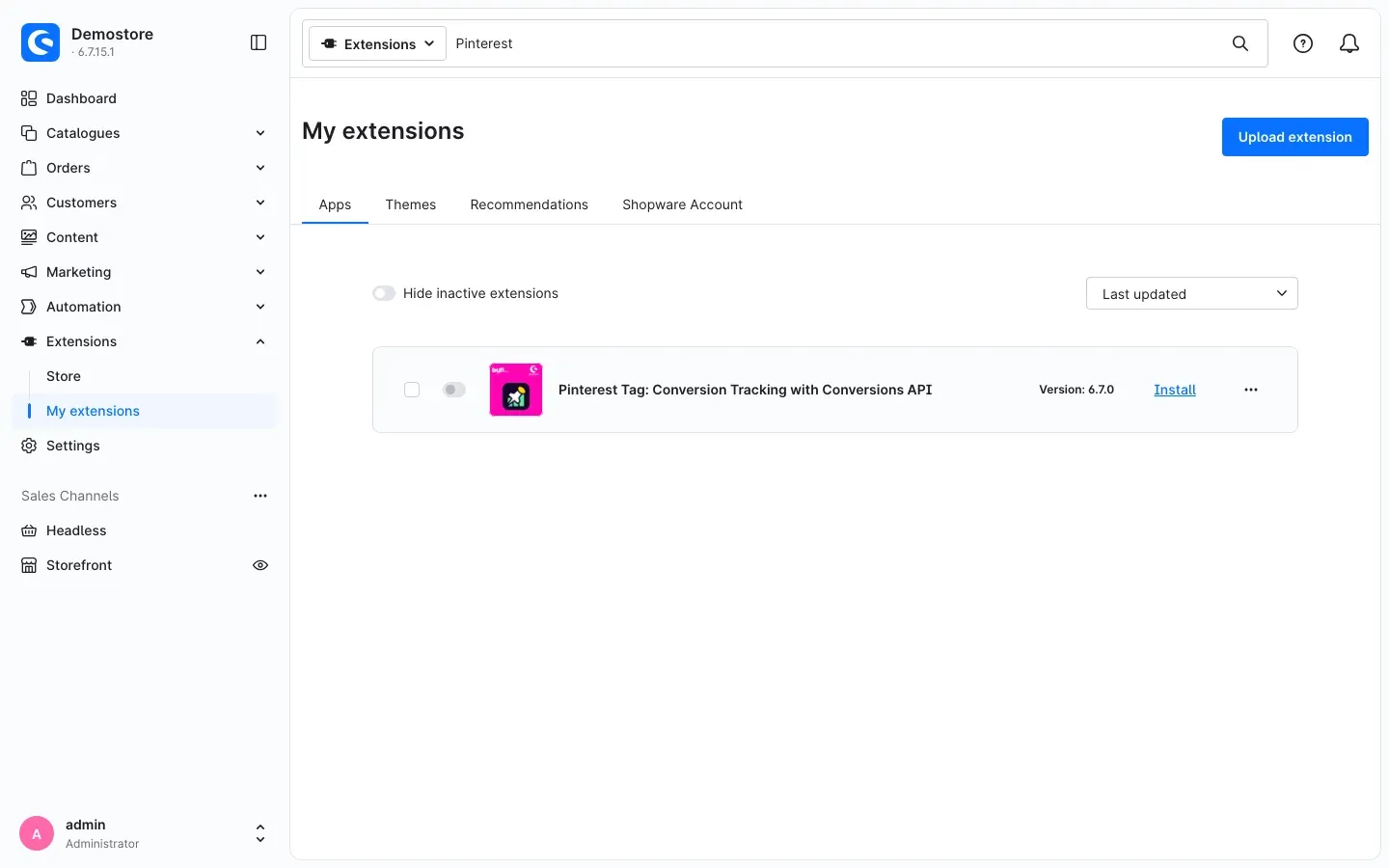 Fig. 1: The plugin is purchased but not installed yet.
 -
Shopware installs the plugin and activates it right away. You can tell by the blue switch to the left of the plugin icon. Instead of Install, the row now shows Configure.
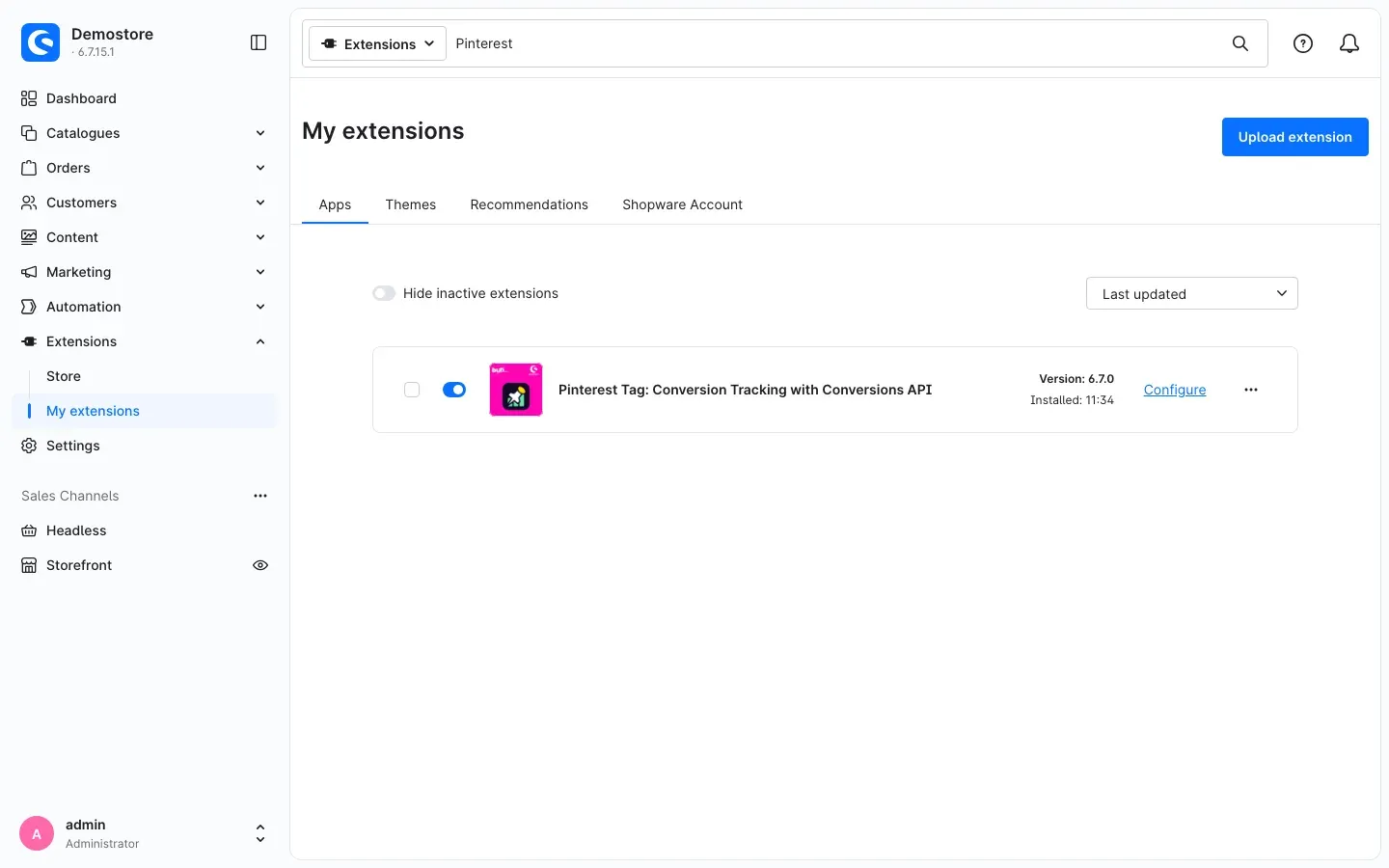 Fig. 2: The plugin is installed and active.
If the plugin does not appear in the list, your Shopware account is not yet connected to the store. You can do this under Extensions → My extensions on the Shopware Account tab by logging in with your Shopware account.
Getting started
All you need to get started is your Pinterest Tag ID. You find it in Pinterest Ads Manager under Conversions → Pinterest Tag.
-
Open the settings: Under Extensions → My extensions, click Configure next to the plugin.
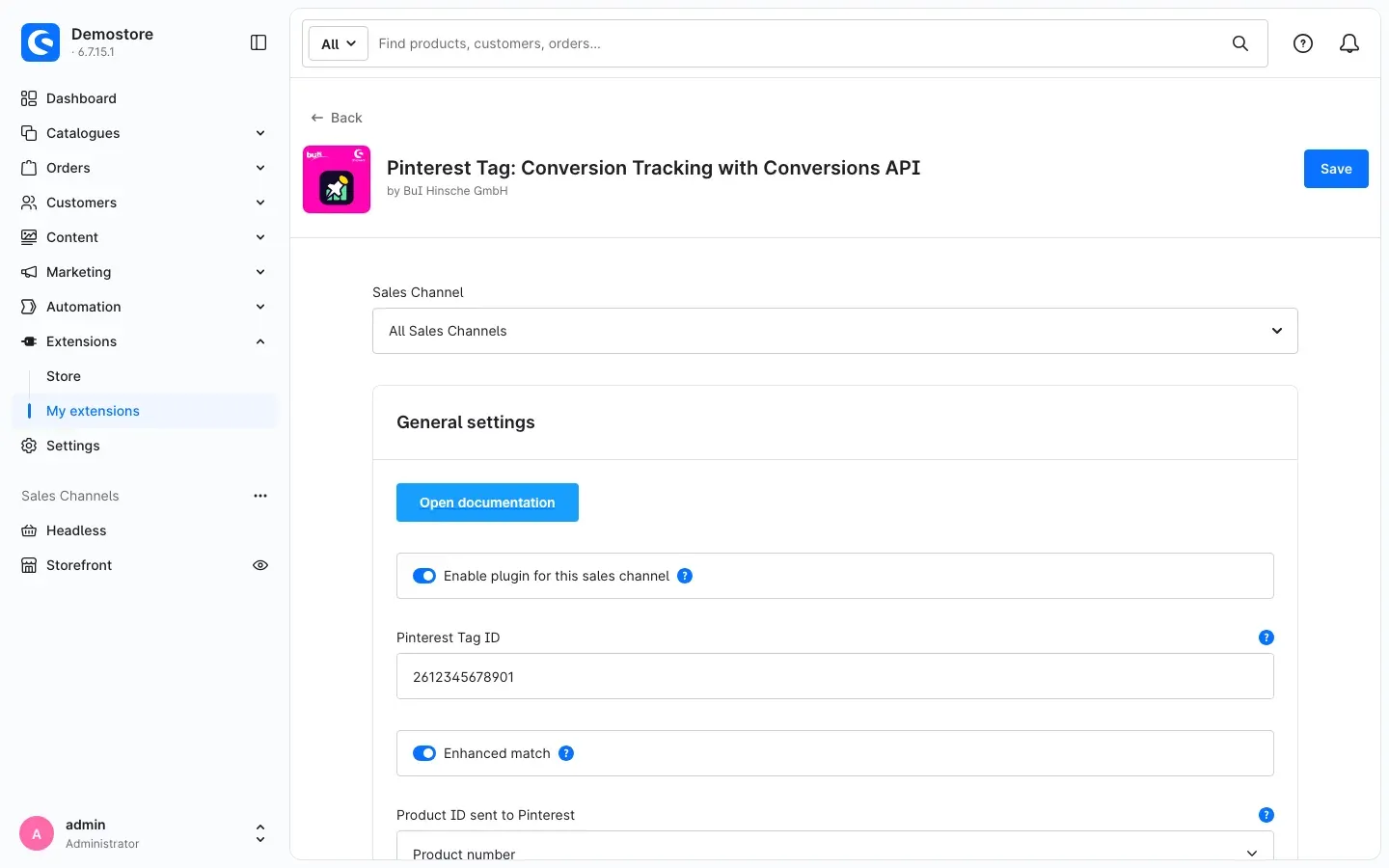 Fig. 3: The configuration page with the sales channel selection and the general settings.
 -
Enter the tag ID: Enter your tag ID in the Pinterest Tag ID field and click Save at the top right. Without a valid tag ID, the plugin tracks nothing.
-
Check the result: Open your store in a private browser window. In the cookie bar, click Configure. The Marketing group now contains the entry Pinterest Tag (see How your visitors give consent). As soon as a visitor allows it, the Pinterest Tag loads.
All other settings come with sensible defaults: all events are switched on, consent is handled via Shopware’s cookie preferences, and the Conversions API is off.
Tip: The Open documentation button at the top of the configuration page takes you to this manual online at any time.
Settings
You find the settings under Extensions → My extensions → Configure next to the plugin. They are split into four sections: General settings, Events, Cookie consent and Conversions API (server-side). The question mark next to a field shows a short help text. Always apply changes with Save at the top right.
How to choose which sales channel a setting applies to
At the very top of the page, use Sales Channel to choose what your settings apply to.
- All Sales Channels sets the default for the whole store.
- If you choose a specific sales channel, for example Storefront, a chain icon appears next to each field. As long as the chain is closed, the sales channel uses the value from All Sales Channels. Click the icon to enter a separate value for this sales channel.
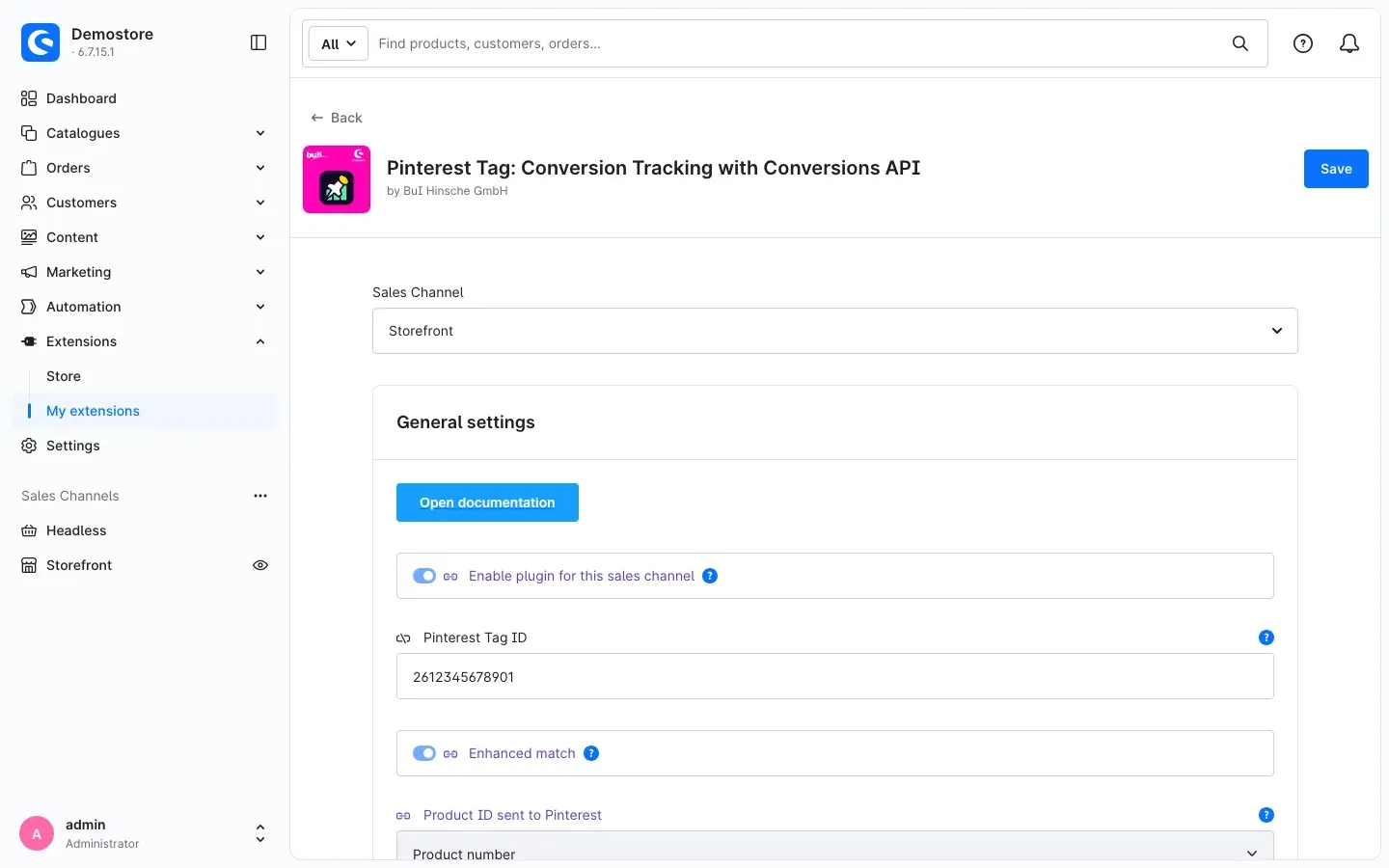 Fig. 4: Fields with a closed chain use the default; the Pinterest Tag ID has its own value in the sales channel “Storefront” (open chain).
Why this is useful: If you run several sales channels — for example a B2C and a B2B store, or stores for different countries — you can use a separate tag ID per channel or switch tracking off entirely in individual channels.
General settings
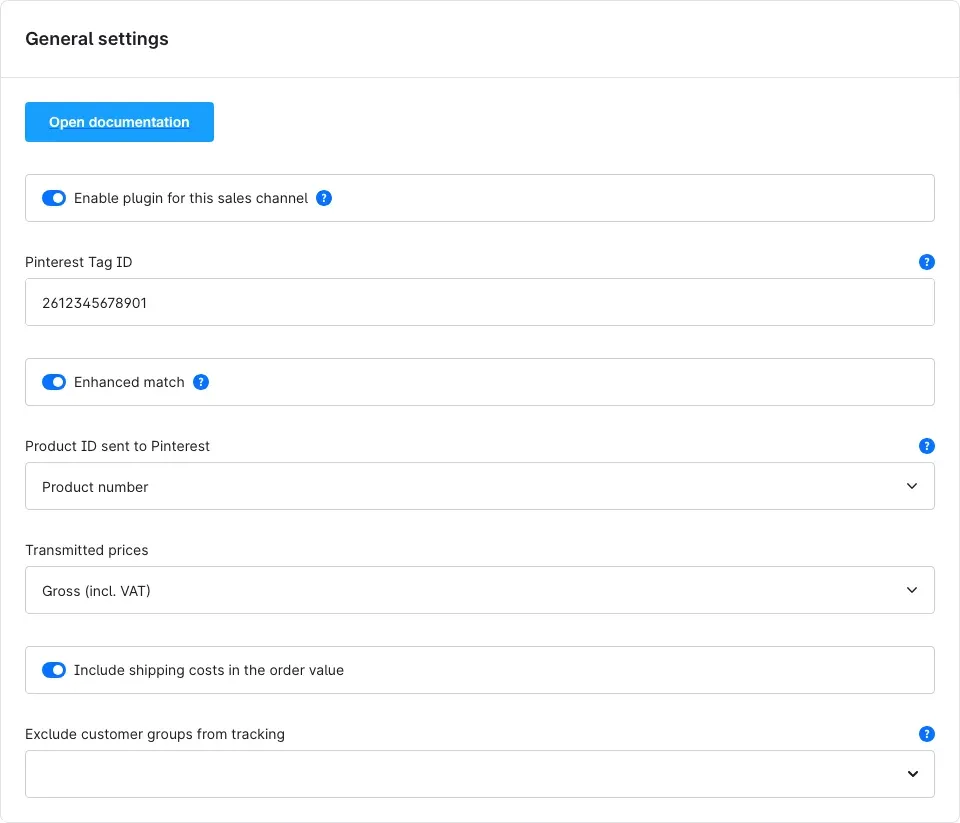 Fig. 5: The “General settings” section.
Open documentation
This button opens this manual online — in the language of your Administration.
Enable plugin for this sales channel
This switch decides whether the Pinterest Tag runs in the selected sales channel. It is switched on by default. If you switch it off, tracking in this sales channel stops completely — the plugin stays installed.
Why this is useful: You can pause tracking in a channel without losing your settings.
Pinterest Tag ID
Enter the tag ID from Pinterest Ads Manager here (Conversions → Pinterest Tag). The tag ID consists of digits only. Spaces, dots or hyphens that are copied along are removed by the plugin. Without a valid tag ID, the plugin tracks nothing.
Enhanced match
When this switch is on, the plugin sends the email address of logged-in customers to Pinterest — never in plain text, only as an encrypted check value (SHA-256 hash). This lets Pinterest attribute purchases to an ad even if there is no Pinterest cookie in the browser. This only happens after the visitor has consented. The switch is on by default.
Product ID sent to Pinterest
Choose the identifier your products are sent to Pinterest with: Product number (default) or Product ID (UUID). Choose the identifier that is also used in your Pinterest product catalogue (feed). Only then can Pinterest link the events to your products.
Transmitted prices
Decides whether prices and order values are sent to Pinterest as Gross (incl. VAT) (default) or Net (excl. VAT). Choose the option you use to evaluate your advertising spend.
Include shipping costs in the order value
When this switch is on (default), the order value reported to Pinterest includes shipping costs. If you switch it off, the plugin reports only the value of the goods.
Exclude customer groups from tracking
Select customer groups whose purchases and visits should not be sent to Pinterest. For logged-in customers of these groups, the Pinterest Tag does not load and no events are recorded.
Why this is useful: Orders placed by your employees or by key accounts would otherwise distort the measured success of your Pinterest ads.
Events
In the Events section you switch each event on or off individually. By default, all events are switched on.
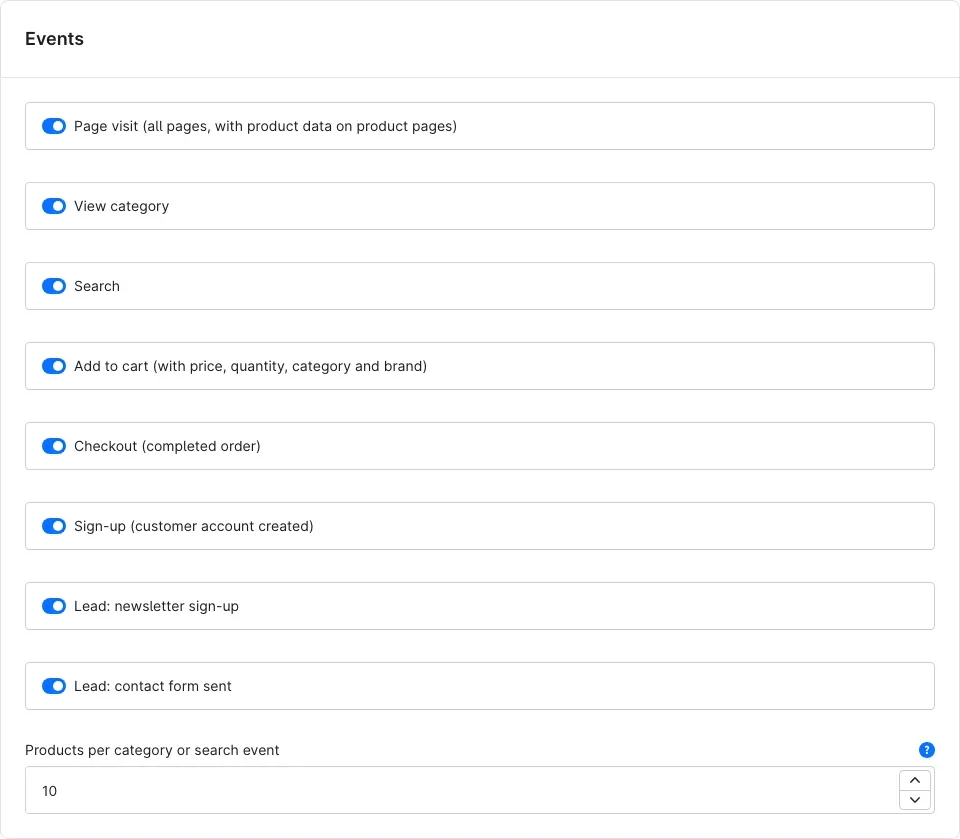 Fig. 6: The “Events” section.
- Page visit (all pages, with product data on product pages) — reported on every page visit. On product pages, the plugin includes the viewed product.
- View category — reported when a visitor opens a category page, together with the products listed there. The home page does not count as a category view.
- Search — reports the search term and the products found.
- Add to cart (with price, quantity, category and brand) — reported as soon as a product is added to the cart, no matter where in the store. The price comes from the calculated cart, so tier prices are taken into account.
- Checkout (completed order) — reported on the order confirmation page, with order value, quantity, currency, order number, promotion codes used and all ordered products.
- Sign-up (customer account created) — reported when a visitor creates a customer account. Guest orders do not count as sign-ups.
- Lead: newsletter sign-up — reported when someone signs up for your newsletter.
- Lead: contact form sent — reported when someone submits your contact form.
Products per category or search event
Sets how many of the listed products are sent to Pinterest with a category view or a search. You can enter a value between 0 and 50; the default is 10. With 0, the plugin reports only the view itself, without products.
Cookie consent
Here you decide how the plugin obtains your visitors’ consent. The Pinterest Tag loads only once consent has been given.
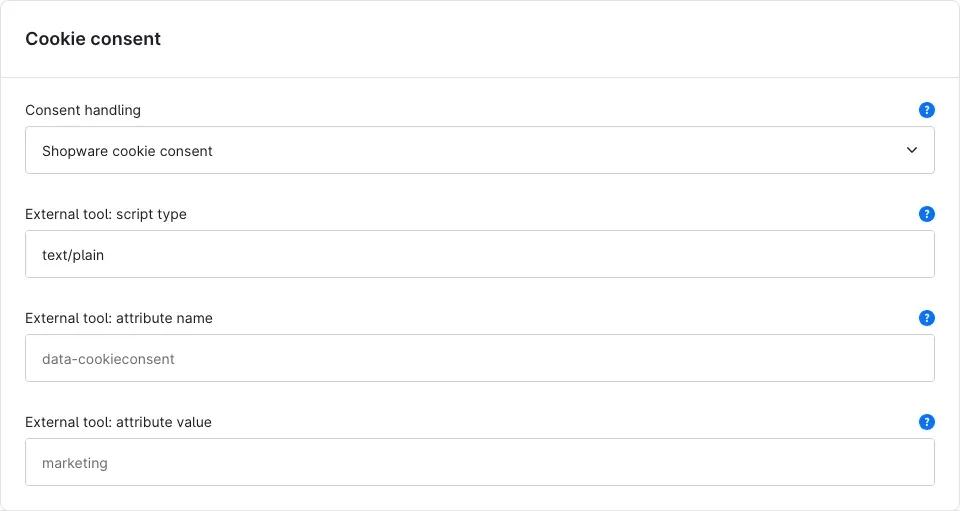 Fig. 7: The “Cookie consent” section.
Consent handling
This selection offers three options:
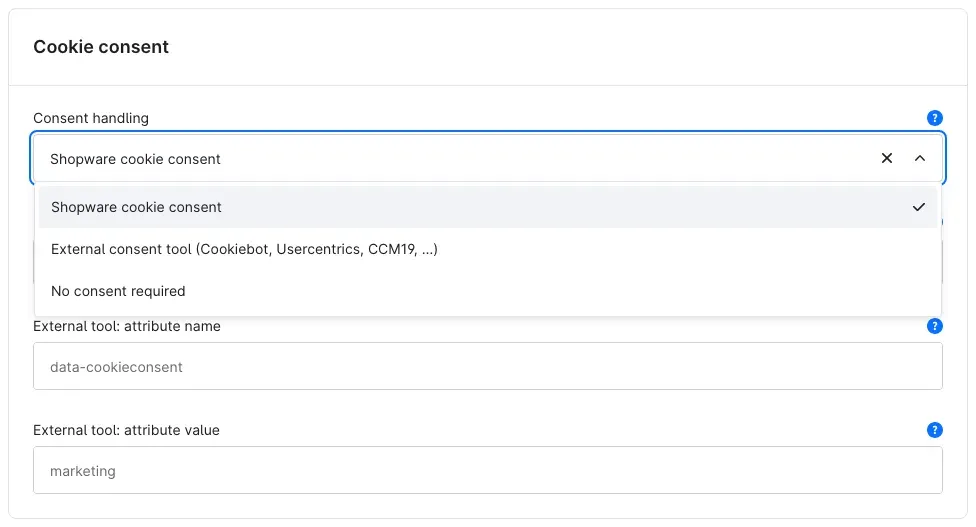 Fig. 8: The three consent handling options.
- Shopware cookie consent (default) — The plugin adds the entry Pinterest Tag to the Marketing group of Shopware’s cookie preferences. When a visitor allows it, the tag loads. If the visitor withdraws consent later, the plugin stops the tag and removes the Pinterest cookies from their browser.
- External consent tool (Cookiebot, Usercentrics, CCM19, …) — If you use your own consent tool instead of Shopware’s cookie preferences, choose this option. The plugin then waits until your consent tool gives the release. How to connect an external consent tool explains how to set this up.
- No consent required — The Pinterest Tag loads immediately, without asking the visitor.
Important: Only choose No consent required if you are sure that no consent is needed for your store. If in doubt, check with your data protection officer.
External tool: script type, External tool: attribute name and External tool: attribute value
You only need these three fields with External consent tool (Cookiebot, Usercentrics, CCM19, …). They tell your consent tool which release to give for the Pinterest Tag. The help texts behind the question mark list suitable values for common tools — for example for Cookiebot the attribute name data-cookieconsent with the attribute value marketing. With the other consent handling options, these fields have no effect.
Conversions API (server-side)
With the Conversions API, your store also sends the most important events directly to Pinterest — from the server instead of only from the browser. This is optional and switched off by default.
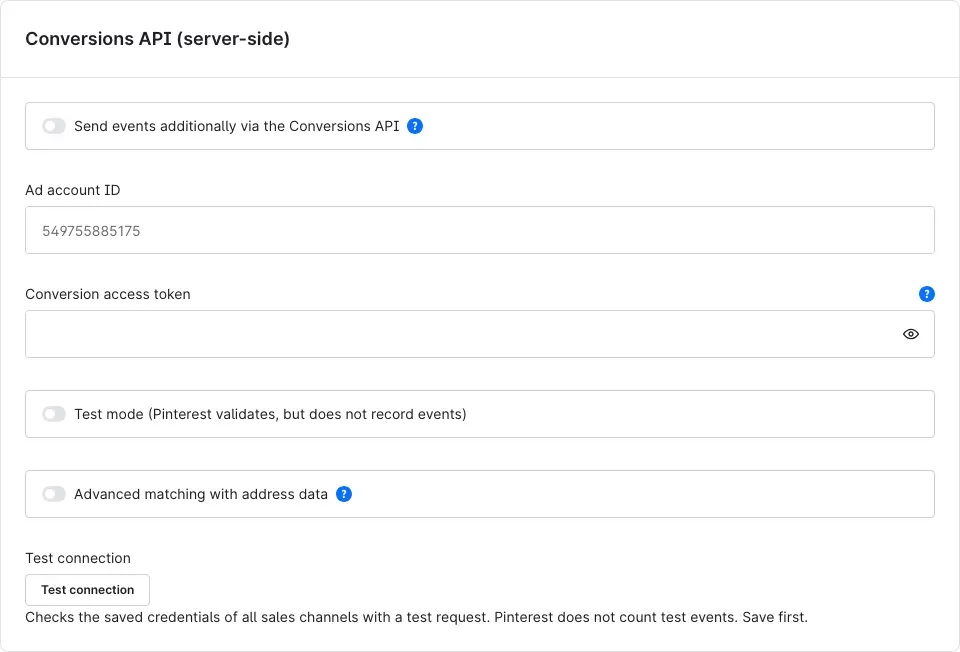 Fig. 9: The “Conversions API (server-side)” section.
Send events additionally via the Conversions API
Switches on sending from the server. Checkout, Add to cart, Sign-up and both Lead events are then also sent from the server to Pinterest — independent of ad blockers in the browser. Pinterest recognises from a shared identifier that the browser and the server reported the same event, and counts it only once. The Conversions API also sends only with the visitor’s consent; in this case the IP address and browser identifier are transmitted as well.
Ad account ID
Enter the ID of your Pinterest ad account here. It consists of digits only.
Conversion access token
Enter the access token you find in Pinterest Ads Manager under Conversions → Conversion access token. Use the eye icon in the field to show it for checking.
Test mode (Pinterest validates, but does not record events)
When this switch is on, Pinterest checks the events sent by the server but does not record them. This lets you test the setup without distorting your statistics. Remember to switch test mode off afterwards.
Advanced matching with address data
When this switch is on, the plugin additionally sends the customer’s name, phone, city, postcode and country — also only as encrypted check values (SHA-256 hash). This lets Pinterest attribute more purchases to an ad. The switch is off by default.
Test connection
This button checks whether Pinterest accepts the saved credentials. How to set up the Conversions API and test the connection explains how it works.
How to use the features
How your visitors give consent
What you get: The Pinterest Tag appears as a separate, clearly described entry in your store’s cookie preferences. Your visitors decide for themselves, and no data is sent to Pinterest before they agree.
This applies when Shopware cookie consent is selected under Consent handling and a valid tag ID is entered.
This is what your visitors see:
- In the cookie bar, the visitor clicks Configure.
- In the Cookie preferences, they expand the Marketing group. It contains the entry Pinterest Tag with the description: “Allows Pinterest to measure visits and purchases after a Pin was viewed and to target ads accordingly. Data is transmitted to Pinterest Europe Ltd.”
- When they switch on Pinterest Tag and click Save, the Pinterest Tag loads.
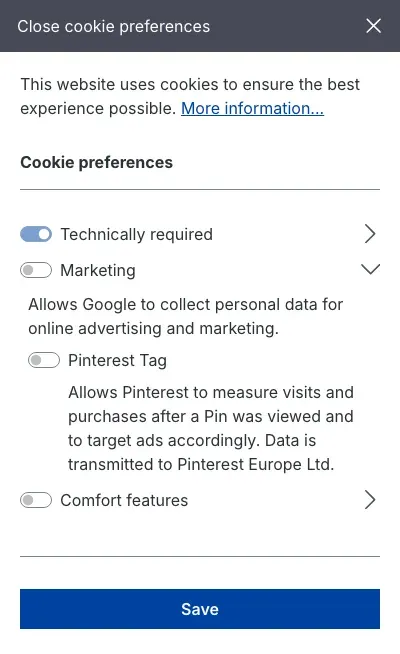 Fig. 10: The entry “Pinterest Tag” in the “Marketing” group of the cookie preferences.
Tip: Also mention the Pinterest Tag in your privacy policy. For administrators / technical details lists the cookies the plugin uses.
How to connect an external consent tool
What you get: If you already use a consent tool such as Cookiebot, Usercentrics, CCM19 or OneTrust, it also manages consent for the Pinterest Tag. Your visitors see only one consent dialog.
Step by step
- Open the plugin settings and go to the Cookie consent section.
- Under Consent handling, choose External consent tool (Cookiebot, Usercentrics, CCM19, …).
- Enter the values for your consent tool. The help texts give examples:
- External tool: script type — the type your consent tool expects for blocked scripts. The default is
text/plain. - External tool: attribute name — for example Cookiebot:
data-cookieconsent· Usercentrics:data-usercentrics· CCM19:data-ccm-loader-group· OneTrust:class. - External tool: attribute value — for example Cookiebot:
marketing· Usercentrics: the name of the service, e.g.Pinterest Tag· OneTrust:optanon-category-C0004.
- External tool: script type — the type your consent tool expects for blocked scripts. The default is
- Click Save.
- Create the matching category or service in your consent tool if it does not exist yet (for Usercentrics, for example, a service with exactly the name you entered as the attribute value).
When a visitor gives consent for this category or service in your consent tool, the tool releases the signal and the Pinterest Tag loads.
Important: As the attribute name, the plugin only accepts values starting with
data-, orclass. Any other value is ignored.
How to set up the Conversions API and test the connection
What you get: Purchases, add-to-cart actions, sign-ups and leads reach Pinterest even if an ad blocker stops the Pinterest Tag in the browser.
Step by step
- Get your access token in Pinterest Ads Manager under Conversions → Conversion access token and have the ID of your ad account ready.
- Open the plugin settings and go to the Conversions API (server-side) section.
- Enter Ad account ID and Conversion access token.
- Click Save at the top right — the test only checks saved credentials.
- Click Test connection. For every sales channel with saved credentials, the plugin sends a test request to Pinterest. Pinterest does not count these test events.
- The result for each sales channel appears below the button, for example “Ad account …: connection successful.” If everything is fine, the Administration also shows “Connection successful” or, with several connections, “All … connections successful”.
- Now switch on Send events additionally via the Conversions API and click Save.
If you have not saved any credentials yet, clicking Test connection shows the message “No sales channel has an ad account ID and access token saved.” — in this case no request is sent to Pinterest.
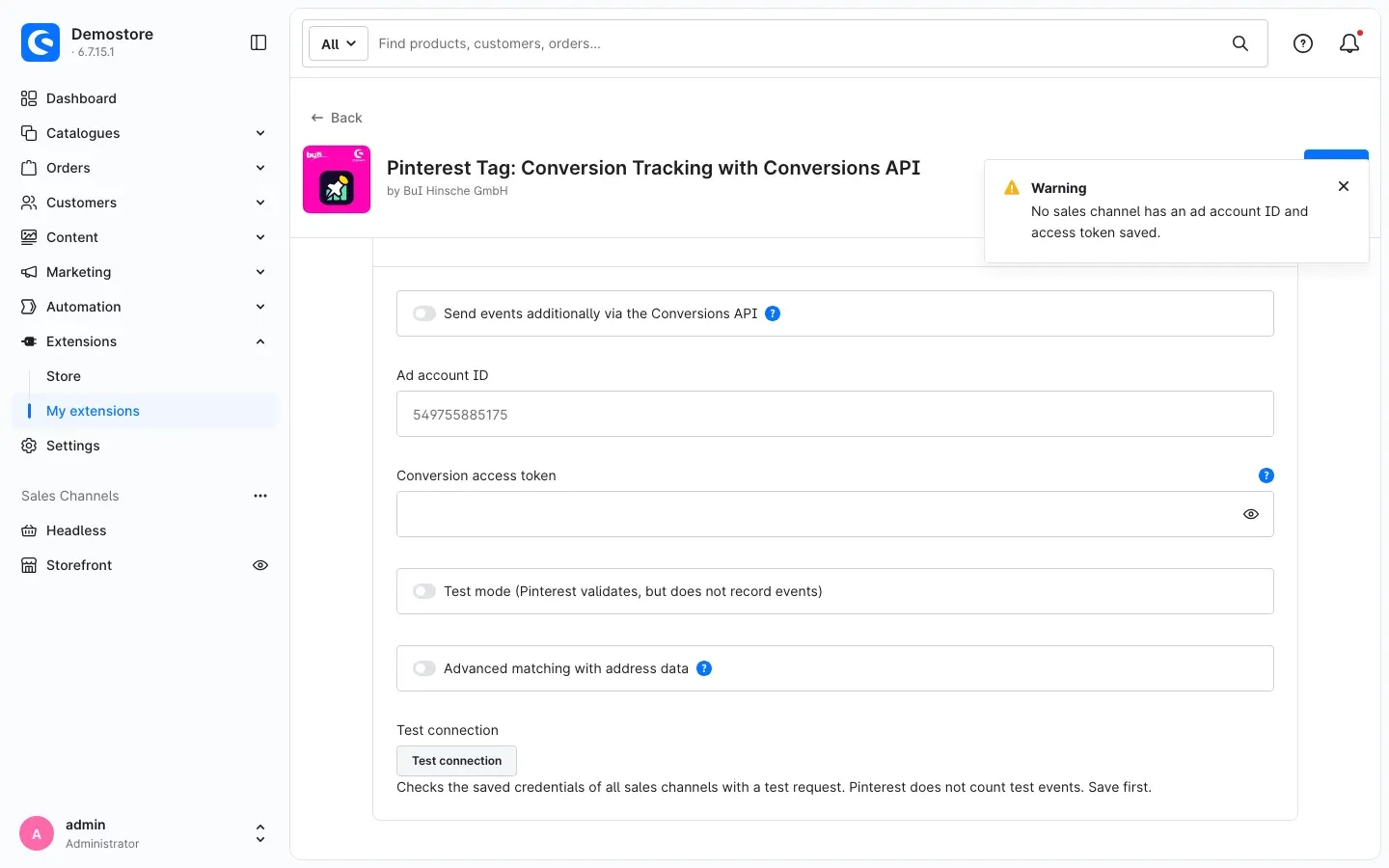 Fig. 11: Connection test before credentials are saved.
Tip: You can run the connection test before switching the Conversions API on. It uses the saved credentials regardless of the switch.
Important: The Conversions API only sends in sales channels where the plugin is switched on and a valid Pinterest Tag ID is entered.
How to check that tracking works
What you get: You see whether Pinterest actually receives the events from your store.
- Open your store in a private browser window and allow the Pinterest Tag in the cookie preferences.
- Check the events with Pinterest’s Chrome extension Pinterest Tag Helper: on every page it shows which events the Pinterest Tag has sent. For testing, open a product page and a category and add a product to the cart.
- Alternatively, open your browser’s developer tools (“Network” tab): before consent there is no connection to Pinterest; afterwards the browser loads the Pinterest script from
s.pinimg.com.
Troubleshooting
The entry “Pinterest Tag” is missing from the cookie preferences
Cause: The plugin only shows the entry if it is switched on in the sales channel, a valid tag ID is entered and Shopware cookie consent is selected under Consent handling.
How to fix it:
- In the plugin settings, check Enable plugin for this sales channel, Pinterest Tag ID and Consent handling — for All Sales Channels and for the affected sales channel.
- Click Save.
- Clear the cache: Settings → System → Caches & indexes → Clear cache.
Pinterest receives no events
Cause: Usually consent is missing, or the visitor is logged in as a customer of an excluded customer group. An ad blocker in the browser can also stop the Pinterest Tag.
How to fix it:
- Test in a private browser window without an ad blocker and allow the Pinterest Tag in the cookie preferences.
- Do not test with a customer account whose customer group is listed under Exclude customer groups from tracking.
- In the Events section, check that the event you want is switched on.
- To also capture visitors with ad blockers, set up the Conversions API (How to set up the Conversions API and test the connection).
With an external consent tool, the Pinterest Tag does not load even after consent
Cause: Script type, attribute name or attribute value do not match the settings of your consent tool, or the category or service has not been created there.
How to fix it:
- Compare the three External tool: … fields with the documentation of your consent tool and the examples in the help texts.
- Make sure the attribute name starts with
data-or isclass. - Create the category or service in your consent tool and give consent for it during your test.
”No sales channel has an ad account ID and access token saved.”
Cause: The connection test only checks saved credentials. The ad account ID or access token is missing, or the settings were not saved.
How to fix it: Enter Ad account ID and Conversion access token, click Save, then click Test connection again.
The connection test reports “Ad account …: error …”
Cause: Pinterest rejected the test request. The message contains the reason returned by Pinterest.
How to fix it: Check the ad account ID and access token in Pinterest Ads Manager, get a new access token if necessary, save and test again.
”The test could not be run (HTTP status …)”
Cause: Your user is not allowed to manage extensions, or the request failed elsewhere.
How to fix it: Ask an administrator for permission to manage extensions and try again.
Server-side events do not show up at Pinterest
Cause: The Conversions API is not switched on, test mode is still on, or your store’s message processing is not running.
How to fix it:
- Check that Send events additionally via the Conversions API is switched on and Test mode (Pinterest validates, but does not record events) is switched off.
- Run Test connection.
- Ask your technical contact to check that your store’s message processing (message queue) is running — details in For administrators / technical details.
Changed settings have no effect in the store
Cause: The store is still showing cached pages.
How to fix it: Settings → System → Caches & indexes → Clear cache.
FAQ
Q: Do I have to add the Pinterest Tag code to my store myself?
A: No. You only enter your tag ID; the plugin does the rest.
Q: Is any data sent to Pinterest before consent?
A: No. With Shopware cookie consent or External consent tool (Cookiebot, Usercentrics, CCM19, …), the Pinterest Tag loads only after consent. Before that, the browser does not connect to Pinterest.
Q: What happens if a visitor withdraws consent?
A: If a visitor switches the Pinterest Tag off again in the cookie preferences, the plugin stops tracking and removes the Pinterest cookies from their browser.
Q: Does Pinterest count a purchase twice if both the browser and the server report it?
A: No. Both reports carry the same identifier, so Pinterest counts the purchase only once.
Q: Is a purchase counted twice if the customer reloads the order confirmation page?
A: No. The plugin remembers in the browser which orders it has already reported.
Q: Can I use a separate tag ID for each sales channel?
A: Yes. Choose the sales channel at the top of the configuration page and enter a separate tag ID there (see How to choose which sales channel a setting applies to).
Q: How do I prevent my employees’ orders from being counted?
A: Put your employees into a separate customer group and select it under Exclude customer groups from tracking.
Q: Why does the “Marketing” group show a text about Google?
A: The description of the Marketing group comes from Shopware, not from the plugin. You can adapt it to your store under Settings → Snippets. The Pinterest Tag entry below it has its own description.
Q: Does the plugin also work with a headless frontend?
A: Yes, the plugin provides the required data for headless frontends. Your developer finds the details in For administrators / technical details.
For administrators / technical details
This section is intended for technical administrators. You do not need it for normal use.
System requirements
- Shopware: 6.7 from version 6.7.3
- PHP: 8.2 or higher
Installation via the command line
If the plugin is already present in the store (for example in custom/plugins/), install and activate it like this:
bin/console plugin:refresh
bin/console plugin:install SwpPinterestTagSix --activate
bin/console cache:clear
Conversions API and message queue
Server-side events are not sent during the page request. They are put into the message queue (transport async) and transmitted by a worker. Without a running worker, no server-side events reach Pinterest. Example:
bin/console messenger:consume asyncOn temporary errors (Pinterest responds with HTTP 429 or 5xx, network errors), the worker retries the message. Events rejected by Pinterest (invalid data or credentials) are only logged.
Log
The plugin writes to its own log file: var/log/SwpPinterestTagSix-<date>.log.
Data flow and caching
- Pages contain only the public tag configuration and the product data of the page, never visitor-specific data. They therefore remain fully cacheable.
- Visitor-specific data (hashed email address for enhanced match, exclusion via customer group, events from cart, sign-up and forms) is fetched by the script after consent via the uncached endpoint
POST /widgets/swp-pinterest-tag/sync. - The Pinterest script loads from
https://s.pinimg.com/ct/core.js; the Conversions API callshttps://api.pinterest.com/v5/ad_accounts/<ad account ID>/events. - Personal data leaves the store only as SHA-256 hashes. With the Conversions API, the IP address and browser identifier (user agent) are transmitted as well.
Cookies
swp-pinterest-tag— stores the consent (value1). Set by Shopware’s cookie preferences (valid for 30 days) or, with an external consent tool, by the released signal script.- Pinterest cookies the plugin removes when consent is withdrawn:
_pin_unauth,_epik,_derived_epik,_pinterest_ct,_pinterest_ct_ua,_pinterest_ct_rt.
External consent tool
With External consent tool (Cookiebot, Usercentrics, CCM19, …), the plugin outputs a signal script in the page head (bundles/swppinteresttagsix/consent-signal.js) — with the configured script type and attribute, for example for Cookiebot:
<script type="text/plain" data-cookieconsent="marketing" data-swp-pinterest-consent-signal="true" src=".../bundles/swppinteresttagsix/consent-signal.js"></script>The consent tool executes the script after consent; only then does the Pinterest Tag load. A consent cookie from an earlier page view only counts if the consent tool releases the signal script again on the current page.
Headless / Store API
For Composable Frontends and other headless frontends, the route GET|POST /store-api/swp/pinterest-tag/context returns the tag configuration of the sales channel and — for logged-in customers — the email hash for enhanced match. Call it only after consent; the response is customer-specific and must not be cached.
Permissions
The Test connection button requires permission to manage extensions.
This manual was written for Pinterest Tag: Conversion Tracking with Conversions API version 6.7.0.
More manuals
Address Validation: House Number Check & Corrections
Address validation at the point of entry: the plugin spots missing house numbers, can suggest corrections via Google and helps you send fewer parcels that come back undeliverable.
Open manual Shopware 6Admin Password Reminder
Admin Password Reminder: your backend users renew their passwords on time, prompted after login and by a daily email. Premium locks expired accounts until the password is changed.
Open manual Shopware 6Advent Calendar | Doors with products, coupons and promotions
Advent calendar for your shopping experiences: doors open on time without clearing the cache, give nothing away in the page source and reveal coupons, products or your own content.
Open manualNeed a team that keeps your shop running?
We have been maintaining Shopware shops for more than 20 years, including updates, hotfixes and the plugins you are configuring right now.