Christmas Snow Confetti Fireworks Animation | Seasonal Holiday Effects
Christmas snowfall, New Year fireworks, confetti after checkout. Schedule seasonal animations per page and date range. No code, no cookies, no external requests.
On this page
- Introduction
- What you can achieve with this plugin
- Who is this plugin for?
- Installation
- Getting Started
- Settings
- Selecting the sales channel
- Open documentation
- Enable plugin for this sales channel
- Holiday presets (take priority during their period)
- Global Settings (Overrides page settings)
- Settings for individual pages
- Effect Type
- Effect Density
- Effect Duration
- Effect Placement
- Active Timeframe
- Custom Emoji
- How to Use the Features
- How to choose the right effect
- How to keep an effect subtle
- How to give each page its own effect
- How to plan a campaign in advance
- How to use different settings per sales channel
- How to plan holidays with a preset
- How to let your own emoji fall
- Troubleshooting
- The effect does not appear in the store
- The holiday preset shows no effect
- The emoji looks different than expected
- Confetti appears instead of emojis or hearts
- The effect starts at the wrong time
- The effect appears in the wrong place
- The page responds more slowly on smartphones
- The Open documentation button does not work
- FAQ
- For Administrators / Technical Details
- System requirements
- Installation via the command line
- Privacy
- Data storage
- HTTP cache
- Browser support
- Theme compatibility
- Accessibility
- Update from version 6.7.1
- Update from version 6.7.0
Introduction
Christmas Snow Confetti Fireworks Animation | Seasonal Holiday Effects brings seasonal atmosphere to your store: snowfall during Advent, fireworks on New Year’s Eve, hearts for Valentine’s Day, pumpkins for Halloween, bunnies for Easter or confetti after a purchase. You set everything up in the Administration, without touching your theme and without writing code.
What you can achieve with this plugin
- You can show nine ready-made animations: Confetti, Fireworks, Snowfall, Stars, Red Heart, Halloween, Easter, Christmas and Custom emoji.
- You can pick a holiday, and the matching effect runs by itself in the right period every year, including Easter and Black Friday, whose dates change every year.
- You can let your own emoji or a short text fall across the store.
- You can give each page its own effect: home page, product detail page, category pages and checkout finish page.
- You can set one effect for the entire store with a single setting.
- You decide how dense the effect is, how long it runs and where on the page it appears.
- You can plan campaigns in advance: a timeframe with date and time starts and stops the effect automatically.
- You can switch the plugin on or off per sales channel, for example snow in your B2C store and a calm B2B channel.
- Your customers receive no cookies and no data is sent to third-party servers.
Who is this plugin for?
For store owners and editors who want to give their store a festive look for holidays, campaigns or special occasions, without needing an agency or developer time.
Installation
After your purchase, the plugin is available directly in your Administration. You do not need to download anything.
- Log in to your Shopware Administration (
YourShop.com/admin). - Open Extensions → My extensions.
- Find the plugin Christmas Snow Confetti Fireworks Animation | Seasonal Holiday Effects. The quickest way is to type “Christmas” into the search bar at the top.
- Click Install next to the plugin.
- Activate the plugin using the switch to the left of the plugin name. When the switch is blue, the plugin is active.
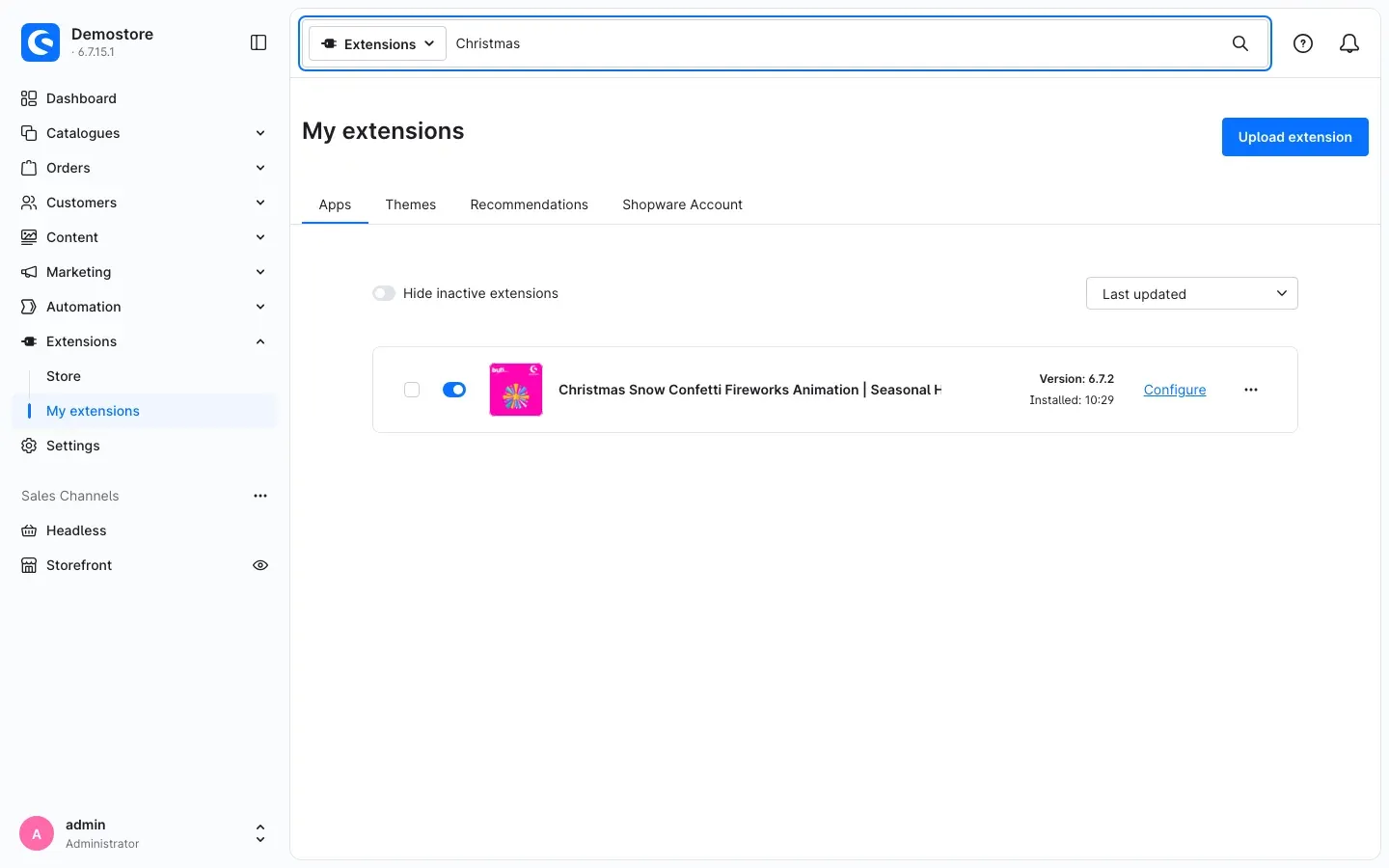 Fig. 1: The plugin is installed and active. Click “Configure” to open its settings.
If the plugin does not appear in the list, your Shopware account is not yet connected to the store. You can do this under Extensions → My extensions in the Shopware Account tab by logging in with your Shopware account.
Right after installation your store does not show any effect yet. All effects start out set to None, and the holiday preset is set to No preset. You decide when and where things begin.
Getting Started
Three steps bring the first effect to your home page.
-
Open the settings: Go to Extensions → My extensions and click Configure next to the plugin.
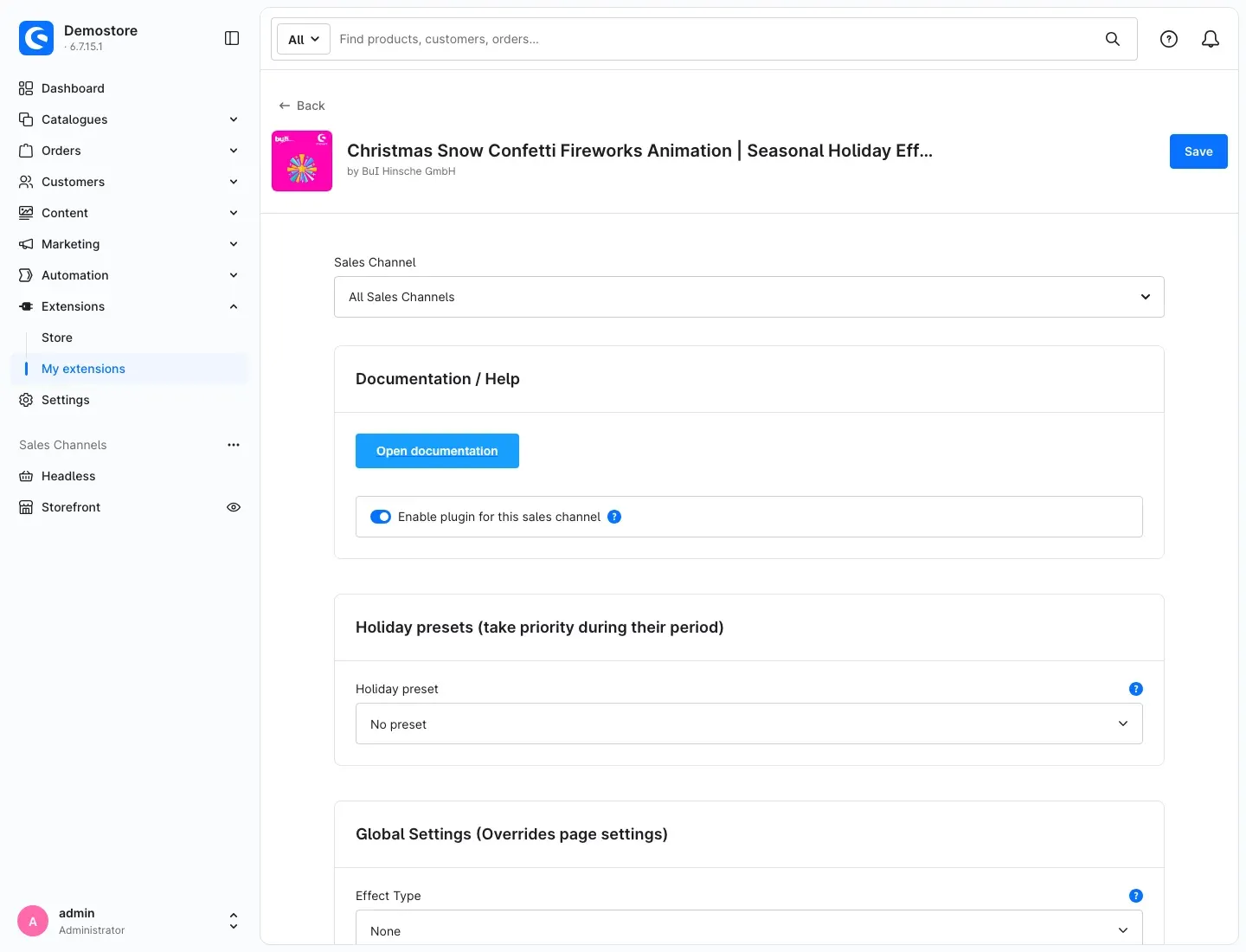 Fig. 2: At the top of the configuration page you choose the sales channel. Below it are the “Documentation / Help”, “Holiday presets (take priority during their period)” and “Global Settings (Overrides page settings)” cards.
 -
Choose an effect for the home page: Scroll to the Home Page card and set Effect Type to, for example, Snowfall. You can leave the other settings as they are for now.
-
Save and check: Click Save in the top right corner. Then open your store’s home page in a new browser tab. The snow starts falling right away.
Tip: Leave the Active Timeframe empty while you try things out. The effect then runs immediately and you can see how it looks. You can plan the timeframe afterwards.
Tip: Just want a festive look for the next holiday? Pick a holiday in the Holiday presets (take priority during their period) card. See Holiday presets (take priority during their period) for details.
Settings
You find the settings under Extensions → My extensions. Click Configure next to the plugin. Apply every change with Save in the top right corner.
The page is divided into several sections (cards):
- Documentation / Help: link to this manual and the switch for the sales channel.
- Holiday presets (take priority during their period): a holiday whose effect runs by itself every year.
- Global Settings (Overrides page settings): one effect for all pages.
- Home Page, Product Detail Page, Category Pages (Listing) and Checkout Finish Page: a separate effect for each of these pages.
- Custom Emoji: the character and the look for the Custom emoji effect.
Which setting wins? Only one effect runs per page. The plugin checks in this order:
- Holiday preset: If the holiday period is currently on, the preset effect runs on every page.
- Global settings: Outside the holiday period, the global effect applies, if one is selected.
- Page cards: If the global effect is set to None, the effect of the respective page applies.
Selecting the sales channel
At the very top you find the Sales Channel selection. All Sales Channels sets the default. It applies to every sales channel for which you do not set anything of its own.
When you select a specific sales channel, it first takes over the default. If you change a value there, it only applies to that channel. This lets you have snow falling in your B2C store while the B2B channel shows a calmer effect or none at all.
Open documentation
The Open documentation button in the Documentation / Help card opens this manual on bui-hinsche.com. It automatically uses the language of your Administration.
Enable plugin for this sales channel
The Enable plugin for this sales channel switch determines whether the selected sales channel shows any effects at all. It is switched on by default. If you switch it off, no effect appears in this channel, regardless of what is set in the other cards. This also applies to a selected holiday preset.
Why this is useful: You can pause the plugin in one channel without losing your settings. When you switch it back on, everything is as before.
Holiday presets (take priority during their period)
Holiday preset lets you pick a holiday. During the holiday period, your store then shows the matching effect on every page. The plugin recalculates the period every year, so you never have to update anything. The default is No preset.
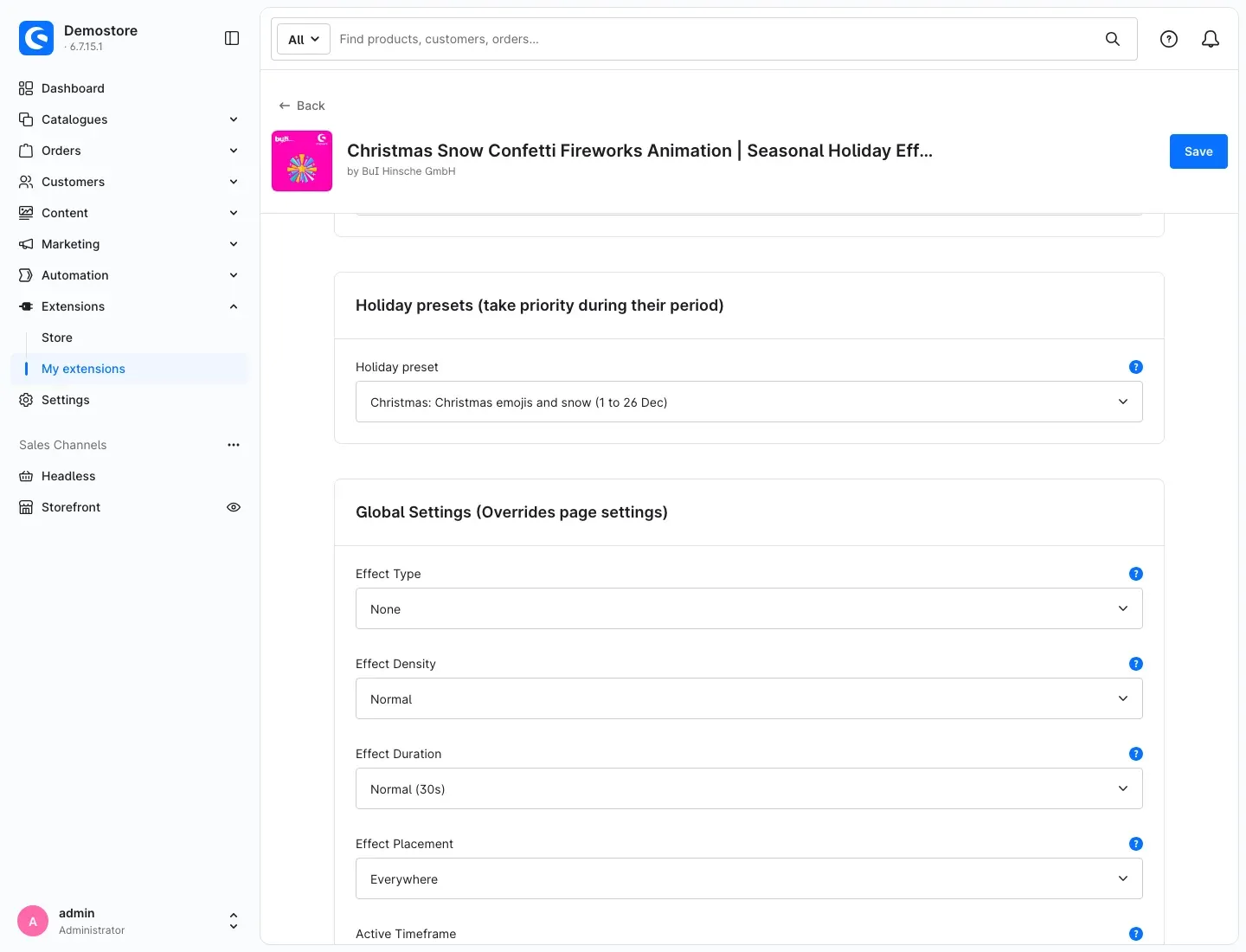 Fig. 3: The preset “Christmas: Christmas emojis and snow (1 to 26 Dec)” is selected. The global settings start below it.
These presets are available:
- New Year’s Eve: fireworks (31 Dec 6 pm to 1 Jan 6 am): fireworks on New Year’s Eve.
- Valentine’s Day: hearts (7 to 14 Feb): red hearts in the week leading up to Valentine’s Day.
- Easter: Easter emojis (Good Friday to Easter Monday): the Easter effect over the Easter weekend. The date changes every year; the plugin works it out by itself.
- Halloween: Halloween emojis (28 Oct to 1 Nov 6 am): the Halloween effect in the days before Halloween until the morning after Halloween night.
- Black Friday: confetti (Black Friday to Cyber Monday): confetti from Black Friday up to and including Cyber Monday. The plugin also recalculates this date every year.
- Christmas: Christmas emojis and snow (1 to 26 Dec): the Christmas effect with light snowfall, running throughout Advent up to and including Boxing Day.
A preset brings its own settings: it runs with normal density across the whole browser window and with normal duration. Only Christmas runs permanently, for as long as the visitor stays on the page. Whether the holiday period is currently on depends on the clock of your visitor’s device.
Priority during the period: While the holiday period is on, the preset takes priority over the global settings and over all page cards. Outside the period, your global settings or the settings of the individual pages apply as usual, with their own active timeframe. If nothing is set there, the store shows no effect outside the holiday.
Important: You can only select one preset at a time. If you want to show Christmas right after Halloween, switch the preset after 1 November. Alternatively, plan one of the two holidays yourself using the Active Timeframe in the global settings.
Why this is useful: You set up your festive Christmas look once and do not have to think about it again in the following years.
Global Settings (Overrides page settings)
This card is the quick way to run a campaign week. If you choose an effect under Effect Type here (anything other than None), that effect runs on every page of your store. The Home Page, Product Detail Page, Category Pages (Listing) and Checkout Finish Page cards are then ignored. If a holiday preset’s period is currently on, the preset takes priority (see Holiday presets (take priority during their period)).
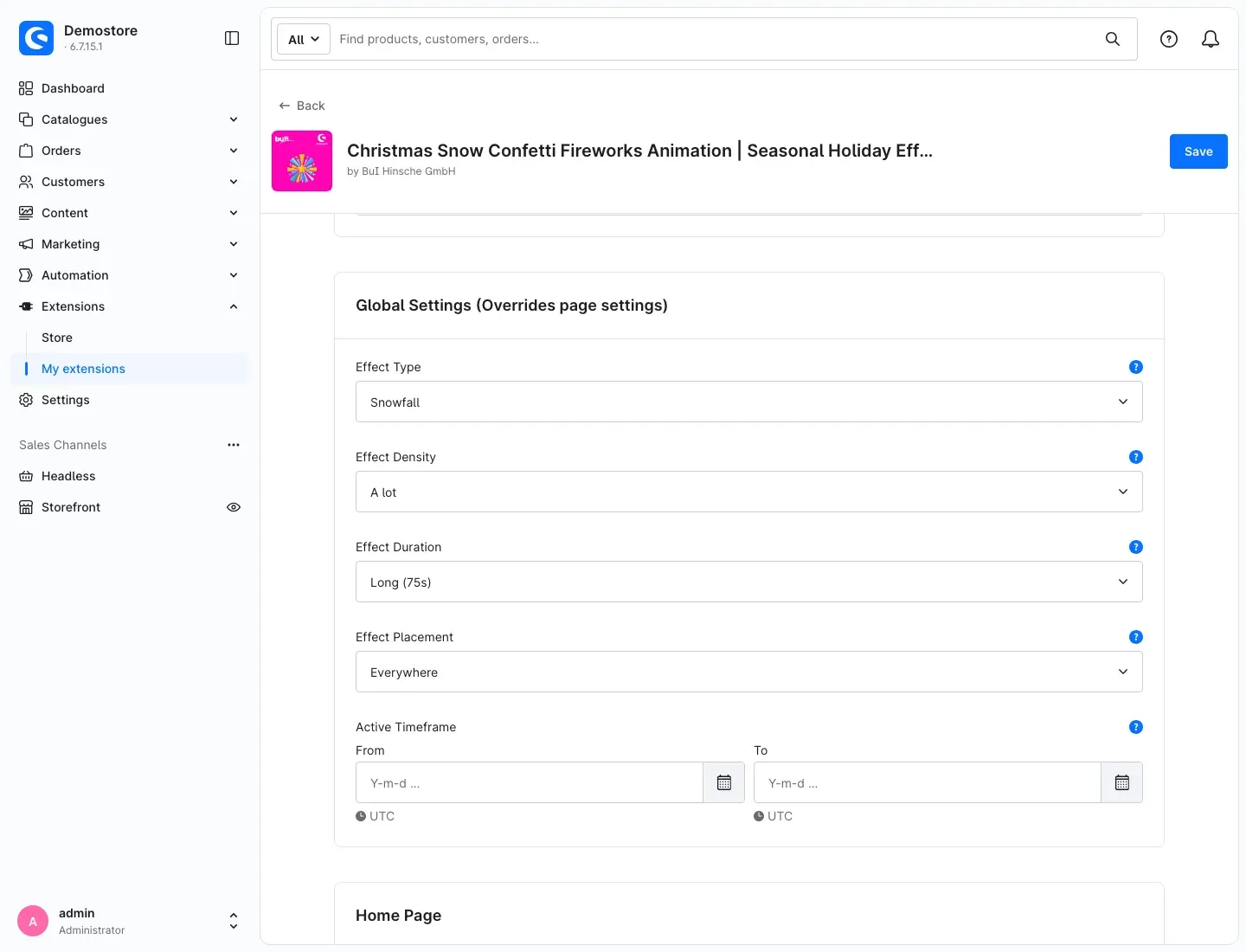 Fig. 4: Global setting: snowfall on every page, dense and long, without a time limit.
If Effect Type here is set to None, the settings of the individual pages apply.
Important: As long as an effect is selected in the global settings, the individual pages show no effect of their own, even outside the global active timeframe. To work page by page again, set the global Effect Type back to None.
Settings for individual pages
Each of these pages has its own card with the same five settings:
- Home Page
- Product Detail Page
- Category Pages (Listing)
- Checkout Finish Page (the thank-you page after a purchase)
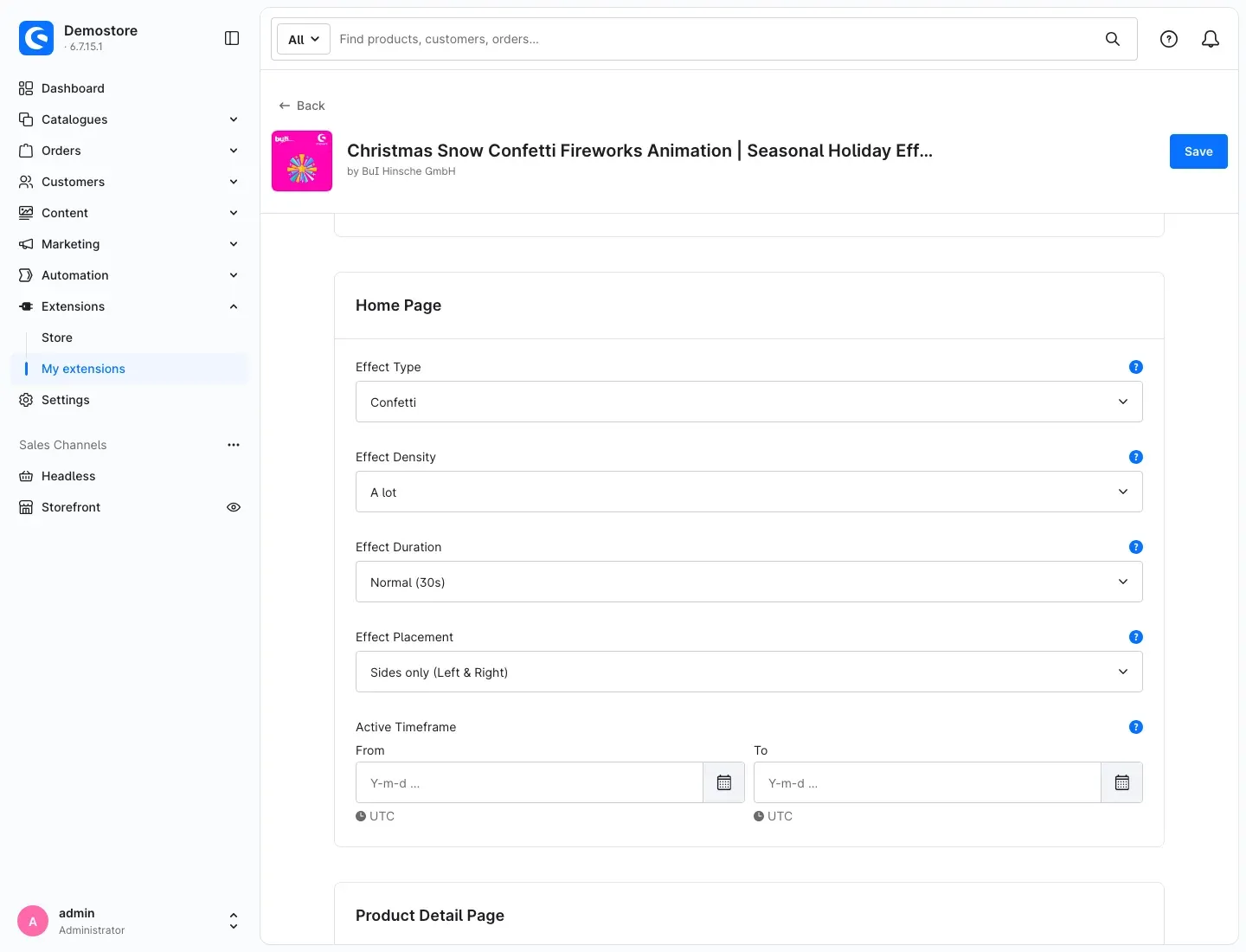 Fig. 5: The “Home Page” card. Below it, the “Product Detail Page” card starts with the same settings.
Other pages, such as the cart, search or customer account, only show an effect if you select it in the global settings or a holiday preset is currently running.
You find the following settings both in the global settings and in every page card.
Effect Type
Effect Type selects the animation: None, Confetti, Fireworks, Snowfall, Stars, Red Heart, Halloween, Easter, Christmas or Custom emoji. By default, every card is set to None. How to choose the right effect shows what each effect looks like.
Halloween, Easter and Christmas each let a mix of matching emojis fall, with Christmas adding light snowfall. With Custom emoji, the character you enter in the Custom Emoji card falls (see Custom Emoji).
Effect Density
Effect Density determines how many particles are visible at the same time: Little, Normal or A lot. The default is Normal.
Why this is useful: Little is subtle and hardly distracts from your products. A lot makes a big entrance but needs noticeably more computing power on older or weaker devices. For everyday use, Normal is usually the right choice.
Effect Duration
Effect Duration sets how long the animation runs after a page is opened: Short (15s), Normal (30s), Long (75s) or Permanent. The default is Normal (30s). With Permanent, the effect keeps running until the visitor leaves the page.
The number of seconds is a guide value. Snowfall, hearts, fireworks and the emoji effects run continuously. Confetti and stars appear as short bursts that repeat more often with a longer duration.
Why this is useful: A short effect welcomes the visitor and disappears before it gets in the way. Permanent suits a mood that should stay visible the whole time, such as light snowfall during Advent.
Effect Placement
Effect Placement determines where on the page the effect appears. The default is Everywhere.
- Everywhere: the effect uses the entire browser window.
- Sides only (Left & Right): the effect stays at the left and right edges. Confetti shoots into the page from both sides. The centre with your products stays clear.
- Header only: the effect only runs in the header with logo, search and cart.
- Footer only: the effect only runs in the footer of the page.
If the plugin cannot find a header or footer in a heavily customised theme, it shows the effect as a narrow band at the top or bottom edge of the page.
Active Timeframe
Active Timeframe sets when the effect runs. There are two fields, From and To, each with date and time. The calendar icon next to a field opens the date picker, the X clears the field.
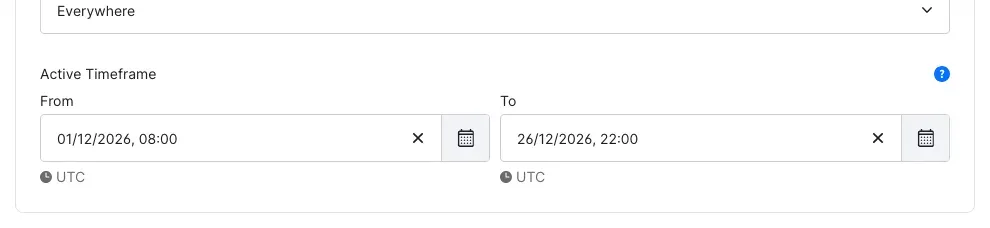 Fig. 6: A timeframe for Advent: the effect starts on 1 December at 8:00 and ends on 26 December at 22:00.
- Both fields empty: the effect always runs.
- Only From filled in: the effect starts at that time and then runs without an end.
- Only To filled in: the effect runs from now on and stops at that time.
- Both filled in: the effect only runs within this time window.
Below the fields you see the time zone in which you enter the time (UTC in the picture). Convert your local time accordingly. For example, Central European winter time is one hour ahead of UTC: for an effect that should start at 0:00 on 1 January in Germany, enter 23:00 on 31 December in UTC.
If the start date is after the end date, the message “The start date must be before the end date.” appears. Correct the timeframe, otherwise the store never shows the effect.
Why this is useful: You can set up your Christmas campaign in November. From the start time, every newly opened page shows the snow, and after the end time it no longer does, even while you are on holiday.
Custom Emoji
The Custom Emoji card defines what falls across the page with the Custom emoji effect type and how it moves. The card applies wherever you select Custom emoji, both in the global settings and in every page card.
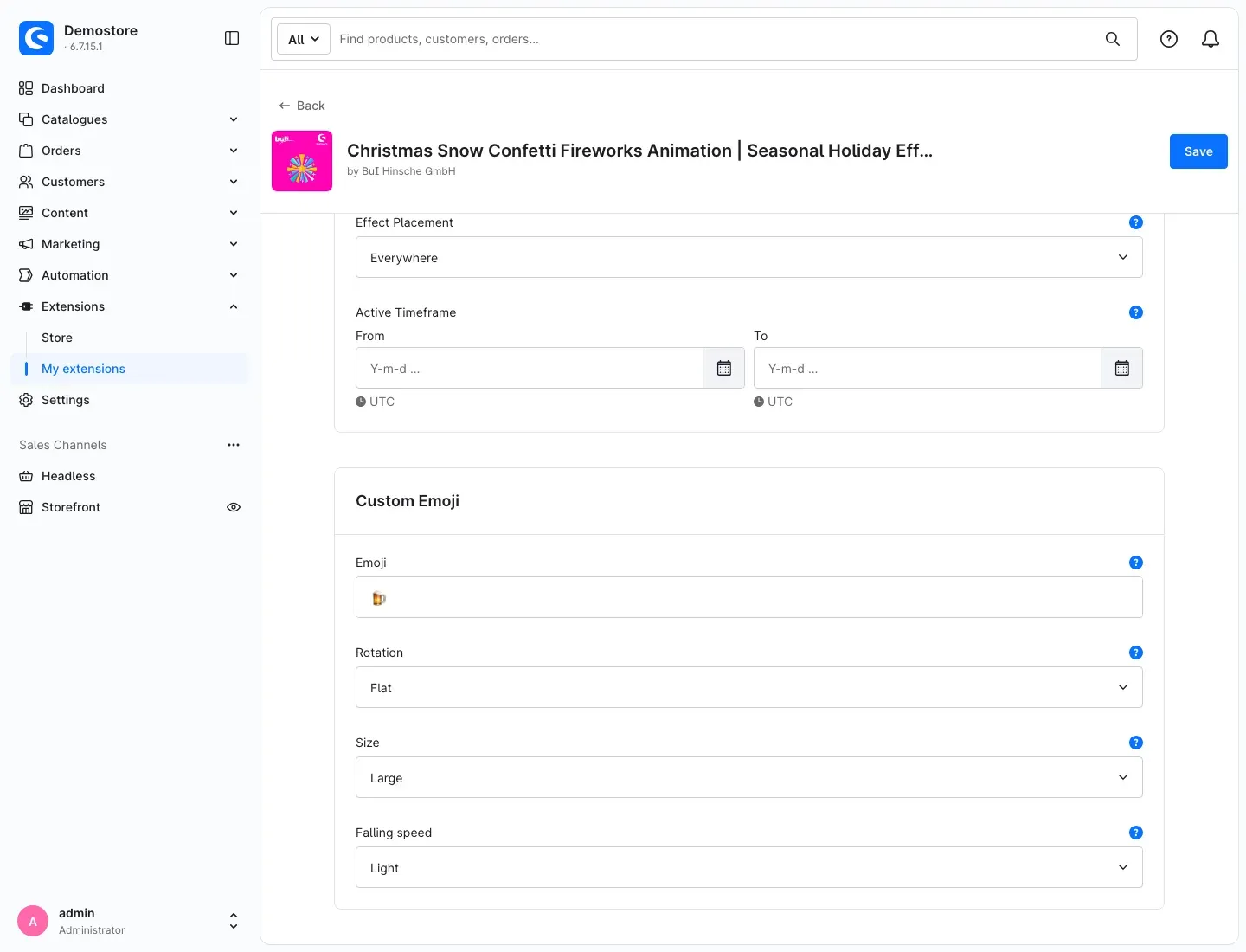 Fig. 7: A beer mug as the custom emoji: upright, large and floating slowly.
- Emoji: Enter your emoji here, for example a four-leaf clover for St. Patrick’s Day. A short text works too, such as “SALE” or “-20%”. Up to 8 characters or emojis are allowed. The plugin automatically removes angle brackets and control characters. If the field is left empty, confetti is shown instead.
- Rotation: With Rotating, the emojis tumble while falling; with Flat, they stay upright. The default is Rotating.
- Size: Choose Small, Medium, Large or Random. Random mixes small and large emojis and is the default.
- Falling speed: With Light, the emojis float slowly; with Heavy, they drop quickly. The default is Normal.
Good to know: Emojis do not look the same on every device. Each device draws them with its own emoji images, so an emoji looks slightly different on an iPhone than on a Windows PC or an Android smartphone. It is best to check your emoji on several devices.
Why this is useful: You are not limited to the ready-made effects. A beer mug for Oktoberfest, a clover for St. Patrick’s Day or a football for the championship match your campaign exactly.
How to Use the Features
How to choose the right effect
What you get: Each effect creates its own mood, so you can find the right animation for every occasion.
Snowfall lets small blue flakes drift gently across the page. Ideal for Advent and winter.
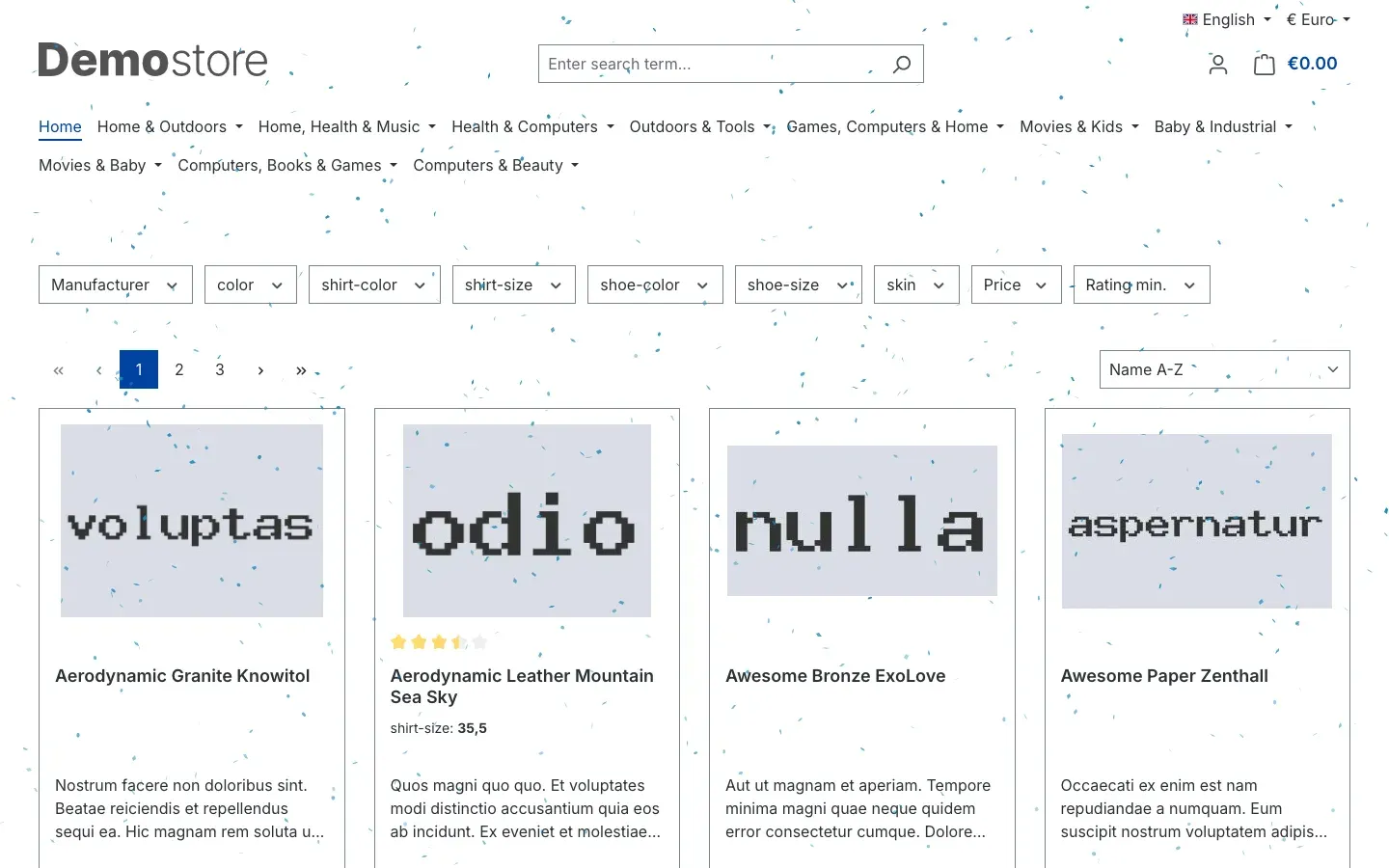 Fig. 8: Snowfall on the home page.
Confetti throws colourful particles into the page. Suits anniversaries, campaigns and the thank-you page after a purchase.
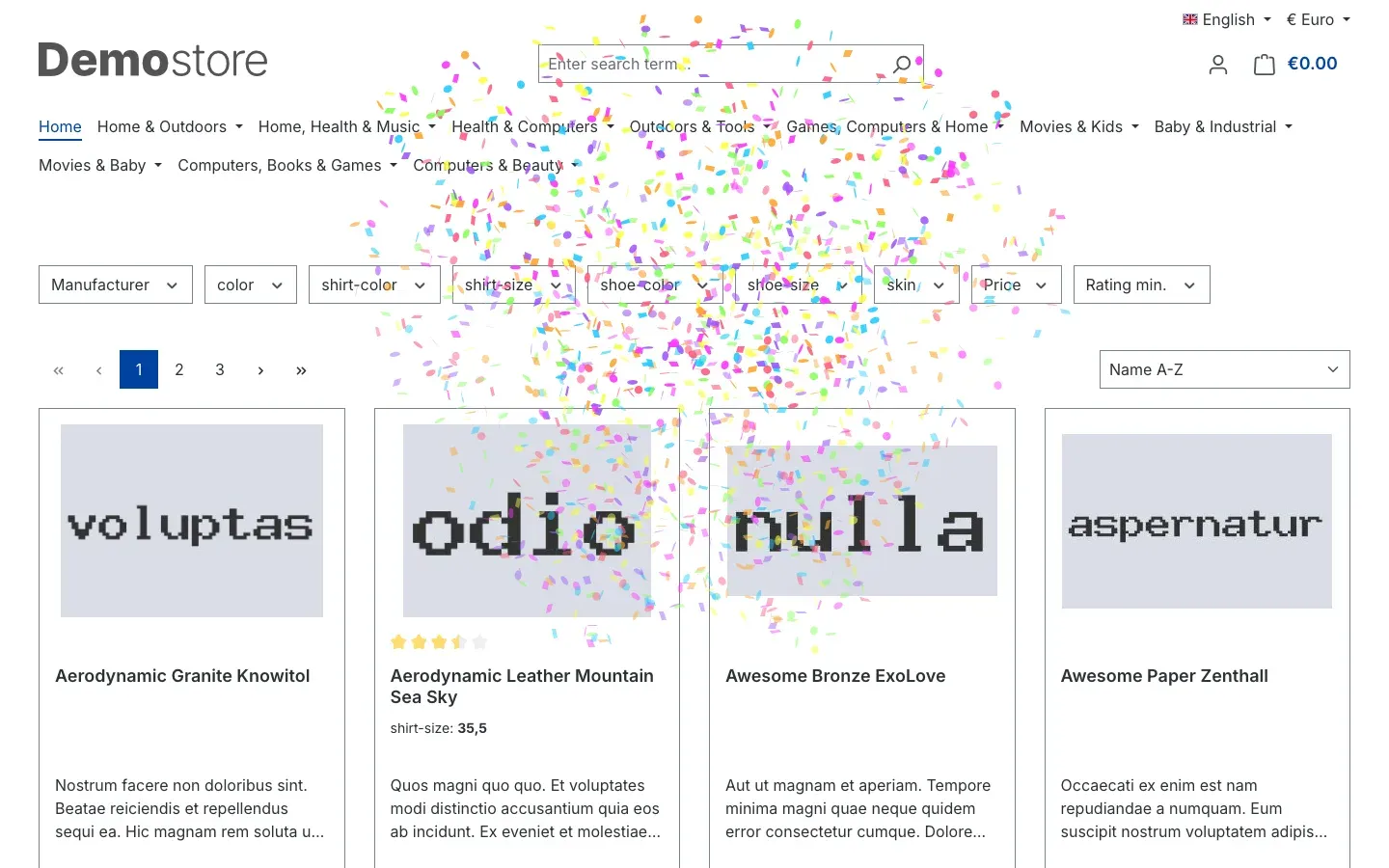 Fig. 9: Confetti on the home page.
Fireworks sends colourful bursts up on the left and right. The classic for New Year’s Eve or a big sale.
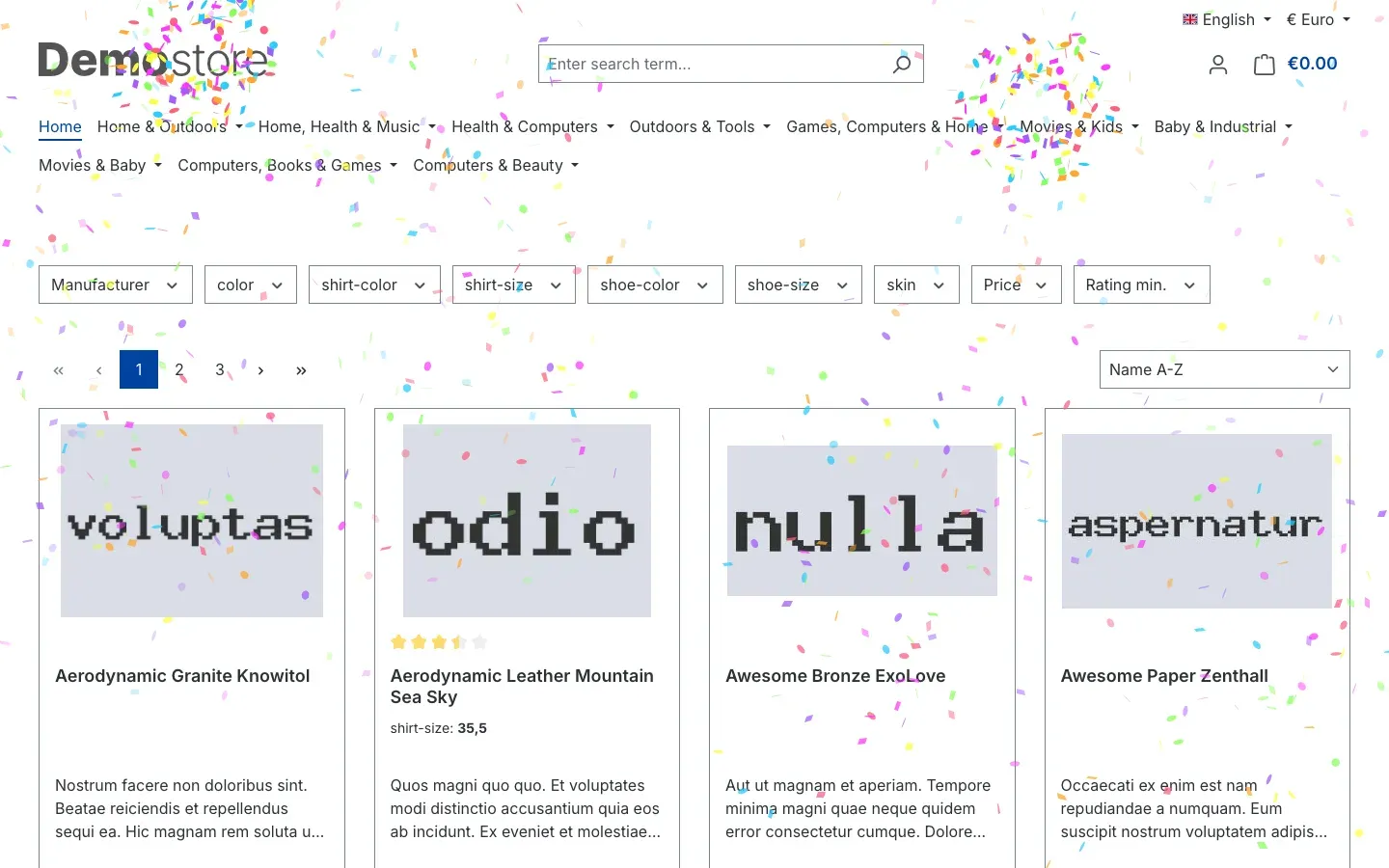 Fig. 10: Fireworks on the home page.
Stars sparkle in gold and yellow tones at changing positions on the page. They look elegant, for example at Christmas or for a premium campaign.
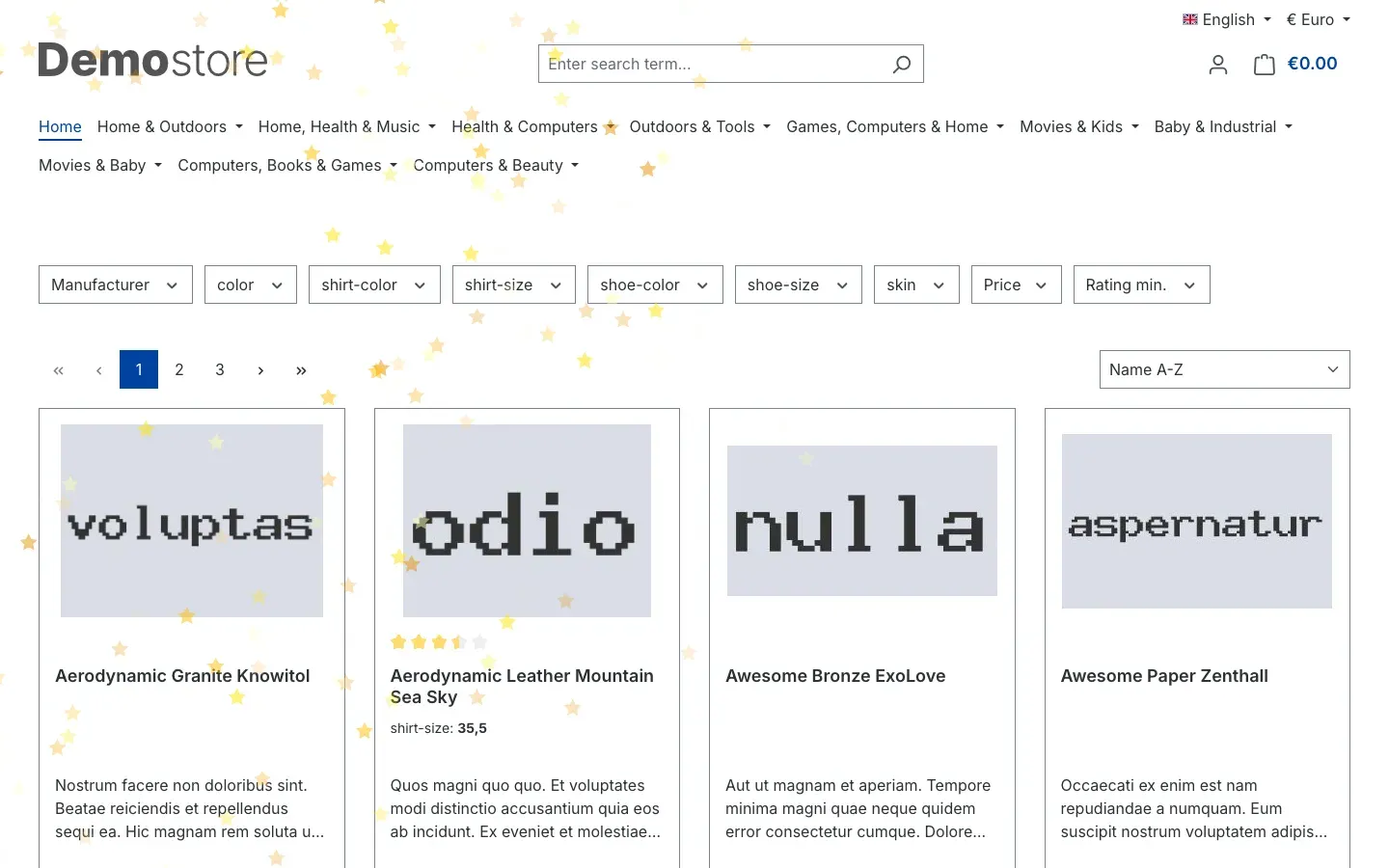 Fig. 11: Stars on the home page.
Red Heart lets red hearts of different sizes fall across the page. Suits Valentine’s Day and Mother’s Day.
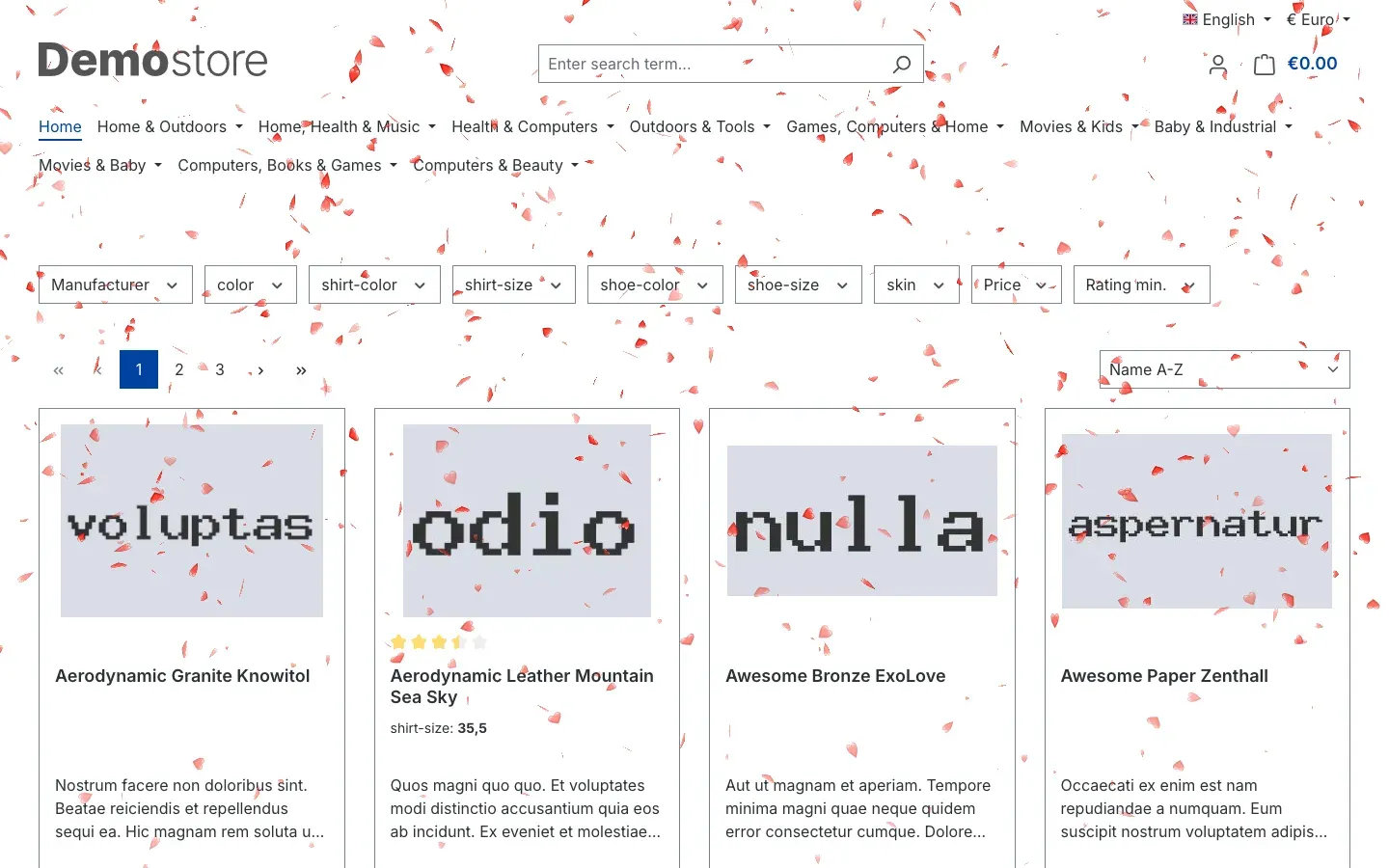 Fig. 12: Hearts on the home page.
Halloween lets pumpkins, ghosts, bats and spiders fall calmly across the page. Suits the spooky week at the end of October.
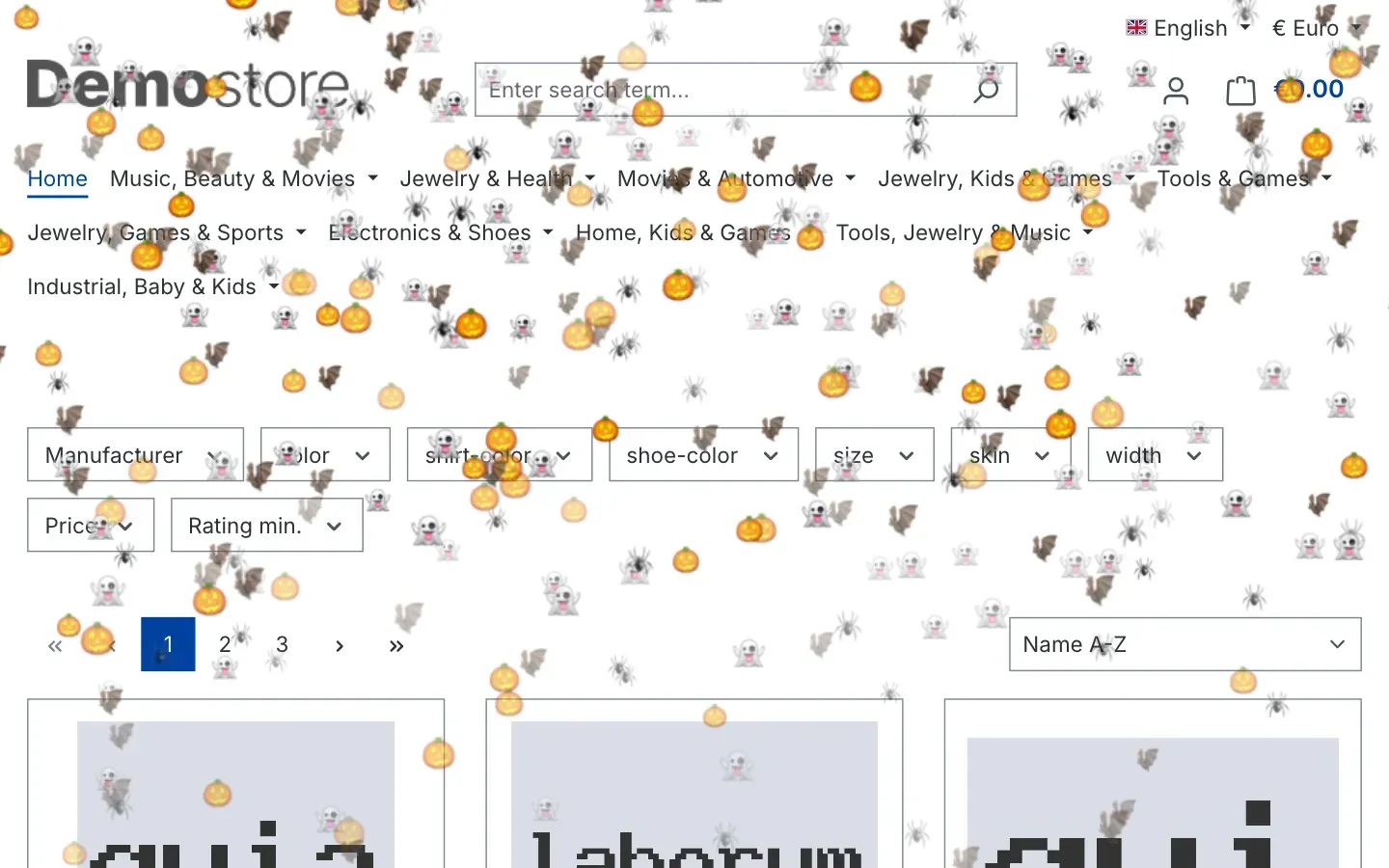 Fig. 13: The Halloween effect on the home page.
Easter lets chicks, eggs, bunnies and tulips float across the page. Suits the Easter weekend and spring campaigns.
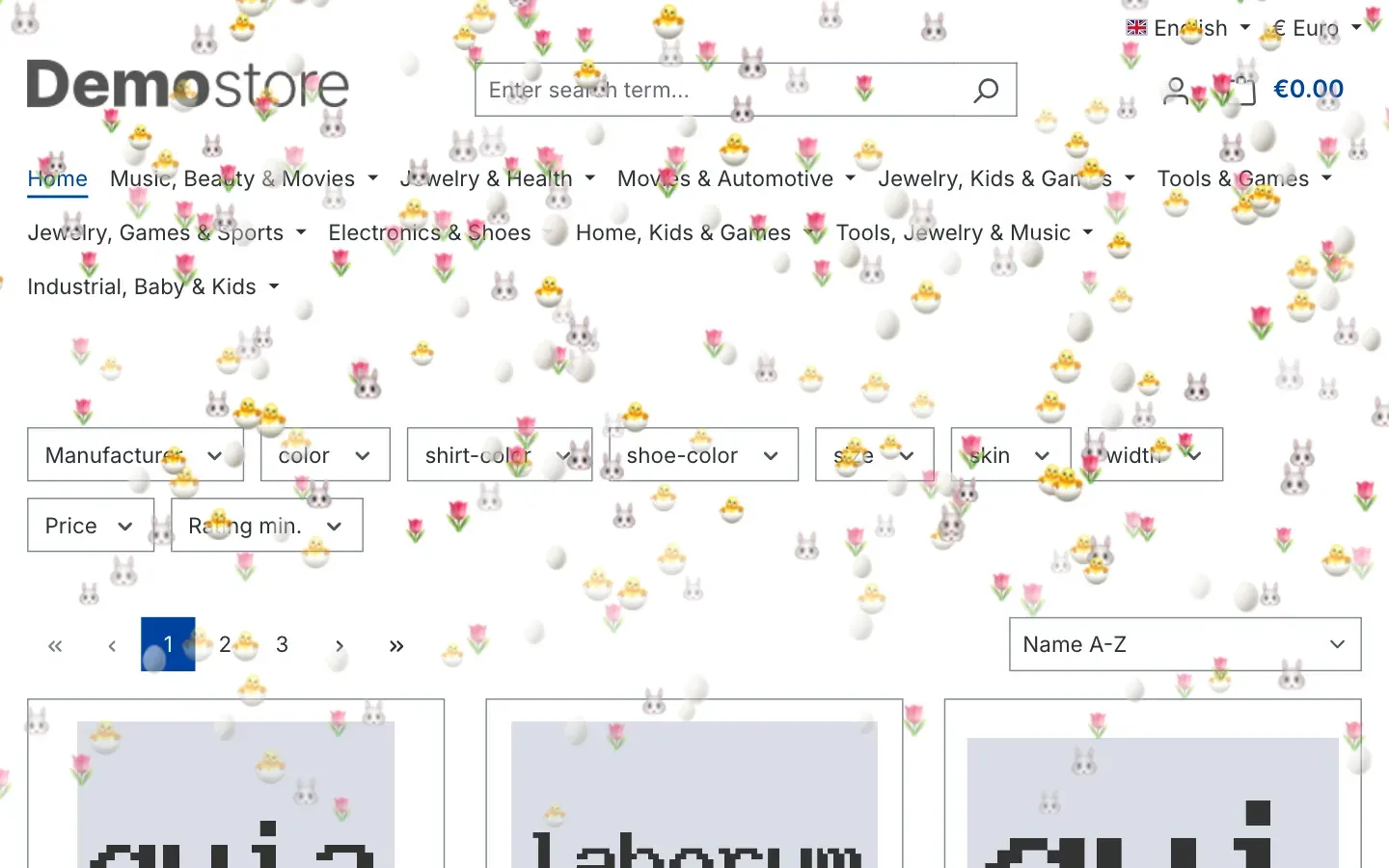 Fig. 14: The Easter effect on the home page.
Christmas lets Christmas trees, gifts, stars and Santas fall, with light snow drifting down as well. Suits the whole of Advent.
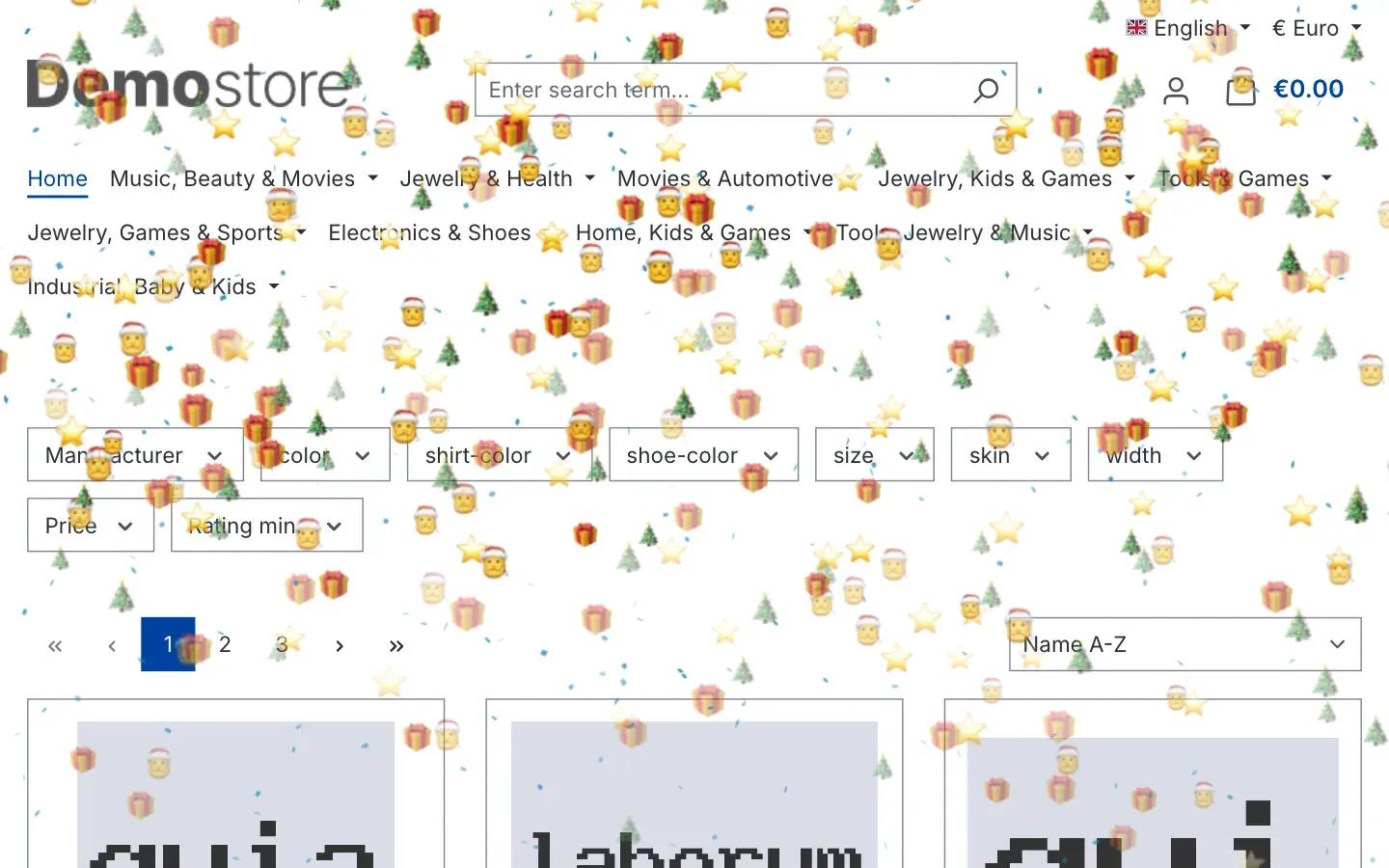 Fig. 15: The Christmas effect on the home page.
With Halloween, Easter and Christmas, the emojis stay upright and fall slowly so they are easy to recognise. How to let your own emoji fall shows how to let your own character fall with Custom emoji.
The animation is displayed on top of the page. Your visitors can still click, search and shop as usual.
How to keep an effect subtle
What you get: Your products stay in focus while the effect adds atmosphere at the edges.
Step by step
- Open the plugin configuration via Extensions → My extensions and Configure.
- Go to the card of the page you want, for example Home Page.
- Set Effect Placement to Header only. Alternatively, choose Sides only (Left & Right) or Footer only.
- Set Effect Density to Little or Normal.
- Click Save.
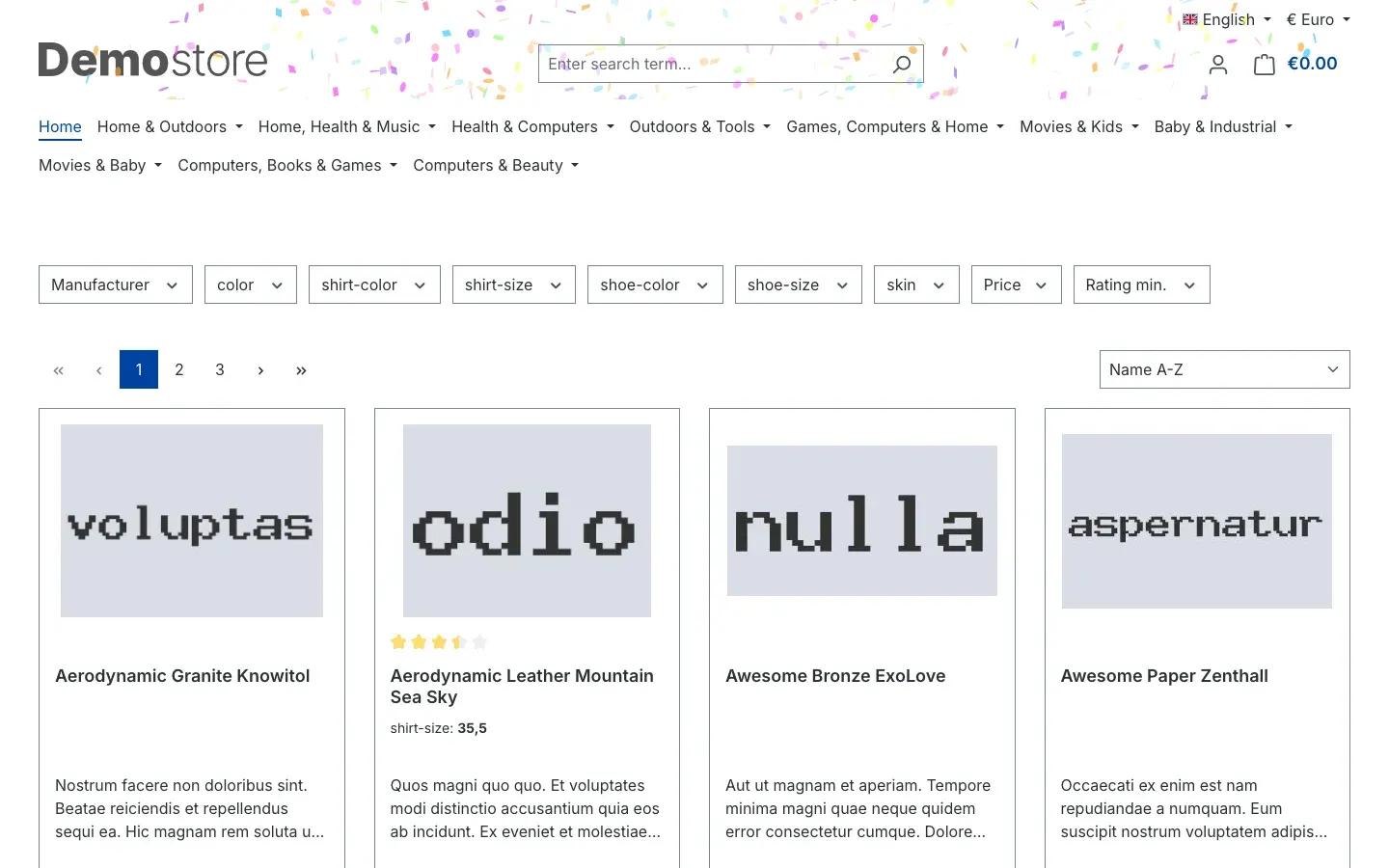 Fig. 16: Placement “Header only”: the effect stays in the header, the rest of the page is clear.
How to give each page its own effect
What you get: You tell a small story along the shopping journey: snow on the home page, stars in the categories, confetti on the product page and after the purchase.
Step by step
- Open the plugin configuration.
- Make sure Effect Type in Global Settings (Overrides page settings) is set to None. Otherwise the page settings do not apply.
- In the Home Page, Product Detail Page, Category Pages (Listing) and Checkout Finish Page cards, choose the Effect Type you want and adjust density, duration and placement.
- Click Save.
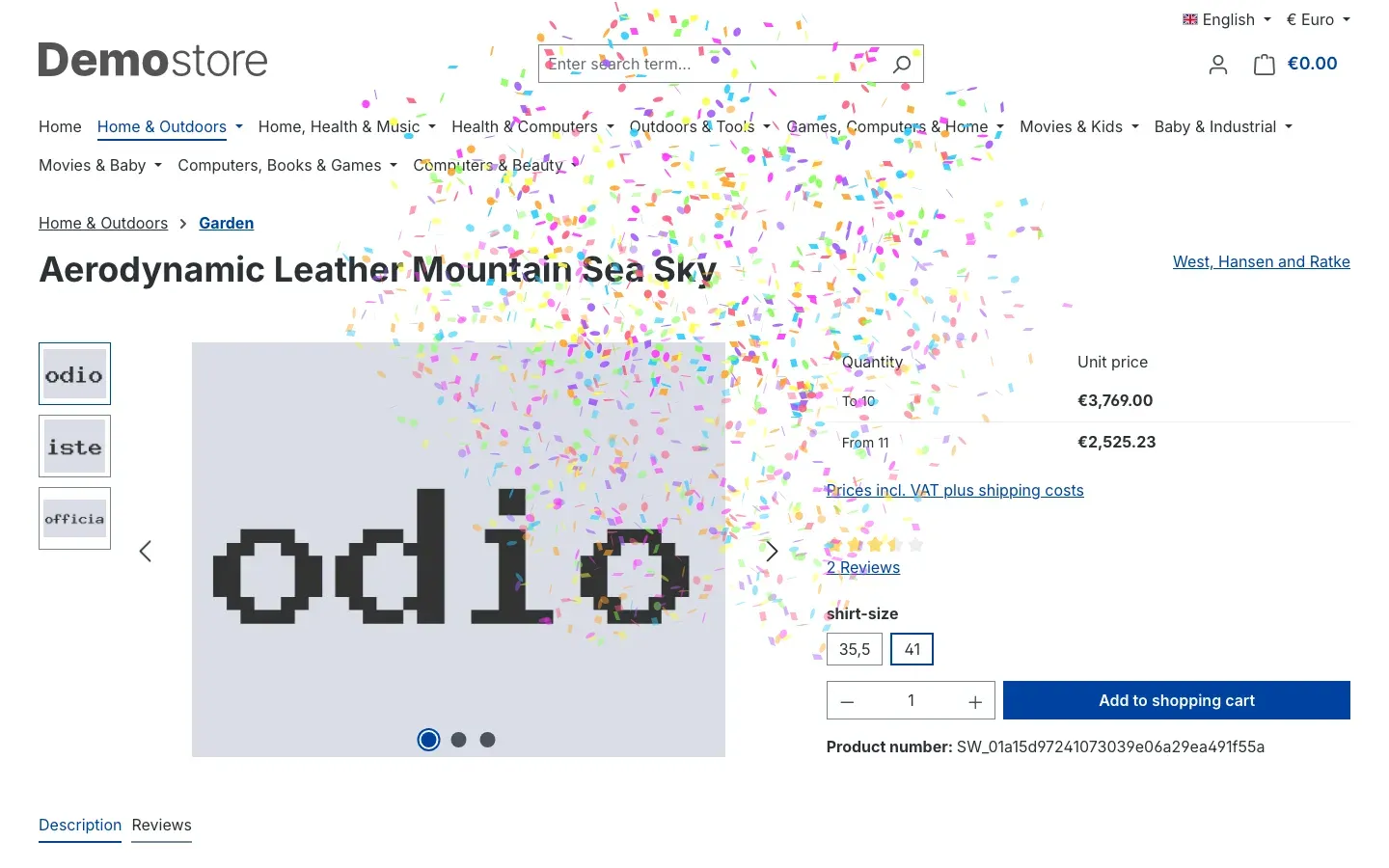 Fig. 17: Confetti on a product detail page, set in the “Product Detail Page” card.
Tip: Confetti in the Checkout Finish Page card is a nice thank-you after every order. You can leave this effect running all year. Only while a holiday preset is running does the thank-you page show the preset effect too.
How to plan a campaign in advance
What you get: You set up seasonal effects once and do not have to remember them on the day.
Step by step
- Open the plugin configuration.
- In the relevant card, choose the Effect Type, for example Fireworks for New Year’s Eve.
- Under Active Timeframe, enter the start in From and the end in To, for example from 31 December 18:00 to 1 January 2:00. Pay attention to the time zone below the fields (see Active Timeframe).
- Click Save.
Whether the effect should currently run is checked by your visitor’s browser when the page opens, using the clock of their device. This also works when Shopware delivers the page from its cache. Visitors who opened a page before the start time see the effect from their next page view; a running effect with duration “Permanent” does not stop in the middle of a page but on the next page change.
Tip: Each card has its own timeframe. You can plan Advent for the home page and a Valentine’s week for the product detail page, all in one configuration.
Tip: For the major holidays it is even easier: a holiday preset already includes the effect and the period (see How to plan holidays with a preset).
How to use different settings per sales channel
What you get: Each store gets the look that suits its audience.
Step by step
- Open the plugin configuration.
- Set the default with All Sales Channels and click Save.
- At the top, choose the channel that should differ under Sales Channel.
- Change only the values that should be different there. If the channel should not show any effects at all, switch off Enable plugin for this sales channel.
- Click Save.
How to plan holidays with a preset
What you get: You pick a holiday once, and your store shows the matching effect on time in the right period every year. Your other settings are kept and continue to run outside the holiday.
Step by step
- Open the plugin configuration via Extensions → My extensions and Configure.
- At the top, choose the channel the preset should apply to under Sales Channel, or keep All Sales Channels.
- In the Holiday presets (take priority during their period) card, choose the holiday you want under Holiday preset, for example Christmas: Christmas emojis and snow (1 to 26 Dec).
- Click Save.
From the first day of the holiday period, every newly opened page shows the preset effect; after the end, your usual settings apply again. The next year, this happens again by itself.
Tip: Combine the preset with a year-round effect. For example, if you set confetti in the Checkout Finish Page card and select the Christmas preset, the thank-you page shows Christmas emojis in December and confetti for the rest of the year.
Important: If the holiday period is still in the future, you will not see anything of the preset right after saving. That is expected: the preset waits for its period.
How to let your own emoji fall
What you get: Your store shows exactly the motif that suits your campaign, for example a beer mug for Oktoberfest or “SALE” for the clearance sale.
Step by step
- Open the plugin configuration.
- Scroll all the way down to the Custom Emoji card.
- Enter your emoji or a short text in the Emoji field. On a Windows PC you insert emojis with the Windows key and the full stop; on a Mac with Control, Command and Space.
- Set Rotation, Size and Falling speed (see Custom Emoji).
- In the global settings or in a page card, set Effect Type to Custom emoji.
- Click Save.
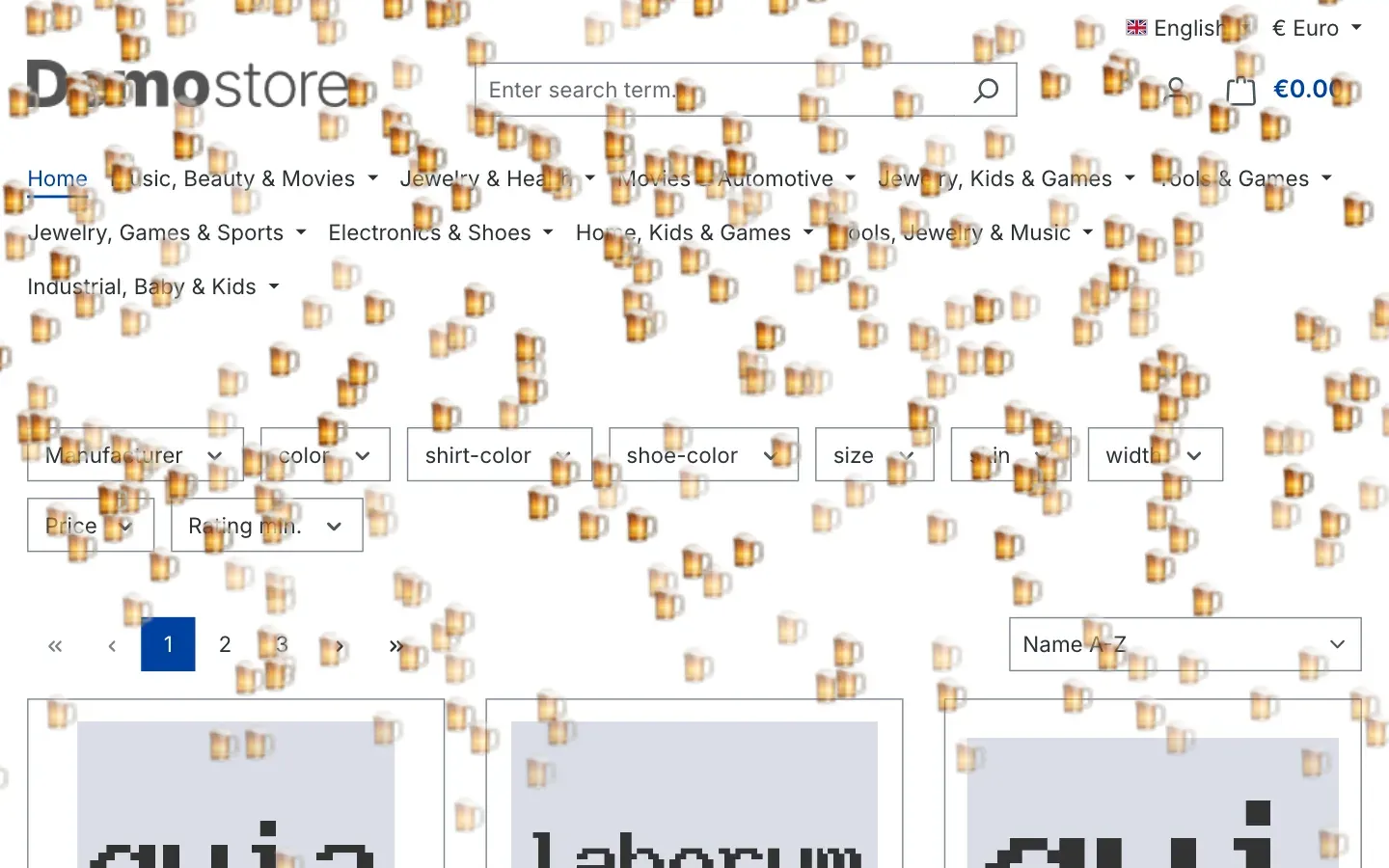 Fig. 18: The custom emoji on the home page: beer mugs, flat, large and falling slowly.
Tip: Short texts with only a few characters work best. A long word is hard to read while it falls.
Troubleshooting
The effect does not appear in the store
Possible causes and how to fix them:
- Plugin not active: Check under Extensions → My extensions that the plugin’s switch is on.
- Sales channel switched off: Select your sales channel at the top of the configuration and check that Enable plugin for this sales channel is on.
- No effect selected: Check that the Effect Type in the page’s card is set to something other than None.
- Global setting overrides the page: If an effect is set in Global Settings (Overrides page settings), the page cards do not apply. If the global timeframe is currently outside its window, the store then shows no effect on any page.
- A holiday preset is currently running: During a preset’s period, the store shows the preset effect on every page. Your global settings and page cards pause for that time.
- Timeframe does not match: Check From and To under Active Timeframe and the time zone below the fields. For testing, clear both fields with the X.
- Reduced motion: If a visitor has turned on the “Reduce motion” setting in their operating system, the store deliberately shows them no animation. Test with a different device or turn the setting off temporarily.
- Outdated cache: Clear the cache under Settings → System → Caches & indexes and reload the page in your browser.
The holiday preset shows no effect
Why it happens: Usually the holiday period has not started yet or is already over. For example, if you select Christmas: Christmas emojis and snow (1 to 26 Dec) in October, the effect only starts on 1 December. Until then, your global settings or the page cards apply.
How to fix it:
- Check the period stated in the preset’s name and compare it with today’s date.
- Check that you saved the preset in the right sales channel and that Enable plugin for this sales channel is on there.
- If you want to see the effect beforehand, select it for testing under Effect Type in the global settings, for example Christmas. Set it back to None afterwards.
The emoji looks different than expected
Why it happens: Each device draws emojis with its own emoji images. The same emoji therefore looks different on an iPhone, an Android smartphone and a Windows PC. Older devices may not yet know very new emojis and show an empty box instead.
How to fix it: Check your emoji on several devices. If in doubt, choose a well-known emoji that has been around for a while.
Confetti appears instead of emojis or hearts
Why it happens: There are two reasons:
- The Emoji field is empty: With the Custom emoji effect type, the store shows confetti as long as no character is entered in the Custom Emoji card.
- Older browser: Older browsers, for example Safari on Mac, iPhone or iPad before version 16.4, cannot draw emojis as an effect. There, Halloween, Easter, Custom emoji and Red Heart show confetti, and Christmas shows plain snowfall. This way, these visitors still see a fitting animation instead of an empty page.
How to fix it: Enter a character in the Custom Emoji card and save. For older browsers you do not need to do anything; once the visitor updates their browser, they see the emojis.
The effect starts at the wrong time
Why it happens: The time under Active Timeframe applies in the time zone shown below the fields (for example UTC). In addition, the visitor’s browser checks the timeframe using the clock of their device.
How to fix it: Convert the time you want into the time zone shown and enter it again. If the clock of a single device is wrong, only that visitor sees the effect too early or too late.
The effect appears in the wrong place
Why it happens: With Header only and Footer only, the plugin looks for the header or footer of your theme. If it cannot find it, it shows the effect as a band at the top or bottom edge.
How to fix it: Choose Everywhere or Sides only (Left & Right). These two placements work with every theme.
The page responds more slowly on smartphones
Why it happens: With Effect Density set to A lot and Effect Duration set to Permanent, the visitor’s device has to draw many particles at the same time.
How to fix it: Set Effect Density to Normal or Little and choose a limited Effect Duration.
The Open documentation button does not work
Why it happens: If the message “The documentation link could not be loaded.” appears, the Administration could not retrieve the manual’s address at that moment.
How to fix it: Reload the configuration page. Alternatively, open the manual directly at https://www.bui-hinsche.com/en/documentation/seasonal-magic-animations.
FAQ
Q: Can I use my own images or my logo as falling elements?
A: Images and logos, no. With the Custom emoji effect type, however, you can let any emoji or a short text of up to 8 characters fall, for example your discount code.
Q: Can I show several effects on one page at the same time?
A: No, one effect runs per page. However, you can give each of the four page types a different effect.
Q: Do I have to set up the holiday preset again every year?
A: No. The plugin recalculates the period every year, including Easter and Black Friday, whose dates shift annually. The preset stays selected until you change it.
Q: Can I select several holiday presets at the same time?
A: No, you can only select one preset at a time. Plan further holidays using the Active Timeframe in the global settings or in the page cards, or switch the preset after the holiday.
Q: Does the plugin set cookies, or do I need an entry in the cookie banner?
A: No. The plugin sets no cookies and loads nothing from third-party servers. The animation is fully contained in the plugin.
Q: Do all visitors see the effect?
A: Almost all. Visitors who have turned on “Reduce motion” in their operating system deliberately see no animation. This keeps your store pleasant for people who are sensitive to motion. Visitors with an older browser see confetti or snow instead of the emojis for the emoji effects and the hearts.
Q: Does the effect also appear in the Administration?
A: No. The effects only run in the store your customers see.
Q: Do I have to switch the effect off manually after the campaign?
A: Not if you enter an end date under To in the Active Timeframe. The effect then stops by itself. A holiday preset ends automatically with its period anyway.
Q: I used version 6.7.1 before. Do I have to change anything after the update?
A: No. Your existing settings remain unchanged. The new holiday preset is set to No preset, and you can select the new effects whenever you like. The card with the global settings is now called Global Settings (Overrides page settings).
Q: I used version 6.7.0 before. Do I have to change anything after the update?
A: No. The switch used to be called “Activate plugin for this channel” and is now called Enable plugin for this sales channel. Your previous setting per sales channel is carried over automatically during the update.
Q: What happens to my settings if I uninstall the plugin?
A: If you choose to keep the data when uninstalling, your settings are preserved and are available again after reinstalling. Otherwise Shopware removes the entire plugin configuration. The plugin does not create any other data.
For Administrators / Technical Details
This section is intended for technical administrators. You do not need it for normal use.
System requirements
- Shopware: 6.7 (any patch version)
- PHP: 8.2 or later
Installation via the command line
The technical name of the plugin is SwpHolidayEffectsSix.
php bin/console plugin:refresh
php bin/console plugin:install SwpHolidayEffectsSix --activate
php bin/console cache:clear
Privacy
- No cookies, no tracking, no calls to external services.
- The canvas-confetti animation library is bundled with the plugin. Nothing is loaded from a CDN at runtime.
- The visitor’s browser draws emojis using the emoji images of their device. No images are loaded.
- No personal data is processed.
Data storage
- The plugin does not create its own database tables and does not modify any Shopware tables.
- All settings are stored in Shopware’s plugin configuration, per sales channel.
- When uninstalling without keeping the data, Shopware removes the plugin configuration completely.
HTTP cache
The active timeframe is checked in the visitor’s browser, not on the server. A page delivered from the HTTP cache therefore still starts and stops the effect at the configured time. The same applies to a holiday preset’s period: the page contains the preset effect and the other settings, and the browser picks the right one when the page opens. After changing the configuration, clearing the cache may be necessary so that pages already in the cache pick up the new setting.
Browser support
The Halloween, Easter, Christmas, Custom emoji and Red Heart effects draw emojis or heart shapes and need an up-to-date browser for this. Older browsers without this support, for example Safari on macOS and iOS before version 16.4 or older browsers embedded in apps, show confetti instead, or plain snowfall for Christmas. No error appears and the page remains usable.
Theme compatibility
- The placements Everywhere and Sides only (Left & Right) work with every theme.
- Header only and Footer only use the header and footer of the standard Storefront markup. If they are missing, the effect appears as a band about 200 pixels high at the top or bottom edge.
- The animation is only loaded when an effect is set for the page being visited.
Accessibility
The plugin respects the browser setting for reduced motion (prefers-reduced-motion). If it is active, no animation starts. The effect container is hidden from screen readers.
Update from version 6.7.1
The update to 6.7.2 does not change any existing settings. New are the Holiday presets (take priority during their period) and Custom Emoji cards and the Halloween, Easter, Christmas and Custom emoji effect types. After the update, the preset is set to No preset and the Emoji field is empty.
Update from version 6.7.0
During the update, the plugin automatically carries the previous channel switch over to the new Enable plugin for this sales channel switch, for each sales channel. No manual action is required.
This manual was written for Christmas Snow Confetti Fireworks Animation | Seasonal Holiday Effects, version 6.7.2.
More manuals
Admin Password Reminder
Admin Password Reminder: your backend users renew their passwords on time, prompted after login and by a daily email. Premium locks expired accounts until the password is changed.
Open manual Shopware 6Age Check
Tobacco, spirits, knives: visitors who do not confirm their age never see the restricted items at all. You tick a box per product, the plugin hides it everywhere.
Open manual Shopware 6AI Media Labelling
AI labelling for images and videos: flag a media item once in the media manager and the badge with your notice appears wherever it shows up in your shop. No template work needed.
Open manualNeed a team that keeps your shop running?
We have been maintaining Shopware shops for more than 20 years, including updates, hotfixes and the plugins you are configuring right now.