
Resource calculation: shipping tax for margin scheme
Shipping tax for the margin scheme: with margin scheme items of the Resource calculation in the cart, the plugin taxes shipping by the largest goods share or splits it by goods value.
On this page
- Introduction
- What you can achieve with this plugin
- Who is this plugin for?
- Installation
- Getting Started
- Settings
- Which sales channel you are configuring
- Open documentation
- Enable plugin for this sales channel
- Split shipping tax by goods value
- Also apply without differentially taxed items
- Settings taken from the Resource calculation
- How to use the functions
- How to tax shipping at the rate of the largest goods share
- How to split shipping tax by goods value
- How to apply the largest goods share to every cart
- How to use the plugin in selected sales channels only
- What the plugin leaves unchanged
- Troubleshooting
- Shipping still gets the tax rate of the coin (for example 0 %)
- Shipping costs get no tax or too little tax despite a margin scheme item
- Shipping gets a different rate from the tax rate for surcharges
- Shipping gets the rate of a regular item although a coin is in the cart
- Carts without margin scheme items get an unexpected shipping tax
- “Also apply without differentially taxed items” has no effect
- Shopware does not allow the installation
- The message “The documentation link could not be loaded.” appears
- FAQ
- For administrators / Technical details
- System requirements
- Installation via the command line
- How the plugin calculates
- Updating from an earlier version
Introduction
Resource calculation: shipping tax for margin scheme helps you set the right tax on shipping costs when margin scheme items are in the cart.
Under the margin scheme (in Germany governed by § 25a UStG), VAT is not charged on the full selling price, only on your margin. The Resource calculation recognises margin scheme items by a tax rate of their own. In the example used throughout this manual, that tax rate is called “§25a UStG 0 %”. Shopware does not take this into account for shipping costs: in our test, without this plugin, a cart holding only one margin scheme item got 0 % tax on shipping as well.
Instead, the plugin gives the shipping costs the replacement rate. This is the tax rate you set in the Resource calculation for the surcharges of margin scheme items, 19 % in the example.
What you can achieve with this plugin
- The shipping tax already shows in the cart and at checkout the way you configured it. You do not need to recalculate anything by hand.
- You choose between two calculation methods: the whole shipping cost gets the tax rate of the largest goods share (default), or the shipping cost is split across the tax rates in the cart by goods value.
- Your shipping price stays the same. Only the way the tax inside it is split changes.
- Shopware calculates carts without margin scheme items as usual, unless you switch on something else.
- Carts with buyback items from the Product buyback plugin stay unchanged.
- You switch and configure the plugin per sales channel.
Who is this plugin for?
For merchants who work with the Resource calculation and sell items under the margin scheme, for example coins or precious metals. If you sell nothing under the margin scheme, you do not need this plugin.
Important: The plugin calculates according to the setting you choose. It does not decide which shipping tax applies to your business, and it is no substitute for tax advice. Please agree the right calculation method with your tax adviser beforehand.
Installation
After your purchase, the plugin is available directly in your Administration — there is nothing to download.
First: The plugin builds on the Resource calculation. Install and activate the Resource calculation first. Without it, Shopware does not allow this plugin to be installed.
-
Log in to your Shopware Administration (
yourshop.com/admin). -
Open Extensions → My extensions.
-
Next to Resource calculation: shipping tax for margin scheme, click Install.
-
Activate the plugin with the switch to the left of the entry — done. When the switch is blue, the plugin is active.
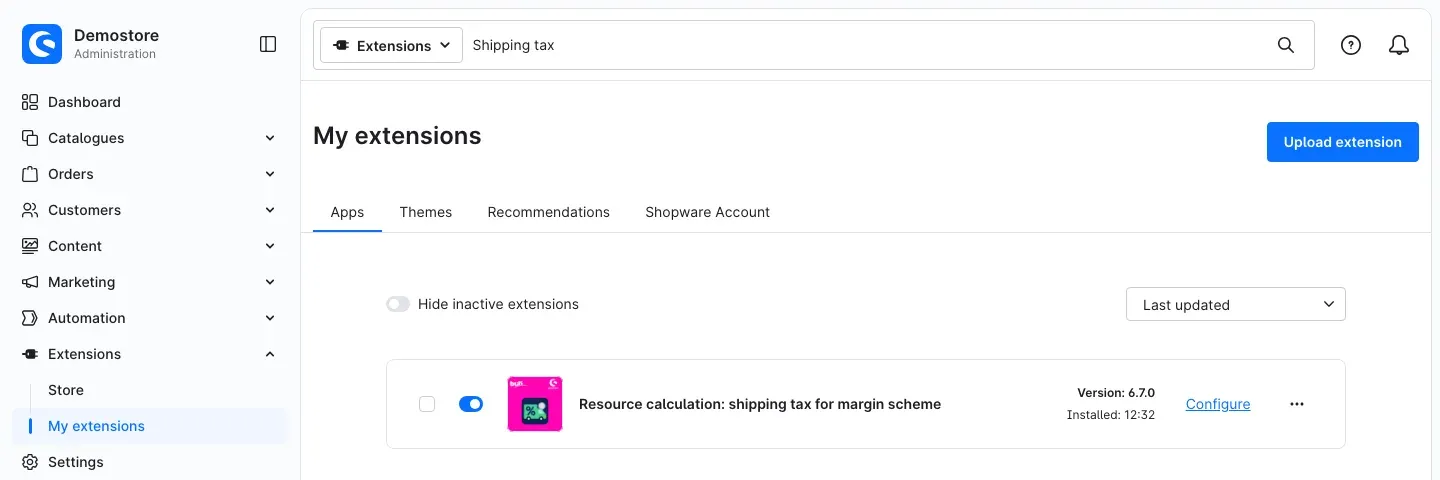 Fig. 1: The plugin under Extensions → My extensions, installed and active
Tip: If you have many extensions, type “Shipping tax” into the search bar at the top to find the entry faster.
If the plugin does not appear in the list, your Shopware account is not yet connected to the shop. You can do this under Extensions → My extensions on the Shopware Account tab.
Getting Started
Four steps get the plugin working.
-
Set up the margin scheme in the Resource calculation. Open Extensions → My extensions and click Configure next to Resource calculation. In the Differential taxation card you need two entries:
- Tax rate identifying differential taxation: select the tax rate you assign to your margin scheme items. In the example it is called “§25a UStG 0 %”. You choose the name yourself when you create the tax rate in Shopware.
- Tax rate for surcharges under differential taxation: select the replacement rate, 19 % in the example. The share of the margin scheme items in the shipping costs gets this rate.
Leave the Fixed tax rate for surcharges under differential taxation field empty if the rate from the selection above should apply. See chapter 4, Settings taken from the Resource calculation for details.
Then click Save. Also make sure that the Enable plugin for this sales channel switch is on in the Resource calculation.
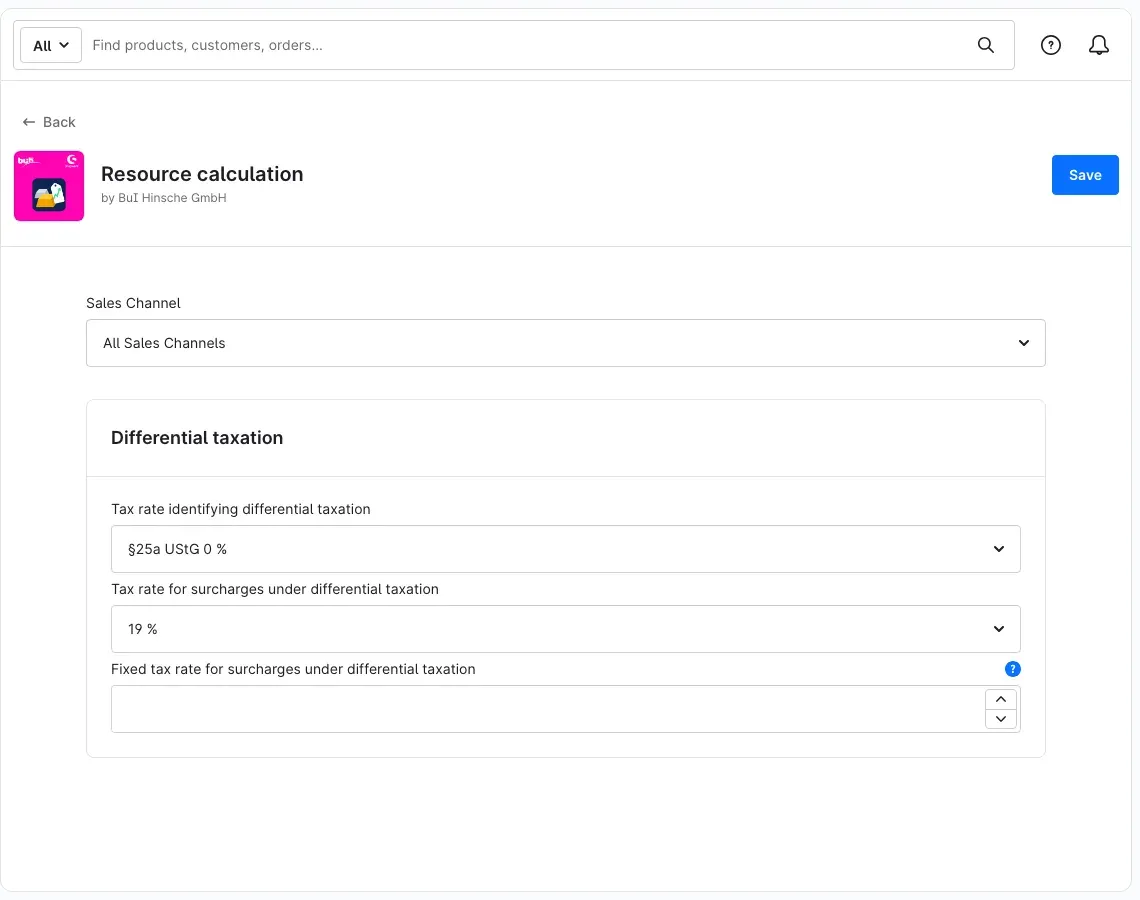 Fig. 2: Resource calculation, Differential taxation card — identifying tax rate, replacement rate and empty fixed tax rate field
 -
Mark an item as a margin scheme item. Open Catalogues → Products and then the item. In the Prices card, select the identifying tax rate in the Tax rate field, “§25a UStG 0 %” in the example. Click Save. From now on, the plugin recognises the item as a margin scheme item.
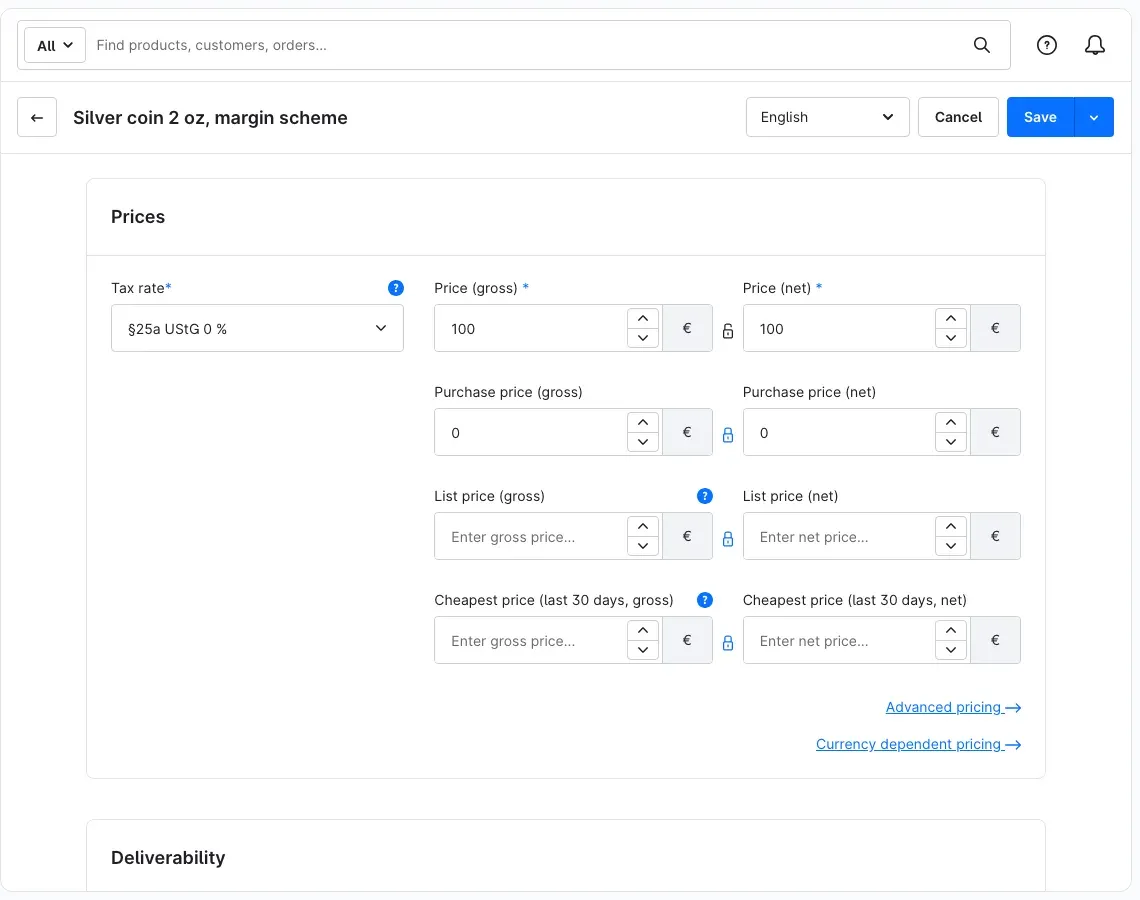 Fig. 3: Item with the tax rate identifying differential taxation
 -
Check the plugin settings. Open Extensions → My extensions and click Configure next to Resource calculation: shipping tax for margin scheme. Out of the box, the plugin is switched on and uses the rate of the largest goods share. You do not need to change anything here to get started. Settings explains what each setting does.
-
Check the result. In your shop, put a margin scheme item in the cart. In the Summary, below Net total, there is now a tax line with your replacement rate, in the example “plus 19% VAT” with €0.95 on €5.95 shipping costs. You can see this in How to tax shipping at the rate of the largest goods share.
Settings
You find the settings under Extensions → My extensions: click Configure next to Resource calculation: shipping tax for margin scheme. After every change, click Save at the top right.
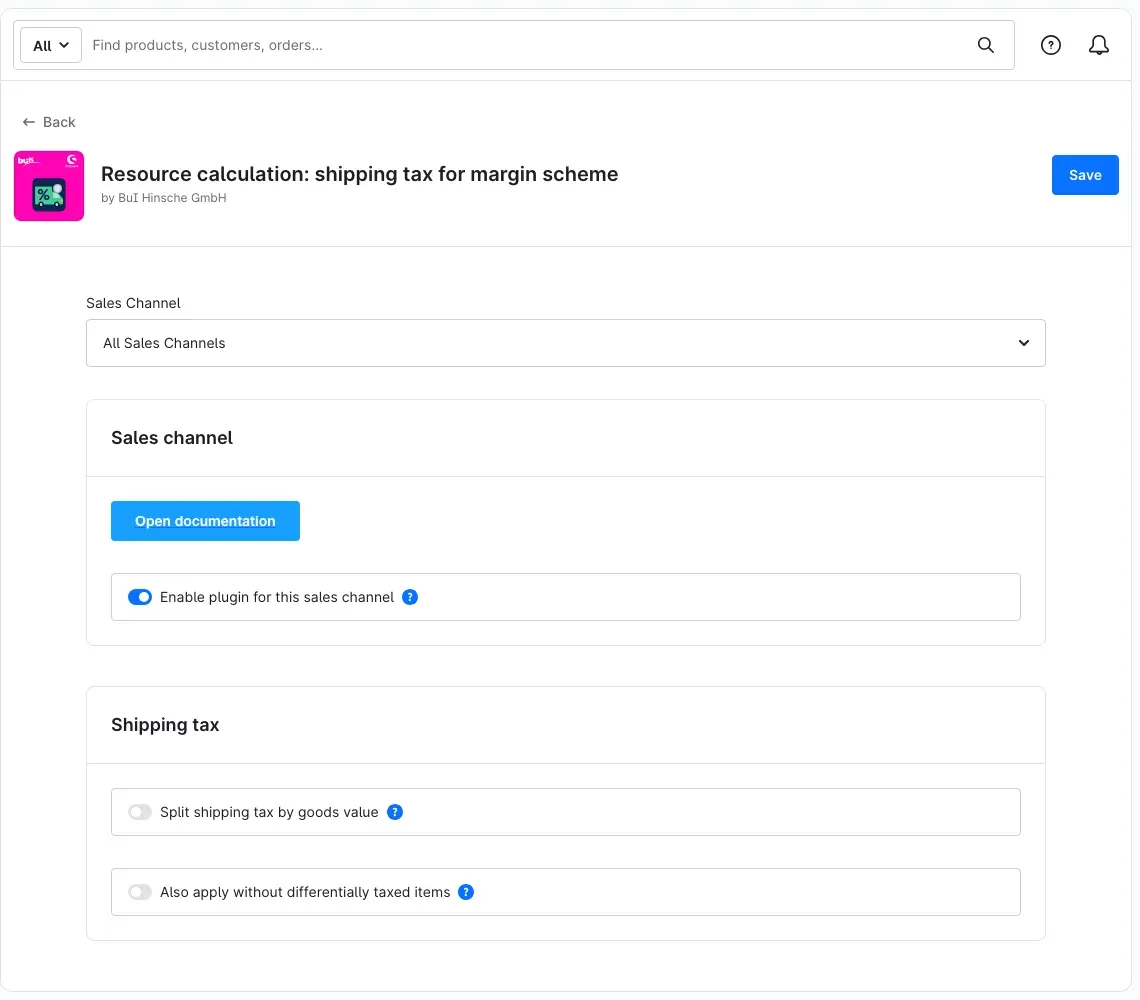 Fig. 4: Configuration page with the Sales channel and Shipping tax cards
The blue question mark next to a switch shows a short help text when you point at it with the mouse.
Which sales channel you are configuring
At the top, under Sales Channel, you choose what the settings apply to. With All Sales Channels you set the values for every channel. If you select a single sales channel, you can save values of its own for it. As long as you save nothing specific for a channel, the values of All Sales Channels apply there.
Open documentation
The Open documentation button in the Sales channel card opens the online documentation of the plugin in a new browser tab.
Enable plugin for this sales channel
The Enable plugin for this sales channel switch decides whether the plugin recalculates the shipping tax in the selected sales channel. It is on by default. If you switch it off, Shopware calculates the shipping tax in that channel as if the plugin were not there.
The plugin only takes effect while the Resource calculation is enabled for the same sales channel as well.
Why this is useful: If you run several sales channels, for example one for consumers and one for trade customers, you use the plugin only where you need it.
Split shipping tax by goods value
Split shipping tax by goods value selects the calculation method. The switch is off by default.
- Off: the whole shipping cost gets the tax rate with the largest goods share. If two tax rates have exactly the same goods value, the higher rate applies.
- On: the shipping cost is split across the tax rates in the cart by goods value. The share of the margin scheme items gets the replacement rate from the Resource calculation.
In both cases, margin scheme items count with the replacement rate and every other item counts with its own tax rate.
Why this is useful: you apply exactly the calculation method you agreed with your tax adviser. How to tax shipping at the rate of the largest goods share and How to split shipping tax by goods value show examples with real amounts.
Also apply without differentially taxed items
By default, the plugin only changes carts with margin scheme items (the configuration calls them “differentially taxed items”). If you switch on Also apply without differentially taxed items, every cart gets the tax rate with the largest goods share on its shipping costs, also without margin scheme items. This overrides the tax setting of the shipping method. The switch is off by default.
The option only applies while Split shipping tax by goods value is off. Carts with buyback items from Product buyback and tax-free carts keep the standard Shopware calculation even then.
Why this is useful: you want one rule for every cart: shipping costs always get the rate of the largest goods share. How to apply the largest goods share to every cart shows an example.
Settings taken from the Resource calculation
The plugin has no replacement rate of its own. It uses the Differential taxation card of the Resource calculation (Fig. 2), for the sales channel in question:
- Tax rate identifying differential taxation: items with this tax rate count as margin scheme items.
- Tax rate for surcharges under differential taxation: this is the replacement rate. If you have set different rates for certain delivery countries for this tax rate in Shopware, the rate for the customer’s delivery address applies to the shipping costs. Otherwise the default rate of the tax rate applies.
- Fixed tax rate for surcharges under differential taxation: a value entered here applies instead of the tax rate selected above, including 0. If the field is empty, the tax rate selected above applies.
This way the shipping costs get the replacement rate in the same order the Resource calculation uses for the surcharges of margin scheme items. You maintain it in one place only. One difference remains: different rates for delivery countries only apply to the shipping costs, the surcharges of the Resource calculation carry the default rate of the selected tax rate. In the example used in this manual, the Fixed tax rate for surcharges under differential taxation field is empty (Fig. 2), so the selected tax rate of 19 % applies.
How to handle the Fixed tax rate for surcharges under differential taxation field:
- Leave it empty: the tax rate from Tax rate for surcharges under differential taxation applies. If you have never entered anything in this field, it is empty.
- Enter a fixed rate: type the rate into the field, for example 5, and click Save. The share of the margin scheme items in the shipping costs then gets 5 % instead of the selected tax rate.
- Enter 0: a saved 0 deliberately means 0 %. The share of the margin scheme items in the shipping costs then gets no tax.
- Remove the value again: clear the field and click Save. The selected tax rate then applies again.
Good to know — the field for a single sales channel: If you select a single sales channel at the top under Sales Channel, the field shows a 0 on a grey background as long as nothing of its own is saved for this channel. This grey 0 is not a saved value: the value of All Sales Channels applies, so with an empty field the selected tax rate applies. To enter a value of its own for the channel, click the chain icon in front of the field name, type the rate and click Save. If you save after clicking the chain icon without typing anything, 0 applies for this channel. If you clear the channel’s field and click Save, the value of All Sales Channels applies there again.
If the identifying tax rate or a replacement rate is missing, the plugin leaves the shipping tax unchanged.
How to use the functions
All examples in this chapter come from a real shop with gross prices and the same values:
- Shipping costs: €5.95
- Silver coin at €100.00 with the tax rate “§25a UStG 0 %” (identifying tax rate, so a margin scheme item)
- Silver coin catalogue at €50.00 with 7 %
- Replacement rate in the Resource calculation: 19 %
The names of the tax rates are examples. In your shop they have the names you gave them.
How to tax shipping at the rate of the largest goods share
What this gives you: the whole shipping cost gets one single tax rate, the rate of the goods share with the highest value. This is the default. You do not need to switch anything on.
Step by step
- Open the plugin settings (Settings).
- Leave Split shipping tax by goods value switched off.
- If you changed anything, click Save.
Only a margin scheme item in the cart
The silver coin counts with the replacement rate of 19 %. The shipping costs of €5.95 therefore get 19 %. The Summary shows “plus 19% VAT” with €0.95. The line “plus 0% VAT” belongs to the coin itself. Without the plugin, shipping got 0 % as well in our test.
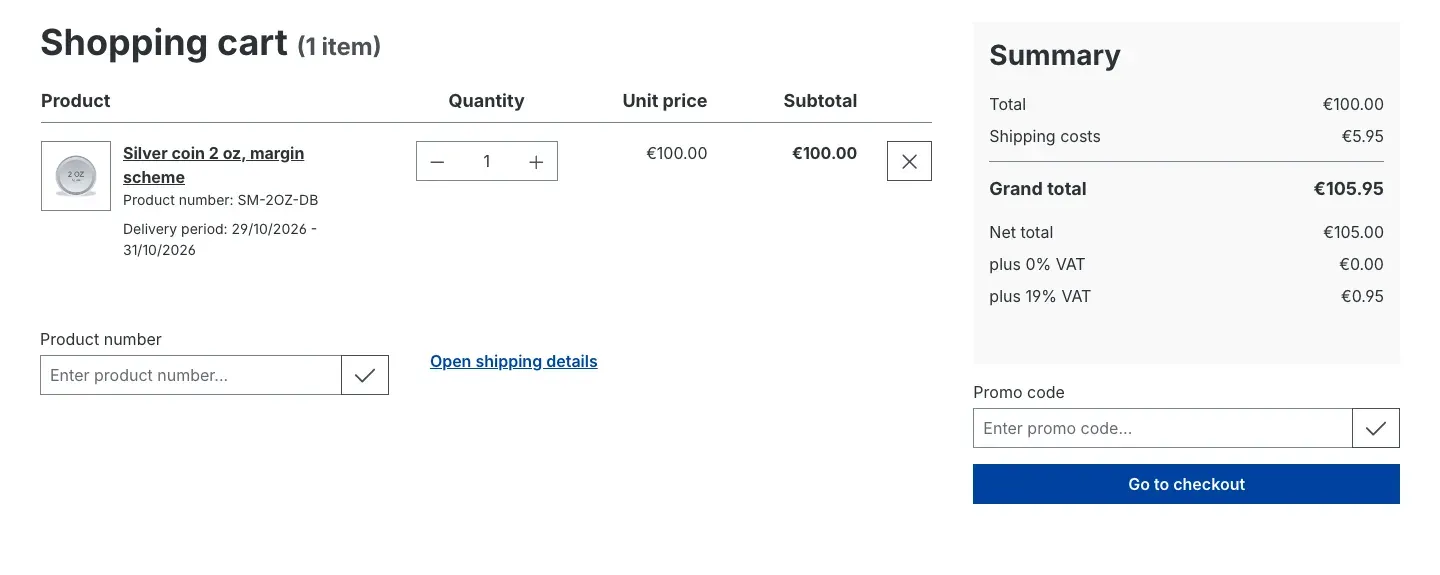 Fig. 5: Only the silver coin in the cart — shipping carries 19 % (€0.95)
A margin scheme item and a regular item in the cart
The coin (€100.00, counts with 19 %) is the larger goods share, the catalogue (€50.00, 7 %) the smaller one. The whole shipping cost therefore gets 19 %: the line “plus 19% VAT” again shows €0.95. The €3.27 next to “plus 7% VAT” is the tax of the catalogue alone.
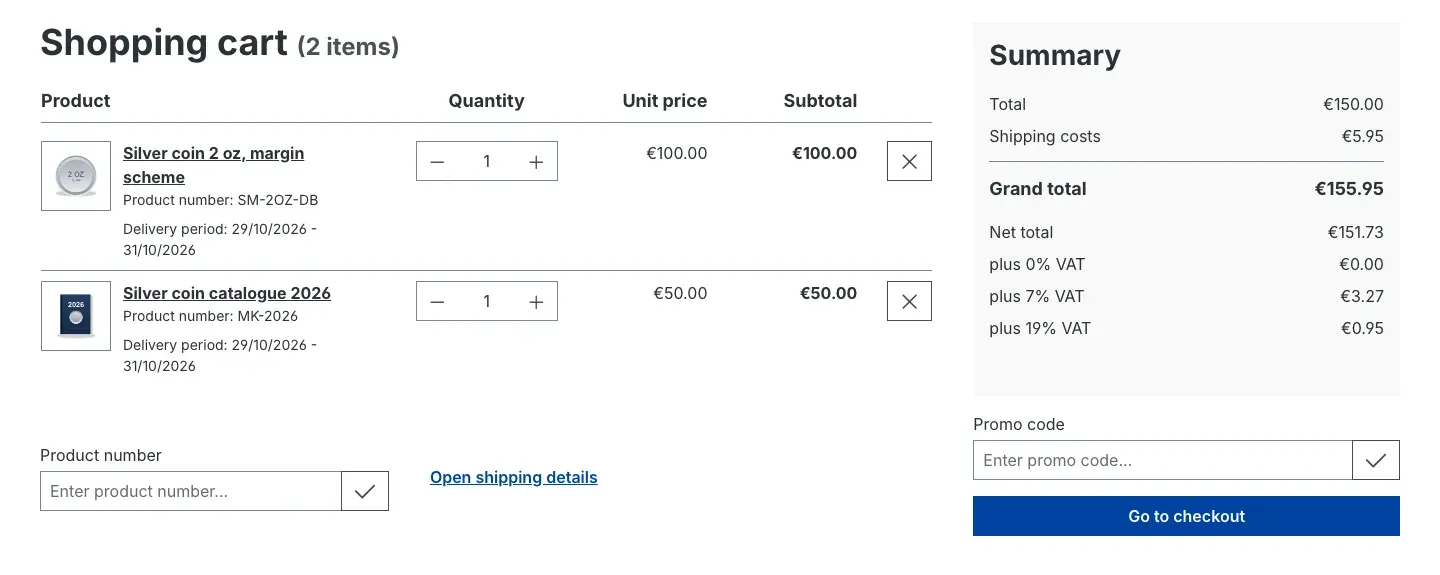 Fig. 6: Coin and catalogue, default calculation method — the whole shipping cost carries 19 %
When the regular item outweighs
If an item at 7 % costing €150.00 sits next to the coin instead of the catalogue, the 7 % share is the larger one. The whole shipping cost then gets 7 %, which is €0.39 tax. If two tax rates have exactly the same goods value, the higher rate applies.
Tip: If you want every tax rate to get its share of the shipping costs, use the calculation method from How to split shipping tax by goods value.
How to split shipping tax by goods value
What this gives you: every tax rate in the cart gets its share of the shipping costs, in line with the goods value. The share of the margin scheme items gets the replacement rate.
Step by step
- Open the plugin settings (Settings).
- Switch on Split shipping tax by goods value.
- Click Save.
What the result looks like
The cart holds the coin (€100.00, counts with 19 %) and the catalogue (€50.00, 7 %). The goods value is therefore split 2 to 1. The shipping costs are split the same way: two thirds at 19 %, one third at 7 %. On the Complete order page, the Summary shows:
- “plus 7% VAT” €3.40 — that is €3.27 for the catalogue plus €0.13 from the shipping share
- “plus 19% VAT” €0.63 — the shipping share at 19 %
The shipping costs stay at €5.95.
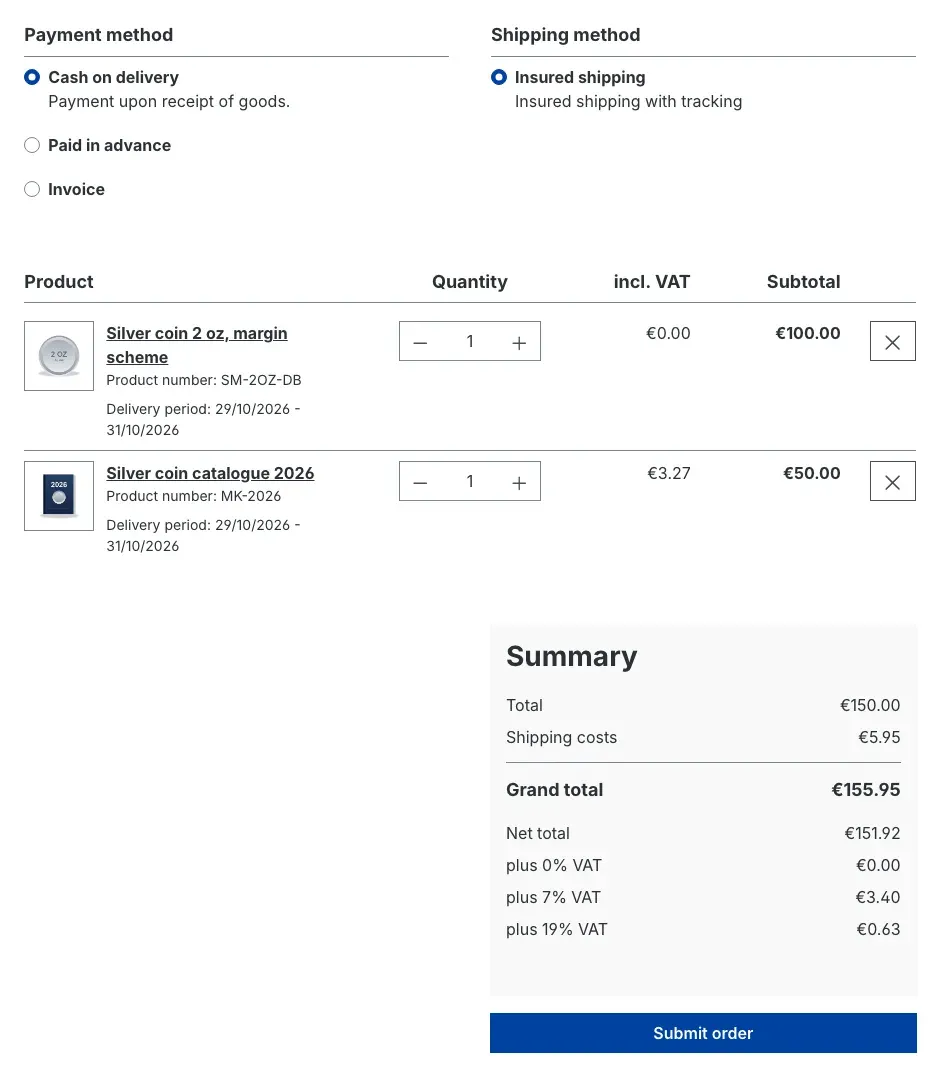 Fig. 7: Complete order page, shipping tax split by goods value — 7 % (€3.40) and 19 % (€0.63)
How to apply the largest goods share to every cart
What this gives you: one rule for every cart. Shipping costs always get the rate of the largest goods share, even if there is no margin scheme item in the cart.
Step by step
- Open the plugin settings (Settings).
- Leave Split shipping tax by goods value switched off. Otherwise the option has no effect.
- Switch on Also apply without differentially taxed items.
- Click Save.
What the result looks like
An example from our tests: the cart holds an item at 19 % costing €100.00 and a book at 7 % costing €50.00, but no margin scheme item. Shipping costs €5.95.
- Option off: Shopware calculates the shipping tax as usual, according to the tax setting of the shipping method. In our test, Shopware split it: €0.63 at 19 % and €0.13 at 7 %.
- Option on: the whole shipping cost gets 19 %, which is €0.95 tax.
Important: With this option, the tax setting of your shipping methods no longer applies to these carts. Only switch it on if that is what you want and you have agreed it with your tax adviser.
How to use the plugin in selected sales channels only
What this gives you: for example, you let the plugin calculate in your consumer shop and switch it off in your trade shop. Or you use a different calculation method in each channel.
Step by step
- Open the plugin settings (Settings).
- At the top, under Sales Channel, select the sales channel you want.
- Switch Enable plugin for this sales channel off or on. You can also set the two switches of the Shipping tax card for this channel here.
- Click Save.
Important: The plugin only calculates in a sales channel if the Resource calculation is enabled there as well. The entries in the Differential taxation card of the Resource calculation also apply per sales channel. Check them there with the same Sales Channel selection.
What the plugin leaves unchanged
Shopware keeps calculating these carts as usual:
- Carts without margin scheme items, as long as Also apply without differentially taxed items is off.
- Carts with buyback items from the Product buyback plugin. Product buyback treats such carts as a buyback. The plugin therefore leaves them unchanged in both calculation methods and with the every-cart option too.
- Tax-free carts.
- Carts in sales channels where the plugin or the Resource calculation is switched off.
- All carts, as long as the identifying tax rate or a replacement rate is missing in the Resource calculation.
This always stays the same:
- The shipping price. Gross prices stay gross: €5.95 stays €5.95, only the tax inside it is split differently. With net prices, the tax is added to the shipping costs as everywhere else in Shopware.
- Discounts do not count. Discounts and other positions without delivery do not count towards the goods share, exactly as in Shopware.
Good to know: If a margin scheme item is in the cart, the plugin sets the shipping tax regardless of the tax setting of the shipping method.
Troubleshooting
Shipping still gets the tax rate of the coin (for example 0 %)
Cause: one of the requirements is missing. The plugin only calculates when everything fits together.
Solution:
- Open Extensions → My extensions and check that the switch next to Resource calculation: shipping tax for margin scheme and next to Resource calculation is on.
- In the plugin settings, check the Enable plugin for this sales channel switch for the sales channel in question.
- In the Resource calculation, check the Enable plugin for this sales channel switch for the same sales channel.
- In the Differential taxation card of the Resource calculation, check that a Tax rate identifying differential taxation and a replacement rate are selected.
- On the item under Catalogues → Products, check in the Prices card that the Tax rate field holds exactly the identifying tax rate.
- If the cart holds a buyback item from Product buyback or the cart is tax-free, the plugin leaves the shipping tax unchanged on purpose (What the plugin leaves unchanged).
- If all of this is correct, check the Fixed tax rate for surcharges under differential taxation field (next section).
Shipping costs get no tax or too little tax despite a margin scheme item
Cause: a value is saved in the Fixed tax rate for surcharges under differential taxation field of the Resource calculation, for example 0 or a rate that is too low. A saved value takes precedence over the Tax rate for surcharges under differential taxation selection, including 0. It can be saved for All Sales Channels or for a single sales channel only.
Solution:
- Open Extensions → My extensions and click Configure next to Resource calculation.
- At the top, under Sales Channel, select All Sales Channels and check the Fixed tax rate for surcharges under differential taxation field in the Differential taxation card. If the selected tax rate should apply, clear the field and click Save.
- Then select the sales channel in question. If the field has a grey background, the value of All Sales Channels applies, even if a grey 0 is shown there. If you can edit the field, the channel has a value of its own: clear the field and click Save. The value of All Sales Channels then applies there again.
- Then put a margin scheme item in the cart and check the tax lines in the Summary. In the example used in this manual, it shows “plus 19% VAT” with €0.95 again.
Shipping gets a different rate from the tax rate for surcharges
Cause: a saved value in the Fixed tax rate for surcharges under differential taxation field takes precedence over the selected tax rate (previous section). Or a different rate applies in Shopware to the selected tax rate for the customer’s delivery country.
Solution: check the Differential taxation card of the Resource calculation for the sales channel in question. Also check whether different rates for delivery countries are set for the selected tax rate.
Shipping gets the rate of a regular item although a coin is in the cart
Cause: this is the intended behaviour of the default calculation method. The whole shipping cost gets the rate of the largest goods share. If the goods value of the regular items is larger, their rate applies (How to tax shipping at the rate of the largest goods share).
Solution: if every tax rate should get its share, switch on Split shipping tax by goods value (How to split shipping tax by goods value).
Carts without margin scheme items get an unexpected shipping tax
Cause: Also apply without differentially taxed items is switched on. The rate of the largest goods share then applies to every cart, and the tax setting of the shipping method no longer counts.
Solution: switch the option off for the sales channel in question and click Save.
“Also apply without differentially taxed items” has no effect
Cause: the option only applies while Split shipping tax by goods value is off. Carts with buyback items and tax-free carts stay unchanged anyway. This option also needs the identifying tax rate and a replacement rate in the Resource calculation.
Solution: switch Split shipping tax by goods value off and check the Differential taxation card of the Resource calculation.
Shopware does not allow the installation
Cause: the Resource calculation is not installed.
Solution: first install and activate the Resource calculation under Extensions → My extensions. Then install this plugin (Installation).
The message “The documentation link could not be loaded.” appears
Cause: the Administration could not retrieve the link to the online documentation when opening the settings. The Open documentation button is then missing.
Solution: the settings still work. You can reach the documentation directly via the link in chapter 8.
FAQ
Q: Do I need the Resource calculation?
A: Yes. The plugin extends the Resource calculation and uses its identifying tax rate and replacement rate. Both plugins have to be enabled for the same sales channel. Otherwise Shopware calculates the shipping tax as usual.
Q: Does this make my shipping tax correct for tax purposes?
A: Only your tax adviser can tell you that. The plugin calculates according to the method you set: largest goods share or split by goods value. Which method fits your business is something you agree with your tax adviser beforehand. We do not give tax advice.
Q: Does the shipping price change for my customers?
A: No. In all examples in this manual, shipping costs €5.95 with and without the plugin. Only the way the tax inside it is split changes. With net prices, the tax is added as everywhere else in Shopware.
Q: What happens to carts with buyback items from Product buyback?
A: They keep the standard Shopware calculation, in both calculation methods and with Also apply without differentially taxed items too.
Q: Does the plugin print a margin scheme notice on invoices?
A: No. The plugin does not flag items and does not change documents. It only sets the tax on the shipping costs in the cart and at checkout.
Q: What is the difference between an empty Fixed tax rate for surcharges under differential taxation field and a 0?
A: If the field is empty, the rate from Tax rate for surcharges under differential taxation applies, 19 % in the example. A saved 0, on the other hand, takes precedence: the share of the margin scheme items in the shipping costs then gets 0 % tax. To use the selected tax rate again, clear the field and click Save (chapter 4, Settings taken from the Resource calculation).
Q: Why does the field show a grey 0 for a single sales channel although I have not entered anything?
A: The grey 0 is not a saved value. It only shows that the channel takes over the value of All Sales Channels. If the field is empty there, the selected tax rate applies in this channel too, 19 % in the example.
Q: Can I calculate differently in each sales channel?
A: Yes. You can save all plugin settings per sales channel (How to use the plugin in selected sales channels only).
Q: I already used the plugin with Shopware 6.6. What changes with version 6.7.0?
A: The main points:
- The “largest goods share” method now only changes carts with margin scheme items. If you want the previous behaviour for every cart, switch on Also apply without differentially taxed items.
- The plugin now takes the replacement rate in the same order as the Resource calculation does for its surcharges: the fixed tax rate first, otherwise the selected tax rate, for shipping with the rule for the delivery address.
- The shipping tax is calculated with the Shopware price calculator. With net prices, in tax-free carts and in mixed carts when splitting by goods value, the amounts may therefore differ from before.
- The update carries over whether the plugin was switched on in a sales channel.
After the update, it is best to check one cart in every sales channel.
Q: What happens when I uninstall it?
A: If you activate the Remove all app data permanently option when uninstalling, the plugin deletes its own settings. Otherwise they are kept. The plugin never touches the settings of the Resource calculation. It has no tables of its own.
Q: Does the plugin send data to external services?
A: No. The plugin does not connect to any external server. It only calculates with the data of your cart.
For administrators / Technical details
This section is aimed at technical administrators. You do not need it for normal use.
System requirements
- Shopware: 6.7.7 or later (6.7)
- PHP: 8.2 or later
- Resource calculation plugin: version 6.7, installed and activated
Installation via the command line
If the plugin and the Resource calculation are already in the custom/plugins folder of your shop and the Resource calculation is installed and activated, install the plugin like this:
php bin/console plugin:refresh
php bin/console plugin:install --activate SwpDiffTaxResourceCalcSix
php bin/console cache:clear
How the plugin calculates
- Shopware first calculates the shipping costs as usual. The plugin then sets the tax on the shipping costs again when all requirements from What the plugin leaves unchanged are met.
- The basis is the positions of the delivery, i.e. the same positions Shopware calculates with.
- The plugin calculates the new tax with the Shopware price calculator, including the rounding of the sales channel.
- The plugin creates no tables of its own, ships no storefront templates and does not connect to any external server.
Updating from an earlier version
On update, the plugin carries over the previous state of the sales channel switch, globally and per sales channel.
This manual was written for Resource calculation: shipping tax for margin scheme version 6.7.0.
More manuals
Address Validation: House Number Check & Corrections
Address validation at the point of entry: the plugin spots missing house numbers, can suggest corrections via Google and helps you send fewer parcels that come back undeliverable.
Open manual Shopware 6Admin Password Reminder
Admin Password Reminder: your backend users renew their passwords on time, prompted after login and by a daily email. Premium locks expired accounts until the password is changed.
Open manual Shopware 6Advent Calendar | Doors with products, coupons and promotions
Advent calendar for your shopping experiences: doors open on time without clearing the cache, give nothing away in the page source and reveal coupons, products or your own content.
Open manualNeed a team that keeps your shop running?
We have been maintaining Shopware shops for more than 20 years, including updates, hotfixes and the plugins you are configuring right now.