
Admin Tweaks: Backend Lists & Shortcuts
Admin Customization
On this page
- Introduction
- What this plugin does for you
- Who is this plugin for?
- Installation
- Getting started
- Settings
- Sales Channel
- Show only active shipping methods in administration list
- Show only active payment methods in administration list
- Save
- How to tidy up the payment methods list
- Step by step
- How to tidy up the shipping list
- Step by step
- How to duplicate a shipping method
- Step by step
- What the copy takes over
- How to use the shortcuts
- Who sees what (permissions)
- Notes
- Troubleshooting
- The list does not start filtered even though the switch is on
- My copied shipping method has disappeared
- I can’t find the entry for duplicating
- A shortcut is missing
- The Shortcuts group is missing entirely
- All settings
- General Settings
- FAQ
- For administrators / technical details
- System requirements
- Installation from the command line
- Which permissions the plugin checks
- What the plugin changes
Introduction
Admin Tweaks makes your daily work in the Shopware administration shorter. The payment and shipping method lists can show only what is currently active. You copy shipping methods with one click instead of creating them from scratch. And the pages you need all the time sit in their own group in the main menu.
What this plugin does for you
- Tidy lists: You hide inactive payment and shipping methods with one switch. Nothing is deleted, one click shows everything again.
- Filtered start: In the settings you decide whether both lists show only active entries as soon as you open them.
- Duplicate shipping methods: You copy an existing shipping method including prices, rule and translations. The copy starts inactive until you have finished adjusting it.
- Shortcuts: You reach Payment methods, Shipping, Snippets and Caches & indexes directly from the main menu.
Nothing changes for your customers. Admin Tweaks works in the administration only.
Who is this plugin for?
For everyone who maintains payment and shipping methods in the administration. It really pays off when lots of old entries have piled up over the years that you don’t want to delete. Or when you often create shipping methods that only differ in prices or delivery countries, for example for freight forwarding.
Installation
Once you have added Admin Tweaks to your shop in the Shopware Store, it is ready in your administration. There is nothing to download.
- Log in to your Shopware administration (
yourshop.com/admin). - Open Extensions → My extensions. If the list is long, type “Admin Tweaks” into the search at the top.
- In the Admin Tweaks row, click Install.
- Turn the plugin on with the switch on the left of the row. Done.
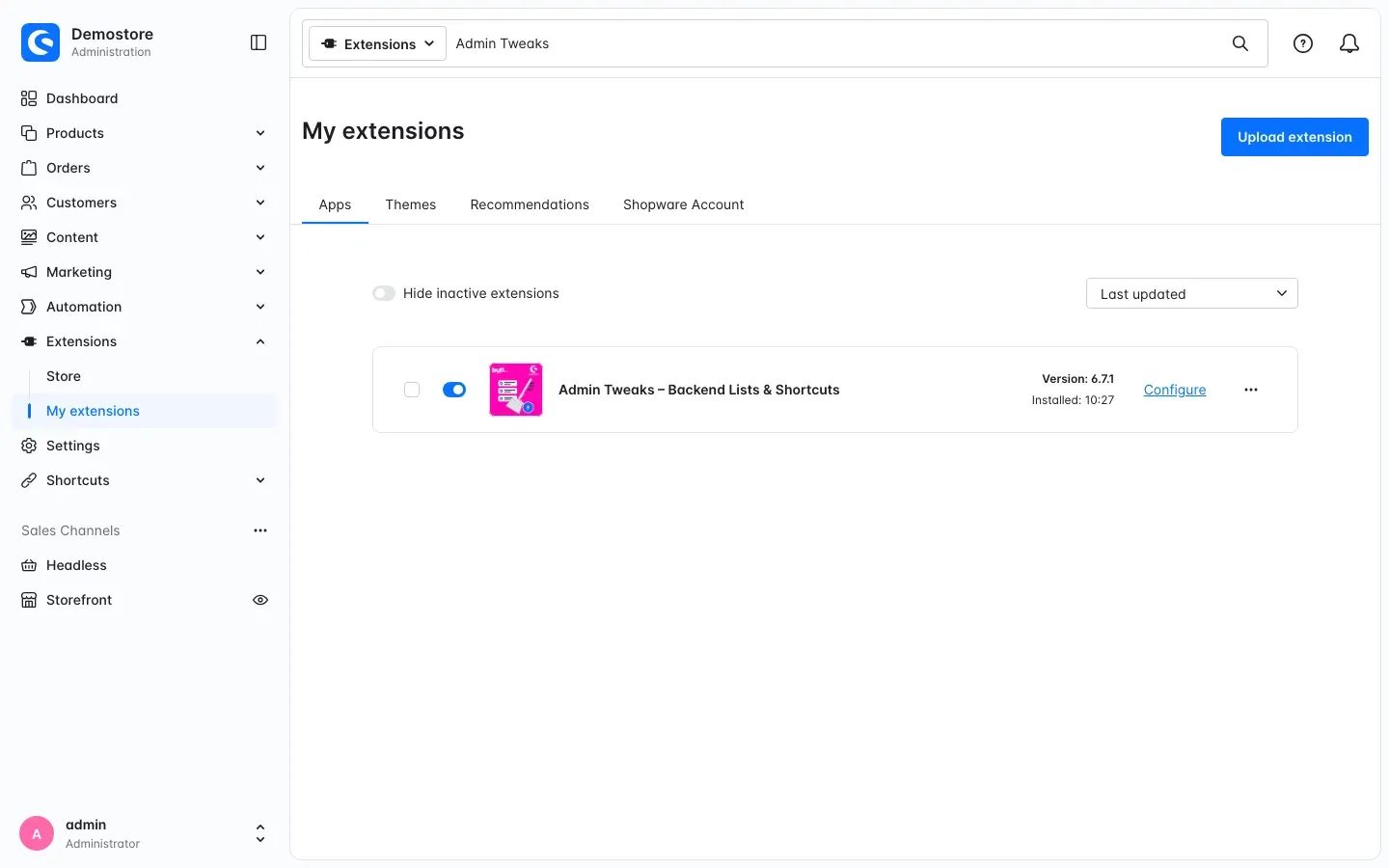 Figure 1: Admin Tweaks is installed and switched on. The Configure link on the right of the row takes you to the settings.
If Admin Tweaks does not appear in the list, your Shopware account is not yet connected to the shop. You do this under Extensions → My extensions in the Shopware Account tab by logging in with your Shopware account.
Getting started
Admin Tweaks is set up in three steps.
- Open the settings: Under Extensions → My extensions, click Configure in the Admin Tweaks row.
- Set the start state: Leave All Sales Channels selected under Sales Channel at the top. Switch on the lists that should start filtered, then click Save at the top right. Shopware confirms with “Configuration saved.”
- Check the result: In the main menu on the left, click Shortcuts and then Payment methods. If you switched on the payment methods setting, you now see only the active payment methods.
The next section explains what both switches do.
Settings
You open the settings under Extensions → My extensions with the Configure link in the Admin Tweaks row. Everything is in the General Settings card.
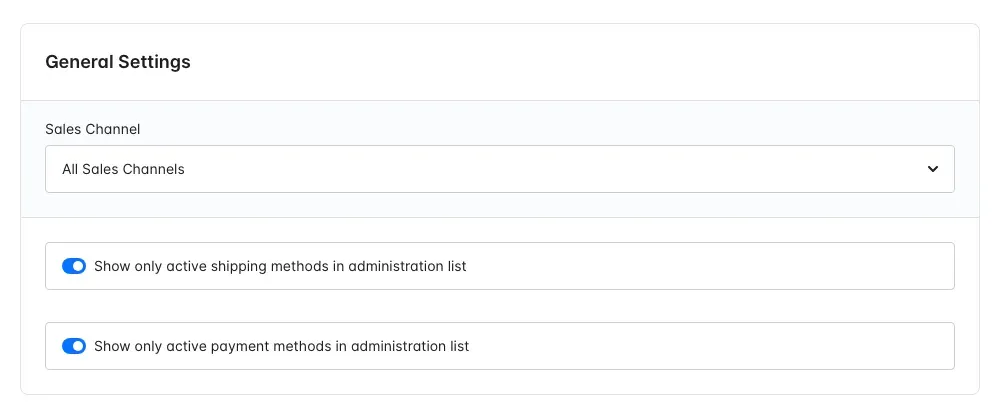 Figure 2: The Sales Channel selection at the top, below it the two switches for shipping and payment methods.
Sales Channel
Leave All Sales Channels selected here. The lists belong to the administration, not to a single sales channel. That is why only the value you save for all sales channels counts.
Show only active shipping methods in administration list
This switch decides how the shipping methods list starts when you open it. When it is on, you first see only the active shipping methods. When it is off, you see all of them. It is off by default.
Why this helps: If you mostly work with the active shipping methods, you no longer have to scroll past old promotions and test entries. If you do need an inactive entry, you turn the filter off right in the list (section 6).
Show only active payment methods in administration list
The same for payment methods. When this switch is on, the overview under Settings → Commerce → Payment methods starts with the active payment methods only. It is off by default.
Why this helps: Payment providers often bring a whole set of payment methods when you install them, and you only use a few. With this switch you see right away which of them are actually active.
Save
Click Save at the top right. The message “Configuration saved.” confirms it. The new start value applies the next time a list is opened, for every user of the administration.
How to tidy up the payment methods list
What you get: You see only the payment methods that are active. The inactive ones stay where they are and come back with one click.
Step by step
-
Open Settings → Commerce → Payment methods. It is quicker via Shortcuts → Payment methods in the main menu.
-
Click the eye icon on the right edge. The Show only active sidebar opens.
-
Switch Show only active on. The overview immediately shows only the active payment methods.
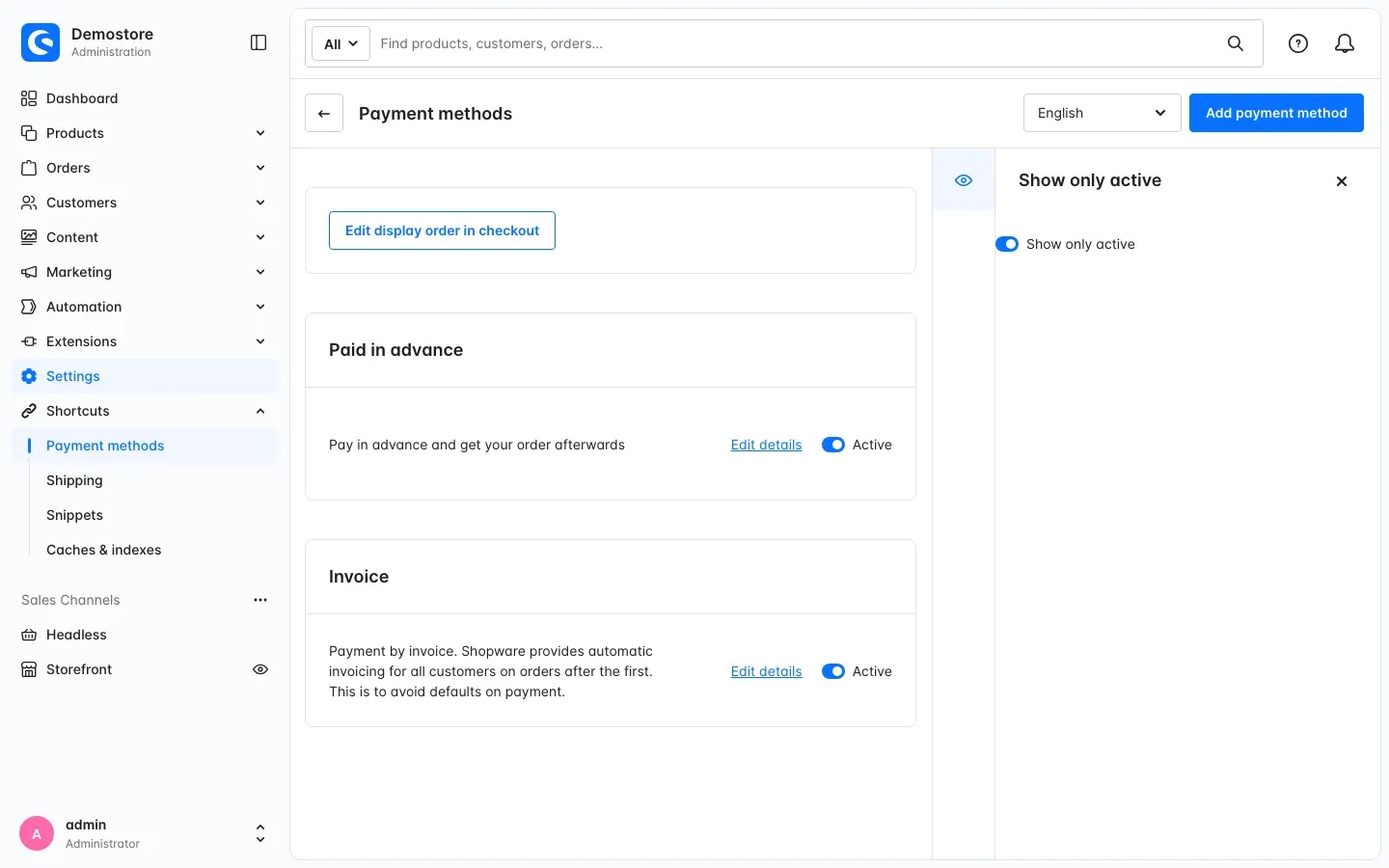 Figure 3: Filter on. Only the active payment methods are visible, here Paid in advance and Invoice.
-
To see all of them again, switch Show only active off. Now the inactive payment methods appear in the overview as well.
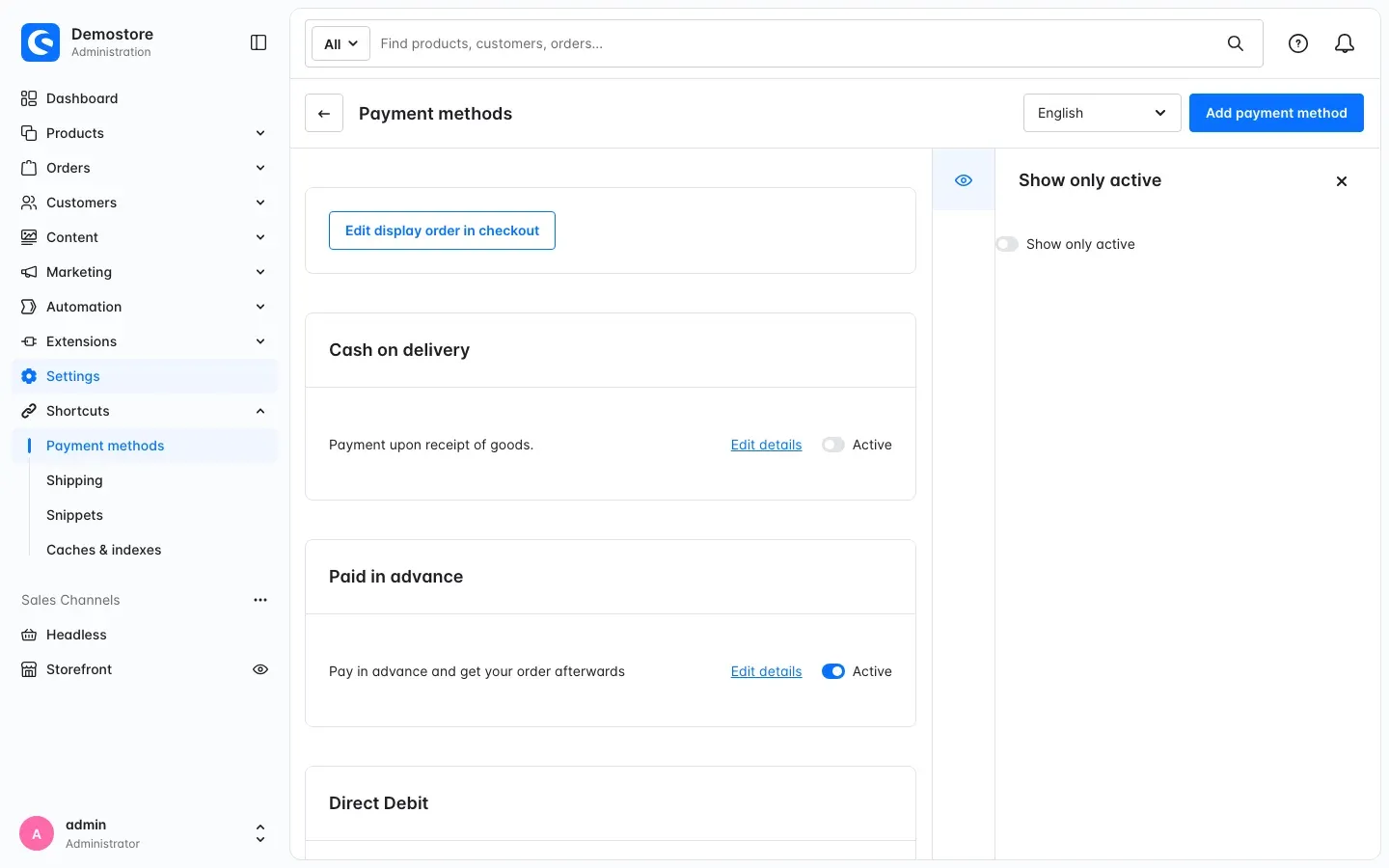 Figure 4: Filter off. The inactive payment methods appear too, here Cash on delivery and Direct Debit.
Tip: Whether the overview starts filtered or complete when you open it is up to you in the settings (section 4).
How to tidy up the shipping list
What you get: Old seasonal promotions, carriers you no longer use and test entries from your shop launch disappear from view. You work only with the shipping methods that are currently active.
Step by step
-
Open Settings → Commerce → Shipping. It is quicker via Shortcuts → Shipping.
-
Click the eye icon in the narrow bar on the right. The Show only active sidebar opens.
-
Switch Show only active on. The inactive shipping methods are now hidden. The number in brackets after Shipping tells you how many entries the list is showing right now.
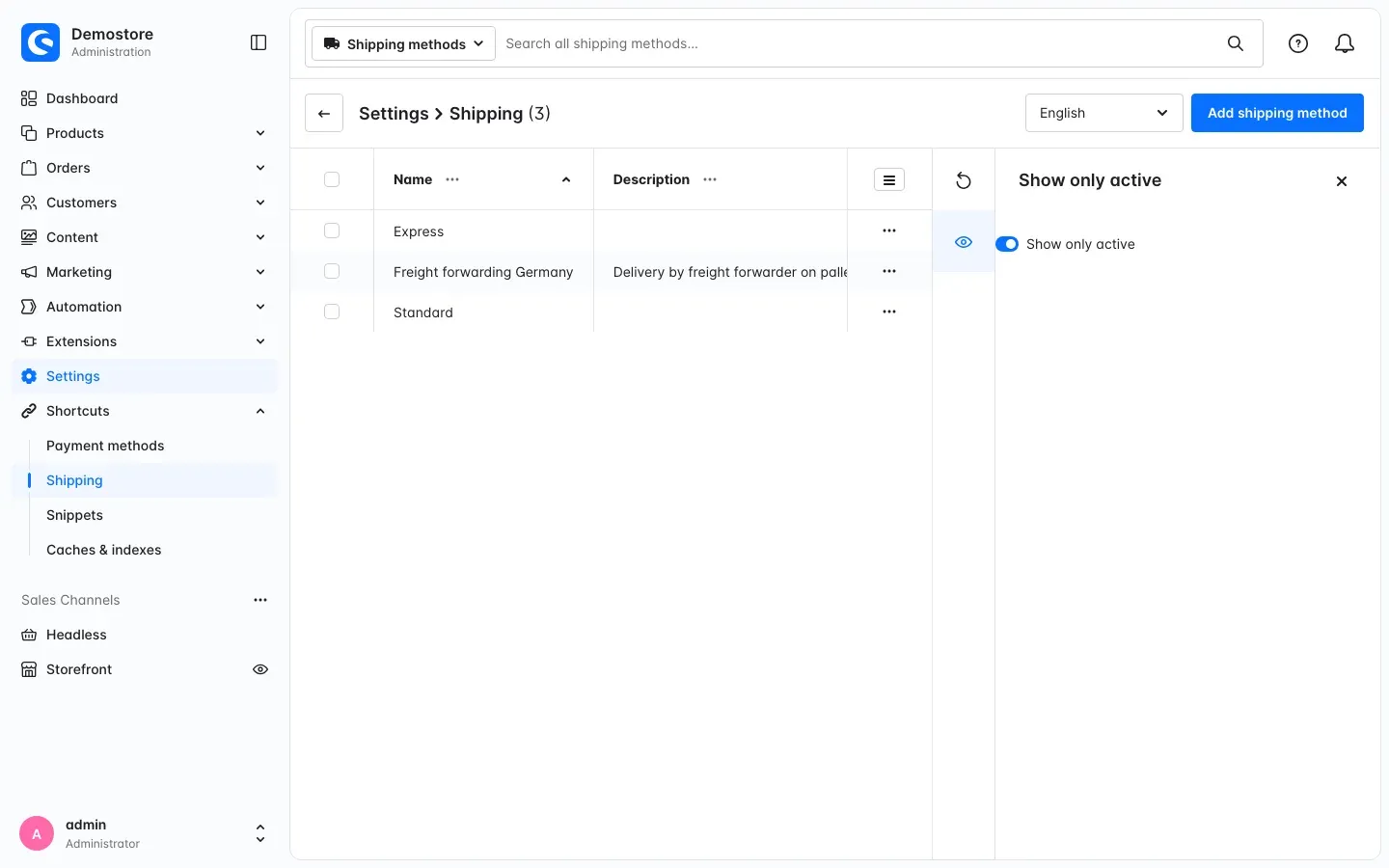 Figure 5: Filter on. The list shows three active shipping methods.
-
Switch Show only active off when you want to see all of them again.
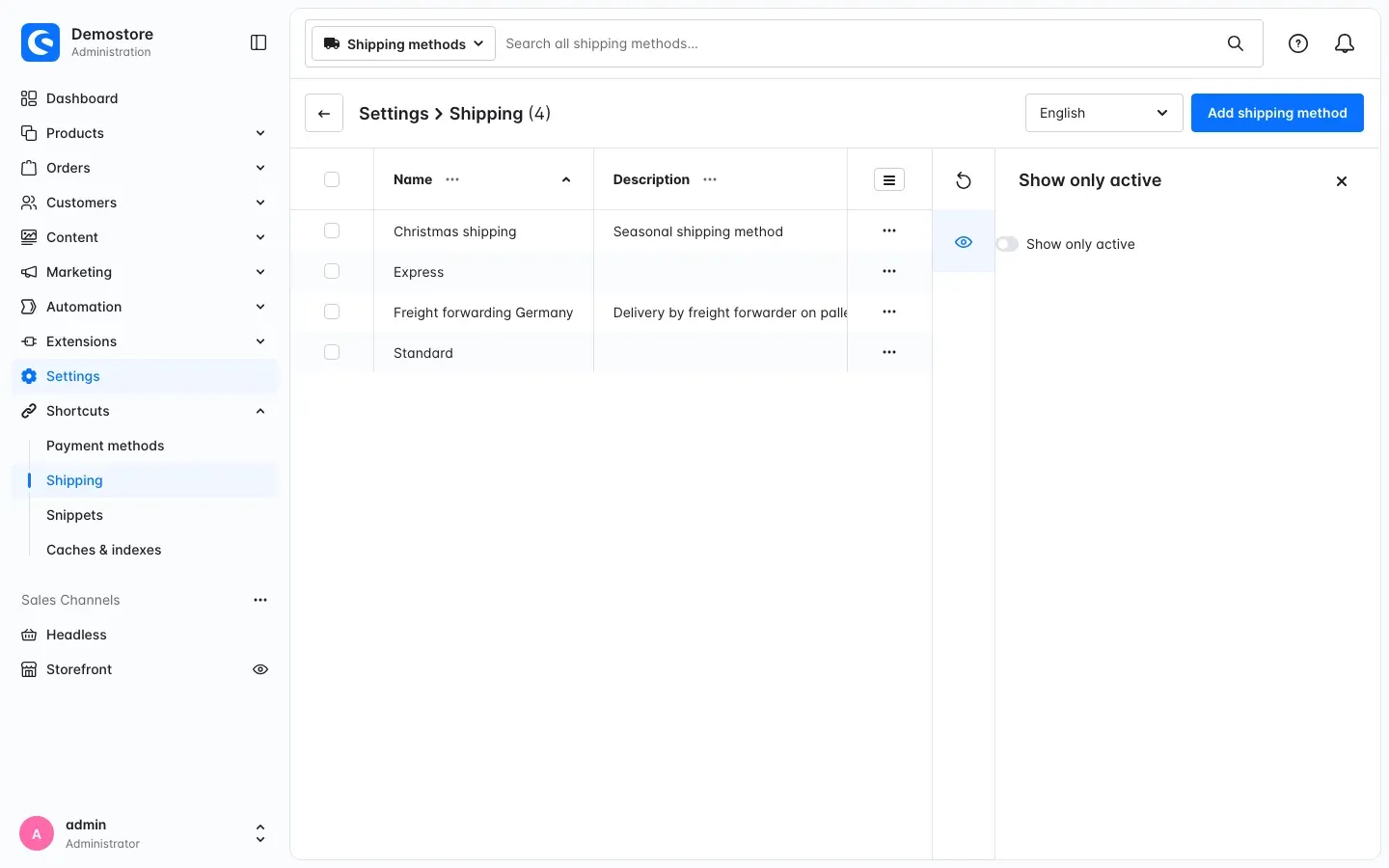 Figure 6: Filter off. Now the inactive shipping method Christmas shipping is visible as well.
Tip: Here too, you decide in the settings whether the list starts filtered when you open it (section 4).
How to duplicate a shipping method
What you get: You create a new shipping method without typing in prices and tiers again. You copy an existing one and change only what is different. Because the copy starts inactive, no customer sees it before you are done.
An example: Your shipping method “Freight forwarding Germany” has twelve weight tiers. Now you want to add Austria, same logic, different prices. Instead of building everything from scratch, you duplicate “Freight forwarding Germany” and only adjust name, prices and rule in the copy. You don’t type in a single tier again, you just overwrite the amounts.
Step by step
-
Open Settings → Commerce → Shipping or Shortcuts → Shipping.
-
In the row of the shipping method you want to copy, click the three dots (⋯) on the right.
-
The menu has three entries. The entry for duplicating is the middle one, between Edit and Delete. In the current version it shows the technical text
sw-settings-shipping.list.contextMenuDuplicateinstead of a word. Just click it, the function works as usual.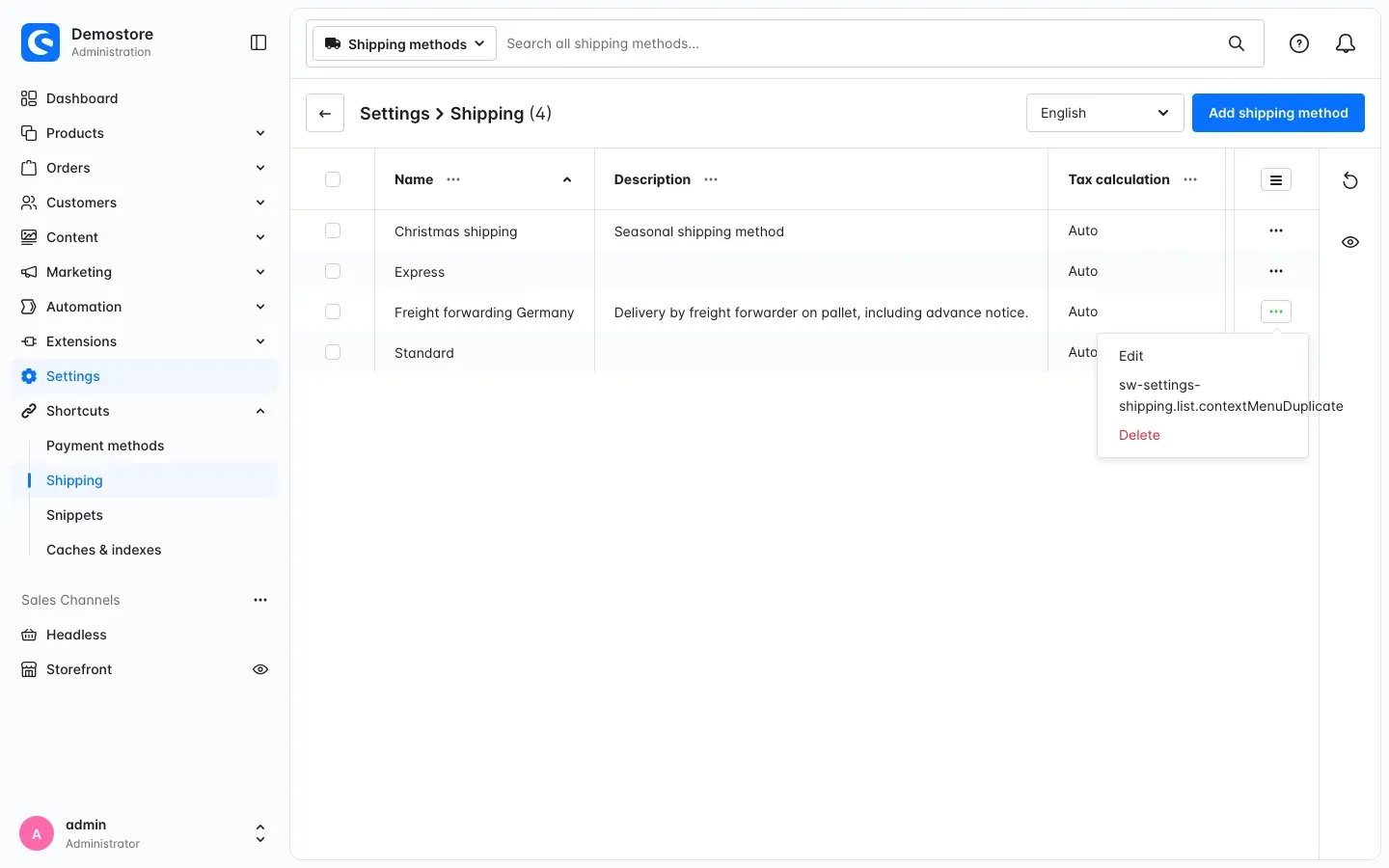 Figure 7: The menu of the row “Freight forwarding Germany”. The middle entry creates the copy.
-
Shopware reports: “Shipping method “Freight forwarding Germany (copy)” has been saved.” The copy now appears in the list. In the Active column it has a red cross, so it is still switched off.
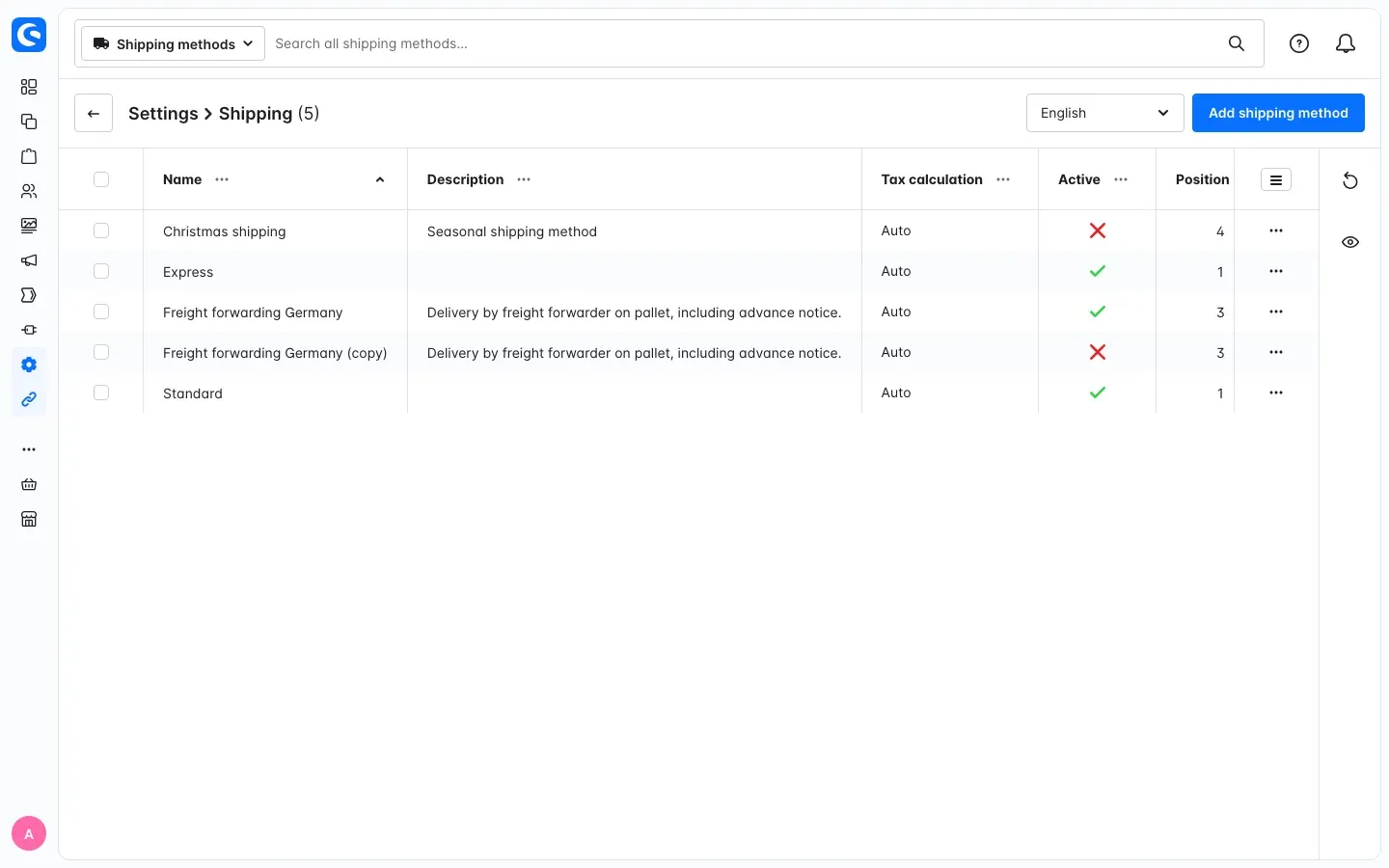 Figure 8: The copy “Freight forwarding Germany (copy)” has been created and is still inactive.
-
Open the copy via the three dots (⋯) in its row and Edit.
-
Adjust the copy:
- Name: for example “Freight forwarding Austria” instead of “Freight forwarding Germany (copy)”. If you maintain several languages, switch the language at the top and change the name there as well.
- For the prices, overwrite only the amounts that differ. The tiers are already there.
- Choose the rule under which the new shipping method should apply (see the tip below).
- Technical name: This already holds its own unique value. You can leave it as it is.
- Active: Leave the switch off for now.
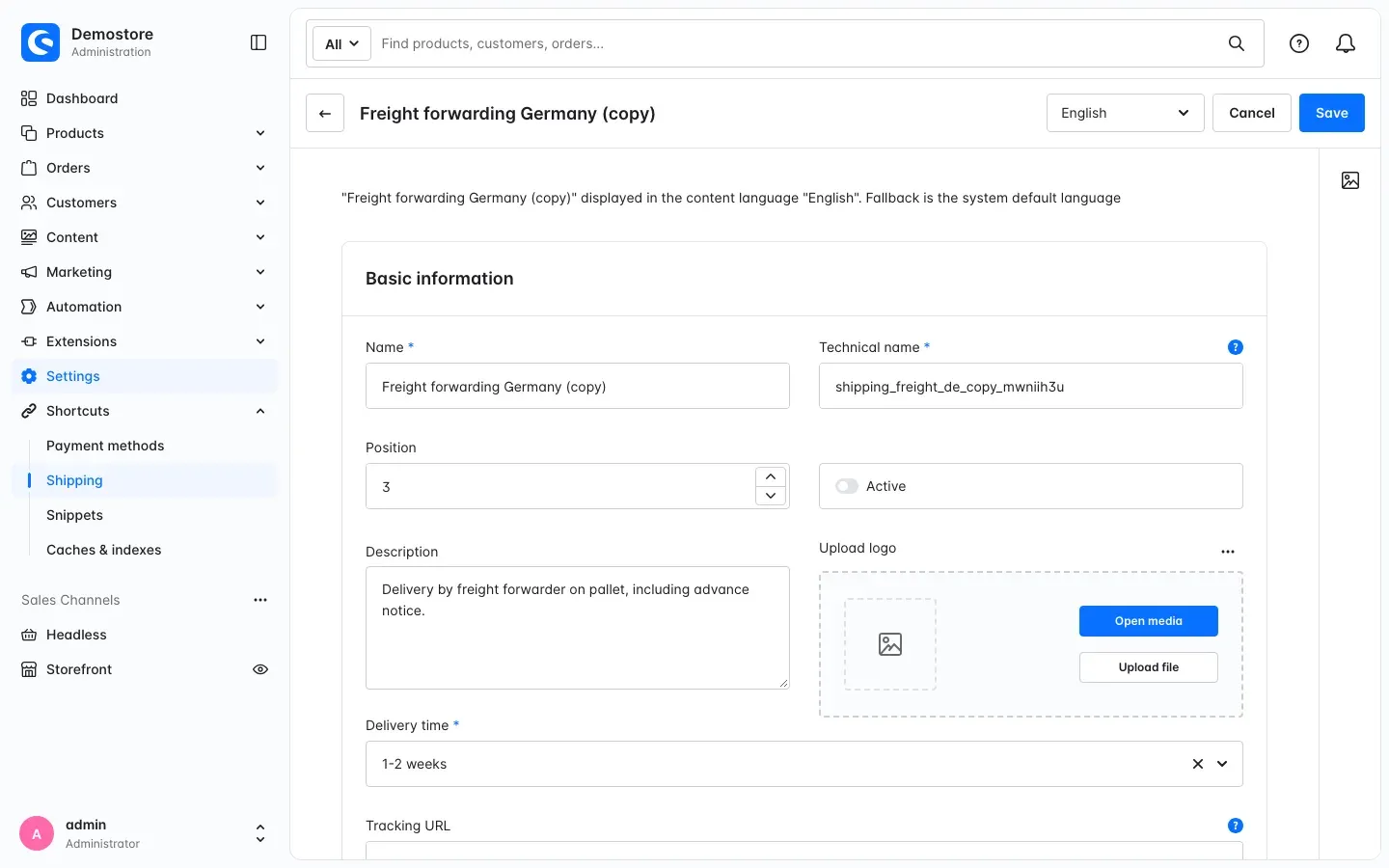 Figure 9: The copy in detail. The name carries the suffix (copy), the technical name is its own, Active is off.
-
Click Save at the top right.
-
When everything is right, switch Active on and save again. Only now is the new shipping method active.
What the copy takes over
- the name of the original with the suffix “(copy)”, in every language
- all prices with all tiers
- the rule under which the shipping method is available
- delivery time, description and position
- its own technical name, so nothing clashes with the original
The copy always starts inactive. The original stays unchanged.
Tip: The copy uses the same rule as the original. If the new shipping method should apply under different conditions, for example only for deliveries to Austria, choose a different rule on the copy. If you change the shared rule instead, the change also applies to the original.
Tip: If Show only active is switched on in the list, you won’t see the fresh copy because it starts inactive. Switch the filter off in the sidebar and it is there.
How to use the shortcuts
What you get: You reach the four pages you need most in daily work with one click. No more clicking your way through the settings.
- In the main menu on the left, click Shortcuts. The group with the link icon sits directly below Settings.
- Choose where you want to go:
- Payment methods opens the payment methods overview.
- Shipping opens the shipping methods list.
- Snippets opens Snippets in the settings.
- Caches & indexes opens Caches & indexes in the settings, for example when you want to clear the cache.
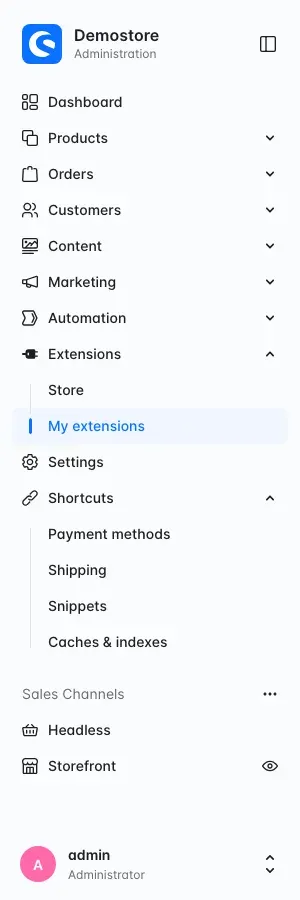 Figure 10: The expanded Shortcuts group directly below Settings.
Which shortcuts a staff member sees depends on their permissions (section 9).
Who sees what (permissions)
Admin Tweaks respects the permissions you give your staff in Shopware. Nobody gets access through the plugin to anything they are not otherwise allowed to see.
- Payment methods shortcut: appears for everyone who may view payment methods.
- Shipping shortcut: appears for everyone who may view shipping methods.
- Snippets shortcut: appears for everyone who may view snippets.
- Caches & indexes shortcut: appears for everyone who may clear the cache.
- Duplicating a shipping method: works for everyone who may create shipping methods. For everyone else the entry in the menu is greyed out.
If a staff member lacks the matching permission, the shortcut is simply not there for them. As an administrator you see everything.
You assign permissions as usual in the settings under Users & permissions via the staff member’s role.
Notes
- The filter is a view only. It hides entries, nothing more. It deletes nothing and does not switch any payment or shipping method on or off.
- One start value for the whole team. The two switches in the settings apply to the entire administration and to all users. Anyone who needs the full list in between unlocks it with one click in the sidebar.
- Every time you open a list, it starts with the value from the settings. The list does not remember your last click in the sidebar. If you open it again or reload the page, the start value applies again.
- Administration only. Admin Tweaks changes nothing in the storefront, the checkout or orders. It sets no cookies and calls no external services.
Troubleshooting
The list does not start filtered even though the switch is on
Why this happens: Usually the switch was turned on for a single sales channel only. It has no effect there.
How to fix it:
- Open the Admin Tweaks settings via Configure.
- At the top, under Sales Channel, choose All Sales Channels.
- Turn on the switch you want there and click Save.
- Open the list again.
My copied shipping method has disappeared
Why this happens: The copy starts inactive. If Show only active is switched on, the list hides it. If the filter is switched on in the settings, this happens again after every reload.
How to fix it: In the shipping list, click the eye icon on the right and switch Show only active off. The copy is back.
I can’t find the entry for duplicating
Why this happens: In the current version the entry shows the technical text sw-settings-shipping.list.contextMenuDuplicate instead of a word.
How to fix it: In the shipping list, open the menu of a row via the three dots (⋯). The middle entry between Edit and Delete creates the copy. If it is greyed out, you lack the permission to create shipping methods (section 9).
A shortcut is missing
Why this happens: You lack the permission for the page the shortcut leads to.
How to fix it: Ask an administrator to add the matching permission to your role (section 9).
The Shortcuts group is missing entirely
Why this happens: The plugin is probably not switched on yet, or your browser still shows an old state of the administration.
How to fix it:
- Open Extensions → My extensions and check that the switch in the Admin Tweaks row is on.
- Clear the cache: in the settings under Caches & indexes with Clear cache.
- Reload the administration in your browser.
All settings
Every setting in the plugin configuration with its default value, in the order shown in the Administration. As of version 6.7.1.
General Settings
| Setting | Default | Description |
|---|---|---|
| Show only active shipping methods in administration list | off | |
| Show only active payment methods in administration list | off |
FAQ
Q: Does the filter delete any data?
A: No. The filter only hides entries. Your payment and shipping methods stay unchanged and can be shown again at any time.
Q: Can I switch the filters on by default?
A: Yes. In the settings you decide separately for payment and shipping methods whether the lists show only active entries when opened. Select All Sales Channels at the top when you do.
Q: What exactly happens when I duplicate a shipping method?
A: A new shipping method is created with all prices and tiers, the rule, delivery time, description and the names in all languages. The name gets the suffix “(copy)”, the technical name gets its own unique suffix. The copy is inactive at first.
Q: Is my original shipping method changed in the process?
A: No. The original stays as it is. Only a new copy is created next to it.
Q: Why is the copy inactive?
A: So that it does not end up half finished in the checkout. You adjust it at your own pace and switch it on once it is ready.
Q: Does the plugin change anything in the storefront?
A: No. Admin Tweaks works in the administration only. How your shop looks to customers stays the same.
Q: Does the plugin set cookies or call external services?
A: No. It sets no cookies and talks to no external service. Nothing changes for data protection.
Q: Do the shortcuts respect my staff’s permissions?
A: Yes. Each shortcut only appears if the staff member holds the permission for the page it leads to.
For administrators / technical details
This section is for technical administrators. You don’t need it for everyday use.
System requirements
- Shopware: 6.7, version 6.7.12 or later
- PHP: 8.2 or later
Installation from the command line
If the plugin is already in your Shopware installation, for example because you get your store plugins via Composer, install and activate it like this:
php bin/console plugin:refresh
php bin/console plugin:install SwpAdminTweaksSix --activate
php bin/console cache:clear
Which permissions the plugin checks
The shortcuts and the duplicate function check these Shopware permissions:
- Payment methods shortcut:
payment.viewer - Shipping shortcut:
shipping.viewer - Snippets shortcut:
snippet.viewer - Caches & indexes shortcut:
system.clear_cache - Duplicate shipping method:
shipping.creator
What the plugin changes
Admin Tweaks extends the administration only: the payment methods overview, the shipping methods list and the main menu. It adds no database tables of its own, changes no storefront templates and calls no external services. The administration reads both switches from the value saved under All Sales Channels.
This manual was written for Admin Tweaks version 6.7.1.
How much help do you need?
-
Updates and compatibility: Plugin-Care from €149 per month
Before every Shopware release we check whether your plugins keep up. You get a written recommendation and install the updates yourself. Cancel monthly.
See Plugin-Care -
Setup or customisation: intro call
Want us to set up the plugin, or are you missing a feature? We sort that out in a free intro call.
Book an intro call
Something in the plugin not working? Write to us
More manuals
Address Validation: House Number Check & Corrections
Address validation at the point of entry: the plugin spots missing house numbers, can suggest corrections via Google and helps you send fewer parcels that come back undeliverable.
Open manual Shopware 6Admin Password Reminder
Admin Password Reminder: your backend users renew their passwords on time, prompted after login and by a daily email. Premium locks expired accounts until the password is changed.
Open manual Shopware 6Advanced currency format
enables calculation with more than 2 decimal places
Open manualNeed a team that keeps your shop running?
We have been working with Shopware since 2010 and maintain shops including updates, hotfixes and the plugins you are configuring right now.