
Advanced currency format
enables calculation with more than 2 decimal places
On this page
- Introduction
- What you get with this plugin
- Who is this plugin for?
- Installation
- Getting started
- How display and calculation fit together
- Your currency’s price rounding
- What your shop shows without the plugin
- What the plugin changes
- Settings
- Sales channel: default for all or a value of its own for one channel
- Activate plugin for this channel
- Number of decimal places
- Saving
- How to show prices with more than two decimal places
- How to show four decimal places in your B2B channel only
- What your customers see where
- In the shop
- On the invoice
- In emails
- In the Administration
- Notes
- Troubleshooting
- My shop suddenly shows €19.9900
- The email shows €0.00
- The extra place is always 0
- A channel doesn’t follow the default
- My setting has no effect
- All settings
- Configuration Channel
- Currency format settings
- FAQ
- For administrators / technical details
- System requirements
- How the plugin works
- Installation from the command line
Introduction
Advanced currency format sets how many decimal places your prices show in your shop. And it does so for each sales channel separately. Shopware keeps calculating as precisely as your currency specifies.
Sound familiar? A screw costs you €0.038, a resistor €0.0042. For Shopware to calculate prices like that correctly, you set your currency to more decimal places. And all of a sudden the desk lamp shows up in your shop at €59.9900. That’s because Shopware shows every price with as many places as the currency calculates with.
The plugin separates the two. Shopware keeps calculating precisely, and you decide for each sales channel how many places your customers see.
What you get with this plugin
- Every channel shows prices the way its customers read them. Your B2B shop shows the resistor at €0.0042, your consumer shop shows the lamp at €59.99. One currency, two ways of showing it.
- Small parts show the price you actually calculated. The screw costs €0.038, not €0.04.
- You calculate precisely and still show familiar prices. Shopware calculates with four places, for example, and your consumers see the two they are used to.
- You don’t touch your theme. One switch and one number per channel are all it takes. You keep entering your prices as usual.
- You can always go back. The plugin changes no prices and no rounding. Switch it off for a channel and Shopware shows its default there again.
Who is this plugin for?
For merchants with very small unit prices, such as screws, wall plugs or electronic components. For anyone running a B2B shop and a consumer shop in the same currency who wants each of them to show a different number of places. And for shops whose prices come from the ERP system with four decimal places but who want to show their customers familiar prices.
Installation
Once you have bought the plugin, it is available right in your Administration. You don’t need to download anything.
- Log in to your Shopware Administration (
yourshop.com/admin). - Open Extensions → My extensions.
- Click Install next to Advanced currency format.
- Activate the plugin with the switch in the same row. Done.
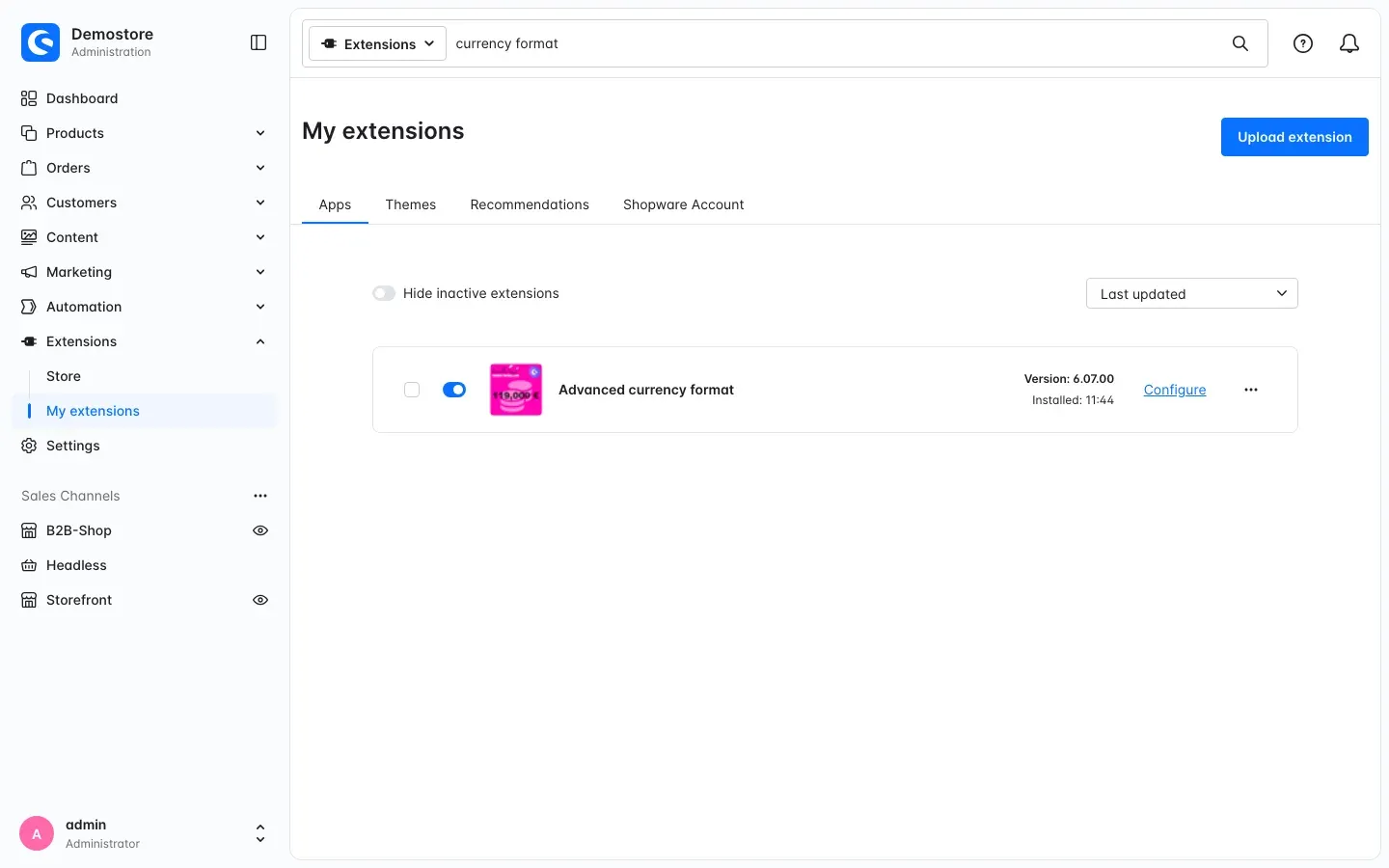
Fig. 1: Advanced currency format is installed and active. On the right you see version 6.07.00 and the Configure link.
Activating the plugin doesn’t change anything in your shop yet. The switch Activate plugin for this channel is off by default. What to set up to get started is in the next section.
If Advanced currency format doesn’t appear in the list, your Shopware account is probably not connected to the shop yet. You do that under Extensions → My extensions on the Shopware Account tab.
Getting started
Four steps, and your shop shows the decimal places you want.
- Check how precisely your currency calculates. Open Settings → Localisation → Currencies and your currency there, for example Euro. In the Price rounding card, the Items area shows under Decimals how many places Shopware calculates with. Without the plugin, your shop shows exactly that many. More on this under How display and calculation fit together.
- Open the plugin configuration. Under Extensions → My extensions, click Configure in the Advanced currency format row.
- Set the default for all channels. Leave All Sales Channels selected under Sales Channel at the top. Turn on Activate plugin for this channel, enter the number you want under Number of decimal places and click Save at the top right. For familiar prices, use 2.
- Check the result in your shop. Open a product in your Storefront. Where it used to say €59.9900, it now says €59.99. Fig. 3 and Fig. 6 show the before and after.
If a single channel should show more or fewer places, carry on with How to show four decimal places in your B2B channel only.
How display and calculation fit together
Two settings work together. Your currency’s price rounding sets how precisely Shopware calculates. The plugin sets how many places your customers see.
Your currency’s price rounding
You find it under Settings → Localisation → Currencies. Open your currency in the list. Further down the page is the Price rounding card with two areas:
- Items, described as “Rounding applies to all items”. Under Decimals you set how many places Shopware uses to calculate unit prices and line totals. This number is the one that matters for the plugin.
- Grand total, described as “Rounding applies to grand totals”. This is where you set how Shopware rounds the grand total.
If you set more than two decimals under Items, the Interval is set to None and greyed out.
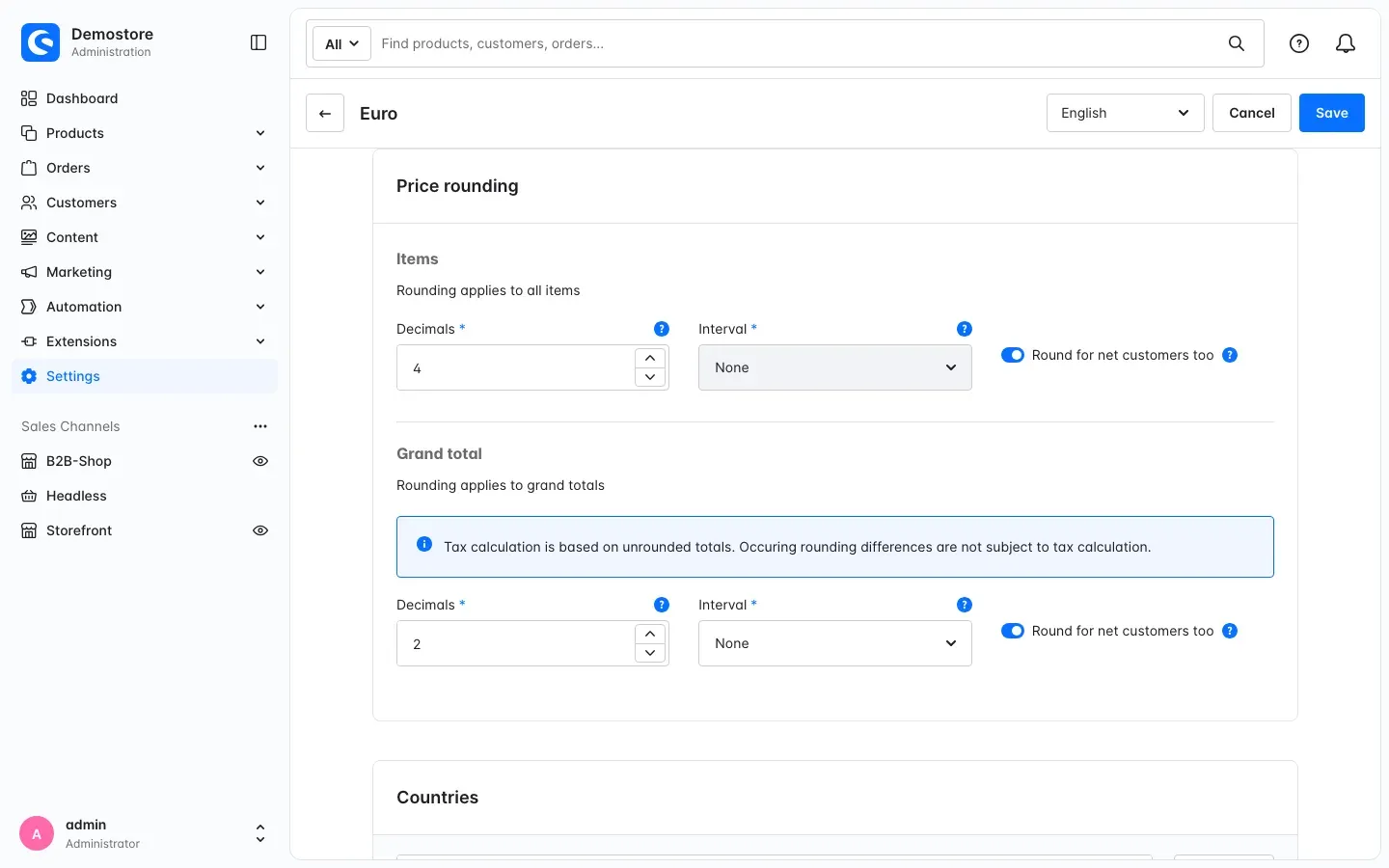
Fig. 2: The Price rounding card of the Euro currency. Here Shopware calculates items with four decimals and the grand total with two.
What your shop shows without the plugin
Without the plugin, Shopware shows every price with as many places as Decimals says under Items. With 4, that means four places everywhere: on every product, in every sales channel, on shipping costs and on totals. The desk lamp then costs €59.9900, and the empty cart at the top right shows €0.0000.
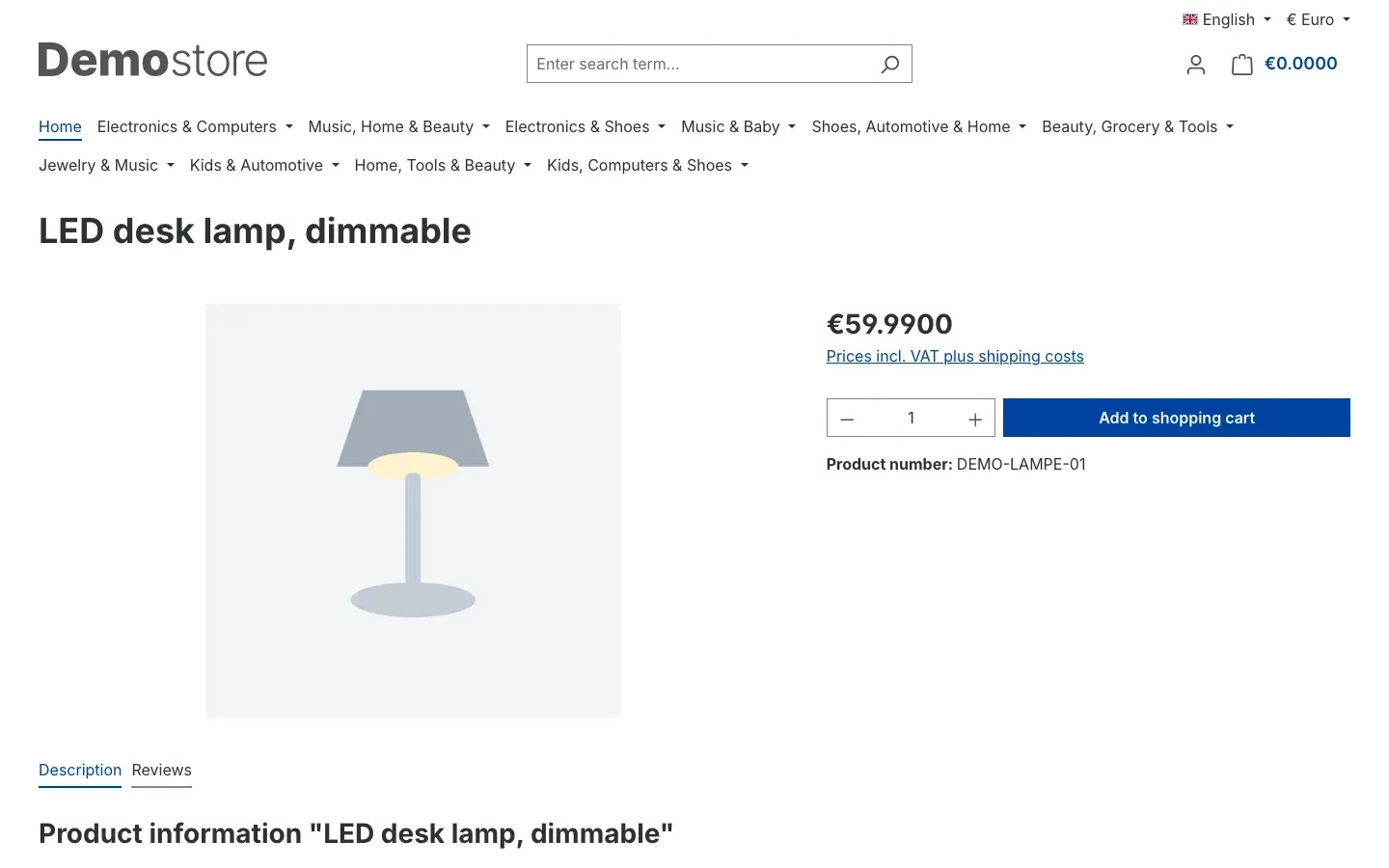
Fig. 3: Without the plugin, the Storefront takes over the currency’s four calculation places: €59.9900.
What the plugin changes
The plugin separates display from calculation. Shopware keeps calculating with your currency’s price rounding, and nothing changes about prices, the cart or orders. You only decide how many places your customers see, separately for each sales channel. With 2, the same lamp shows €59.99 (Fig. 6). With 4 in the B2B shop, the resistor shows €0.0042 (Fig. 7).
Rule of thumb: Set the price rounding under Items to at least as many places as your channel with the most places should show. The reason is under Notes.
Settings
You open the settings under Extensions → My extensions. Click Configure in the Advanced currency format row. At the top of the page you pick the sales channel, and two cards follow below. Fig. 4 and Fig. 5 under How to show four decimal places in your B2B channel only show what this looks like.
Sales channel: default for all or a value of its own for one channel
At the very top is Sales Channel. With All Sales Channels you set the default. It applies to every channel that has no value of its own.
If you pick a single channel, a link symbol appears in front of each field. As long as it is linked, the field takes its value from All Sales Channels. You can tell by the purple label and the greyed-out field. Click the symbol to break the link, and then enter a value of its own for this channel.
Why this helps: You set the default once and only touch the channels that should look different. The default also decides how many places your Shopware emails show. More on this under Notes.
Activate plugin for this channel
The switch Activate plugin for this channel sits in the Configuration Channel card. When it is on, every price in the channel shows as many places as Number of decimal places says. When it is off, Shopware shows as many places as your currency calculates with. It is off by default.
Why this helps: If a channel should show exactly the currency’s calculation places, leave the switch off there. If it is on under All Sales Channels, break the link in the channel and switch it off there. And if you want to go back to the Shopware default quickly, one click on the switch does it.
The same card has the to documentation button at the top.
Number of decimal places
The field Number of decimal places sits in the Currency format settings card. Here you enter how many decimal places every price in the channel shows: unit prices, shipping costs and totals. The default is 2. The number only takes effect when Activate plugin for this channel is on.
Why this helps: With 2, your customers see familiar prices like €59.99. With 3 or 4, you show small parts the way you calculate them, for example €0.038 or €0.0042.
Saving
You apply your changes with Save at the top right.
How to show prices with more than two decimal places
What you get: Your chipboard screw costs €0.038. With two decimal places it shows as €0.04 in your shop and looks more expensive than it is. A trade customer comparing unit prices notices that straight away. With the plugin, your small-parts shop shows €0.038, and your tool shop keeps familiar prices like €19.99.
In this example you have two sales channels, a small-parts shop and a tool shop. The pages you open are shown in Fig. 2, Fig. 4 and Fig. 5, just with different numbers.
Step by step
- Let Shopware calculate with three places. Open Settings → Localisation → Currencies and your currency. In the Price rounding card, set Decimals under Items to 3 and click Save. Shopware now calculates with €0.038 instead of €0.04 in the cart and in the order. Without the plugin, every channel now shows three places, including the tool shop with €19.990.
- Set the default to three places. Open the plugin configuration and leave All Sales Channels selected. Turn on Activate plugin for this channel, enter 3 under Number of decimal places and click Save. Since the default also decides your Shopware emails, the screw shows at €0.038 in the order confirmation too.
- Give the tool shop two places. Pick your tool shop under Sales Channel at the top. Leave the switch linked, so it stays on like the default. Click the link symbol in front of Number of decimal places, enter 2 and click Save.
- Check the result. Open the screw in the small-parts shop and a product in the tool shop. Then place a test order and look at the email and the invoice.
What your customers see
- In the small-parts shop, the screw shows at €0.038 on the listing, on the product page and in the cart.
- In the tool shop, your customers still see €19.99 and not €19.990.
- The order confirmation shows the three places of the default, for orders from both shops.
- The invoice shows the places of the channel the order was placed in.
How to show four decimal places in your B2B channel only
What you get: An SMD resistor costs €0.0042. With two places it shows as €0.00 in your shop. A buyer then calls to ask whether the price is a mistake, or doesn’t put the reel in the cart at all. With the plugin, your B2B shop shows €0.0042. Your consumer shop stays at two places, and the lamp costs €59.99 there.
In this example the B2B channel is called B2B-Shop and the consumer shop Storefront.
Step by step
-
Let Shopware calculate with four places. Open Settings → Localisation → Currencies and your currency. In the Price rounding card, set Decimals under Items to 4 and click Save (Fig. 2). From now on every channel without the plugin shows four places, including the Storefront with €59.9900 (Fig. 3).
-
Set the default to two places. Open the plugin configuration and leave All Sales Channels selected. Turn on Activate plugin for this channel, leave 2 under Number of decimal places and click Save.
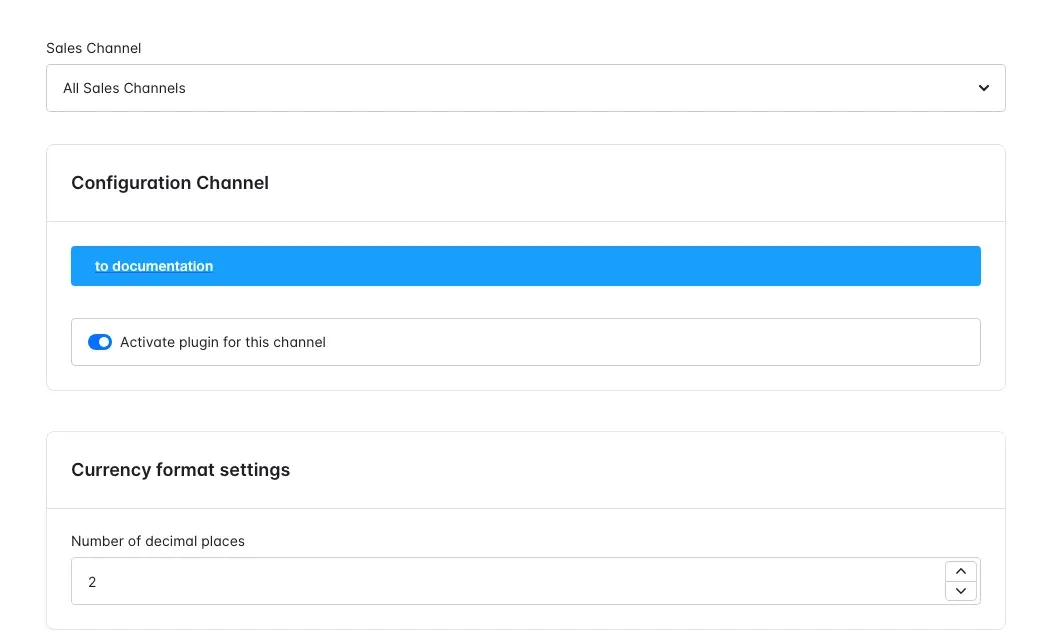
Fig. 4: The default under All Sales Channels: plugin on, two decimal places.
-
Give the B2B shop four places. Pick B2B-Shop under Sales Channel at the top. Leave the switch linked, so it stays on like the default. Click the link symbol in front of Number of decimal places, enter 4 and click Save.
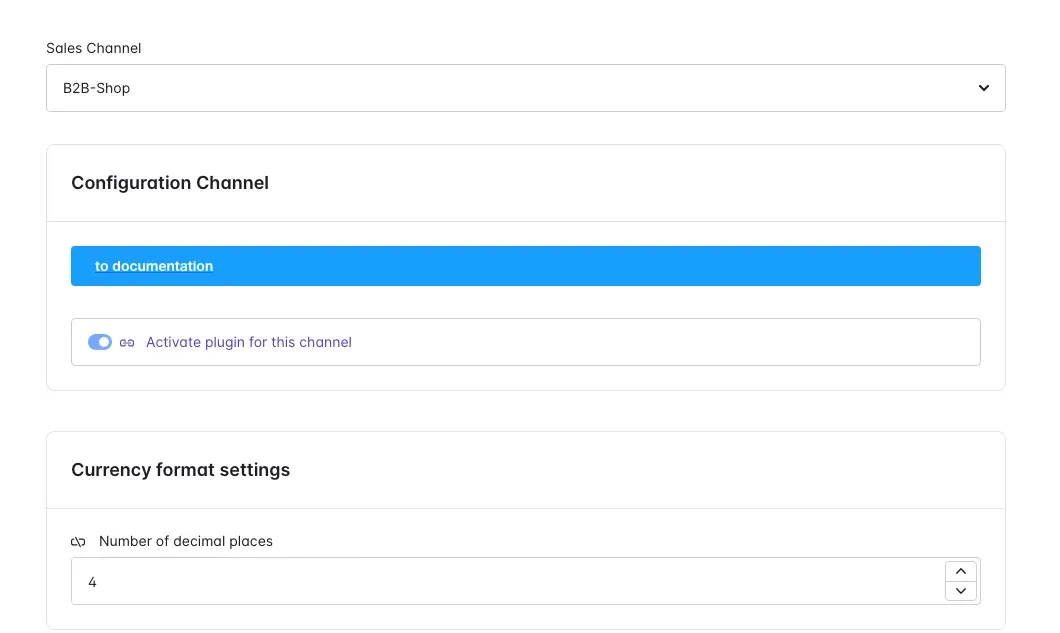
Fig. 5: In the B2B shop the switch takes over the default, which you can tell by the purple label. The number has a value of its own: 4.
-
Check both channels. Open a product in the Storefront. In the B2B shop, open the product with the smallest unit price and put a larger quantity in the cart.
What your customers see
In the Storefront, the lamp shows at €59.99 and shipping at €0.00.
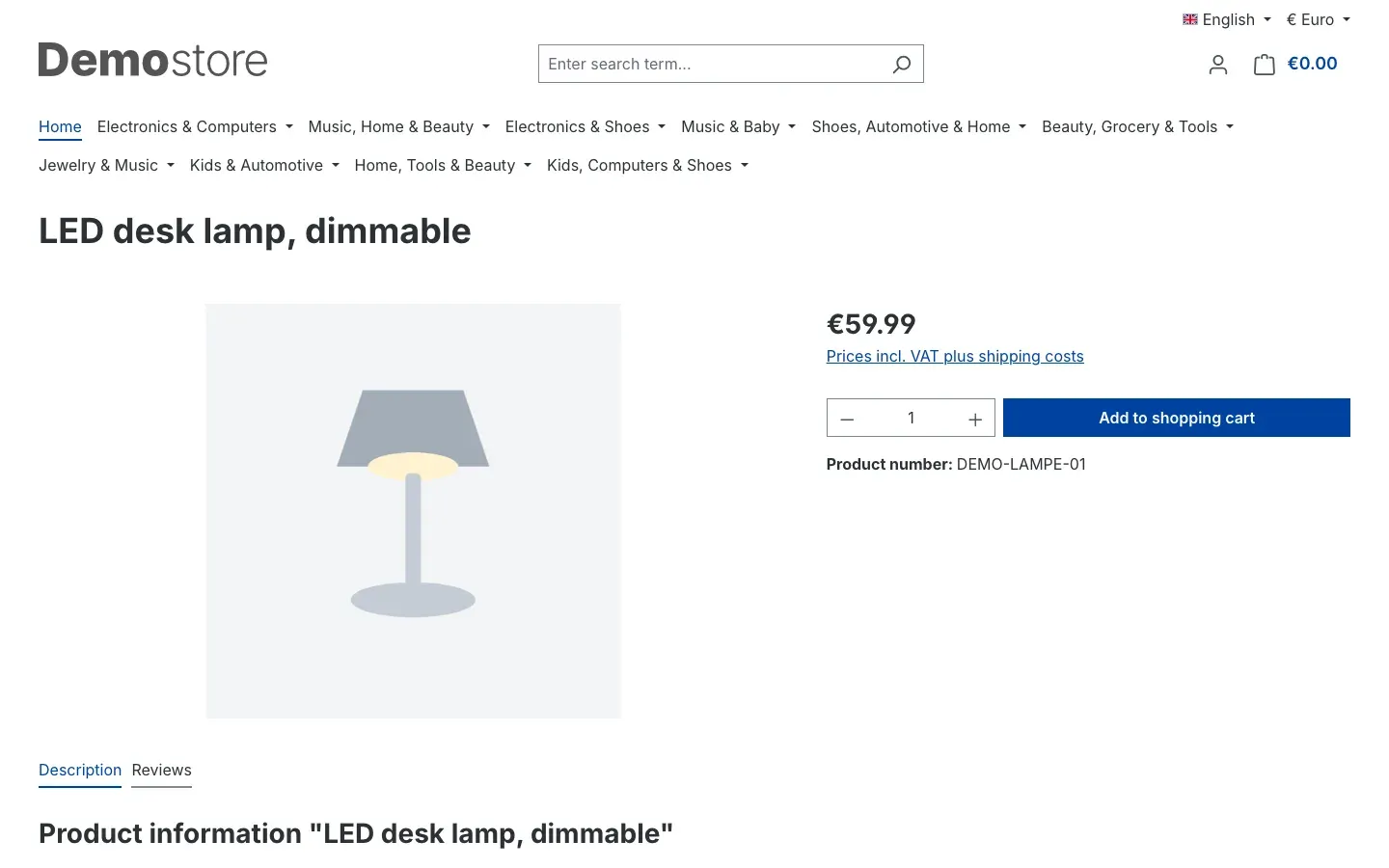
Fig. 6: With the plugin, the Storefront shows two places: €59.99. The currency still calculates with four.
In the B2B shop, the resistor shows at €0.0042.
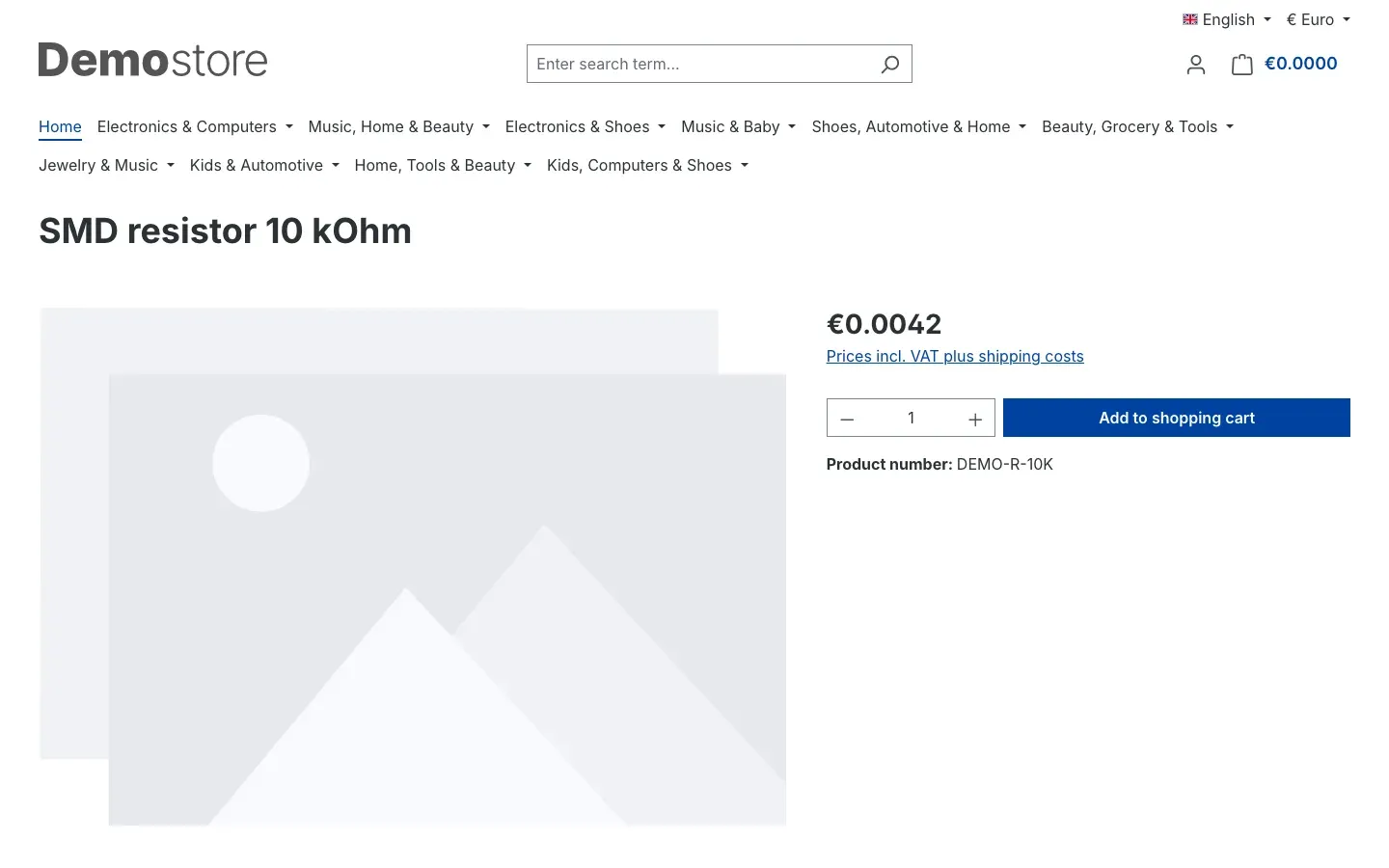
Fig. 7: The SMD resistor in the B2B shop: €0.0042 instead of €0.00.
In the B2B shop’s cart, every price shows four places. For 5,000 resistors you see: Unit price €0.0042, Subtotal €21.0000, Total €21.0000, Shipping costs €0.0000, Grand total €21.0000, Net total €17.6471 and plus 19% VAT €3.3529. Your buyer can check the numbers without having to call.
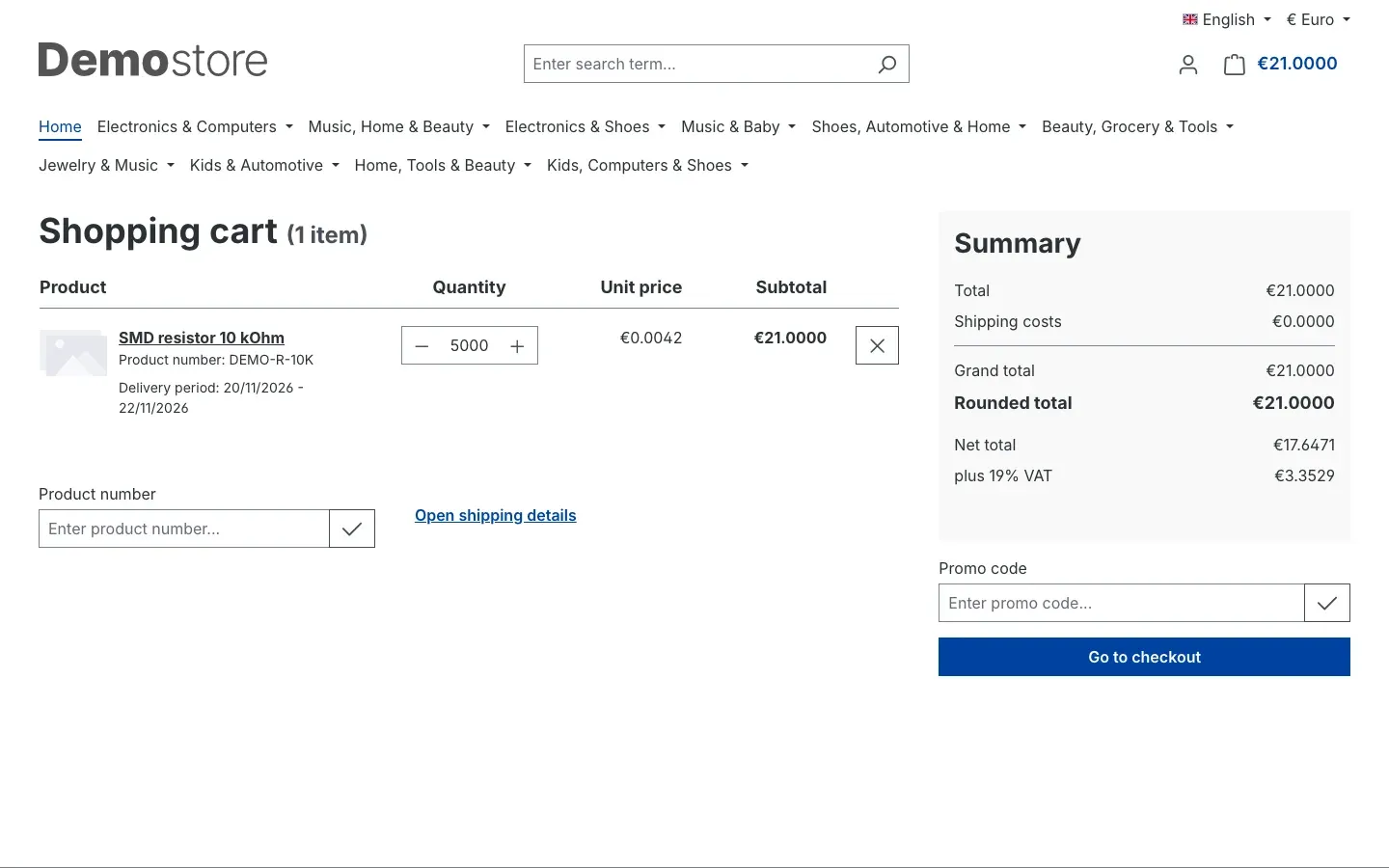
Fig. 8: The cart in the B2B shop with 5,000 pieces. Unit price, totals and shipping costs show four places.
The four places apply to every price in the B2B shop. So the lamp shows at €59.9900 there.
Tip: Your Shopware emails show the places of the default, two in this case. If the emails to your B2B customers should show four places as well, turn the setup around: default 4, and the Storefront gets a 2 of its own. More on this under Notes.
What your customers see where
In the shop
In the Storefront, the channel’s number of places applies to every price: on the listing, on the product page, in the cart, at checkout and in the customer account. Shipping costs, totals and the amount next to the cart at the top right show it as well.
Comma or point and the currency sign still follow the language of the shop. The plugin only decides the number of places. 0,0042 € in German becomes €0.0042 in English.
On the invoice
PDF documents such as the invoice show the number of places of the channel the order was placed in. The invoice for an order from the B2B shop shows €0.0042 and €21.0000. With the B2B shop set to 3, it shows €0.004 and €21.000.
In emails
Shopware emails such as the order confirmation and the email for an incoming payment show prices with the number of places under All Sales Channels. That also applies to orders from a channel with a number of places of its own. How to use this for your shop is under Notes.
In the Administration
The Administration, for example the detail page of an order, shows prices in its own format. The plugin doesn’t change anything there.
Notes
Price rounding needs at least as many places as the display. For €0.038, set your currency’s price rounding under Items to at least 3. If it only calculates with two places, €0.038 becomes €0.04 in the cart, and the third place on display is a zero: €0.040.
If you show fewer places than Shopware calculates with, only the display is rounded. The calculation stays precise. But a unit price of €0.0042 shows as €0.00 with two places, and unit price times quantity can differ from the line total on screen. 5,000 pieces at €0.00 then come to €21.00. So give channels with very small unit prices enough places.
The number of places applies to every price in the channel. Shipping costs and totals show it too. Choose it to suit the channel’s range.
Shopware emails follow All Sales Channels. The order confirmation and the email for an incoming payment show prices with the number of places of the default, also for orders from a channel with a number of places of its own. PDF documents such as the invoice use the number of places of the channel the order was placed in. So set the number of places under All Sales Channels that your emails should show. If you have very small unit prices, use enough places so that no €0.00 appears in the email. Channels that should show fewer places get their own value.
Run through it once before going live. Create a test product with your smallest unit price, place a test order and look at the shop, the email and the invoice. Then you know for sure that everything fits.
Troubleshooting
My shop suddenly shows €19.9900
Why it happens: Your currency’s price rounding is set to four decimals under Items. Without the plugin, Shopware shows every price with as many places as it calculates with. The plugin is still off in the affected channel.
How to fix it:
- Under Extensions → My extensions, click Configure in the Advanced currency format row.
- Pick All Sales Channels, turn on Activate plugin for this channel, enter 2 under Number of decimal places and click Save.
- If a channel still shows four places after that, pick it at the top. If the link is broken there, the channel’s own value applies. Switch the plugin on there, enter 2 directly in the channel and save.
The email shows €0.00
Why it happens: Shopware emails show prices with the number of places under All Sales Channels. If that is 2, a unit price like €0.0042 shows as €0.00 in the email, even though your B2B shop shows four places.
How to fix it:
- Under All Sales Channels, set Number of decimal places to 4 and save.
- Pick every channel that should show fewer places, for example your consumer shop. Break the link in front of Number of decimal places there, enter 2 and save.
- Place a test order and look at the email.
After that, your emails show four places for all channels.
The extra place is always 0
Why it happens: The plugin shows more places than the currency calculates with. If price rounding under Items is set to 2, Shopware calculates with €0.04 instead of €0.038. Shopware then fills the third place with a zero: €0.040.
How to fix it:
- Open Settings → Localisation → Currencies and your currency.
- In the Price rounding card, set Decimals under Items to at least the number your channel shows, and save.
- Check that the product has the exact price, so 0.038 and not 0.04.
A channel doesn’t follow the default
Why it happens: The link is broken in this channel. Then its own value applies, not the one from All Sales Channels.
How to fix it: Pick the channel under Sales Channel at the top and look at the fields. If the link is broken, enter the value the channel should show there and save.
My setting has no effect
Why it happens: Number of decimal places only takes effect when Activate plugin for this channel is on. The switch is off by default. Or the plugin itself is not active.
How to fix it:
- Under Extensions → My extensions, check that the switch in the Advanced currency format row is on.
- In the configuration, check under All Sales Channels and in the affected channel that Activate plugin for this channel is on.
- Save and reload the page in your shop.
All settings
Every setting in the plugin configuration with its default value, in the order shown in the Administration. As of version 6.07.00.
Configuration Channel
| Setting | Default | Description |
|---|---|---|
| Activate plugin for this channel | off |
Currency format settings
| Setting | Default | Description |
|---|---|---|
| Number of decimal places | 2 |
FAQ
Q: Does the plugin change my prices or the calculation in the cart?
A: No. The plugin only changes how many decimal places your customers see. Shopware still calculates unit price, line total and grand total with your currency’s price rounding.
Q: Do I need the plugin if my shop calculates and displays the same number of places everywhere?
A: No, your currency’s price rounding covers that. Shopware shows prices with as many places as it calculates with. The plugin pays off as soon as display and calculation should differ, or individual channels need different places from the rest.
Q: Can I give each sales channel its own number of decimal places?
A: Yes. At the top of the configuration you pick the sales channel and set Activate plugin for this channel and Number of decimal places there. Whatever you set under All Sales Channels applies to every channel without a value of its own.
Q: How do I enter prices with more than two decimal places on a product?
A: As usual, in the product’s price field. How precisely Shopware calculates with them is set by your currency’s price rounding.
Q: Does the price format fit every language of my shop?
A: Yes. Shopware still sets comma or point and the currency sign by language, the plugin only decides the number of places. 0,0042 € in German becomes €0.0042 in English.
Q: Does it work with my theme?
A: Yes, if your theme outputs prices through Shopware’s price formatting, the way the default theme does. If a theme formats prices its own way, it keeps its own format there. A test product shows you that straight away.
Q: I use a headless storefront. What does it show?
A: A headless storefront receives prices through the Store API as plain numbers. Your frontend decides how many places it shows.
Q: Why does the Administration show different places from my shop?
A: The Administration shows prices in its own format. The plugin only controls what your customers see in the shop, on the invoice and in emails.
Q: Does the plugin send data to external services?
A: No. The plugin sends no data to external servers and processes no personal data. Its two settings are stored in your shop’s configuration.
Q: What happens to my data when I uninstall the plugin?
A: Your products, prices and orders stay untouched, the plugin never changed them. If you have the plugin data removed during uninstall, it deletes its two settings.
For administrators / technical details
This section is for technical administrators. You don’t need it for everyday use.
System requirements
- Shopware: 6.7 from 6.7.0, with Storefront
- PHP: 8.2 or later, as Shopware 6.7 requires
How the plugin works
- The plugin replaces Shopware’s Twig filter
currencywith a version that takes the same arguments. Templates, theme and product prices stay unchanged. - The filter reads the switch and the number of places per sales channel from the system configuration. If the switch is off, Shopware formats prices as usual.
- It applies wherever Shopware outputs prices through this filter: in the Storefront with the default theme, in email templates and in PDF documents. In Shopware emails, the value under All Sales Channels applies.
- Price calculation and rounding stay unchanged. Shopware keeps calculating with the currency’s price rounding or the country-specific rounding.
- No tables of its own, no custom fields, no migrations. The two settings are stored per sales channel in the Shopware system configuration.
- The Administration formats prices itself, the plugin doesn’t hook in there.
- A headless storefront receives plain numbers through the Store API and formats them itself.
- The plugin sends no data to external servers and processes no personal data.
- If you uninstall the plugin and remove its data, it deletes its settings. It never touches prices, products or orders.
Installation from the command line
php bin/console plugin:refresh
php bin/console plugin:install SwpAdvancedCurrencyFormatSix --activate
php bin/console cache:clear
This manual was written for Advanced currency format version 6.07.00.
How much help do you need?
-
Updates and compatibility: Plugin-Care from €149 per month
Before every Shopware release we check whether your plugins keep up. You get a written recommendation and install the updates yourself. Cancel monthly.
See Plugin-Care -
Setup or customisation: intro call
Want us to set up the plugin, or are you missing a feature? We sort that out in a free intro call.
Book an intro call
Something in the plugin not working? Write to us
More manuals
Address Validation: House Number Check & Corrections
Address validation at the point of entry: the plugin spots missing house numbers, can suggest corrections via Google and helps you send fewer parcels that come back undeliverable.
Open manual Shopware 6Admin Password Reminder
Admin Password Reminder: your backend users renew their passwords on time, prompted after login and by a daily email. Premium locks expired accounts until the password is changed.
Open manual Shopware 6Admin Tweaks: Backend Lists & Shortcuts
Admin Customization
Open manualNeed a team that keeps your shop running?
We have been working with Shopware since 2010 and maintain shops including updates, hotfixes and the plugins you are configuring right now.