Product Country Restriction
Restricts the dispatch of certain items to certain countries.
On this page
- Introduction
- What you get with this plugin
- Who is this plugin for?
- How the plugin works
- Installation
- Getting started
- Settings
- Activate plugin for this channel
- Display country restriction in the listing
- Display country restriction on the product detail page
- How to create country zones
- Step by step
- How to set the delivery countries on a product
- Step by step
- Which field do you use when?
- How to store your exclusive partner
- Step by step
- What your customers see in the shop
- In the category
- On the product page
- How checkout works
- How the request reaches your partner
- What happens after the click
- If no partner address is stored on the country
- Data protection
- How to customise the email
- Troubleshooting
- No notice appears in the shop
- A product is suddenly no longer restricted
- No notice appears at checkout
- Customers cannot order, the button is missing
- The partner did not receive an email
- The notices are missing with my own theme
- All settings
- Configuration Channel
- Basic Configuration
- FAQ
- For administrators / Technical details
- System requirements
- Installation via the command line
- Where the check applies
- Data, templates and theme
- Uninstalling
Introduction
In Shopware, delivery countries apply to the whole sales channel. A single product cannot say “Germany only”. Product Country Restriction changes that. You decide on the product which countries it ships to, and your shop holds back restricted products at checkout before an order is created.
What you get with this plugin
- No orders you have to cancel. If a blocked product is in the cart, your customer cannot submit the order. They remove the product with one checkbox and buy the rest as usual.
- Your customer knows before buying. The notice already shows in the product box and on the product page.
- You only maintain the exceptions. Products without a zone ship to all delivery countries of your shop.
- Requests reach the right partner. If a customer comes from a country with an exclusive partner, they send their request to that partner straight from checkout.
- Create once, use everywhere. You pick a zone like “Germany only” on as many products as you like.
Who is this plugin for?
For retailers whose products do not all ship to every delivery country. For example fireworks that only go out within Germany, while safety glasses and accessories also ship to Austria and the Netherlands. Or manufacturers who sell through importers in some countries and want requests from there to go to the importer.
How the plugin works
You group countries into a zone and pick the zone on the product. There are three fields for this:
- Whitelist: The product only ships to the countries in the zone.
- Blacklist: The product ships to all delivery countries except those in the zone.
- Exclusive distribution: A partner sells in the countries of the zone. Customers from there send their request to that partner.
Your shop shows the notice in the category and on the product page. At checkout it checks the delivery country.
Installation
After your purchase, the plugin is available straight away in your Administration. You do not need to download anything.
- Log in to your Shopware Administration (
yourshop.com/admin). - Open Extensions → My extensions.
- Click Install next to Product Country Restriction.
- Activate the plugin with the switch next to the entry. Done.
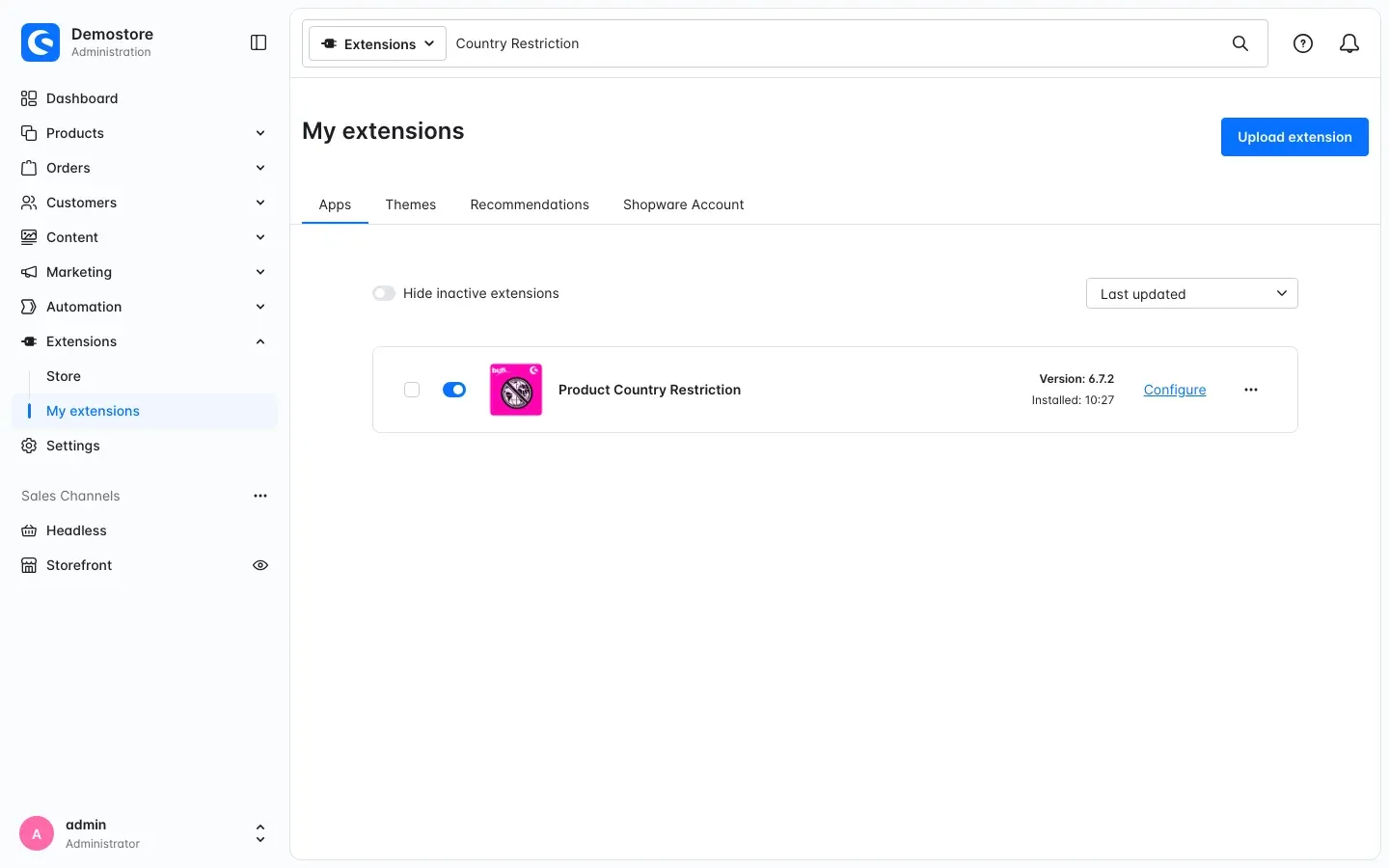 Figure 1: The plugin is installed and active. The Configure link is on the right.
If Product Country Restriction does not appear in the list, your Shopware account is not yet connected to the shop. You do this under Extensions → My extensions in the Shopware Account tab.
After activation your customers do not see anything yet. You switch on the sales channel in the next step.
Getting started
Four steps to your first restricted product:
- Switch the plugin on for your sales channel: Under Extensions → My extensions, click Configure next to the plugin. Pick your channel under Sales Channel at the top and switch on Activate plugin for this channel. More in Settings.
- Create a zone: Under Settings → Shop → Country zones you group countries into a zone, for example “Germany only”. More in How to create country zones.
- Pick the zone on the product: On the product you pick the zone as whitelist, blacklist or exclusive distribution. More in How to set the delivery countries on a product. If you sell through partners, also enter their email address on the country (How to store your exclusive partner).
- Check the result: Open the category and the product page in your shop. The notice is now there. Then put the product in the cart with a shipping address in a blocked country and go to checkout. What you see there is described in What your customers see in the shop and How checkout works.
Settings
You open the settings under Extensions → My extensions. Click Configure next to Product Country Restriction.
First pick the shop you want to set up under Sales Channel at the top. The switches below then apply to this sales channel. When you are done, click Save at the top right.
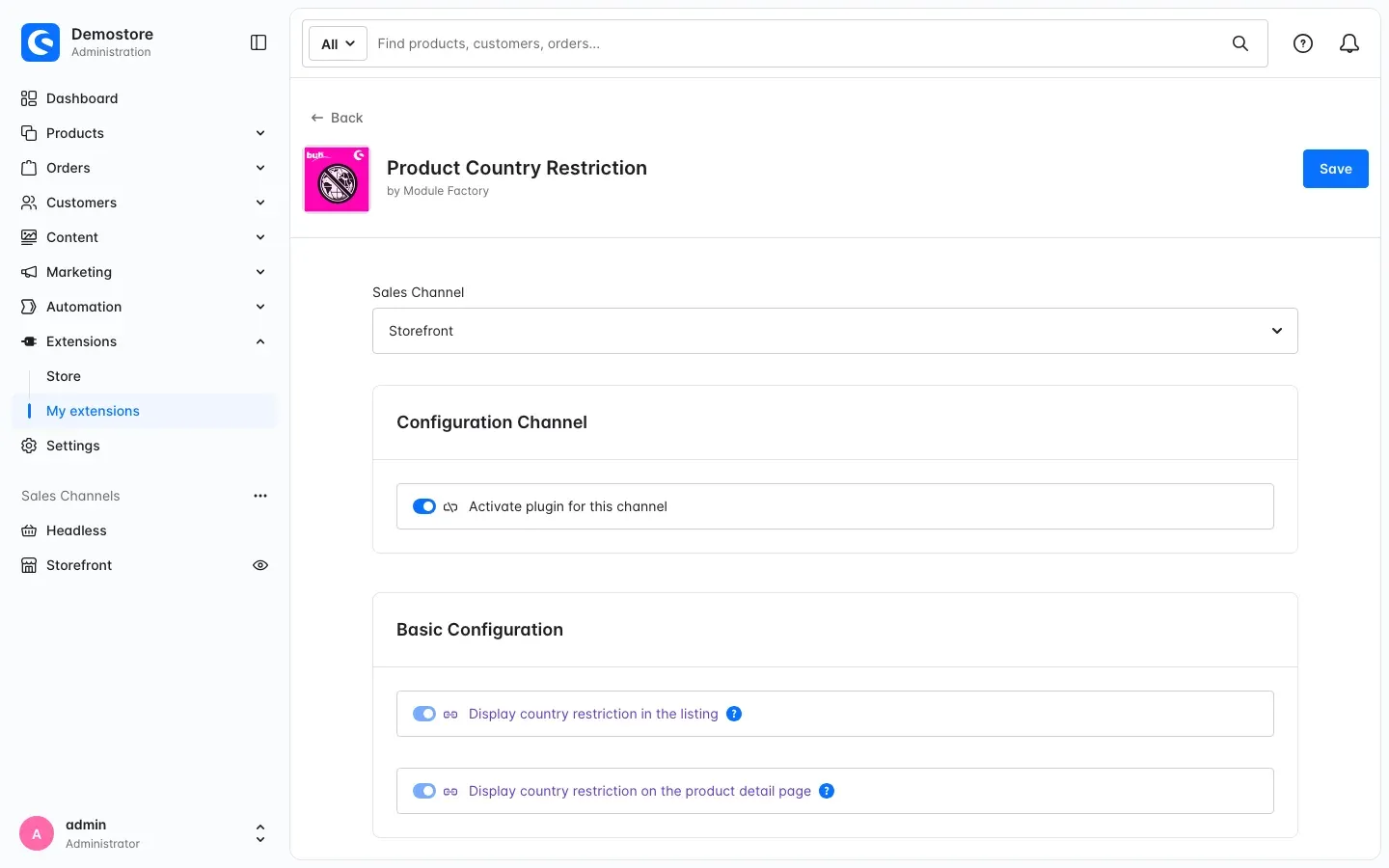 Figure 2: The settings for the “Storefront” sales channel
Activate plugin for this channel
With Activate plugin for this channel in the Configuration Channel card you switch on the notices for this sales channel. Your customers then see in the category and on the product page that a product does not ship to all countries. The switch is off out of the box.
Why this is useful: If you run several sales channels, you decide per channel whether notices appear there.
Important: The check at checkout does not depend on this switch, it runs in every sales channel. So switch it on in every channel where you sell products with a zone. Your customers then see the notice while browsing, not just before they order.
Display country restriction in the listing
With Display country restriction in the listing in the Basic Configuration card you show or hide the notice in the product box. That is where your products sit next to each other in a category. The switch is on out of the box.
Why this is useful: If a category with many restricted products looks too busy, switch the notice off here. It stays on the product page, and checkout keeps checking as usual.
Display country restriction on the product detail page
This switch is available from version 6.7.2. With Display country restriction on the product detail page in the Basic Configuration card you show or hide the notice on the product page. It sits above the Add to shopping cart button and lists the countries. The switch is on out of the box. In earlier versions the product page always shows the notice as soon as the plugin is active in the channel.
Why this is useful: If you prefer to name the countries in the product description yourself, you do not need the notice twice.
How to create country zones
What this gives you: A country zone is a group of countries, for example “Germany only” or “Exclusive partners AT and CH”. You create it once and pick it on as many products as you like. Whether the countries of a zone are allowed or blocked is decided on the product. So the same zone can be allowed on one product and blocked on another.
You find the country zones under Settings in the right-hand column, in the Shop group.
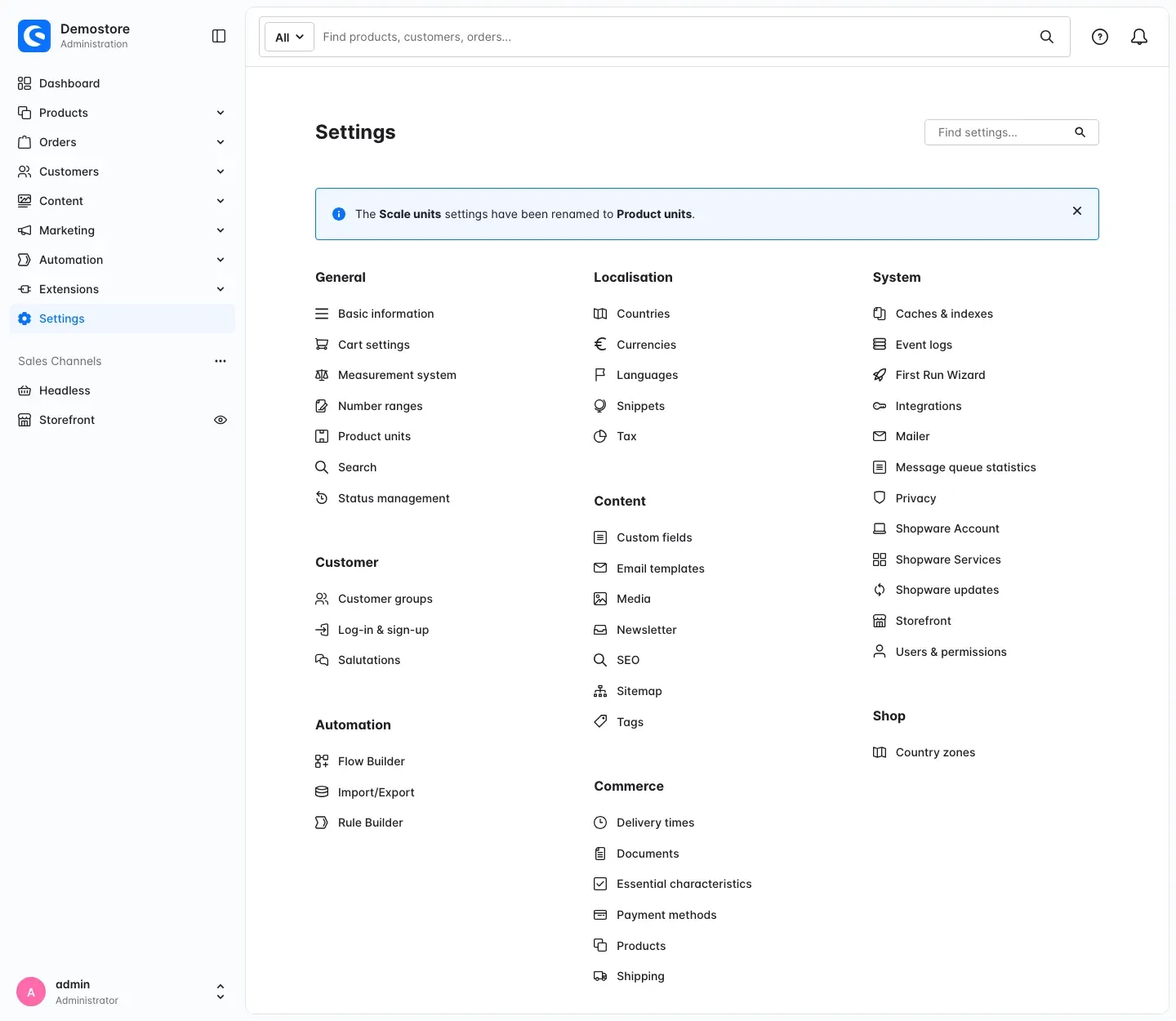 Figure 3: The Country zones entry is in the Shop group.
Step by step
-
Go to Settings → Shop → Country zones. You see all zones with the columns name of zone, Zone code and Countries.
-
Click Add country zone at the top right.
-
In the Zone information card, enter:
- name of zone: This is how the zone appears later in the selection on the product. Use a name that says what is in it, for example “Germany only”.
- Zone code: A short code, for example “NUR-DE”. It later appears at the top as the page title of the zone.
Both fields need an entry, the asterisk shows this.
-
Select the countries under Country assignment. You can select several countries.
-
Click Save.
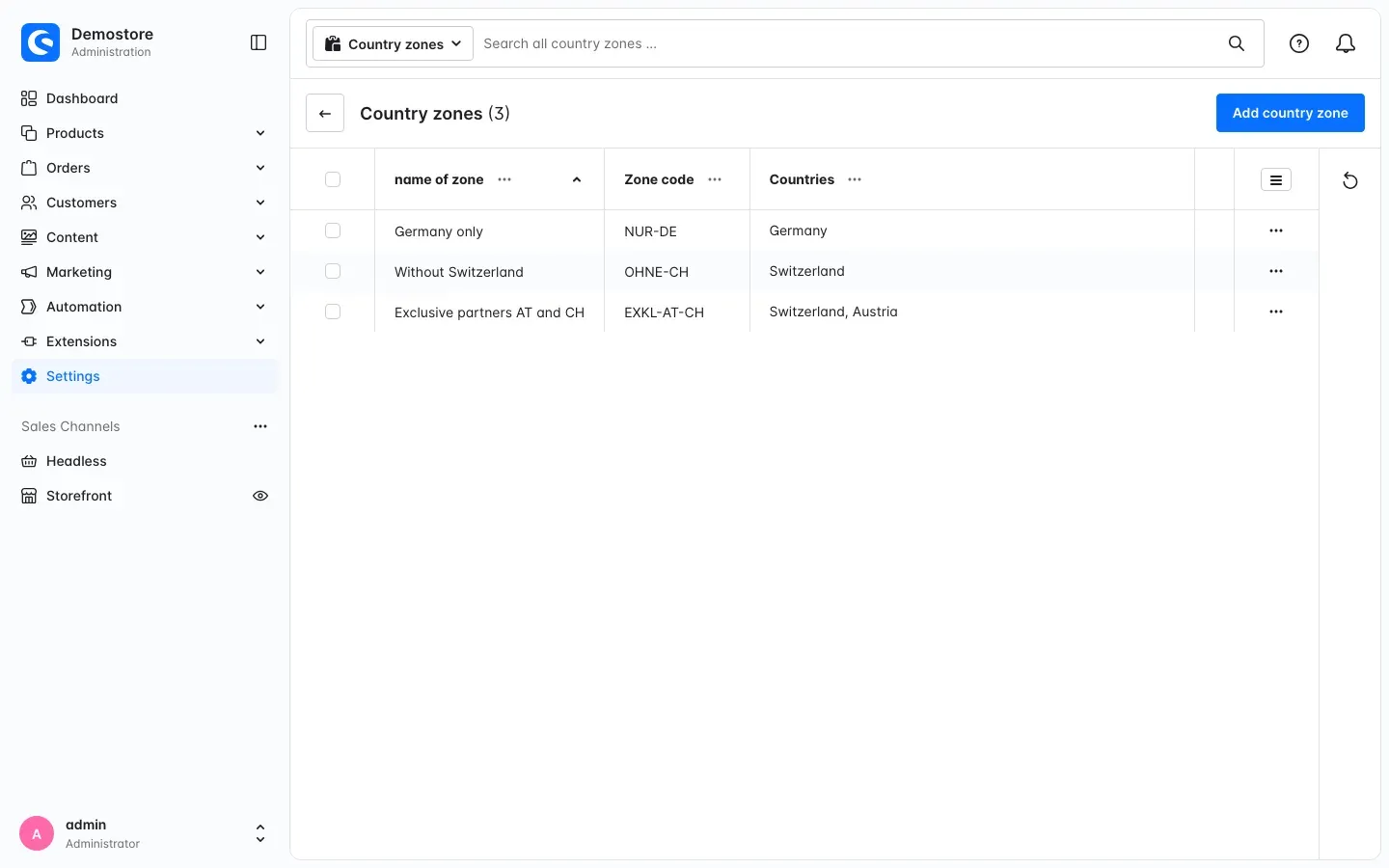 Figure 4: The list of country zones with the Add country zone button
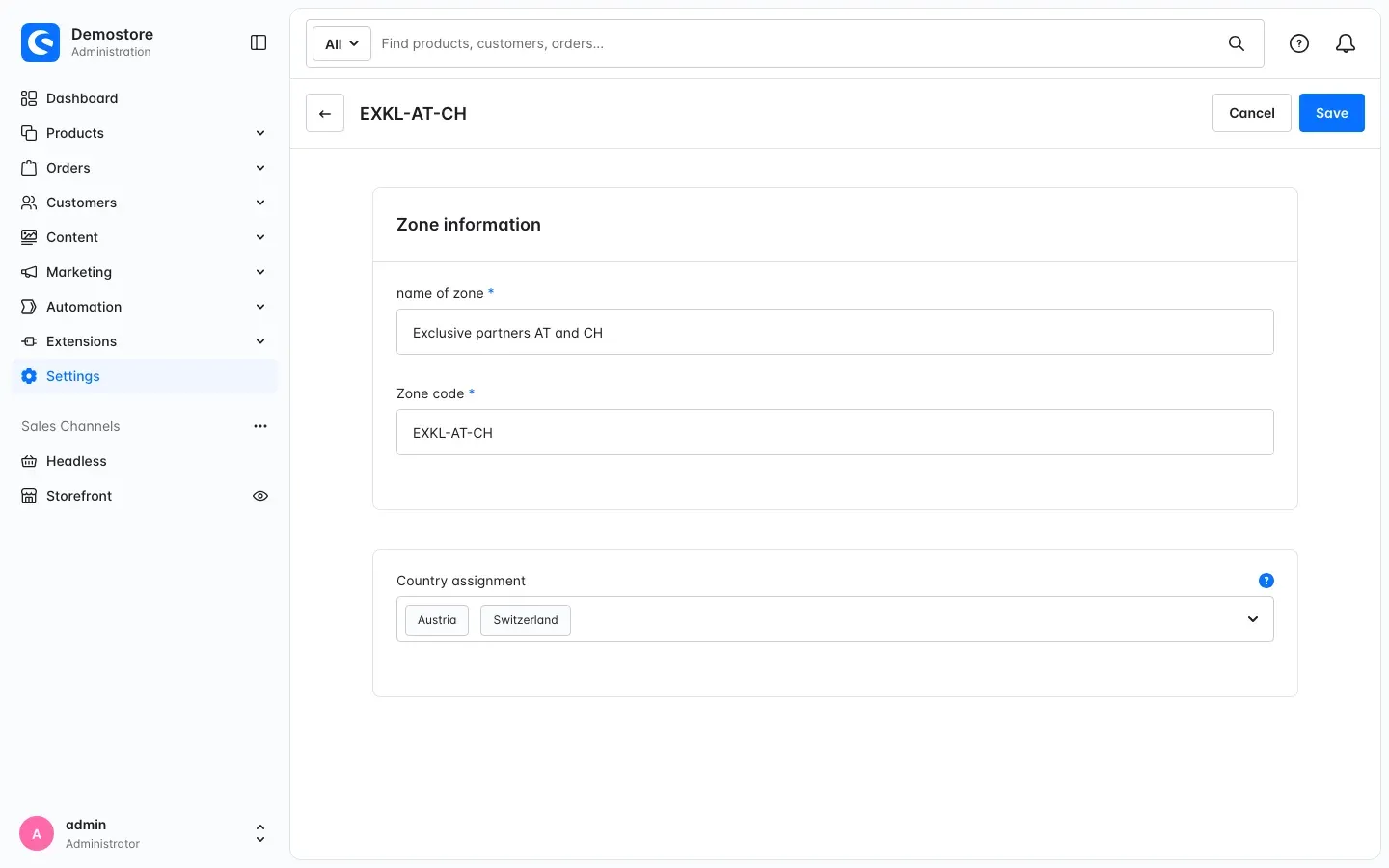 Figure 5: A zone with two countries. The zone code is shown as the page title.
To open an existing zone, click its name in the list. Once the list grows, the search field at the top helps you find a zone quickly.
Tip: Set the zone code once and do not change it afterwards. On the product, the plugin remembers the zone by its zone code. If you change the code of a zone that is already used on products, those products lose their restriction until you pick the zone there again. You can change the name of zone and the countries at any time.
Important: If you delete a zone, the products that used it are no longer restricted. They ship to all delivery countries of your shop again.
How to set the delivery countries on a product
What this gives you: Here you decide what a zone means for this one product: only there, everywhere except there, or there through your partner. All other products stay as they are.
Step by step
- Go to Products → Overview and open the product.
- Switch to the Specifications tab.
- Scroll down to the Custom fields card and open the Country restriction settings tab there.
- Pick a zone in one of the three fields. Which field to use is explained right below.
- Click Save.
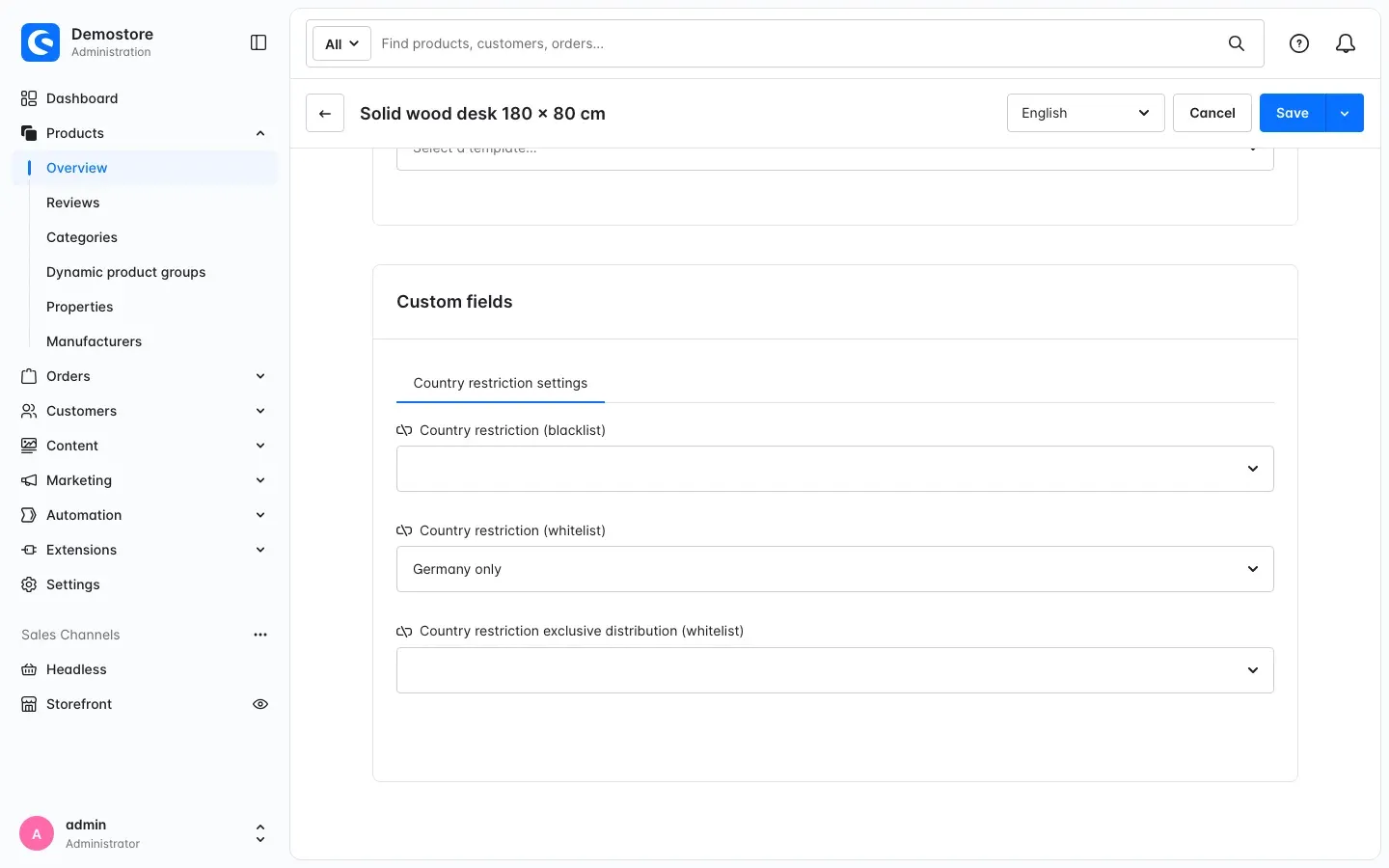 Figure 6: The desk only ships to the countries of the “Germany only” zone.
Which field do you use when?
- Country restriction (whitelist): The product only ships to the countries in the zone. It is blocked for all other delivery countries. Example: fireworks with the zone “Germany only”.
- Country restriction (blacklist): The product ships to all delivery countries of your shop, just not to the countries in the zone. Example: an office chair with the zone “Without Switzerland”, which only contains Switzerland.
- Country restriction exclusive distribution (whitelist): A partner sells in the countries of the zone. Customers from these countries send their request to the partner at checkout. Customers from all other delivery countries order from you as usual.
A few rules worth knowing:
- You pick one zone per field. If you need more countries, add them to the zone.
- If a blacklist is set, it takes precedence over the other two. The plugin then ignores the other two fields.
- Products without a zone ship to all delivery countries of your shop.
Tip: Give new products their zone right when you create them. Then you have nothing to catch up on later.
How to store your exclusive partner
What this gives you: If a customer comes from a partner country, their request goes straight to the right partner. You store the address per country. So Austria and Switzerland can have different partners.
Step by step
- Go to Settings → Localisation → Countries and open the country, for example Austria.
- In the Settings tab, scroll down to the Custom fields card.
- Open the Exclusive distribution settings tab there.
- Enter your partner’s email address under Exclusive distribution e-mail.
- Click Save.
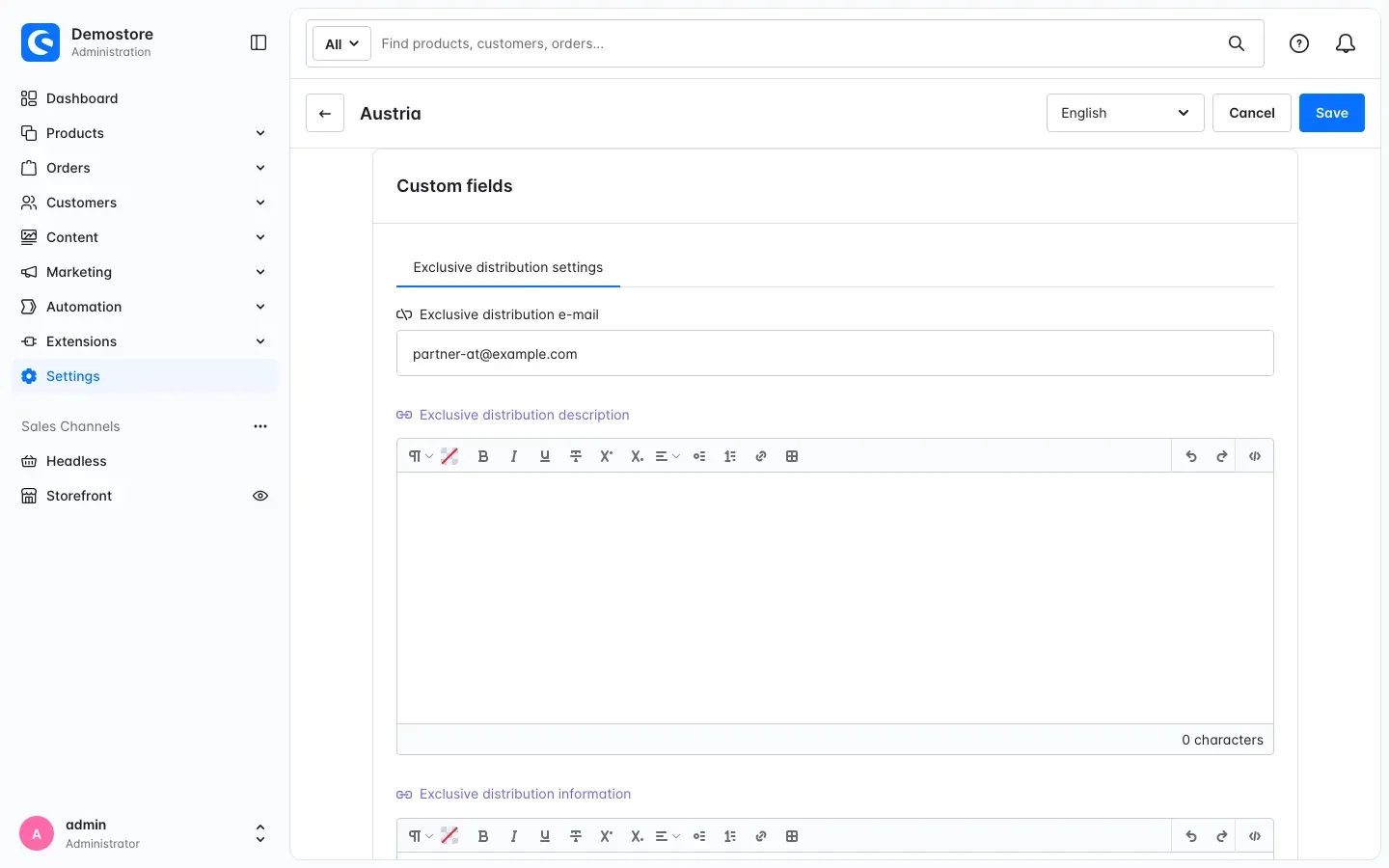 Figure 7: The partner’s address for Austria
Only the Exclusive distribution e-mail field counts for the request. If it is empty, the request goes to your shop’s email address from Settings → General → Basic information. What that means for you is explained in How the request reaches your partner.
What your customers see in the shop
What this gives you: Your customers learn before buying that a product does not ship everywhere. Nobody feels misled afterwards, and you get fewer questions.
The notices appear as soon as Activate plugin for this channel is on (Settings). The shop texts are available in German, English and Dutch. Your customers can put any product in the cart. Whether it may go to the delivery country is checked at checkout.
In the category
In the product box, one of two notices appears below the Add to shopping cart button:
- “This item is not shipped to all countries.” for products with a whitelist or blacklist.
- “This item is sold in some countries via exclusive partners.” for products with exclusive distribution.
Products without a zone get no notice. You can hide it with Display country restriction in the listing.
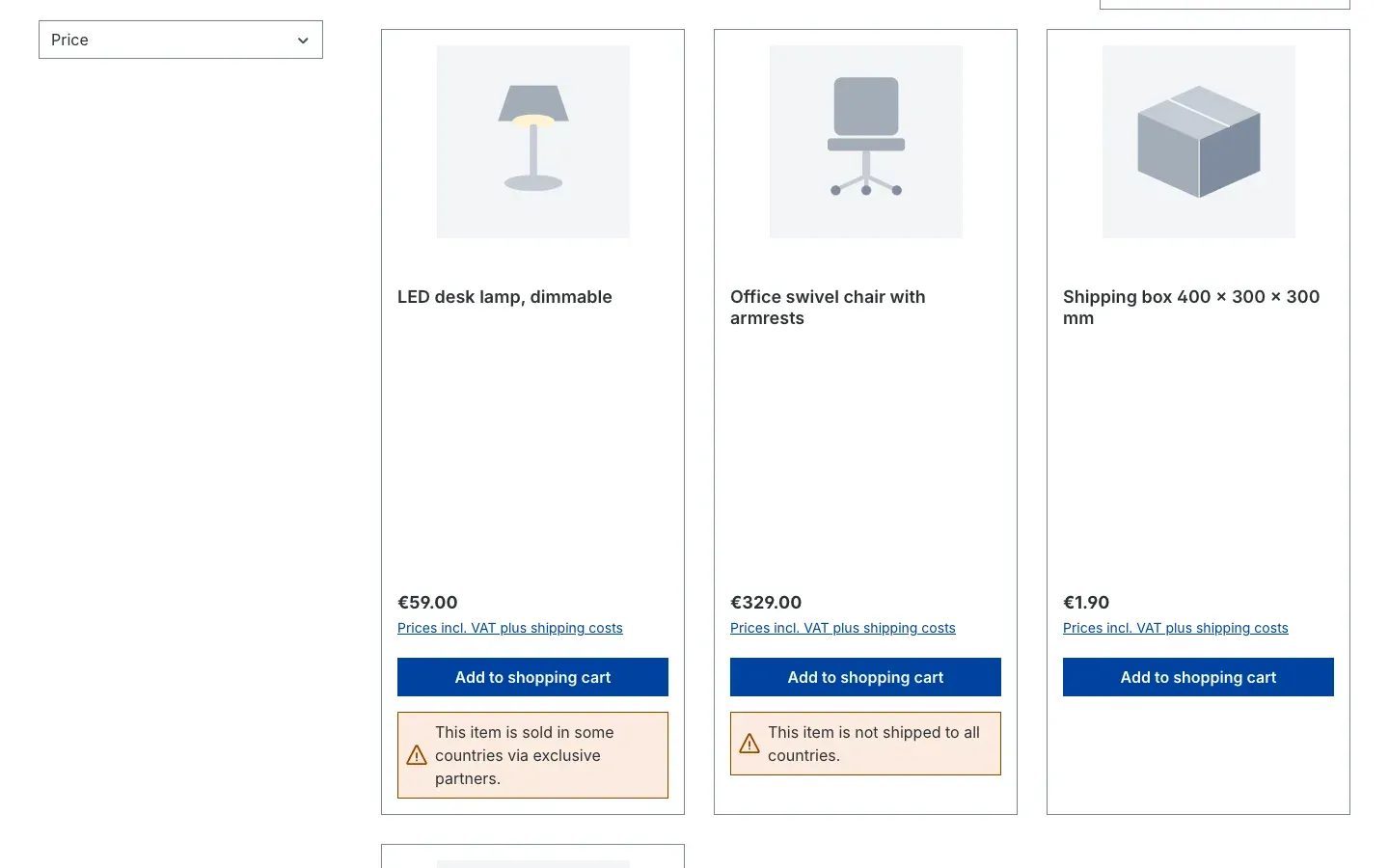 Figure 8: Notices in the product box
On the product page
Above the Add to shopping cart button, the page says where the product ships:
- With a whitelist: “This item will only be shipped to the following countries:” followed by the countries of the zone.
- With a blacklist, in red: “This item will not be shipped to the following countries:” followed by the blocked countries.
- With exclusive distribution: “This item is shipped via exclusive partners to the following countries:” followed by the partner countries.
From version 6.7.2 you can hide this notice with Display country restriction on the product detail page.
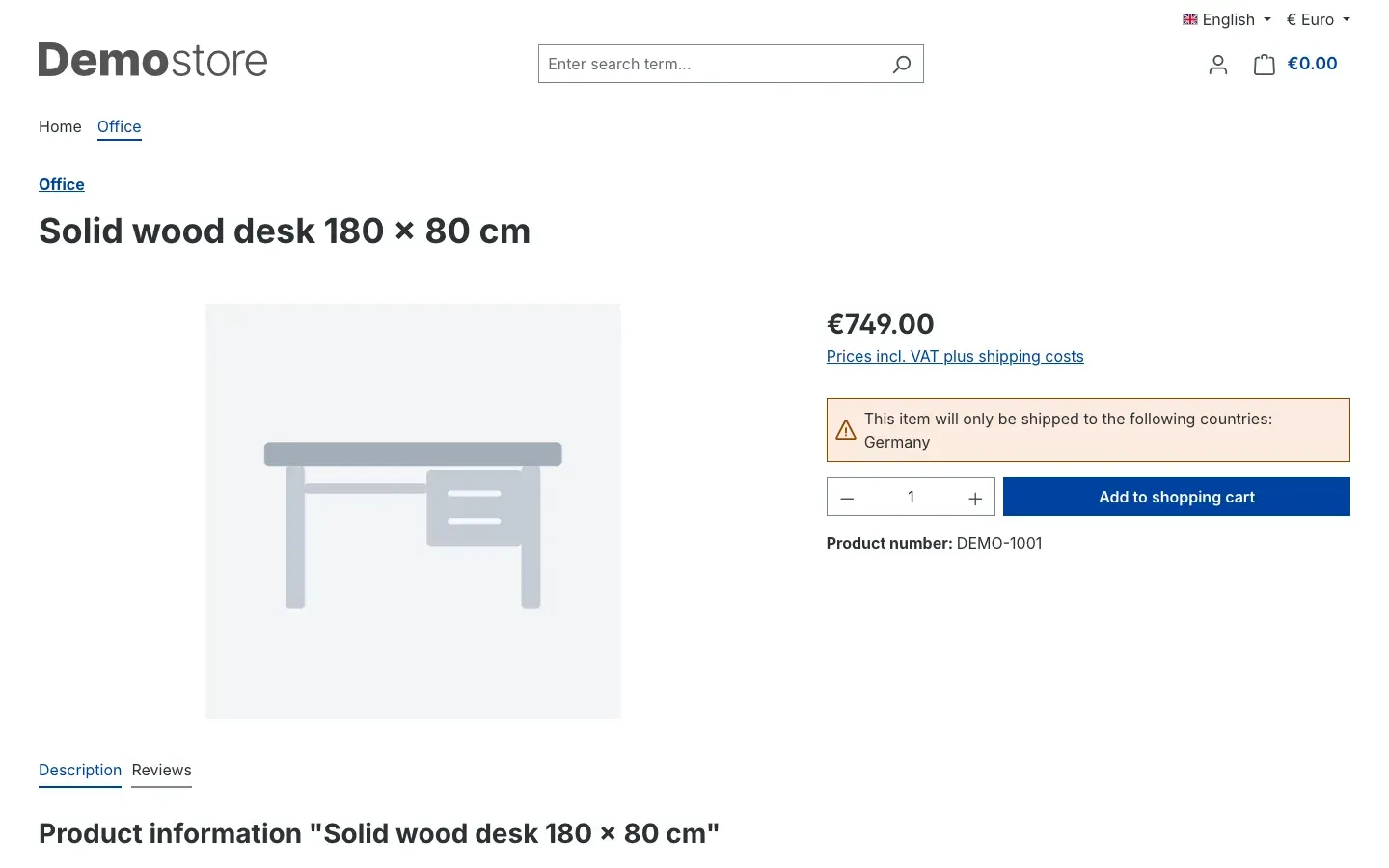 Figure 9: Product with a whitelist, it only ships to Germany.
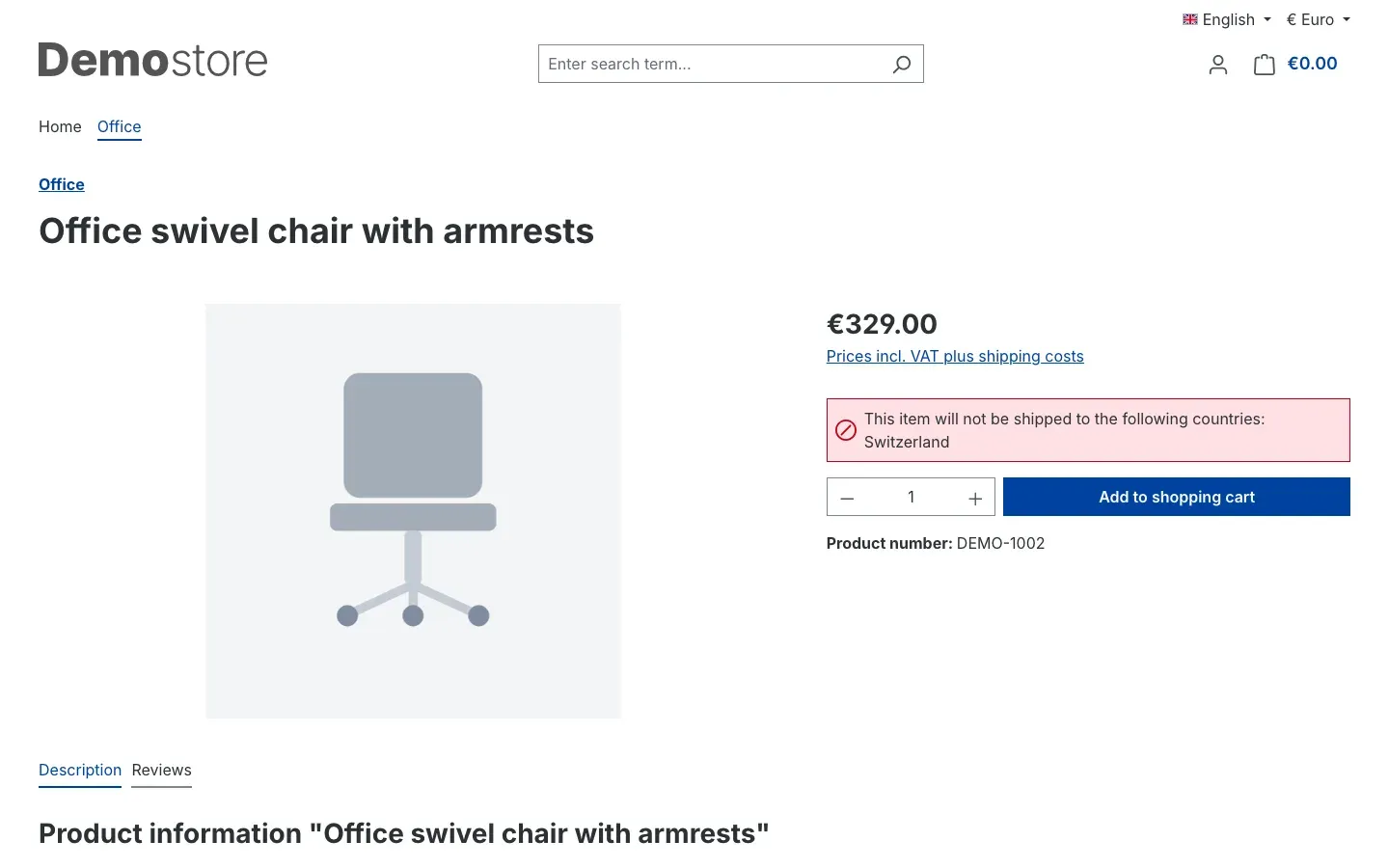 Figure 10: Product with a blacklist, it ships everywhere except Switzerland.
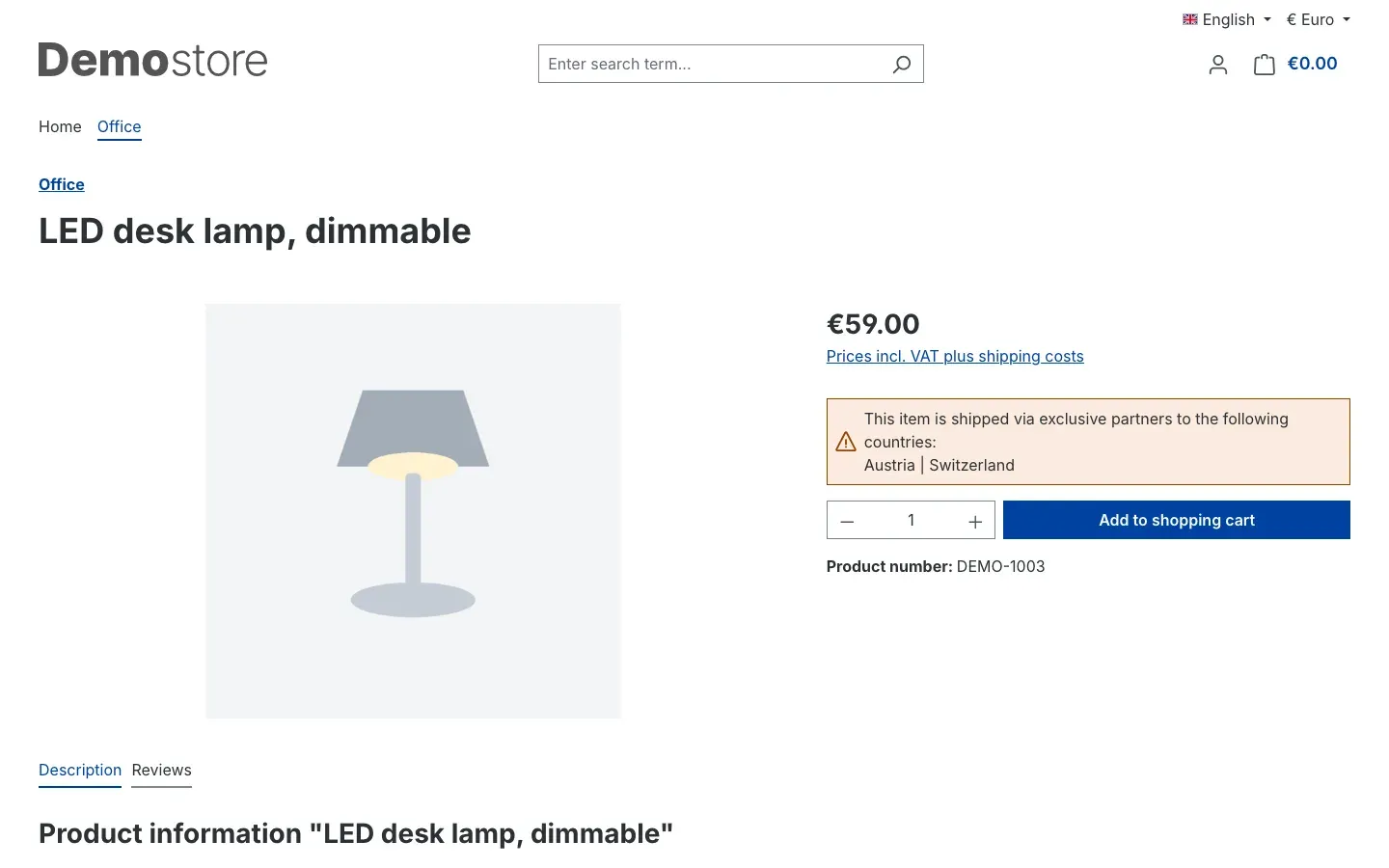 Figure 11: Product with exclusive distribution, a partner sells in Austria and Switzerland.
How checkout works
What this gives you: Blocked products are held back before an order is created. You have nothing to cancel and nothing to refund.
On the Complete order page, the plugin compares every product in the cart with the delivery country. The shipping address counts, not the billing address. This applies to logged-in customers and guests alike.
If a product does not match the delivery country, a notice appears at the top of the page:
- “Some items cannot be shipped to your desired country of delivery.” for products with a whitelist or blacklist.
- “Some items are only shipped via exclusive shipping partners in the desired country of delivery.” for products with exclusive distribution.
Below it, the affected products are listed with product number and name, followed by the sentence “You can delete the items from the shopping basket or select a different delivery country.”
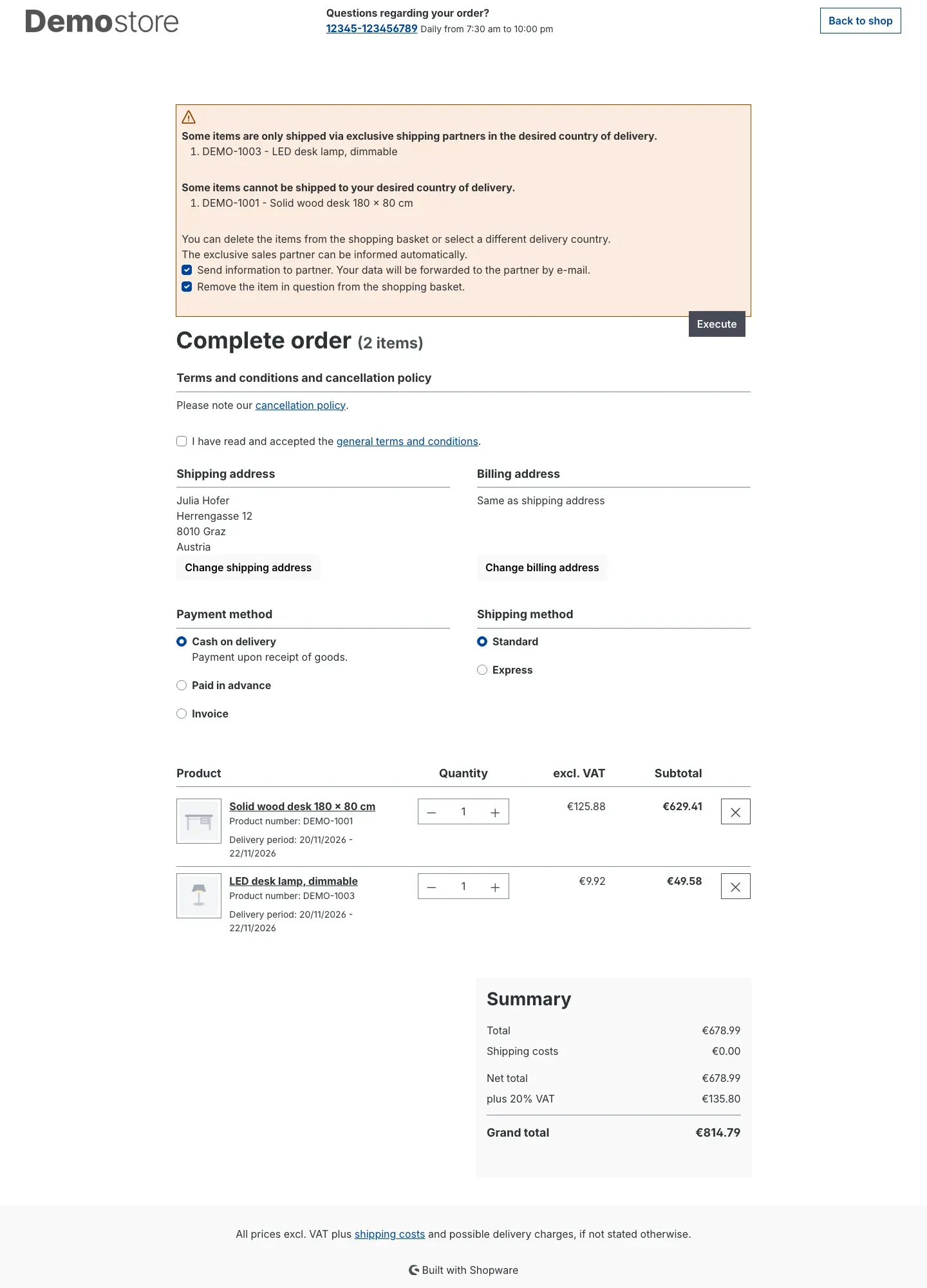 Figure 12: Checkout with a shipping address in Austria. The order button is missing from the summary.
As long as affected products are in the cart, the order button is missing. Your customer has three options:
- Remove the products: They tick “Remove the item in question from the shopping basket.” and click Execute. The blocked products leave the cart, and they order the rest as usual.
- Change the shipping address: If they pick a country the products may ship to via Change shipping address, the notice disappears.
- Send a request to the partner: For products with exclusive distribution, they tick “Send information to partner. Your data will be forwarded to the partner by e-mail.” and click Execute. What happens next is described in the next section.
If both kinds of products are in the cart, the customer can tick both checkboxes and click Execute once.
How the request reaches your partner
What this gives you: Requests from partner countries reach the partner instead of ending up as cancellations in your shop. You get a copy and know what is going on.
What happens after the click
Once your customer has ticked the partner checkbox and clicked Execute, the following happens:
- The partner receives an email. It contains the customer’s name, shipping address, country and email address, plus the products with Prod. no., Product image, Description, Quantities, Price and Total.
- You receive a separate copy at your shop’s email address, and your customer receives one at their own address.
- The products leave the cart. No order is created in your shop for this.
- Your customer sees the message “Thank you for your order to our partner, he will contact you shortly.” If other products are still in the cart, it appears on the checkout page. If it was the last product, it appears on the cart page.
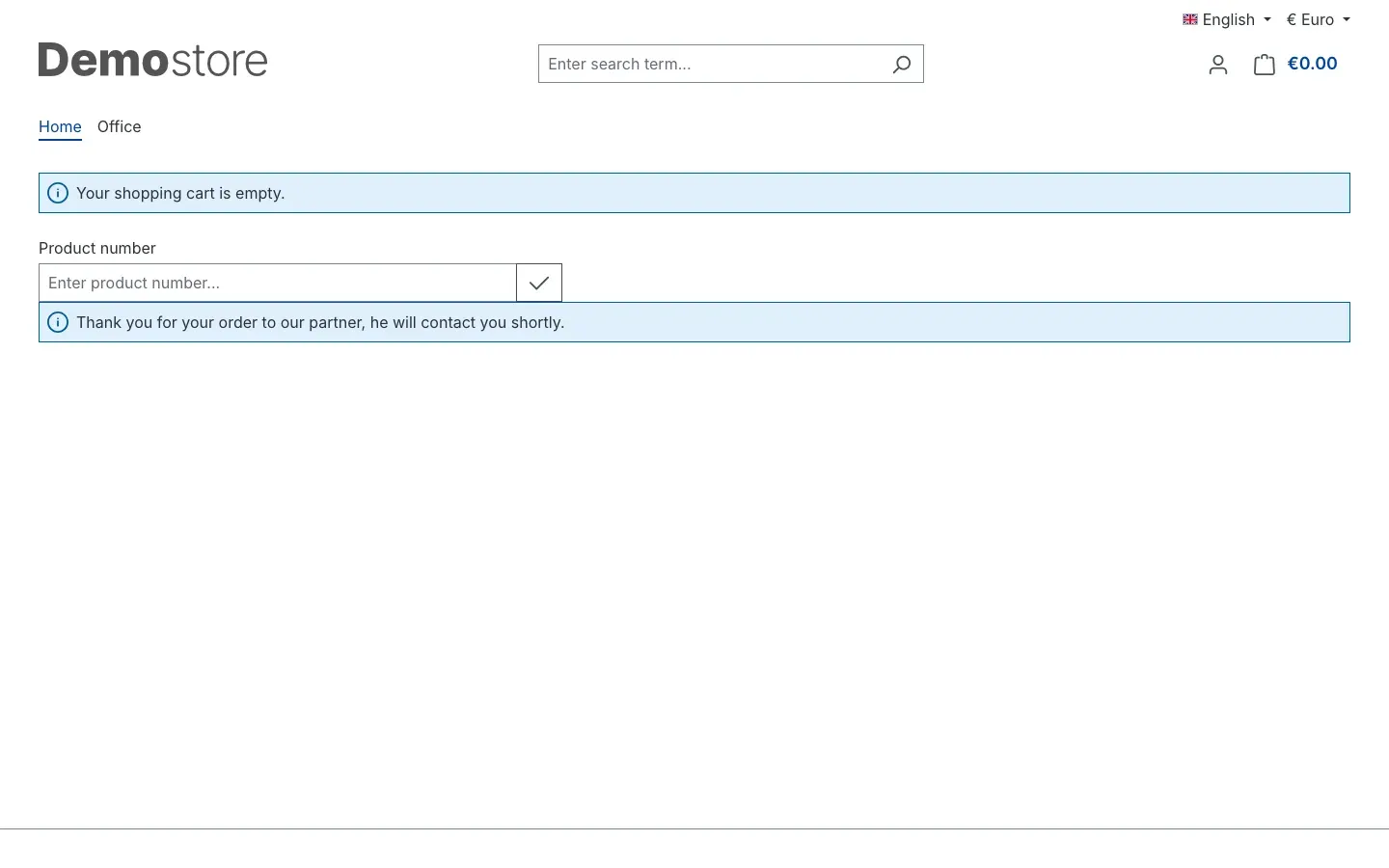 Figure 13: The confirmation for the customer. The cart is empty afterwards.
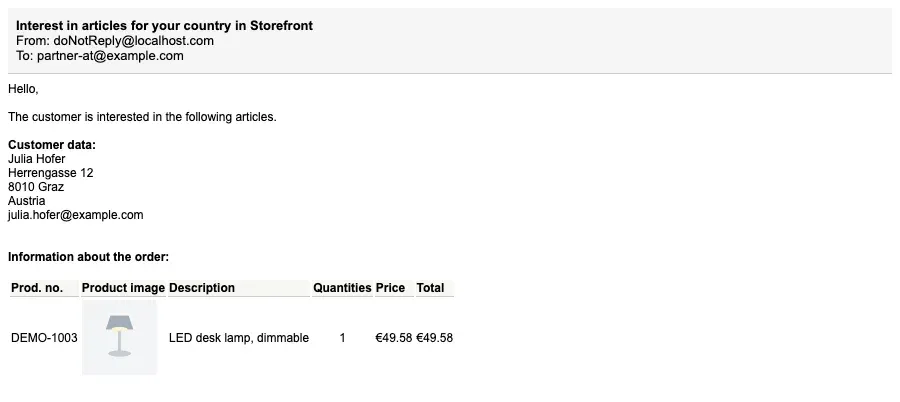 Figure 14: The email at the partner
The subject reads “Interest in articles for your country in” followed by the name of your sales channel. Prices in the email follow the price display of the customer group, so gross or net, just as your customer sees them in the shop.
If no partner address is stored on the country
Then the request only goes to your shop’s email address from Settings → General → Basic information. The subject names the country the address is missing for. You then forward the email to the partner yourself. In this case your customer does not get a copy. Otherwise it looks the same to them: the products leave the cart, and they see the thank-you message.
Data protection
With exclusive distribution, your customer’s name, shipping address and email address go to the partner. This only happens if your customer ticks the checkbox. Whether your privacy policy covers this is something to check with your legal advisor.
How to customise the email
The plugin comes with its own email template. You change subject, sender name and text like any other template in Shopware.
- Go to Settings → Content → Email templates.
- Open the template with the description “Mail to exclusive partner”. Its subject starts with “Interest in articles for your country in”.
- Pick the language at the top right and adjust subject, sender name and text.
- Click Save.
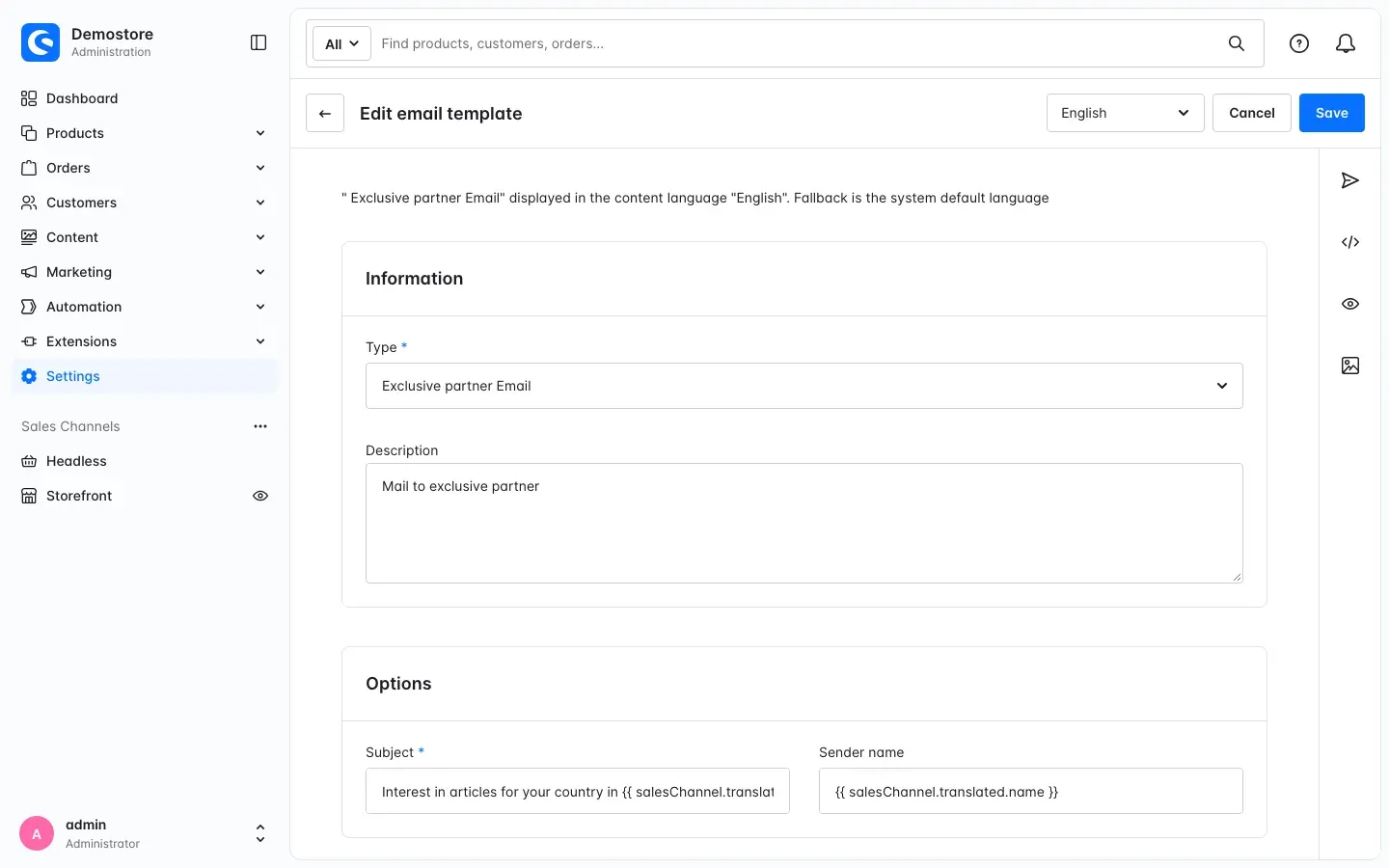 Figure 15: The email template for exclusive distribution
The email goes out in the language your customer is currently shopping in. So maintain the template in every language of your shop. The expression in curly brackets at the end of the subject inserts the name of your sales channel. Keep it if the partner should see which shop the request comes from.
Troubleshooting
No notice appears in the shop
Cause: Usually the plugin is not yet switched on for this sales channel, or the product has no zone.
How to fix it:
- Open Extensions → My extensions, click Configure next to the plugin and pick the right channel under Sales Channel at the top. Check that Activate plugin for this channel is on.
- Also check Display country restriction in the listing there and, from version 6.7.2, Display country restriction on the product detail page.
- On the product, check under Specifications → Custom fields → Country restriction settings that a zone is selected.
- Clear the cache under Settings → System → Caches & indexes.
A product is suddenly no longer restricted
Cause: The zone code of the zone was changed, or the zone was deleted. On the product, the plugin remembers the zone by its zone code.
How to fix it: Open the product and pick the zone again under Country restriction settings. If the zone no longer exists, create it again under Settings → Shop → Country zones.
No notice appears at checkout
Cause: The delivery country matches the product. The plugin looks at the shipping address, not the billing address.
How to fix it: Check the shipping address and the countries in the zone. With a whitelist, the notice appears if the delivery country is not in the zone. With a blacklist and with exclusive distribution, it appears if the delivery country is in the zone.
Customers cannot order, the button is missing
Cause: There is a product in the cart that does not ship to the delivery country. As long as it is in the cart, the plugin hides the order button. This is intended.
How to fix it: Your customer removes the product with the checkbox and Execute, sends the request to the partner or changes the shipping address. If they ask, point them to the notice at the top of the Complete order page.
The partner did not receive an email
Cause: There is no address under Exclusive distribution e-mail on the delivery country. In that case the request only went to your shop’s email address.
How to fix it: Look for the request in your inbox and forward it. Then enter the partner’s address on the country (How to store your exclusive partner). If no email arrives at all, check your shop’s mail delivery under Settings → System → Mailer.
The notices are missing with my own theme
Cause: The plugin extends the Shopware default templates for product box, buy widget, cart line item and checkout. A theme of your own may build these areas differently.
How to fix it: Check the notices on a test product. If they are missing, hand this manual to your theme developer. The technical details are in For administrators / Technical details.
All settings
Every setting in the plugin configuration with its default value, in the order shown in the Administration. As of version 6.7.2.
Configuration Channel
| Setting | Default | Description |
|---|---|---|
| Activate plugin for this channel | off |
Basic Configuration
| Setting | Default | Description |
|---|---|---|
| Display country restriction in the listing | on | Display country restriction notice in the product box |
| Display country restriction on the product detail page | on | Display country restriction notice on the product detail page |
FAQ
Q: Do I have to assign a zone to every product?
A: No. Products without a zone ship to all delivery countries of your shop. You only maintain the products with a restriction.
Q: Can a product have several zones?
A: Yes, one per field: a blacklist, a whitelist and a zone for exclusive distribution. If a blacklist is set, it takes precedence over the other two. If you need more countries, add them to the zone.
Q: Can I allow the same zone on one product and block it on another?
A: Yes. You decide on the product whether the countries of a zone are allowed, blocked or partner countries.
Q: What does my customer see if they try to order anyway?
A: At checkout the affected products are listed with number and name. The customer removes them with the checkbox and Execute or picks another delivery country. As long as they are in the cart, the order cannot be submitted.
Q: Is an order created in my shop when a request goes to the partner?
A: No. The partner receives an email with customer data and products, you and your customer each get a copy. The products leave the cart.
Q: Can I store different partners for different countries?
A: Yes. You maintain the address under Exclusive distribution e-mail per country. So Austria and Switzerland can have different importers.
Q: Can I hide the notices in the category?
A: Yes. Switch off Display country restriction in the listing. The check at checkout keeps running.
Q: Do I have to pick the zone in every language?
A: No. Pick the zone in your shop’s default language. The other languages take it over as long as you do not pick something else there.
Q: Does it work with my theme?
A: The plugin extends the Shopware default templates for product box, product page, cart and checkout. With the default theme it runs without changes. With a theme of your own, check the notices on a test product.
Q: What happens to my zones when I uninstall?
A: If you keep the plugin data when uninstalling, zones and assignments stay. If you remove it, the plugin deletes its tables, custom fields and the email template.
For administrators / Technical details
This section is meant for technical administrators. You do not need it for everyday use.
System requirements
- Shopware: 6.7.10 or later, with Storefront
- PHP: as required by Shopware 6.7, so 8.2 or later
Installation via the command line
If the plugin is already in your shop, you can also install and activate it like this:
php bin/console plugin:refresh
php bin/console plugin:install --activate SwpProductCountryRestrictionSix
php bin/console cache:clear
Where the check applies
- The check runs on the Storefront checkout confirmation page. The template hides the order button there as long as affected products are in the cart.
- Orders placed through the Store API, headless frontends or express flows that skip the Storefront checkout confirmation are not checked by the plugin. If you sell restricted products through such channels, set up a separate check there.
- The check applies in all sales channels, even if Activate plugin for this channel is off. The switch controls the notices in the category and on the product page.
Data, templates and theme
- Two tables of its own for the zones and their countries.
- The assignment on the product and the partner address on the country live in custom fields. The field on the product stores the zone code of the zone.
- On the country, the plugin also creates the fields “Exclusive distribution description” and “Exclusive distribution information”. They are currently not output anywhere in the shop.
- One email template of its own for exclusive distribution. The emails go out through your shop’s mail delivery. The plugin sends no data to external servers.
- The notices extend the default templates for product box, buy widget, cart line item and checkout.
Uninstalling
If you keep the plugin data when uninstalling, zones, assignments and partner addresses stay. Without that option, the plugin deletes its tables, custom fields and the email template.
This manual was written for Product Country Restriction version 6.7.2.
How much help do you need?
-
Updates and compatibility: Plugin-Care from €149 per month
Before every Shopware release we check whether your plugins keep up. You get a written recommendation and install the updates yourself. Cancel monthly.
See Plugin-Care -
Setup or customisation: intro call
Want us to set up the plugin, or are you missing a feature? We sort that out in a free intro call.
Book an intro call
Something in the plugin not working? Write to us
More manuals
Address Validation: House Number Check & Corrections
Address validation at the point of entry: the plugin spots missing house numbers, can suggest corrections via Google and helps you send fewer parcels that come back undeliverable.
Open manual Shopware 6Admin Password Reminder
Admin Password Reminder: your backend users renew their passwords on time, prompted after login and by a daily email. Premium locks expired accounts until the password is changed.
Open manual Shopware 6Admin Tweaks: Backend Lists & Shortcuts
Admin Customization
Open manualNeed a team that keeps your shop running?
We have been working with Shopware since 2010 and maintain shops including updates, hotfixes and the plugins you are configuring right now.